Ever pasted text into an email and watched mismatched fonts, colors, and sizes appear? Learning to paste without formatting on Mac gives you clean, consistent text every time. And while you’re at it, MacKeeper’s Safe Cleanup clears out junk files to free up storage—see how much room it can recover.
When you copy text from a website, a Word document, or an email, you often copy its style too—the font, size, color, and paragraph spacing. Pasting without formatting strips that style away, so the text matches your destination app instead. It’s a simple function that gives you clean text, whether you’re dropping it into Notes, Pages, or a quick message.
Apple built this behavior into macOS, so it works across native apps on any Mac, MacBook, or older Macintosh. Knowing how to copy and paste on a MacBook is the foundation, and once you’re comfortable with basic copy and paste on MacBook, removing formatting is a small, useful next step.
How to paste unformatted text on Mac?
Mac paste without formatting works a little differently depending on where you’re pasting, so you’ve got several options—keyboard shortcuts, menu commands, app-specific tricks, or a plain-text tool like TextEdit. Most people reach for a shortcut first because it’s the quickest. And if you ever run into copy paste not working on Mac, we have the quick fixes in the attached guide for that, too.
A note from our experts:
If you often work with text files, we suppose that you can have a lot of files like like .doc and .docs accumulated, then on your Mac: in your downloads, different folders, on your desktop, and so on. So, you shouldn’t forget to delete them when you don’t need them anymore and save more space on your Mac. However, there’s another way to free more space on your Apple computer—by deleting cache, log, and other redundant files.
Do the following to gain more space and speed on your Mac:
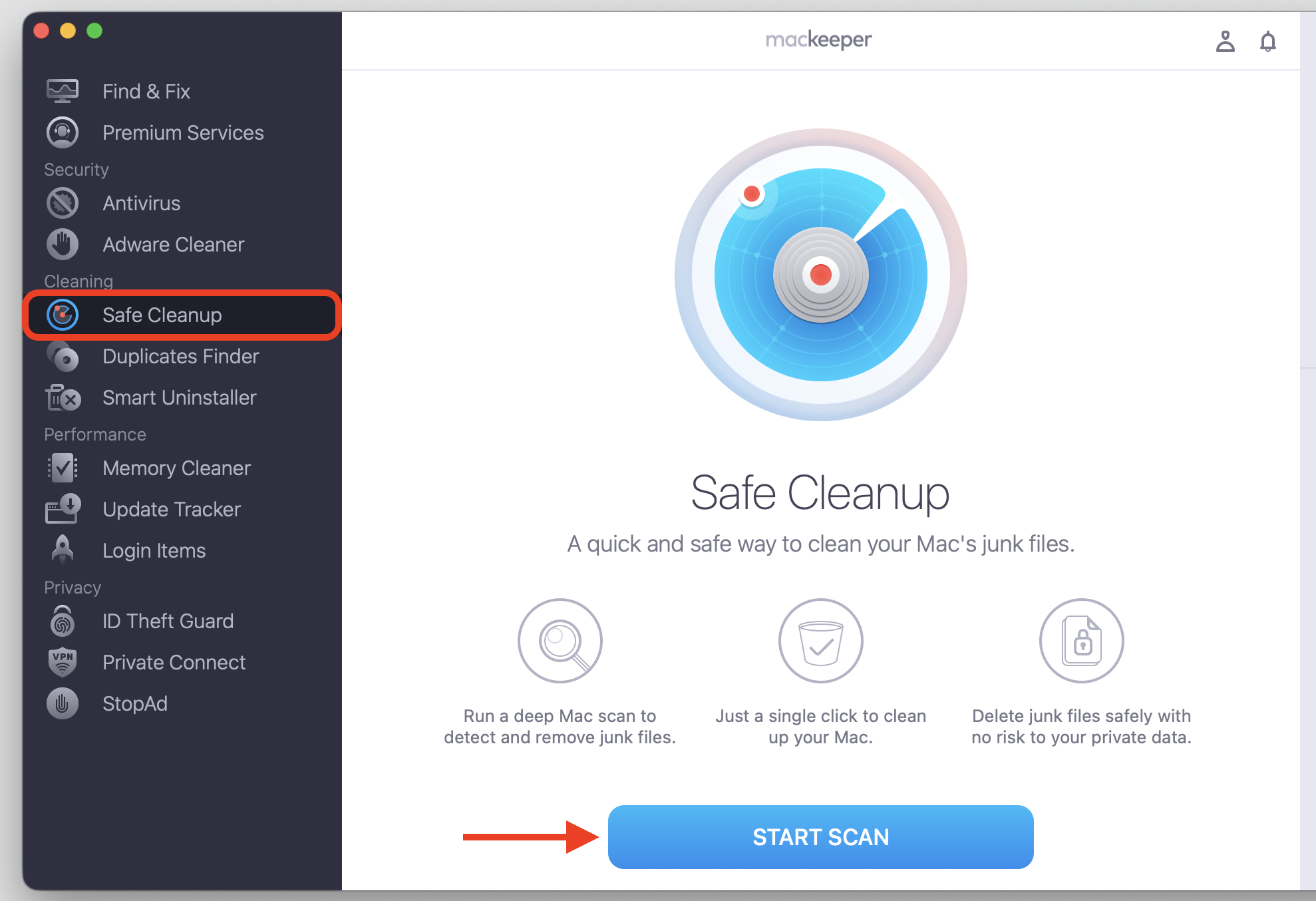
Choose Safe Cleanup on the left and initiate the check-up process with the Start Scan button.
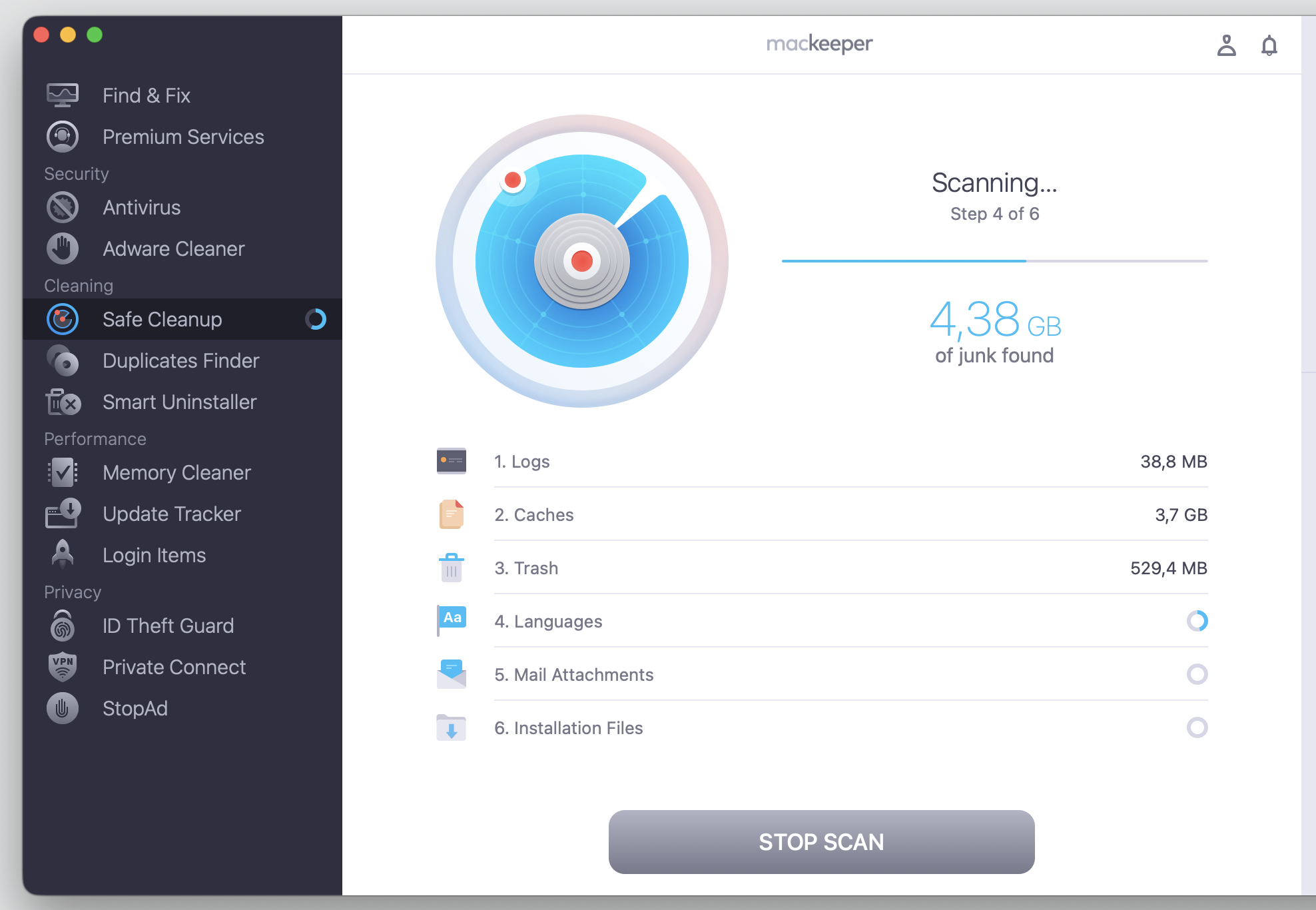
Wait while our app finishes processing your files.
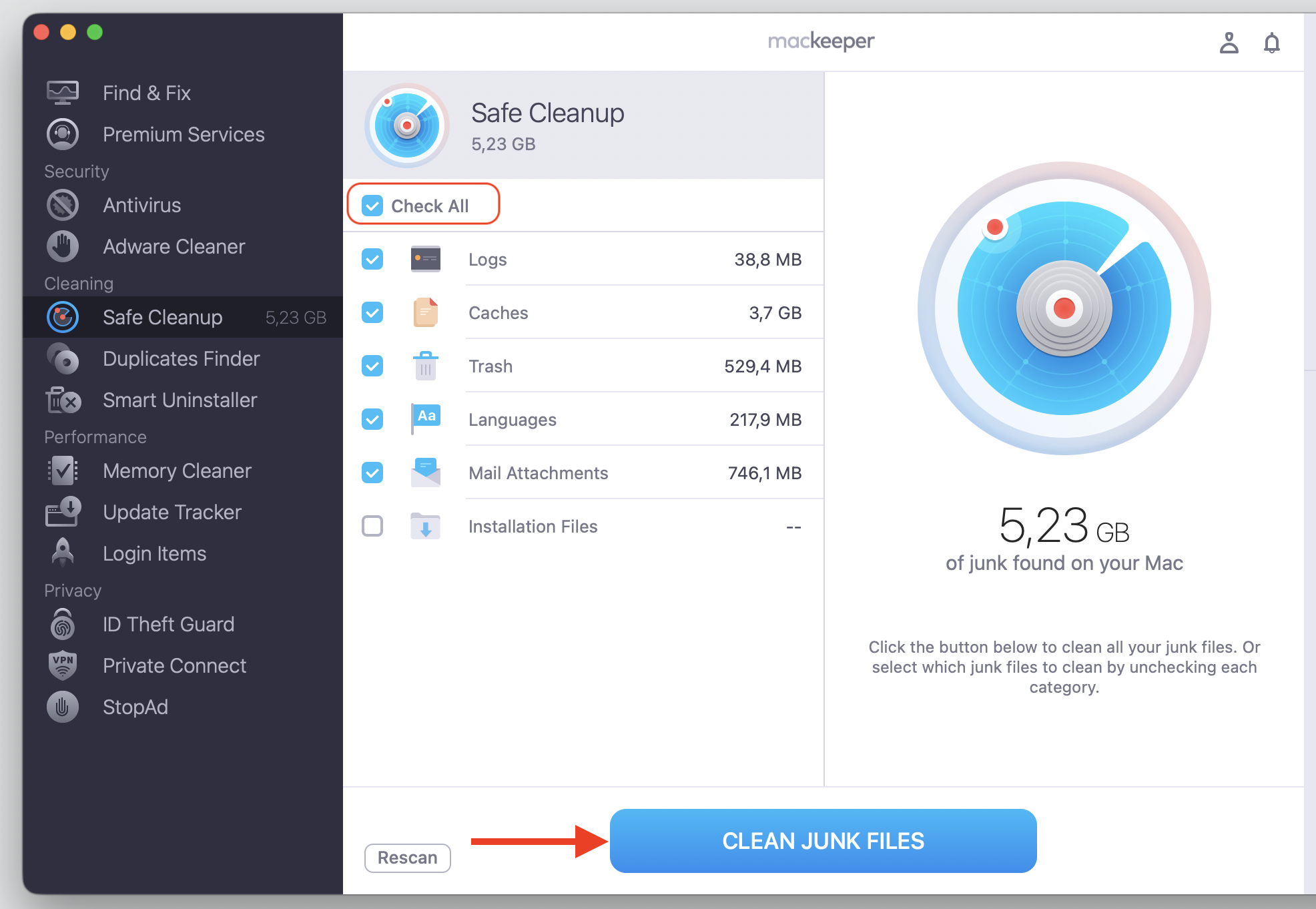
Select Check All to access the various file categories and tick the desired boxes.
Confirm the deletion by clicking Clean Junk Files.
Step 1. Go to MacKeeper > Safe Cleanup > Start ScanStep 2. Wait until MacKeeper finishes the scanStep 3. Mark Check All and Clean Junk Files
We’ve gathered five reliable methods below, so pick the one that fits your app and your habits.
1. Via Mac keyboard shortcut
The shortcut to paste without formatting matches the copied text to your document’s style, and we find it’s the fastest route in many Mac apps. If you want a single paste unformatted text shortcut on Mac to remember, this hotkey is it—a handy addition to your list of macOS keyboard shortcuts.
Here’s the quickest way to do it:
Start by highlighting the text you want, then copy it with Command+C.
Click where you’d like to paste it.
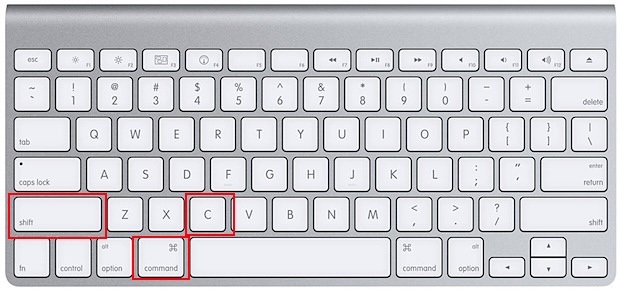
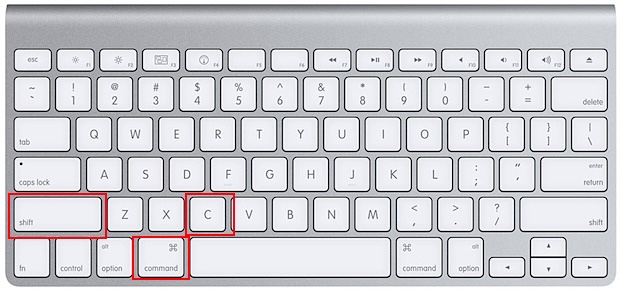
Press Shift+Command+V to paste and match the destination style.
Press Shift+Command+V and paste without formatting
2. Use Edit menu
Prefer clicking over key combos? Many Mac apps include a menu option such as Paste and Match Style or Paste Without Formatting, which does the same job.
Try this instead:
Copy the text you want to move.
Open the Edit menu at the top of your screen.
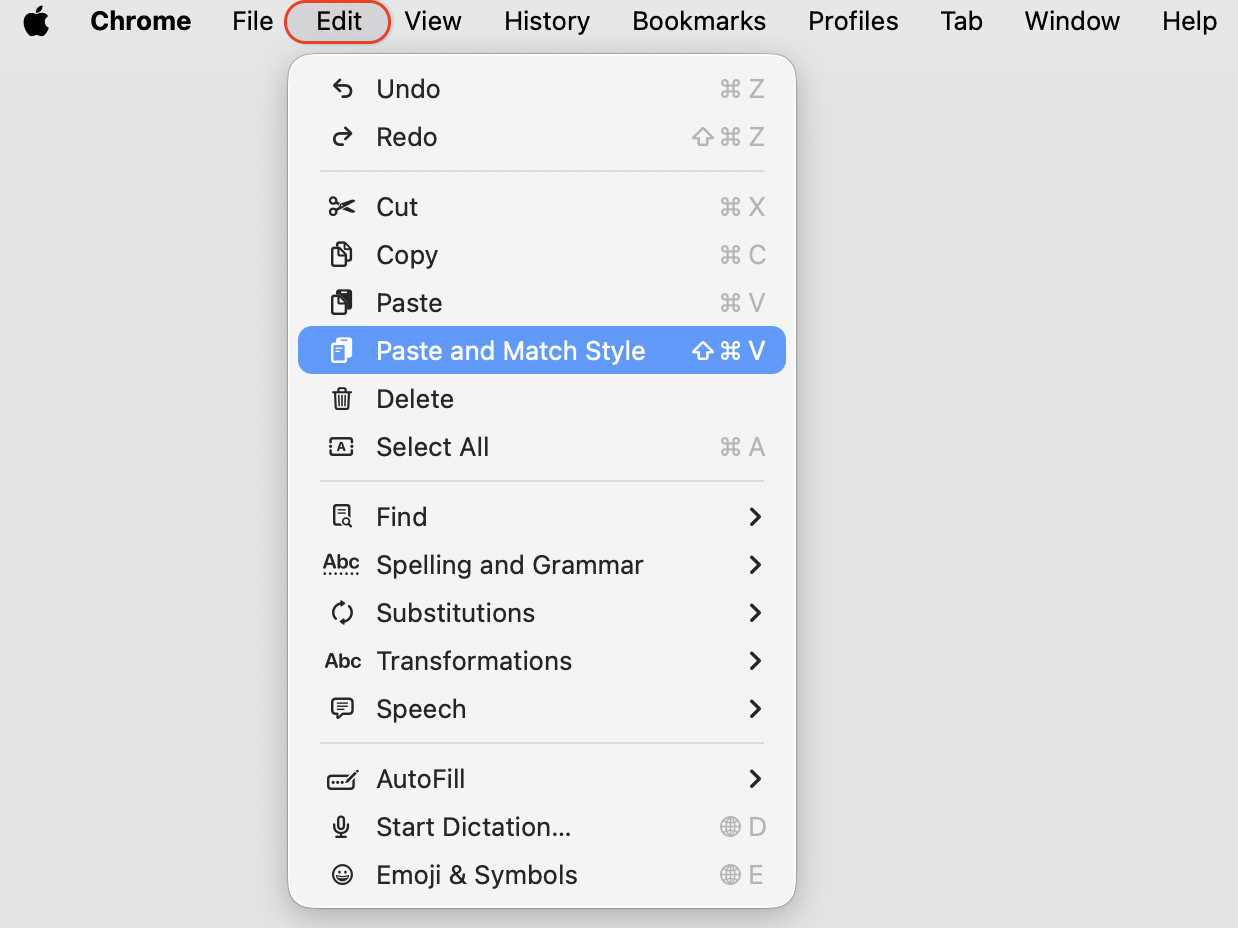
Choose Paste and Match Style (or Paste Without Formatting in some apps).
Go to the Edit menu and select Paste and Match Style
3. Use browser shortcut in web apps
Browser-based tools sometimes use their own command, especially editors like Google Docs, a CMS field, or an email app. In most browsers, one shortcut keeps this working.
Working inside a browser? Do this:
Copy the text you need.
Click into the web editor, such as Google Docs or Gmail.
Press Shift+Command+V to paste as plain text Mac users rely on across most browsers.
Press Shift+Command+V and paste without formatting
4. Paste through TextEdit as plain text
When an app doesn’t offer a match-style option, we lean on TextEdit as a simple middle step. It lets us convert styled text into clean text before moving it on.
No matching shortcut in your app? Route it through TextEdit:
Open TextEdit and create a new document.
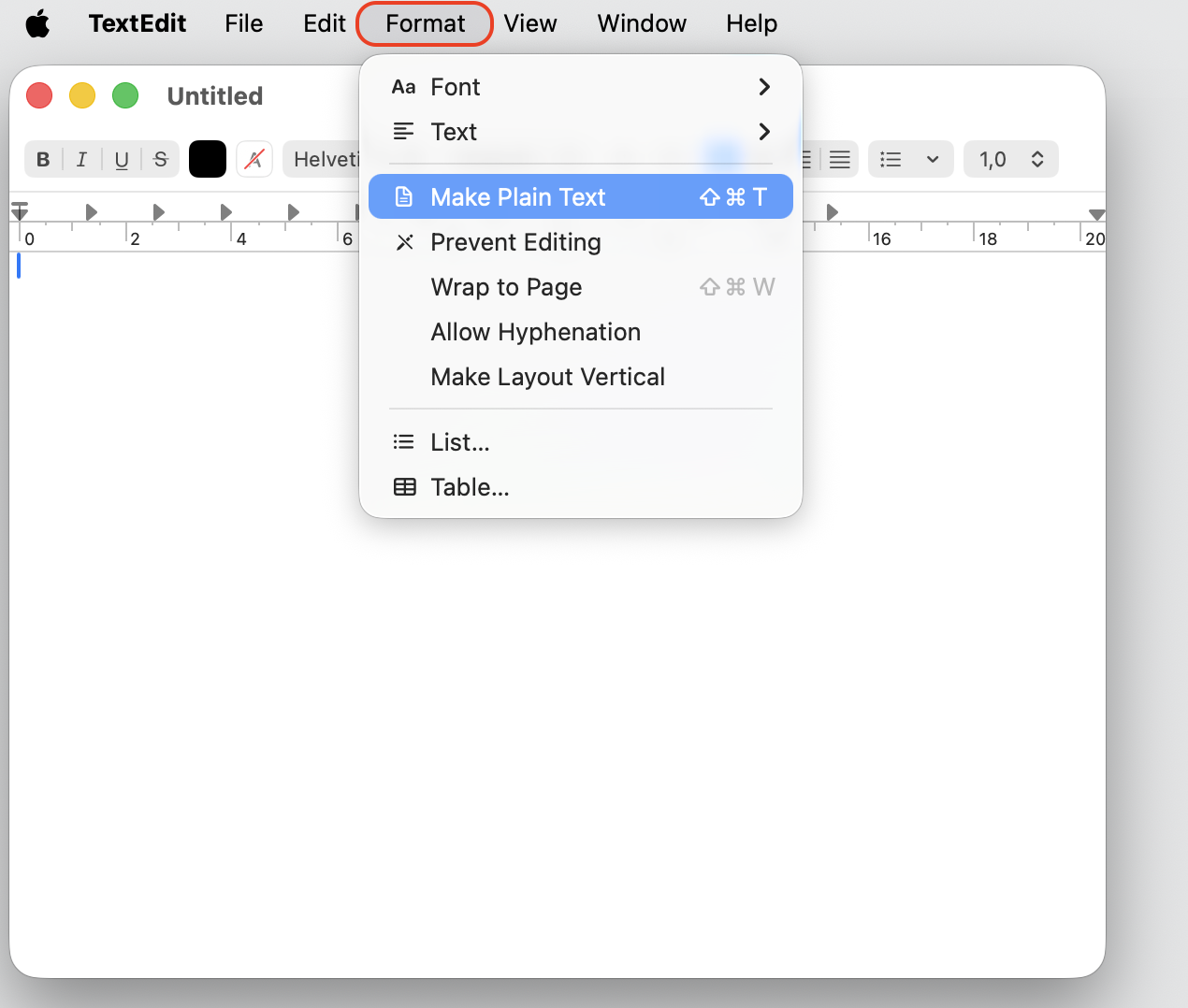
Select Format, then Make Plain Text (or press Shift+Command+T).
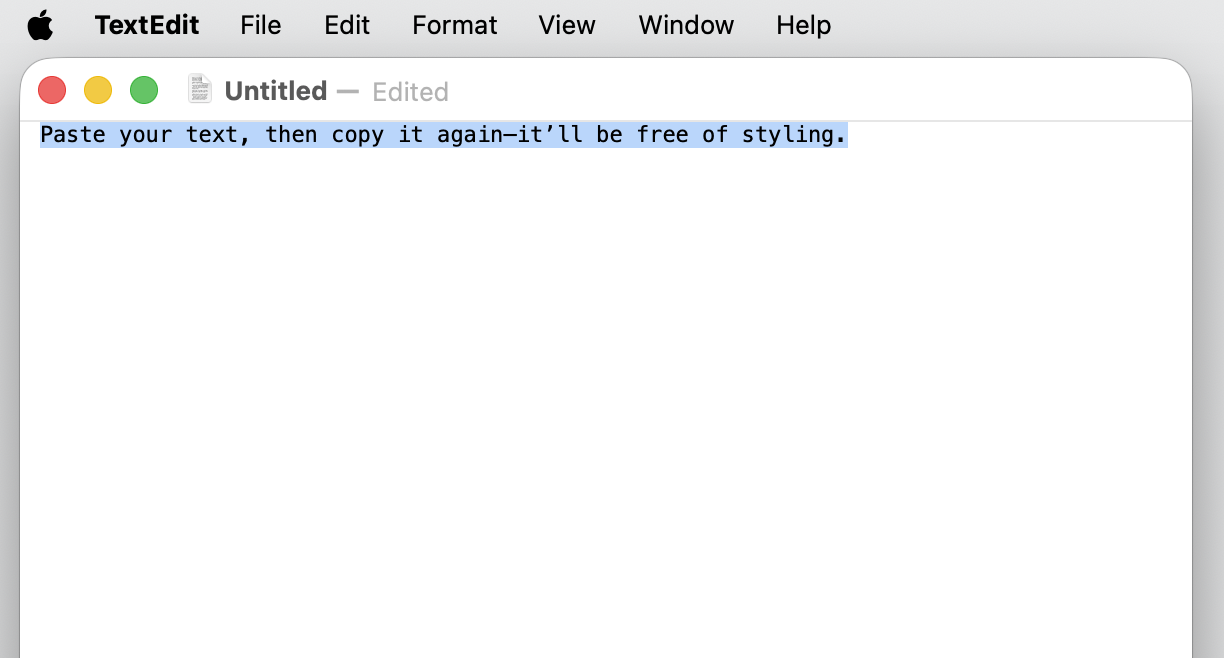
Paste your text, then copy it again—it’ll be free of styling.
Paste the clean text into your final app.
Step 1. Go to TextEdit > Format > Make Plain TextStep 2. Paste your text, then copy it again—it’ll be free of styling
5. Change default paste shortcut on Mac
If plain-text pasting is your everyday habit, you can enable a custom shortcut so it becomes the default. From our experience, changing the shortcut takes a minute and works across your apps.
Set it up once with these steps:
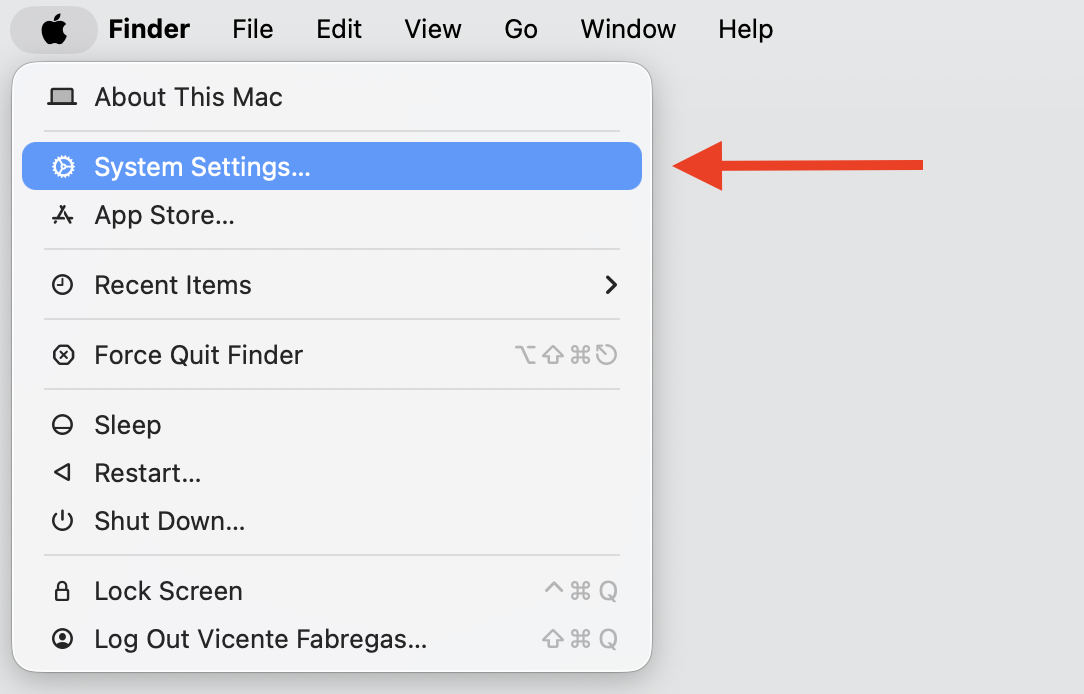
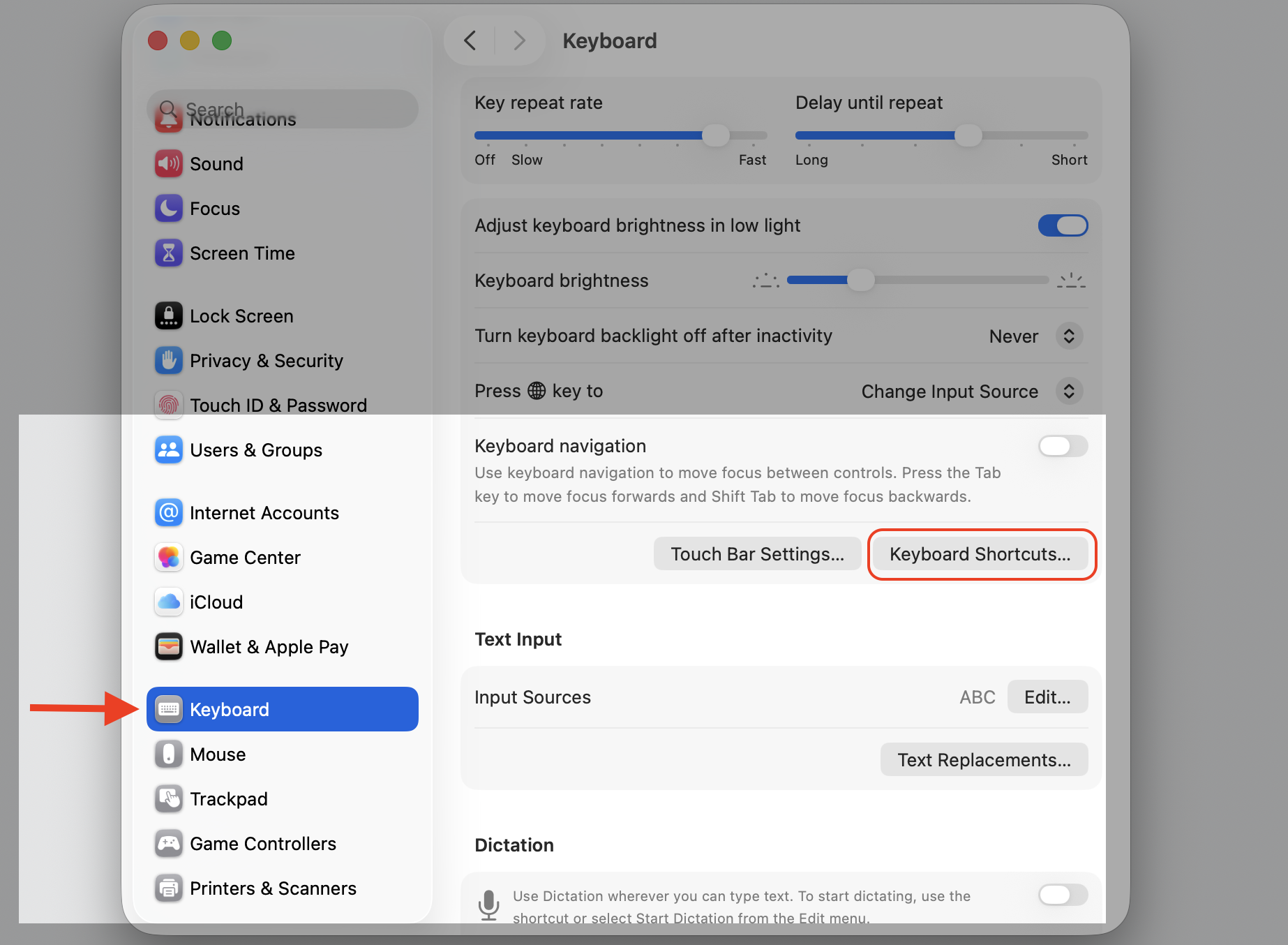
Open System Settings, then select Keyboard.
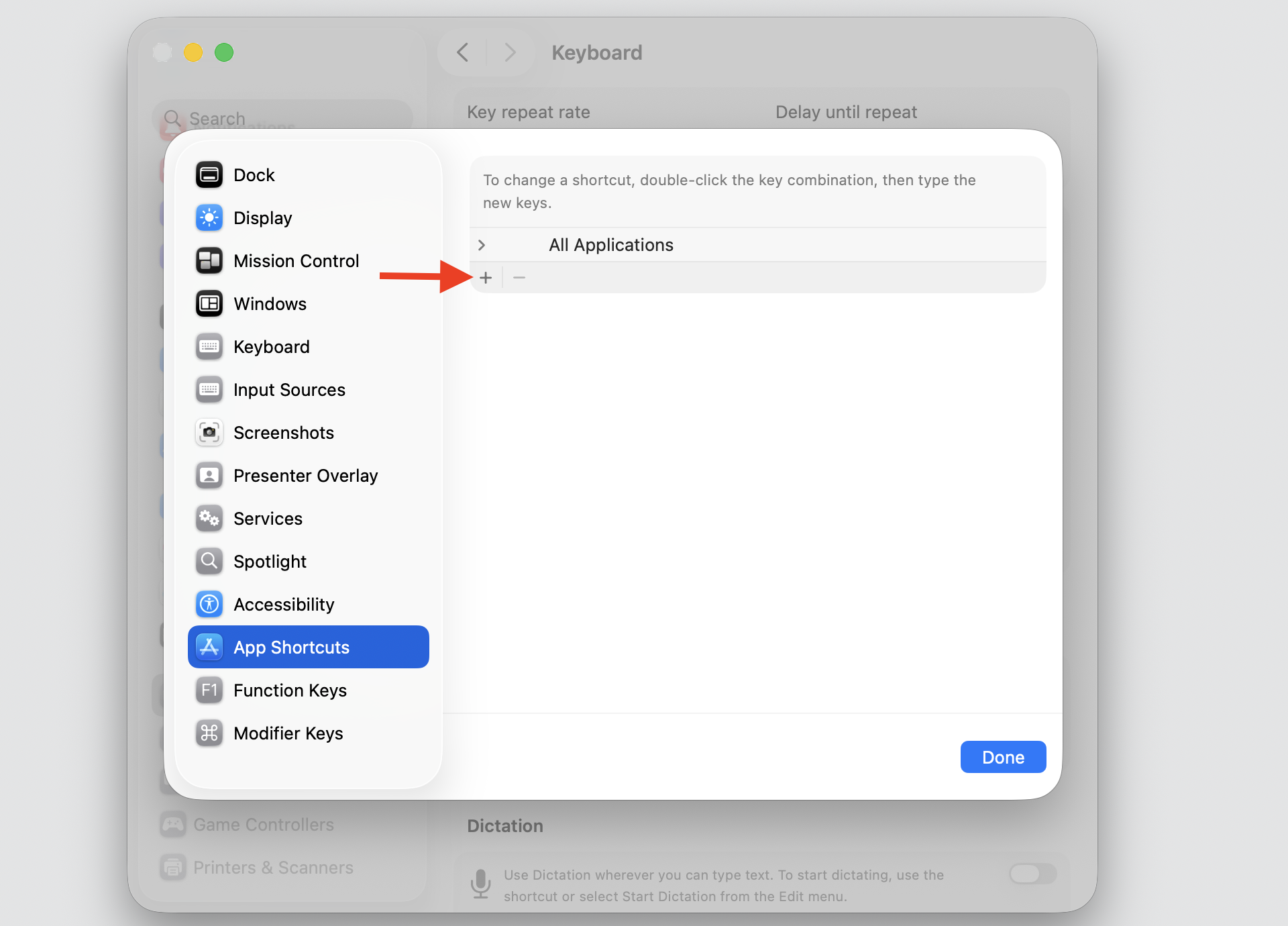
Click Keyboard Shortcuts, then choose App Shortcuts.
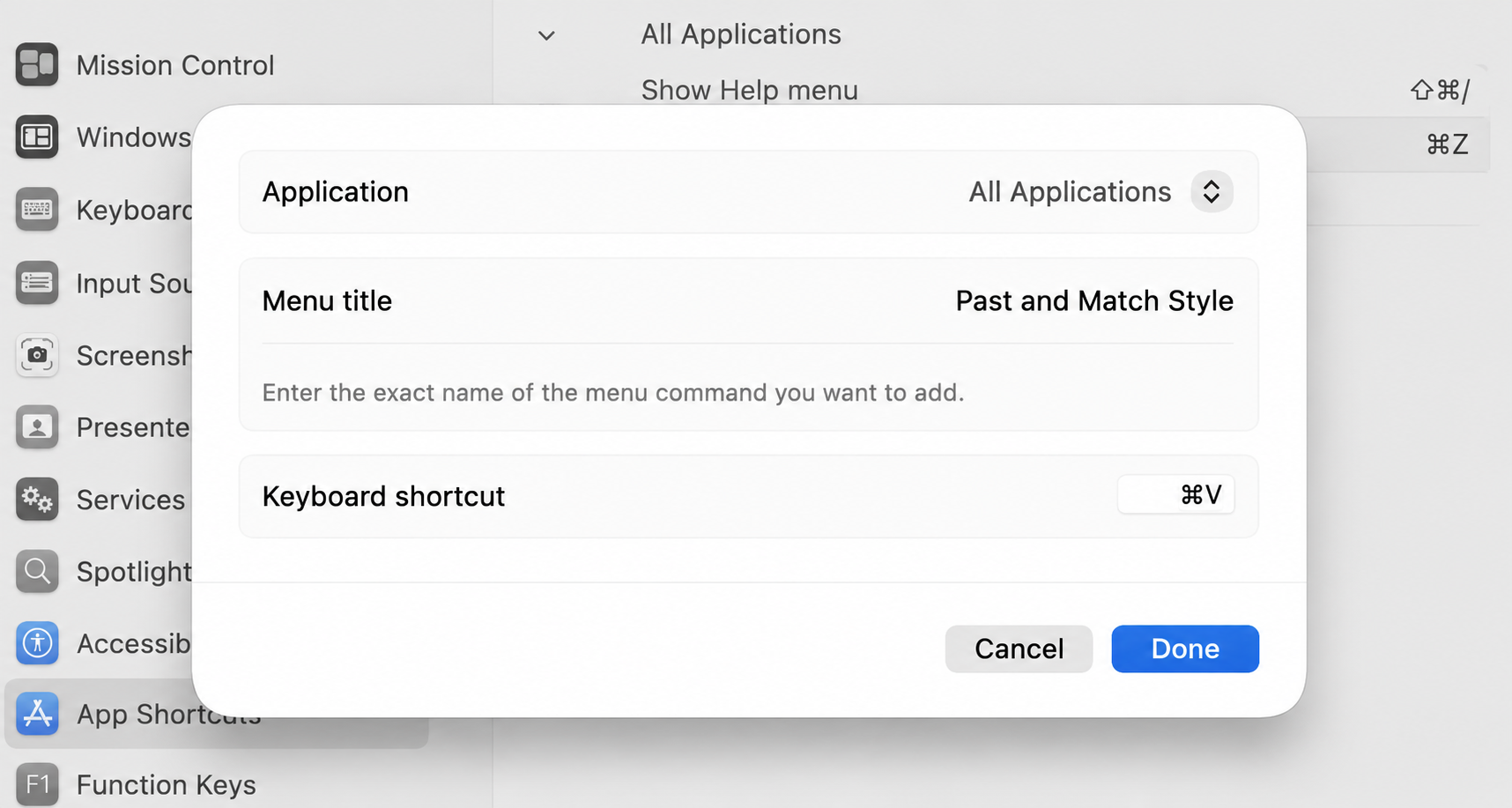
Select the add (+) button, then type Paste and Match Style as the menu title.
Assign Command+V as your new shortcut, then select Done.
Step 1. Go to Apple Menu > System SettingsStep 2. Go to the Keyboard Section and select Keyboard ShortcutsStep 3. Choose App Shortcuts and select the add (+) buttonStep 4. Type “Paste and Match Style” and assign Command+V as your new shortcut, then select Done
An extra hint from us:
If you’d like to remap other keys too, we remind you that you can change keyboard mapping on Mac in the same settings area.
How to paste without formatting in popular Mac apps?
Each app handles clean text a little differently, so let’s walk through the ones we reach for most. Apple’s own apps behave the same way—in Notes, Mail, and Pages, we open the Edit menu and choose Paste and Match Style, or simply press Shift+Command+V.
TextEdit works a bit differently. We select Format, then Make Plain Text, and paste, which strips the styling before the text moves on. Microsoft Word has its own route—open the Edit menu, choose Paste Special, and pick Unformatted Text (or press Control+Command+V).
Web-based apps are refreshingly consistent. In Google Docs, Gmail, Slack, and most browser editors, Shift+Command+V pastes clean text every time. Once you know that one combo, moving text between web tools stays quick and tidy.
Conclusion
One easy way to paste without formatting on Mac is the clean-paste shortcut or your app’s match-style option, with TextEdit as a backup when other methods fail. Once you know which shortcut works in each app, moving text between emails, documents, browser editors, and notes becomes much cleaner and faster. You can also set plain-text pasting as your default if you use it every day. And once your text is tidy, we suggest MacKeeper’s Safe Cleanup to keep your storage clutter-free and enjoy the uninterrupted Mac experience whatever the app you’re using.
We respect your privacy and
use cookies
for the best site experience.
Privacy Preferences Center
We use cookies along with other tools to give you the best possible experience while using the
MacKeeper website. Cookies are small text files that help the website load faster. The cookies we
use don’t contain any type of personal data meaning they never store information such as your
location, email address, or IP address.
Help us improve how you interact with our website by accepting the use of cookies. You can change
your privacy settings whenever you like.
Manage consent
All cookies
These cookies are strictly necessary for enabling basic website functionality (including page
navigation, form submission, language detection, post commenting), downloading and purchasing
software. The website might malfunction without these cookies.