Ready to uninstall CrossOver on Mac but not sure where its files hide? MacKeeper’s Smart Uninstaller finds the app plus its hidden service files, then removes everything in one click. No folder digging, no leftovers, no stress. Let Smart Uninstaller clear it out and reclaim your space.
CrossOver is an app developed by CodeWeavers that lets you run Windows software on your Mac—or any Macintosh—without a full Windows OS or heavy virtualization. It’s built on Wine, an open-source compatibility layer, so Windows apps behave as if they’re sitting on a regular PC.
People usually install it to play Windows games on Mac or to open work tools that only ship for Windows. It’s a clever bridge between two worlds, yet there often comes a day when you’re ready to move on.
Why uninstall CrossOver from your Mac?
So why remove CrossOver on Mac at all? Every app leaves a footprint, and CrossOver stores Windows Bottles that can grow to several gigabytes over time. Here’s what usually pushes Mac users to hit uninstall:
Free up storage—CrossOver and its Windows Bottles can eat several gigabytes, so clearing them out helps you free Mac space.
Avoid conflicts—An unpatched or outdated version can clash with newer macOS releases.
Reduce security gaps—Apps you no longer update miss the fixes that fresh software includes.
Switch tools—Maybe you found a native Mac app or a different compatibility layer that fits your workflow.
How to delete CrossOver on Mac?
The good news is that you don’t need to be a tech expert to fully uninstall CrossOver from Mac. There are two reliable ways to uninstall CrossOver apps on Mac—a quick automatic method or a hands-on manual one. We’ll start with the manual steps so you can see exactly what’s involved, then show you the one-click option.
A note from our experts:
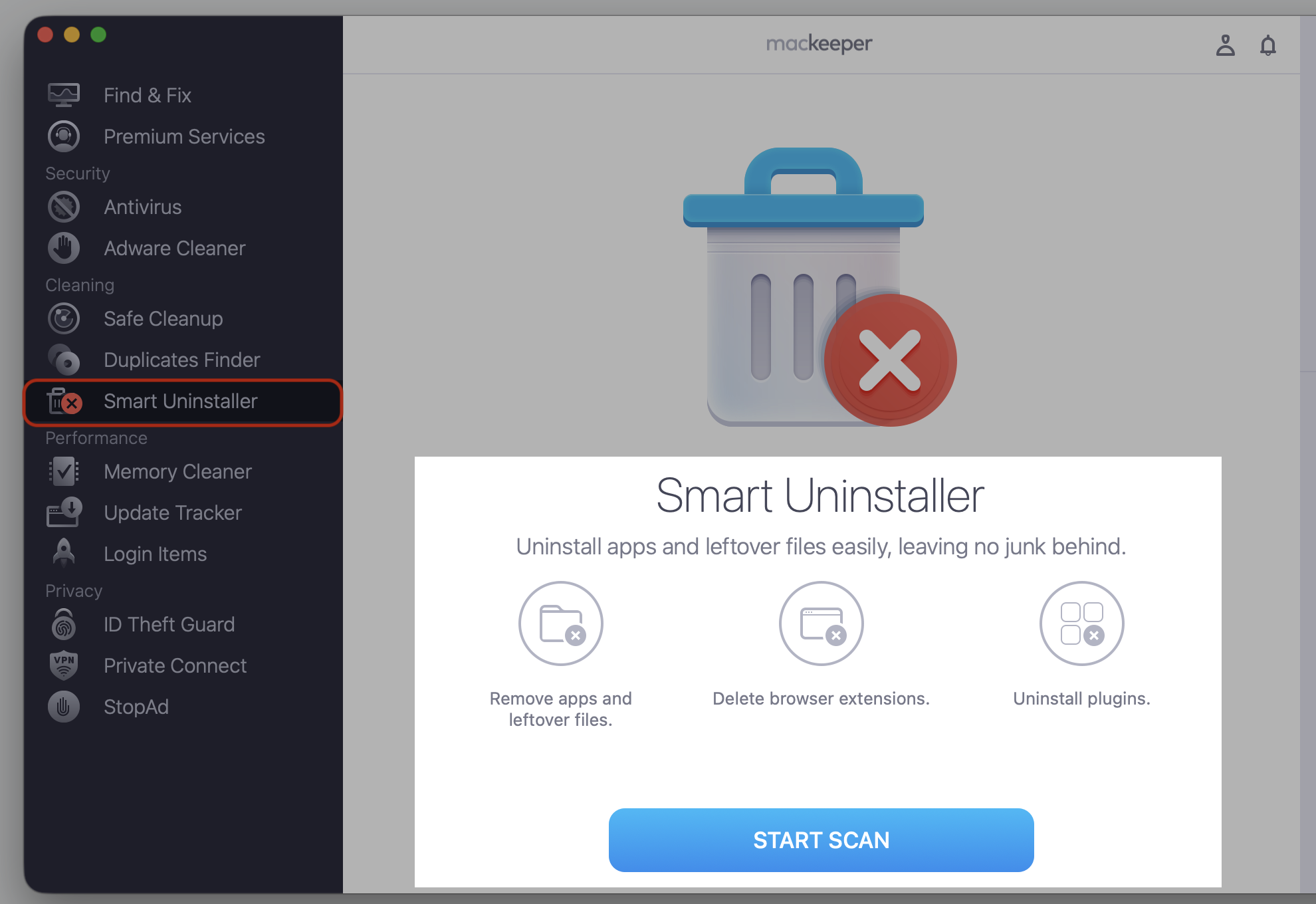
If we’ve already mentioned the automatic deletion of apps from your Mac, which means using a third-party tool like MacKeeper’s Smart Uninstaller, we’ll leave a quick look at it already now. Download the app and try the ease and safety of app removal today—start with CrossOver and move to the other redundant apps on your computer.
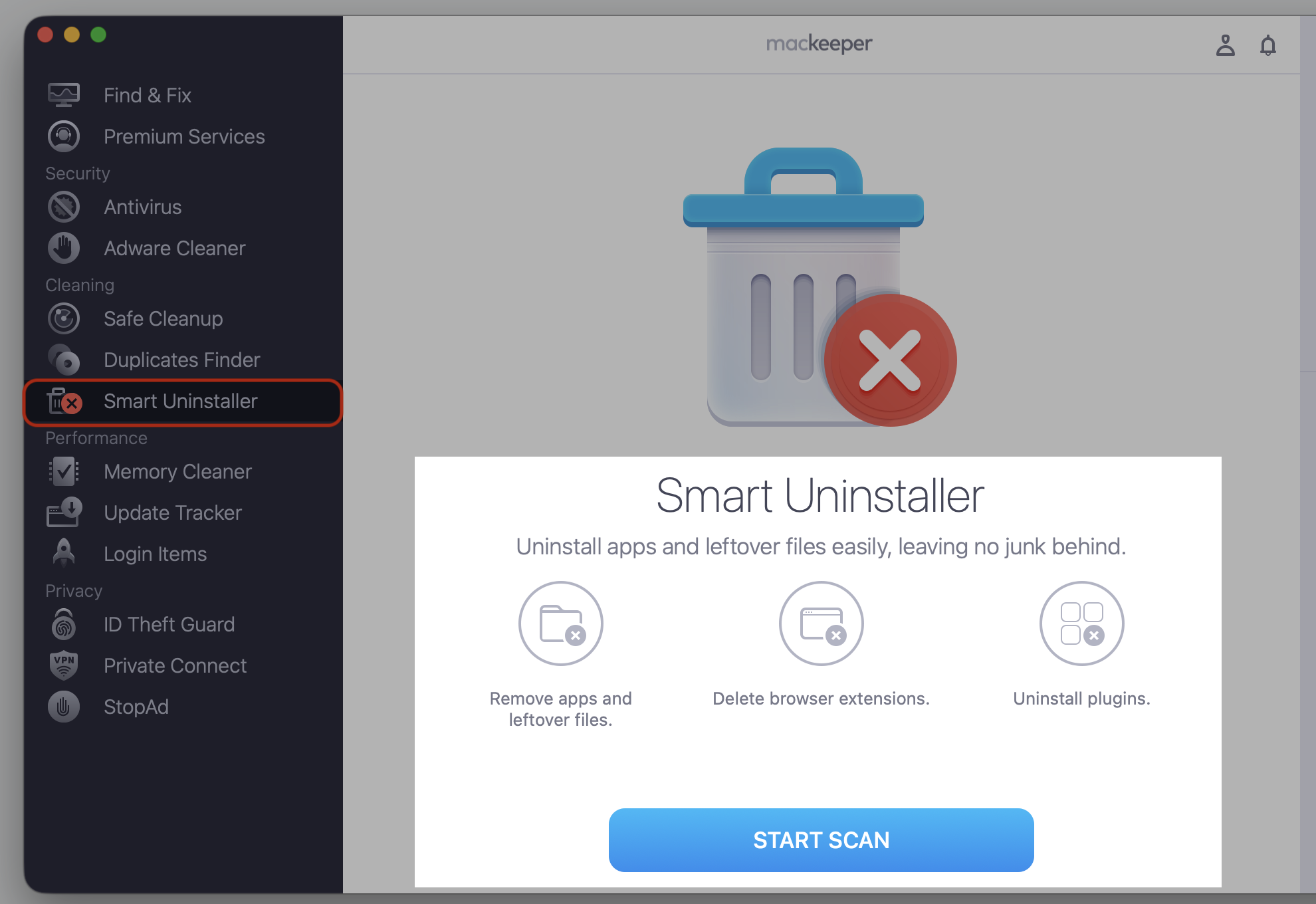
Go to MacKeeper > Smart Uninstaller > Start Scan
Whichever path you pick, the goal on any Macintosh is the same—clear the app, its profile data, and every leftover so nothing lingers. If you’re comfortable using Finder to remove apps from your MacBook, the manual route is perfectly doable. Take a look at each step below and work through them at your own pace.
1. Quit CrossOver and end related processes
Before you delete anything, let’s make sure CrossOver isn’t running in the background. A lingering close process on Mac can lock its files and block a clean removal. Let’s shut it down properly first:
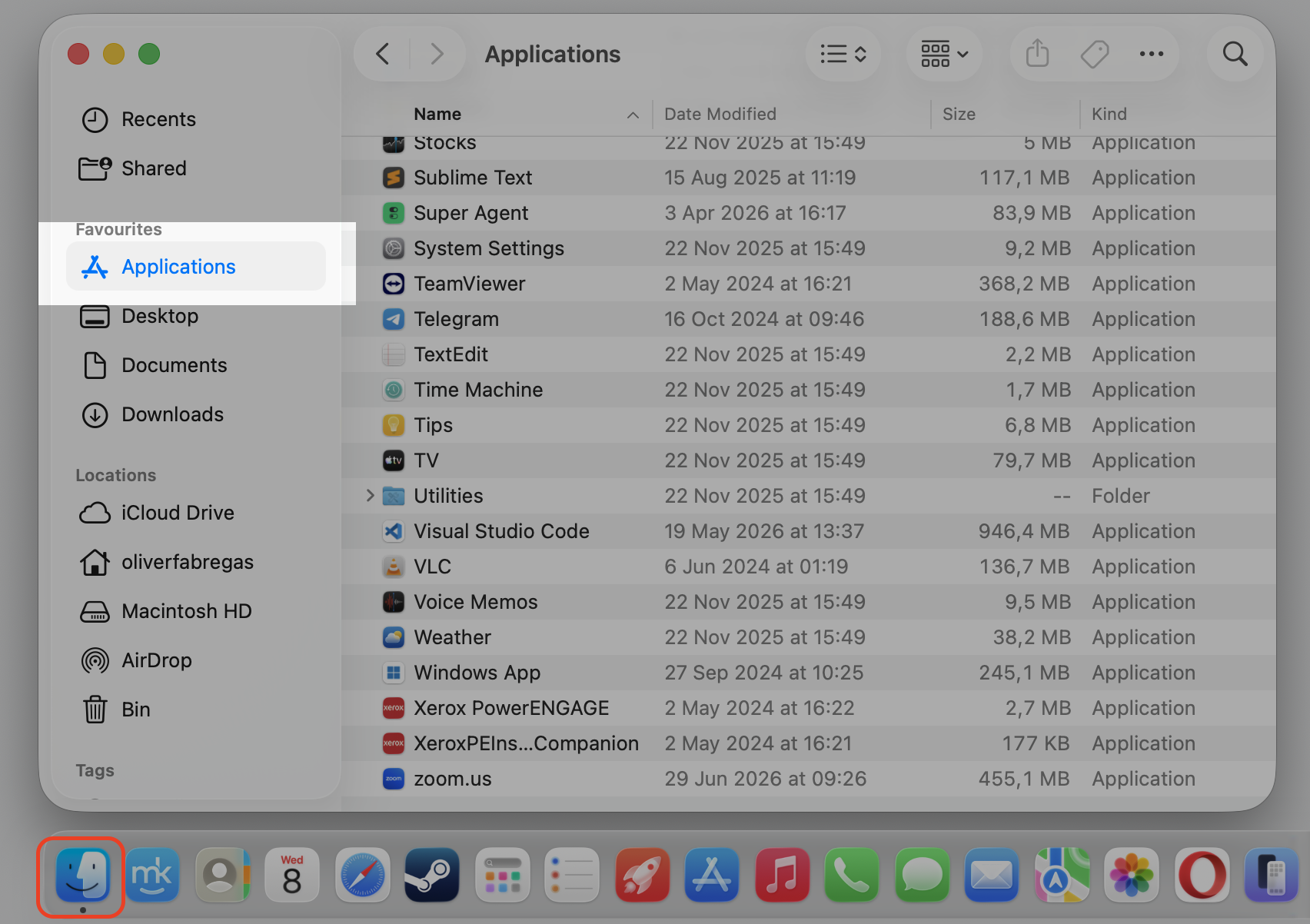
Quit CrossOver from the Dock by right-clicking its icon and choosing Quit.
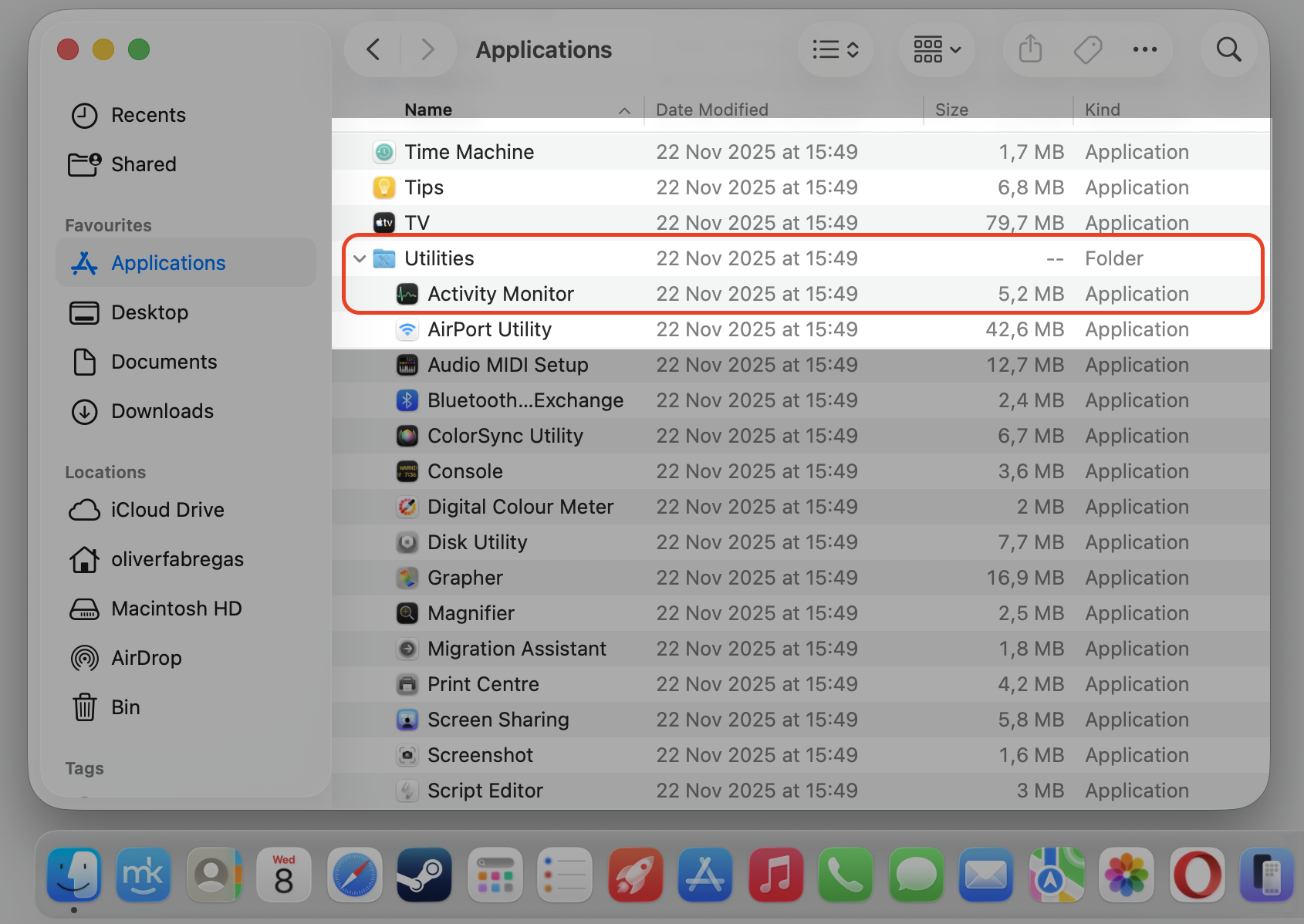
If it won’t respond, open Activity Monitor from Applications > Utilities.
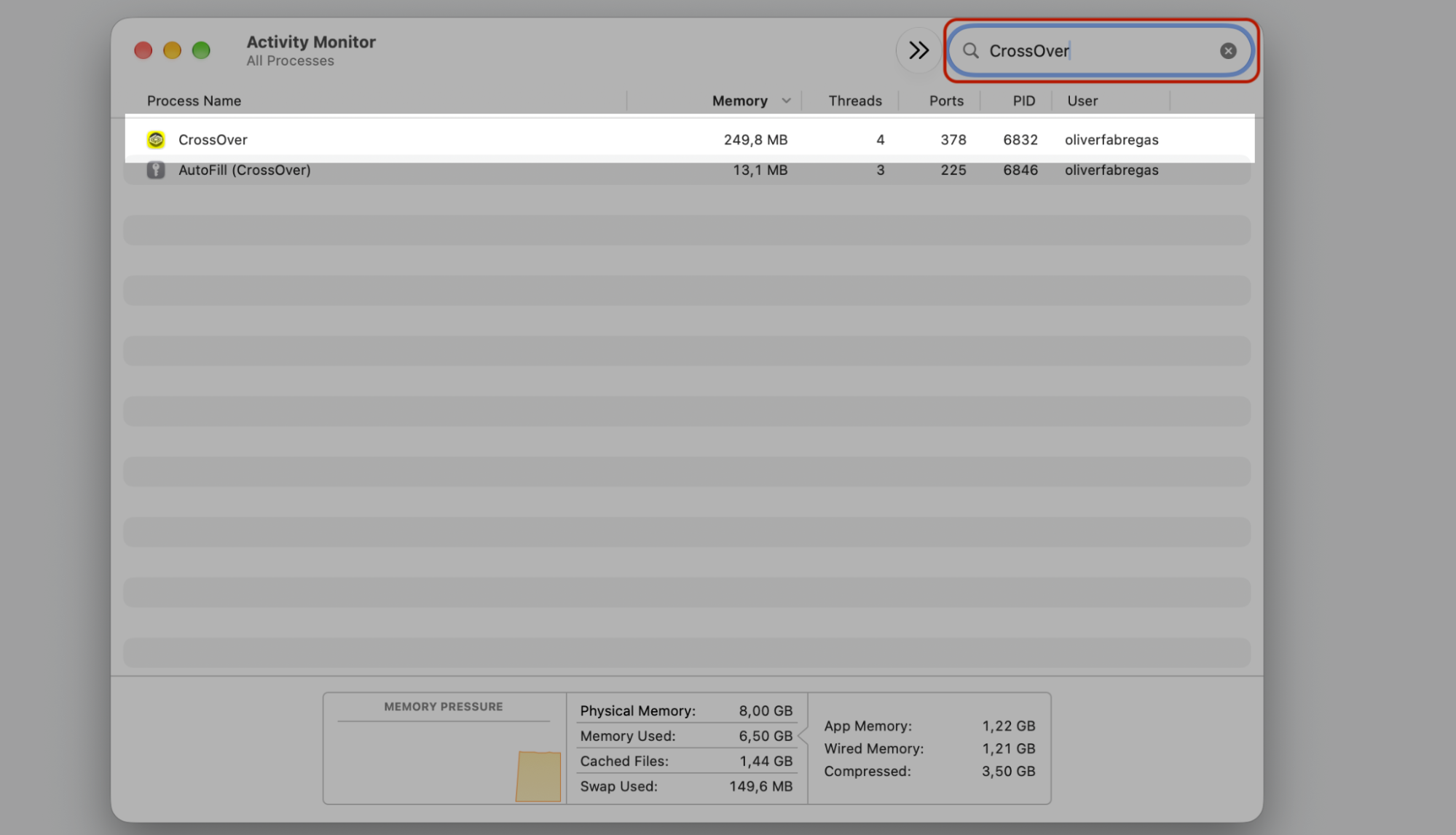
Type CrossOver into the search field to spot any active tasks.
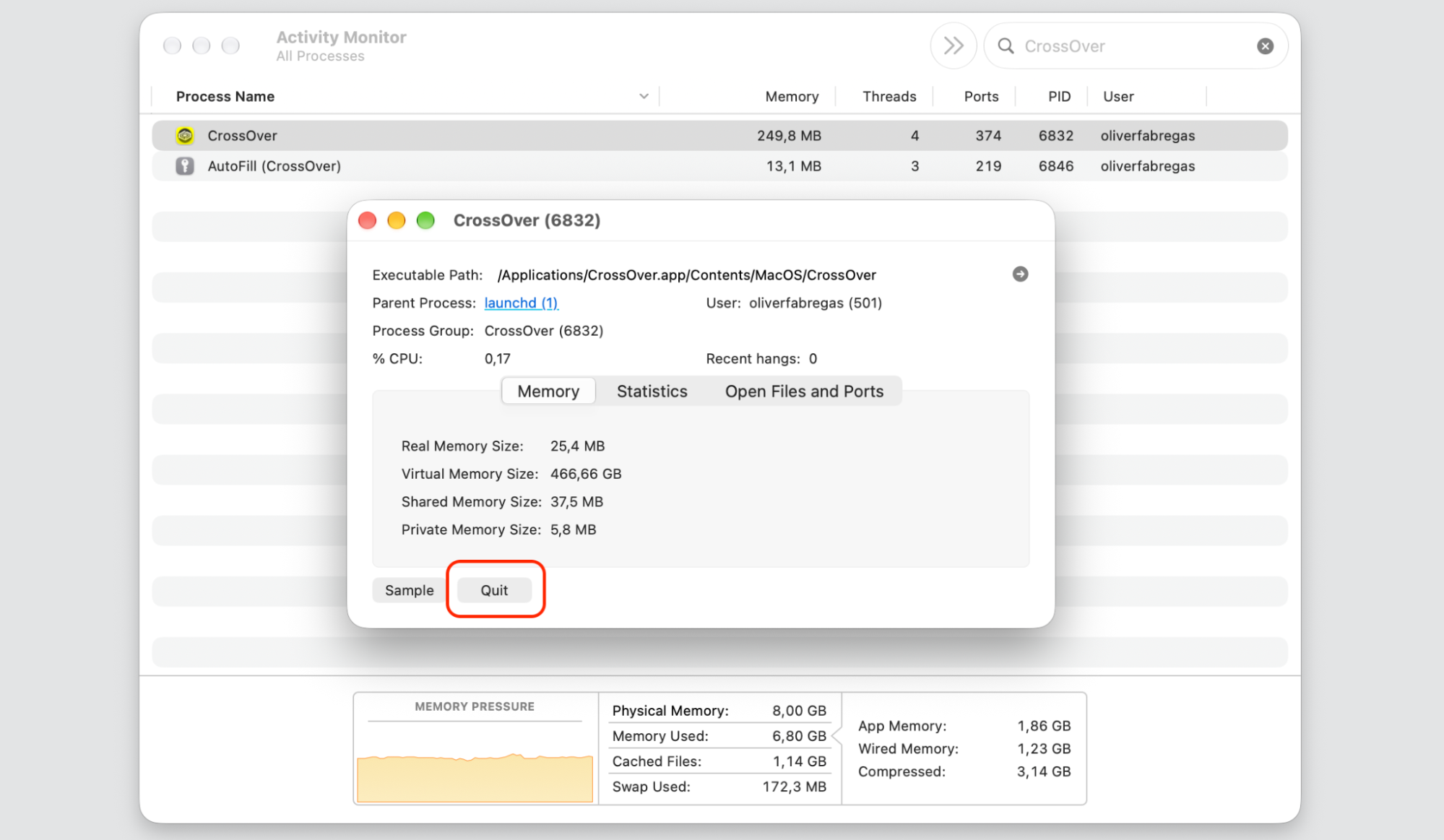
Select a task by double-cliking it, then confirm with Force Quit.
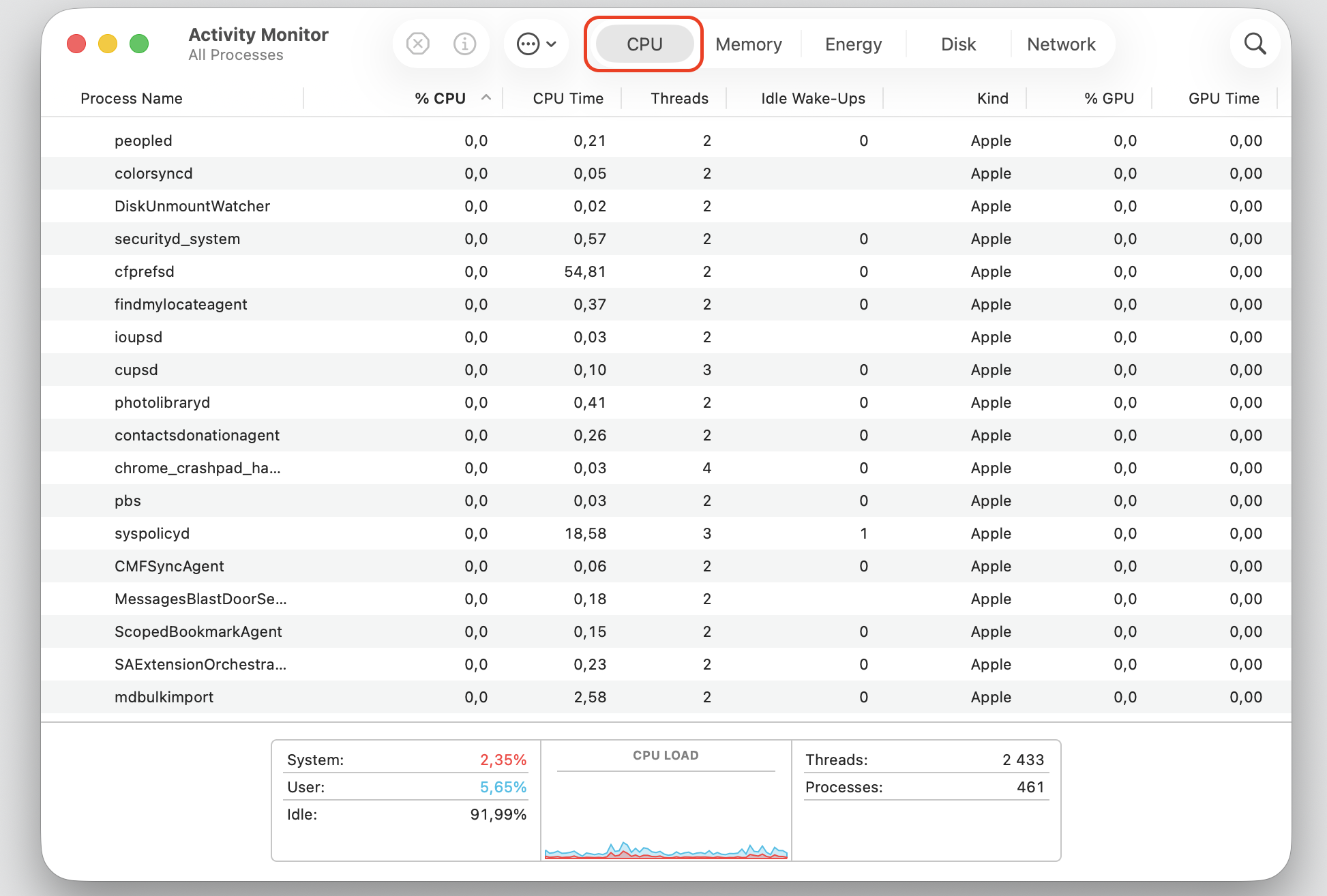
Step 1. Go to Finder > ApplicationsStep 2. Expand the Utility folder and select Activity Monitor appStep 3. Select the CPU tabStep 4. Type CrossOver in the search bar and then double-click on the taskStep 5. Compleate the process by the Quit button
2. Delete CrossOver application from Applications folder
With the app quit, you can move it to the Trash. Your Applications folder is where macOS keeps installed apps, so that’s our next stop. Here’s the part most people already know:
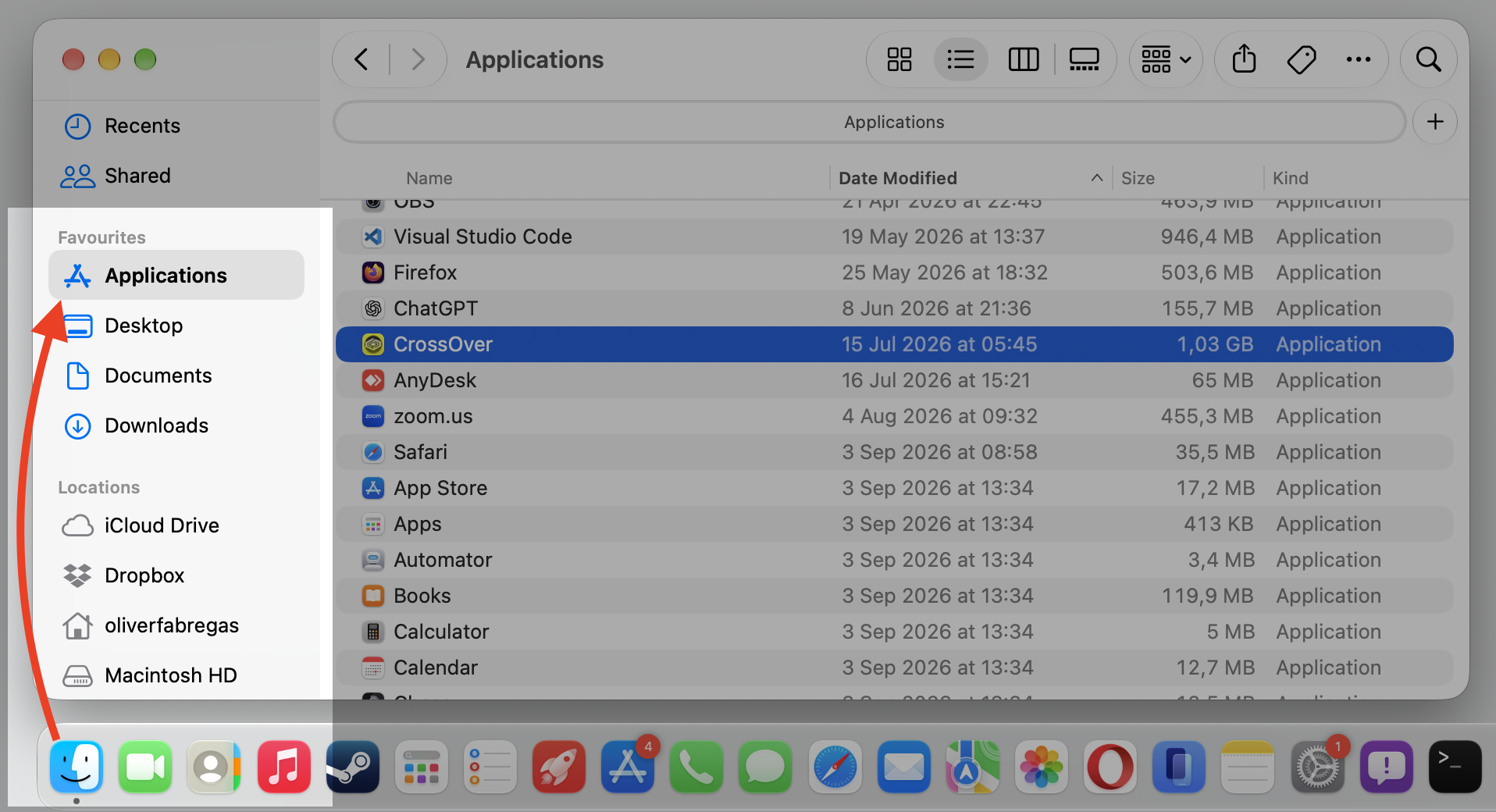
Open Finder and click Applications in the sidebar.
Scroll down and locate CrossOver in the list.
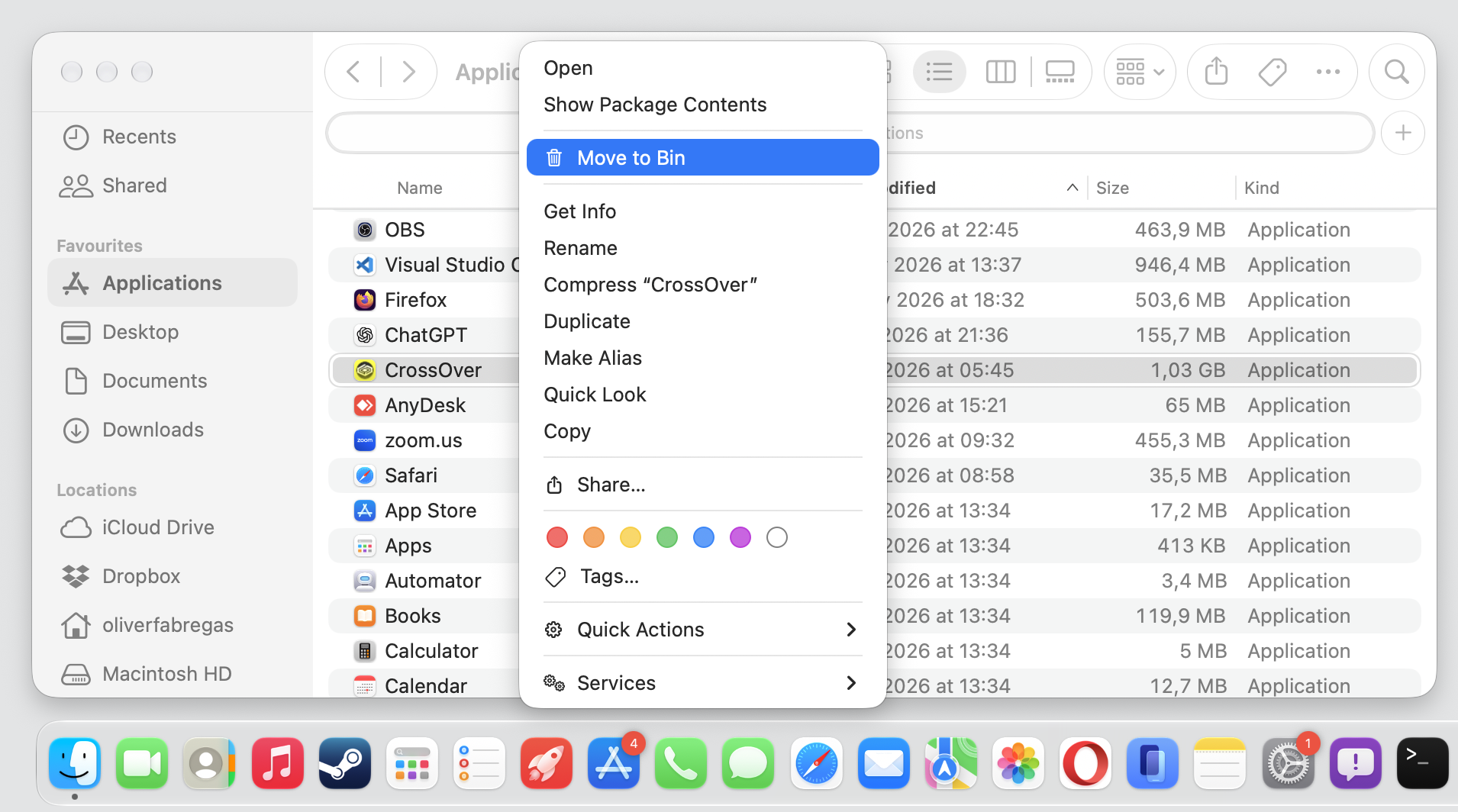
Drag the CrossOver app to the Bin, or Contol-click it and choose Move to Trash.
Step 1. Go to Finder > Application > CrossOverStep 2. Control-click on the app and move to the Bin
3. Remove CrossOver leftover files
Dragging the icon to the Trash removes the app, but its support files stay behind in hidden folders. To delete all application files on Mac, we’ll dip into the user Library folder that macOS keeps out of sight. Ready to clear the leftovers? Work through these:
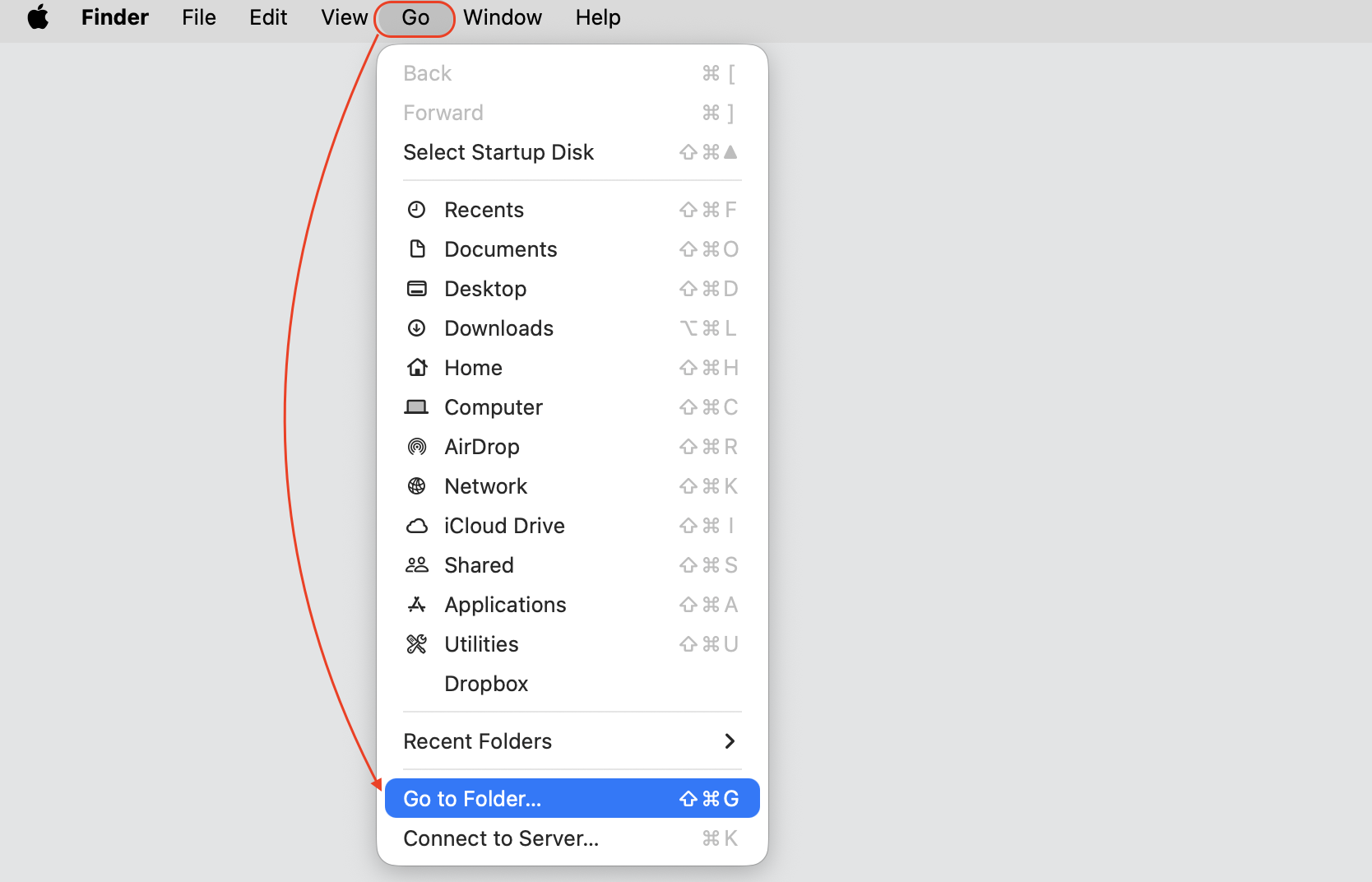
In Finder, click Go in the menu bar, then select Go to Folder.
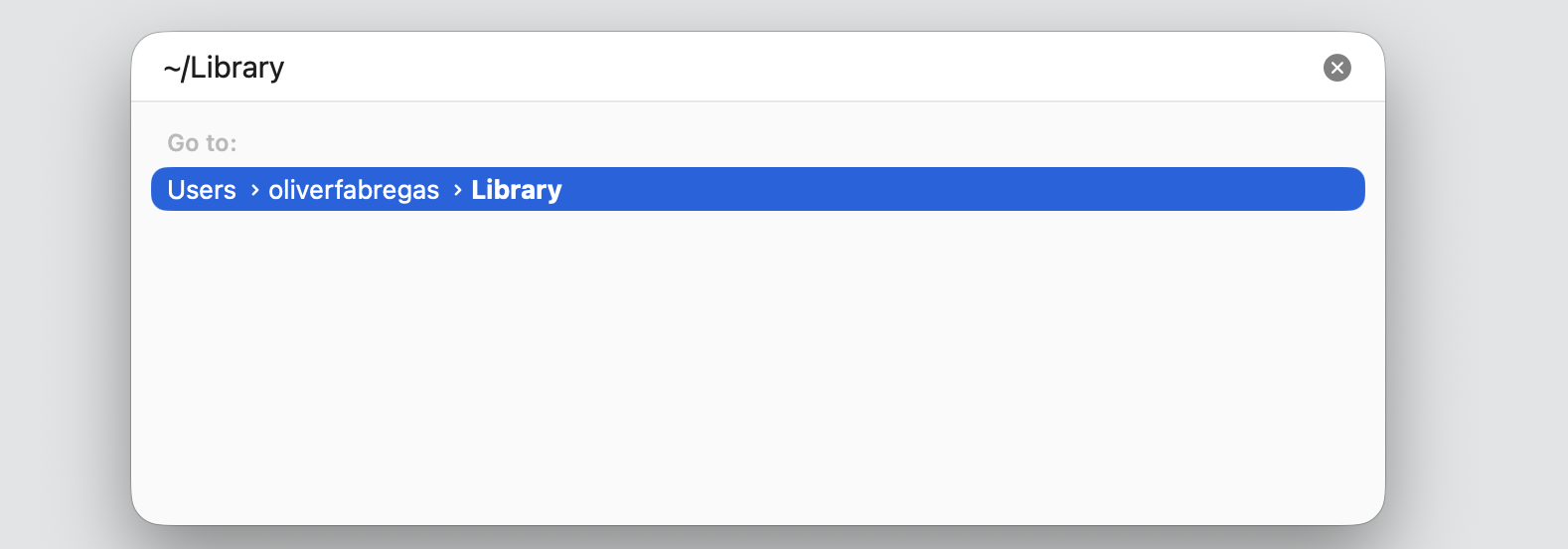
Type ~/Library and press Return to open the hidden Library folder.
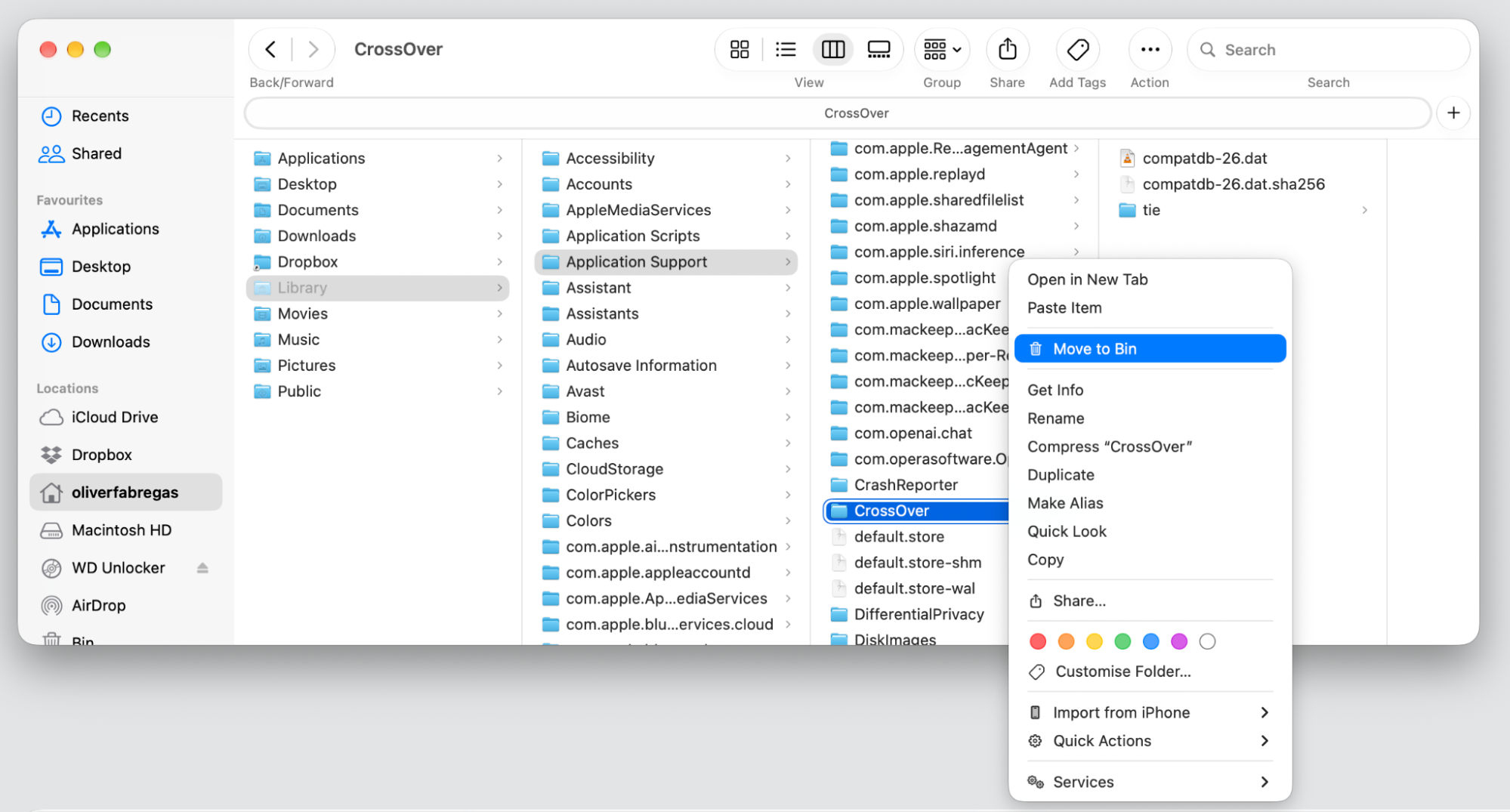
Check these folders for CrossOver items—Application Support, Caches, Preferences, Logs, and Containers.
Move any CrossOver preferences, caches, logs, and Windows Bottles tied to your profile to Bin.
Step 1. Go to Finder > Go > Go Step 2. Type ~/Library and hit ReturnStep 3. Move any CrossOver-related files and folders from the following locations to Bin
4. Empty Trash to complete the uninstallation
Files sitting in the Trash still take up disk space until you remove them for good. To completely uninstall CrossOver on Mac, our final move is to clean Trash and reclaim that room. One quick action and you’re done:
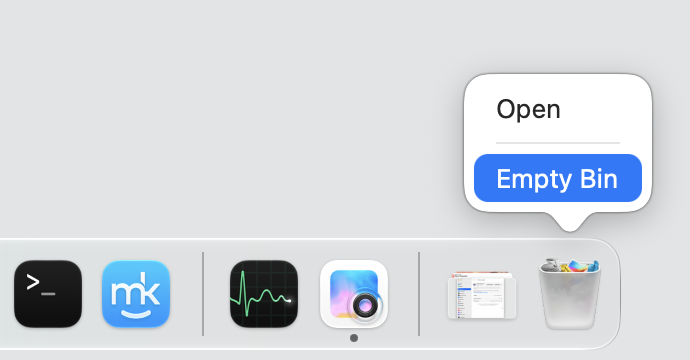
Control-click the Bin icon in the Dock.
Choose Empty Bin from the menu.
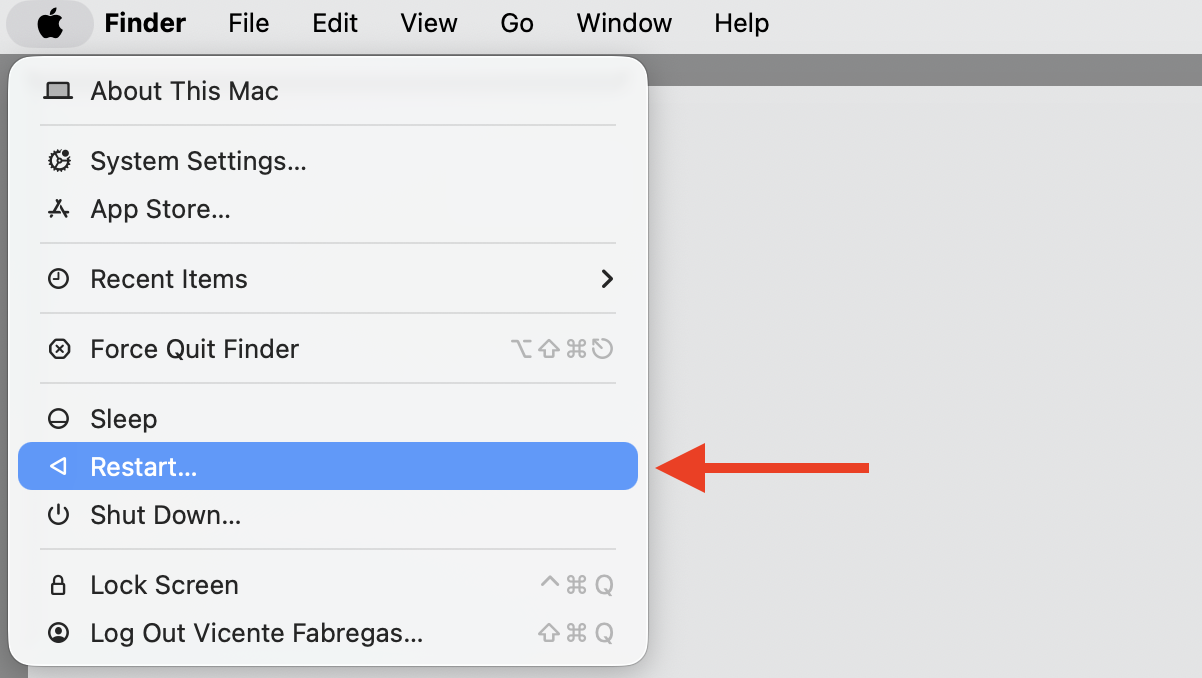
Restart your Mac so that macOS can refresh any remaining temporary items.
Step 1. Empty the BinStep 2. Restart your Mac from Apple Menu
How to remove CrossOver automatically with third-party software?
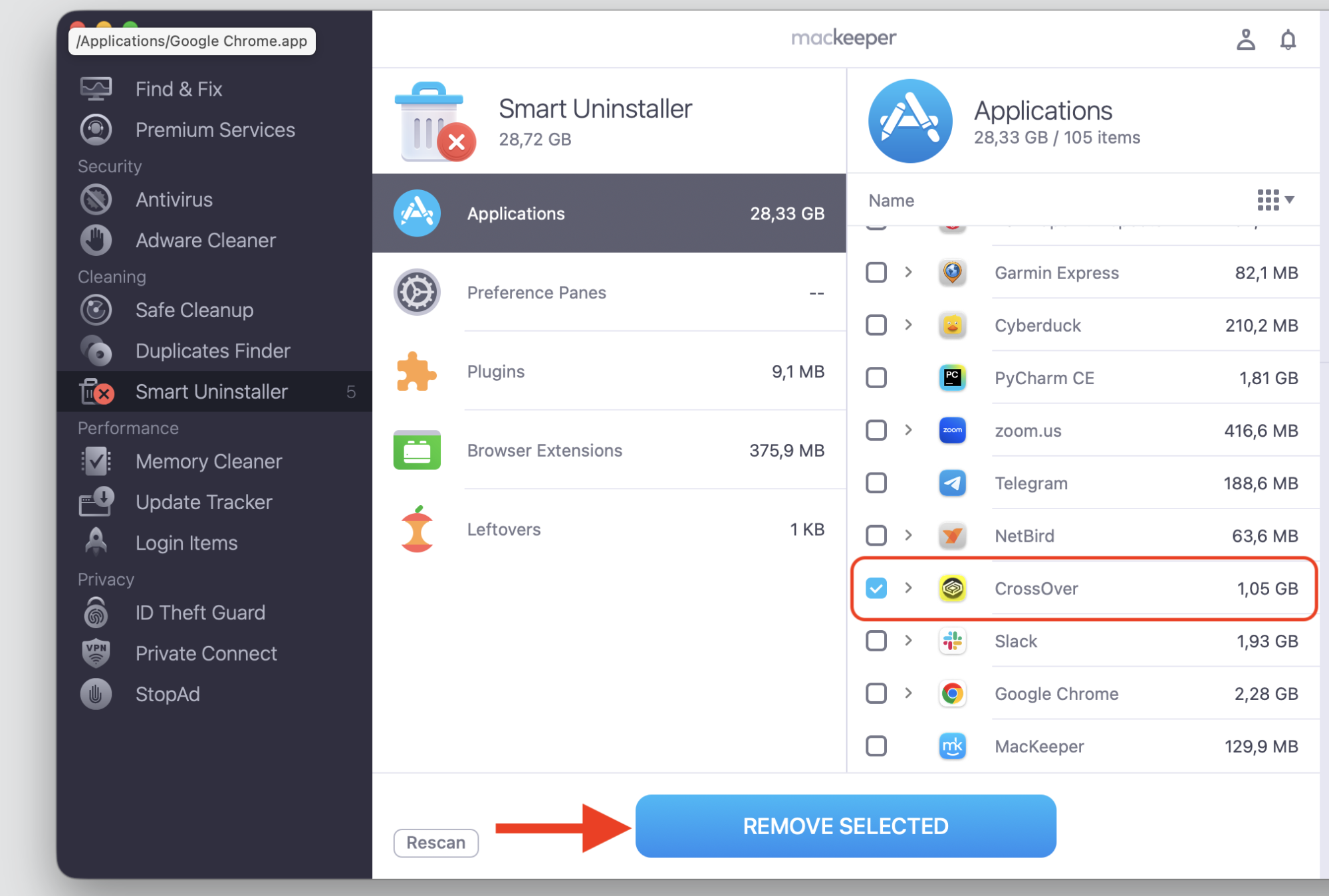
If hunting through hidden folders sounds like a chore, there’s a simpler way. MacKeeper’s Smart Uninstaller detects the CrossOver app together with its hidden service files, caches, and profile data, then removes everything automatically in one click—no manual digging required.
Here’s how to let the app handle the cleanup for you:
Open MacKeeper and select Smart Uninstaller in the sidebar.
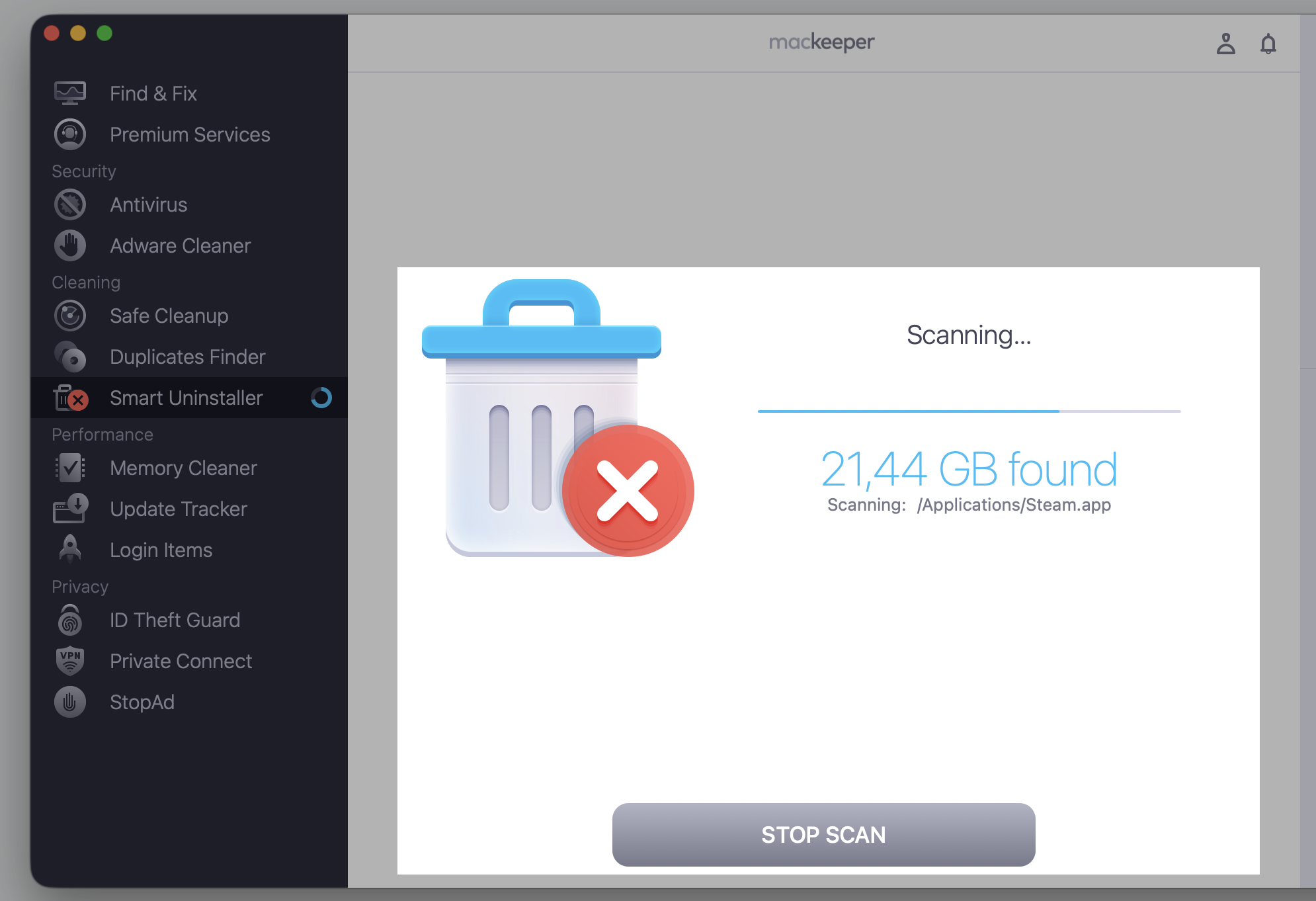
Click Start Scan and let it review your installed apps.
Find CrossOver in the results, then select the checkbox next to it.
Click Remove Selected, then confirm to delete CrossOver from Mac in one go.
Step 1. Go to MacKeeper > Smart Uninstaller > Start ScanStep 2. Wait until the scan is finishedStep 3. Select the app and proceed with the Remove Selected button
Conclusion
Removing CrossOver is about more than dragging one icon to the Trash. The app tucks away service files, caches, and Windows Bottles that quietly hold onto disk space, and skipping them means the job is only half done. Whether you take the manual route or lean on a dedicated uninstaller, the aim is a tidy Mac with its storage back.
That’s exactly the headache MacKeeper’s Smart Uninstaller was built to solve. Delete the majority of apps with their hidden files in one click, without second-guessing what’s left behind. Give MacKeeper’s Smart Uninstaller a run and enjoy a cleaner, roomier Mac.
We respect your privacy and
use cookies
for the best site experience.
Privacy Preferences Center
We use cookies along with other tools to give you the best possible experience while using the
MacKeeper website. Cookies are small text files that help the website load faster. The cookies we
use don’t contain any type of personal data meaning they never store information such as your
location, email address, or IP address.
Help us improve how you interact with our website by accepting the use of cookies. You can change
your privacy settings whenever you like.
Manage consent
All cookies
These cookies are strictly necessary for enabling basic website functionality (including page
navigation, form submission, language detection, post commenting), downloading and purchasing
software. The website might malfunction without these cookies.