If your MacBook won’t charge, rather than it being a charging problem, it could be caused by a virus. What to do? It’s a good idea to install real-time Mac Keeper's Antivirus and run regular scans.
If your MacBook is plugged in but won’t charge, there are several possible reasons why — including broken chargers, outdated software, or even routine servicing requirements.
In this article, we’ll look at some of the most common causes for a MacBook battery not charging. And we’ll show you the top things to try to get it going again.
A note from our experts:
When your Mac is not charging, you may need to check it for viruses. You can do it with MacKeeper’s Antivirus. Here’s how to run a malware scan:
When it’s finished, select anything that’s found and remove it or click Move to Quarantine.
Step 1. MacKeeper > Antivirus > Start ScanStep 2. Remove Threats or move them to quarantine
Why is my MacBook not charging?
Having used countless Apple computers over the years, we’ve learned that there are many reasons why a MacBook may refuse to charge. With older MacBook models, it could be that the battery has degraded over time and needs to be replaced. Some 15-inch MacBook Pro models released between September 2015 and February 2017 actually shipped with defective batteries, and Apple will replace these for free.
In some cases, batteries that haven’t been charged for extended periods of time may not accept power right away—in which case we recommend leaving them plugged in for at least 24 hours—while line noise on power outlets can also cause charging issues. However, it can sometimes be more complicated than this. Here are some of the most common reasons why a MacBook isn’t charging:
Bad power source: Power outlet noise or failure will prevent your MacBook charger from working.
Dirty charging ports: Dirt or debris in your MacBook’s charging port can stop the charger from making a proper connection.
Mac and charger overheating: If your MacBook or its charger get too hot, macOS will block charging until they have cooled down to avoid permanent damage.
Degraded battery health: Like all lithium-ion batteries, those inside a MacBook degrade over time to the point at which they will no longer charge.
Hardware errors: MacBook SMC corruptions and faults can lead to charging problems.
Motherboard failure: Failed components on your MacBook’s motherboard can stop the device from charging and cause other hardware issues.
How to fix MacBook not charging when plugged in?
We’ve found that in many cases, it’s possible to fix a MacBook that won’t charge by following some simple troubleshooting steps. Sadly, not all charging issues can be solved by the average user and will require professional support. Below are the tips we recommend for dealing with a MacBook that won’t charge.
Check power source
Before you can work out why your MacBook won’t turn on, start by testing if the outlet you’re using has electricity. To do this, try plugging another device into the outlet to confirm before testing your MacBook and charger. If you find that the outlet does not work, try a different one.
Inspect hardware for damage
If you think your MacBook charging cable isn’t working, inspect it for physical defects like exposed wires, broken plugs, or extreme bends. While your charger might still work with some slight damage, it can cause issues with charging stability and safety. If you notice that your MacBook charger cable wires are exposed, cover them with electric tape or heat shrink before attempting to plug it into an outlet.
If the light on your charger doesn’t come on, then the reason your MacBook won’t turn on or charge could be a defective plug. All MacBook chargers come with removable plugs, so you can use one from another charger or an Apple power adapter extension cable to see if that’s the cause.
Reboot your Mac
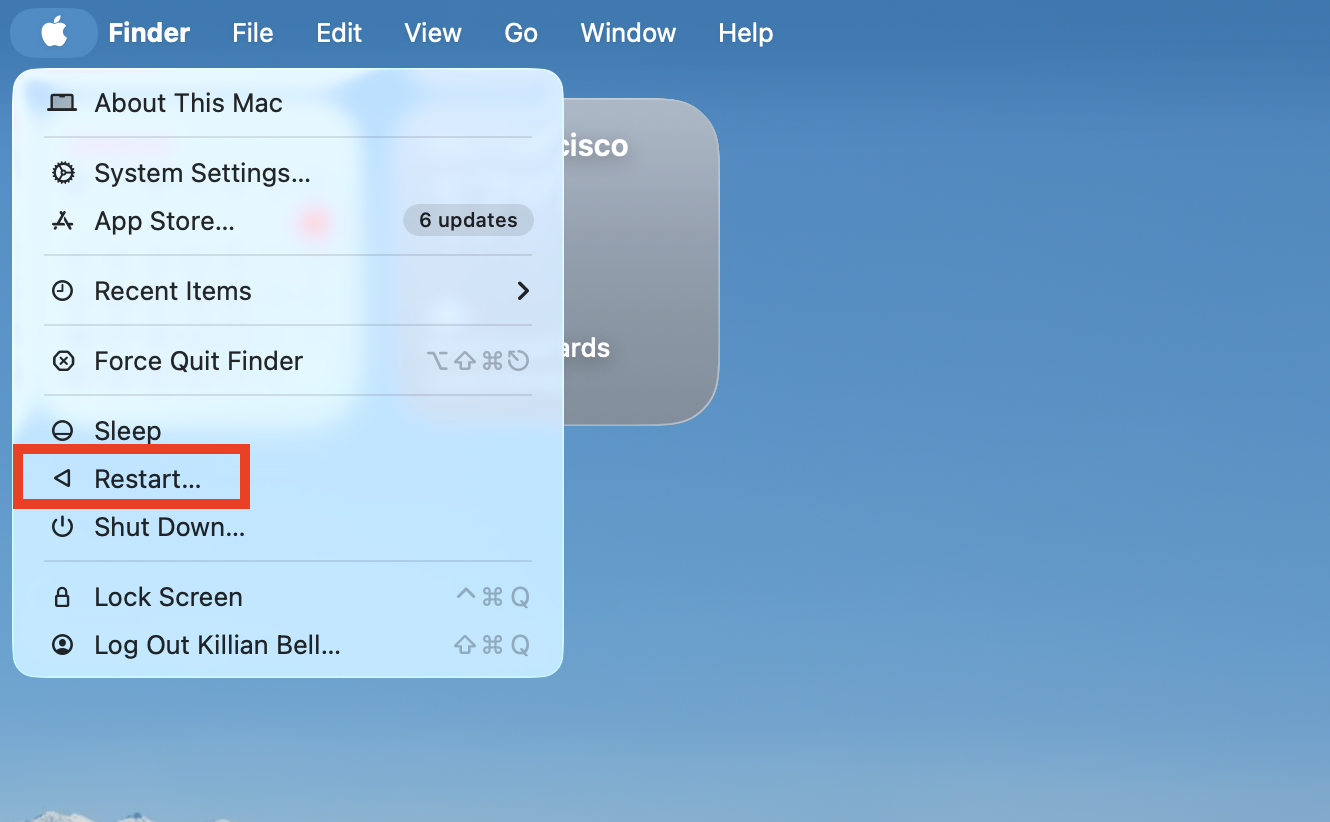
Common macOS glitches can cause a MacBook to randomly stop charging, and these are easy to fix with a system reboot. Try this:
Open the Apple menu and click Restart.
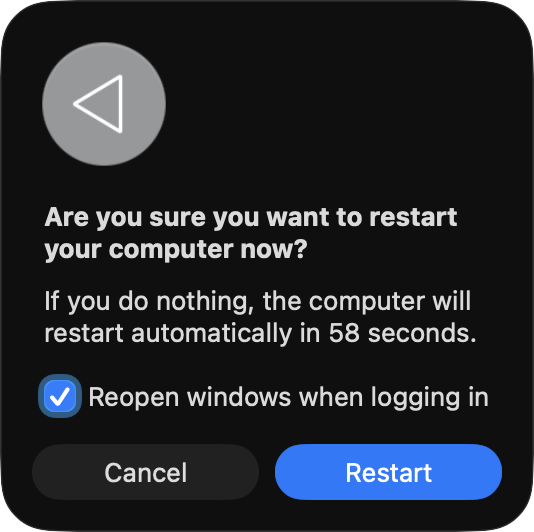
Select Restart again to confirm.
Step 1. In the Apple menu, choose RestartStep 2. Click Restart again to confirm
If you want to know more about rebooting your Mac, we’re glad to inform you that we’ve prepared a separate guide on it. Read on for more tips on how to restart your MacBook effectively.
Clean charging ports
Another reason why your MacBook might not be charging is a blocked charging port. One way to resolve it is by cleaning the MagSafe or USB port using compressed air to blow out any dirt or debris. Alternatively, you can also use a plastic dental pick, cotton buds, or a soft-bristle toothbrush.
Cool down your Mac and charger
MacBook chargers, including the MacBook Air USB-C power adapter, can generate a significant amount of heat when charging. If you place your charger somewhere insulated, like under a cushion, it can become too warm and turn off automatically. To keep your MacBook charging for longer, keep your power adapter cool by not placing things on top of it.
Check battery status
Like any battery-powered device, MacBook battery life will degrade naturally after several years of use. To do a MacBook battery diagnostic test, click the battery icon on your menu bar. If the dropdown menu contains the Service Recommended notification, it’s time to replace the battery.
You can also check your MacBook battery like this:
On the menu bar, click the Apple icon while pressing the Option key.
Select System Information.
Under Hardware, click Power.
Check the Condition.
Under Condition, there are several possible statuses for your battery capacity – Normal, Replace Soon, Replace Now, and Service Battery. If your MacBook battery status is anything other than “normal”, schedule a repair or replacement as soon as possible.
Reset MacBook charger (SMC)
The power function of every Intel-based MacBook is controlled by the System Management Controller (SMC). Resetting your SMC can help with many issues, including when your MacBook won’t charge, despite being plugged in.
Here’s how to reset the SMC on an Intel MacBook with removable batteries:
Shut down your MacBook.
Unplug your MacBook charger.
Remove your battery.
Press the Power button for a few seconds.
Reattach your battery.
Plug in your MacBook charger.
Press the Power button to turn on your MacBook.
To reset the SMC in an Intel MacBook with a non-removable battery, follow these steps:
Shut down your MacBook Pro or Air.
Unplug your MacBook charger.
After a few seconds, reconnect the MacBook charger to the outlet.
Press the Power button while holding down the Control + Shift + Option keys for at least ten seconds
Turn on your MacBook again using the Power button.
Check motherboard
If none of the methods mentioned so far work, then you may simply have a faulty MacBook. It could be the motherboard or a component on the motherboard that’s preventing your MacBook from charging.
Unfortunately, this is not likely to be something you fix yourself. In that case, your best bet will be to contact Apple support.
To contact Apple support if your MacBook isn’t charging, do the following:
Select Mac > Startup or Power > Bring in for Repair.
Log in with your Apple ID.
Type your location.
Choose your available schedule and authorized repair center.
Select your preferred time slot, and confirm your reservation.
Take care of your battery
Made from lithium-ion, MacBook batteries are fast-charging and often long-lasting. However, your battery’s longevity also depends on how well you take care of it. For example, it’s best not to leave your MacBook batteries uncharged for too long. Apple also has a variety of built-in battery health management features that you should use to keep your MacBook battery healthy for longer.
We respect your privacy and
use cookies
for the best site experience.
Privacy Preferences Center
We use cookies along with other tools to give you the best possible experience while using the
MacKeeper website. Cookies are small text files that help the website load faster. The cookies we
use don’t contain any type of personal data meaning they never store information such as your
location, email address, or IP address.
Help us improve how you interact with our website by accepting the use of cookies. You can change
your privacy settings whenever you like.
Manage consent
All cookies
These cookies are strictly necessary for enabling basic website functionality (including page
navigation, form submission, language detection, post commenting), downloading and purchasing
software. The website might malfunction without these cookies.