The MacBook keeps restarting, which can quickly interrupt your work, put your files at risk, and point to anything from software conflicts to deeper hardware trouble, so the right fix starts with narrowing down the real cause instead of guessing. And if you’d rather skip the trial-and-error, MacKeeper’s Premium Services give you direct access to certified Mac experts who can diagnose the issue faster, walk you through the safest solution, and help get your Mac back to stable performance.
If your MacBook turns on and off repeatedly, the cause is usually a software conflict, a faulty peripheral, outdated macOS, or a hardware issue like overheating. Based on our experience, the best first steps are to disconnect external devices, install updates, and test in Safe Mode. If restarts continue, run diagnostics or reinstall macOS.
What does it mean when the MacBook keeps restarting?
When a MacBook keeps restarting, it usually means the system has detected a critical problem it can’t safely recover from. This often happens during a kernel panic triggered by faulty software, incompatible devices, overheating, or corrupted system files. The restart is macOS attempting to protect the system and restore stability automatically.
What to do when the MacBook keeps rebooting?
If your computer restarted because of a problem, or MacBook keeps rebooting all the time, start by disconnecting all external devices and restarting the system to rule out peripheral conflicts. You should also check for macOS and app updates, as outdated software often causes instability. Besides, consider that booting in Safe Mode can help identify problematic apps or login items. If the issue continues, run Apple Diagnostics to check for hardware problems or consider reinstalling macOS to restore system stability. computer restarted because of a problem
A note from our experts:
When your Mac keeps freezing or restarting, identifying the real cause can take a lot of trial and error. Users often spend hours testing fixes like Safe Mode, system resets, or reinstalling macOS without knowing which one actually addresses the issue. A faster approach is getting direct guidance from professionals. Since MacKeeper protects Mac and offers performance monitoring, its Premium Services allow technicians to quickly analyze system behavior and pinpoint what’s triggering the reboot cycle.
Open the app and choosePremium Services from the sidebar to access live technical assistance.
Click Chat Now to connect with a certified Mac specialist who will diagnose why your MacBook keeps restarting and guide you through a safe fix step by step.
Open MacKeeper, click Premium Services in the sidebar, and select Chat Now
1. Update macOS and apps
If your MacBook keeps restarting, outdated software is often the first thing to check. Installing updates resolves many reboot loops because Apple regularly fixes bugs and compatibility issues in system patches. Running an update macOS routine also ensures that apps and system services work with the latest macOS build, preventing conflicts that can trigger kernel panics.
Steps to update macOS and apps:
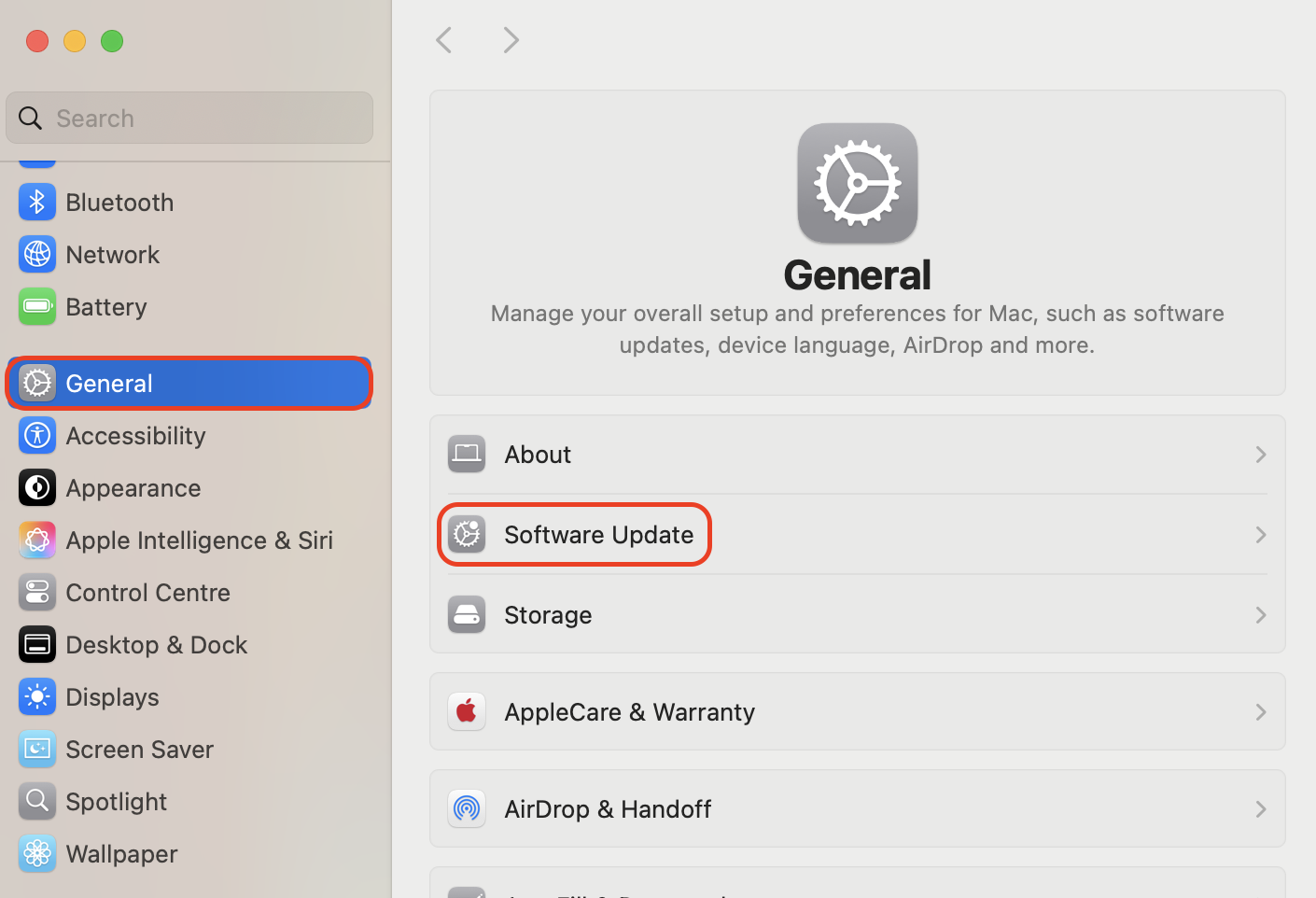
Click the Apple menu in the top-left corner of your screen.
Select System Settings and open General.
Click Software Update to check for available macOS updates.
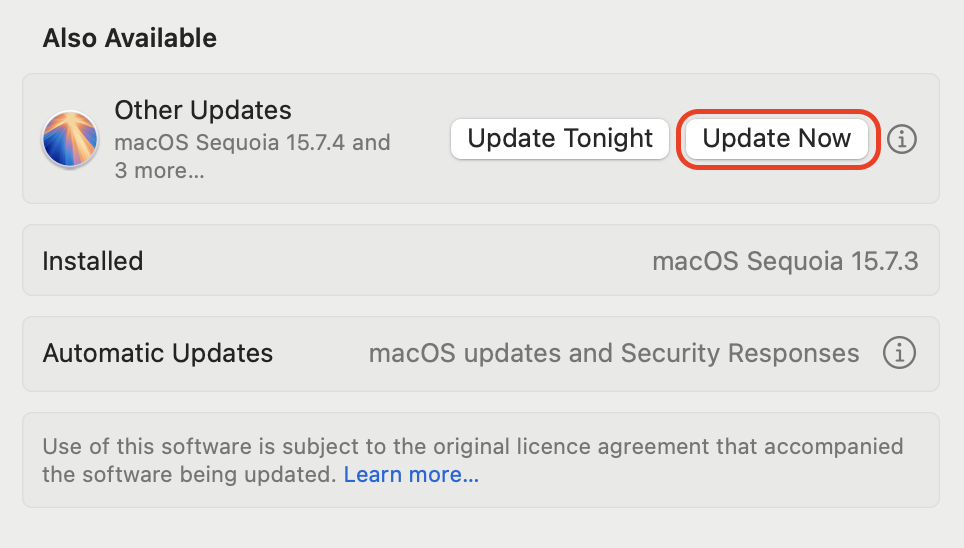
If an update appears, click Update Now and allow the installation to finish.
Restart your MacBook when prompted so the update can fully apply.
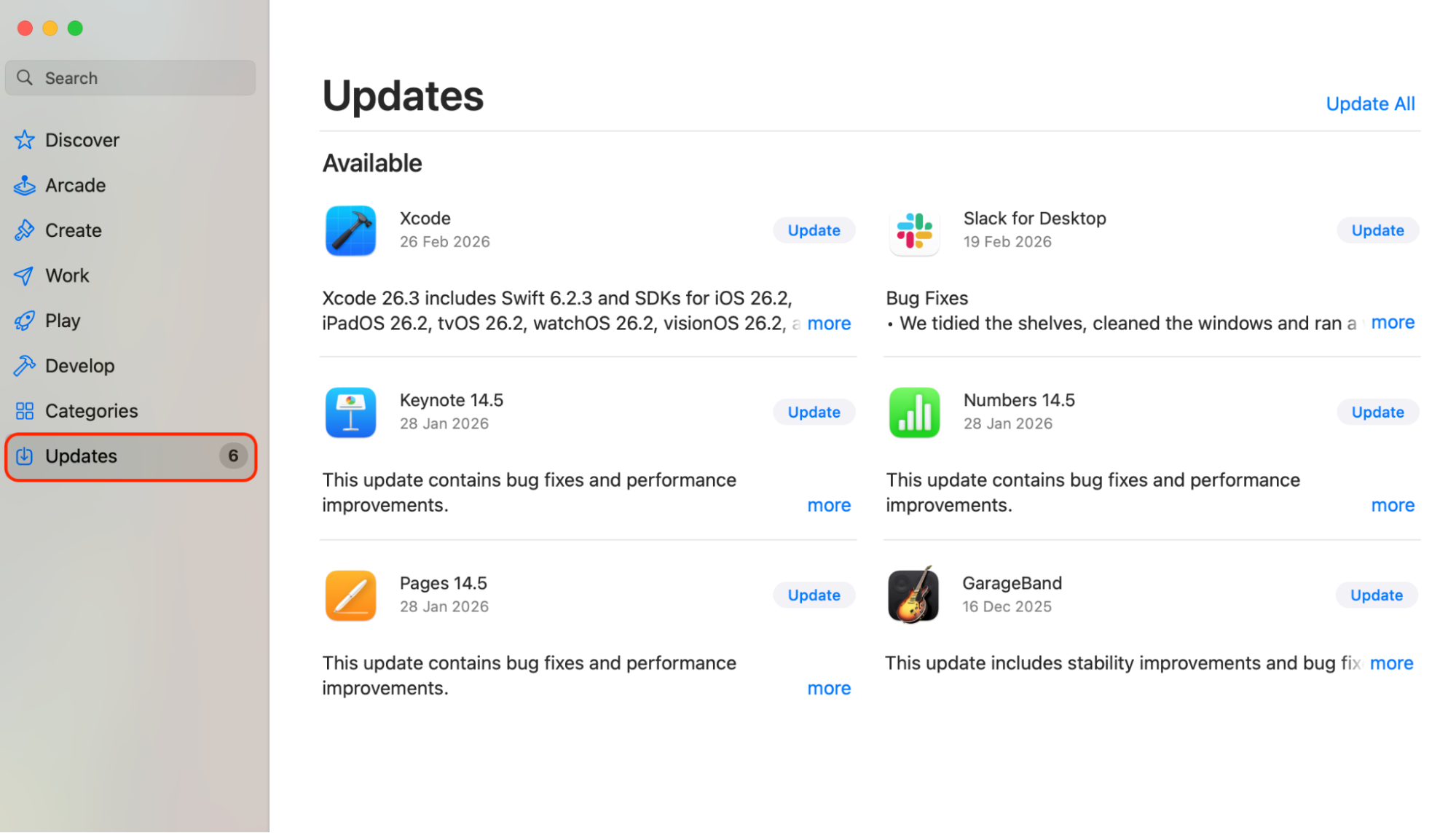
Open the App Store, go to Updates, and install any pending app updates.
Step 1. Go to System Settings > General and click Software UpdateStep 2. Click Update NowStep 3. Open the App Store, go to Updates, and install any pending app updates
2. Disconnect all peripherals
External accessories sometimes cause system instability. In our experience, reboot loops often occur after connecting devices such as USB hubs, external drives, or displays. If your MacBook keeps turning off repeatedly, removing accessories can quickly reveal whether a peripheral is triggering the issue.
Here’s how to disconnect peripherals and test your Mac:
Shut down your MacBook completely from the Apple menu.
Disconnect all external devices, including USB drives, printers, docking stations, and monitors.
Leave only essential accessories connected, such as the charger if needed.
Turn your MacBook back on and log in to macOS.
Use your Mac normally for several minutes, or perform tasks that usually trigger a restart.
If the Mac stays stable, reconnect devices one at a time and restart after each connection.
Disconnect all external devices, including USB drives, printers, docking stations, and monitors after turning off your MacBook
3. Boot into Safe mode
Our tests show that this method is particularly useful if reboot loops begin after installing new apps. If you’re unsure how to boot your Mac in safe mode, the steps depend on your Mac’s processor.
Steps to boot your MacBook in Safe Mode:
Shut down your MacBook completely.
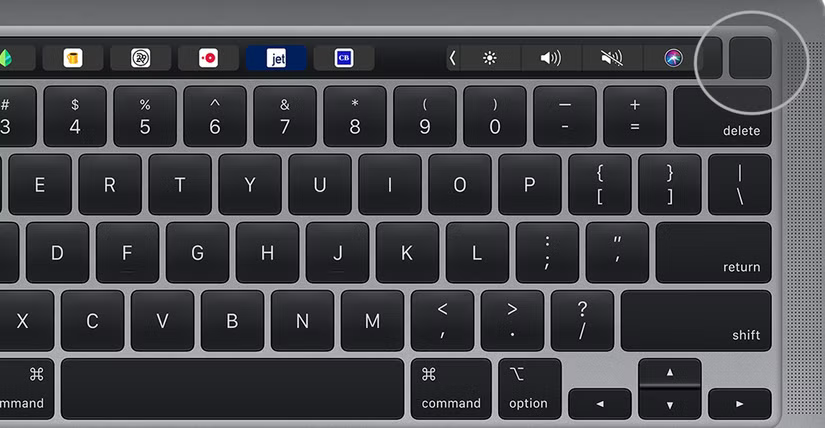
For Apple silicon Macs, press and hold the power button until startup options appear.
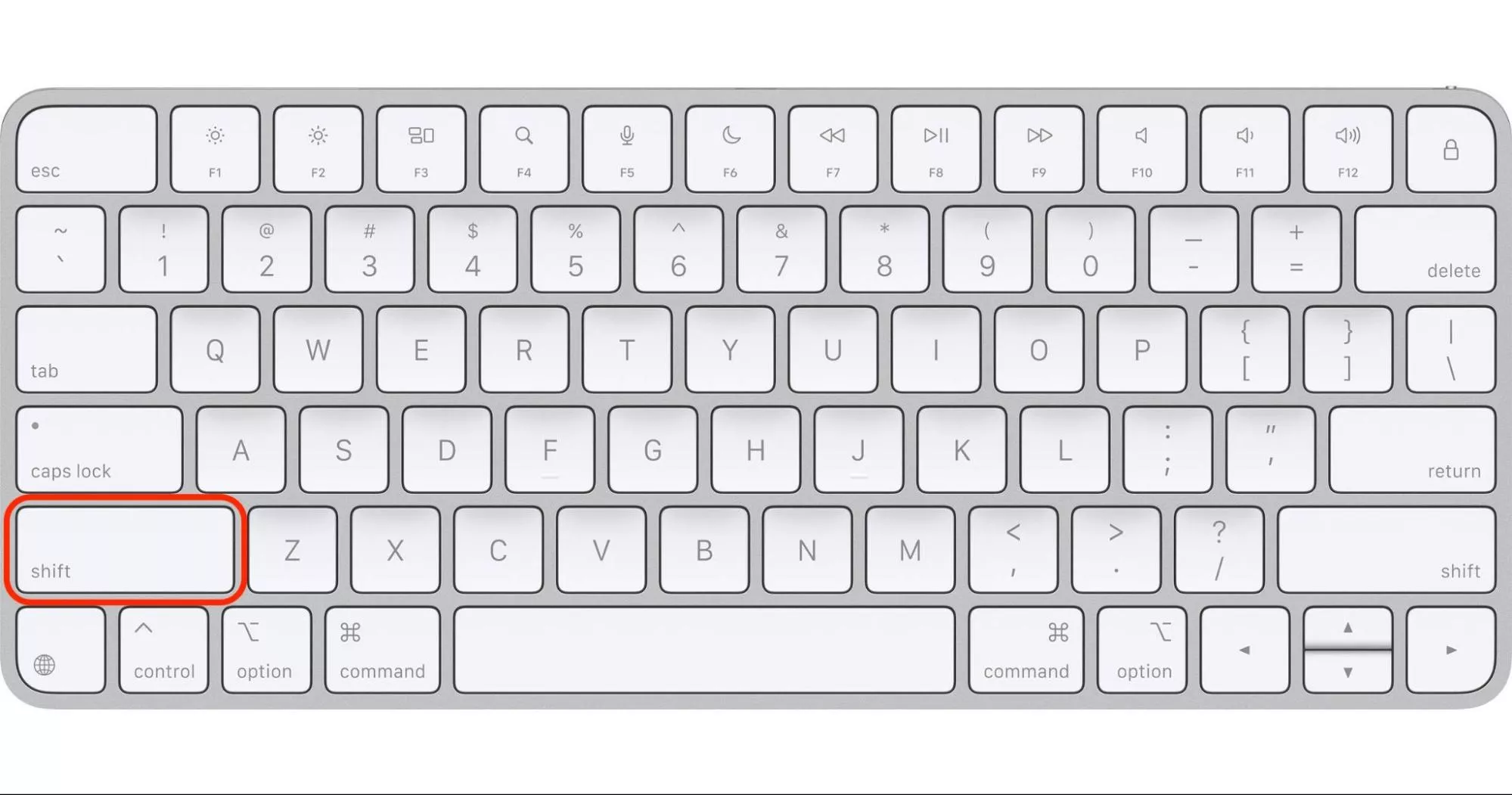
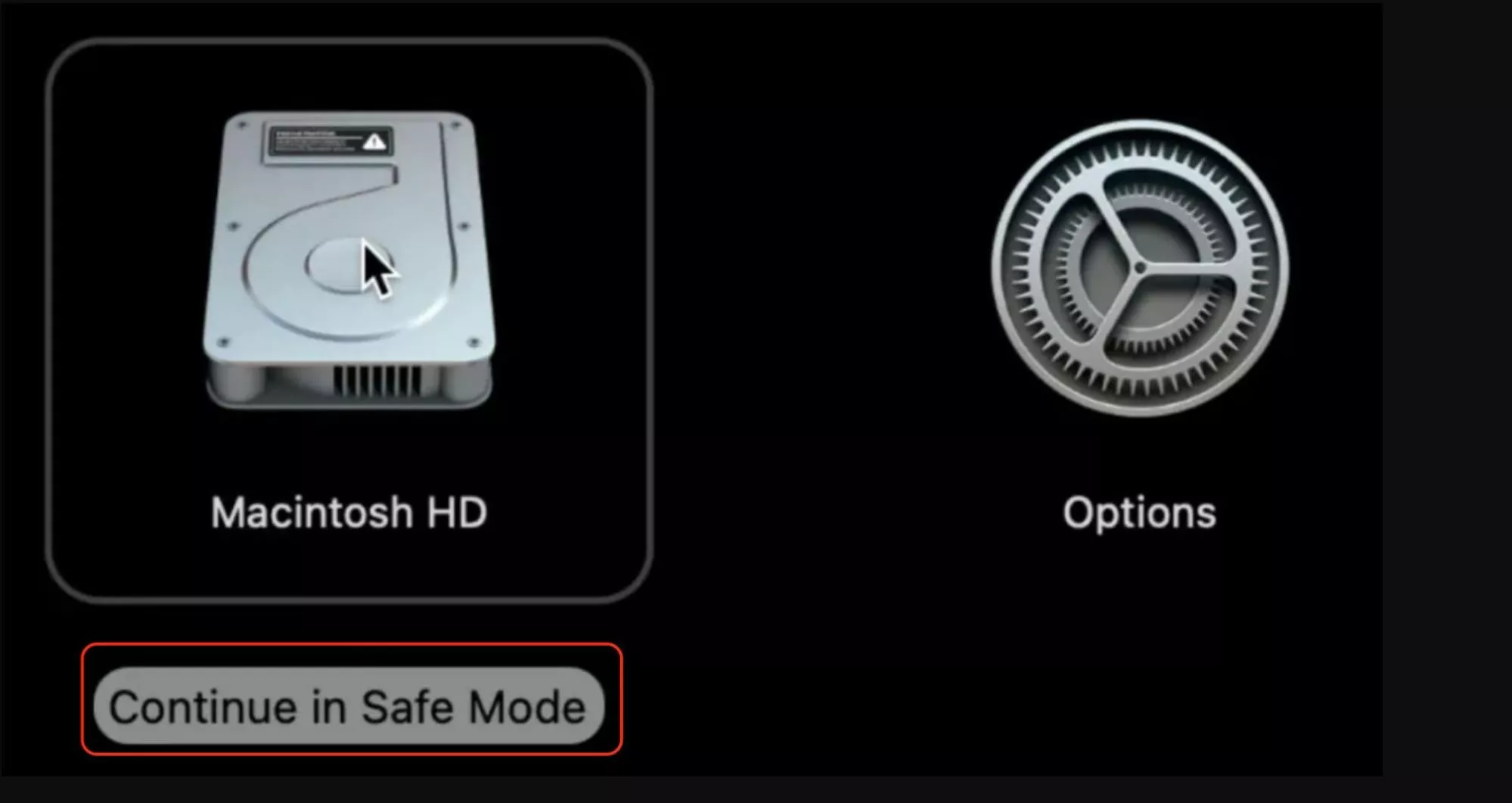
Select your startup disk, hold the Shift key, then click Continue in Safe Mode.
For Intel Macs, turn on the computer and immediately press and hold the Shift key.
Release the key when the login screen appears and sign in.
Step 1 For Apple silicon Macs. Press and hold the power buttonStep 1 for Intel Macs. Turn on the computer and immediately press and hold the Shift key. Release the key when the login screen appears and sign inStep 2. Select your startup disk, hold the Shift key, and click Continue in Safe Mode
4. Run Apple diagnostics
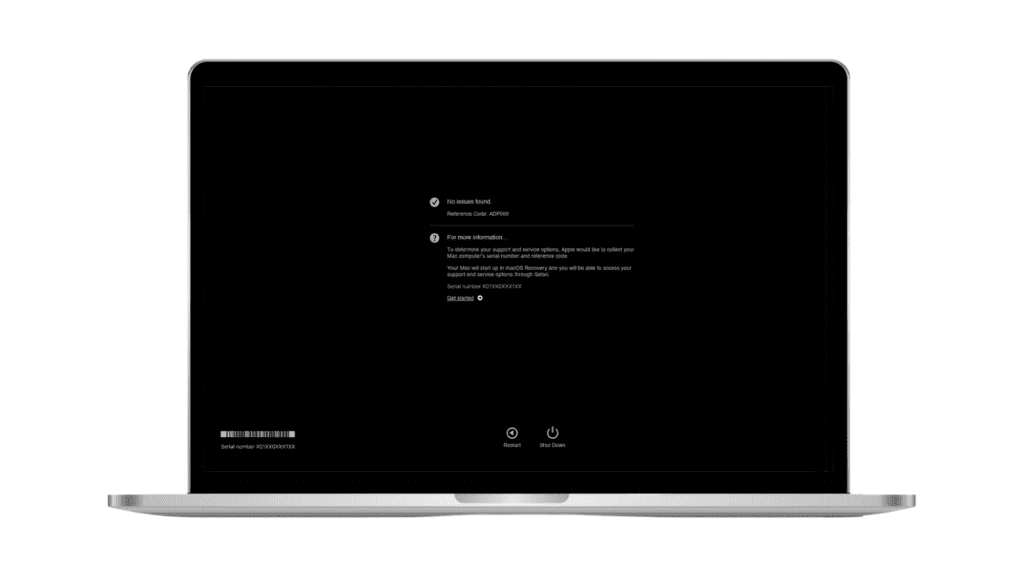
Hardware faults such as faulty RAM, overheating sensors, or logic board issues can trigger unexpected restarts. Apple’s built-in diagnostics tool is one of the fastest ways to check whether the reboot loop is caused by hardware rather than software. If you’re wondering how to run diagnostics on Mac, the process only takes a few minutes and doesn’t modify your files or system settings.
Run Apple Diagnostics by following these instructions:
Shut down your MacBook completely.
Disconnect all external devices except the keyboard, mouse, and display.
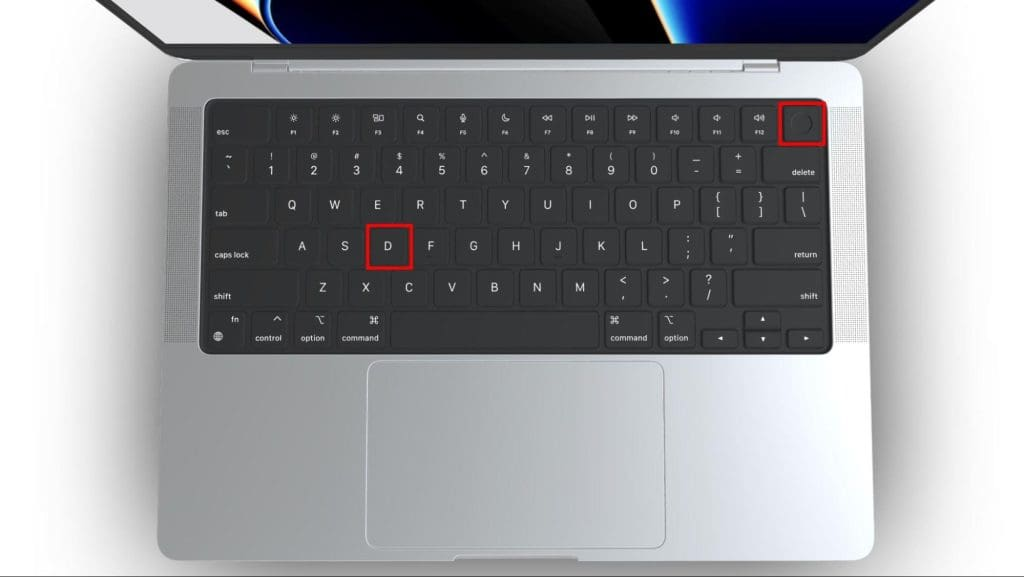
Turn the MacBook on and immediately press and hold the D key.
Let the test run, then review the results on the screen.
After shutting down your MacBook, disconnect all the peripherals, and then turn the MacBook on and immediately press and hold the D key
5. Reset NVRAM/PRAM
Certain system settings stored in NVRAM or PRAM control startup behavior, display settings, and hardware configurations. Corrupted values in these memory areas can sometimes trigger repeated restarts or unusual system behavior. Learning how to reset PRAM and SMC is useful because it restores important system parameters to their default state.
Follow these steps to reset NVRAM/PRAM:
Shut down your MacBook completely.
Press the Power button to turn it on.
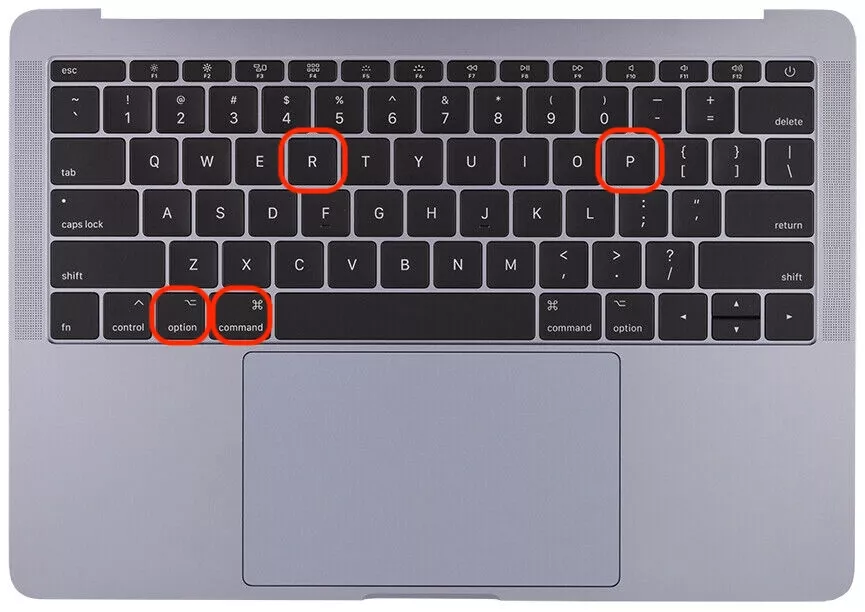
Immediately press and hold Option + Command + P + R.
Keep holding the keys for about 20 seconds.
Release the keys after the startup sound or when the Apple logo appears again.
After restarting your MacBook, immediately press and hold Option + Command + P + R
6. Use Disk utility First Aid
If system files become corrupted, macOS may restart repeatedly to protect itself from further damage. The First Aid feature inside Disk Utility for Mac can detect and repair disk structure problems that cause instability. Running this tool checks your startup disk and attempts to fix errors without deleting personal files.
Here’s what to do to run First Aid in Disk Utility:
Restart your MacBook.
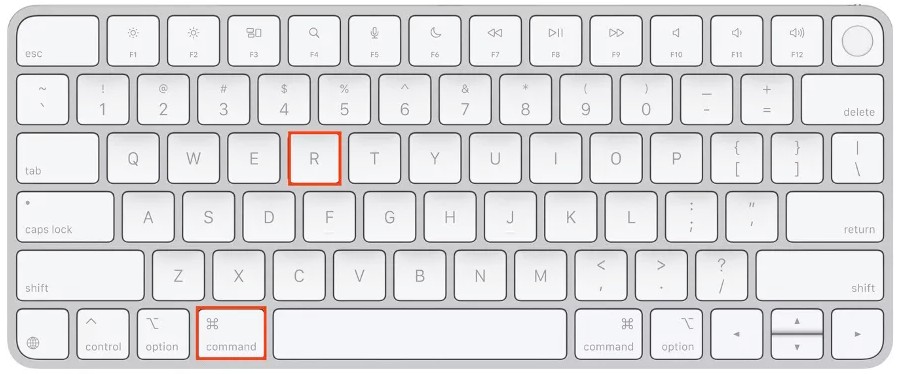
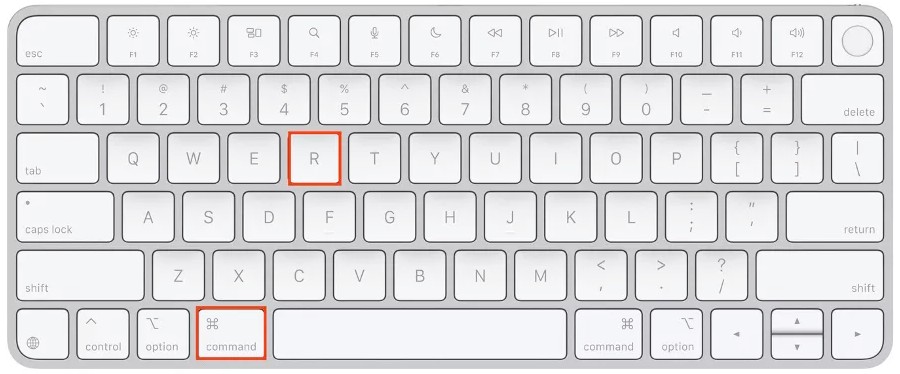
Immediately hold Command + R to enter Recovery Mode.
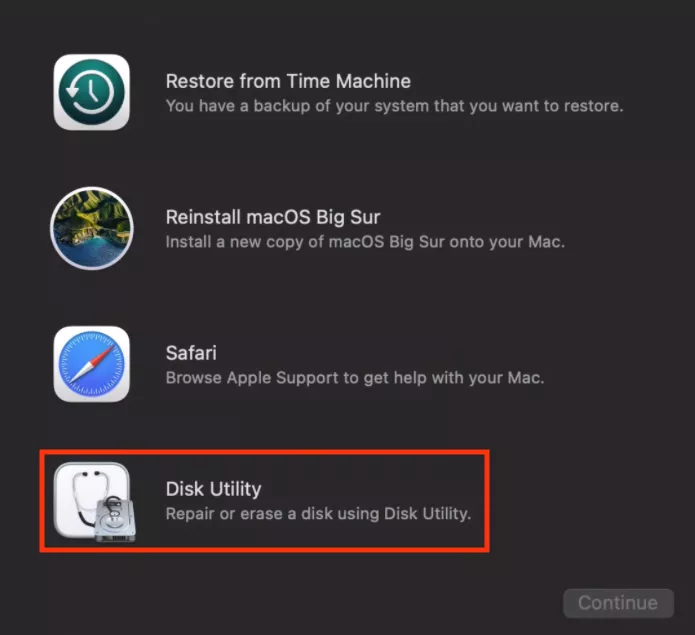
Select Disk Utility from the recovery tools window.
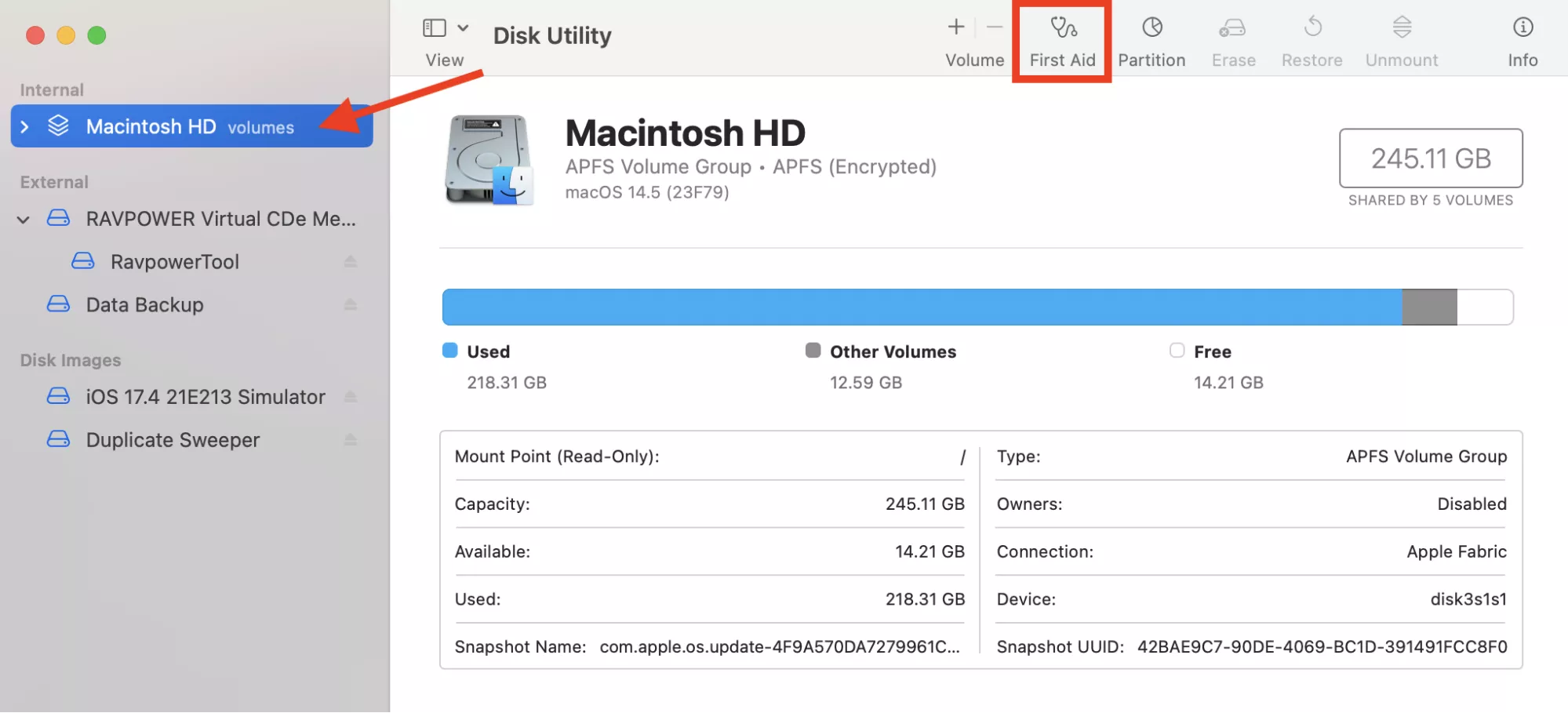
Choose your startup disk from the sidebar.
Click First Aid at the top of the window.
Confirm the scan and wait for the repair process to finish.
Step 1. After restarting your MacBook, immediately hold Command + R to enter Recovery ModeStep 2. Select Disk Utility from the recovery tools windowStep 3. Choose your startup disk from the sidebar and click First Aid
7. Reinstall macOS
If none of the previous fixes stop the reboot cycle, reinstalling the operating system can remove deep system errors or corrupted system files. Try to reinstall macOS as it’s often the most reliable solution when kernel panics continue after troubleshooting software and hardware causes.
Hold Command + R while it boots to open Recovery Mode. You’ll definitely need to know how to get out of recovery mode on Mac.
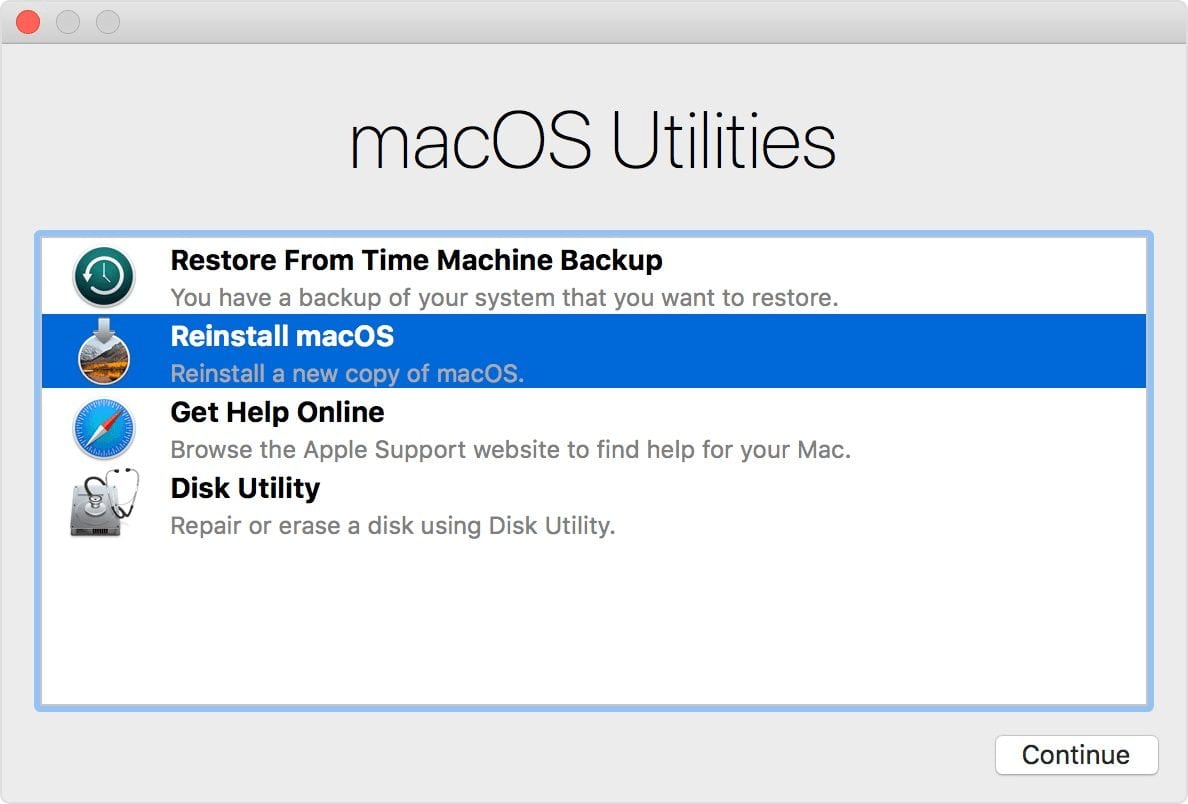
Select Reinstall macOS from the utilities menu.
Choose your startup disk as the destination for installation.
Follow the on-screen instructions to download and install macOS.
Wait for the installation to complete and allow your MacBook to restart.
Step 1. Hold Command + R while it boots to open Recovery Mode after restarting your deviceStep 2. Select Reinstall macOS from the utilities menu and follow the instructions
Conclusion
A MacBook that keeps restarting is usually caused by software conflicts, outdated macOS builds, faulty peripherals, or corrupted system files. If troubleshooting becomes time-consuming, getting expert help can speed things up. MacKeeper is trusted by millions of users, and its Premium Services connect you with certified technicians who can quickly diagnose why your MacBook keeps restarting and guide you through the safest fix.
We respect your privacy and
use cookies
for the best site experience.
Privacy Preferences Center
We use cookies along with other tools to give you the best possible experience while using the
MacKeeper website. Cookies are small text files that help the website load faster. The cookies we
use don’t contain any type of personal data meaning they never store information such as your
location, email address, or IP address.
Help us improve how you interact with our website by accepting the use of cookies. You can change
your privacy settings whenever you like.
Manage consent
All cookies
These cookies are strictly necessary for enabling basic website functionality (including page
navigation, form submission, language detection, post commenting), downloading and purchasing
software. The website might malfunction without these cookies.