After dealing with mDNSResponder issues on your Mac, remember to protect your connection. MacKeeper’s Private Connect is the perfect way to do this—it blocks third-party trackers and lets you hide your details from ISPs. You can also pick from multiple server locations to access geo-restricted content.
mDNSResponder, also known as multicast DNS Responder, is a connectivity tool that runs in the background. Without this program, you can’t connect to the internet. Devices wanting to connect to yours will also use mDNSResponder. The program is available on old and new Macs.
Is mDNSResponder safe on Mac
mDNSResponder is perfectly safe, and it’s one of your computer’s most important functions. You need the program to discover other devices nearby, and your connectivity options are severely limited without it. Even if you tried to delete it, you couldn’t.
What problems can be associated with mDNSResponder
Despite its importance when running in the background, mDNSResponder can cause problems like slow Wi-Fi and other connection issues. You also need to beware of the program slowing down your systems or overheating your computer.
These problems can impact your Mac usage in several ways. If you can’t use the internet, it’s hard to perform your daily tasks. You’ll also struggle to be productive if your systems keep slowing down, which is why it’s so important to know how to make your Mac faster.
Can you quit mDNSResponder on Mac
You can disable mDNSResponder, but I strongly advise against it. The program is critical to how your computer operates, and turning it off can cause more problems than it solves.
A note from our experts:
Without mDNSResponder, you cannot use the internet. When it comes to connecting to the internet, it’s always worth ensuring you have an extra layer of protection. MacKeeper’s VPN Private Connect feature provides a secure internet connection and private web browsing.
I only recommend turning off mDNSResponder if you’re certain that it’s causing problems. Troubleshoot the issues beforehand, and ideally, kill background processes on your Mac without needing to disable the program.
Use these troubleshooting methods:
Restart mDNSResponder: Restarting the program should solve any glitches and should be a first resort.
Stop mDNSResponder in Activity Monitor: Disable the program safely before letting it start up again.
Boot your Mac into Safe Mode: Diagnose the issue further and find a better solution in Safe Mode.
1. Restart mDNSResponder
Restarting programs is the easiest way to solve any problem on your Mac, and I therefore recommend it as a starting point. It works when checking WindowServer CPU usage on Mac, and it should also fix issues with macOS mDNSResponder.
The best way to restart the program is by turning your Mac off and on again. Follow these steps to take that:
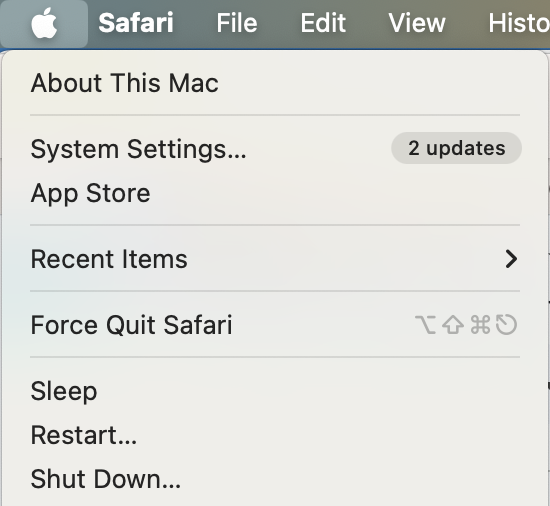
Go to the Apple menu.
When the dropdown menu appears, select Restart.
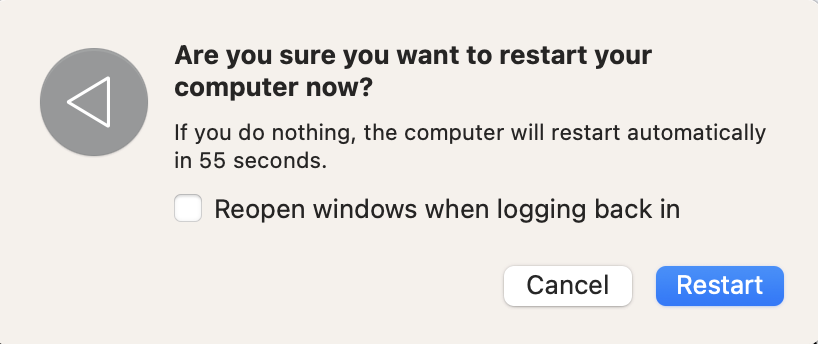
Confirm that you want to restart your computer by clicking on the blue button in the pop-up window.
Wait for your device to turn off and on again before signing in.
Step 1. Apple menu > RestartStep 2. Select Restart again
2. Stop mDNSResponder in Activity Monitor
I like using Activity Monitor to kill processes when they aren’t working properly. It’s straightforward, and you notice an immediate difference.
If restarting your device didn’t work, follow these steps to stop mDNSResponder in Activity Monitor:
Search for Activity Monitor in Spotlight and click on the first result.
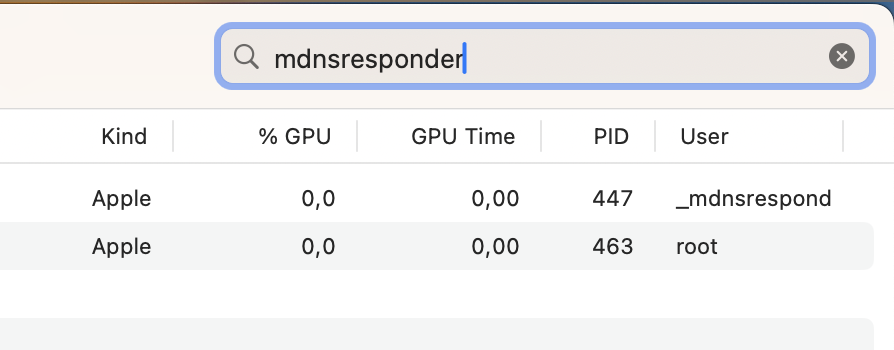
Go to the search bar in Activity Monitor and look for mDNSResponder.
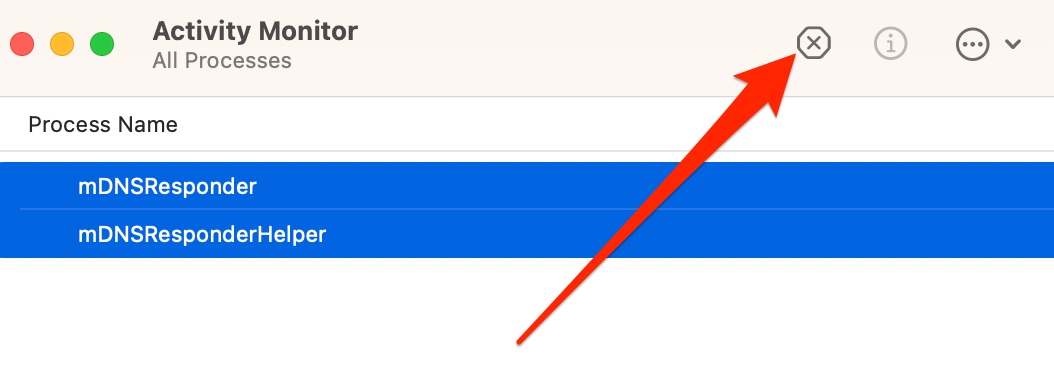
Highlight all related processes and press the x button.
Step 1. Spotlight > Activity MonitorStep 2. Search for mDNSResponderStep 3. Kill all processes associated with mDNSResponder
3. Boot your Mac into Safe Mode
If neither of the above options has worked, I recommend trying to boot your computer into Safe Mode. Doing so will stop unnecessary processes from working, allowing you to troubleshoot and solve the problem more effectively.
Here’s how to boot your Mac into Safe Mode:
Turn off your Mac.
Switch your device on again and press the Shift key straight away.
Let go of the Shift key when you see the login page.
Sign into your computer; if needed, do this multiple times.
Pick the Safe Boot option.
mDNSResponder: Helpful, but sometimes problematic
mDNSResponder is a very helpful program, but it can sometimes lead to performance issues. Besides overheating, you could be at risk of enduring a worse Wi-Fi connection. Thankfully, you can easily solve the issue by troubleshooting what’s wrong and briefly killing the process.
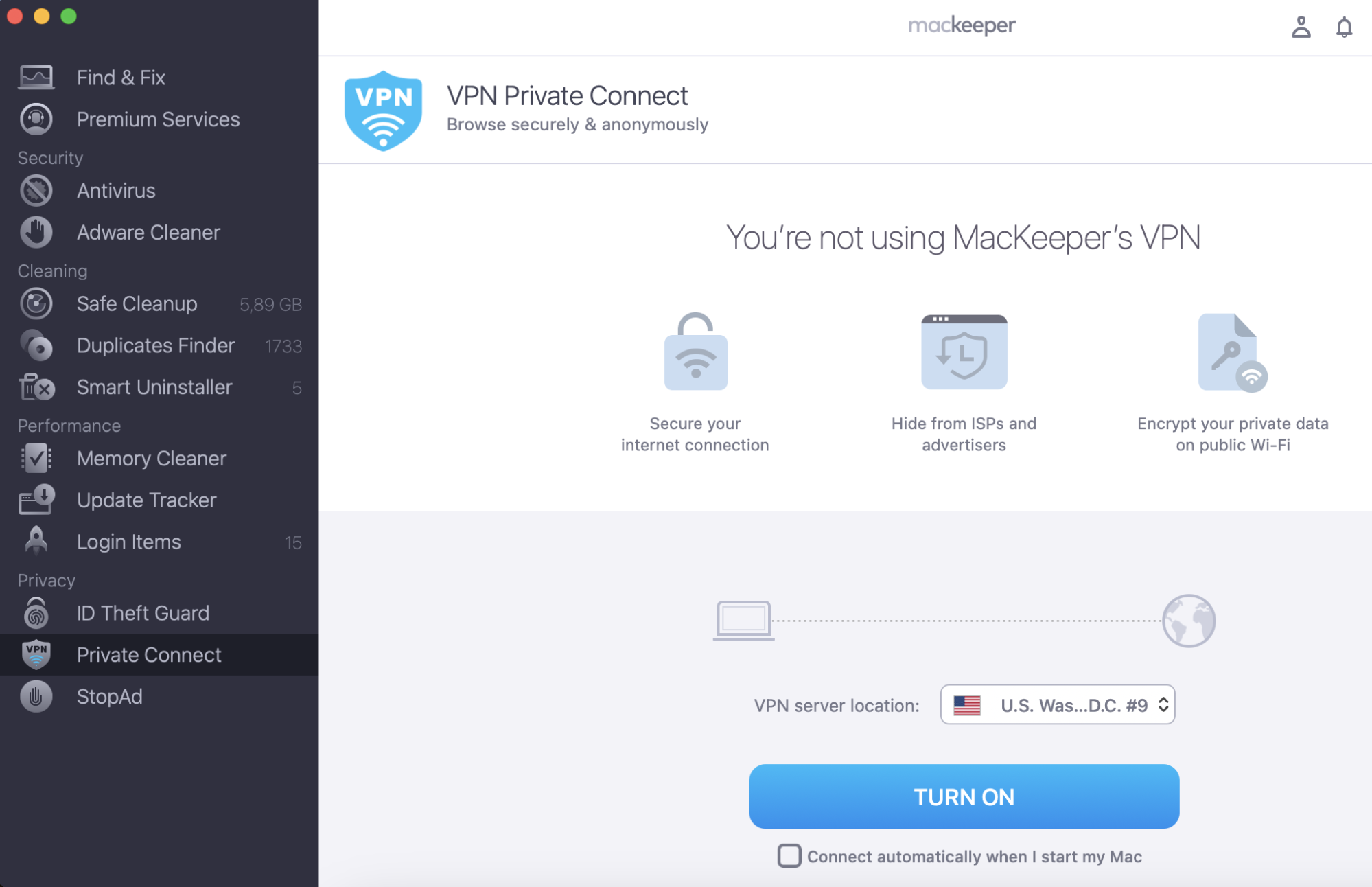
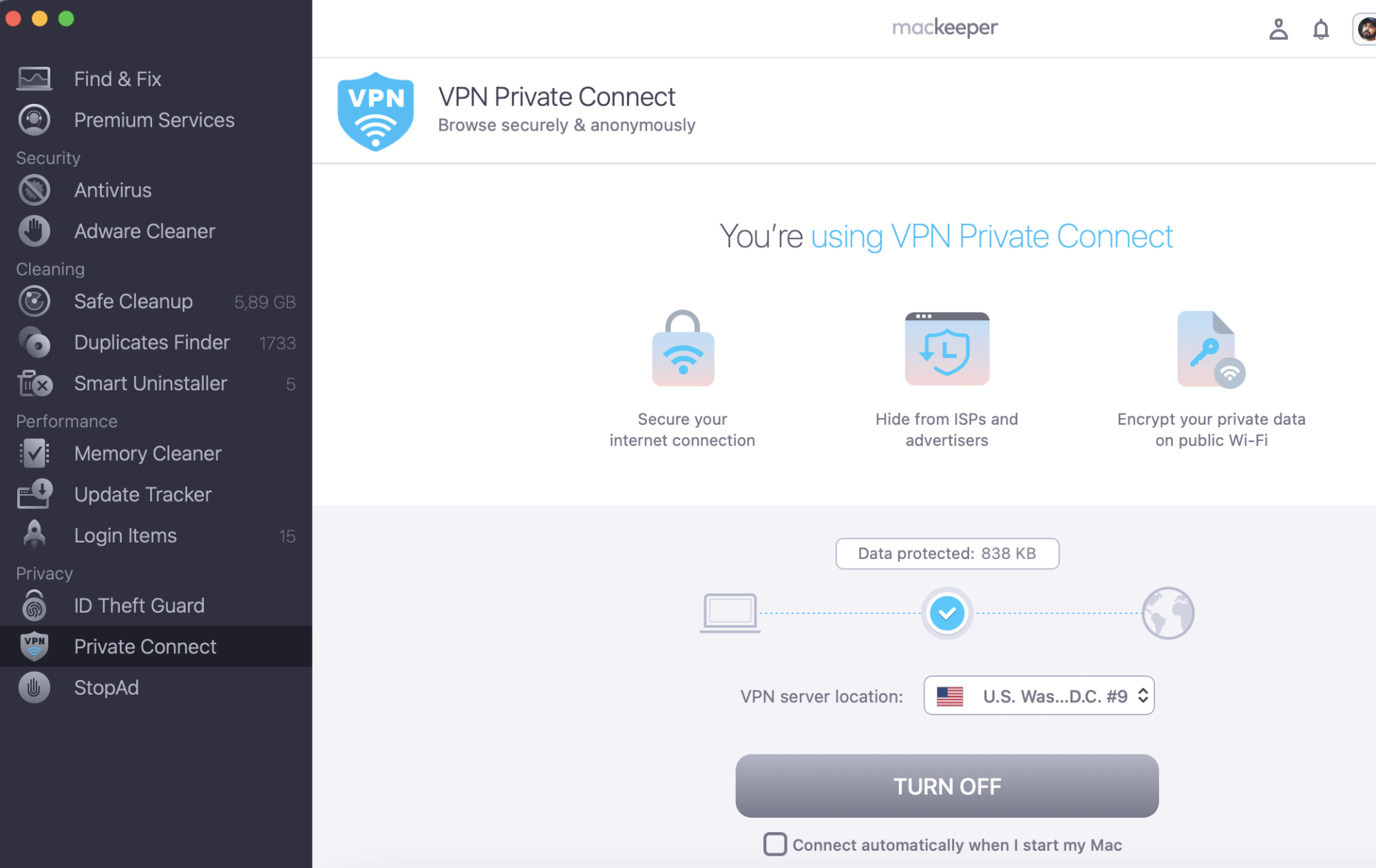
Using MacKeeper’s VPN Private Connect is also wise if you want to balance speed and security. Here’s how to use it:
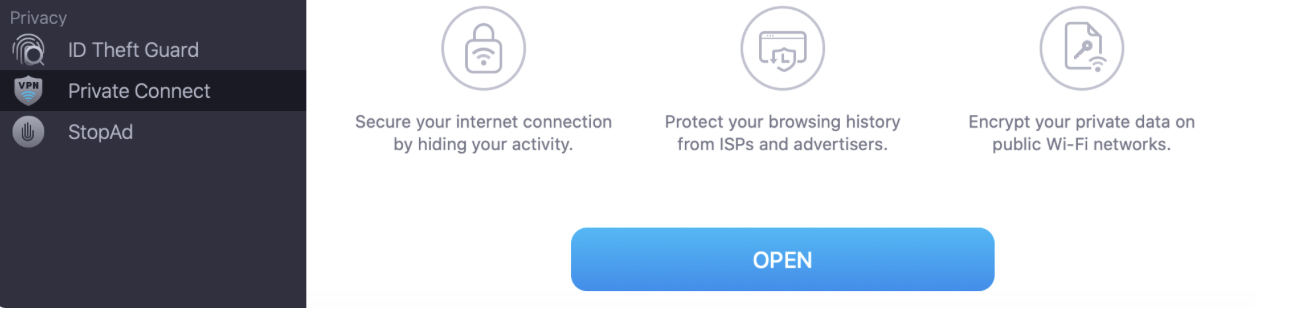
Open MacKeeper and go to Privacy > VPN Private Connect.
Select Open.
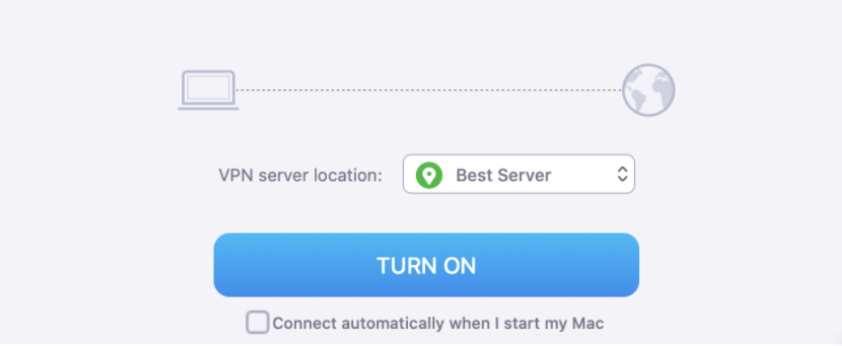
Pick your server location via the dropdown menu.
Select Turn On.
Step 1. Privacy > Private Connect > OpenStep 2. Choose your server and select Turn On
Having read this guide, you should now know what to do if you have problems with macOS mDNSResponder.
We respect your privacy and
use cookies
for the best site experience.
Privacy Preferences Center
We use cookies along with other tools to give you the best possible experience while using the
MacKeeper website. Cookies are small text files that help the website load faster. The cookies we
use don’t contain any type of personal data meaning they never store information such as your
location, email address, or IP address.
Help us improve how you interact with our website by accepting the use of cookies. You can change
your privacy settings whenever you like.
Manage consent
All cookies
These cookies are strictly necessary for enabling basic website functionality (including page
navigation, form submission, language detection, post commenting), downloading and purchasing
software. The website might malfunction without these cookies.