Dealing with mdworker Mac high CPU can be frustrating, as it can make your Mac slow, unresponsive, and unusually loud, affecting its overall performance. To improve performance, I recommend using MacKeeper’s Memory Cleaner to free up memory and remove unnecessary background processes, and help your laptop run more smoothly. Optimize your system quickly and efficiently!
Mdworker is a background macOS process that helps Spotlight search perform properly. When you add new files, install apps, download documents, or connect some external devices, the mdworker scans the content and updates macOS search results.
In other words, the mdworker helps your Mac quickly find any files you’re looking for in Spotlight. Without the mdworker, the searching process takes a lot of time, as macOS would need to check each file individually.
Why is mdworker using high CPU on Mac?
If you notice your Apple laptop suddenly becomes slower, due to Mac mdworker high CPU usage, don’t panic - there’s usually a simple explanation. As a rule, high CPU usage happens when your Mac has a lot of new data to process. This usually happens when you add a large number of files, connect an external drive, or after a macOS update. During these activities, your Mac is checking new files and adding them to Spotlight search, which temporarily increases CPU usage.
If the mdworker continues using high CPU for a long time, it may be trying to index corrupted files. In this case, the mdworker can even affect your Mac’s performance.
How to check mdworker CPU usage on Mac?
If you’re trying to figure out why your Mac is running slowly, start by checking the mdworker CPU usage. One of the easiest ways to learn how to check processor usage on Mac is by using Activity Monitor. It’s a built-in macOS tool that shows how much power each app and process is using. I usually use this method when my Mac becomes less responsive or works lauder than usual.
Do the following to identify which processes are using the most system resources:
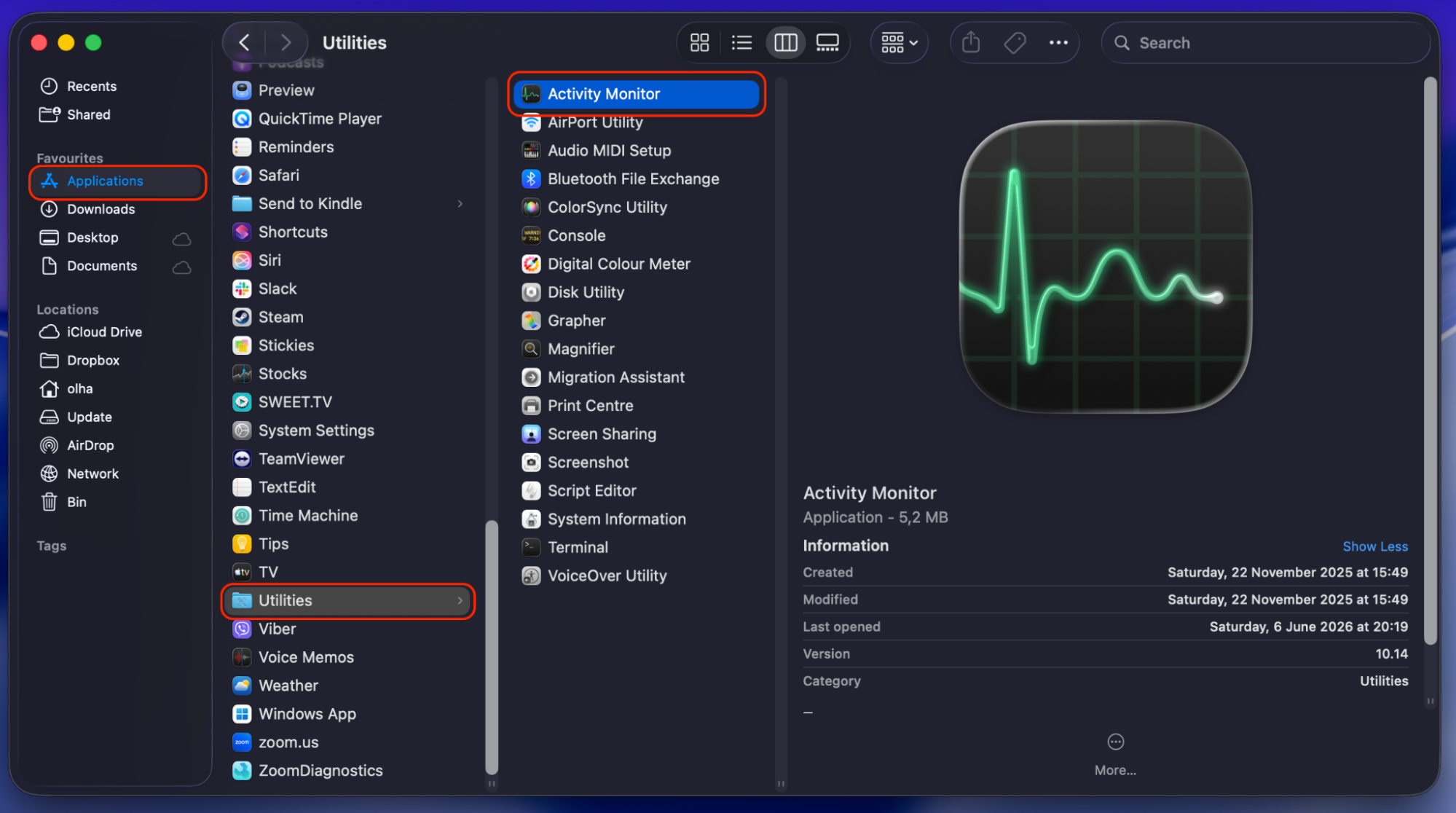
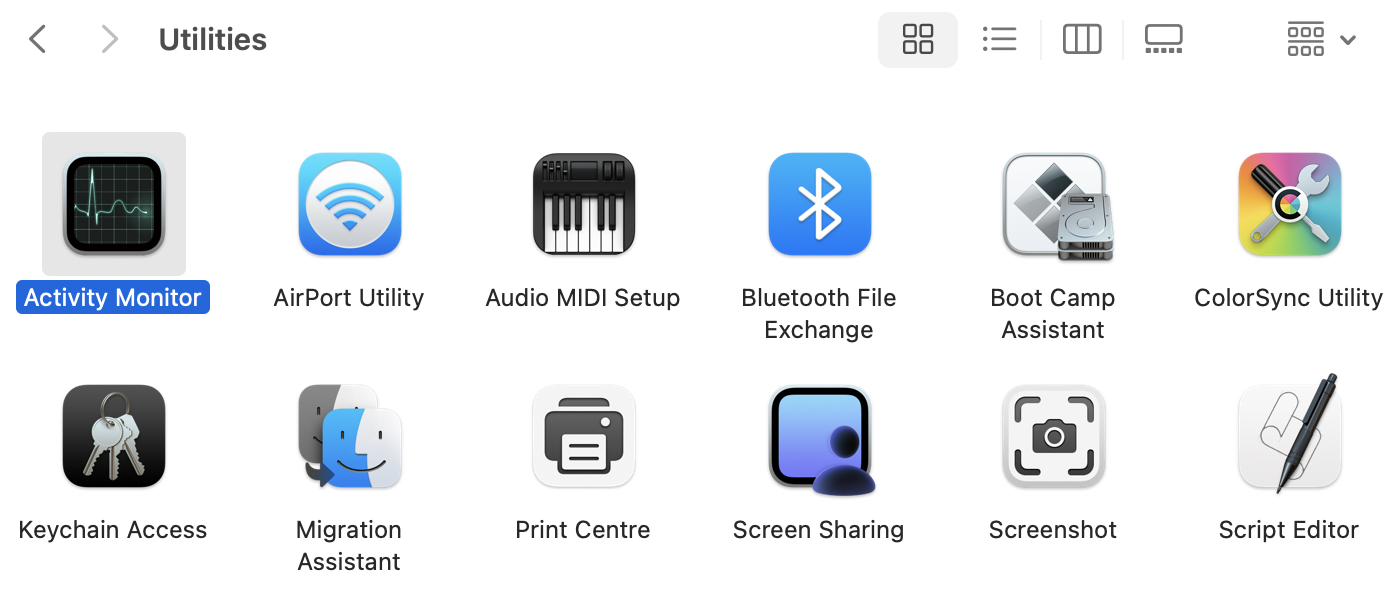
Go to Applications > Utilities > Activity Monitor. Alternatively, open Spotlight and type Activity Monitor.
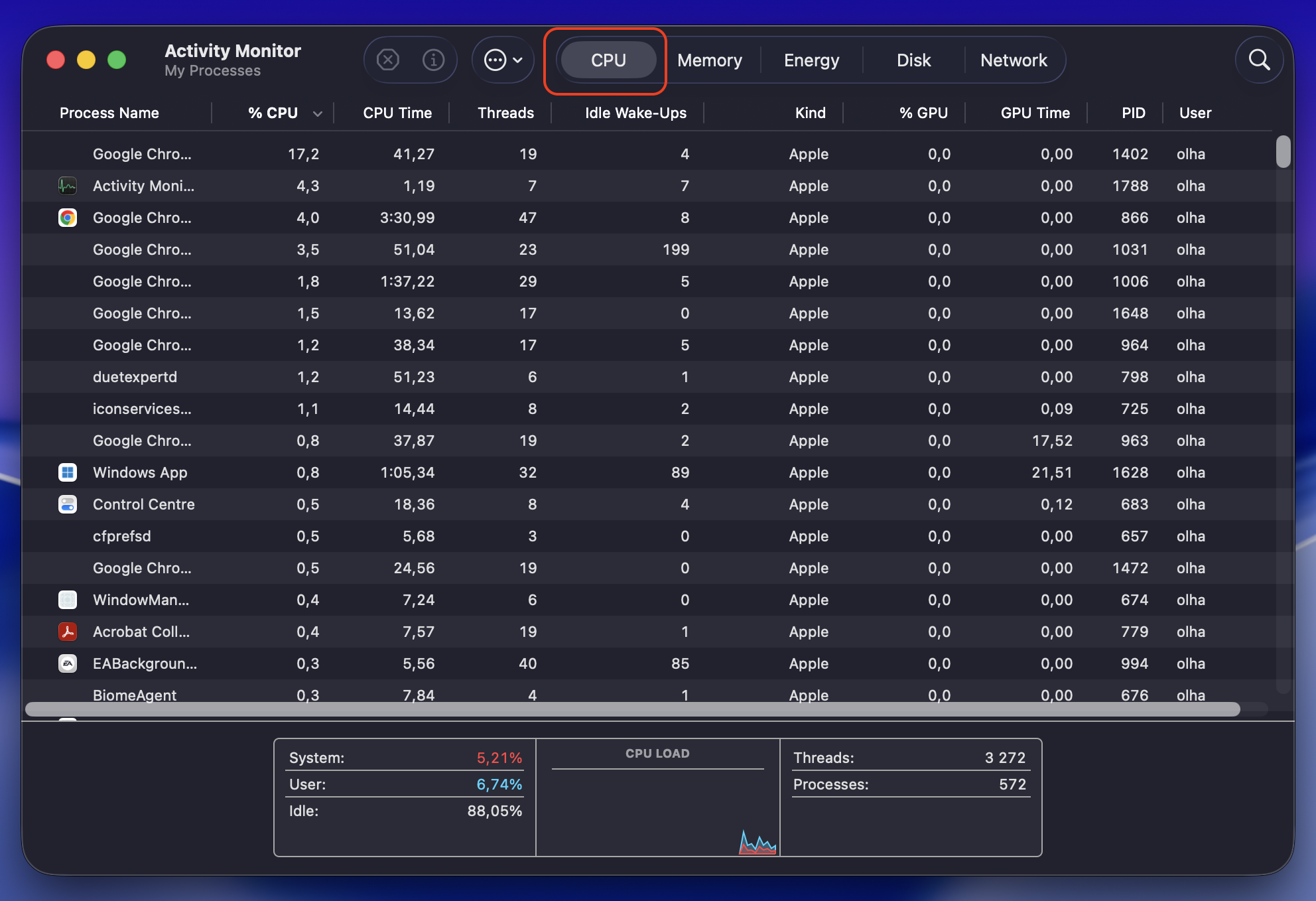
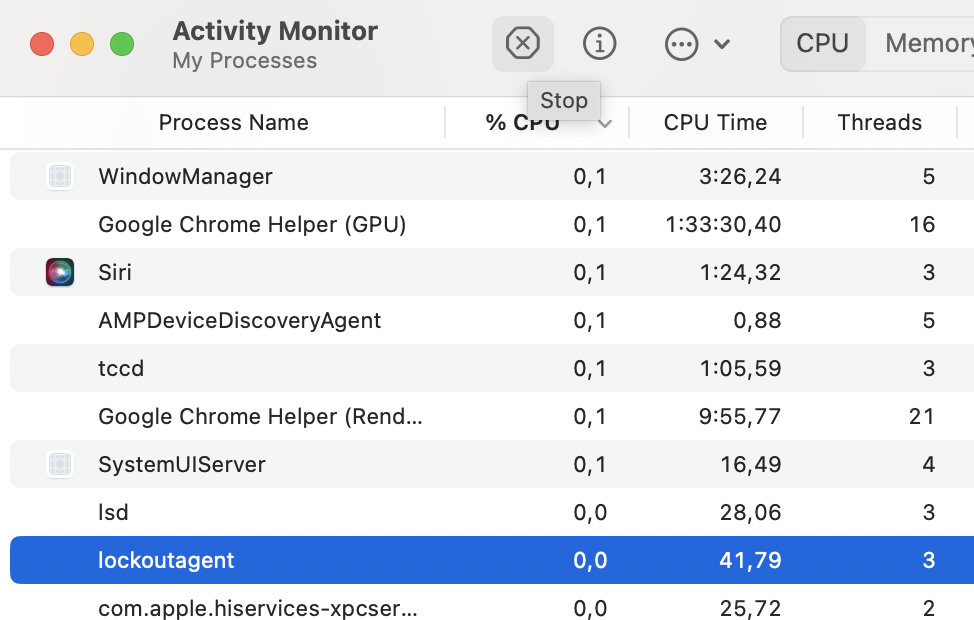
When it opens, find the CPU at the top of the window. Here, you’ll see all active processes and how many CPU resources they’re currently using.
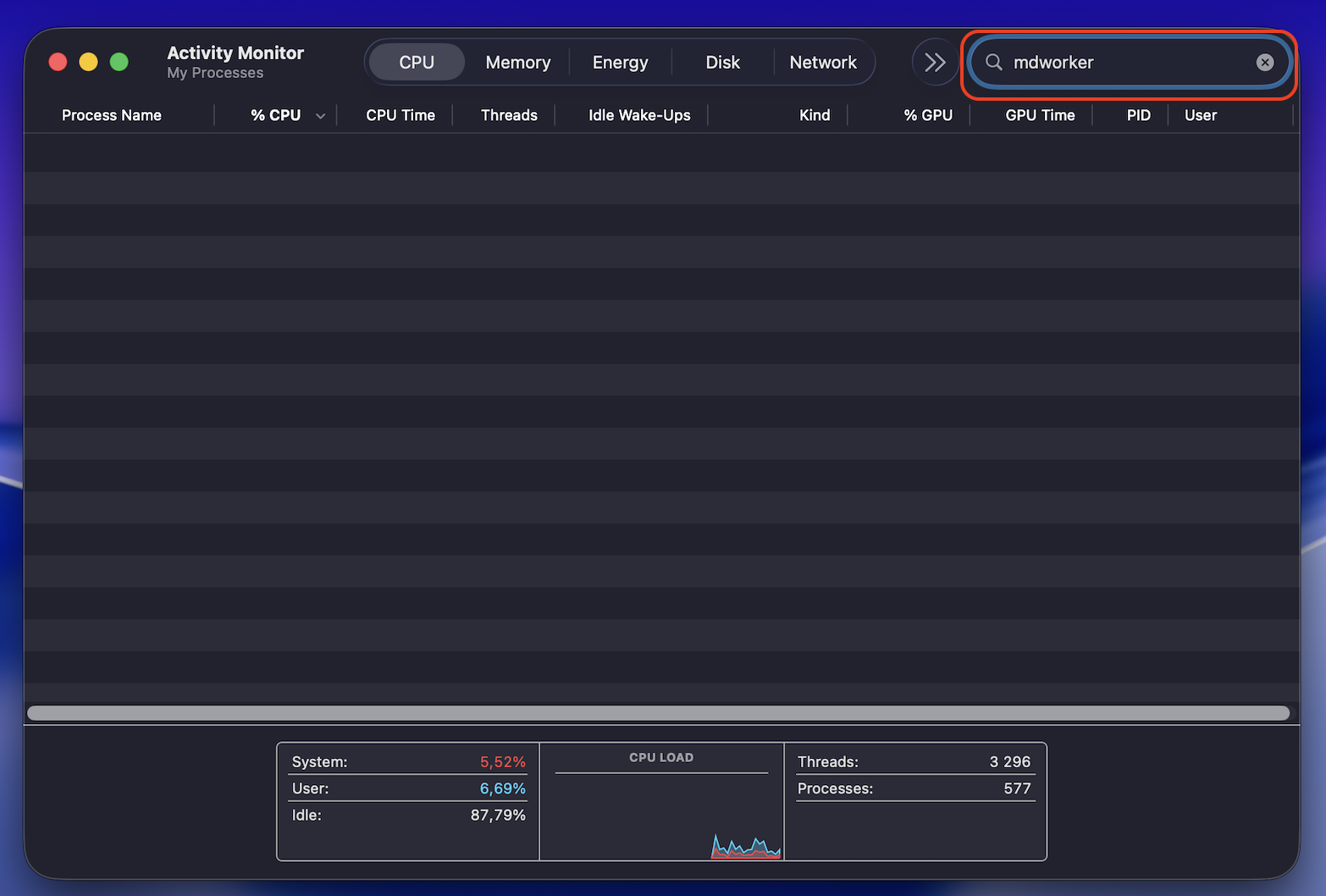
Type mdworker into the search bar. If this process is active, it’ll appear in the list with other active processes.
Step 1. Applications > Utilities > Activity MonitorStep 2. Select CPU Step 3. Type “mdworker” into the search bar
A note from our experts:
Remember that high CPU usage from mdworker isn’t the only reason your Mac performs slowly. Actually, unnecessary background processes and memory overload can exacerbate the situation, making your laptop feel sluggish and less responsive. That’s why it’s better to check your overall system activity, rather than staying focused on a single process.
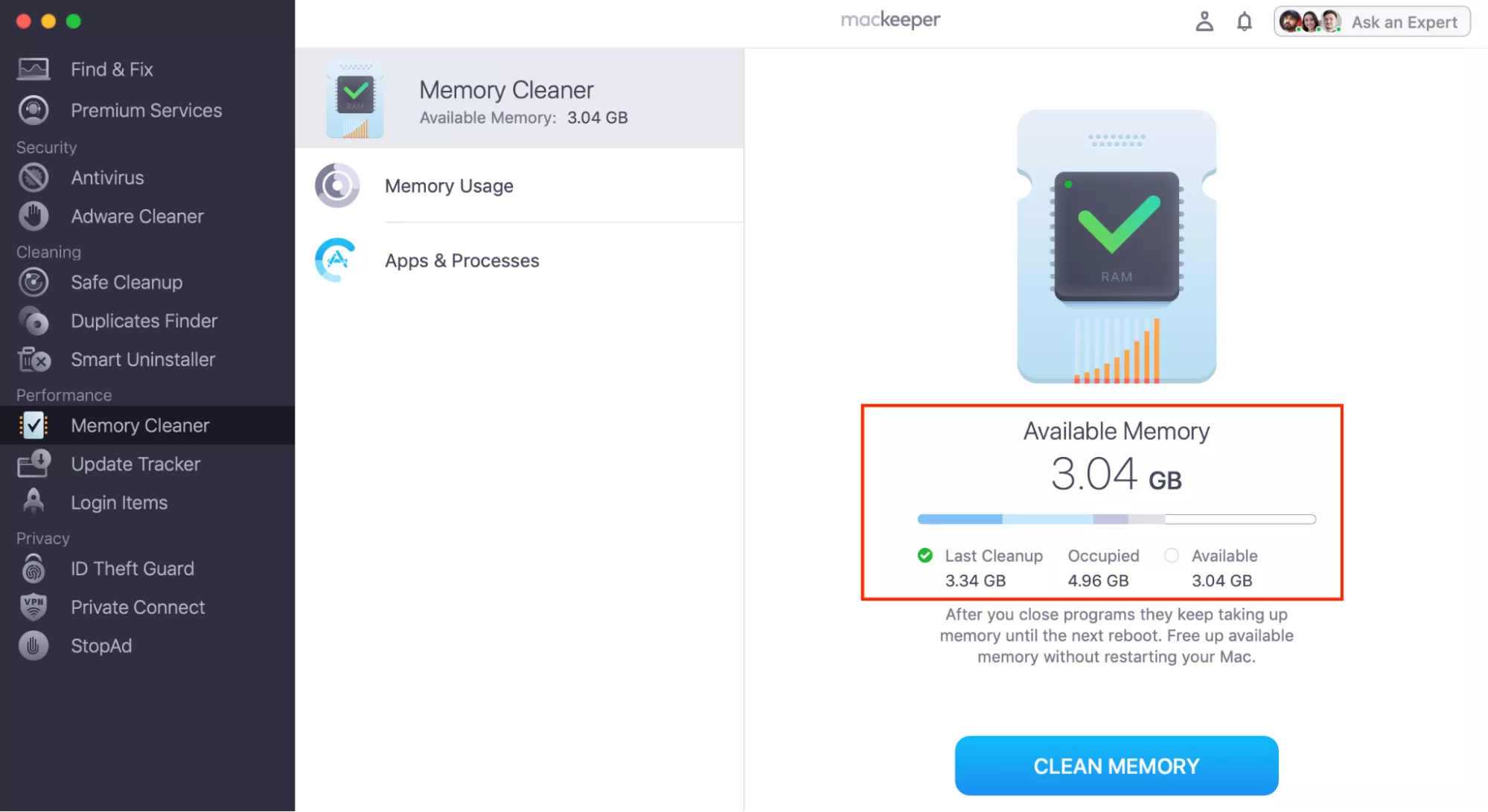
Among the available solutions, I recommend MacKeeper’s Memory Cleaner. It helps to free up memory and remove redundant background processes without requiring you to search manually through Activity Monitor. In this way, MacKeeper’s Memory Cleaner enhances your Mac’s performance while resolving the mdworker high CPU usage issue.
Take these steps to help your Mac run more smoothly with MacKeeper’s Memory Cleaner:
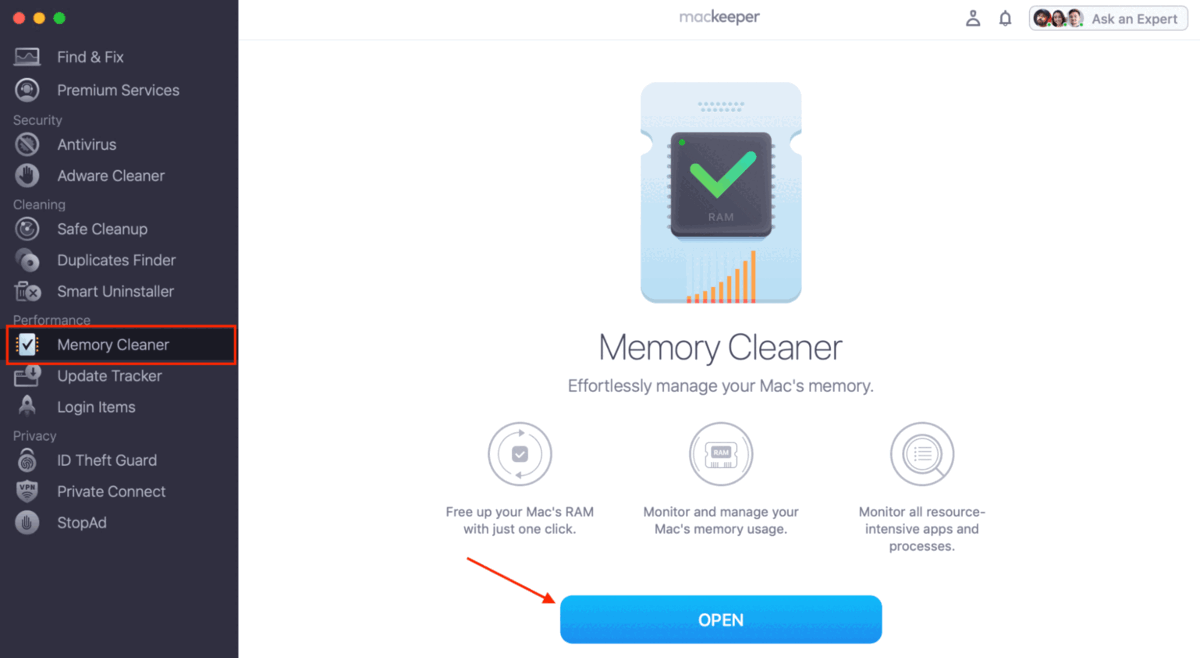
Select Memory Cleaner in the left sidebar > click Open.
Review the results > click the Clean Memory button to close unnecessary processes.
Step 1. Launch the MacKeeper app > Memory Cleaner > OpenStep 2. Review the results > Clean Memory
How to fix mdworker high CPU on Mac?
When you notice mdworker using high CPU, it doesn’t mean that something is wrong with your Mac. Maybe, mdworker is just doing its job - organizing files for Spotlight search. However, you should look for a solution if the process continues for too long.
Often mdworker high CPU usage issue is related to new content, corrupted files, or temporary system glitches. The good news is that most cases require simple solutions. Below, I’ll show you the simplest but still effective way to reduce mdworker high CPU usage and improve your Mac’s performance.
1. Restart your Mac
Perhaps the easiest fixing method that works for different issues is to restart Mac. Though it seems too obvious, often restarting the Mac can solve a lot of temporary system problems, including reducing CPU consumption when mdworker has been working much longer than expected.
Do the following to restart your Mac and fix mdworker high CPU consumption:
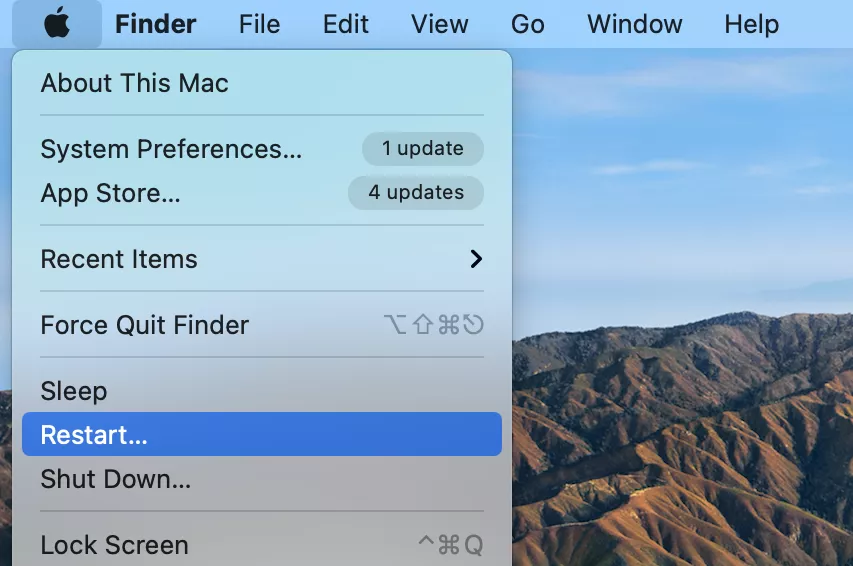
Click the Apple menu in the top-left corner of your screen.
Choose Restart from the drop-down menu.
Wait for your Mac to restart and check if mdworker high CPU usage has decreased.
Apple menu > Restart
2. Rebuild Spotlight index
If restarting your Mac doesn’t help, try to rebuild Spotlight index. As the mdworker works closely with Spotlight, searching issues sometimes cause mdworker to use more CPU than expected. There are several ways to do it.
2.1 Using system settings
Here’s how to rebuild the Spotlight index using system settings:
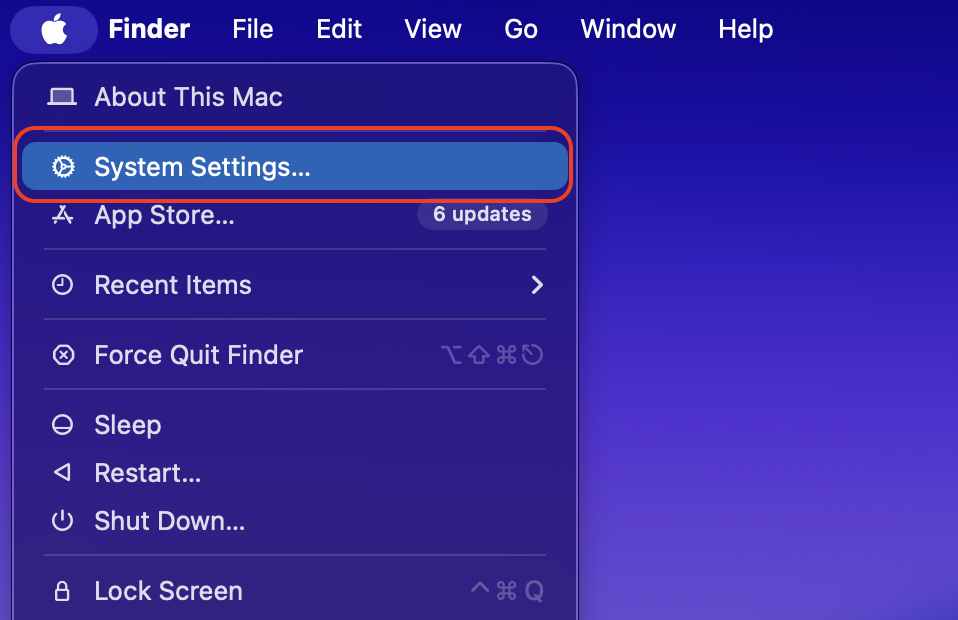
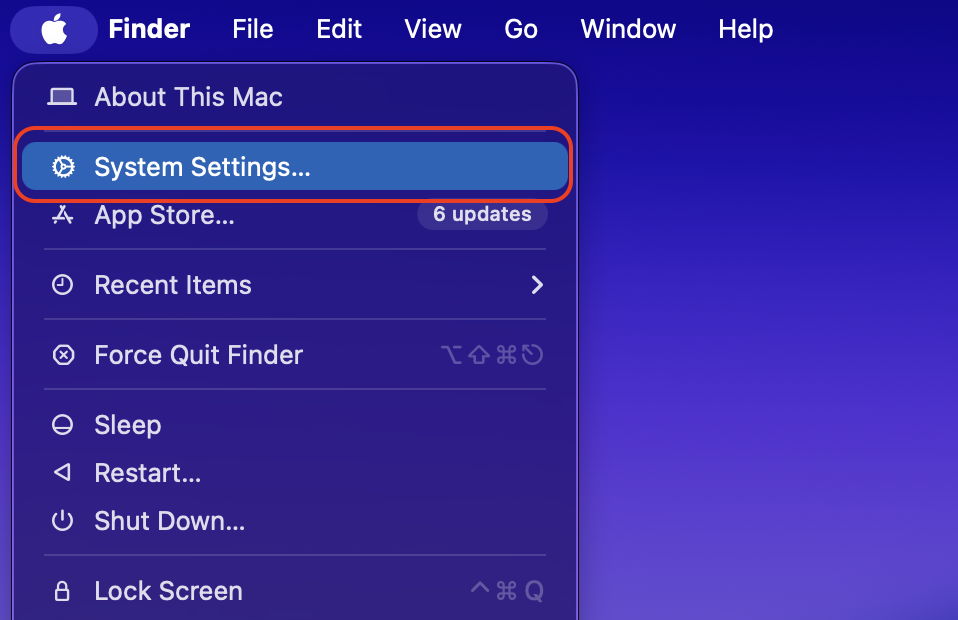
Go to Apple menu and open System Settings.
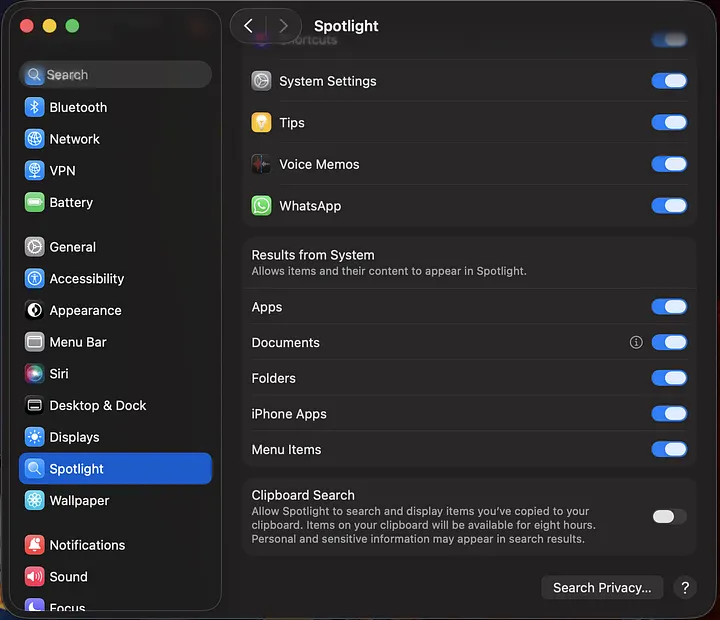
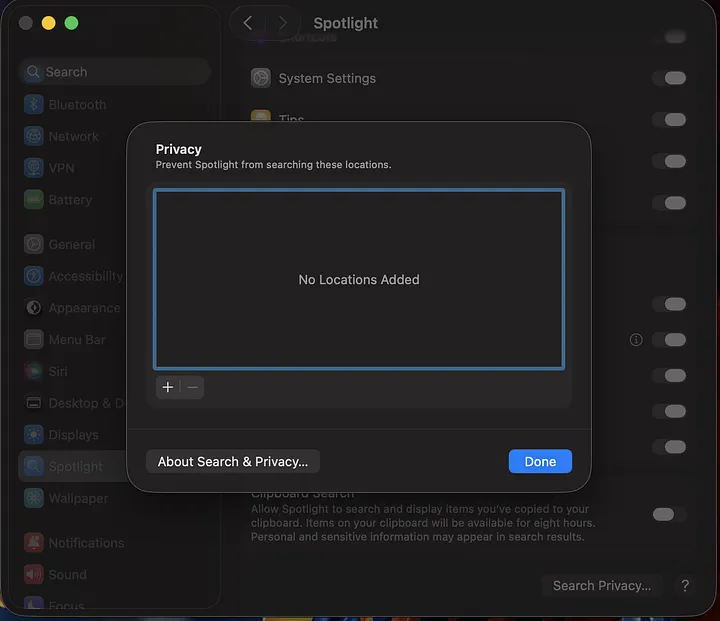
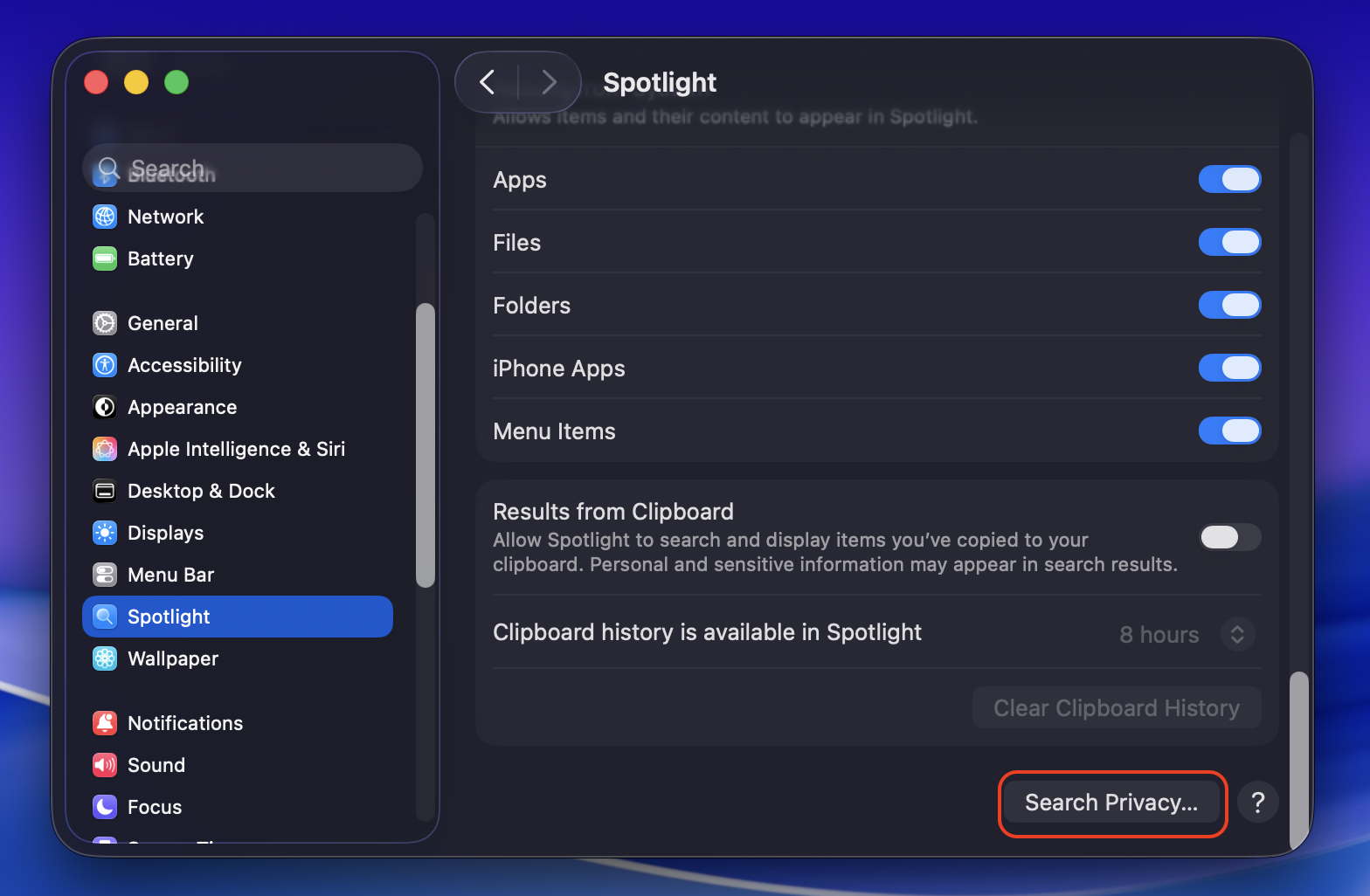
Choose Spotlight from the sidebar and scroll down and find Search Privacy.
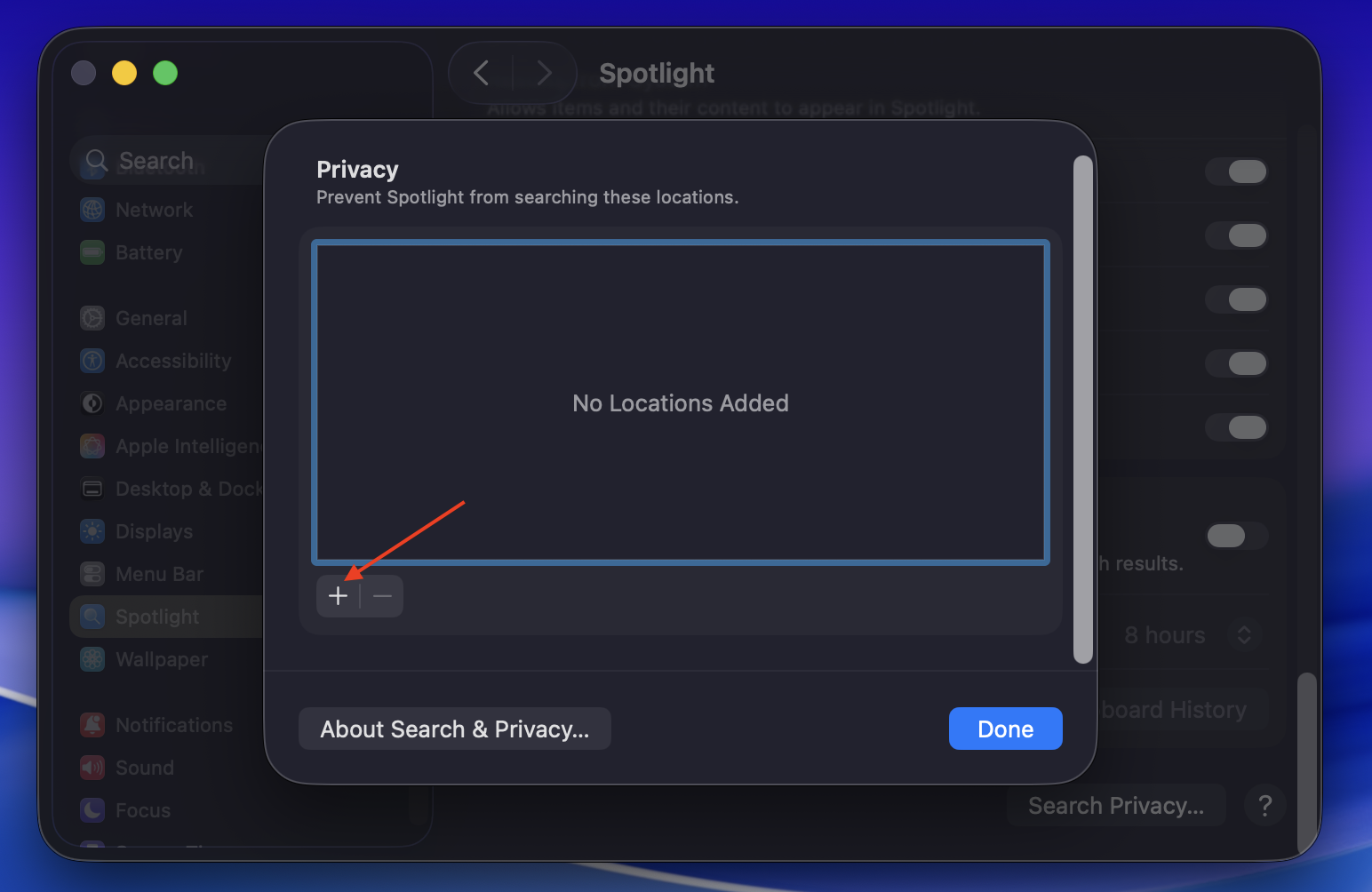
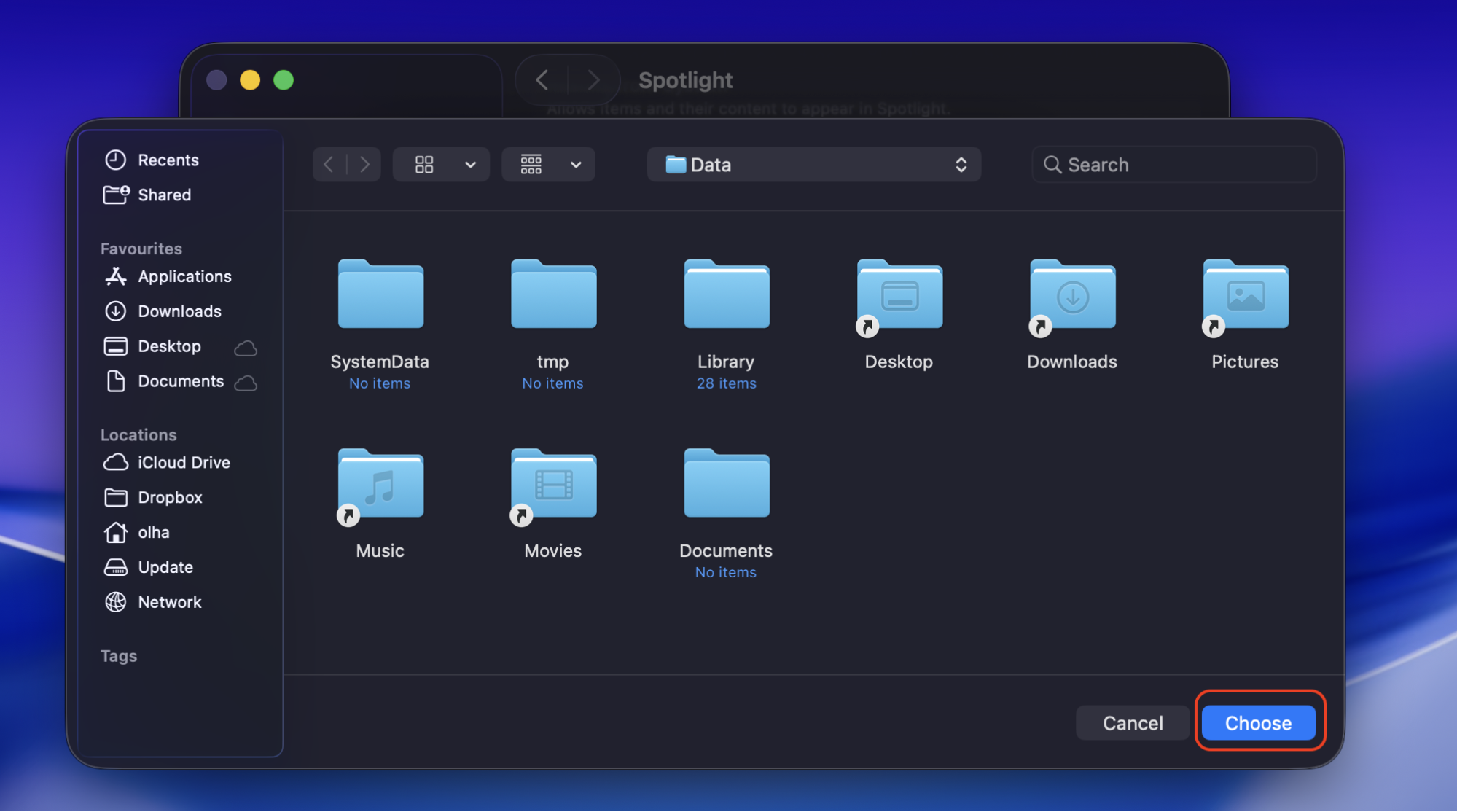
Click the Plus button and add your startup disk (usually “Macintosh HD”), then remove it and click Done.
Step 1. Apple Menu > System Settings Step 2. Spotlight > Search Privacy Step 3. Plus button > add your Startup disk > remove it > Done
2.2 Using Terminal commands
Here’s my instruction on how to rebuild the Spotlight index using Terminal commands:
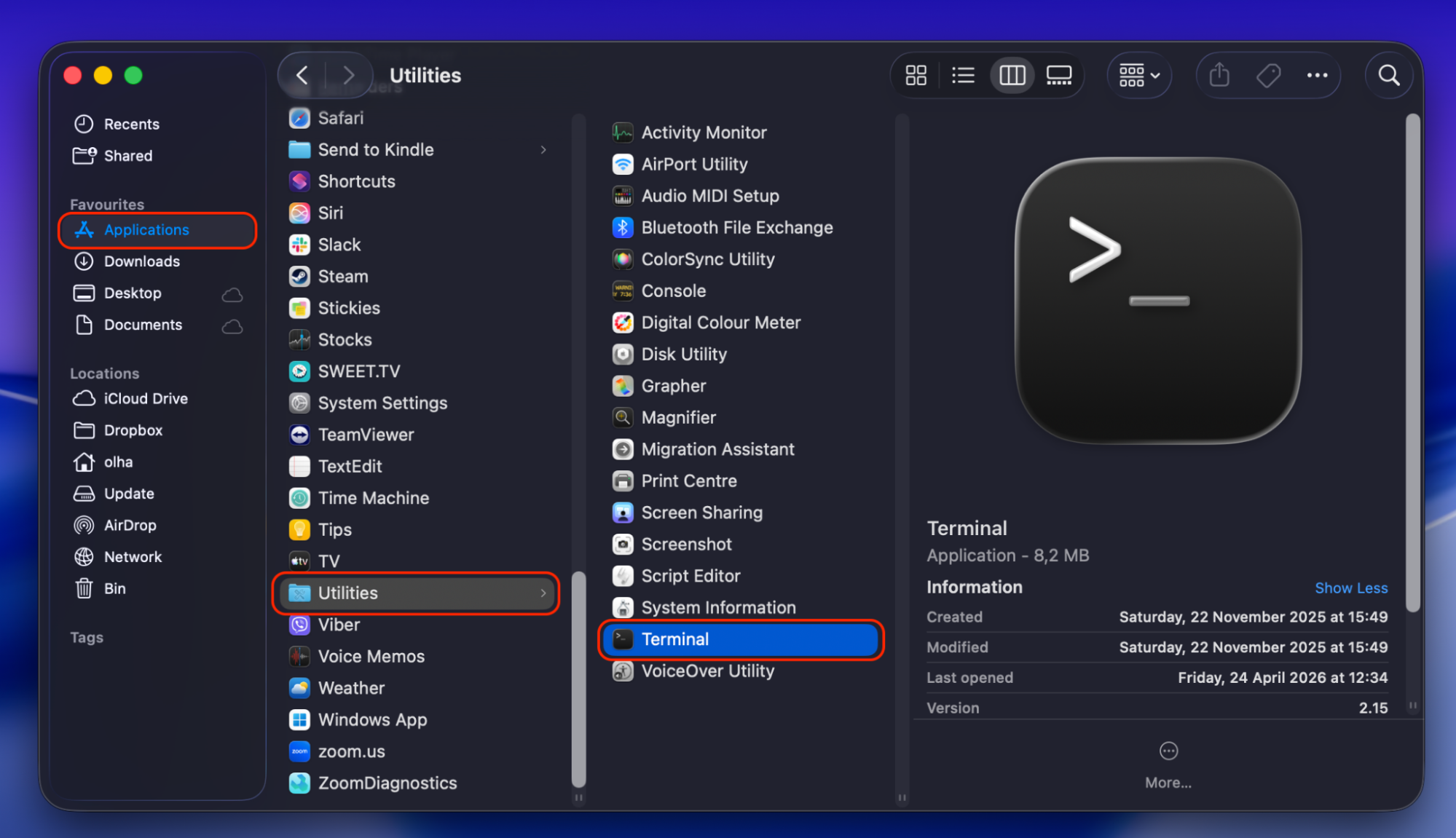
Go to Applications and choose Utilities.
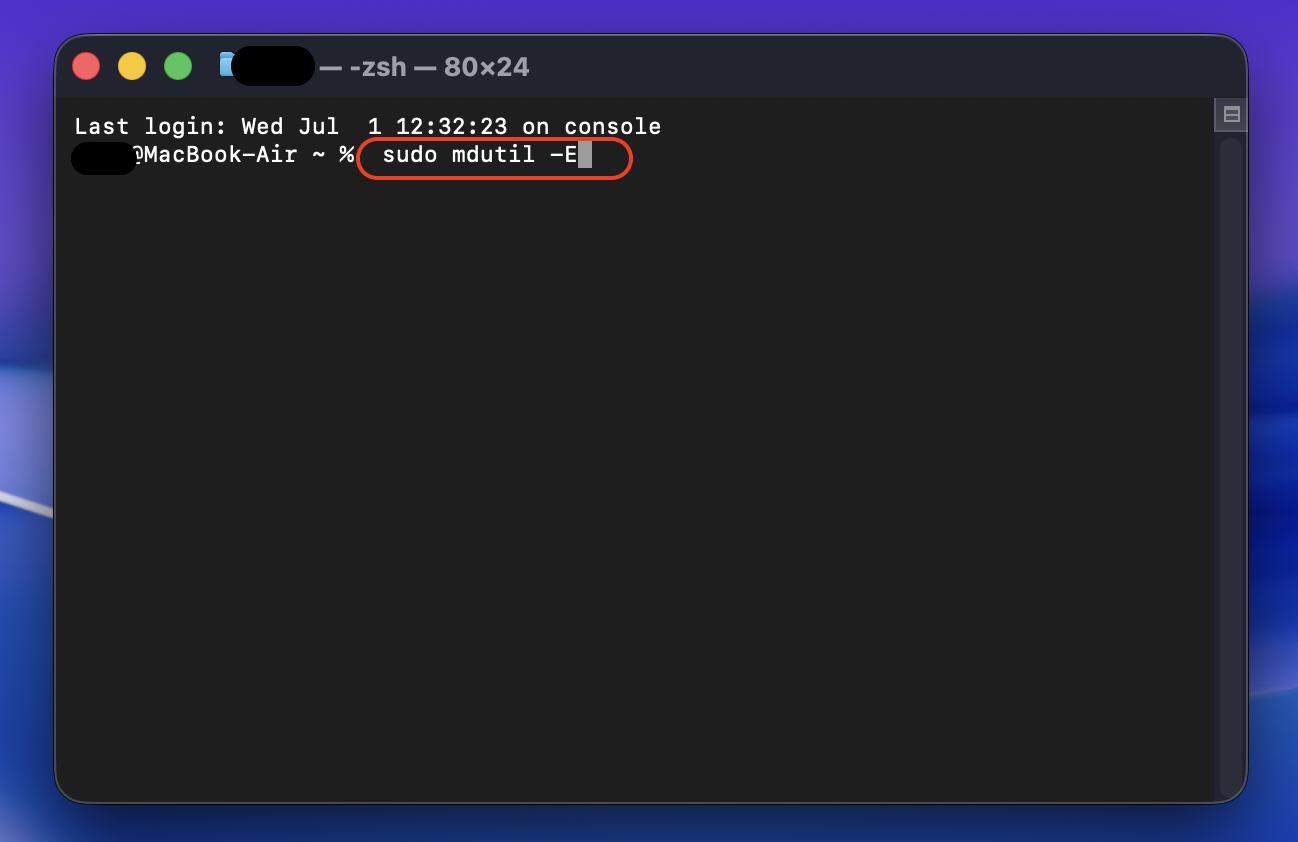
Open Terminal and type the sudo mdutil -E / command.
Enter your password (if it’s asked) and click Return for the system to erase the current Spotlight index.
If the mdworker is spending too much time working with specific files, excluding them from Spotlight may reduce its CPU usage. This method works especially well with large archives, backup folders, and other files you rarely use.
Important:
This method doesn’t disable Spotlight, but it’s an easy way to learn how to turn off Spotlight indexing on Mac for chosen files.
Now, take these steps to exclude files or folders from Spotlight:
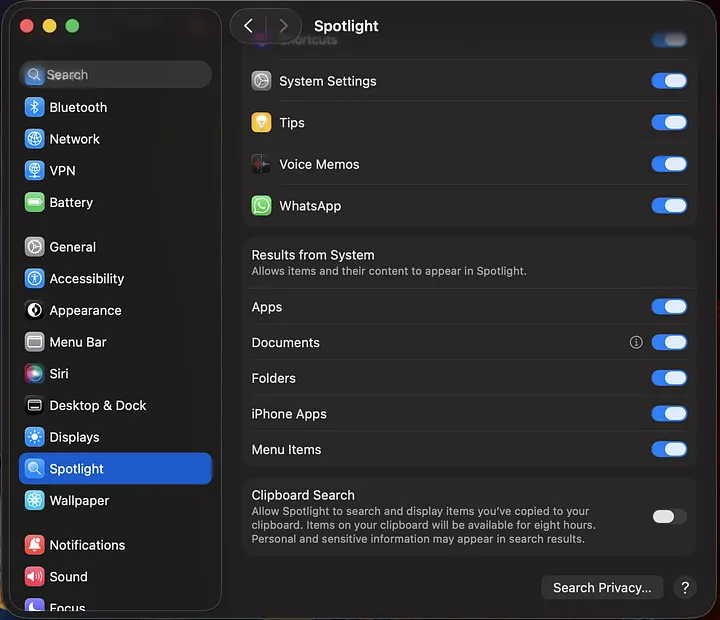
Open System Settings and choose Spotlight from the sidebar.
Select Search Privacy and click the Plus button.
Select the files you want to exclude from Spotlight and click Done.
Step 1. System Settings > SpotlightStep 2. Search PrivacyStep 3. Click the Plus buttonStep 4. Choose files
4. Disconnect external drives
External drives can also be the reason for mdworker high CPU usage. When you connect a USB drive, memory card, or any other external drive, Spotlight scans its contents; that’s why mdworker may use a lot of CPU resources for a long time. In these cases, disconnecting external drives can quickly resolve the issue.
After removing the external drive, check the mdworker CPU usage in Activity Monitor for a few minutes to make sure you used the correct solution.
5. Update macOS
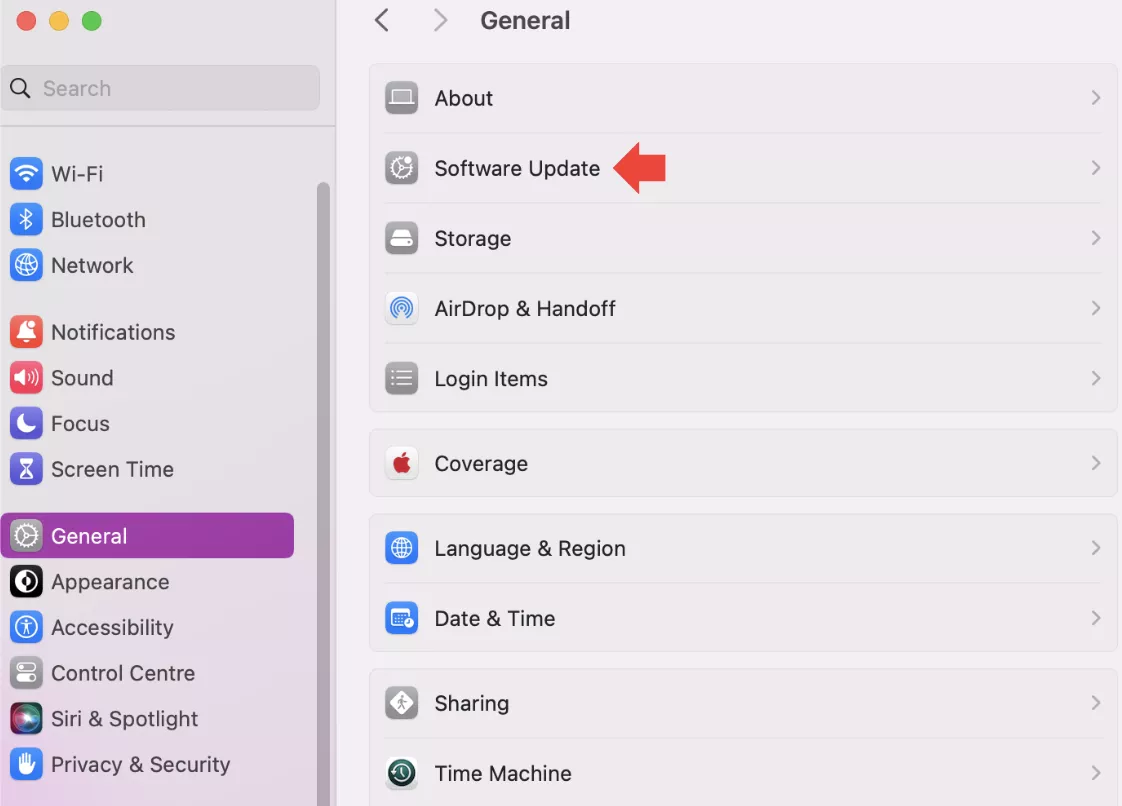
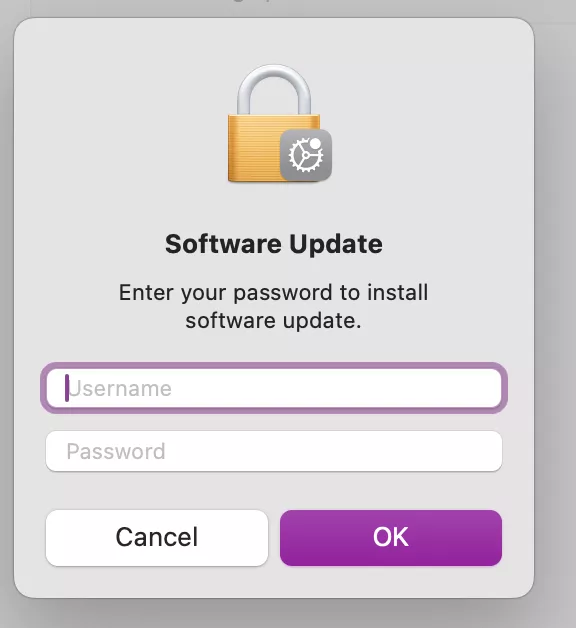
If previous fixing methods fail, it may be time to update your macOS, as outdated software can also cause mdworker to experience high CPU usage. I’m convinced that keeping macOS up to date helps prevent performance issues before they become serious problems. So, learning how to update OS on Mac is useful, and Apple regularly releases updates that include appropriate bug fixes and feature enhancements.
Follow my guidelines below to update macOS:
Go to the Apple menu and select System Settings.
Open General and choose Software Update.
Wait while your Mac checks for available updates.
Enter your password to start the updating process.
Step 1. Apple Menu > System SettingsStep 2. General > Software UpdateStep 3. Wait to check for available updatesStep 4. Enter your password to start the process
6. Check for malware or unwanted apps
If mdworker continues using a high amount of CPU after the above methods, try to check your Mac for malware. If you’re wondering how to check Mac for malware, start by reviewing all apps and processes. Malware often consumes a lot of CPU resources, interfering with Mac’s overall performance.
Take the following steps to check your Mac for malware or unwanted apps:
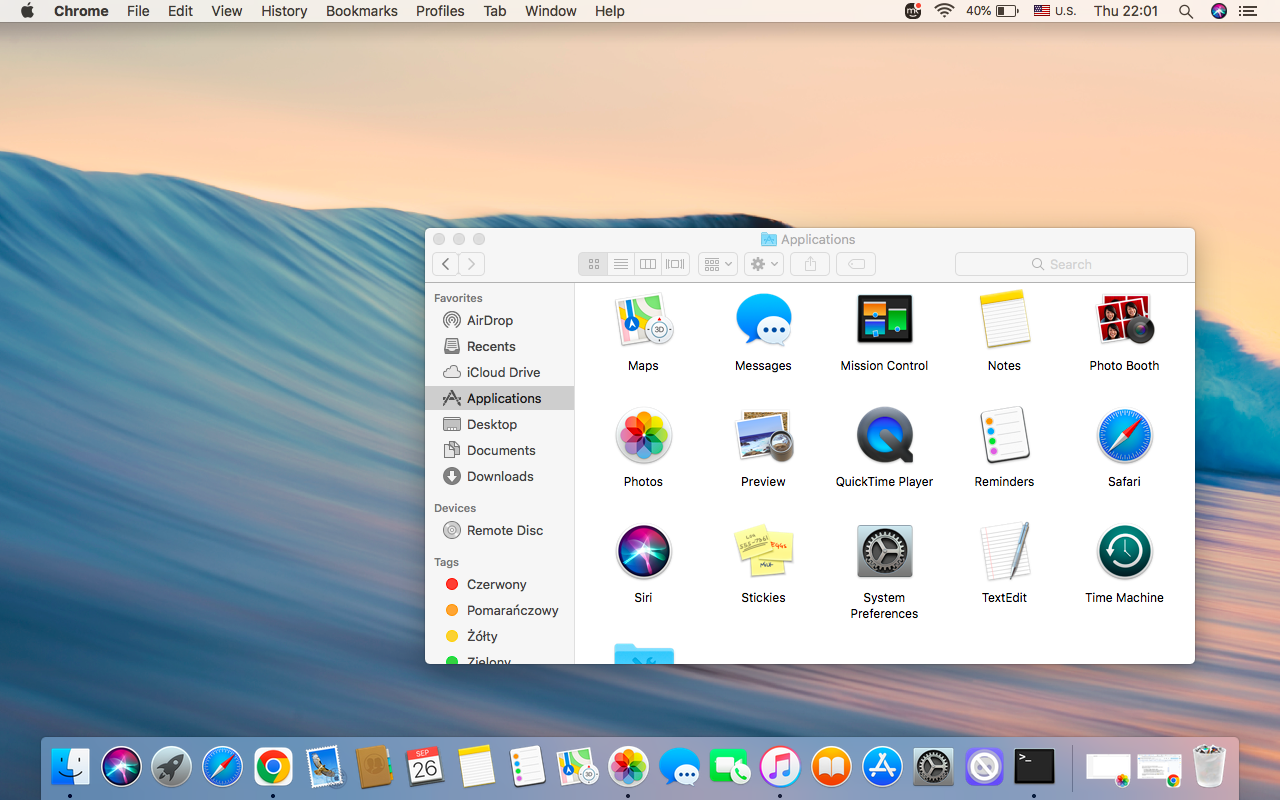
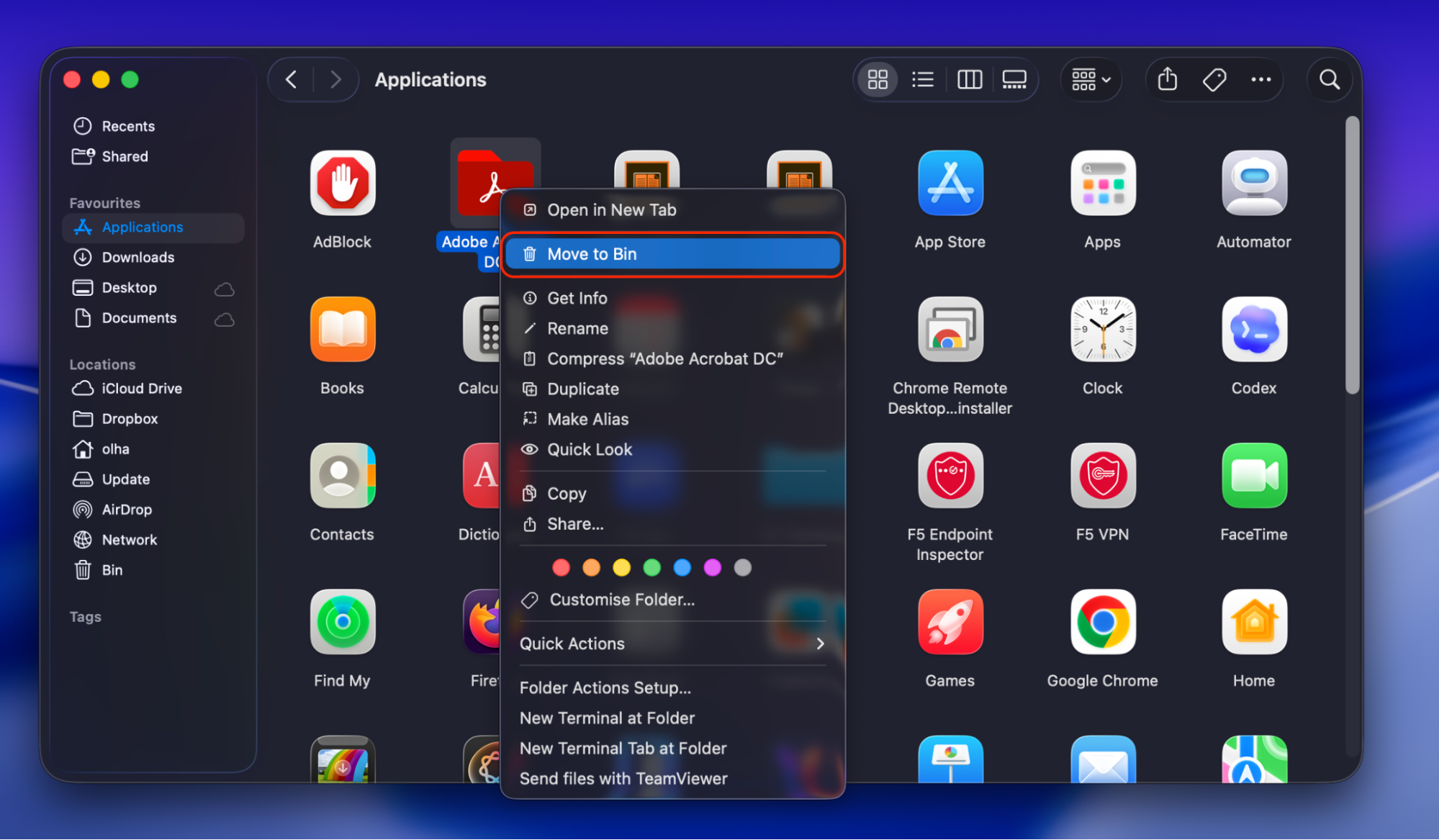
Go to Finder and choose Applications.
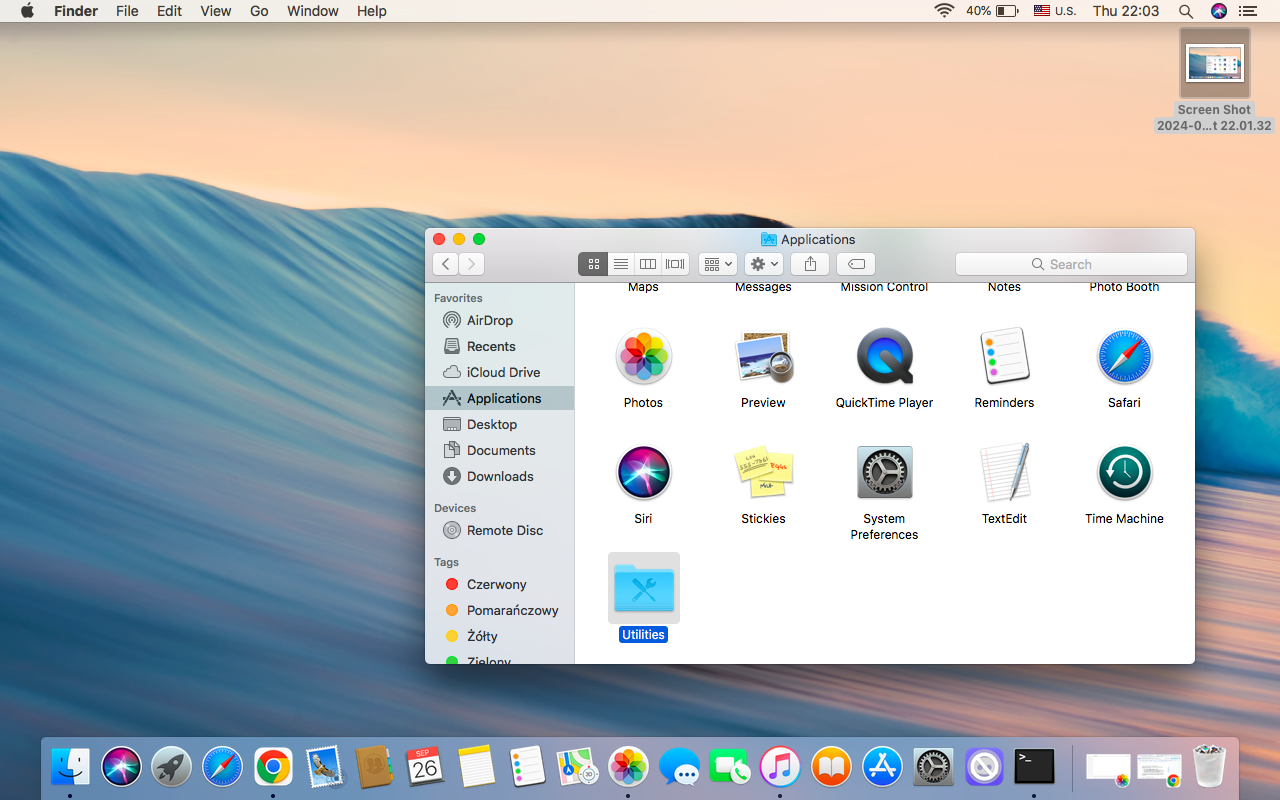
Find Utilities and open Activity Monitor and look for unwanted apps or processes consuming a lot of CPU resources.
Uninstall unnecessary apps from the Applications folder and move them to Bin.
Step 1. Finder > ApplicationsStep 2. UtilitiesStep 3. Activity MonitorStep 4. In Activity Monitor, find the suspicious apps and processesStep 5. Uninstall apps > Move to Bin
Conclusion
As you can conclude, in most cases, mdworker high CPU usage is a temporary issue caused by Spotlight scanning processes. Still, prolonged resource usage can affect your Mac’s overall performance and slow down everyday tasks. In this article, you can find possible ways to solve the problem, from restarting your Mac to checking it for malware.
However, if your Mac is still running slowly, use MacKeeper’s Memory Cleaner to free up memory and remove unnecessary background processes, helping your Mac to use its resources more efficiently. Consider this tool if you’re looking for a quick and easy way to optimize your Mac’s performance.
We respect your privacy and
use cookies
for the best site experience.
Privacy Preferences Center
We use cookies along with other tools to give you the best possible experience while using the
MacKeeper website. Cookies are small text files that help the website load faster. The cookies we
use don’t contain any type of personal data meaning they never store information such as your
location, email address, or IP address.
Help us improve how you interact with our website by accepting the use of cookies. You can change
your privacy settings whenever you like.
Manage consent
All cookies
These cookies are strictly necessary for enabling basic website functionality (including page
navigation, form submission, language detection, post commenting), downloading and purchasing
software. The website might malfunction without these cookies.