Seeing sysmond high CPU usage on Mac in Activity Monitor? It usually means your system is busy, not broken. MacKeeper’s Memory Cleaner frees up RAM by quitting idle, memory-draining processes, so your Mac runs smoother in a single click.
Think of sysmond as your Mac’s quiet observer. The name is short for System Monitor Daemon, and it’s a built-in part of macOS that monitors your machine's behavior moment to moment.
It gathers performance data, like which apps are running, how much memory they use, and how hard the processor is working, then hands that information to tools like Activity Monitor. In other words, sysmond is the helper that lets you see what your Mac is doing in real time.
Because it continuously tracks processes, resource usage, and overall system behavior, a little activity from sysmond is completely normal. It’s simply doing its job in the background.
Why does sysmond suddenly spike CPU usage?
Here’s the part that surprises a lot of people: sysmond reacts to load, it doesn’t create it. When your Mac gets busy, sysmond has more to watch, so its own usage climbs along with everything else.
A spike is usually triggered by an everyday system event. Common examples include:
Spotlight indexing new or moved files in the background
Several apps launching at once, especially right after startup
Cloud syncing through iCloud, Dropbox, or similar services
Heavy workflows like video exports, backups, or large file transfers
A note from our experts:
When you see CPU usage on Mac climb next to sysmond, it’s often a sign that one of these tasks is running, not that sysmond itself is the troublemaker. But to find the most RAM-consuming processes, we recommend using MacKeeper’s Memory Cleaner. With its help, you’ll find the cause and remove it safely.
For your Mac to run more smoothly, do the following:
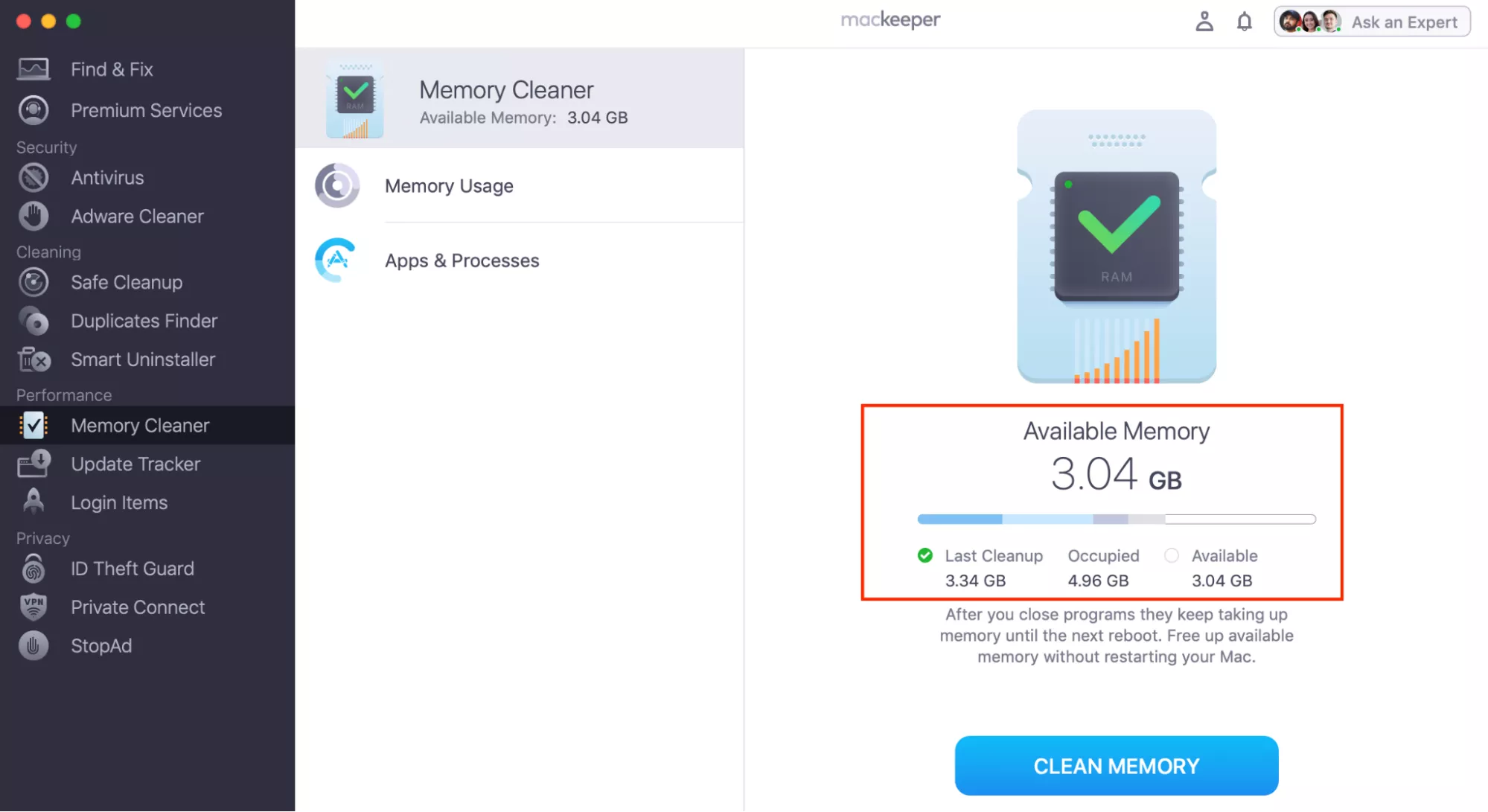
Pick Memory Cleaner in the left sidebar, then choose Open.
Review the results and click the Clean Memory button to close redundant processes.
Step 1. Launch the MacKeeper app > Memory Cleaner > OpenStep 2. Review the results > Clean Memory
When is high CPU from sysmond normal vs problematic?
The difference comes down to two things: how long the high usage lasts and how often it happens.
Normal behavior
Worth a closer look
Short spikes that settle within a minute or two
High usage that stays put for a long time
Spikes tied to a clear task, like indexing or a backup
Spikes with no obvious task running
Usage drops once the task finishes
Usage returns again and again throughout the day
A brief spike is expected, so there’s no need to react. But if sysmond sits high for a long stretch, or your MacBook lagging becomes a daily thing, that’s your cue to step in with the methods below.
How to reduce sysmond CPU usage on Mac?
Here’s the mindset shift that makes this easy. You’re not trying to fix sysmond; you’re calming down the system activity it’s reporting. Lower the overall load, and sysmond settles on its own. Work through our solutions in order and stop once things feel steady again.
1. Let temporary spikes settle
Sometimes the smartest move is patience. If a spike occurs while you're doing something, like opening several apps or starting a backup, give it a minute or two.
From our experience, short-term CPU spikes often resolve on their own once the underlying task wraps up. Watching the number tick back down can save you a lot of unnecessary troubleshooting.
2. Restart your MacBook
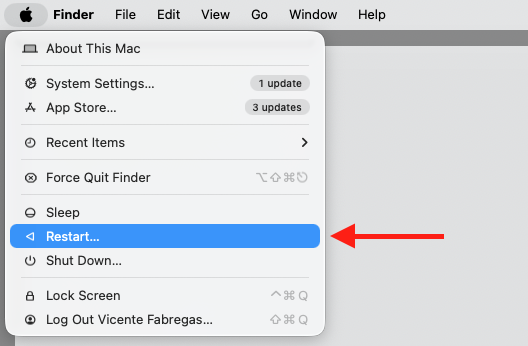
A restart is the gentle reset that clears stuck processes and gives your monitoring tools a clean start. It’s the oldest trick around because it genuinely works.
If you’re unsure of the cleanest way of rebooting MacBook, a full restart, rather than just closing the lid, resets system monitoring behavior and often brings sysmond back to a quiet baseline.
3. Review Activity Monitor
Instead of staring at sysmond, look at what’s making it work so hard. The trick is to use Activity Monitor to spot the real resource hogs behind the scenes, and here’s how:
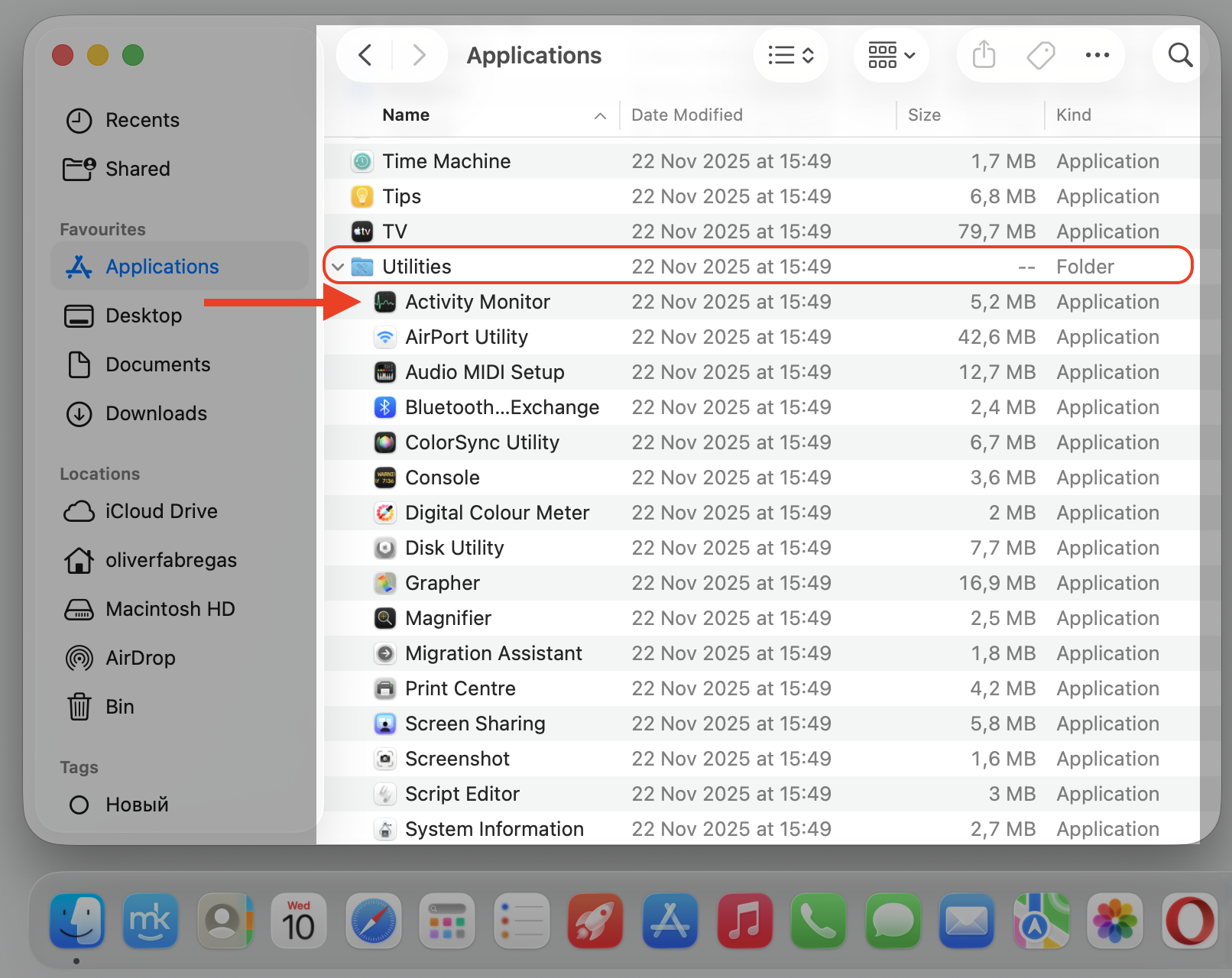
Open Activity Monitor from the Applications > Utilities folder.
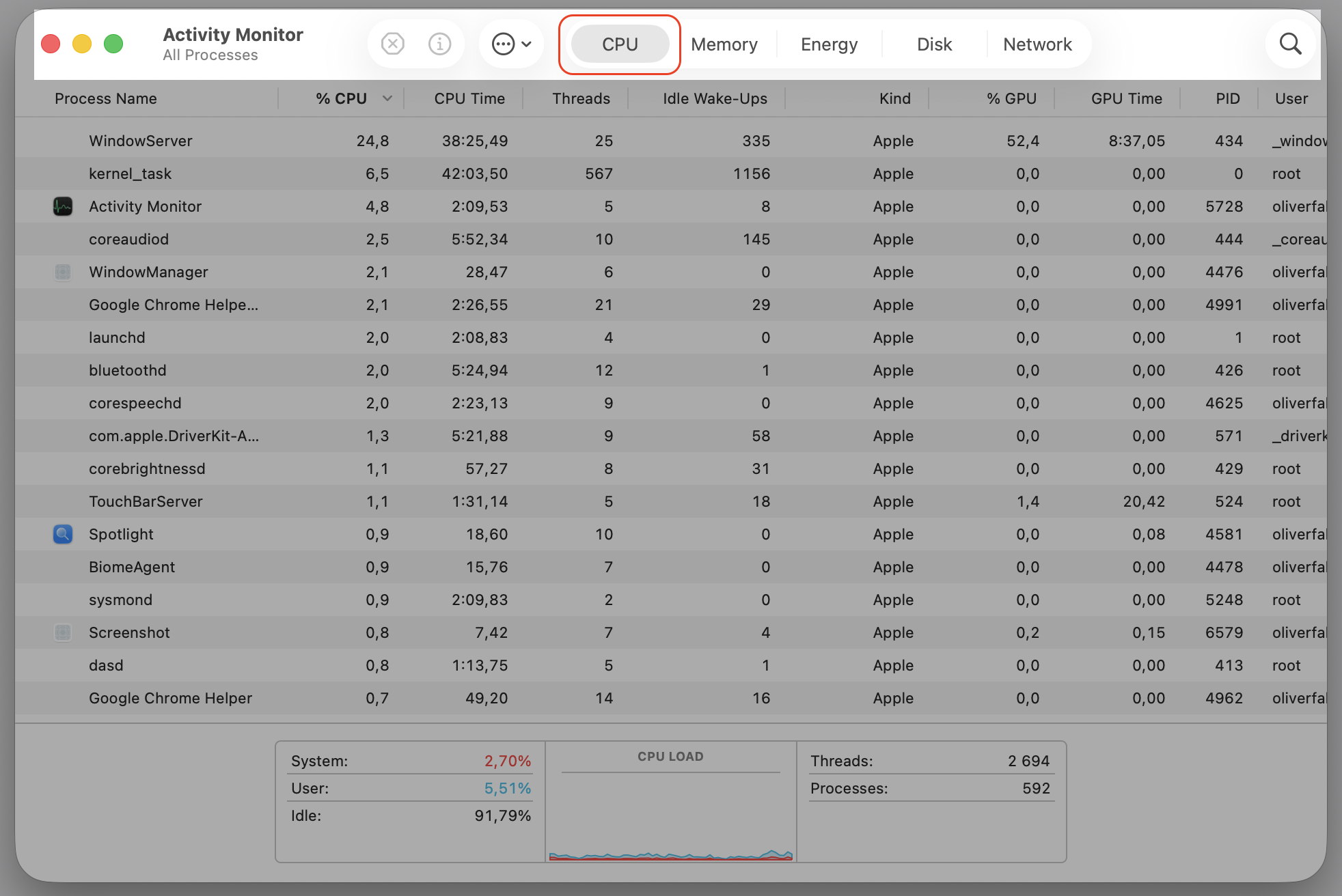
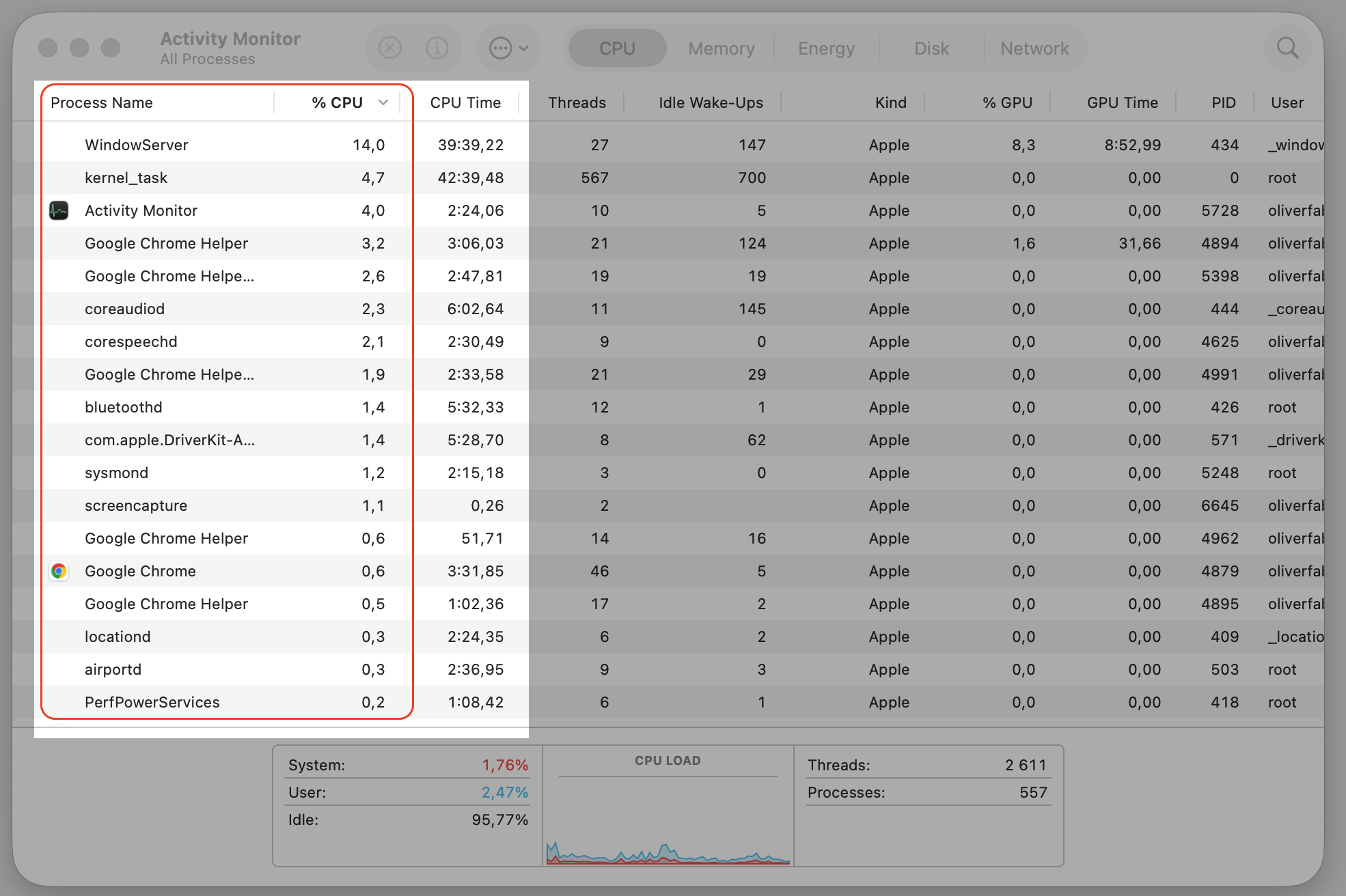
Select the CPU tab to sort apps by how much processor they use.
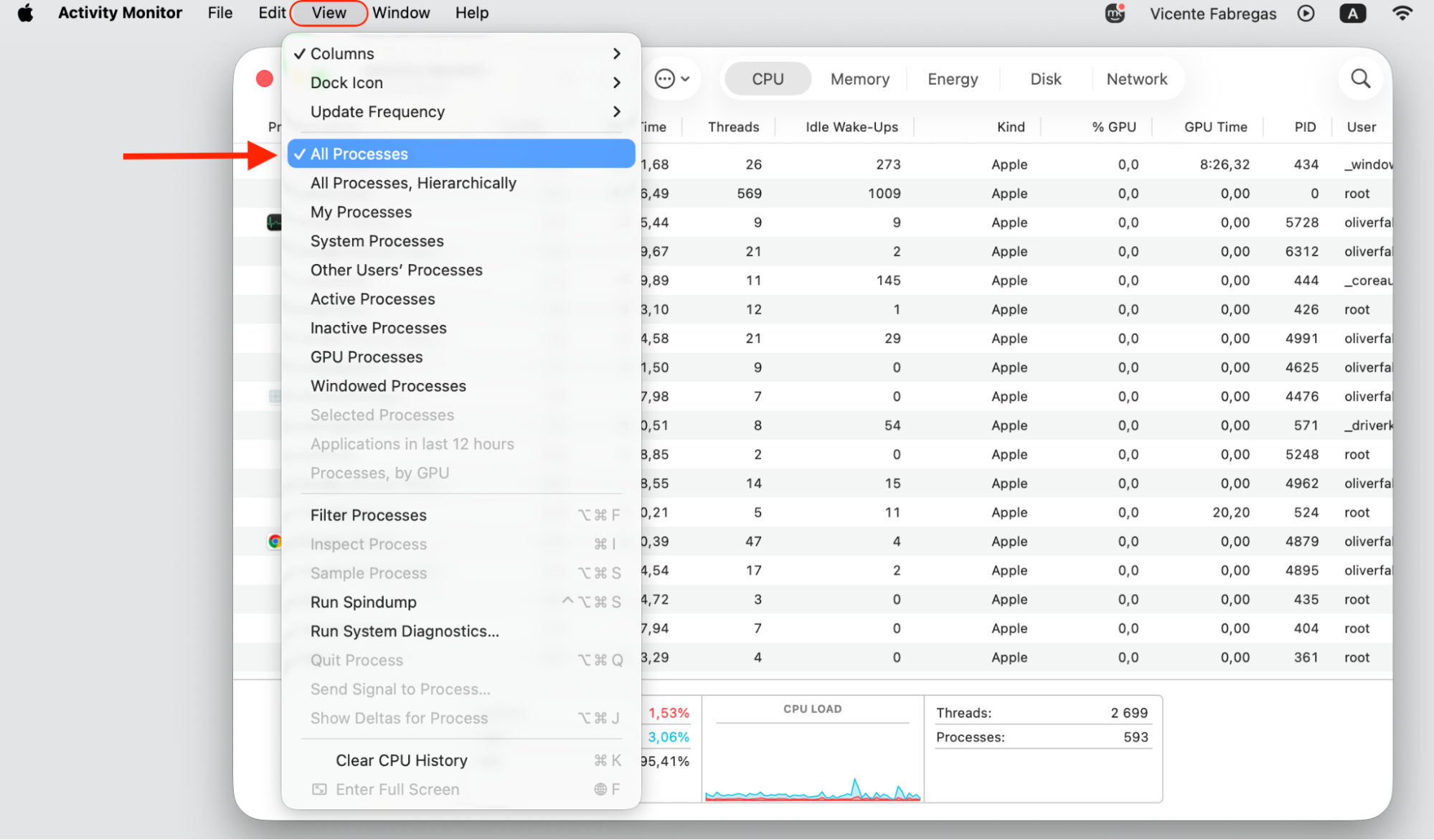
Navigate to the View menu and choose All Processes.
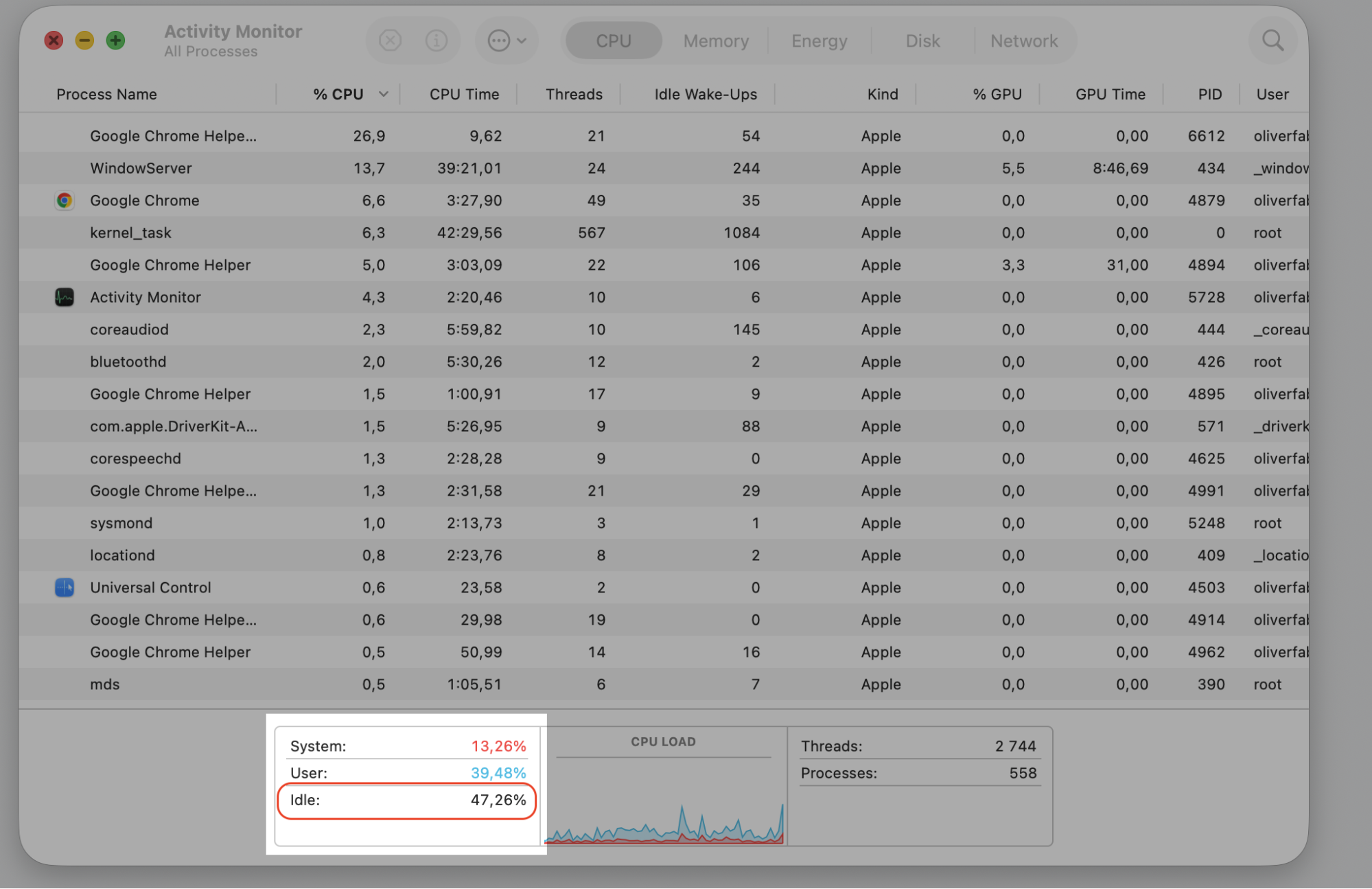
Check IDLE usage.
Note any app that’s consistently high, since that’s likely what sysmond is reporting on.
A quick tip from our team: Switching away from the Memory tab can lower sysmond’s own usage, since that view samples data more often.
Step 1. Expand Utilities folder and select Activity MonitorStep 2. Select the CPU tabStep 3. Go to View and select All ProcessesStep 4. Check IDLE usage Step 5. Note whether it lines up with scans or specific tasks
4. Limit background processes
The fewer things running at once, the less sysmond has to monitor. Closing apps you’re not using right now eases the pressure across the board.
Quit any apps you’ve finished with and learn how to turn off programs running in the background that linger after you think they’re gone. Lighter background activity means a calmer system overall.
Click on the app name in the top left corner and select Quit
5. Pause heavy system tasks
Some tasks are simply demanding, and that’s okay. Large file transfers, Spotlight indexing (*not so easy as it sounds; to stop indexing, you’ll need to use Terminal commands), and cloud syncing all spike system load while they run.
If you can, pause these jobs or run them one at a time rather than all together. Stacking heavy tasks is a common reason for a hot, loud MacBook overheating, and spacing them out keeps sysmond from spiking right alongside them.
6. Keep macOS and apps updated
System-level quirks that affect monitoring processes are often ironed out in newer releases. We’re convinced that staying current is one of the easiest forms of maintenance.
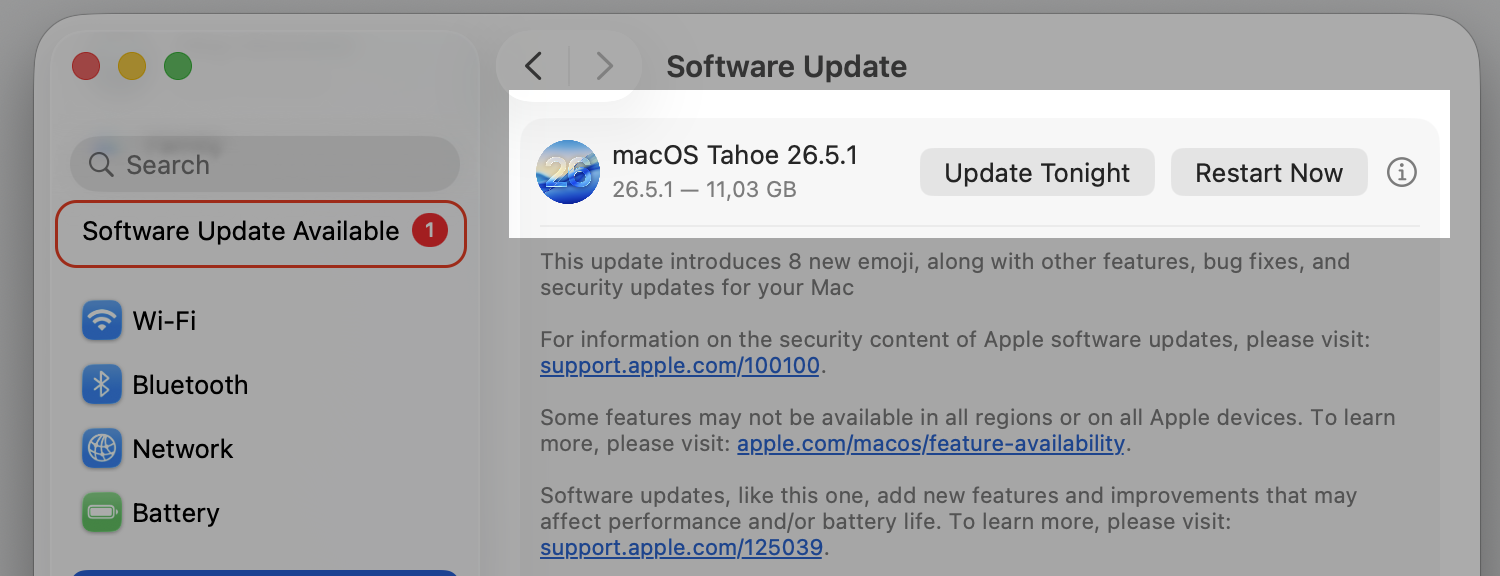
Run a Mac update whenever one’s available, and update your apps too. Bugs that once caused odd sysmond behavior may simply disappear after you’re on the latest version.
Install the software update if it's available
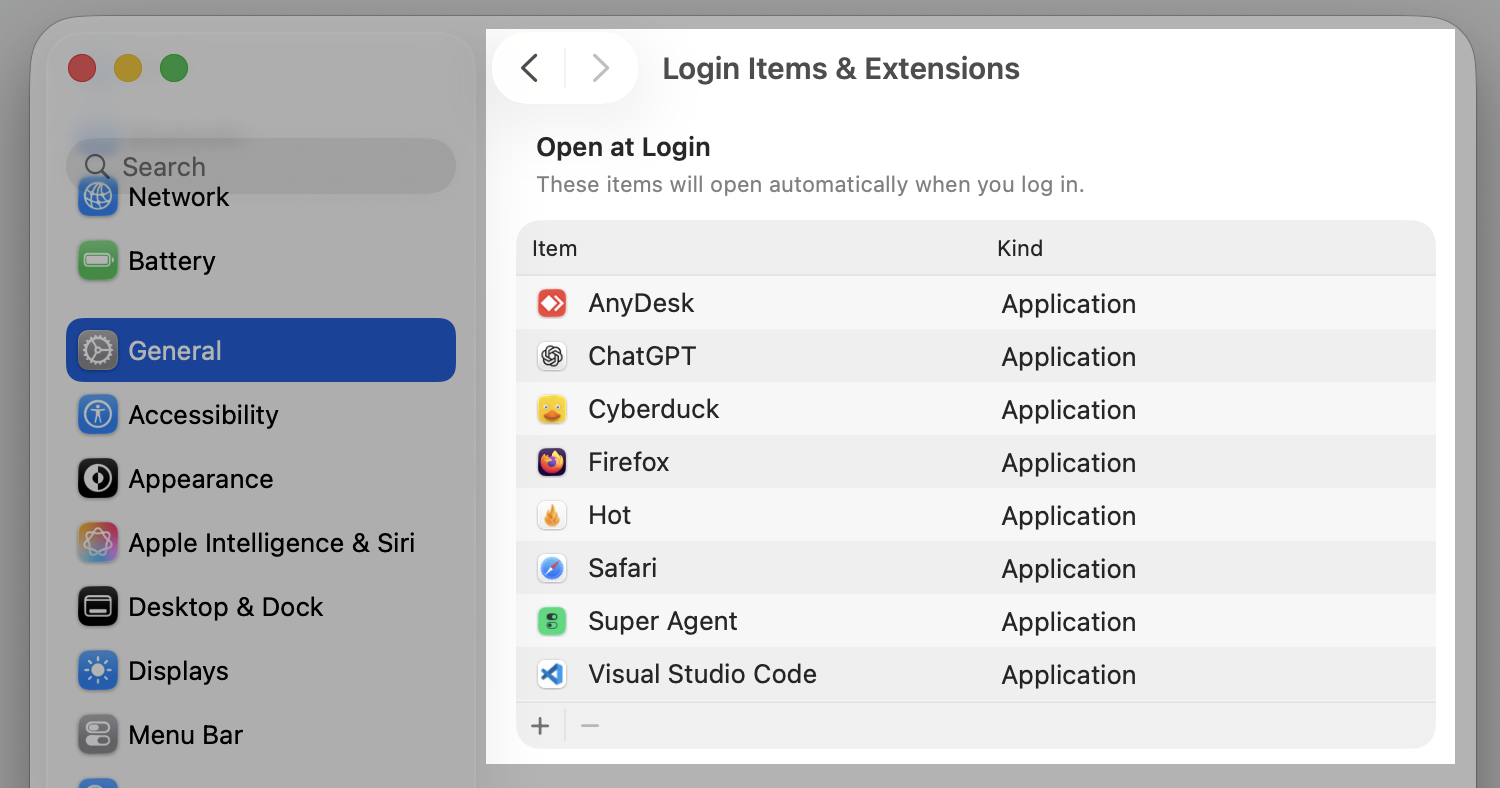
7. Optimize startup items
Ever notice the heaviest sysmond activity right after you turn your Mac on? That’s often a crowd of apps launching all at once during boot.
Trimming that list helps your system reach a stable state faster. When you change startup programs and remove the ones you don’t need at login, there’s simply less for sysmond to track in those first busy minutes.
Remove any unnecessary startups
8. Check storage and system resources
A nearly full drive or tight memory can quietly push background activity higher, since macOS works harder to juggle limited space.
We recommend you to take a moment to check how much storage you have on Mac. If you’re running low, clearing out junk and old files gives the system breathing room and can ease the load sysmond reports.
Check storage
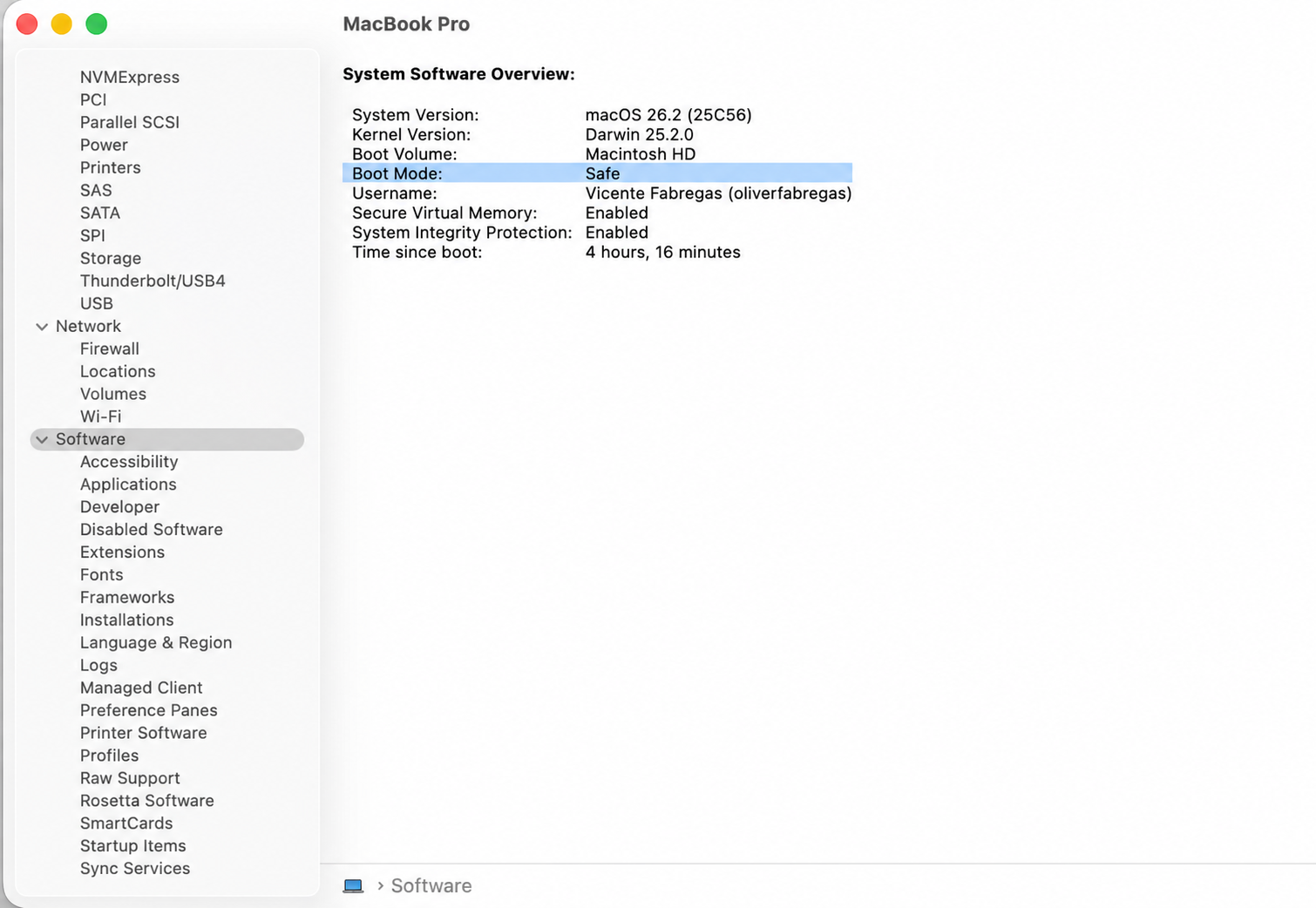
9. Use Safe Mode for isolation
If the high usage just won’t quit, Safe Mode is a clever way to find out whether third-party software is the cause. It starts your Mac with only the essentials loaded.
Learning to boot Mac in Safe Mode lets you watch sysmond’s behavior without your usual extras running. If it behaves in Safe Mode, you’ve narrowed the issue down to an app or extension you can then track down.
Verify you’re using Safe Mode
Should you try to stop sysmond?
It’s tempting to just shut it down, isn’t it? But sysmond is woven tightly into macOS, so quitting it isn’t a real solution.
Even if you force it to quit, macOS relaunches it almost immediately because the system relies on it. Interfering can also disrupt your diagnostics, leaving tools like Activity Monitor unable to report accurately. The far steadier path is to ease the system load and let sysmond quiet down naturally.
How to keep sysmond from spiking again?
Once things calm down, a little routine care keeps them that way. The goal is a tidy, lightly loaded system that gives sysmond less to react to. A few habits we suggest developing to go a long way:
Keep a handful of startup items, not a long list.
Quit apps you’re done with instead of leaving dozens open.
Schedule backups and big transfers for times you’re away from the keyboard.
Treat these as light, regular upkeep rather than a one-time fix. A clean, well-managed Mac rarely gives sysmond a reason to spike in the first place.
Conclusion
Sysmond is a signal, not the source. When it spikes, it’s telling you the system is busy, so steadying that overall activity is what brings sysmond high CPU usage on Mac back to normal. MacKeeper’s Memory Cleaner helps by quitting idle, memory-draining processes in one click.
We respect your privacy and
use cookies
for the best site experience.
Privacy Preferences Center
We use cookies along with other tools to give you the best possible experience while using the
MacKeeper website. Cookies are small text files that help the website load faster. The cookies we
use don’t contain any type of personal data meaning they never store information such as your
location, email address, or IP address.
Help us improve how you interact with our website by accepting the use of cookies. You can change
your privacy settings whenever you like.
Manage consent
All cookies
These cookies are strictly necessary for enabling basic website functionality (including page
navigation, form submission, language detection, post commenting), downloading and purchasing
software. The website might malfunction without these cookies.