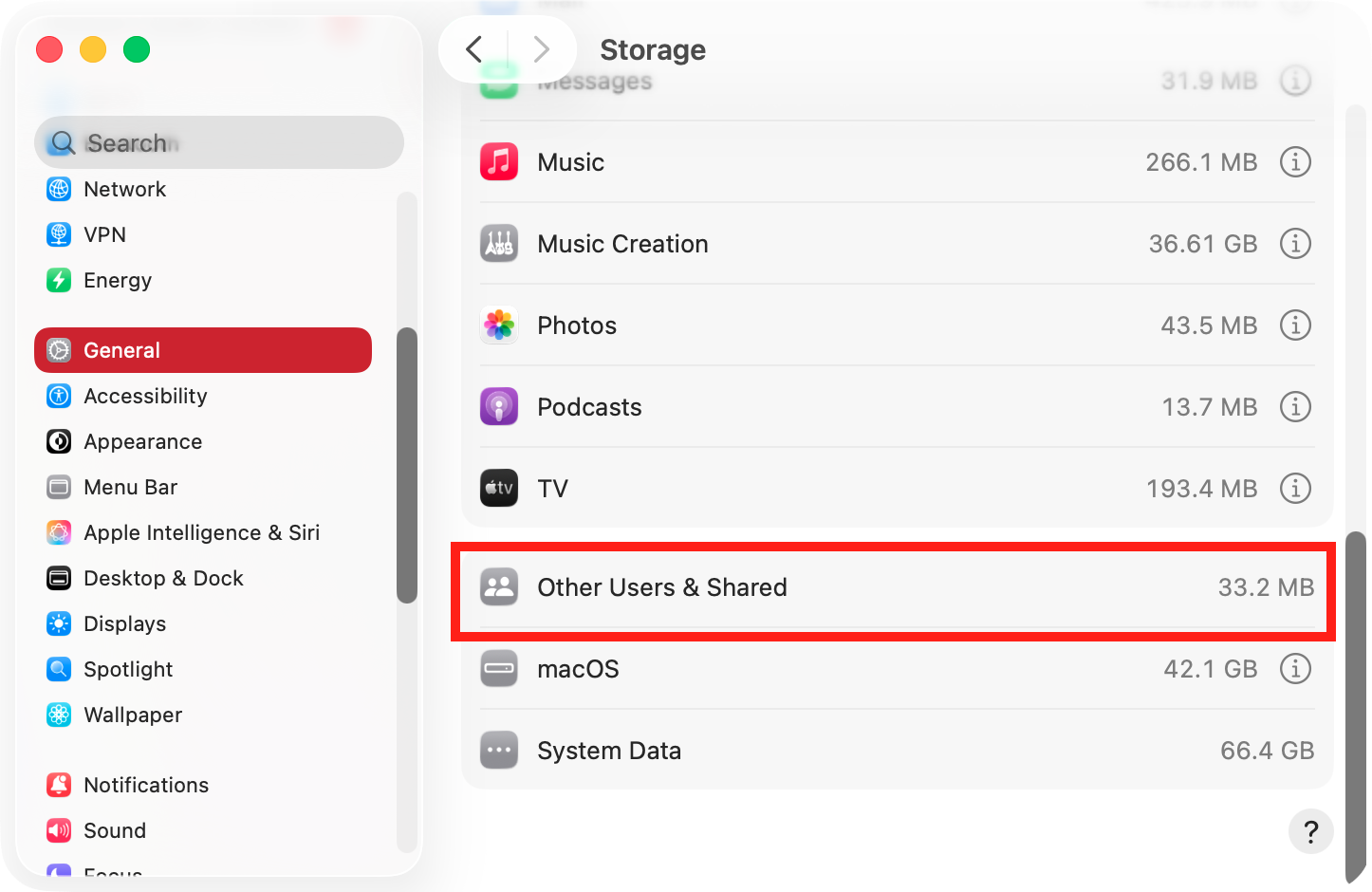
When you want to reclaim some space on your Mac, it makes sense to clear “Other users” and “Shared” storage data, and in our guide, we’re going to show you how. If you need to free up some space quickly, use MacKeeper’s Safe Cleanup, and rid yourself of junk data fast.
“Other users” and “Shared” are two categories of data stored on your Mac. “Other users” refers to data generated by other accounts on your Mac, each of which will have its own storage areas. “Shared” refers to data that is shared between accounts, which all users are able to read, but which they can’t edit without the right permissions.
What is “Other Users and Shared” on Mac storage?
“Other users and Shared” storage in macOS is data stored on your Mac, which has been created for and by other users. You can have multiple accounts on one Mac, and each one will have its own documents, downloaded files, and settings, which are all stored separately and only they can access. Users can share files with the Shared, Public, and Drop Box folders.
Why is "Other Users and Shared" using so much storage on Mac?
“Other users and shared” data includes files from active accounts on your Mac, but it can also include files from deleted users, as well as shared data. This data can include big files like downloads, documents, videos, game support data, and more. You can remove “Other users and Shared” on your Mac’s storage to save space.
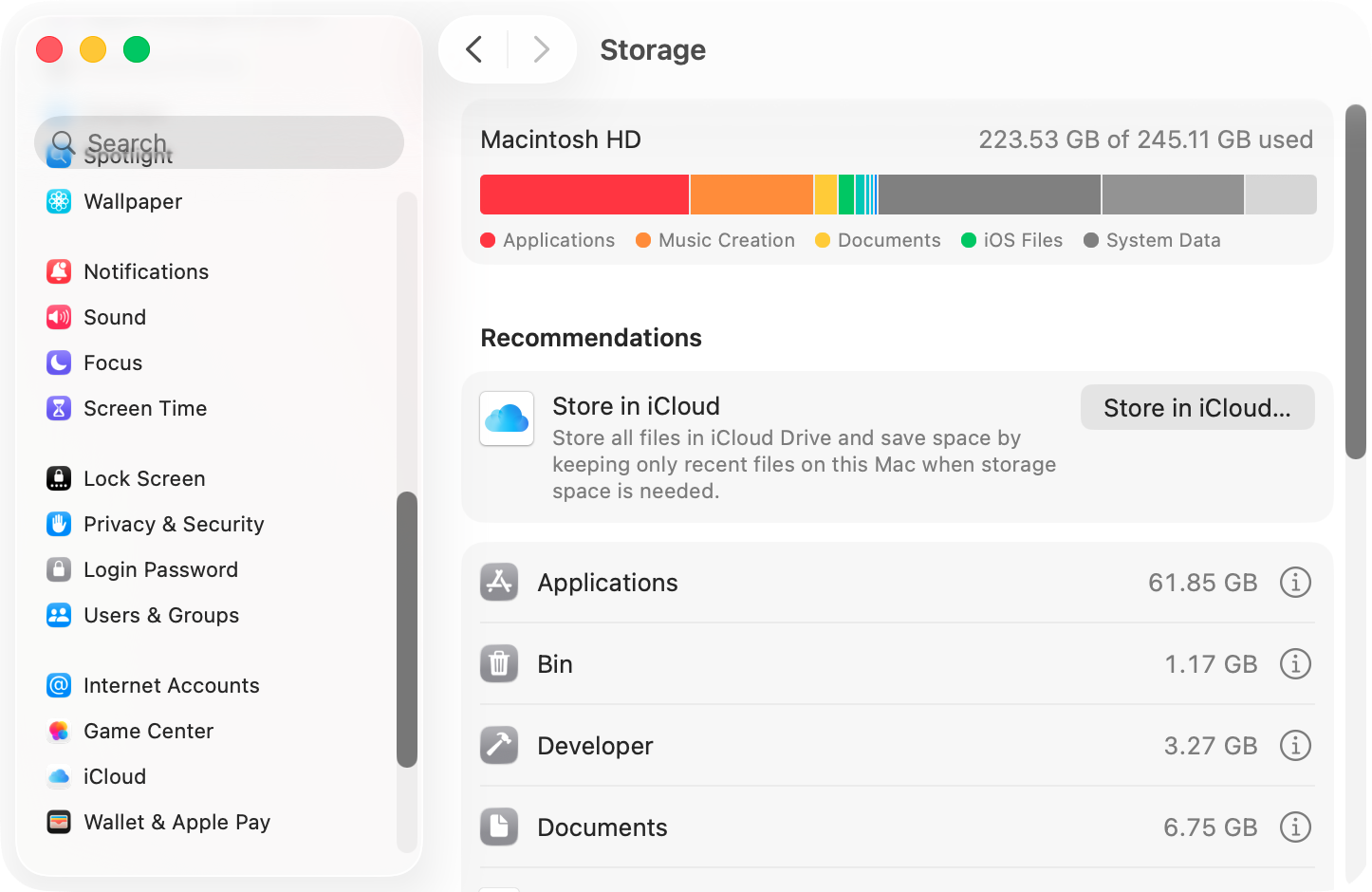
If you have multiple user accounts on your Mac, "Others Users & Shared" can quickly grow in size
A note from our experts:
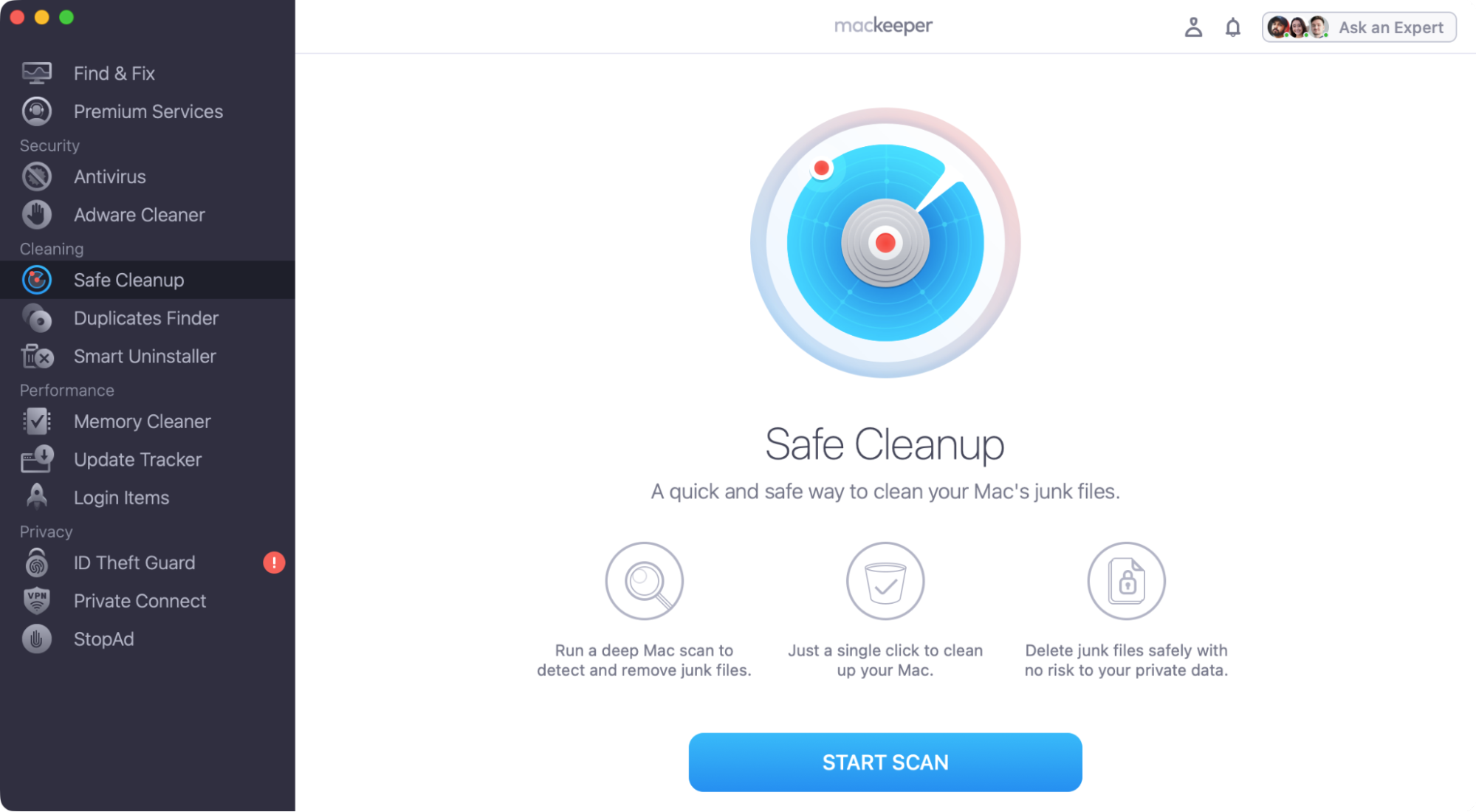
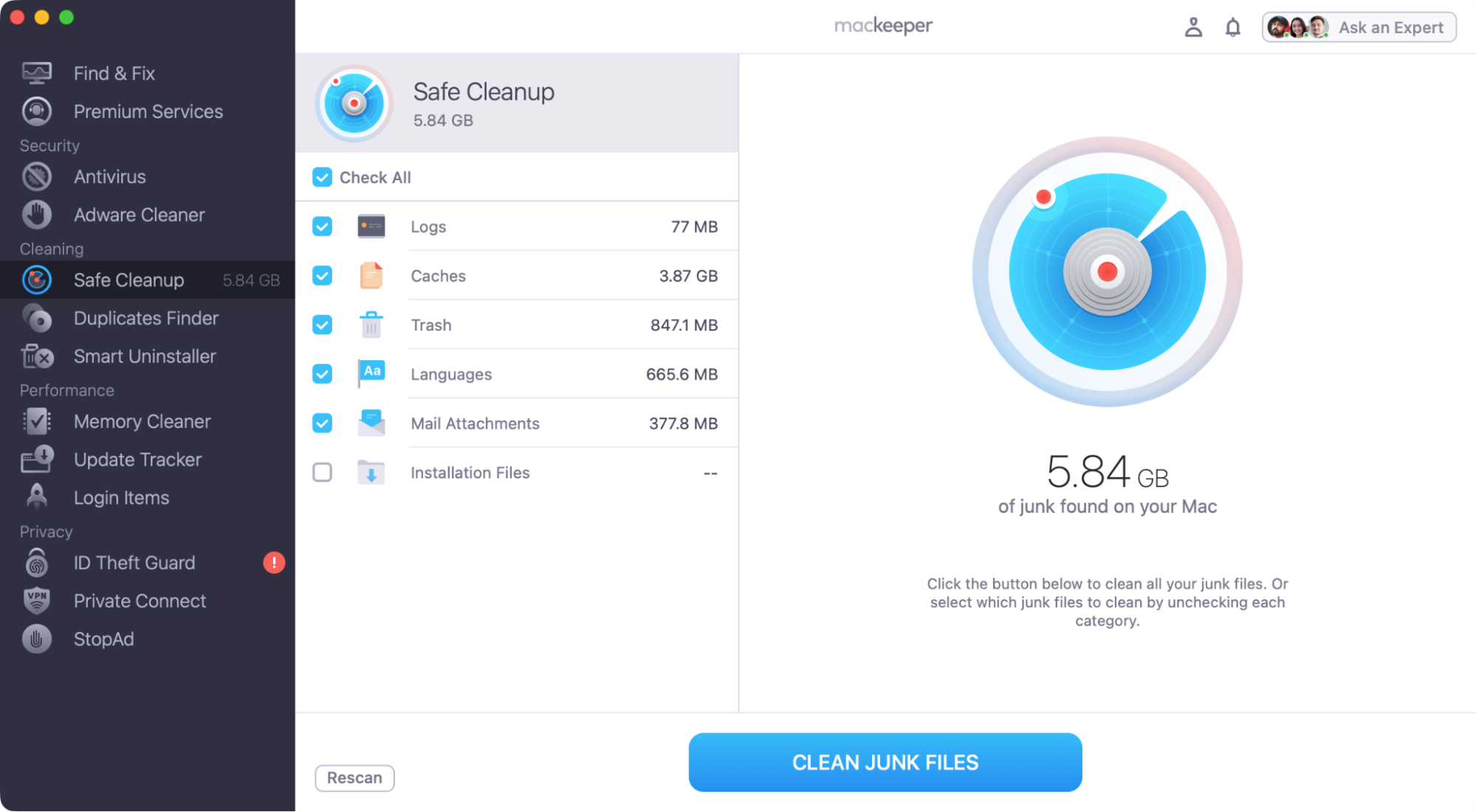
Need to free up some space on your Mac? Do it quickly and easily with MacKeeper’s Safe Cleanup, removing cached data, unneeded language files, and more in just a few clicks.
Select what you want to delete, and click Clean Junk Files.
Step 1. Select Safe Cleanup, and click Start ScanStep 2. Select what to remove, then click Clean Junk Files
How to delete “Other Users and Shared” on Mac storage?
To get rid of “Other users & Shared” on Mac storage, you need to delete the other accounts on your Mac from System Settings, making sure to include their Home folders. You can also save space on your computer by manually removing files in the /Users/Shared folder, remembering to empty your Trash afterwards.
1. Remove unnecessary files in the Shared folder
The Shared folder on your Mac contains files created by macOS and by third-party apps, but you can also manually use it to share files with different users. To clear up this folder, you need to do the following:
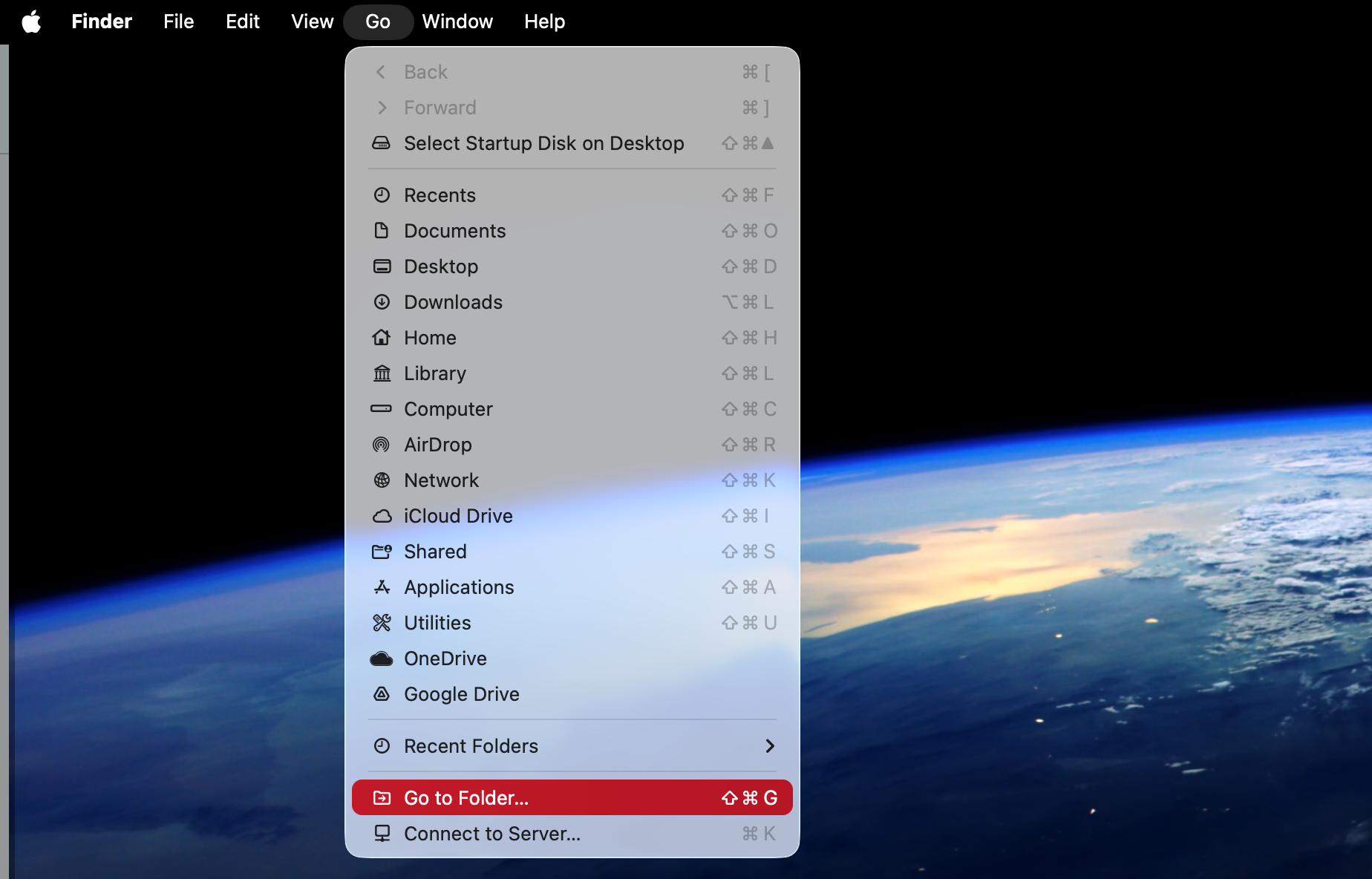
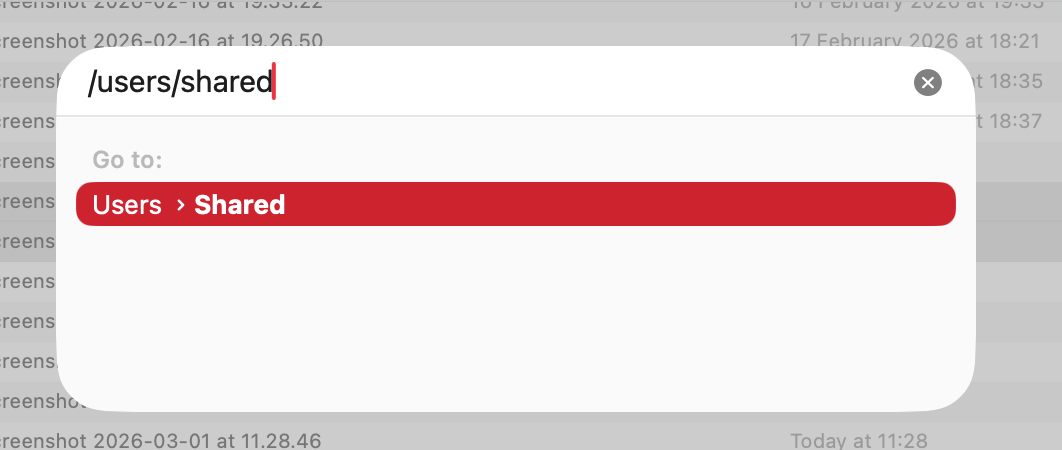
In Finder, select Go > Go to Folder from the menu bar.
Type /Users/Shared, and press Enter.
In the Shared folder, select anything that you no longer need.
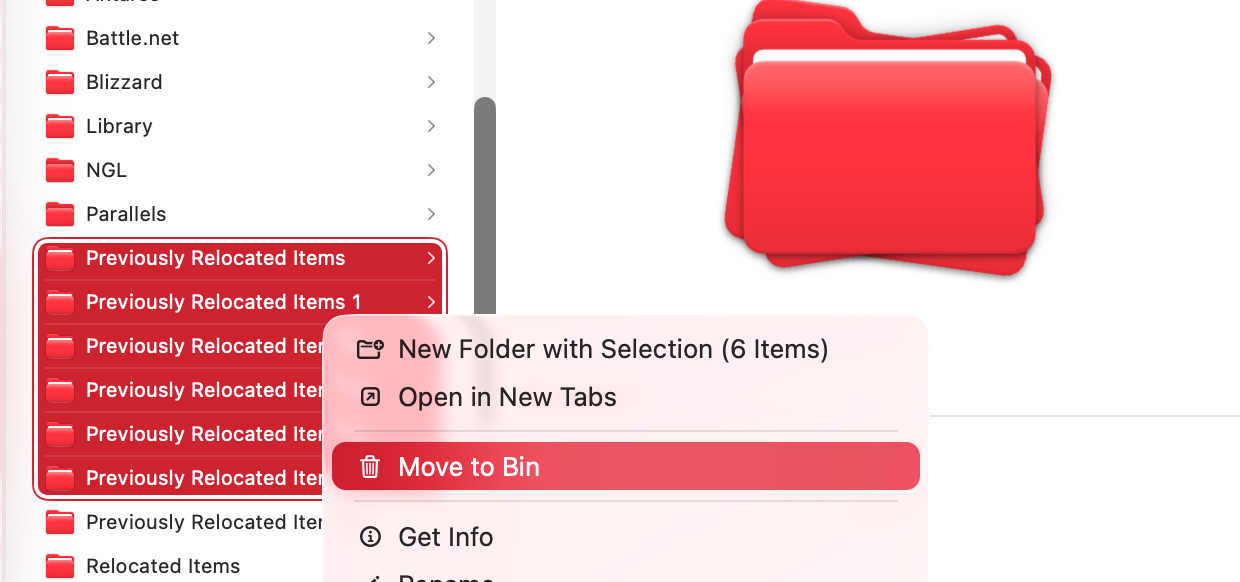
Right-click the files and folders, and select Move to Trash/Bin.
Empty your Trash.
Step 1. From your menu bar, select Go > Go to FolderStep 2. Type in /Users/Shared and press EnterStep 3. Delete anything you don't need from the Shared folder
An extra hint from us:
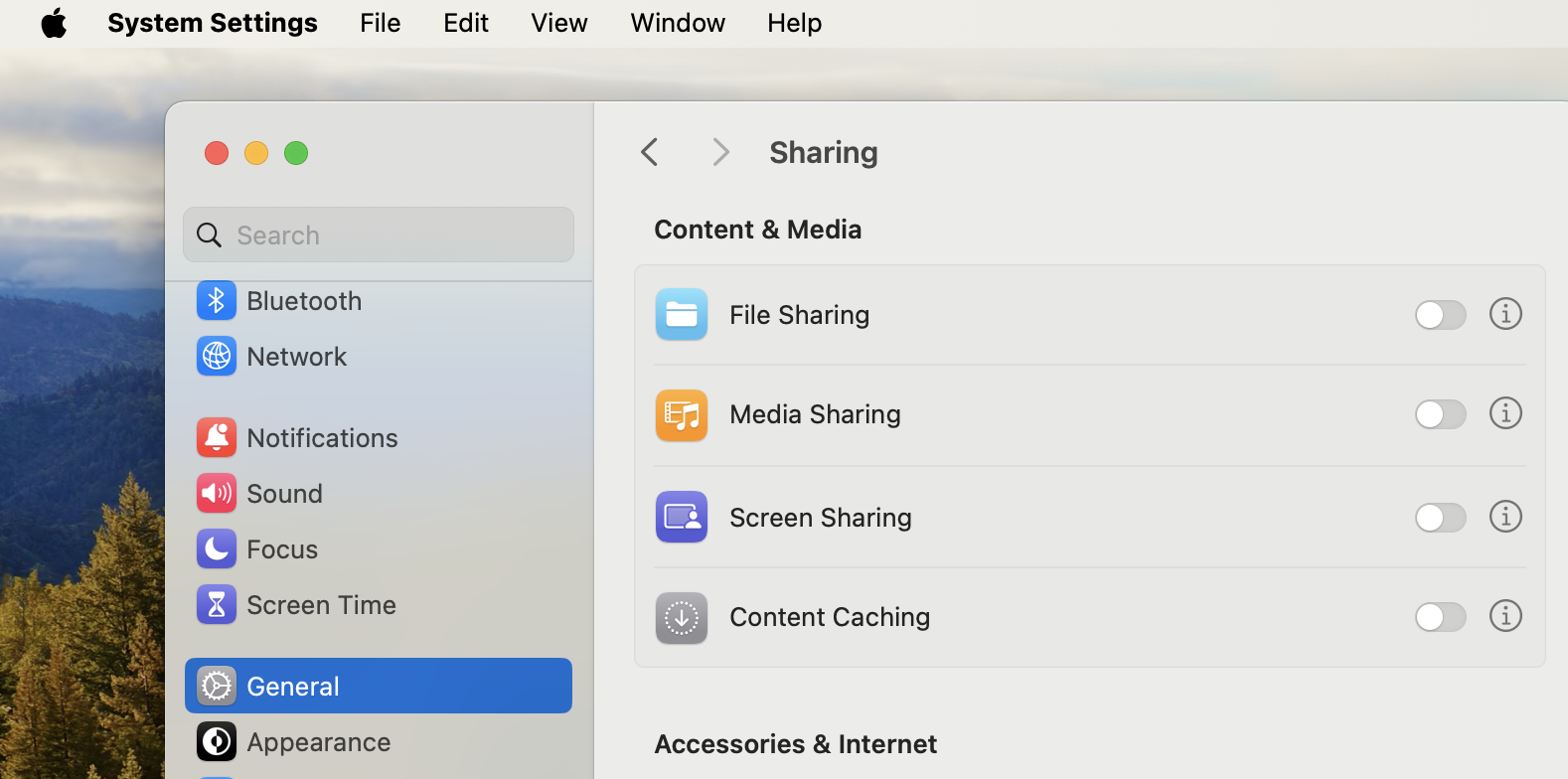
Is Mac file sharing not working for you? Check the General > Sharing section of your System Settings, as this feature might be not activated.
If so, make sure you toggle the corresponding icon on.
2. Delete other user accounts on your Mac
Our next tip is to delete other users and their shared Mac storage, if they’re not needed anymore. You can only do this if you have an admin account, which you should have if you’re the owner of the computer. Follow this process to delete other users on your Mac:
Start by logging into your Mac with an admin account.
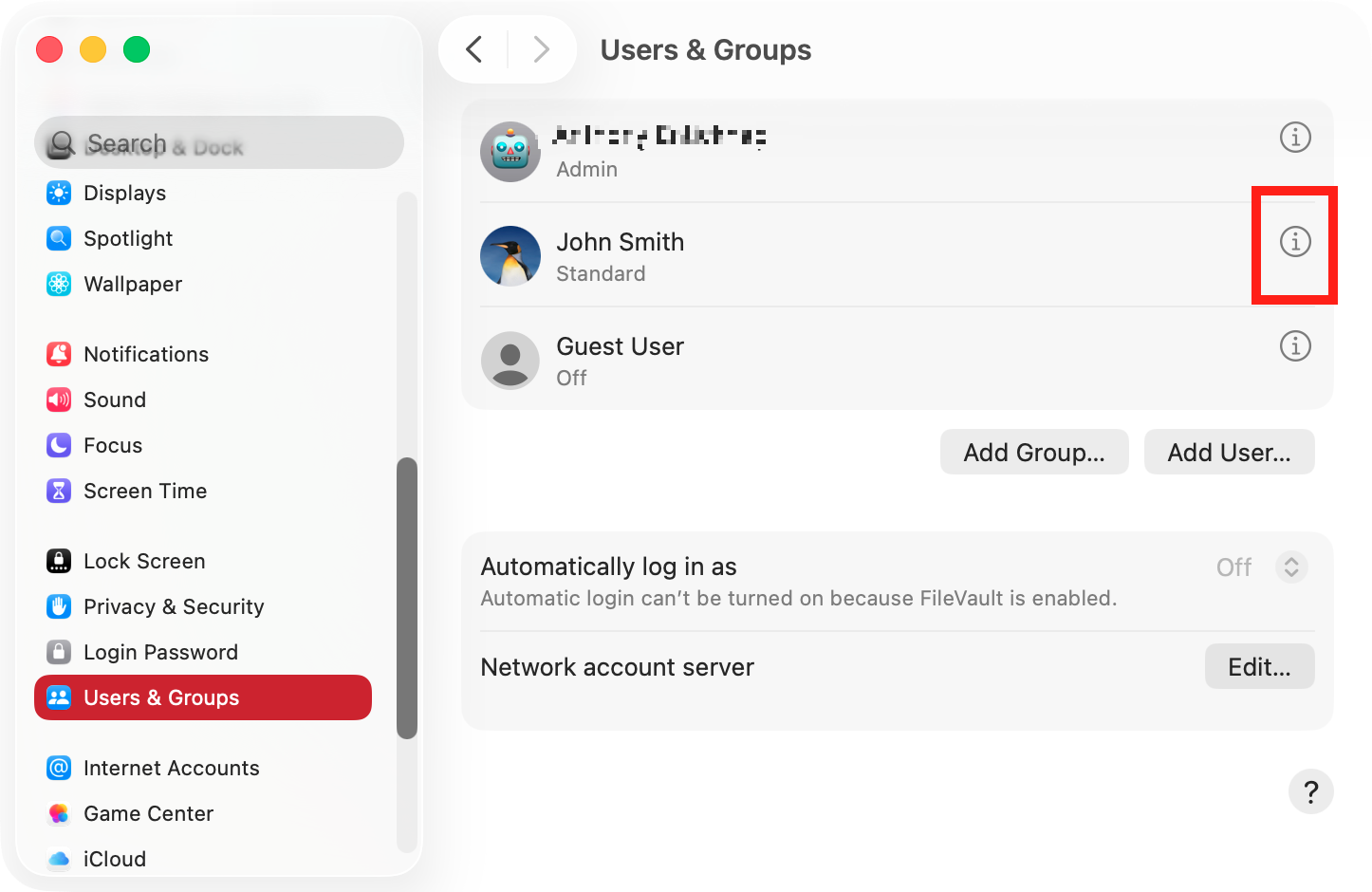
Open System Settings, and select User & Groups from the side menu.
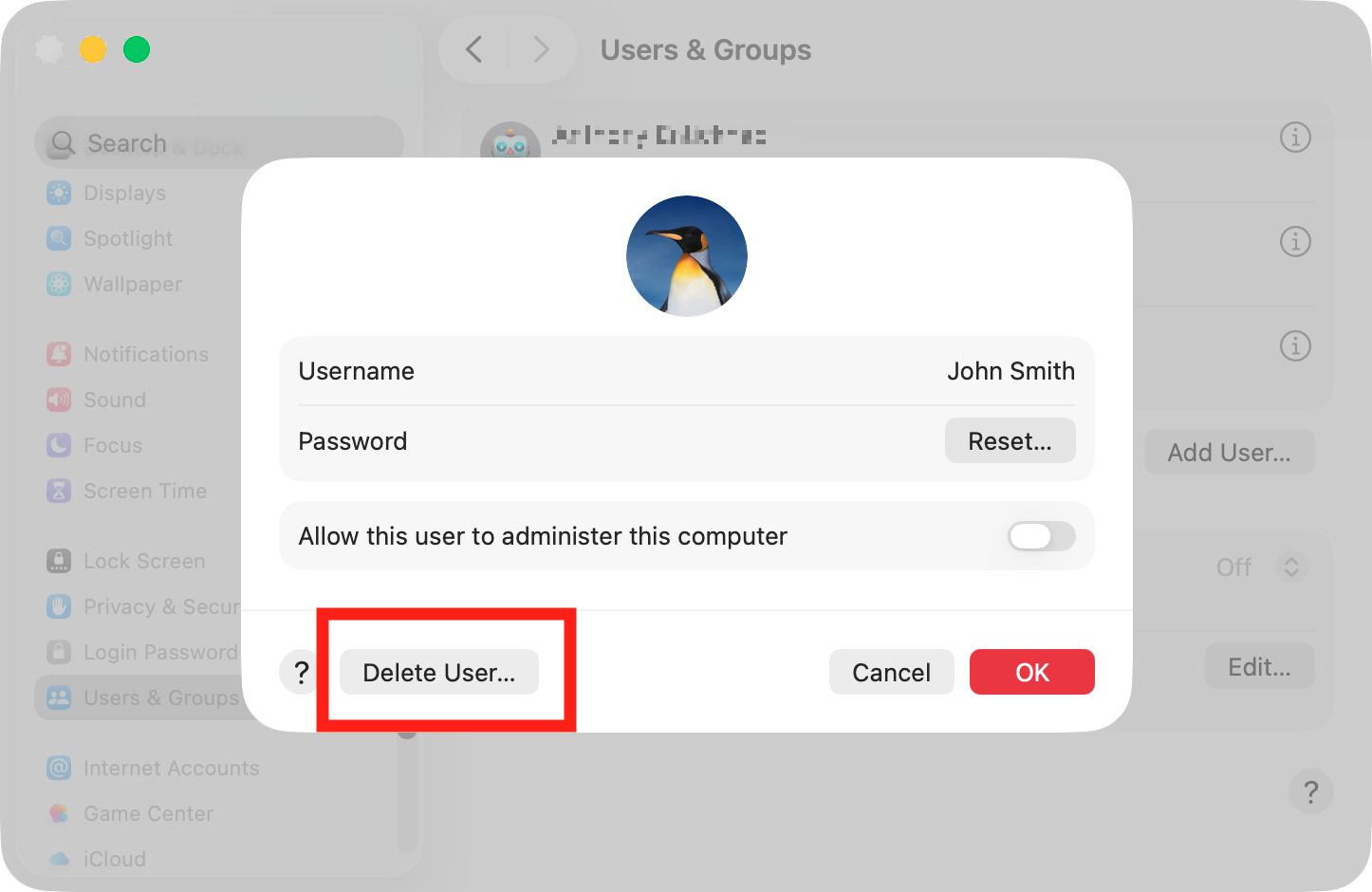
Find the user account you want to delete, and click the information button next to their name.
Click Delete User.
Enter your password, and click Unlock.
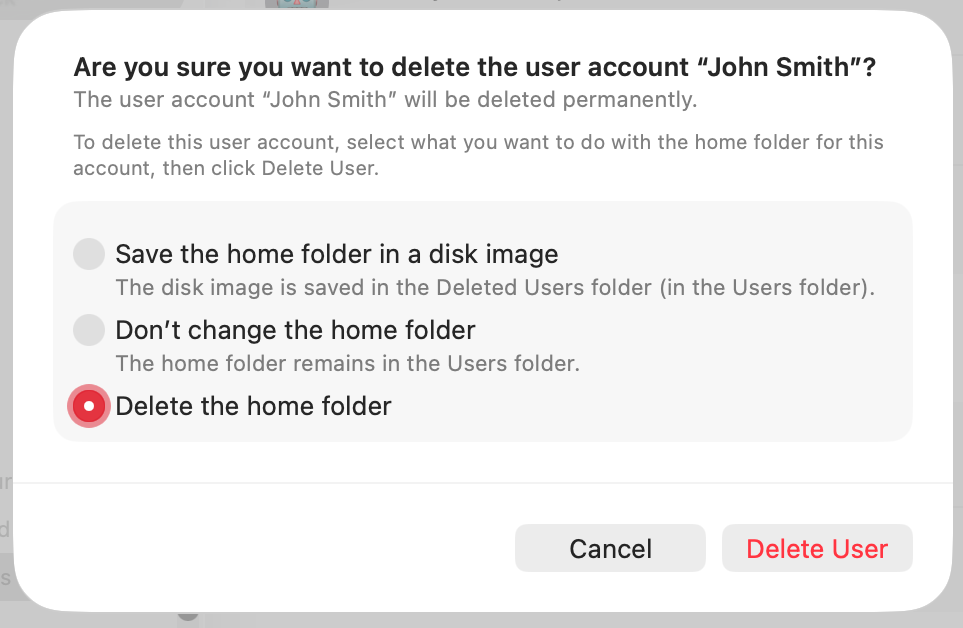
Select Deletethe home folder, and click Delete User. The size of “Other users and shared” should shrink after that.
Step 1. Click the information button next to the user you want to removeStep 2. Click the Delete User button, then enter your passwordStep 3. Select Delete the home folder, and click Delete User
3. Check your Users folders
If you’ve accidentally stored something in the root of your personal Users folder, it can appear in Other storage on your Mac. We can check the Users folders by following these steps:
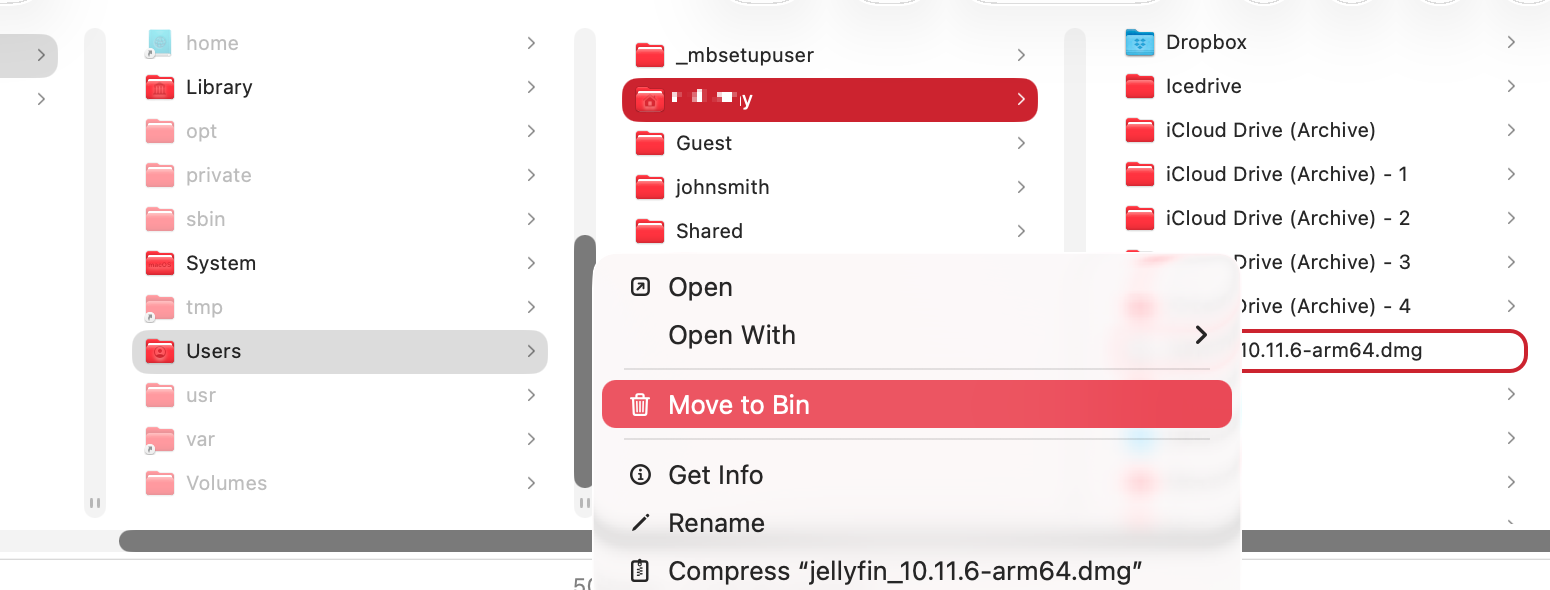
In Finder, select your system disk from the side menu, and open the Users folder.
Open or expand the folder that has your username, and delete anything that shouldn’t be there.
Check in the /Users/ folder and under your account folder for accidentally stored data
Note that you can’t read any of the data that belongs to other accounts, apart from the Public folder. If you have an admin account, however, you can delete files and folders from other User folders.
Also, read our guide on how to get to the Users folder on Mac if you’re unsure about how to navigate to these folders.
4. Get other users to delete unneeded data
If you share your iMac or MacBook with other people, you can delete all their accounts and their data, as long as you have an admin account. Obviously, we don’t recommend doing that without asking first, but it’s a good idea to talk to them about deleting unneeded data from their accounts. Of course, if the other user account belongs to you, you can go ahead and delete any unneeded data occupying your hard drive or SSD.
Whether you share your Mac with family, friends, or colleagues, ask them to:
Delete any old, unnecessary installer files and downloads.
Transfer any backup files to an external drive or the cloud.
Offload big files, such as videos and high-definition images, to a USB disk.
Find and delete any duplicate files stored in their user account.
Check their Users folder for files and folders that shouldn’t be there.
As a bonus, we also suggest they read our guide on how to clear disk space on Mac, which will help them free up even more storage.
5. Clean up your Mac
The more you use your Mac, the more it will accumulate unneeded data, like log files and temporary caches. If you clear out these unnecessary files, you can give your Mac an “Other users” and ”Shared” storage cleanup.
The easiest way to remove junk data from your Mac is with MacKeeper’s Safe Cleanup, but you can also delete some things manually. It’s more difficult, but you can manually erase cache files, large downloads, email attachments, and more. Read our guide on how to clean junk files on Mac for more information.
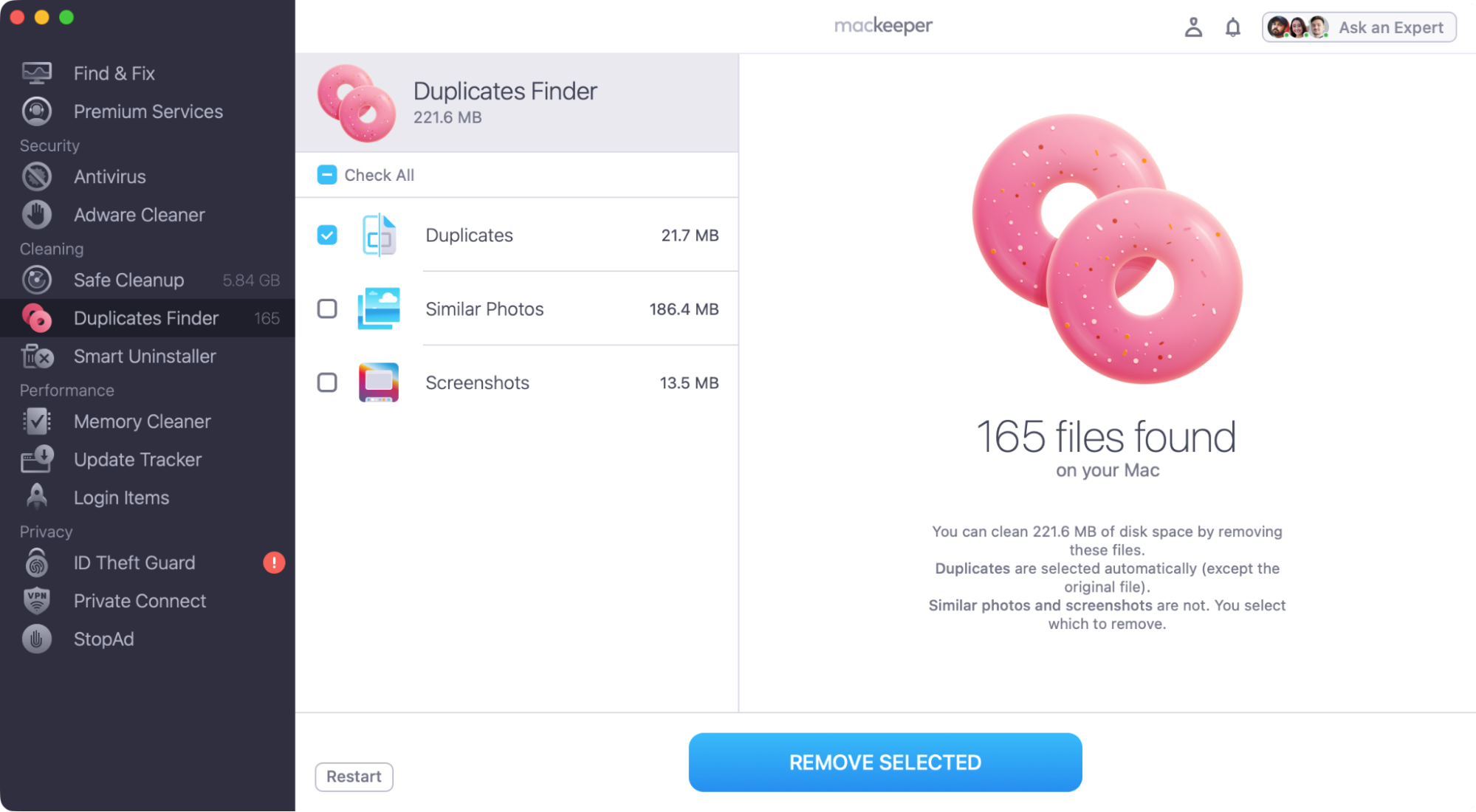
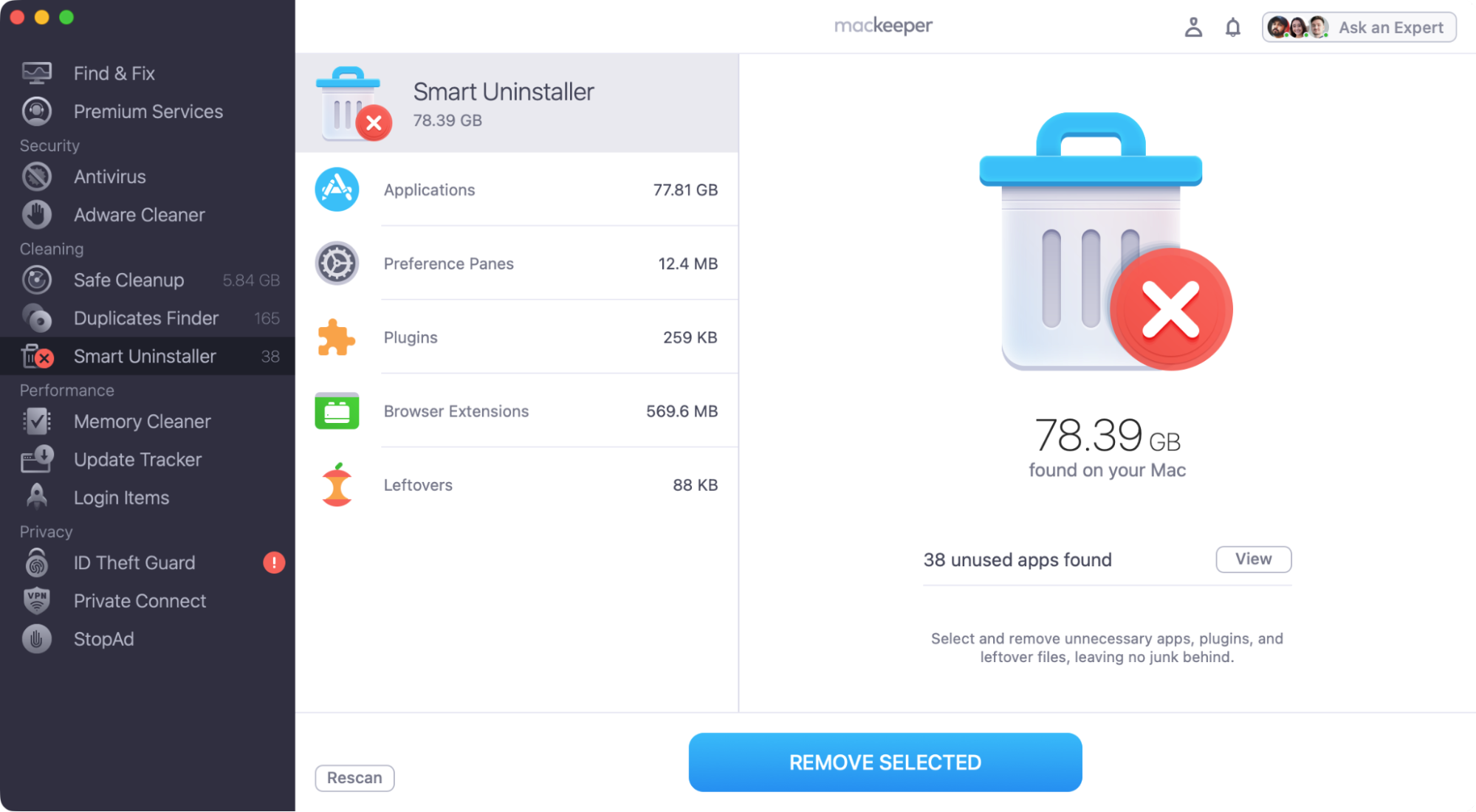
We also suggest MacKeeper’s Duplicates Finder to erase unneeded copies of files. And you can use MacKeeper’s Smart Uninstaller to delete unwanted apps and the leftover data that sometimes remains after apps have been uninstalled the normal way.
Step 1. Look for duplicate files to reduce wasted disk spaceStep 2. Use Smart Uninstaller to remove unneeded third-party apps
Make your Mac leaner and cleaner
When you share your Apple Macintosh computer with other people or if you operate several user accounts, a lot of storage space can be taken up by “Other Users & Shared”. If you have an admin account, you can manage and delete other users and all their files, but we recommend asking for permission first! You should also check your Shared, Public, and Drop Box folders for files you can delete.
But if you’re just looking for a quick way to find and delete unneeded files from your Mac system, use MacKeeper’s Safe Cleanup. A click or two is all it takes to track down junk data and remove it permanently. It’s fast, easy to use, and completely safe.
We respect your privacy and
use cookies
for the best site experience.
Privacy Preferences Center
We use cookies along with other tools to give you the best possible experience while using the
MacKeeper website. Cookies are small text files that help the website load faster. The cookies we
use don’t contain any type of personal data meaning they never store information such as your
location, email address, or IP address.
Help us improve how you interact with our website by accepting the use of cookies. You can change
your privacy settings whenever you like.
Manage consent
All cookies
These cookies are strictly necessary for enabling basic website functionality (including page
navigation, form submission, language detection, post commenting), downloading and purchasing
software. The website might malfunction without these cookies.