High CPU usage in Outlook on Mac often stems from intense syncing processes, mailbox activity, and app-specific issues rather than general system load. MacKeeper’s Memory Cleaner fixes this by clearing clogged RAM and stopping resource-heavy processes to boost app performance.
Why would Outlook suddenly start using too much CPU?
Outlook can cause high CPU usage after macOS or Outlook updates, switching between new and legacy Outlook, account changes, or when handling large or content-heavy emails.
Here are the common triggers for Outlook-related CPU spikes on your Mac:
Installing a new macOS version or Outlook patch
Data syncs after adding a new email account or changing credentials
Opening or syncing massive attachments, complex HTML layouts, or corrupt data blocks
Switching between the Legacy Outlook and the New Outlook (this forces Outlook to rebuild its local database).
How to fix Outlook high CPU usage on Mac?
To fix Outlook’s high CPU usage on a Mac, restart Outlook and check background activity, switch to Work Offline mode to test sync-related issues, or reset your Outlook account. You can also check sync issues and mailbox errors, clear Outlook cache or application data, or rebuild or recreate your Outlook profile. Switching between New Outlook and Legacy Outlook is another option. You may also update Outlook and macOS, disable add-ins and related Microsoft services, and check large or problematic emails and attachments
A note from our experts:
MacKeeper’s Memory Cleaner does an amazing job of stopping redundant processes on a Mac, which also helps improve the Mac’s performance. For Outlook, it helps resolve high CPU usage by targeting the resource bottlenecks that cause the application to freeze or lag. MacKeeper is Apple-notarized, giving you peace of mind that you’re using an app that’s been vetted by Apple.
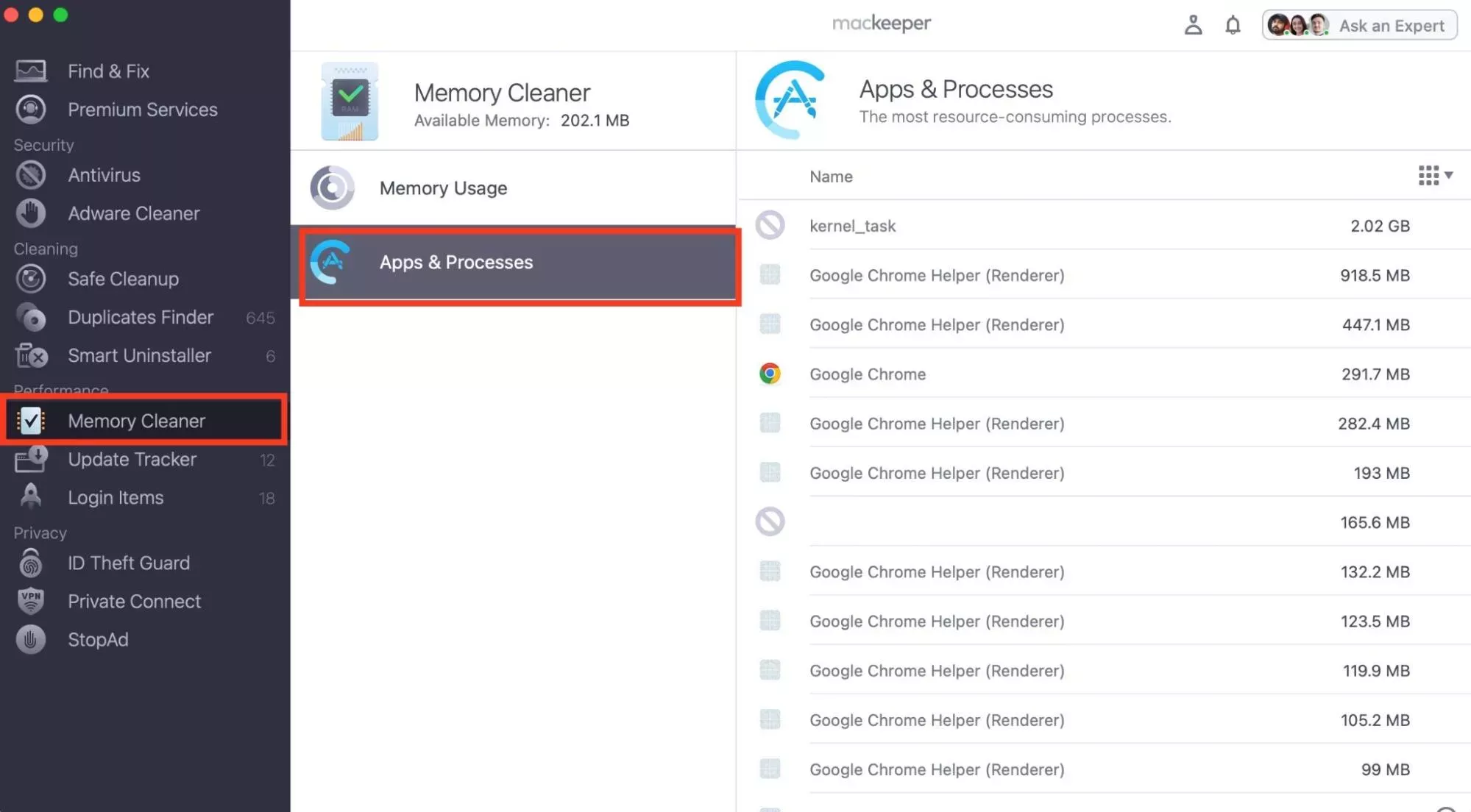
Here’s how to use MacKeeper’s Memory Cleaner to fix Outlook’s high CPU consumption:
Once you’ve opened MacKeeper, select Memory Cleaner > Apps & Processes.
MacKeeper will look for active processes, find Outlook, and you can hover over it and press the X icon that appears next to it.
1. Restart Outlook and check background activity
We like to restart Outlook first. This can help stop stuck background sync or email processing tasks, especially since Mac doesn’t have Task Manager to help us check background activity.
Follow these easy steps to restart Outlook on a Mac:
While in the app, press the Command + Q keys on your keyboard.
Power up your Mac again.
2. Switch to Work Offline mode to test sync-related issues
We disable our connection to the mail server by switching to Work Offline mode to isolate and diagnose high CPU usage in Outlook for Mac
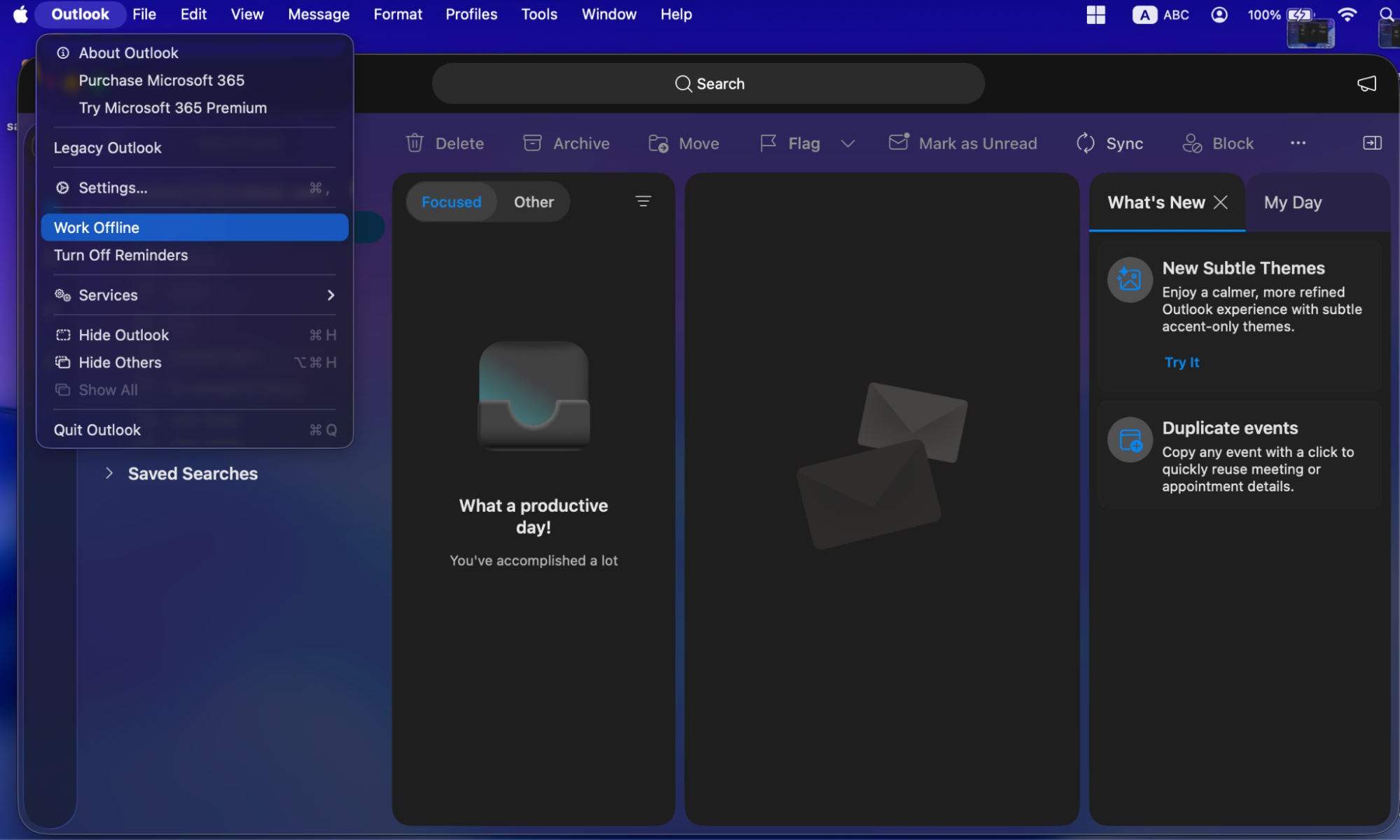
Here’s how to switch to Work Offline mode in Outlook on a Mac:
Navigate to Outlook’s top menu, select Tools > Work Offline to toggle the offline status, and then look for a Disconnected or Working Offline status in the bottom-right corner of the window.
Keep your eye on Activity Monitor for 1–2 minutes to see if the CPU percentage drops.
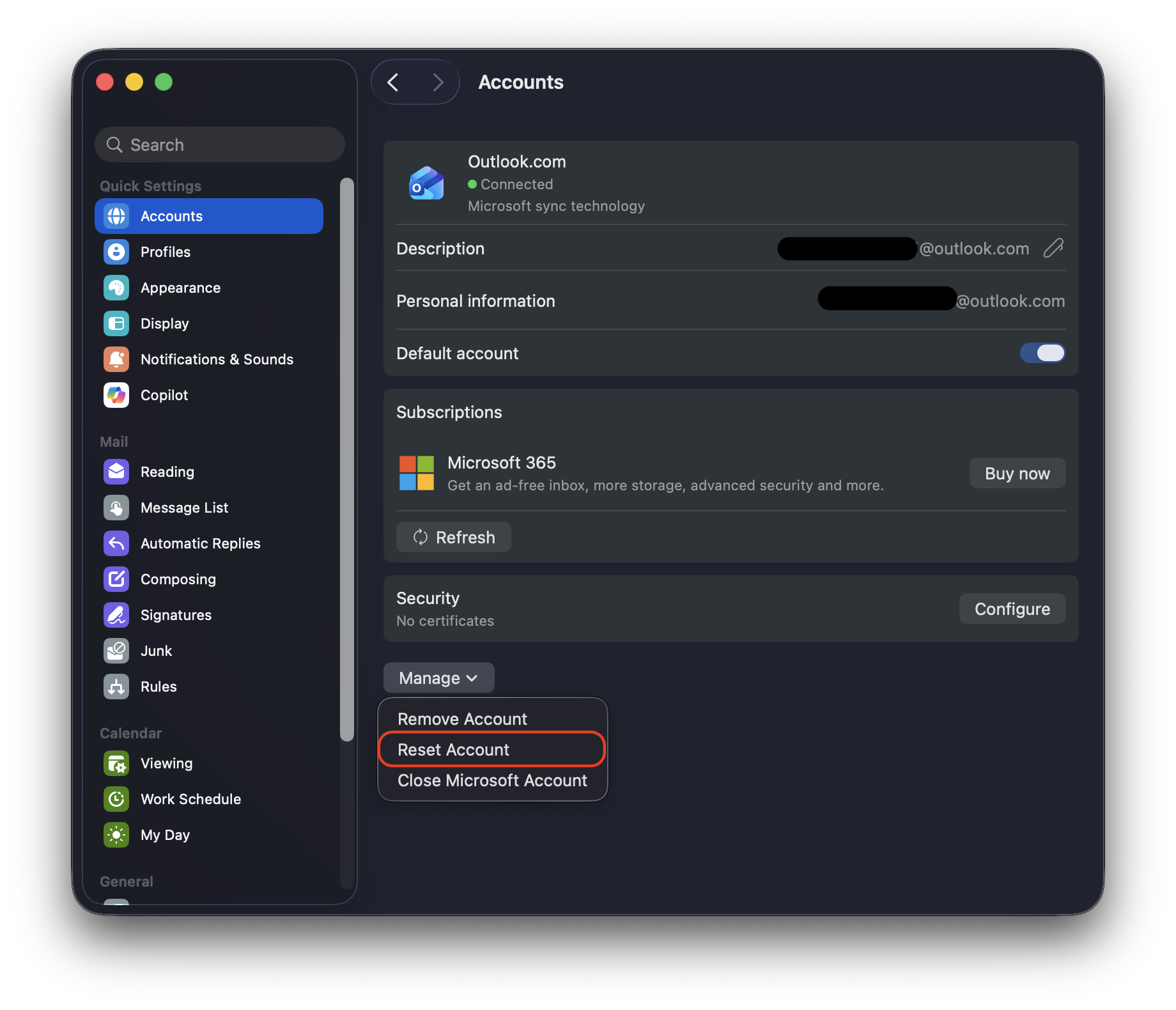
3. Reset your Outlook account
Whenever we notice our Mac running hot or verifying Microsoft Outlook stuck on the screen, chances are a corrupted local data loop is freezing the application. Resetting our account forces Outlook to clear its local cache, which breaks sync loops and restores normal CPU usage.
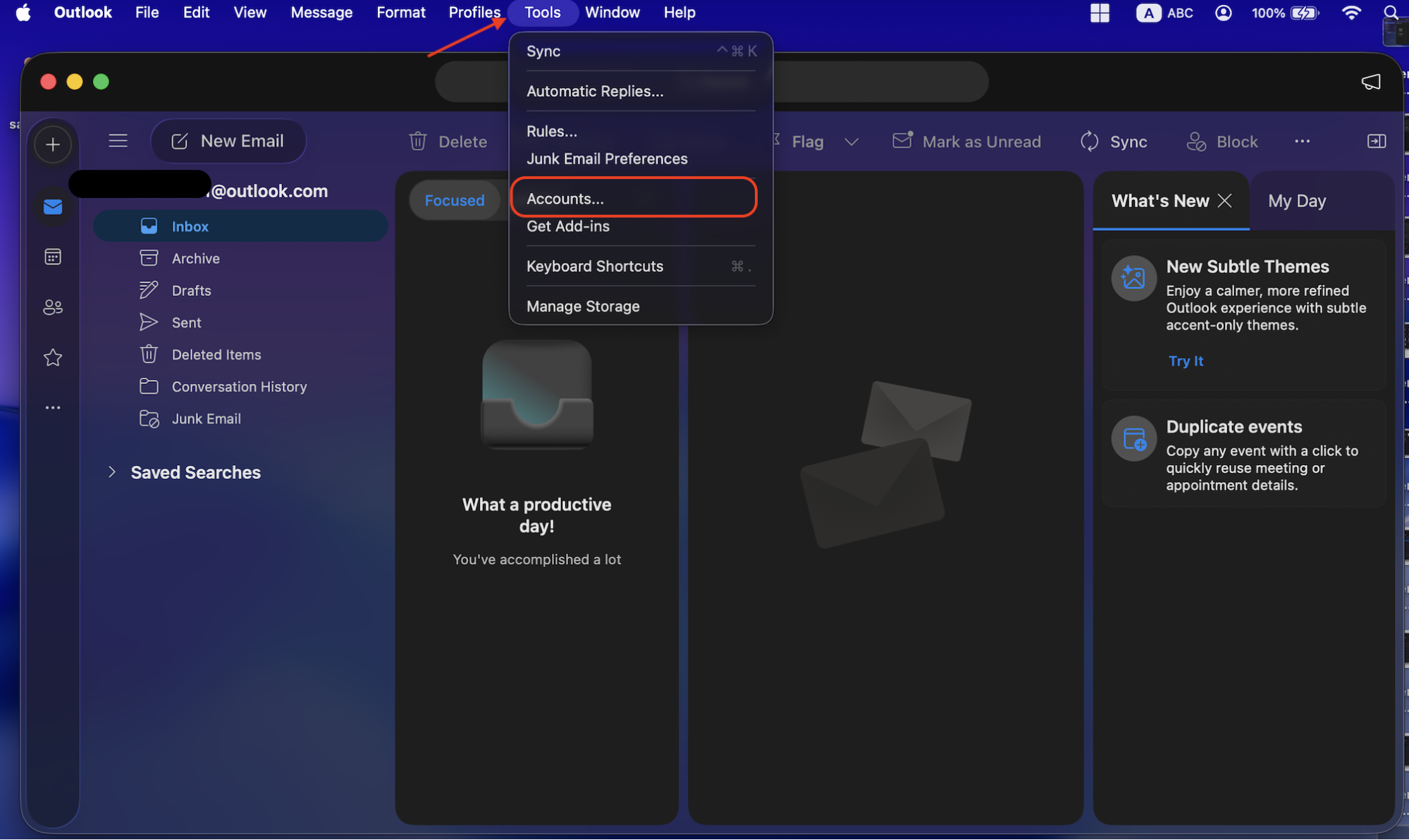
Follow the steps below to reset your Outlook account:
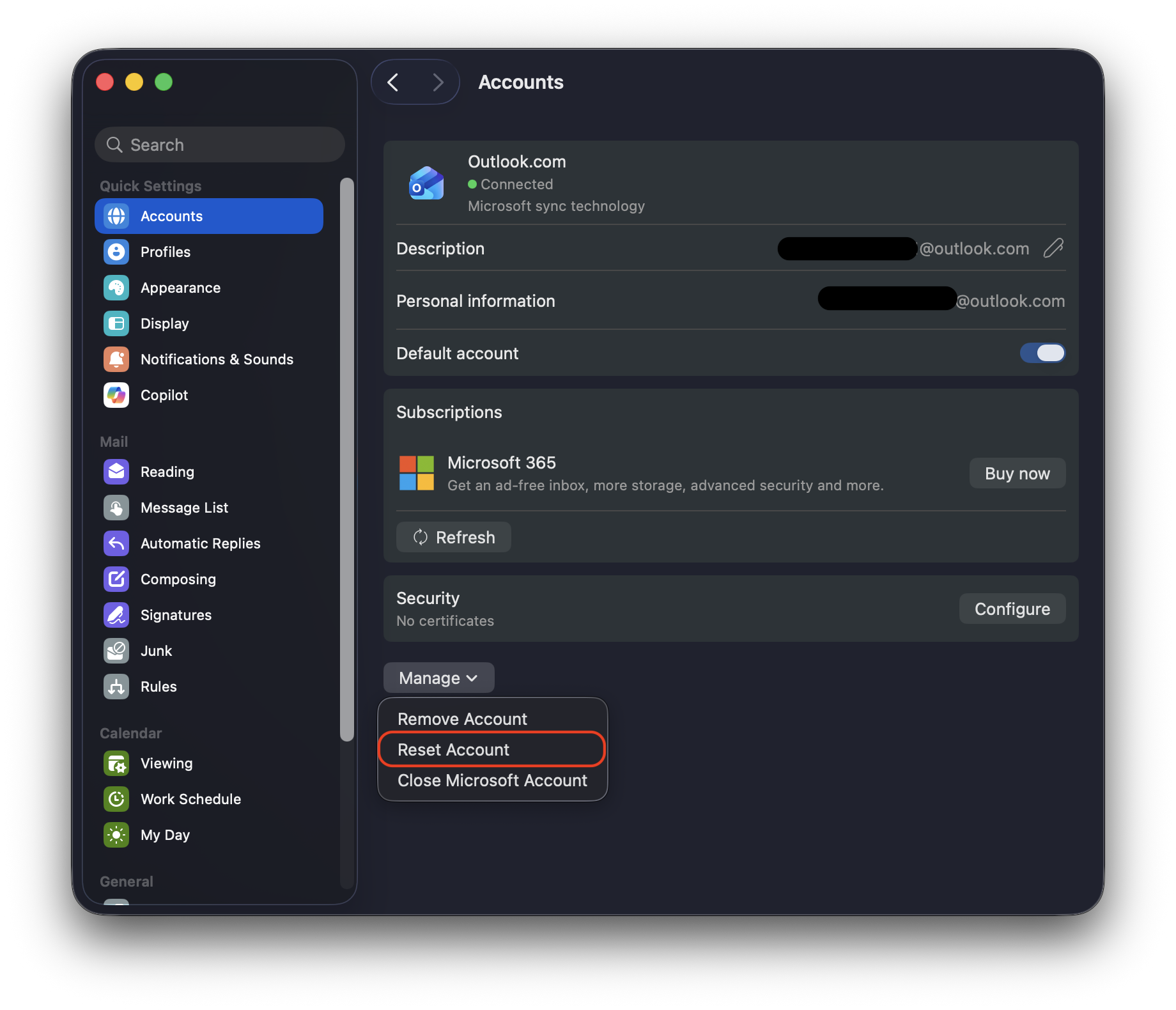
In the top menu, select Tools > Accounts.
Hit the three dots icon next to the problematic account.
Select Reset Account to clear the temporary data files and then restart the app to initiate a fresh sync.
Step 1. Select Tools > Accounts in the top menuStep 2. Click the Manage button > Reset Account
4. Check sync issues and mailbox errors
Since problematic emails, calendar events, and unsynced items may cause Outlook to repeatedly sync and cause CPU spikes, checking these can help us resolve the high CPU consumption problem.
Here’s how to check sync issues and mailbox errors on a MacBook computer or laptop:
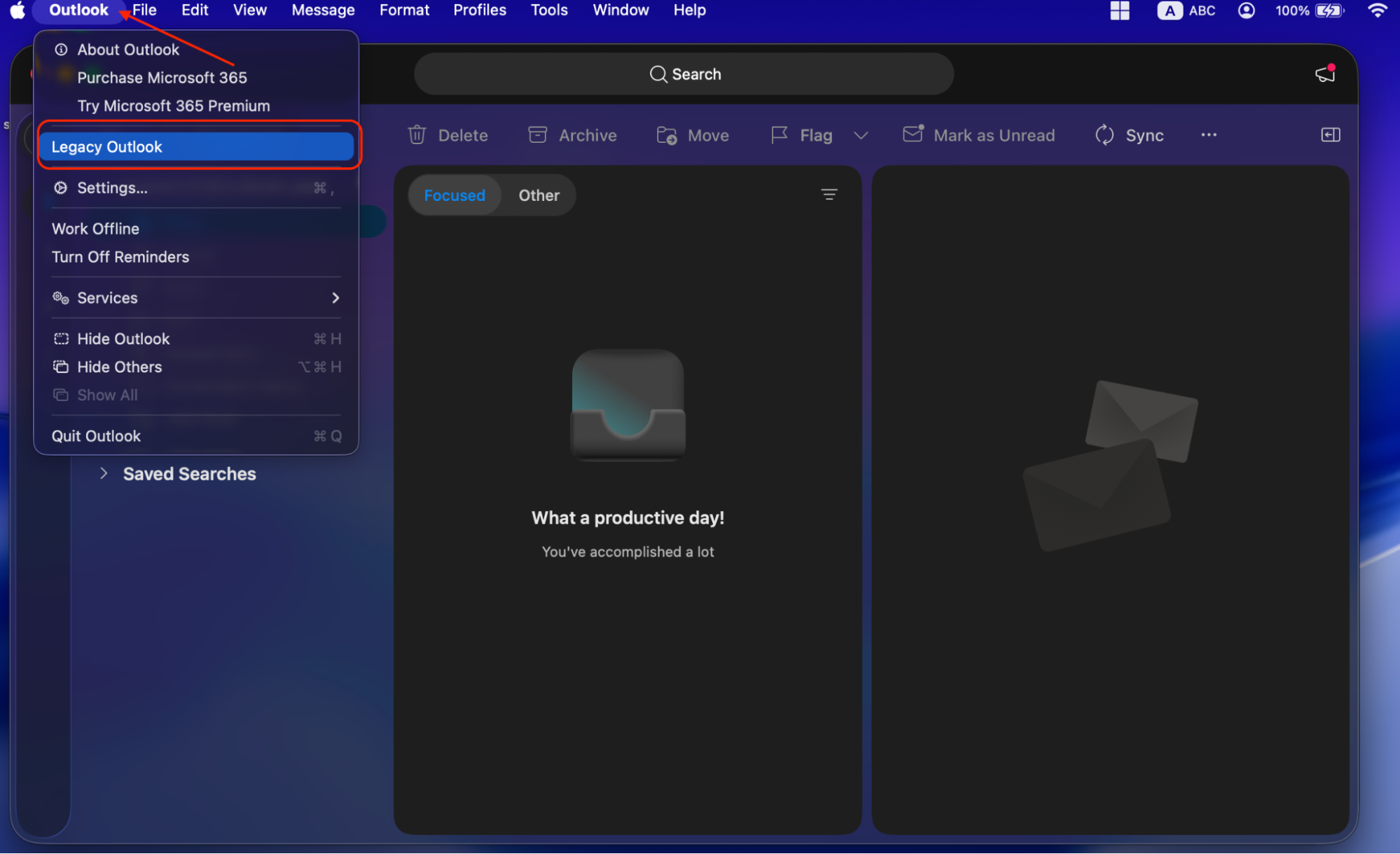
Switch Outlook to Legacy Outlook.
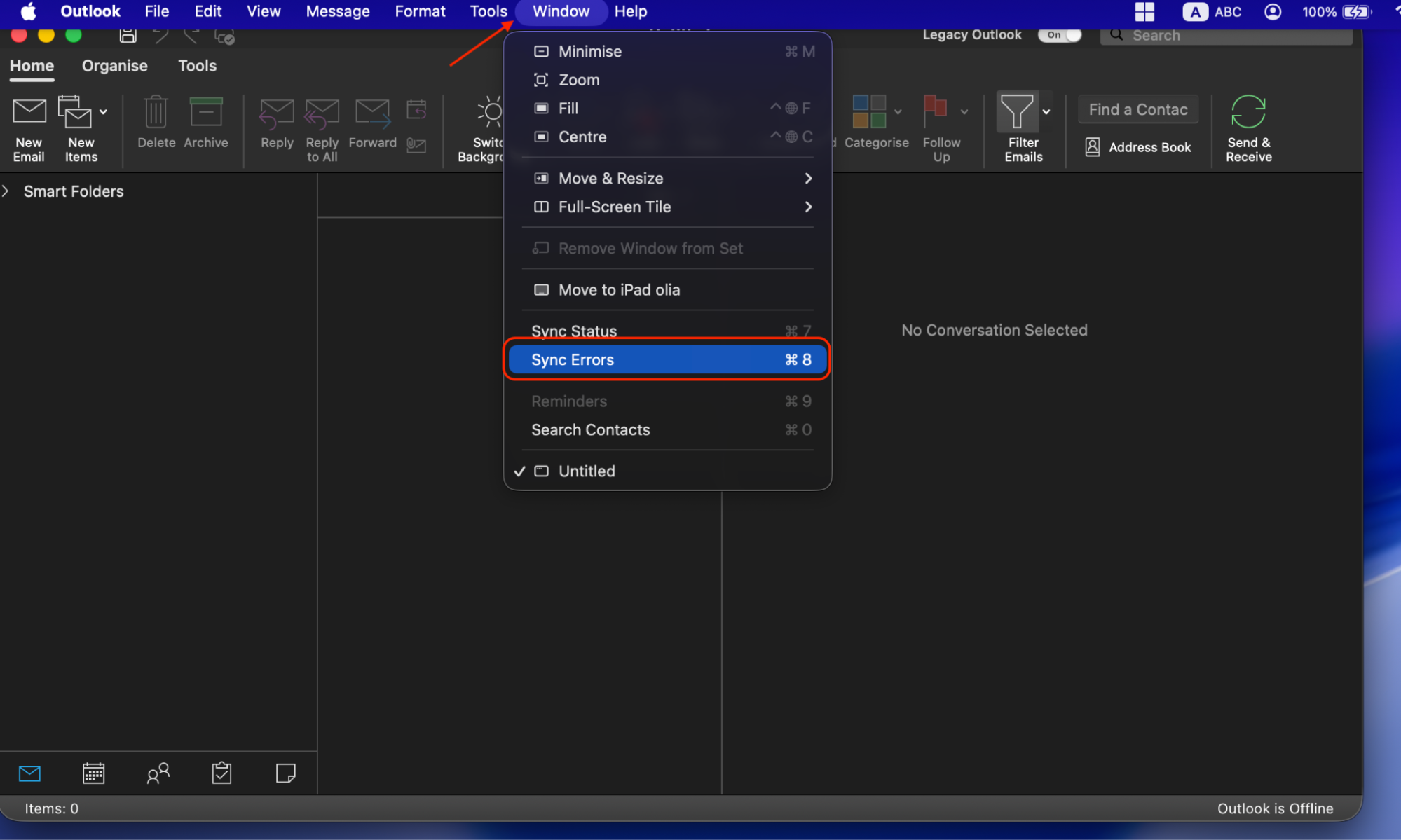
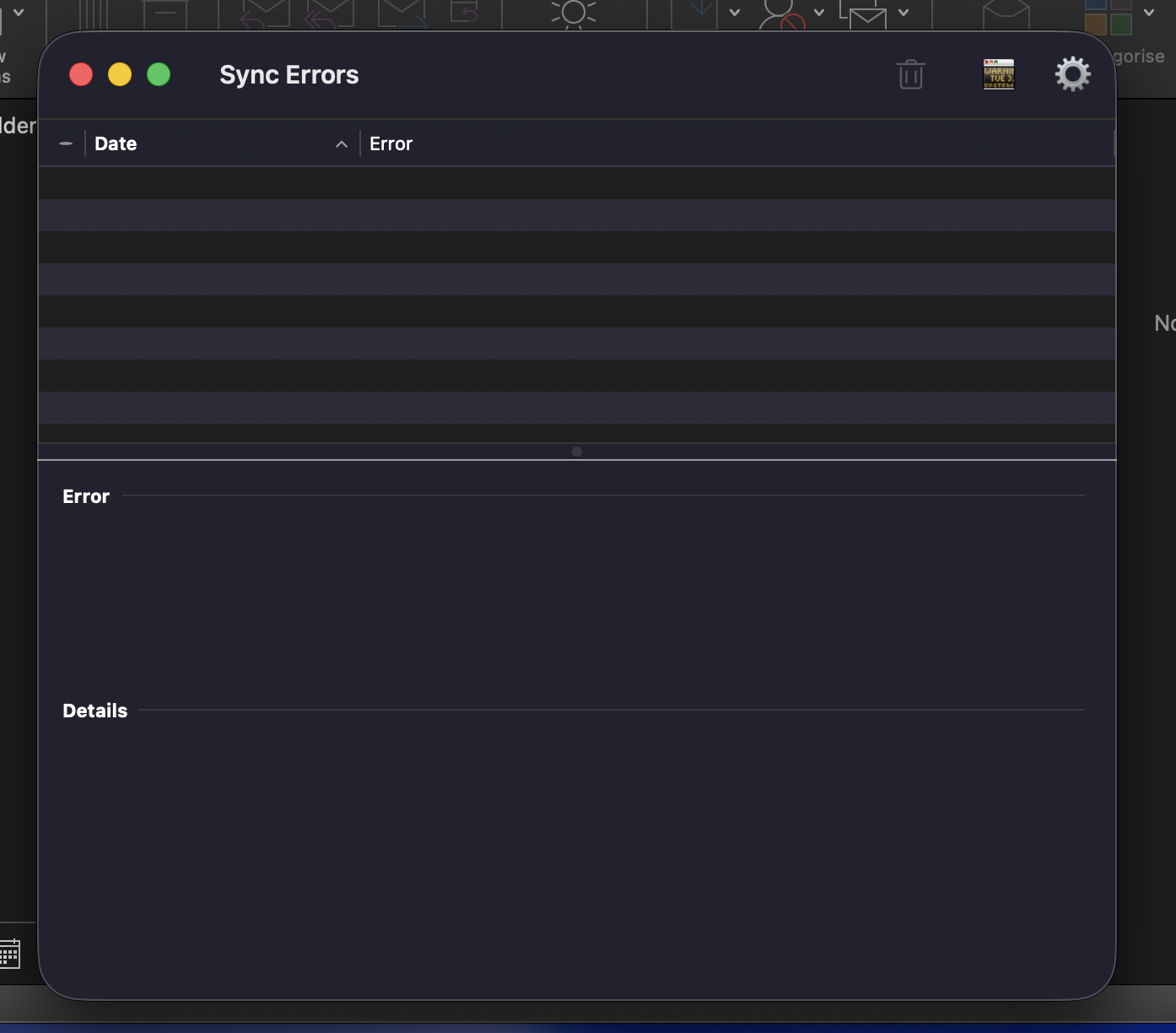
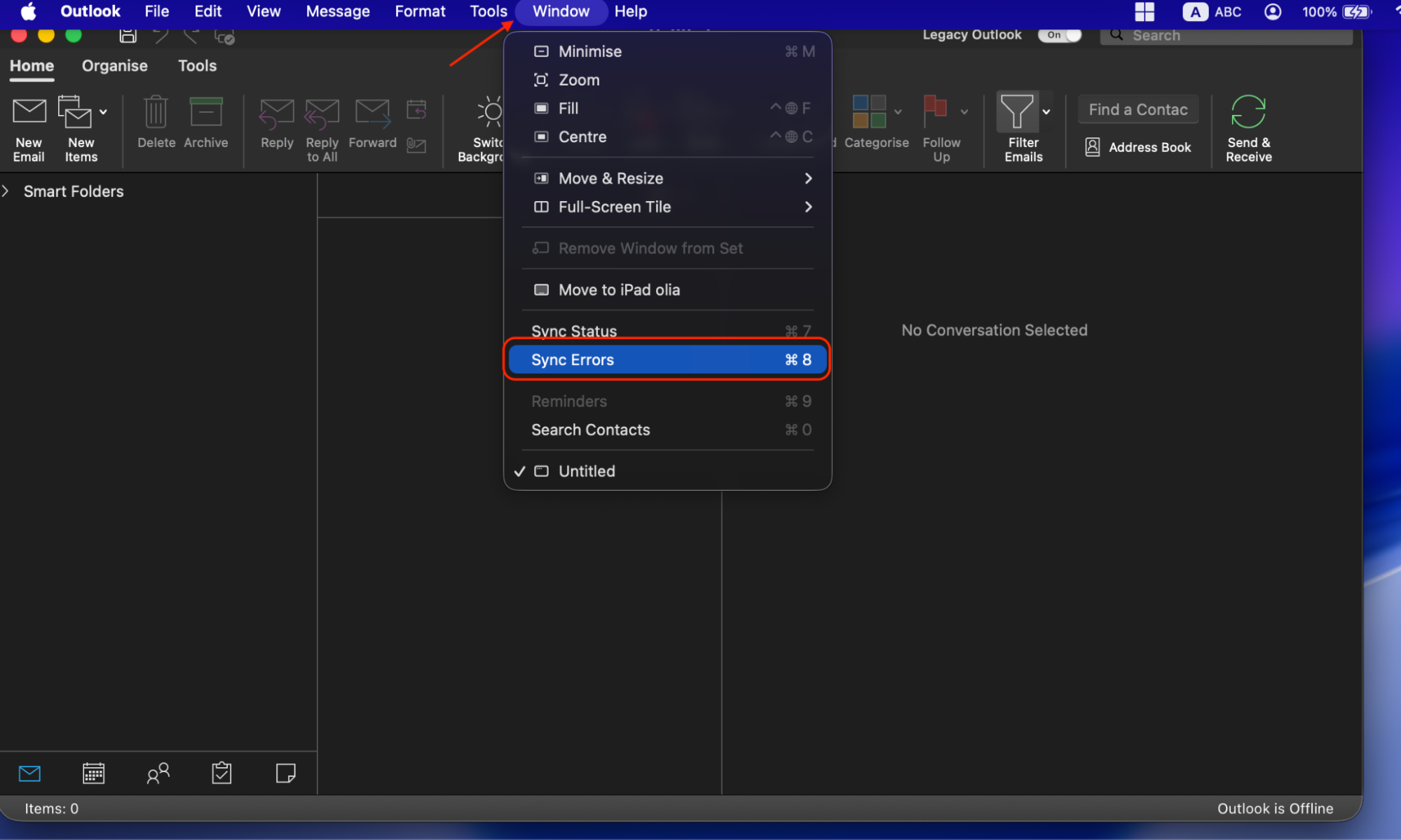
Navigate to the macOS menu bar and click Window > Sync Errors.
Delete any emails or attachments that failed to upload.
Switch back to New Outlook if preferred once the log is clear.
Step 1. Switch to Legacy OutlookStep 2. Navigate to the macOS menu bar and click Window > Sync ErrorsStep 3. Delete any emails or attachments that failed to uploadStep 4. Switch back to New Outlook if preferred once the log is clear
5. Clear Outlook cache or application data
When we clear Outlook cache or application data, we wipe out the corrupted files or repeated background processing loops that cause our Mac's CPU to spike. This forces Outlook to download a fresh, clean copy of our mailbox directly from the server.
Follow this guideline to clear Outlook cache on a Mac:
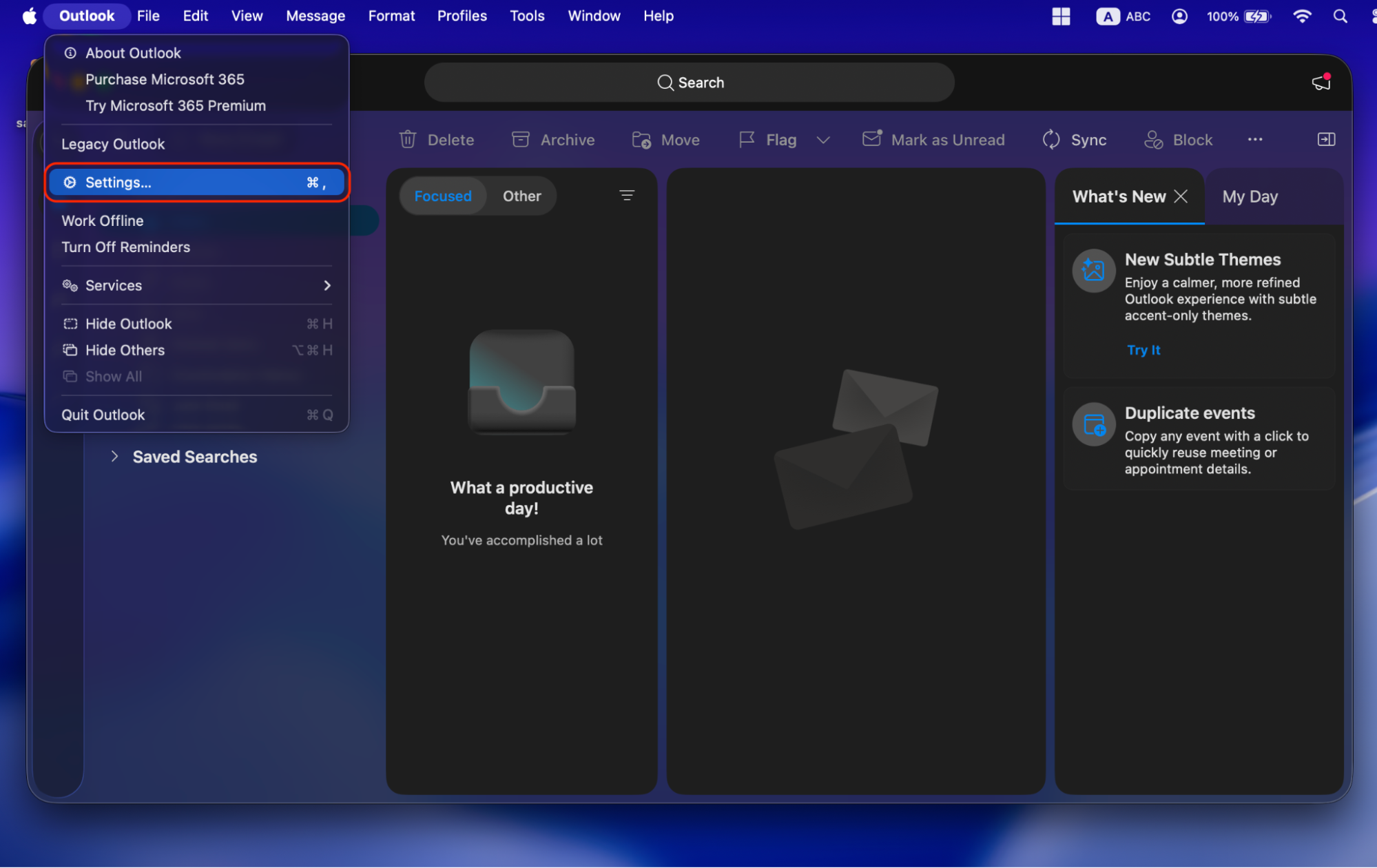
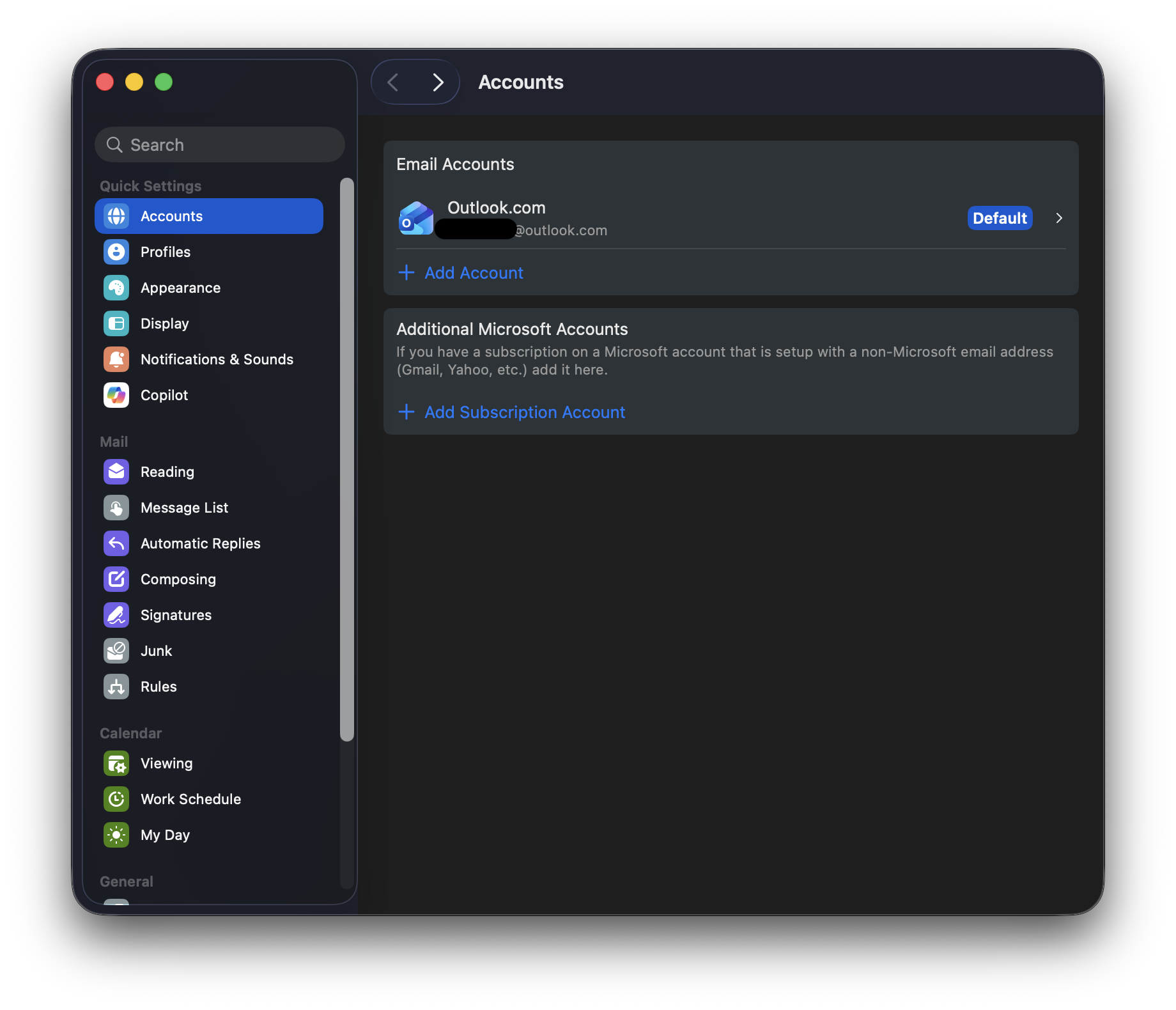
Head to the top Mac menu bar and select Outlook > Settings/Preferences.
Click Accounts and select your primary email address.
Click the three-dot menu at the bottom of the window > Reset Account.
Step 1. Select Outlook > Settings/PreferencesStep 2. Click Accounts and select your primary email addressStep 3. Click the three-dot menu > Reset Account
6. Rebuild or recreate your Outlook profile
When we build a new profile, Outlook creates an entirely separate database file, ensuring that broken files no longer trigger background sync loops or high CPU spikes on our Mac.
Here’s how to rebuild or recreate your Outlook profile:
Close Outlook.
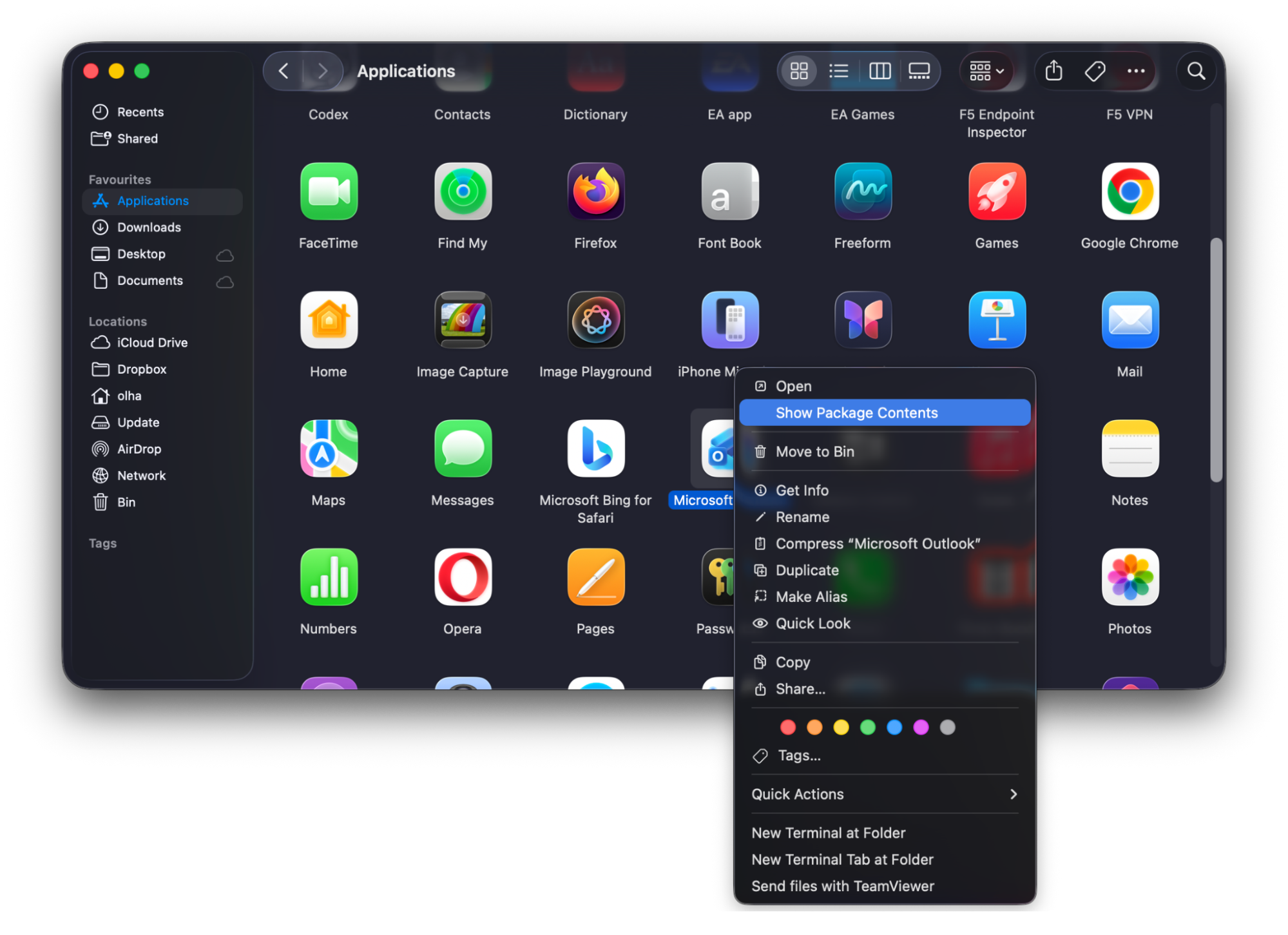
Open the Applications folder in Finder > right-click Microsoft Outlook > Show Package Contents.
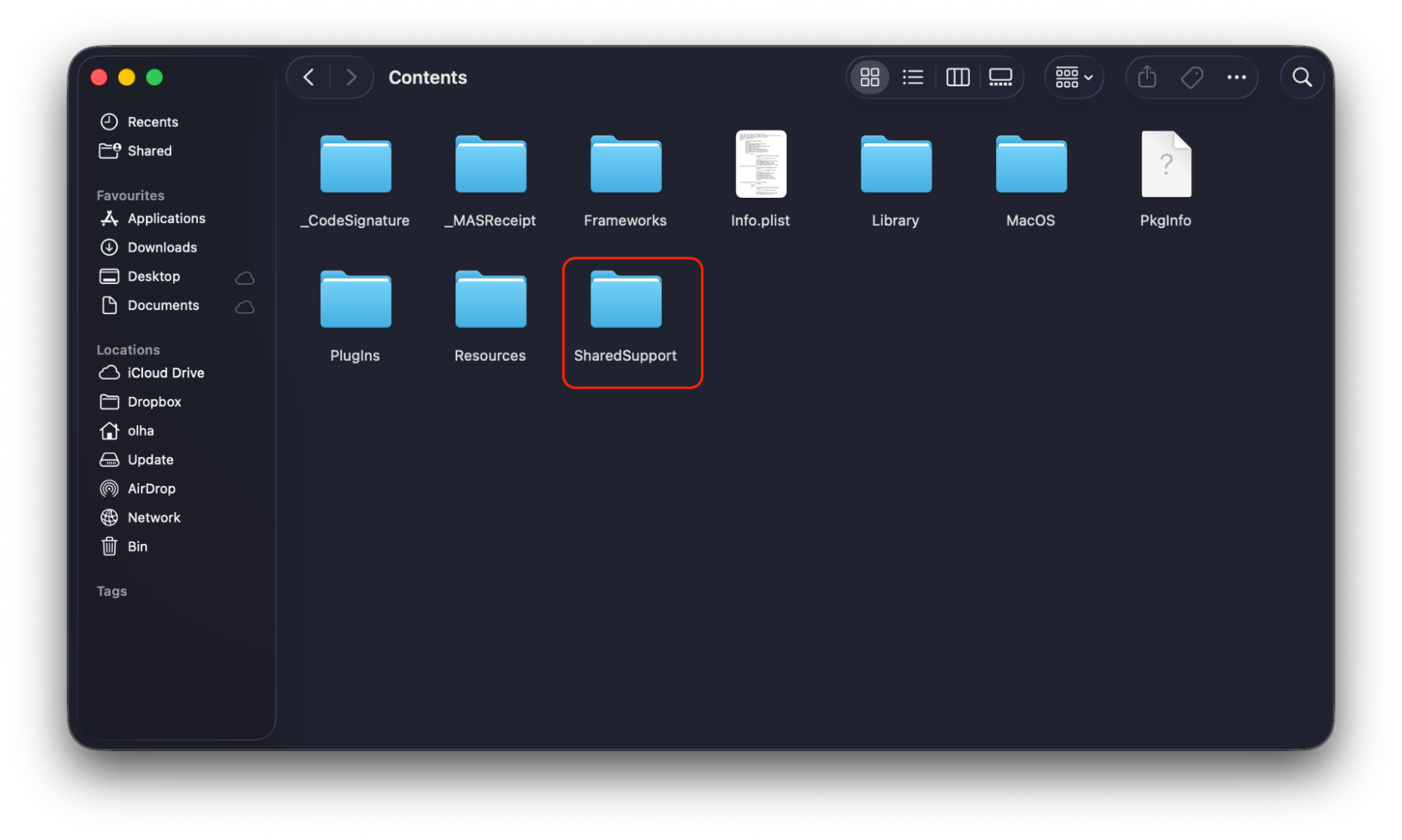
Open the Contents and SharedSupport folders.
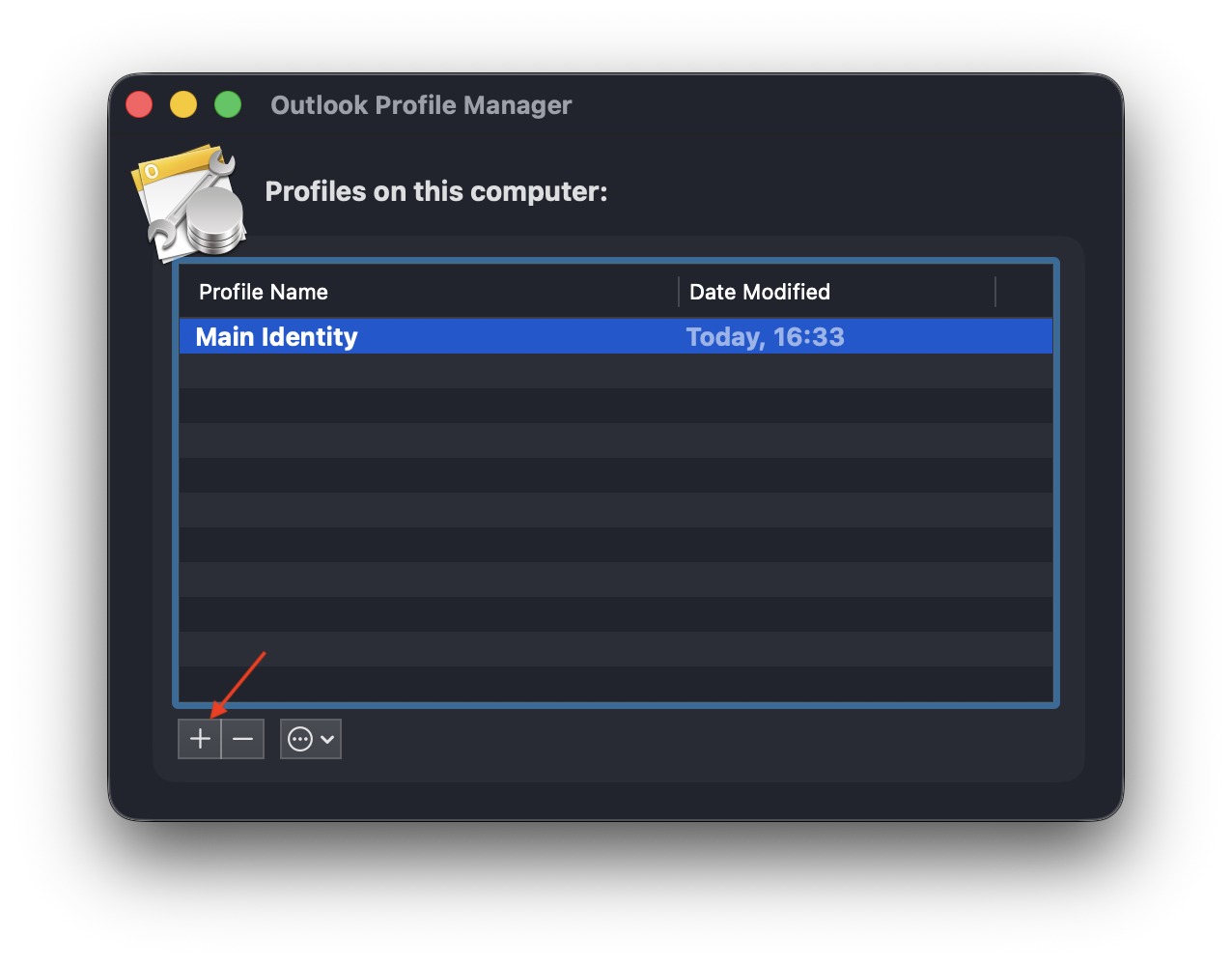
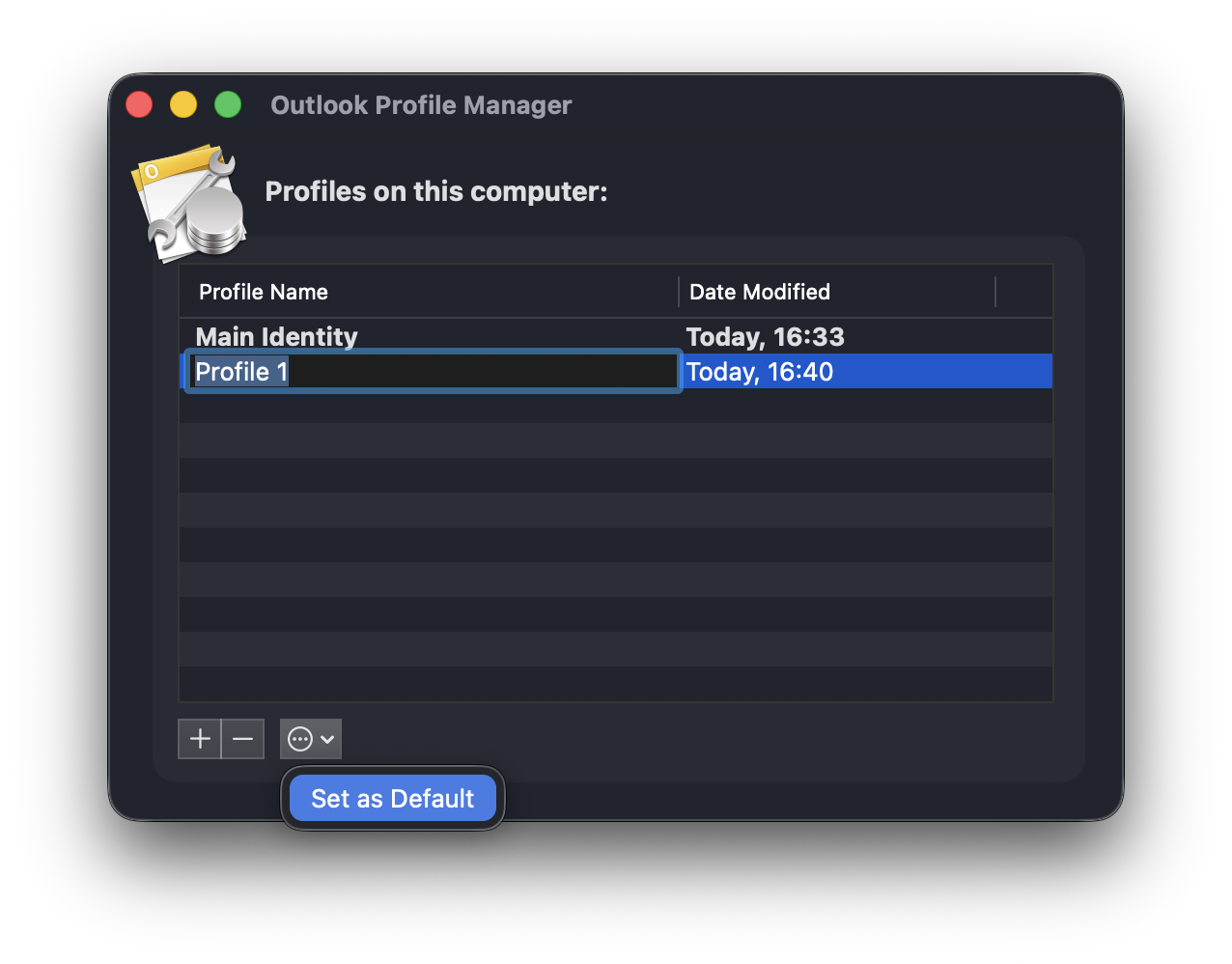
Double-click Outlook Profile Manager and click the plus (+) icon.
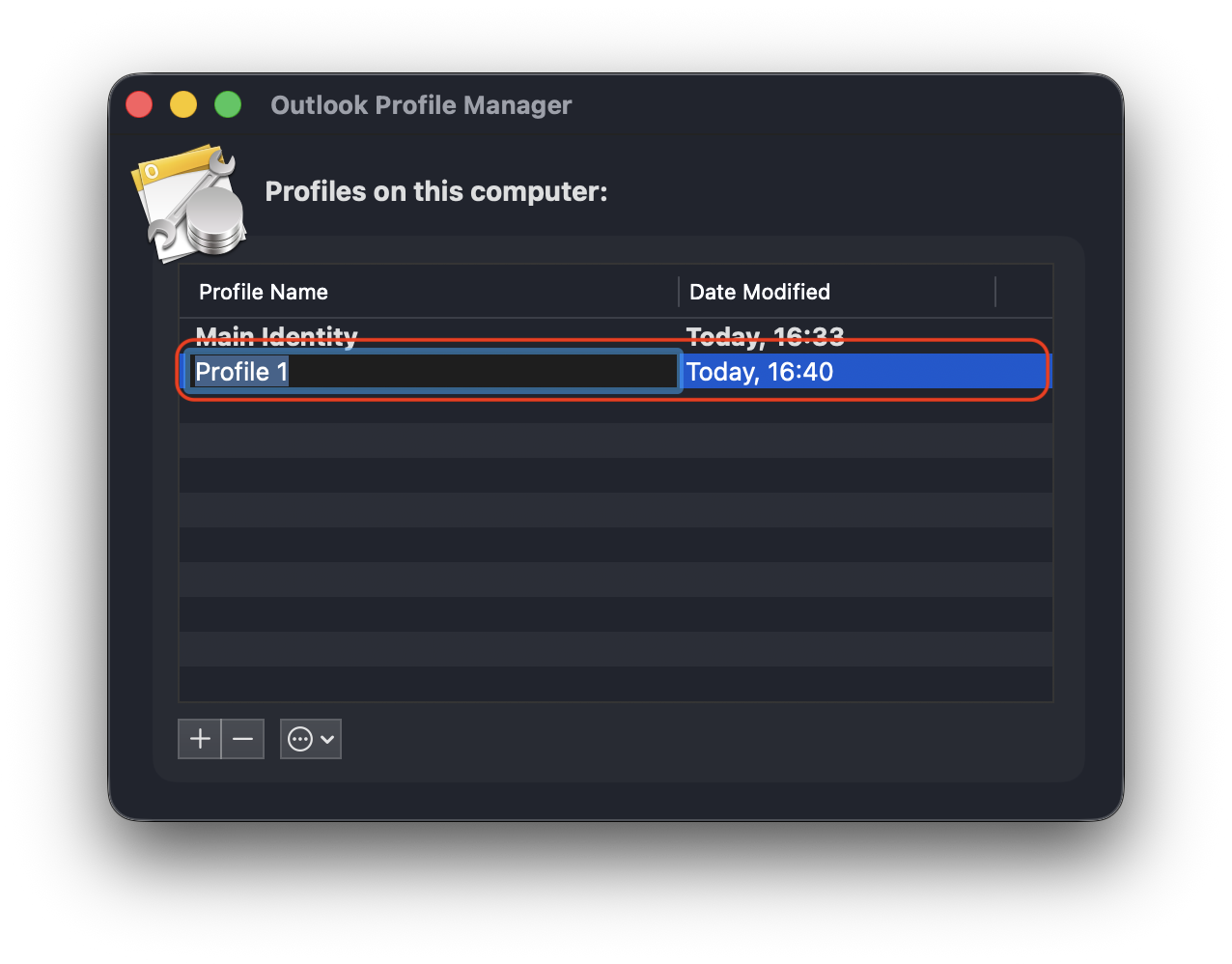
Enter a new name of your choosing.
Click the gear icon and select Set as Default.
Don’t forget to restart Outlook and add your email account again.
Step 1. Open Applications > right-click Microsoft Outlook > Show Package ContentsStep 2. Open the Contents folder and SharedSupport foldersStep 3. Double-click Outlook Profile Manager and click the plus (+) iconStep 4. Enter a new profile nameStep 5. Click the gear icon and select Set as Default
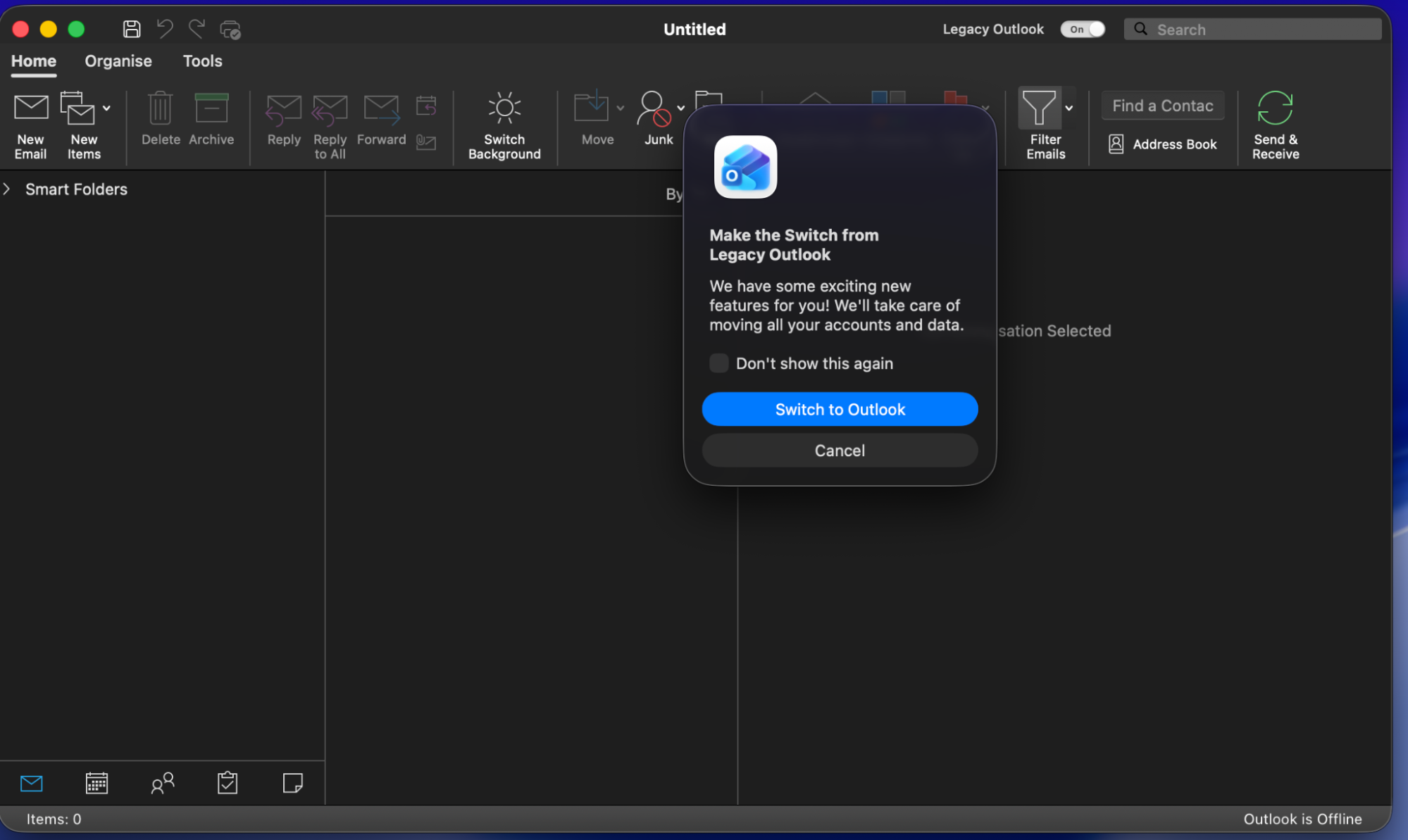
7. Switch between New Outlook and Legacy Outlook
Since different versions of Outlook behave differently, we sometimes switch between them to help isolate or resolve the high CPU consumption problem.
To switch between the New Outlook and Legacy Outlook interfaces on a Mac, do this:
Switch to New Outlook
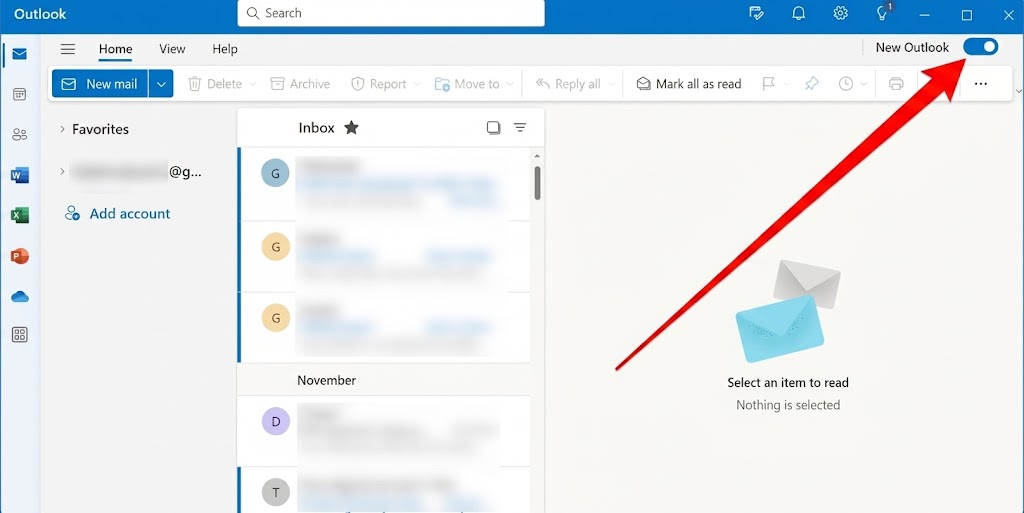
Navigate to the top-right corner of the Outlook window and toggle on New Outlook.
Select Switch or Restart when you see the prompt.
Step 1. Toggle on New Outlook in the top-right cornerStep 2. Select Switch or Restart when you see the prompt
Switch back to Legacy Outlook
Click Help in the top macOS menu bar.
Select Revert to Legacy Outlook > Revert on the confirmation pop-up window (this will restart the app).
Click Help > Legacy Outlook > Revert
8. Update Outlook and macOS
Updating our Mac to the latest version and keeping Outlook current ensures we download critical patches that resolve known bugs related to CPU spikes or syncing behavior.
Follow this approach to update Outlook and macOS:
In Outlook, click Help in the top macOS menu bar > Check for Updates.
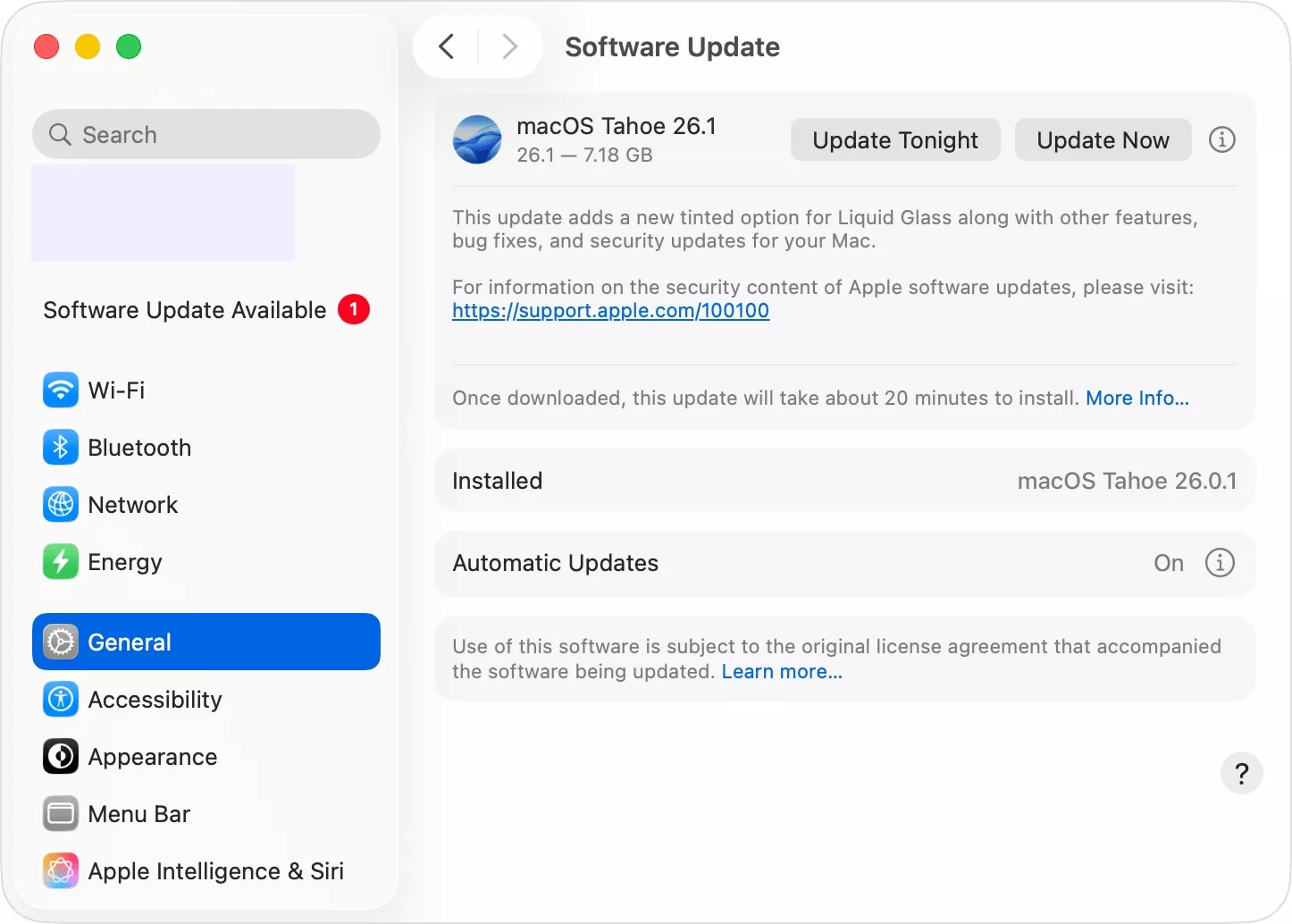
Open Mac’s System Settings > General > Software Update > Update Now and follow the prompts.
Click on System Settings > General > Software Update > Update Now
9. Disable add-ins and related Microsoft services
Integrations with other Microsoft apps or third-party tools may create conflicts and increase CPU usage. As such, we disable them to avoid them getting stuck in a loop and slowing down our Mac.
Use these steps to turn off add-ins:
Click the Home tab in Outlook’s top menu.
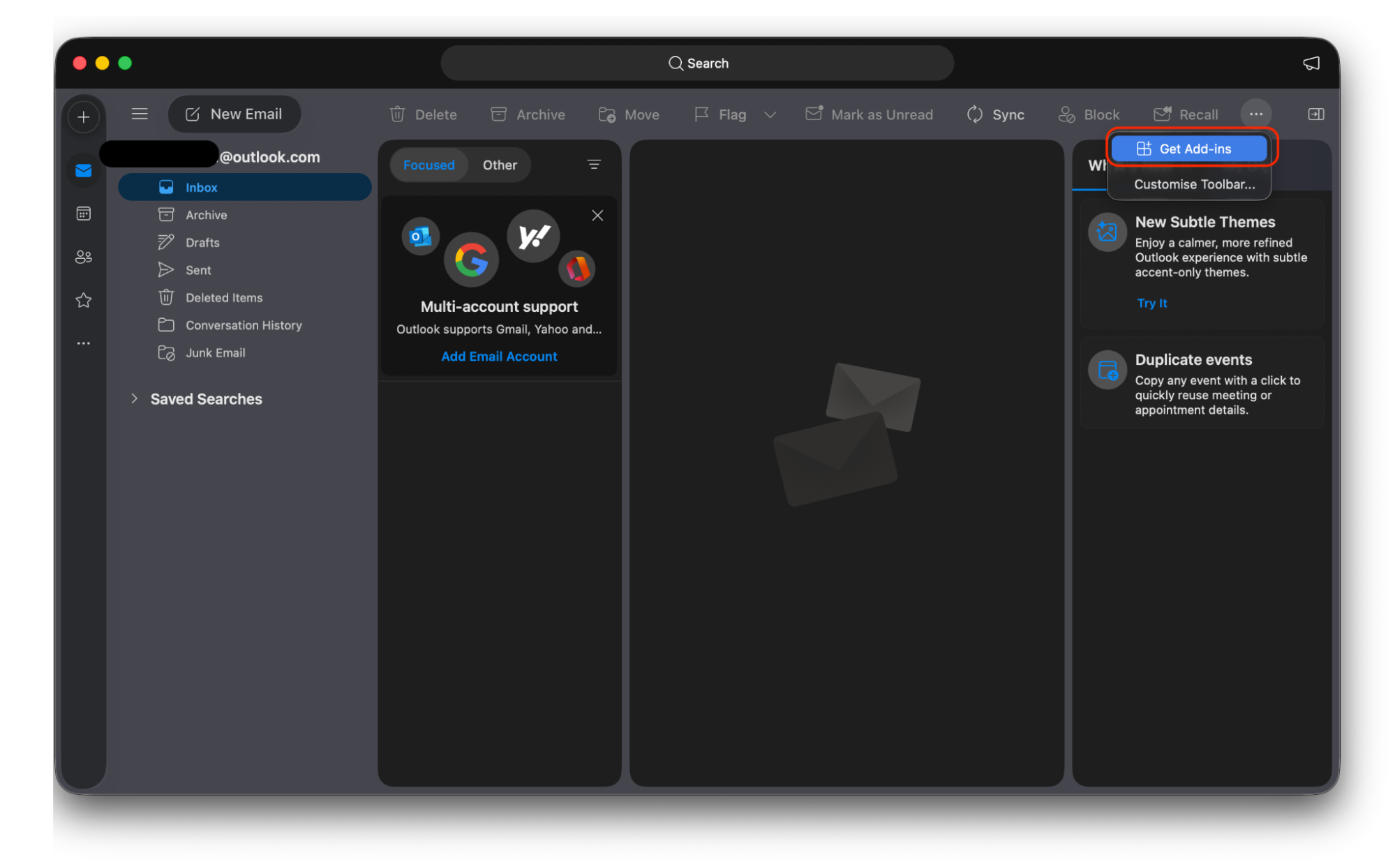
Select Get Add-ins (or the three-dot menu) > My Add-ins.
Click Turn Off or Remove where applicable, then restart the app.
Select Get Add-ins (or the three-dot menu) > My Add-ins
10. Check large or problematic emails and attachments
Replying to or processing content-heavy emails may temporarily overload the app. We can organize emails into smaller folders or archive heavy files to prevent it from slowing down.
If Outlook CPU usage does not go down
If Outlook’s CPU usage remains very high, we check the account configuration, test another profile, or isolate the issue to a specific mailbox or server connection. If none of these fixes work, we may need to completely uninstall Outlook from Mac and perform a clean reinstall to wipe out broken system files.
Reduce Outlook’s high CPU usage on a Mac
Outlook for Mac’s high CPU usage is usually related to syncing or mailbox issues, and can be resolved through account resets, updates, or data cleanup. To help your Macintosh handle heavy syncs, try MacKeeper’s Memory Cleaner. It frees up trapped RAM and closes heavy background processes within minutes to keep your Mac running smoothly.
We respect your privacy and
use cookies
for the best site experience.
Privacy Preferences Center
We use cookies along with other tools to give you the best possible experience while using the
MacKeeper website. Cookies are small text files that help the website load faster. The cookies we
use don’t contain any type of personal data meaning they never store information such as your
location, email address, or IP address.
Help us improve how you interact with our website by accepting the use of cookies. You can change
your privacy settings whenever you like.
Manage consent
All cookies
These cookies are strictly necessary for enabling basic website functionality (including page
navigation, form submission, language detection, post commenting), downloading and purchasing
software. The website might malfunction without these cookies.