Noticing secd high CPU usage usually points to macOS security services, Keychain activity, or iCloud credential syncing working overtime. It’s rarely dangerous, but it can heat up your Mac and drain the battery. MacKeeper’s Memory Cleaner frees up RAM and clears redundant processes to get performance back on track fast.
Secd is a built-in macOS security daemon, and its job is to manage Keychain access—your saved passwords, certificates, and secure authentication tokens. From our experience, it works quietly in the background so apps and system services can retrieve stored credentials safely without prompting you every time.
What to do before fixing secd high CPU on Mac?
Before changing anything, we’d suggest a quick moment of diagnosis, since a single-process spike is sometimes only temporary.
Check these things first:
Note when it started. Tie it to a recent update, password change, or new device if you can.
Review account changes. Recent Apple Account or password edits are a common trigger.
Back up Keychain data. If a reset might be needed, safeguard your credentials first.
How to fix secd high CPU usage on Mac?
Most fixes for mac secd process high cpu refresh account sync, repair Keychain, or clear a stuck process. Work through them in order, and to confirm the culprit first, you can view CPU usage in Activity Monitor.
A note from our experts:
When a process like secd runs hot, it often drags other redundant tasks along with it, and your free memory shrinks fast. In our experience, clearing that backlog gives the system room to settle the security daemon on its own. MacKeeper’s Memory Cleaner frees up RAM and shuts down redundant background processes in one click, which is exactly what a Mac choking on runaway secd activity needs. MacKeeper offers memory optimization and is trusted by millions of users.
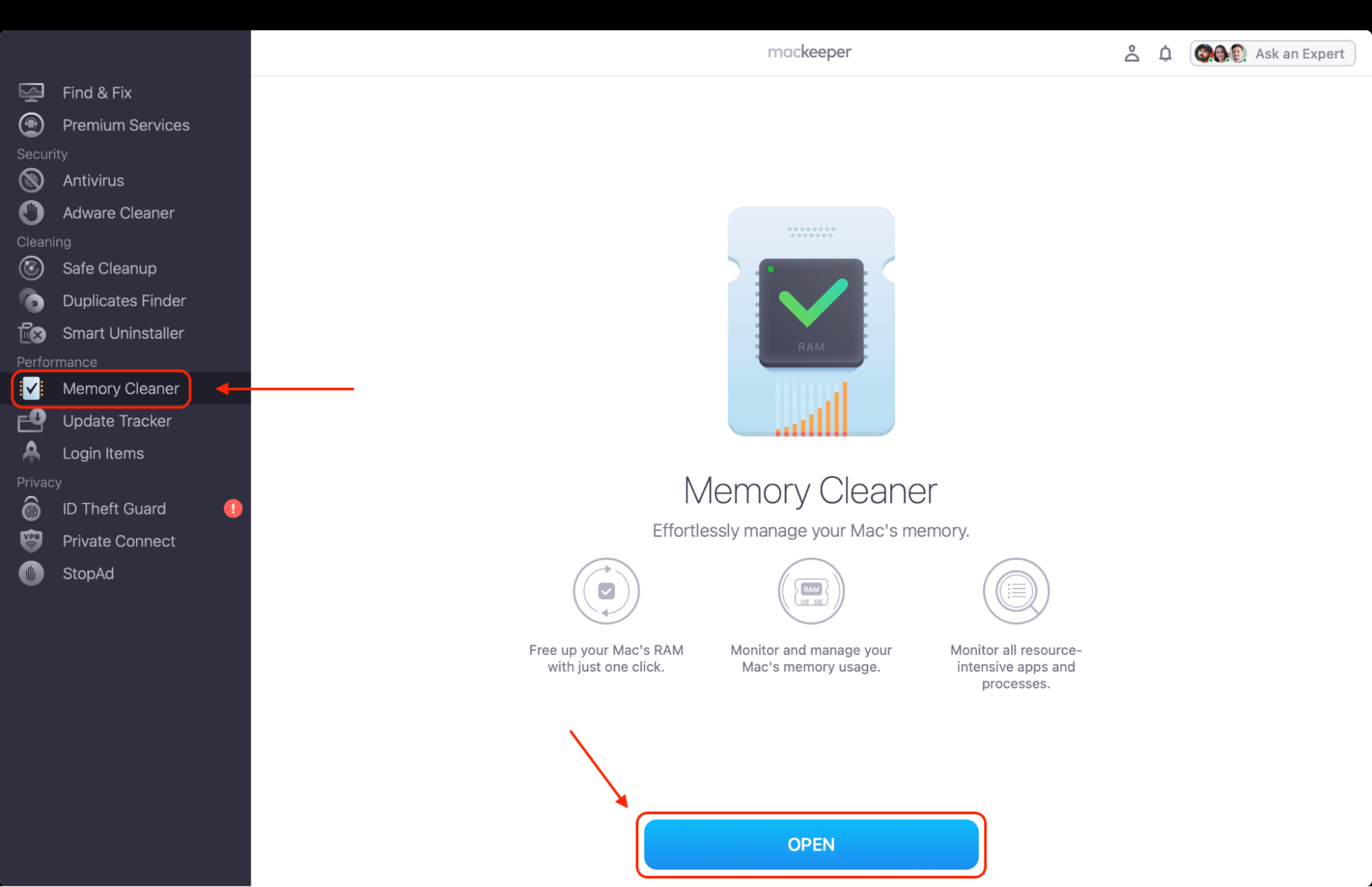
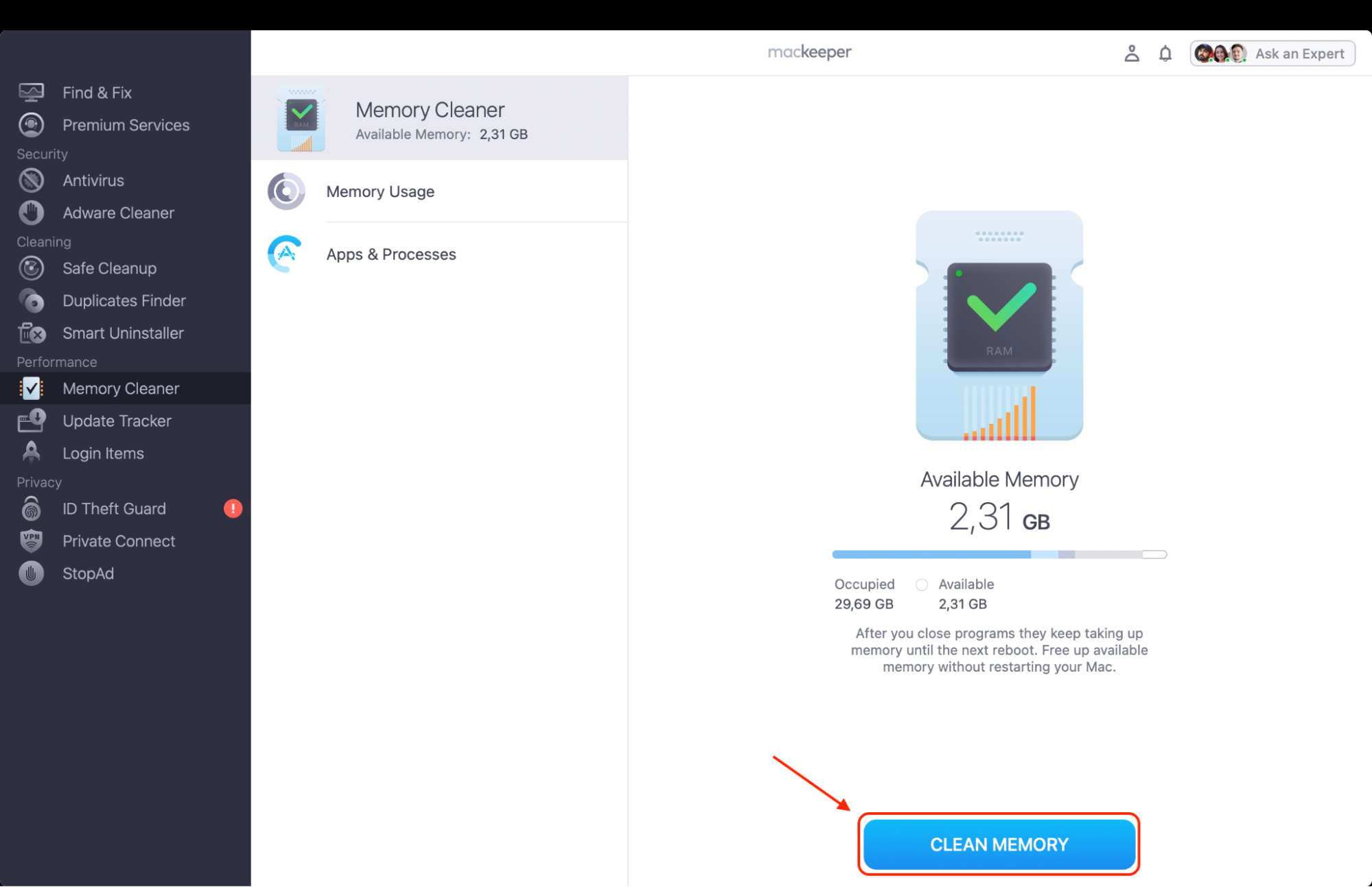
Click Open, then Clean Memory to release RAM and redundant processes.
Step 1. Open MacKeeper, go to Memory Cleaner, and click OpenStep 2. Review the freed memory after the clean to confirm your Mac has more resources available
1. Restart your Mac first
The simplest fix comes first. A restart clears authentication loops and stuck tasks, and in our experience, it resolves a stubborn secd spike more often than you’d expect. If you need more info on this topic, our guide on how to restart Mac covers every method.
Now, reboot cleanly like this:
Save your work and close any open apps.
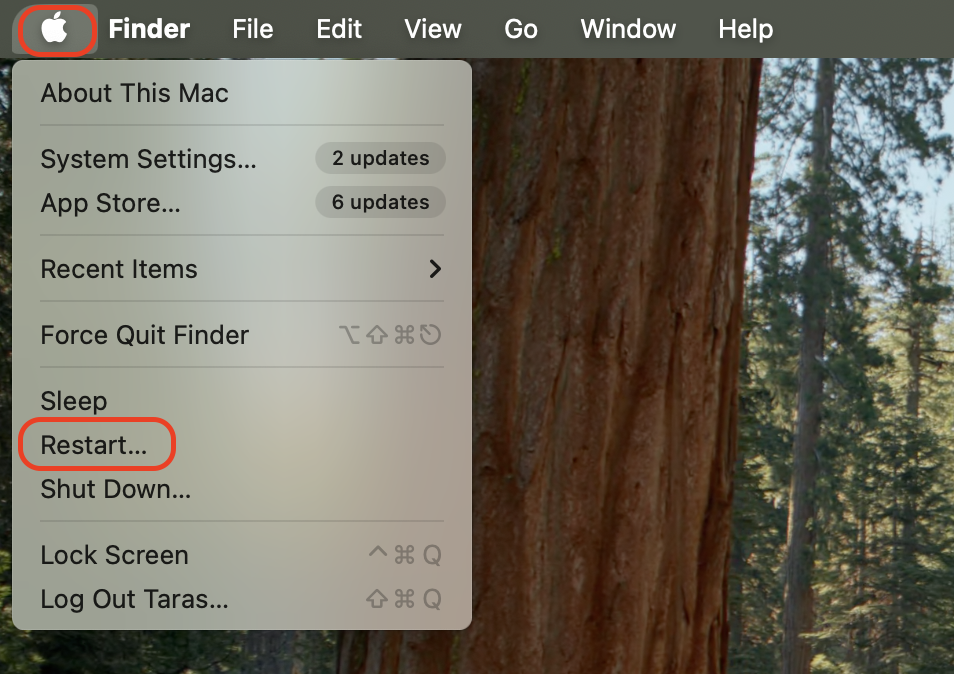
Click the Apple menu and choose Restart.
Leave Reopen windows when logging back in unchecked for a clean start.
After rebooting, open Activity Monitor to recheck secd’s usage.
Click the Apple menu and choose Restart to clear stuck authentication tasks
2. Install latest macOS updates
Apple regularly patches bugs involving secd, Keychain, and syncing. As our tests show, an outdated system is a common reason the Mac Activity Monitor's entry stays pinned near the top.
Update in a few steps:
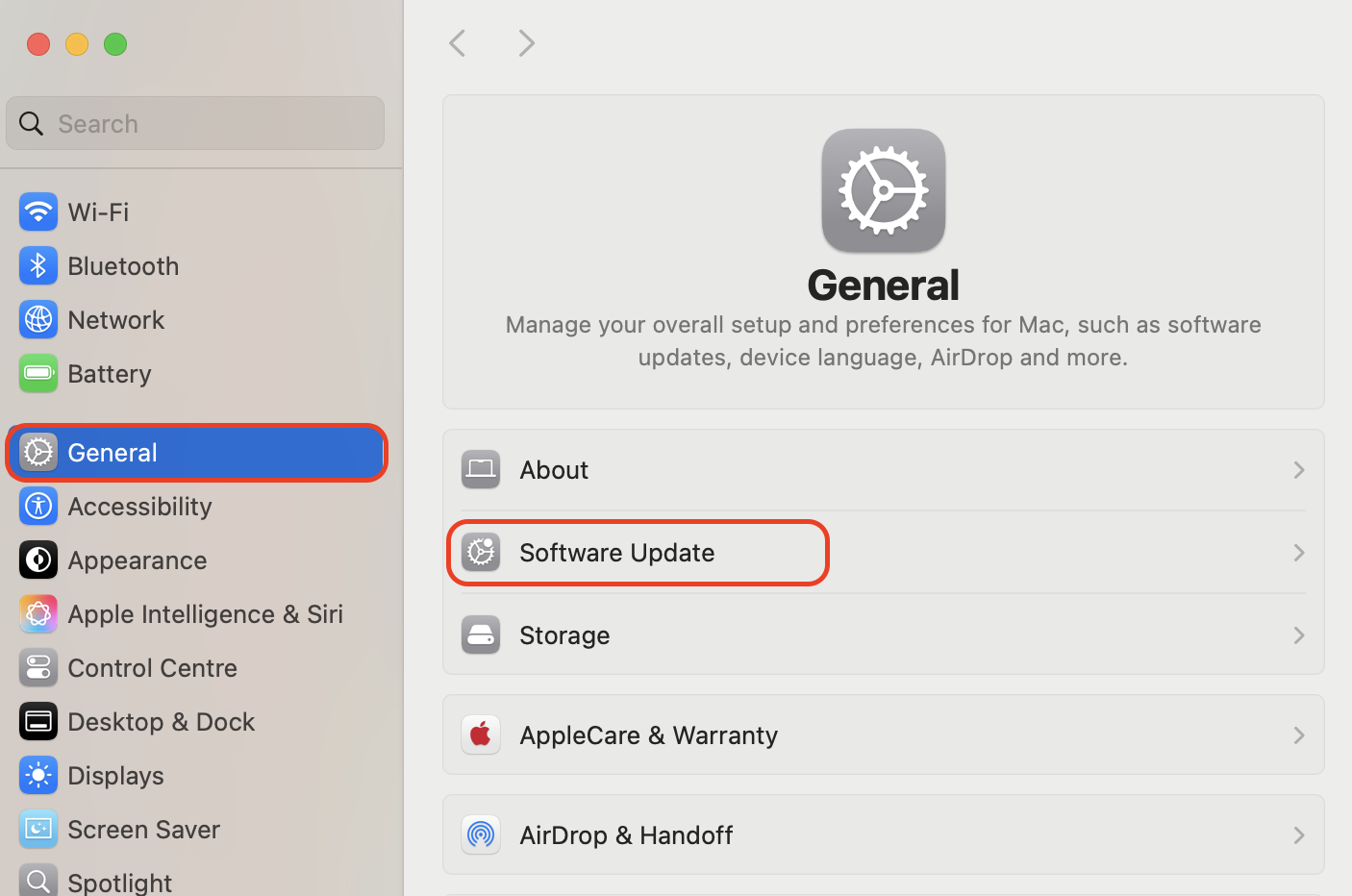
Open System Settings and go to General.
Click Software Update and let it check for new versions.
Install any available update—see our full guide on how to update your Mac. Then restart when prompted.
Open System Settings, go to General, then Software Update to install the latest macOS
3. Sign out and back into your Apple ID
Refreshing your credentials often stops secd repeating failed sync attempts. Usually, this resolves the most persistent cases, though it re-syncs your data afterward.
Refresh your account like this:
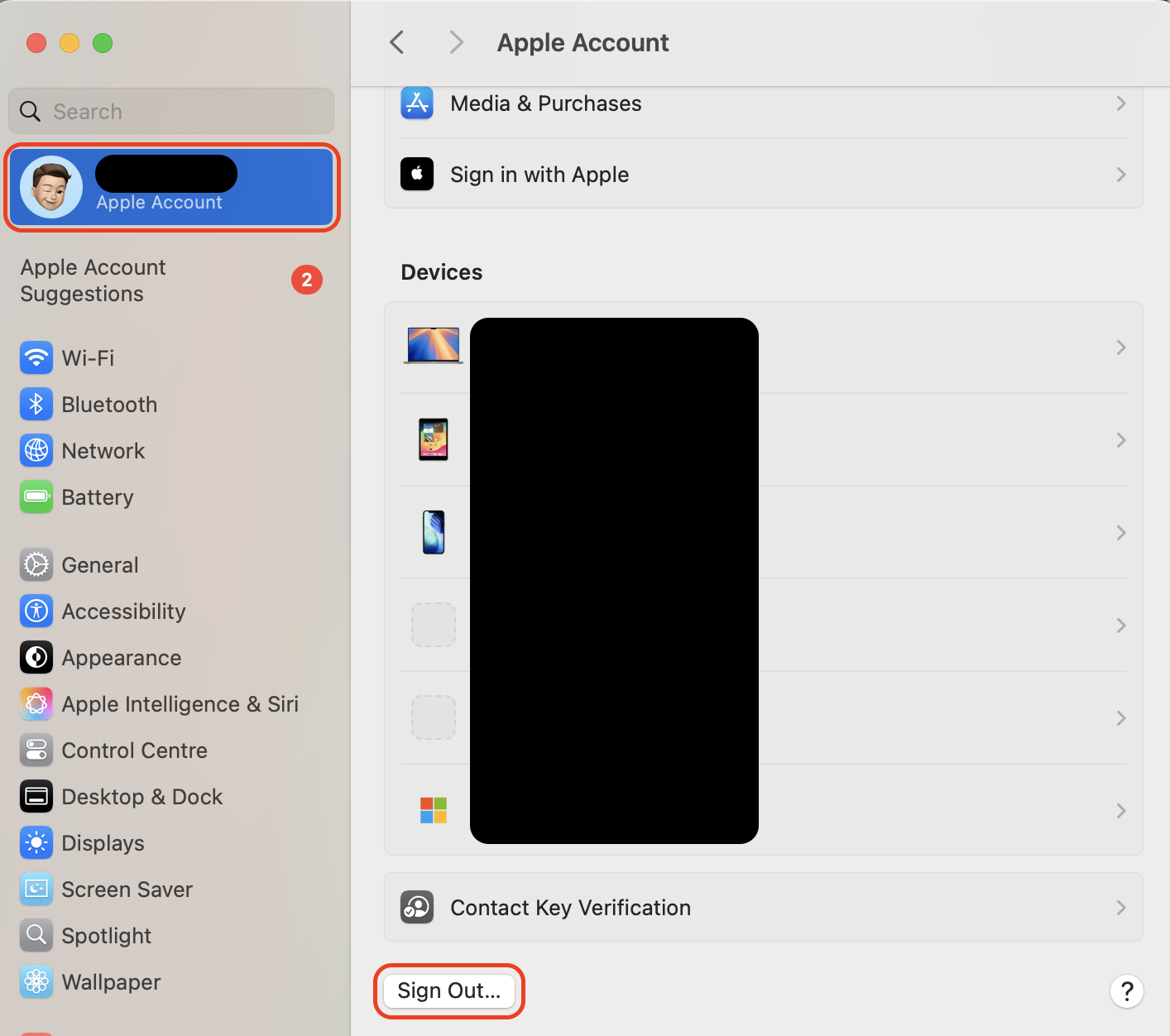
Open System Settings and click your name at the top.
Scroll down and choose Sign Out.
Restart your Mac, then sign back in with your Apple Account.
In System Settings, click your name and choose Sign Out to refresh your credentials
4. Check iCloud Keychain settings
Toggling Keychain sync off and on can clear a syncing problem at its source, and we’d try it before any reset since it’s non-destructive.
Toggle the sync setting:
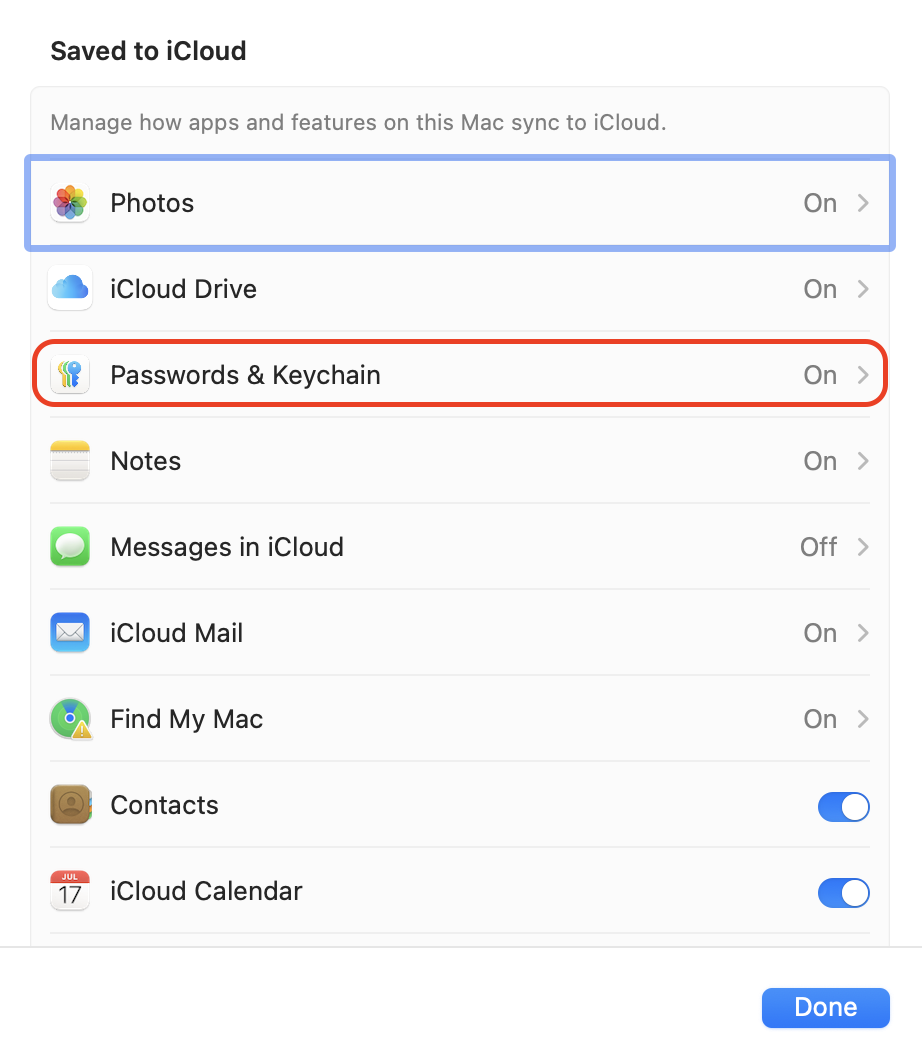
Open System Settings, click your name, then iCloud.
Find Passwords & Keychain and switch it off.
Wait a moment, then switch it back on and confirm.
In case you’re new to this process, our dedicated guide on keychain access explains more.
In iCloud settings, toggle Passwords & Keychain off and back on to reset syncing
5. Open Keychain Access and review alerts
A locked item or repeating password prompt often points straight to the source. In our experience, Keychain Access reveals which entry secd keeps stumbling over.
Inspect Keychain like this:
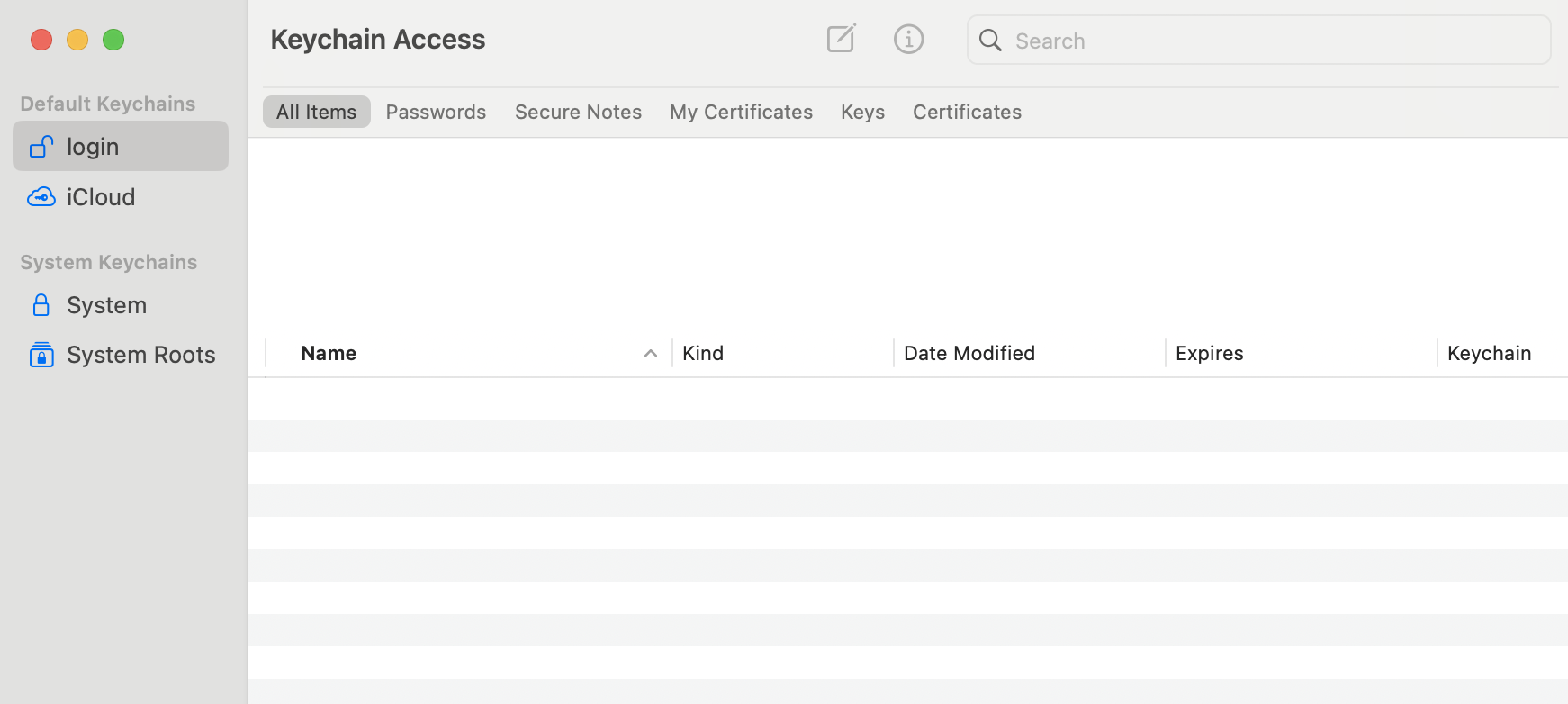
Open Finder, go to Applications > Utilities, and launch Keychain Access.
Select login and review any items showing errors or lock icons.
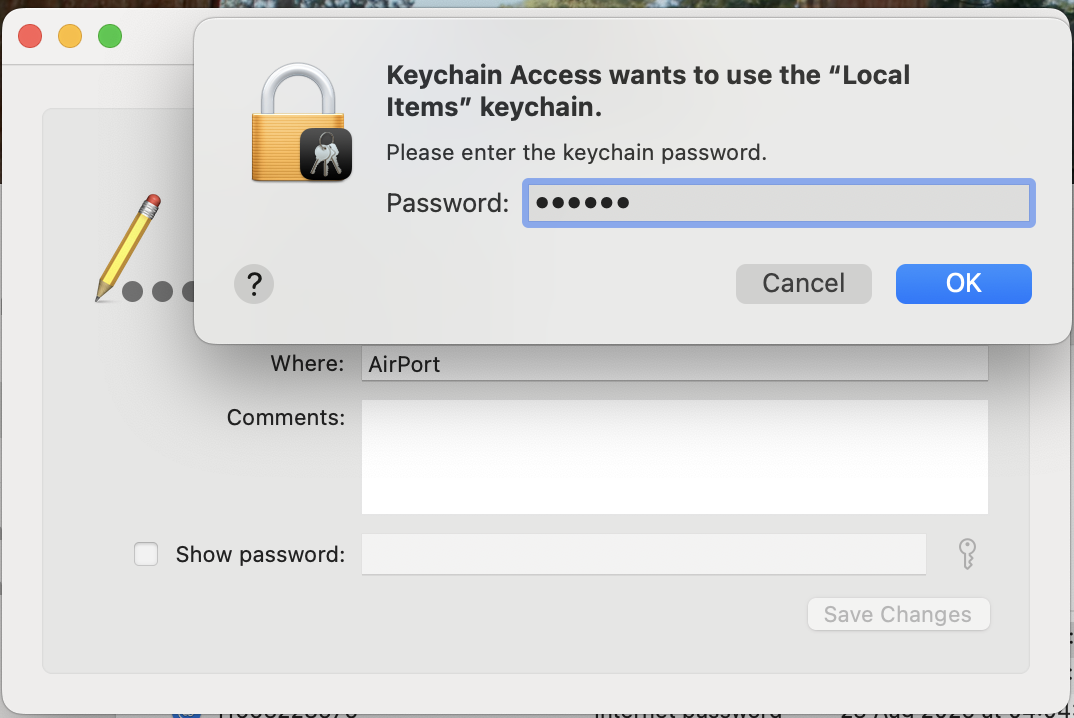
Respond to any password prompts or unlock the affected item.
Open Keychain Access from Utilities and review the login items for errors or locks
6. Check Apple Watch integration settings
An Apple Watch struggling to pair or unlock your Mac can trigger repeated authentication that feeds secd’s CPU use, so check this if you use Auto Unlock.
Review the connection:
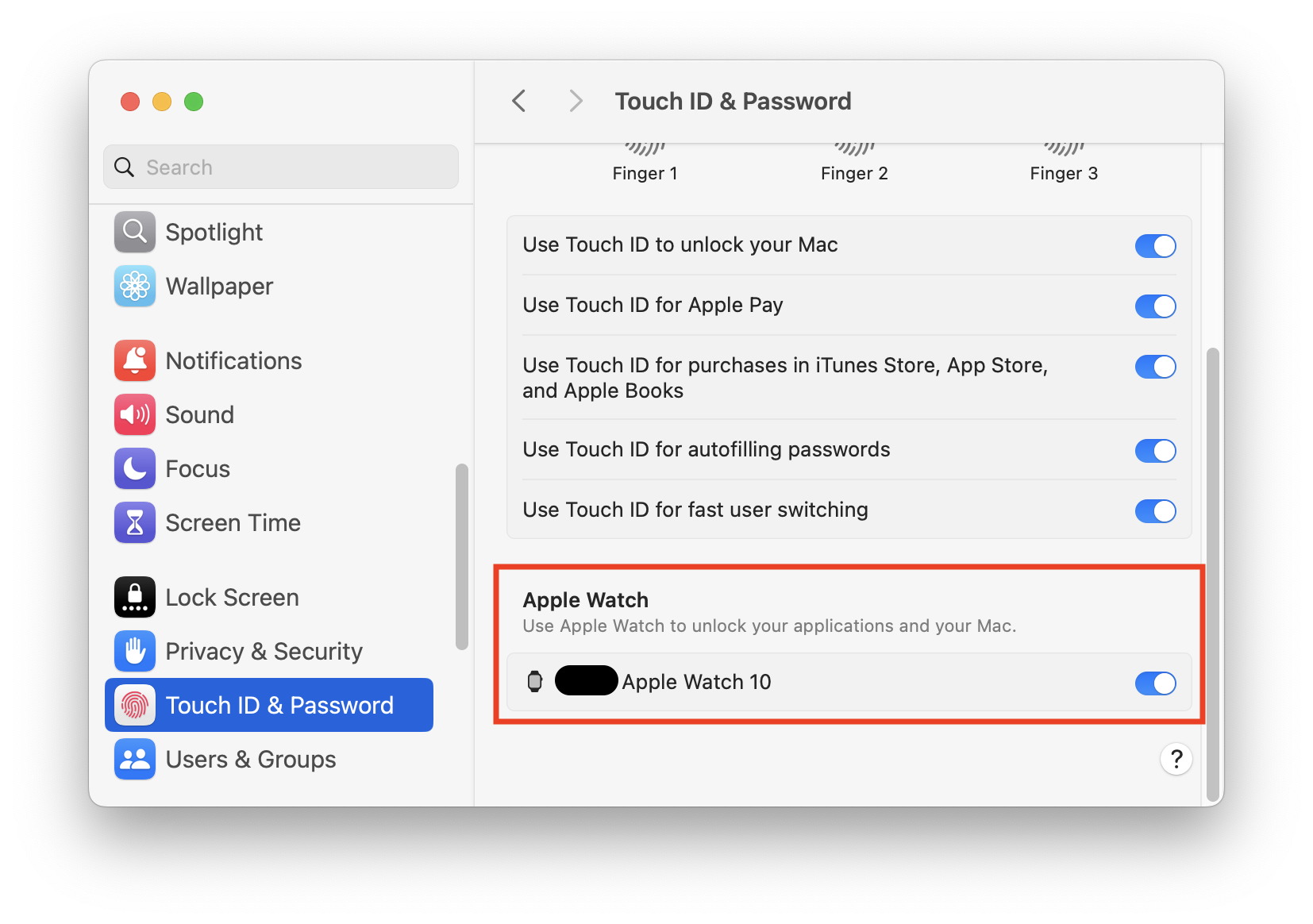
Open System Settings and go to Touch ID & Password.
Toggle Apple Watch unlock off, then on again.
Make sure both devices are on the same Apple Account and Wi-Fi.
In Touch ID & Password settings, toggle Apple Watch unlock off and back on
7. Review recent password or account changes
A changed login password or updated Apple Account can leave secd chasing credentials that no longer match.
Track down mismatches:
Recall any password or Apple Account change made recently.
Update your saved credentials in Keychain Access to match.
Restart and confirm the sync attempts have settled.
To update your account, see our guide on how to change Apple ID on Mac.
Update your saved credentials in Keychain Access to match any recent account changes
8. Reset problematic Keychain data if needed
As a last resort, rebuilding damaged local Keychain data can end a persistent loop.
Reset it carefully:
Back up your Keychain and note any critical passwords first.
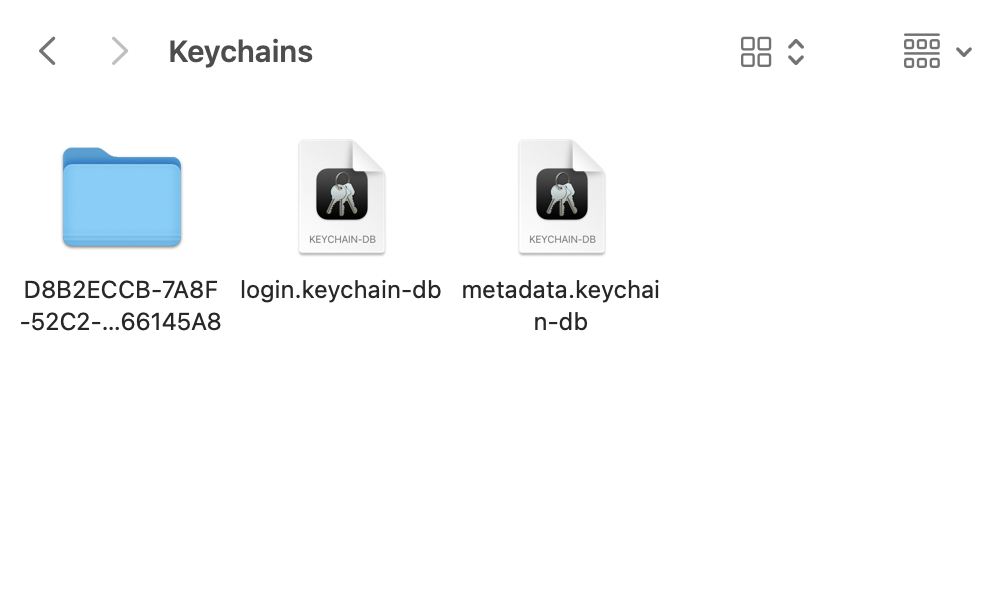
Open Finder, choose Go > Go to Folder, and enter ~/Library/Keychains.
Move the folder with a long, GUID-style name to the Trash.
Restart your Mac to let macOS rebuild the local Keychain.
In ~/Library/Keychains, move the GUID-named folder to the Trash, then restart to rebuild it
Should you disable the secd process on Mac?
No, and we’d advise against it firmly. The osx secd process is core to macOS security, handling password storage, certificates, and secure sign-ins. Killing it only makes it restart, and disabling it would break Keychain and the authentication system-wide.
How to avoid future secd CPU spikes?
Once it’s settled, a few habits keep it that way, since most recurrences trace back to sync mismatches.
Keep secd calm going forward:
Keep macOS updated. Install security and system updates promptly to catch known bugs.
Use consistent credentials. Keep your Apple Account and login passwords in sync across devices.
Answer Keychain prompts. Respond to password requests rather than repeatedly dismissing them.
Conclusion
In most cases, secd high CPU usage on Mac comes down to Keychain or Apple Account syncing activity, and it’s rarely a sign of anything sinister. And to keep your Mac responsive while you troubleshoot, we recommend MacKeeper’s Memory Cleaner as a handy companion.
MacKeeper is a macOS utility software developed by Clario Tech and optimized for macOS, so freeing up RAM and clearing redundant processes takes just a click, letting the security daemon settle, and your Mac run cool again.
We respect your privacy and
use cookies
for the best site experience.
Privacy Preferences Center
We use cookies along with other tools to give you the best possible experience while using the
MacKeeper website. Cookies are small text files that help the website load faster. The cookies we
use don’t contain any type of personal data meaning they never store information such as your
location, email address, or IP address.
Help us improve how you interact with our website by accepting the use of cookies. You can change
your privacy settings whenever you like.
Manage consent
All cookies
These cookies are strictly necessary for enabling basic website functionality (including page
navigation, form submission, language detection, post commenting), downloading and purchasing
software. The website might malfunction without these cookies.