Are you noticing all your important files keep getting lost or becoming unreadable due to suspected formatting issues–it might be time to try and recover SD card files on Mac. In case you believe something else might be the culprit behind your Macintosh issues, we recommend connecting with MacKeeper’s Premium Services team for one-to-one support.
What to do before recovering data from an SD card?
Have you opened your SD card on a Mac only to find that some data is missing? It might have accidentally been deleted or incorrectly formatted. To help you recover files from SD card on a MacBook, here’s what we recommend:
Stop using the SD card and remove it from your computer.
Do not move, download, or save any new files to the card.
Avoid immediately trying to format the SD card, as this makes data recovery difficult.
If you do need to format SD card, the steps in our attached blog will guide you though, to ensure a smooth retrieval of your data.
A note from our experts:
Diagnosing MacBook issues is not always easy. When we have issues restoring lost data or photos, we might assume that we’ve just accidentally misplaced or deleted them. However, the best way to be sure is to check your device for hidden software glitches. Not sure where to start looking? MacKeeper’s Premium Services are here to help, as our team of experts can help you find the cause of your lost files and walk you through a suitable retrieval process.
Here’s how to connect with MacKeeper’s Premium Services team for extra support:
In the chat, share your concerns about lost data with our team, and they’ll walk you through personalized recovery steps.
Step 1. Download and open the Premium Services chat function Step 2. In chat, explain your concerns and what issues you are facing with your Mac
How to recover deleted files from an SD card on Mac for free?
You can recover deleted files for free using Apple pre-installed macOS features like Time Machine or Cloud storage services. It also makes it easier to recover data from SD card on a MacBook if you have backups enabled, to help restore recently deleted memory card files.
1. Recover from Mac Trash
Just deleted an SD card file you need to recover? Not to worry, Mac Trash allows you to find and restore deleted trash, sending files back to your Mac library.
Do the following:
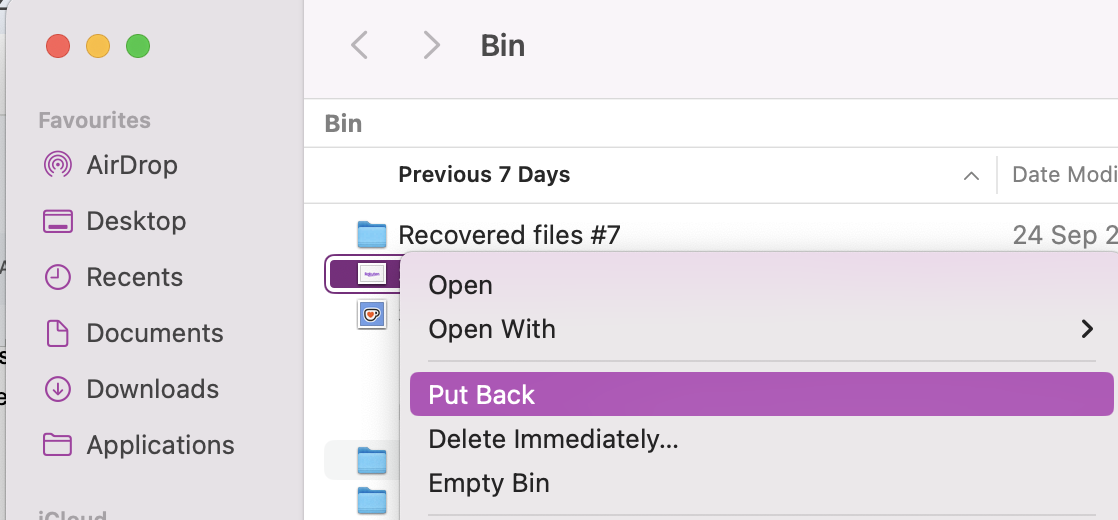
With your SD card still attached to your Mac, click on Trash.
Locate your deleted items.
Right-click and select Put Back.
In Mac Trash, find your deleted items and select Put Back
2. Restore from Time Machine backup
If you use Time Machine backup software on your MacBook, you’ll be able to restore from Time Machine any lost or missing files so long as your SD or microSD card is connected properly.
Here’s how:
Connect the Time Machine backup drive to your Mac.
Open the folder with your missing files.
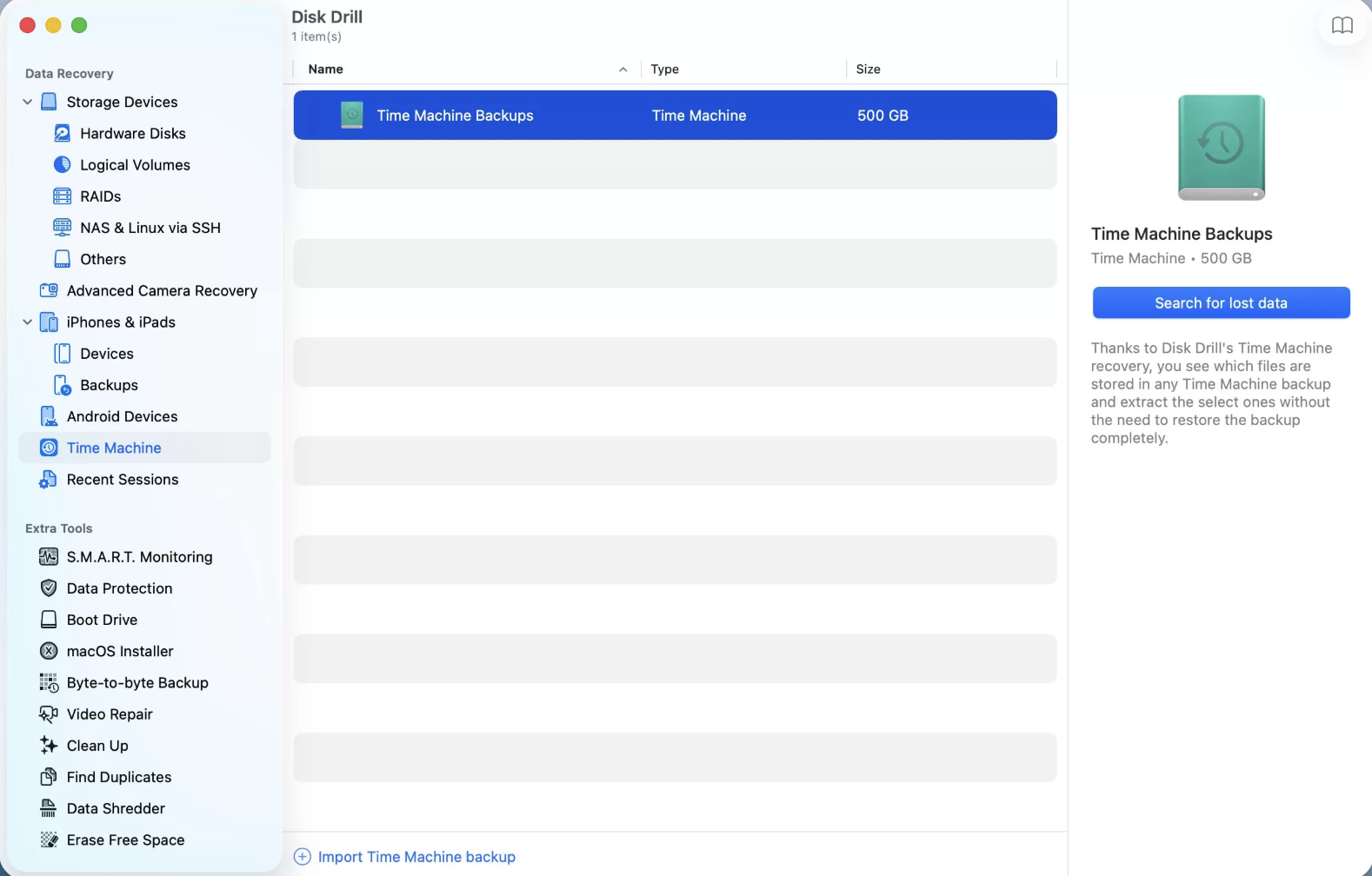
Open Time Machine and click Search for lost data.
Browse your files and click Recover.
Step 1. Open Time Machine Backup and, in your folder, click Search for lost dataStep 2. Look for your deleted content, highlight it, and press Recover
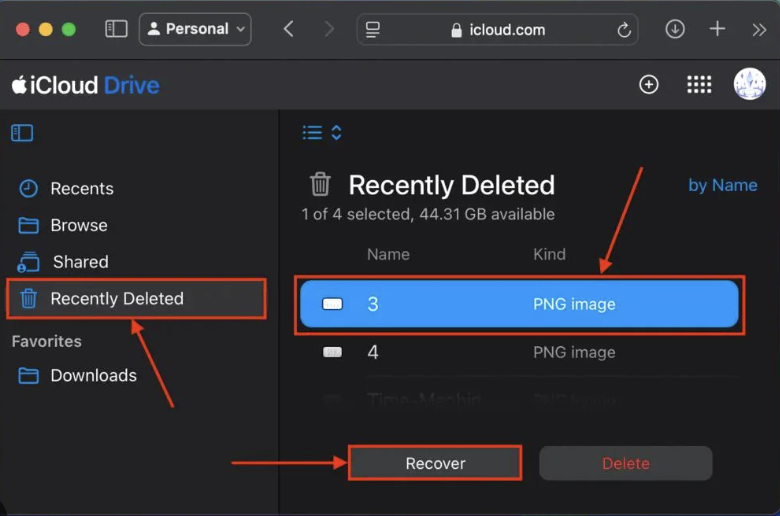
3. Recover using iCloud Drive
If you have your SD card files synced up with iCloud, then this is another recovery method that doesn't require additional software.
Here’s how to use iCloud Drive:
Open iCloud Drive in Finder.
Locate synced copies of SD card files.
Click Restore to recover recently deleted data.
In iCloud, look at synced SD card files for anything recently deleted and press Restore
An extra hint from our team:
We recommend Apple users backup MacBook to iCloud to help protect files from unexpected data loss and for easy retrieval in case you need to undelete data.
How to recover deleted files from SD card on Mac with software?
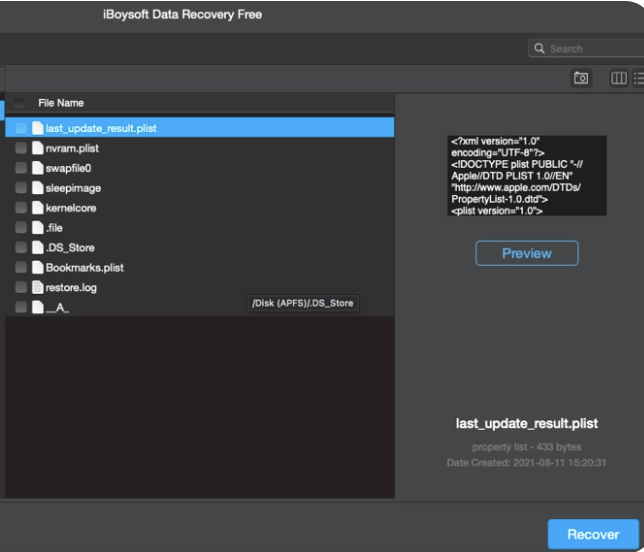
Alternatively, you can download third-party recovery software, like iBoysoft, to help with SD card recovery Mac–especially if no backups are available or files were permanently deleted.
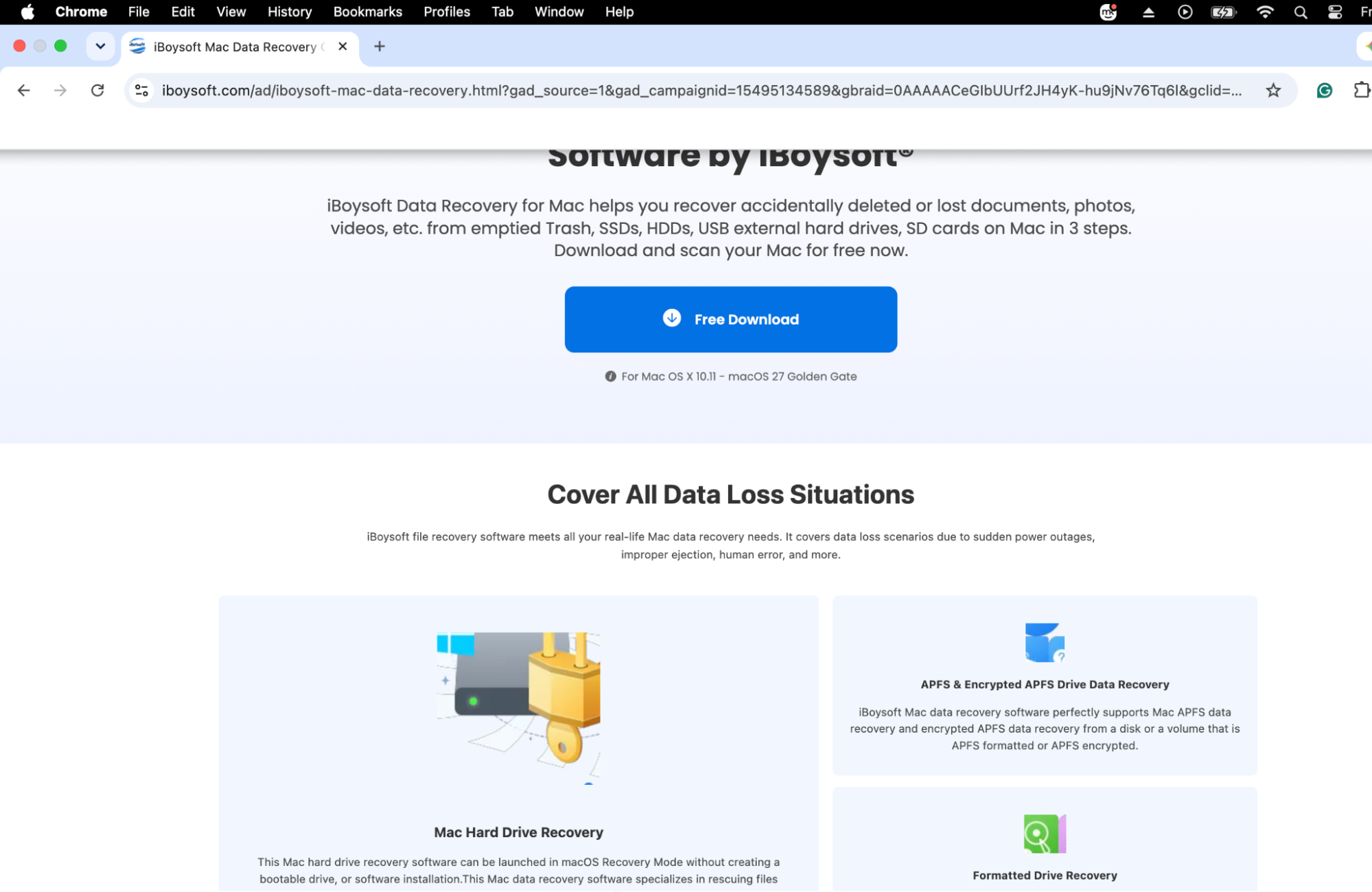
1. Download and install recovery software
If you’re going to rely on third-party recovery software, we recommend downloading trusted software from an official website to avoid installing something harmful or misleading by accident.
Here’s what we recommend you do:
Download a trusted recovery app from its official website.
Install and follow the setup instructions.
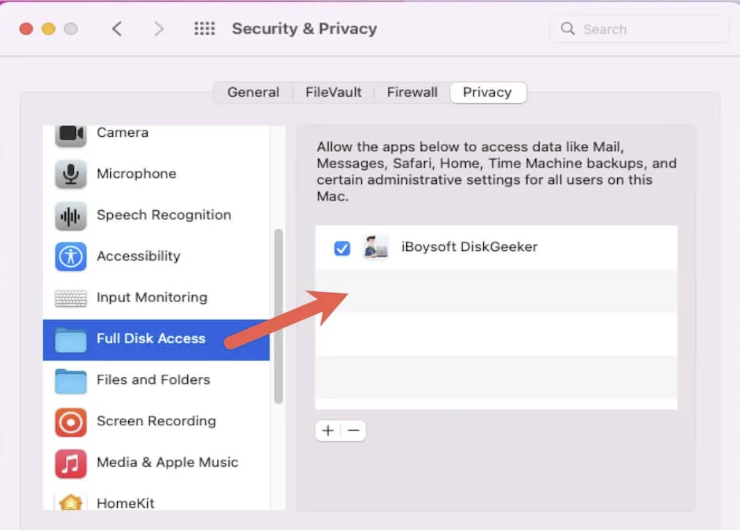
Allow macOS permissions to access external storage.
Step 1. Download and install trusted third-party file recovery software Step 2. When prompted, allow macOS permissions to access external storage like an SD card
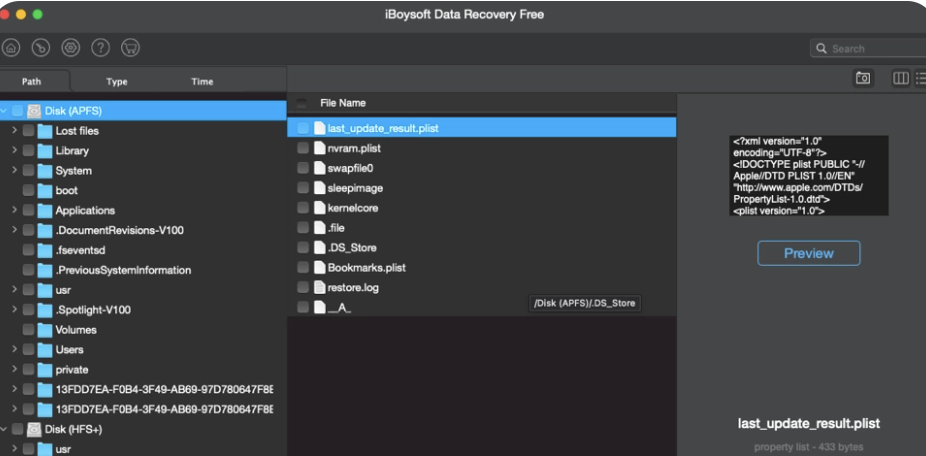
2. Scan SD card and preview files
Once you’ve got a trusted app installed, you can continue to restore SD card on Mac, but you’ll now need to reconnect your storage card.
Here’s how:
With your recovery software installed and access granted, connect your SD card.
Make sure the app detects it, and then scan or preview your files using filters if necessary.
Reconnect your SD card to your Mac, and in the Recovery app, scan or preview deleted files
3. Restore lost data to a safe location
You should now be able to find the lost files you need to restore.
If so, here’s what to do next:
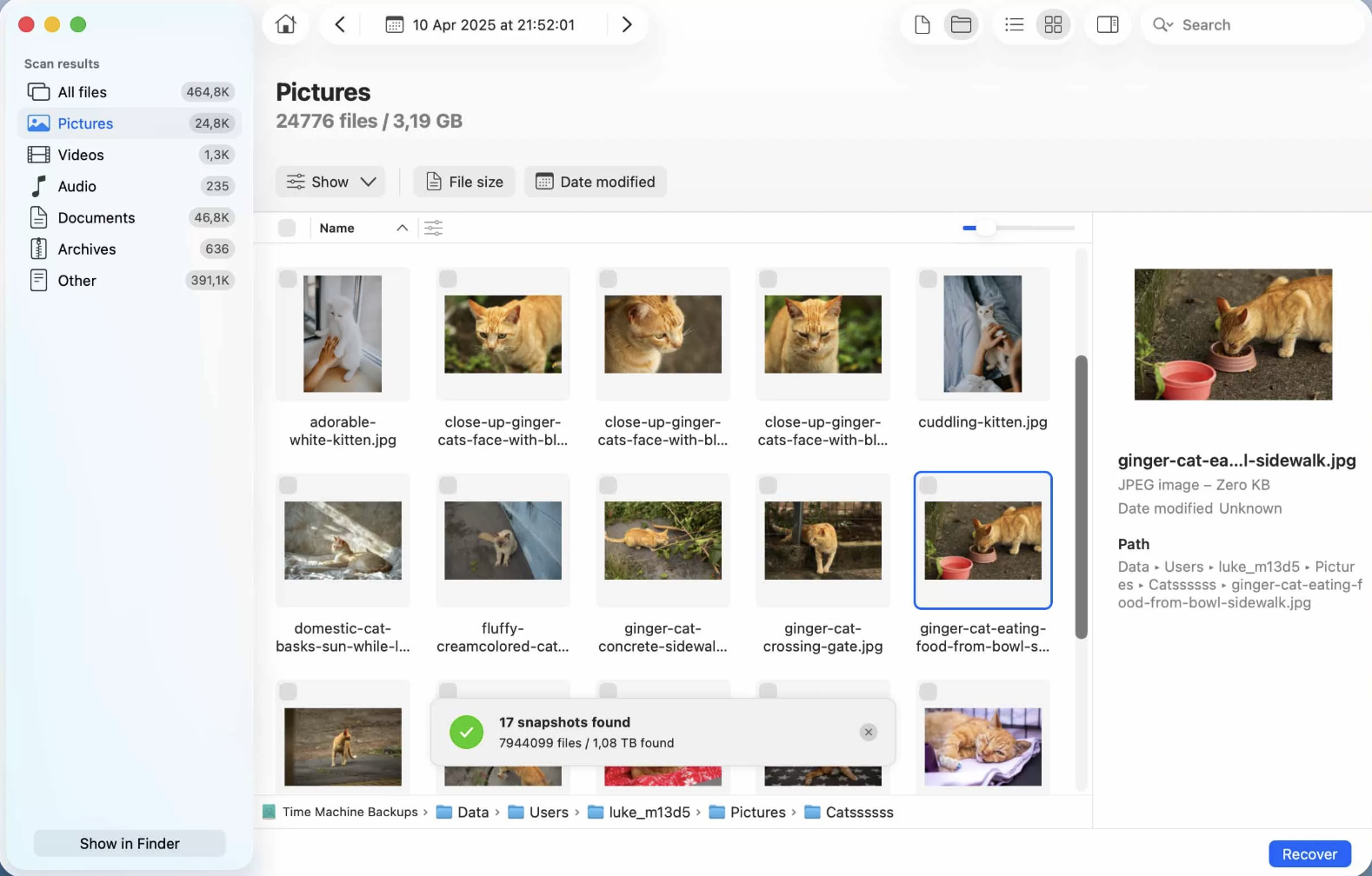
Click your deleted files and press Recover.
Choose the new folder location.
Wait for recovery to finish.
Press Recover on your deleted files and choose where you want to save them
Restoring lost data with MacKeeper's help
Should you need to recover SD Card files on a Mac, you now know how to use Time Machine backups, iCloud, and recovery software. It also never hurts to create regular backups of all your files and be cautious when disconnecting external memory cards to avoid formatting issues.
You can also rely on MacKeeper’s Premium Services to come to your rescue. A Clario tech expert will help you with all your MacBook needs. Download our app today to improve your data’s protection and MacBook integrity.
We respect your privacy and
use cookies
for the best site experience.
Privacy Preferences Center
We use cookies along with other tools to give you the best possible experience while using the
MacKeeper website. Cookies are small text files that help the website load faster. The cookies we
use don’t contain any type of personal data meaning they never store information such as your
location, email address, or IP address.
Help us improve how you interact with our website by accepting the use of cookies. You can change
your privacy settings whenever you like.
Manage consent
All cookies
These cookies are strictly necessary for enabling basic website functionality (including page
navigation, form submission, language detection, post commenting), downloading and purchasing
software. The website might malfunction without these cookies.