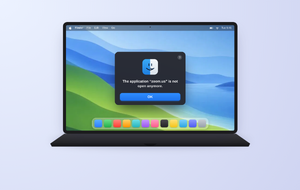
Seeing the message that OneDrive is damaged and can’t be opened on Mac is frustrating, especially when you need your files now. The good news? It’s usually a quick fix. And if you’d rather not troubleshoot alone, MacKeeper’s Premium Services connect you with a real expert who’ll guide you step by step.
When OneDrive won’t launch, and macOS flags it as damaged, the file itself usually isn’t the real culprit. More often, something interrupted the app or its connection to the system. This damaged app error fits a wider pattern that Mac owners run into, and the same idea is unpacked in our breakdown of the macOS app is damaged and can’t be opened message.
Below, we’ll walk through the most common reasons OneDrive won’t open on Mac:
An interrupted OneDrive update that left the app half-installed
An outdated app version that no longer matches your macOS
Apple’s macOS security checks block the app before it runs
A corrupted OneDrive cache that slows the app down
Broken Finder integration that stops OneDrive from opening
Damaged OneDrive settings after a sudden quit or crash
Keychain login issues tied to old credentials
Leftover glitches after macOS updates
A note from our experts:
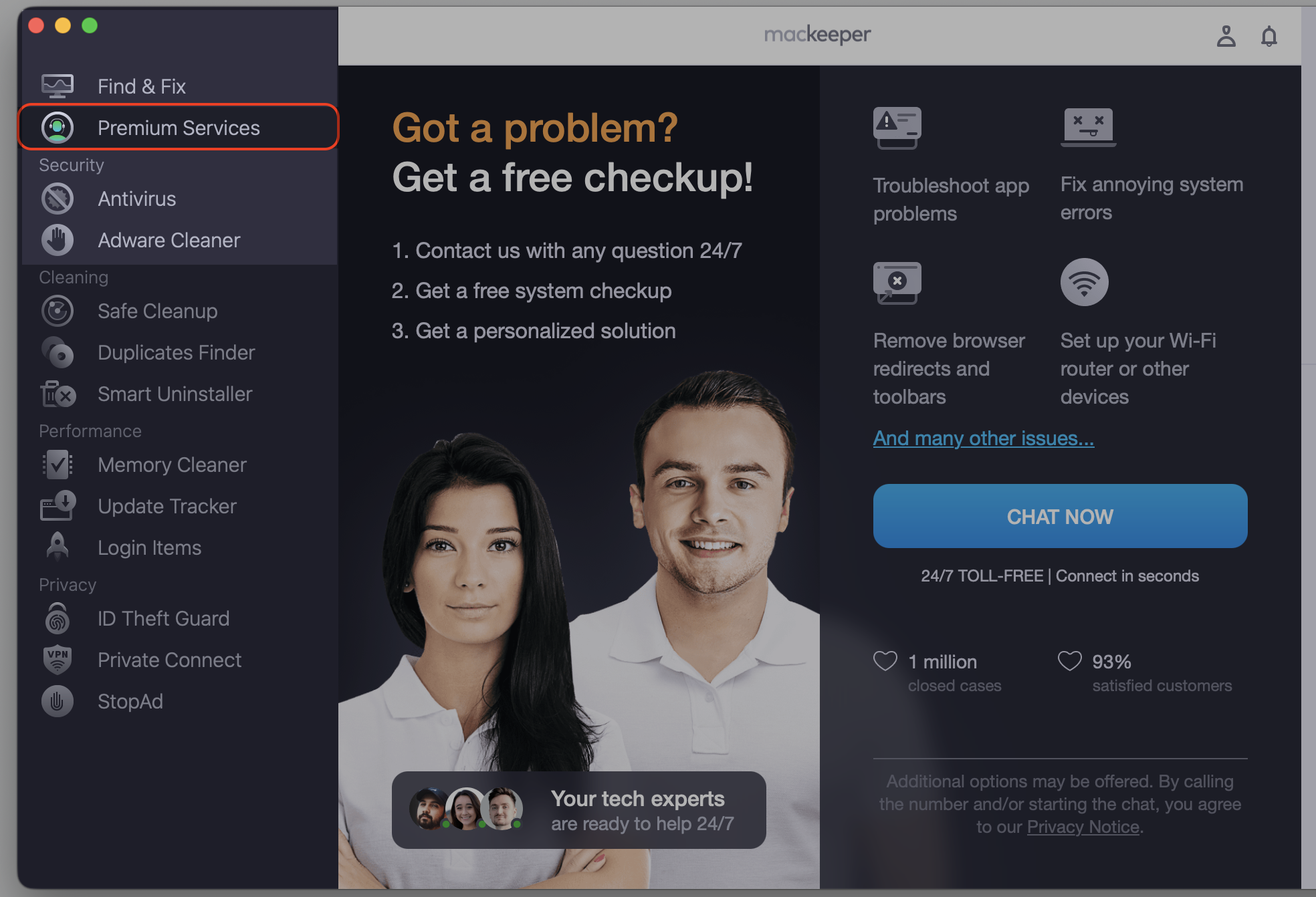
As you can see, OneDrive can be damaged for a number of reasons, so the solution varies accordingly. Not to guess what your case is, the easier way is to talk with the professionals who deal with Mac issues every day. Our team members can be reached at 24/7 to troubleshoot your urgent issues.
Step 1. Go to MacKeeper and choose Premium Services Step 2. Click Chat NowStep 3. Type in your message to explain the problem
Is your OneDrive data safe if the app is damaged?
Here’s the part that worries people the most—are your documents gone? In almost every case, no. If you’re dealing with OneDrive not opening on Mac, anything already synced still lives in the OneDrive cloud, and you can reach it from the OneDrive website using any browser.
Local files behave a little differently. Files On-Demand items, downloaded copies, and cached files sit on your Mac, so they don’t sync the same way. Before you delete any local OneDrive folder, sign in online and confirm what’s already saved there.
According to our experience, a few habits to keep your data safe while you troubleshoot are the following:
Check the OneDrive website before removing anything locally.
Leave the OneDrive folder out of the Trash until the app works again.
Note which files show as “available offline” versus cloud-only.
How to fix OneDrive is damaged and can’t be opened on Mac
OneDrive is a reliable application once it’s set up correctly, and this issue usually clears with one of the simpler fixes. We’ll begin with safe, low-risk steps, then move on to resetting, reinstalling, and performing macOS security checks only if OneDrive still won’t open. These methods work on any Macintosh running a current macOS, and we’ll walk you through them together below, starting with the simplest way to get OneDrive working again.
1. Restart your Mac and reopen OneDrive
A temporary macOS or OneDrive glitch is the usual reason behind the damaged app warning, and in our experience, a simple restart clears it more often than you’d expect. If your MacBook OneDrive is damaged and can’t be opened, rebooting your MacBook refreshes the system processes that may be holding the app back.
Here’s how:
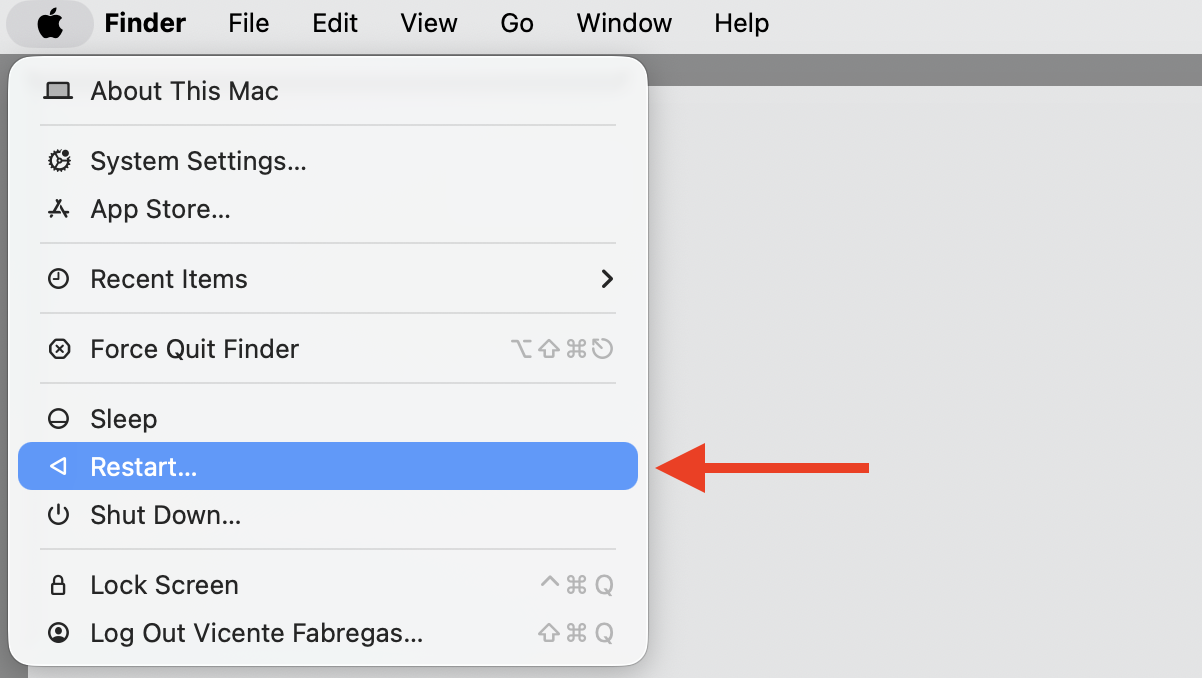
Click the Apple menu in the top-left corner.
Select Restart and wait for your Mac to power back on.
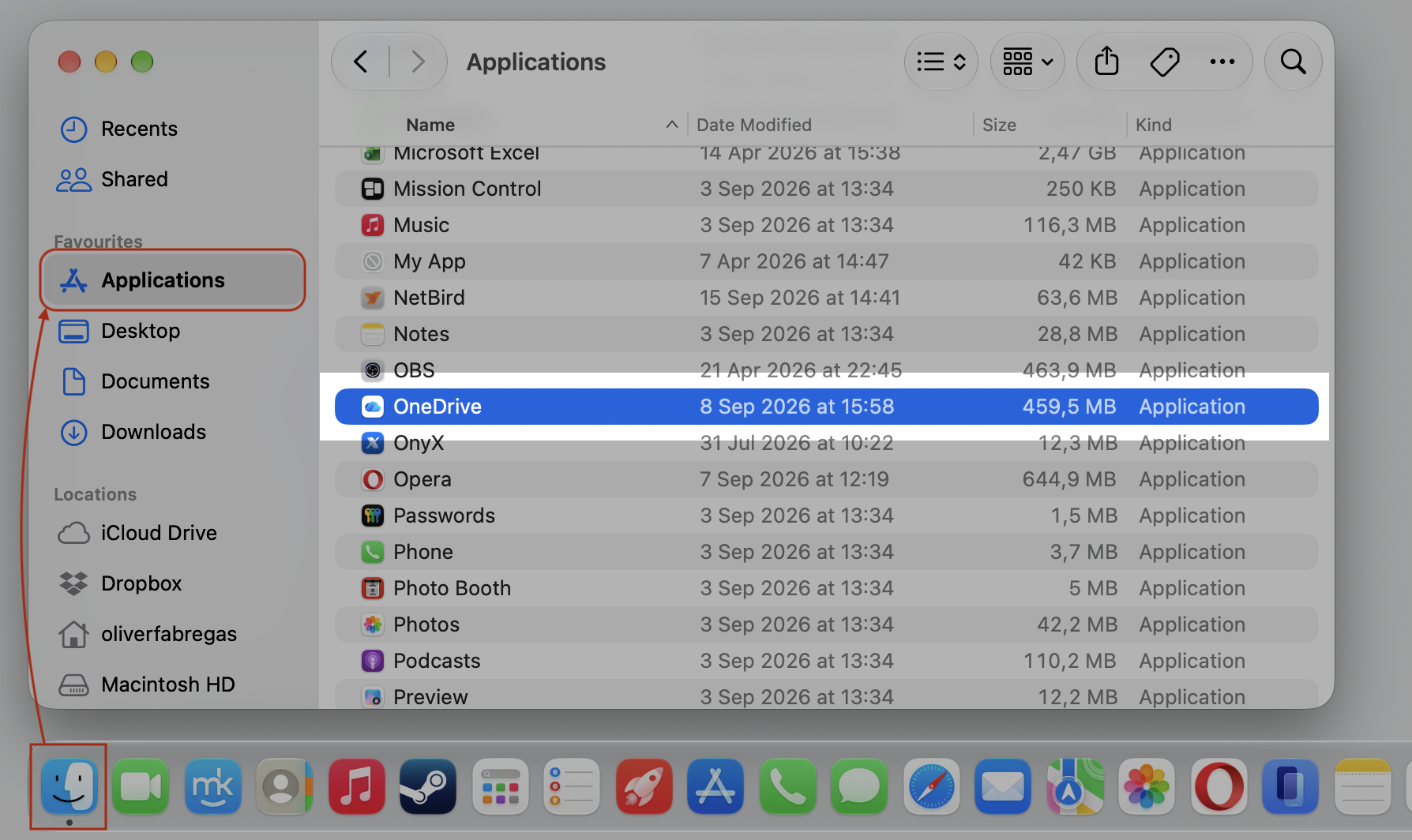
Open Finder, go to the Applications folder, and launch OneDrive again.
Step 1. Go to the Apple menu and select RestartStep 2. Reopen OneDrive from Finder > Applications
2. Update macOS
OneDrive issues often show up after system changes or when macOS itself falls behind. Installing the newest version can clear the conflict before we try anything deeper, so we always check whether we can update macOS to latest version first.
Do the following:
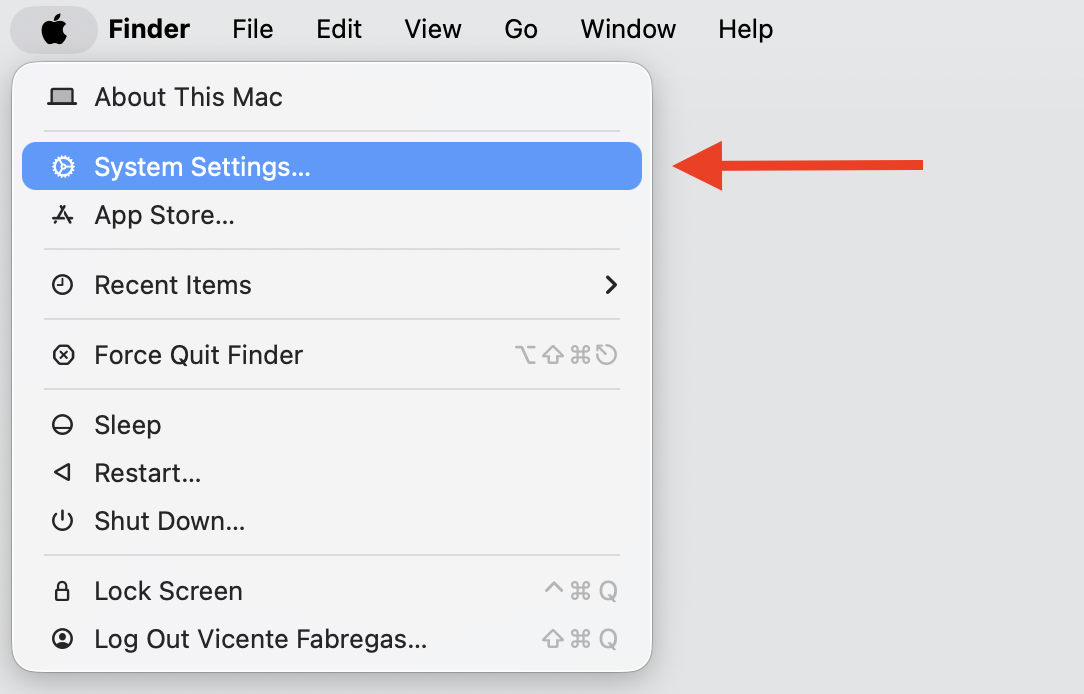
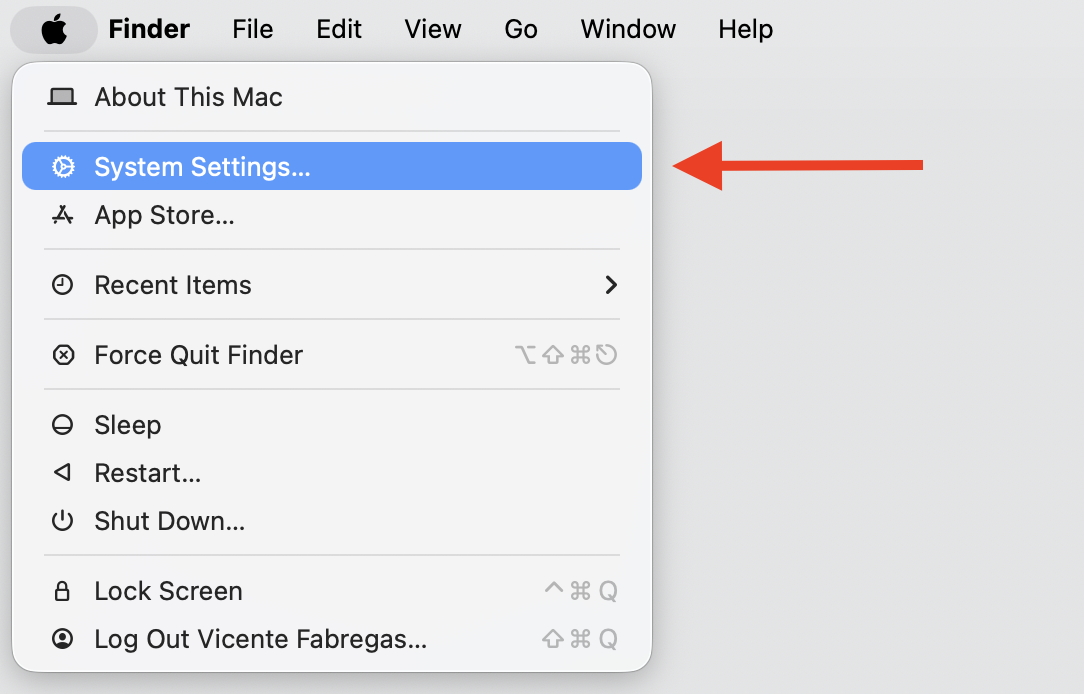
Open the Apple menu and choose System Settings.
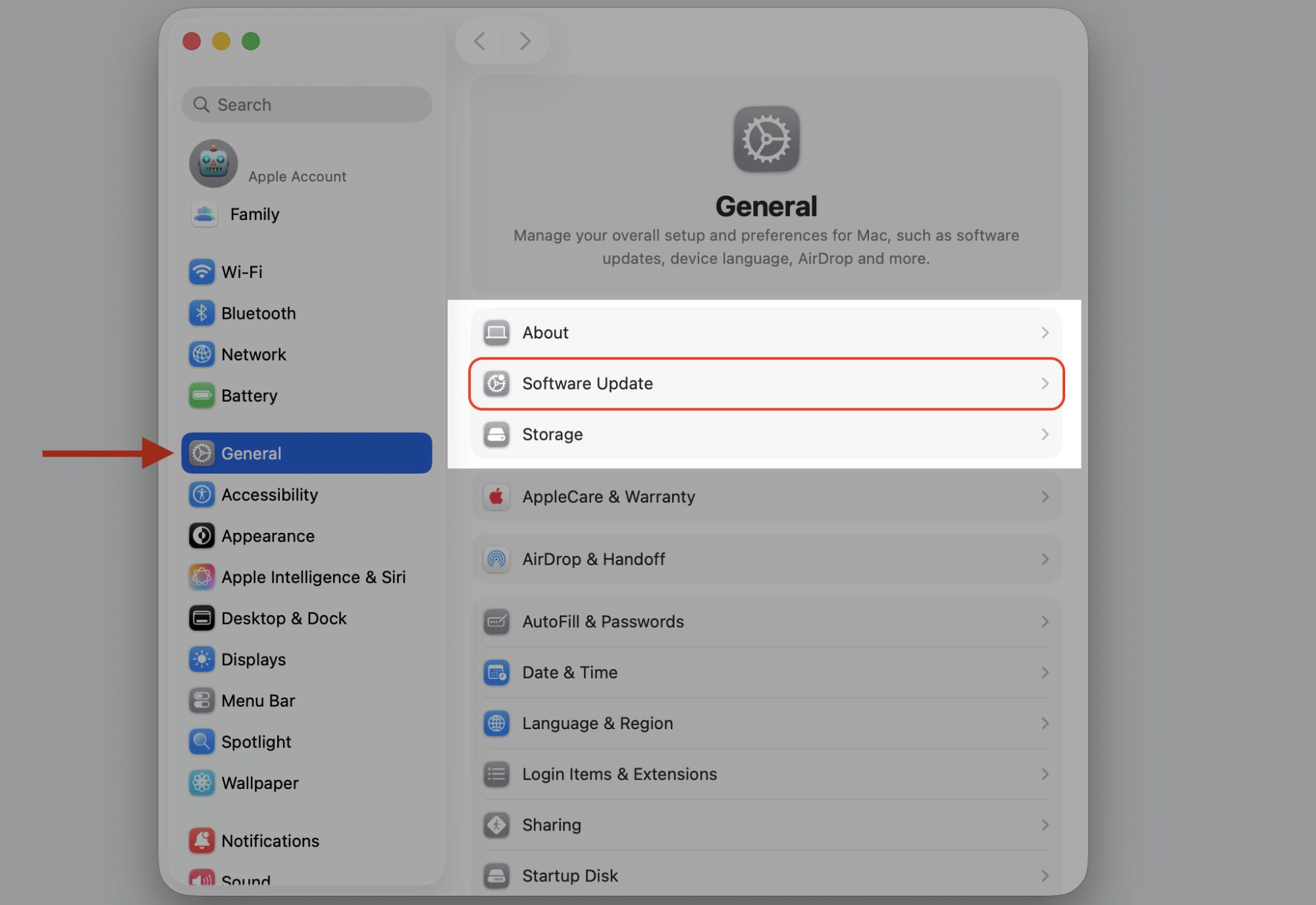
Click General, then Software Update.
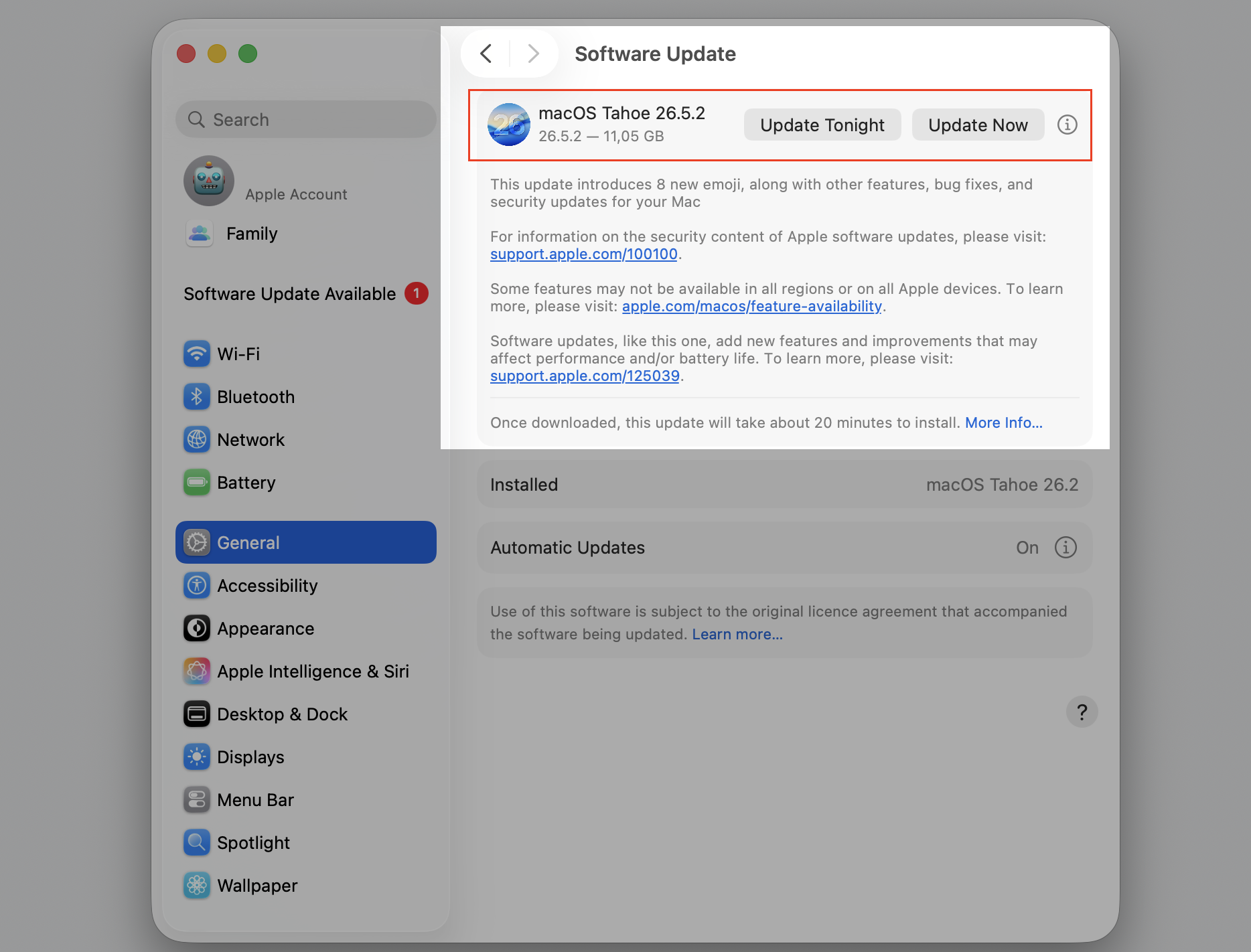
If an update is available, select Update Now and let it install.
Step 1. Go to Apple Logo > System SettingsStep 2. Select Software Update from General sectionStep 3. Select the Update Now option
3. Download the latest OneDrive version from official source
A broken or incomplete installer is a common cause, and swapping it for a clean copy often clears the message. We always recommend getting OneDrive from Microsoft’s official page or the Mac App Store rather than a random download site.
Try this:
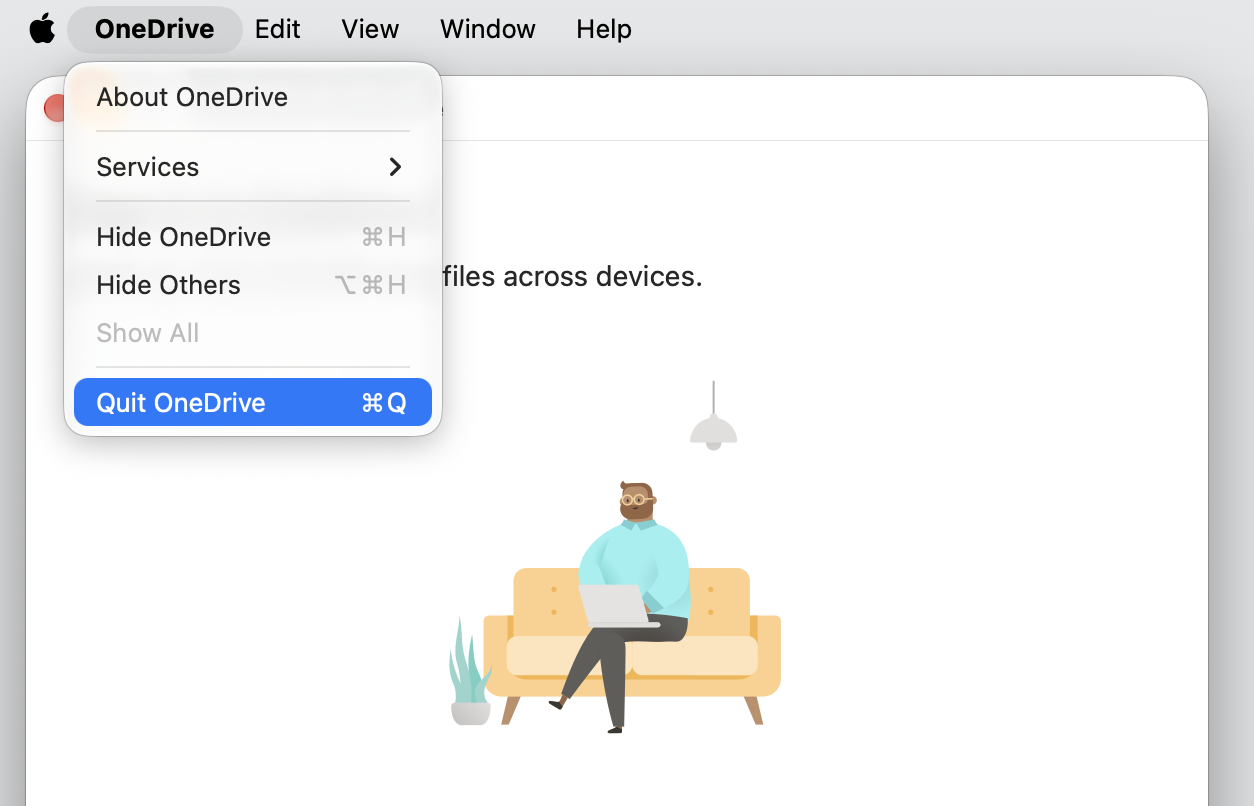
Quit OneDrive if it’s still running.
Visit the Microsoft OneDrive page, or open the App Store and search for OneDrive.
Download the latest version and install it over the old one.
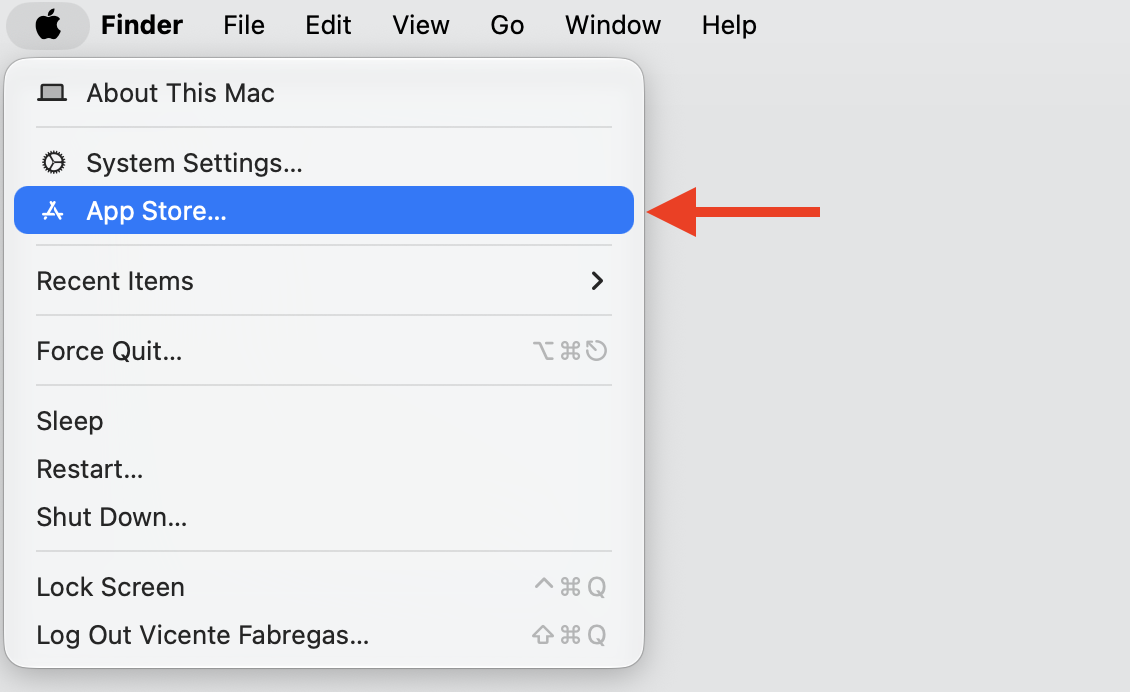
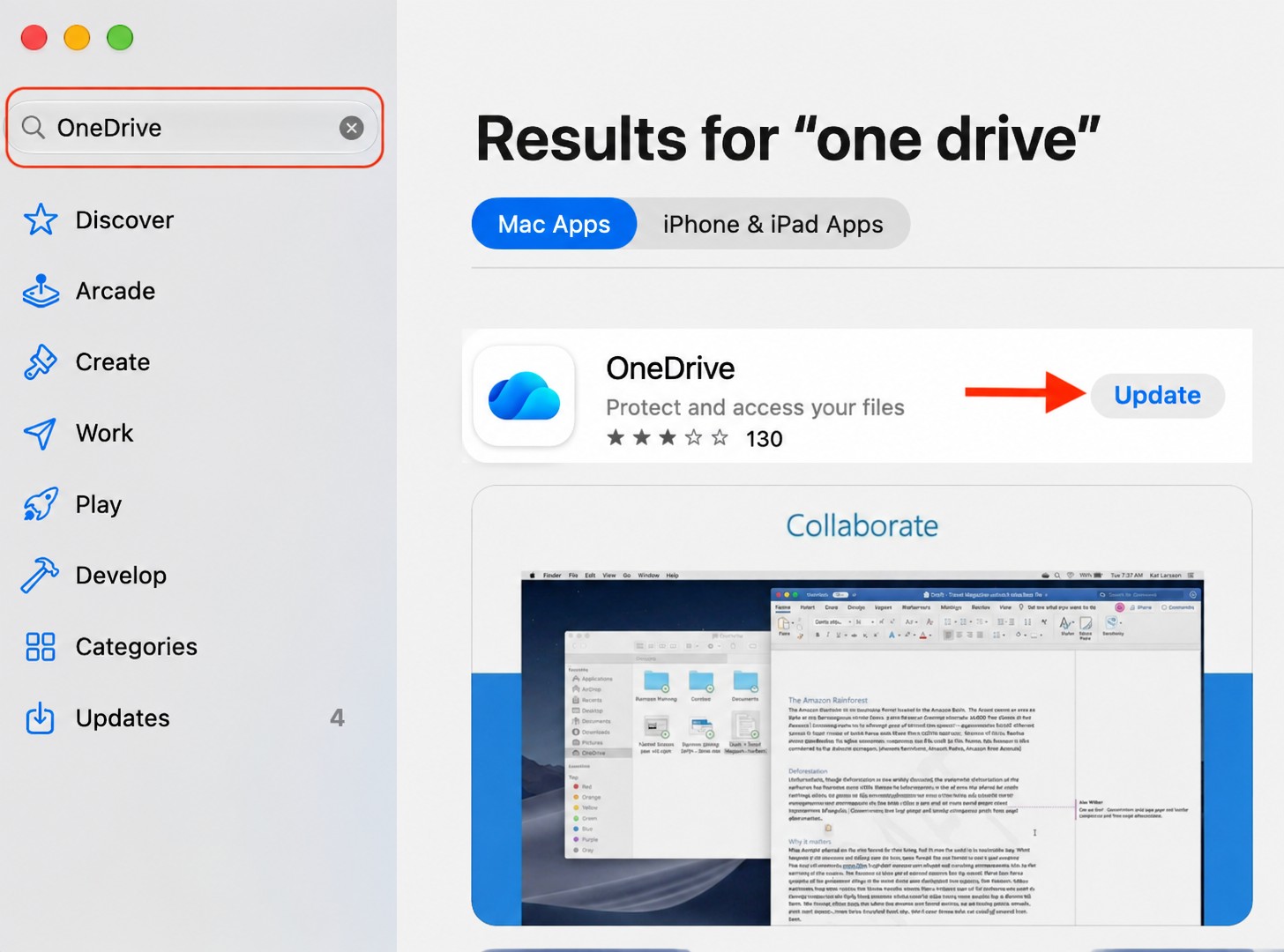
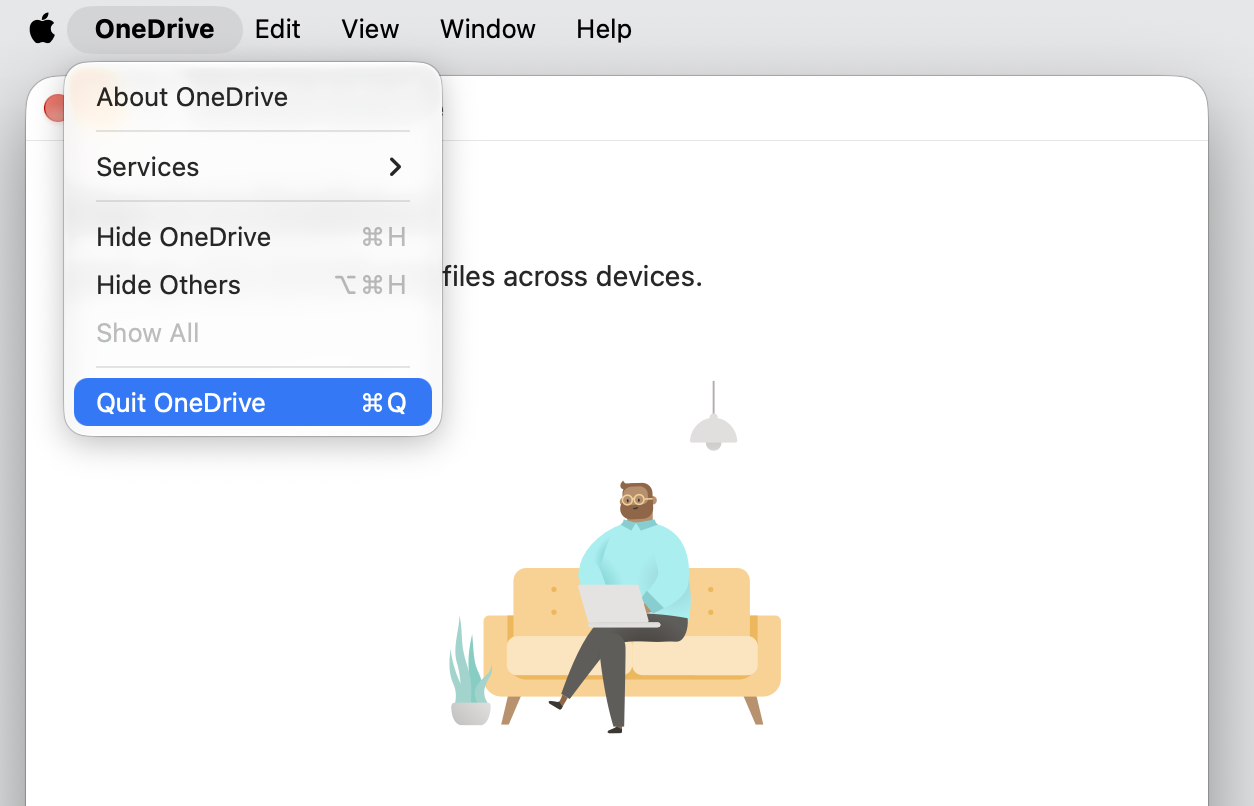
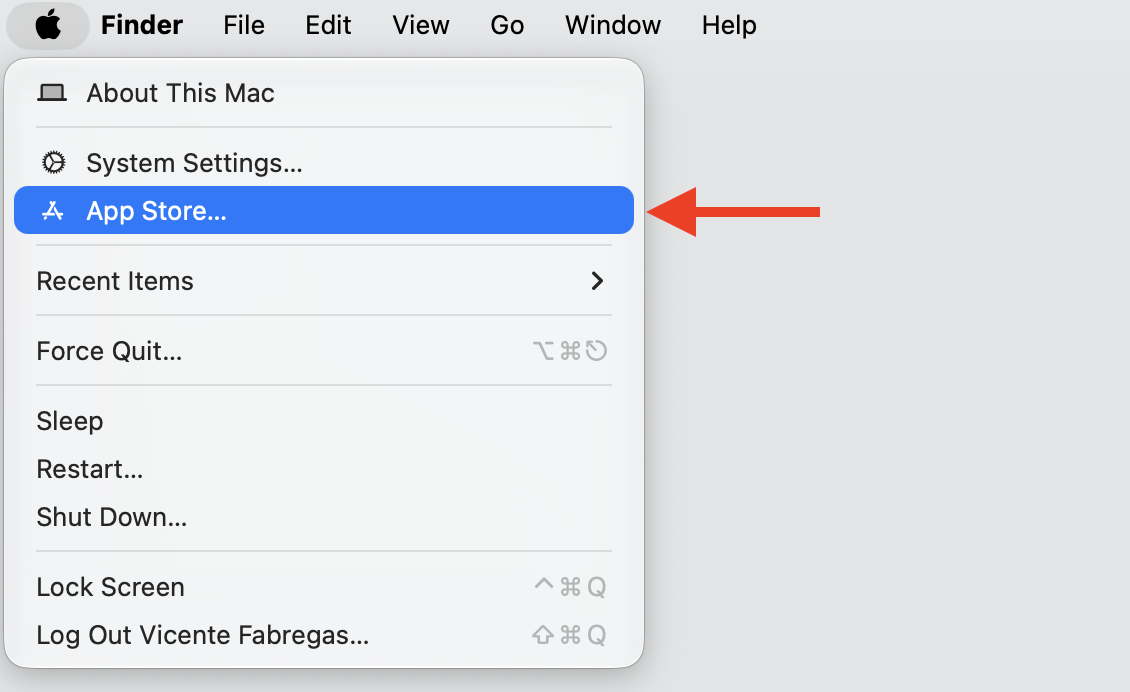
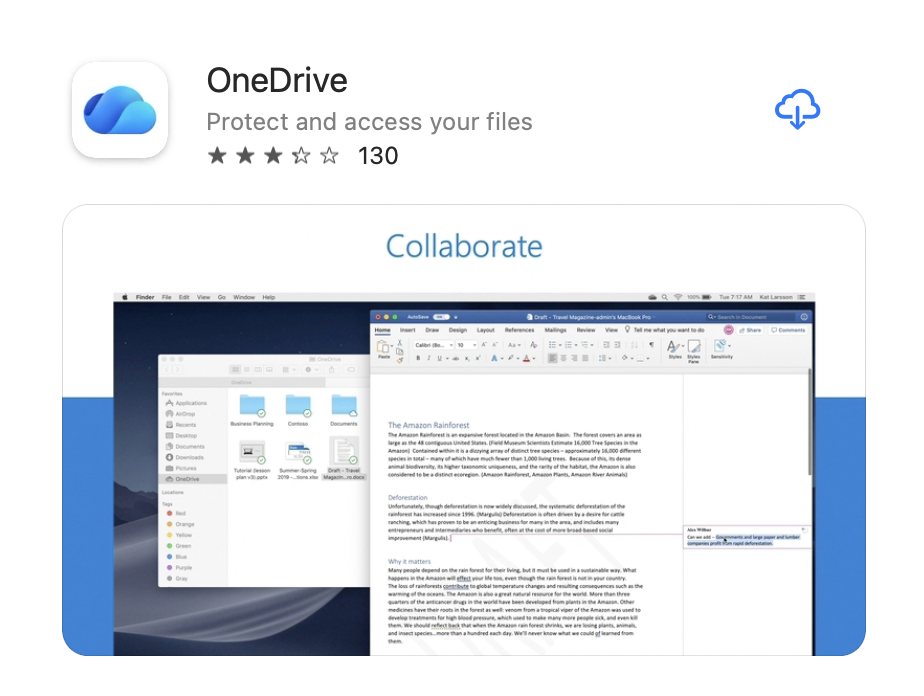
Step 1. Open OneDrive preferences from the menu bar and select Quit OneDriveStep 2. Go to the Apple logo > App StoreStep 3. Search for “OneDrive” and update the app to a newer version
4. Reset OneDrive on Mac
OneDrive ships with a built-in reset command tucked inside the app package, and running this process refreshes your settings without touching your cloud files. This often clears both the damaged app message and sync hiccups.
Follow our hints below:
Quit OneDrive completely.
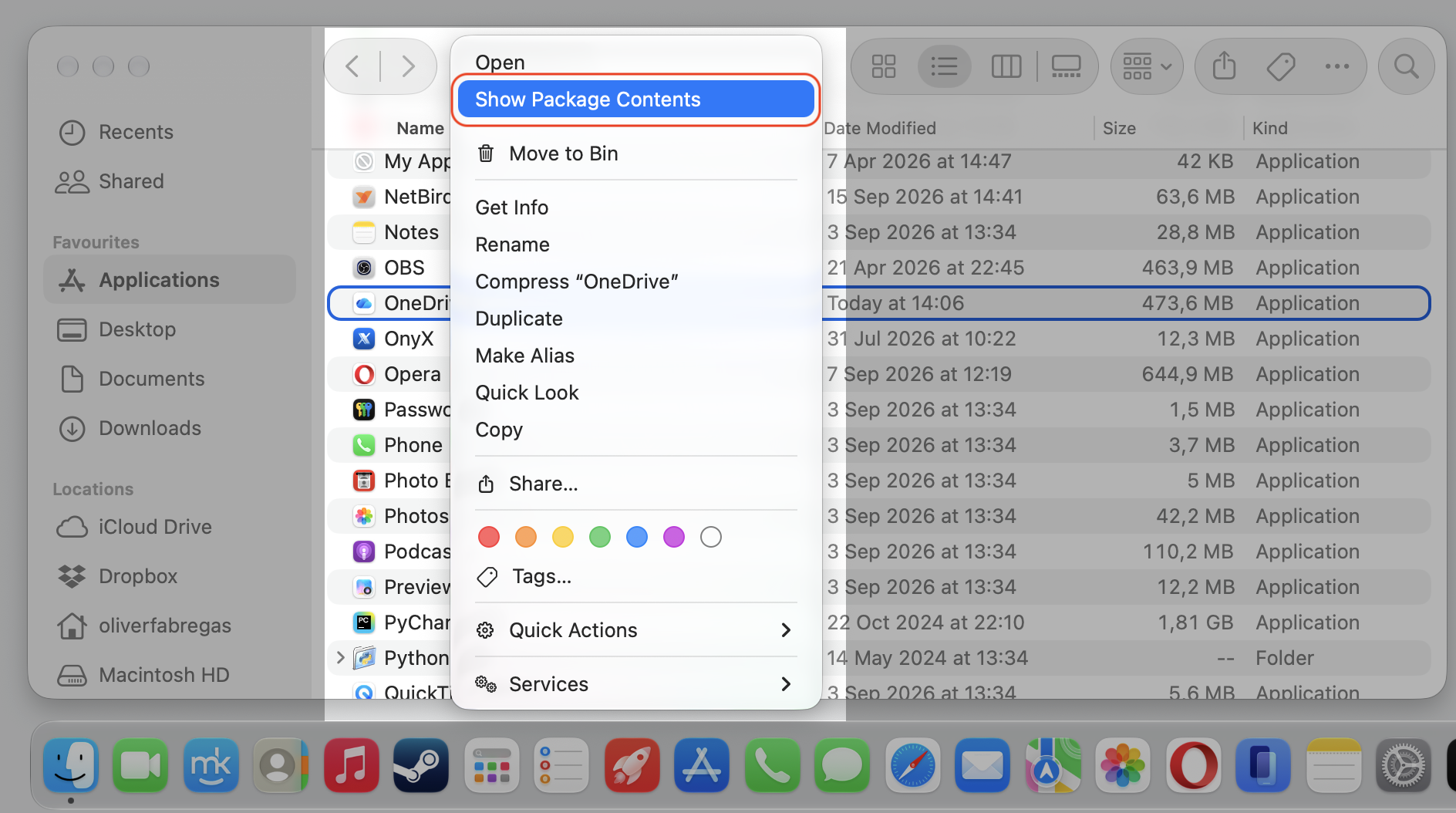
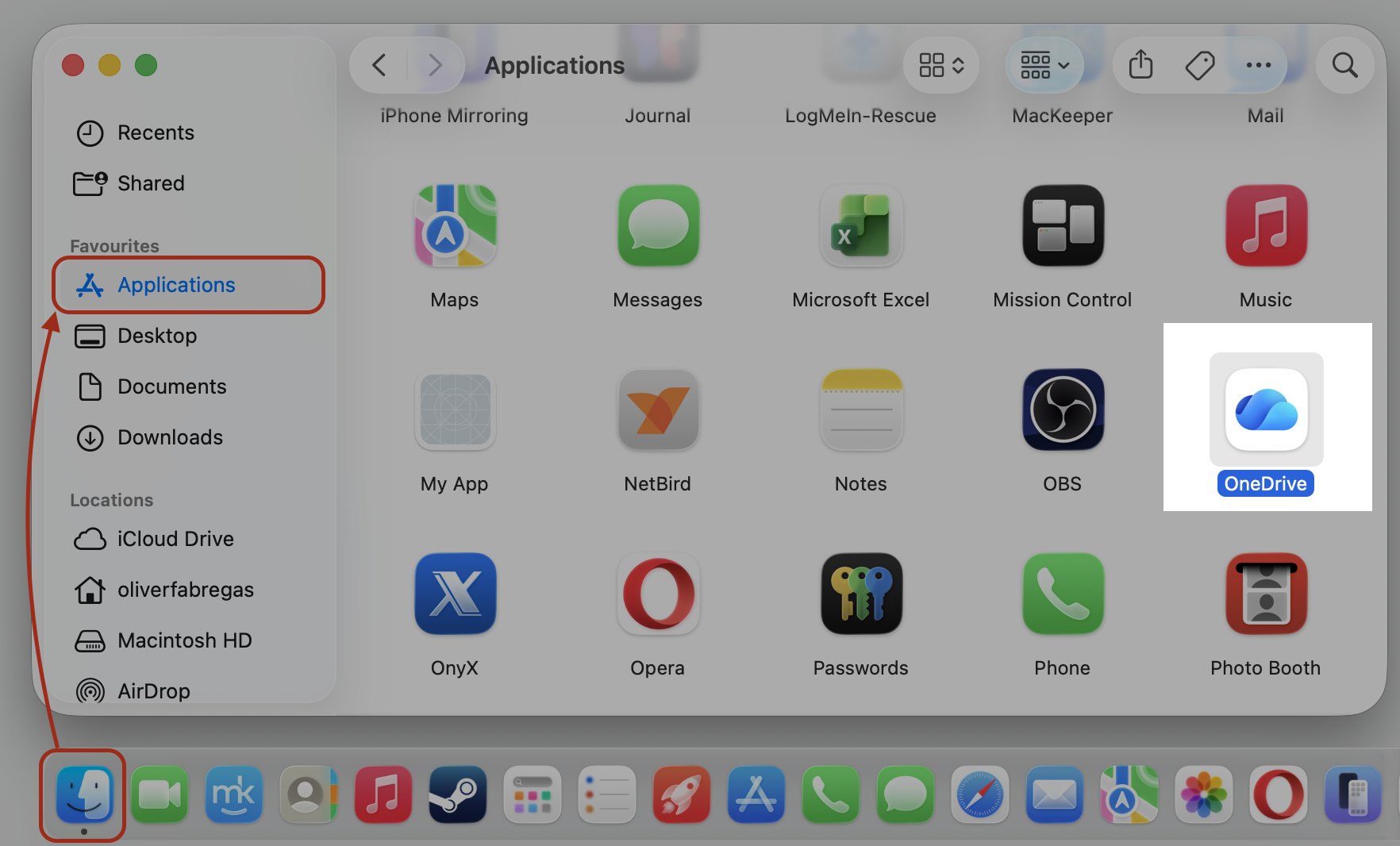
Open Finder, go to Applications, right-click OneDrive, and choose Show Package Contents.
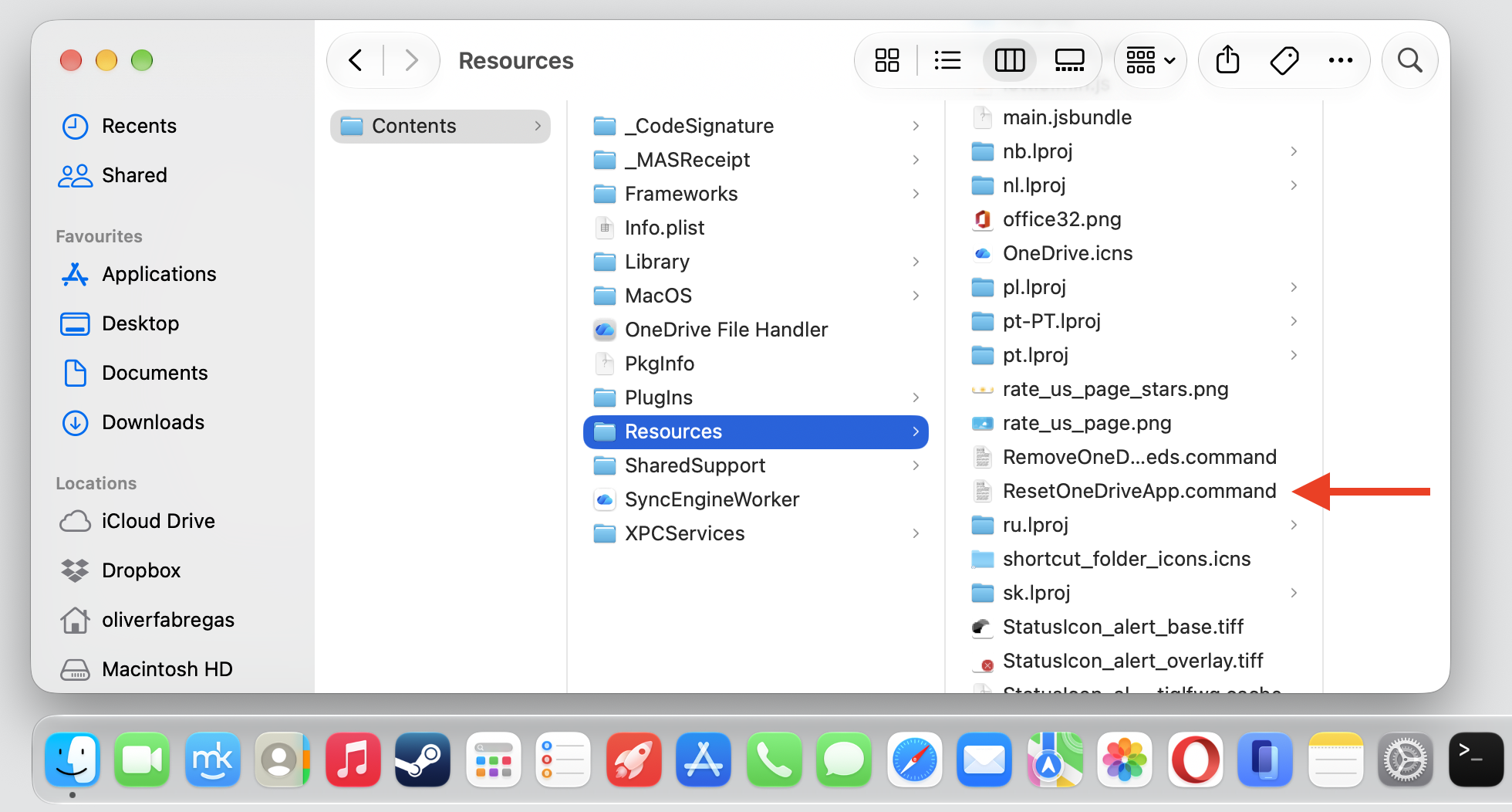
Open Contents, then Resources, and double-click ResetOneDriveApp.command (or ResetOneDriveAppStandalone.command for the standalone version).
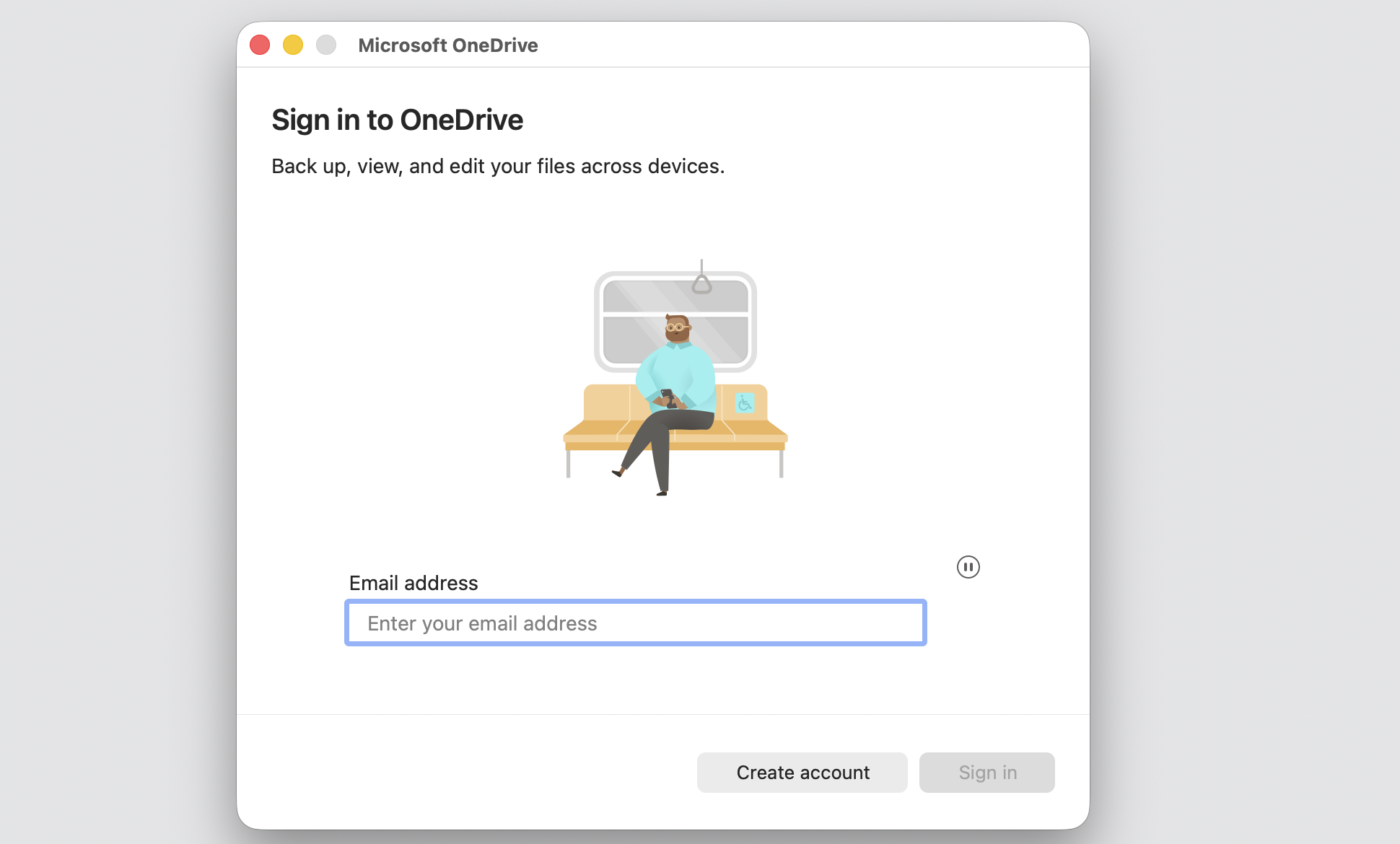
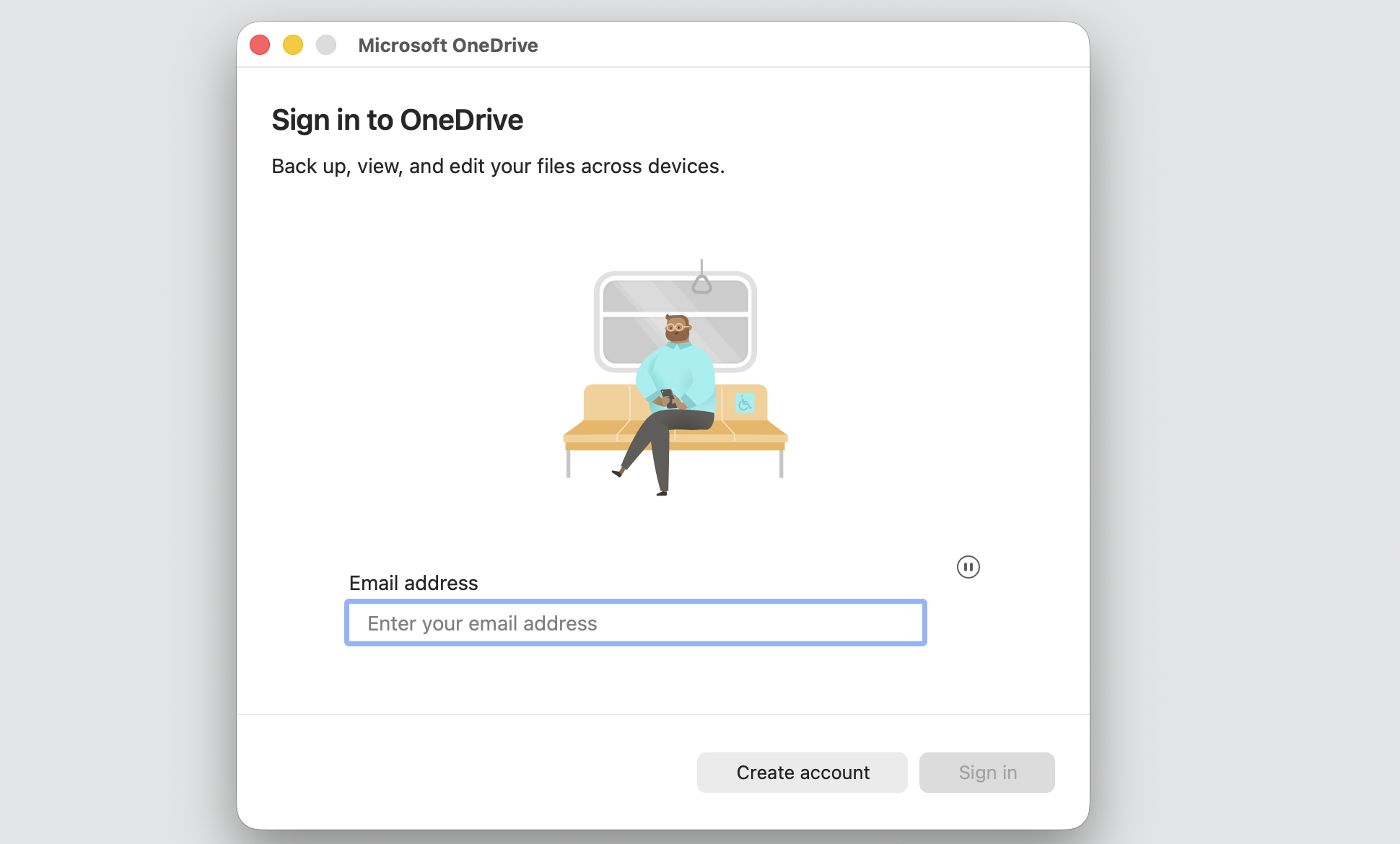
Reopen OneDrive and sign in again.
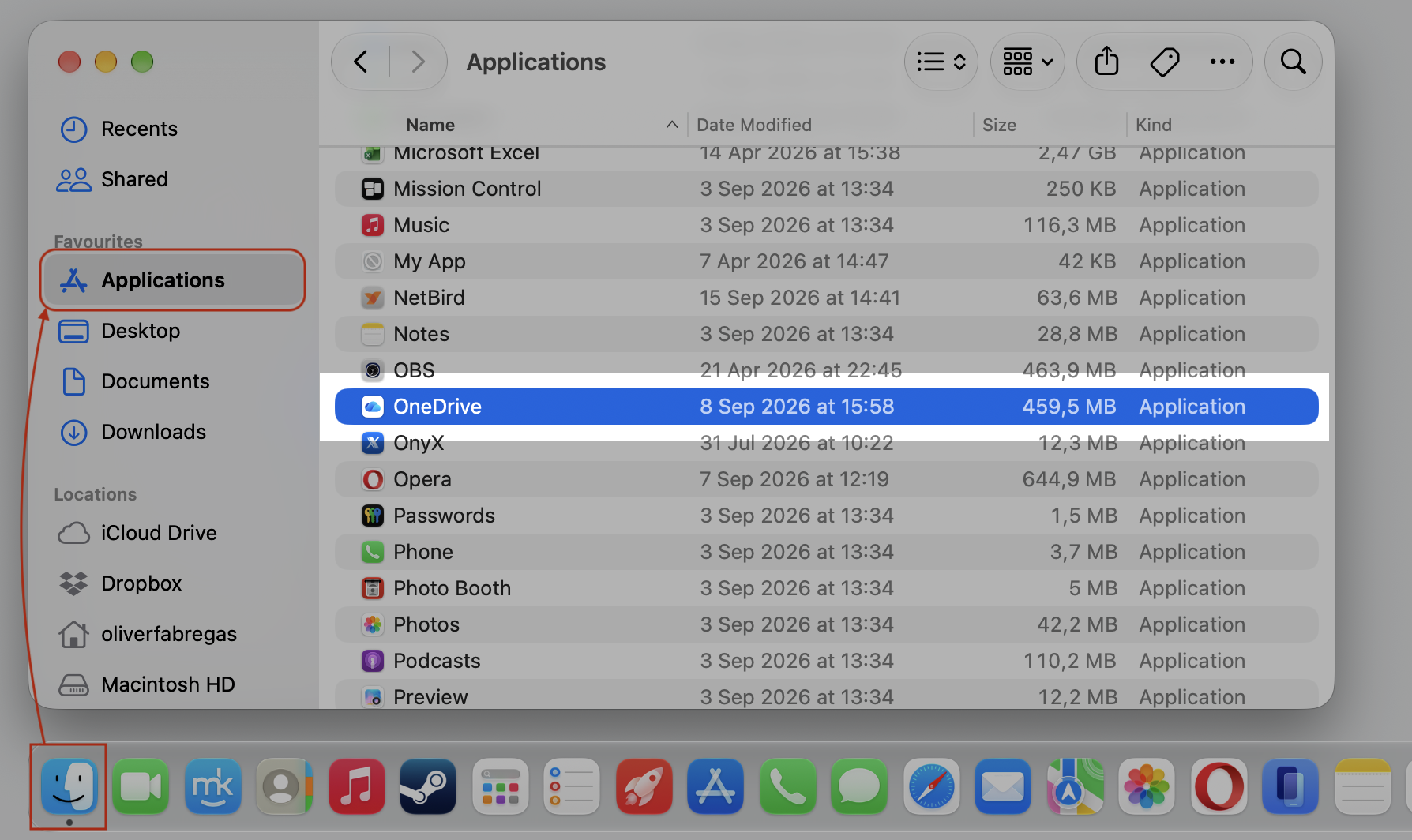
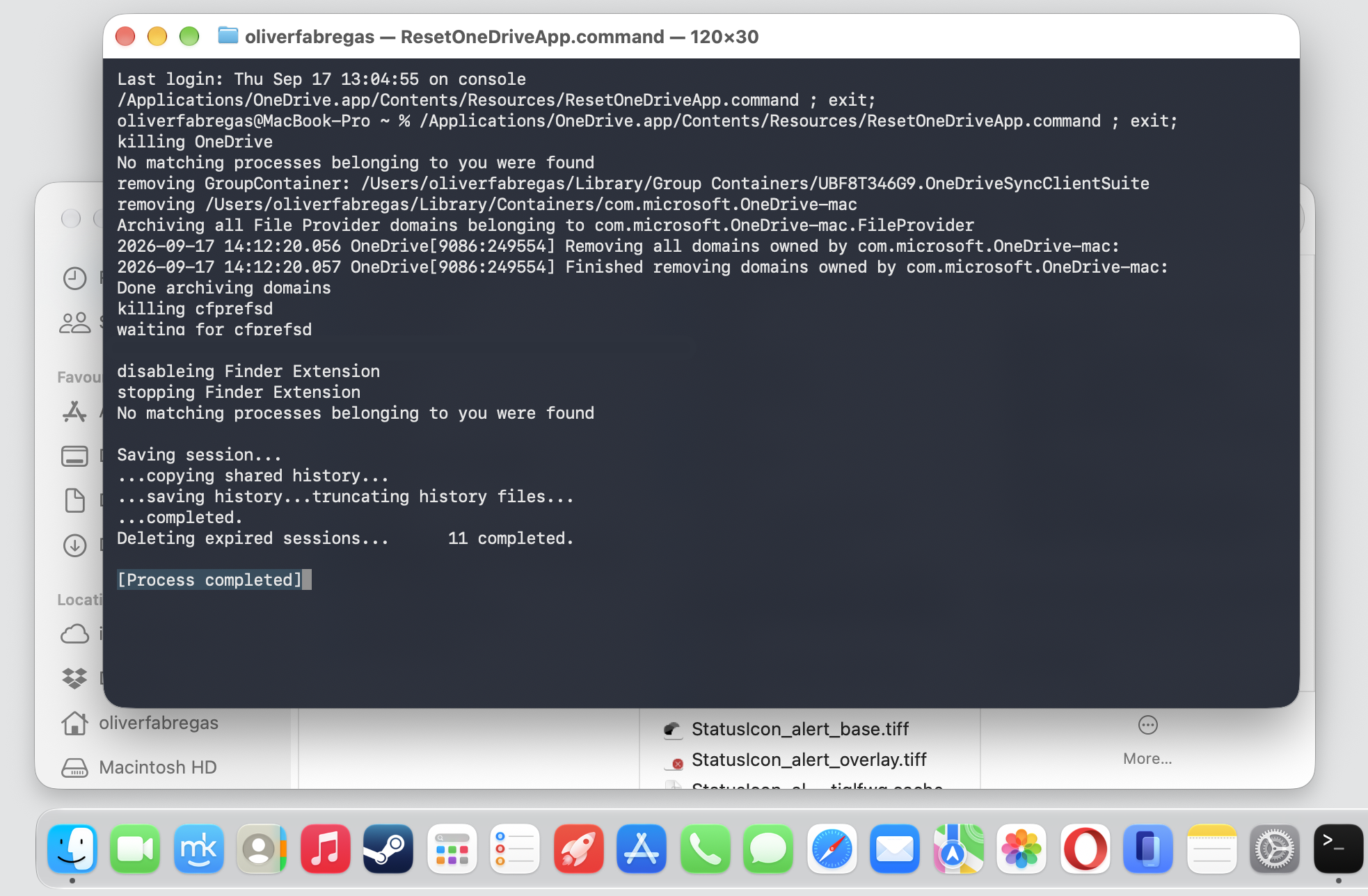
Step 1. Open OneDrive preferences and select Quit OneDriveStep 2. Go to Finder > Applications > OneDriveStep 3. Open the app with the Control-click and select Show Package ContentsStep 4. Go to Content > Resources > and double-click ResetOneDriveApp.commandStep 5. Wait until the process completeStep 6. Reopen OneDrive and sign in again
5. Force quit OneDrive background processes
Sometimes, OneDrive is already stuck in the background even though it won’t open in front of you. Quitting those leftover processes lets the app start fresh, and it’s the same approach we’d use to turn off programs running in the background when they misbehave.
Here’s what to do:
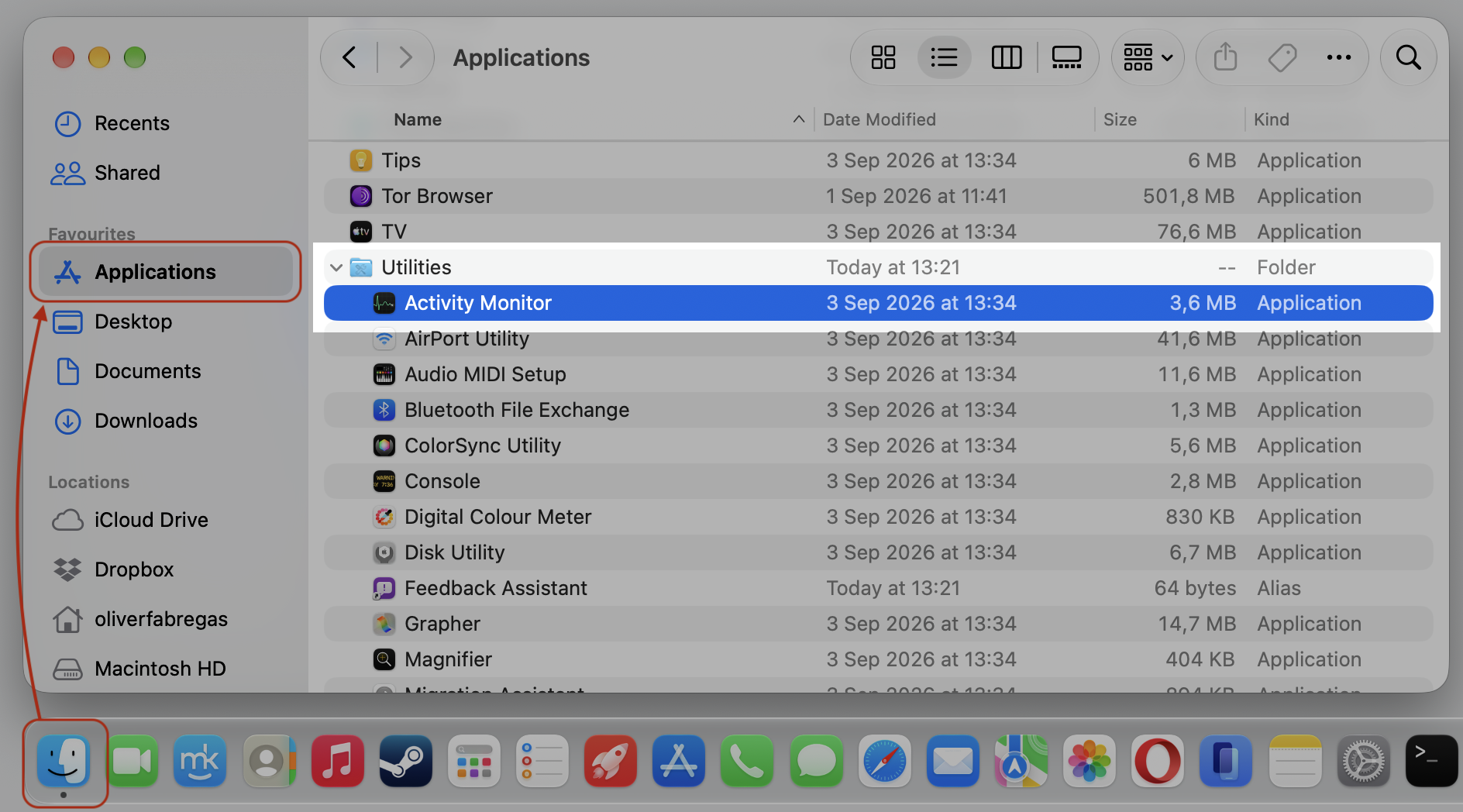
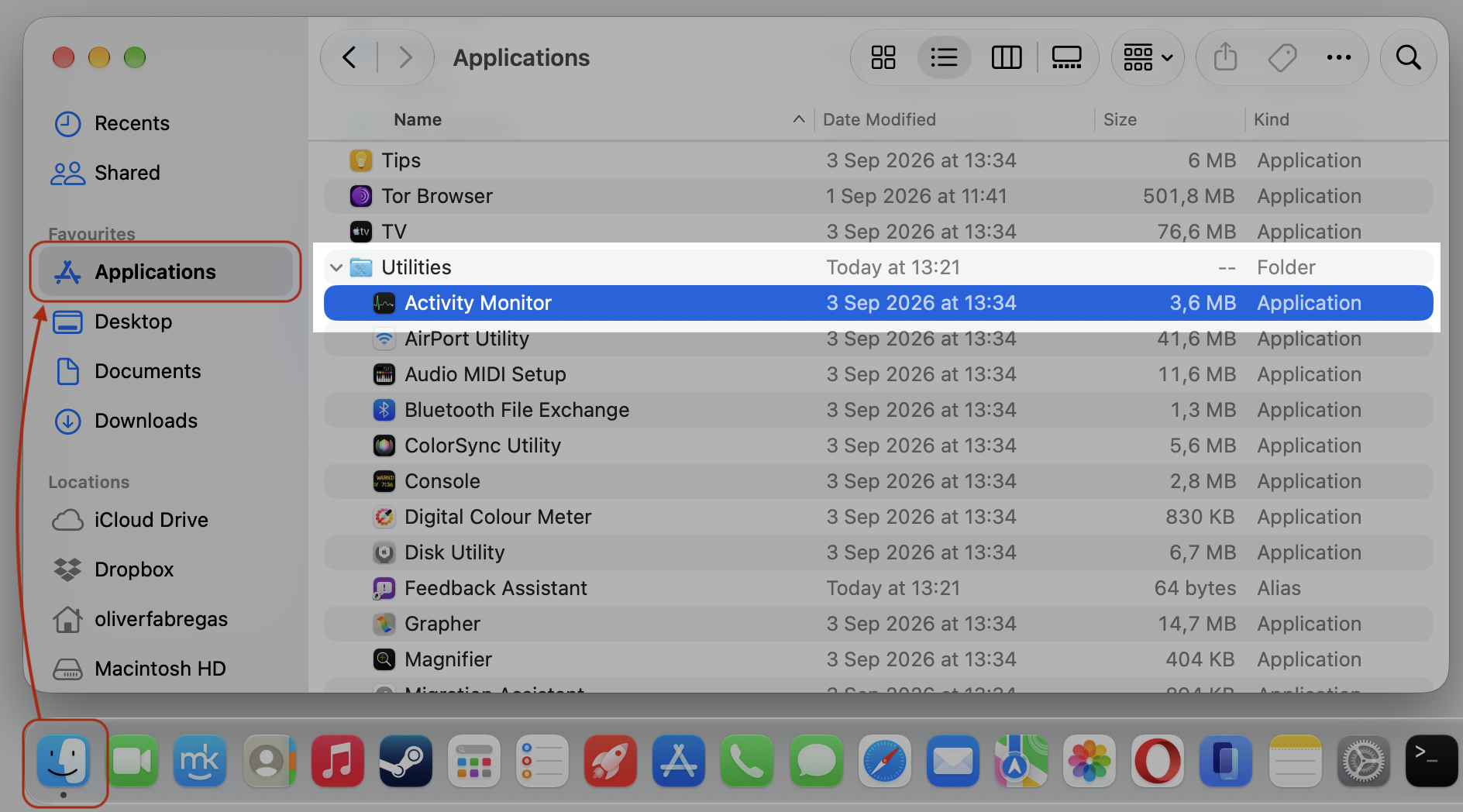
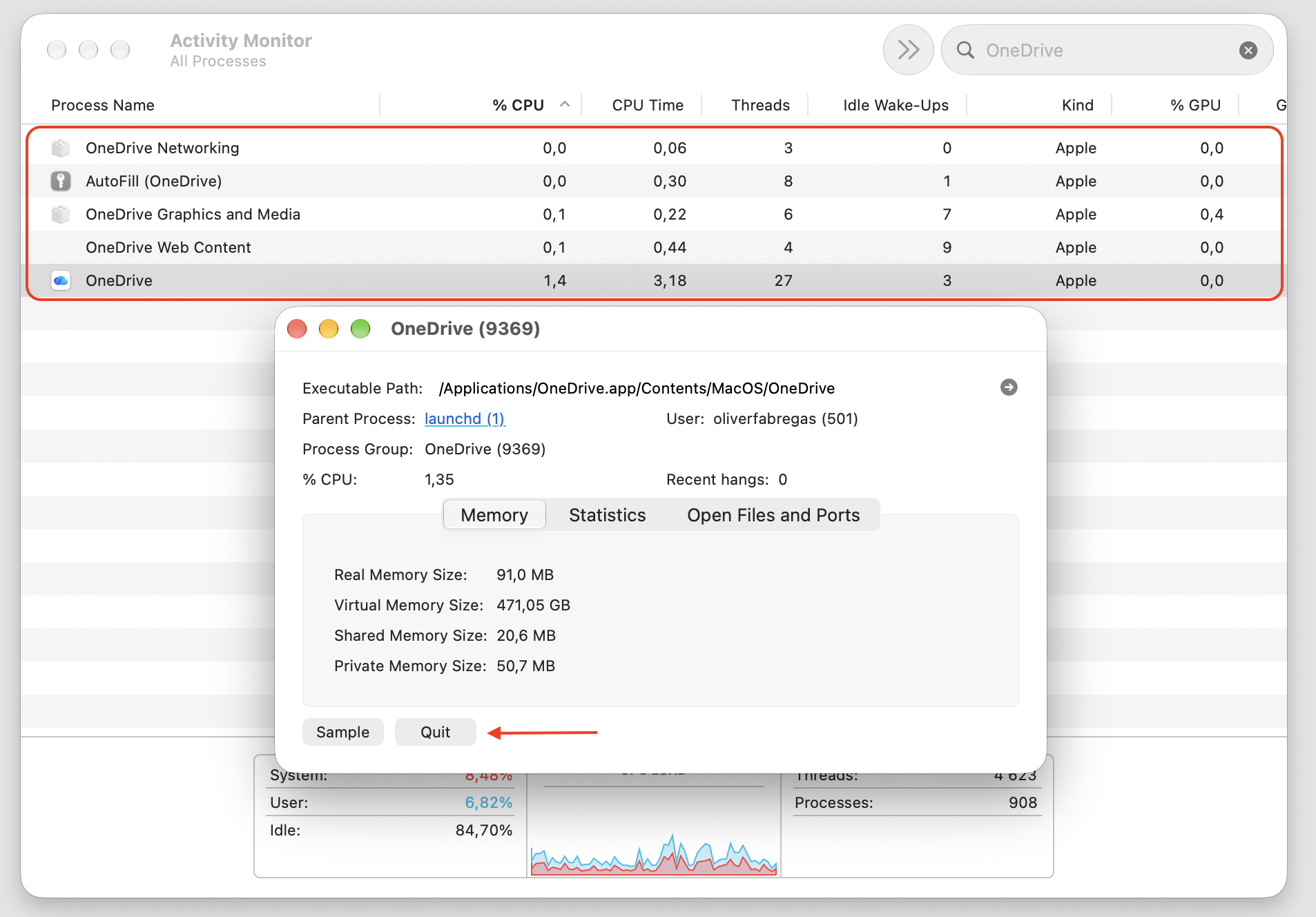
Open Finder, go to Applications > Utilities, and launch Activity Monitor.
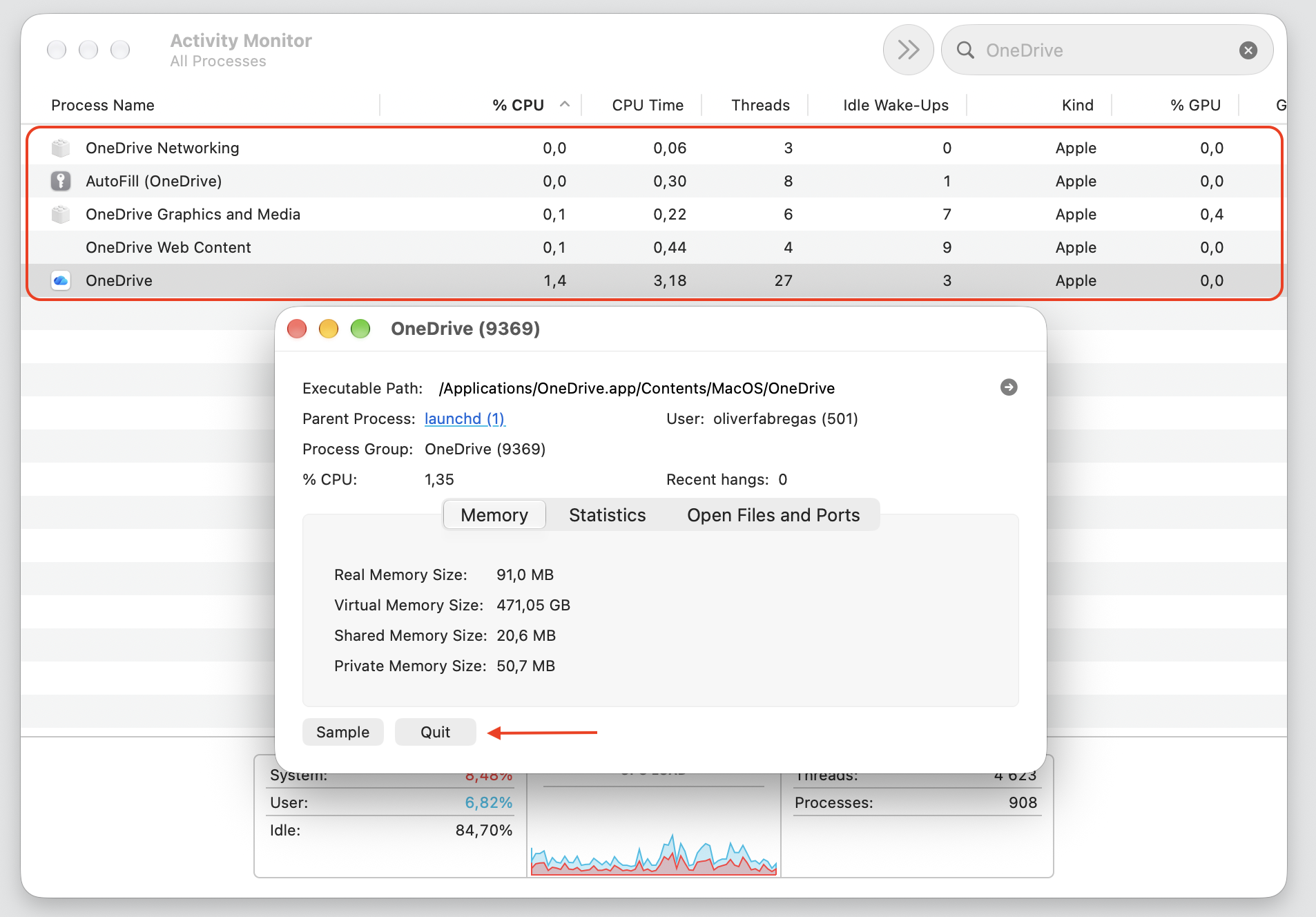
Type OneDrive in the search field and quit all related processes by Control-click > Quit button.
Reopen OneDrive from the Applications folder.
Step 1. Go to Finder > Applications > Utilities > Activity MonitorStep 2. Type One Drive in the search window and quit all related processes by Control-click > Quit
6. Remove old OneDrive login items from Keychain
Outdated or damaged OneDrive credentials can quietly cause launch, login, and sync trouble. Clearing them gives the app a clean slate, and it helps to know how to manage Keychain passwords so you remove only the entries clearly tied to OneDrive.
Just do the following:
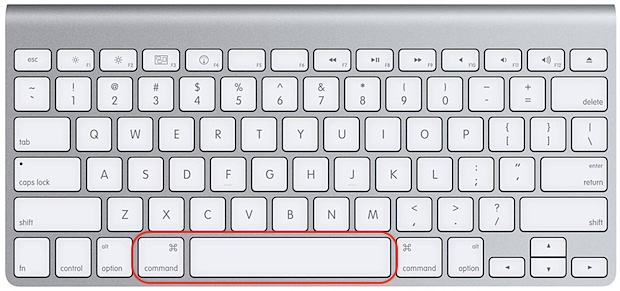
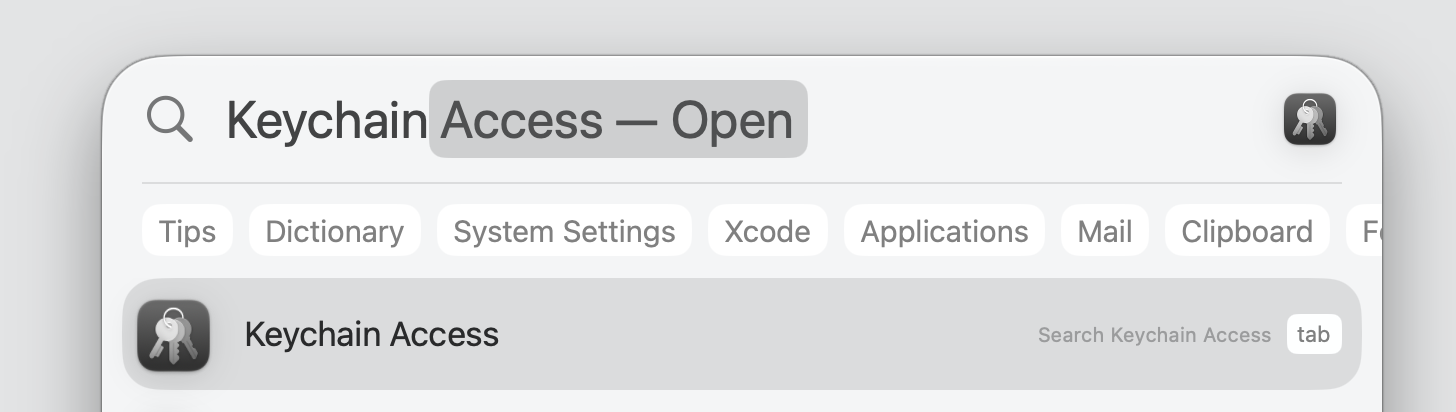
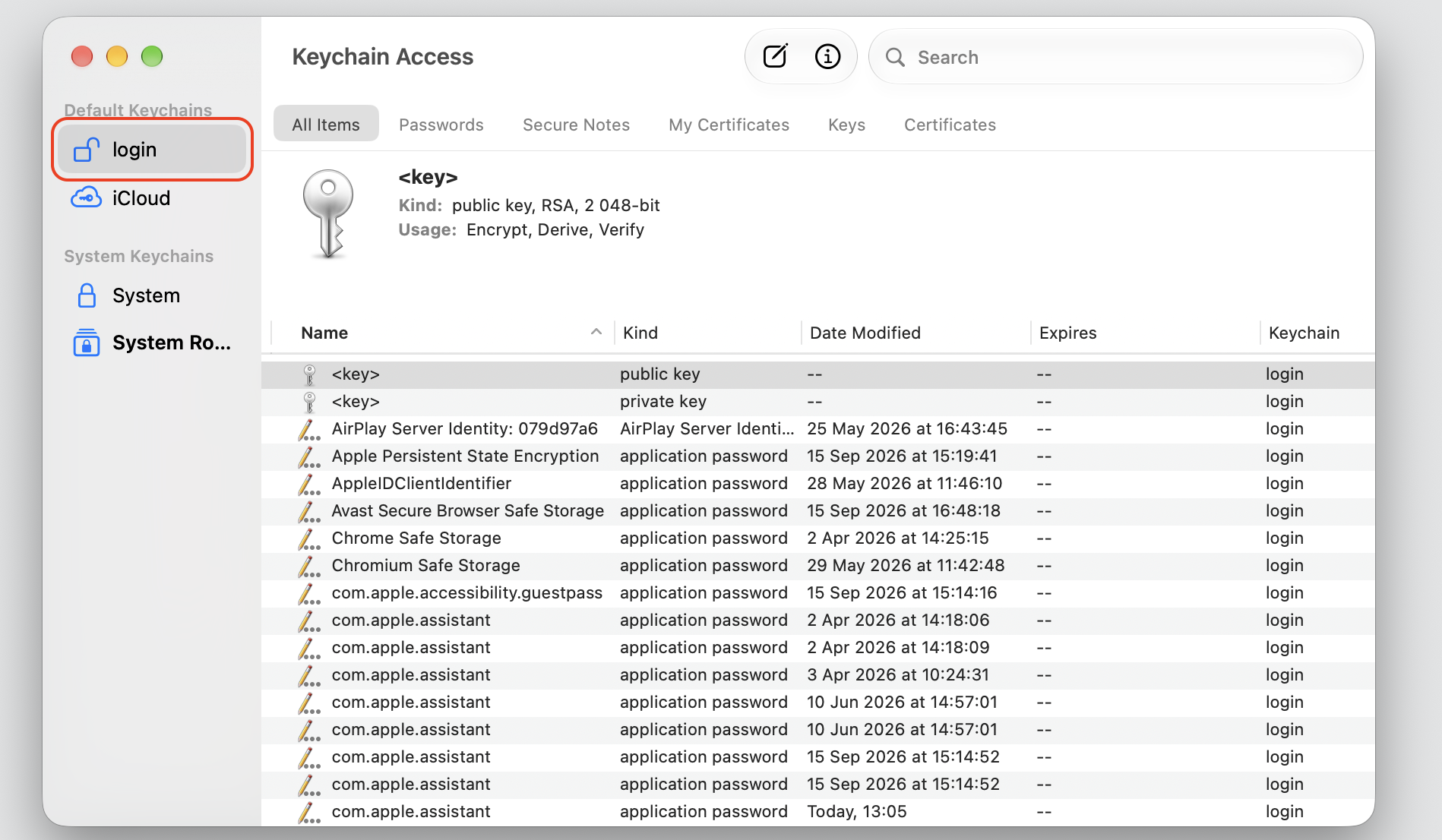
Open Keychain Access by using Spotlight Search(⌘ + Space).
Then launch the app and choose the Login section.
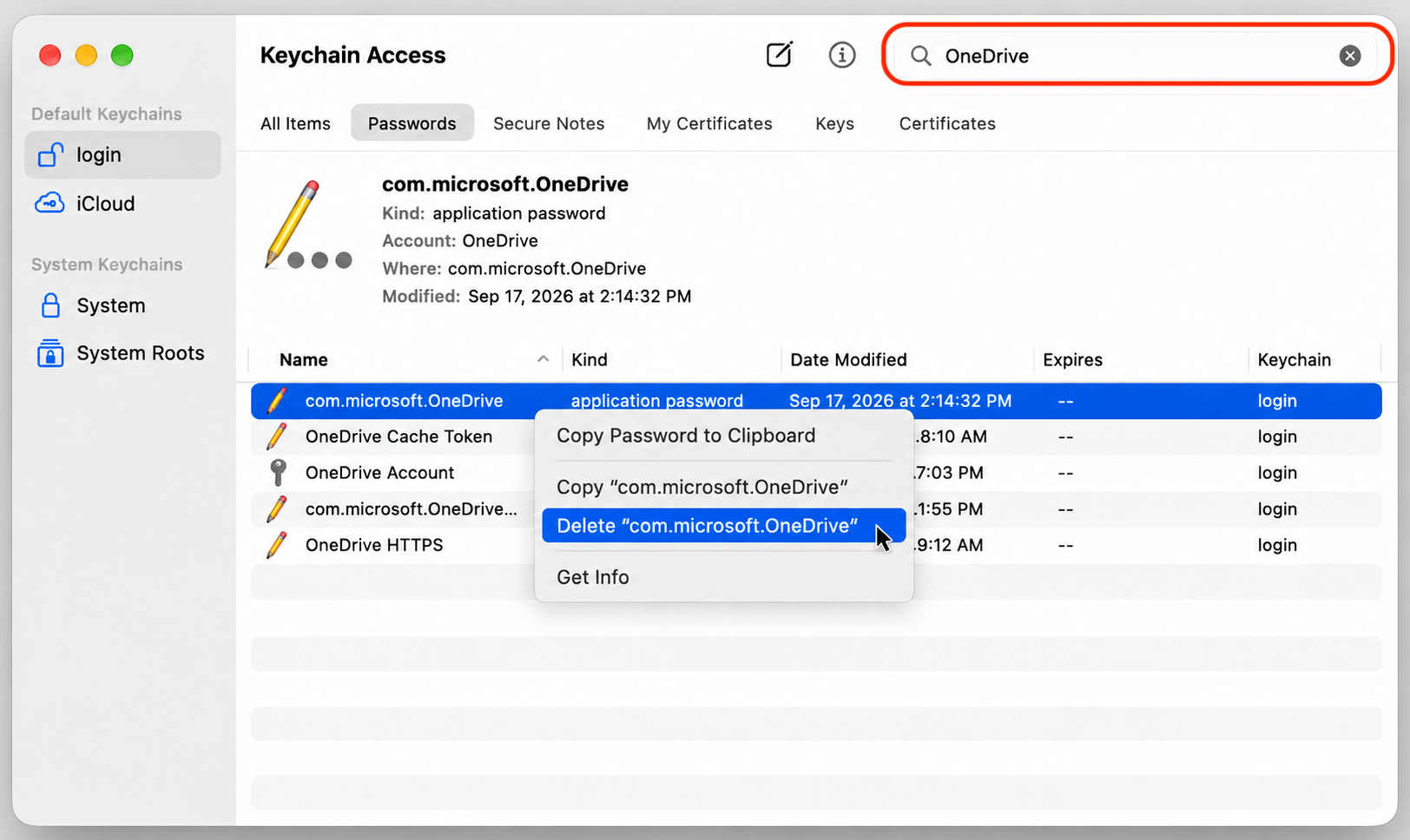
Type OneDrive in the search field again and press Enter.
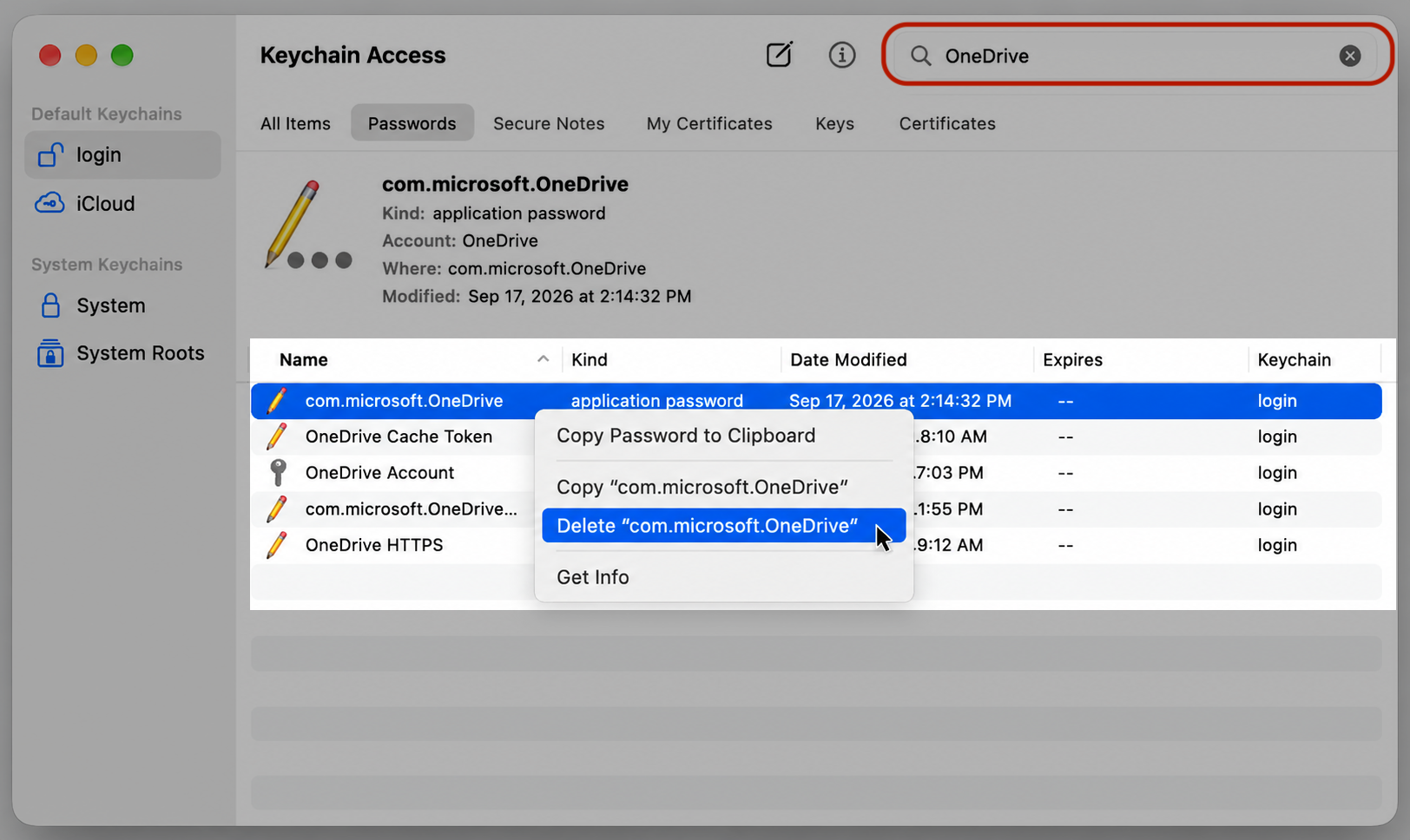
Review the results and delete only the items clearly related to OneDrive.
Reopen OneDrive and sign in again.
Step 1. Press ⌘ + SpaceStep 2. Launch Keychain Access Step 3. Select Login section Step 4. Type OneDrive in the search fieldStep 5. Delete every file related to OneDrive
7. Reinstall OneDrive
If the OneDrive app is damaged and can’t be opened on Mac even after a reset, a clean reinstall usually does the trick. The key is to remove OneDrive properly so no damaged files get left behind, then bring in a fresh copy from an official source.
Walk through these steps:
Quit OneDrive from the menu bar or Activity Monitor.
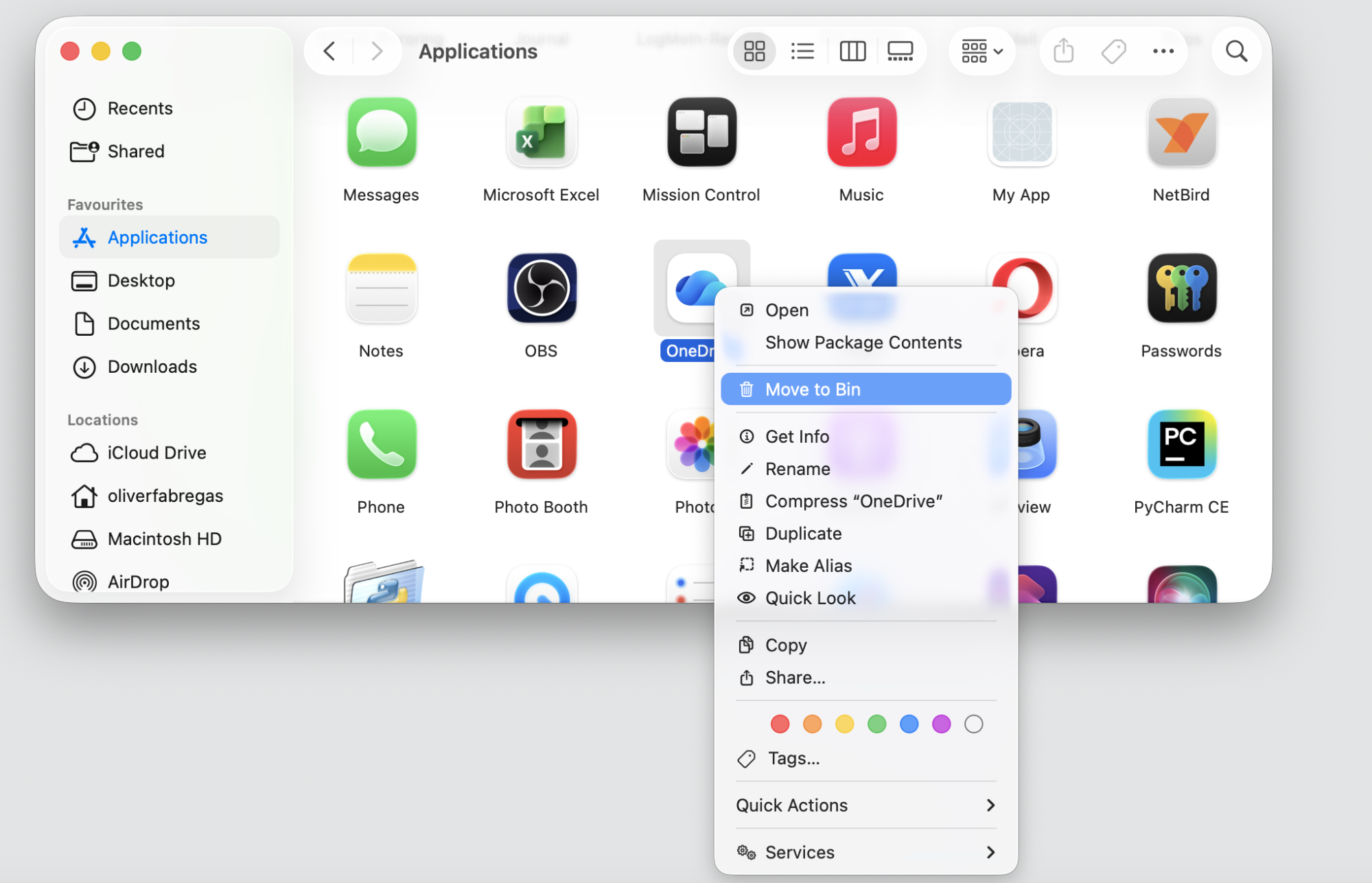
Open Finder, go to Applications, and drag OneDrive to the Trash.
Leave your synced folders alone—don’t delete them while troubleshooting.
Download a fresh copy from Microsoft or the App Store, then install it.
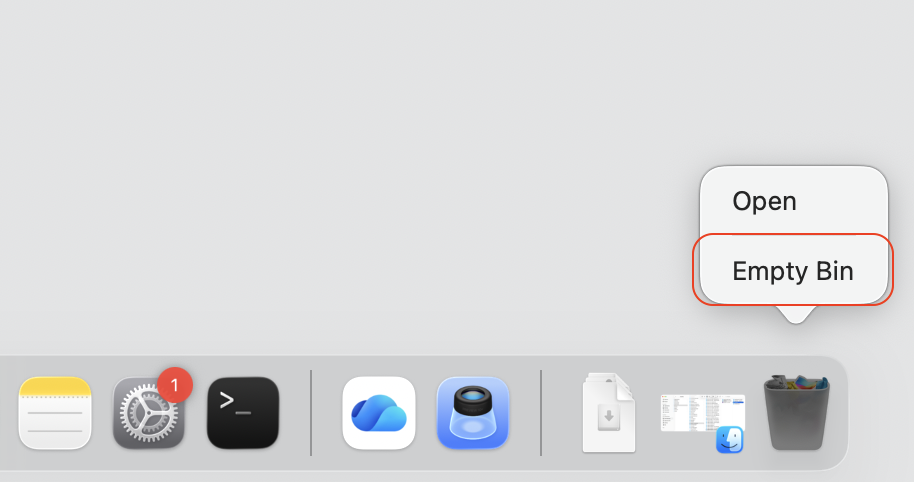
Step 1. Go to Finder > Applications > Utilities > Activity MonitorStep 2. Quit all OneDrive-related processes by Control-click > Quit Step 3. Go to Finder > Applications > OneDrive Step 4. Move to the Bin with the Control-clickStep 5. Click Empty BinStep 6. Go to App StoreStep 7. Download OneDriveStep 8. Log in to your Microsoft account
8. Check OneDrive permissions and Finder integration
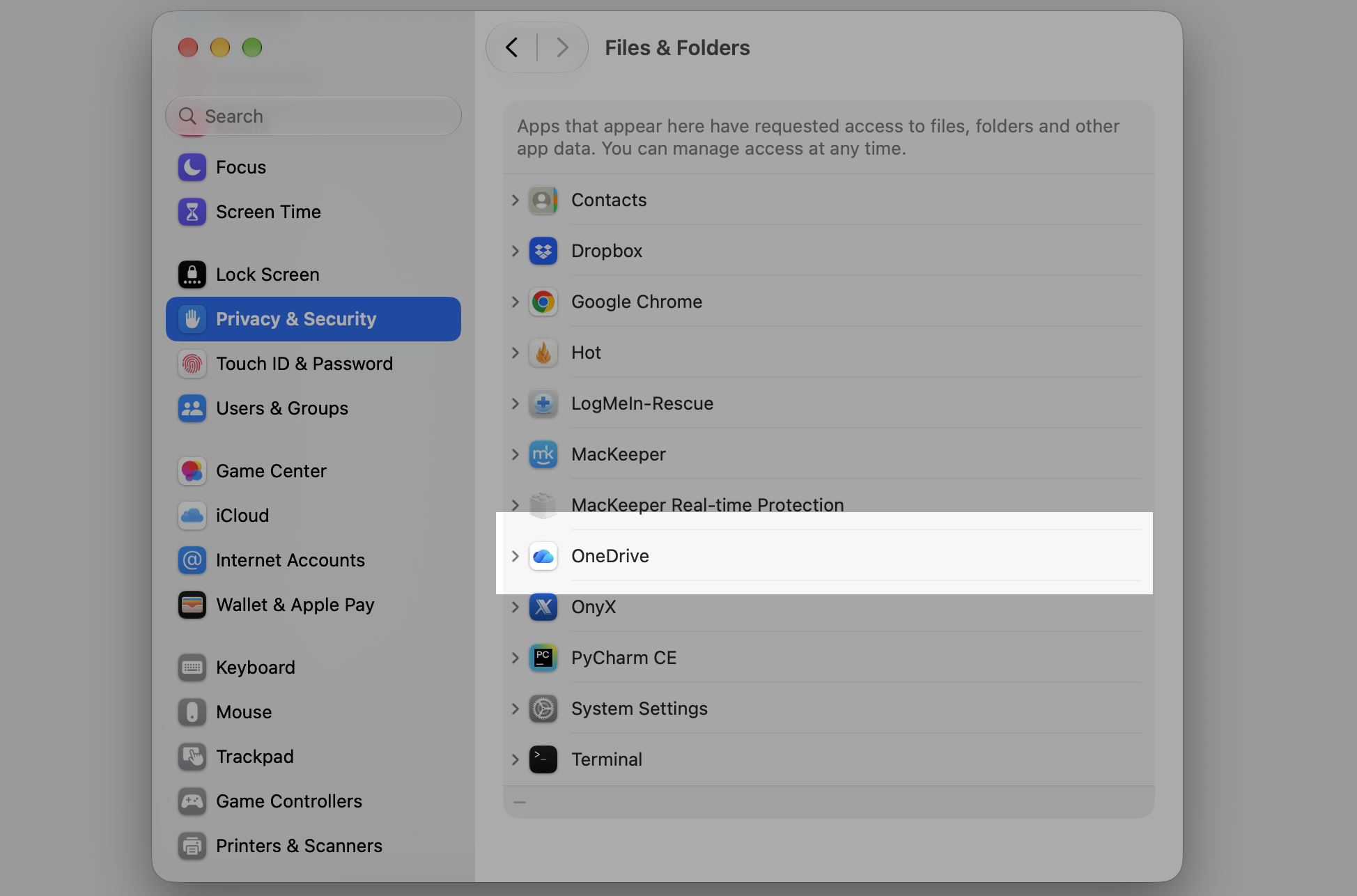
After a reinstall, OneDrive may ask for macOS permissions to handle Finder integration, file access, or background activity. Granting these lets the app work the way it should, so watch for any system prompts and approve the ones from OneDrive.
Set it up like this:
Open the Apple menu and choose System Settings.
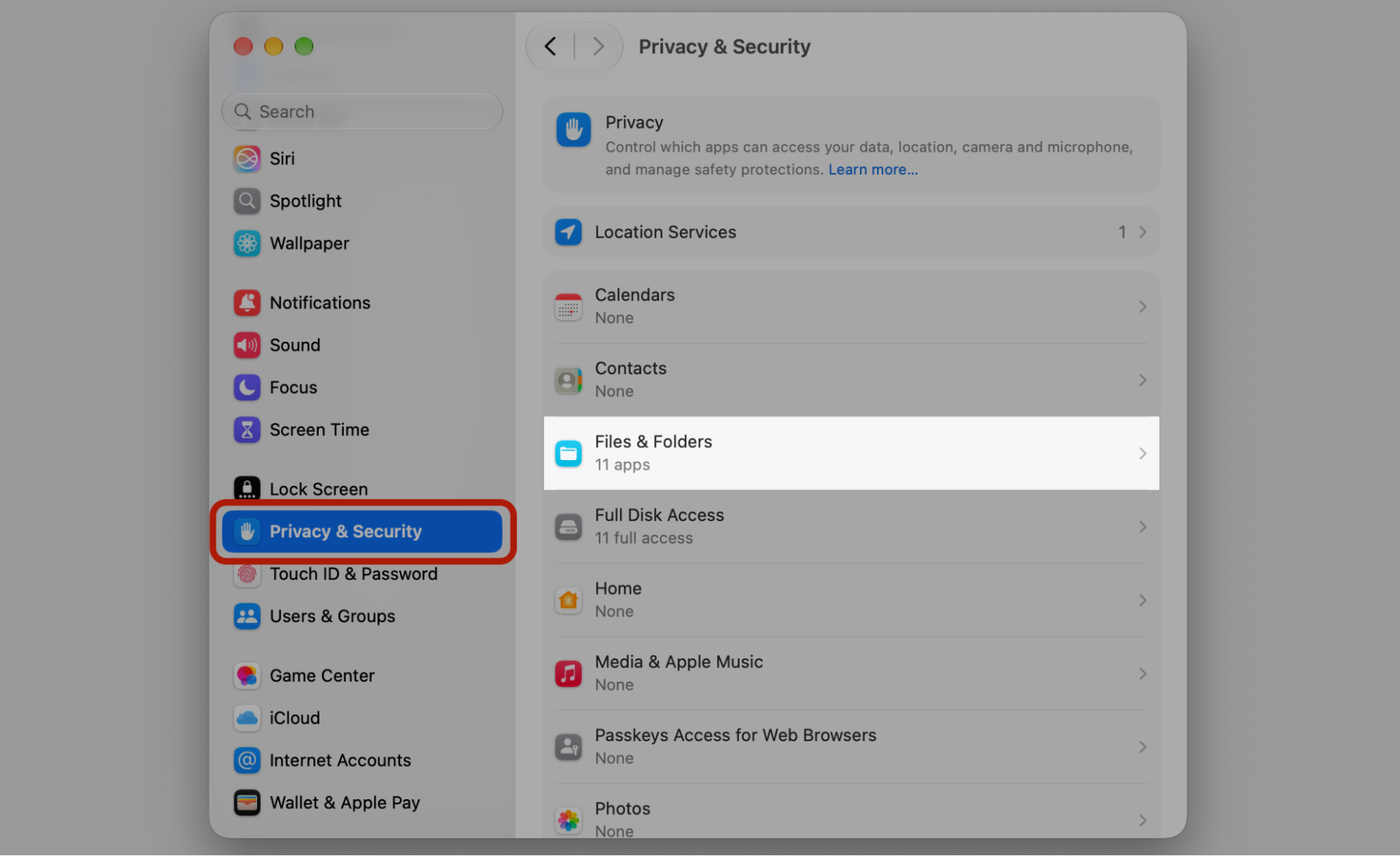
Go to Privacy & Security, then Files and Folders.
Find the OneDrive app and check OneDrive permissions.
Step 1. Go to Apple menu > System SettingsStep 2. Go to Privacy & Security > Files and FoldersStep 3. Find the app and check OneDrive permissions
9. Remove quarantine flag only for trusted OneDrive app
Once in a while, OneDrive comes from an official source, yet macOS still blocks it as damaged. Advanced users can clear the quarantine attribute with Terminal, but treat this carefully—it should only ever apply to a trusted app, never an unknown download. If you go this route, it’s worth reviewing your Mac security preferences so the rest of your system stays protected.
Proceed carefully:
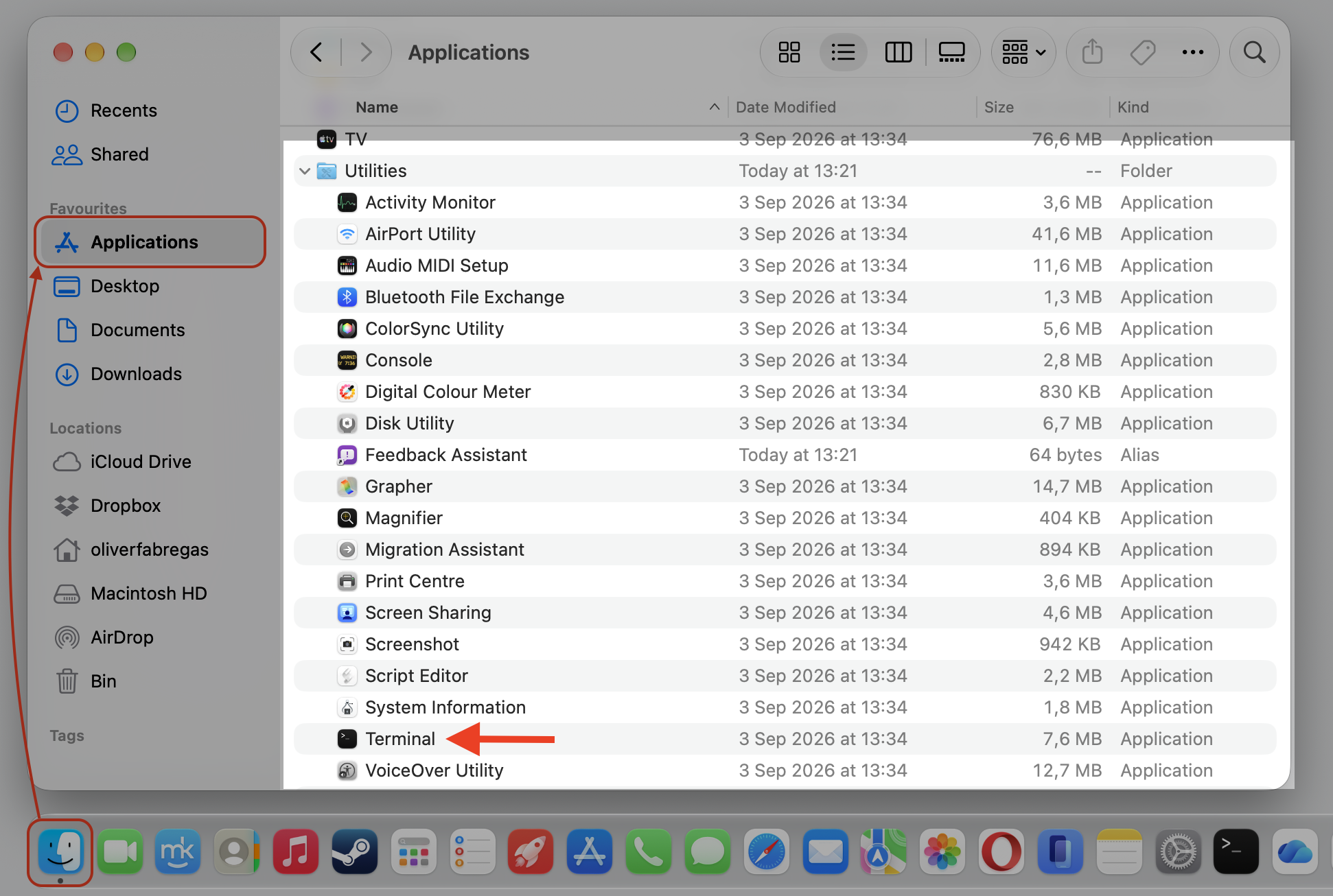
Open Finder, go to Applications › Utilities, and launch Terminal.
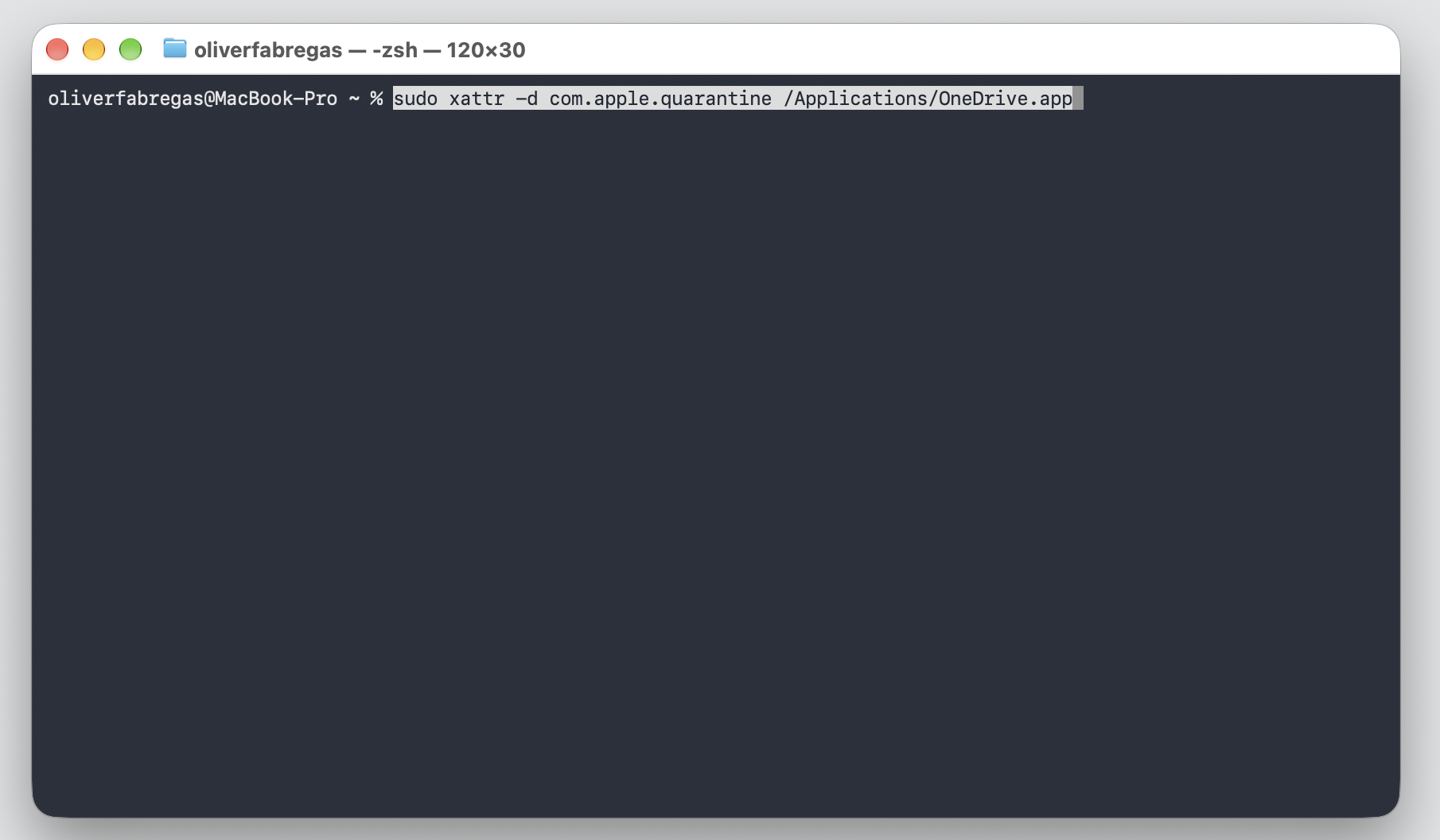
Type sudo xattr -d com.apple.quarantine /Applications/OneDrive.app, then press Return.
Enter your password if prompted, then reopen OneDrive.
Step 1. Go to Finder > Applications > Utilities and launch TerminalStep 2. Type the command you see and hit Enter
Conclusion
Seeing the message that OneDrive is damaged and can’t be opened on Mac is annoying, but it’s rarely serious. In most cases, a restart, an update, a reset, or a clean reinstall brings the app back. Work through the fixes above in order, and you’ll have OneDrive opening soon. Still stuck? MacKeeper’s Premium Services connect you with an expert who’ll walk you through setup and support whenever you need it.
We respect your privacy and
use cookies
for the best site experience.
Privacy Preferences Center
We use cookies along with other tools to give you the best possible experience while using the
MacKeeper website. Cookies are small text files that help the website load faster. The cookies we
use don’t contain any type of personal data meaning they never store information such as your
location, email address, or IP address.
Help us improve how you interact with our website by accepting the use of cookies. You can change
your privacy settings whenever you like.
Manage consent
All cookies
These cookies are strictly necessary for enabling basic website functionality (including page
navigation, form submission, language detection, post commenting), downloading and purchasing
software. The website might malfunction without these cookies.