Seeing the annoying SOCD report detected: (AP watchdog expired) error on your Mac can be unsettling, especially when it comes with persistent screen freezes and unexpected system crashes. We understand how worrying system errors can be, but with MacKeeper Premium Services, you can get connected with our Clario Tech experts who’ll help you identify the problem and guide you through a reliable fix, so your Mac runs smoothly again in no time.
The Mac SOCD report detected: (AP watchdog expired) error is known to appear when your Apple devices’ macOS detects a system crash during a restart. It often relates to a kernel panic, CPU overload, or a significant hardware issue. In some cases, it’s known to be triggered by a connected USB adapter, external drive, or failing component–affecting performance, stability, and system operations.
What does SOCD Report Detected: (AP Watchdog Expired) mean?
If you’re unsure what an Apple SOCD report detected ap watchdog expired error is, it’s your Mac making you aware that the application processor has stopped responding within a set time limit, meaning it’s taken too long to process. This forces your OS to trigger the watchdog timeout and automatically reset. This system failure is closely linked to Kernel panics and is most likely to occur on newer devices with Apple silicon software. However, hardware faults and external drives can also disrupt normal communications.
How to fix SOCD Report Detected: (AP Watchdog Expired)?
Unfortunately, system errors like AP Watchdog Expired cannot be left ignored and must be fixed. First, you’ll need to identify the cause. Once you’re sure what’s triggering the error, you can troubleshoot your MacBook. Hardware issues may require checking drives or connected devices, while software faults can often be resolved with quick fixes. Our methods below will help restore stability to your Mac:
Disconnect peripherals
Use USB hub port
Update macOS
Boot into Safe Mode
Run Apple Diagnostics
Check external disk
Reset SMC/PRAM
Reinstall macOS
Seek professional help
A note from our experts:
We know that pinpointing the cause of the SOCD Report Detected: (AP Watchdog Expired) error on your Mac is not always straightforward, especially when it’s unclear whether the issue is hardware or software related. To help you, MacKeeperPremium Services can connect with one of our Clario Tech experts who’ll guide the process step by step. You’ll get closer to identifying the problem's source and receive practical support to restore your device.
Here’s how to access MacKeeper’s Premium Services for system support:
In the chat, tell our advisor about the issue you're dealing with, and they’ll walk you through personalized steps to get your Mac back on track.
Step 1. For system support, open the MacKeeper app and choose Premium ServicesStep 2. You can use the chat function to get advice on repairing your Mac system
1. Disconnect peripherals
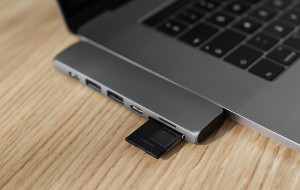
If you’re trying to deal with the SOCD report detected (AP watchdog expired) error on your Mac, we think you should start by disconnecting all your peripherals–like external drives, USB devices, and adapters. After all, it’s likely that an external plug is causing the nuisance you’re facing, so disconnecting it to check if it immediately fixes the error is a smart solution to begin with. This would only be a temporary solution, as you’d need to work out why the plug-in is triggering the issue; otherwise, it’ll keep happening when you connect any peripherals again.
2. Use USB hub port
To echo what we’ve just said, it’s very common to see the socd report detected (ap watchdog expired) Mac error when you have an external disk or SSD plugged into your Mac. Another way around this is to use a USB hub port or adapter. This can help reduce the strain on your system and improve the connection and stability of your USB devices. Once you’ve connected your external drive to the port, check to see if it’s working properly.
3. Update macOS
It’s not always your hardware or plugins that require attention when system errors arise, as conflicting software is also a common cause for glitches. The most prominent software on your Mac will be the OS, as it’s the entire buildup of all Apple devices–this means issues are likely to occur. That’s why we highly recommend you update macOS regularly, as outdated software can halt your Mac activities entirely.
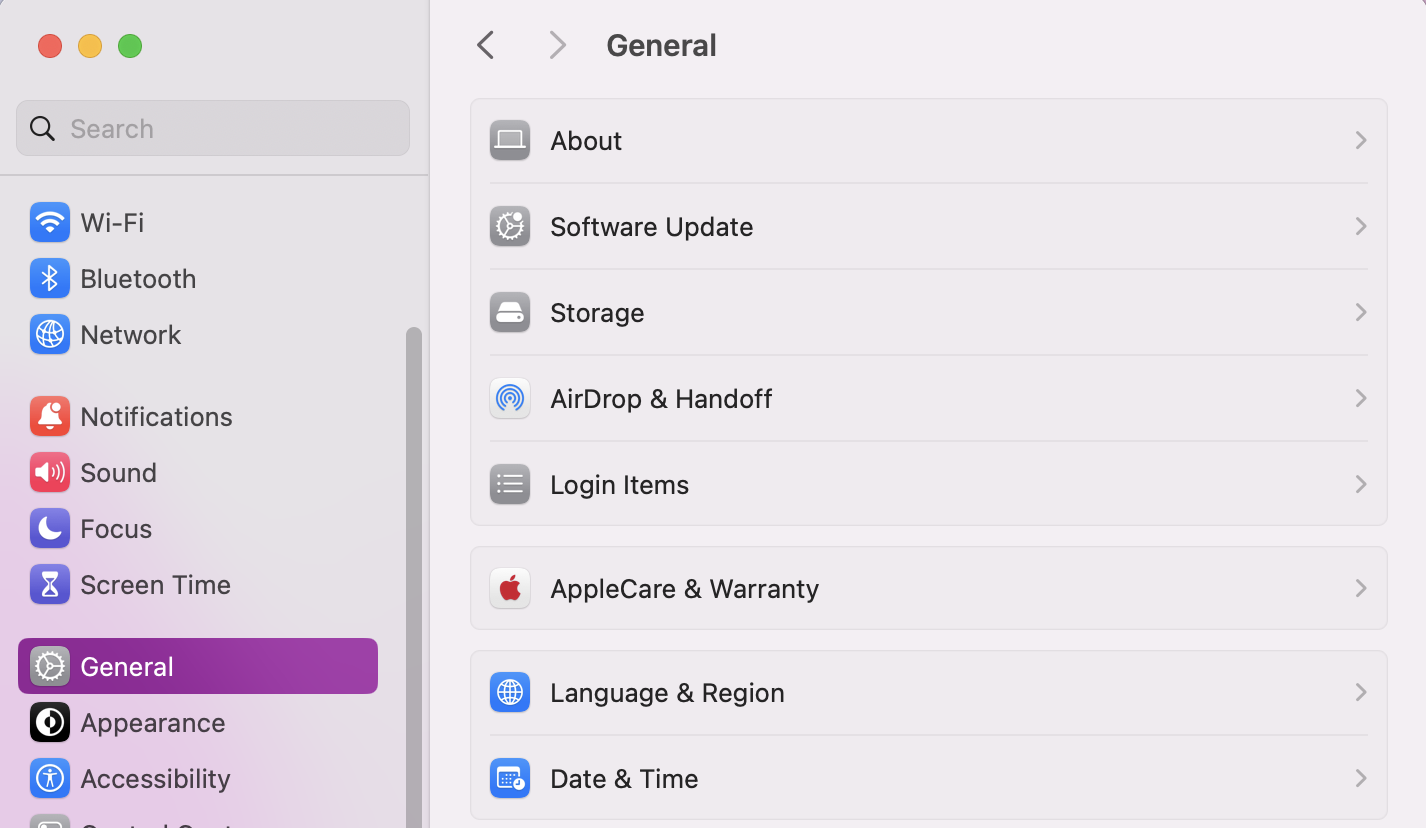
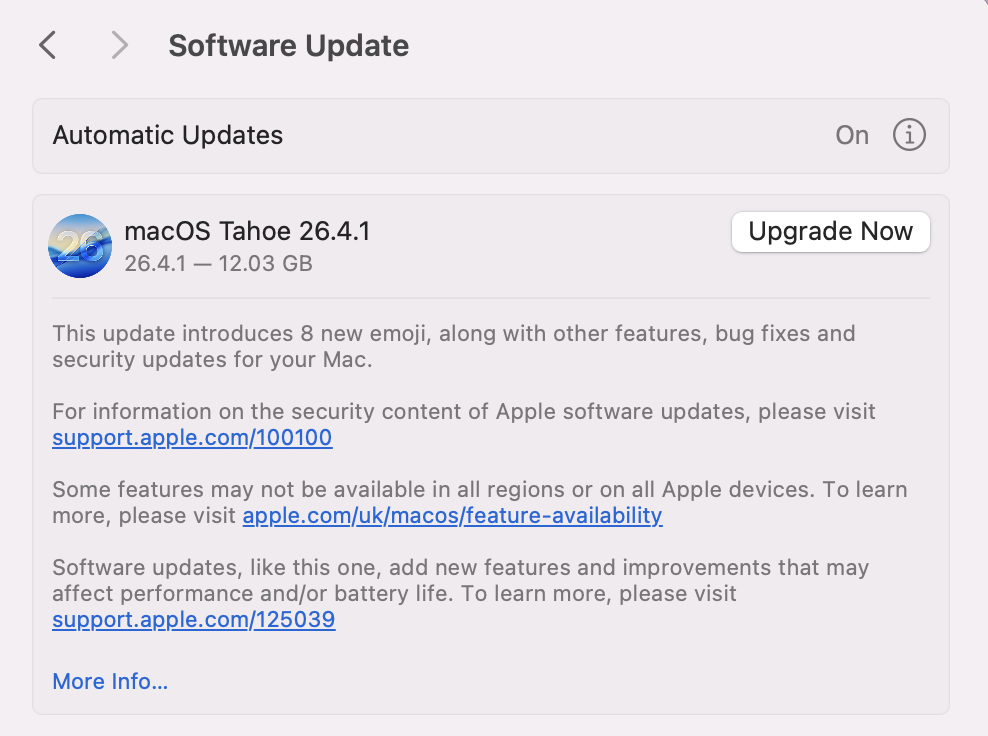
Here’s how to check and update macOS:
Open System Settings.
Click on General > Software Update.
If an update or upgrade is available, press Update Now.
Step 1. In System Settings, go to the General tab and click on Software UpdateStep 2. Look for pending updates, click on Update Now, and follow the on-screen instructions
4. Boot into Safe Mode
Another way you can repair your MacBook device is to reboot Mac in Safe Mode, as this is known to help identify software conflicts linked to kernel tasks and high CPU usage. These are both common causes of system crashes from SODC error code.
Below you’ll find out how to boot into Safe Mode on Mac.
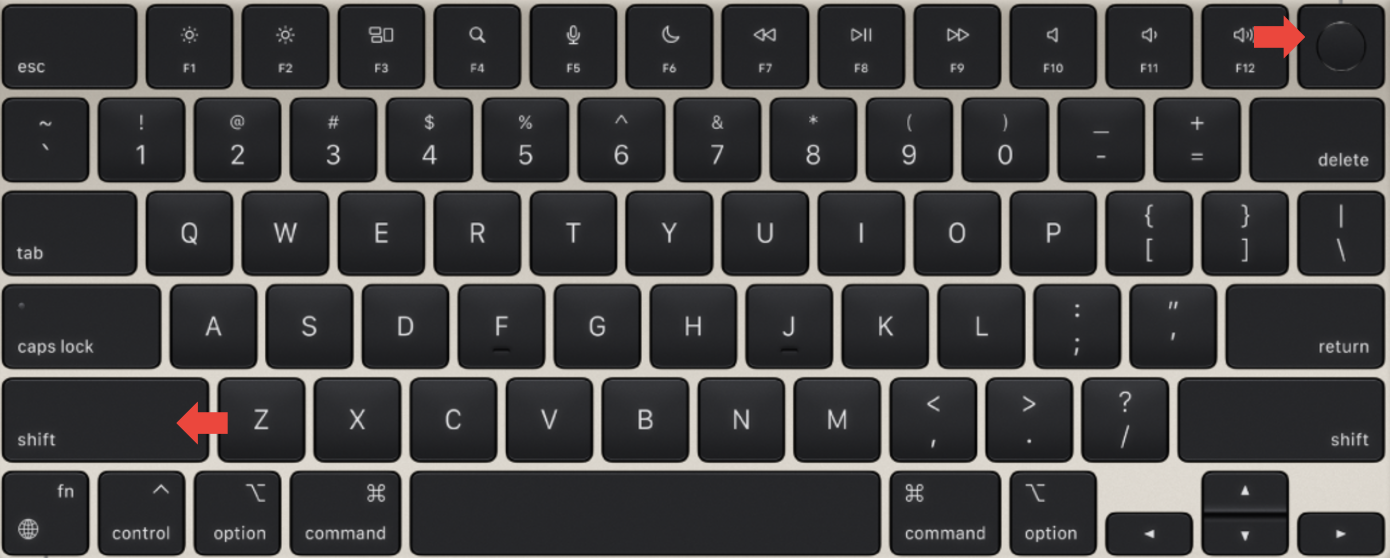
For Intel-based Macs:
Turn off your Mac.
Press the power button while holding down Shift.
ReleaseShift when you see the login window.
Turn on your Mac with the power button, and hold down Shift until you see the login window
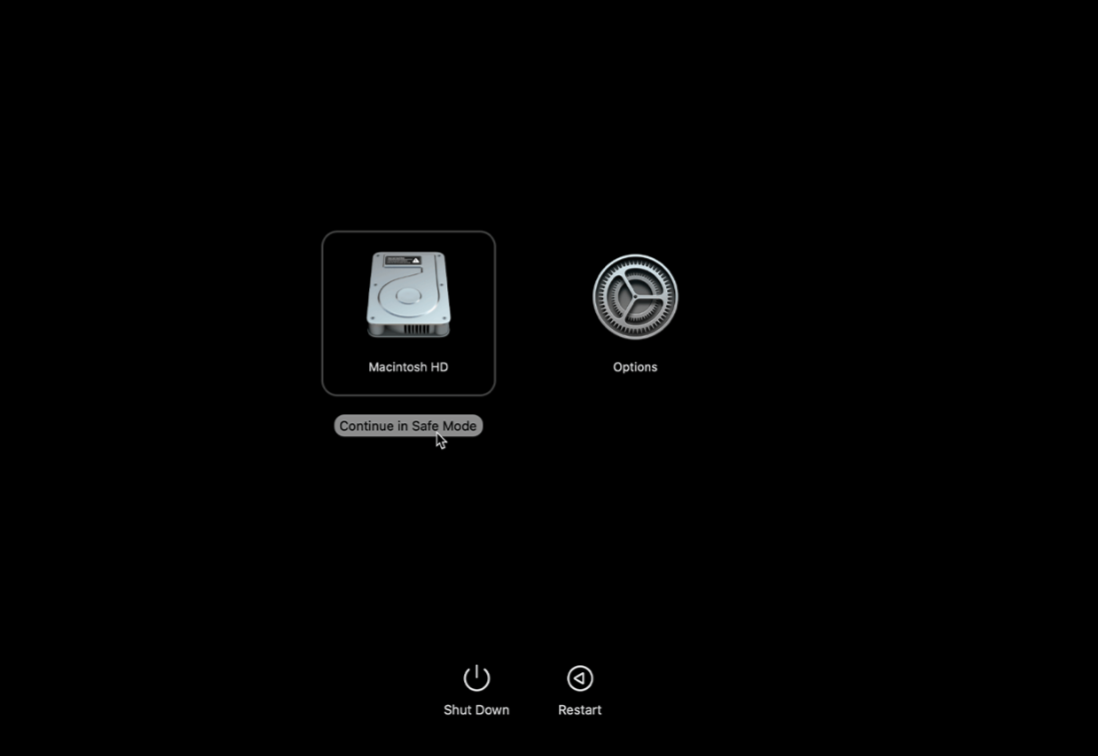
For Apple Silicon Mac:
Shut down your Mac.
Press the power button until you see the startup options.
Click on Options.
Choose your startup disk.
Hold down Shift and click Continue in Safe Mode.
Then release Shift.
Turn on Mac while holding the Power button until you see the Startup Options to boot into Safe Mode
5. Run Apple Diagnostics
Our team of Clario Tech experts regularly speak to Apple users, and we’ve been told how useful Apple Diagnostics can be at checking and fixing hardware faults. The best thing is, the application is already installed on Mac, meaning it's super simple to use. If you’re unsure how to run diagnostics on Mac, we’ve got the steps below to guide you.
Here’s how to run Apple Diagnostics:
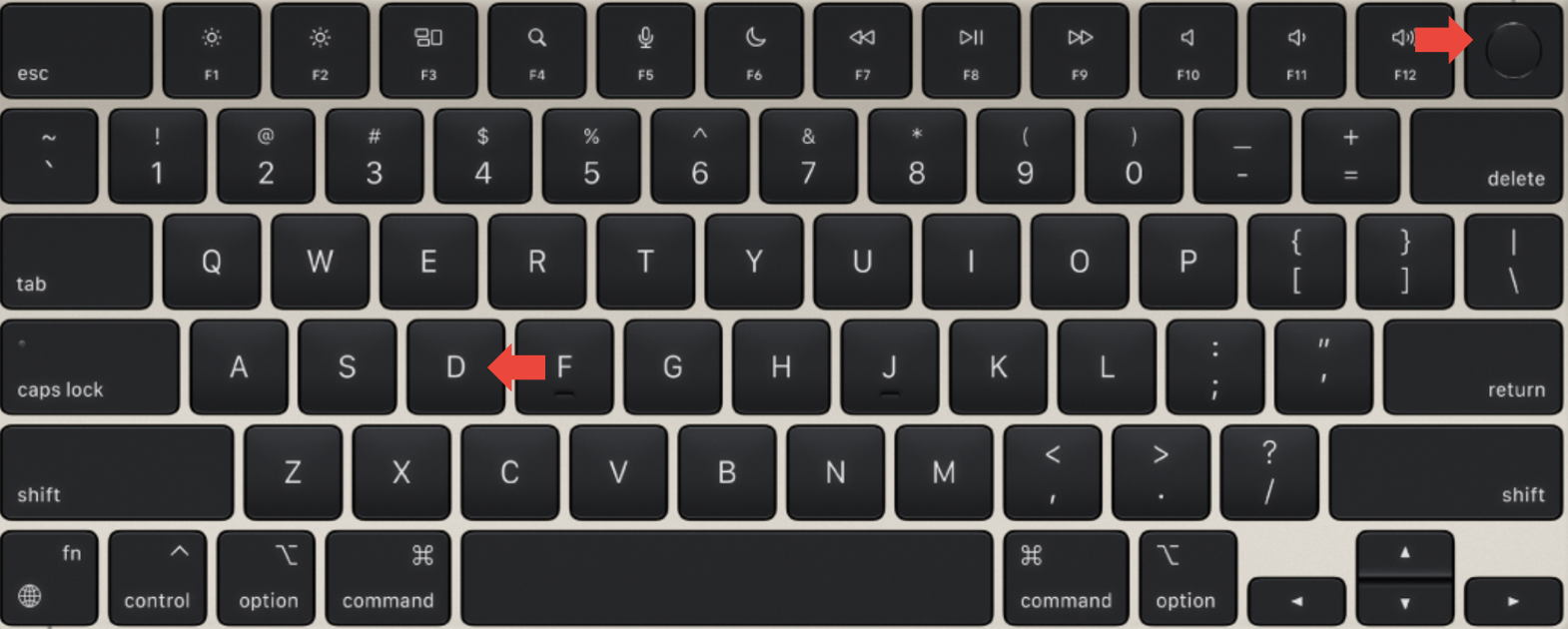
Shut down Mac but turn it back on immediately while holding: D (Intel Mac) or TouchID (Apple Air or Pro Silicon models).
Release the keys when the tool icon appears.
Turn off Mac but power it back on holding D for Intel or TouchID for Silicon Macs for the tool icon
6. Check external disk
Is your Mac not recognizng external hard drives? In this case, we encourage you to check your external disk using the Disk Utility application. It’ll scan and repair any issues prompting the Apple socd report detected ap watchdog expired error.
Here’s how to check an external disk with Disk Utility:
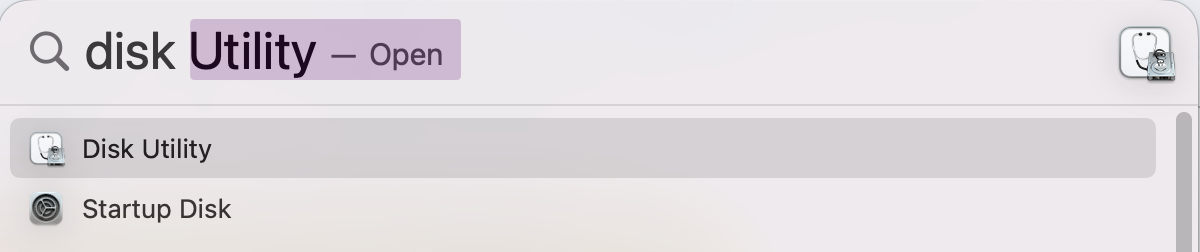
Open Disk Utility.
Select your plugged-in external disk.
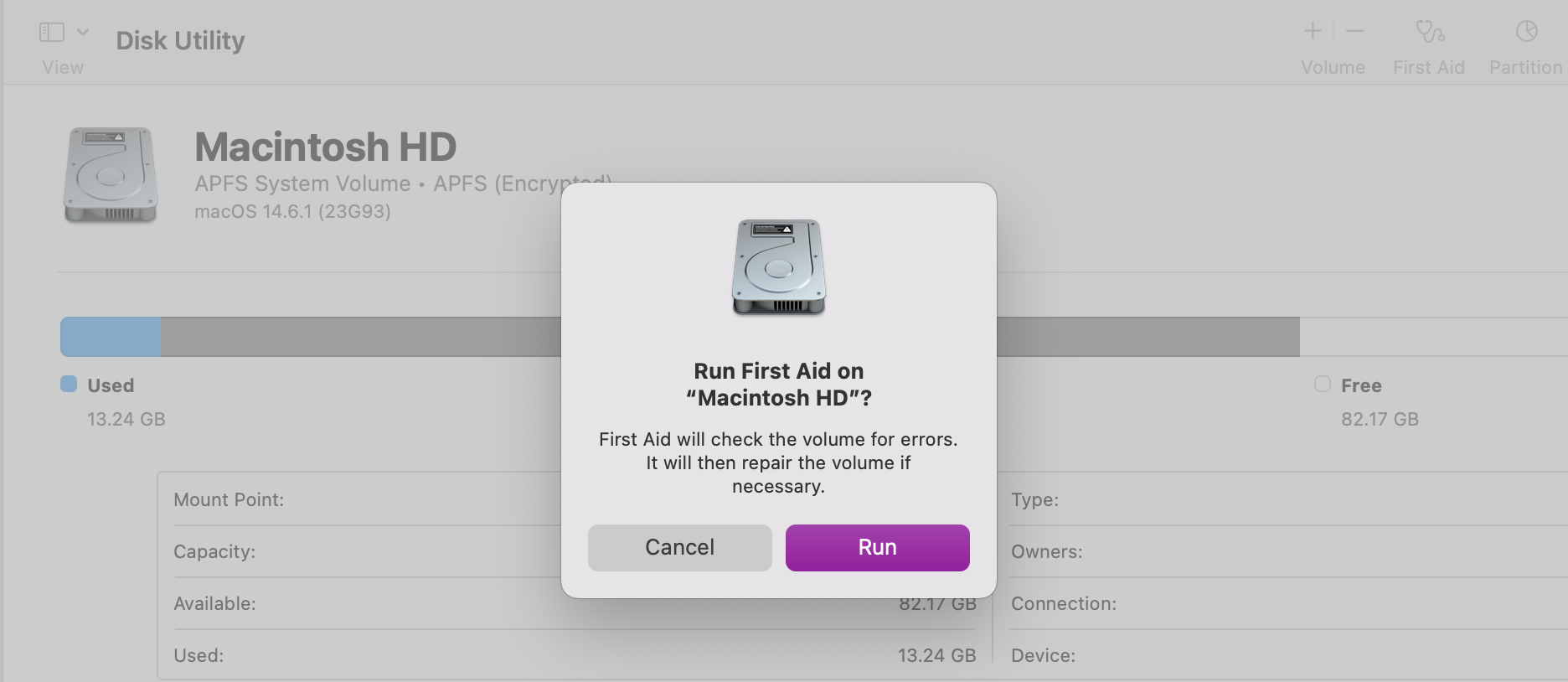
Click on First Aid.
Press Run to start the repair.
Step 1. Open Disk UtilityStep 2. After selecting your external drive from the left, click on First Aid > Run
7. Reset SMC/PRAM
Are you still seeing the apple socd report detected ap watchdog expired error? In that case, we recommend you reset PRAM on Mac to initiate a system reset if your device is Intel.
Here’s how we advise resetting SMC/PRAM:
Reset PRAM:
Shut down Mac.
Turn back on by holding Option + Command + P + R for 20 seconds.
Shut down your Mac, and turn it back on, holding Option + Command + P + R for 20 seconds
Reset SMC:
Shut down Mac.
Hold Shift + Control + Option and the Power button for 10 seconds.
Shut down Mac, and turn it back on, holding Shift + Control + Option and Power button for 10 seconds
8. Reinstall macOS
Another fix we recommend is to reinstall macOS–especially if none of our other troubleshooting methods above seem to have resolved your system errors or glitches associated with the pesky Mac SOCD report detected: (ap watchdog expired) error. The problem might be further embedded into your device and require a full OS reinstallation, but this should only be considered as a last resort.
Here’s how to reinstall macOS:
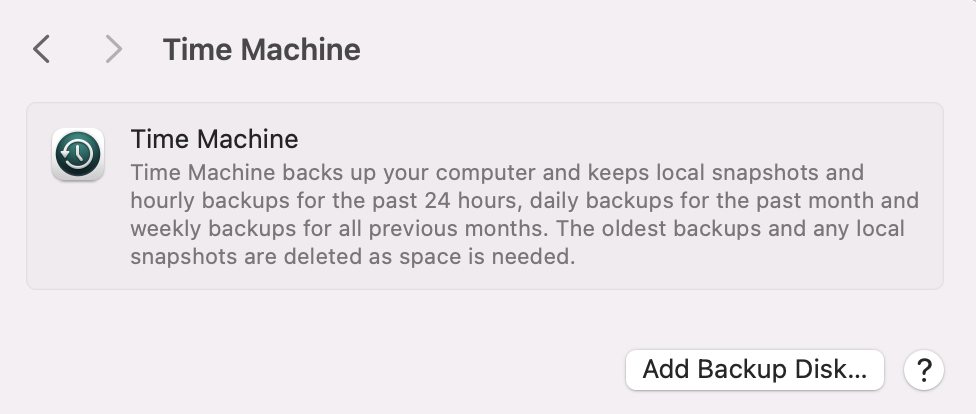
Back up your data in Time Machine.
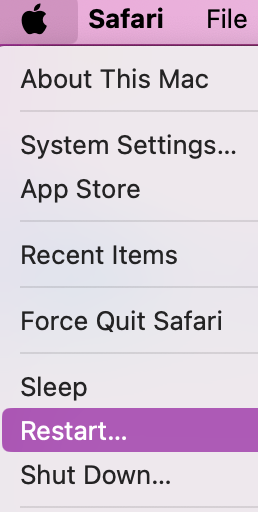
Restart Mac.
For Apple Silicon Macs, press and hold the Power button until you see the startup screen. Then click on Options > Continue.
For Intel Macs, press and hold Command + R until you see the Apple logo.
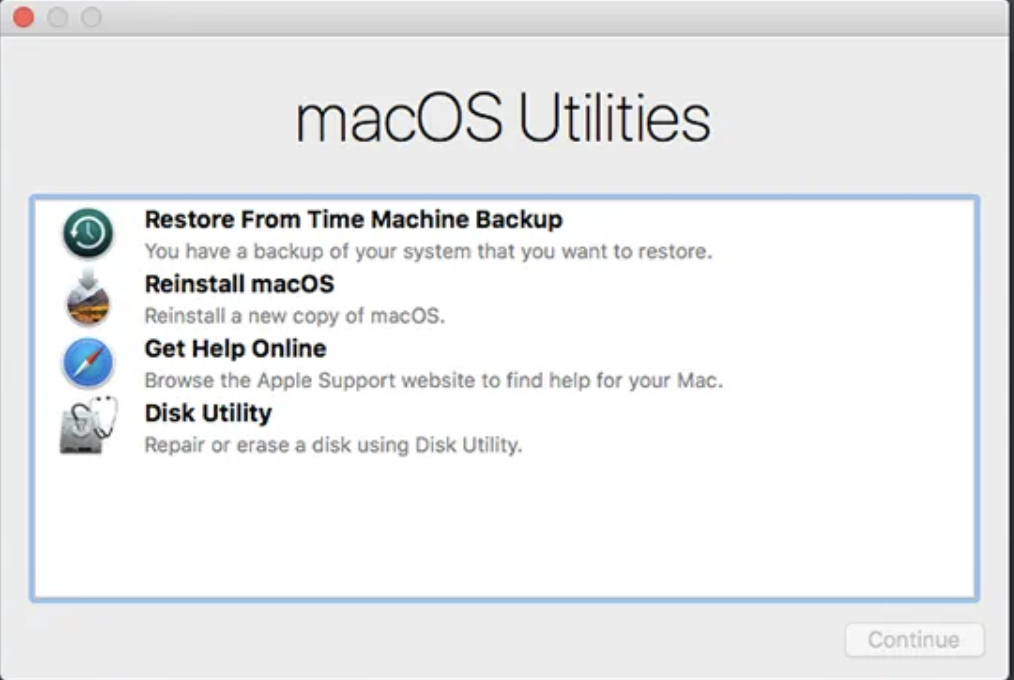
Select Reinstall macOS from the Utilities window, click Continue, and follow the on-screen instructions.
Step 1. Backup your data in Time MachineStep 2. Restart MacStep 3. Open the macOS Utilities window, select Reinstall macOS, and click Continue
9. Seek professional help
In the unfortunate event that our advice hasn’t helped to fix the SOCD report detected (AP watchdog expired) error on Mac, it may indicate a deeper issue. We recommend contacting Apple Support or reaching out to our Apple experts via MacKeeper’s Premium Servicesonline chat. Sometimes, faulty hardware components may need replacing in order to resolve this problem.
Fixing SOCD Report Detected (AP Watchdog Expired)
Just in case you’ve fixed this pesky error but want to make sure you’re ready should it return, just remember that checking your hardware for faults, USB connections, and software updates is the best way to stay on top of this. In the unlikely event that the SOCD Report Detected (AP Watchdog Expired) error does pop up again, retry all the steps we outlined in this guide, and your device should be back to its usual, stable performance in no time.
Don’t want to do all the hard work by yourself? That’s okay, as getting to the bottom of system glitches, especially on Mac devices, can be a long and tiresome task. So why not let MacKeeper’s Premium Services come to your rescue? Open up a new chat, and explain what’s going wrong with your device. We’ll get you connected to one of our trusted Apple experts, who’ll take the time to listen and advise based on the problems you describe. Our experts will soon have your Mac back to its usual, stable performance in no time.
We respect your privacy and
use cookies
for the best site experience.
Privacy Preferences Center
We use cookies along with other tools to give you the best possible experience while using the
MacKeeper website. Cookies are small text files that help the website load faster. The cookies we
use don’t contain any type of personal data meaning they never store information such as your
location, email address, or IP address.
Help us improve how you interact with our website by accepting the use of cookies. You can change
your privacy settings whenever you like.
Manage consent
All cookies
These cookies are strictly necessary for enabling basic website functionality (including page
navigation, form submission, language detection, post commenting), downloading and purchasing
software. The website might malfunction without these cookies.
1.jpg)