Does Chrome keep crashing on Mac and quitting before you can finish a single task? Browser instability, corrupted data, heavy extensions, resource overload, or macOS compatibility can all be behind it. MacKeeper’s Premium Services support you on your way to finding the reason for your Chrome misbehavior and help you sort it out quickly with professional support.
When Chrome closes immediately after opening, or Google Chrome shuts down randomly mid-task, the cause is usually something small that has built up over time. Sometimes it quits the instant you click the icon; other times it shuts down without warning. Knowing what to look for makes the fix far less stressful, and we’d say that most issues fall into a handful of familiar categories, such as:
Corrupted cache files—damaged temporary data can make Chrome quit unexpectedly on your Mac, sometimes closing itself instantly
Problematic extensions—outdated or conflicting add-ons are a frequent trigger for quitting on launch
Outdated Chrome or macOS — mismatched versions can clash and cause instability
Hardware acceleration—GPU rendering glitches can freeze or crash the browser
Profile corruption—a damaged user profile can make Chrome crash on launch every time
Insufficient memory—too many open tabs and apps starve Chrome of resources
Malware interference—unwanted software can disrupt how Chrome behaves
A note from our experts:
In our experience, Chrome doesn’t crash outright but stalls instead—Google Chrome freezes on the Mac screen rather than a full shutdown. This happens across hardware on both MacBook Air and MacBook Pro, and the underlying causes often overlap with a Google Chrome frozen browser, so the same fixes tend to apply. Nevertheless, we know how hard it is to quickly find the right solution to the problem, and we’d gladly support you through the troubleshooting process within MacKeeper’s Premium Services.
To get professional help with solving your Mac-related issue, do the following:
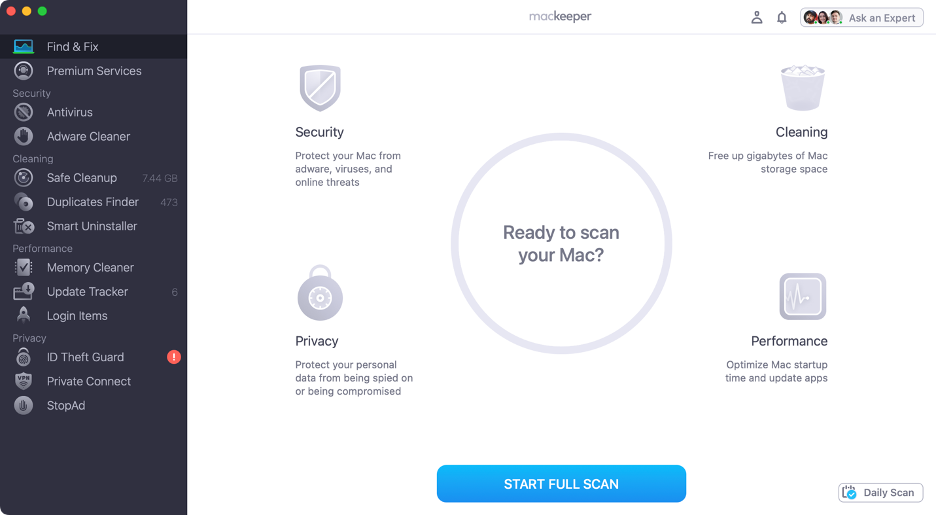
After downloading and installing the app, open MacKeeper on your computer.
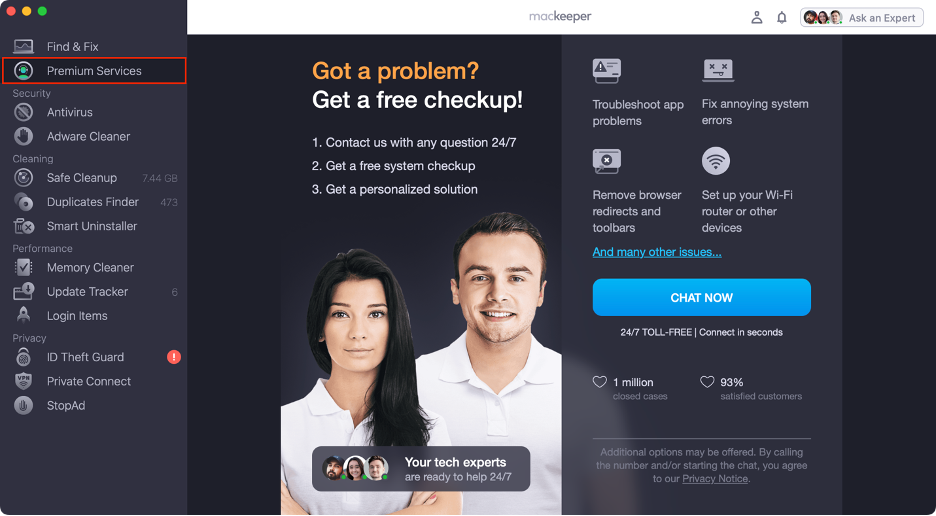
Choose Premium Services in the app’s list of features and tools.
Press the Chat Now button to contact our support team member.
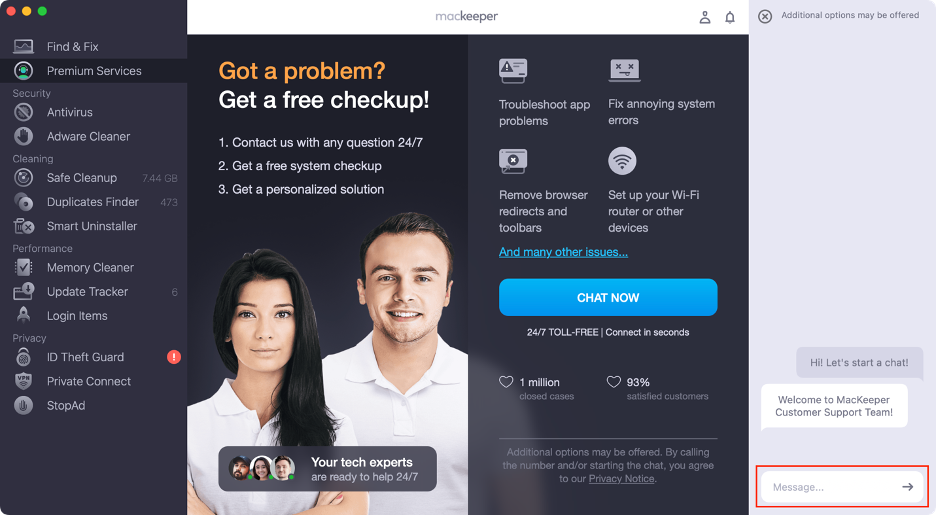
Explain your concern and get the expert hints on solving the problem.
Step 1. Open MacKeeper Step 2. Choose Premium Services Step 3. Click Chat NowStep 4. Type in your message
How to fix Chrome crashing on Mac?
Most fixes for Chrome not working on Mac focus on four areas: browser data cleanup, extension conflicts, system compatibility, and profile issues. Start with the simplest steps, and work your way down only as far as you need to. There’s no need to try everything at once.
1. Force quit Chrome and restart your Mac
A quick restart often clears temporary browser or memory glitches before you try anything deeper. Now force quit Chrome and then restart, following these steps:
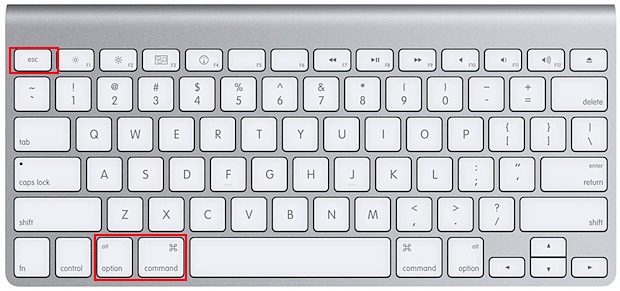
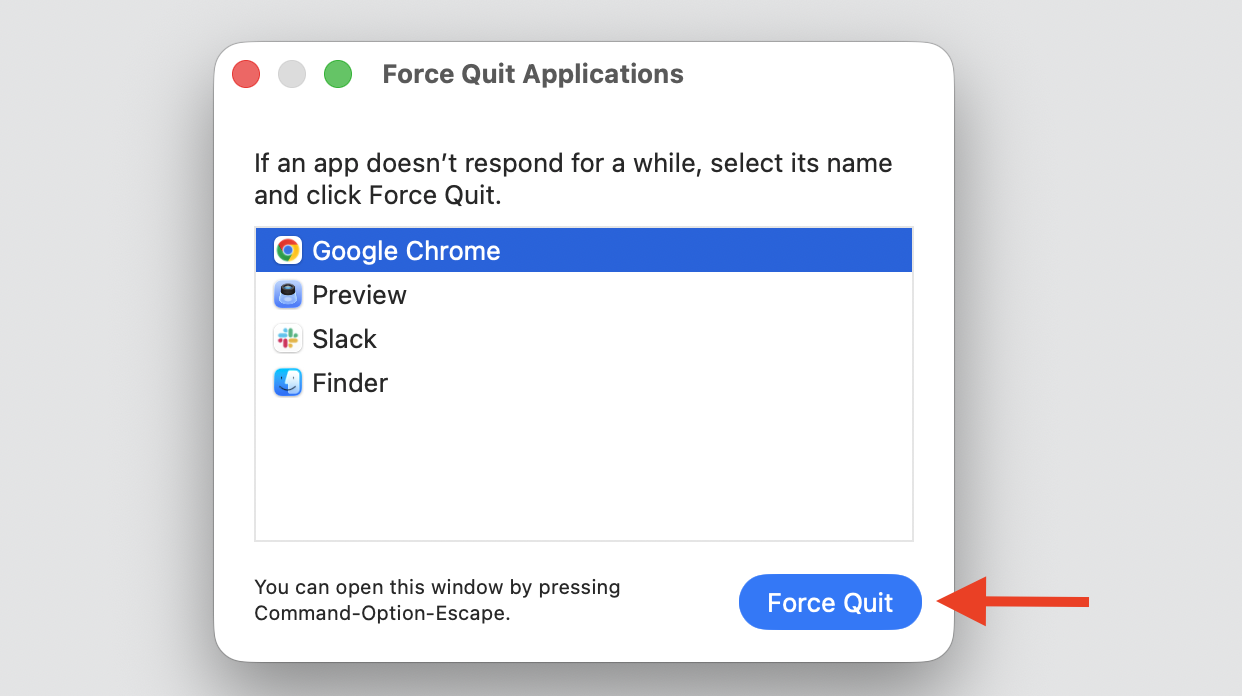
Press Option + Command + Esc to open the Force Quit window.
Select Google Chrome from the list, then click Force Quit.
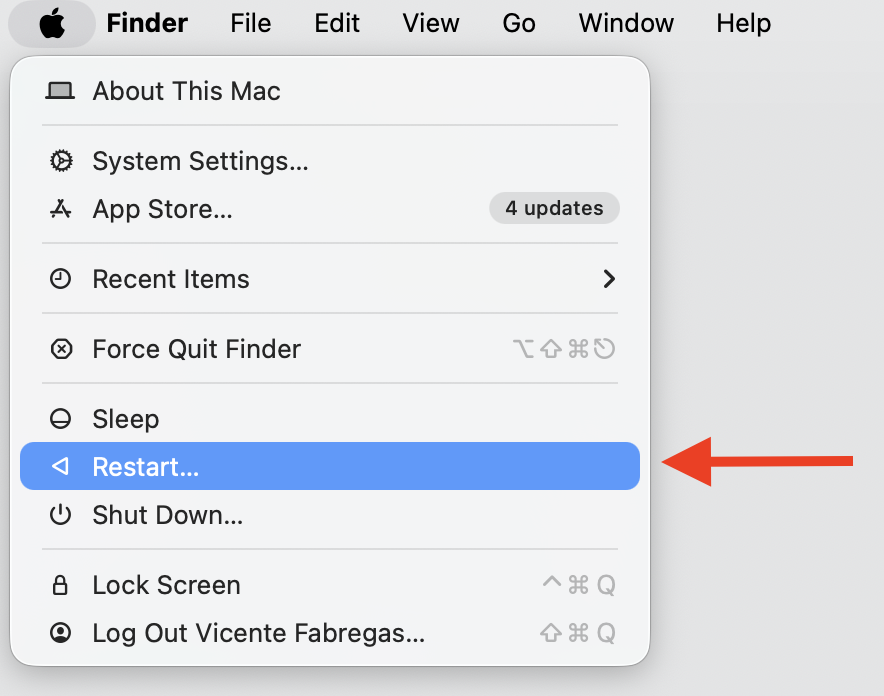
Open the Apple menu and choose Restart.
Reopen Chrome and check whether it stays stable.
Step 1. Press Option + Command + EscStep 2. Select Google Chrome, then choose Force QuitStep 3. Restart your Mac from the Apple menuStep 4. Reopen Google Chrome
2. Update Google Chrome
Newer Chrome versions often patch known crashing bugs and macOS compatibility issues, so an update can quietly solve the whole thing. Just follow our instructions below:
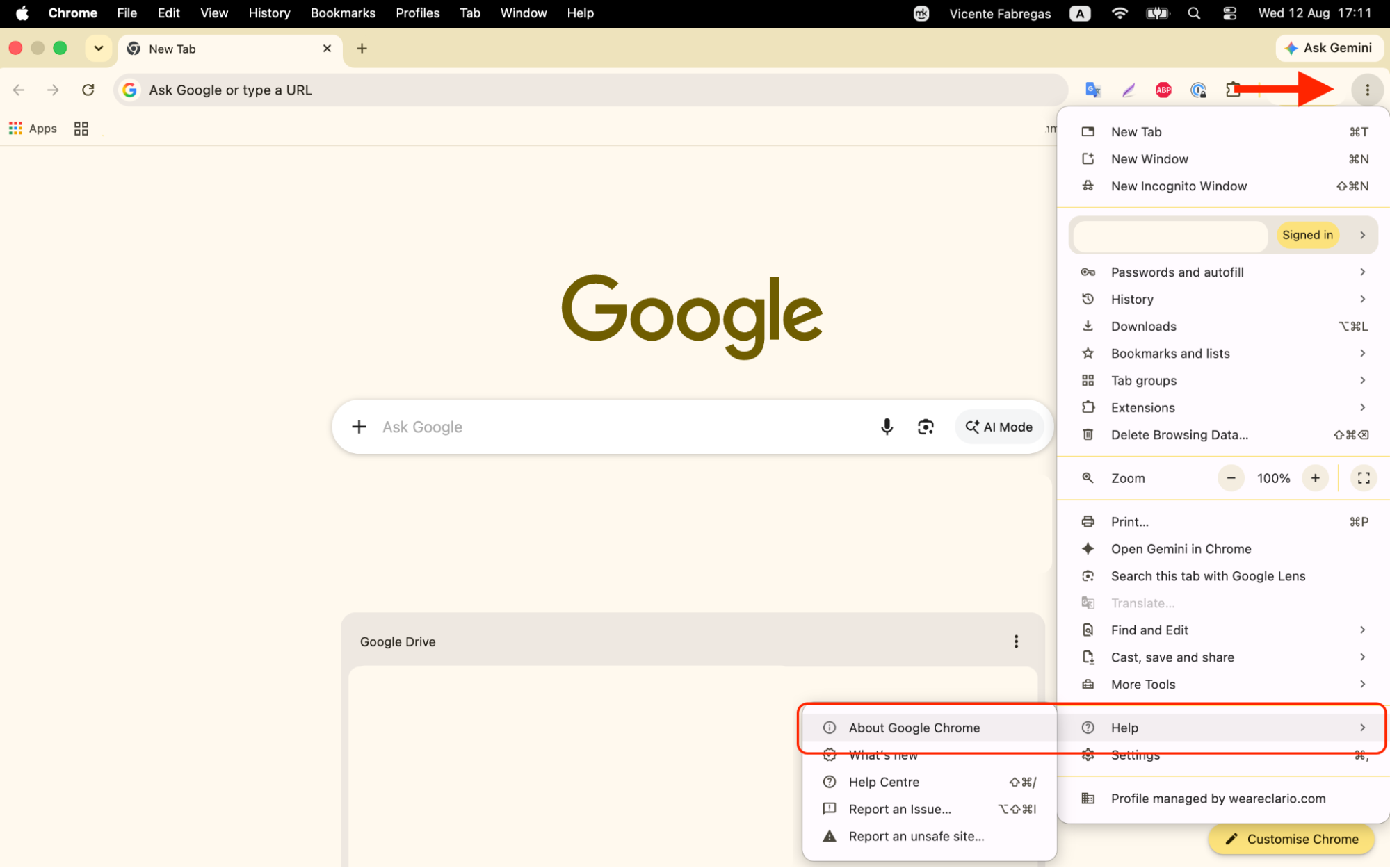
Open Chrome and click the three-dot menu in the top-right corner.
Go to Help > About Google Chrome.
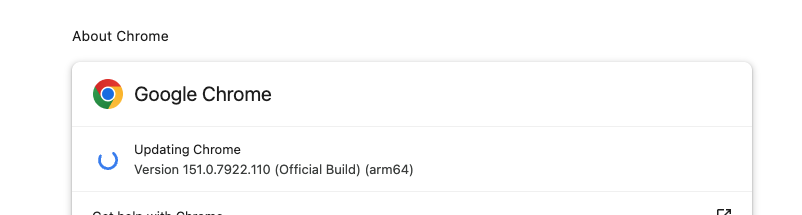
Let Chrome check for and install any available update.
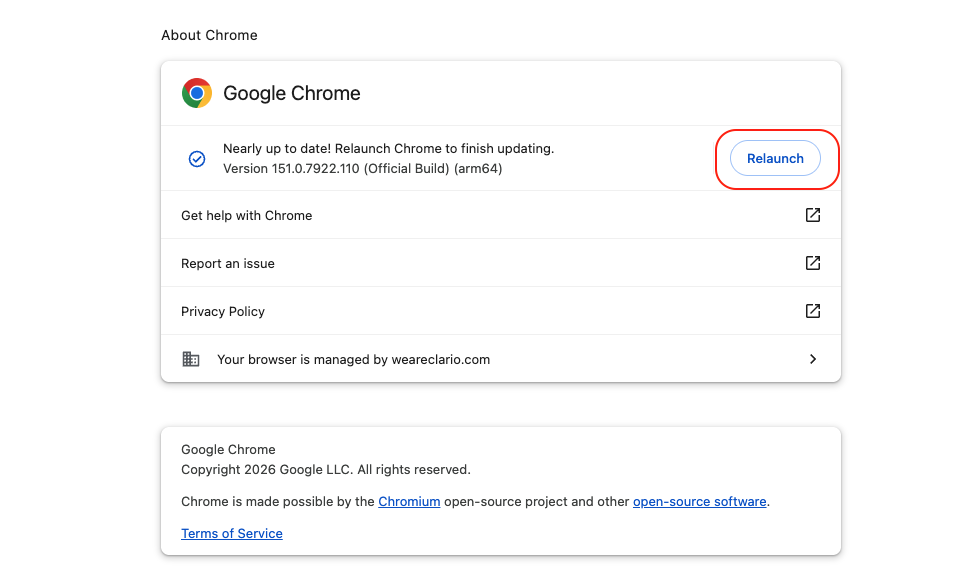
Click Relaunch to apply it.
Step 1. Go to Chrome’s three-dot menu > Help > About Google ChromeStep 2. Allow Chrome to check for updates and install any available updatesStep 3. Relaunch the app once the update is finished
3. Update macOS
An outdated system can clash with newer Chrome releases. If you need to update Mac, here’s the quick way to do it:
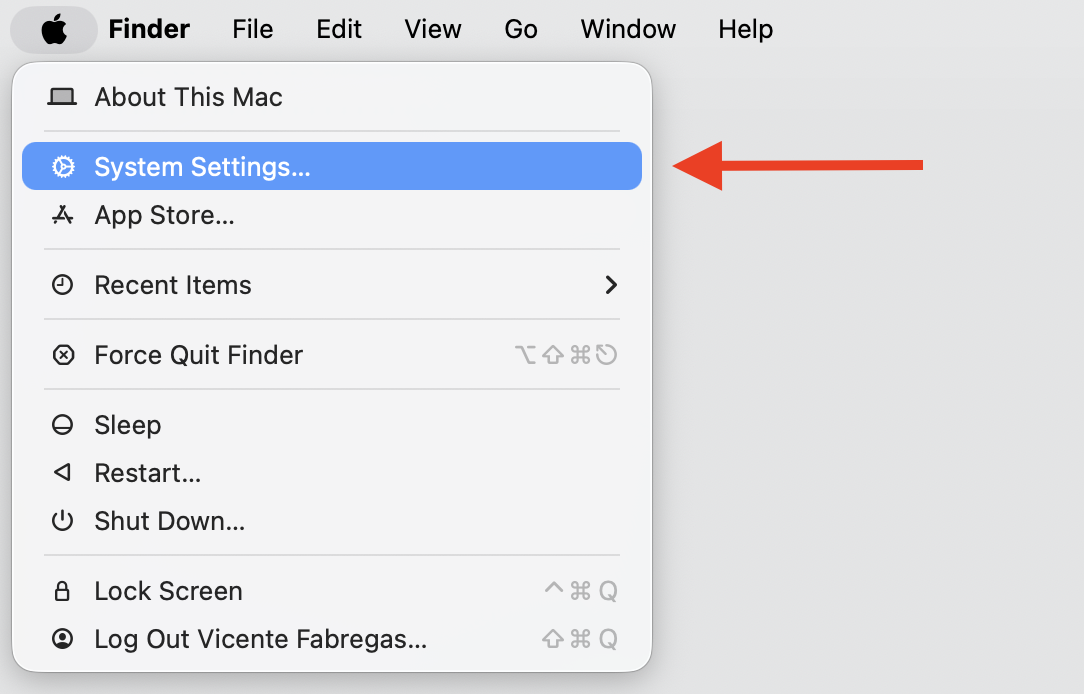
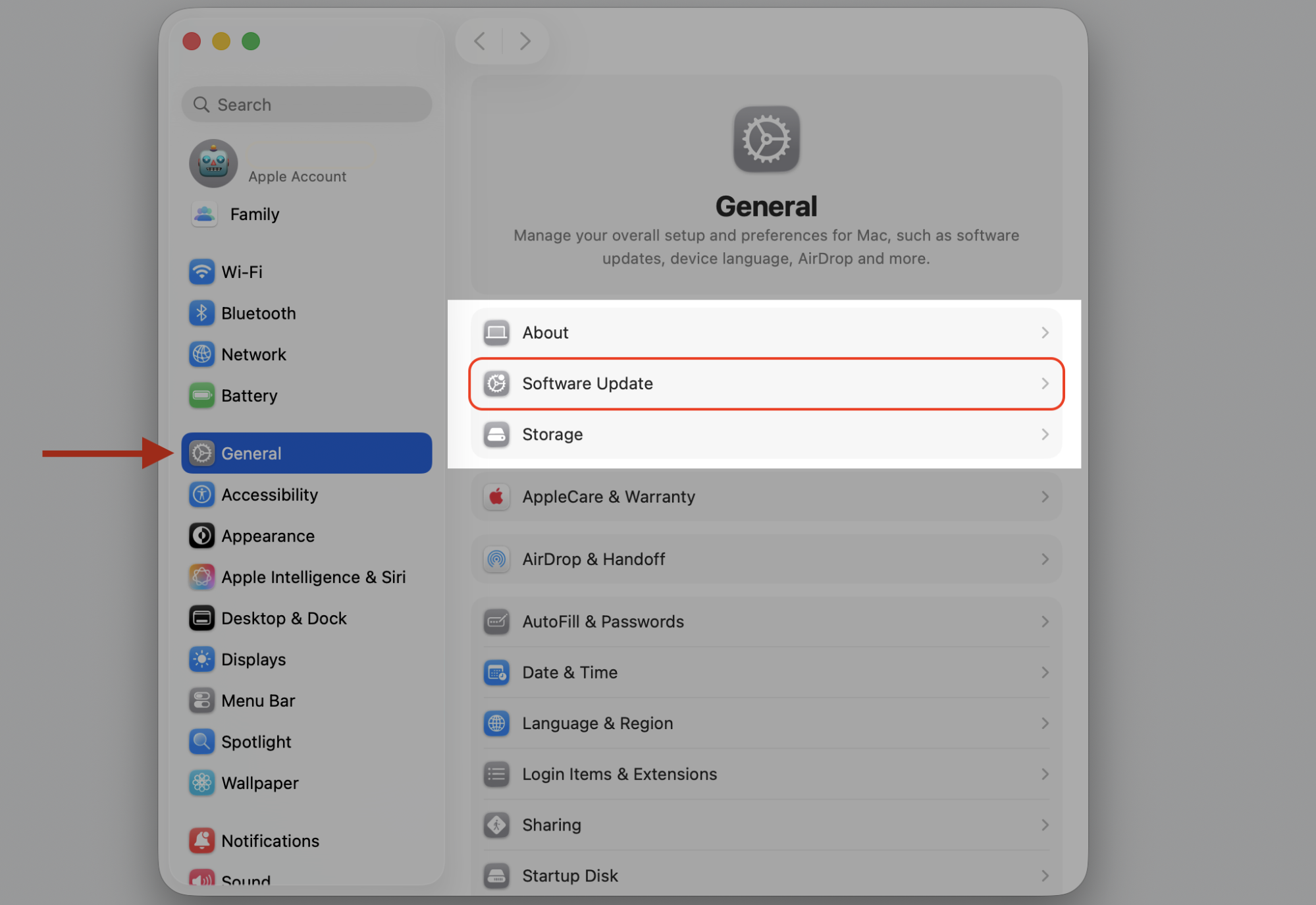
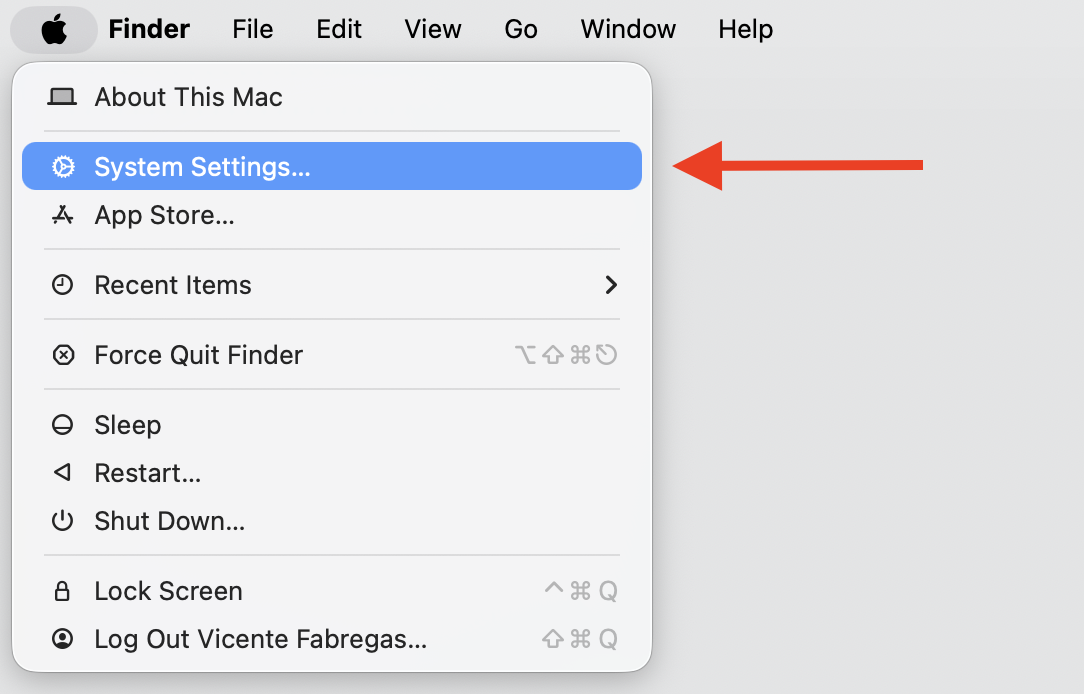
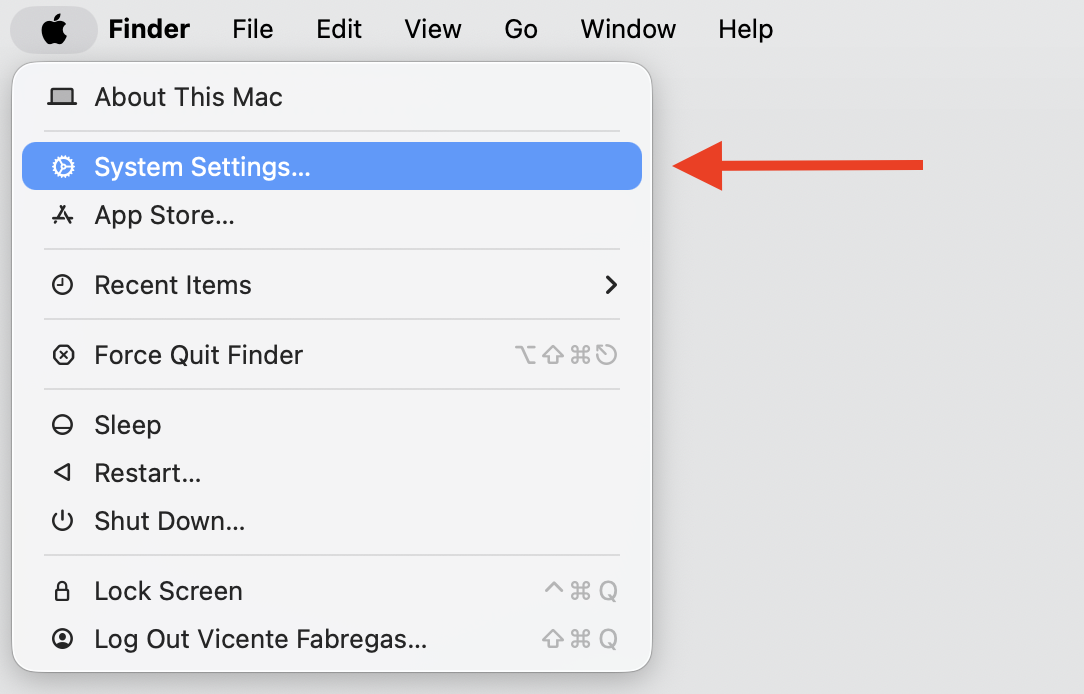
Open the Apple menu and choose System Settings.
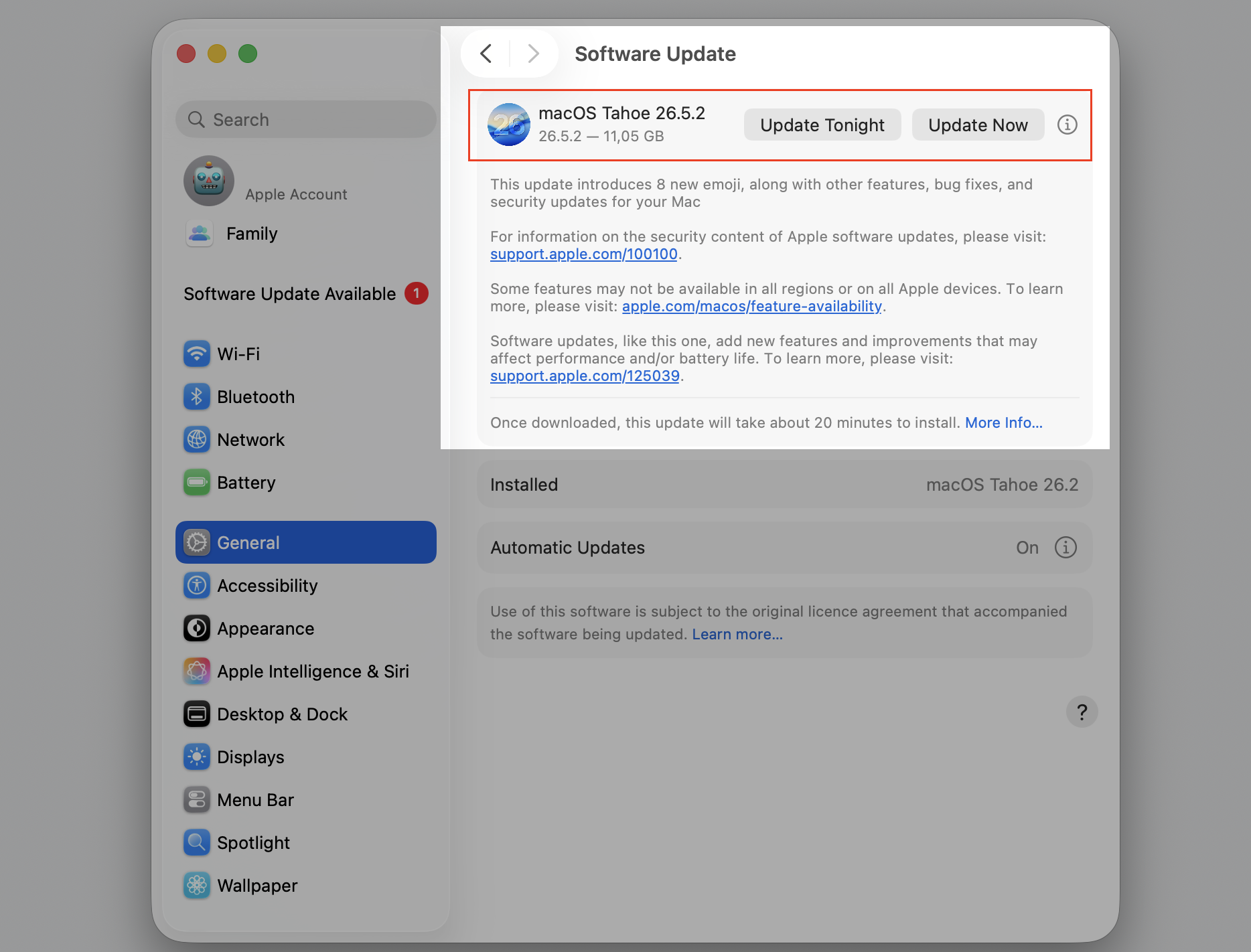
Select General > Software Update.
Click Update Now if an update is available, then follow the prompts.
Step 1. Go to the Apple ogo > System SettingsStep 2. Select Software Update from General sectionStep 3. Select the Update Now option
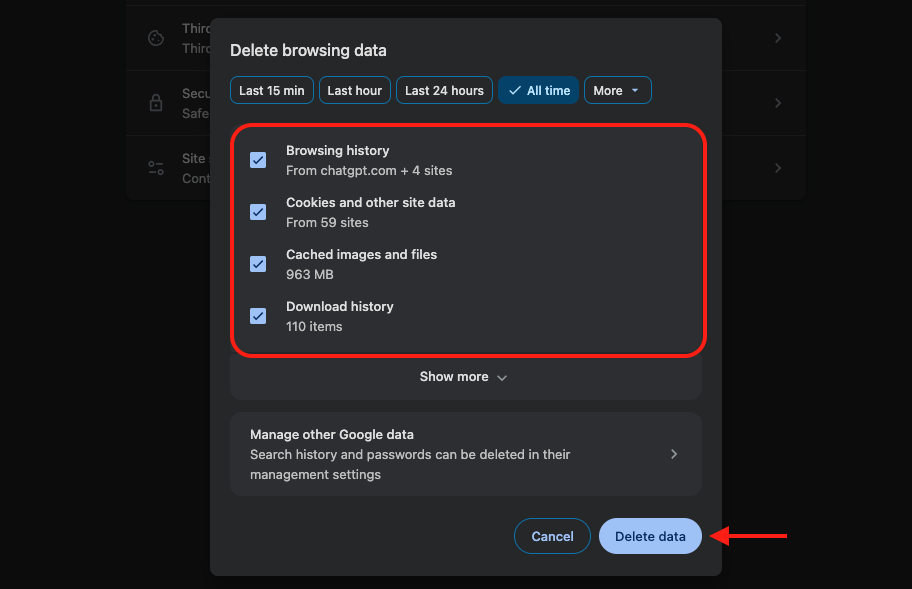
4. Clear Chrome cache and cookies
Corrupted browsing data can make Chrome crash on launch. Learning to clear cache and cookies on Mac gives Chrome a clean slate to work from, so follow our hints:
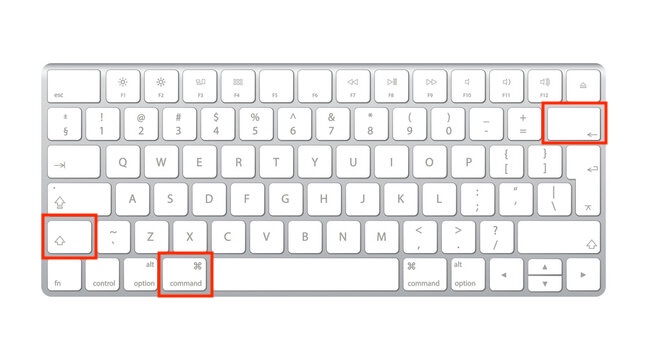
Open a new tab in Google Chrome browser and press Shift + Command + Delete.
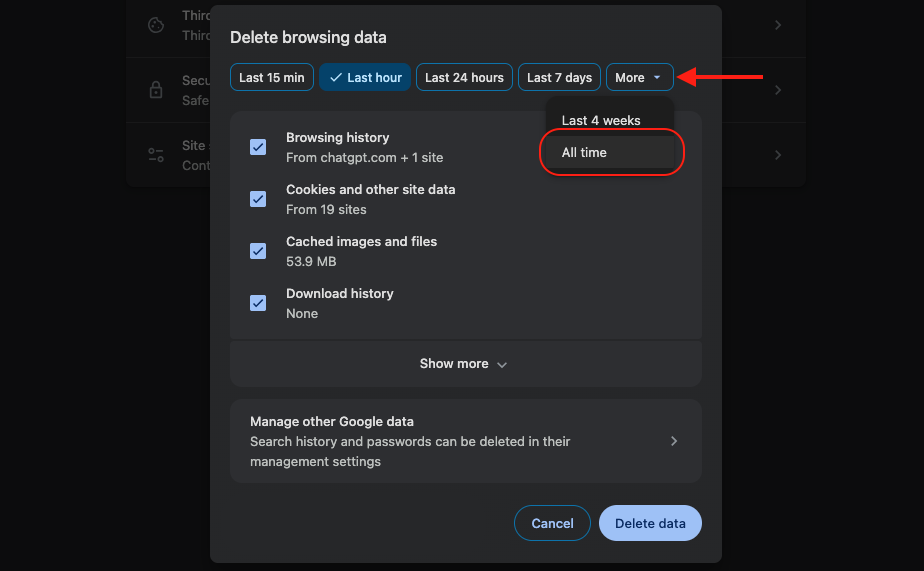
Set the time range to All time.
Select Cached images and files, Cookies, and other site data.
Click Clear data and restart Chrome.
Step 1. After opening the new tab, press Shift + Command + Delete Step 2. Set the time range to All timeStep 3. Select the relevant categories, then click Delete data
5. Disable or remove problematic extensions
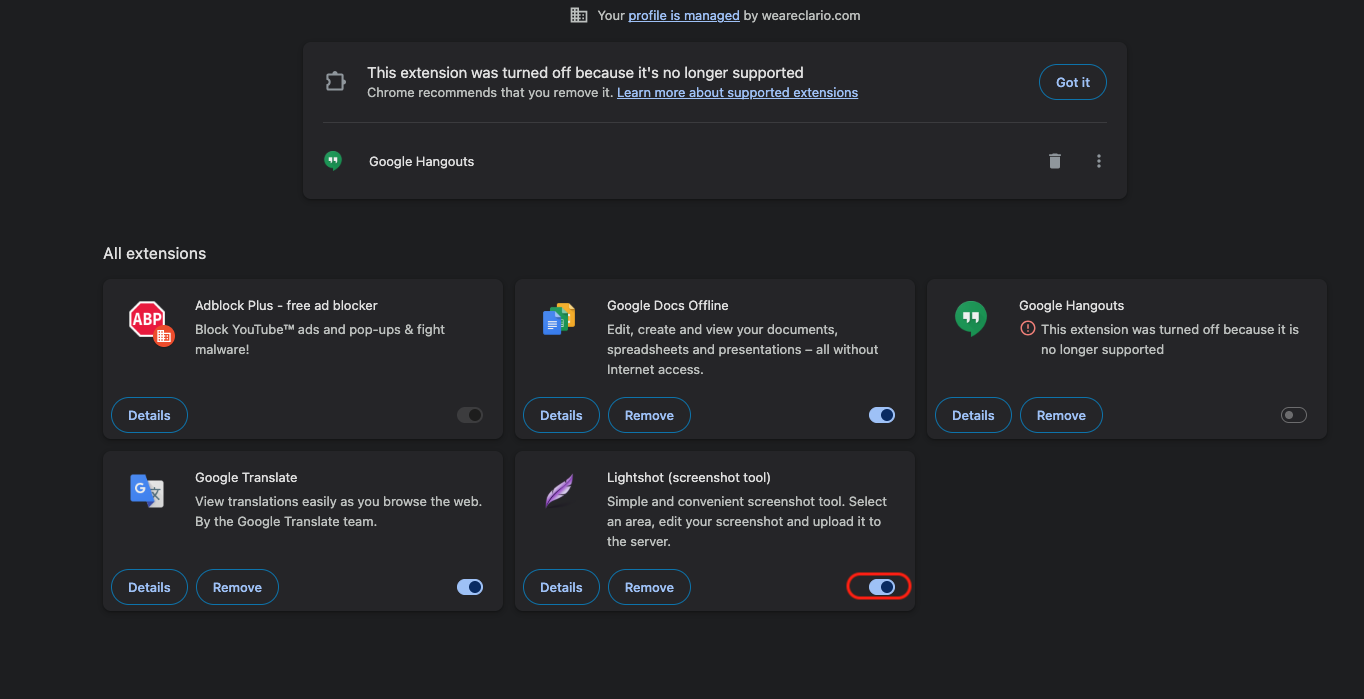
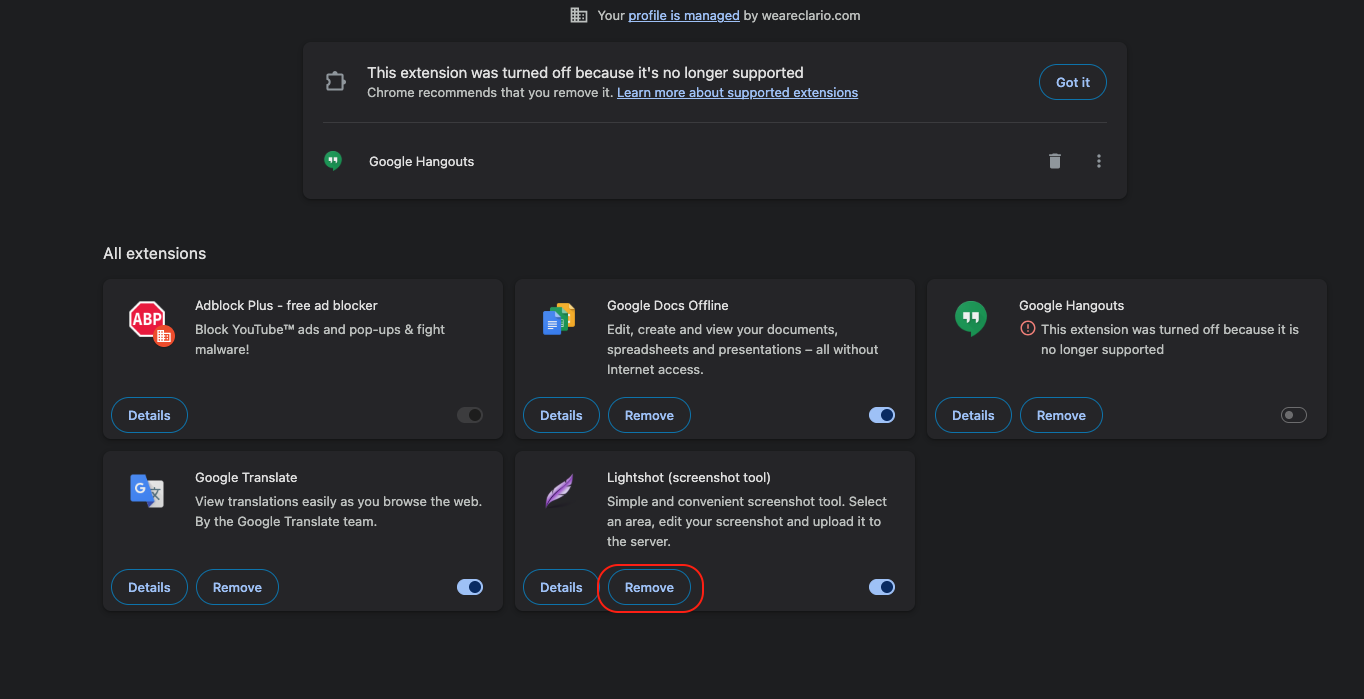
Outdated or conflicting add-ons are one of the most common reasons Chrome quits unexpectedly. You can disable them one by one or delete extensions on Mac items you no longer use—just delete extension entries that you don’t recognize. Here’s how:
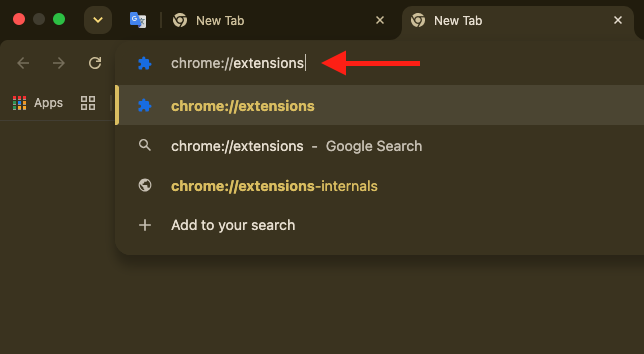
Type chrome://extensions in the address bar and press Return.
Toggle off each extension to disable it, then test Chrome.
When you find the culprit, click Remove to delete it for good.
Step 1. Type chrome://extensions in the address bar of Google ChromeStep 2. Toggle off each extension to disable itStep 3. Click Remove if it's necessary
6. Reset Chrome settings
If a broken configuration is to blame, restoring Chrome’s defaults can resolve the crashes without losing your bookmarks or saved passwords. Do this:
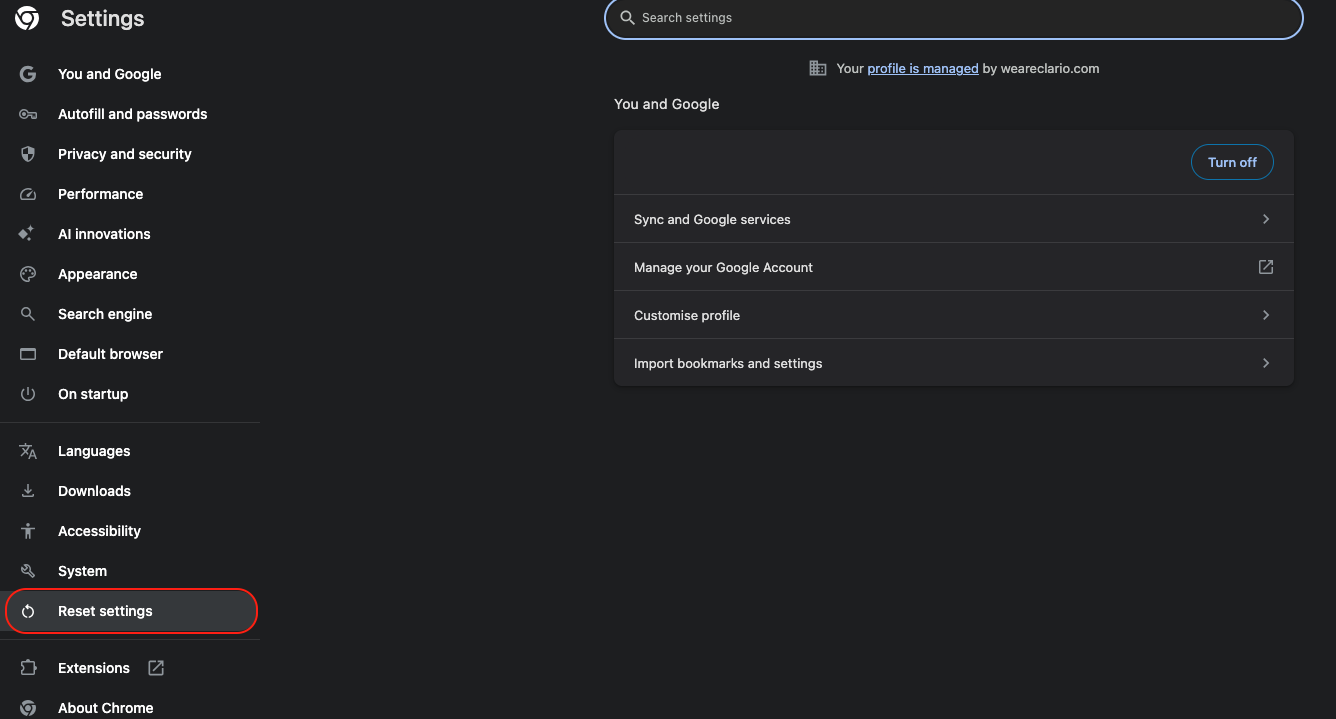
Go to Chrome name next to the Apple logo and choose Settings.
Select Reset settings from the sidebar.
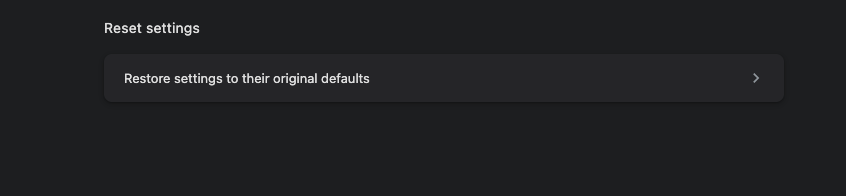
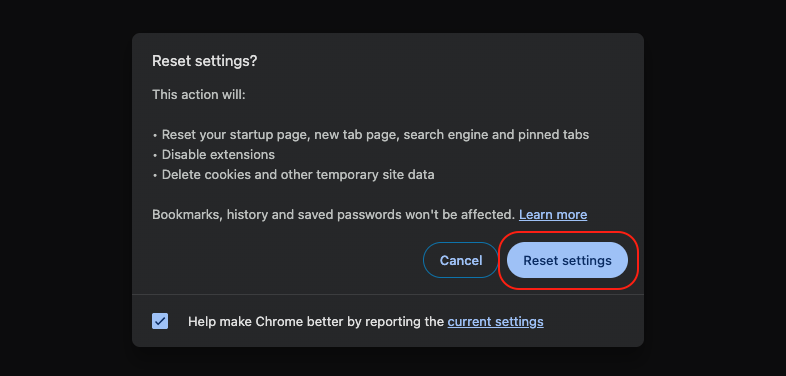
Click Restore settings to their original defaults, then confirm.
Step 1. Go to Chrome name next to the Apple logo and select SettingsStep 2. Select Reset settings from the sidebarStep 3. Click Restore settings to their original defaultsStep 4. Select Reset Settings
7. Disable hardware acceleration
GPU-related rendering can freeze or crash Chrome on some Macs. Turning it off is also a handy way to make Chrome run faster on Mac if the browser feels sluggish—do the following:
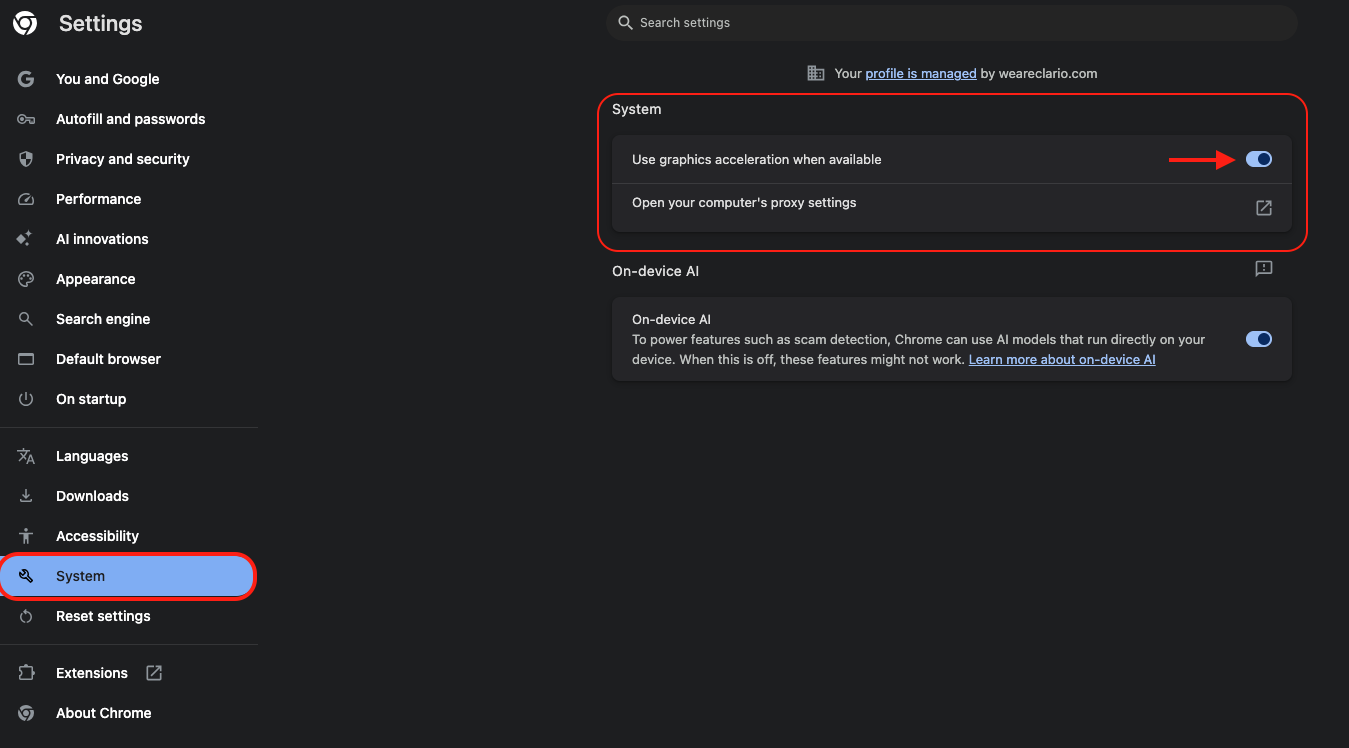
Open Chrome Settings and go to System.
Toggle off Use graphics acceleration when available.
Click Relaunch and see if stability improves.
Step 1. Go to Chrome name next to the Apple logo and select SettingsStep 2. Select System and toggle off Use graphics acceleration when available
8. Create new Chrome profile
A corrupted user profile can trigger repeated crashes and startup problems. A fresh profile gives you a clean environment to test agains, so we suggest you try this:
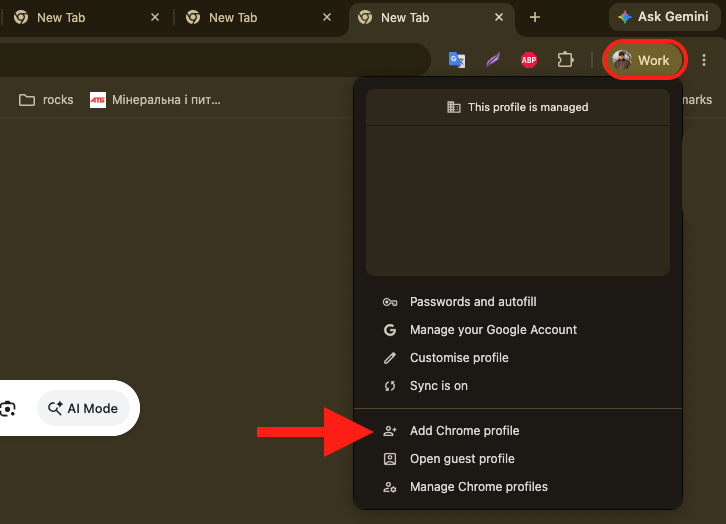
Click your profile icon in the top-right corner of Chrome.
Choose Add Chrome profile to create a new one.
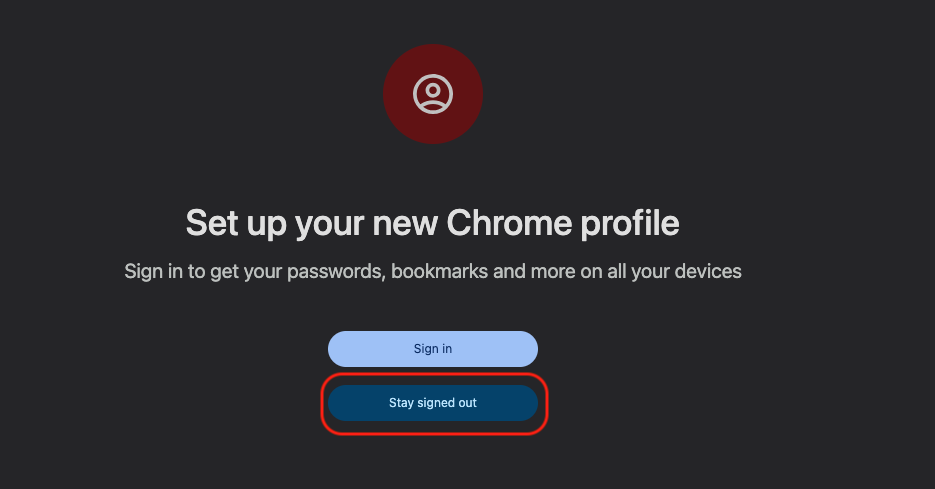
Set it up without signing in, then check whether Chrome runs smoothly.
Step 1. Click your profile icon and choose Add Chrome profileStep 2. Set it up without signing in
9. Remove corrupted Chrome profile data manually
When Chrome crashes immediately after launch, or keeps closing itself before the window even loads, deleting damaged session or profile files can help. From our practice, this method removes the local data folder while leaving Chrome itself in place, so do this:
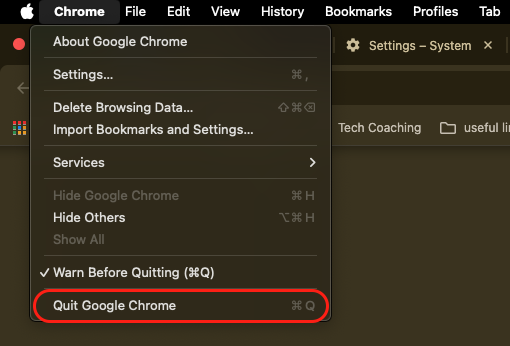
Quit Chrome completely.
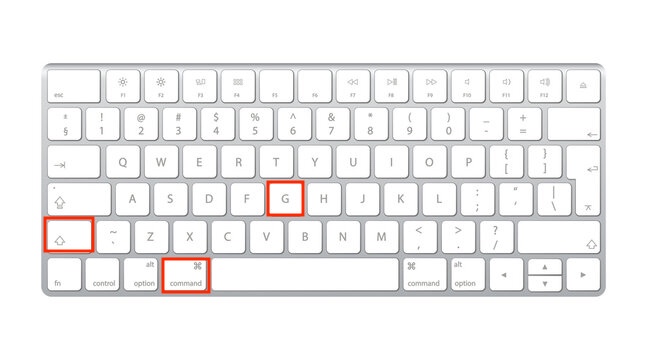
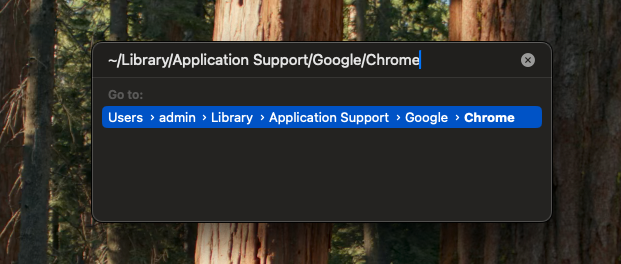
Open Finder, press Shift + Command + G, and enter ~/Library/Application Support/Google/Chrome.
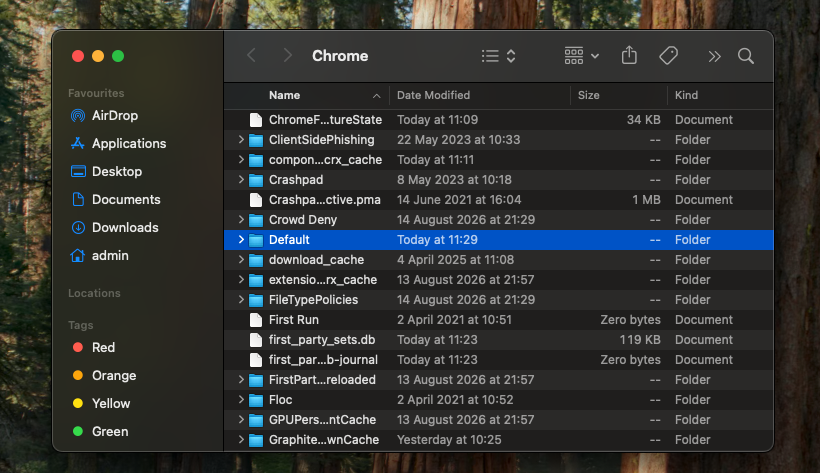
Move the Default folder to a safe backup location, such as your Desktop.
Reopen Chrome, which rebuilds a fresh profile automatically.
Step 1. Press Shift + Command + GStep 2. Type ~/Library/Application Support/Google/Chrome and press EnterStep 3. Move the Default folder to your desktop and reopen Chrome
10. Reinstall Google Chrome
A clean reinstall can clear deeper corruption or installation issues. To uninstall Chrome on Mac the right way, remove the app completely, then download and install a fresh copy. We mean going through these steps here:
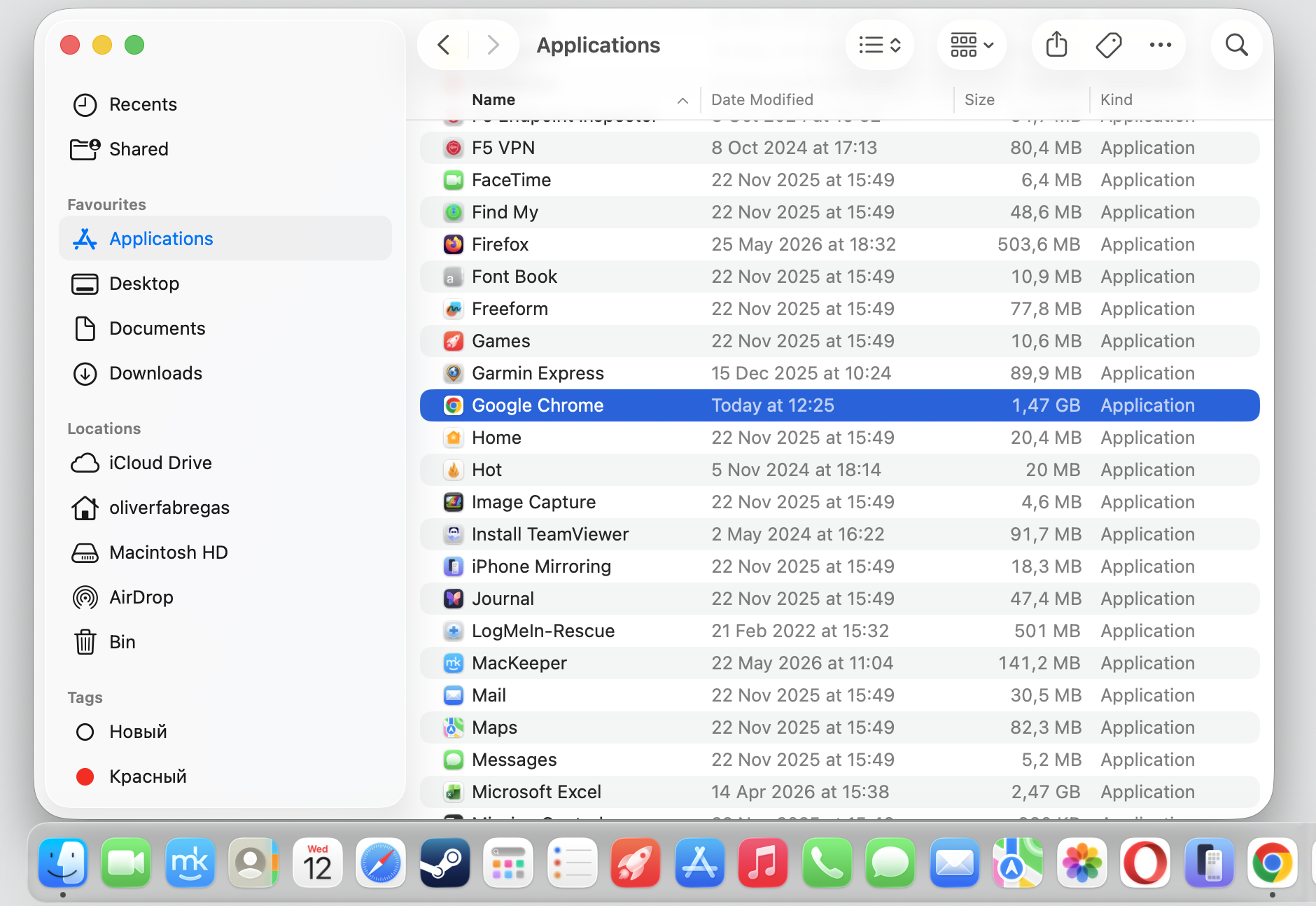
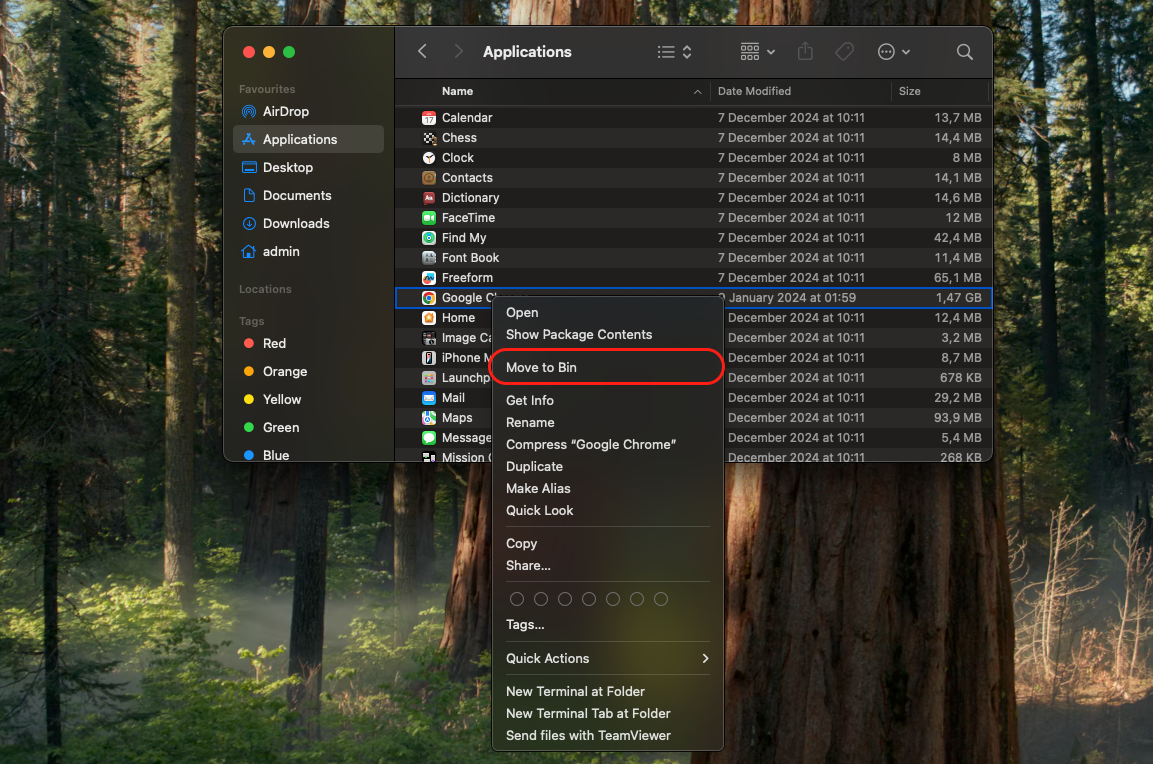
Quit Chrome, open Finder, and go to Applications.
Select Google Chrome from Finder and click Move to Binwith control-click.
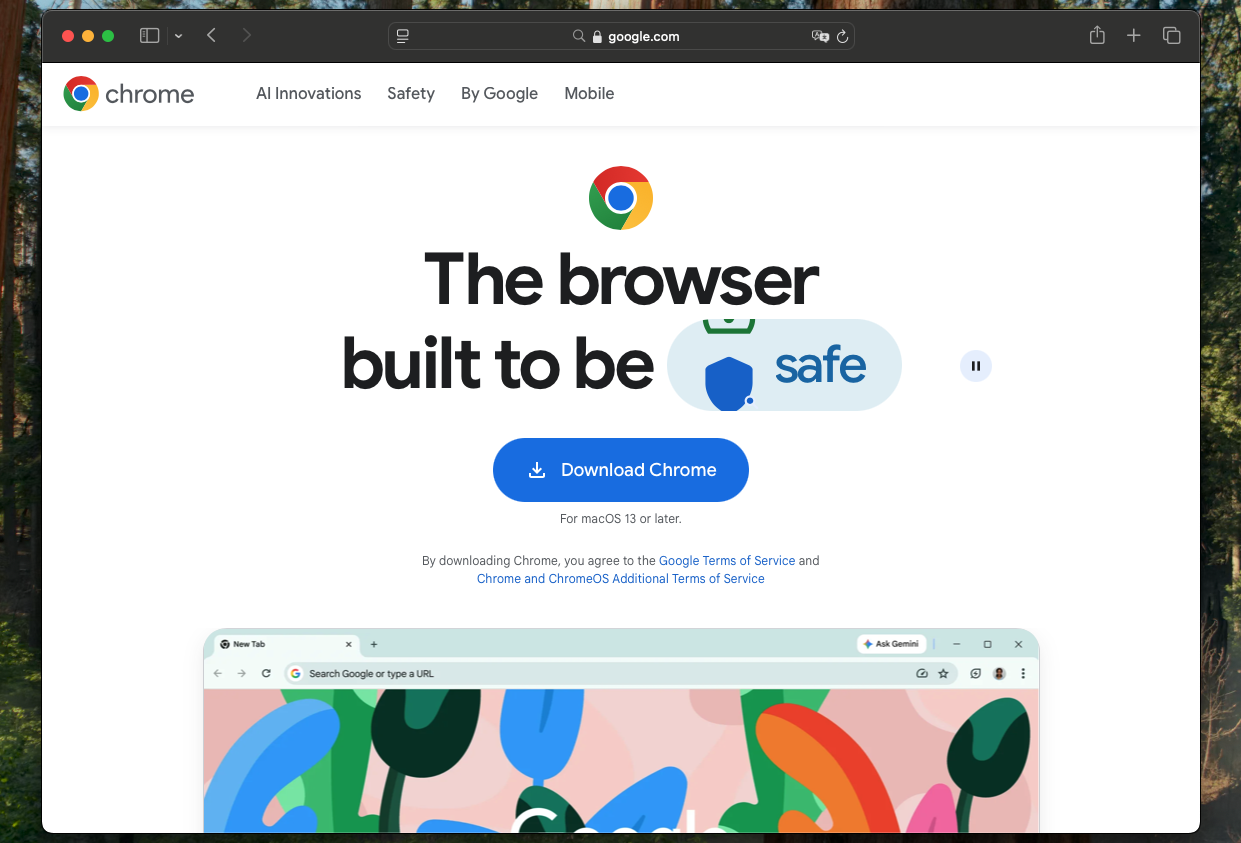
Download the latest installer from Google’s official site.
Open the downloaded file and drag Chrome into Applications.
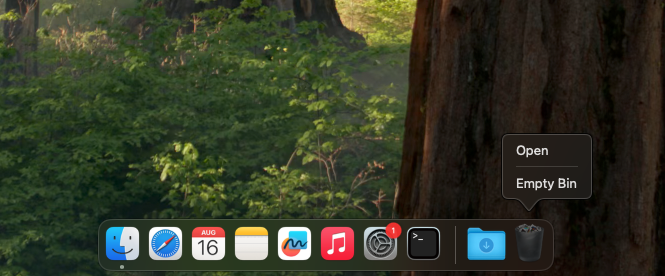
Step 1. Go to Chrome name next to the Apple logo and select Quit Google ChromeStep 2. Select Google Chrome from Finder and click Move to Bin with control-click Step 3. Empty BinStep 4. Open Safari and download a new version of Google Chrome
11. Check your Mac for malware or software conflicts
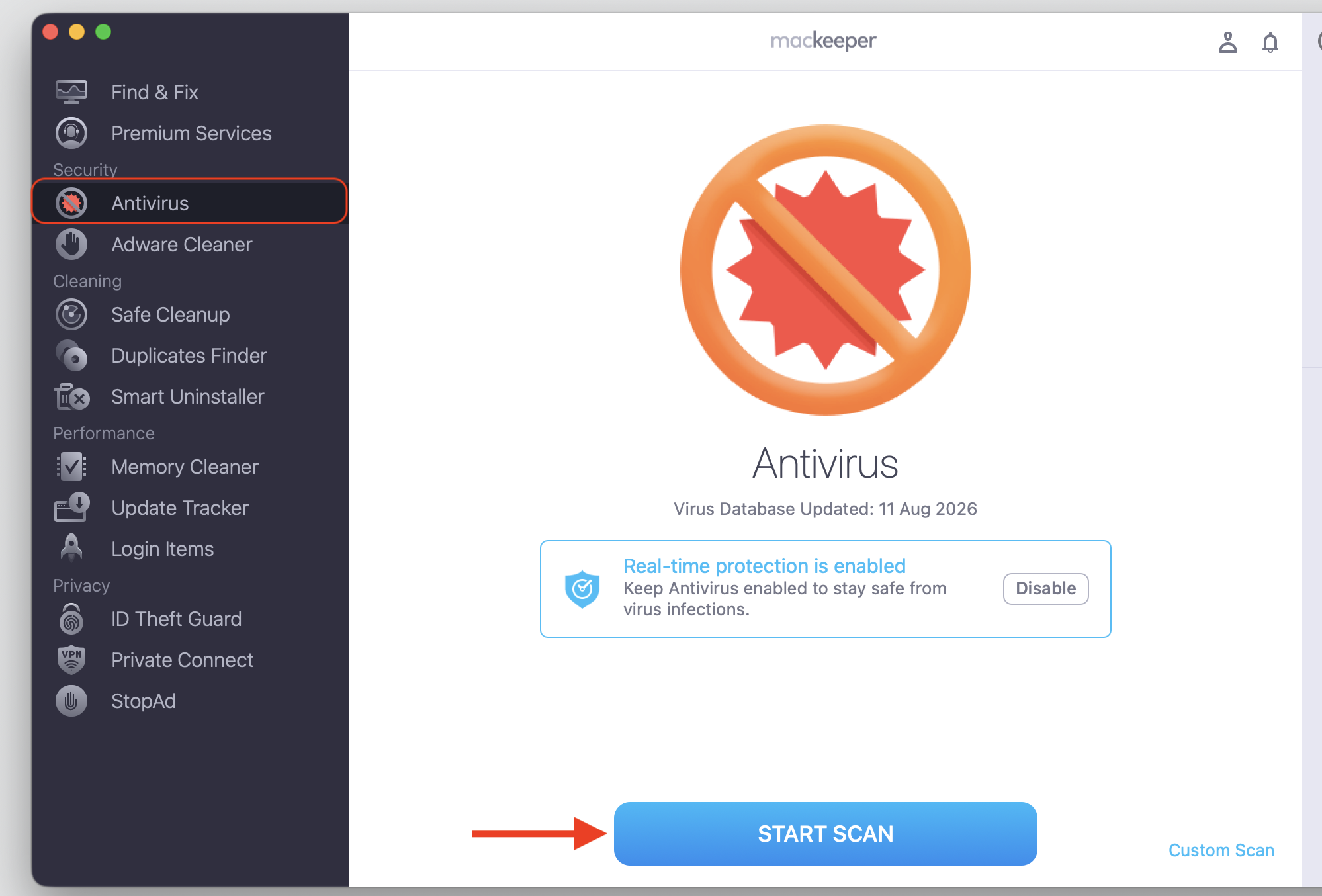
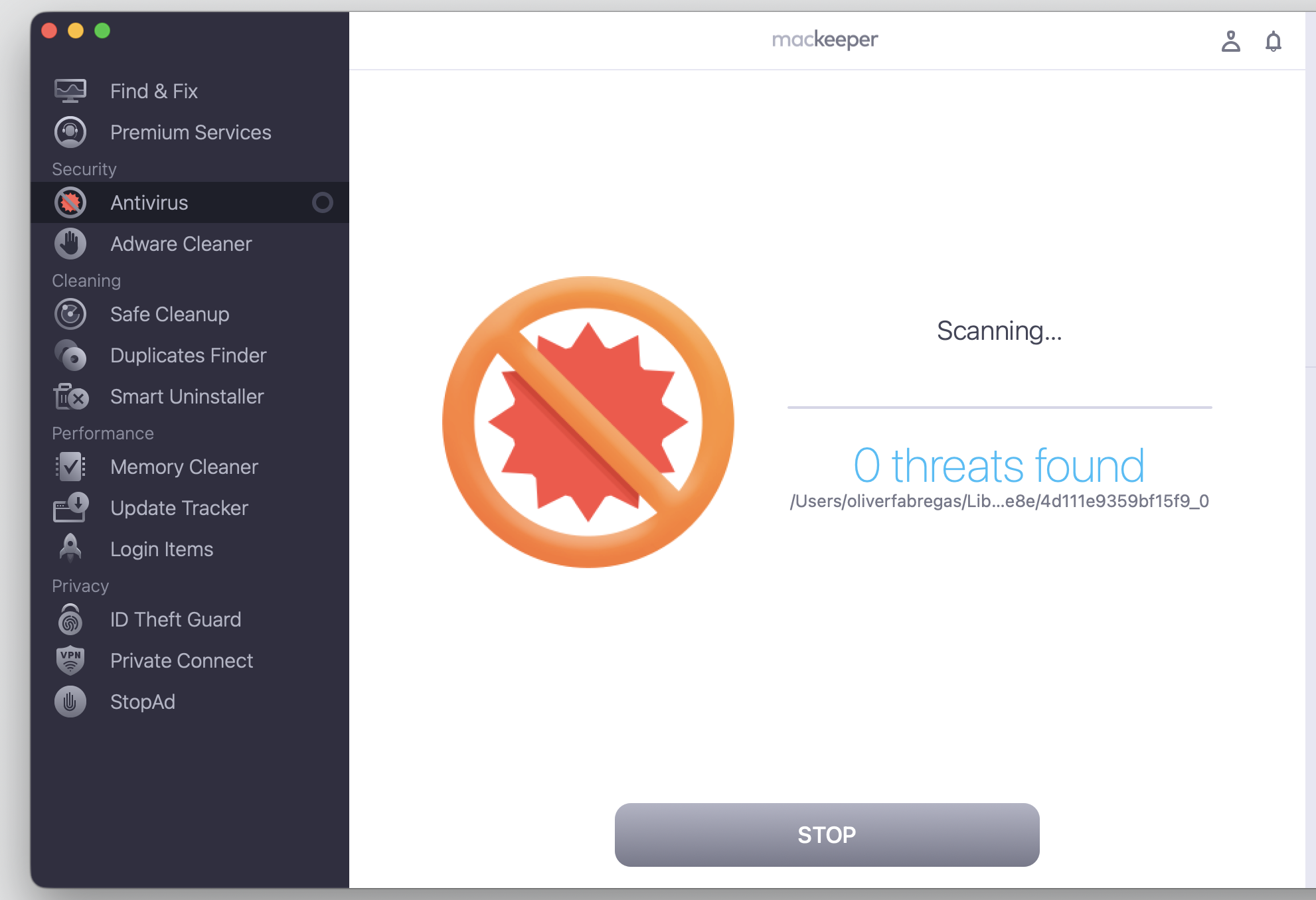
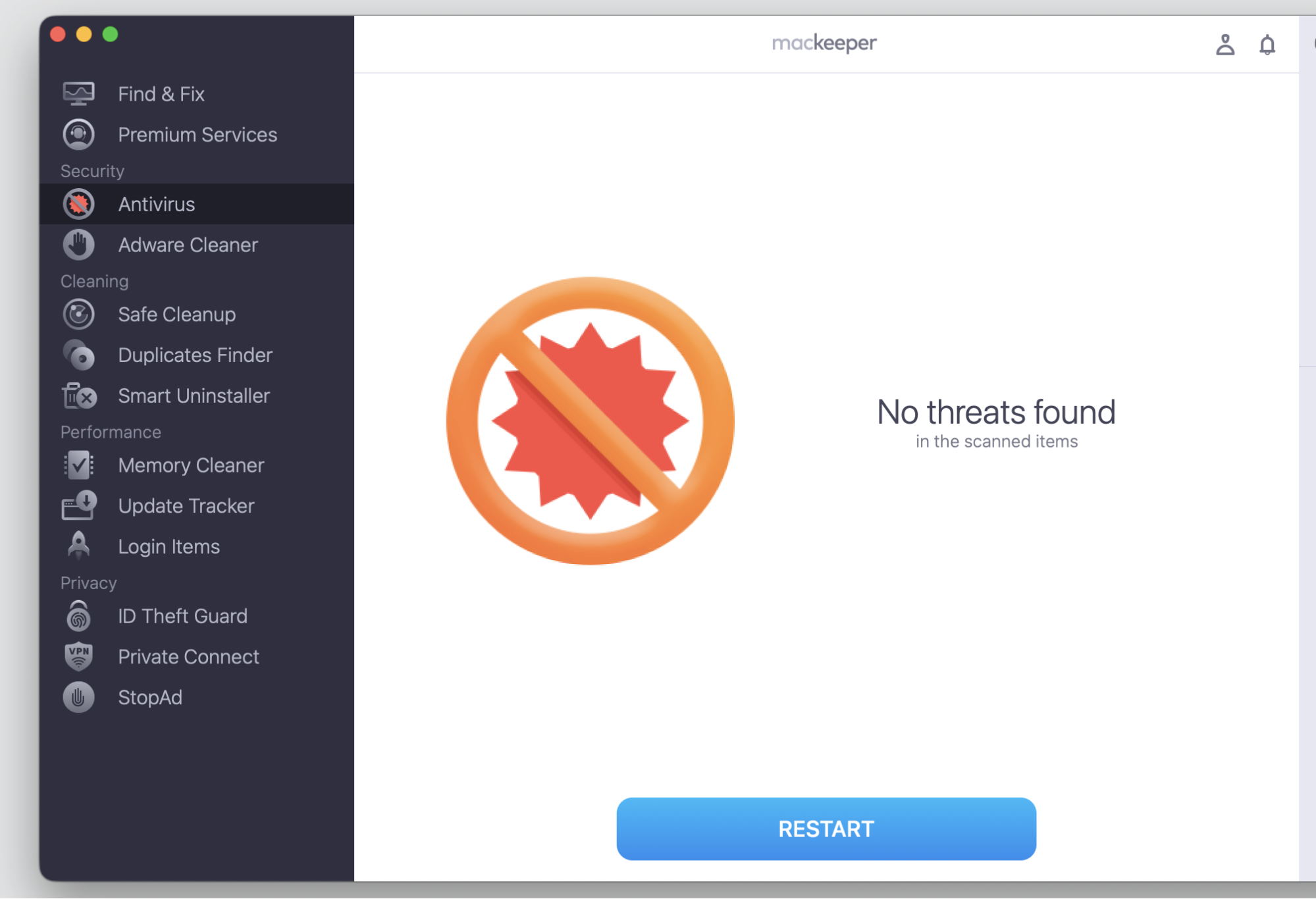
Malicious software, conflicting security tools, or unstable background apps can all interfere with Chrome. A quick scan helps you get rid of Google Chrome virus items and rule out hidden threats:
Step 1. Go to MacKeeper > Antivirus > Start ScanStep 2. Wait until the antivirus app does the scanStep 3. Check the result
12. Reduce memory and CPU pressure on your Mac
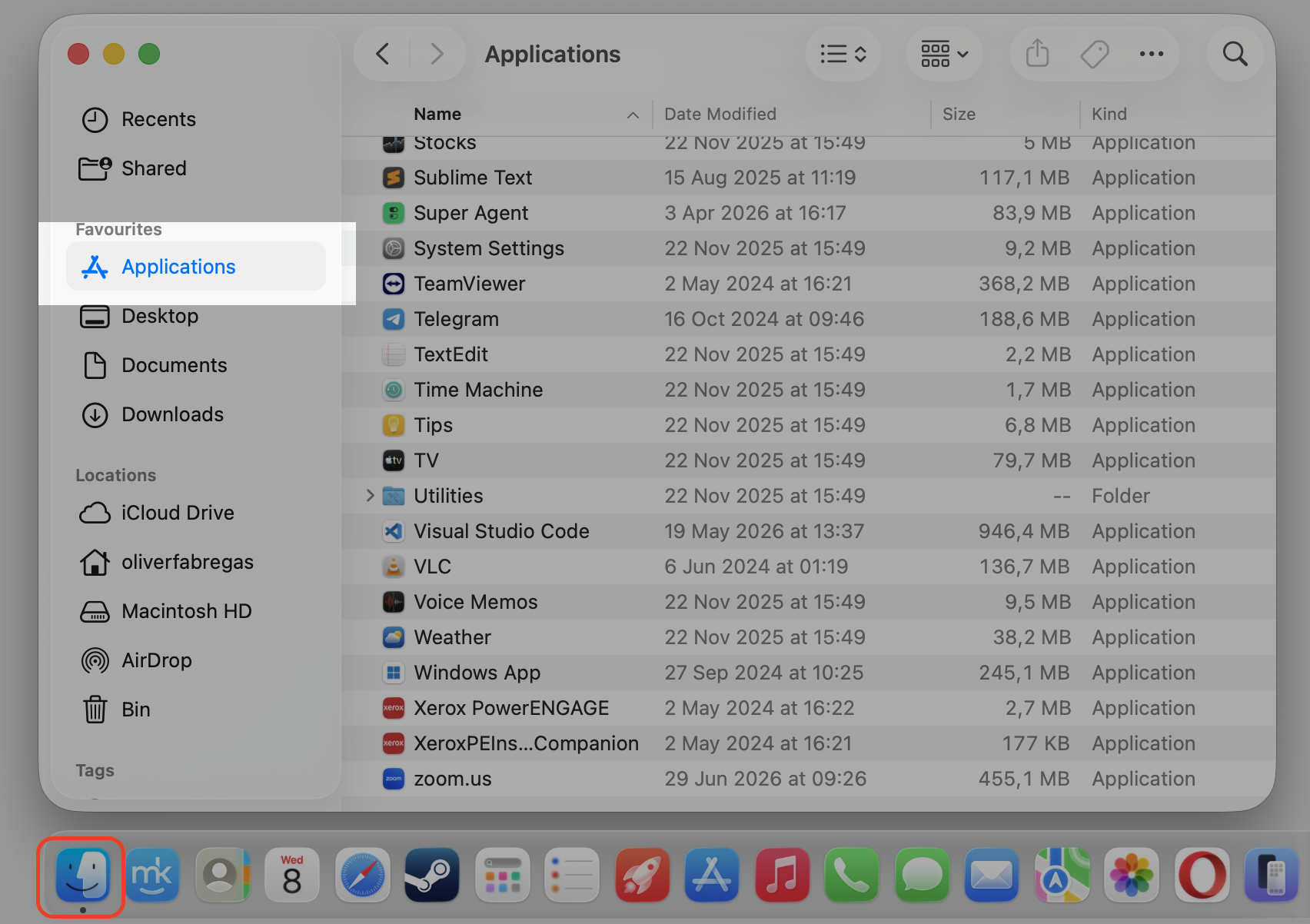
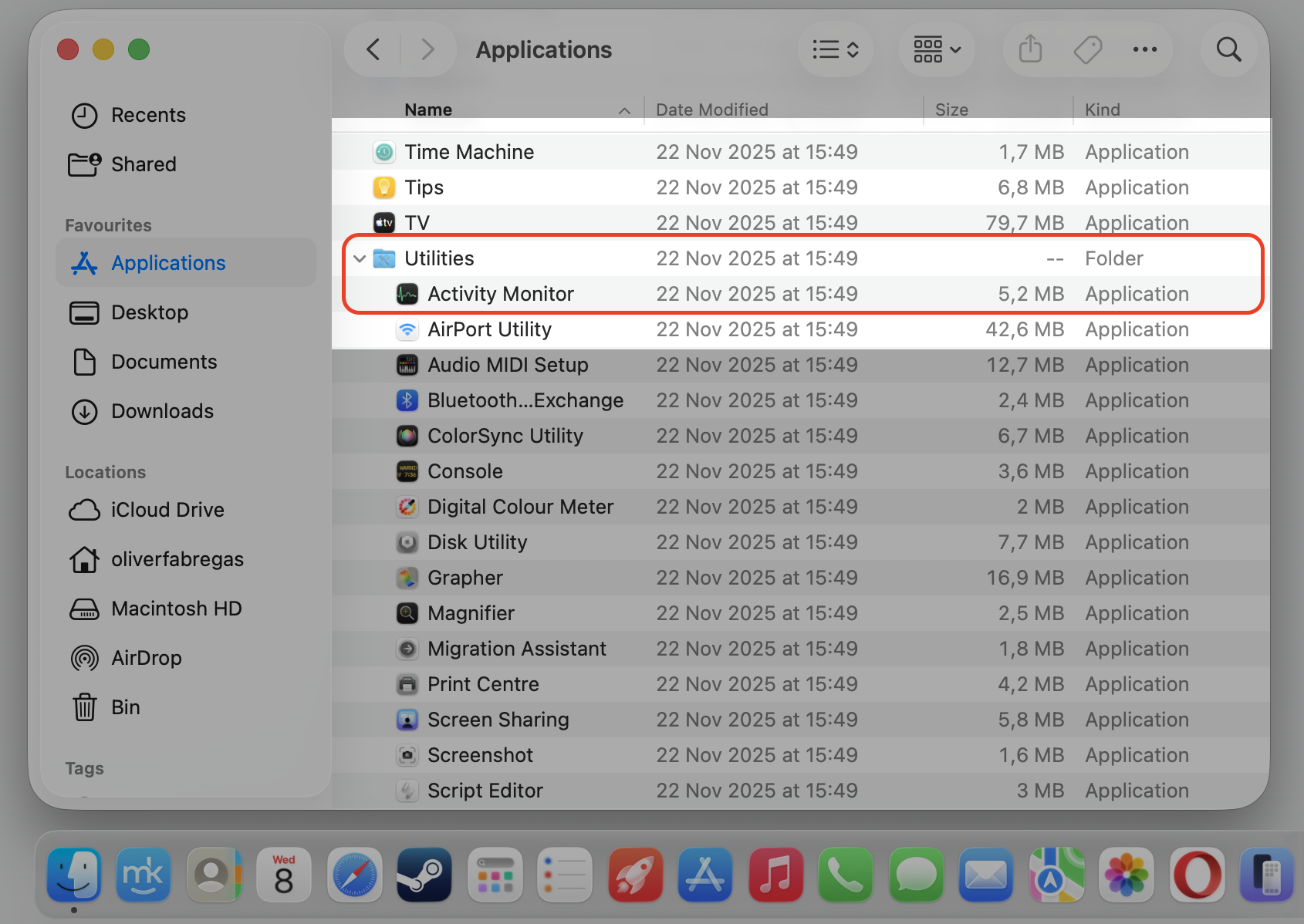
Too many tabs, apps, or background processes can overload your system and make crashes more frequent. It helps to view CPU usage on MacBook hardware so you can view CPU usage and see what’s draining resources. Follow our guidelines to do it:
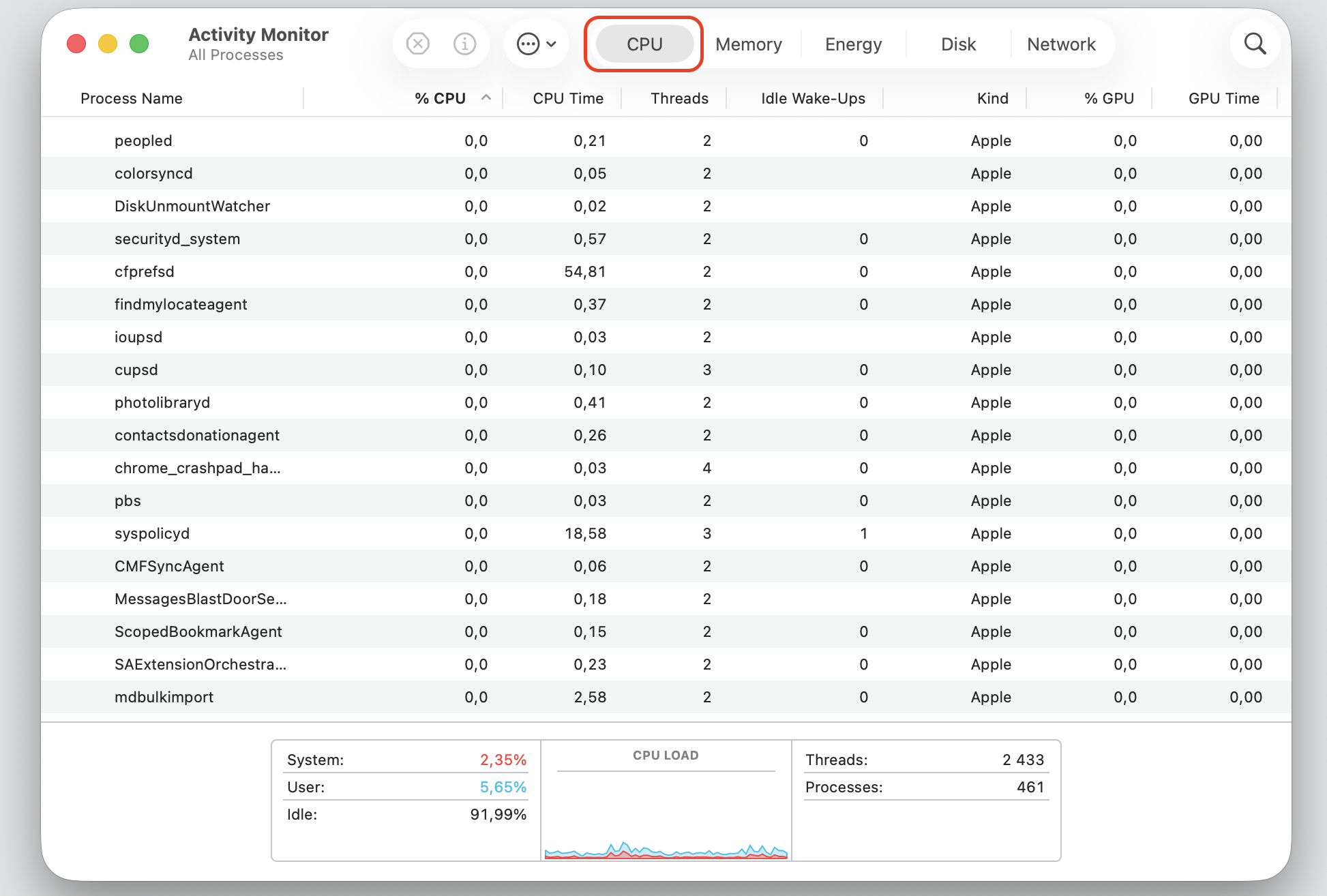
Open Activity Monitor from Applications > Utilities.
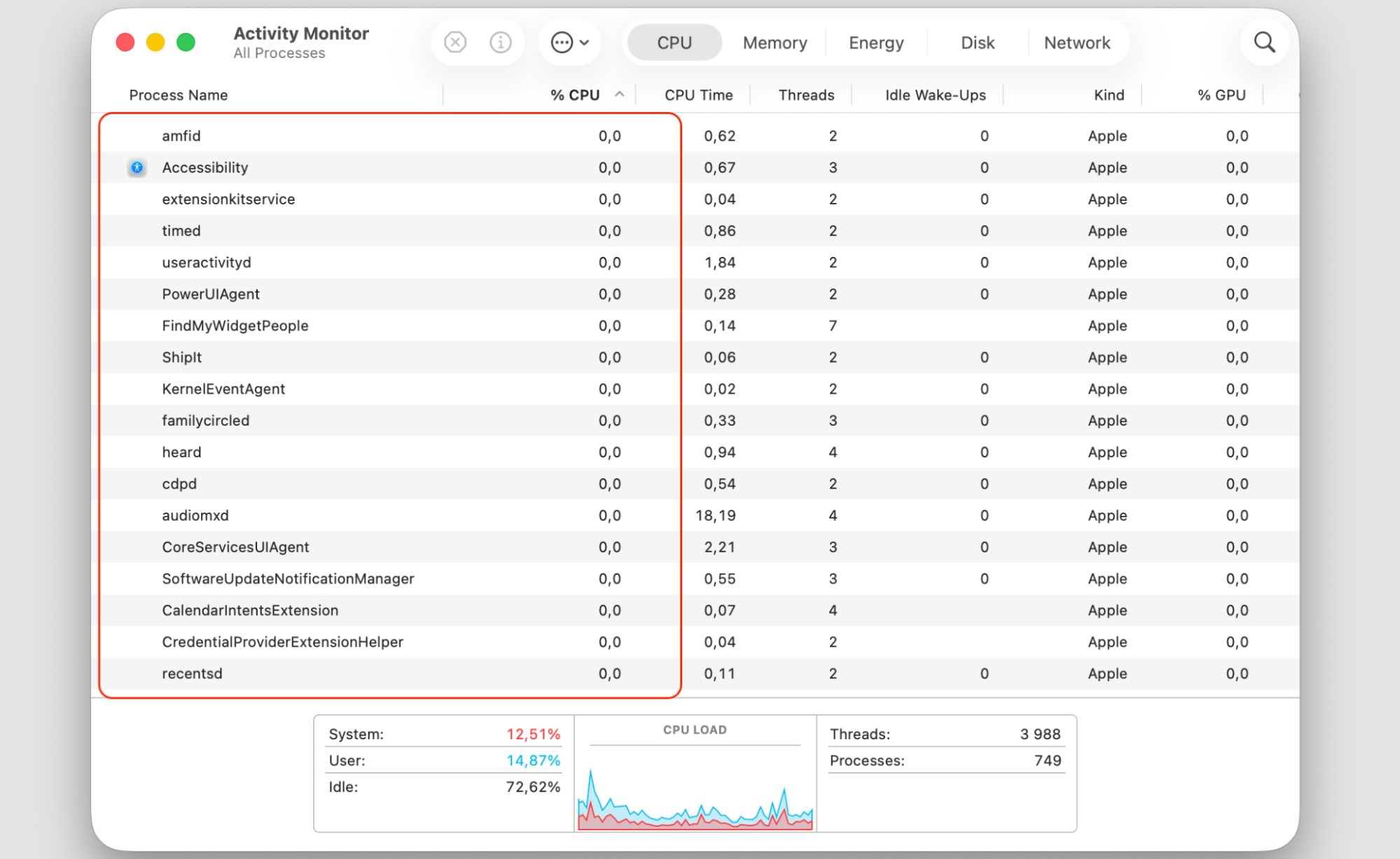
Sort by the CPU or Memory column to spot heavy apps.
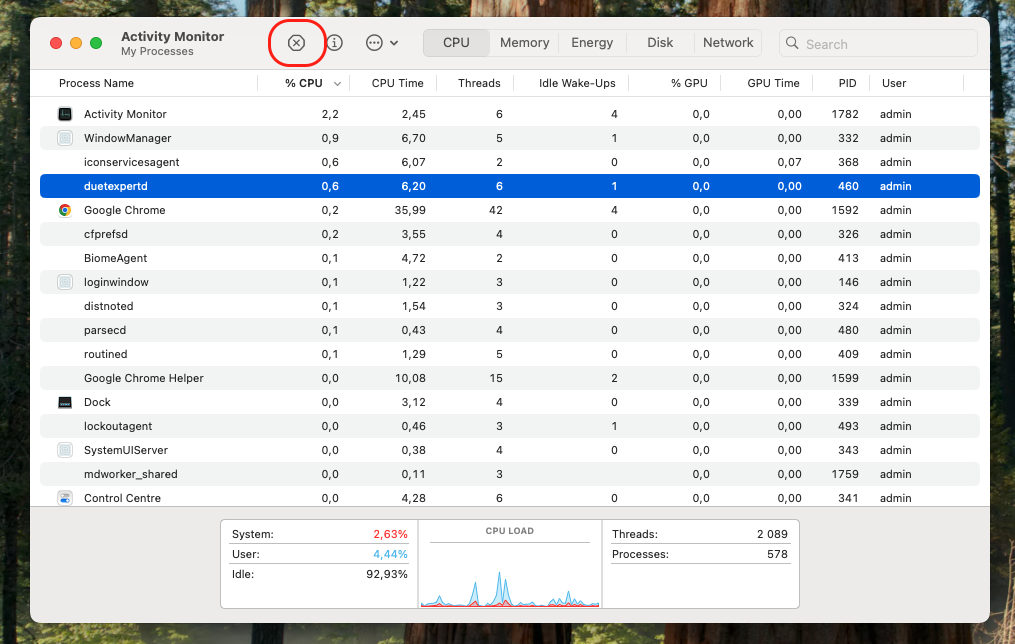
Select a demanding app you don’t need and click the Stop button.
Close spare Chrome tabs to ease the load.
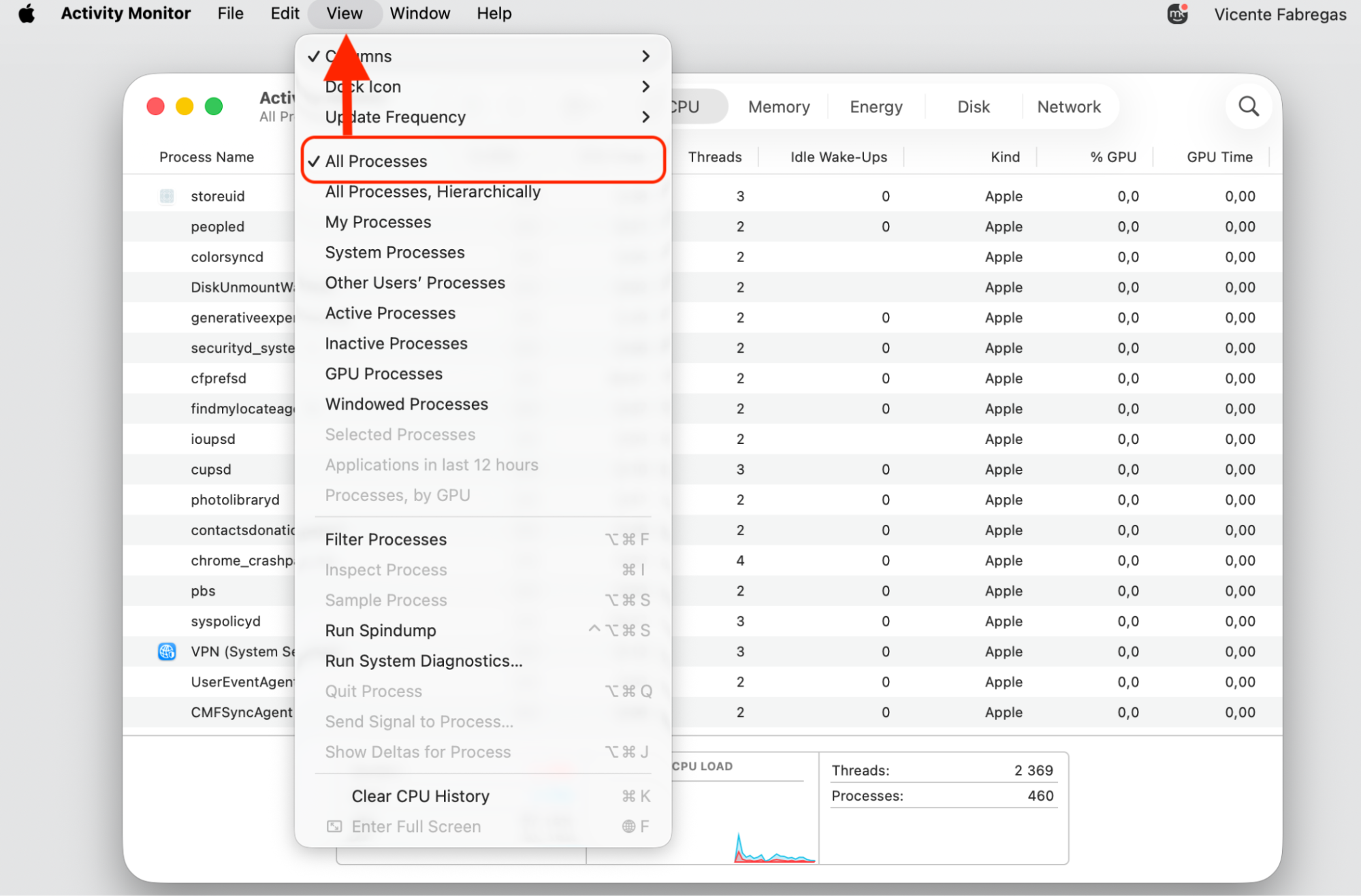
Step 1. Go to Finder > ApplicationsStep 2. Expand the Utility folder and select Activity Monitor appStep 3. Select the CPU tabStep 4. Select View > All ProcessesStep 5. Select a demanding app you don’t needStep 6. Quit the app by the Stop button
How to keep Chrome stable on Mac over time?
Once Chrome is behaving, a few simple habits keep it that way. The same tricks we’ve advised you to make MacBook faster also help your browser stay quick and reliable, so try these out:
Keep Chrome updated so you always have the most secure version.
Limit extensions to the ones you genuinely use.
Clear old browsing data every few weeks.
Reduce excessive tabs to ease the load on memory.
Conclusion
Chrome crashing on Mac is almost always caused by corrupted data, extension conflicts, or a Mac that’s running low on resources. Work through the steps above, and you’ll likely find the culprit without needing expert help. If you’d rather handle cleanup, scanning, and maintenance in one place, MacKeeper’s Premium Services are worth exploring—our support team will help you to handle any Mac-realted issues much faster than trying all the methods manually.
We respect your privacy and
use cookies
for the best site experience.
Privacy Preferences Center
We use cookies along with other tools to give you the best possible experience while using the
MacKeeper website. Cookies are small text files that help the website load faster. The cookies we
use don’t contain any type of personal data meaning they never store information such as your
location, email address, or IP address.
Help us improve how you interact with our website by accepting the use of cookies. You can change
your privacy settings whenever you like.
Manage consent
All cookies
These cookies are strictly necessary for enabling basic website functionality (including page
navigation, form submission, language detection, post commenting), downloading and purchasing
software. The website might malfunction without these cookies.