If you’re seeing “the application is not open anymore” error on your Mac, you’re likely stuck with an unresponsive app that won’t quit properly and keeps interrupting your workflow. Instead of manually hunting down corrupted leftovers, our team recommends using MacKeeper’s Smart Uninstaller to completely remove the broken app and its hidden files, helping you free up disk space and prevent the issue from resurfacing.
If you’re getting “the application is not open anymore Mac” error, it usually means the app’s background processes, preference files, or support components have become corrupted. In most cases, you can fix it by force-quitting the app, restarting your Mac, closing related processes in Activity Monitor, or fully reinstalling the app to remove leftover files.
What does “The application is not open anymore” mean?
On macOS, “the application is not open anymore” message means the system considers the app no longer active, even though its window or Dock icon may still be visible. In most cases, the app has crashed, frozen, or become corrupted in the background due to damaged cache files, incomplete updates, or conflicting processes. Because macOS can’t properly communicate with it, you’re unable to quit, reopen, or interact with the app normally without force-closing related processes or restarting your Mac.
How to fix “The application is not open anymore” error on Mac?
If you’re seeing “he application is not open anymore” error on a MacBook, it usually means the application is not responding at the system level. Start by force-quitting the app and reopening it. If that fails, restart your Mac to clear frozen background processes. You should also check for pending macOS or app updates. If the issue continues, close related processes in Activity Monitor or reinstall the app to remove corrupted files.
A note from our experts:
Deleting a Mac app doesn’t always remove everything—leftover files often stay hidden in Library folders, taking up storage and sometimes triggering performance issues. That’s why our team recommends using MacKeeper’s Smart Uninstaller.
MacKeeper is a macOS utility software developed by Clario Tech. It protects Mac systems and offers memory optimization to keep remaining apps running smoothly.
Here’s how to scan and uninstall apps with Smart Uninstaller:
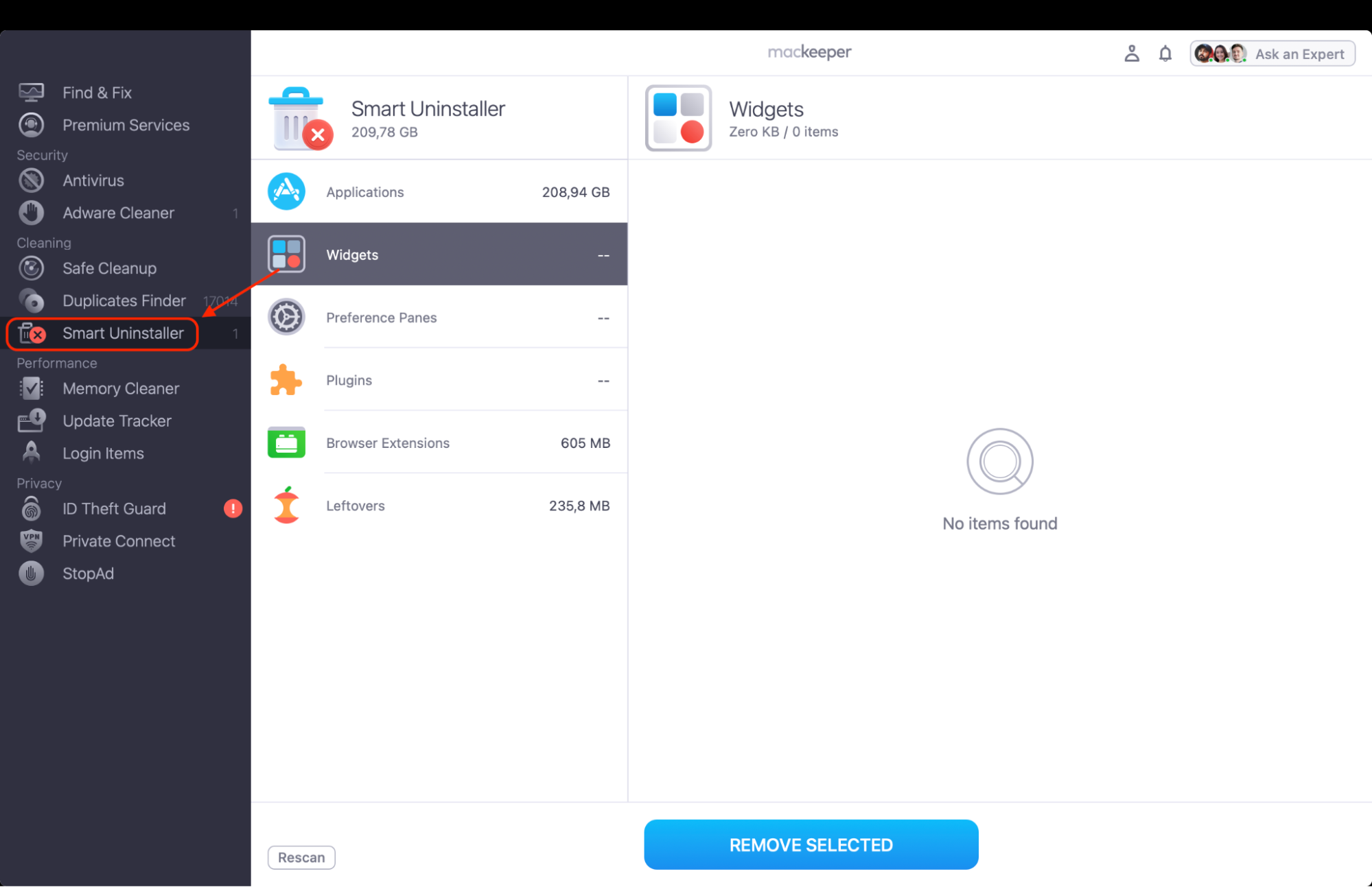
Select Smart Uninstaller from the left sidebar to detect installed apps and related files.
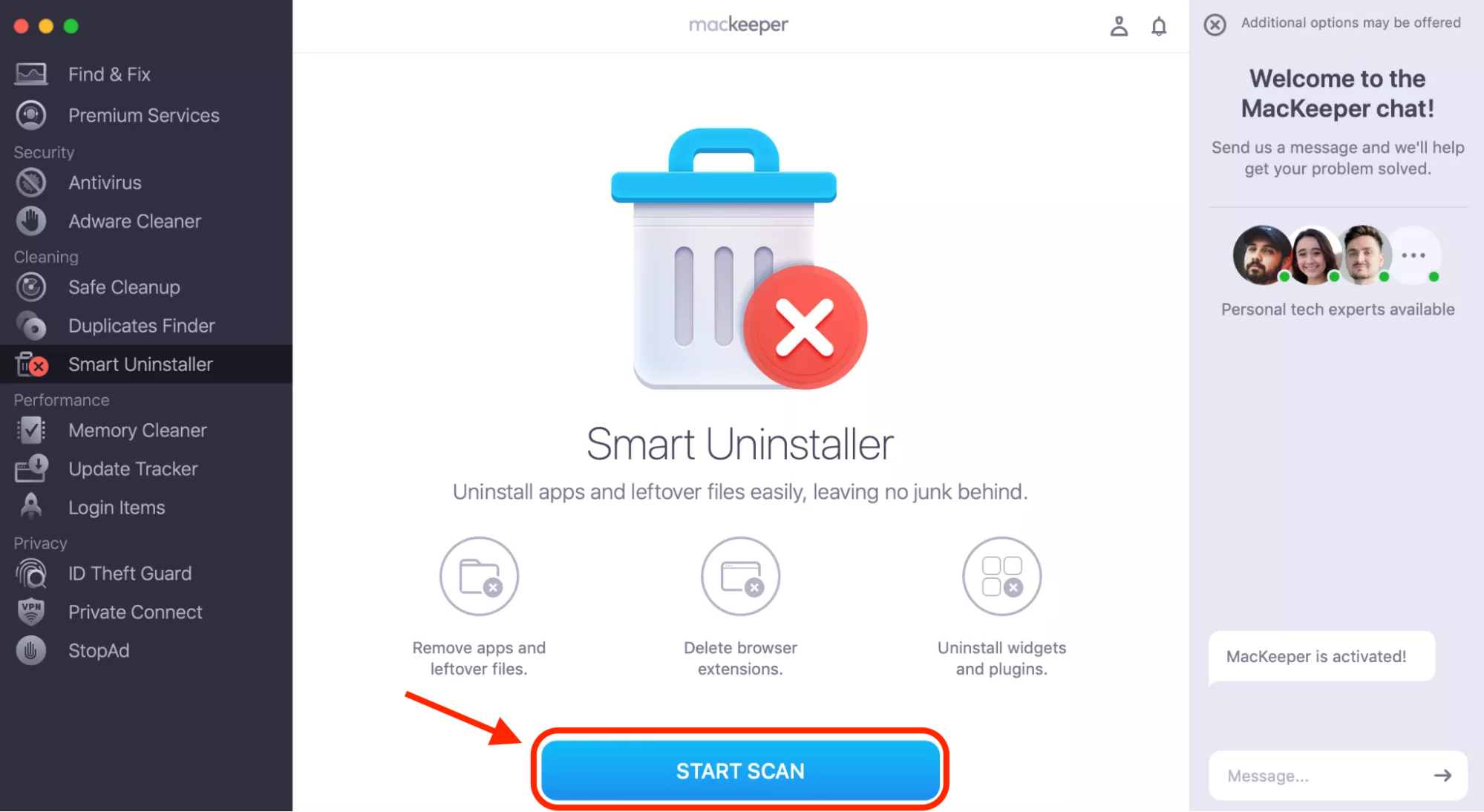
Click Start Scan to generate a categorized list of applications, plugins, widgets, and leftovers.
Review the results and select apps you no longer need.
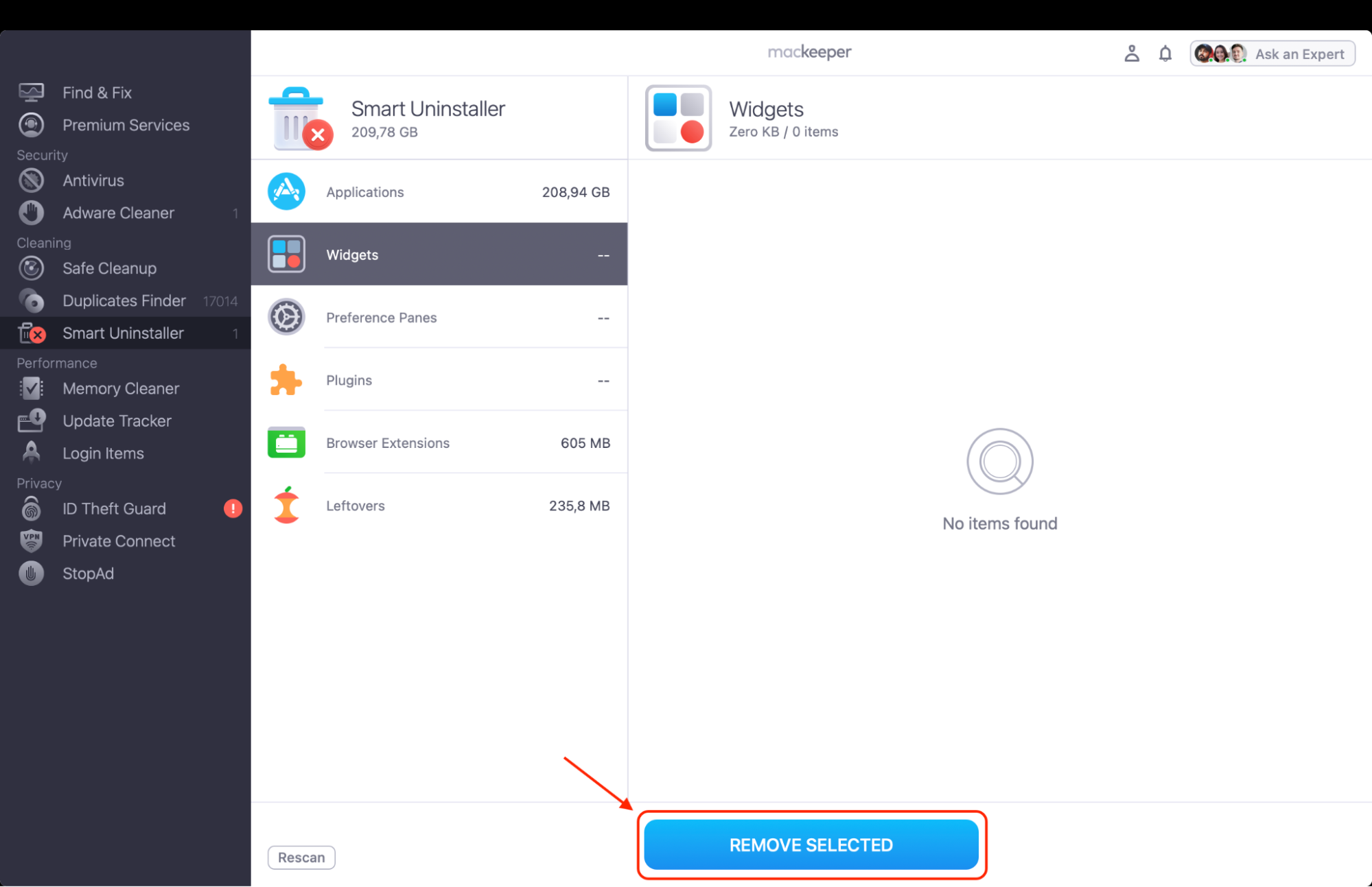
Click Remove to uninstall the selected apps and permanently delete all associated files.
Step 1. Open MacKeeper and select Smart Uninstaller from the left sidebarStep. 2. Click Start Scan to generate a list of removable itemsStep. 3. Click Remove to uninstall selected apps
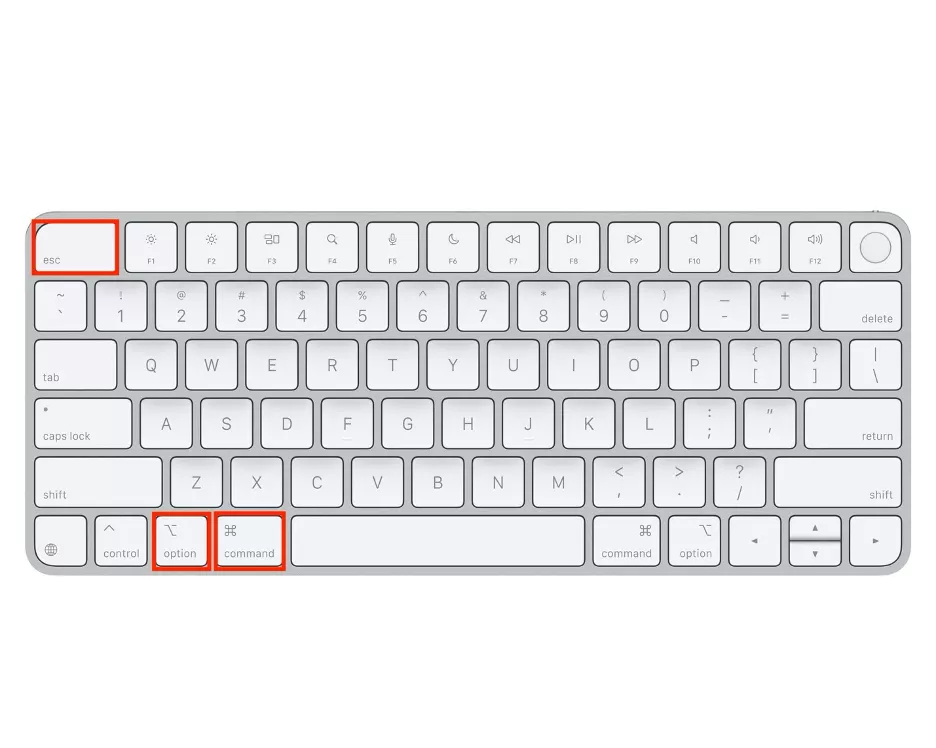
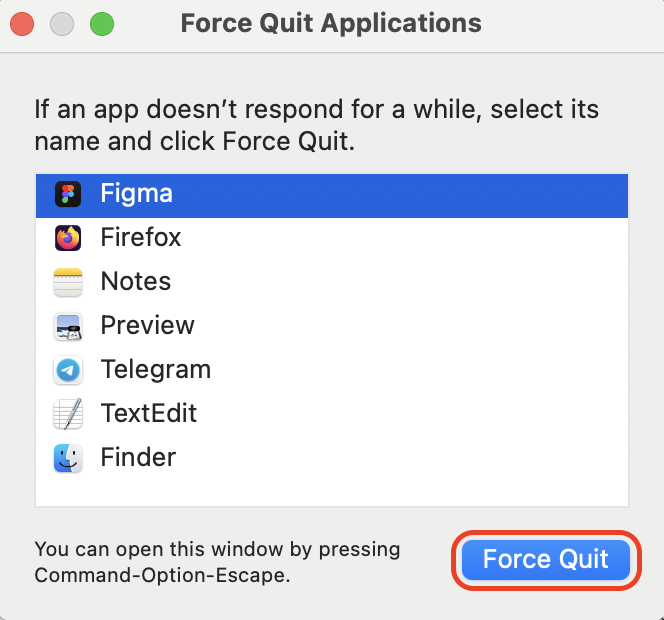
1. Force Quit application
If the app freezes or you don’t have permission to open the application, we usually start with Force Quit—it’s the quickest way to stop a stuck instance. This method immediately terminates the unresponsive process without affecting other system services.
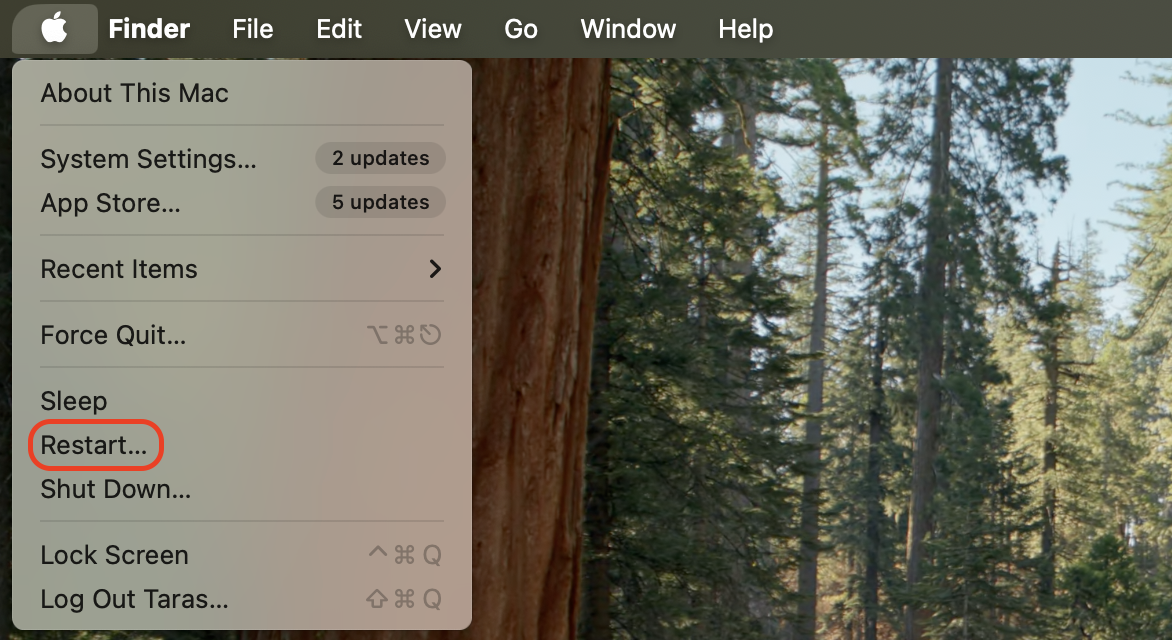
Restart your Mac resets system services and clears temporary glitches. In our testing, this often resolves stubborn launch conflicts. It also releases locked memory and background processes that may prevent the app from reopening properly.
Follow these steps:
Click the Apple menu.
Select Restart.
Confirm the action.
Wait until macOS fully reloads.
Try opening the app again.
Click the Apple menu and select Restart
3. Close the associated process
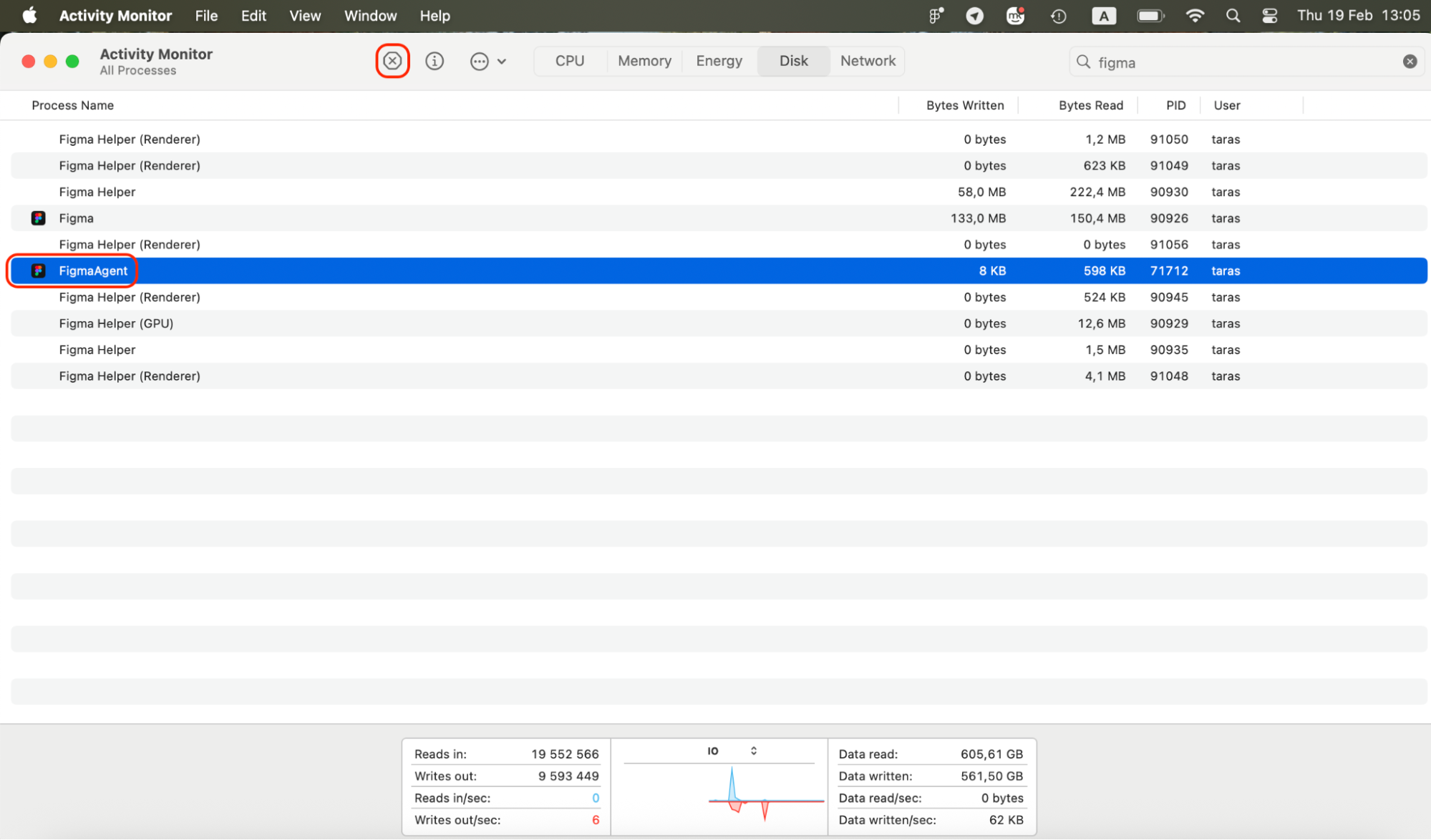
When Force Quit isn’t enough, you may need to kill a process running in the background. We use this when hidden services keep the app alive. Lingering background components often keep consuming resources and prevent the application from shutting down completely.
Do this:
Open Applications > Utilities > Activity Monitor.
Search for the app name.
Select related entries.
Click the X button.
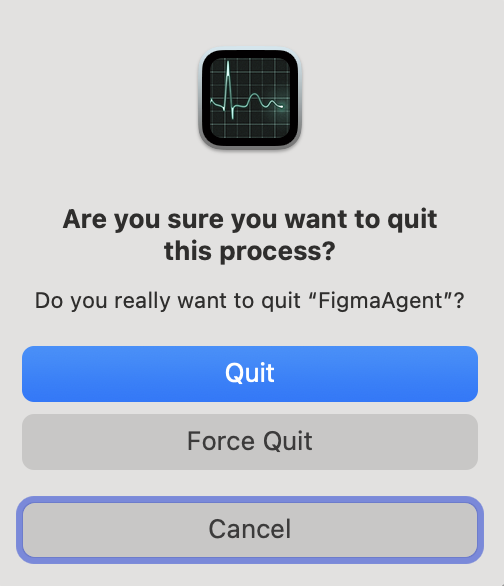
Confirm Force Quit.
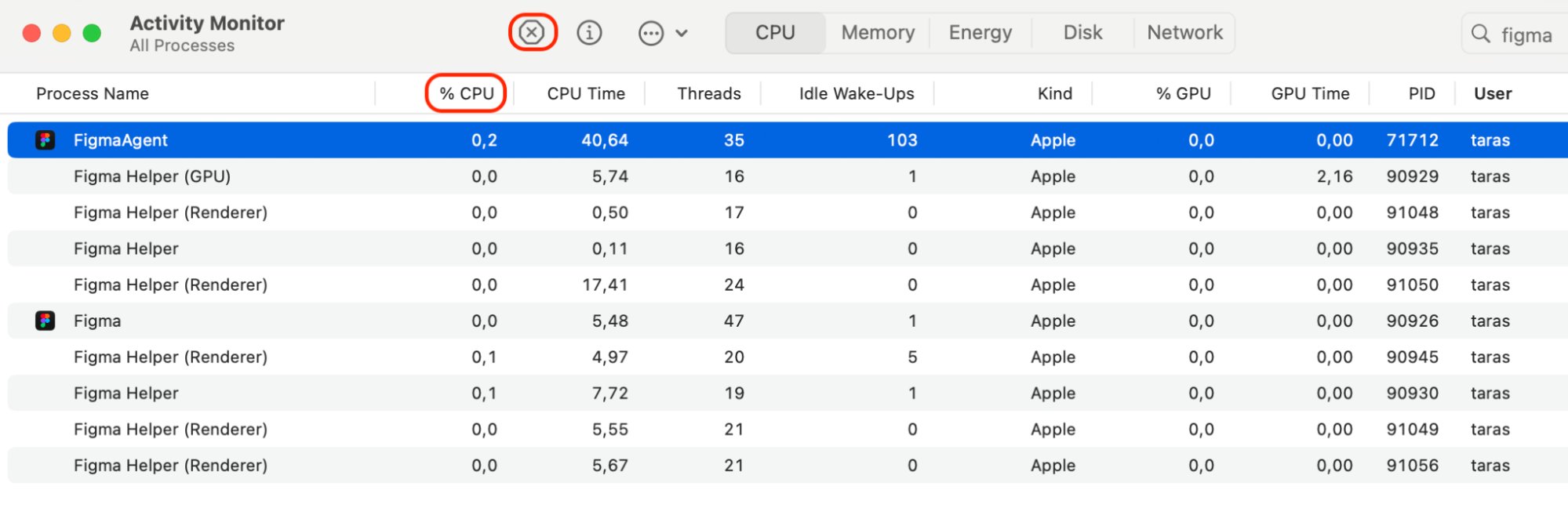
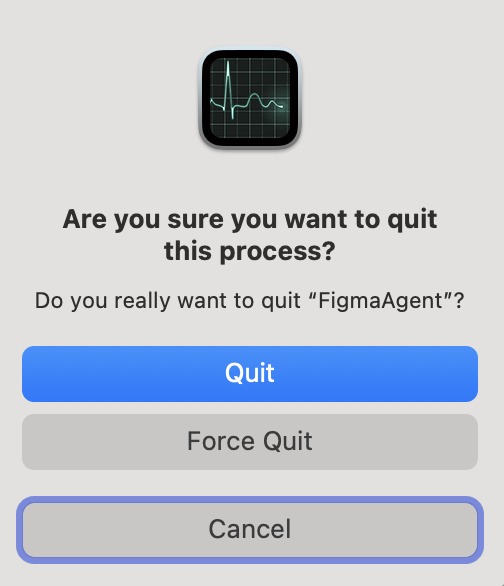
Step 1. Open Activity Monitor and click the X button on the app you’d like to stopStep 2. Confirm Force Quit
4. Quit app in Activity Monitor
Quitting an app directly in Activity Monitor gives more control than the Dock. We rely on this when the icon won’t respond. It allows you to target the exact process consuming CPU resources and terminate it precisely.
Proceed as follows:
Launch Activity Monitor.
Find the app under the CPU tab.
Select it.
Click the X icon.
Choose Force Quit.
Step 1. Launch Activity Monitor and find the app under the CPU tab, then select it and click the X iconStep 2. Choose Force Quit
5. Open the app from Terminal
If the item can't be moved to the trash or the app won’t relaunch normally, Terminal can force a fresh instance. We use this when Finder fails to cooperate. It bypasses the graphical interface and launches a new app session directly through macOS commands.
Try this method:
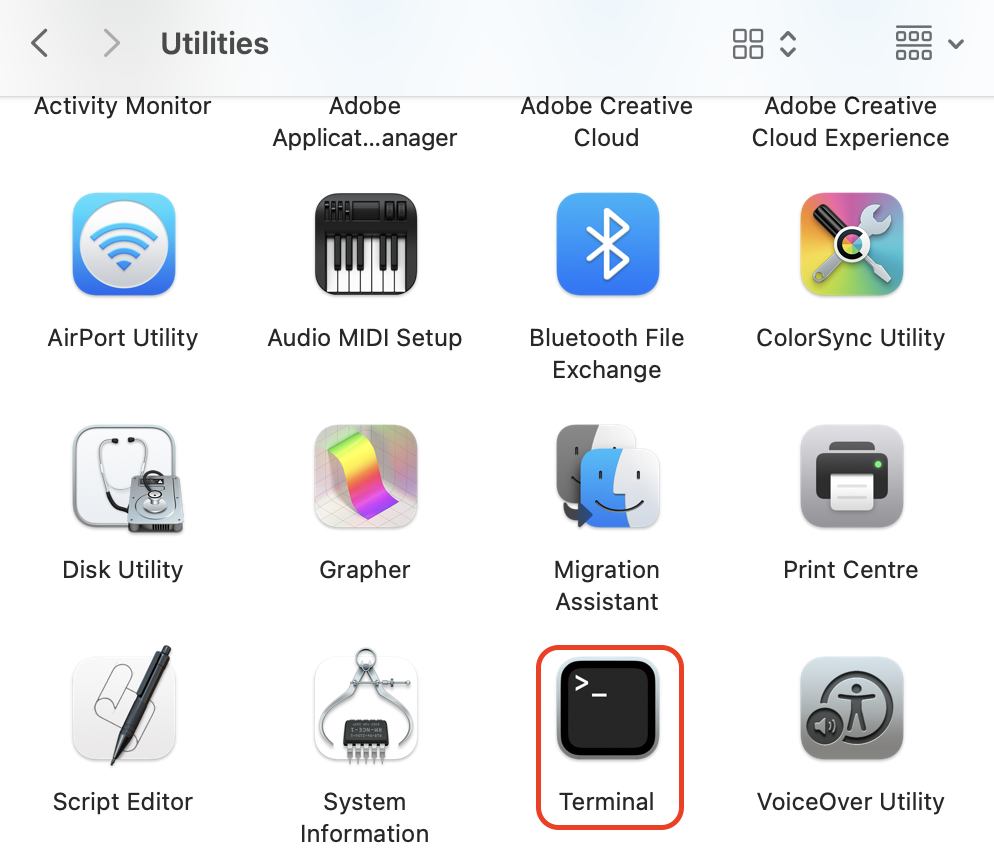
Open Applications > Utilities > Terminal.
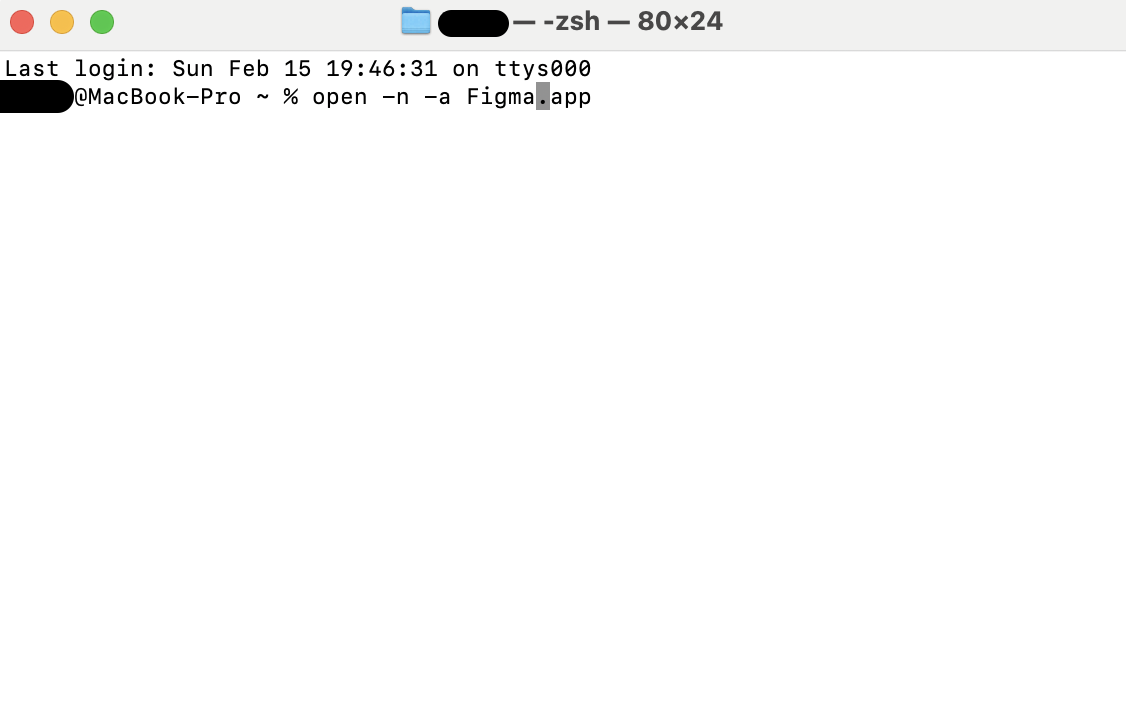
Type open -n -a AppName.app.
Replace AppName with the real app name.
Press Return.
Check if the app starts correctly.
Step 1. Open Applications > Utilities > TerminalStep 2. Type open -n -a AppName.app (replace AppName with the real app name) and press Return
6. Uninstall and reinstall the app
When repeated crashes persist, we assume core app files are damaged. A clean uninstall and a fresh installation usually restore stability and remove corrupted components we can’t fix manually.
To proceed:
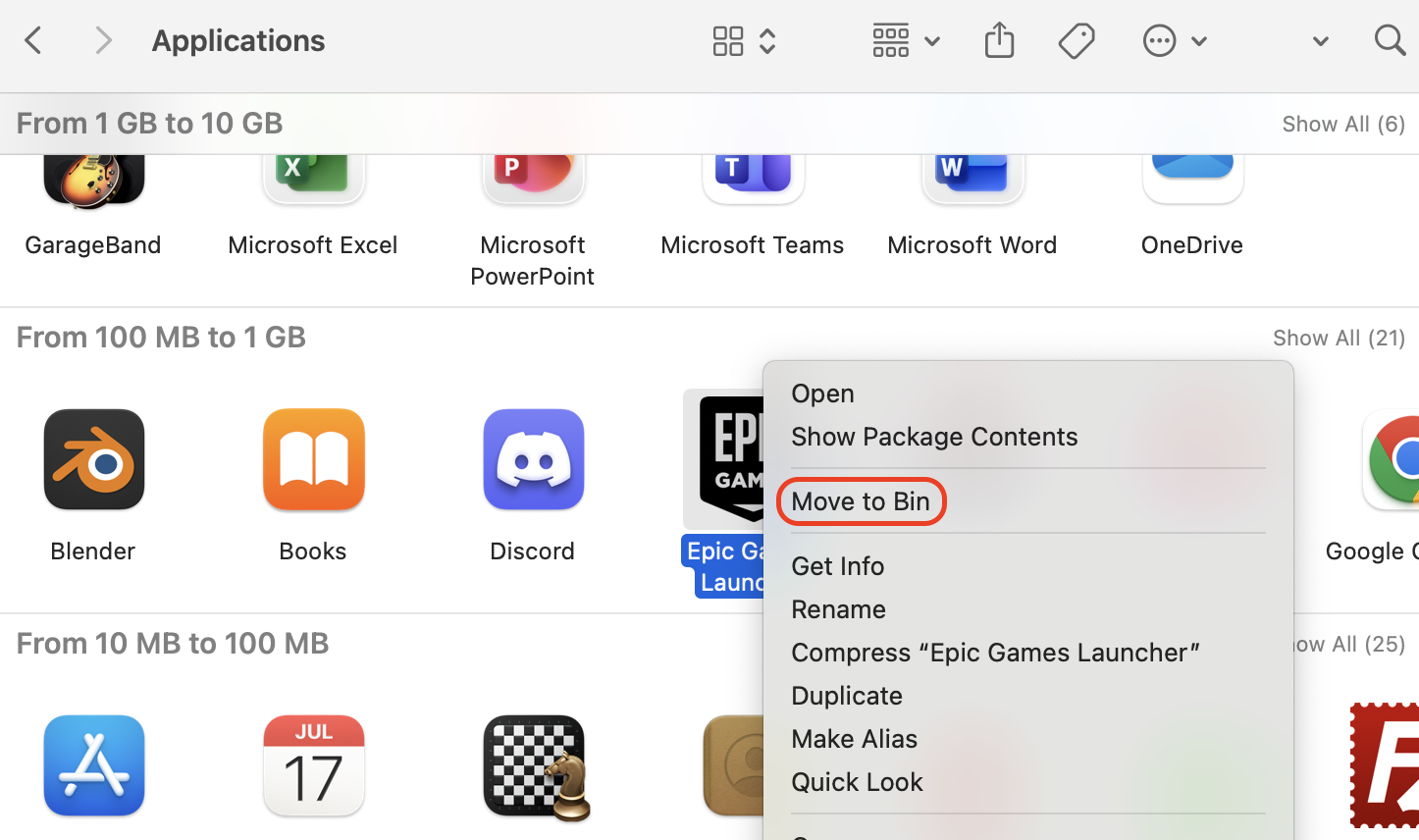
Open Finder > Applications.
Right-click the app and select Move to Bin.
Empty the Bin.
Download the latest installer from the official site.
Install the app and test it again.
After opening Finder, go to Applications, choose the app, and select Move to Bin
7. Delete app preferences files
If settings are corrupted, deleting app preferences forces macOS to regenerate clean configuration files. We’ve seen this fix stubborn launch errors tied to damaged .plist data.
Use this approach:
Open Finder.
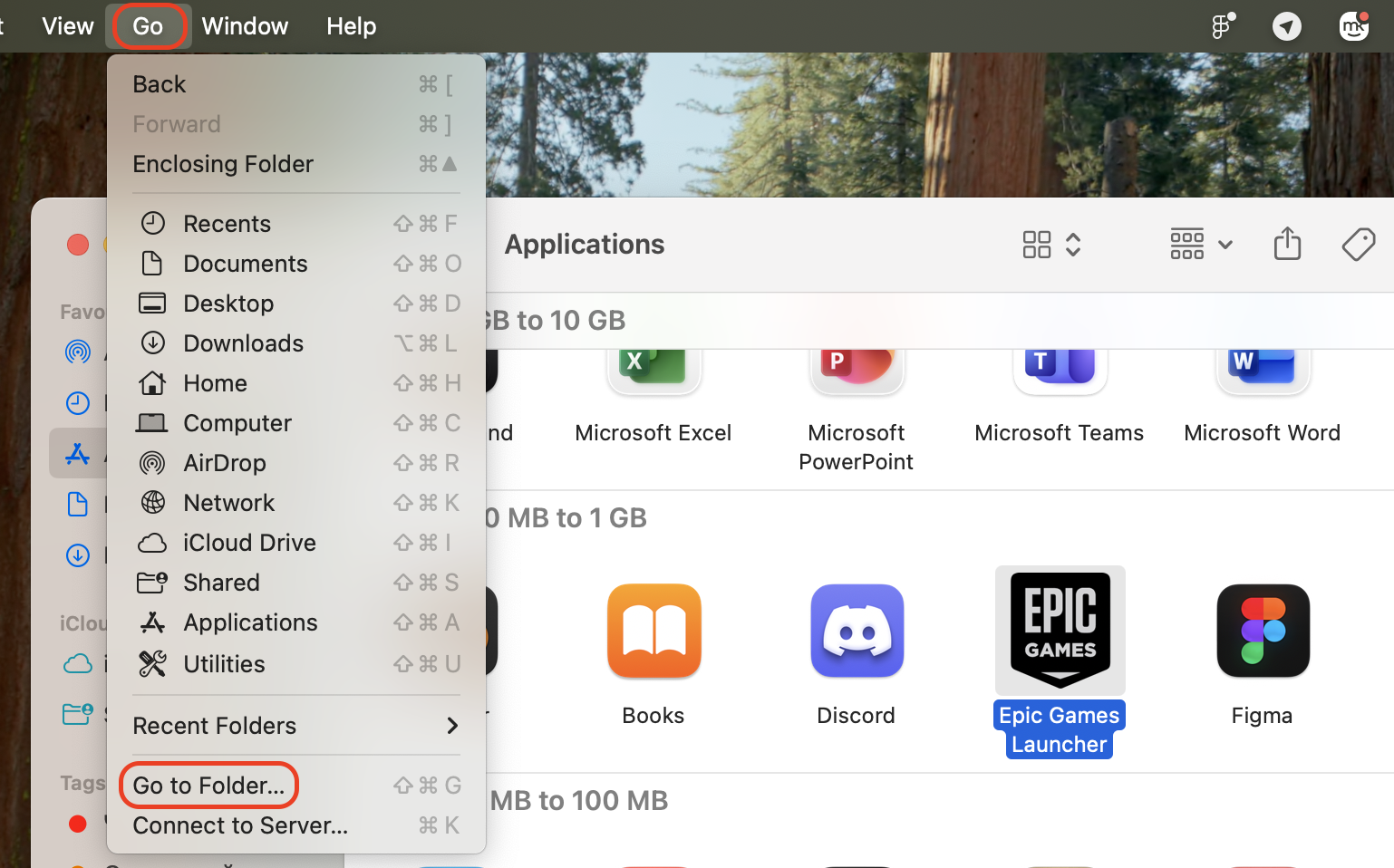
Click Go > Go to Folder.
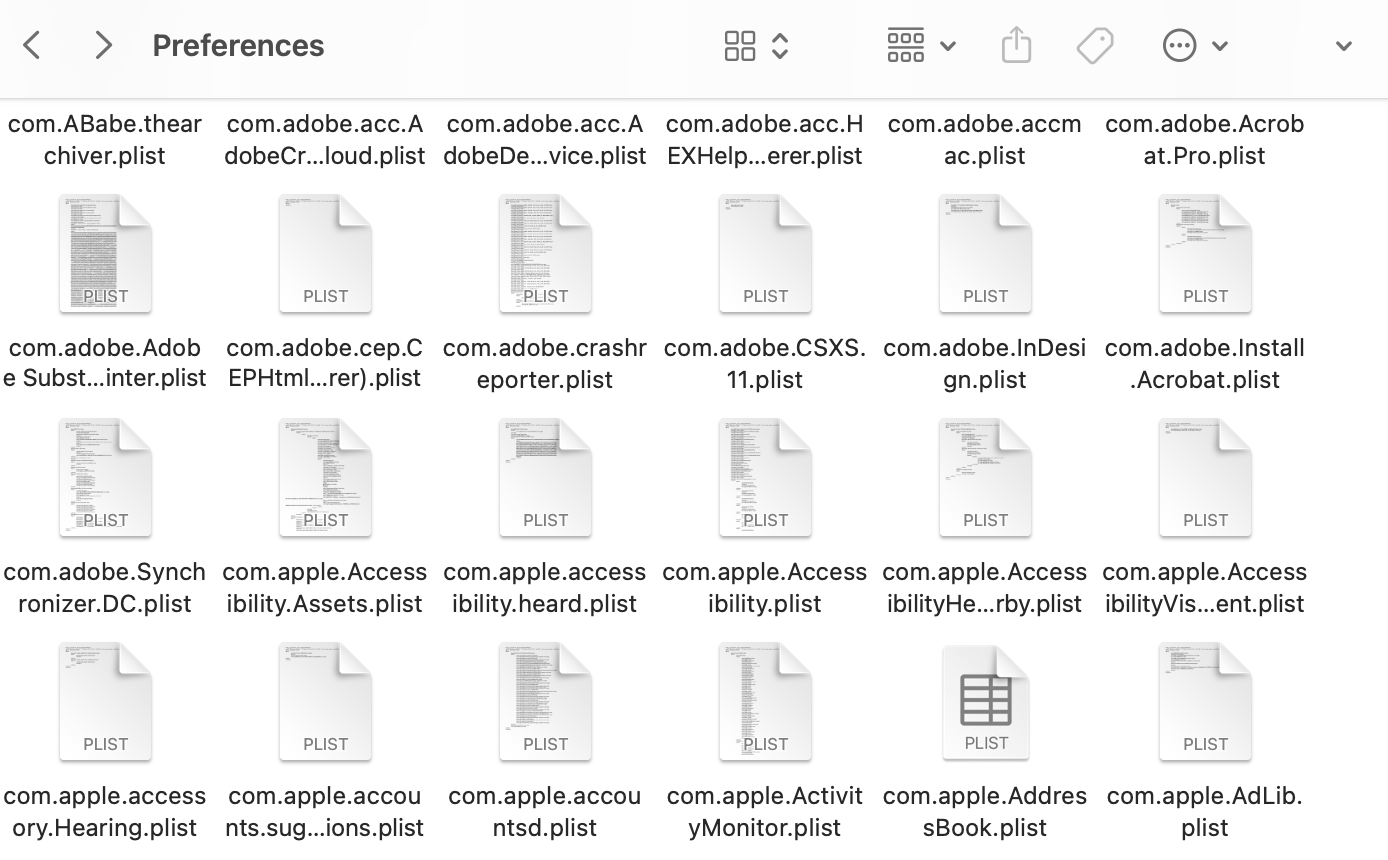
Enter ~/Library/Preferences.
Find the app-related .plist files.
Move them to the Bin and restart your Mac.
Step 1. Open Finder and click Go > Go to FolderStep 2. Enter ~/Library/PreferencesStep 3. Find the app-related .plist files and move them to the Bin
8. Boot into Safe Mode
Safe Mode isolates third-party extensions and clears certain system caches, which helps us determine whether background software is causing the conflict.
Carry out these steps:
Shut down your Mac completely.
Turn it on and hold Shift (Intel) or hold the power button and select Safe Mode (Apple silicon).
Log in when prompted.
Open the affected app.
Restart normally to exit Safe Mode.
Shut down your Mac completely; then turn it on and hold Shift (Intel) or hold the power button and select Safe Mode (Apple silicon)
9. Reinstall macOS
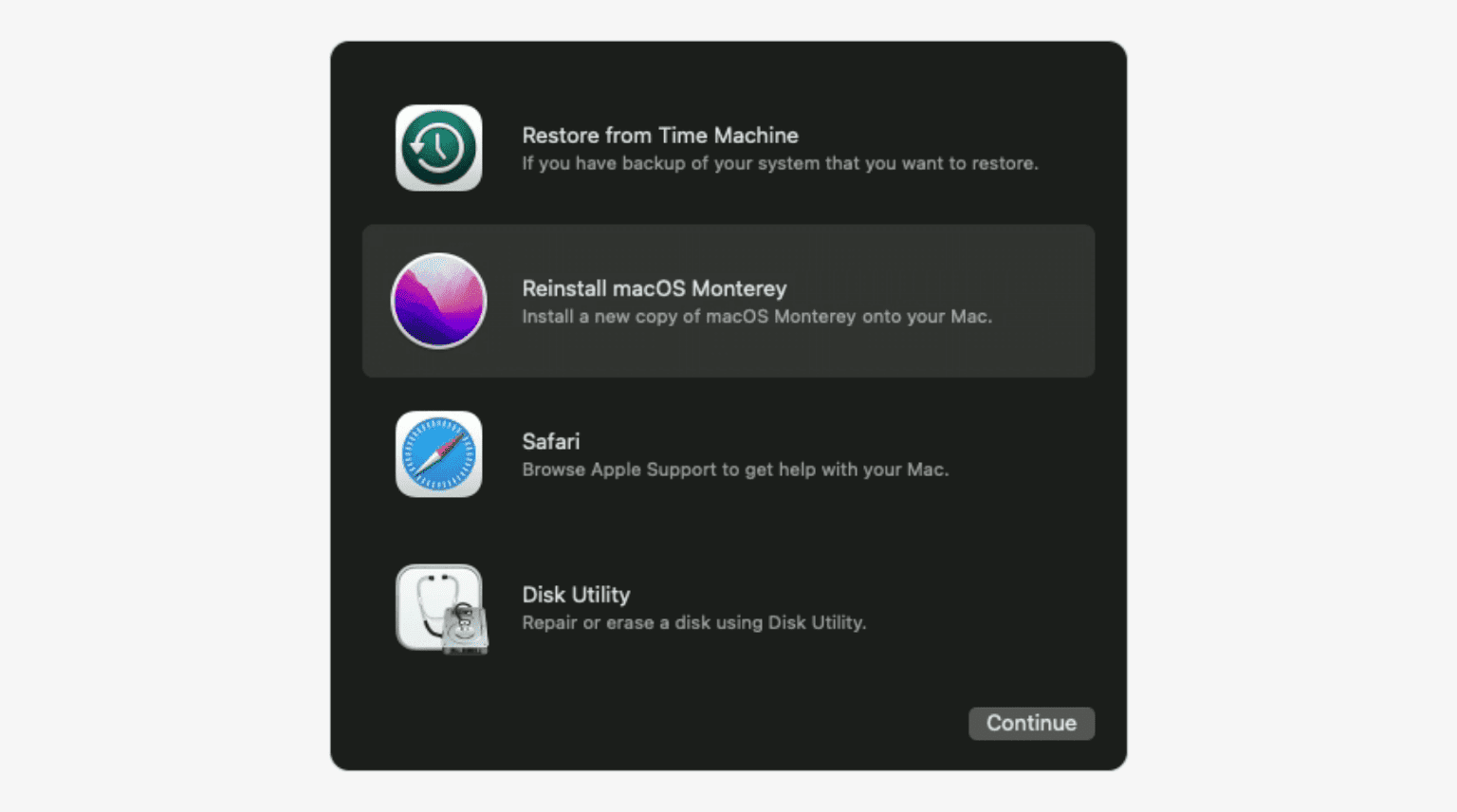
If system components are corrupted, reinstalling macOS replaces essential files without deleting your personal data. We consider this a last-resort method.
Complete the following:
Power off your Mac.
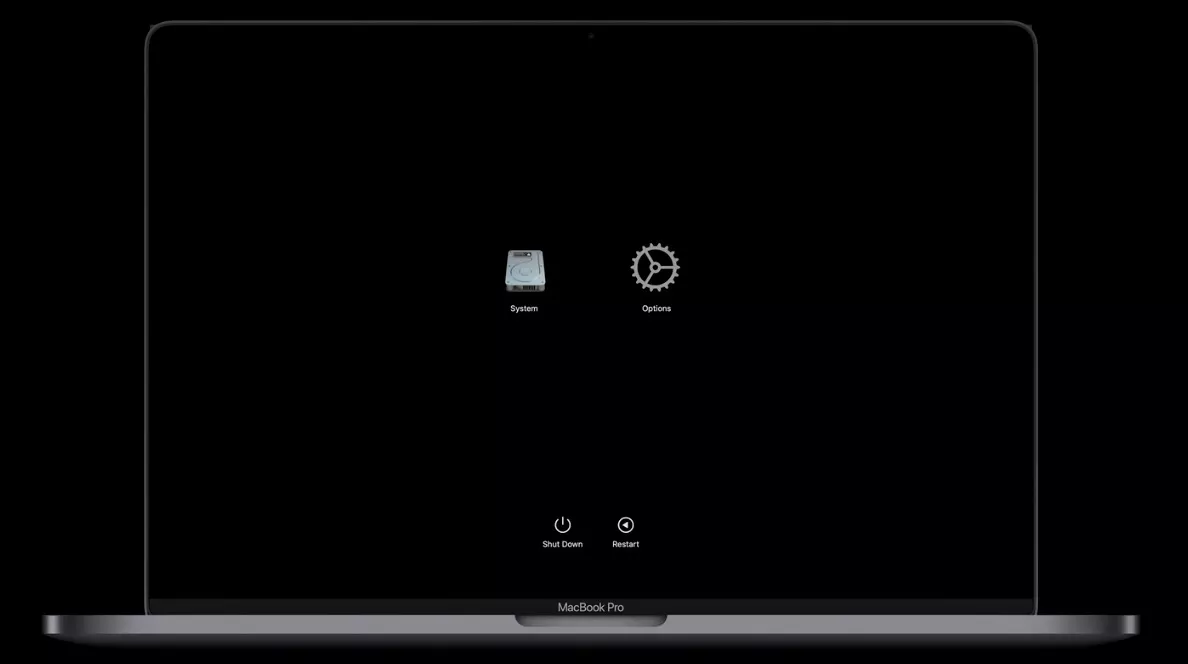
Boot into macOS Recovery (Command + R on Intel, hold power on Apple silicon).
Choose Reinstall macOS.
Click Continue and follow the prompts.
Wait for the installation to finish and test the app again.
Power off your Mac and boot into macOS Recovery. Choose Reinstall macOS and click Continue, and follow the prompts
Conclusion
The “application is not open anymore" error on Mac usually points to frozen processes, corrupted preferences, or damaged app components. Restarting, force-quitting, or reinstalling the app typically restores normal functionality and system stability.
However, recurring errors often indicate deeper leftover files that standard removal methods fail to clear. In our experience, incomplete uninstallations quietly leave support data behind, which can continue to trigger conflicts over time and affect performance. In this regard, MacKeeper protects Mac, while its Smart Uninstaller completely and safely removes apps and leftovers.
We respect your privacy and
use cookies
for the best site experience.
Privacy Preferences Center
We use cookies along with other tools to give you the best possible experience while using the
MacKeeper website. Cookies are small text files that help the website load faster. The cookies we
use don’t contain any type of personal data meaning they never store information such as your
location, email address, or IP address.
Help us improve how you interact with our website by accepting the use of cookies. You can change
your privacy settings whenever you like.
Manage consent
All cookies
These cookies are strictly necessary for enabling basic website functionality (including page
navigation, form submission, language detection, post commenting), downloading and purchasing
software. The website might malfunction without these cookies.