While macOS Rapid Security Response is a great tool in helping stop criminals from exploiting software vulnerabilities, it’s not the only thing you should use to protect your computer. Malware can still find its way onto your operating system, and you need a way to scan for and quarantine it. Using a third-party tool, such as MacKeeper’s Antivirus, is the most effective way to quickly do that.
Rapid Security Response is a feature where you can quickly download security patches. It’s one of many macOS security features, but it’s also available on iPhones and iPads. Apple introduced the tool in 2023 for devices running macOS 13.3.1 or later, along with iOS/iPadOS 16.4.1 or newer.
Rapid Security Response updates aren’t a direct replacement for macOS updates. Instead, they’re an interim between the bigger ones released throughout the year.
An expert’s opinion of mine:
Besides downloading Rapid Security Response updates, I also suggest altering your Security and Privacy on Mac settings. For example, I’ve switched on FileVault and enabled a password lock.
What functions does Rapid Security Response perform on macOS
Rapid Security Response installs security features without needing much manual work. These updates run in the background while you’re working, and unlike bigger macOS installations, you typically don’t have to restart your device before they come into effect.
How Rapid Security Response works on macOS
When you turn on macOS Rapid Security Response, the feature looks for security updates and downloads them on your device. These patch updates normally don’t take too long to complete. Moreover, you don’t have to clear significant disk space to install them.
Is Rapid Security Response safe
Yes—Rapid Security Response is one of the best macOS security features. Keeping it turned on has helped me keep my device protected, and it’s especially handy because full-scale OS updates sometimes take time to be introduced. In my opinion, Rapid Security Response significantly helps Apple users in keeping their software safe.
While you can turn off the feature, I don’t recommend doing so. If you do, you’ll leave your computer open to potential cyberattacks.
An extra hint from me:
When looking at computers to buy, I recommend understanding first if Mac is more secure than Windows. Both vary in terms of features; for example, they have different tools for basic device protection.
Is macOS Rapid Security Response necessary for regular users
Regardless of how (and how often) you use your Mac, I strongly advise enabling Rapid Security Response. Doing so is very important for keeping your device’s defense mechanisms updated in between the bigger macOS updates. However, I also suggest using extra security—such as antivirus software—to fully safeguard your Apple device.
A note from our experts:
macOS Rapid Security Response is a tool that is recommended for use. However, it cannot provide comprehensive protection for your Mac. I recommend using Mackeeper’s Antivirus to protect your Mac from malicious files and viruses.
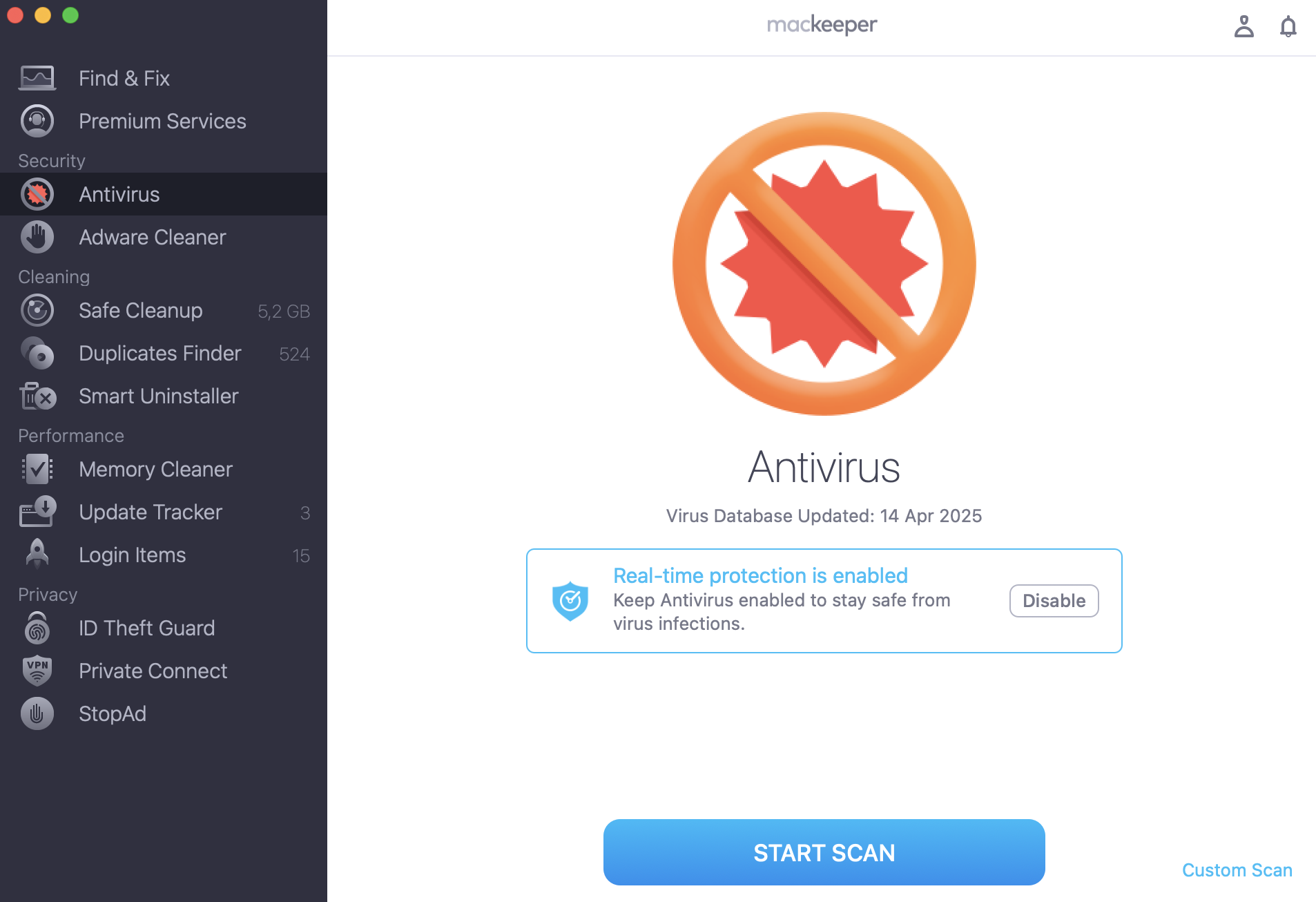
Here’s my instructions on how to start using MacKeeper’s Antivirus:
Press Start Scan to begin a scan. Then, quarantine malware if any is found.
Step 1. MacKeeper > Antivirus > Start ScanStep 2. Delete all the threats from the list
How to enable Rapid Security Response on Mac
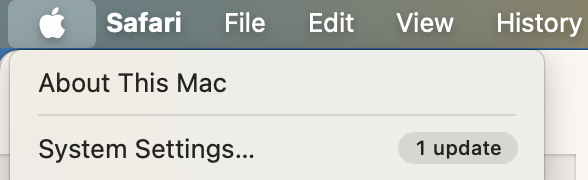
To enable Rapid Security Response on your Mac, you’ll need to do the following:
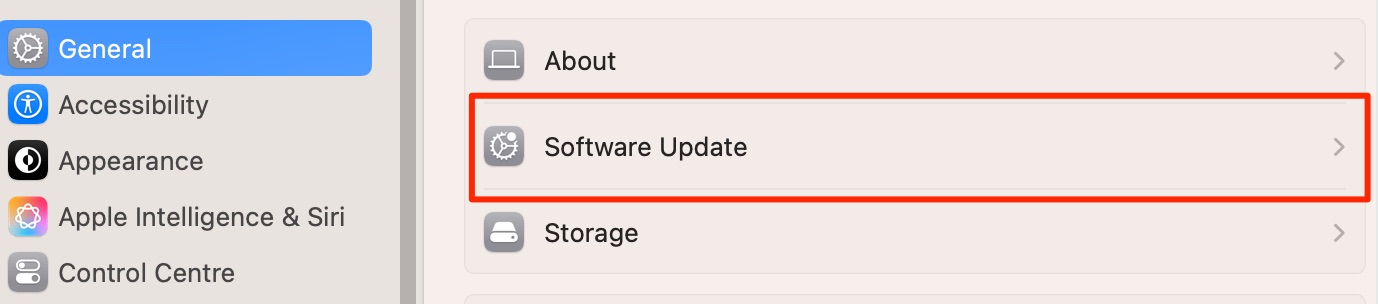
Go to System Settings > General and then select Software Update.
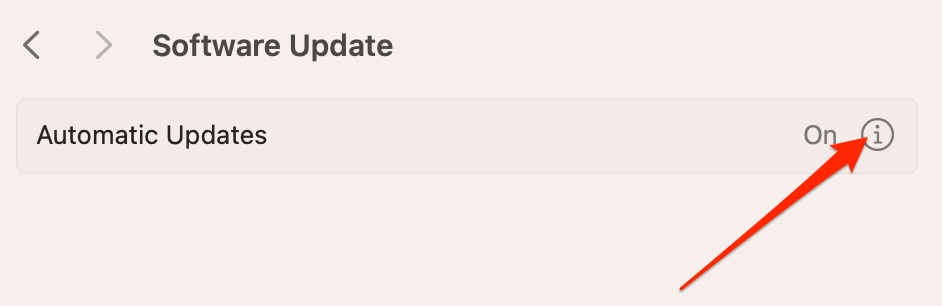
Click on the information icon next to Automatic Updates.
Switch on the toggle called Install Security Responses and system files.
As you can see, enabling macOS Rapid Security Response is very simple. Below are the screenshots I made for you to see the process visually.
Step 1. Apple menu > System SettingsStep 2. General > Software UpdateStep 3. Select the information icon next to Automatic UpdatesStep 4. Switch on Install Security Responses and system files
My pro advice as a Mac expert:
Sometimes, remote access can be a sign that malware or something else is on your device. So, I consider it helpful to learn how to tell if your Mac has been remotely accessed. For example, you can check your firewall settings.
Rapid Security Response: Simple, but important
Rapid Security Response is very important for installing patches and ensuring that your device isn’t vulnerable to external threats. Toggling the feature on is straightforward, and you don’t have to do anything extra after enabling it.
While Rapid Security Response is a great tool for implementing security updates, you should also be proactive and scan for malware. MacKeeper’s Antivirus looks for threats in the background, allowing you to quarantine them quickly.
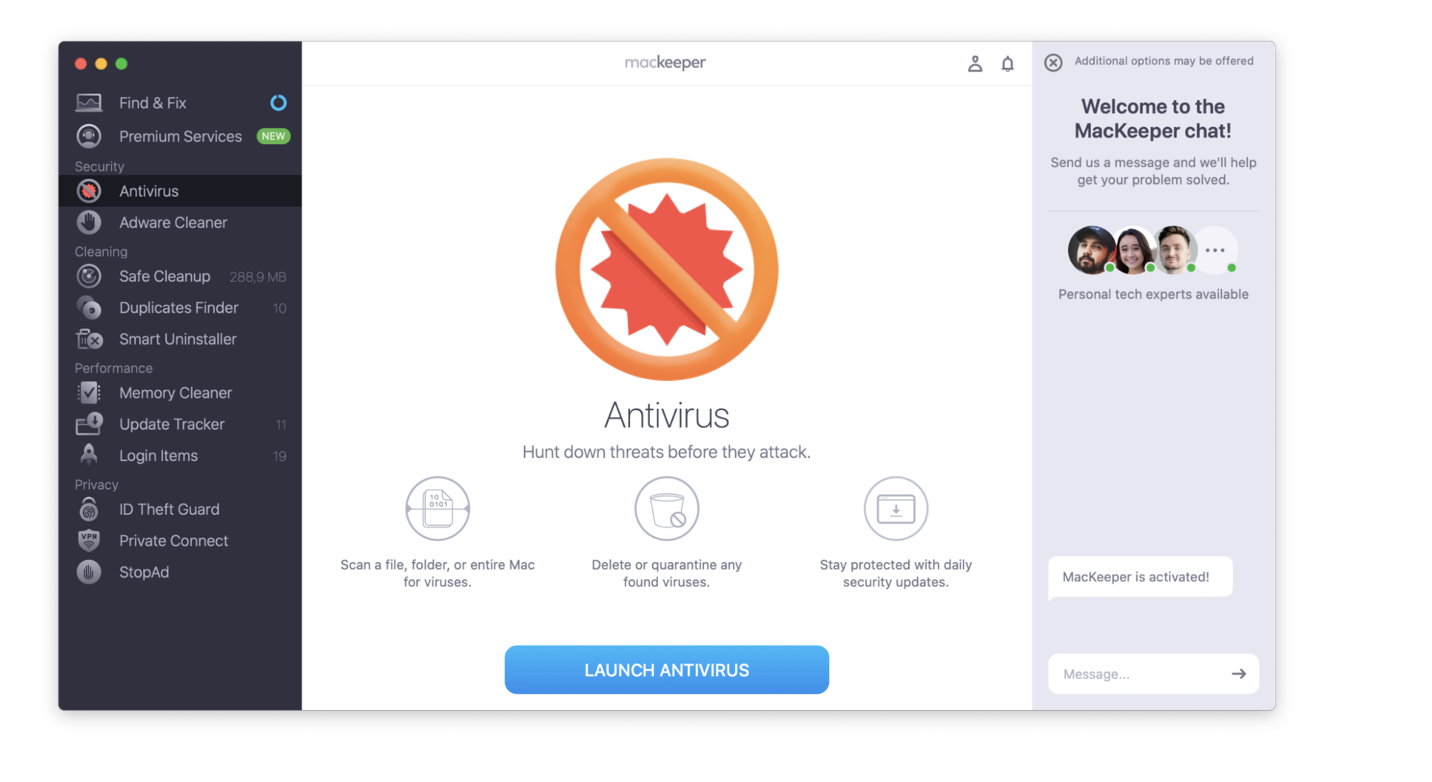
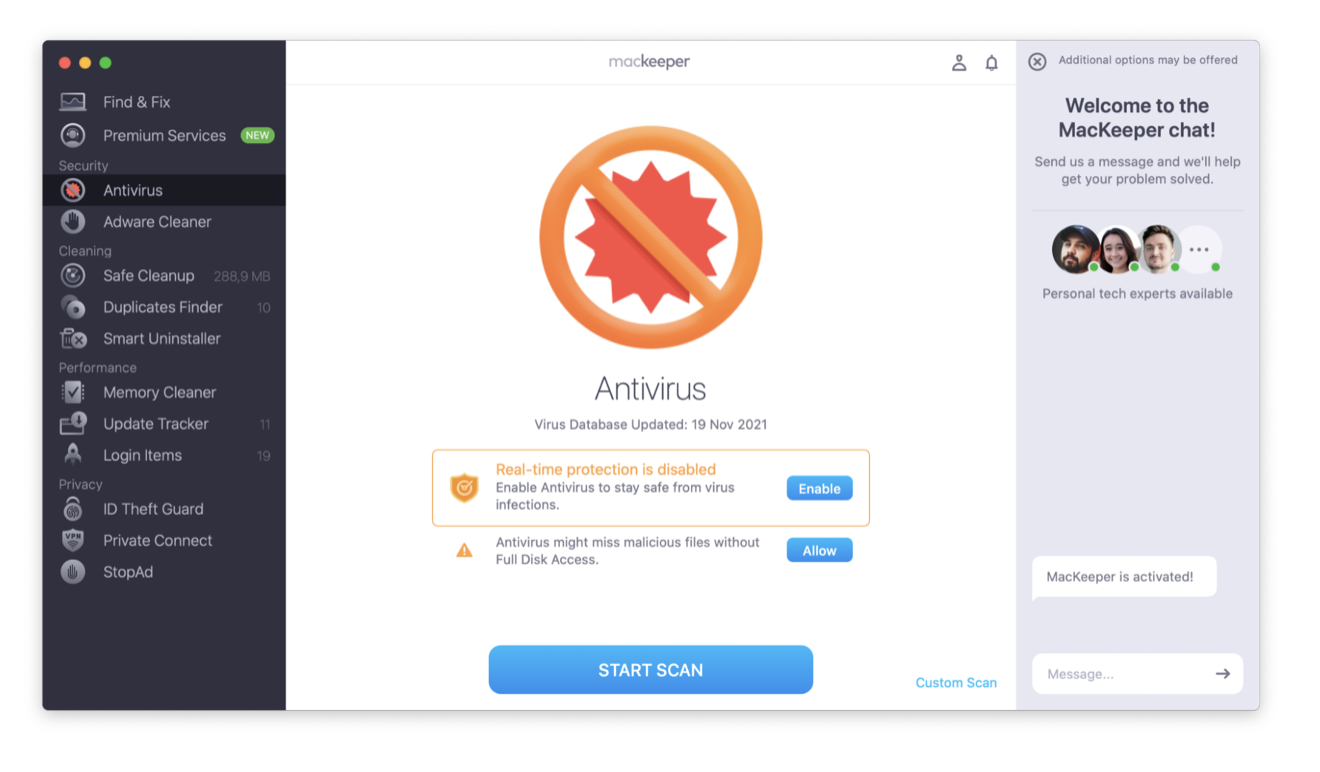
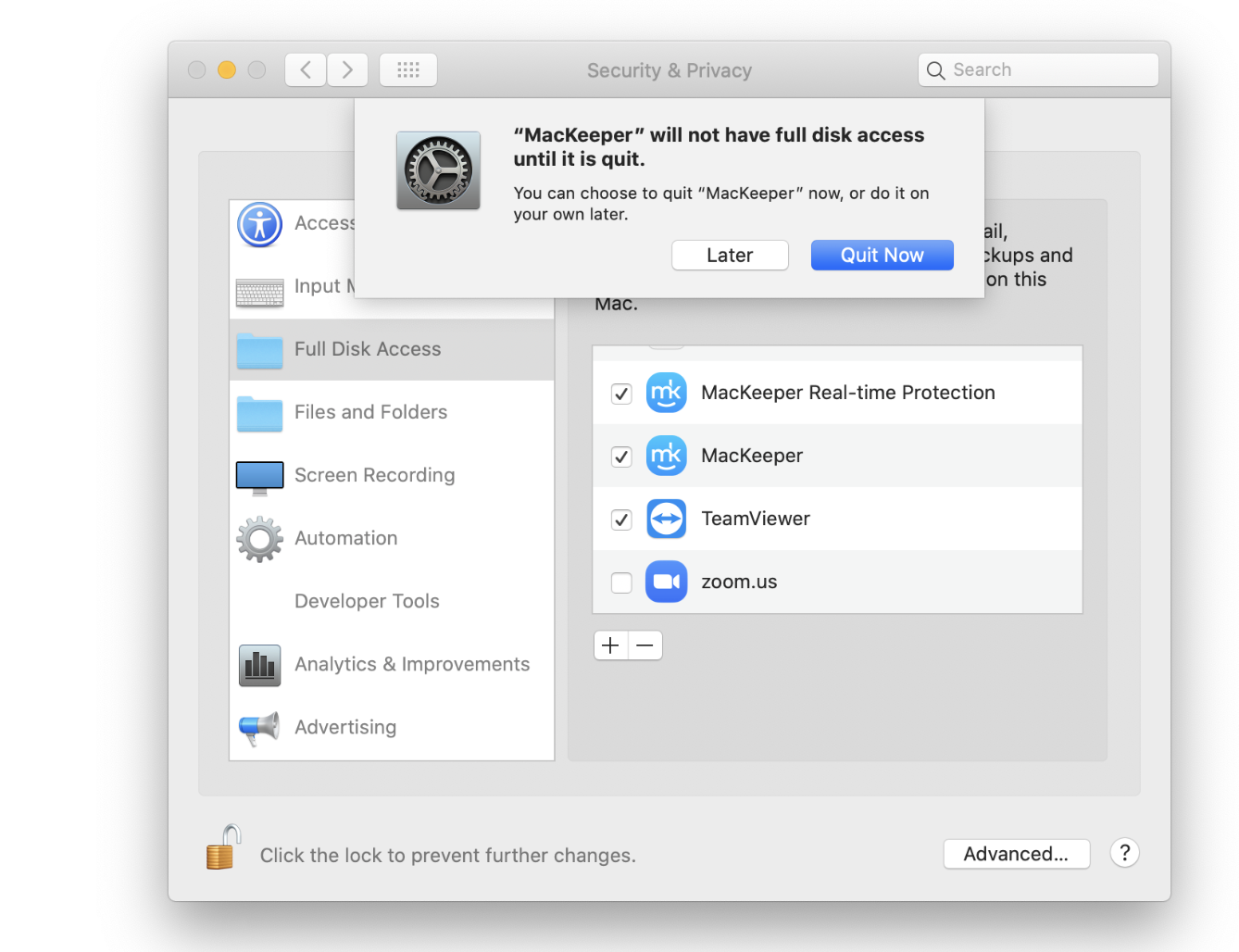
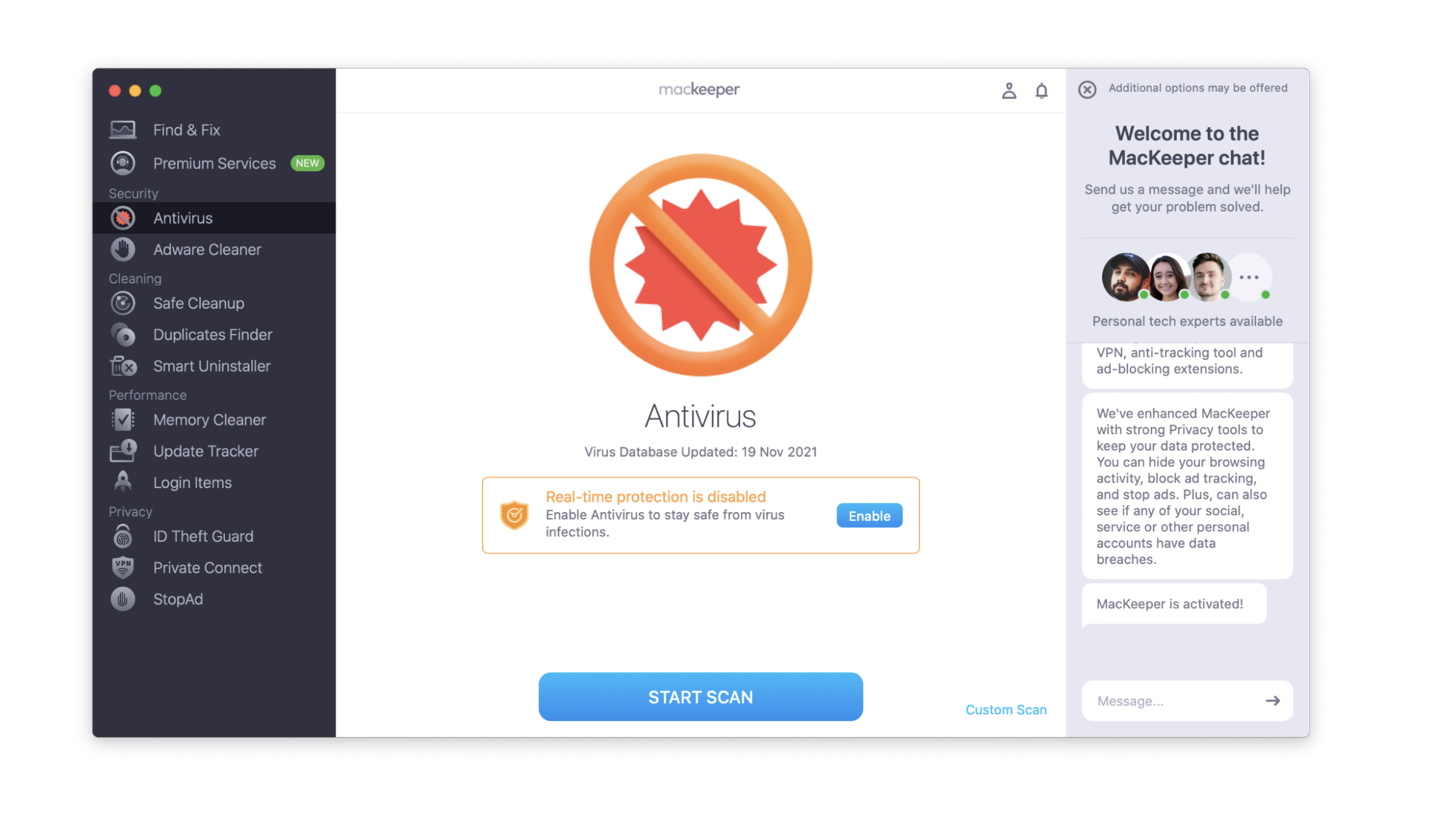
Step 1. Security > Antivirus > Launch AntivirusStep 2. Select Next > EnableStep 3. Open your computer preferences and toggle on MacKeeper’s settingsStep 4. Relaunch MacKeeper and enable real-time protection
It’s important to adopt a multipronged security stack for maximum protection. Give it a try today.
We respect your privacy and
use cookies
for the best site experience.
Privacy Preferences Center
We use cookies along with other tools to give you the best possible experience while using the
MacKeeper website. Cookies are small text files that help the website load faster. The cookies we
use don’t contain any type of personal data meaning they never store information such as your
location, email address, or IP address.
Help us improve how you interact with our website by accepting the use of cookies. You can change
your privacy settings whenever you like.
Manage consent
All cookies
These cookies are strictly necessary for enabling basic website functionality (including page
navigation, form submission, language detection, post commenting), downloading and purchasing
software. The website might malfunction without these cookies.