Doubting if XProtect on your Mac can guarantee a decent security level? In the world of cybersecurity, you can't be too careful. Luckily, you have an alternative—MacKeeper's Antivirus can enhance your protection as it’s designed using top-notch technologies and can protect you from the majority of modern threats.
XProtect is a built-in antivirus technology in macOS for signature-based malware detection
XProtect is enabled by default on your Mac
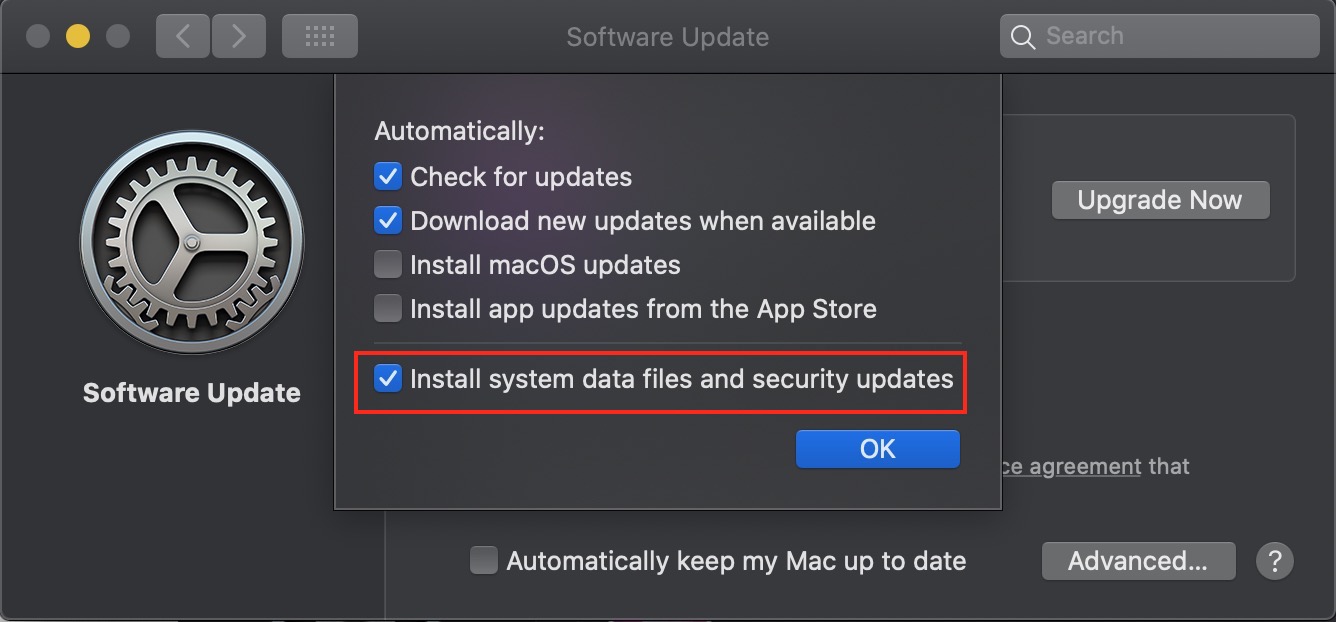
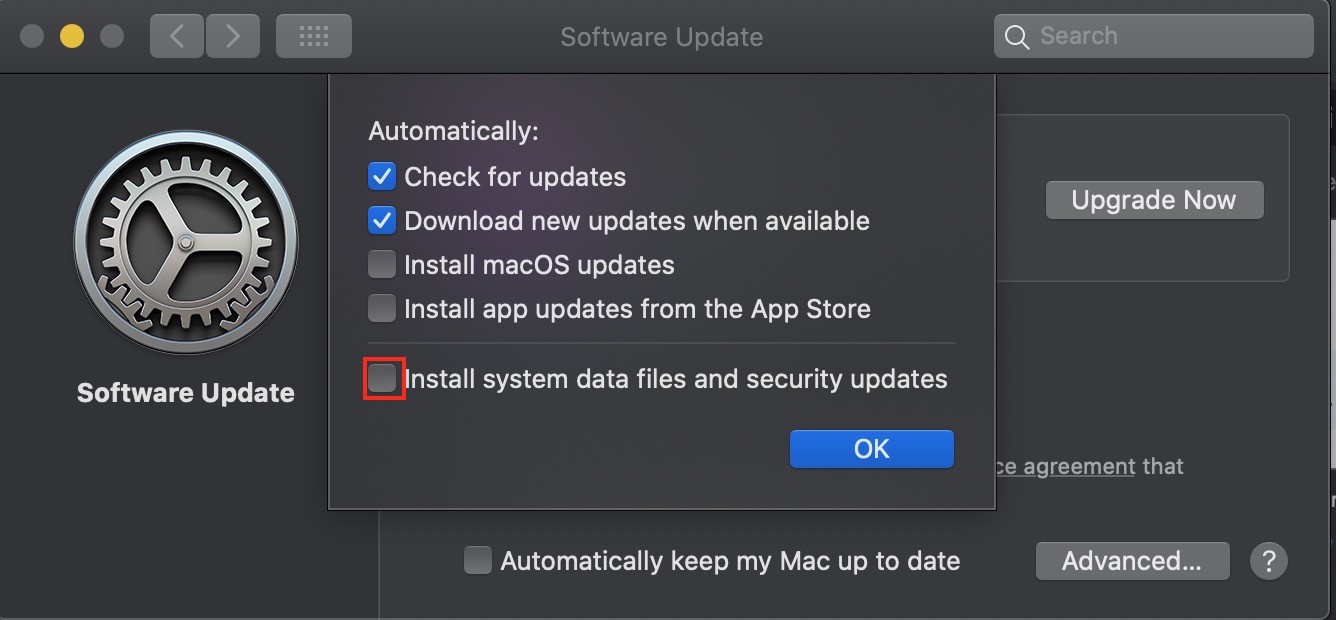
To ensure XProtect is active on Mac, go to System Settings > General > Software Update > Advanced and put checkmark next to Install system data files and security updates
To find and access XProtect on a Mac, go to Macintosh HD > Library > Apple > System > Library > CoreServices
We don't recommend disabling XProtect on Mac computers
XProtect may not be effective against all online threats
In this article you will find the following:
Are you using Apple's built-in antivirus XProtect to protect your Mac?
While it may seem like a convenient solution, XProtect has limitations and may not provide the level of protection you need. That's where MacKeeper's Antivirus comes in. With advanced features and real-time protection, MacKeeper's Antivirus provides you with the peace of mind you need to keep your Mac safe from malware and other threats.
This guide will explain everything you need to know about XProtect on your Mac. Let’s get started by learning what XProtect is in the first place.
A note from our experts:
If you have any concerns about XProtect, it’s not superfluous to use a third-party antivirus tool. MacKeeper’s Antivirus provides your Mac with all-time protection.
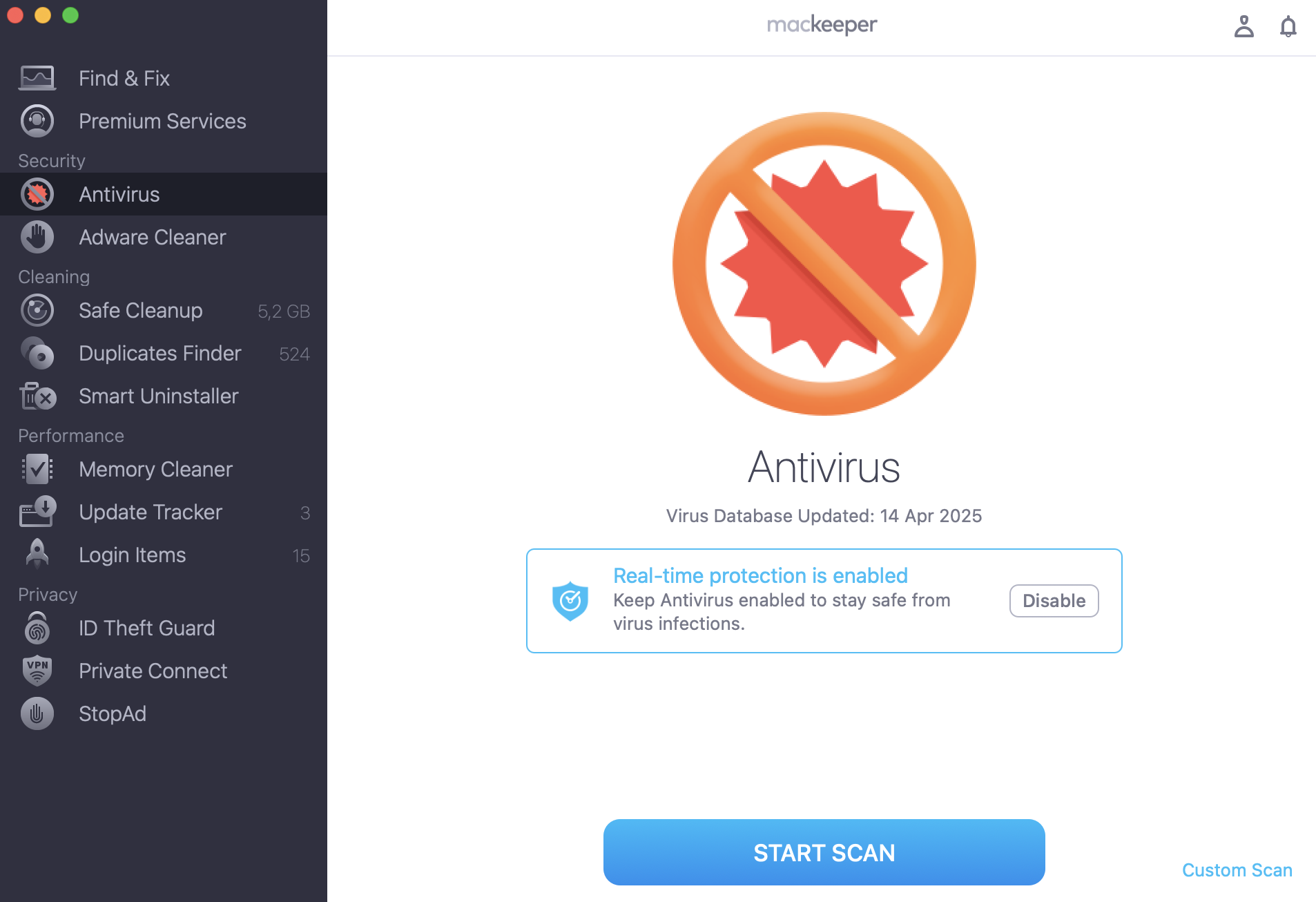
Here’s how to protect your Mac with MacKeeper’s Antivirus:
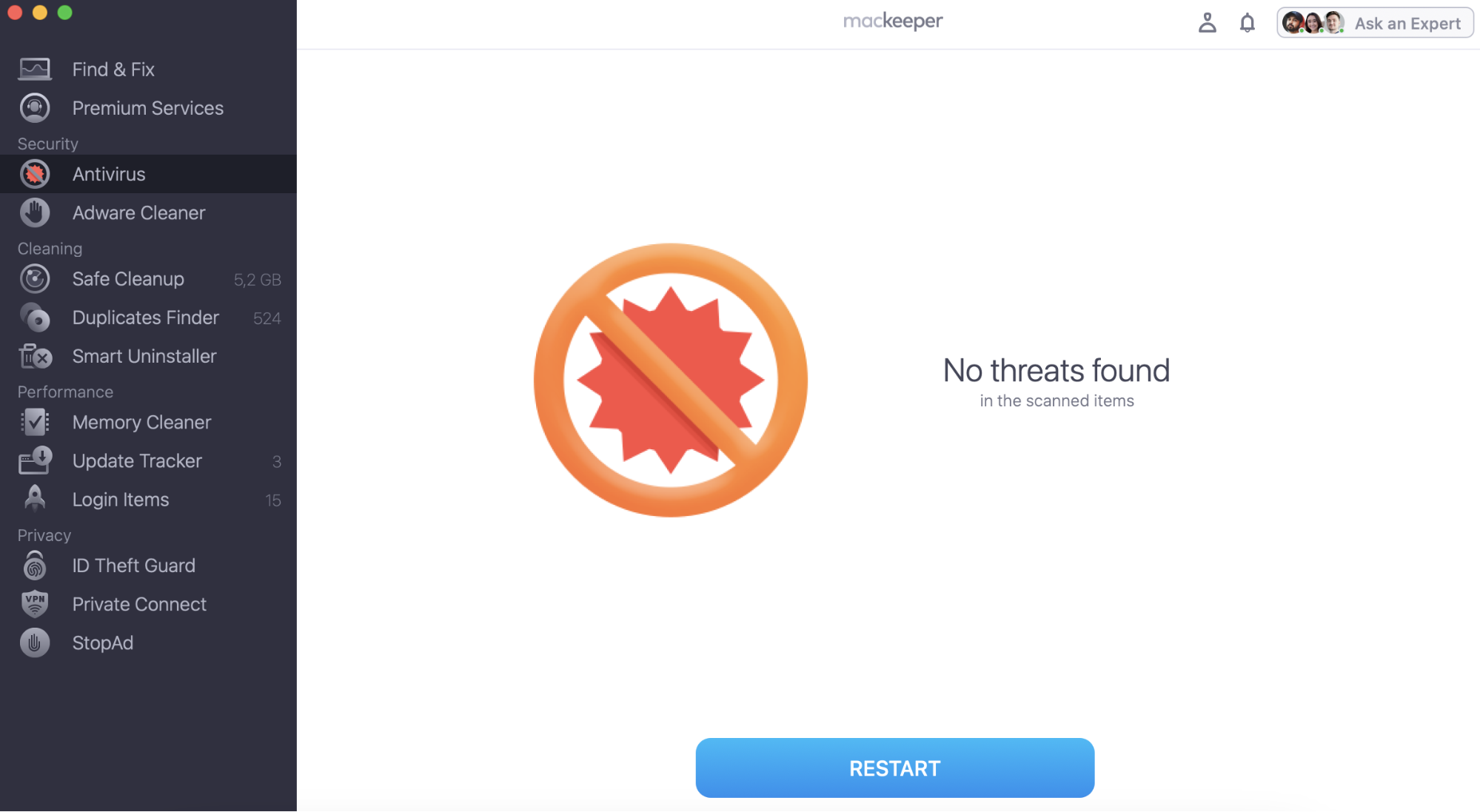
If you have any threats, they’ll be stated after the scan, and you can remove them.
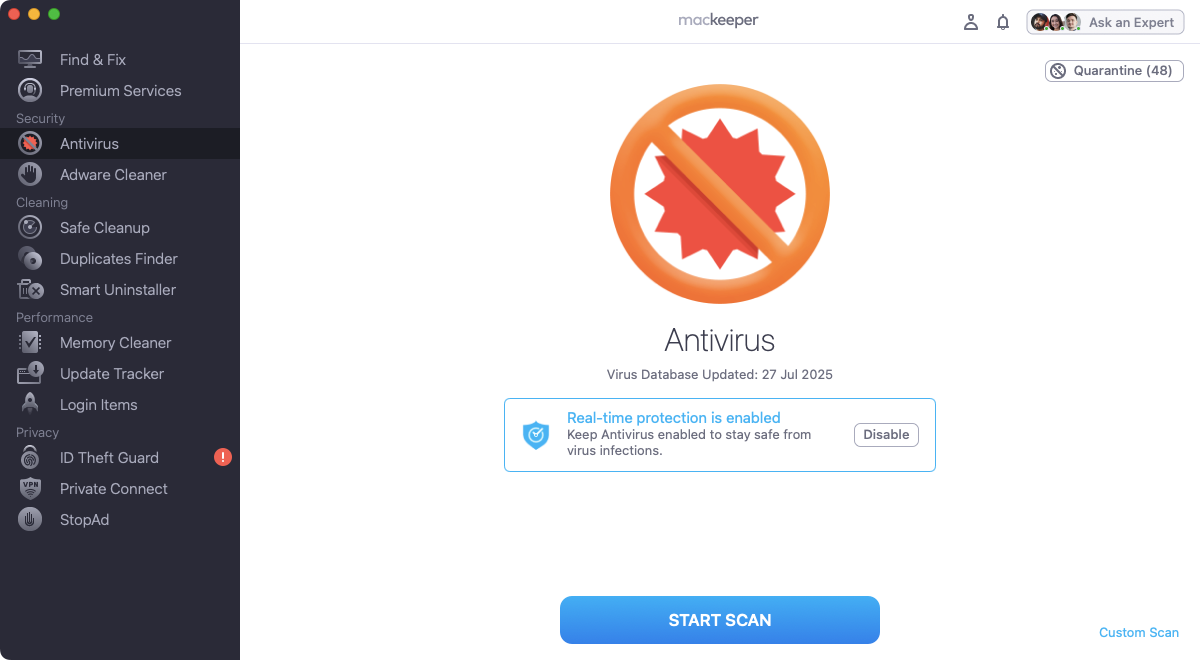
Step 1. MacKeeper > Antivirus > Sart ScanStep 2. If you have any threats, you can move them to the quarantine or remove them
What is XProtect on Mac?
XProtect, or File Quarantine, is a built-in anti-malware technology that detects malware using YARA signatures, introduced in 2009 with macOS X 10.6 Snow Leopard.
XProtect on Mac is a key part of Apple’s cybersecurity strategy for macOS. It comes preinstalled with your Mac, and it runs in the background, using signature-based detection to identify malware. Most of the time, you’ll barely know it’s there.
Unlike other antivirus software, XProtect only executes when you:
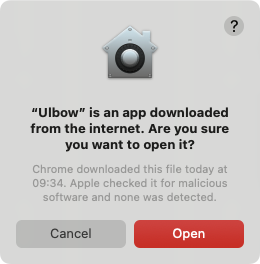
Launch a downloaded app for the first time
Change an app in the file system
Update XProtect’s signatures.
Now that we’ve discussed what XProtect is, let’s dive into how Mac’s very own antivirus works.
How does XProtect work?
XProtect automatically updates as part of a routine, ensuring that it's always up-to-speed with the latest security definitions.
Mac’s built-in antivirus has minimal impact on system resources. Unlike other anti-malware programs, XProtect doesn't continuously monitor the system but operates silently in the background.
Its primary function is to scan downloads. Whenever you initiate a download, XProtect will analyze the file, comparing its contents to known virus definitions. If it detects any potential threats, it’ll alert you immediately. This process ensures you’re safe from malicious files without causing any significant disruption to your workflow.
Knowing what XProtect is and how it works is a must-have for this discusssion, but now we’ll explain another important nuance—how to activate it.
How to enable XProtect?
XProtect is a built-in tool on Mac that detects and blocks common threats. Therefore, you should keep XProtect up-to-date to ensure optimal protection against new malware.
Here are the steps to open XProtect on Mac and ensure it's automatically updated:
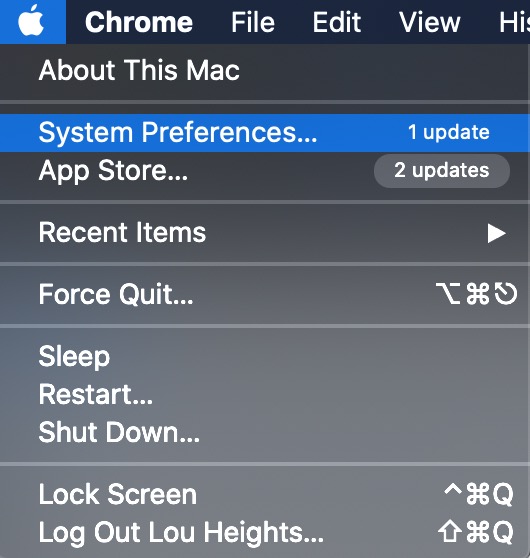
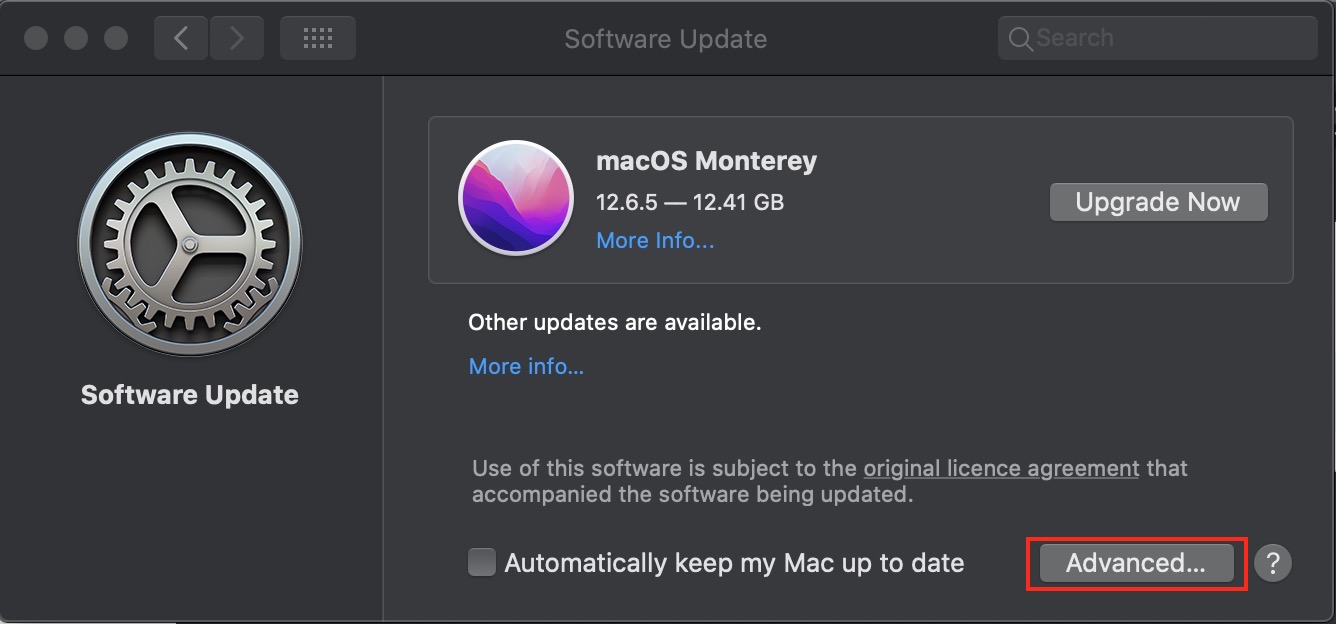
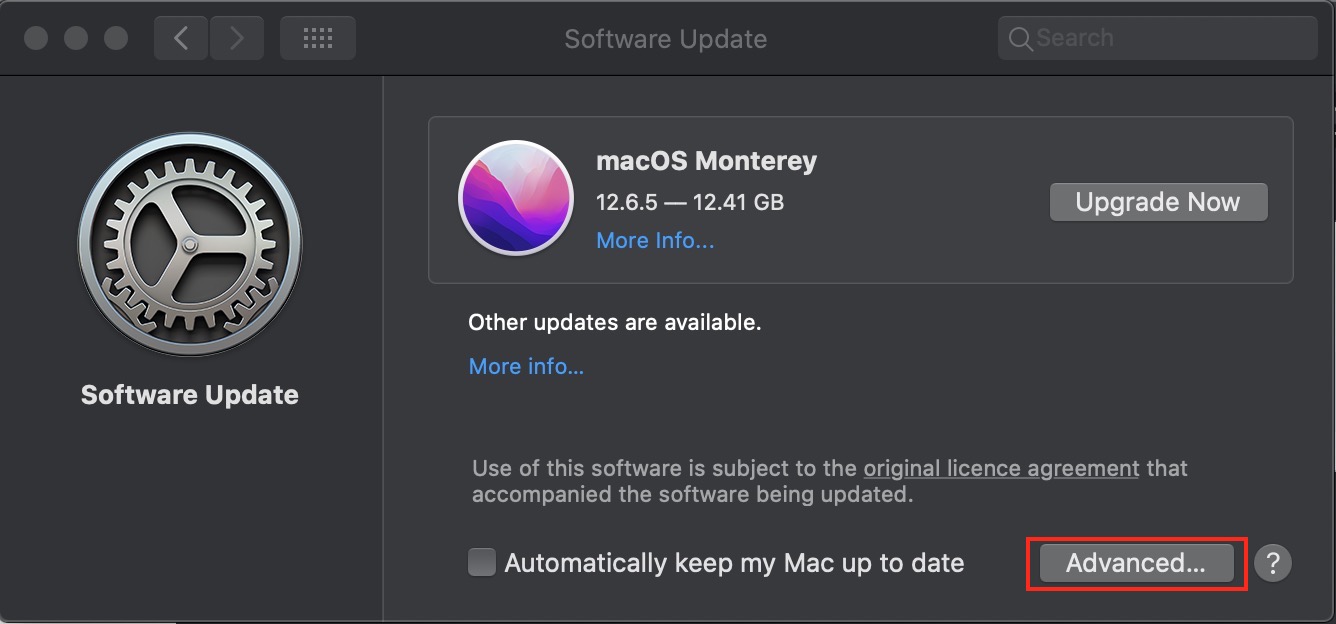
Select the Apple icon in the top left corner and select System Preferences from the dropdown menu.
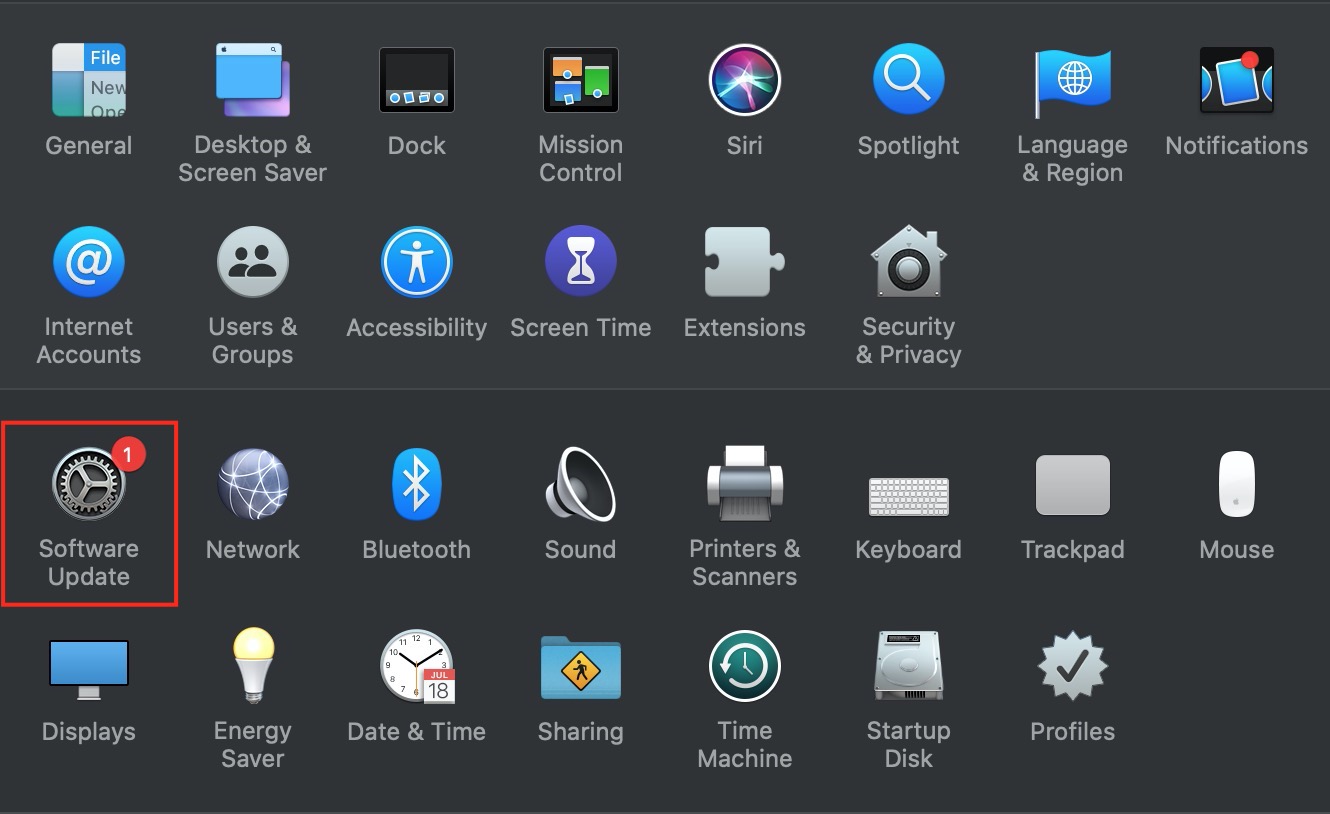
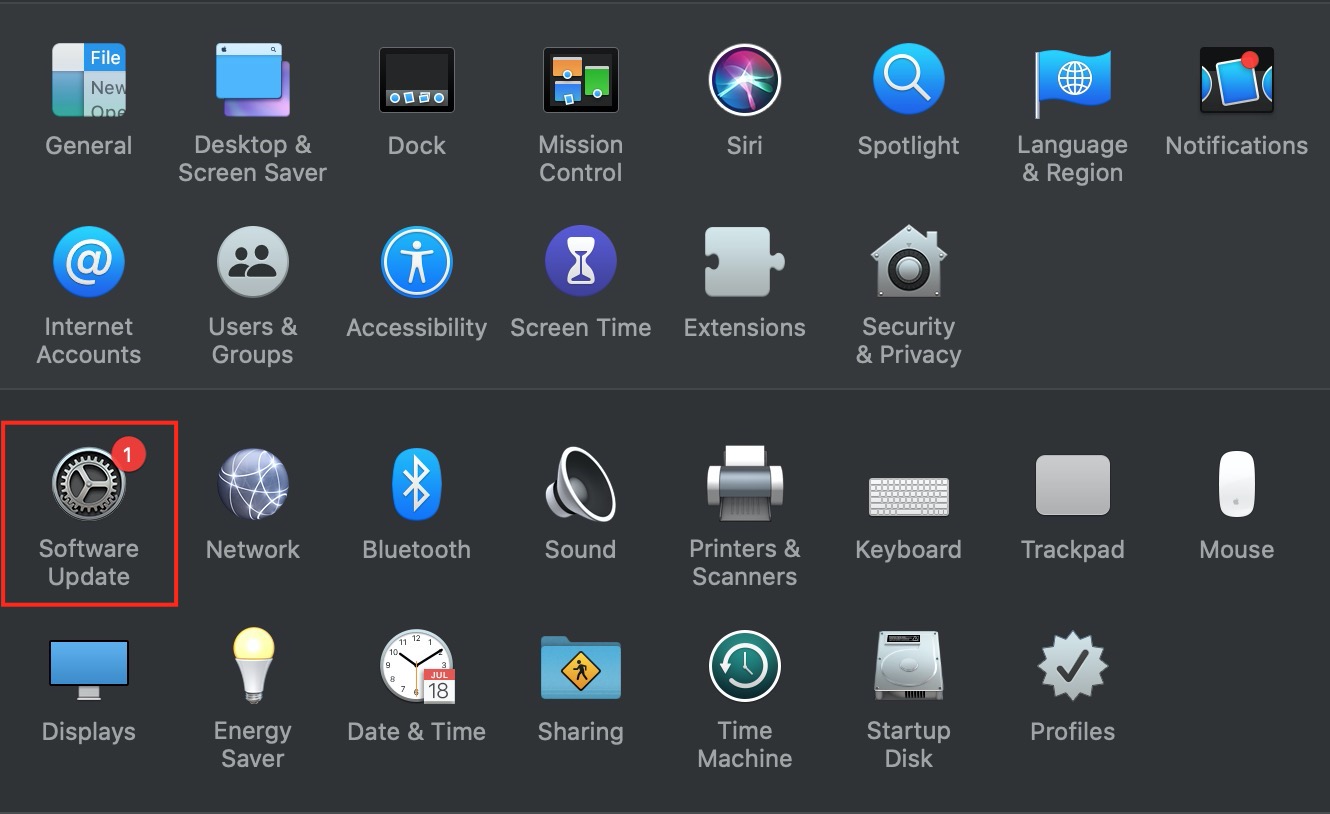
Click Software Update.
Select the Advanced button at the bottom of the window.
Make sure the Install system data files and security updates option is ticked.
Close the System Preferences window.
Step 1. Apple icon > System PreferencesStep 2. Software UpdateStep 3. AdvancedStep 4. Tick the framed option on > OK
How does XProtect protect your Mac?
Unlike third-party cybersecurity apps, you don’t need to enable XProtect on Mac. By default, it automatically runs alongside the rest of macOS, quietly protecting you from digital threats.
In any version of macOS, from version 10.15 (Catalina) onwards, XProtect will check for viruses and other malware in these cases:
The first time an app is launched.
Whenever an app has been changed in the file system.
When XProtect’s signatures are updated.
1. Automatic malware scanning when you open apps
Whenever you open an app for the first time, XProtect will scan it for viruses and other malware. If it detects any known malware, it will block it and move it to your Trash. You’ll also see an alert about it from Finder. In some cases, XProtect will also ask you to share malware samples with Apple, which helps the company improve macOS security.
2. Protection during file downloads from web
XProtect is focused on preventing rogue apps from running. If you download an infected app and try to run it, XProtect should work alongside Gatekeeper to prevent the app from running. Together, they’ll give you warnings about unsigned apps and harmful software. However, neither XProtect nor Gatekeeper will scan files as soon as they’re downloaded from the internet, so you’ll need extra protection for that.
3. Always-up-to-date threat definitions
XProtect bases its protection on YARA malware definitions. These are updated automatically, so you don’t need to do anything extra to use XProtect on your Mac with the latest definitions. If there are any substantial updates to XProtect itself, those will be handled by your computer’s normal system updates.
4. Built-in collaboration with other macOS security tools
As we mentioned earlier, XProtect is a key part of your Mac’s security, but it’s not the only protection you get. It’s actually part of Apple’s three-tiered cybersecurity strategy, which looks like this:
Prevent malware from launching: This includes the quality controls in the App Store, as well as the Gatekeeper tool, combined with Apple Notarization.
Blocking malware from running on customer systems: Again, this involves Gatekeeper and Notarization, as well as XProtect.
Remediating malware that’s already executed: This is solely the responsibility of XProtect.
XProtect works alongside Gatekeeper to prevent malicious software from running on your Mac
5. Malware detection logs and background alerts
Although XProtect runs silently in the background, macOS may still log its activity. If macOS does log anything, it will be kept in your Mac’s Unified Logging system, which you can access through the built-in Console tool.
Here’s how we can use Console to check for XProtect Activity:
Open Console from Applications > Utilities.
Check through the Reports in the side menu. Look for anything that mentions XProtect.
The Apple Console tool may reveal what XProtect has been doing
If you can’t find anything in Console, we suggest trying some third-party tools instead. In our tests, we had more luck with the third-party apps Ulbow and XProCheck, which showed us current XProtect activity and when the last XProtect scan was.
A hint from our experts:
While XProtect offers good basic protection for Macs, it’s very limited. It won’t, for example, let you check for malware on your Mac on demand, and it won’t automatically detect malware in downloaded data. For that, we suggest using MacKeeper’s Antivirus solution, which offers both real-time and on-demand detection and removal of malicious software.
To run a scan with MacKeeper, simply do as follows:
Select Antivirus from the side menu, and click the Start Scan button.
When the scan is finished, if MacKeeper has found any malware, select it, and click Delete.
Confirm the removal by clicking the Delete button in the pop-up.
Step 1. Select Antivirus and click Start Scan2. If MacKeeper finds malware, select it and click Delete3. Click the Delete button here to confirm removal of the malware
How to check the XProtect version and status?
To ensure that your XProtect is running correctly and provides optimal protection against malicious threats on your Mac, check its installation status and the current version of XProtect.
Here's a step-by-step guide to finding the XProtect version on your Mac:
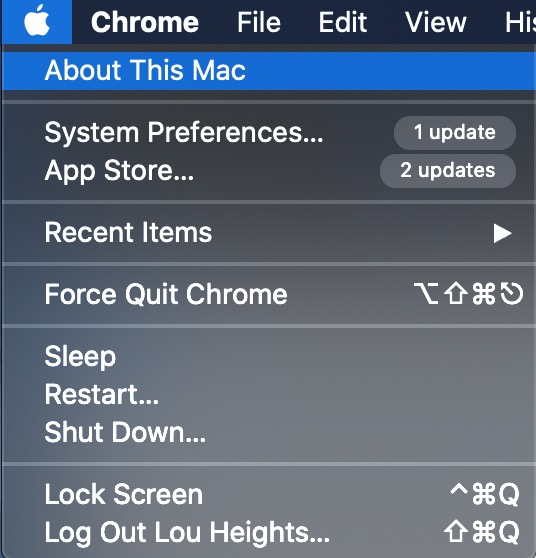
Click on the Apple icon in the top left corner of your screen and select About This Mac from the dropdown menu.
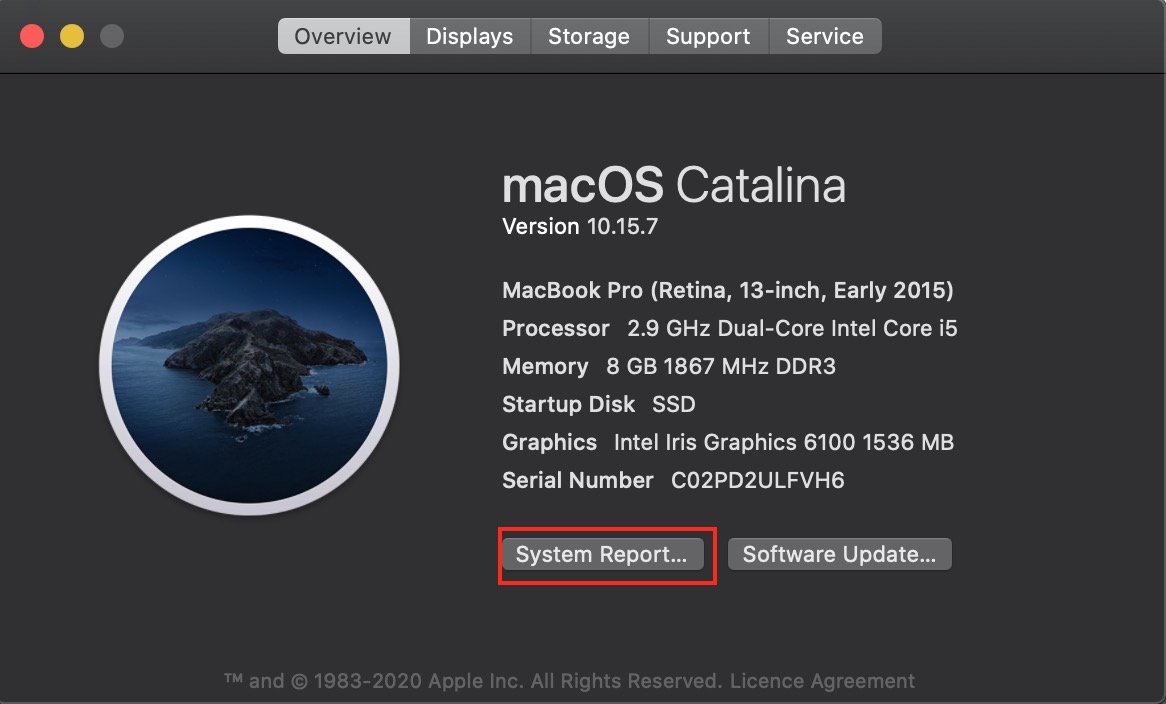
Select the System Report button.
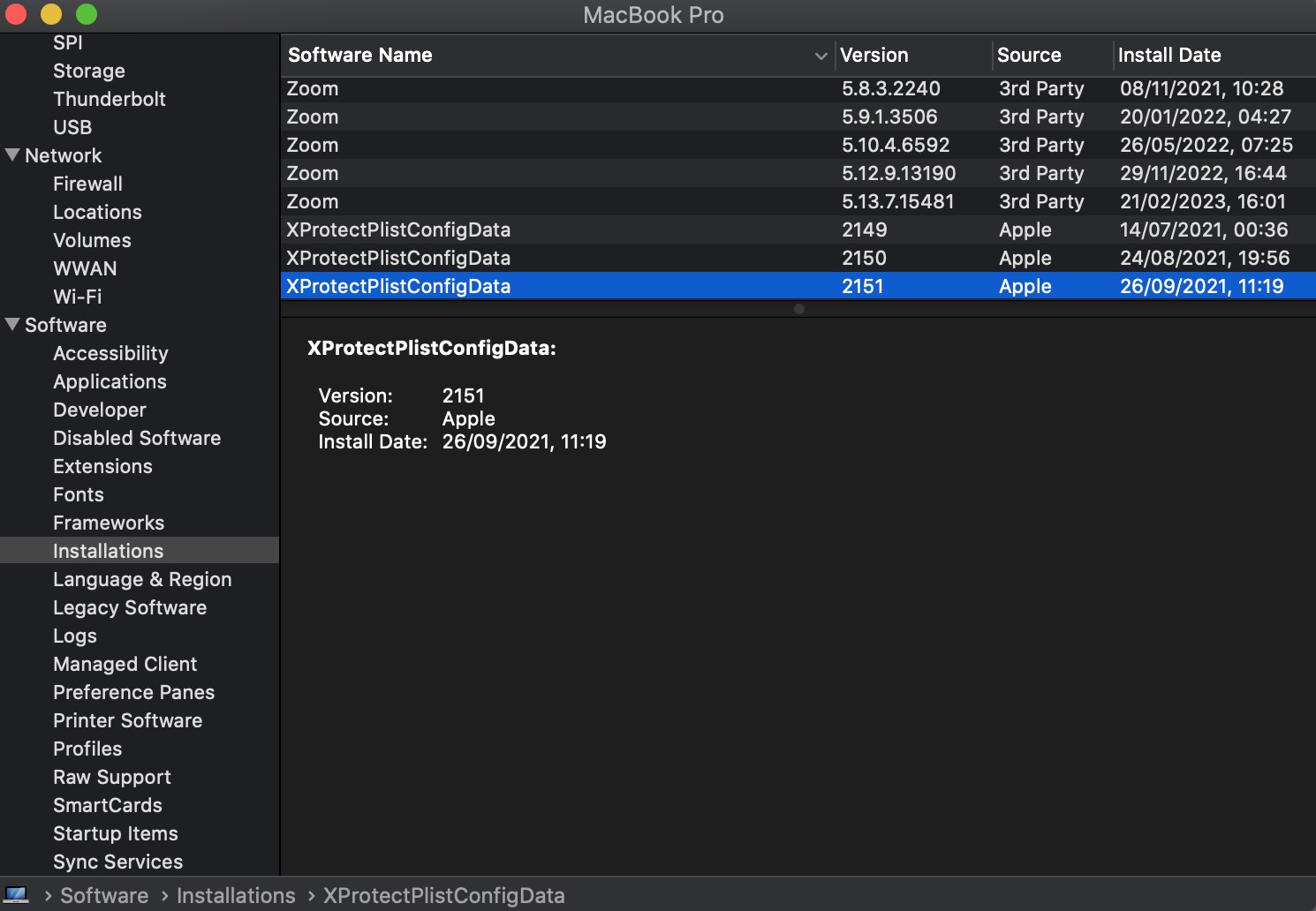
In the System Information window, scroll down to the Software section in the left-hand sidebar and click it.
Click Installations.
Select the Software Name column header to sort the list by name.
Look for XProtectPlistConfigData in the list. The version number next to it indicates the current version of XProtect installed on your Mac.
Step 1. Apple icon > About This MacStep 2. System ReportStep 3. Software > Installations > XProtectPlistConfigData
How to access XProtect?
To access XProtect on your Mac, you don't need to do anything special. XProtect is a built-in feature of the macOS operating system, and it’s automatically enabled and updated in the background.
If you still want to access XProtect, specifically the list of malicious applications that macOS checks when opening a downloaded file, open XProtect with these steps on OS X El Capitan or later:
Navigate to Macintosh HD/Library/Apple/System/Library/CoreServices/XProtect.bundle.
Control-click on XProtect.bundle and select Show Package Contents.
Click on Contents/Resources and press the Spacebar to open the XProtect.plist file.
Once the XProtect.plist file is open, you can view the list of malicious apps that macOS checks for.
Can the user disable XProtect?
Sure, you can turn off XProtect on your Mac, but it’s not advised, as it could leave your device vulnerable to malware and other security threats.
Although, if you still need to disable the antivirus, follow these steps to deactivate XProtect:
Launch System Preferences and click on the Software Update icon.
Click Advanced.
Uncheck the box next to Install system data files and security updates.
Confirm the action by clicking OK.
Now, XProtect will be disabled.
Step 1. System Preferences > Software UpdateStep 2. AdvancedStep 3. Uncheck the selected box > OK
Is XProtect secure enough?
XProtect on Mac primarily scans downloaded files and blocks known malware threats, but it may not be effective against new or more sophisticated malware that can evade detection.
As a wiser alternative, MacKeeper's Antivirus provides more comprehensive protection against attacks, including real-time scanning and threat detection, anti-phishing and anti-ransomware protection, and a firewall to prevent unauthorized access.
Here's a comparison table for your convenience:
Feature
XProtect
MacKeeper’s Antivirus
Real-time scanning
No
Yes
Threat detection
Basic
Advanced
Anti-phishing protection
No
Yes
Anti-ransomware protection
No
Yes
Firewall
No
Yes
System cleanup
No
Yes
Performance optimization
No
Yes
Online security tools
No
Yes
Overall, while XProtect provides some protection against malware, a more advanced antivirus tool like MacKeeper can give better security for your Mac.
XProtect vs MacKeeper’s Antivirus: Which is better to secure your Mac?
As we discussed, macOS XProtect is an essential built-in security feature that helps protect your Apple device from malware and other threats. However, it's not always foolproof to run XProtect on Mac, and can be easily disabled, leaving your device vulnerable to attack.
To ensure maximum security, MacKeeper's Antivirus is a stronger alternative. It offers real-time protection against malware, ransomware, spyware, adware, and other threats that could harm your Mac.
We respect your privacy and
use cookies
for the best site experience.
Privacy Preferences Center
We use cookies along with other tools to give you the best possible experience while using the
MacKeeper website. Cookies are small text files that help the website load faster. The cookies we
use don’t contain any type of personal data meaning they never store information such as your
location, email address, or IP address.
Help us improve how you interact with our website by accepting the use of cookies. You can change
your privacy settings whenever you like.
Manage consent
All cookies
These cookies are strictly necessary for enabling basic website functionality (including page
navigation, form submission, language detection, post commenting), downloading and purchasing
software. The website might malfunction without these cookies.