Stuck because Open Anyway not working on Mac is blocking an app you trust? MacKeeper’s Premium Services bundle antivirus, cleanup, and around-the-clock support to help keep your Mac secure while you sort it out. You can explore MacKeeper below to see how its built-in tools can help.
Ever downloaded an app, double-clicked it, and watched macOS refuse to budge? That’s Gatekeeper, Apple’s built-in security feature, doing its job. Open Anyway is the option that lets you create an exception for that blocked app.
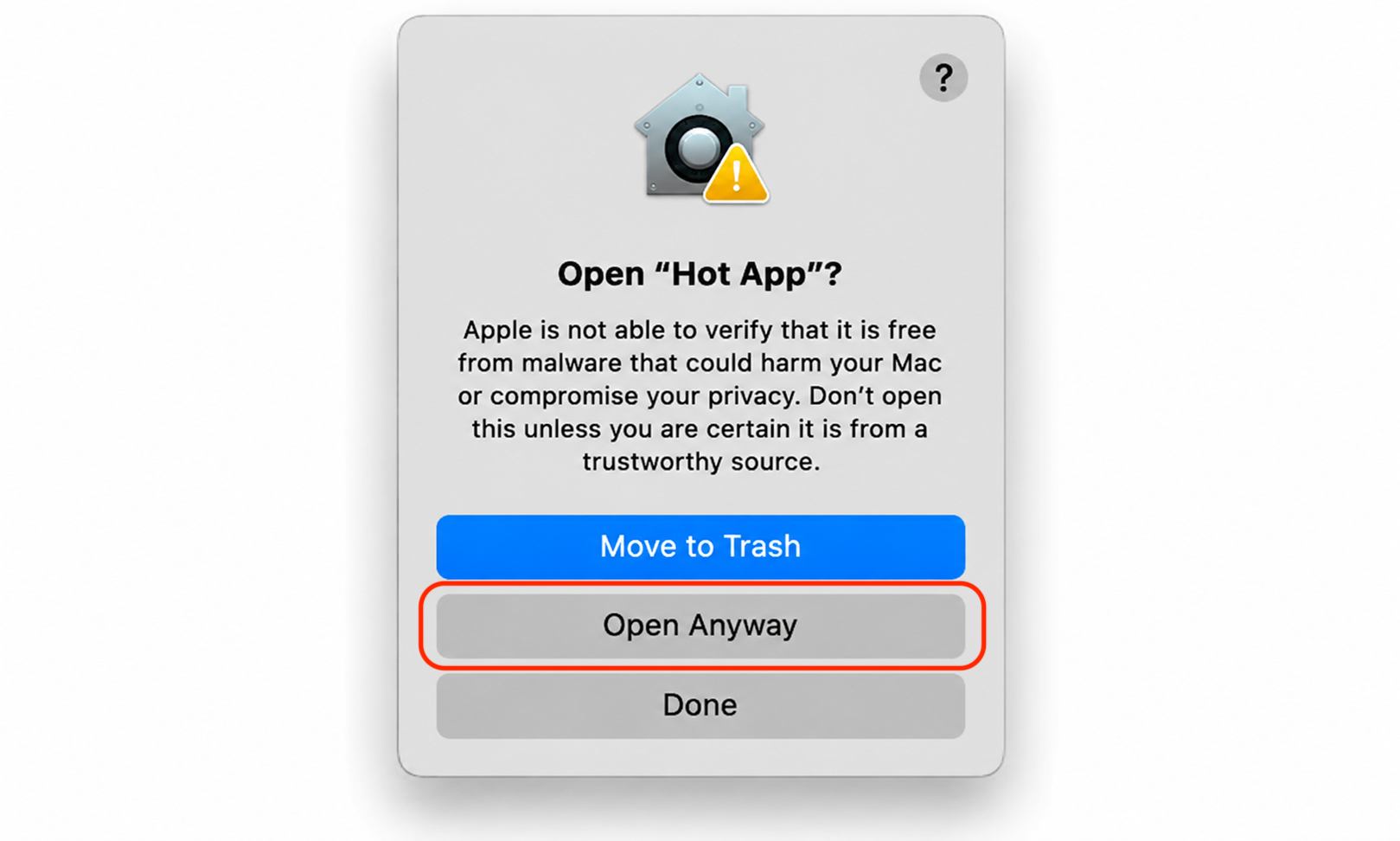
macOS shows the warning when it can’t verify the developer, or when the app sits outside Apple’s usual security checks. The Open Anyway button tells your Mac, “I know this app, and I want to launch it anyway.” It’s a one-time approval that unlocks the application without lowering your wider security settings.
Why is Open Anyway not working on Mac?
So why does the Mac Open Anyway button sometimes do nothing at all, or fail to appear in the first place? From our experience, a few common causes are usually behind it:
The app is stuck in quarantine, the flag macOS adds to anything downloaded from the internet.
The warning wasn’t triggered correctly, so macOS never registered your first attempt to open the app.
You skipped the admin password prompt, or your account doesn’t have permission to approve the app.
The app lacks Full Disk Access or another permission it needs to run properly.
The app is too old for your current macOS version and is no longer compatible.
A note from our experts:
As you can see now, Open Anyway not working on Mac almost always points to a small hiccup in how your Mac handles security prompts, permissions, or the file itself—not a broken machine. As finding a proper solution might be long and complicated, we’re ready to support you on your way with the tech assistance known as MacKeeper’s Premium Services. Our experts are available 24/7 to relieve any Mac-related stress.
To let us help you solve your Mac problem, you need to:
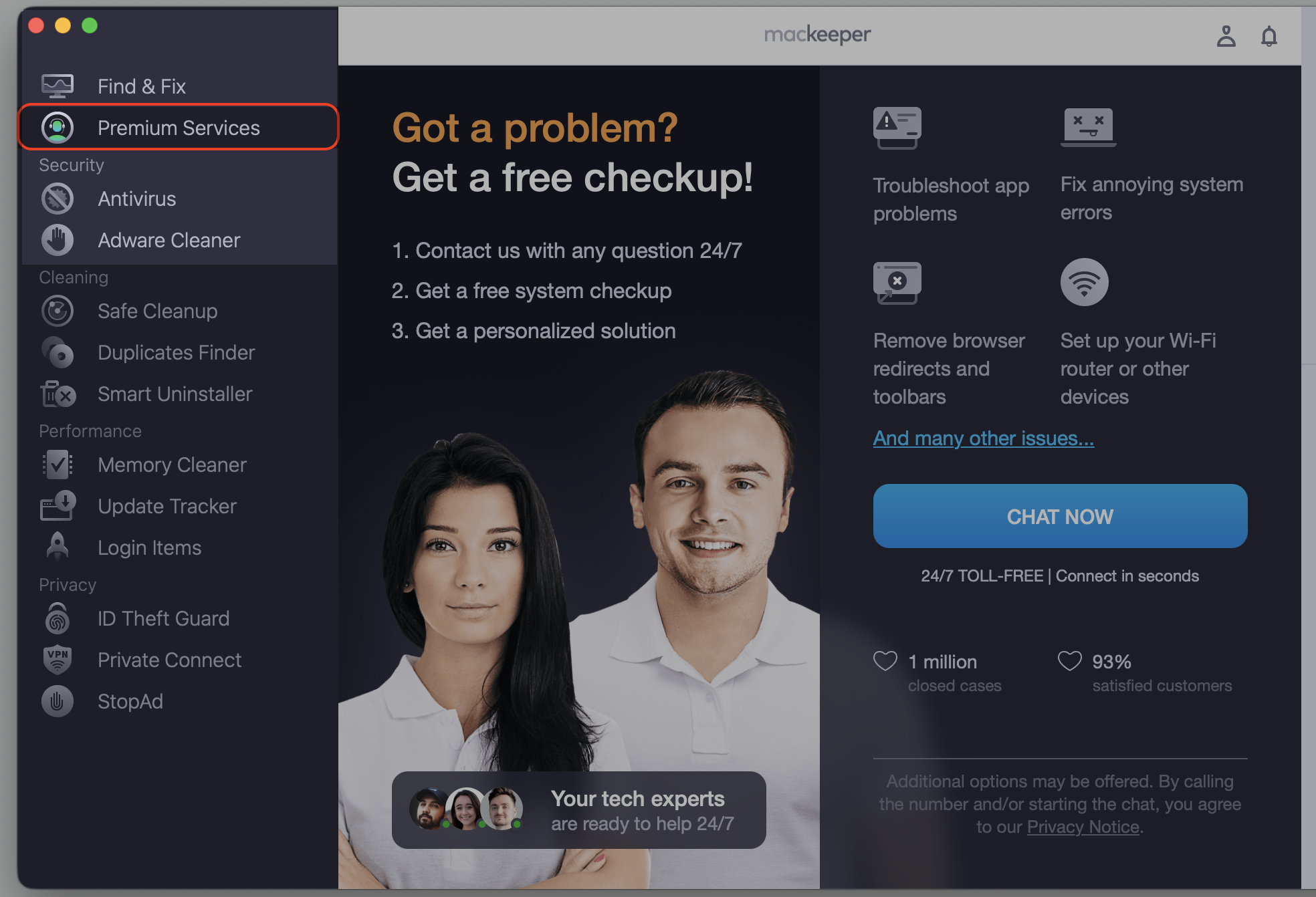
Choose the Chat Now button to reach our dedicated support service.
Explain what’s wrong with your Mac's performance and get our solution to try immediately.
Step 1. Go to MacKeeper and choose Premium Services Step 2. Click Chat NowStep 3. Type in your message to reach our support
Is it safe to use Open Anyway on Mac?
Here’s the honest answer—it’s safe, as long as you only use it for apps from sources you trust. macOS blocks unverified apps to reduce the risk of malware sneaking onto your MacBook, so the warning is there to protect you, not to annoy you.
Before you bypass any warning, we suggest you take a moment to check a few things:
Confirm the developer is a real, recognizable company or person.
Make sure you downloaded the app from the official website, not a random link.
Look up the app’s reputation and read a few recent reviews.
Good news — you can usually sort this out yourself. Most of the time, the Mac security Open Anyway not working issue clears up once you retry the launch the right way, refresh your security settings, or check a permission or two. You’ll only need advanced methods in rare cases.
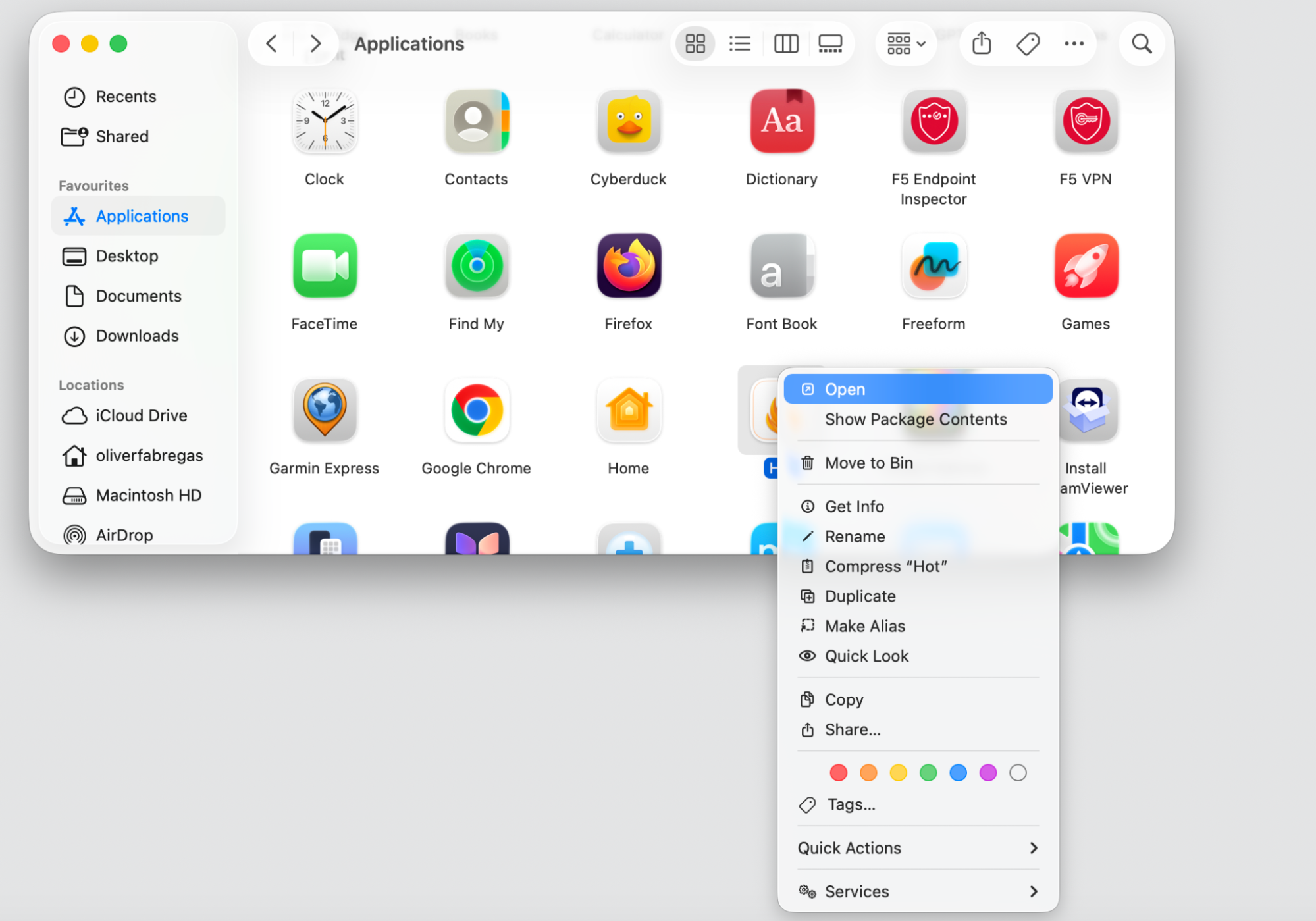
Double-clicking doesn’t always trigger the right Gatekeeper prompt. Opening the app straight from Finder often does. A quick right-click gives you the exact option you need, so do it:
Open Finder and locate the app.
Control-click (or right-click) the app icon.
Choose Open from the menu.
In the dialog that appears, select Open Anyway again to confirm.
Step 1. Select the app with Control-click and then OpenStep 2. In the dialog that appears, select Open Anyway to confirm
2. Use Privacy & Security after the first warning
Sometimes the Open Anyway button only appears after your Mac has seen one failed attempt. Your Privacy & Security settings are where you’ll find them once that happens. Below, we’ll leave the usual fix when the Open Anyway button isn’t showing on Mac:
Try to open the app once and dismiss the warning.
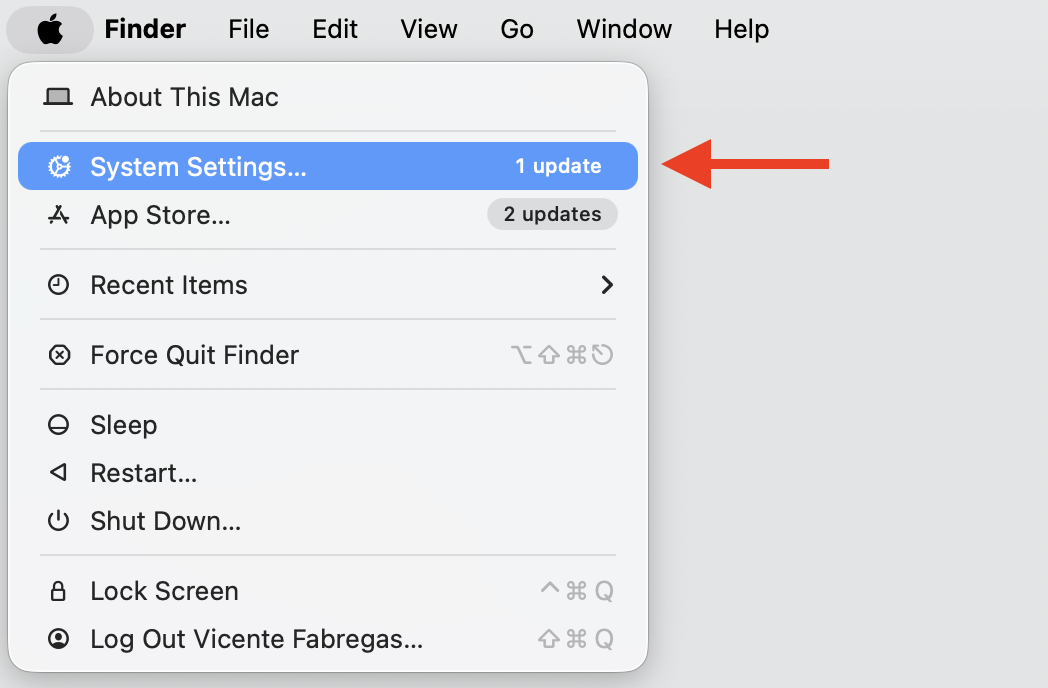
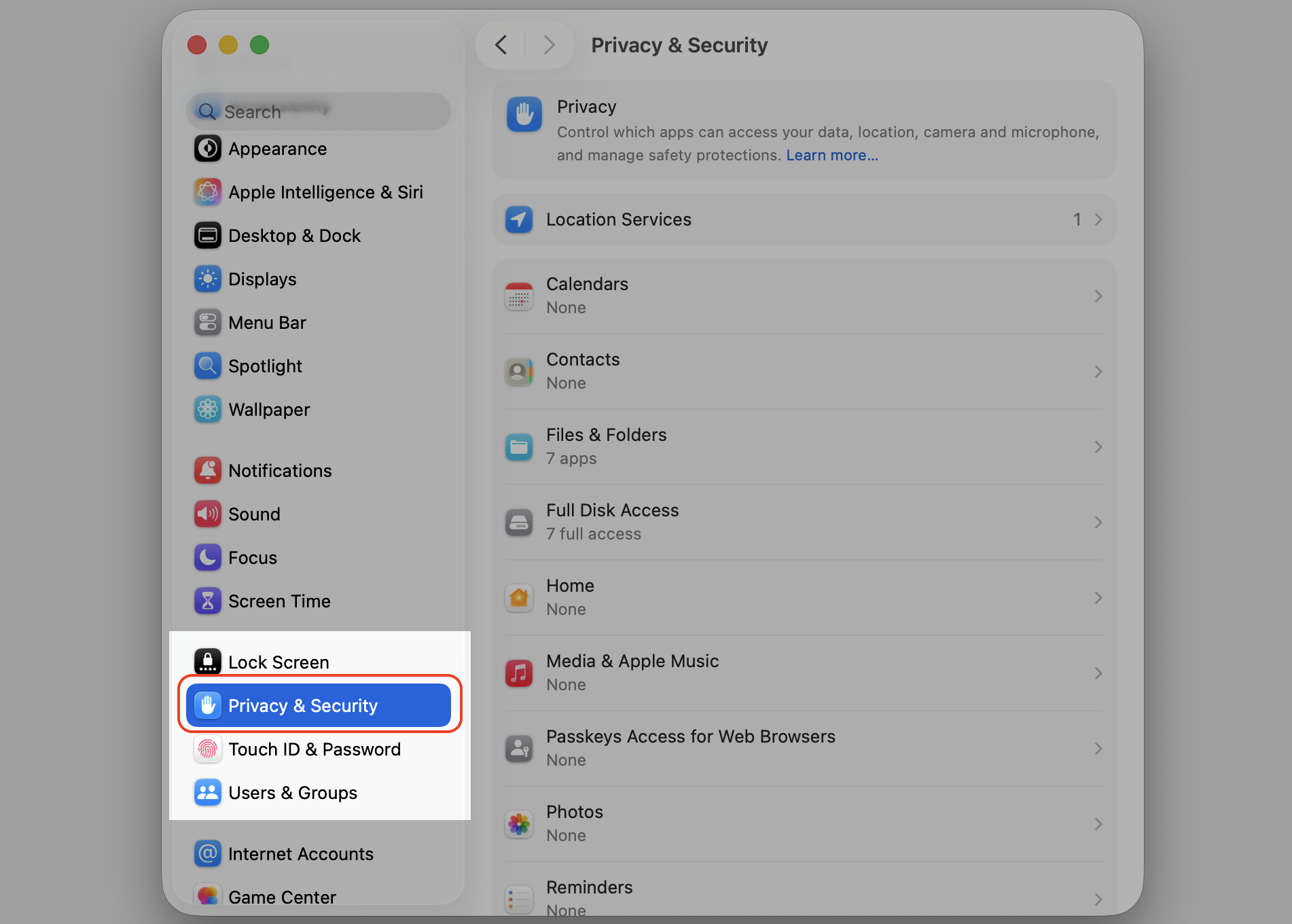
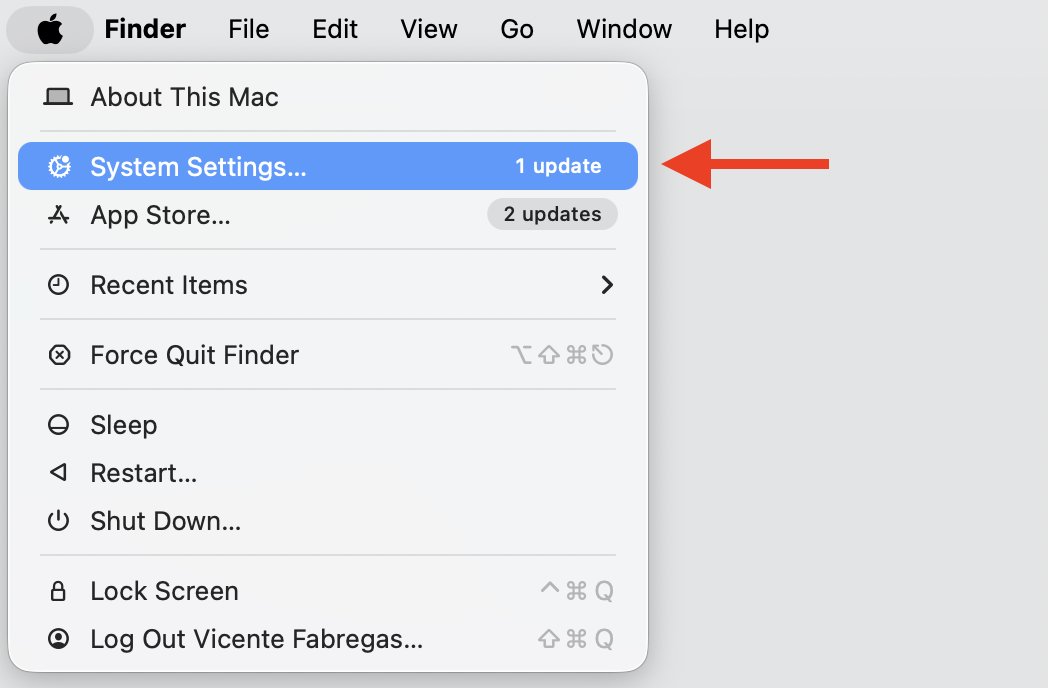
Open the Apple menu, then go to System Settings > Privacy & Security.
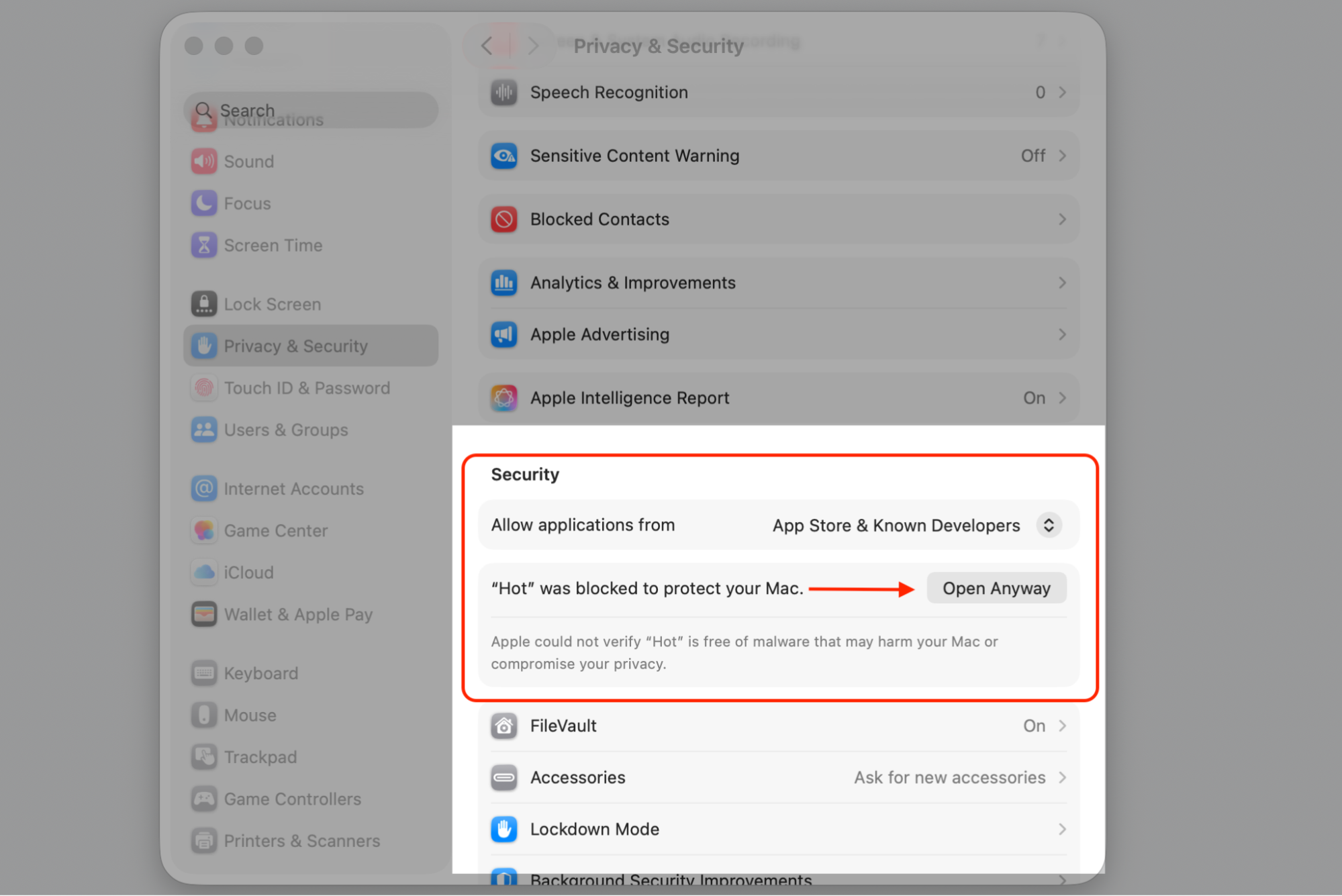
Scroll to the Security section, where you’ll see a note about the blocked app.
Select Open Anyway next to it.
Step 1. Go to Apple logo > System SettingsStep 2. Select Privacy & Security Step 3. Scroll down to Security and select Open Anyway
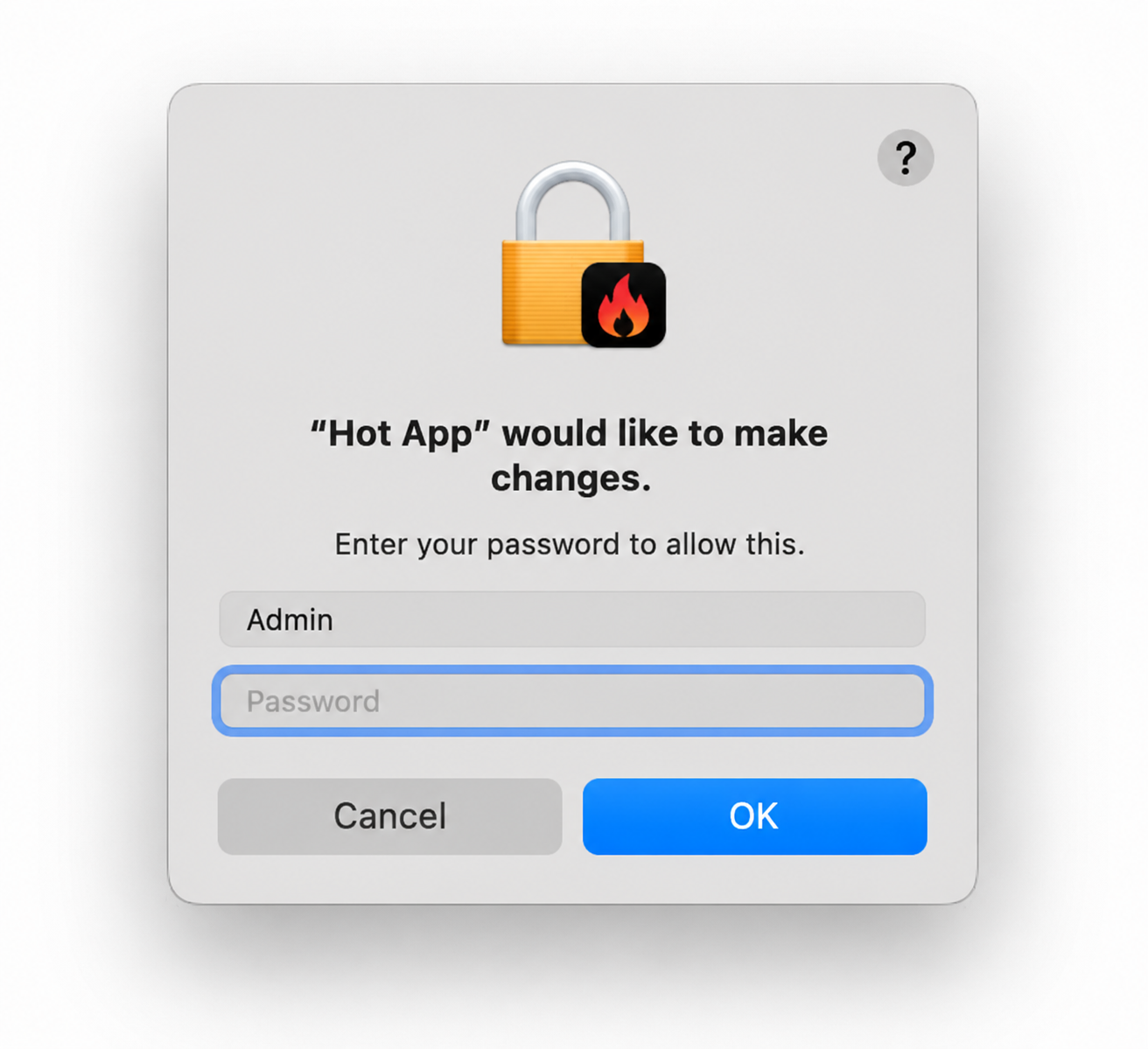
3. Enter the correct admin password
macOS often asks for administrator credentials before it lets an app run. If your account doesn’t have the right permissions, the action quietly fails—and if you’ve forgot admin password, you’ll want to reset it before trying again. Here’s how:
When prompted, type your admin username and password.
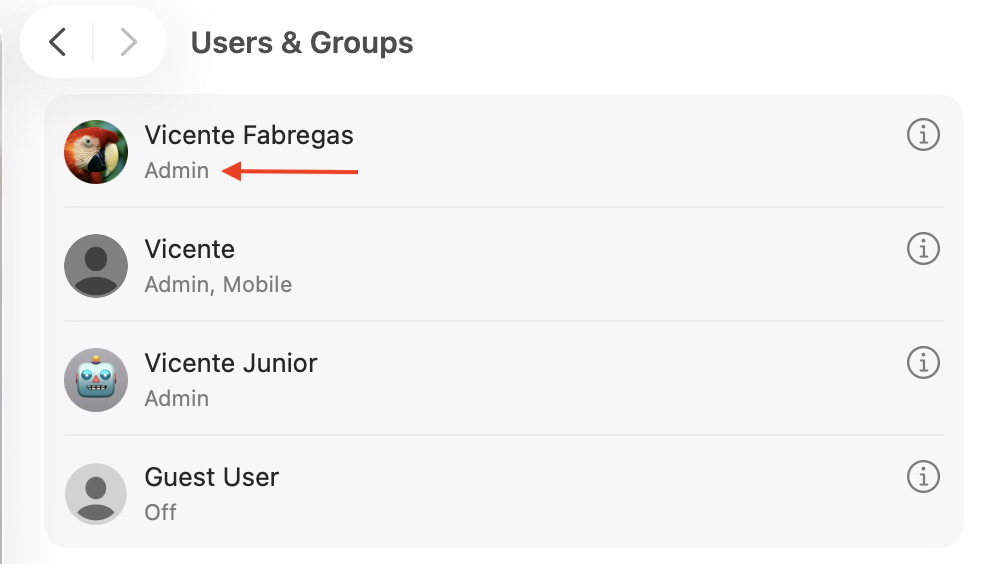
Make sure you’re signed in to an account with administrator rights.
Confirm to let the app launch.
Step 1. See if your account should have administrator privilegesStep 2. Enter your administrator password to continue
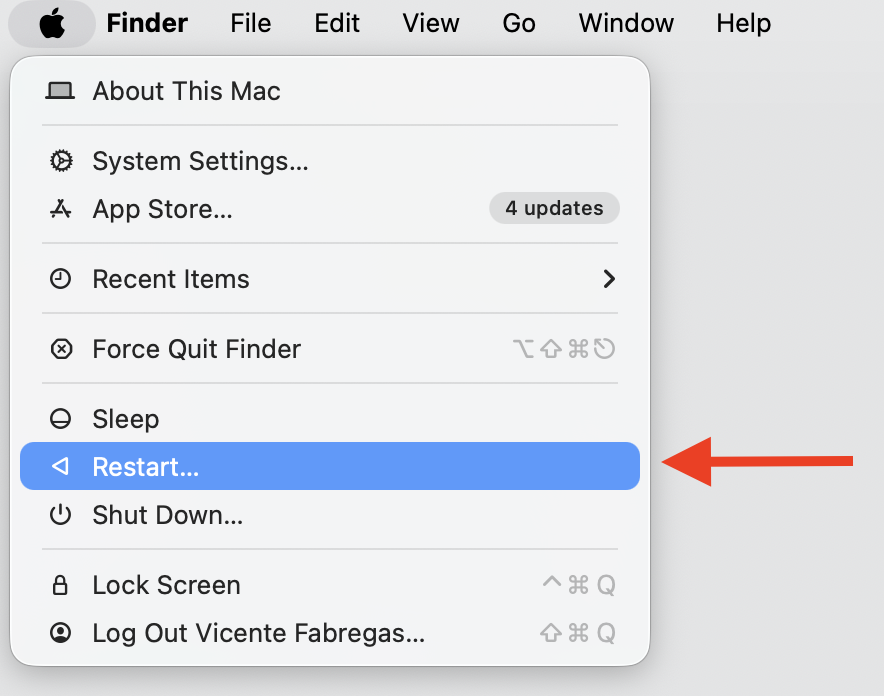
4. Restart Mac and try again
We’ve noted many time how how a simple restart clears temporary glitches in the system or settings that can freeze the Open Anyway button. If the app stays frozen afterward, a hard restart can give it a stronger nudge. Do the following:
Open the Apple menu and choose Restart.
Wait for your Mac to fully reboot.
Try opening the app again.
Restart your Mac from the Apple menu
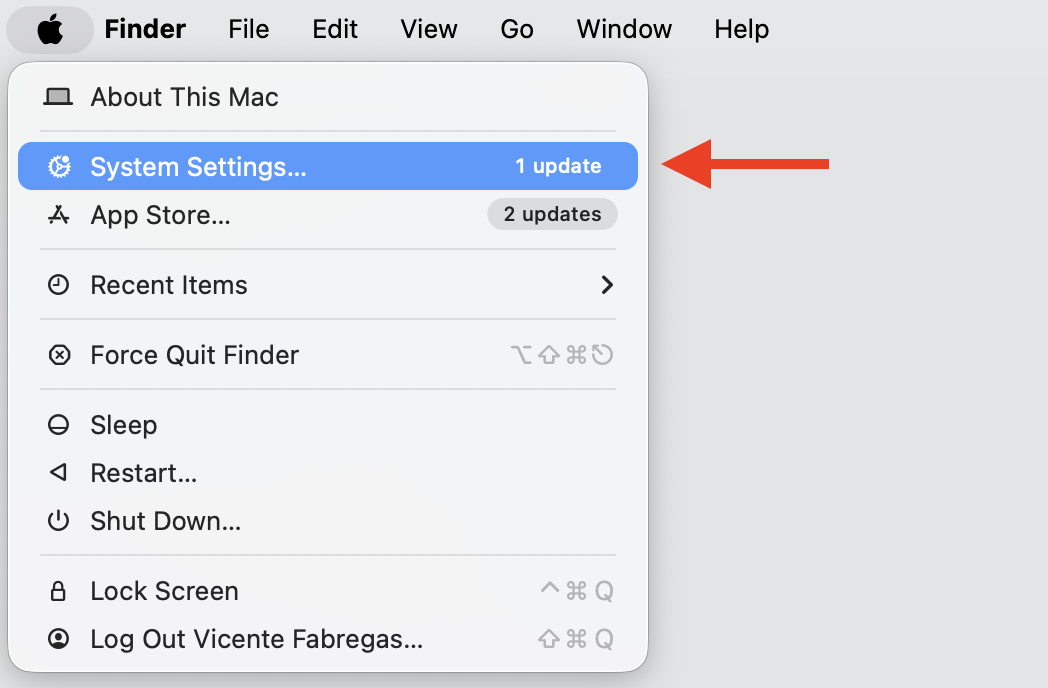
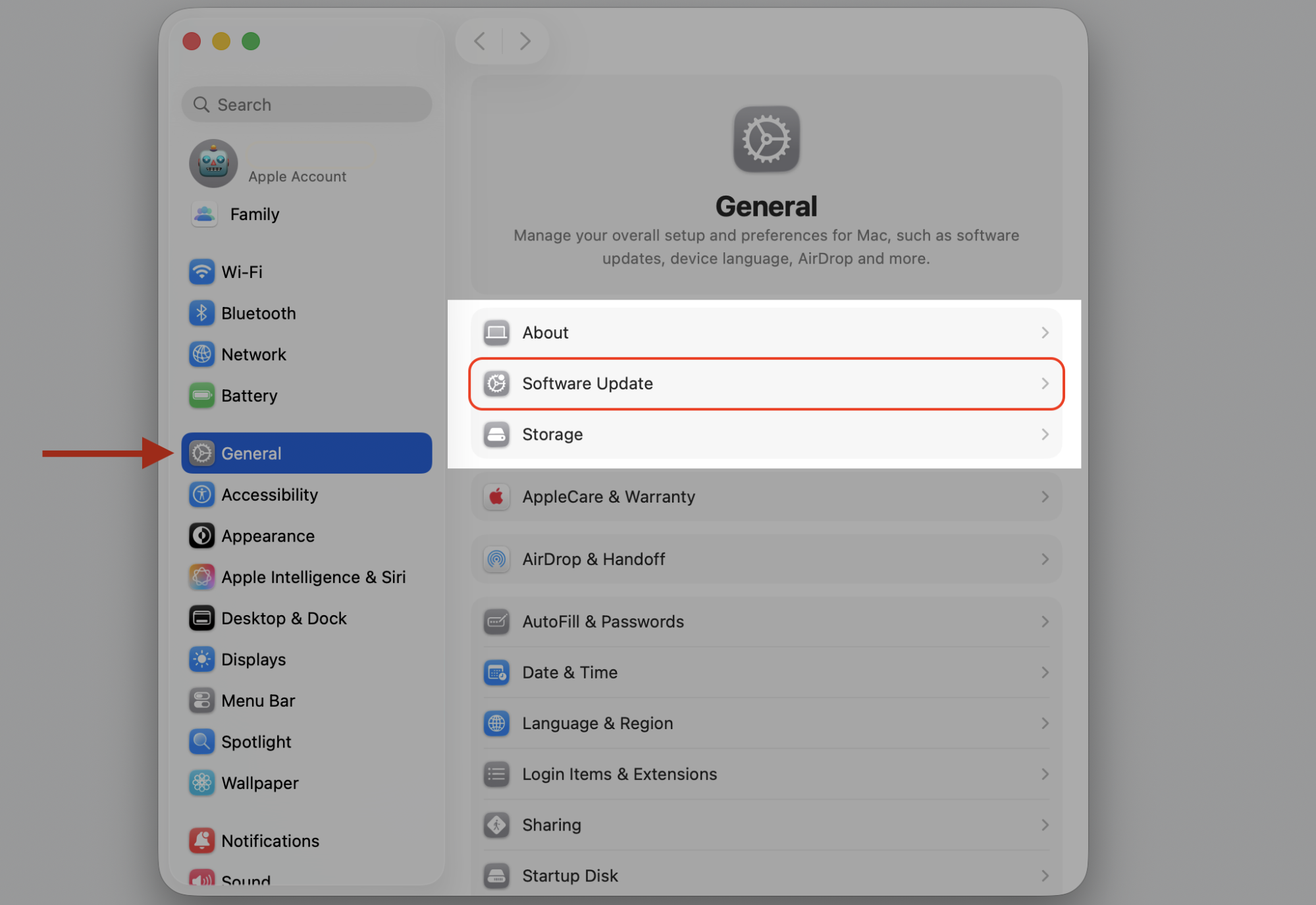
5. Update macOS
Older macOS versions sometimes carry bugs tied to security prompts, app permissions, or Gatekeeper. So, we’re sure that taking a moment to update macOS can clear those up and keep you on a secure release. Continue with our hints:
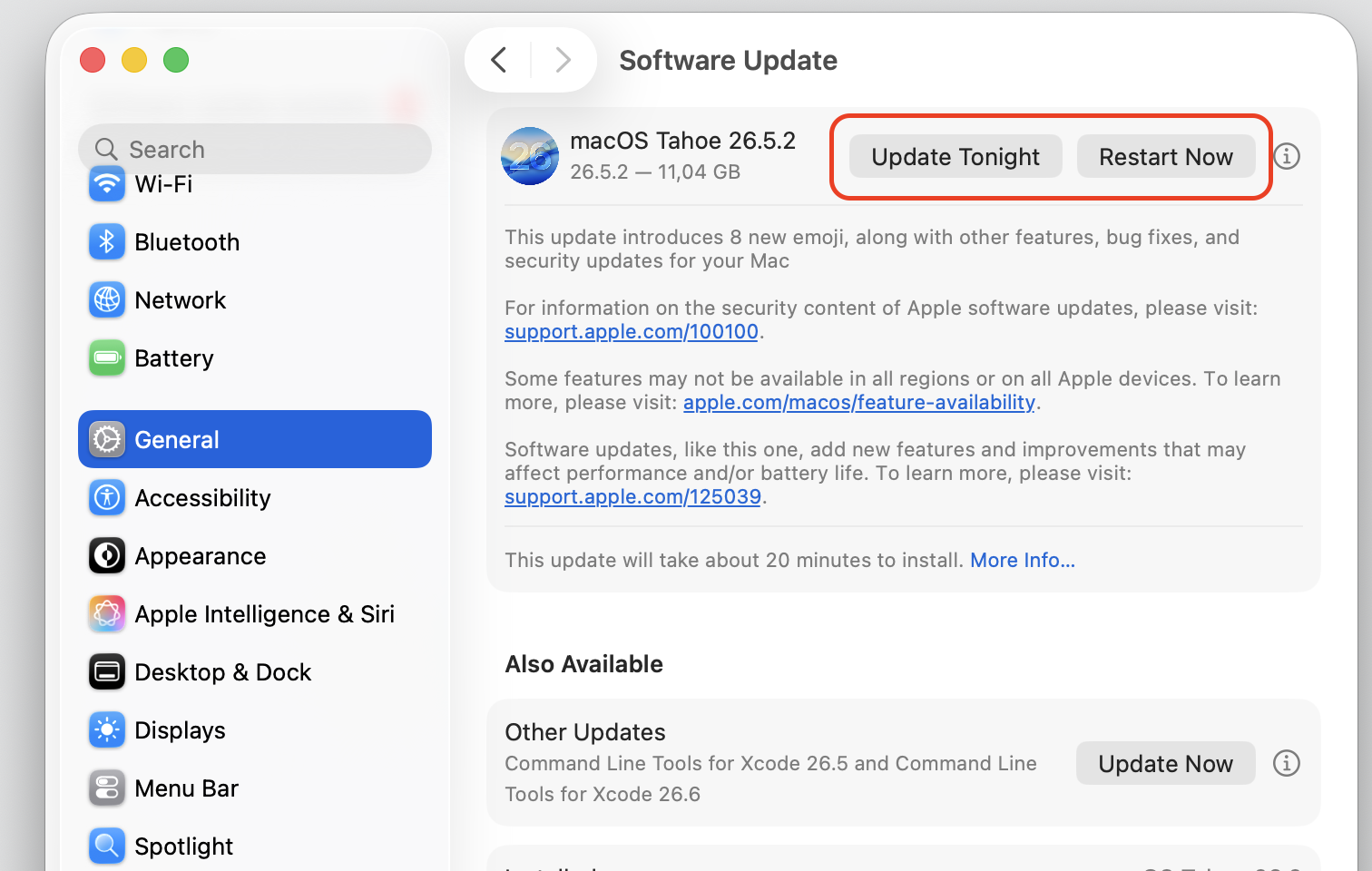
Open the Apple menu and go to System Settings.
Select General > Software Update.
Install any available version.
Step 1. Got to Apple logo > System SettingsStep 2. Go to General > Software UpdateStep 3. Install an update and restart your Mac
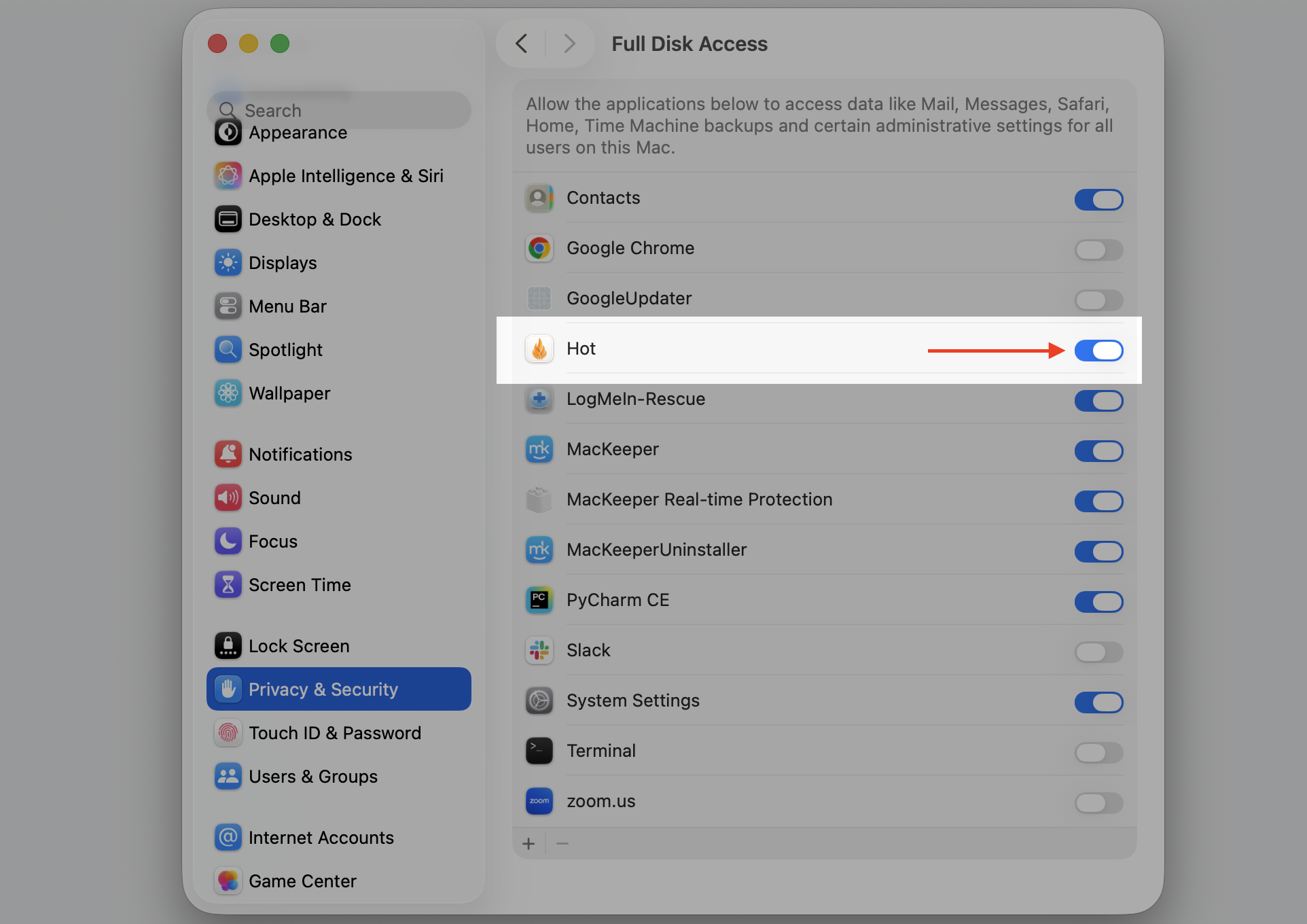
6. Check Full Disk Access and app permissions
Some apps and plug-ins need extra permission before they can install, run, or work with other software. From our practice, granting Full Disk Access often does the trick. Just do this:
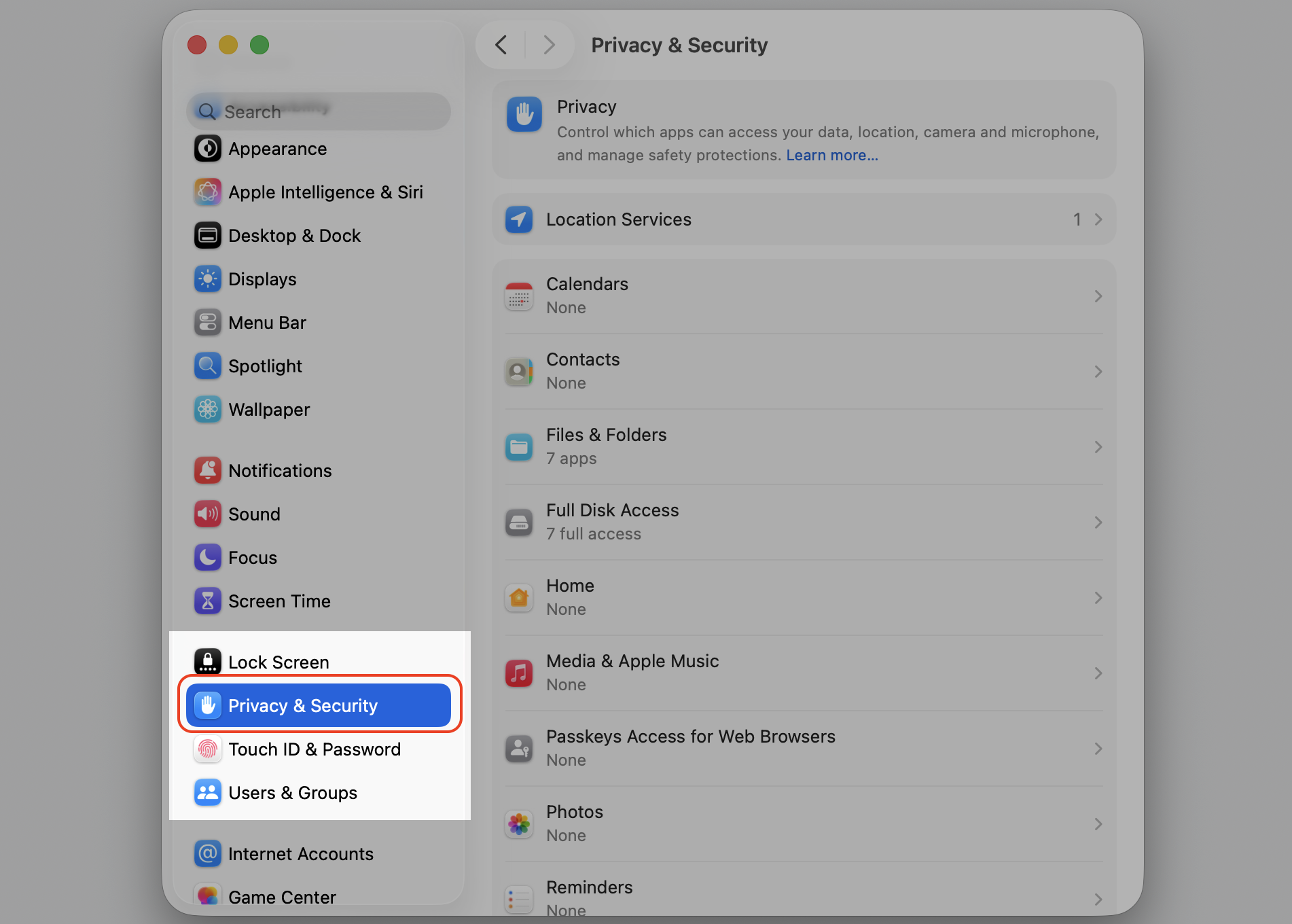
Open System Settings › Privacy & Security.
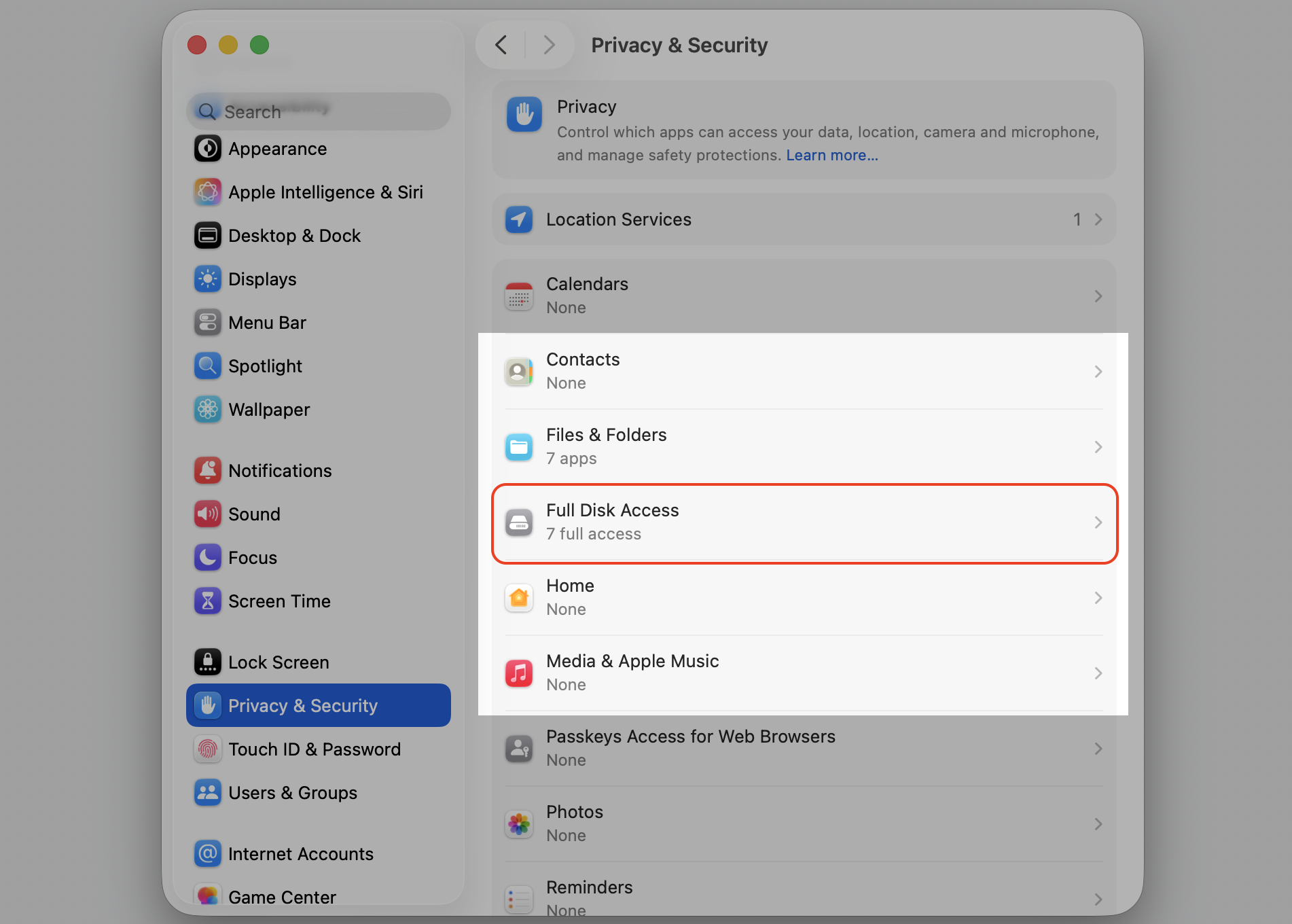
Select Full Disk Access.
Toggle on the app you’re trying to launch.
Step 1. Got to Apple logo > System SettingsStep 2. Select Privacy & Security sectionStep 3. Go to Full Disk AccessStep 4. Toggle on the app you’re trying to launch
7. Use Terminal only as advanced option
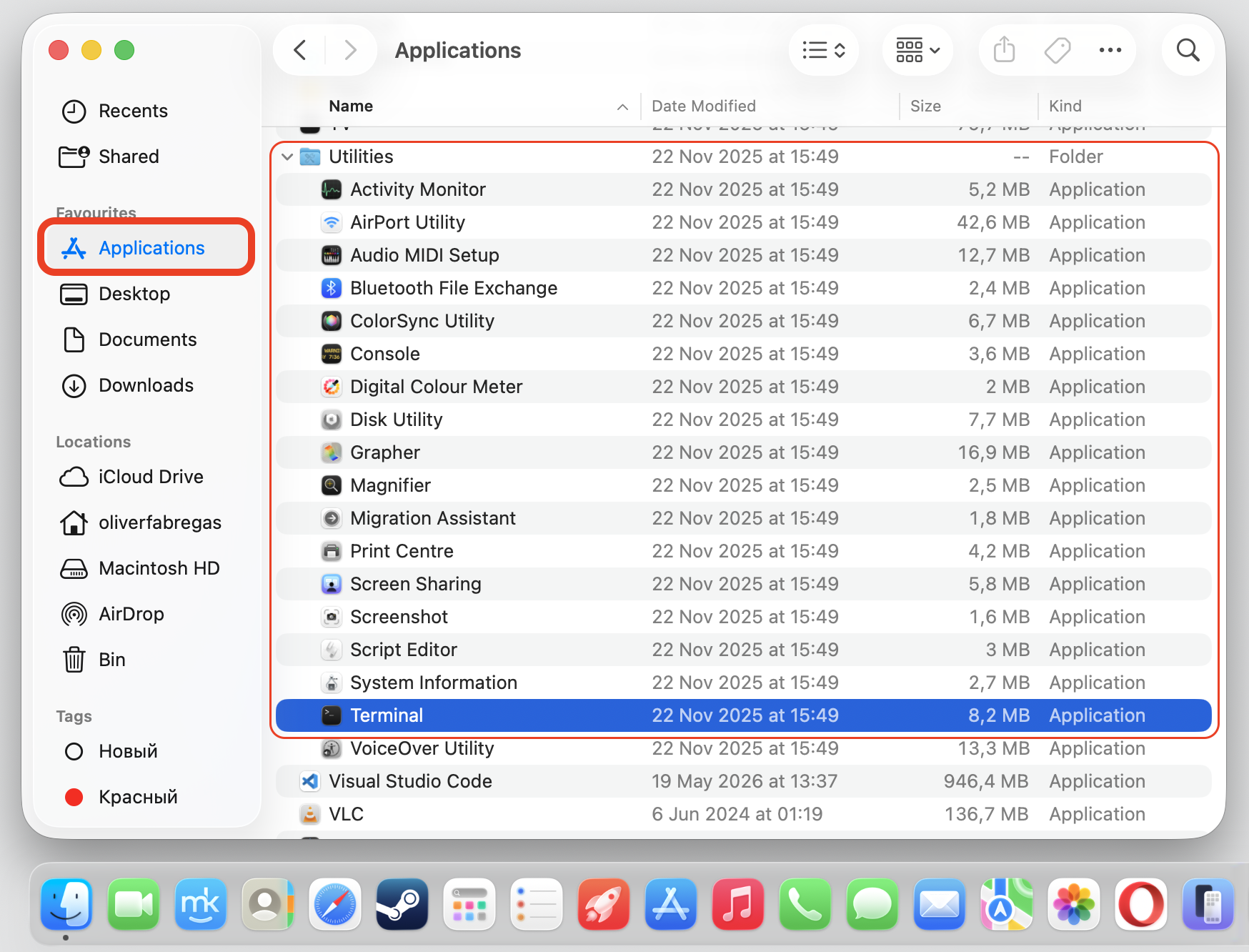
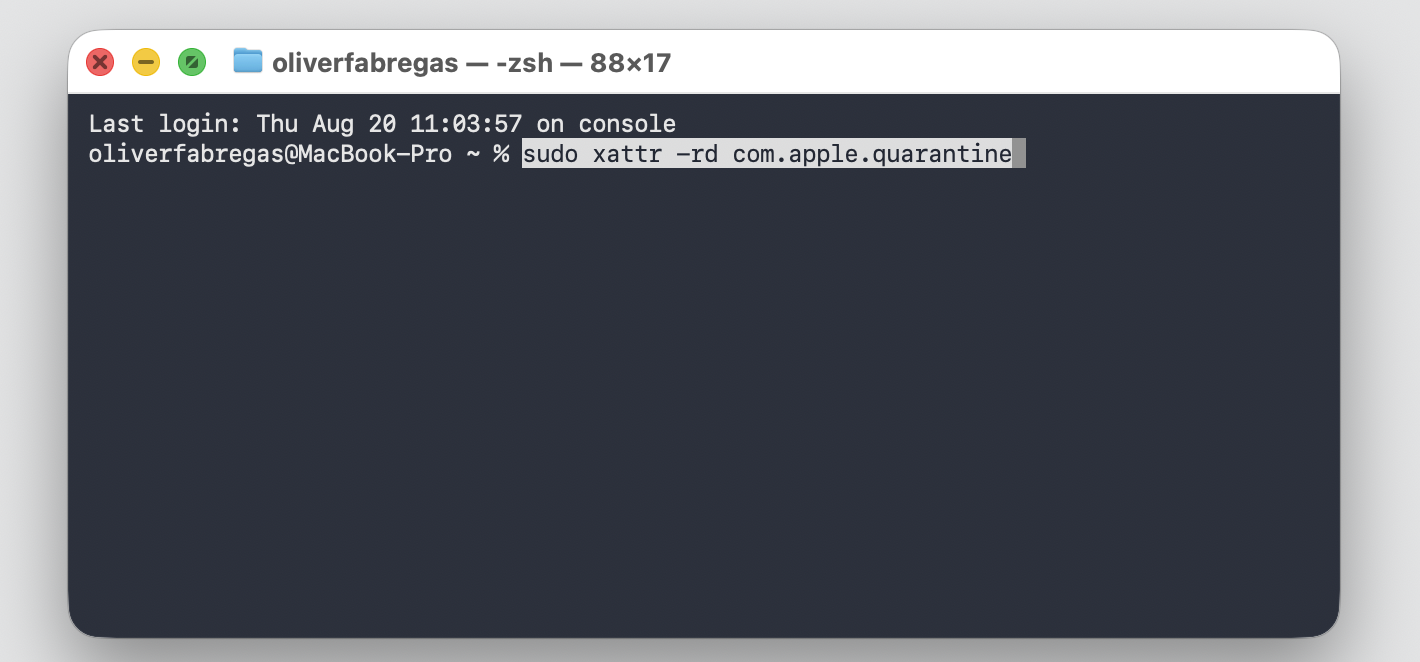
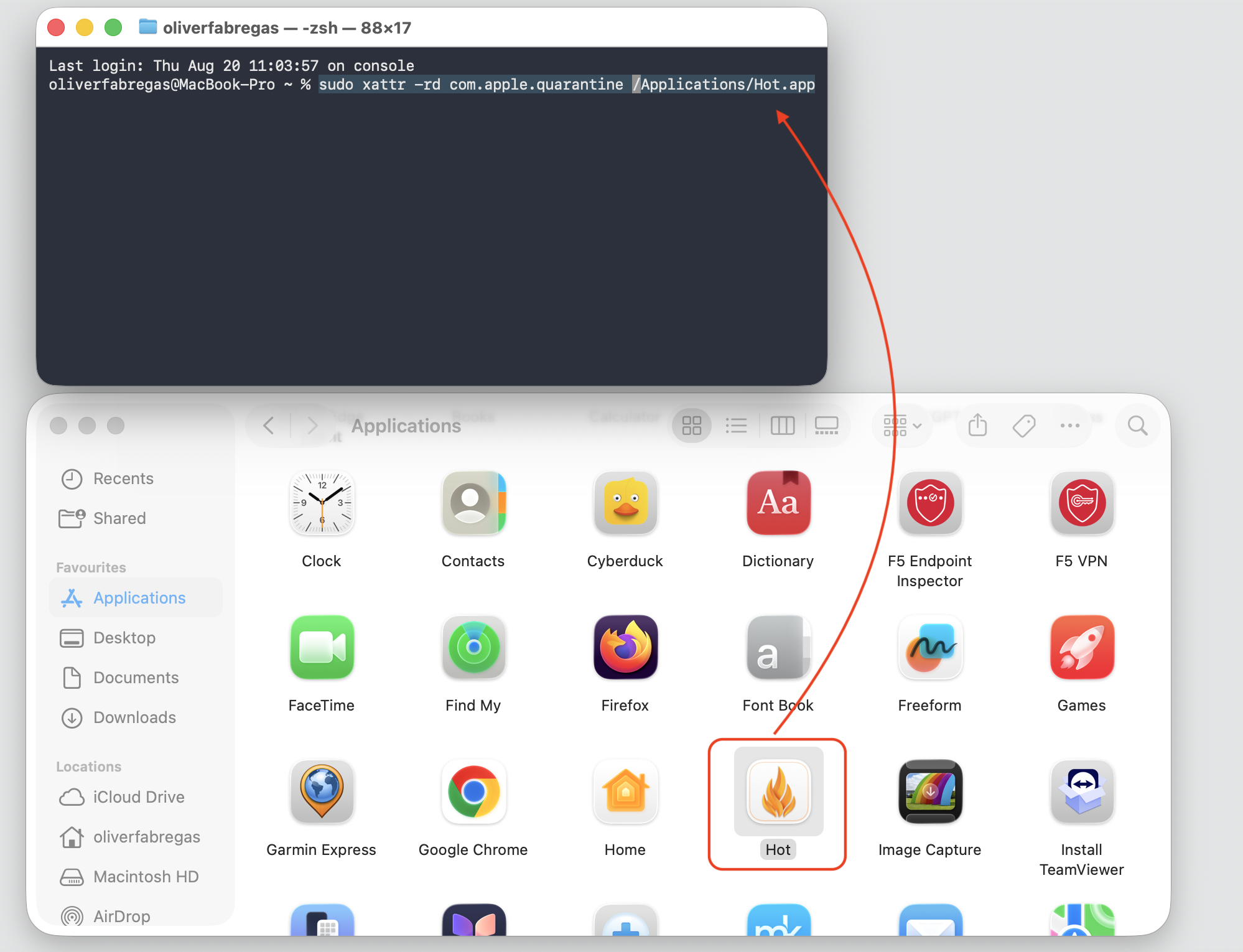
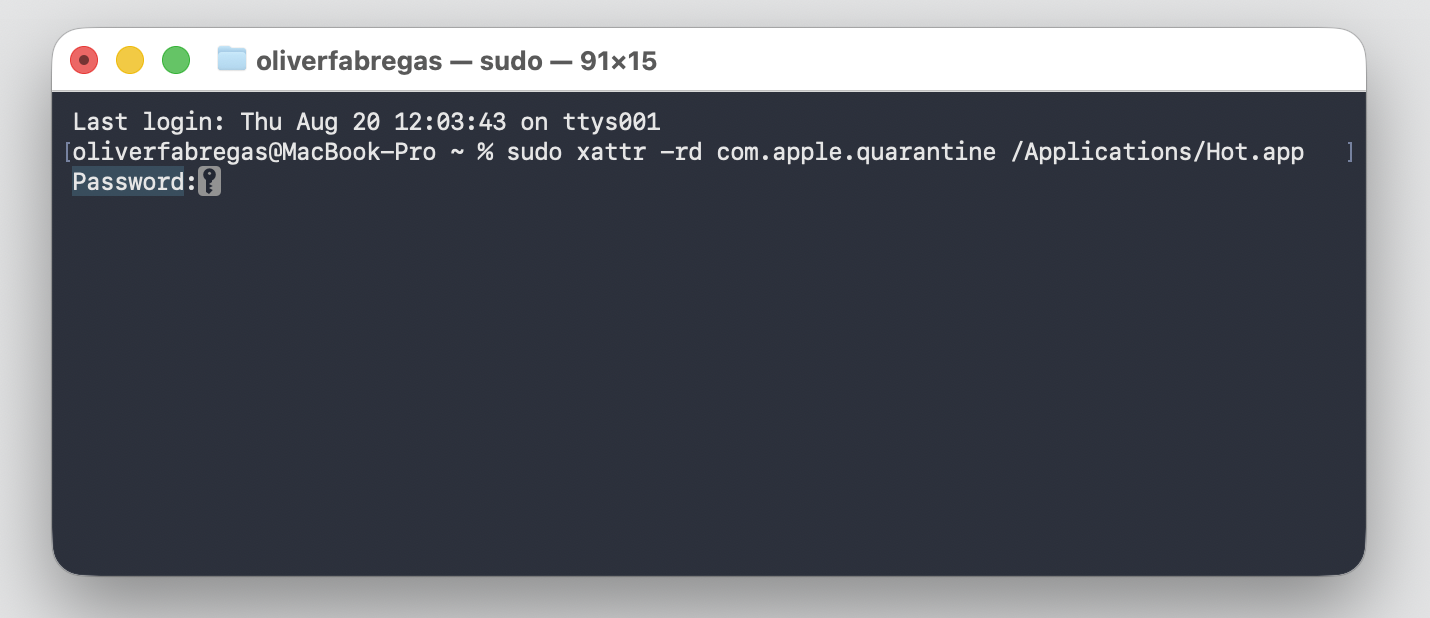
Terminal can remove the quarantine flag that’s blocking an app, but treat this as advanced troubleshooting. However, we urge you to only use Terminal if you understand the risk and you’re certain the app is safe. If this is your case, follow our instructions below:
Open Terminal from Applications › Utilities.
Type sudo xattr -rd com.apple.quarantine followed by a space.
Drag the app into the window so its path fills in automatically.
Press Return, enter your admin password, and try opening the app again.
Step 1. Open Terminal from Applications > UtilitiesStep 2. Type sudo xattr -rd com.apple.quarantineStep 3. Move your app to Terminal after using the shown command and hit ReturnStep 4. Enter the administrator password
Open the apps you trust, the safe and simple way
When Open Anyway on Mac not working leaves you locked out of an app you trust, it’s almost always down to Gatekeeper, a permission, a compatibility gap, or a damaged installer. The steps above clear up the vast majority of cases without any guesswork.
Want a little extra peace of mind while you decide which apps to allow? MacKeeper’s Premium Services give you 24/7 help and support so you’re never left to troubleshoot alone. Try it yourself!
We respect your privacy and
use cookies
for the best site experience.
Privacy Preferences Center
We use cookies along with other tools to give you the best possible experience while using the
MacKeeper website. Cookies are small text files that help the website load faster. The cookies we
use don’t contain any type of personal data meaning they never store information such as your
location, email address, or IP address.
Help us improve how you interact with our website by accepting the use of cookies. You can change
your privacy settings whenever you like.
Manage consent
All cookies
These cookies are strictly necessary for enabling basic website functionality (including page
navigation, form submission, language detection, post commenting), downloading and purchasing
software. The website might malfunction without these cookies.