Adobe Illustrator running slow on Mac usually points to memory hogging by background apps, an overstuffed scratch disk, or heavy effects in your document. With MacKeeper’s Memory Cleaner, you can free up RAM in one click and get Illustrator back to smooth performance without restarting your Mac.
Adobe Illustrator runs slow on Mac when your system is short on RAM, your scratch disk is nearly full, or your document is loaded with heavy effects, complex gradients, and high-resolution raster images. Outdated software, stale cache files, and resource-heavy background processes also contribute to lag during edits.
How to fix slow Adobe Illustrator on Mac?
To fix Illustrator being so slow on Mac, you can free up RAM, clear your scratch disk, close unused background apps, and disable visual previews like Overprint Preview. We know from experience that switching to outline view, removing unused fonts, clearing the cache, and updating Illustrator to the latest version also help.
A note from our experts:
When Adobe Illustrator slows on Mac, the bottleneck is usually RAM. MacKeeper offers performance monitoring and includes a Memory Cleaner that frees active memory and ends heavy background processes competing with Illustrator. It works in real time, needs no restart, and stays compatible with the latest macOS.
Here’s how to free up memory with MacKeeper’s Memory Cleaner:
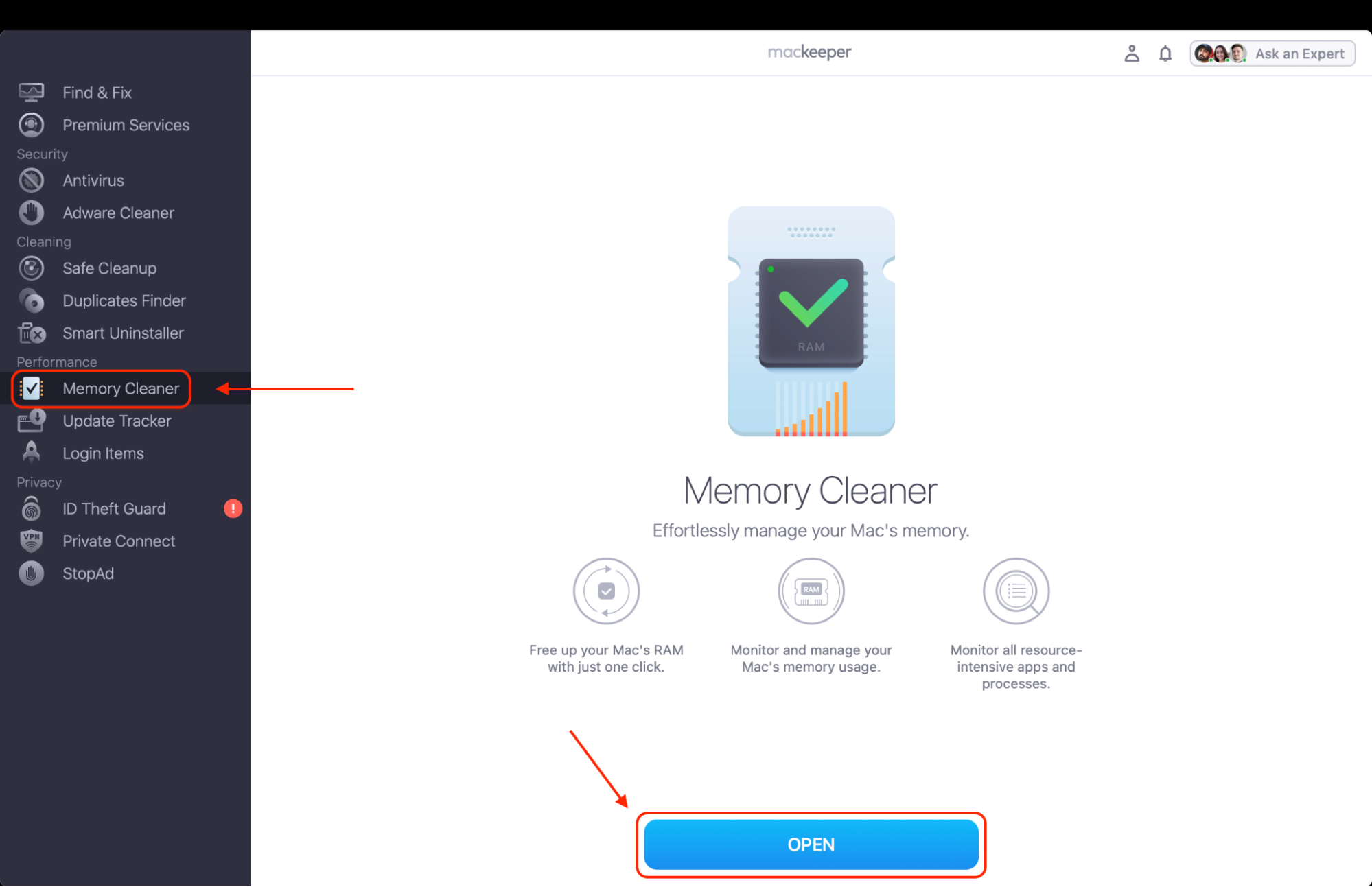
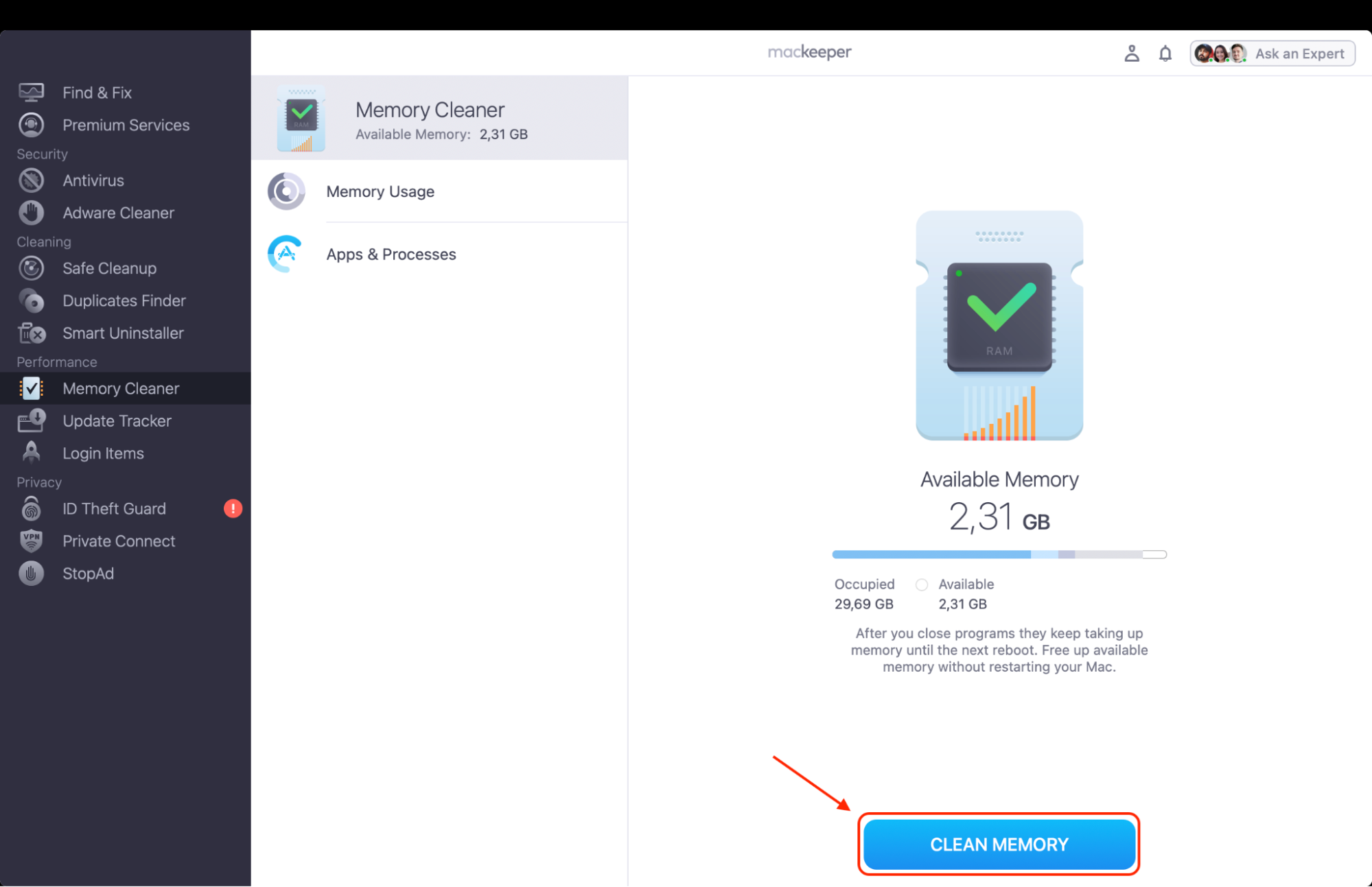
Open MacKeeper and select Memory Cleaner from the sidebar.
Select Memory Cleaner from the left-hand sidebar and click Open.
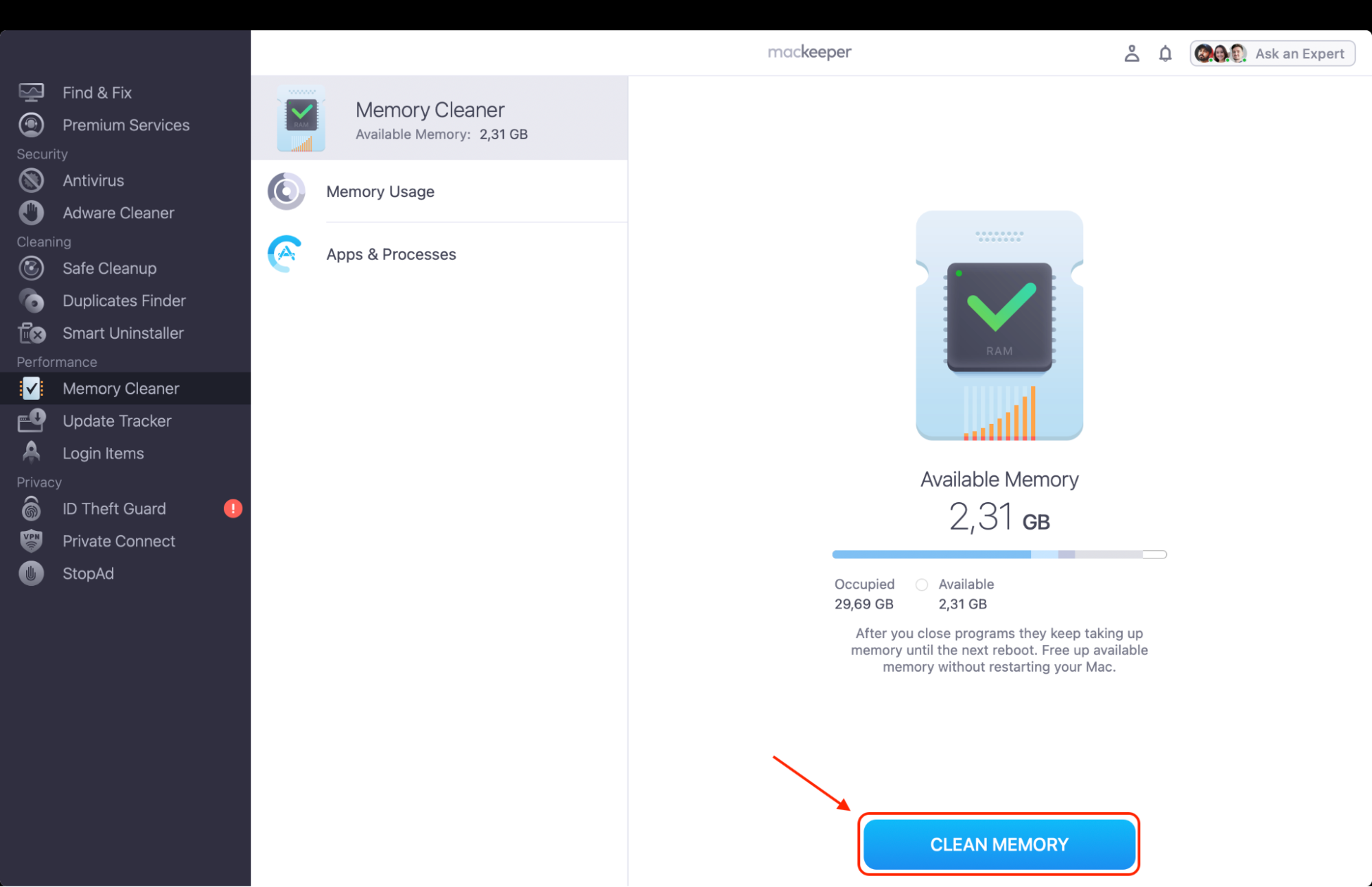
Click Clean Memory to free up RAM instantly.
Step 1. Open MacKeeper, go to Memory Cleaner, and click OpenStep 2. Look through your Memory usage and press Clean Memory to clear RAM
1. Check GPU Performance
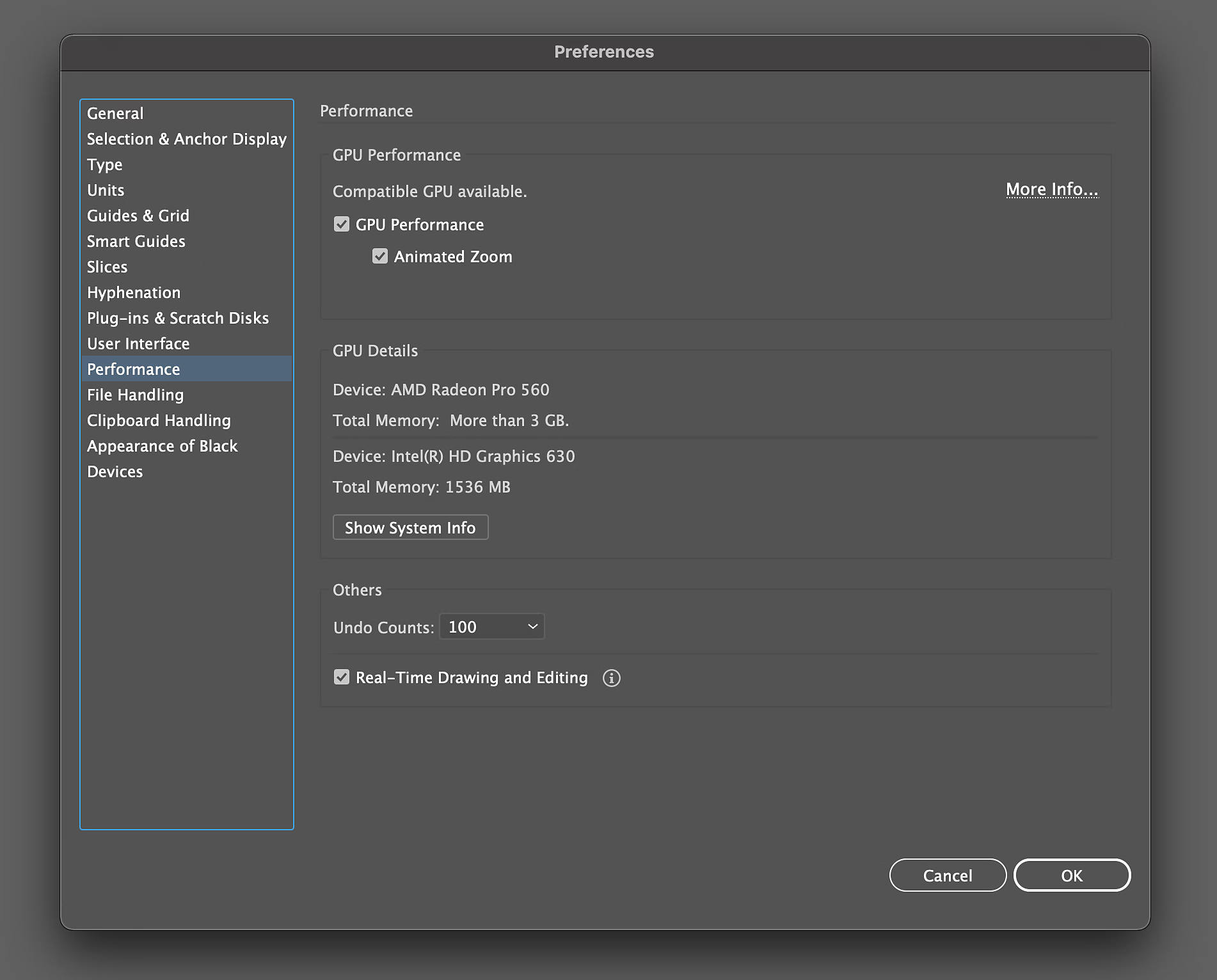
Illustrator’s GPU Performance offloads rendering to your graphics card, but driver conflicts cause lag and even keep your MacBook fan running constantly while you edit.
Steps to check GPU Performance in Illustrator:
Open Illustrator > Settings > Performance.
Uncheck GPU Performance.
Click OK and restart Illustrator.
Uncheck GPU Performance in Settings
2. Close background processes
Background apps grab the CPU and RAM Illustrator needs. We routinely force quit background application processes on Mac via Activity Monitor before opening complex projects.
Here's how to close background processes on your Mac:
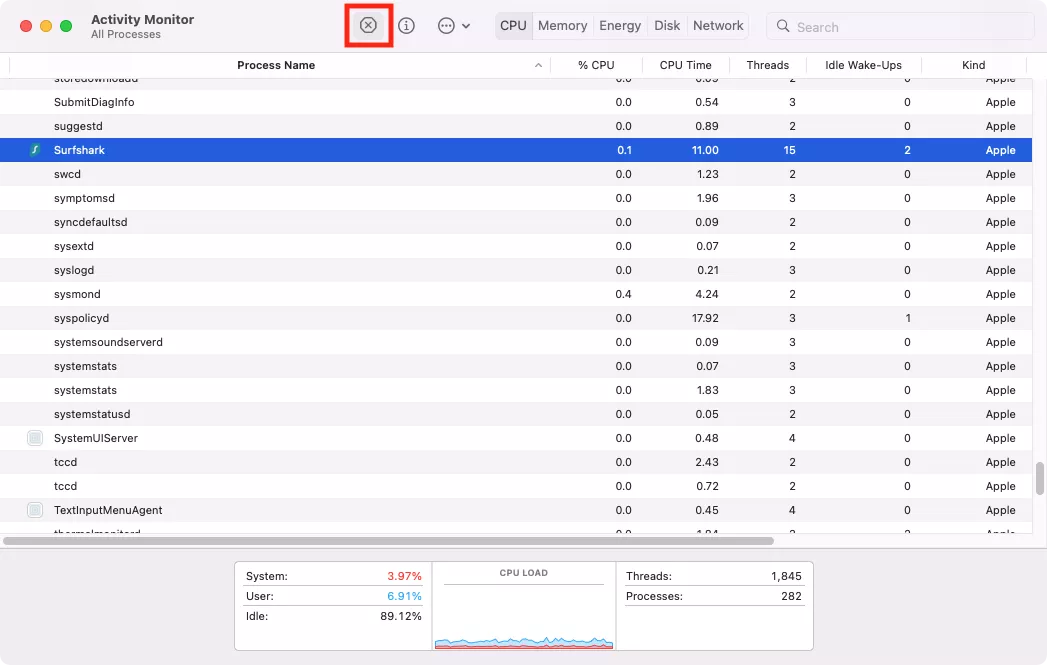
Open Activity Monitor from Applications > Utilities.
Sort by CPU or Memory.
Select a process and click the X button.
Quit processes in Activity Monitor
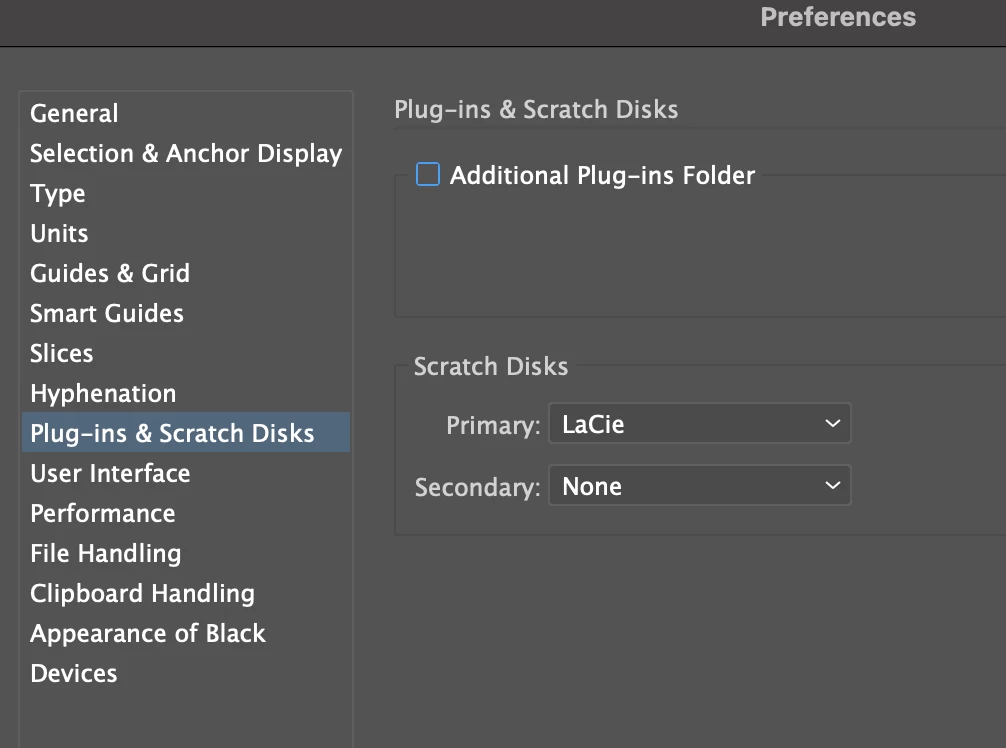
3. Change scratch disk
When your scratch disk is full, Illustrator slows or crashes during saves. If you don’t know how to clear scratch disk on Mac, switching to a drive with more free space sorts it.
Follow these steps to change the scratch disk:
Go to Illustrator > Settings > Plug-ins & Scratch Disks.
Pick a drive with more free space.
Click OK.
Pick a drive in Scratch Disks
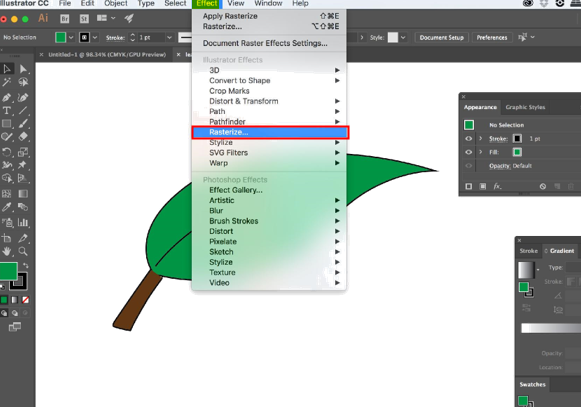
4. Reduce heavy effects
Effects like blurs, drop shadows, and gradients eat up rendering power. I rasterize finished effects to lock them in and keep Illustrator responsive.
Steps to reduce heavy effects in Illustrator:
Select objects with applied effects.
Go to Object > Rasterize.
Pick a resolution and click OK.
Rasterize heavy effects
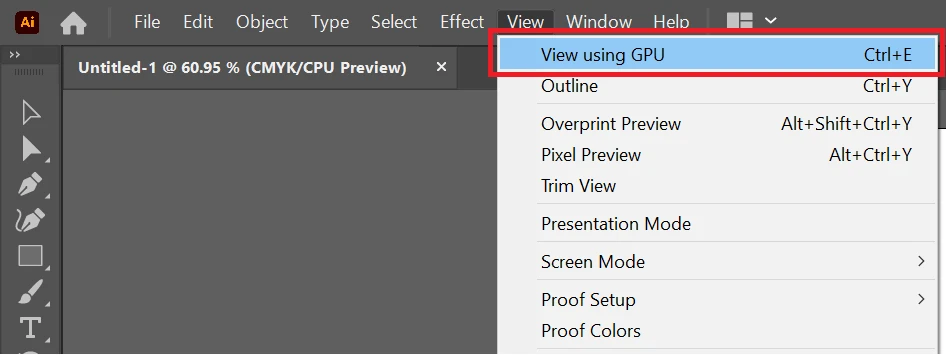
5. Switch to outline view
Outline view skips colors and effects, showing only paths. We use it for layout work in dense files where Illustrator is lagging on Mac during regular preview rendering.
Here's how to switch to outline view:
Go to View > Outline.
Edit and align as needed.
Switch back via View > GPU Preview.
Choose View > Outline
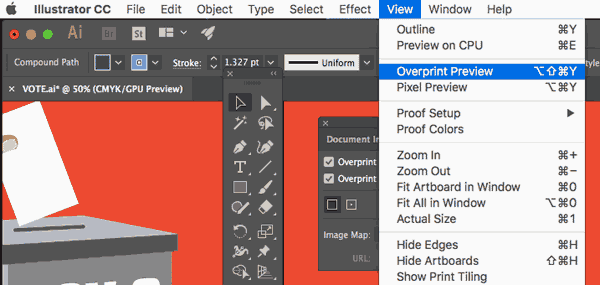
6. Disable Overprint Preview
Overprint Preview is great for print proofs but adds processing during editing. I’ve noticed that switching it off is a quick win when Illustrator lagging Mac signs appear mid-project.
Steps to disable Overprint Preview:
Open the View menu.
Uncheck Overprint Preview.
Uncheck Overprint Preview in View
7. Free up RAM
Illustrator needs RAM for complex artboards. To make Illustrator run faster on Mac, learn how to clear RAM on Mac so memory frees up before launch.
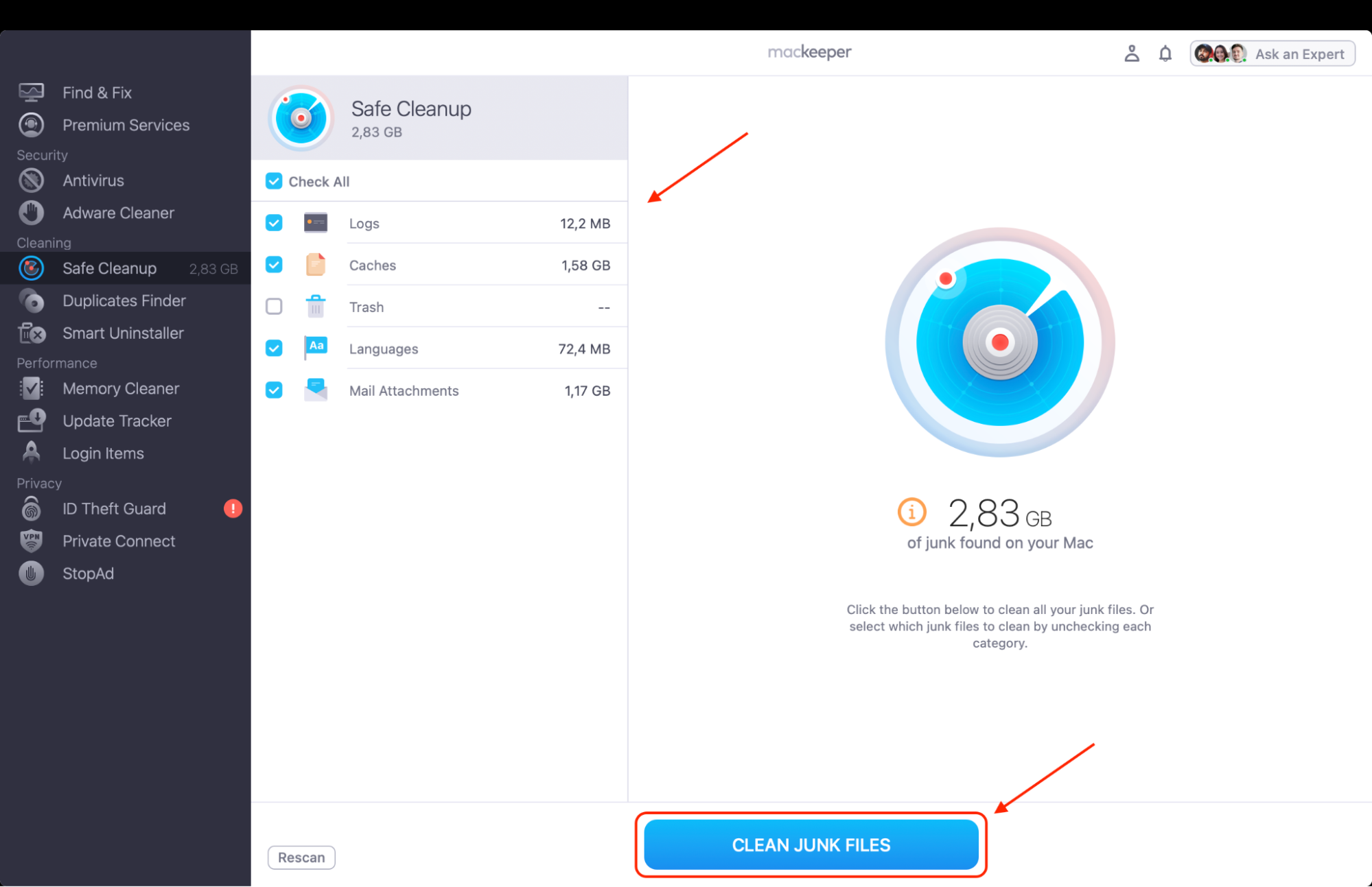
Old logs, temporary files, and clutter slow your Mac across all apps. Running a clean junk files Mac routine clears them and gives Illustrator more breathing room.
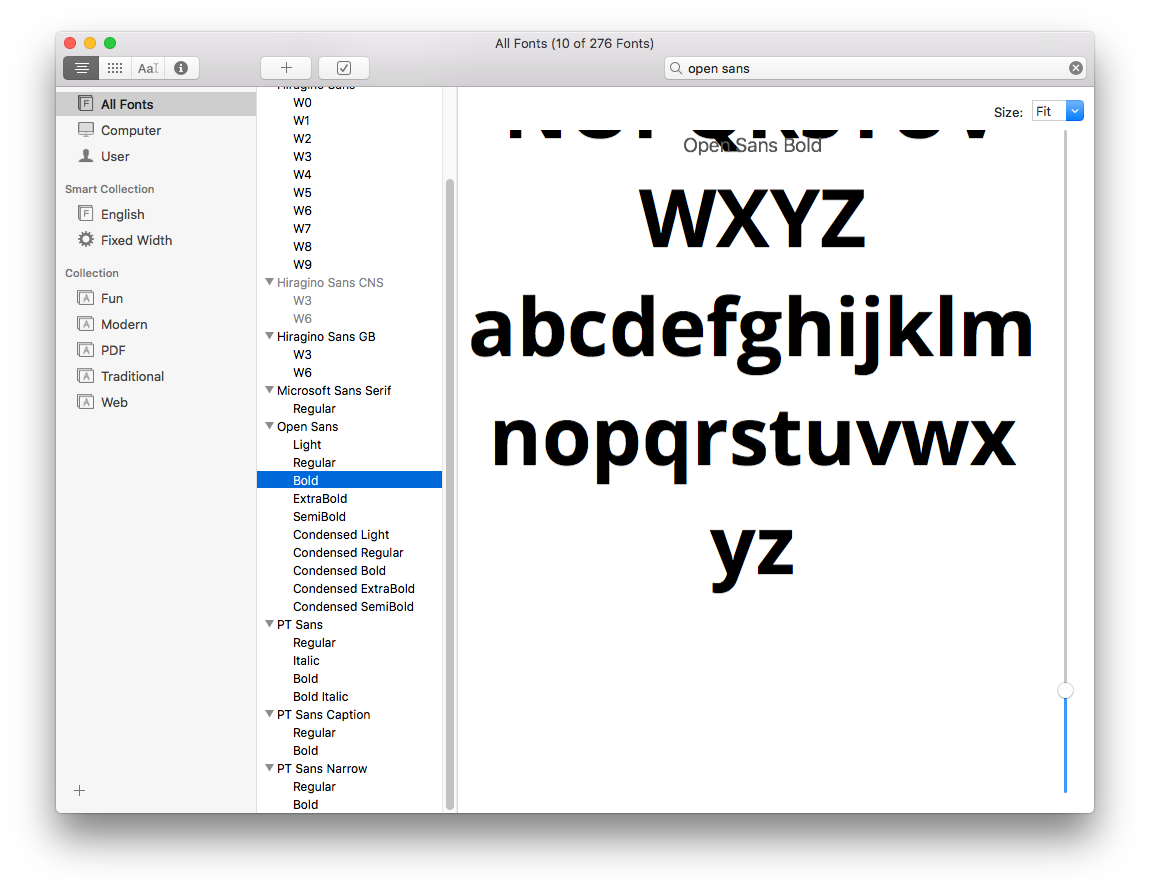
Illustrator scans every active font on launch, so trimming your library shortens startup. We’d remove anything you haven’t touched in months.
Steps to remove unneeded fonts:
Open Font Book from Applications.
Select fonts you no longer use.
Right-click and choose Remove.
Remove unused fonts in Font Book
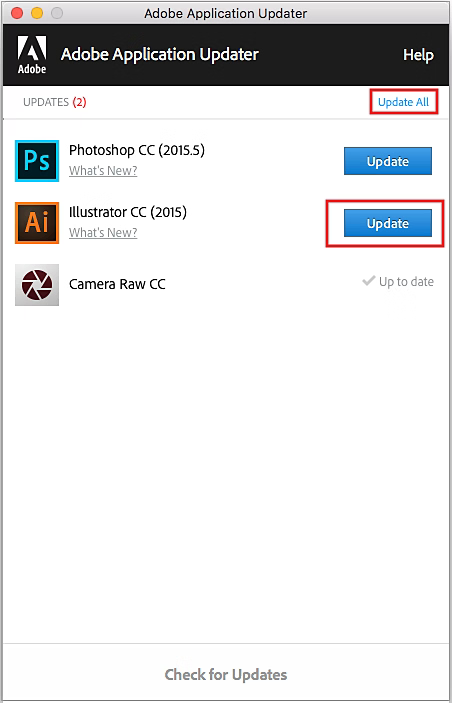
10. Update Illustrator
Adobe regularly patches performance issues in Illustrator updates. From our practice on Mac, running the latest version often fixes lag tied to driver compatibility or memory leaks.
Follow these steps to update Illustrator:
Open Creative Cloud from your menu bar.
Find Illustrator in the apps list.
Click Update if available.
Update Illustrator in Creative Cloud
11. Clear cache
Illustrator’s cache stores recent file data, but it bloats over time. Knowing how to clear cache on Mac helps Illustrator load faster and clears stuck preview thumbnails.
Here's how to clear the Illustrator cache:
Quit Illustrator.
Open Finder and press Cmd+Shift+G.
Enter ~/Library/Caches/Adobe/ and delete the contents.
Clear ~/Library/Caches/Adobe in Finder
12. Run clean install
If nothing else fixes Illustrator so slow on Mac issues, we suggest a clean reinstall to remove corrupted preference files. Pair it with a clean up storage on Mac pass first.
Steps to run a clean install of Illustrator:
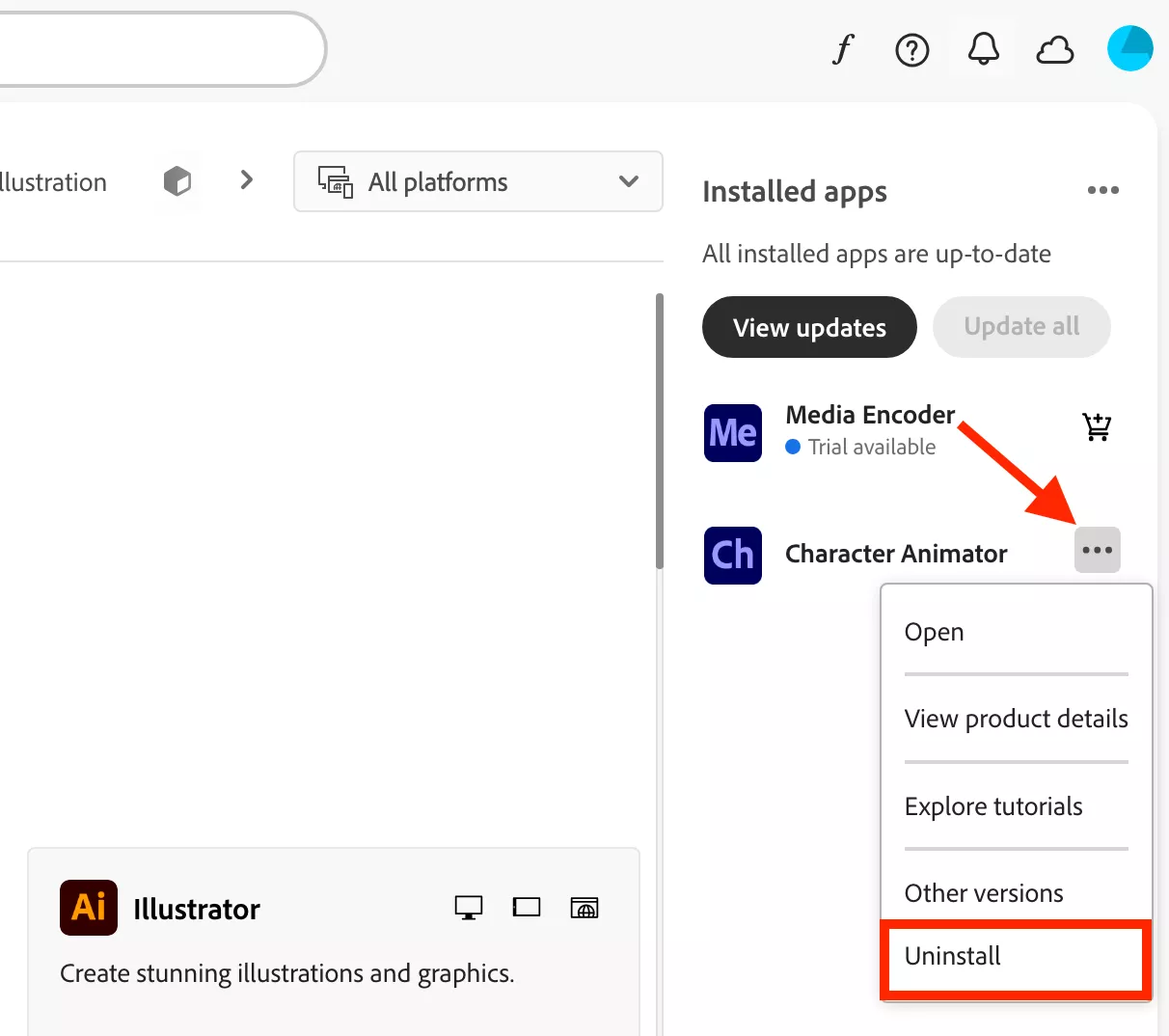
Open Creative Cloud and uninstall Illustrator.
Run MacKeeper > Smart Uninstaller to clear leftovers.
Reinstall Illustrator from Creative Cloud.
Reinstall via Smart Uninstaller and Creative Cloud
Conclusion
Adobe Illustrator running slow on Mac is rarely about the app itself. The fix usually means freeing up RAM, clearing scratch disk space, trimming heavy effects, and keeping macOS clutter low so Illustrator gets the resources it needs.
MacKeeper, developed by Clario Tech, is a leading macOS optimization solution. Our Memory Cleaner targets the most common cause of lag, slow RAM, and frees memory in real time so you can keep designing without losing momentum.
We respect your privacy and
use cookies
for the best site experience.
Privacy Preferences Center
We use cookies along with other tools to give you the best possible experience while using the
MacKeeper website. Cookies are small text files that help the website load faster. The cookies we
use don’t contain any type of personal data meaning they never store information such as your
location, email address, or IP address.
Help us improve how you interact with our website by accepting the use of cookies. You can change
your privacy settings whenever you like.
Manage consent
All cookies
These cookies are strictly necessary for enabling basic website functionality (including page
navigation, form submission, language detection, post commenting), downloading and purchasing
software. The website might malfunction without these cookies.