We understand if you feel frustrated when that little red dot becomes unresponsive and Finder refuses to close. However, you shouldn’t worry. macOS tools like MacKeeper’s Safe Cleanup can help resolve stubborn performance issues on your Mac, including this one.
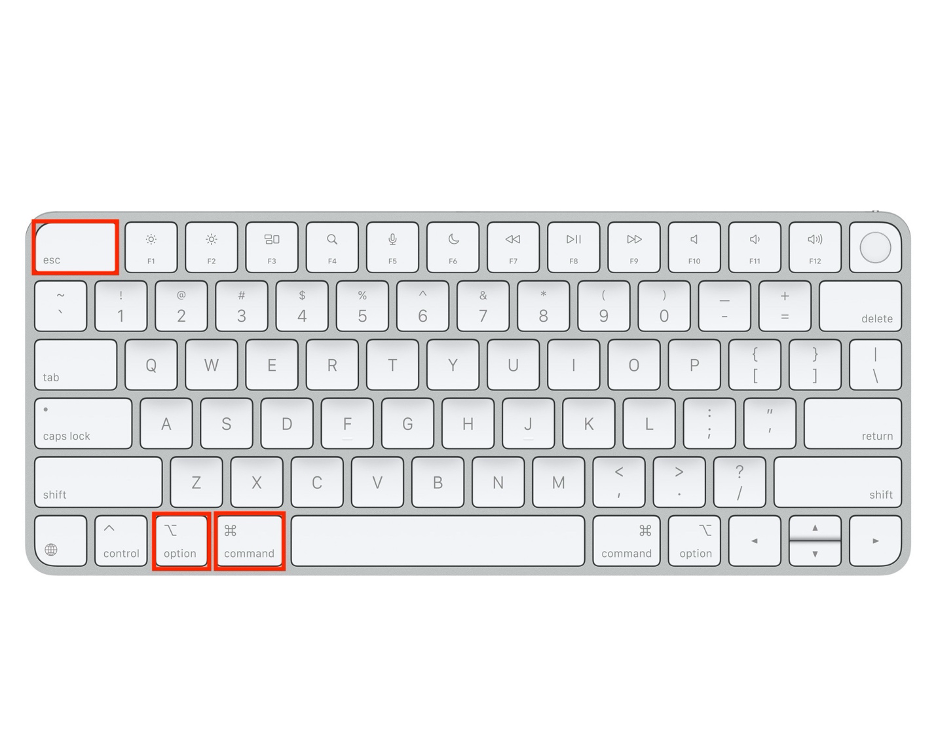
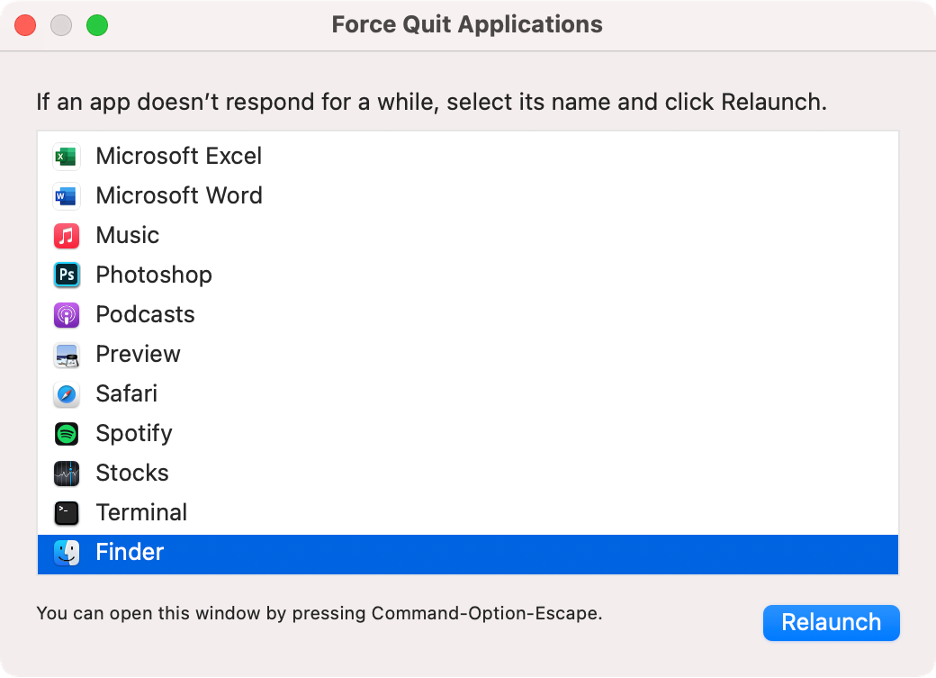
If Finder becomes unresponsive on your Mac, our preferred solution to resolve this annoying problem is to press Command + Option + Esc simultaneously so that to open the Force Quit Applications panel. Then, select Finder from the list and click the Relaunch button to restart it.
Why can’t Finder be closed like regular apps?
Finder is a special macOS app that serves as your file explorer and is designed to remain active at all times. Unlike other apps, it can’t be fully closed because it manages essential components. At the same time, Finder can occasionally become unresponsive, just like any other element of macOS. Common causes include low RAM or insufficient storage, corrupted system preferences, excessive resource usage, or interference from another app that has frozen and impacted Finder’s performance.
Why Finder often relaunches automatically?
As we mentioned earlier, Finder is the macOS utility that manages essential system functions, including file navigation, icons, and the desktop. To maintain system stability, macOS will automatically relaunch Finder if it closes unexpectedly. While this protective feature is helpful, it doesn’t always prevent issues. Occasionally, Finder may become trapped in a loop of constant relaunching due to persistent errors.
Frustrated with Finder crashing on your Mac? You can prevent these interruptions by enhancing your computer’s performance. MacKeeper’s Safe Cleanup is a powerful ally. Developed by Clario Tech and notarized by Apple, MacKeeper is an ideal tool for optimizing your Mac. In addition to boosting speed, MacKeeper also provides cybersecurity protection and memory optimization.
Here’s our advice to use MacKeeper’s Safe Cleanup:
Step 1. Safe Cleanup > Start ScanStep 2. Wait until the scanning process is doneStep 3. Select foldersStep 5. Click Clean Junk FilesStep 6. Click Empty Trash
How to quit Finder on Mac?
In reality, Finder can’t be fully closed. You can only relaunch it when it becomes unresponsive. To relaunch Finder, you can access the Force Quit Applications panel with the shortcut Command + Option + Esc, from the Apple menu, or using Terminal. You can also use Activity Monitor to force quit and restart Finder, just as you would with any other unresponsive app.
We start with an advanced tip, so we recommend skipping this section if you’re not comfortable with technical methods. This approach involves using Terminal, the macOS utility that lets you troubleshoot issues using commands.
If you're comfortable with command-line interfaces, follow the steps below to learn how to quit Finder using Terminal:
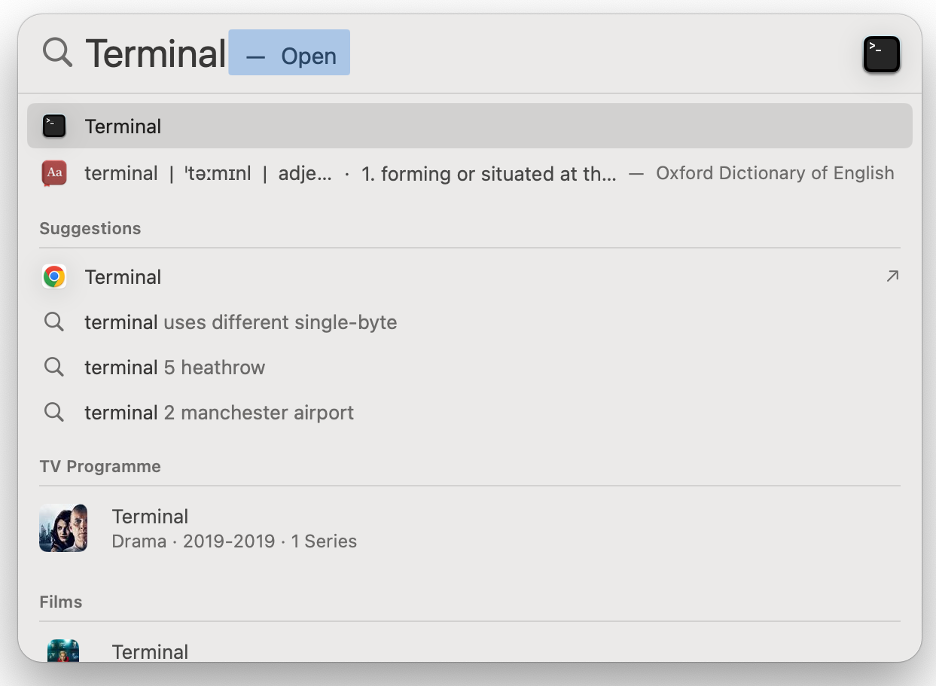
Click the magnifying glass icon in the menu bar to open Spotlight.
Search Terminal and press Enter.
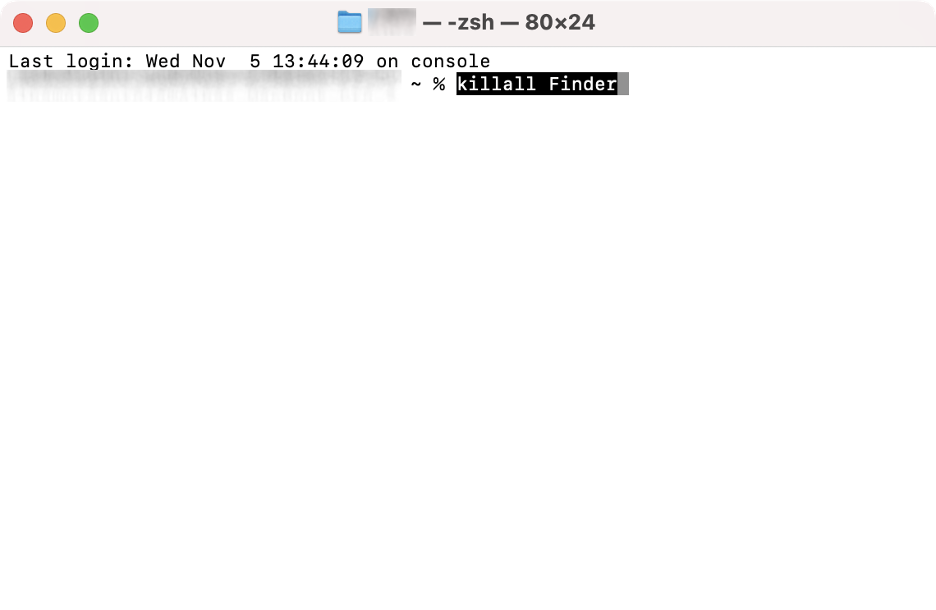
Type the killall Finder command in the Terminal window.
Press Enter to force quit Finder.
Step 1. Open SpotlightStep 2. Search for Terminal and press EnterStep 3. Type “killall Terminal” and press Enter
2. Turn off Finder with Apple menu
Alternatively, we suggest using your Mac’s menu bar to open the Apple menu and access the Force Quit Applications panel, where you can close any open apps or relaunch Finder if it’s unresponsive.
We explain how to turn off Finder on Mac below:
Select Finder.
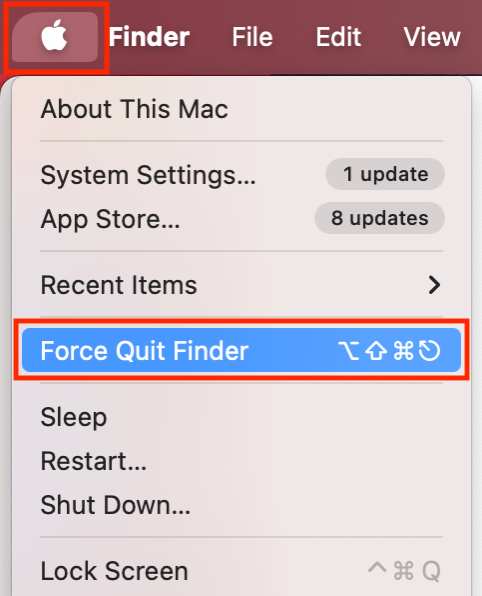
Click the Apple icon in the menu bar.
Select Force Quit Finder from the dropdown menu.
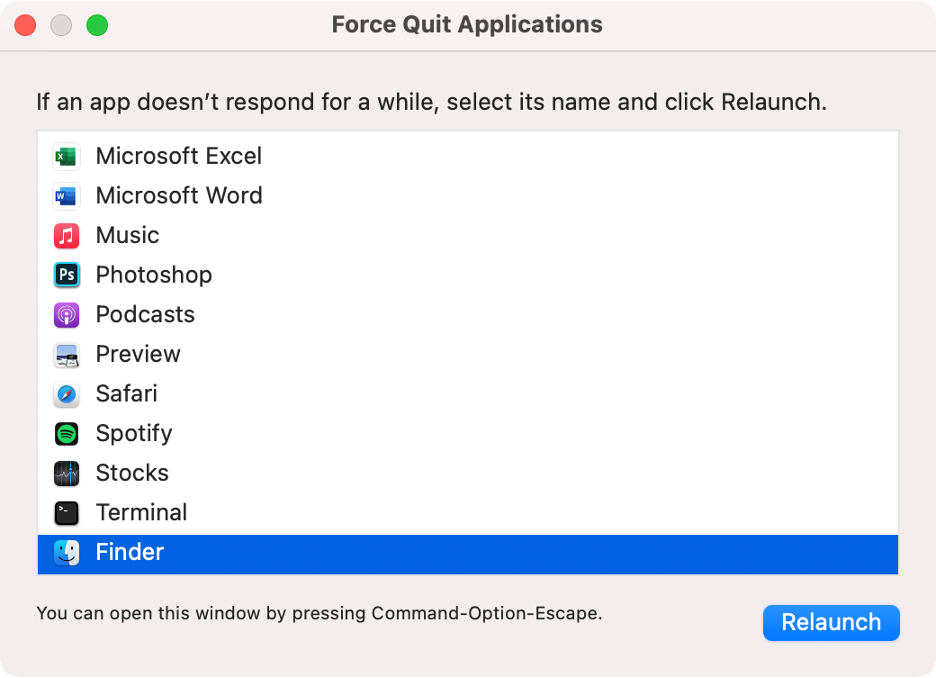
Choose Finder in the Force Quit Applications panel.
Click Relaunch.
Step 1. Apple menu > Force Quit FinderStep 2. Select Finder > Click Relaunch
3. Stop Finder using Activity Monitor
Based on our experience, another highly effective way to quit Finder is by using Activity Monitor. This built-in macOS utility lets you view all running processes on your Mac and troubleshoot issues as they occur.
Here’s how you can force quit Finder using Activity Monitor:
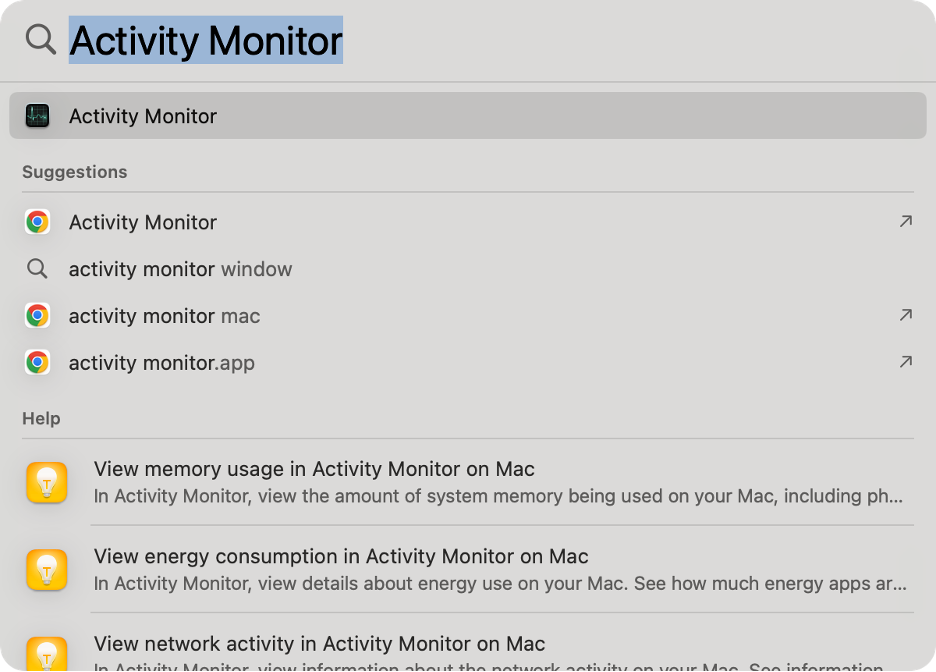
Click the magnifying glass icon in the menu bar to open Spotlight.
Search Activity Monitor and press Enter.
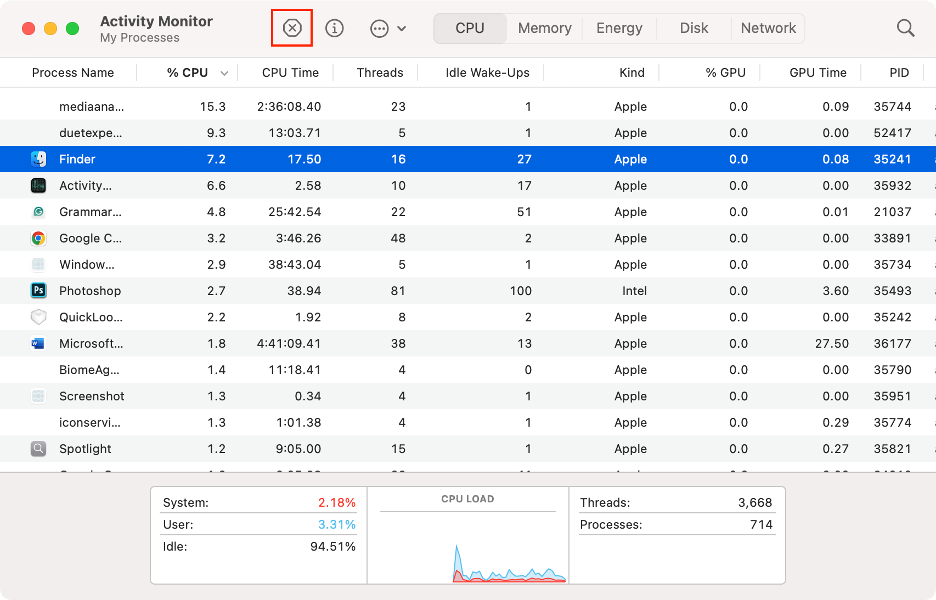
Find and select Finder from the list.
Click the X icon to quit it.
Step 1. Open SpotlightStep 2. Search for Activity Monitor > Press EnterStep 3. Select Finder > Click the X icon
4. Quit Finder using keyboard shortcut
Previously, we covered how to access the Force Quit Applications panel to relaunch Finder via the Apple menu. However, our preferred approach is even more straightforward. Simply use a quick key combination on your Mac for instant access.
To benefit from this faster, more efficient method, follow these easy steps:
On your keyboard, press Command + Option + Esc at the same time to open the Force Quit Applications panel.
However, is Force Quit bad for Mac? Check our guide to learn everything you need to know about this handy method for closing unresponsive apps.
Stop Finder action on Mac now!
Finder is an essential component of macOS, and dealing with an unresponsive file manager can be frustrating. While exploring a Mac Finder alternative is an option, we recommend relaunching Finder, either by using the Command + Option + Esc shortcut or via Activity Monitor, before considering other solutions.
If Finder frequently becomes unresponsive, it’s a clear sign your Mac could use some maintenance. MacKeeper’s Safe Cleanup offers a powerful solution. Trusted by millions of users, Clario Tech’s MacKeeper empowers you to optimize your Mac’s performance and enjoy real-time antivirus protection for added peace of mind.
We respect your privacy and
use cookies
for the best site experience.
Privacy Preferences Center
We use cookies along with other tools to give you the best possible experience while using the
MacKeeper website. Cookies are small text files that help the website load faster. The cookies we
use don’t contain any type of personal data meaning they never store information such as your
location, email address, or IP address.
Help us improve how you interact with our website by accepting the use of cookies. You can change
your privacy settings whenever you like.
Manage consent
All cookies
These cookies are strictly necessary for enabling basic website functionality (including page
navigation, form submission, language detection, post commenting), downloading and purchasing
software. The website might malfunction without these cookies.