Force quitting on a Mac is quite easy, more difficult is to find out what causes your apps to freeze. Start with apps update—outdated apps may act strangely and operate poorly. MacKeeper’s Update Tracker can do that in a couple of clicks.
Occasionally, you might see the dreaded spinning wheel on your Mac when using an app, and no matter where you click, nothing happens. For a moment, you might think your MacBook is broken, but fear not, macOS’s Force Quit function can help to save the day and prevent your MacBook from shutting down randomly.
It’s common for your Mac’s apps to crash, and typically, crashes occur when you run out of RAM or you’ve got too many other apps open. So without further ado, read on to find out how you can resuscitate your frozen Mac with Force Quit.
What does force quit mean on Mac
Force quit terminates all processes associated with an app, and so it’s useful if you can’t quit your app in the usual way. When an app is forced to quit, after a moment, the app will close. You can then try re-opening the troublesome app.
Is it bad to force quit apps on MacBook
Using force quit will not damage your Mac or corrupt any files, so it’s completely safe to do. The main issue with force quitting is that any unsaved work will likely be lost when an app is forced to quit. If you repeatedly have to force quit a particular app, you should try to fix it by updating it.
A note from our experts:
You’ll easily force quit on your Mac after reading our guidance. But what to do if apps regularly collapse? The first thing to do is update your apps. Outdated apps can perform poorly and freeze. MacKeeper’s Update Tracker identifies outdated apps and upgrades them in a few clicks.
Click Scan for Updates, and MacKeeper will scan for all of your installed apps.
You’ll then see a list of all of your apps that have updates available. Tick the apps you want to update, then select Update All. This process usually takes a few minutes, depending on the number of apps that need updating and your download speed.
Step 1. MacKeeper > Update Tracker > Start ScanStep 2. Select the apps to upgrade > click UpdateStep 3. Apps’ updating is in progressStep 4. Update completed
Ways to force close an app on Mac
The simplest way to force close an app on your Mac is to open the Apple menu and select Force Quit from the drop-down menu.
Here are all the ways to force quit an app on your Mac:
Use a keyboard shortcut to force close an app on Mac
Use the Apple menu to force shut down apps on Mac
End a program on Mac using Activity Monitor
Force stop an app from the Dock
Kill an app using Terminal
1. Use a keyboard shortcut to force close an app on Mac
Macs have many handy shortcuts to get things done fast, the good news is there’s a shortcut to force quit apps using a keyboard shortcut. Follow the steps below to use a keyboard shortcut to force close an app on Mac:
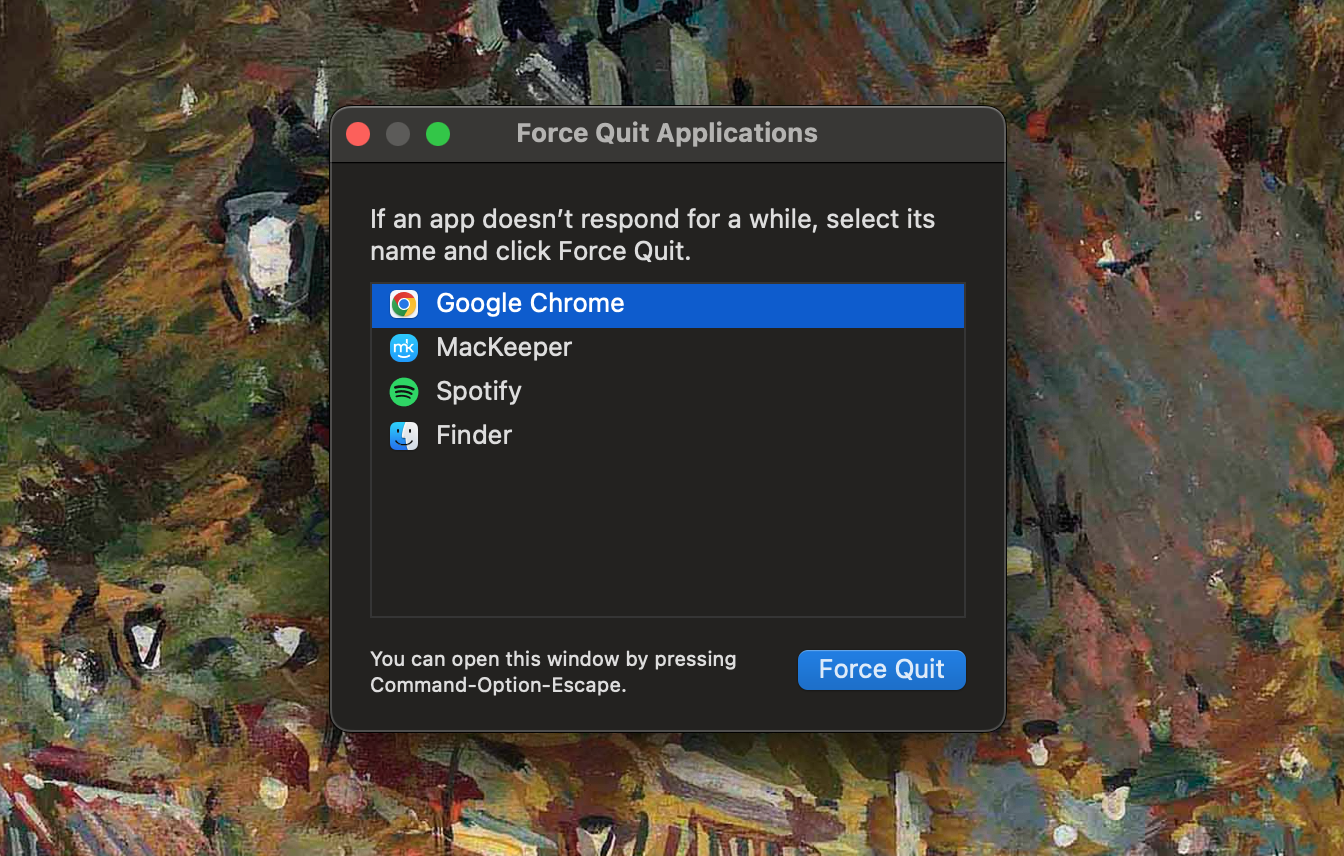
Hit the Command + Option + Esc keys.
Choose the app you want to quit in the pop-up window and click the Force Quit button.
Select Force Quit again inside the next pop-up window.
Press cmd + option + Esc > select the app you want to quit > Force Quit
2. Use the Apple menu to force shut down apps on Mac
Perhaps the most user-friendly way to shut down an app on Mac is to force quit using the Apple menu, and here’s how to do it:
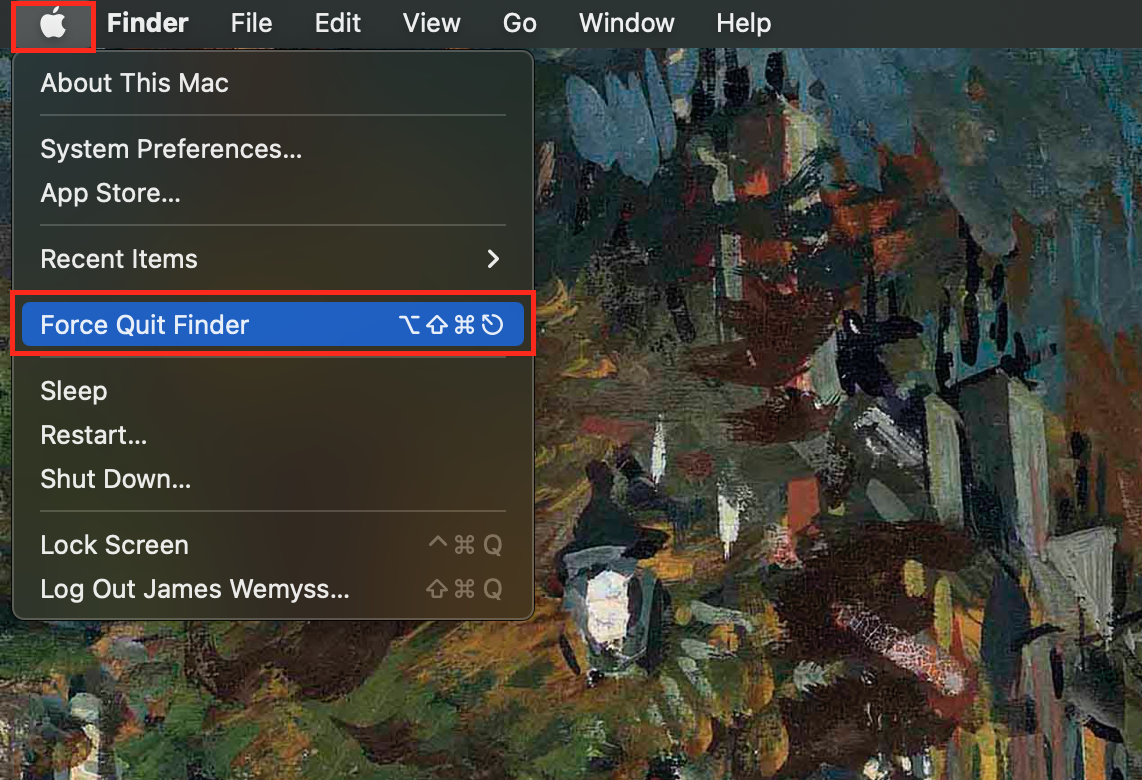
Open the Apple menu by clicking the Apple icon in the top left corner of your screen.
Select Force Quit from the drop-down menu.
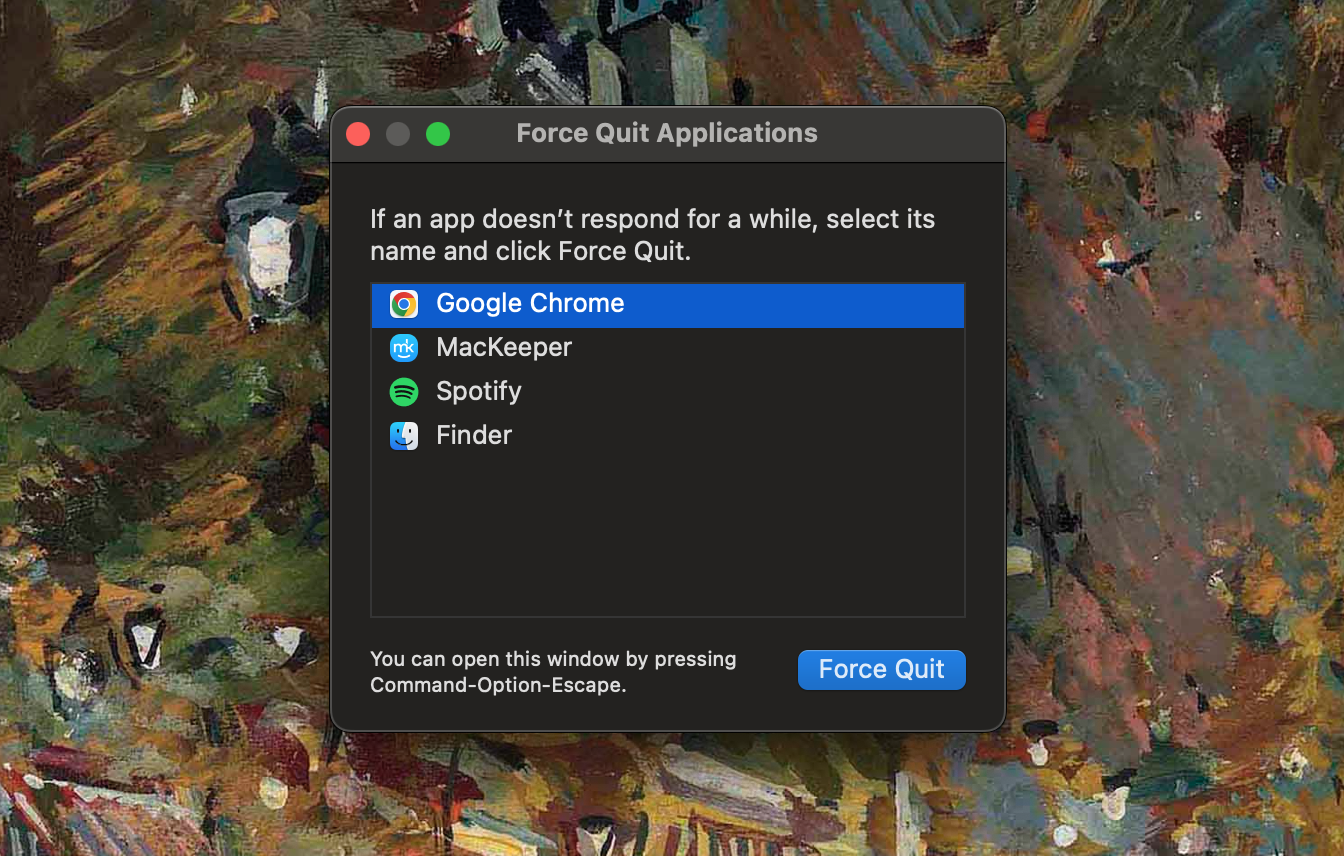
Select the app you want to force quit, and then click Force Quit.
Step 1. Open the Apple menu in the top left corner > select Force QuitStep 2. Choose the unresponsive app, and click Force Quit
3. End a program on Mac using Activity Monitor
Your Mac’s built-in Activity Monitor shows all processes currently taking place on your device, and how much system resources you’re currently using. It can also be used to force quit apps that are unresponsive, so find out how to end a program on Mac using Activity Monitor below:
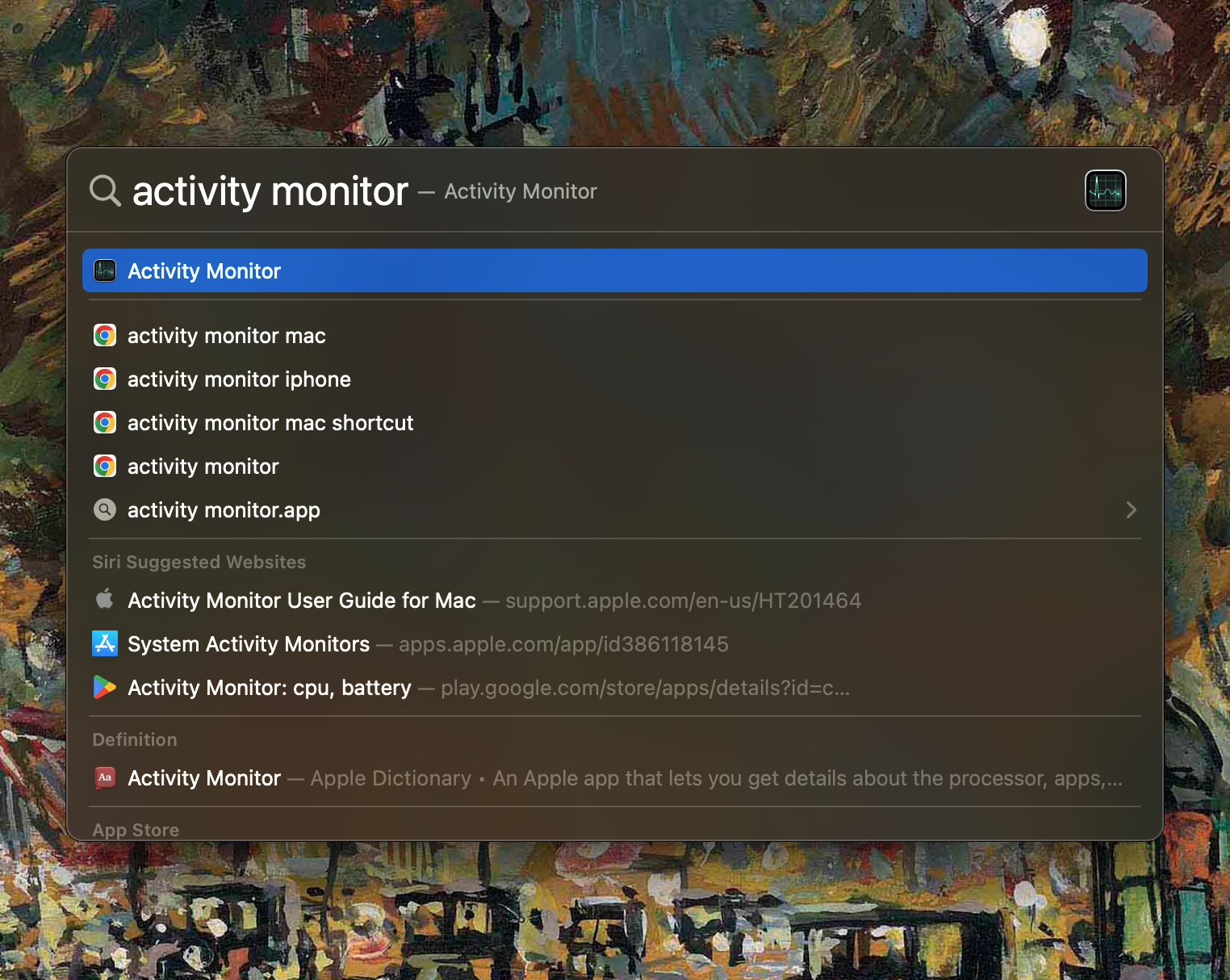
Hit Cmd + Space at the same time to open Spotlight Search.
Type Activity Monitor into the search bar and hit Enter.
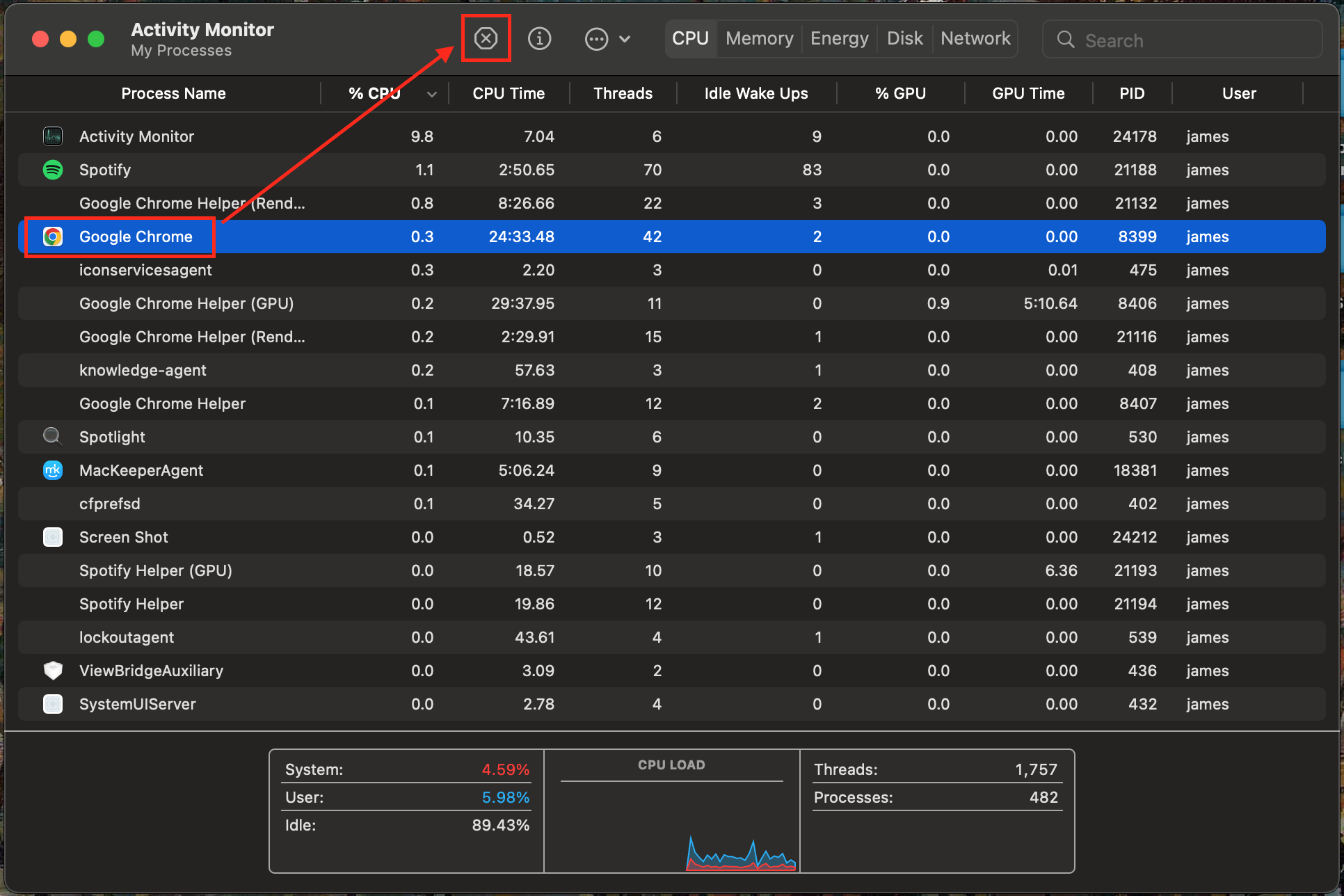
Go to the CPU tab, and find the app you want to force quit.
Click the X button at the top of Activity Monitor, then select Force Quit from the dialog box to end this task.
Step 1. Press cmd + space to open Spotlight Search > type in activity monitor > EnterStep 2. Select app > click the X button > Force Quit
4. Force stop an app from the Dock
The Dock displays all of your favorite or recently opened apps at the bottom of your screen. Many people don’t know, however, that it’s possible to quickly force quit an app from here. Do the following:
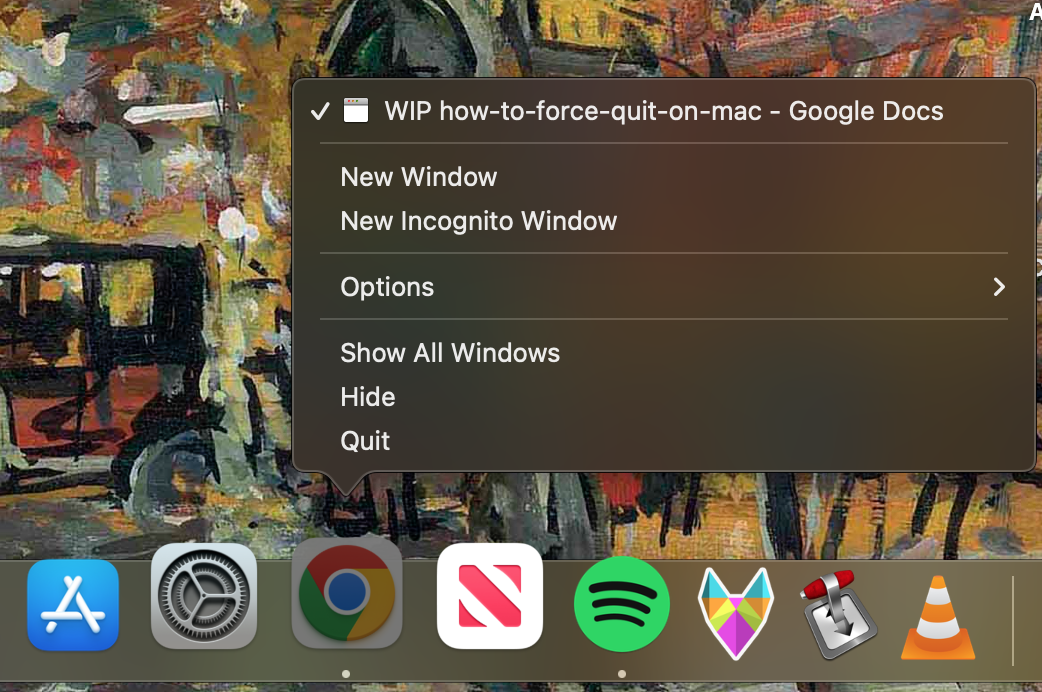
Find the unresponsive app in your Dock.
Right-click, or hold down Ctrl and click on the app.
Select Force Quit from the menu. Please note that the Force Quit option will only appear if the app is unresponsive.
Right click on your unresponsive app, then select Force Quit
5. Kill an app using Terminal
If the above methods aren’t working, you may need to use Terminal to kill the process on Mac and force quit a stuck app. Follow the steps below to find out how to force quit using a Terminal command:
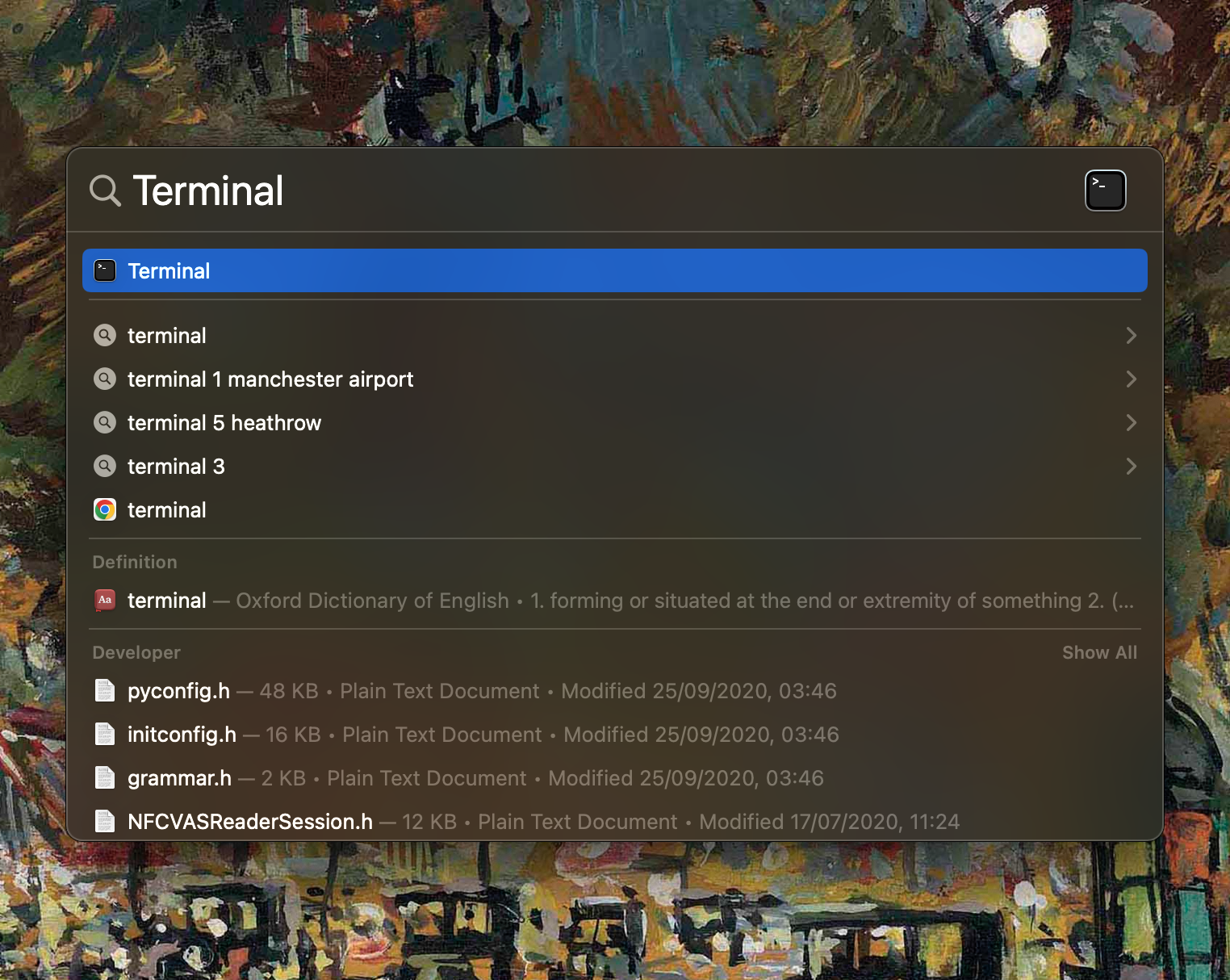
Open Spotlight Search by pressing Cmd + Space. Type in Terminal and hit Enter.
In Terminal, type in killall [app name] and hit Enter to force quit it. For example, typing in killall safari will force quit Safari.
Step 1. Open Spotlight Search with cmd + space > type in Terminal > EnterStep 2. In Terminal, type killall [app name] and hit Enter to force quit
Hint from our team:
Sometimes, even force quitting an app still doesn’t work, and your app stays frozen. If force quit isn’t working on Mac, and you can’t restart your Mac using the Apple menu, press and hold down the Power button to perform a hard shut-down. Meanwhile, we should note that this action will mean that any unsaved work will be lost.
Force quit unresponsive apps safely on Mac
Macs are fantastic machines, but sometimes having too many apps open at once can cause it to crash or freeze. Hopefully, you’ll have found a way to force quit using our myriad of methods above in our guide. However, if you’re finding that your apps are constantly crashing, you should try MacKeeper, which contains a number of performance features to keep your Mac running smoothly.
The previously mentioned Update Tracker helps you to keep on top of the latest updates, which can help to resolve crashing issues.
We respect your privacy and
use cookies
for the best site experience.
Privacy Preferences Center
We use cookies along with other tools to give you the best possible experience while using the
MacKeeper website. Cookies are small text files that help the website load faster. The cookies we
use don’t contain any type of personal data meaning they never store information such as your
location, email address, or IP address.
Help us improve how you interact with our website by accepting the use of cookies. You can change
your privacy settings whenever you like.
Manage consent
All cookies
These cookies are strictly necessary for enabling basic website functionality (including page
navigation, form submission, language detection, post commenting), downloading and purchasing
software. The website might malfunction without these cookies.





![To force quit a crashed app in Terminal, type in 'kill all [app name]' into the command line, and then hit Enter.](https://static-cdn.mackeeper.com/mk-blog-upload/images/new_25d2195754.png "To force quit a crashed app in Terminal, type in 'kill all [app name]' into the command line, and then hit Enter.")