Want to install macOS Monterey but aren’t sure where to start? Our guide will walk you through every step—from preparing your Mac and downloading the macOS Monterey installer to running a clean install of macOS 12. One thing to do now is to make sure you have enough disk space. In this regard, MacKeeper’s Safe Cleanup removes caches, logs, and junk files in a single click, freeing up storage without harming your personal files.
If you’re still running an older version of macOS, you might be wondering whether it’s worth the upgrade to macOS Monterey. The short answer—yes, it probably is.
Why? macOS Monterey introduced practical additions like Universal Control (use a single keyboard and mouse across your Mac and iPad), Focus mode (filter notifications so you can concentrate), and the Shortcuts app—all this gives you quick ways to automate repetitive tasks.
Beyond new features, the upgrade to macOS Monterey brings important security updates. Many apps—including tools like Parallels and other professional software—now require macOS 12 or later, which could force you to upgrade to keep your workflow running.
How to prepare Mac to install macOS Monterey?
Before you start the installation, a little preparation goes a long way. Without it, you could run into problems: a frozen progress bar, an error message, or a failed installation that leaves your Mac not responding. Our instructions below will help you avoid those issues.
A note from our experts:
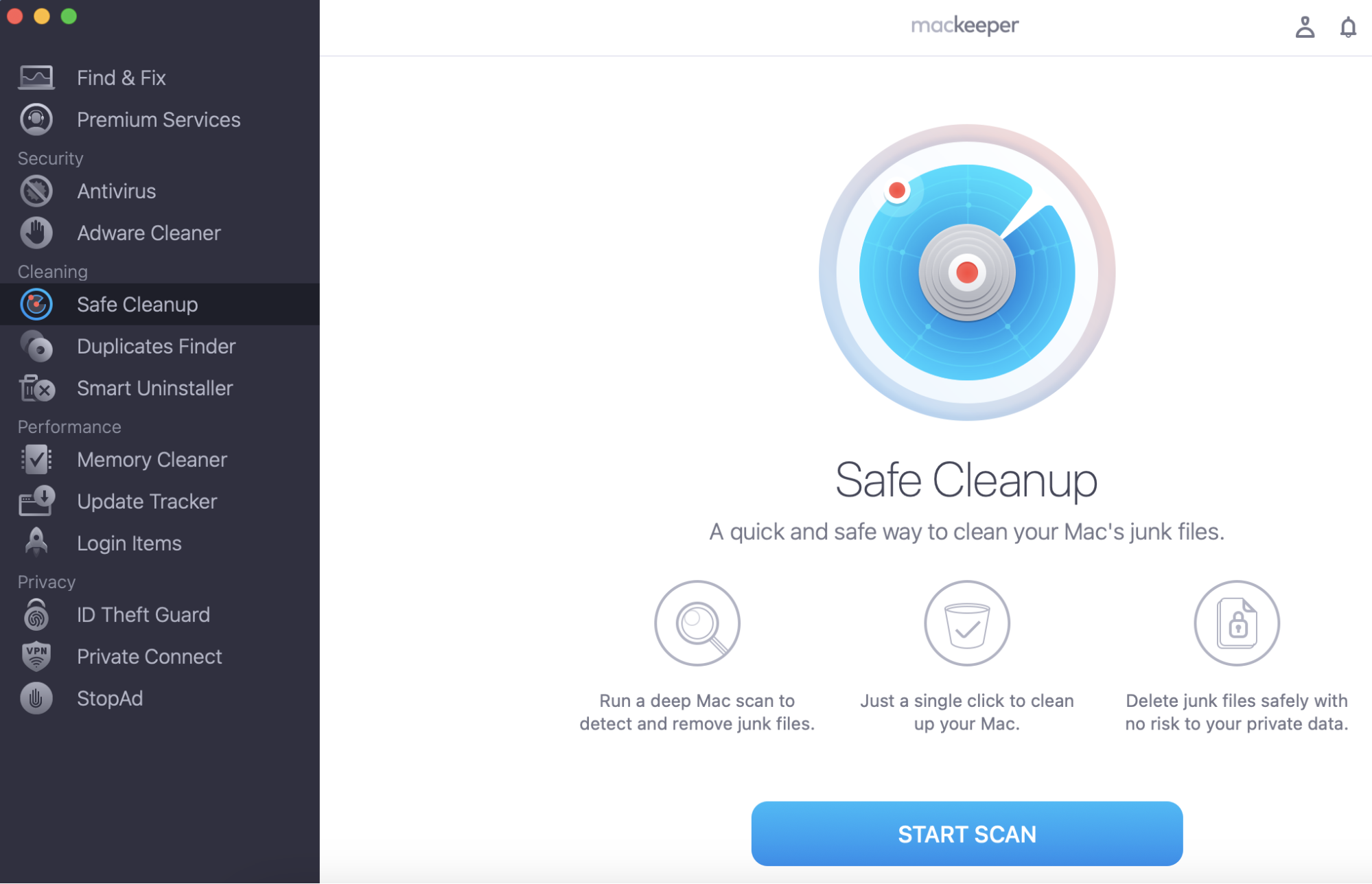
Still, the primary step before upgrading your macOS version is to clean up your computer of all the unnecessary files. This can be easily done with the help of MacKeeper’s Safe Cleanup, and here’s how to do it:
On the left, click the Safe Cleanup button to open the corresponding tool.
Click on Start Scan to find the possibly unnecessary files.
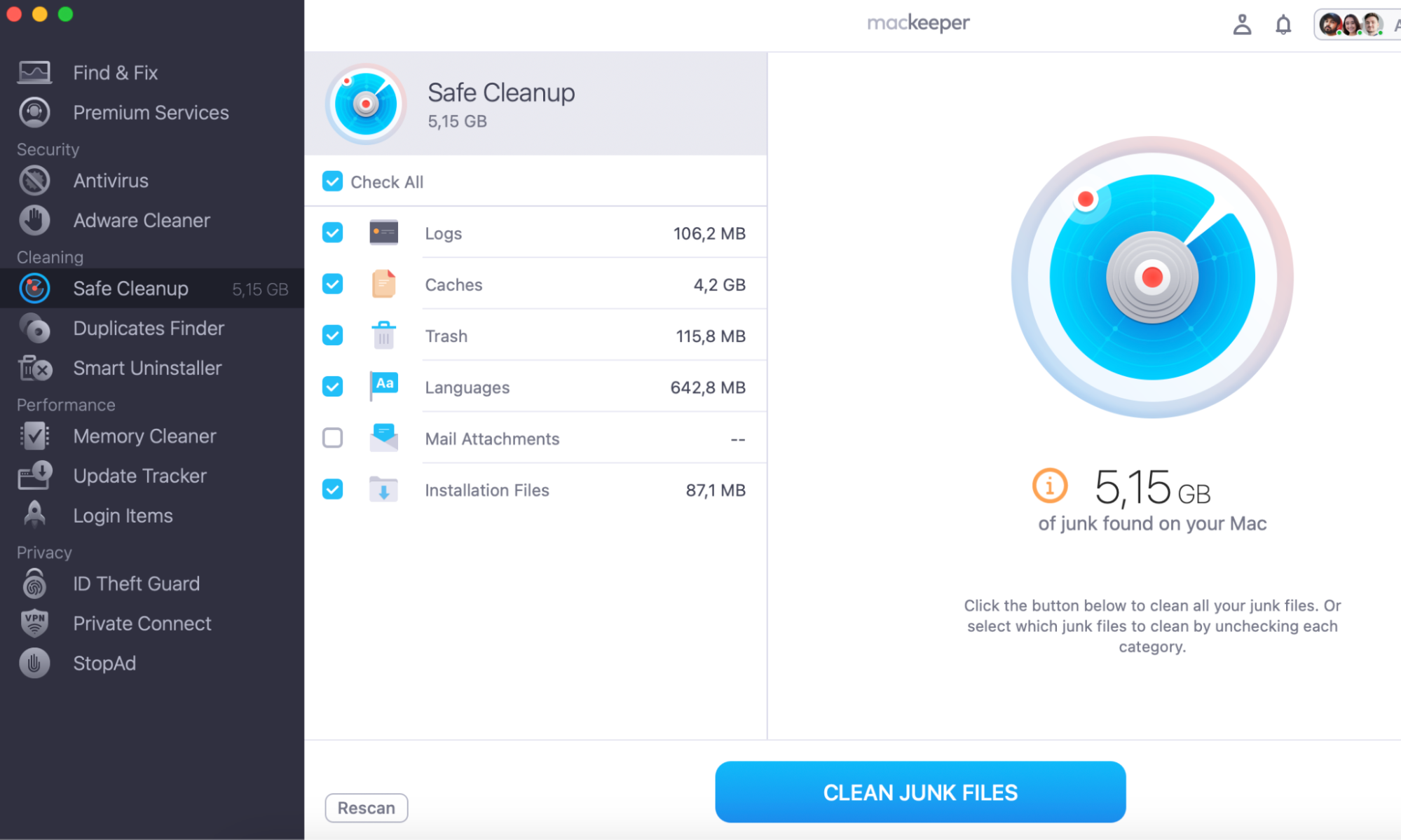
See our app’s scan results and select the files you want to delete by confirming with the Clean Junk Files option.
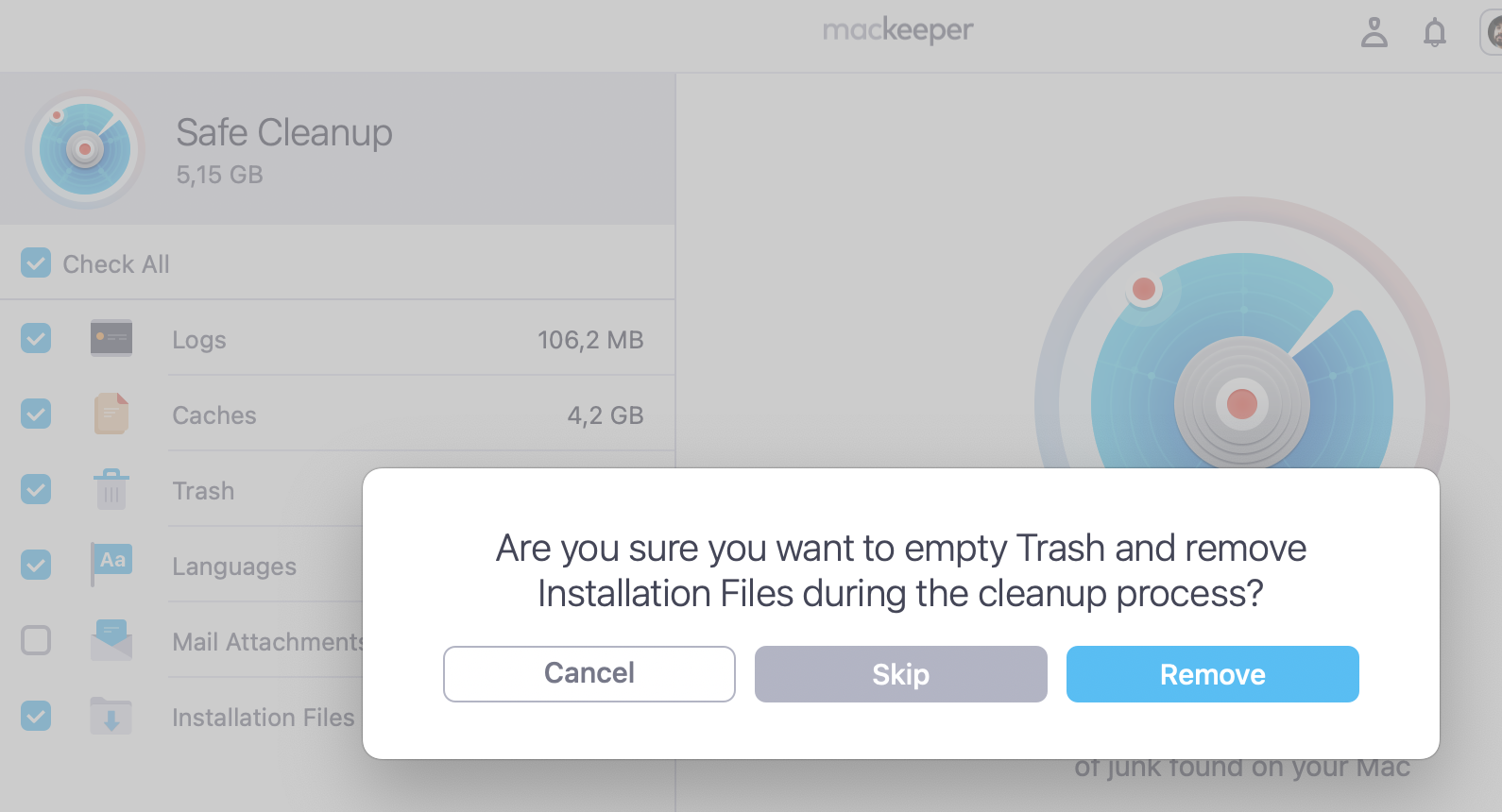
Empty Trash as an additional measure.
Wait for the cleanup to end.
Step 1. MacKeeper > Safe Cleanup > Start ScanStep 2. Choose files to delete > Clean Junk FilesStep 3. Confirm to empty Trash as well
1. Check compatibility with Mac
Not every Mac can run macOS 12. Apple dropped support for some older models—so if your machine is unsupported, you’ll need to stay on a previous version. Check the system requirements and verify macOS compatibility before you begin. Here’s the list of Macs that support macOS Monterey:
Mac model
Minimum year
iMac
Late 2015 and later
iMac Pro
2017 and later
MacBook Air
Early 2015 and later
MacBook Pro
Early 2015 and later
Mac Pro
Late 2013 and later
Mac mini
Late 2014 and later
MacBook
Early 2016 and later
An extra hint from us:
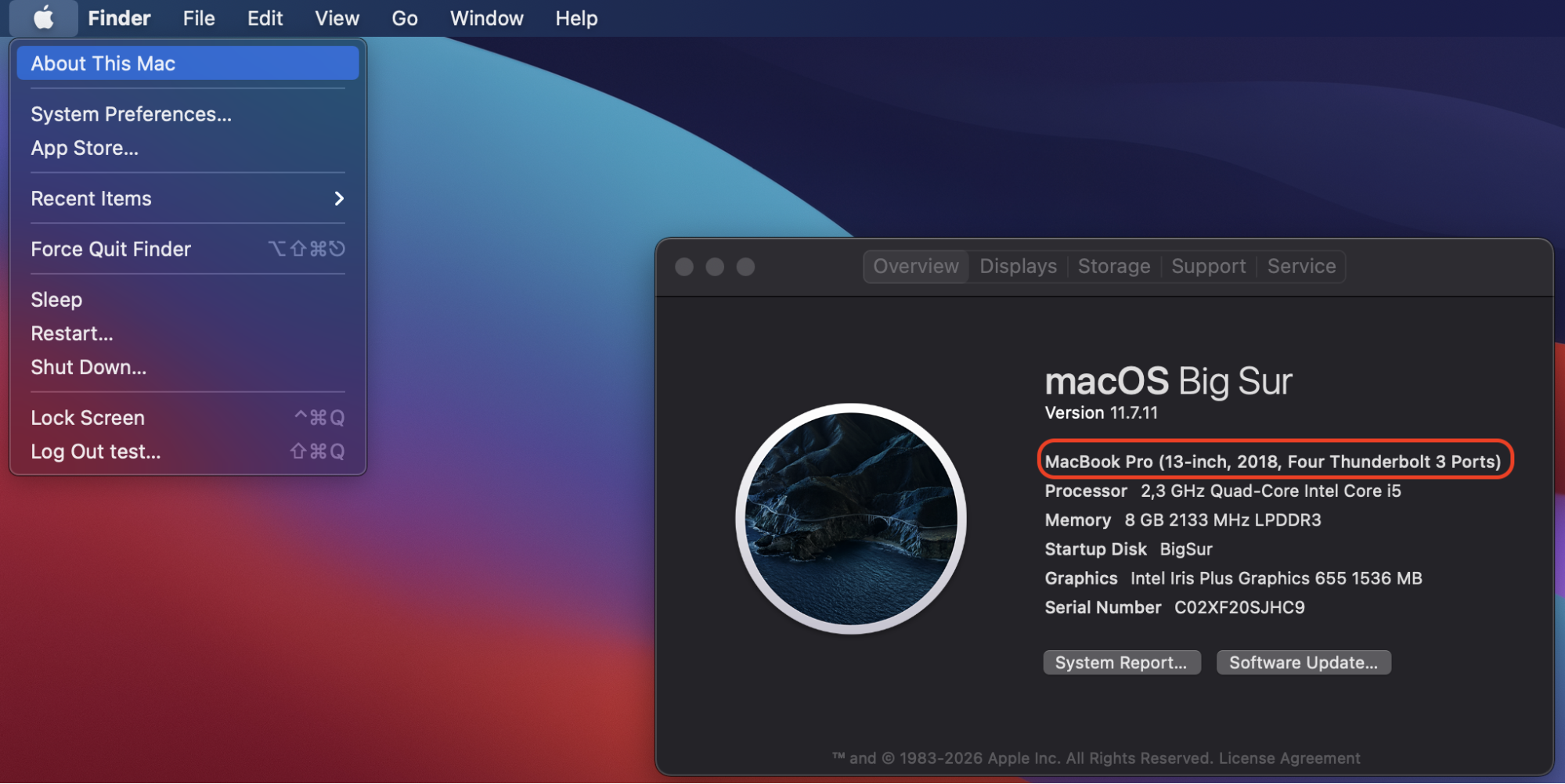
To check your model, click the Apple menu in the top-left corner of your screen and select About This Mac. You’ll see your Mac’s name and year right at the top. Keep this info handy—you’ll also need your Apple account credentials later during setup.
2. Back up your Mac
This step is non-negotiable. Before any major update, you should back up your MacBook or desktop Mac. If something goes wrong during installation, a backup means you won’t lose your photos, documents, or settings. The easiest way is with Time Machine—Apple’s built-in backup tool. Do the following:
Connect an external hard drive to your Mac.
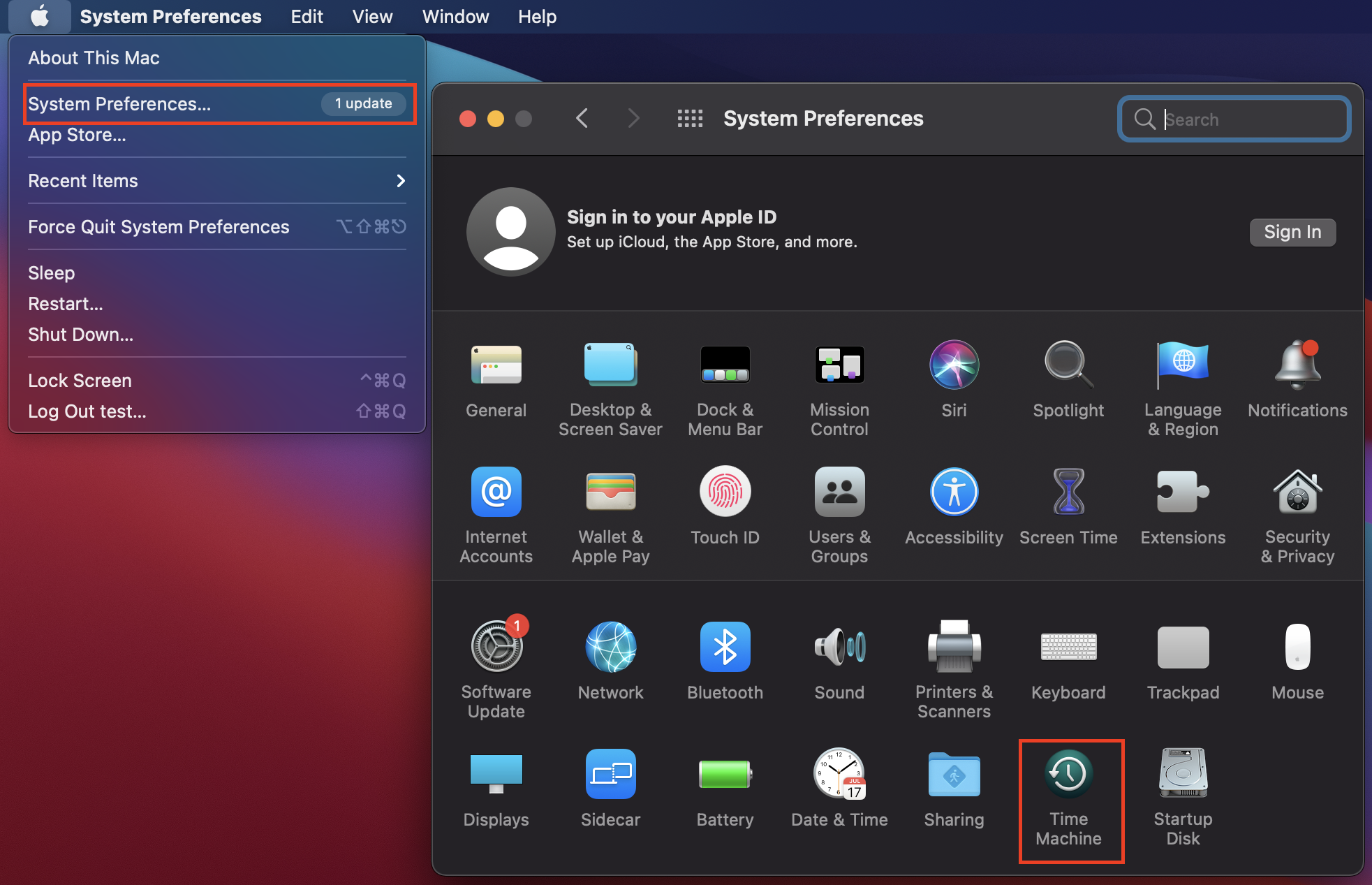
Open System Preferences and click Time Machine.
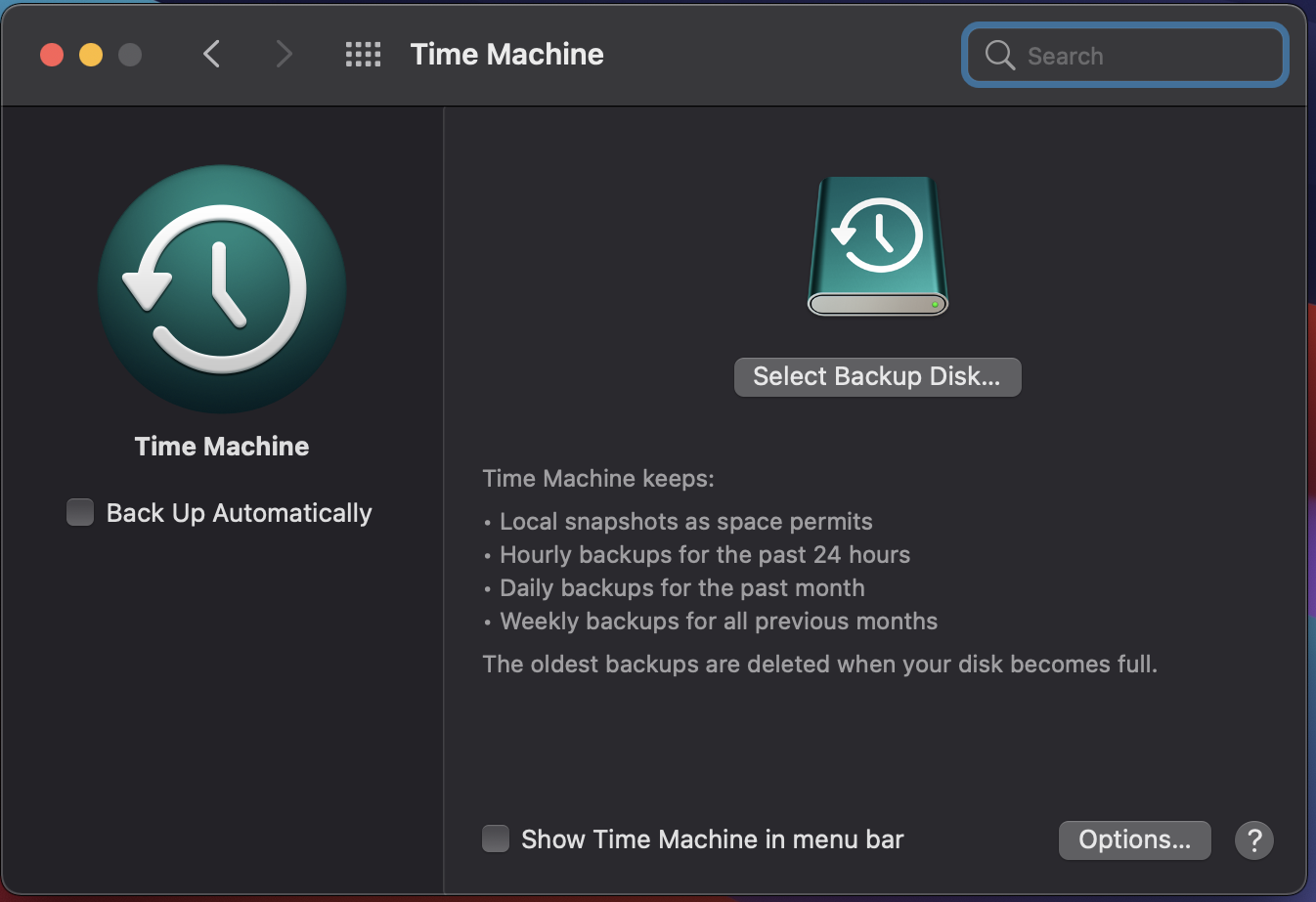
Click Select Backup Disk and choose your external drive.
Wait for the backup to complete before moving on.
Step 1. System Preferences > Time MachineStep 2. Select Backup Disk from the available options
A lifehack from the MacKeeper team:
Using Time Machine is always a challenge. While you’re in the process of backing up your disk, you may face the external hard drive not showing up on a Mac. If you see this error, the attached guide will lend you a helping hand.
3. Delete unnecessary files
Installing macOS Monterey requires a good amount of free space—Apple recommends at least 26 GB. If your startup disk is nearly full, the installation could fail.
Take a few minutes to clean junk files on your Mac before you begin. Get rid of old downloads, clear caches and logs, and empty the Trash. If your Mac is low on memory and storage, this step can also help you perform everyday tasks faster. You can also free up disk space by moving large media files to an external drive or cloud storage.
4. Run First Aid
Disk Utility’s First Aid feature checks your startup disk for issues and repairs them. Running it before installation helps make sure you’re not installing a new system onto a damaged disk.
Here’s how to run Disk Utility’s First Aid:
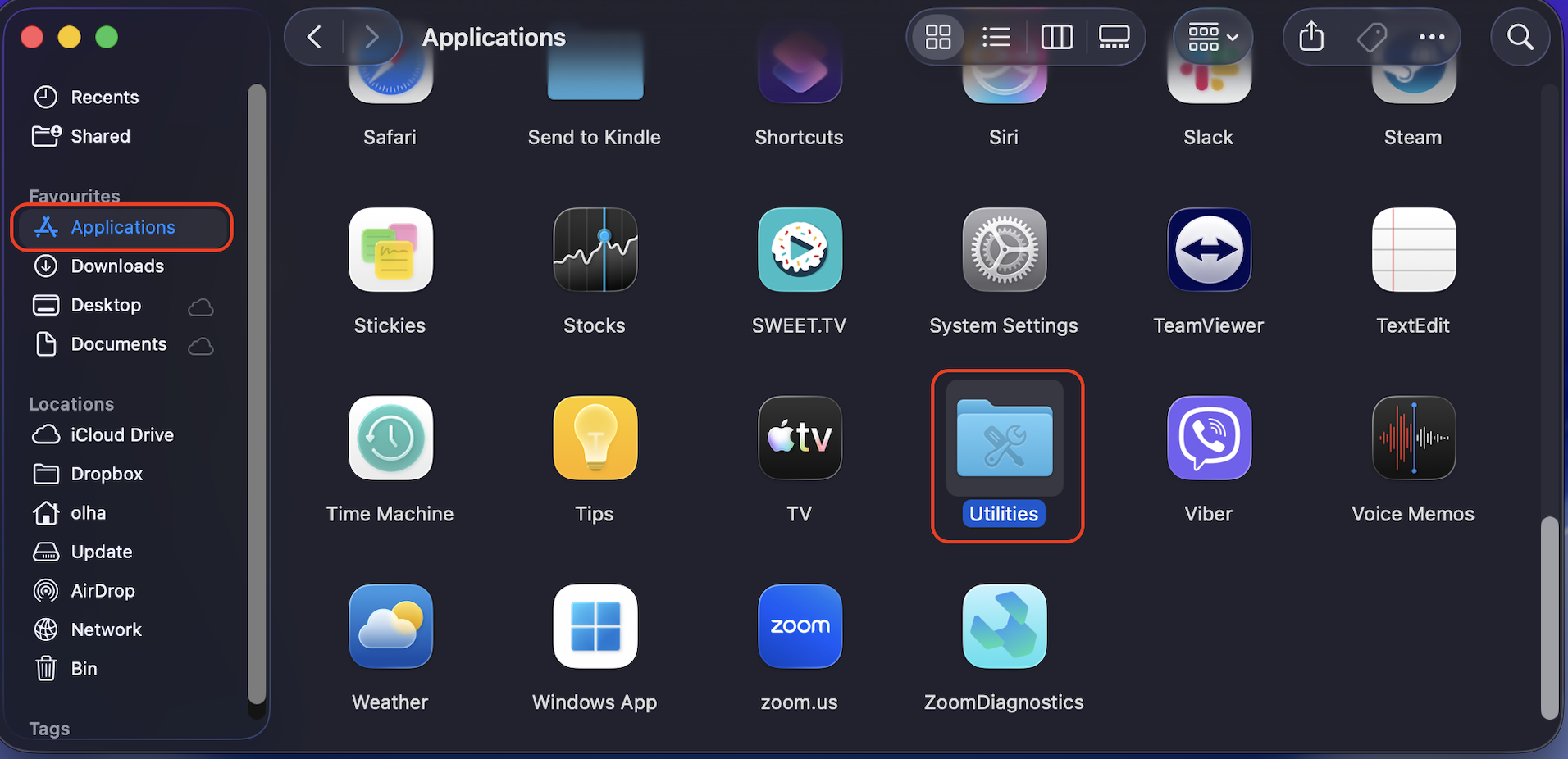
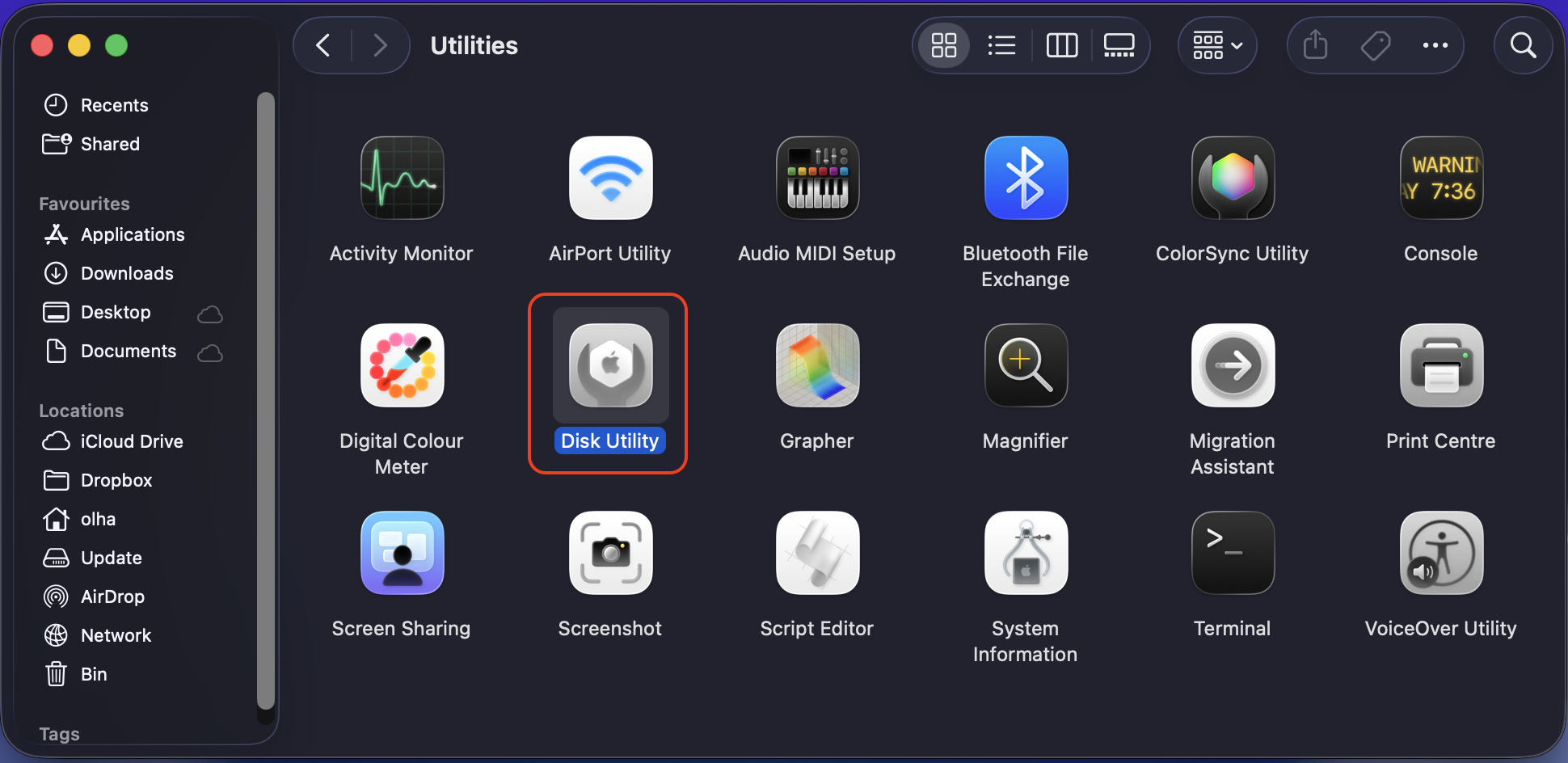
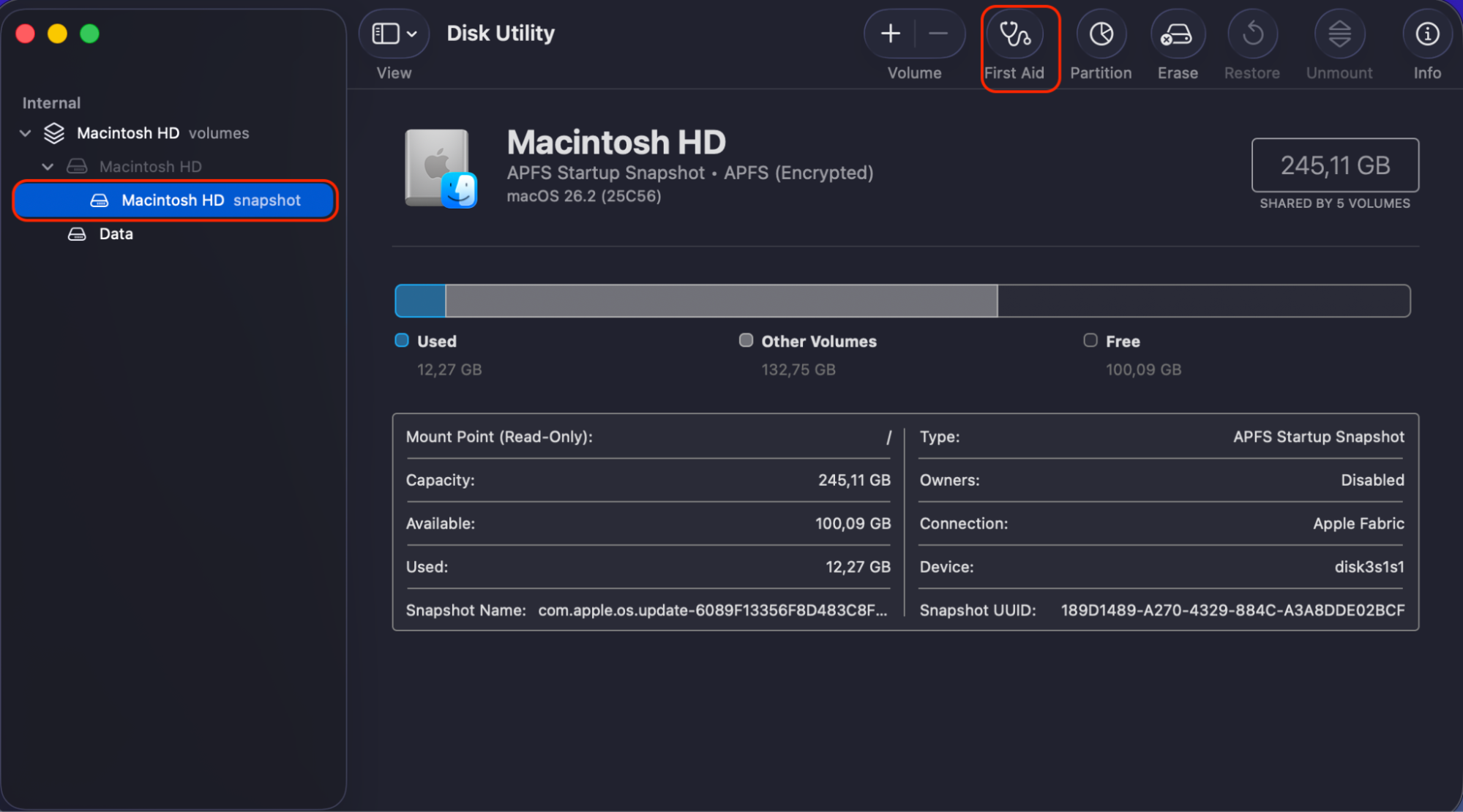
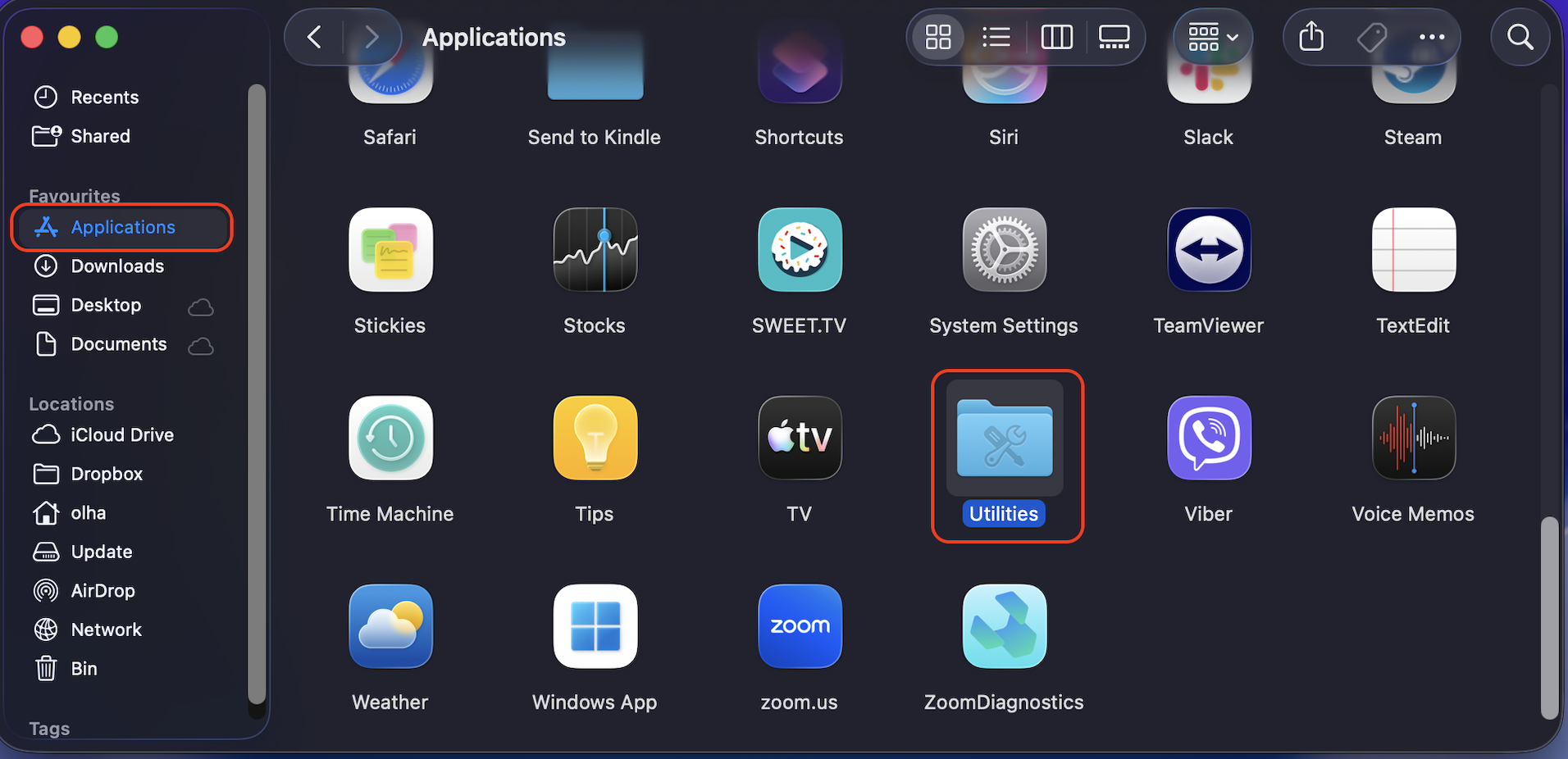
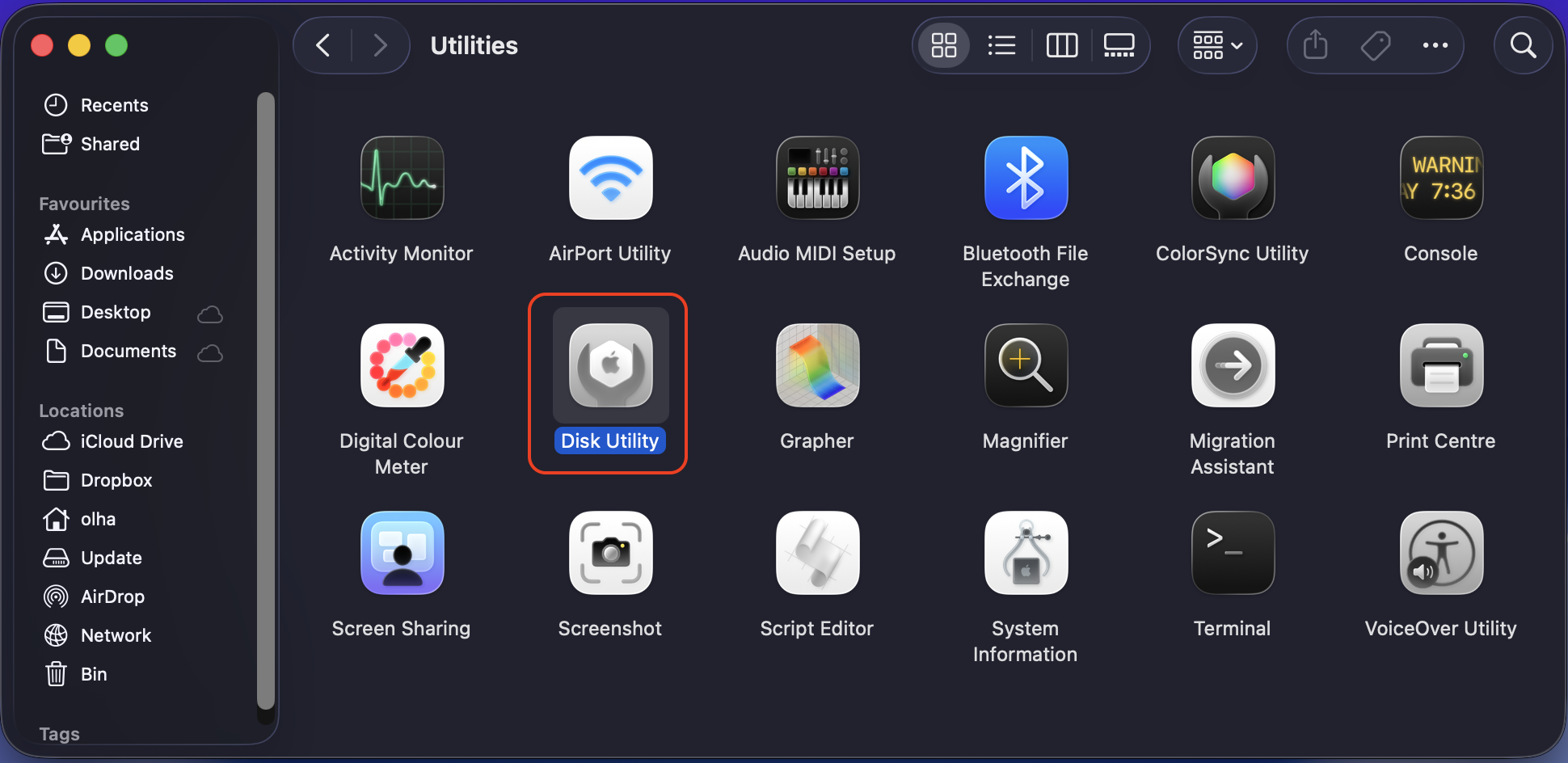
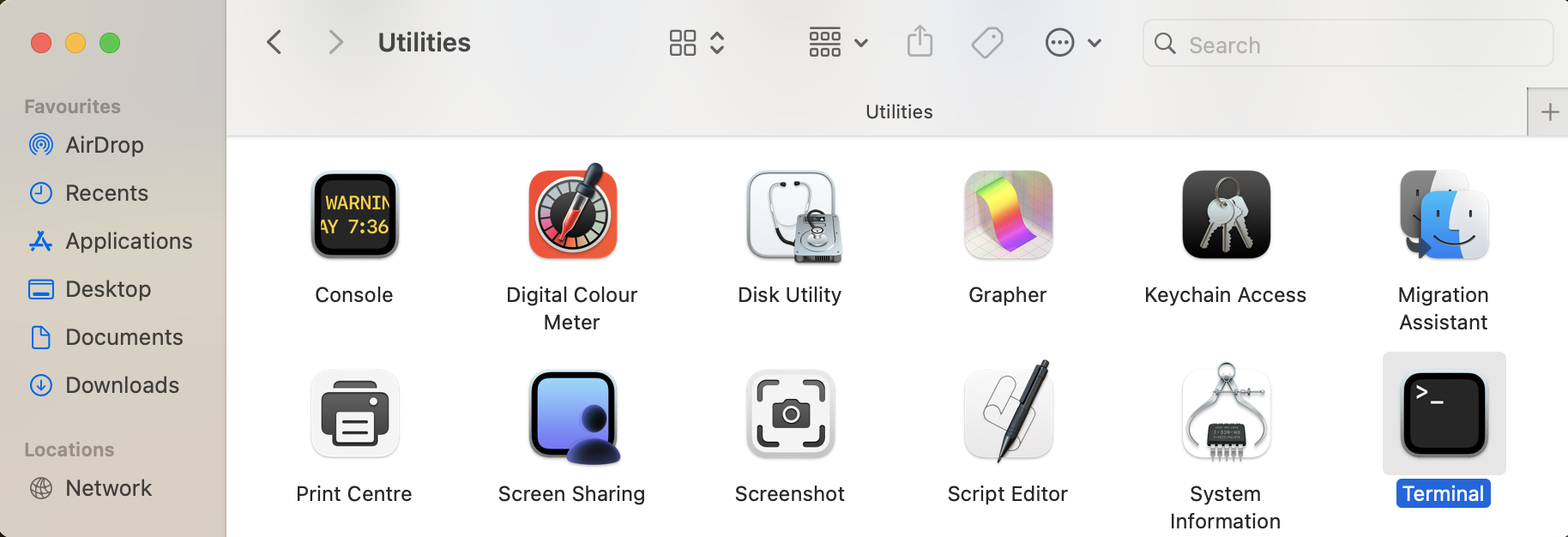
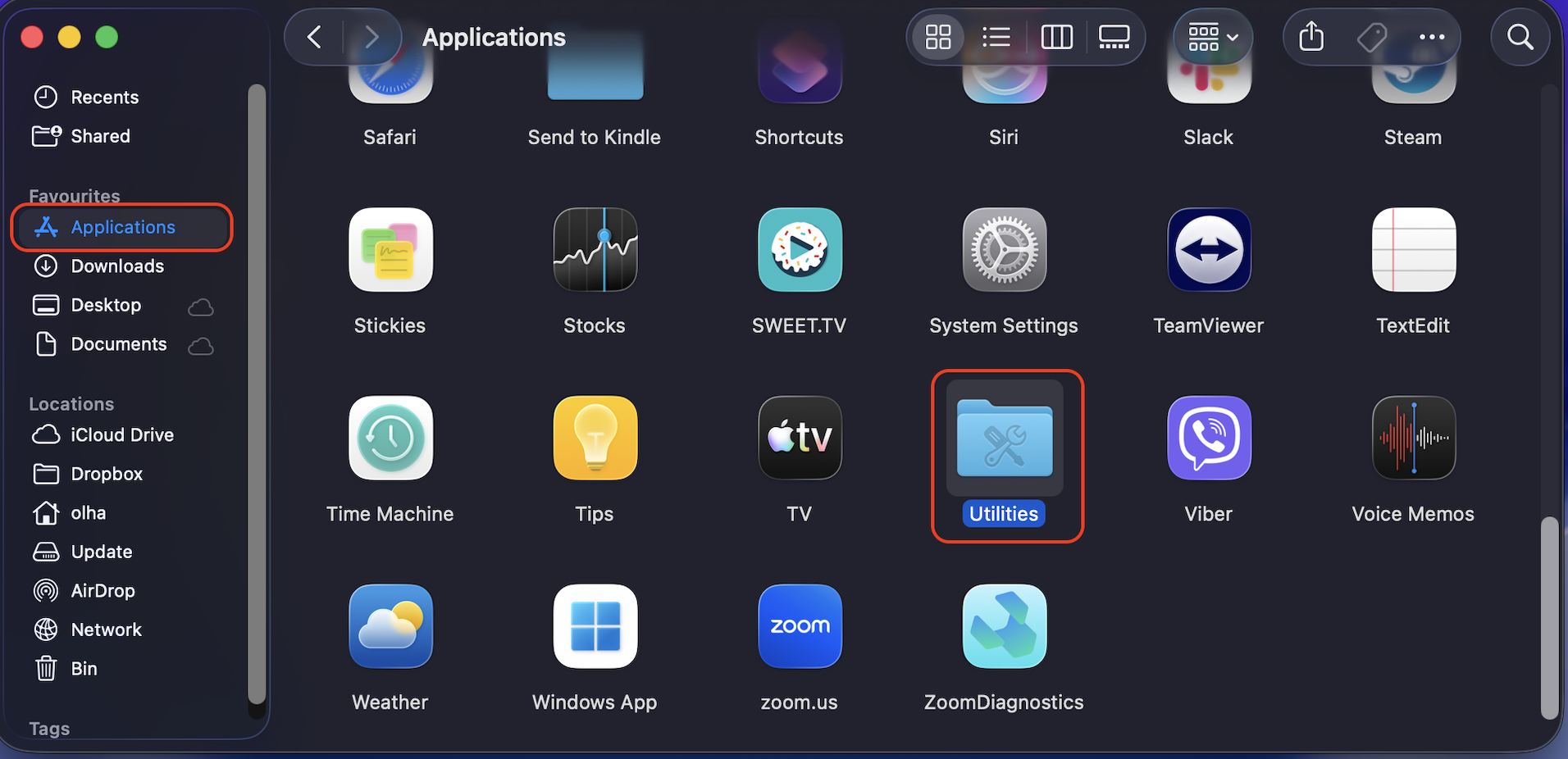
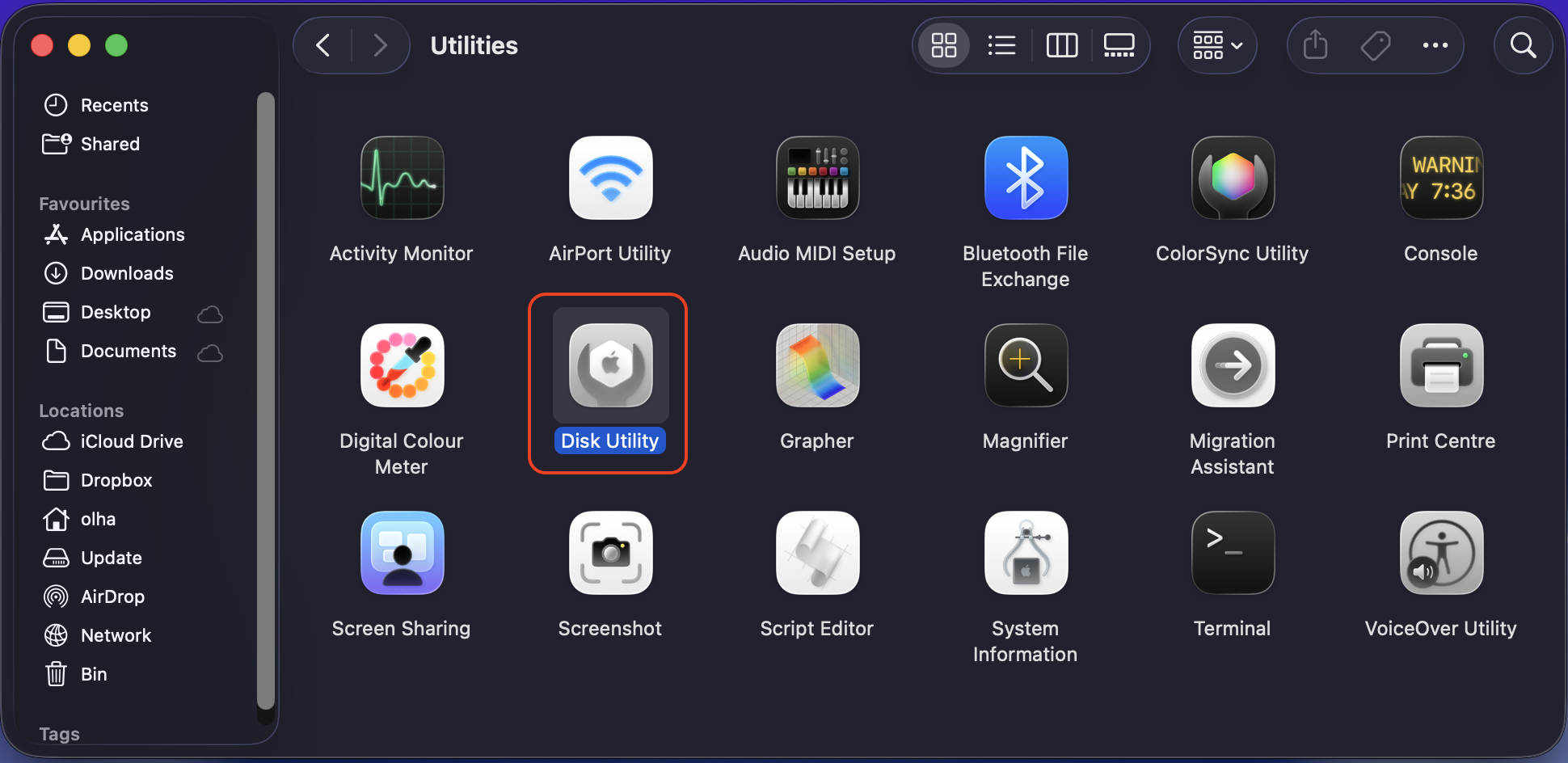
Open Finder > Applications > Utilities > Disk Utility.
Select your startup disk (usually named “Macintosh HD”) from the sidebar.
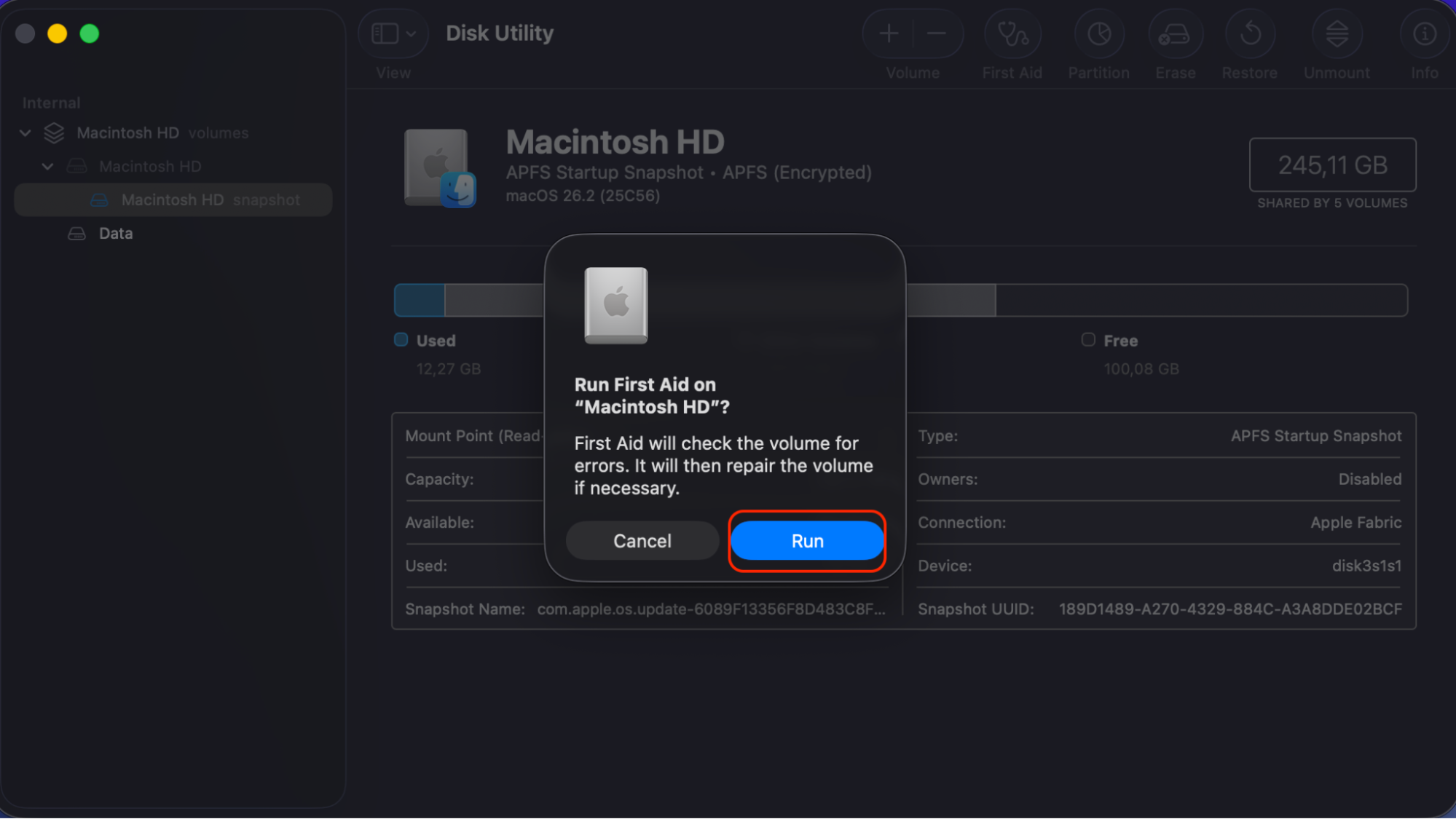
Click First Aid in the toolbar, then click Run.
Wait for the process to finish. If it finds issues, run it again until your disk comes back clean.
Step 1. Open Finder > Applications > UtilitiesStep 2. Find the Disk Utility applicationStep 3. Choose your backup disk > run First AidStep 4. Confirm to run First Aid
5. Check your internet connection
The macOS Monterey download is roughly 12 GB, so you’ll need a stable internet connection. A dropping connection can cause downloading to fail or the installation to get stuck. If you’re on Wi-Fi and the signal is weak, move closer to your router or connect with an Ethernet cable.
How to download and install macOS Monterey?
There are several ways to get macOS Monterey onto your Mac, and we’ll walk you through the best ones.
1. Use the Software Update option
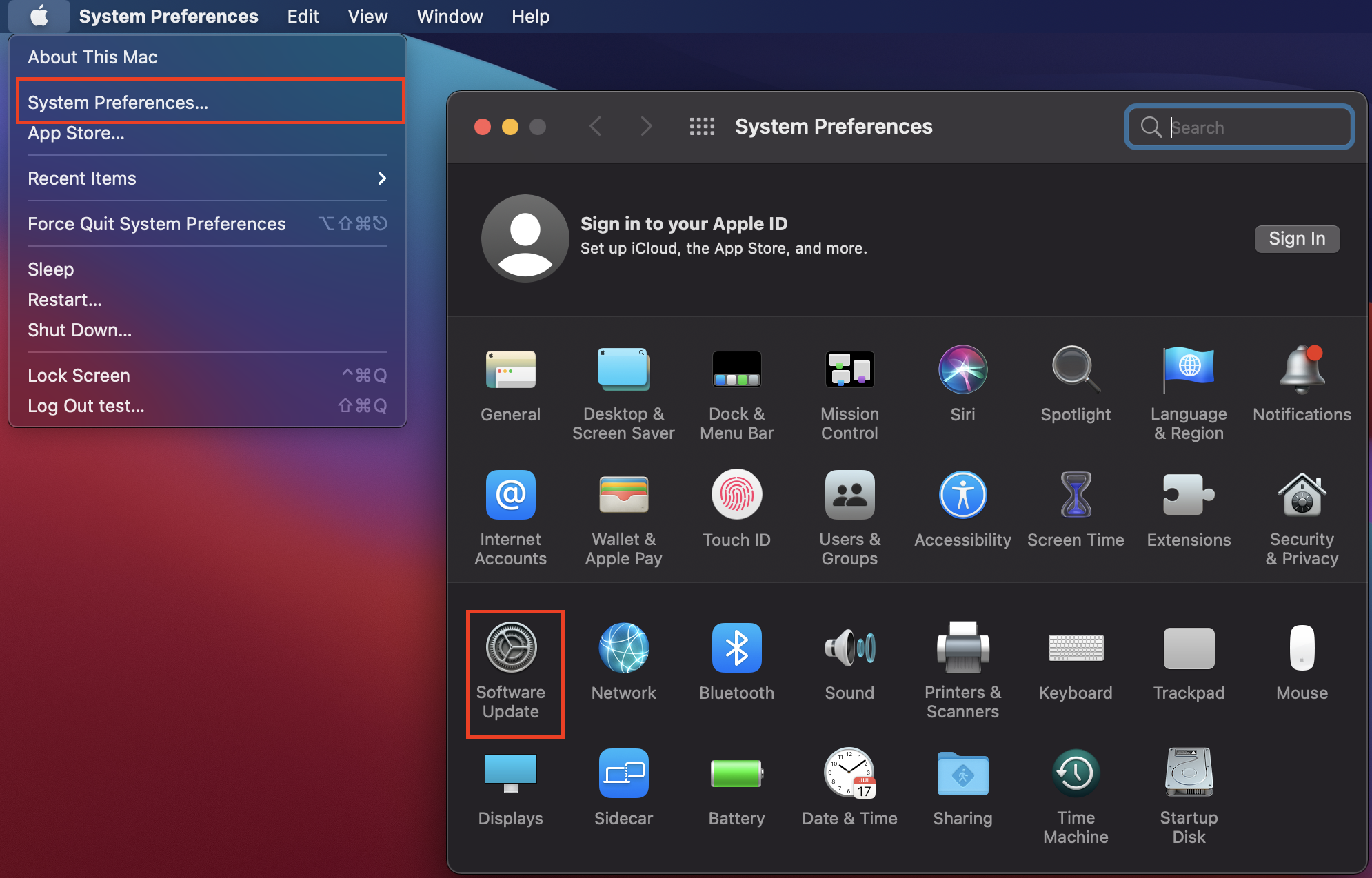
This is the simplest way to install macOS Monterey, as the Software Update feature handles the macOS Monterey download and installation in one go. Just follow our instructions below:
Click the Apple menu and select System Preferences.
Click Software Update.
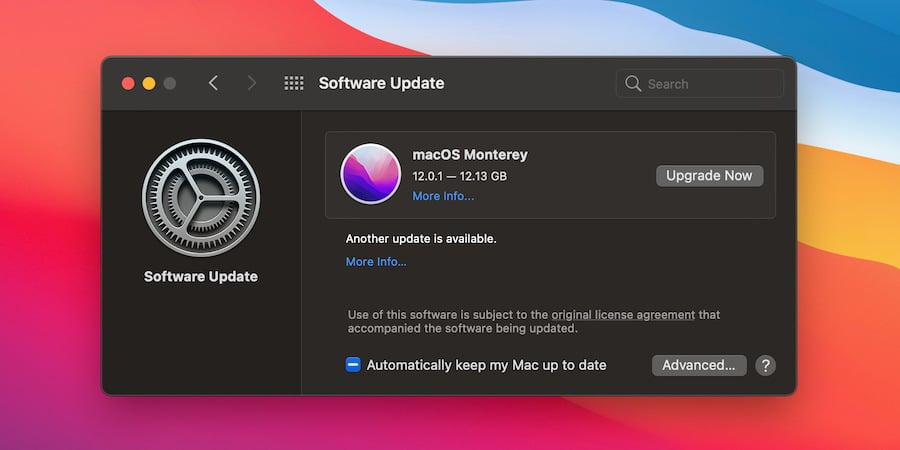
If macOS Monterey appears, click Upgrade Now.
Your Mac will restart several times during the process. Don’t close the lid on your MacBook or disconnect the power—just let it do its thing.
Step 1. Apple menu > System Preferences > Software UpdateStep 2. If anything is available, choose Upgrade Now
2. Download macOS 12 via App Store
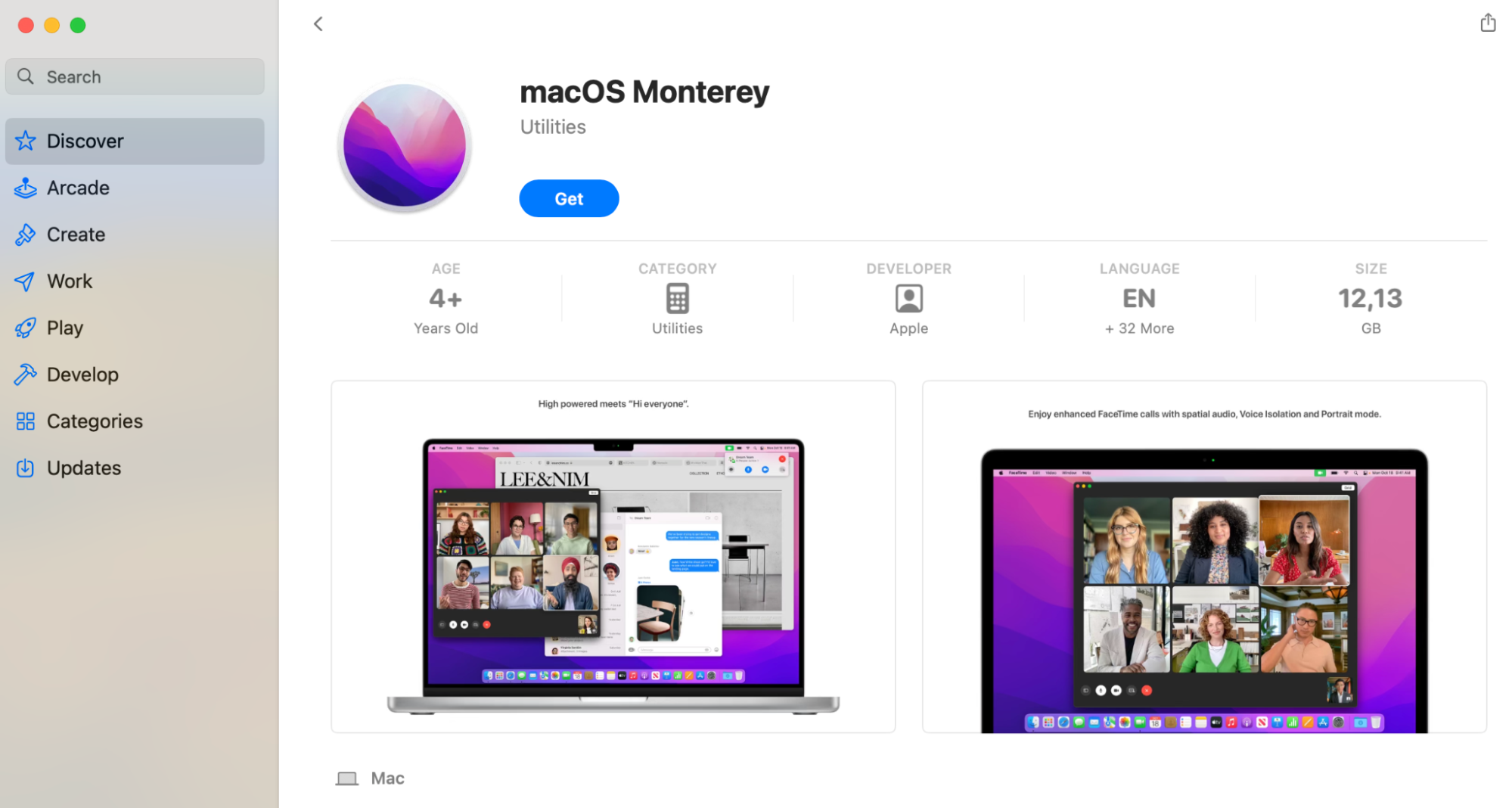
If Software Update doesn’t show macOS Monterey or you need the full macOS Monterey installer, grab it from the App Store. Here’s how to proceed with it:
Follow the attached link to App Store on your Mac, and It’ll allow you to directly view the macOS Monterey installation file.
Click Get to begin downloading macOS 12.
Once the download completes, the macOS Monterey installer will open automatically. Follow the prompts to install.
If the installer launches automatically and you’re not ready yet, quit it. The installer app stays in your Applications folder for later use or for creating a bootable disk.
3. Try bootable installers
A bootable installer is a USB drive that contains everything needed to install macO S from scratch. It’s handy if you’ve been trying to update through the Software Update option, but we’ve noticed that it keeps failing if your Mac won’t start up or you want to install macOS Monterey on multiple computers.
To manually create the installer, do the following:
You’ll need a USB flash drive with at least 16 GB of space and the macOS Monterey installer in your Applications folder.
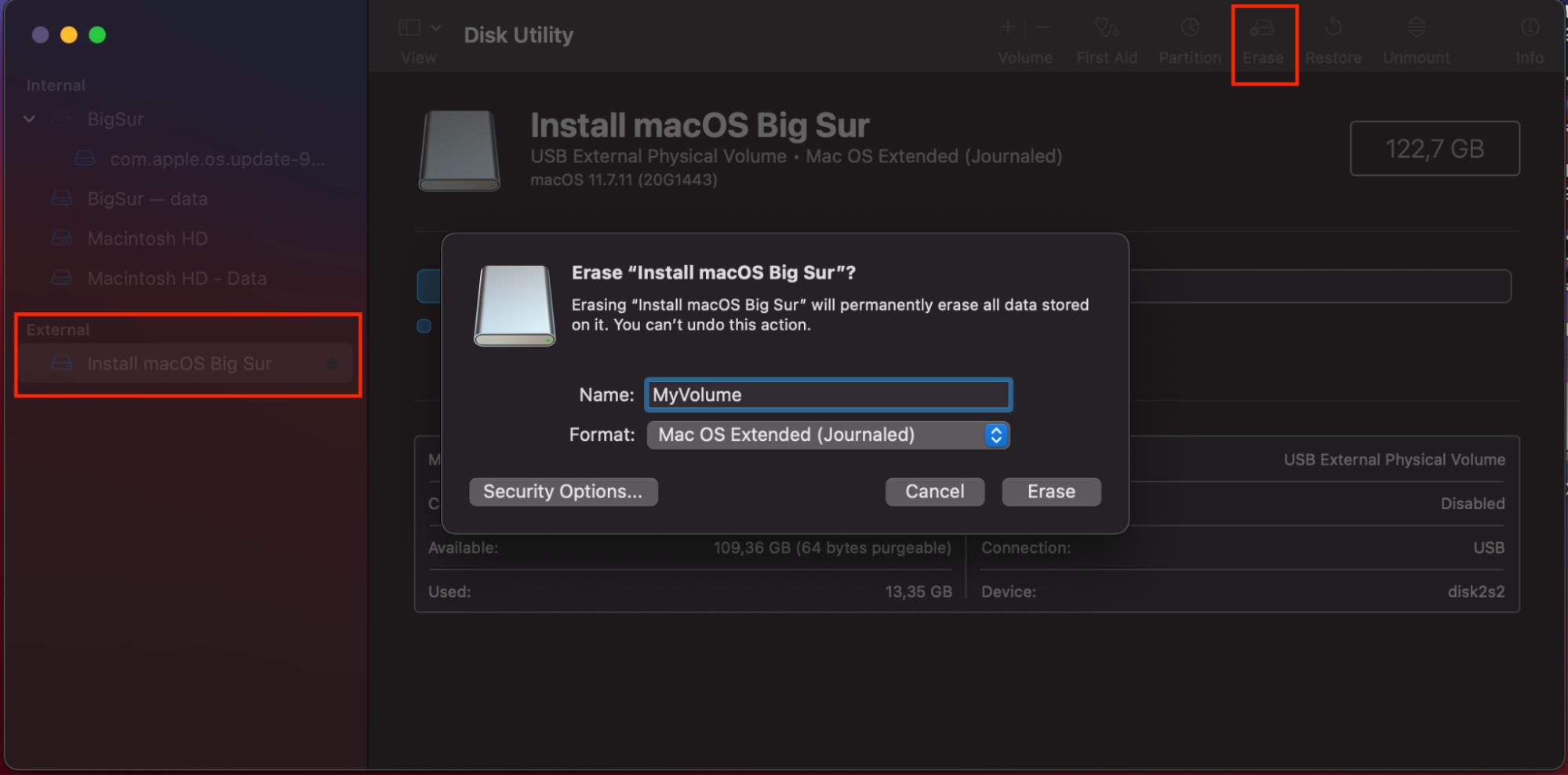
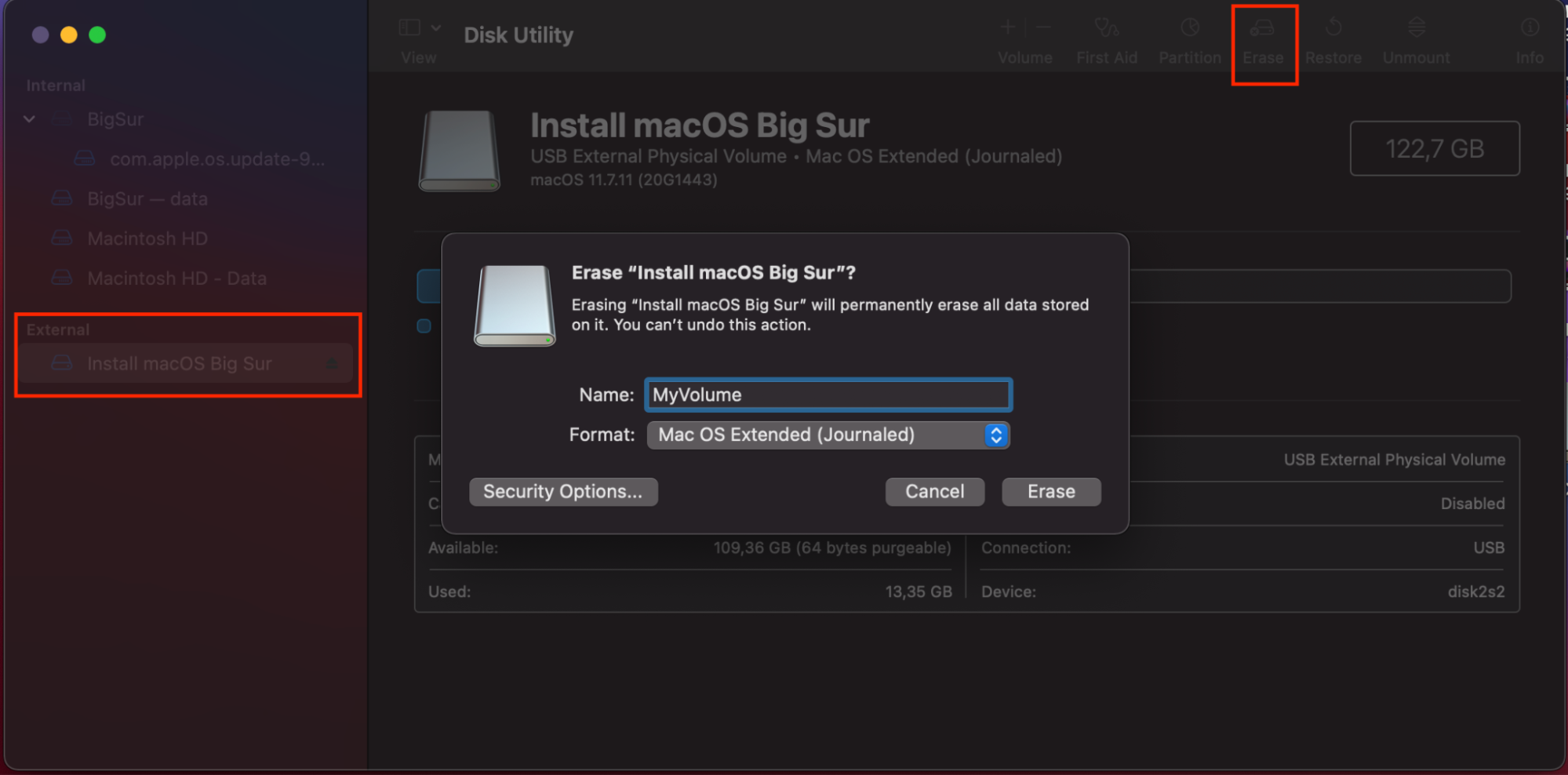
Open Disk Utility, select your USB drive, and click Erase. Set the format to Mac OS Extended (Journaled) and the scheme to GUID Partition Map. Name the drive “MyVolume.”
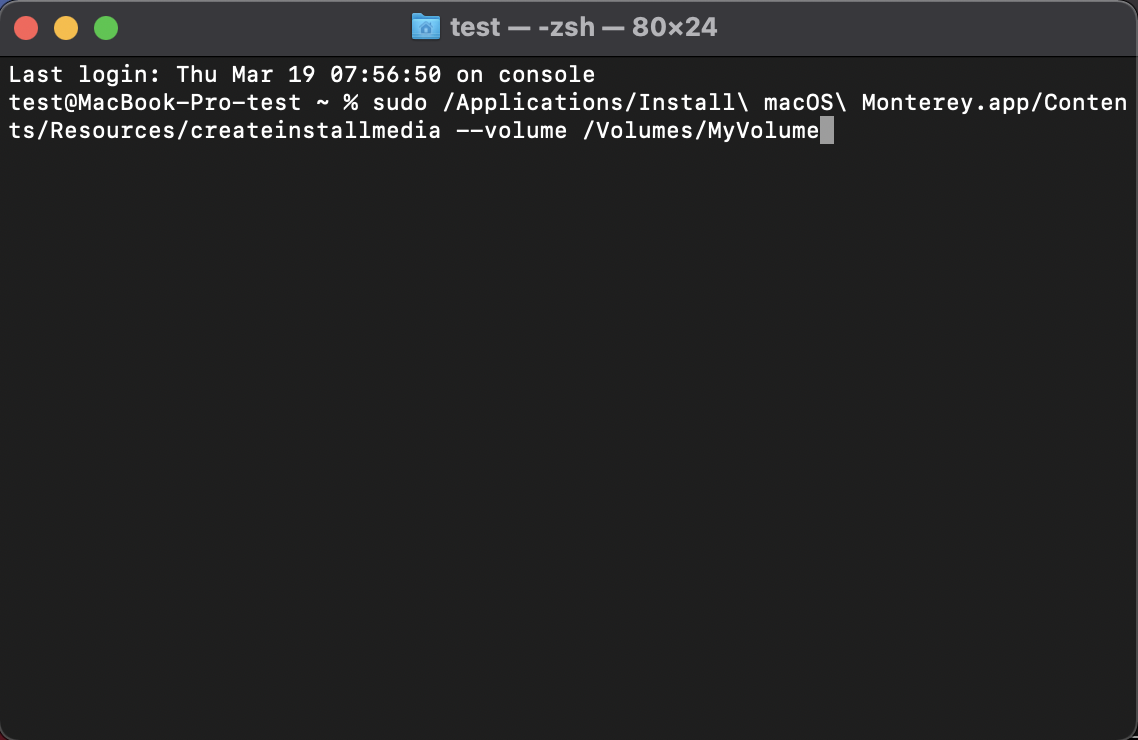
Open Terminal (find it in Applications > Utilities) and paste this command: sudo /Applications/Install\ macOS\ Monterey.app/Contents/Resources/createinstallmedia --volume /Volumes/MyVolume
Enter your admin password when prompted, then type Y to confirm erasing the drive.
Wait for Terminal to finish—this can take several minutes. When you see “Install media now available,” your bootable installer is ready.
Step 1. Get your macOS Monterey installer ready in the Utilites folderStep 2. Open Disk Utility from the Utilites folderStep 3. Confirm to Erase ‘Install macOS Big Sur’ and choose the indicated settingsStep 4. Find and open TerminalStep 5. Type the command in Terminal and press Return
4. Install macOS onto another USB drive
Sometimes you might want to run macOS Monterey from an external USB drive—for testing, troubleshooting, or keeping a separate work environment. This is different from a bootable installer; here, you’re installing the full operating system onto an external disk. In this case, follow our instructions:
Connect a USB drive (an SSD is recommended for speed) with at least 64 GB of space.
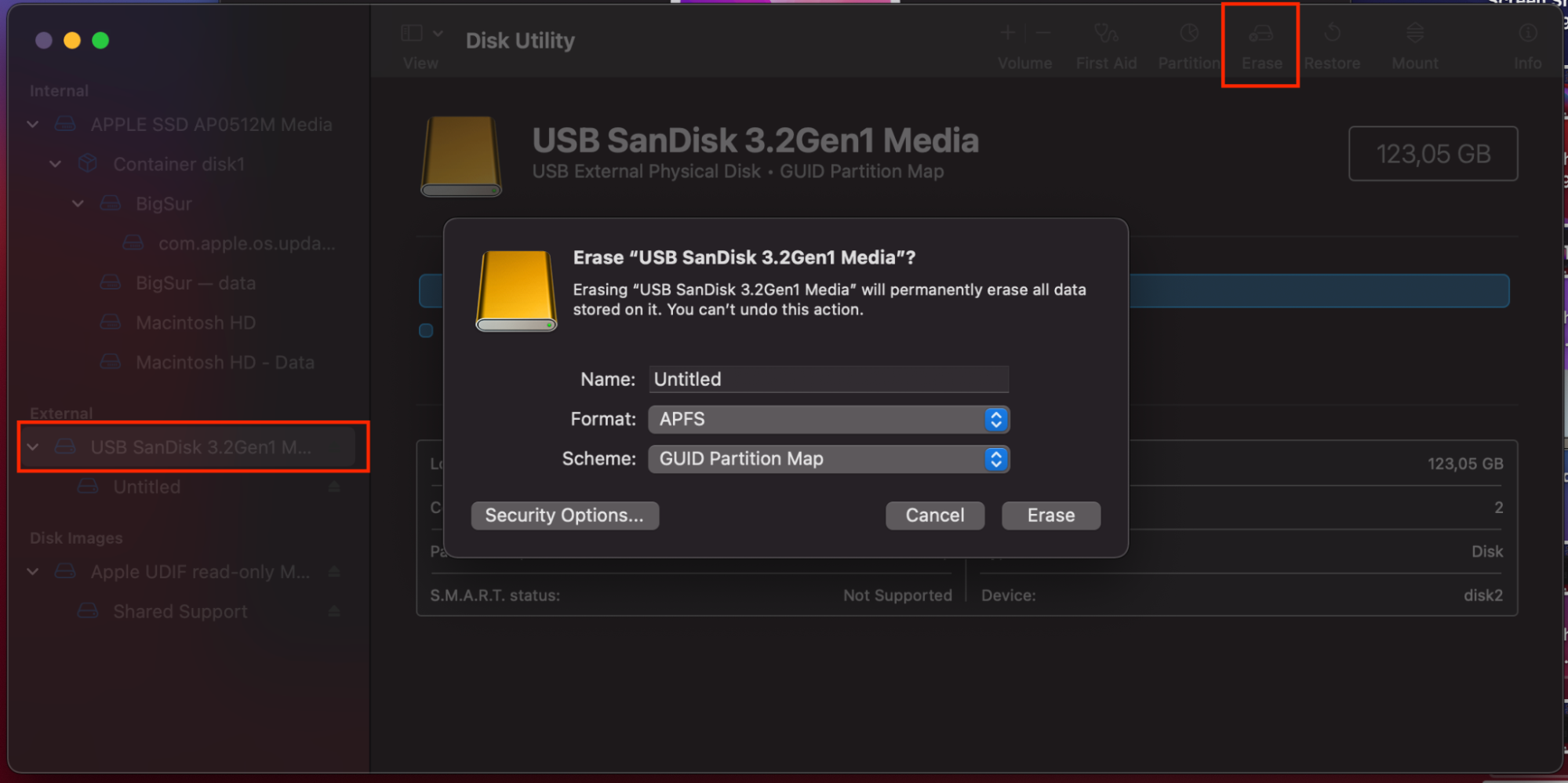
Open Disk Utility and erase the external drive.
Choose APFS as the format and GUID Partition Map as the scheme.
Run the macOS Monterey installer from your Applications folder.
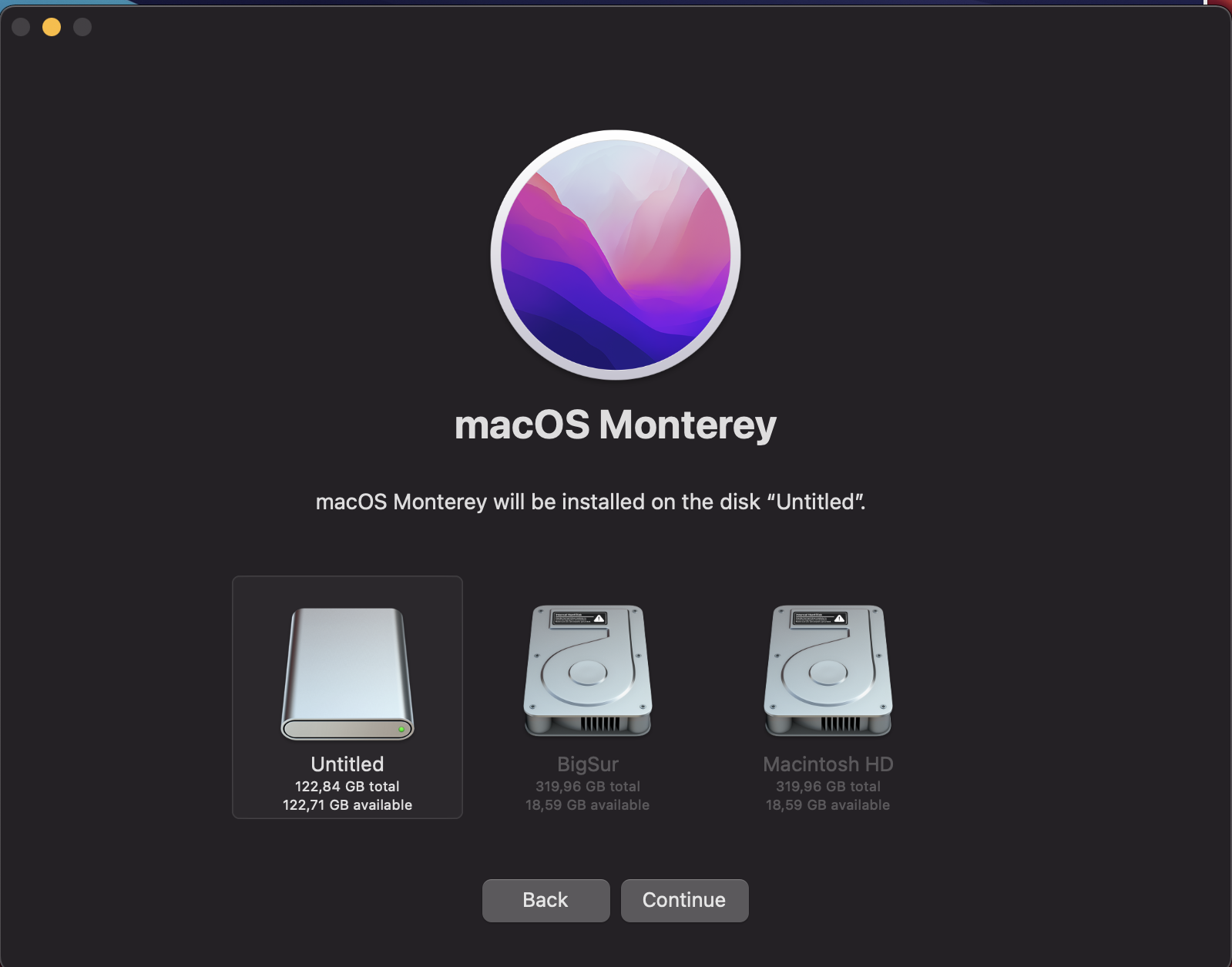
When the installer asks where to install, click Show All Disks and select your external USB drive.
Follow the on-screen instructions to complete the installation.
Step 1. Open Applications > Utilities after connecting the USB driveStep 2. Open DIsk Utility from the Utilities folderStep 3. Erase the external drive and set the shown settingsStep 4. Finish the macOS Monterey installation > Continue
A useful advice from us:
If your drive doesn’t appear in the installer, it might not be formatted correctly. Read what to do if USB not showing up on Mac in our attached guide.
5. Clean install macOS Monterey
A clean install of macOS 12 Monterey wipes your startup disk and installs a fresh copy of the system—no leftover files, no outdated settings, and no remaining traces of old OS X apps or software you forgot to uninstall. It’s the way to go if your Mac has been feeling slow, freezing, or behaving unpredictably.
WARNING: Make sure you’ve backed up your data, as clean install of macOS 12 Monterey erases everything on your startup disk. Besides, we want to advise you that this method works only if Monterey already installed.
Here’s how to install macOS Monterey:
Restart your Mac and enter Recovery Mode. On an Apple Silicon Mac, hold the power button until you see startup options. On an Intel Mac, hold Command + R during startup.
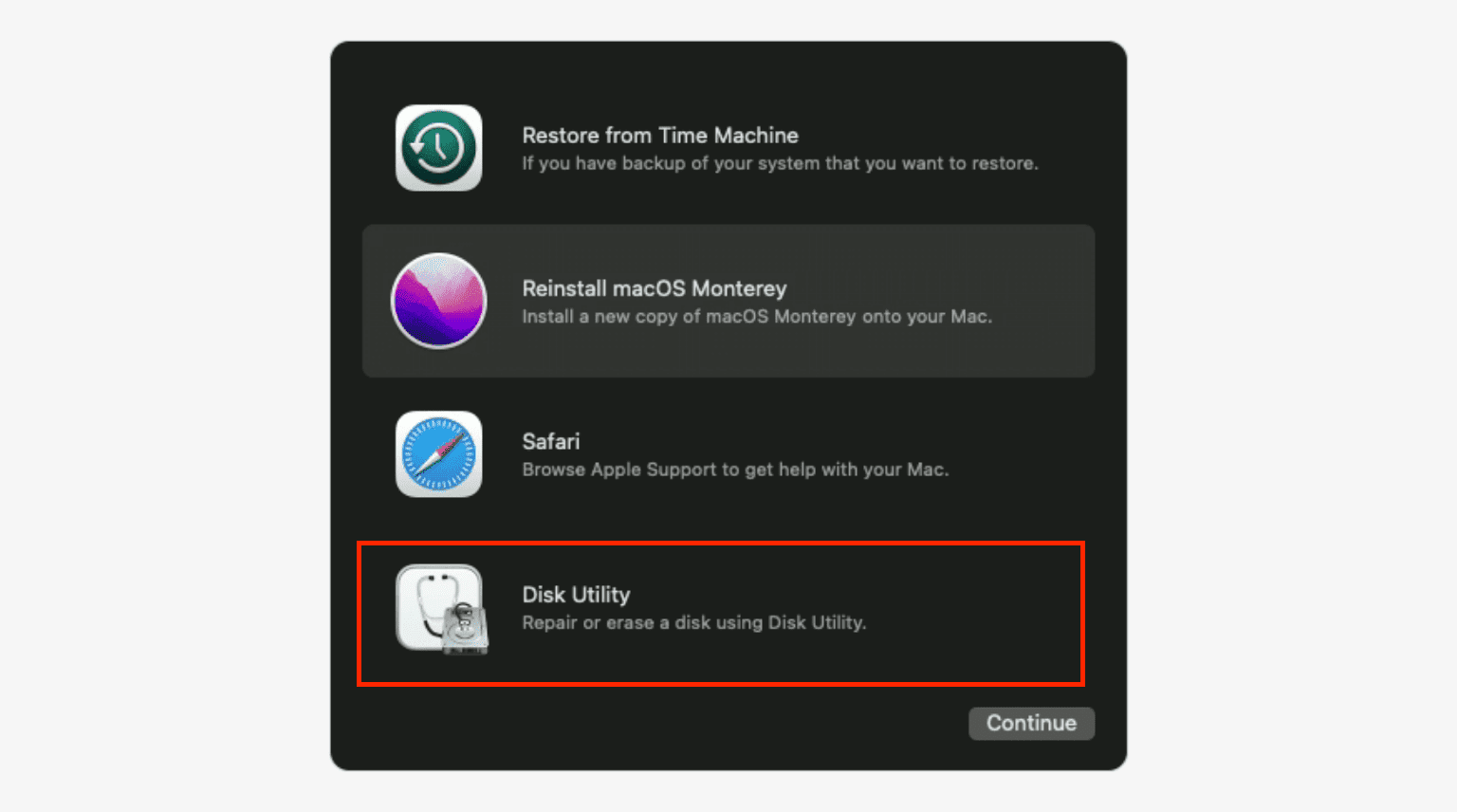
In the Recovery window, open Disk Utility.
Select your startup disk (usually “Macintosh HD”) and click Erase. Choose APFS as the format.
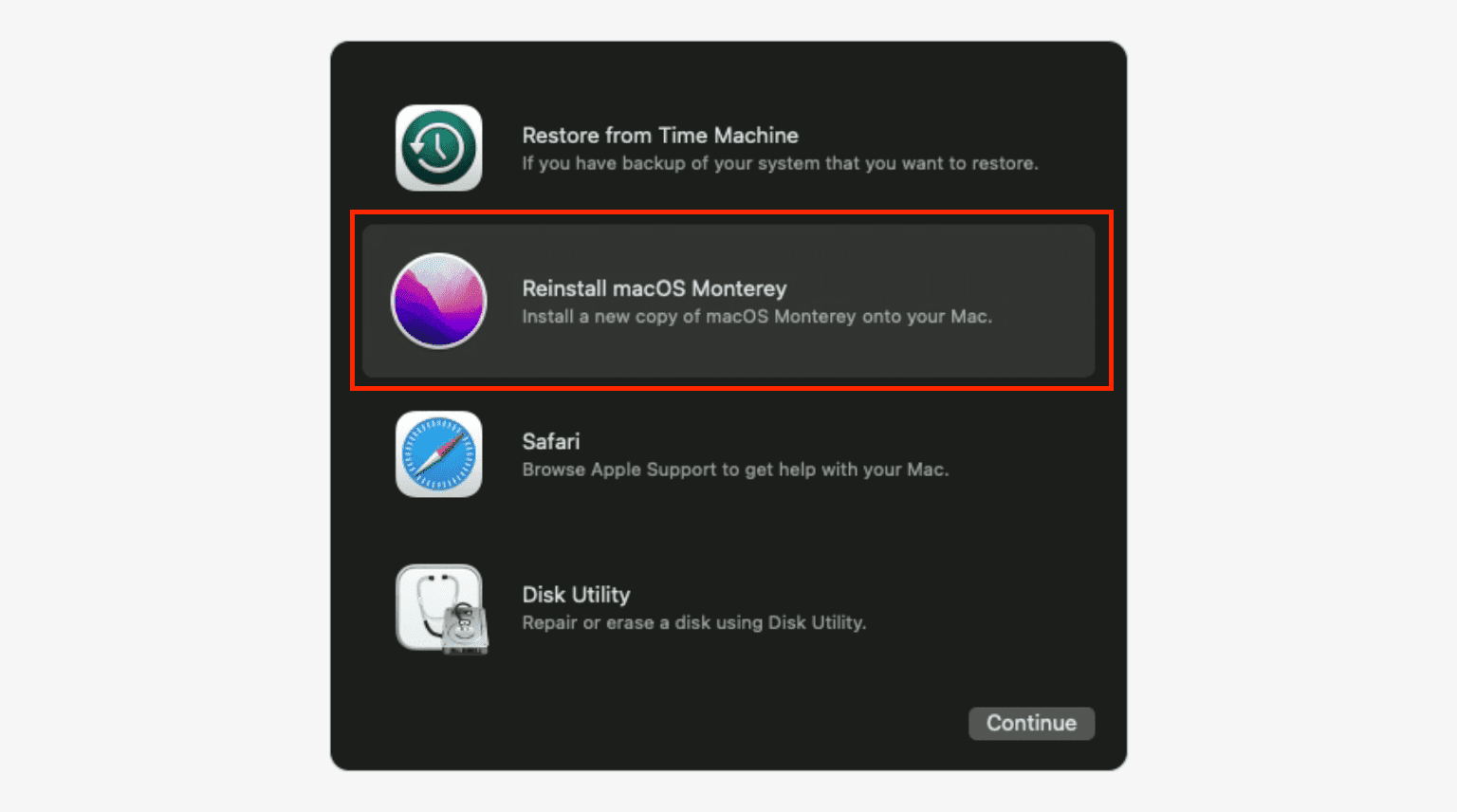
Quit Disk Utility and select Reinstall macOS Monterey from the Recovery menu. If you’re using a bootable installer, select it from the startup options instead.
Follow the on-screen prompts. Your Mac will download the required files and install a fresh copy of macOS Monterey.
Step 1. In Recovery Mode, open Disk Utility > ContinueStep 2. To erase Macintosh HD, give it a name and choose APFS as a formatStep 3. Quit Disk Utility > Reinstall macOS Monterey > Continue
Once the clean install macOS 12 Monterey process is complete, your Mac will restart with the Setup Assistant. Sign in with your Apple ID, restore data from your Time Machine backup, or set everything up from scratch.
Keep your Mac ready for the next update
Now that you know how to install macOS Monterey—whether through the Software Update feature, the App Store, a bootable installer, or a clean install—you’re in control. The key to a smooth installation is preparation: checking compatibility, backing up your data, and making sure you have enough disk space.
Speaking of disk space—if you found yourself running low before the installation, that’s a sign your Mac could use a regular cleanup. MacKeeper’s Safe Cleanup can help with that. It removes caches, logs, and other junk files in a single click, freeing up storage without touching your personal files. It’s a simple way to keep your Mac running efficiently and always ready for the next macOS update—just give a try.
We respect your privacy and
use cookies
for the best site experience.
Privacy Preferences Center
We use cookies along with other tools to give you the best possible experience while using the
MacKeeper website. Cookies are small text files that help the website load faster. The cookies we
use don’t contain any type of personal data meaning they never store information such as your
location, email address, or IP address.
Help us improve how you interact with our website by accepting the use of cookies. You can change
your privacy settings whenever you like.
Manage consent
All cookies
These cookies are strictly necessary for enabling basic website functionality (including page
navigation, form submission, language detection, post commenting), downloading and purchasing
software. The website might malfunction without these cookies.