Noticing codesign macOS high CPU spikes and a MacBook that feels sluggish? It’s usually macOS quietly verifying app signatures—not a sign of something broken. MacKeeper’s Memory Cleaner frees up memory by quitting idle, memory-draining processes, so your Mac has room to breathe.
What is the codesign process on Mac, and why does it run?
First, we’d like to clarify the terms. Codesign is a utility that can be launched manually or by other programs and is used to sign code, view signatures, and verify them. At the same time, CodeSigningHelper or com.apple.CodeSigningHelper is Apple’s system-level background XPC service that is launched via launchd when a system component needs to perform operations related to code signature analysis or verification. In other words, the latter can be invoked, for example, by services that install and activate system extensions.
So now you should understand that CodeSigningHelper is a built-in macOS system process that is part of Apple’s code-signing security infrastructure. It helps macOS components inspect and validate the digital signatures attached to applications, executables, and system extensions.
A digital signature allows macOS to verify who signed a piece of software and detect whether its signed code has been modified. The helper may run when software is opened, installed, updated, scanned, or when a system extension is being validated.
How to check if codesign is really a problem?
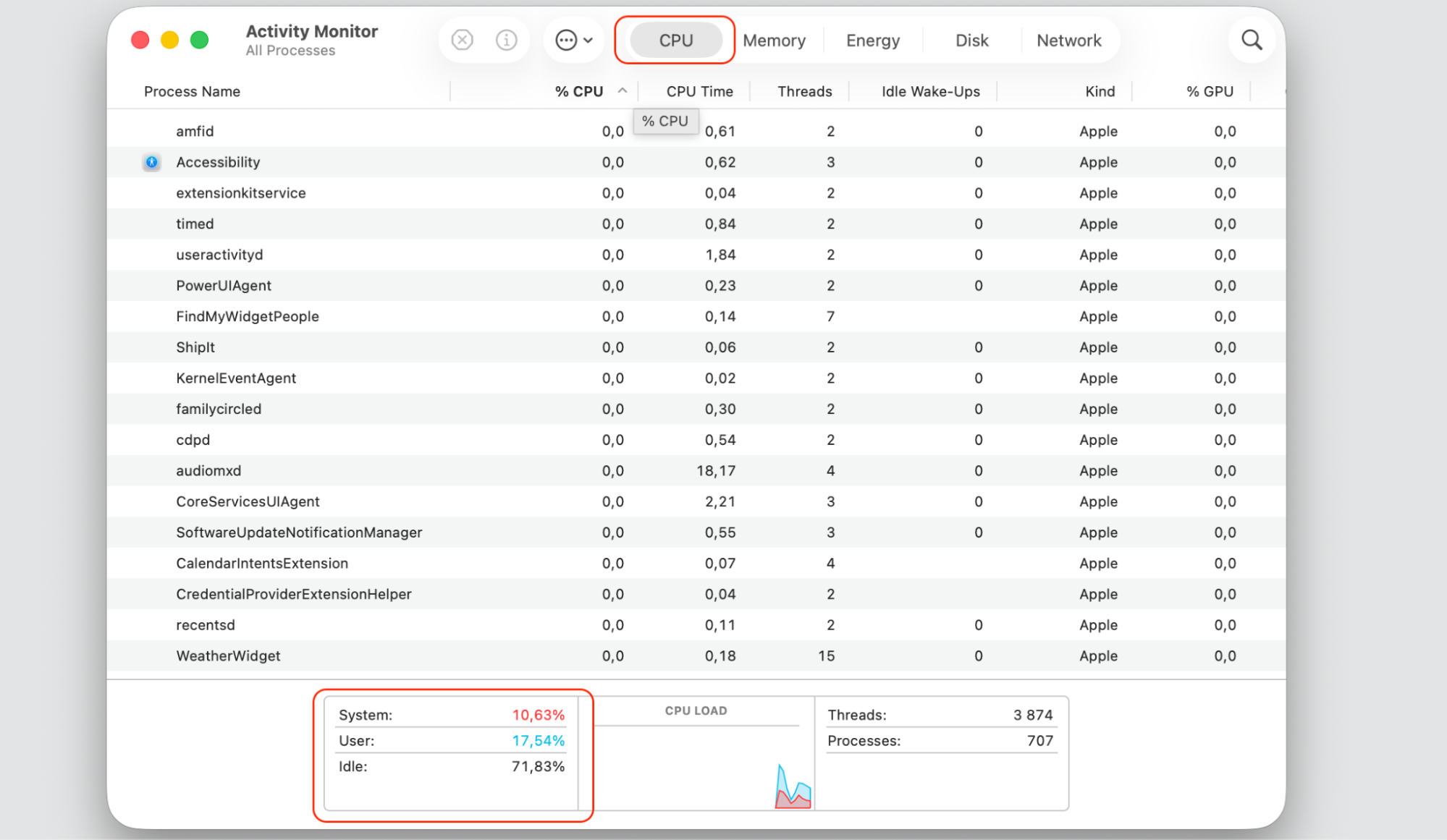
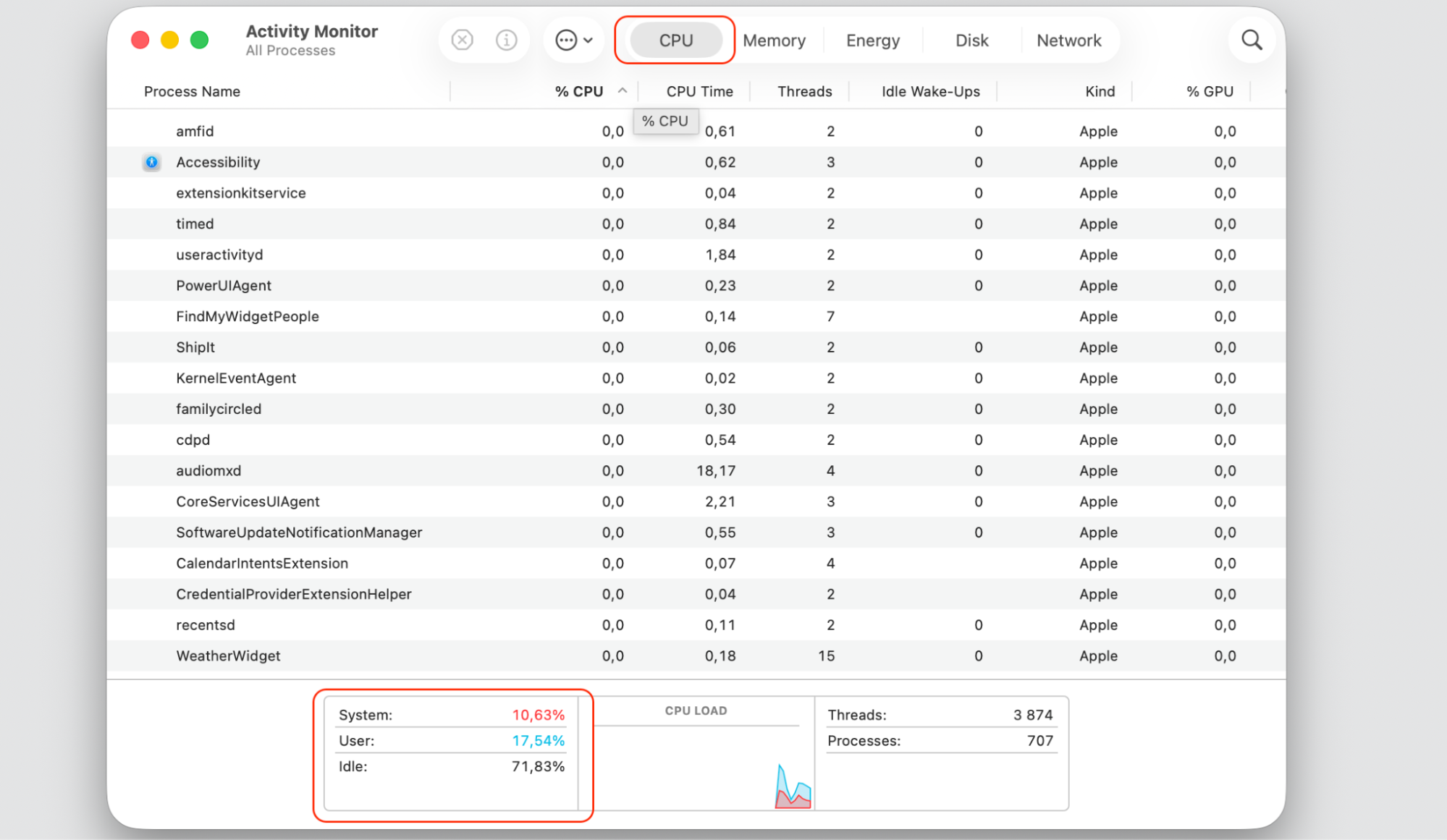
A brief spike is normal. It’s the sustained, high readings over several minutes that point to a codesign Mac Activity Monitor issue worth sorting out. The quickest way to check CPU usage on Mac is through Activity Monitor, the built-in dashboard for live system data.
Here’s what to look at:
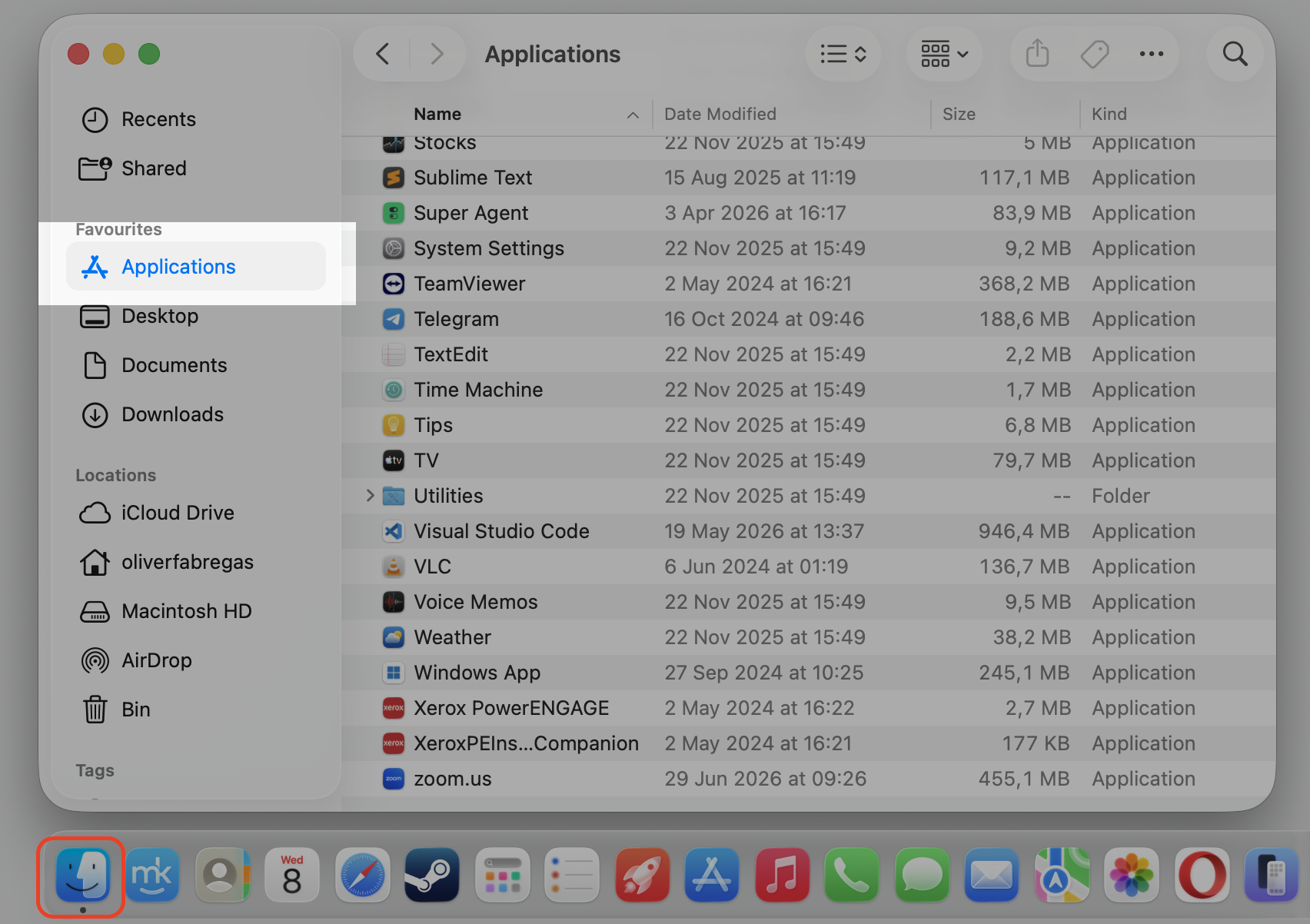
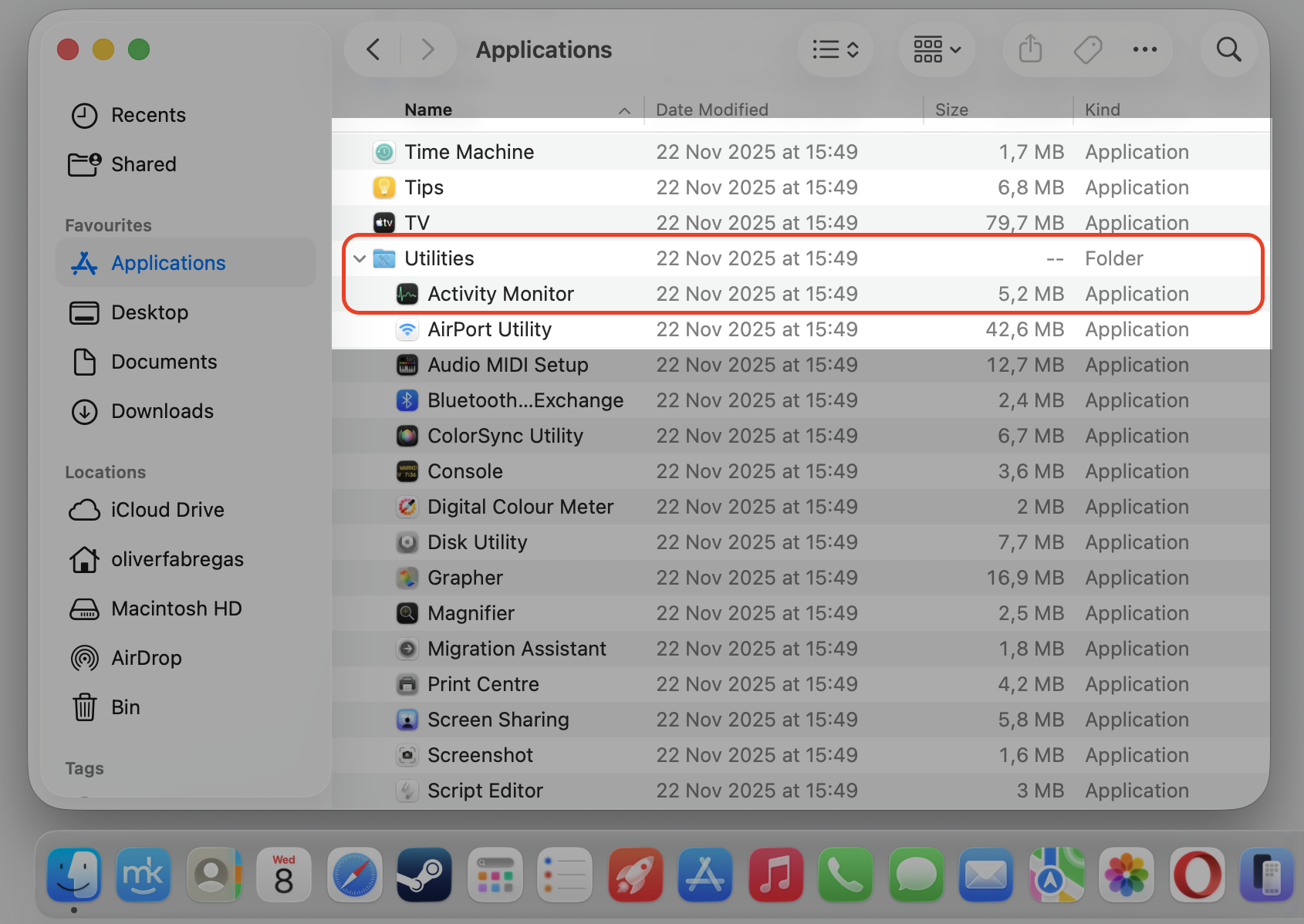
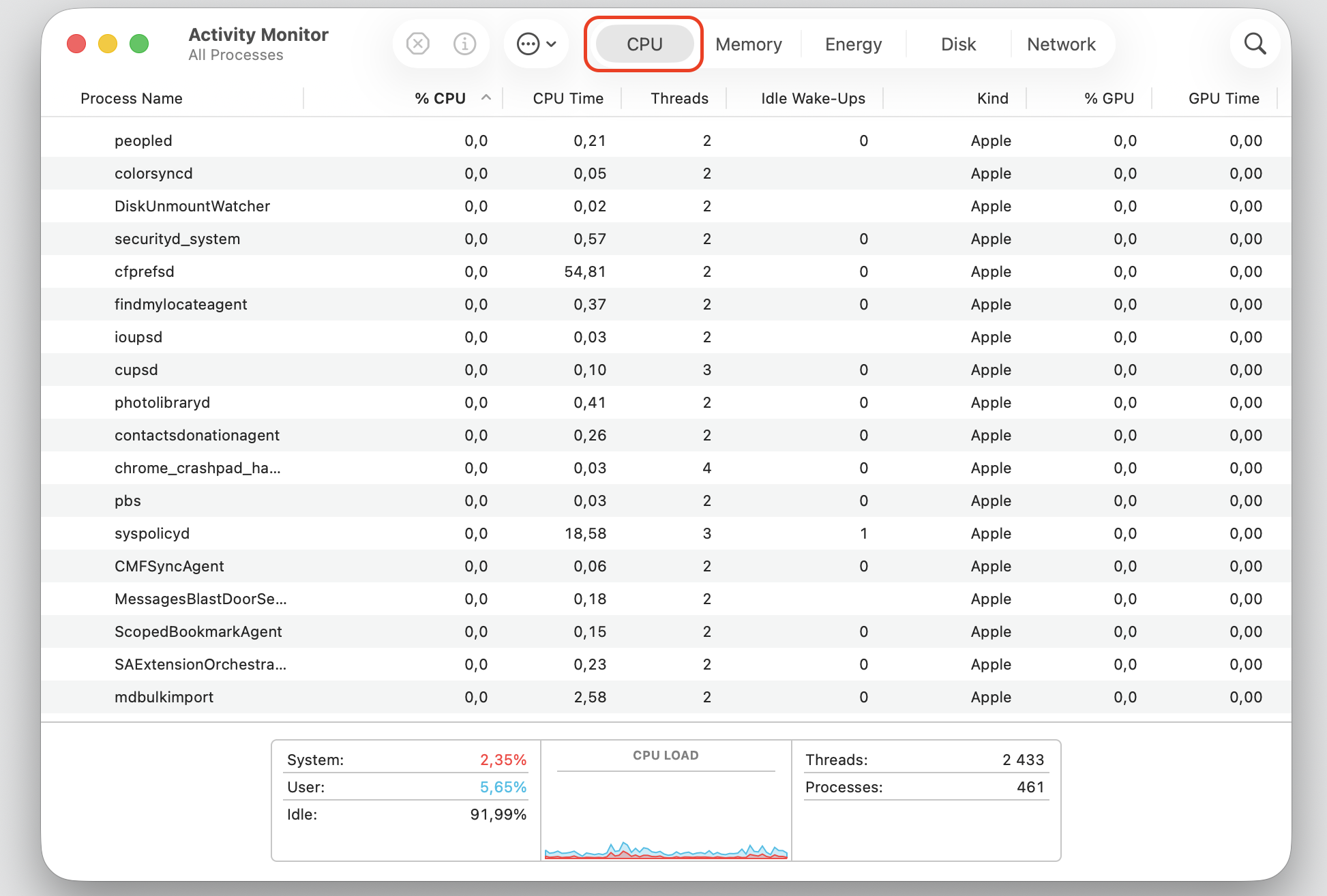
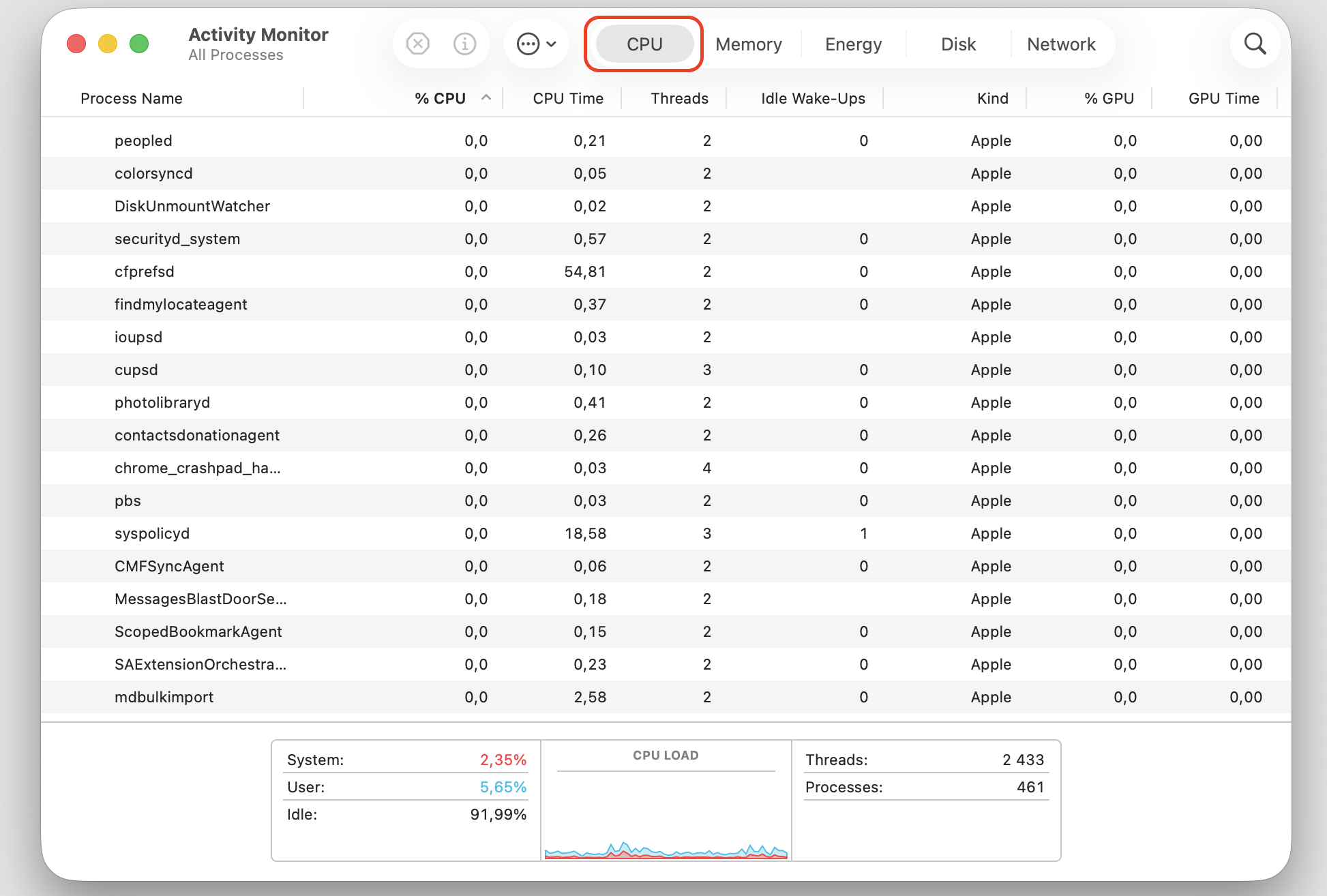
Open Activity Monitor from Applications > Utilities, then select the CPU tab.
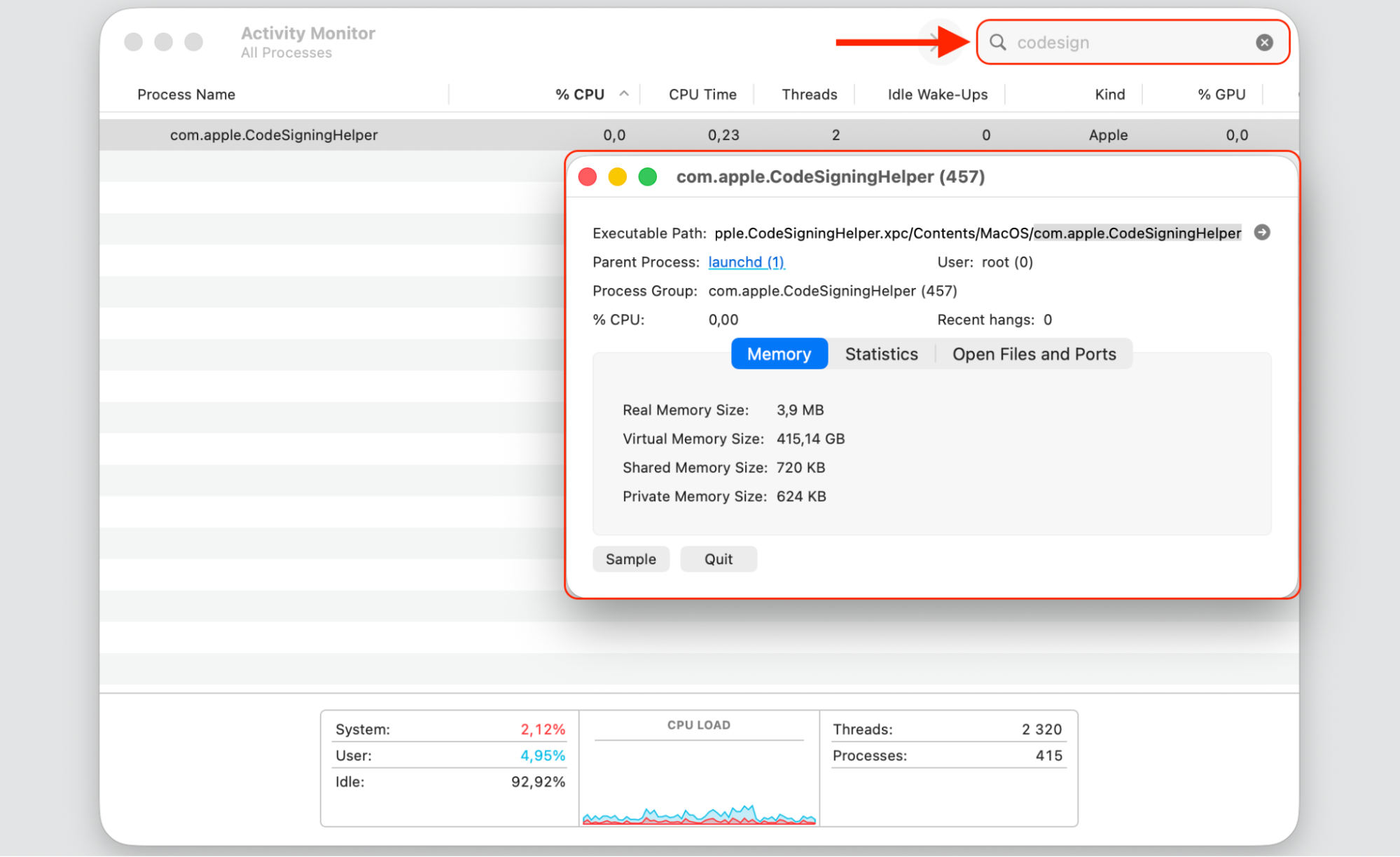
Type “codesign” into the search field to filter the list.
Watch the % CPU column for spikes, and note how long they last.
Step 1. Go to Finder > ApplicationsStep 2. Expand the Utility folder and select Activity Monitor appStep 3. Select the CPU tabStep 4. Type “codesign” into the search field and watch the % for spikes
A note from our experts:
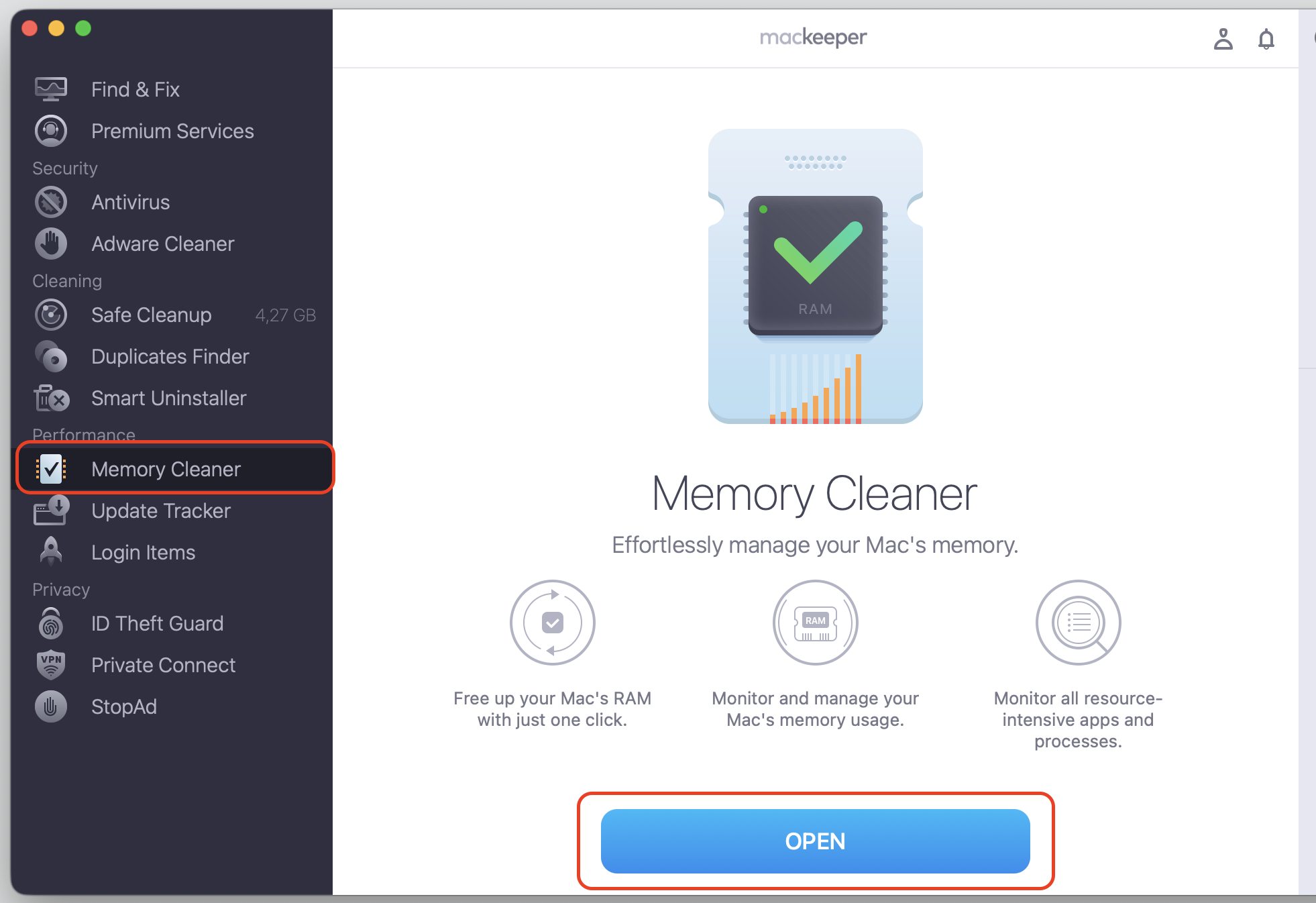
As an alternative to using Mac’s built-in Activity Monitor, we suggest a more efficient and intuitive way to manage processes for you. That suggestion of ours regards MacKeeper’s Memory Cleaner, which finds the applications and hidden background system processes on your Mac with ease and allows you to safely stop it to improve performance. All you need to do is follow our hints below:
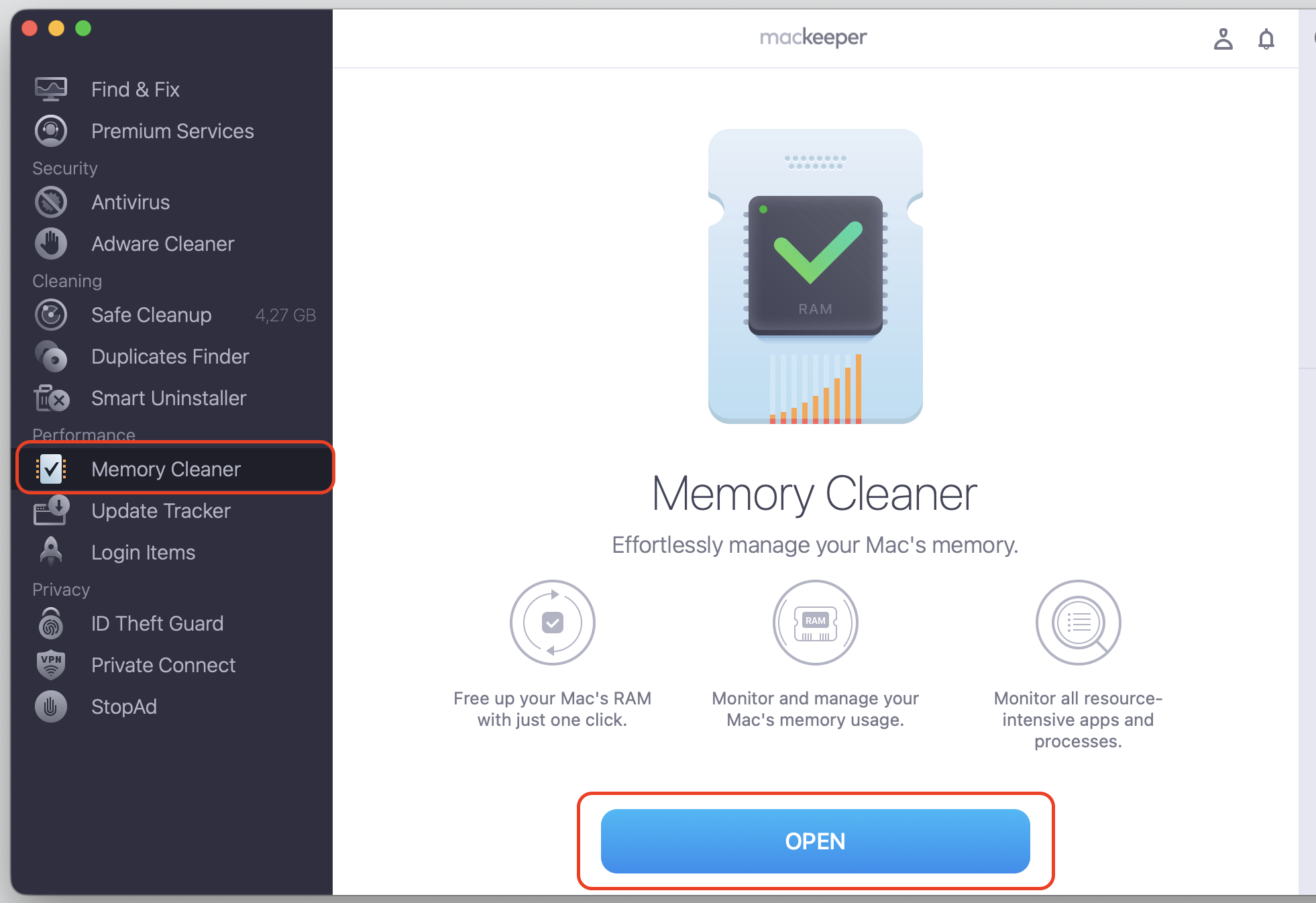
Open the app to find and choose Memory Cleaner, then click Open.
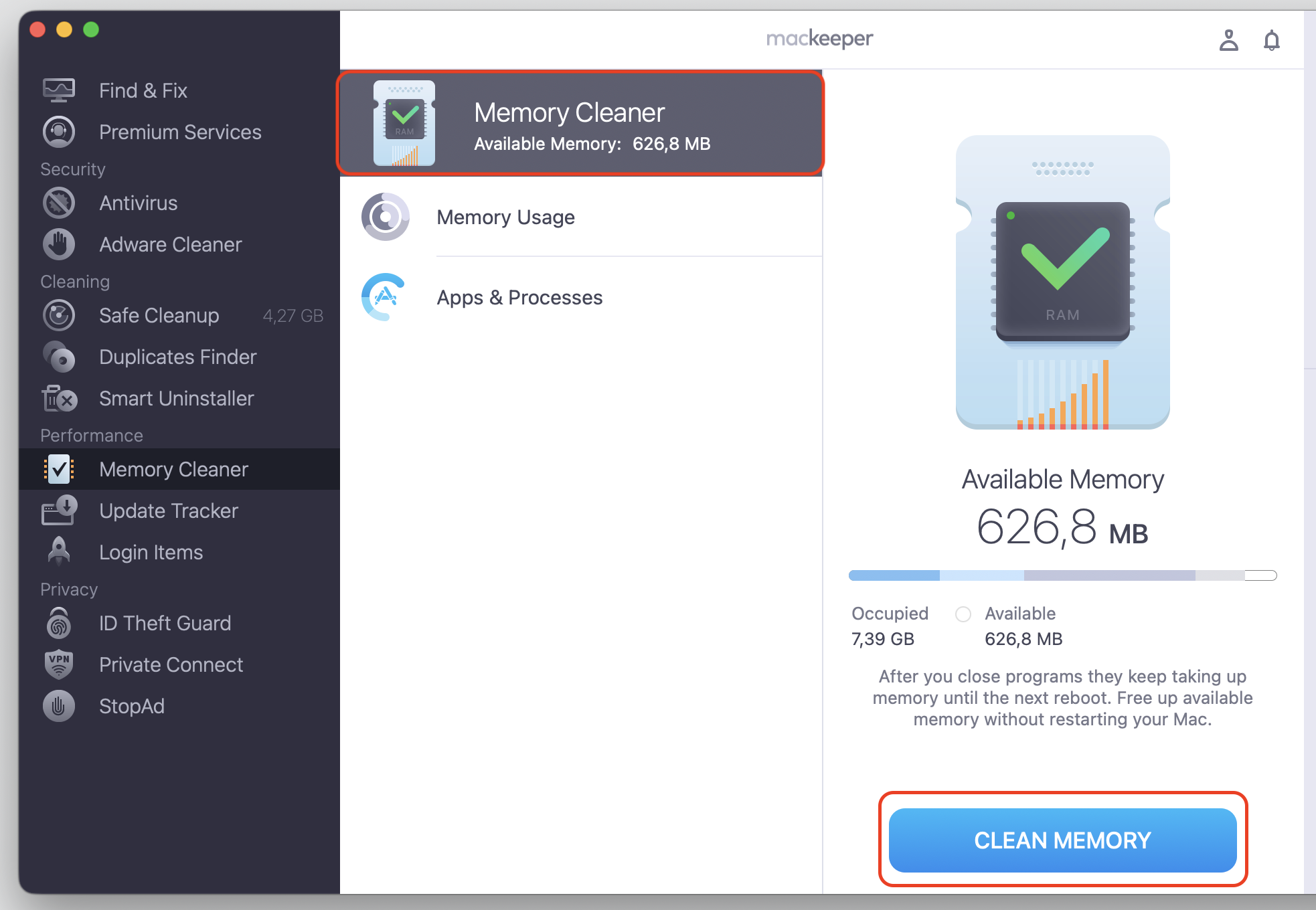
Wait for the RAM usage report to finish, then click Clean Memory.
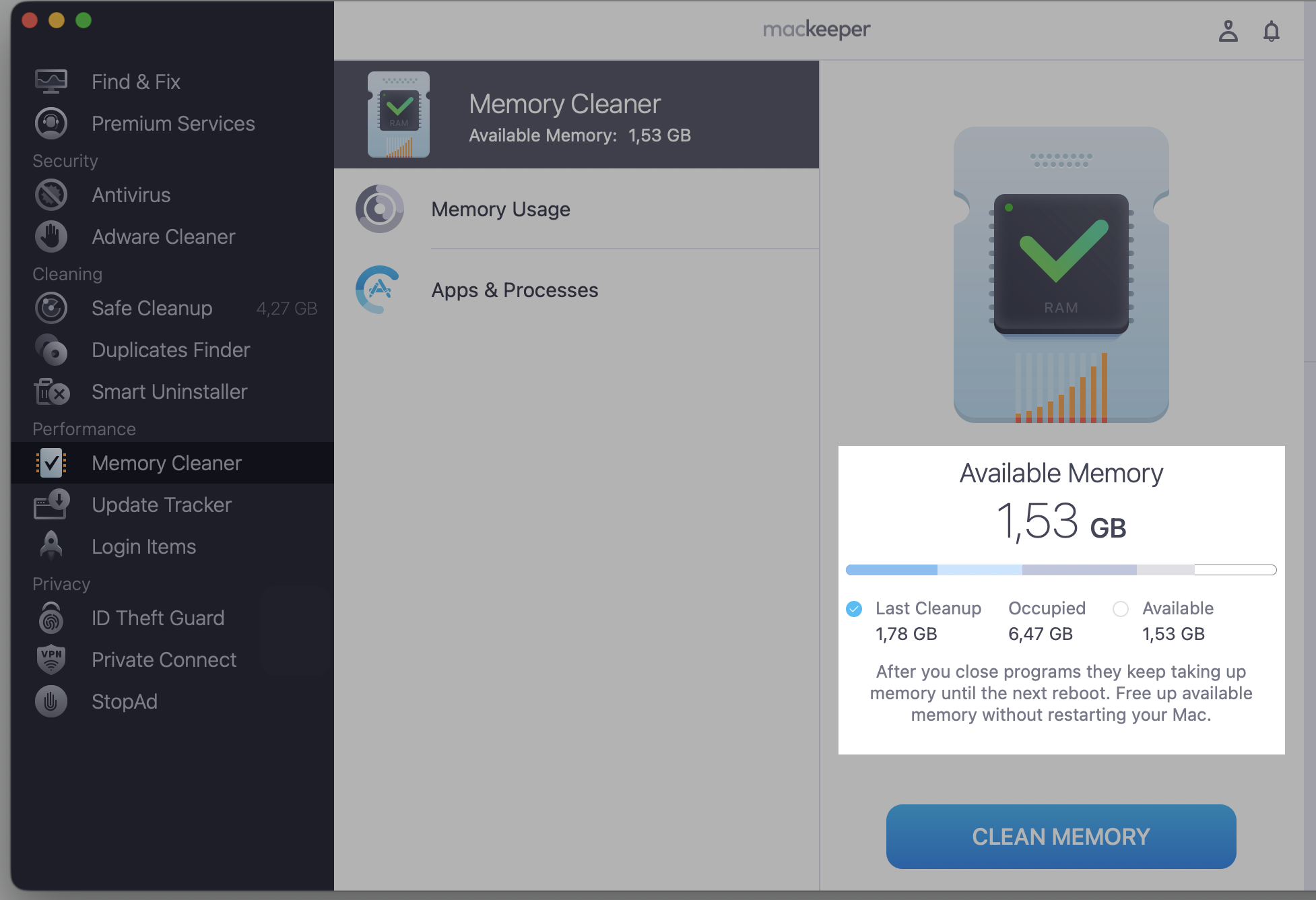
Check the situation with the available memory on your laptop again.
Step 1. Go to MacKeeper > Memory Cleaner and select OpenStep 2. Select the Memory Cleaner section, then click Clean MemoryStep 3. Check the available memory now
What not to do when codesign uses high CPU?
It’s tempting to reach for a quick fix, but a few common moves can leave your Mac worse off when you spot MacBook codesign high CPU. Here are a few working tips from us on what not to do to aggravate the high CPU usage on your MacBook:
Don’t delete system files. They’re part of how macOS verifies apps, and removing them can break far more than codesign.
Don’t install random “fix” tools. Unknown software can add the very load—or malware—you’re trying to avoid.
Don’t disable security features blindly. Turning off signature checks exposes your Mac to unsigned, risky apps.
How to reduce codesign high CPU usage on Mac?
The goal isn’t to switch codesign off—that would weaken your Mac’s defenses. Instead, we want to remove whatever keeps triggering it, and Activity Monitor will help us spot the cause.
We’ve gathered seven simple steps we turn to whenever codesign runs hot. Work through them below in order, from the quickest to the most thorough—the earlier fixes clear up most cases.
1. Restart your Mac to stop temporary codesign loops
Sometimes a validation task gets stuck in a loop, and codesign keeps re-checking the same app. In our experience, a normal restart clears those stuck processes and resets background services, which often settles CPU usage on its own. If the screen won’t respond at all, a hard restart MacBook owners rely on, will force it off so you can start fresh.
Here’s how:
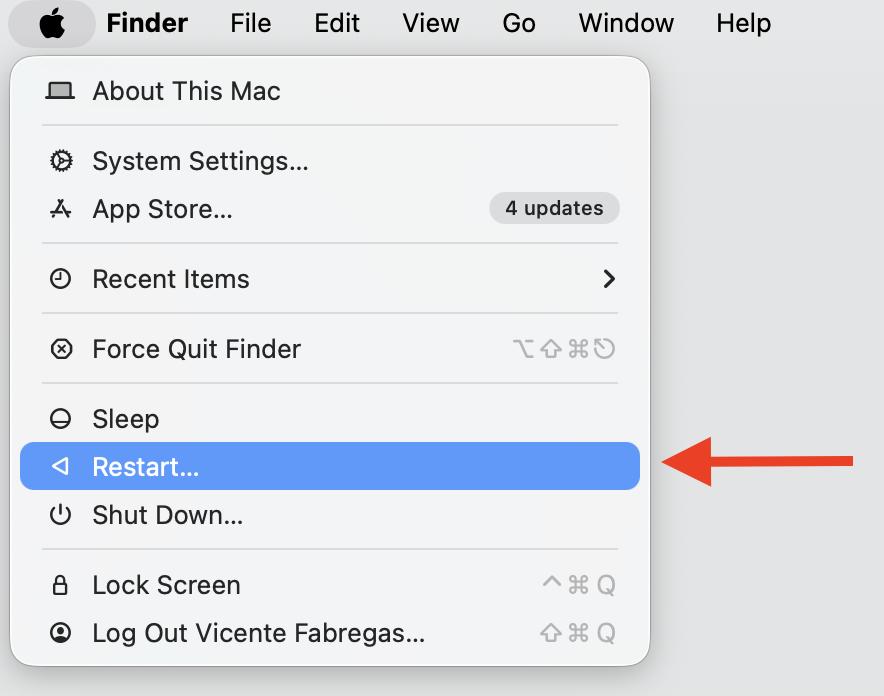
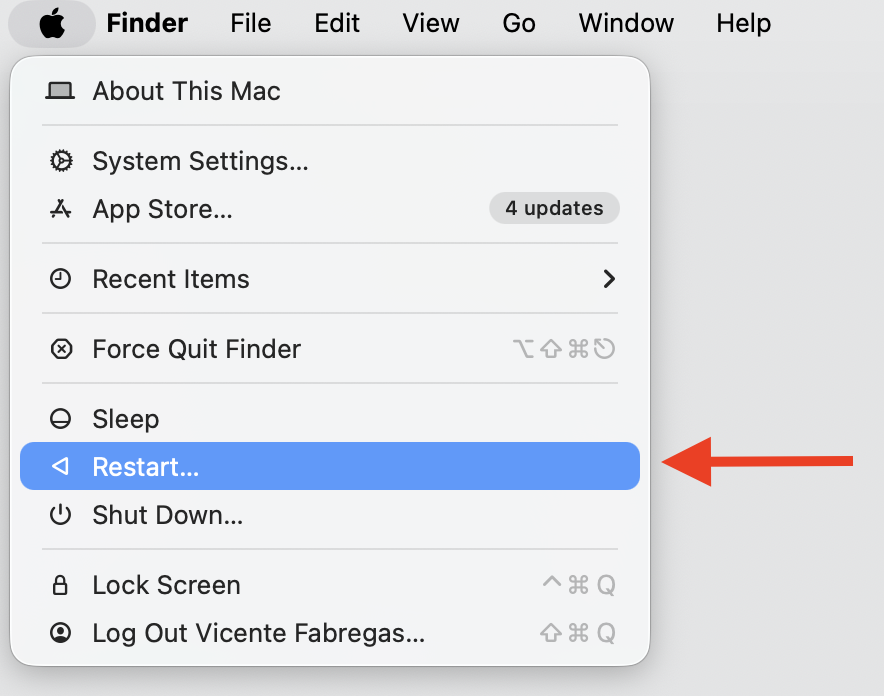
Click the Apple menu in the top-left corner.
Select Restart, then confirm.
If your Mac won’t respond, hold the power button until the screen goes dark, then power it back on.
Some apps set off codesign again and again, usually because they’re unsigned, outdated, or freshly modified. Once we spot the repeat offender, we can stop chasing the wrong fix.
Let’s track it down:
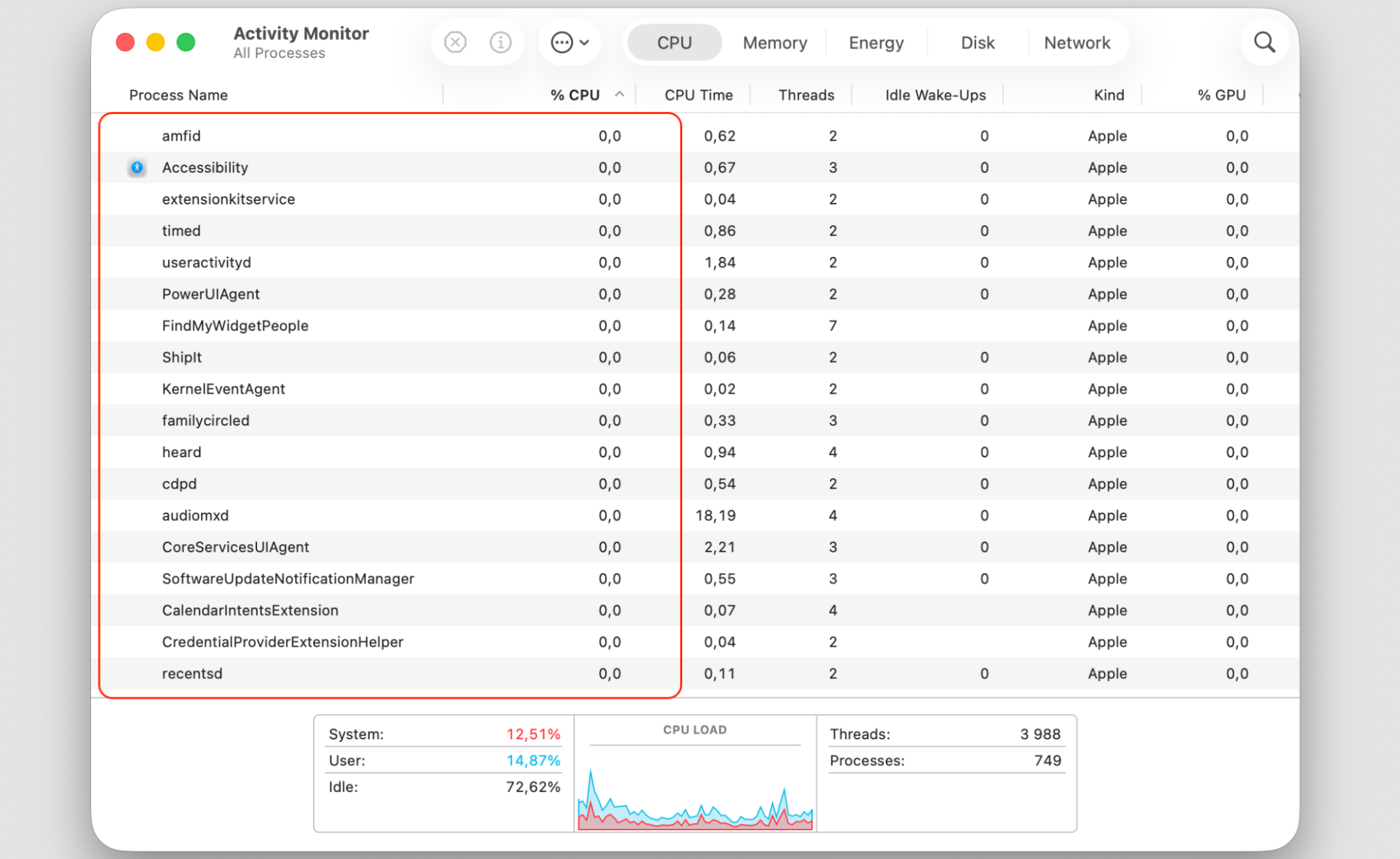
Reopen Activity Monitor and sort by the % CPU column.
Note which app sits near the top right before codesign spikes.
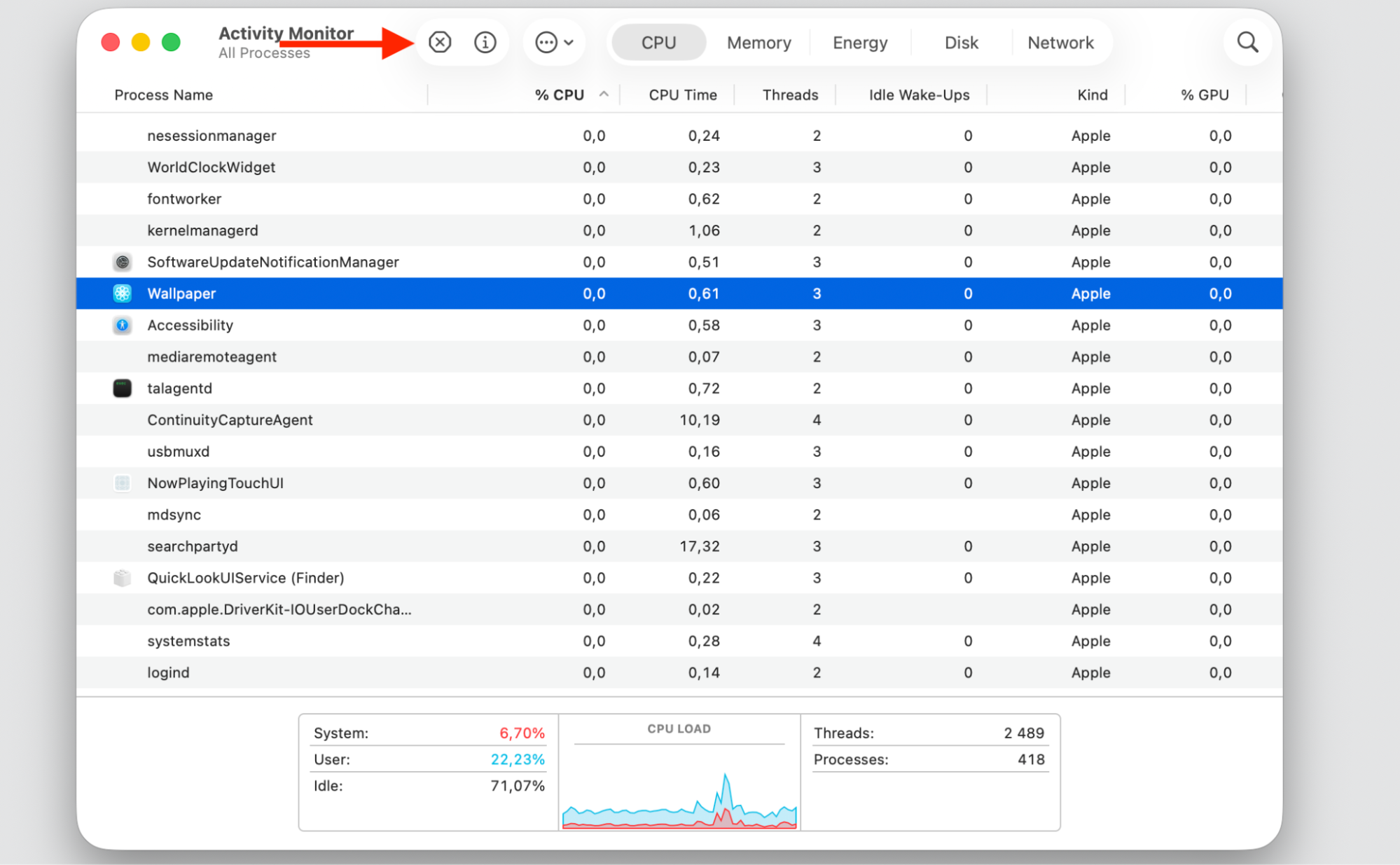
Quit that app with the X button and watch whether codesign settles down.
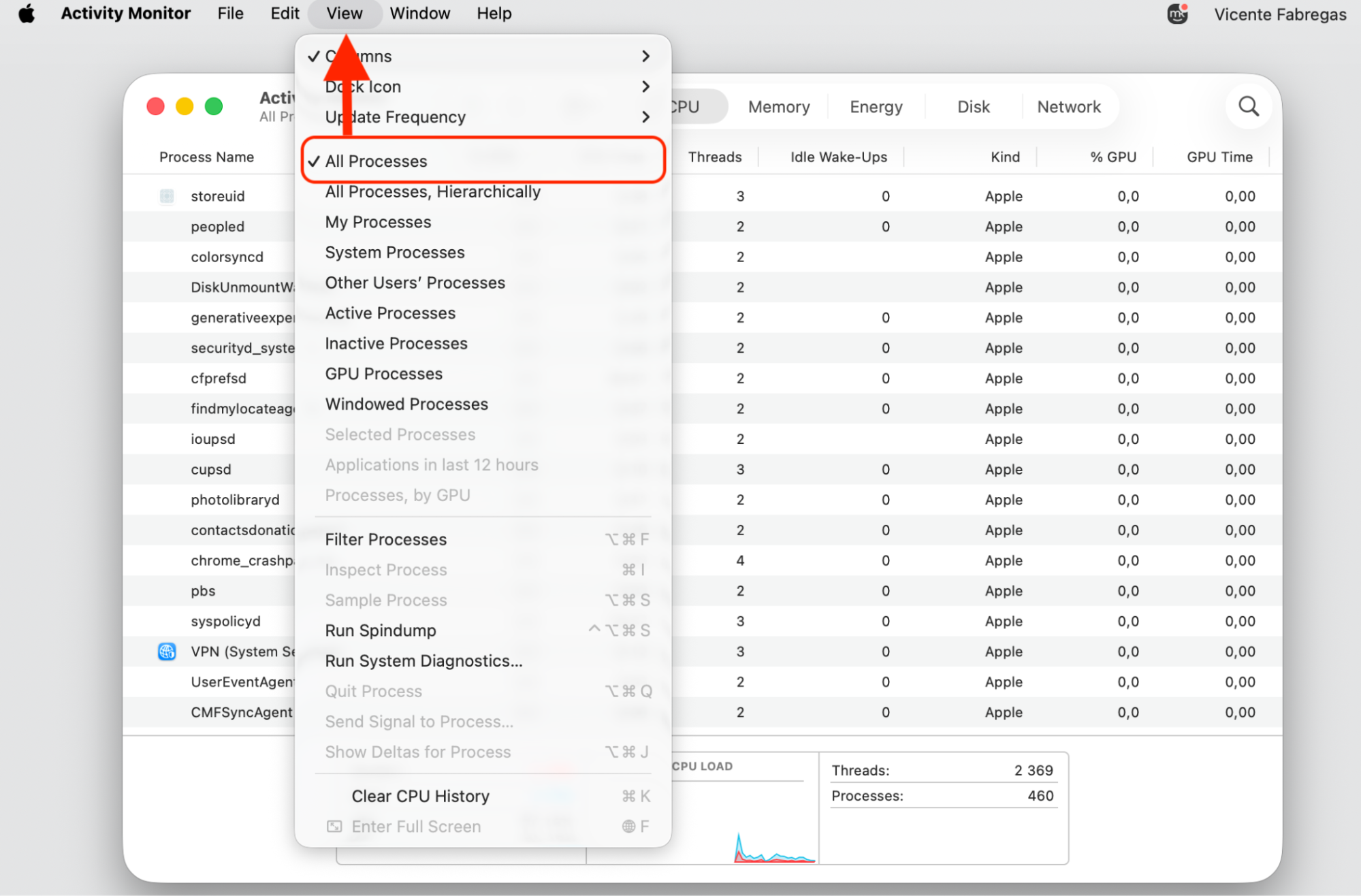
Step 1. Select CPU in Activity MonitorStep 2. Select View > All ProcessesStep 3. Look for an app that sits near the top right before codesign spikesStep 4. Select the app and quit by the X button
3. Update or reinstall problematic applications
When an app’s signature is broken or its build is out of date, codesign may keep re-validating it. We find that updating usually repairs the signature—and if it doesn’t, it helps to uninstall programs on Mac cleanly and reinstall them, since leftover files can keep the old signature around.
Follow these steps:
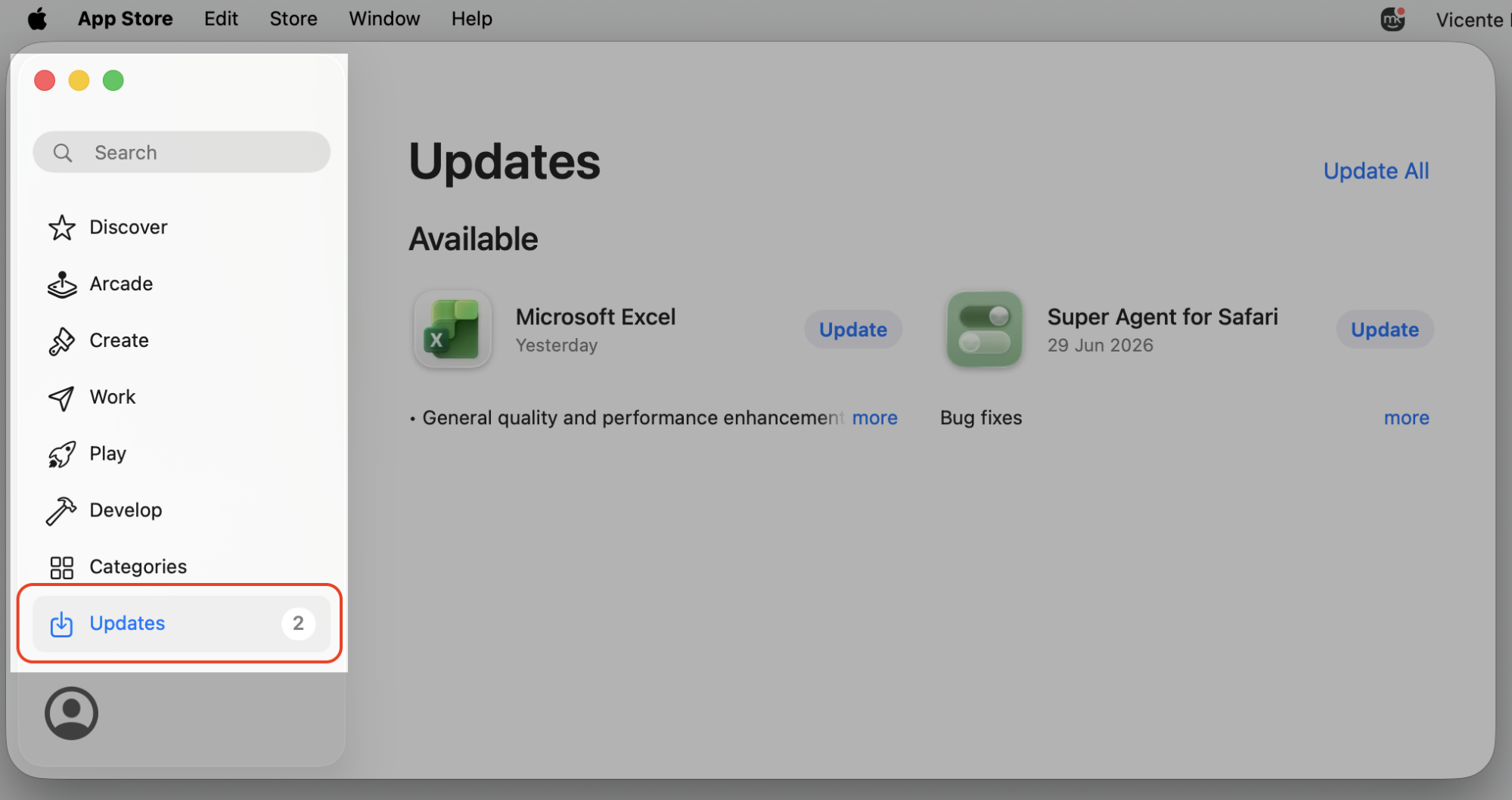
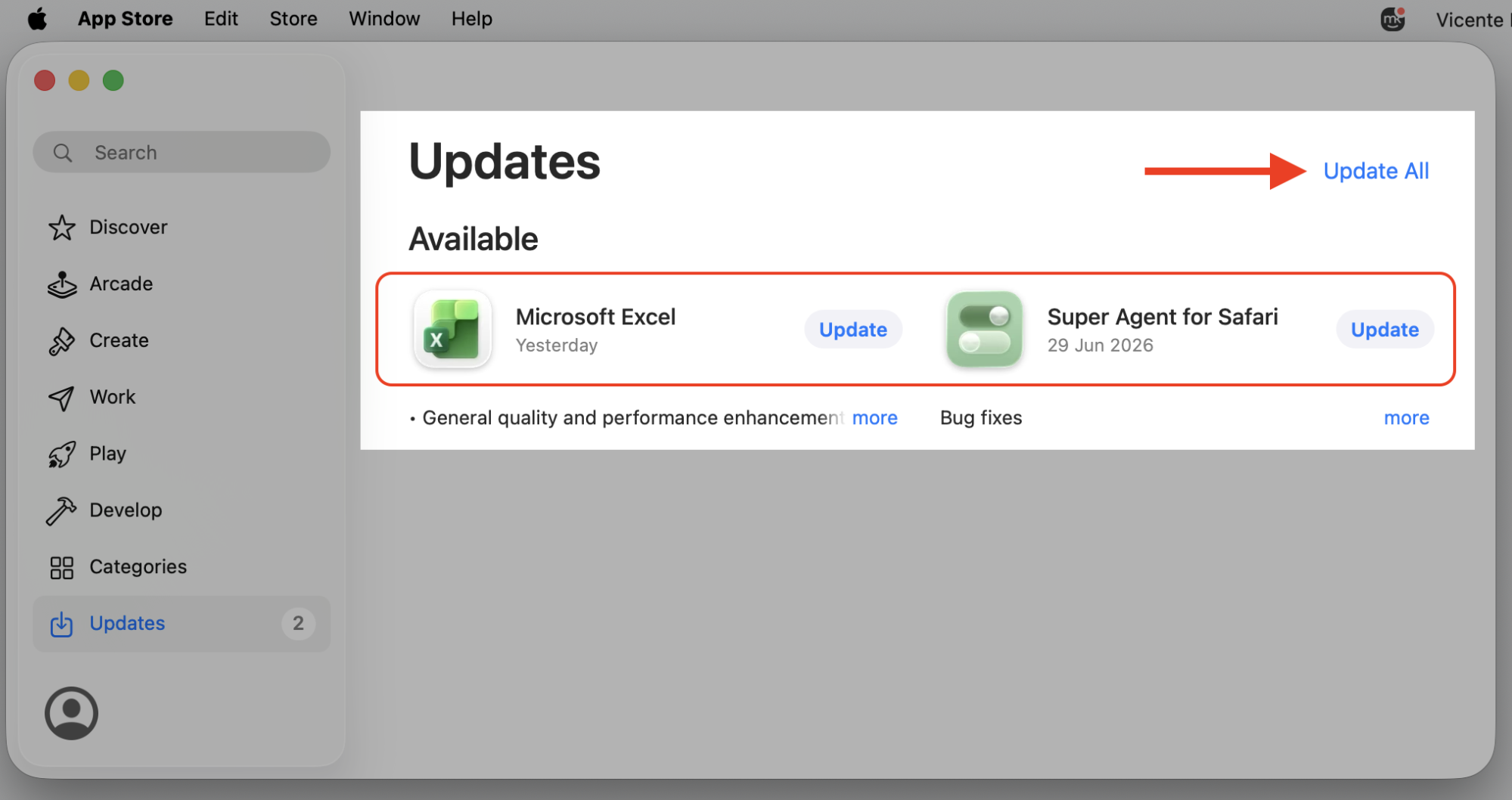
Open the App Store, go to Updates, and install anything waiting.
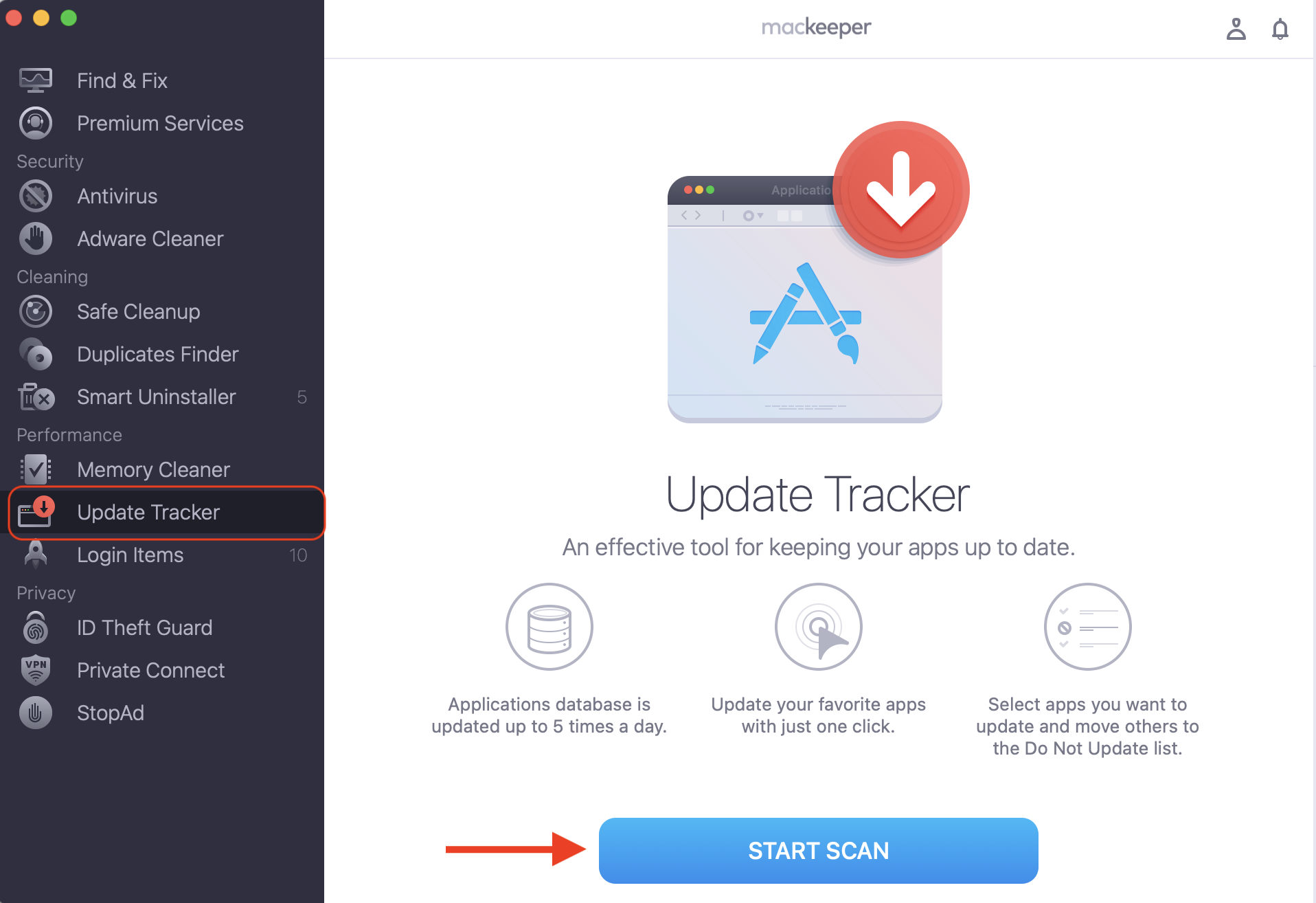
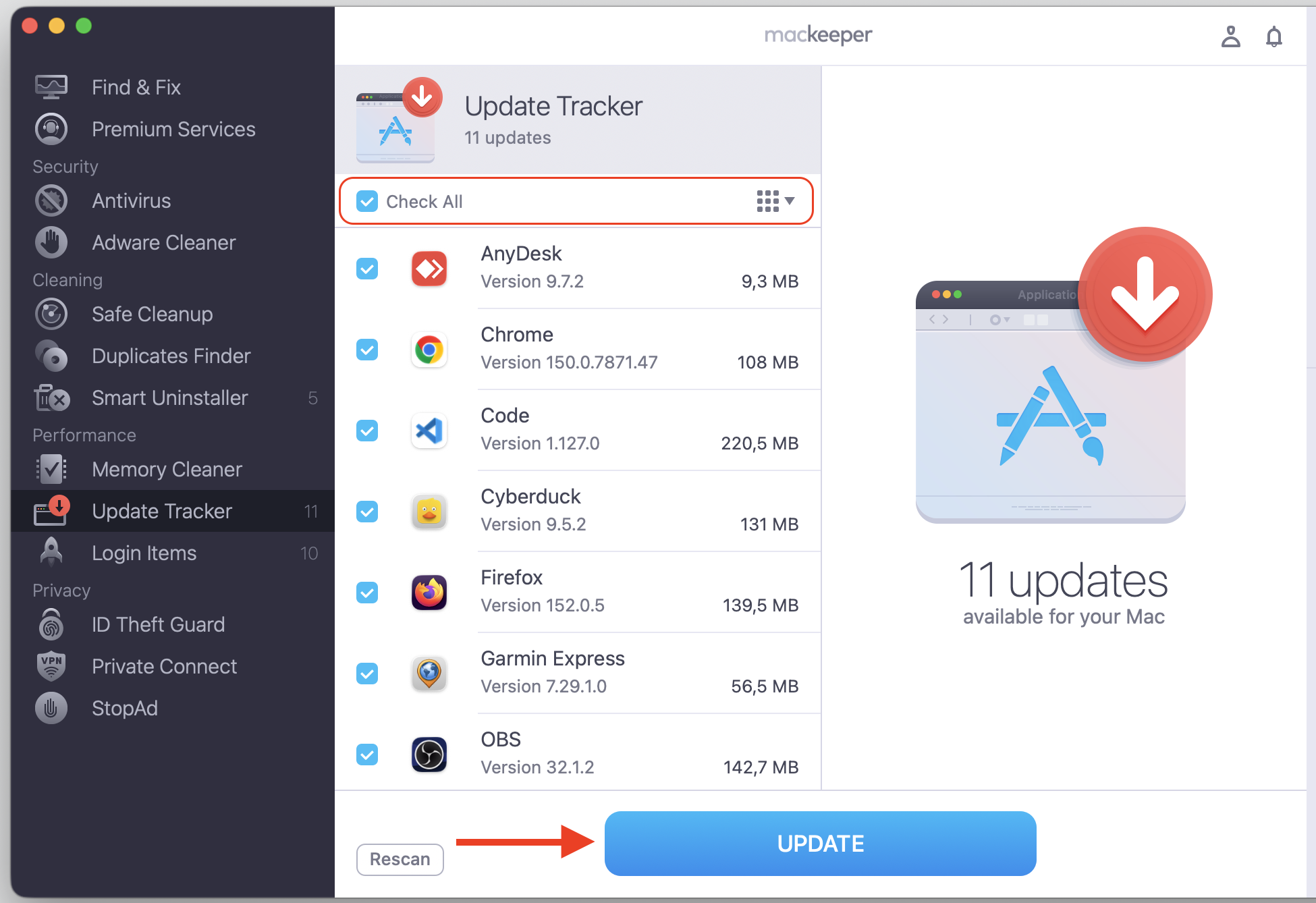
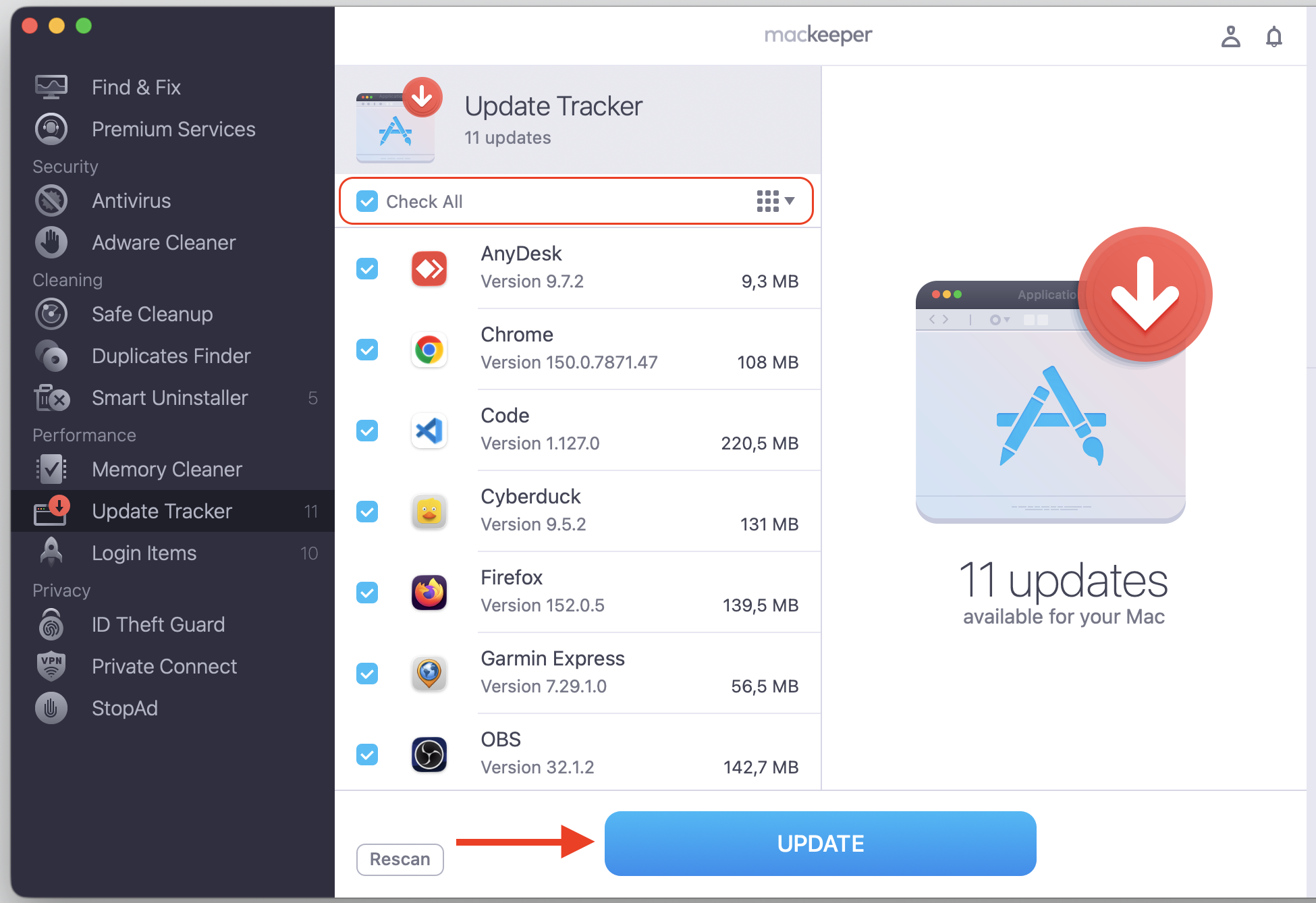
For software from outside the App Store, download the latest version from the developer’s site or with the MacKeeper’s Update Tracker.
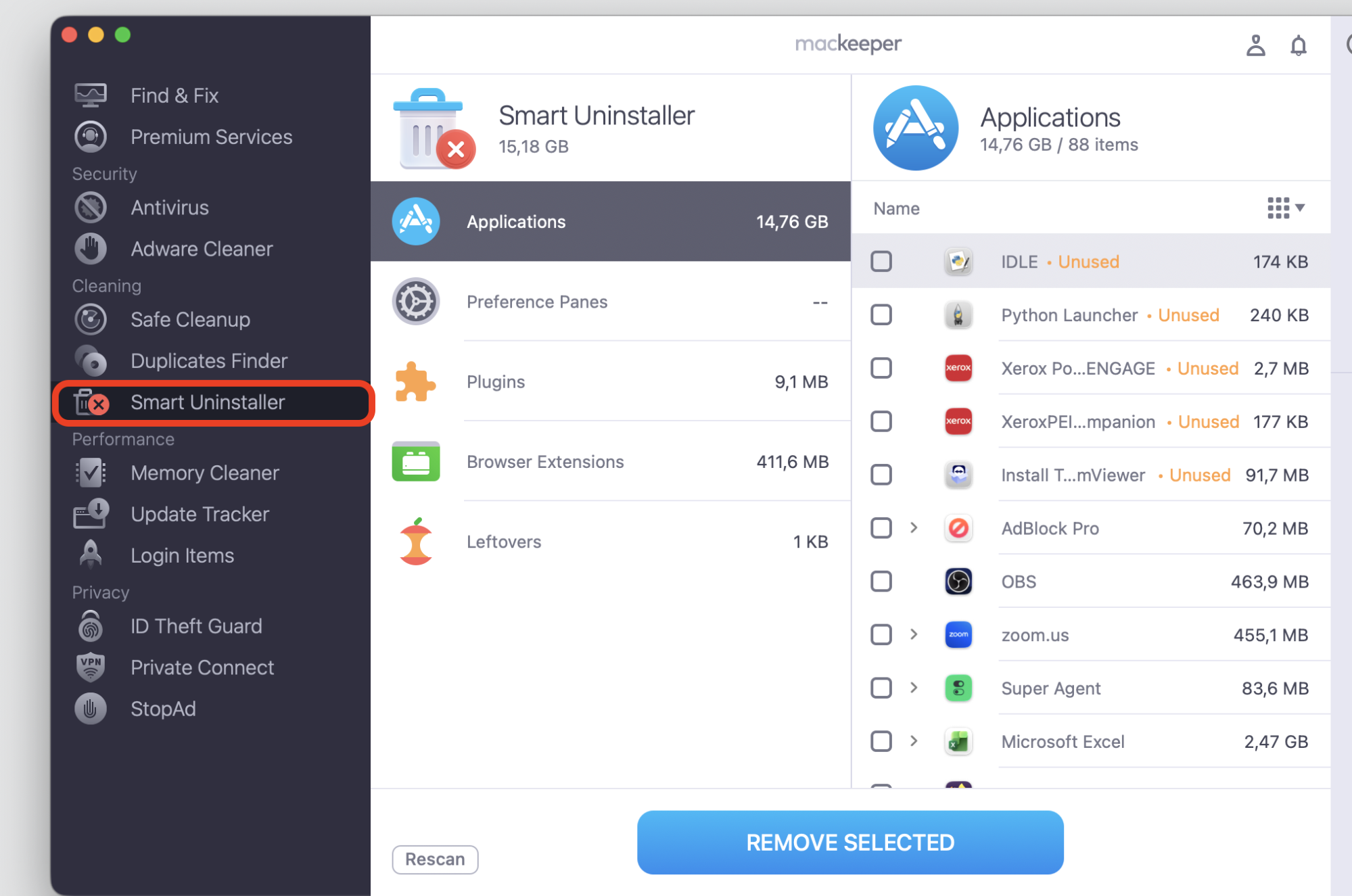
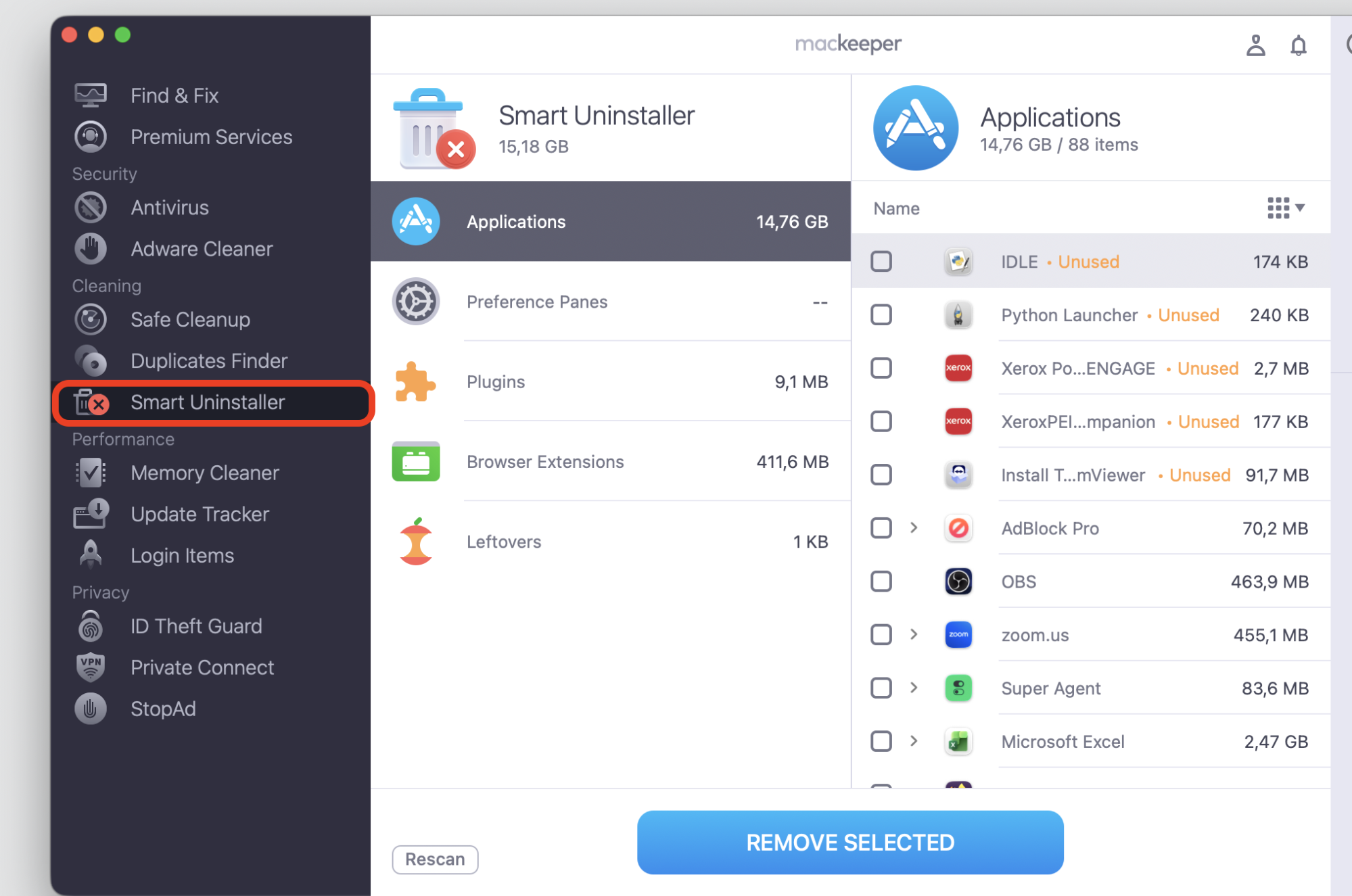
Still stuck? Remove the app completely with MacKeeper’s Smart Uninstaller, then download and reinstall a fresh copy.
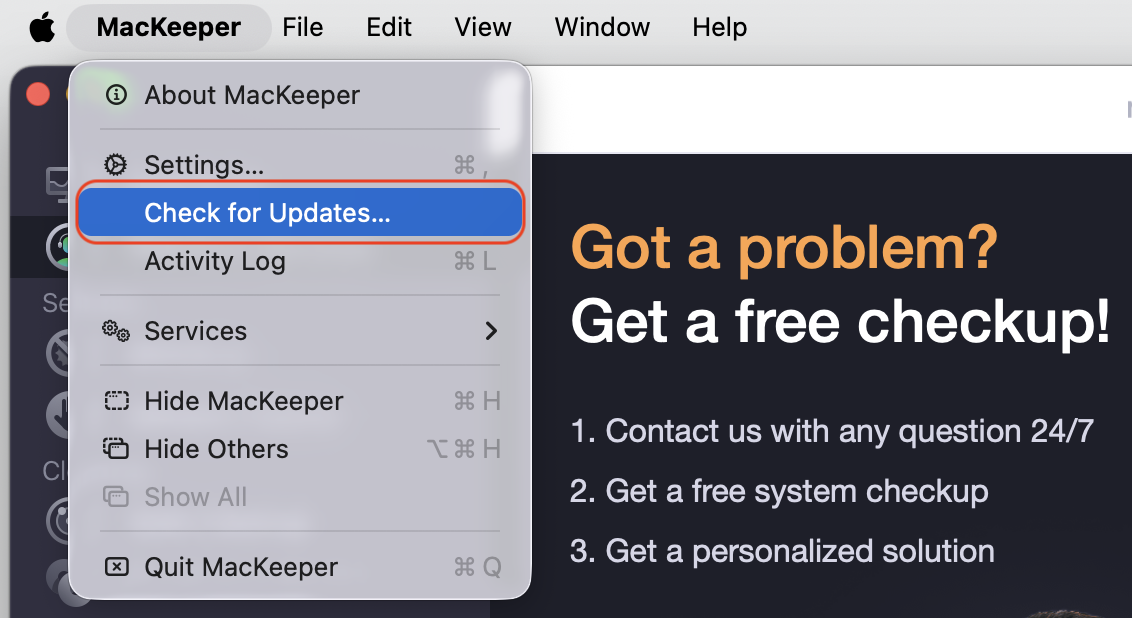
Step 1. Go to App Store > UpdatesStep 2. Update available appsStep 3. Click on the app name (next to the Apple logo) > Check for UpdatesStep 4. Open MacKeeper > Update Tracker > Start ScanStep 5. Select Check All and UpdateStep 6. Remove the app completely with MacKeeper’s Smart Uninstaller
4. Check recently installed or modified software
New software gives codesign fresh signatures to verify, and edited files reset that check all over again. If the spikes started right after a recent install, that’s the first place we’d look.
Take a quick look:
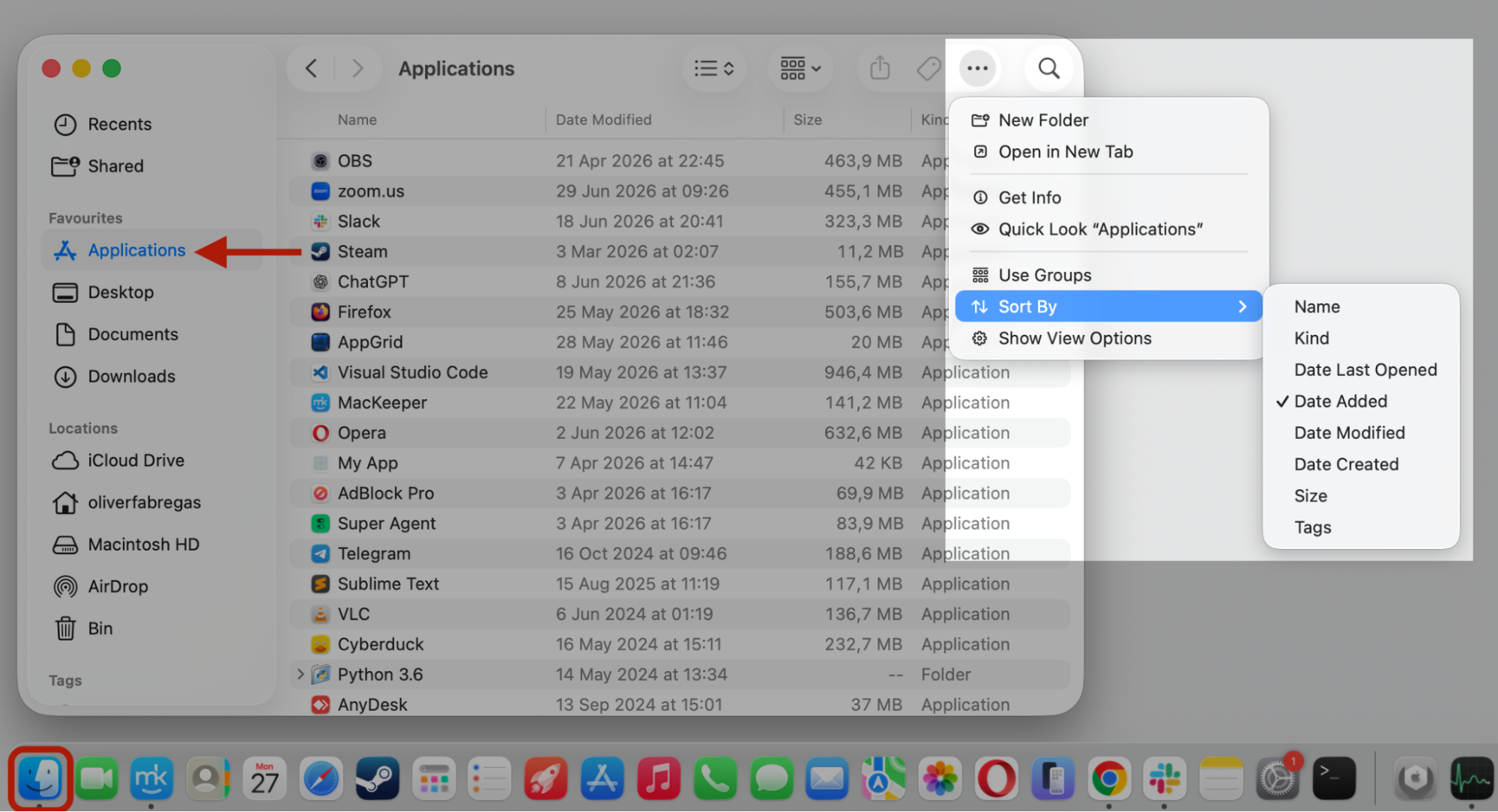
Open Finder and go to Applications.
Click the More button (•••) in the upper-right corner.
Select Sort By → Date Added/Date Modified.
Remove or update anything you don’t recognize or no longer use with MacKeeper.
Step 1. Go to Finder > Applications > Sort By > Date AddedStep 2. Remove the app you don’t needStep 2*. Or update the desired app
5. Let system processes finish verification tasks
Not every spike needs our attention. Background jobs like Spotlight indexing or a routine malware scan lean on codesign for a while, then quiet down once they’re finished.
Give it a moment:
Leave your Mac on and plugged in for 10 to 15 minutes.
Watch whether % CPU drops as indexing wraps up.
If it clears on its own, no further action is needed.
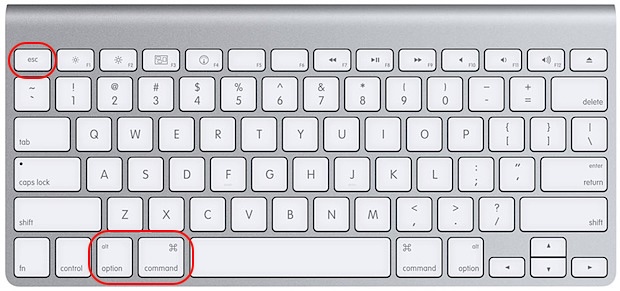
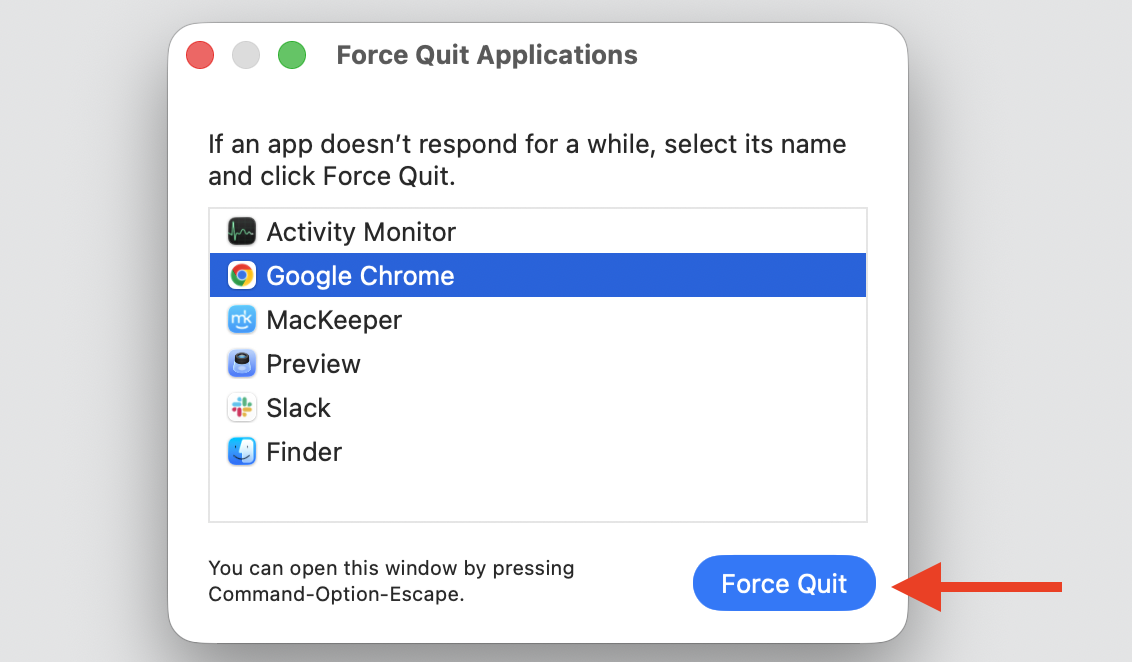
When your Mac is already juggling heavy tasks, codesign’s share of the load looks bigger than it is. We can give every process—codesign included—more room by freeing up your CPU cores, and the force quit on Mac shortcut is a quick way to stop whatever’s hogging them.
Try this:
Quit apps you’re not using, especially browsers with lots of open tabs.
Step 1. Press Command + Option + EscStep 2. Select the app and click Force QuitStep 3. Use MacKeeper’s Memory Cleaner to free up memory
7. Check for malware or unauthorized modifications
On the rare occasion that a file has been altered without your knowledge, codesign keeps flagging it during its integrity checks. We can rule that out quickly by running a scan to check for malware on Mac, which puts your mind at ease.
Run a scan like so:
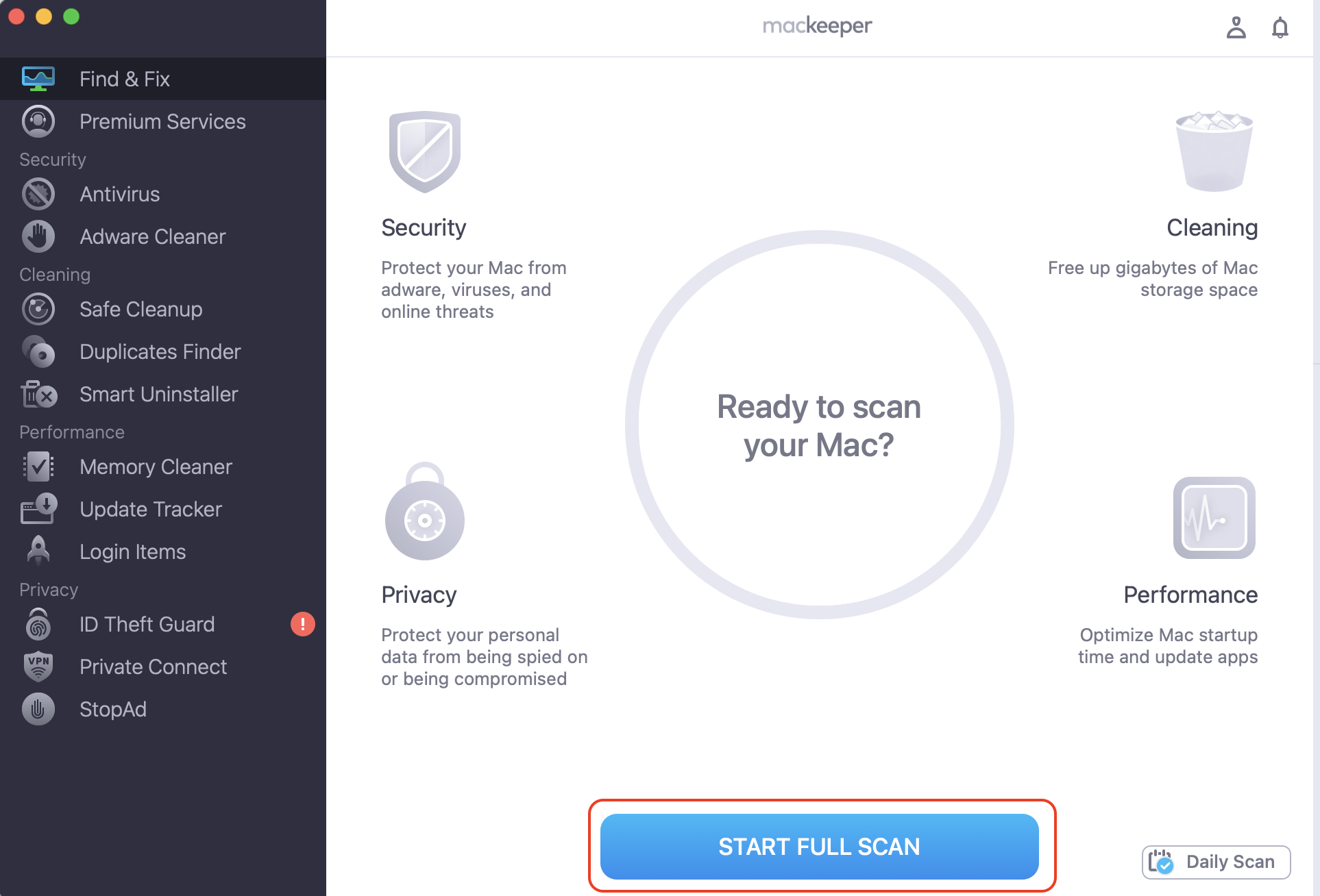
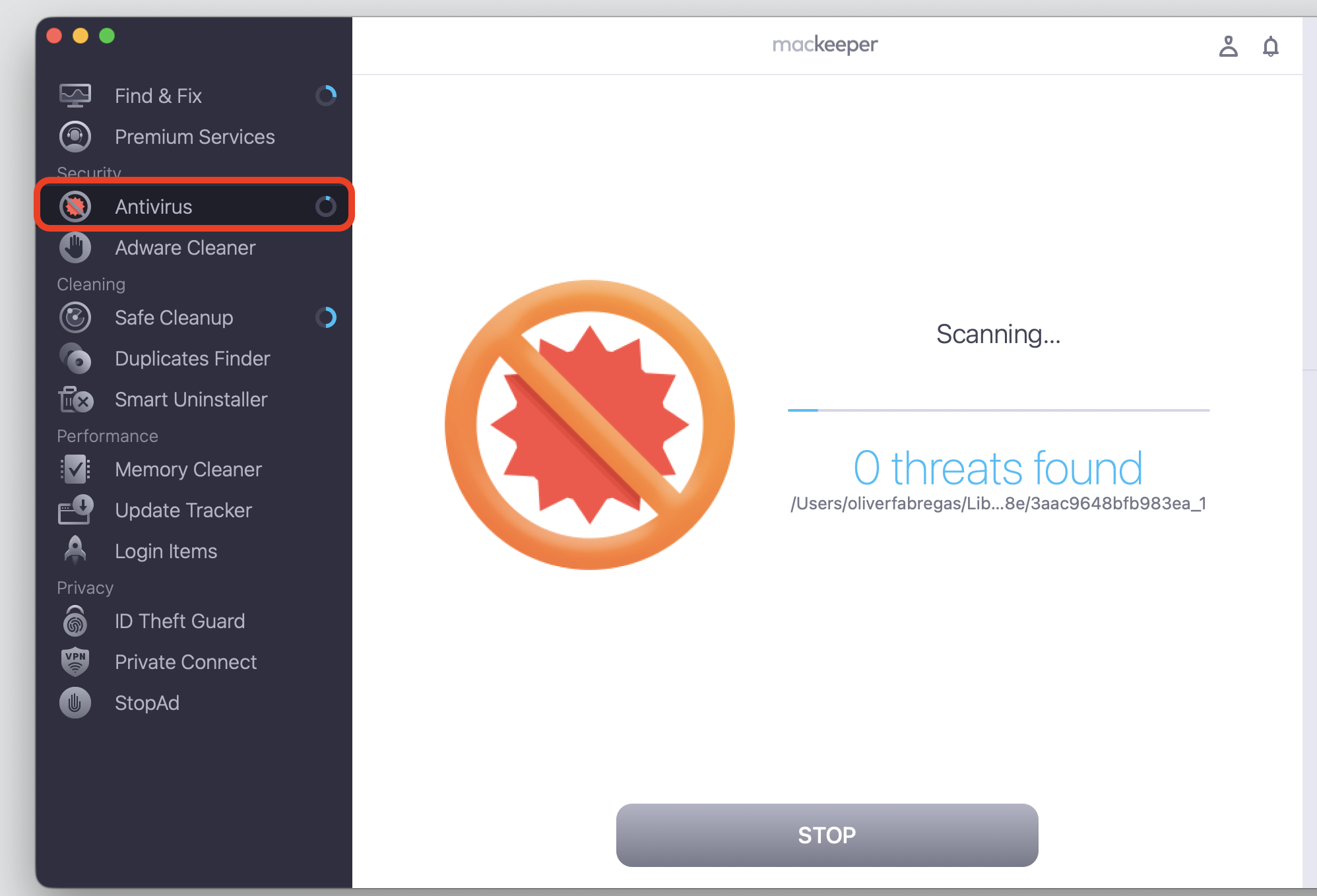
Open your security app and start a full system scan. We’ll show you how to use MacKeeper’s Find & Fix and Antivirus here.
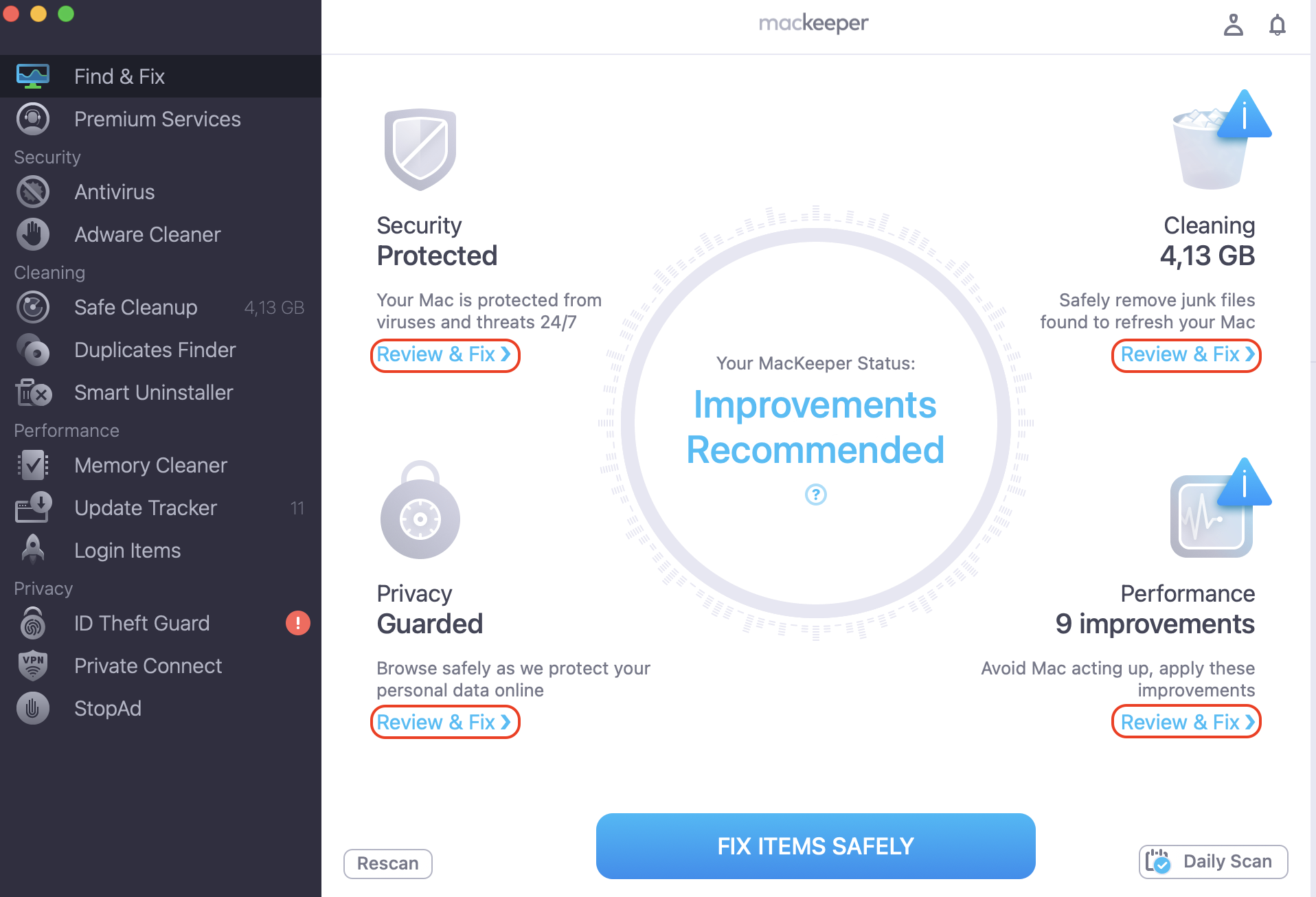
Review anything it detects, then choose Fix Items Safely.
Restart and confirm in Activity Monitor that codesign has settled.
Step 1. Open MacKeeper’s Find & Fix and choose Start Full ScanStep 2. Review anything it flags before clicking Fix Items SafelyStep 3. Additionally, run a full Antivirus scanStep 4. Restart your Mac from the Apple menuStep 5. Check Activity Monitor
When to consider professional help or deeper fixes?
Most codesign spikes clear up with the steps above. Still, if your CPU stays pinned for hours, apps crash on launch, or you notice MacBook overheating with loud fans day after day, it’s worth digging deeper.
At that point, a genuine issue may sit underneath—a corrupted macOS install, failing storage, or persistent malware. Backing up your files and visiting an Apple Store or use a professional support service provider like MacKeeper’s Premium Services is a sensible next move. There’s no shame in handing a stubborn Macintosh to someone who troubleshoots them all day.
How to avoid codesign-related CPU issues going forward?
A little prevention keeps codesign quiet in the long run. We believe that the following habits help your Mac verify apps once and move on:
Stick to trusted software sources like the App Store or official developer sites.
Keep macOS and your apps updated so signatures stay valid—MacKeeper’s Update Tracker gathers pending updates in one place if you’d rather not check each app.
Avoid cracked, modified, or unsigned apps that fail verification and invite malware.
Clear out junk and idle processes now and then to keep resources free.
Conclusion
In short, codesign macOS high CPU is almost always macOS doing its security job, not a fault to fear. Resolve the trigger—a stray app, a pending update, a background scan—rather than disabling the process. And when memory runs tight, MacKeeper’s Memory Cleaner frees it up in a click.
We respect your privacy and
use cookies
for the best site experience.
Privacy Preferences Center
We use cookies along with other tools to give you the best possible experience while using the
MacKeeper website. Cookies are small text files that help the website load faster. The cookies we
use don’t contain any type of personal data meaning they never store information such as your
location, email address, or IP address.
Help us improve how you interact with our website by accepting the use of cookies. You can change
your privacy settings whenever you like.
Manage consent
All cookies
These cookies are strictly necessary for enabling basic website functionality (including page
navigation, form submission, language detection, post commenting), downloading and purchasing
software. The website might malfunction without these cookies.