Struggling with the MacStealer malware deletion? Please don’t worry—MacKeeper’s Antivirus is here to protect you and ensure 24/7 security in the future.
Prevention is better than cure is a proverb that particularly rings true for Apple users who want to protect their Macs from malicious attacks. It’s better to avoid the threat than to have regrets later on. And with the emergence of MacStealer, a new macOS malware, disproving the long-held belief that MacBooks are less vulnerable than PCs, Mac users need to take extra precautions to keep their data safe.
As macOS gains popularity, so does the development of malware looking to exploit its vulnerabilities. MacStealer malware is just one of the threats found on the growing Mac viruses list. So today, we’ll take a closer look at how MacStealer operates and provide you with practical tips to help you strengthen your device’s security and prevent unwanted cyberattacks.
Don’t leave the safety of your sensitive information to chance—use MacKeeper today to help remove malware from your Mac and take control of your online security.
A note from our experts:
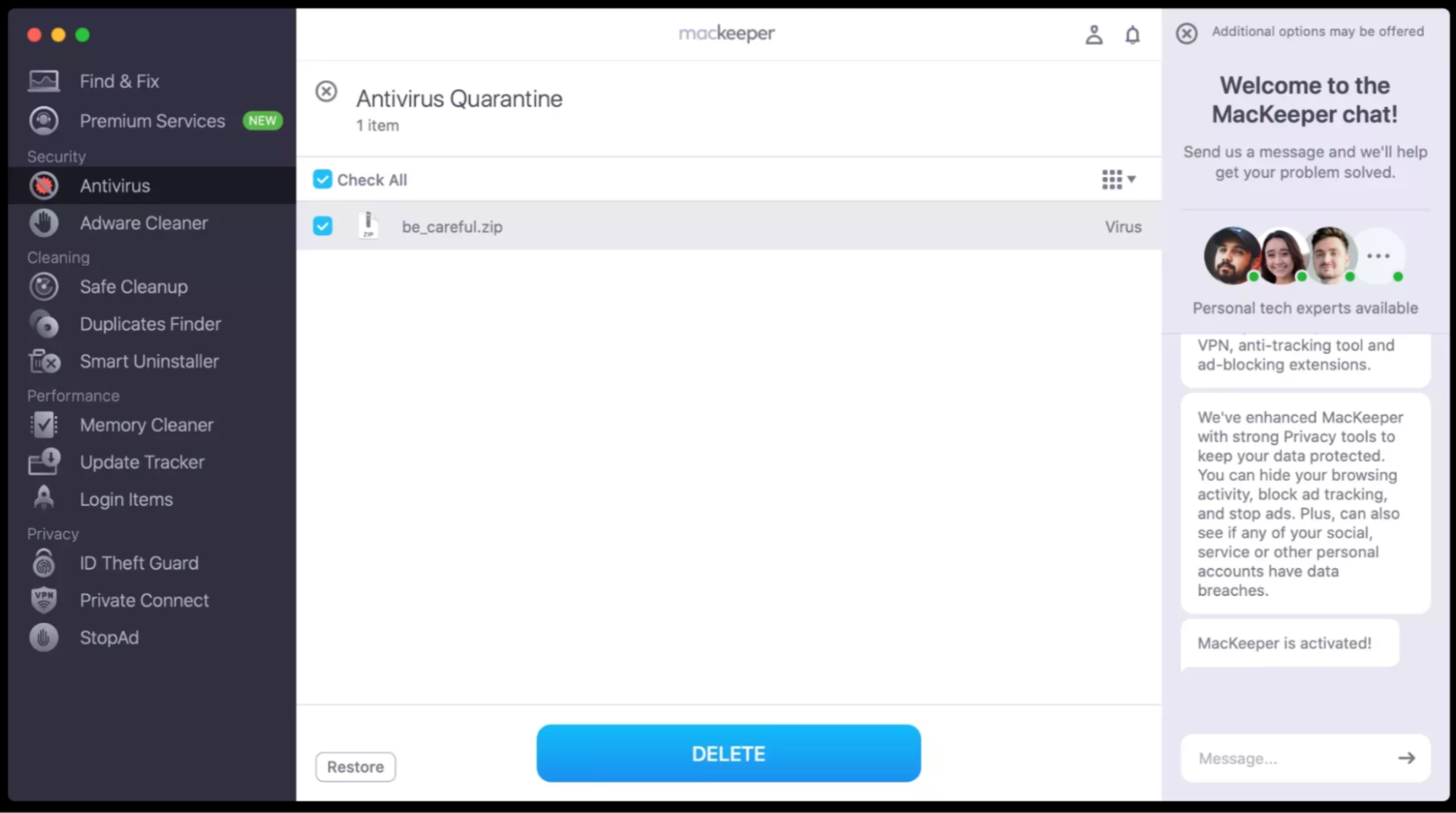
Often, Mac viruses, like MacStealer, don’t show themselves for a long time or act like legitimate software. To keep your Mac free from viruses, provide it with all-around-the-clock protection. MacKeeper’s Antivirus automatically blocks malicious files, alerts if something critical is detected and removes all kinds of threats.
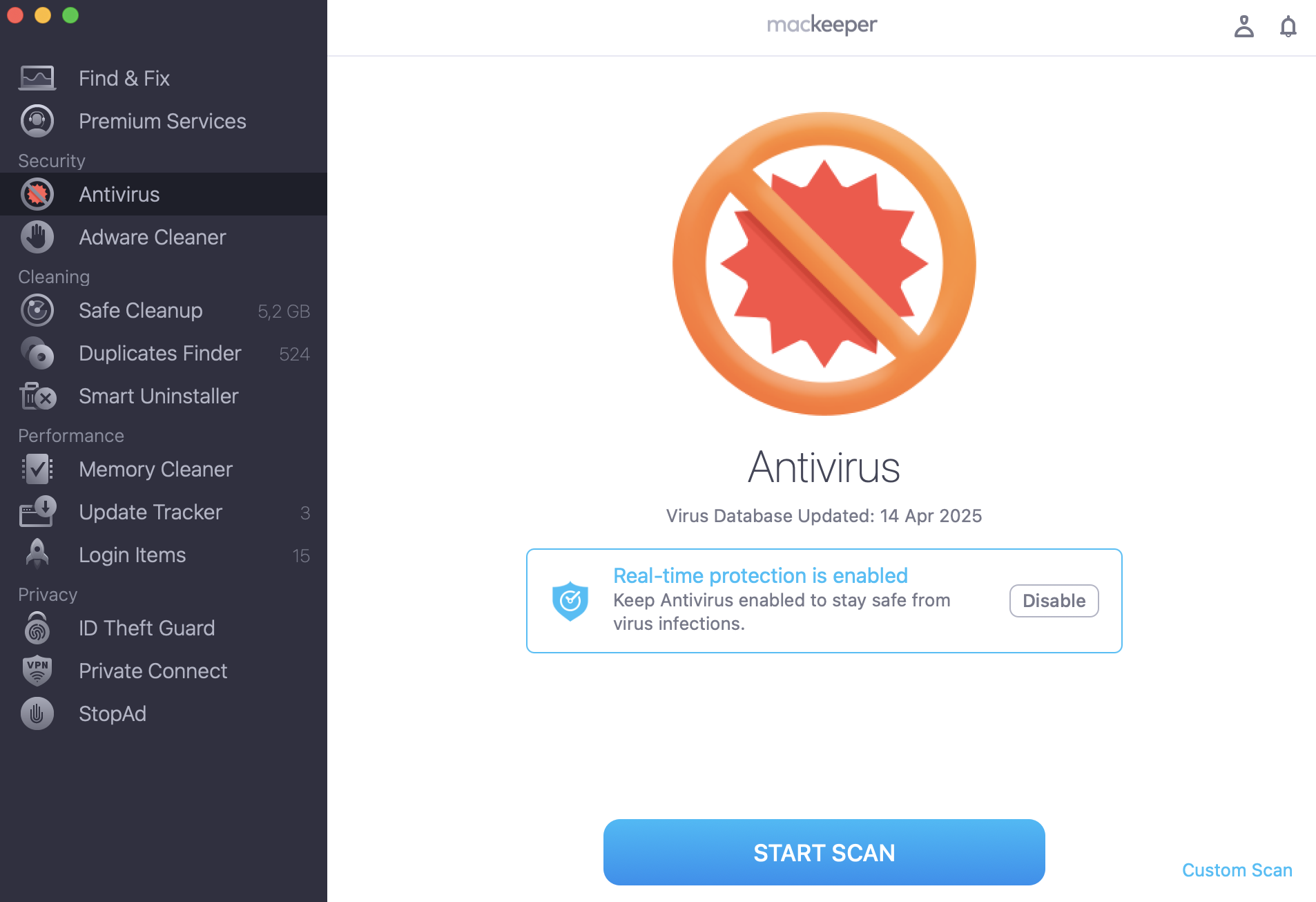
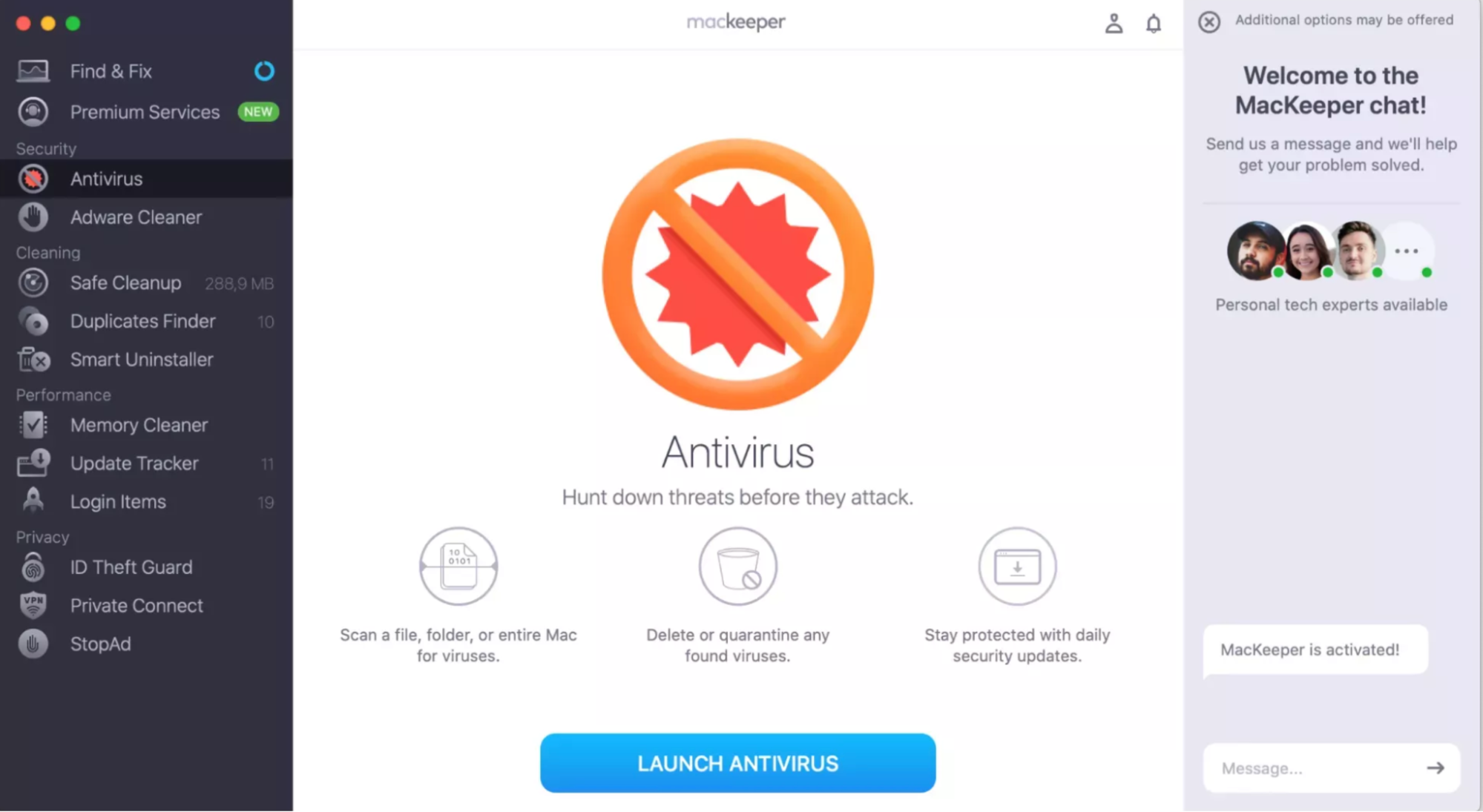
Select Antivirus from the sidebar and click Start Scan.
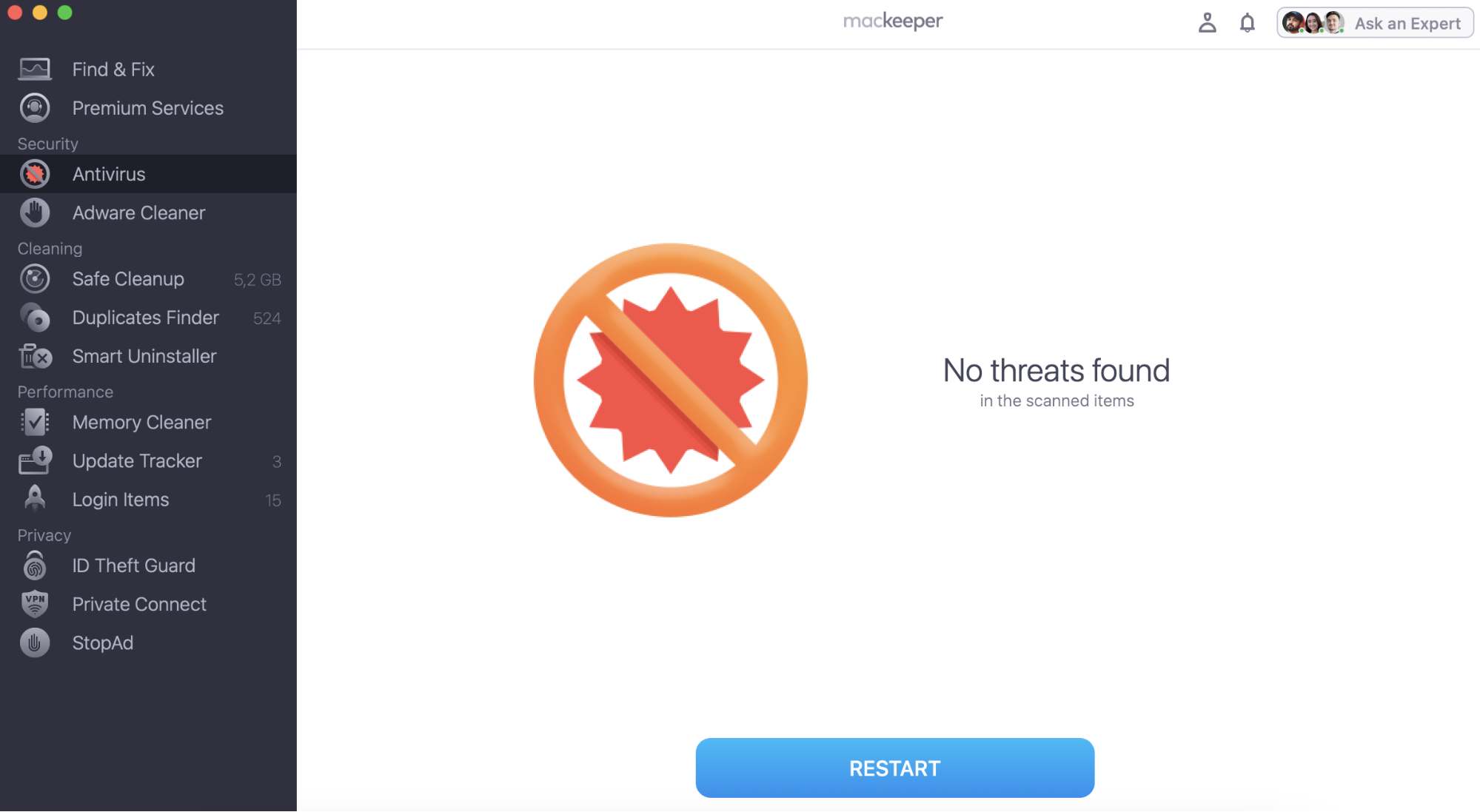
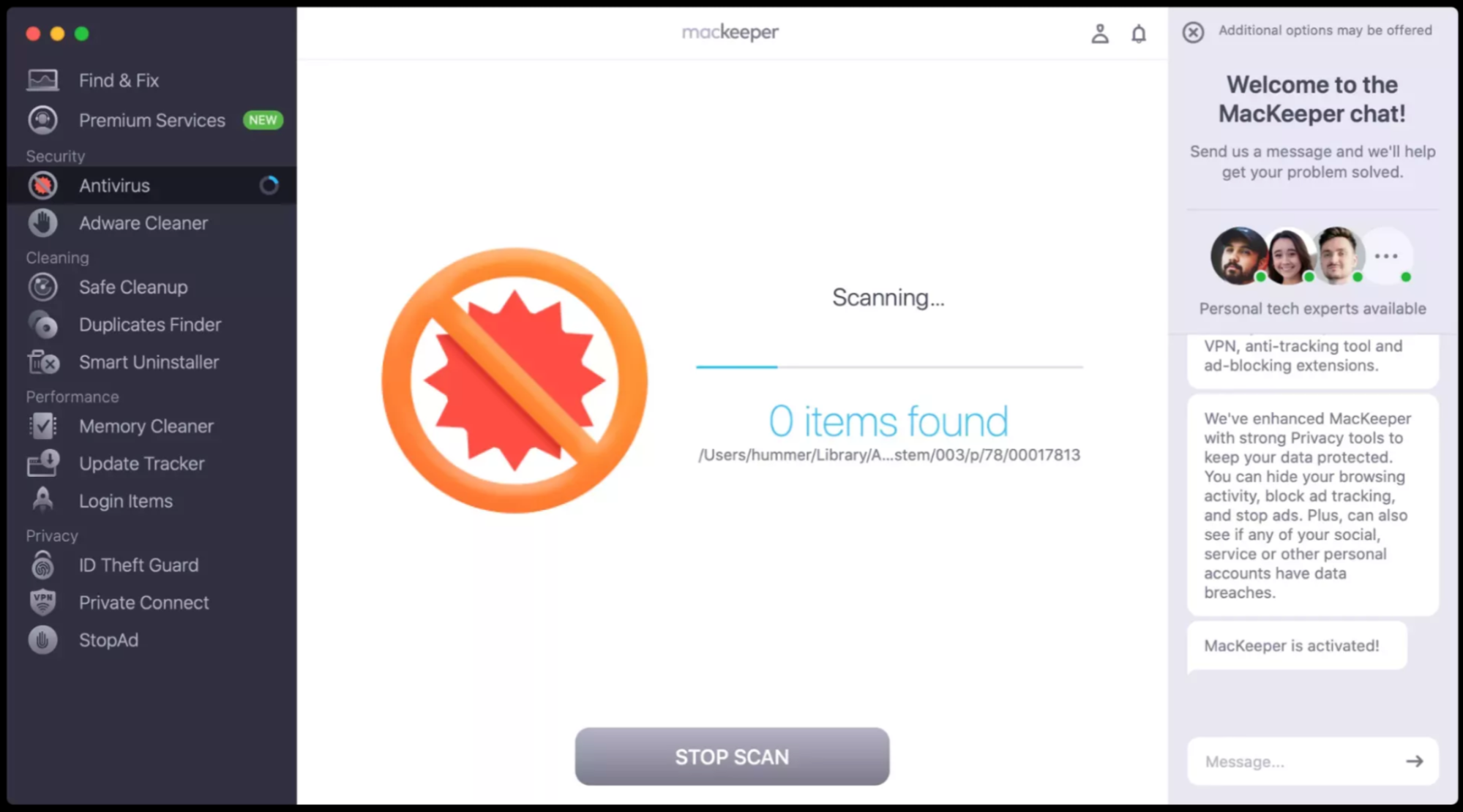
After the scan remove all the viruses discovered.
Step 1. MacKeeper > Antivirus > Start ScanStep 2. Remove all the detected threats
What is MacStealer malware
MacStealer is a new type of malicious software that targets macOS versions from Catalina onwards. The malware disguises itself as legitimate software to steal sensitive data like your iCloud Keychain data, passwords, and credit card information from web browsers like Chrome, Firefox, and Brave.
MacStealer malware functions
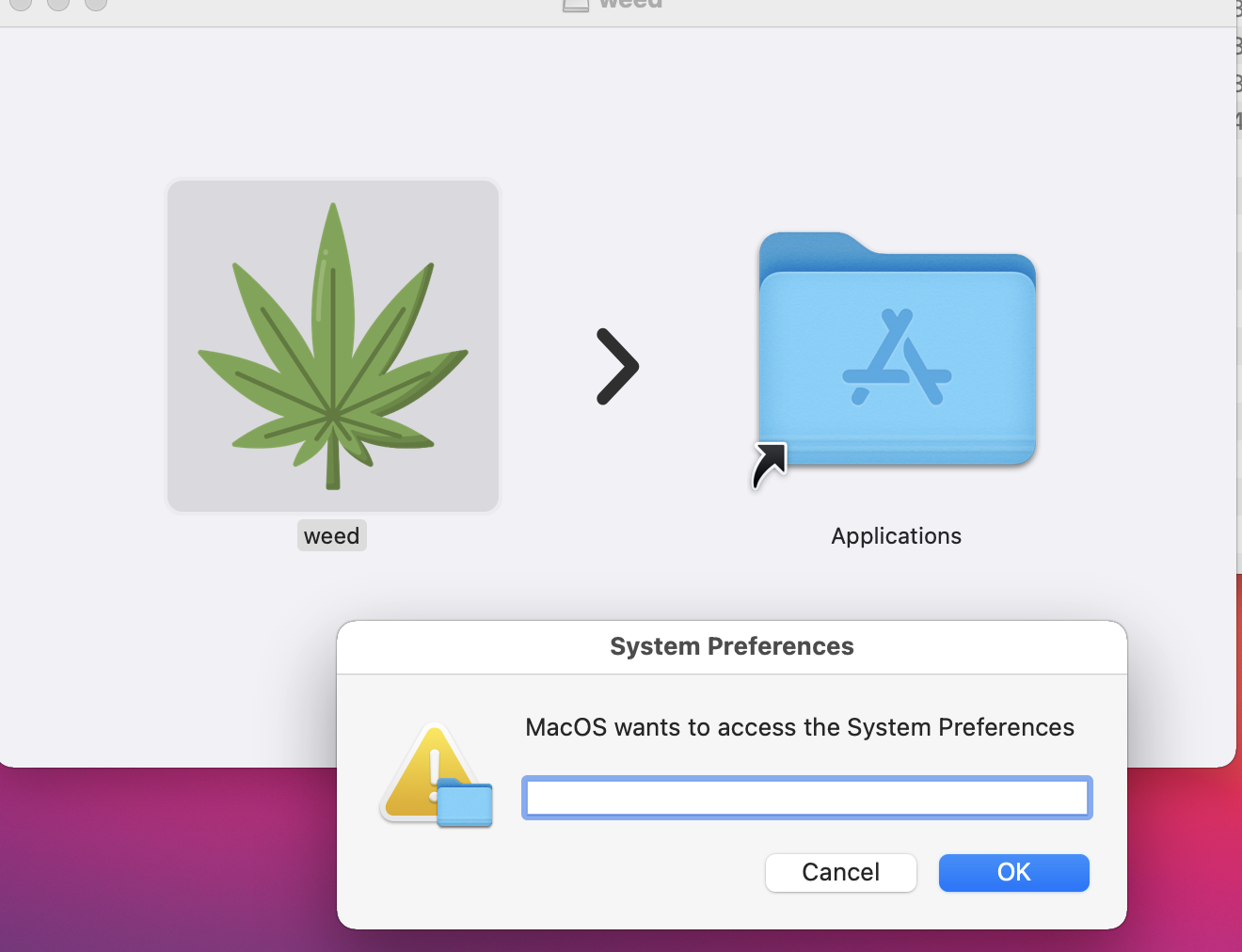
Victims who run MacStealer’s Trojan horse app unknowingly put their password into a fake macOS system message. The malware then freely collects your system’s data, which is sent to the attacker-controlled web server, like Telegram, for further exploitation.
It also attempts to steal your cookies. While collecting cookies might seem strange, it's important to understand that stealing stay-logged-in cookies gives hackers direct access to your accounts. Well, the good part about the stay-logged-in cookies is that they provide the convenience of remaining logged in to our account indefinitely. However, if malicious actors get these cookies and use them on another computer, they can log in as that user and carry out any action normally accessible with that account.
How does the MacStealer malware infection occur
If you’ve ever asked yourself can websites give your Mac viruses, the answer is yes. And MacStealer is a prime example of the type of malware floating around the web.
The .DMG files that contain the MacStealer malware can be shared through a number of different methods, one of which includes online uploads. Once uploaded, users can be tricked into downloading the file by clicking a link or button disguised as coming from a legitimate source, making it hard to detect Trojan virus.
Currently, MacStealer spreads through a .DMG file named “weed.dmg,” which tricks you into entering your password to permit access to your System Preferences.
If successful, MacStealer compresses the stolen data into a ZIP file and sends it to the cybercriminal via a command and control server. To hide its tracks, MacStealer deleted the ZIP file from your device during a system cleanup.
What macOS systems can be affected by MacStealer malware
While the sophistication of MacStealer macOS malware is rather basic, it still poses a substantial risk to many Mac users. The malware specifically targets macOS versions from Catalina to Sequoia and can infect MacBooks with Intel M1, M2, and M3 CPUs.
Why is MacStealer spreading malicious code
Money seems to be the main motivating factor for the spread of MacStealer, particularly among the gaming community and especially for those fond of Play-2-Earn (P2E) games.
Although not new, P2E games have recently had a resurgence in interest and popularity, attracting the attention of cybercriminals looking to exploit this trend. P2E games, especially, are targets because of the structure of the games, which require gamers to use cryptocurrencies and wallets.
Many cybercriminals are copying existing P2Es and creating fake websites with graphics and text taken directly from the actual P2E’s site. Unsuspecting victims could easily mistake the fake pages for the legitimate game and accidentally click on the malicious link or download the malware file.
How to get rid of MacStealer malware from your Mac
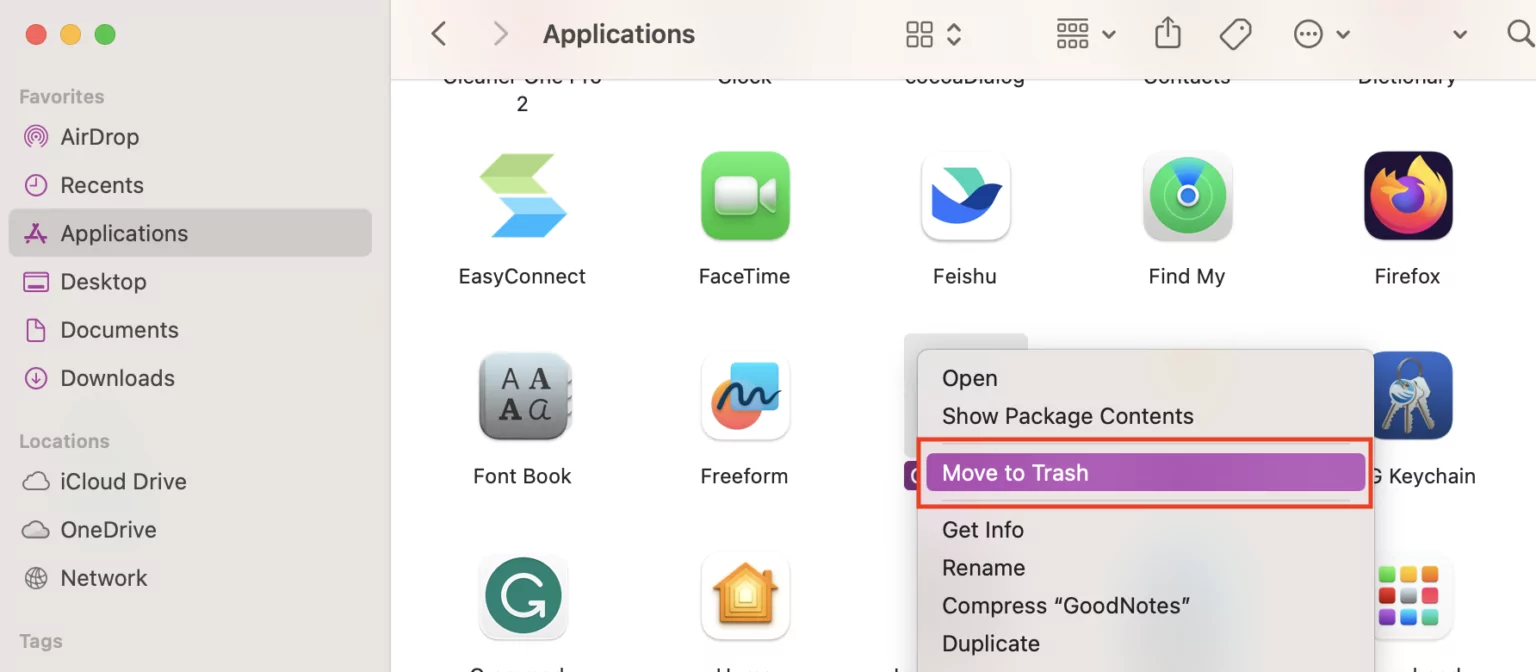
To get rid of MacStealer and to remove phishing viruses from Mac, we recommend immediately uninstalling suspicious applications. Here’s how:
Click on the Finder icon.
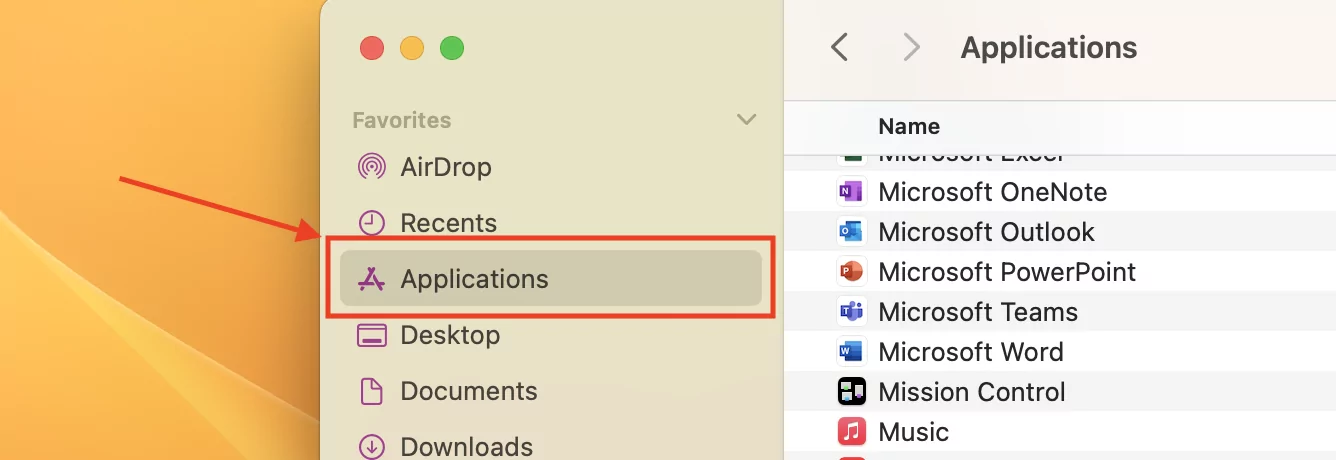
Select Applications.
Look for any suspicious apps and move them to the Trash.
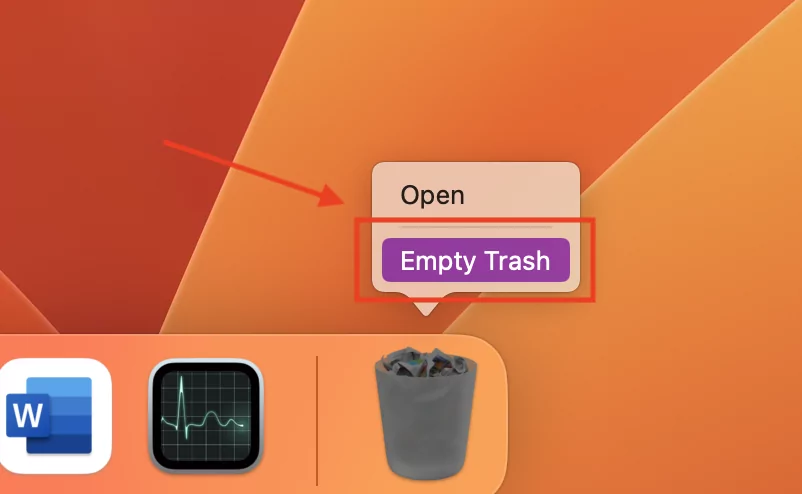
Empty your Trash by right-clicking on the Trash icon and selecting Empty Trash.
Step 1. Open FinderStep 2. Go to ApplicationsStep 3. Delete any apps you don’t recognizeStep 4. Empty Trash to delete files from your Mac
Our pro-tip:
If you really want to scrub your Mac clean, you’ll want to use antivirus software to remove these malicious files. Oftentimes, these files leave nasty traces that can be missed during the manual removal process. Antivirus software like MacKeeper thoroughly scans and removes all parts of the malware, giving you protection against future threats.
How to prevent MacStealer malware infection
Given how expensive Apple devices are, it’s important to check for malware on your Mac. We recommend the following steps to prevent MacStealer malware infection:
Update your software
Install good antivirus software
Be careful on the internet and social networks
1. Update your software
Even though MacStealer malware sneaks its way into newer macOS versions, don’t let that stop you from updating your device’s software. One of the reasons why Mac computers have so few viruses is that Apple regularly drops security improvements in their updates. So if you’re running on an older version of macOS, we highly recommend you update your operating system immediately.
Here’s how to update your Mac to the latest macOS version available:
Open the main Apple menu > System Settings, or System Preferences for older Mac computers.
Click on General > Software Update.
Install the latest software if needed.
Important: You can also set your Mac to check for software updates automatically, so you never miss any new and important security improvements. To do this, simply go to the main Apple menu > System Settings > General > Software Updates and enable Download new updates when available.
2. Install good antivirus software
We can’t stress enough the importance of downloading and installing a Mac antivirus software. There are several good free options currently on the market, but we recommend investing in high-quality antivirus software like MacKeeper.
To use MacKeeper’s antivirus scanner to detect MacStealer malware and remove it with a click:
Wait for the scan to finish and remove the treats found.
Step 1. Open MacKeeper Antivirus scannerStep 2. Wait for system scan to completeStep 3. Permanently delete any malicious found
Designed specifically for MacBooks by Mac security experts, MacKeeper can protect, detect, and eliminate malware like MacStealer. The best part? It’s so easy to use! MacKeeper’s security suite is located in one centralized dashboard, making it incredibly user-friendly.
3. Be careful on the Internet and social networks
Remember, not everything you see on the Internet is true. And with social media verification policies changing, cybercriminals are exploiting the privilege of getting verified accounts. This means fake apps and accounts can easily gain credibility and trick you into clicking or downloading malicious apps. Avoid clicking any suspicious pop-ups or links posted on social networks unless you’re absolutely certain that the source is credible.
Instant Mac malware removal
With more malicious malware like MacStealer on the rise, protecting the sensitive information stored in your MacBook is more crucial than ever. Gone are the days when you can assume that your Mac is immune to viruses and cyberattacks. Don’t wait until you become a victim of cybercrime to look into getting the best antivirus software for Macs.
If you’re feeling overwhelmed and intimated with manually removing malware from your Mac, consider using a professional automatic antivirus remover like MacKeeper. MacKeeper offers a robust set of antivirus and malware removal tools, that quickly detect, prevent and remove malicious software.
But that’s not all the software can do, MacKeeper safely removes junk files, frees up your system's RAM, and optimizes your device's performance. Plus, it does all this without slowing down your Mac’s performance, so you can continue using your computer hassle-free while at its peak performance.
With automatic system scans and real-time antivirus protection, MacKeeper offers you the peace of mind that your Mac is safe and secure. And with a starting price of just $10.95, it offers you great value for your money.
And remember, stay vigilant, stay secure. Protect your devices today and keep preventing unwanted attacks for good.
We respect your privacy and
use cookies
for the best site experience.
Privacy Preferences Center
We use cookies along with other tools to give you the best possible experience while using the
MacKeeper website. Cookies are small text files that help the website load faster. The cookies we
use don’t contain any type of personal data meaning they never store information such as your
location, email address, or IP address.
Help us improve how you interact with our website by accepting the use of cookies. You can change
your privacy settings whenever you like.
Manage consent
All cookies
These cookies are strictly necessary for enabling basic website functionality (including page
navigation, form submission, language detection, post commenting), downloading and purchasing
software. The website might malfunction without these cookies.