Discovering that the application zoom.us is not open anymore can be confusing and worrisome, as it may seem like Zoom has crashed or there’s an issue with your Mac. To resolve this, consider using MacKeeper’s Smart Uninstaller to completely remove and then reinstall the app, which can often fix such problems efficiently.
What does “The application zoom.us is not open anymore” mean?
When you see a message stating "the application is not open anymore”—for example, with Zoom—it usually means the video conferencing app has unexpectedly stopped working on your Mac, and macOS is alerting you. Often, this message appears even though the Zoom icon remains in the Dock or the window still appears open, which can be confusing.
Why does Zoom say the application is not open anymore?
This message appears when your Mac behaves as though the app has fully closed, even when it’s still running. Typically, this error stems from software-related issues, such as temporary macOS glitches, limited system resources, or background process conflicts. Problems with the app itself, like outdated versions, incompatible installers, damaged files, or corrupted preferences, can also trigger this error.
While using the app, you might also encounter additional problems, such as the Zoom camera not working properly.
How to fix to “The application zoom.us is not open anymore”?
Fortunately, there are effective ways to resolve the application zoom.us is not open anymore error. Below, we outline several fixes, starting with the simplest and progressing to more advanced steps. For best results, follow them in order.
A note from our experts:
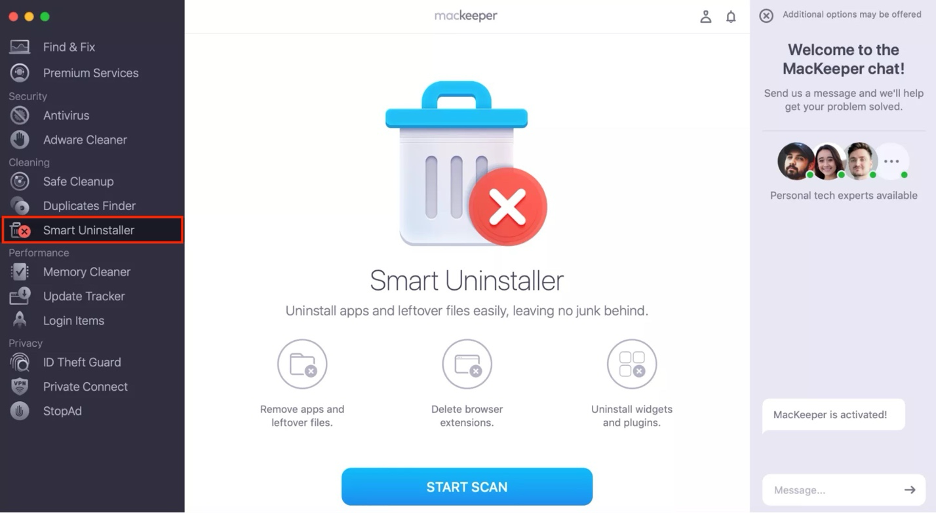
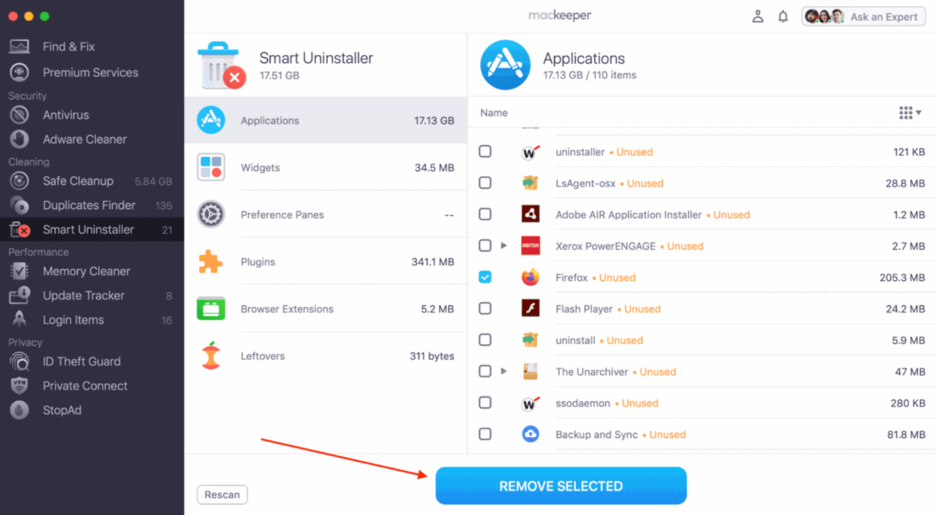
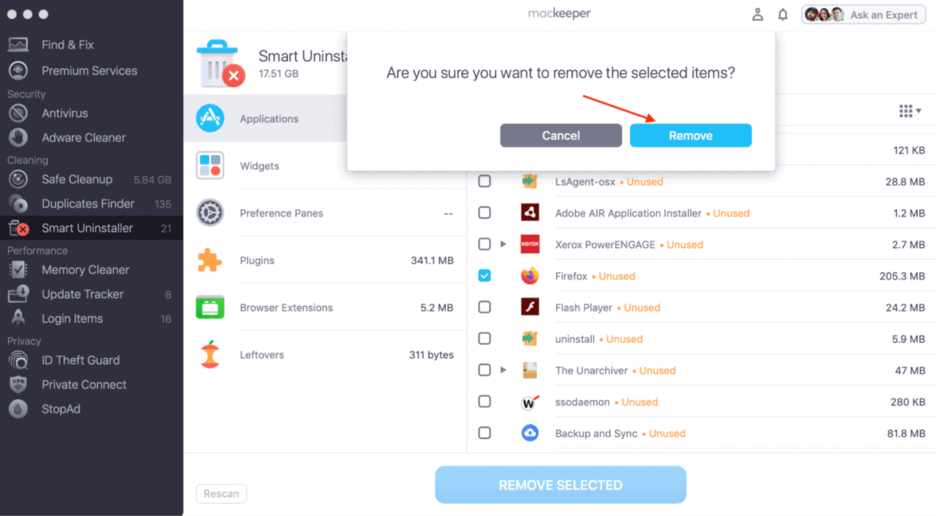
While it might seem drastic, uninstalling and reinstalling the Zoom app is often an effective way to resolve this issue. Developed by Clario Tech and trusted by millions, MacKeeper’s Smart Uninstaller makes the process seamless, ensuring all related files that could be causing the error on your Mac are completely removed.
Step 1. Select Smart UninstallerStep 2. Choose all relevant categories > Click Remove SelectedStep 3. Click Remove to confirm
1. Force quit Zoom and open it again
If Zoom is acting up, we believe it’s likely due to a temporary glitch or a background process that’s become unresponsive. The most effective fix is to force stop the app, ensuring it fully closes before you relaunch Zoom for a fresh start.
We explain how to force quit Zoom below:
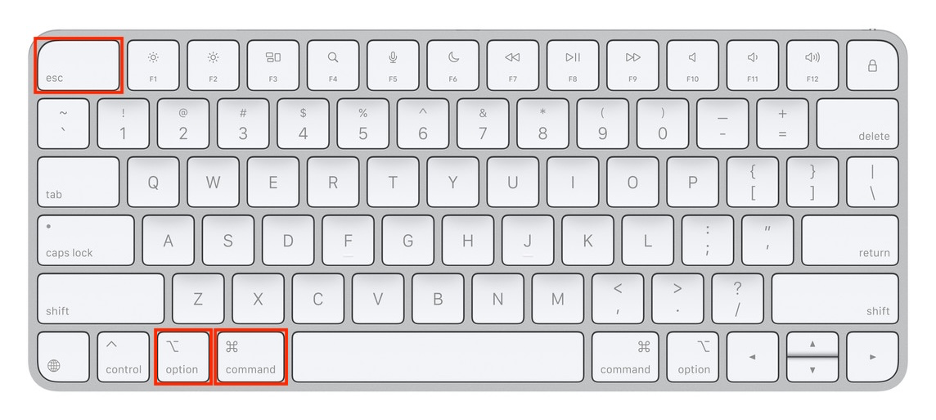
Press Option + Command + Esc on your keyboard.
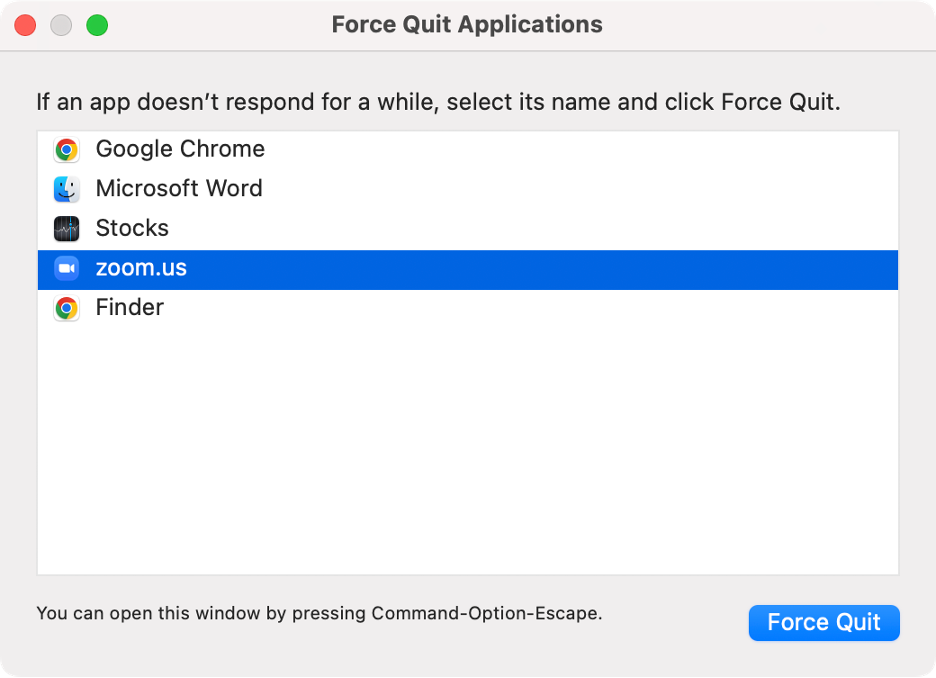
In Force Quit Applications, select Zoom from the list.
If you suspect one of the Zoom processes has become stuck on your Mac, our experts recommend using Activity Monitor, a built-in macOS tool that can help you identify and end unresponsive apps or background processes.
To close Zoom processes using Activity Monitor, follow these steps:
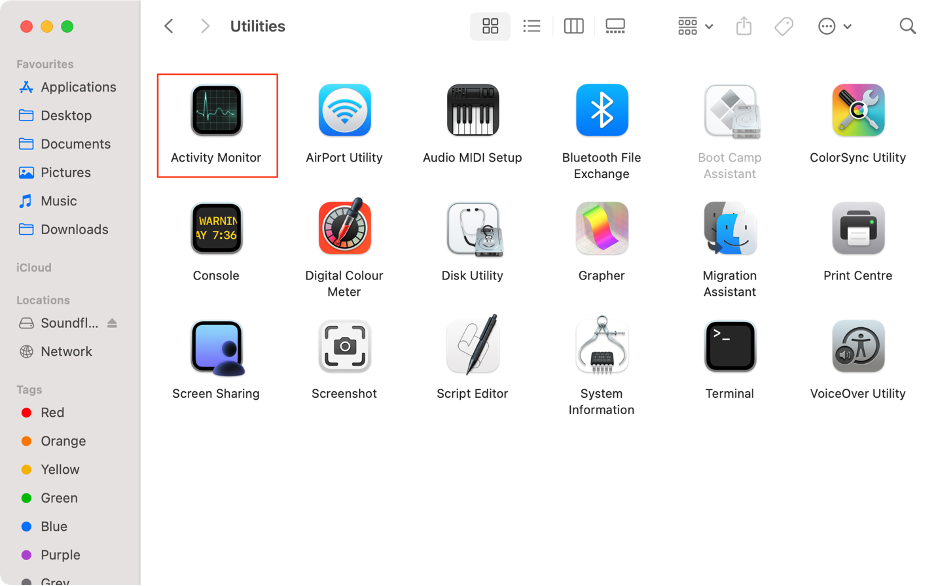
Open Finder.
Go to Applications and double-click on the Utilities folder.
Open Activity Monitor.
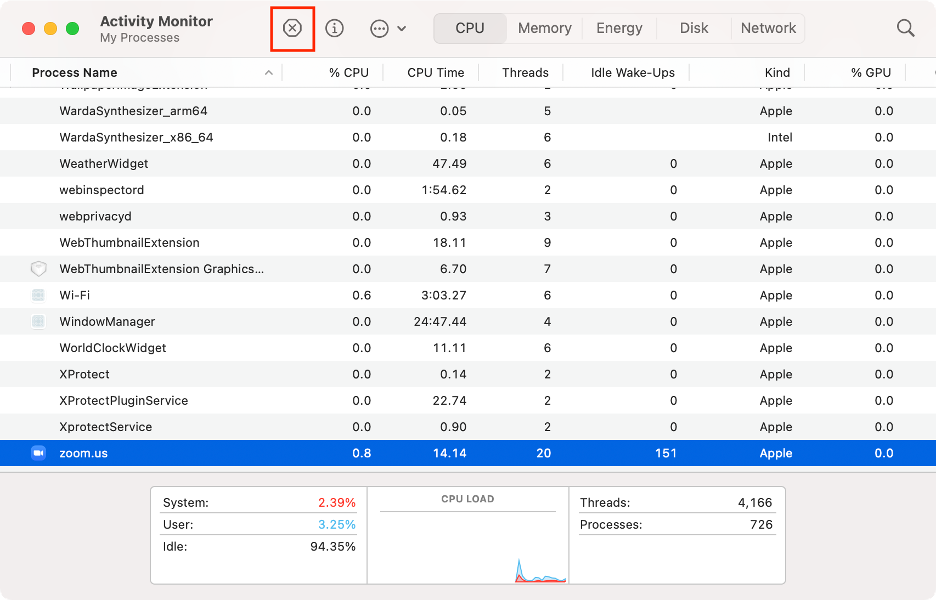
Search for any Zoom processes.
Select them and click the X icon.
Quit Activity Monitor.
Step 1. Finder > Applications > Utilities > Activity MonitorStep 2. End any Zoom processes
3. Restart your Mac
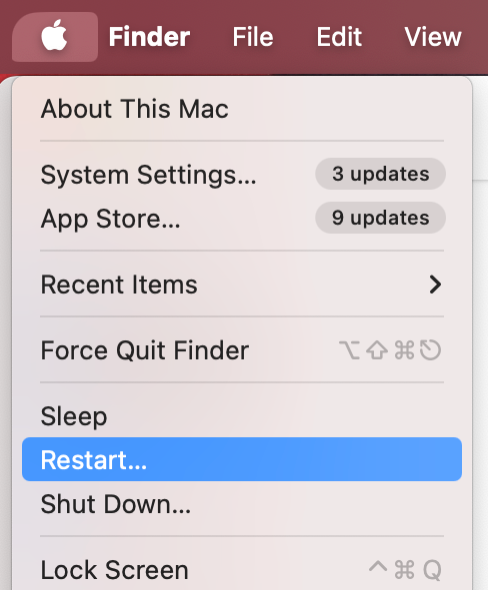
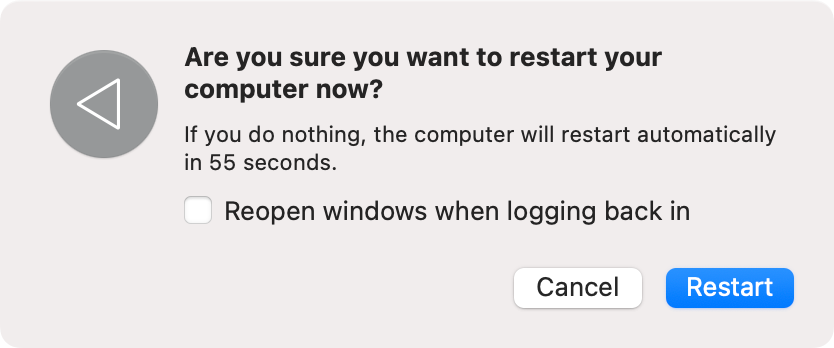
Alternatively, restarting your Mac is a quick way to clear frozen processes and fix temporary system errors that could be interfering with Zoom.
Step 1. Apple logo > RestartStep 2. Click Restart again
4. Update Zoom Workplace
Our experts also recommend keeping the Zoom app up to date. Installing the latest version can resolve crashes, compatibility problems, and corrupted components that might be causing errors.
Updating Zoom is quick and straightforward. Here’s how:
Launch Zoom.
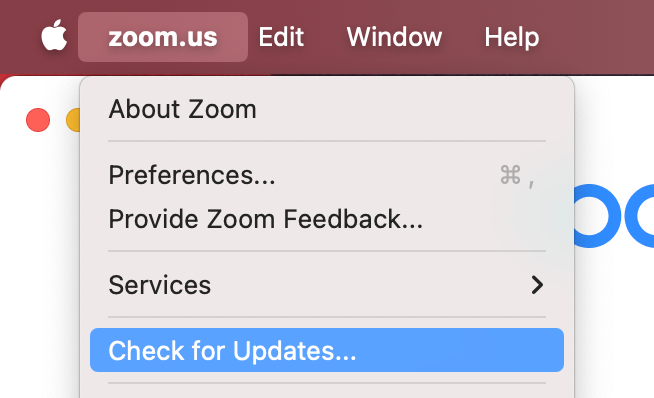
Click zoom.us in the menu bar.
Select Check for Updates.
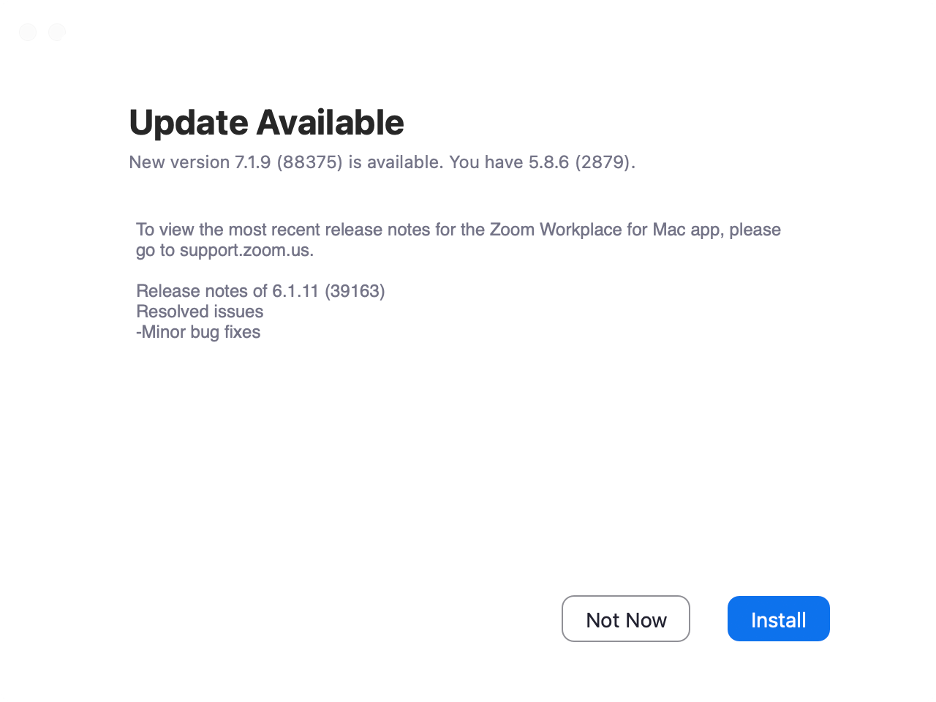
Click Install.
Wait until the update is installed.
Step 1. Zoom > zoom.us > Check for UpdatesStep 2. Update to the latest version
5. Install correct Zoom version for your Mac
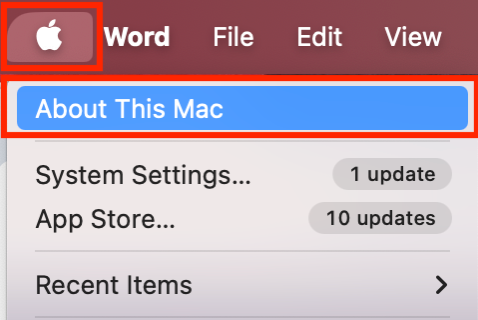
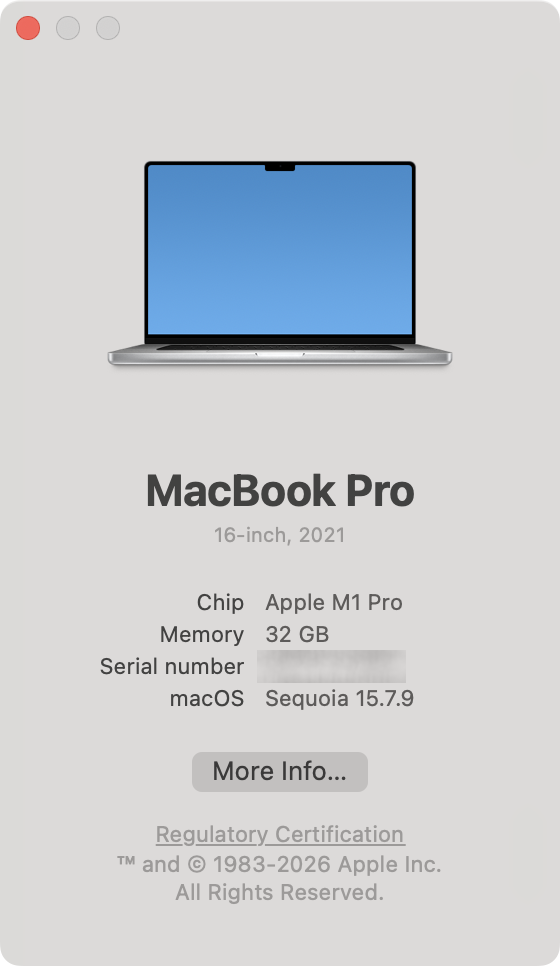
However, updating to the latest version of macOS isn’t always the best solution, as some Macs aren’t compatible with every release. To ensure you download the correct installer, first check whether your Mac uses an Apple Silicon or Intel processor.
Check whether it’s an M chip (Apple Silicon) or an Intel processor.
Go to the Zoom website and choose the correct installer for Apple Silicon or Intel.
Step 1. Apple icon > About This MacStep 2. Check the chip generationStep 3. Choose between the Apple Silicon and the Intel installer
6. Update macOS
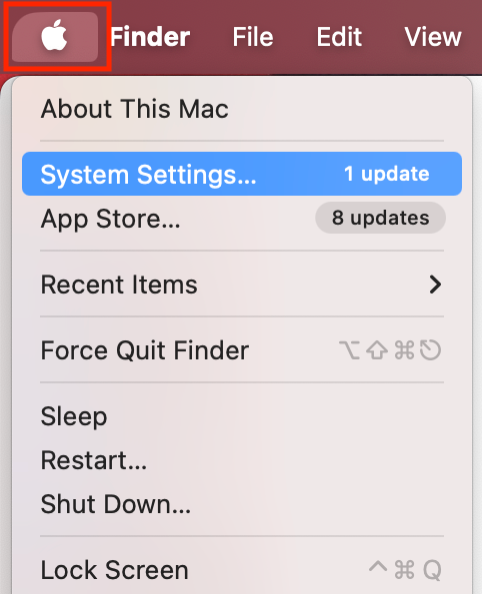
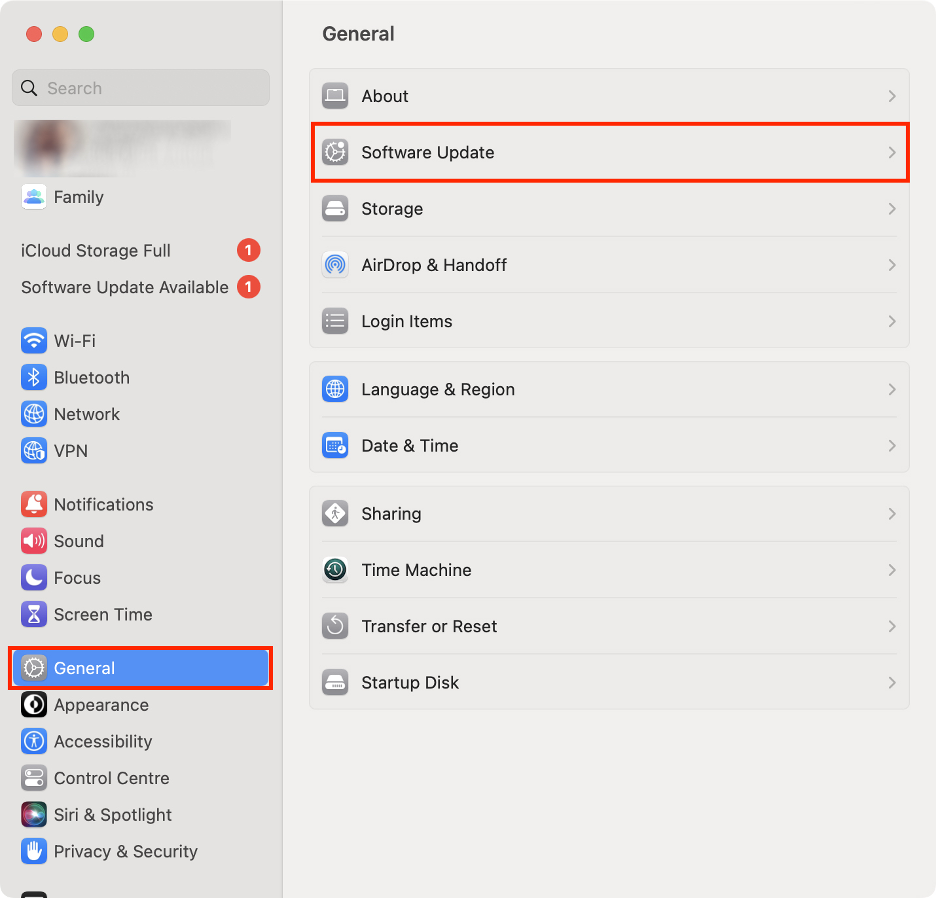
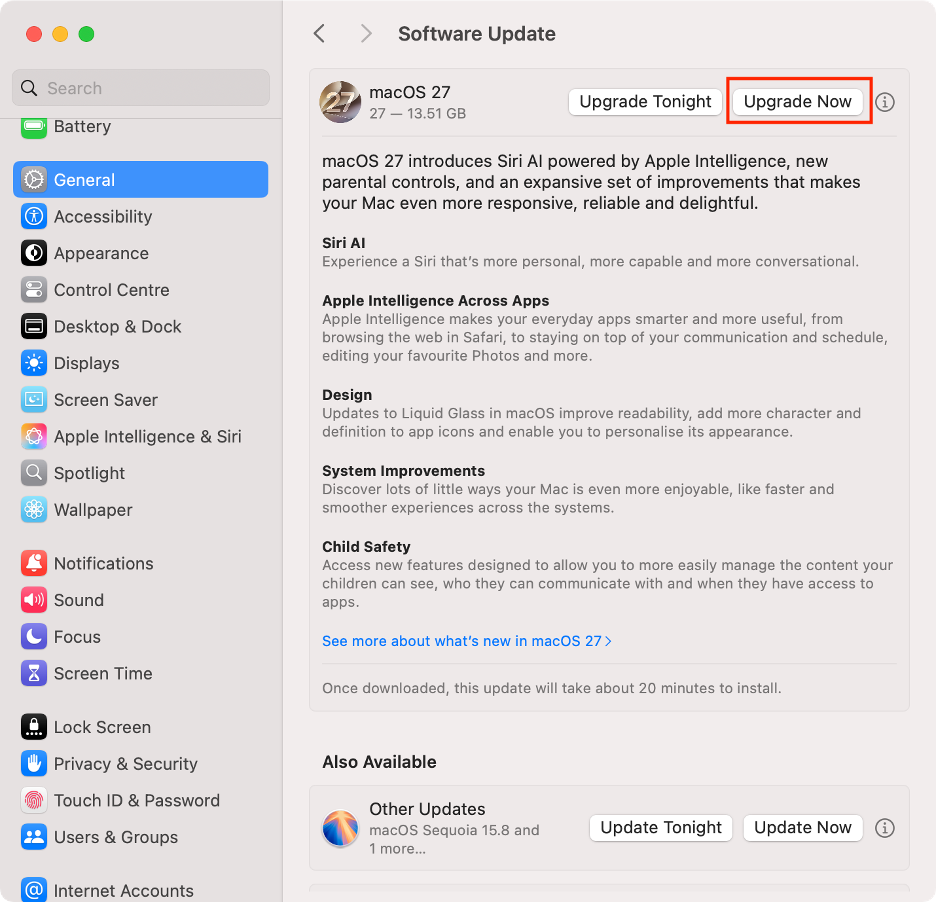
Another reason Zoom may crash is that an outdated macOS could be conflicting with the latest version of the app. To resolve this, check for available macOS updates and install them to ensure compatibility and stability.
Step 1. Apple logo > System SettingsStep 2. General > Software UpdateStep 3. Click Upgrade Now
7. Check Zoom permissions on Mac
To ensure Zoom functions smoothly on your Mac, you need to grant it specific permissions, such as access to the camera, microphone, and screen recording. Without these permissions, you may encounter errors.
Use these steps to review and adjust Zoom’s permissions:
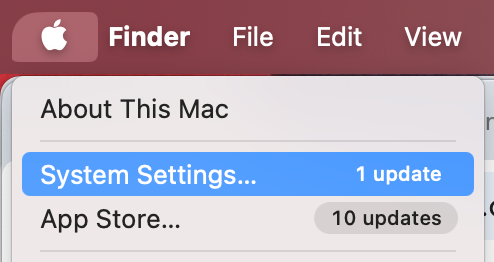
Click the Apple logo in the menu bar again.
Select System Settings.
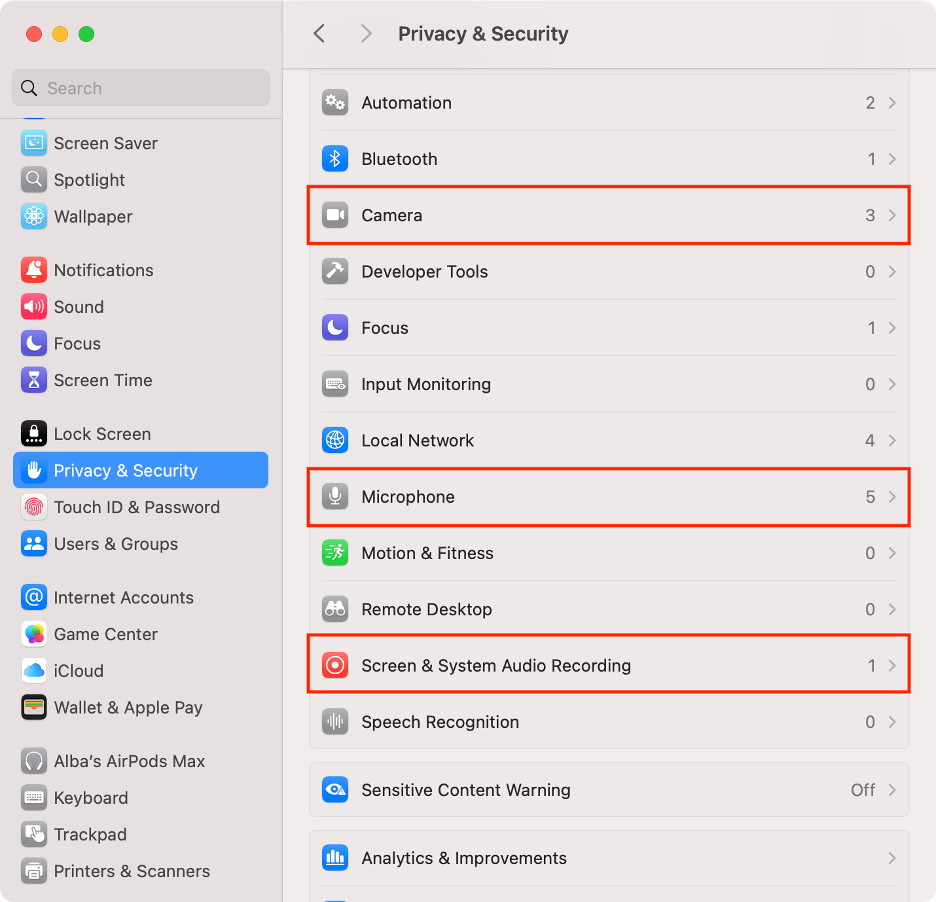
Go to Privacy & Security.
Click Camera, Microphone, and Screen & System Audio Recording.
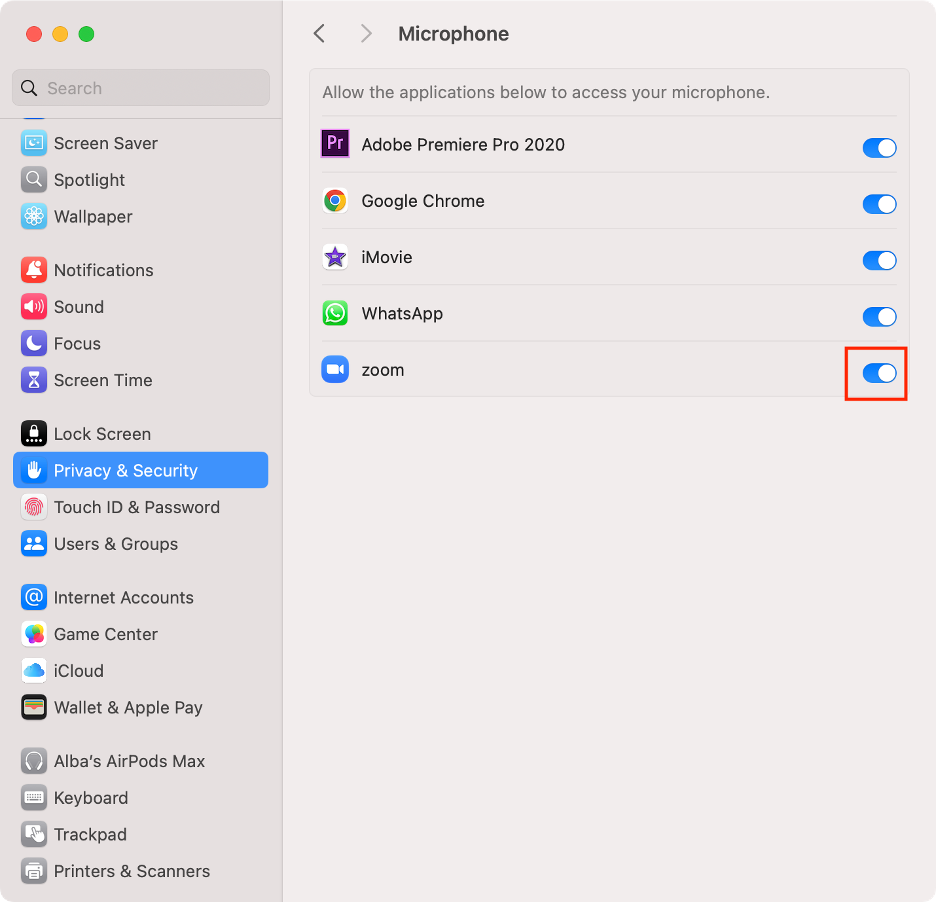
Make sure the Zoom toggle is enabled.
Step 1. Apple logo > System SettingsStep 2. System Settings > Privacy & Security > Camera / Microphone / Screen & System Audio RecordingStep 3. Enable the Zoom toggle
8. Completely uninstall and reinstall Zoom
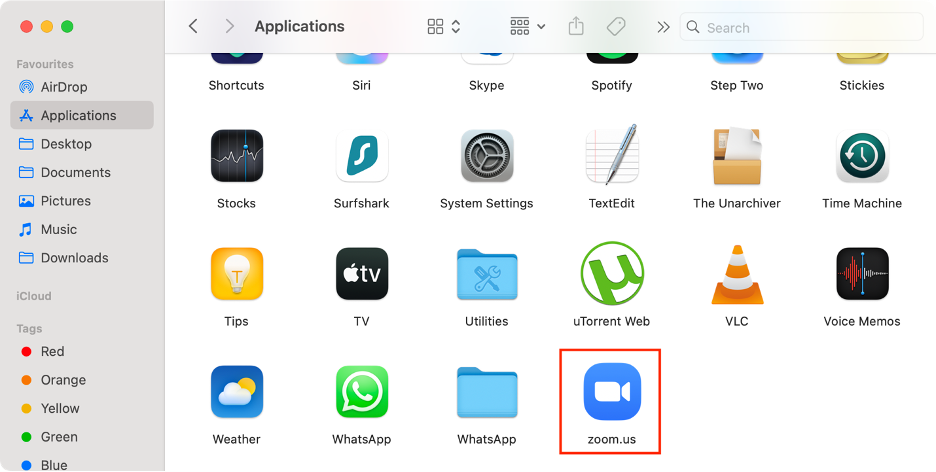
If you suspect Zoom is corrupted, we advise completely uninstalling and then reinstalling the app. Be sure to perform a clean reinstall by deleting all associated files before installing a fresh copy.
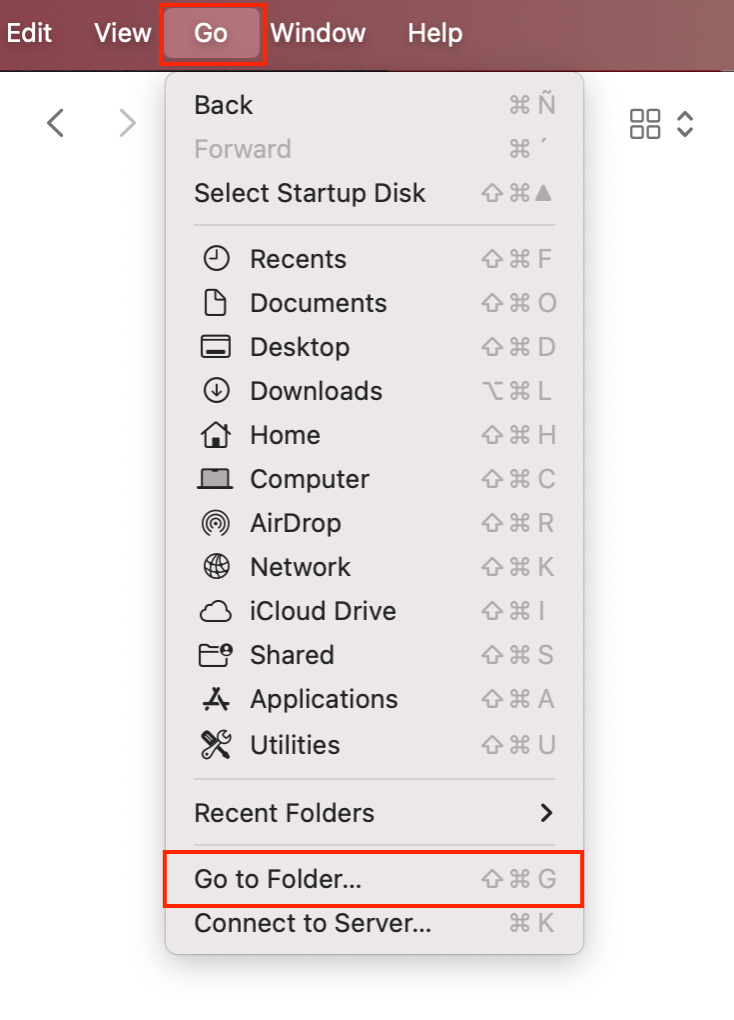
Click Go in the menu bar, then select Go to Folder.
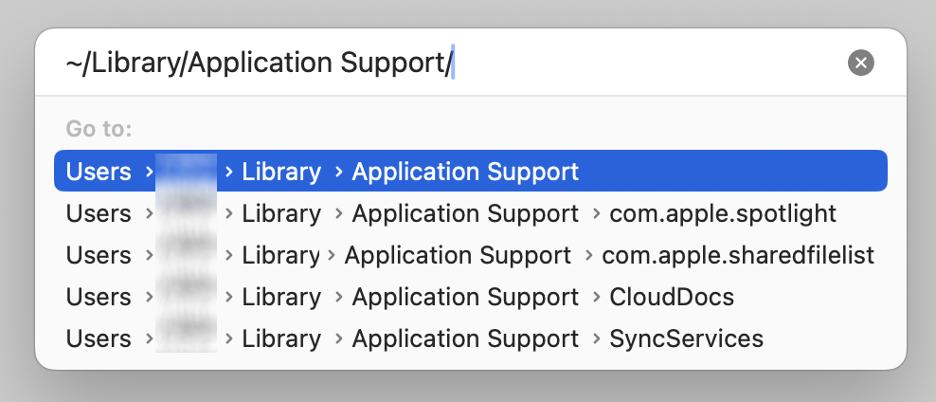
Search for ~/Library/Application Support/ in the search bar window.
Locate the zoom.us folder and drag it to the Trash.
Now, open the Trash.
Click Empty, then click Empty Trash to confirm.
Go to the Zoom website and install it again.
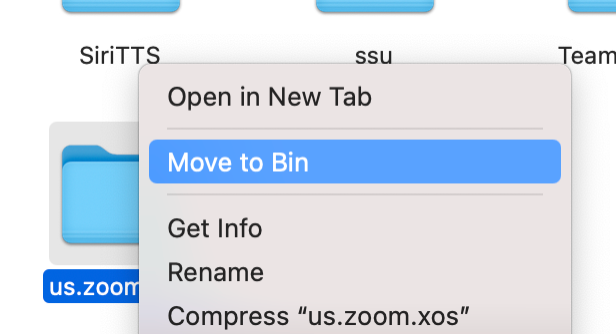
Step 1. Finder > Applications > ZoomStep 2. Right-click the app > Choose Move to TrashStep 3. Finder > Go > Go to FolderStep 4. Find folders with Zoom leftoversStep 5. Move leftover files to the TrashStep 6. Trash > Empty > Empty Trash
9. Remove corrupted Zoom preferences and cache files
However, even after reinstalling Zoom, lingering corrupted settings can still trigger the error. In our experience, the most effective way to remove any leftover cache files from your Mac is to clear app data.
Here are our tips to help you through the process:
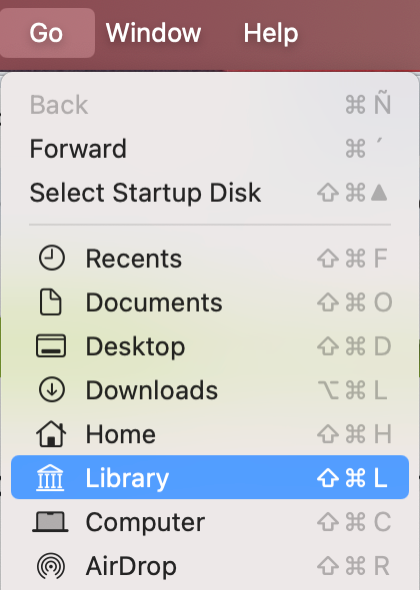
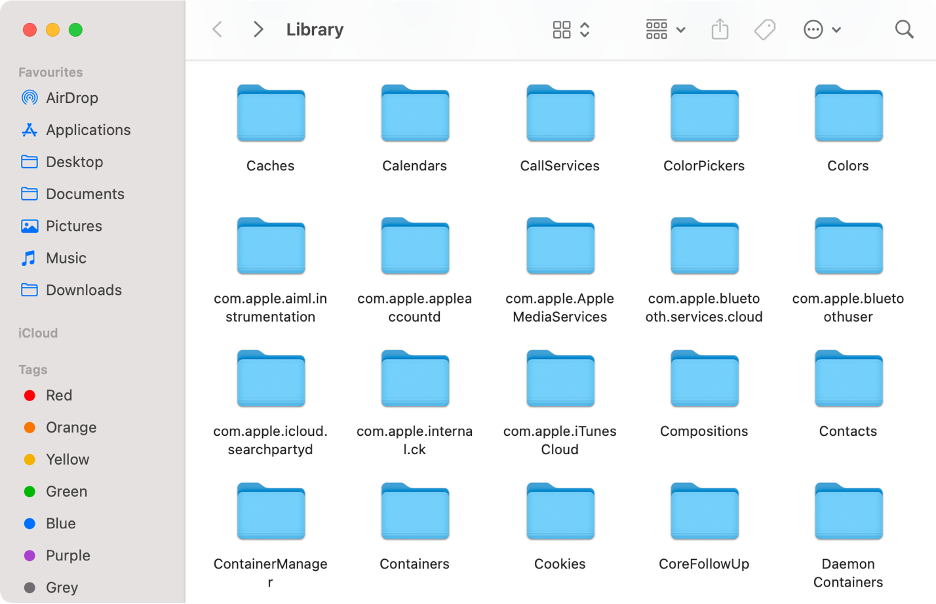
Click Go in Finder’s menu bar.
Select Library.
Open the Caches folder.
Right-click any Zoom files and folders, then select Move to Trash.
Repeat the process for the Containers and Preferences folders.
Go to the Trash and click the Empty button.
Click Empty again to confirm.
Step 1. Finder > Go > LibraryStep 2. Visit the Caches, Containers, and Preferences foldersStep 3. Delete any Zoom files and foldersStep 4. Empty the Trash
10. Test Zoom in Safe Mode
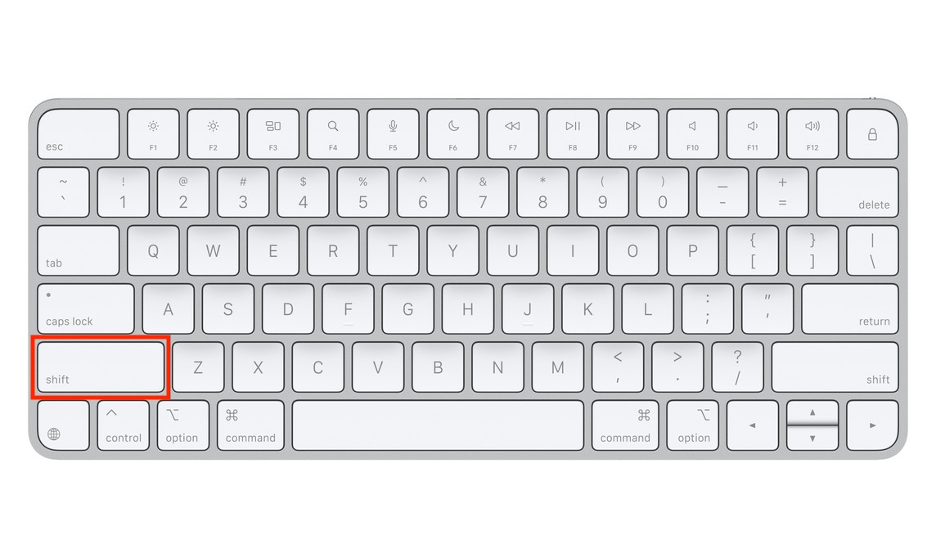
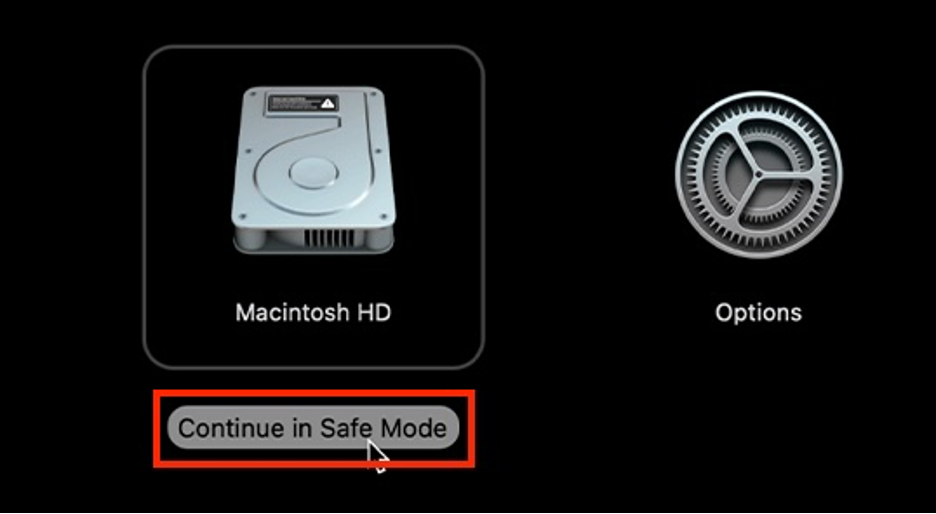
If all else fails, our experts suggest starting your Mac in Safe Mode. Safe Mode loads only essential software and drivers, making it easier to identify whether the Zoom error is caused by a login item, extension, or third-party background process.
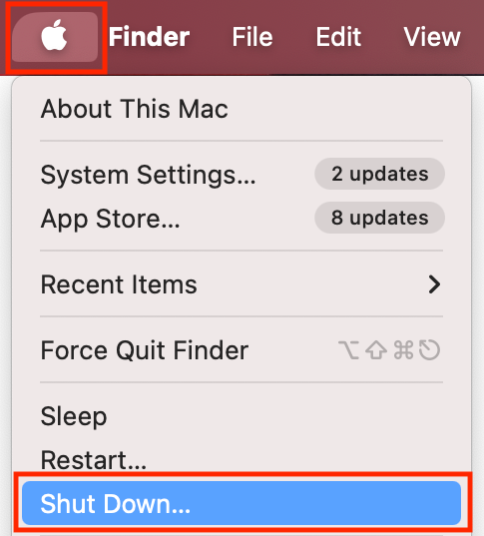
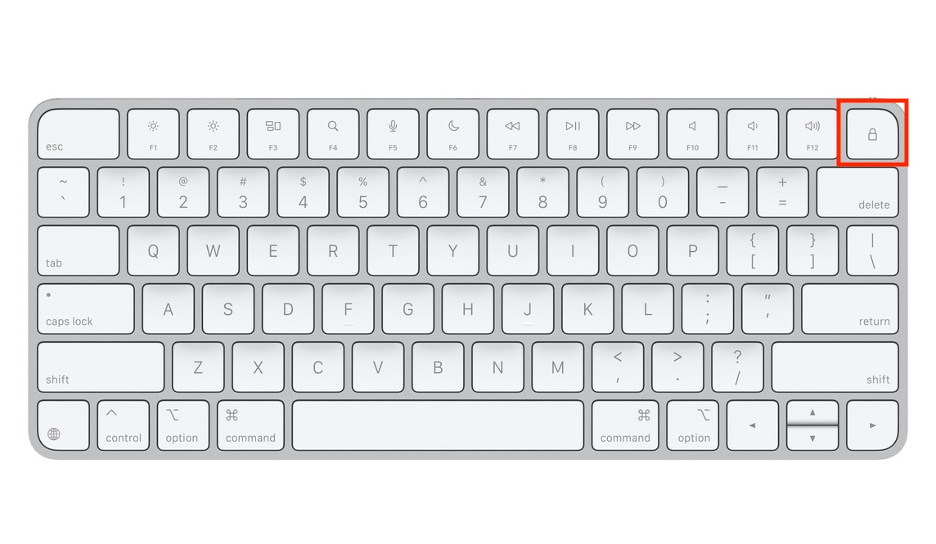
Step 1. Apple logo > Shut DownStep 2. Press and hold the power buttonStep 3. Press and hold the Shift keyStep 4. Click Continue in Safe Mode
What to do when Zoom is not open anymore on Mac
“The application zoom.us is no longer open” error can be both frustrating and confusing. Fortunately, there are multiple ways to resolve it. You might start by forcing Zoom to quit or ending its processes in Activity Monitor. Additionally, restarting or updating macOS, or reviewing Zoom’s permissions and preferences, can help address the issue.
If the above methods don’t work, consider uninstalling and reinstalling Zoom on your Mac. We recommend using MacKeeper’s Smart Uninstaller, which is an excellent choice for this task, as it thoroughly removes all associated files. MacKeeper also protects your computer from malware, secures your online activity, and optimizes your system’s performance.
We respect your privacy and
use cookies
for the best site experience.
Privacy Preferences Center
We use cookies along with other tools to give you the best possible experience while using the
MacKeeper website. Cookies are small text files that help the website load faster. The cookies we
use don’t contain any type of personal data meaning they never store information such as your
location, email address, or IP address.
Help us improve how you interact with our website by accepting the use of cookies. You can change
your privacy settings whenever you like.
Manage consent
All cookies
These cookies are strictly necessary for enabling basic website functionality (including page
navigation, form submission, language detection, post commenting), downloading and purchasing
software. The website might malfunction without these cookies.