Wondering how to securely empty trash on macOS Sierra? Well, emptying trash is just the start of an effective Mac cleaning process. MacKeeper’s Safe Cleanup can help your cope with cleaning like a pro and save some valuable gigabytes for something important.
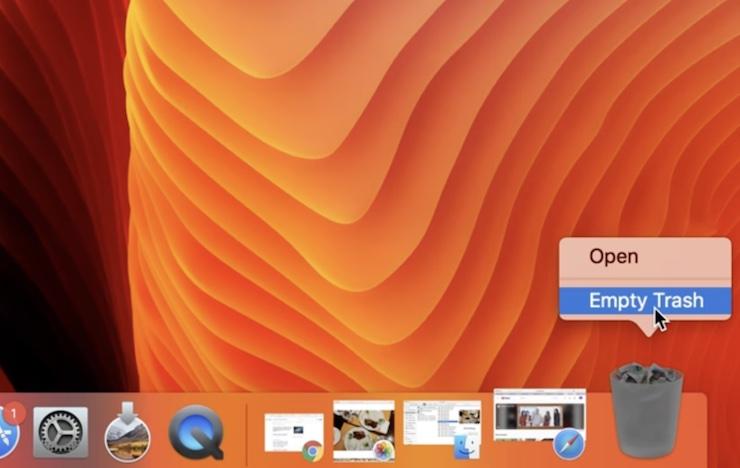
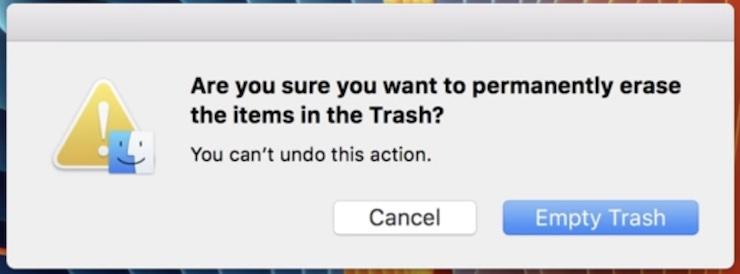
macOS Sierra users can remove data permanently simply by right-clicking the Trash icon located in the Dock and selecting Empty Trash. You’ll then need to confirm you want to erase all the items in the Trash by clicking the blue Empty Trash button in the pop-up window that appears.
A Secure Empty Trash feature was once available on the Mac operating system, but Apple discontinued it with the release of OS X El Capitan in 2015. A year later, the feature was still missing on macOS Sierra, and, since then, people have had a legitimate concern about how to securely remove files on their devices.
Are you trying to get rid of your password database (or other sensitive files) and are worried someone might be able to recover it? Is there a way to ensure the privacy of your data once you’ve deleted it? We explain what alternatives are available to you.
What is Secure Empty Trash on Mac
Secure Empty Trash is a feature that first appeared on the Mac in 2009 and has allowed Apple users to remove files permanently and prevent others from recovering them. This way, you can be sure your sensitive data is erased for good.
Removing your files and documents forever, as well as deleting duplicate photos, is much more than an effective way to optimize storage. Using Secure Empty Trash is useful when you share your Mac with others, at home or at work, or when you use a public computer, whether in the library or in a hotel. If you’re planning on selling your MacBook, you may also want to delete your data securely, although formatting the device might be more practical.
Is the Secure Empty Trash option available on macOS Sierra?
The Secure Empty Trash setting on Mac Sierra isn’t available anymore. The feature first appeared in 2009 with the release of Mac OS X Snow Leopard. The last time it was available on the Apple OS was on OS X Yosemite (released in 2014).
According to an El Capitan support document, the feature couldn’t guarantee a secure deletion of the Trash files, and Apple took it out for security reasons. Since the first El Capitan public betas arrived, Mac users had suspected the feature had been removed, and this was later confirmed when the final version was out in September 2015.
Since then, no other macOS version has included the Secure Empty Trash option, including macOS Sierra, which was released in 2016. Some users choose to install an older version to be able to continue using this feature, but you might want to find another solution. Still, if you’ve chosen to do it and can’t install macOS High Sierra, our guide will help you with this task.
A note from our experts
To optimize the performance of Mac Sierra, it is not enough to empty the trash safely. To enhance Mac’s performance, remove all the accumulated junk files. You may do it manually, but using MacKeeper’s Safe Cleanup saves you time.
Now that the Secure Empty Trash feature isn’t available for Apple users anymore, you have other options available to you to permanently and securely delete files from your Mac:
Encrypt your disk with FileVault
Use a cleaner app
Empty the Trash manually
1. Encrypt your disk with FileVault
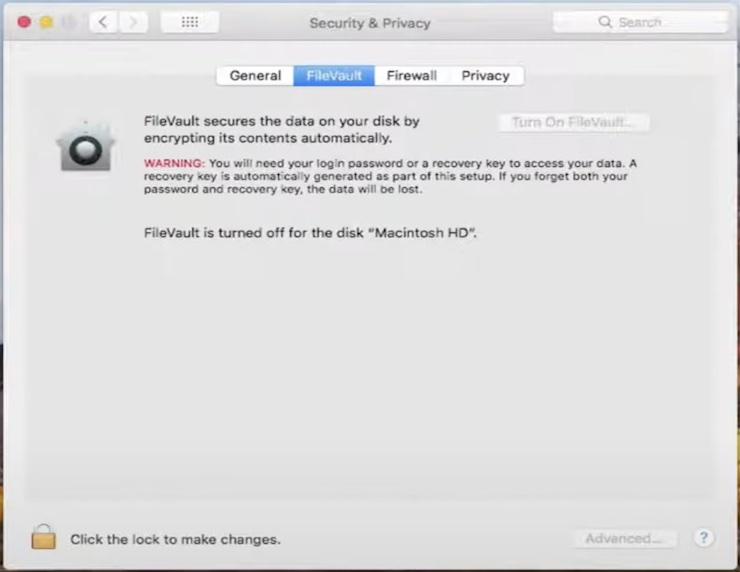
Here are the steps to encrypt your disk using FileVault:
Launch the System Preferences app on your Mac.
Click Security & Privacy > FileVault.
Unlock the lock icon and enter your username and password.
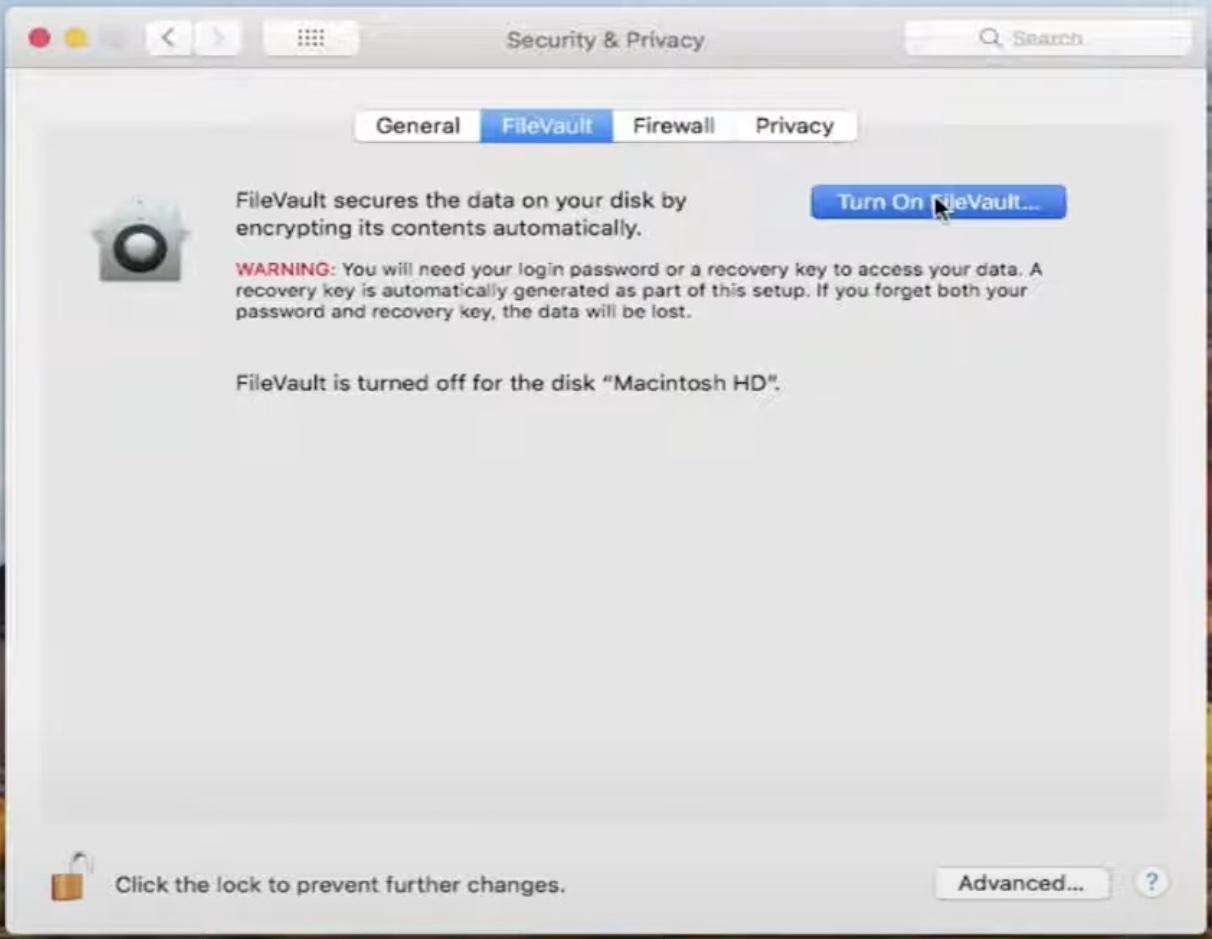
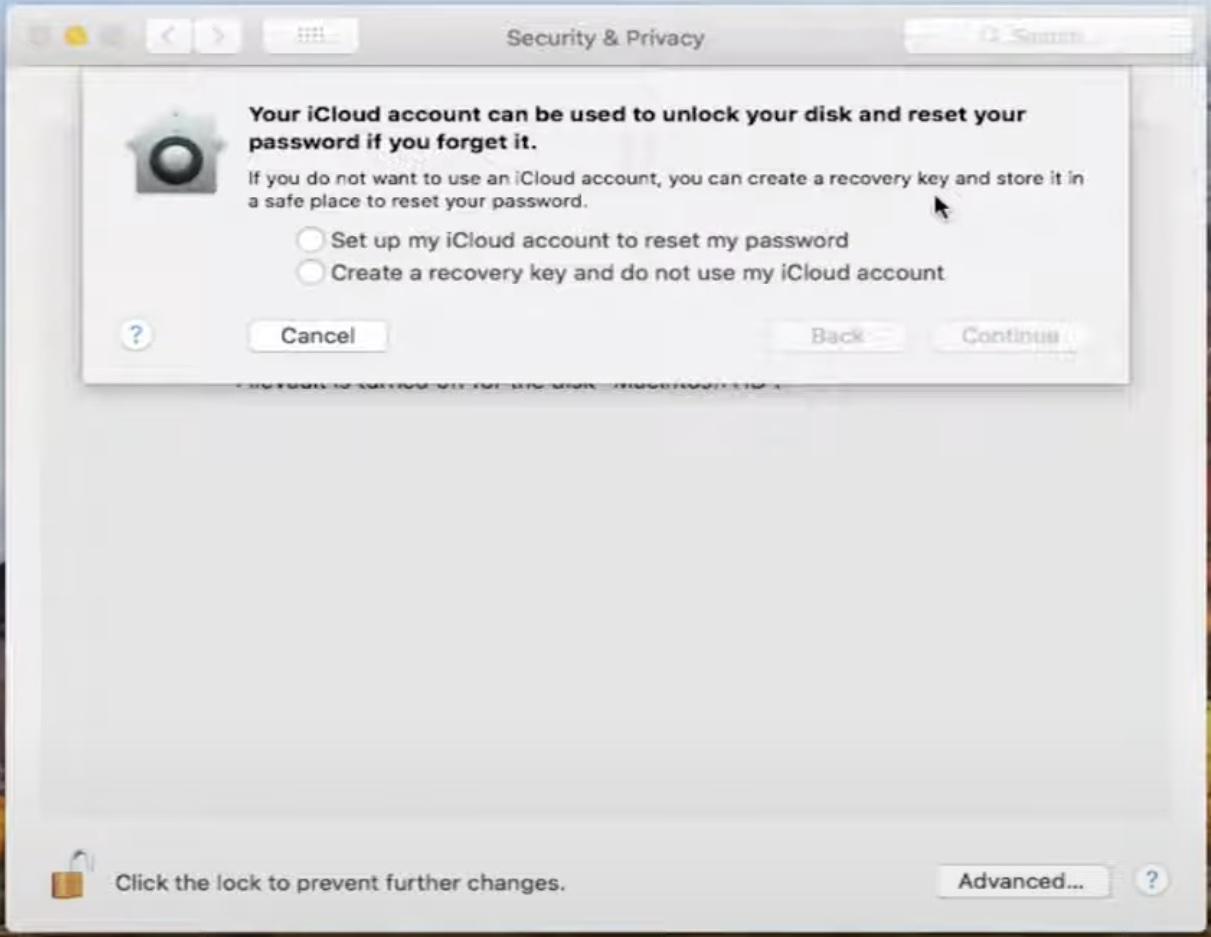
Click on the Turn On FileVault button and select how you wish to unlock your disk—using your iCloud account or creating a recovery key.
Wait until the encryption is finished.
Step 1. Opening FileVault on macOS SierraStep 2. Turning on FileVaultStep 3. Setting up password to unlock your disk
When Secure Empty Trash was introduced, it did so to deal with the way hard disk drives store data. A normal Empty Trash operation wouldn’t get rid of the deleted files completely, and they could still be recovered. Macs use solid-state drives now, which work differently, but we still advise you to protect all the data stored on your disk, including those documents you’ve moved to the Trash.
2. Use a cleaner app
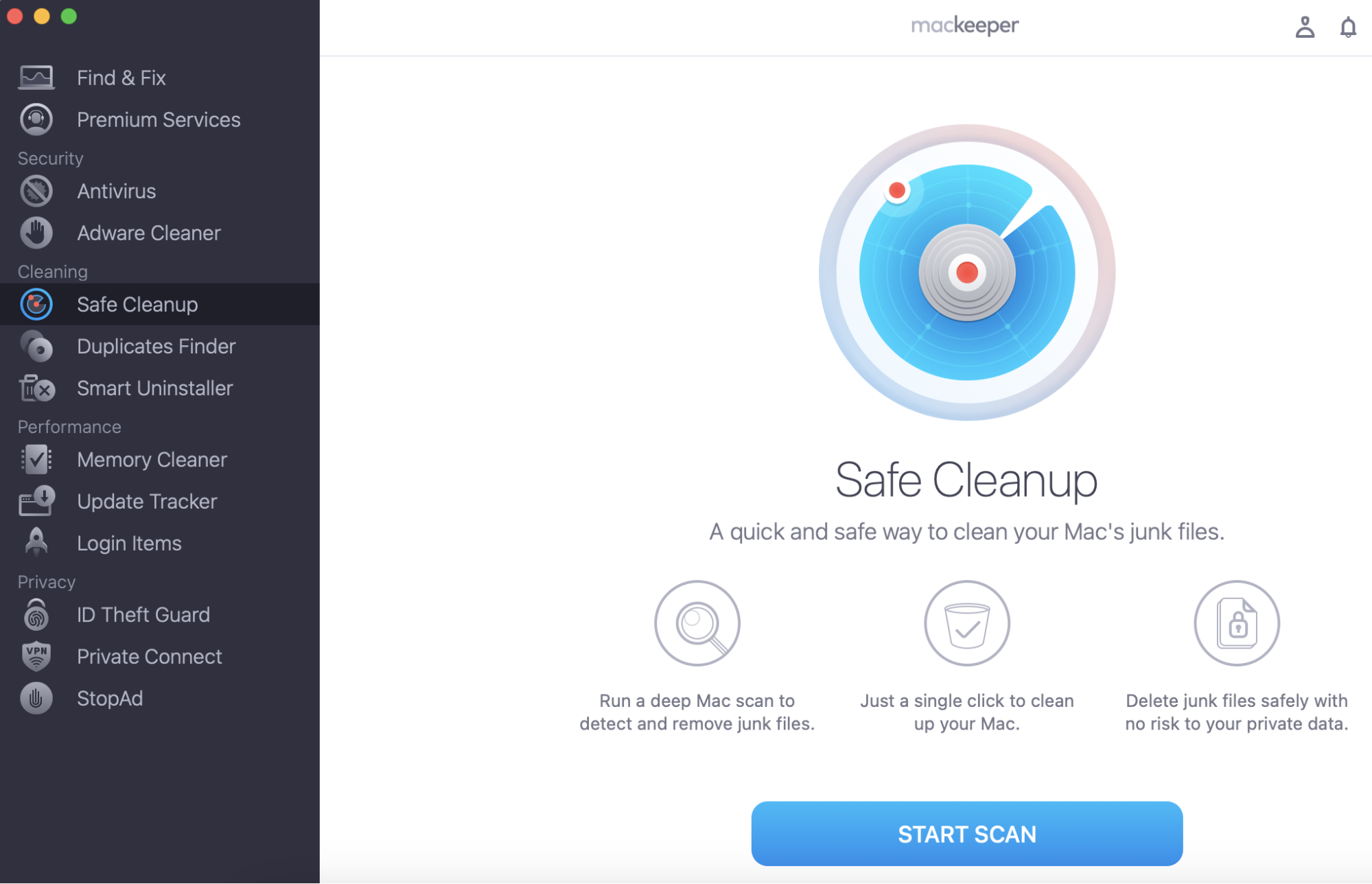
Manually sorting out all the files on your Apple computer can be a hassle. Luckily for you, cleaning apps such as MacKeeper exist, and you can benefit from features like Safe Cleanup to erase the files on the Trash securely.
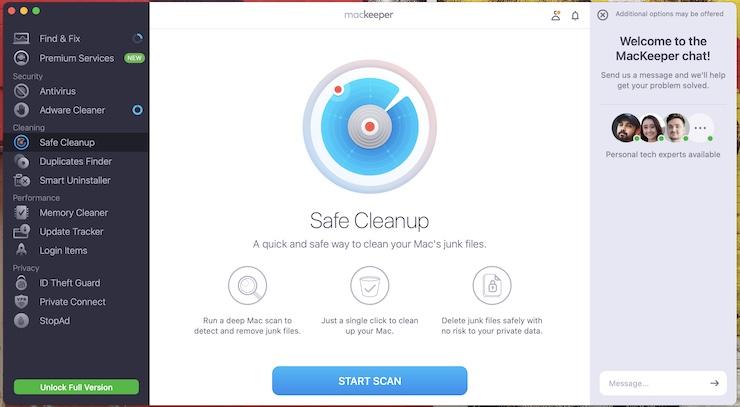
Once you’ve installed the MacKeeper app, launch it on your Mac.
Select Safe Cleanup from the left-hand side menu.
Click the Start Scan button.
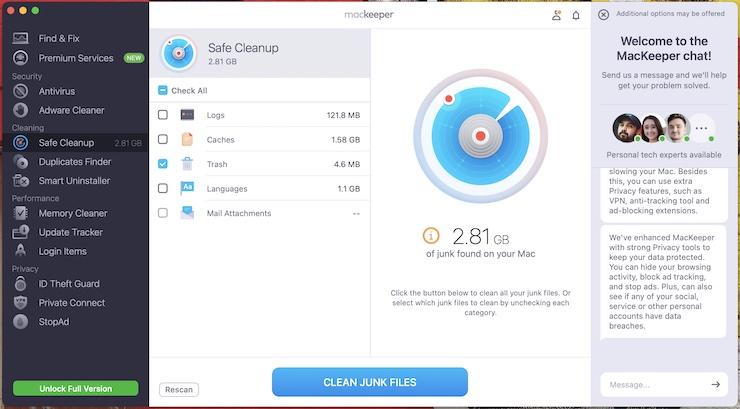
Select the Trash option and click Clean Junk Files.
You might need to give the app full access to your disk in order to clean the Trash. The app will guide you through the process and restart after that.
Step 1. Opening the Safe Cleanup featureStep 2. Selecting the Trash to clean junk files
3. Empty the trash manually
As your last resort, you can attempt to remove all those files you no longer need manually. All you need to do after you’ve moved them to the Trash is make sure you remove them forever. Below, we’ll look at key ways of emptying the Trash on Mac.
To empty the Trash from the Dock on macOS Sierra:
Right-click the Trash icon on your Dock.
Select the Empty Trash option from the drop-down menu.
When prompted, click the blue Empty Trash button in the pop-up window.
Step 1. Selecting Empty Trash from the Trash iconStep 2. Emptying Trash items permanently
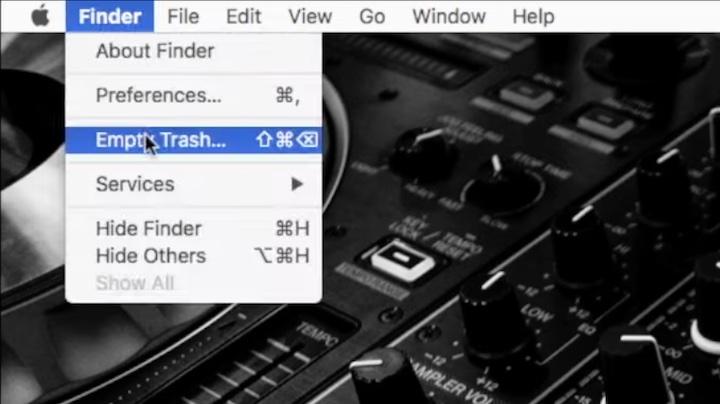
Here’s how to empty the Trash from the menu bar on macOS Sierra:
Click the Finder icon in the Dock or from the menu bar.
A drop-down menu will open, then select Empty Trash.
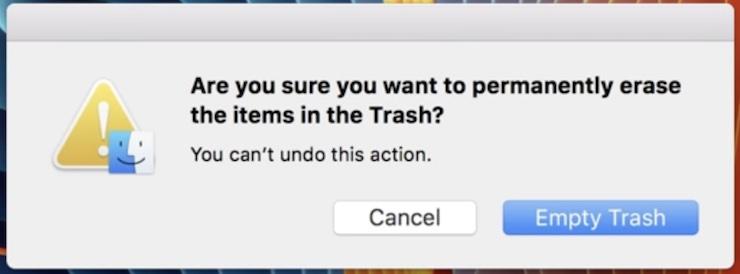
Confirm you want to delete the items in the Trash permanently by clicking the Empty Trash button.
Step 1. Selecting Empty Trash from the menu barStep 2. Emptying Trash items permanently
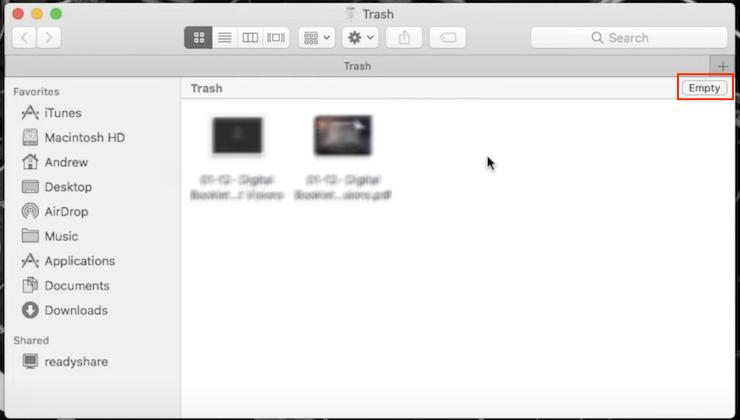
Now, follow the steps to empty the Trash from within the Trash folder on macOS Sierra:
Click the Trash icon in the Dock to open the Trash.
Find the Empty button in the upper-right corner of the Trash folder and click it.
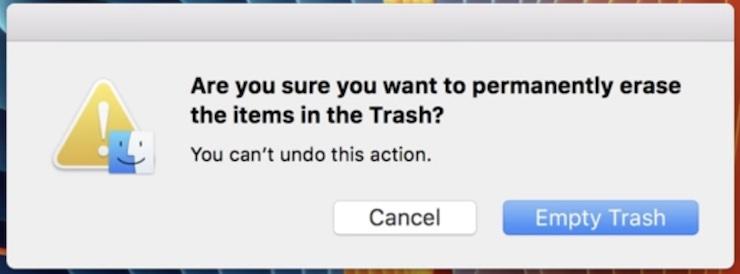
Select Empty Trash to confirm you want to permanently delete the items in the Trash.
Step 1. Clicking the Empty button in the Trash folderStep 2. Emptying Trash items permanently
Securely empty trash on macOS Sierra now
When Apple removed the Secure Empty Trash option from macOS, some Mac users rightly expressed their concerns. Fortunately, there are efficient ways to replace the missing feature on macOS Sierra—from manually deleting sensitive data to encrypting your device’s disk using FileVault.
However, using a cleaning app such as MacKeeper remains the safest alternative. MacKeeper’s Safe Cleanup tool will automate the process of erasing junk files and Trash items you no longer wish to keep, and will free up space on your Mac in the meantime.
We respect your privacy and
use cookies
for the best site experience.
Privacy Preferences Center
We use cookies along with other tools to give you the best possible experience while using the
MacKeeper website. Cookies are small text files that help the website load faster. The cookies we
use don’t contain any type of personal data meaning they never store information such as your
location, email address, or IP address.
Help us improve how you interact with our website by accepting the use of cookies. You can change
your privacy settings whenever you like.
Manage consent
All cookies
These cookies are strictly necessary for enabling basic website functionality (including page
navigation, form submission, language detection, post commenting), downloading and purchasing
software. The website might malfunction without these cookies.