Spindump on a Mac is quite a useful tool for performance optimization. Still, if you want to monitor resource-intensive processes like a pro and quickly close the ones you don’t need—try using MacKeeper’s Memory Cleaner.
Even if you’ve learned how to effectively kill background process in Mac and free up system resources, it’s still worth learning more about macOS Spindump, as it could come in handy one day.
What is Spindump on Mac?
Mac’s Spindump is a debugging tool that provides a report on unresponsive apps that were force quit. This can be requested by an app developer or member of the support team to determine the root of the app’s performance issues, including hanging, crashing, and a noisy fan.
Spindump files can be created in Activity Monitor on Mac, where you can also disable resource-intensive processes and programs.
What does Spindump do on Mac?
Spindump collects and analyzes data on macOS to help Mac users, support teams, and developers troubleshoot issues with Mac apps. However, the technical nature of the data provided by Spindump makes it more valuable to support team members and developers than the average Mac user.
Apart from apps, another resource-intensive process is the WindowServer process on Mac, as it runs in the background. However, users can kill it in Activity Monitor to free up RAM on Mac.
Why Spindump uses CPU resources
Spindump may consume a significant amount of CPU resources when an app or process hangs or crashes, prompting it to collect and process a detailed report. This can also happen when your Mac either identifies system performance hindrances or when prompted to provide logs in the Mac device’s Activity Monitor or Terminal app.
If certain apps continuously cause performance issues, consider doing something about it. For instance, you can delete default Mac apps you don’t need to free up memory and enhance your Mac’s performance.
A note from our experts:
Spindump could be a useful tool for your Mac, but it has some significant shortcomings. We recommend using MacKeeper’s Memory Cleaner for your Mac optimization.
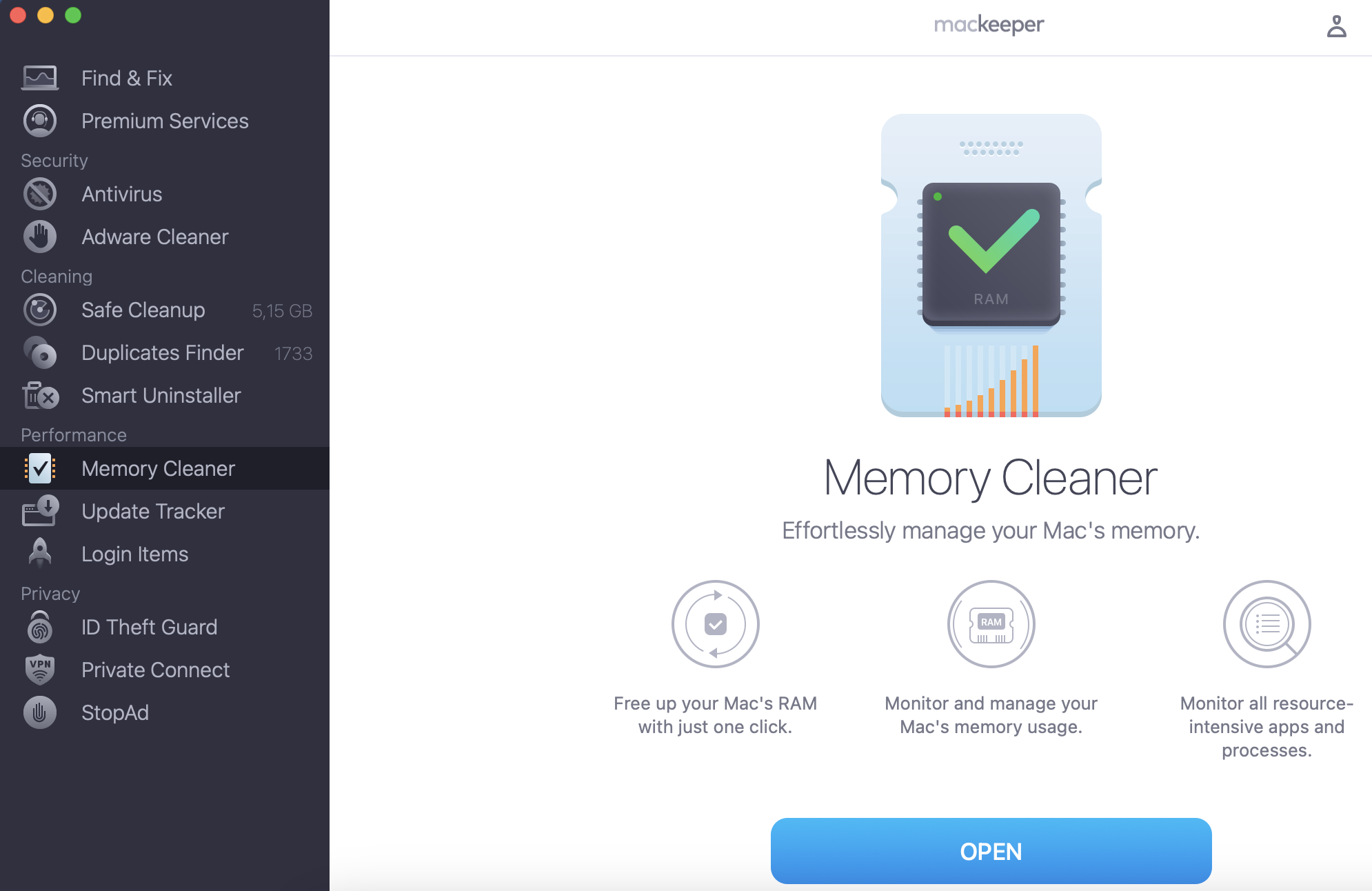
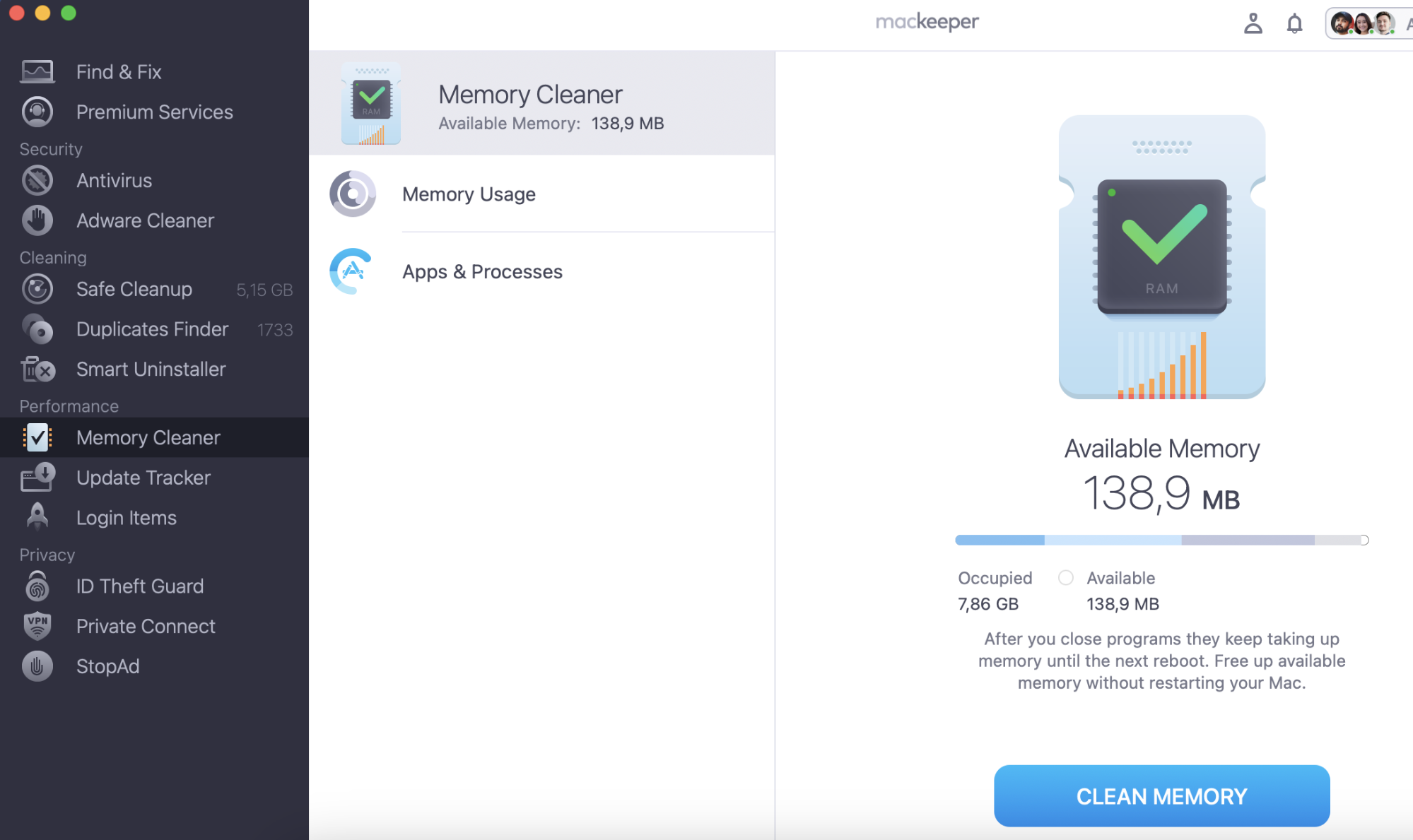
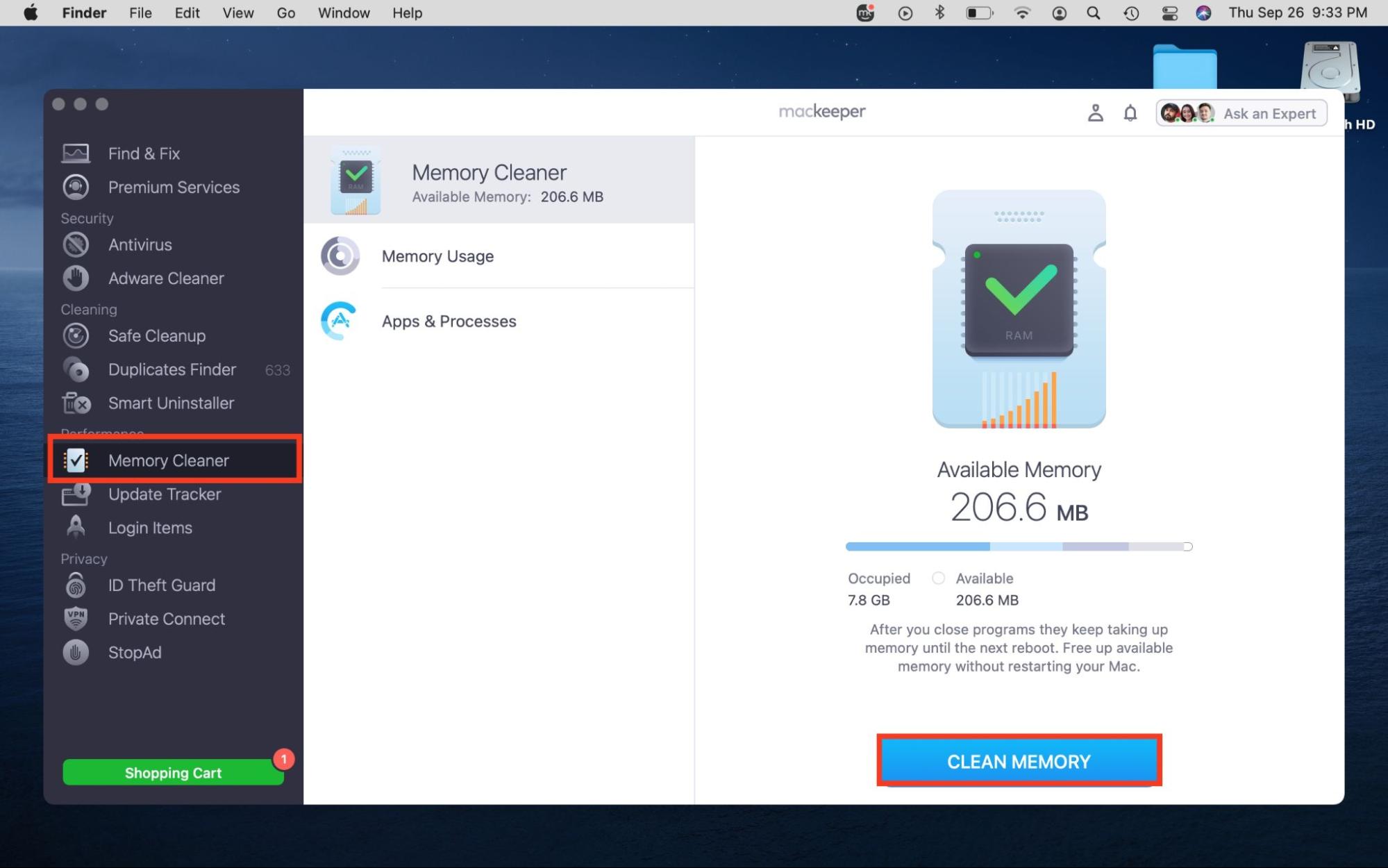
Here’s how we use MacKeeper’s Memory Cleaner to manage our Mac’s RAM:
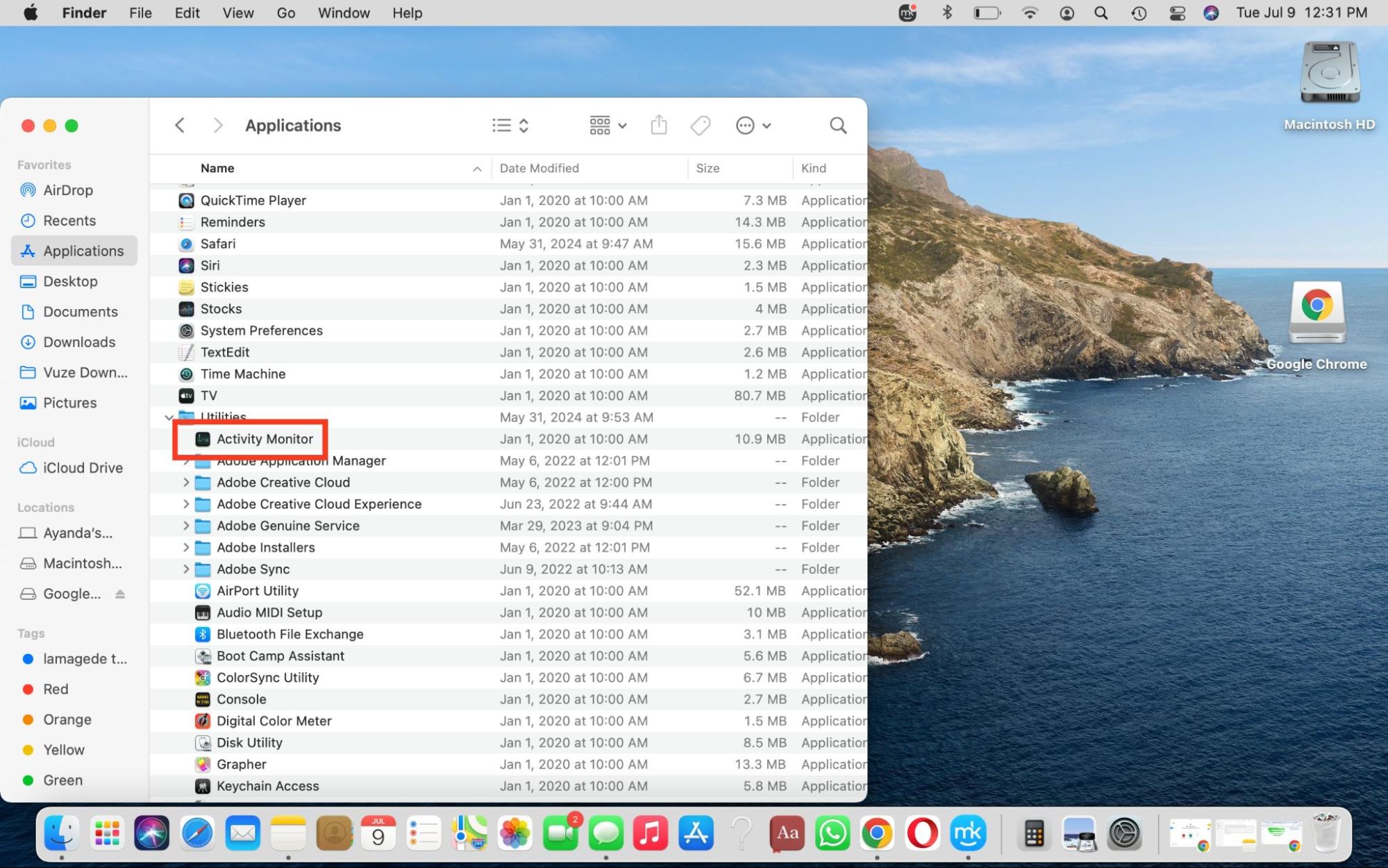
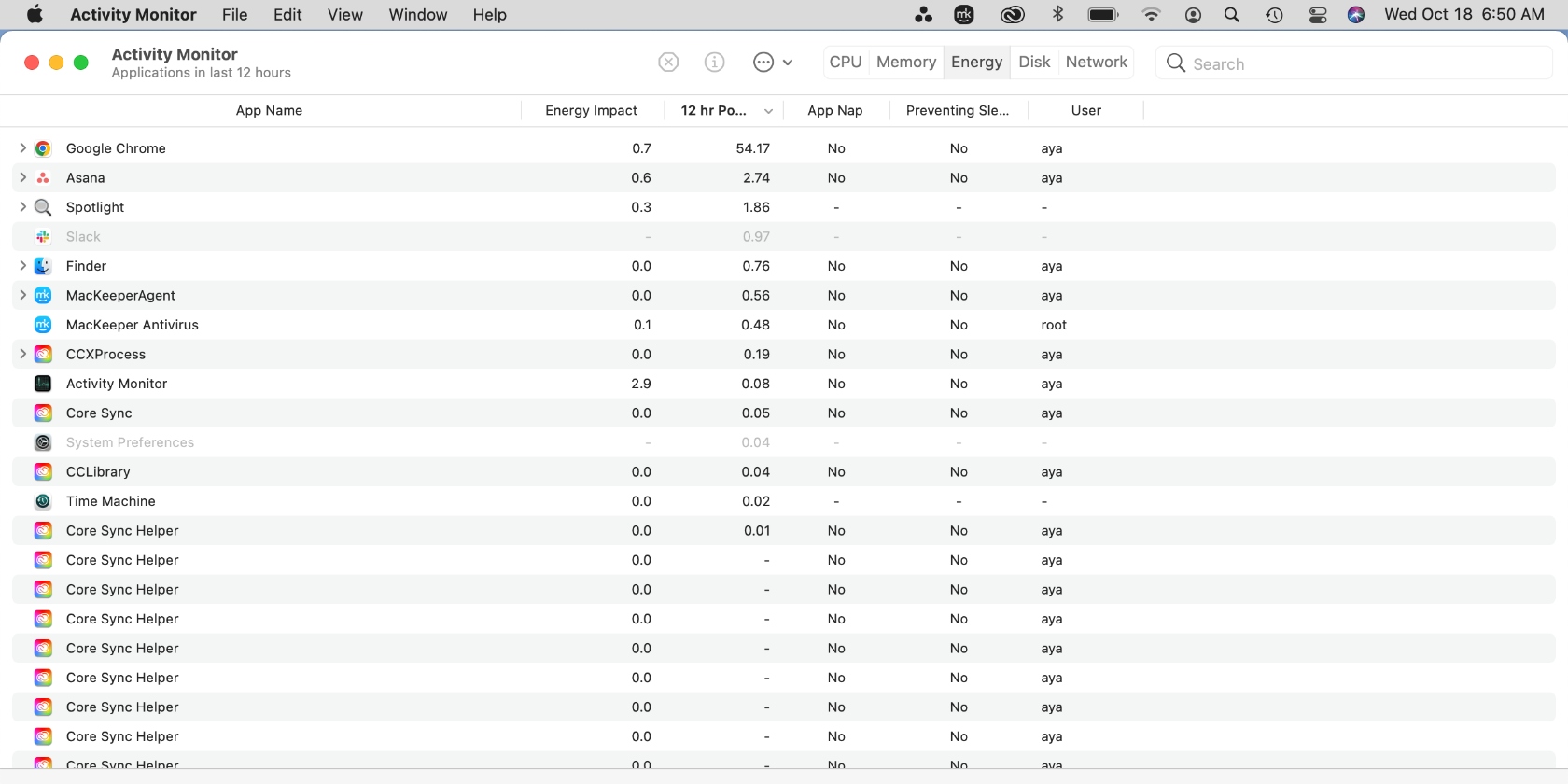
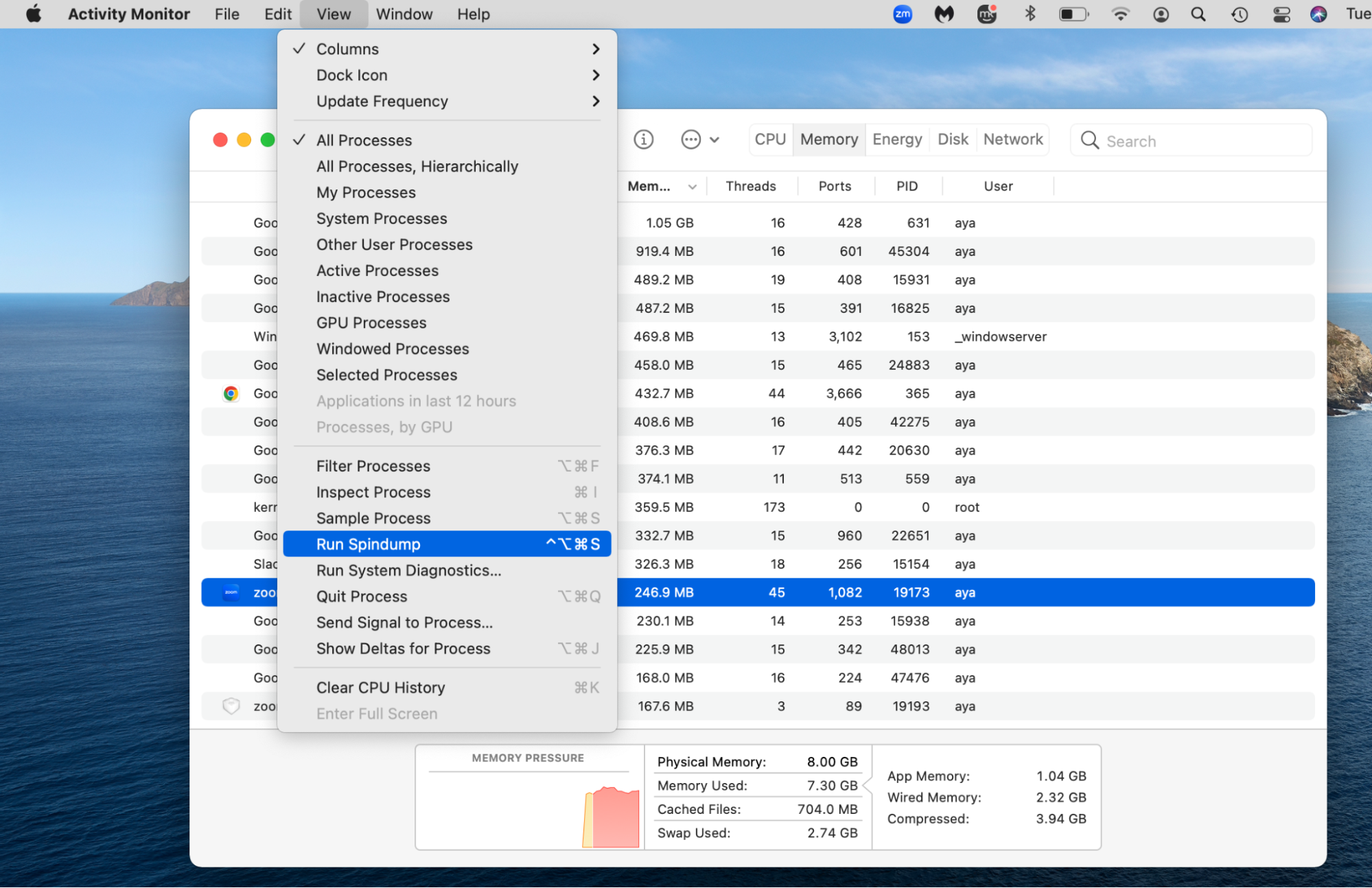
To create a Spindump Mac process on your Mac, launch Finder > Applications > Utilities > Activity Monitor. Then, find the troublesome process or app on the list and select it. Click View > Run Spindump in the menu bar.
Step 1. Open Activity MonitorStep 2. Select the troublesome appStep 3. Select View > Run Spindump
MacKeeper will now automatically create reports on the app when it fails, including the cause of the crash.
When to use Spindump for diagnostics
Use Spindump if your apps consistently fail, crash, or freeze, or when you notice a huge spike in CPU resources or memory.
An alternative from our team:
MacKeeper’s Memory Cleaner is an excellent multi-use tool that quickly and safely removes redundant processes and helps manage your Mac’s memory usage more efficiently. Use it to automate the process of optimizing your Mac for optimal performance.
We followed the steps below to use MacKeeper’s Memory Cleaner:
Repeat the first three steps, using the command below instead to re-enable SIP on your MacBook: csrutil enable
Reboot your laptop.
Identify app issues with Spindump on Mac
Spindump on Mac helps users understand the root of their app issues. If you notice a pattern of your Mac suddenly hanging, crashing, or refusing to operate while using certain apps, Spindump can help you get to the root of it. Alternatively, if you find Spindump reports too complex to comprehend, app developers and Apple Support technicians can help break it down for you.
Explore Spindump in our helpful guide, including what it is, what it does, how to create and disable a Spindump, and when to use it for diagnostics. To go a step further, we recommend using a third-party tool such as MacKeeper’s Memory Cleaner. This expert software provides a comprehensive view of your Mac’s memory and resource consumption, helping you optimize your Mac’s memory and remove resource-intensive processes that may be dampening your device’s performance.
We respect your privacy and
use cookies
for the best site experience.
Privacy Preferences Center
We use cookies along with other tools to give you the best possible experience while using the
MacKeeper website. Cookies are small text files that help the website load faster. The cookies we
use don’t contain any type of personal data meaning they never store information such as your
location, email address, or IP address.
Help us improve how you interact with our website by accepting the use of cookies. You can change
your privacy settings whenever you like.
Manage consent
All cookies
These cookies are strictly necessary for enabling basic website functionality (including page
navigation, form submission, language detection, post commenting), downloading and purchasing
software. The website might malfunction without these cookies.