Losing files to a failed drive, a bad macOS update, or a stolen MacBook is the thing you only regret once. The best Mac backup software protects your files, apps, settings, and system data, whether through local copies, cloud storage, cloning, or scheduled runs. MacKeeper's Safe Cleanup clears junk first, so you're backing up what matters rather than gigabytes of cache.
What to consider before choosing Mac backup software?
Before comparing tools, work out what you need to recover from. Someone who wants yesterday's version of a document has different needs from someone who wants a whole Mac running again by lunchtime, and that question narrows the field faster than any feature list.
Here are the factors we weigh every time we test a backup tool:
Ease of use. A backup you never configure correctly is worse than no backup, because it gives you false confidence.
Restore speed. Backing up is the easy half. Ask how long a full restore takes and whether you can pull back one file without unpacking everything.
Backup destination. External hard drive, network server, or cloud. As we've noticed, a mix saves people—local for speed, off-site for disasters.
Version history. Some tools keep months of versions, others only mirror your files—and a mirror will happily copy your mistakes over the good data.
Encryption. Anything leaving your home should be encrypted, and ideally with a key only you hold.
Pricing model. One-time purchase, annual subscription, or per-device cloud fee; each suits a different budget.
Compatibility. Check your macOS version and chip are supported. Apple silicon changed what cloning software can do, and not every app kept up.
One more thing before you start. Based on our experience, the best backup for Mac is the one that runs on a tidy machine. Backing up a drive stuffed with old caches just means slower runs and a fuller destination disk. It's worth taking a moment to clean up Mac storage before your first backup, then choosing your macOS backup software from the options below.
Top backup programs for Mac
We've compared the eight backup programs for Mac our team reaches for most, and we've been honest about where each falls short. Every entry covers what the tool is for, what it does well, where it frustrates, what it costs, and who it suits.
If you've never set any of this up, our walkthrough on how to backup files on a Mac covers the basics first. Then come back and pick your top Mac backup software from this list.
A note from our experts:
A backup copies whatever it finds, including the caches, logs, and language files you'll never open again. Clearing them first makes every run faster and leaves more room on your destination drive, which is why we treat it as a basic habit rather than an occasional chore. MacKeeper is a macOS utility software that offers performance monitoring alongside Safe Cleanup, so your Mac feels smooth and speedy before the backup even starts.
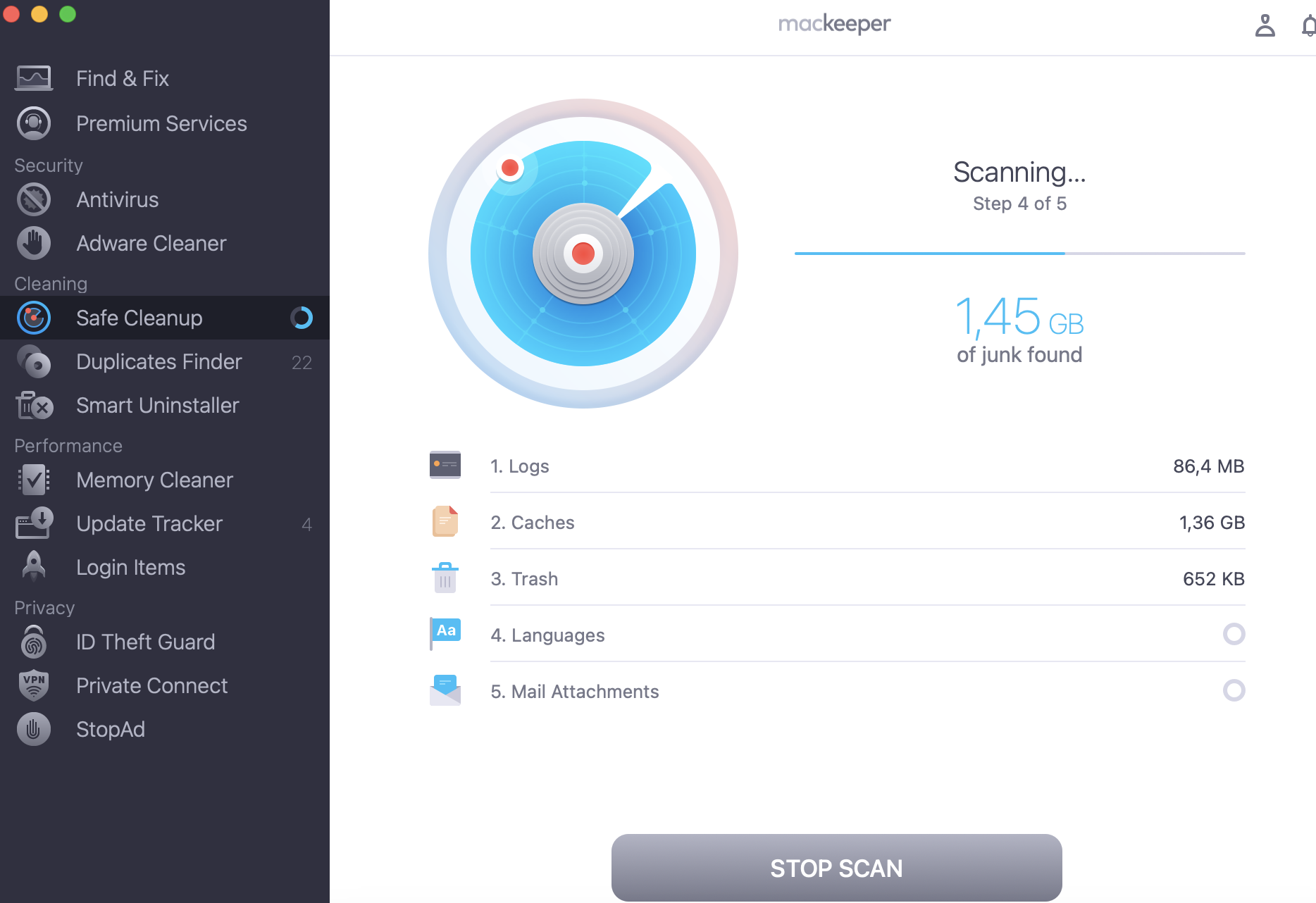
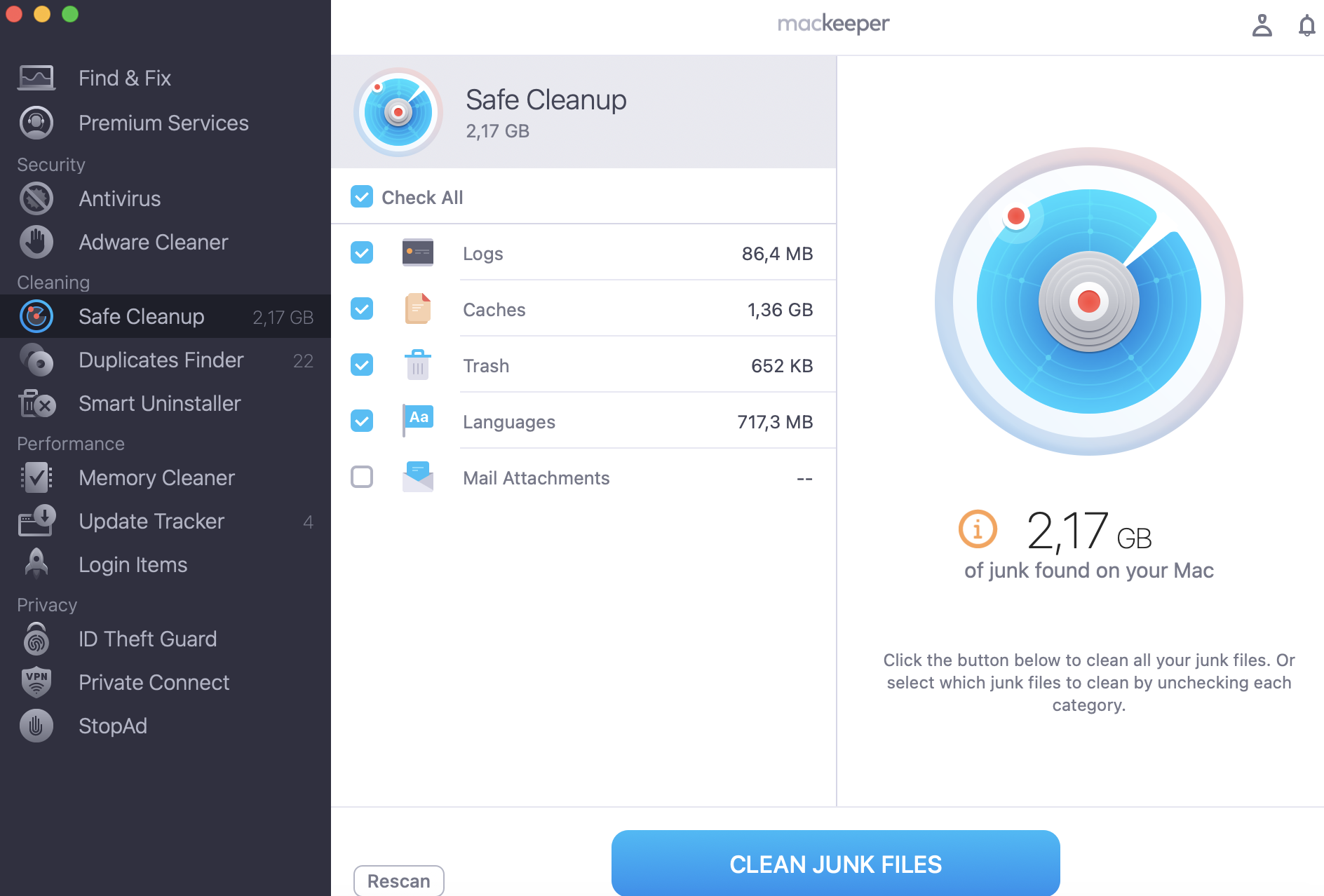
Here's how to clear the junk with MacKeeper's Safe Cleanup:
Click Start Scan and wait while MacKeeper checks your drive.
Review the categories found,such as Logs, Caches, Trash, Languages, and Mail Attachments, then click Clean Junk Files to remove them.
Step 1. Open MacKeeper and select Safe Cleanup from the left sidebar, then click Start ScanStep 2. Select the categories you want to remove, then click Clean Junk Files
1. Time Machine is best built-in Mac backup tool
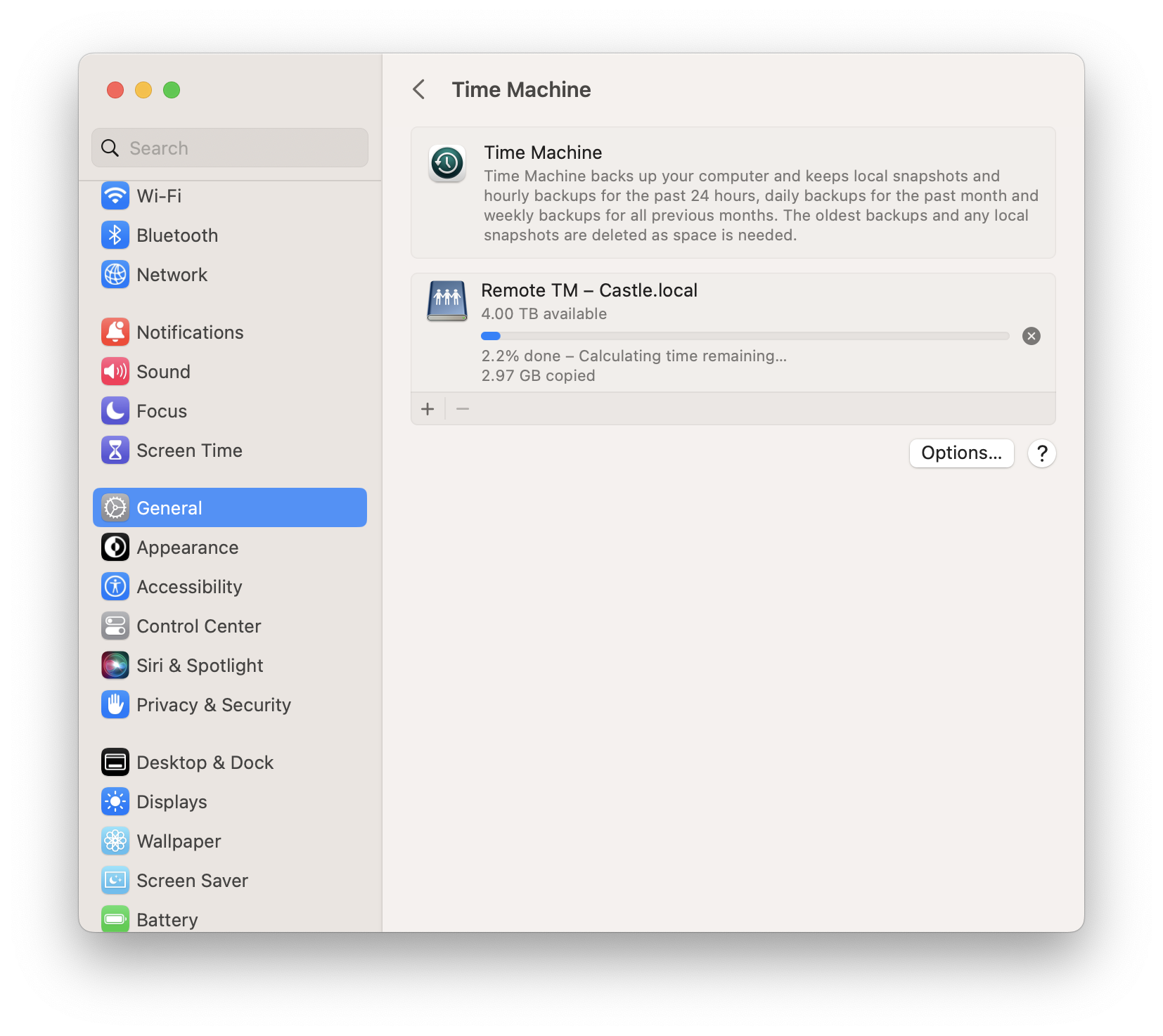
Time Machine is Apple's own backup utility, built into macOS and free with every Mac. Point it at an external hard drive and it takes hourly snapshots in the background, keeping daily and weekly versions until the disk fills up. Restoring is as simple as browsing back through time and pulling out the file you want.
Where it shines is migration: when you buy a new Macintosh, Setup Assistant pulls your entire system across from a Time Machine disk, apps and settings included. The limitation is that it's local only—if your drive and your Mac are stolen together, both copies go with them. First backups are slow, too.
You'll find it in System Settings › General › Time Machine, and our guide to how does Time Machine work is worth reading first. Apple's own documentation sits on support.apple.com.
Pricing: Free, included with macOS.
Best for: Casual users who want automatic local backups and an easy path to a new Mac.
Adding an external backup disk to Time Machine in System Settings on macOS
2. Get Backup Pro for flexible file backups and cloning
Get Backup Pro from BeLight Software suits people who want to decide exactly what gets copied rather than backing up everything. It handles scheduled backups, folder-level selections, compression, cloning, and encrypted archives, and its compressed backups can shrink your data by roughly half compared with a straight copy.
A useful detail: restores don't need the app itself, so you can pull files back on a Mac without Get Backup Pro installed. On the downside, the interface feels dated, and it won't capture a complete system image the way Time Machine does.
If you're archiving anything sensitive, its encryption pairs well with knowing how to encrypt folder on Mac natively. Details and a trial are on belightsoft.com.
Pricing: One-time purchase of roughly $20, or included with a Setapp subscription.
Best for: Users who want granular control over which files get backed up, with encryption and compression.
Choosing a project type in Get Backup Pro to set up a scheduled Mac backup
3. ChronoSync for advanced backup and synchronization workflows
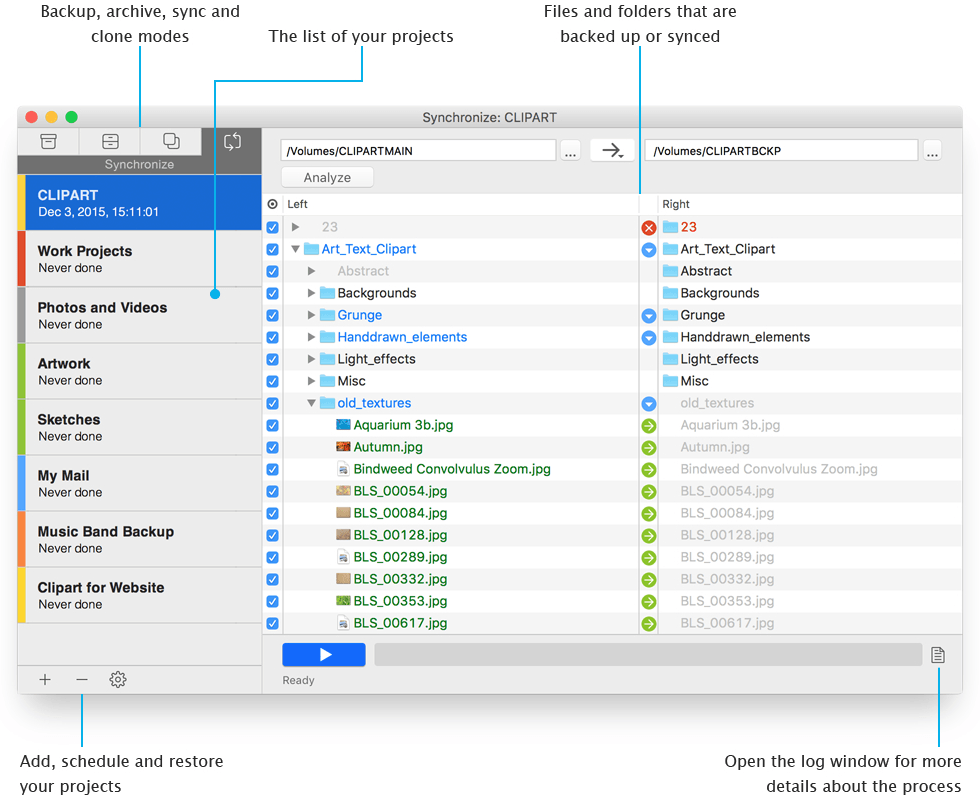
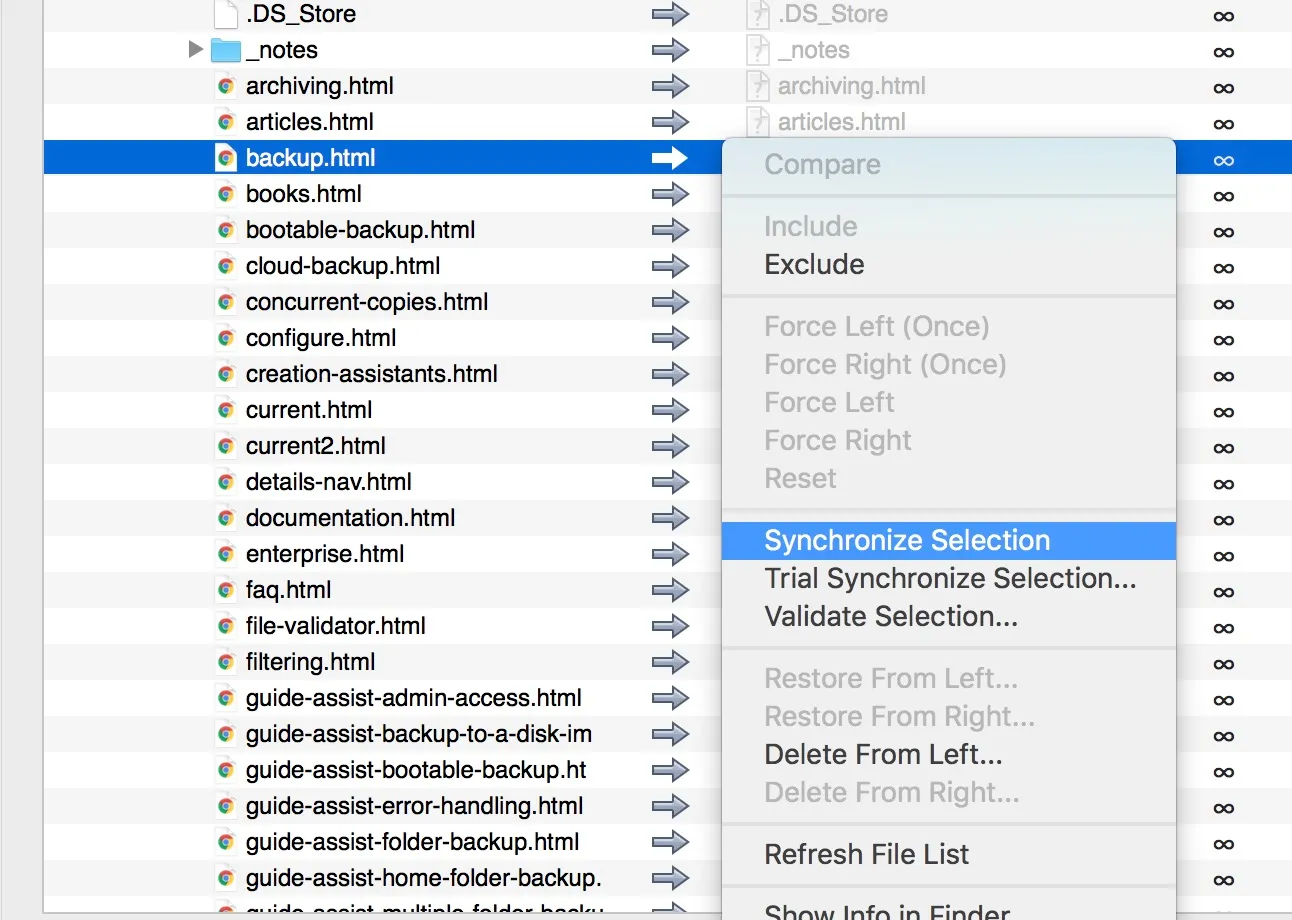
ChronoSync, from Econ Technologies, is the tool our team reaches for when a job gets complicated. It combines backups, folder synchronization, and archiving in one app, and it can write to local drives, network volumes, remote Macs, and cloud storage. Triggers, filters, and validation rules let you build workflows that run without supervision.
That power costs you simplicity. The learning curve is steep, and if all you want is an automatic copy of your Documents folder, this is far more app than you need. Run several Macs, though, and few tools match its control.
It's also a sensible fallback when Apple's utility misbehaves. See our guide on Time Machine not working before you give up on it entirely. A 15-day trial is available at econtechnologies.com.
Pricing: One-time purchase of around $50, with paid upgrades between major versions.
Best for: Power users managing multiple Macs, remote destinations, or detailed sync schedules.
Creating a synchronizer document in ChronoSync to define a backup task
4. Carbon Copy Cloner for bootable and customized backups
Carbon Copy Cloner from Bombich Software is still the most capable local backup utility we've used. It runs scheduled incremental backups, keeps APFS snapshots, verifies what it copies, and stores everything in Finder-readable form, so you can grab a single file without launching the app.
One thing worth being straight about: the bootable clone that made it famous no longer works as it used to. Apple's security changes since Big Sur made bootable copies unreliable, and on Apple silicon they largely aren't an option. You get an excellent data backup—just not a drive you can start your Mac from.
Carbon Copy Cloner 7 requires macOS Ventura or later, and there's a full 30-day trial at bombich.com.
Pricing: $49.99 one-time for a personal and household license covering all your Macs.
Best for: Power users who want precise local backups, snapshots, and reliable file-level recovery.
Selecting a source disk and destination drive in Carbon Copy Cloner
5. SuperDuper! for simple Mac cloning
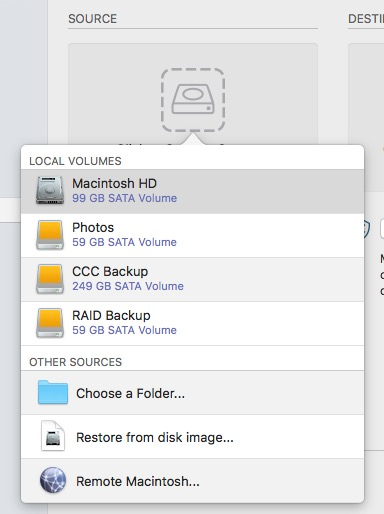
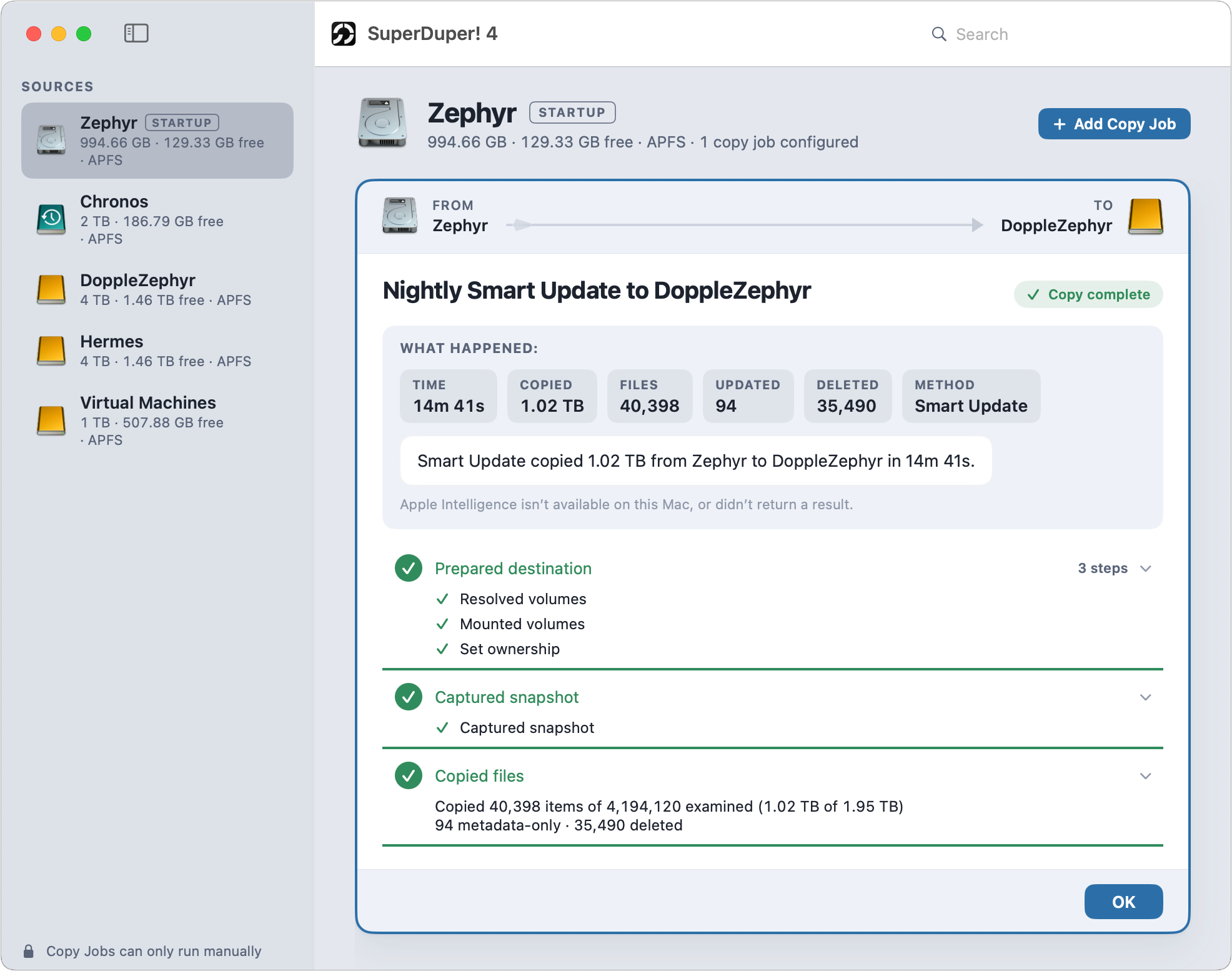
SuperDuper! from Shirt Pocket does one thing and keeps it simple. You pick a source drive, pick a destination, choose what kind of copy you want, and let it run. Its Smart Update feature copies only what changed since last time, which turns a multi-hour job into a few minutes.
The trade-offs are age and scope. The interface has barely changed in years, there's no cloud destination, and it carries the same Apple silicon caveat as Carbon Copy Cloner—don't count on a bootable result. Many features work in the free version, so you can test it properly first.
You can download it from shirt-pocket.com. In our view, it's the right pick when you want a drive copy and nothing else to think about.
Pricing: Free for basic copies; around $40 one-time for the full household license.
Best for: Users who want straightforward drive cloning without configuration menus.
Choosing a source drive, destination, and copy method in SuperDuper!
6. Backblaze for cloud-based Mac backups
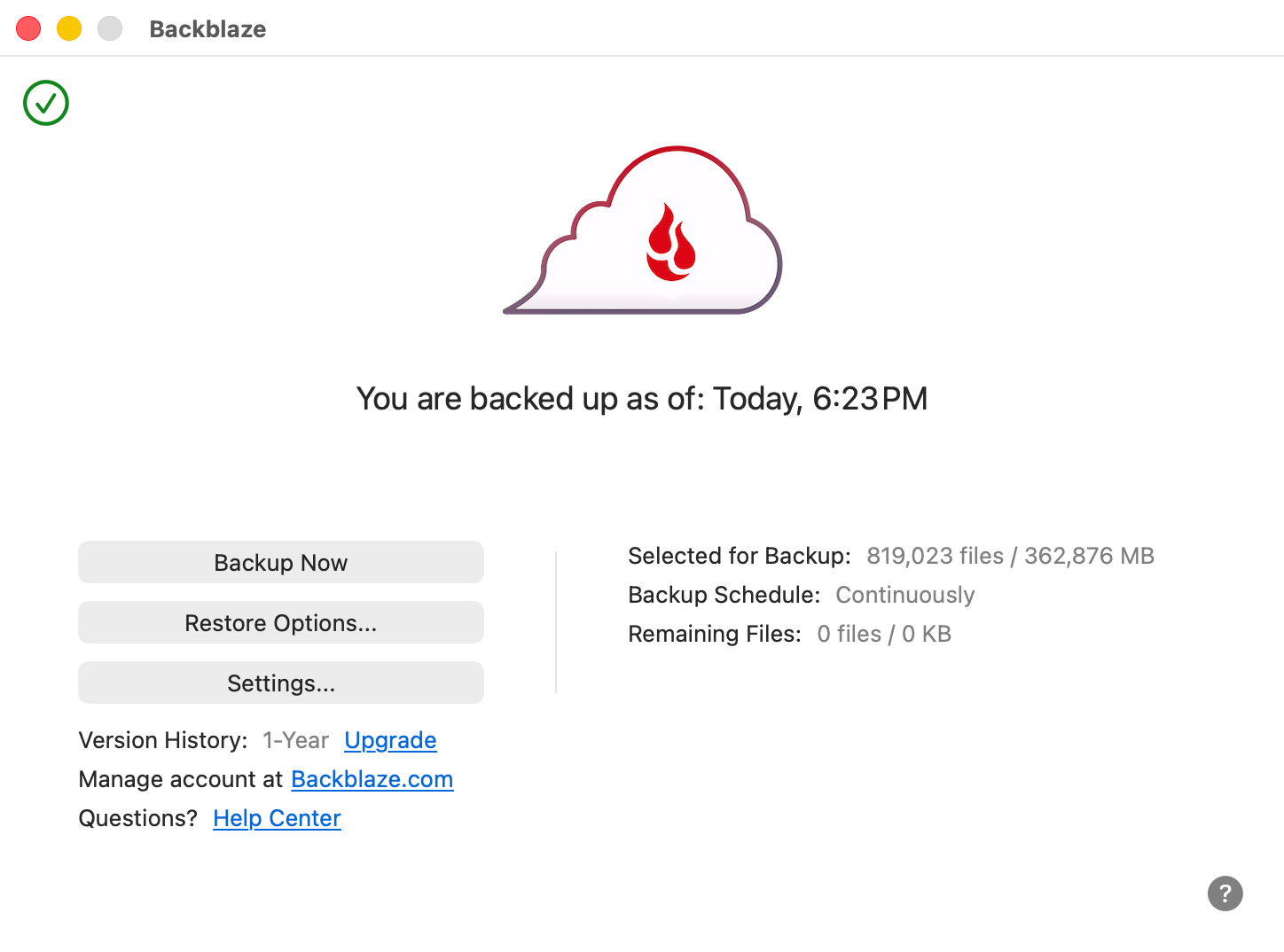
Backblaze covers the gap every local tool leaves open: what happens when the external drive is lost, damaged, or sitting in the same bag as the stolen laptop. It backs up continuously in the background with genuinely unlimited storage, and it picks up connected external drives too, as long as you plug them in at least once a month.
Restores are where it earns its reputation: download your files, or have Backblaze ship a physical drive if you're recovering terabytes. Limitations to know—one license per computer, no NAS or server support, AES-128 encryption by default, and extended version history costs extra.
If the drive it's meant to protect has stopped appearing, our fix for an external drive not showing up on Mac is worth a look. Plans are listed at backblaze.com.
Pricing: Around $9 per month or $99 a year per computer, with unlimited storage and a 15-day trial.
Best for: Anyone who needs an off-site copy without thinking about storage limits.
Backblaze running its first continuous background backup on a Mac
7. IDrive for multi-device Mac backup
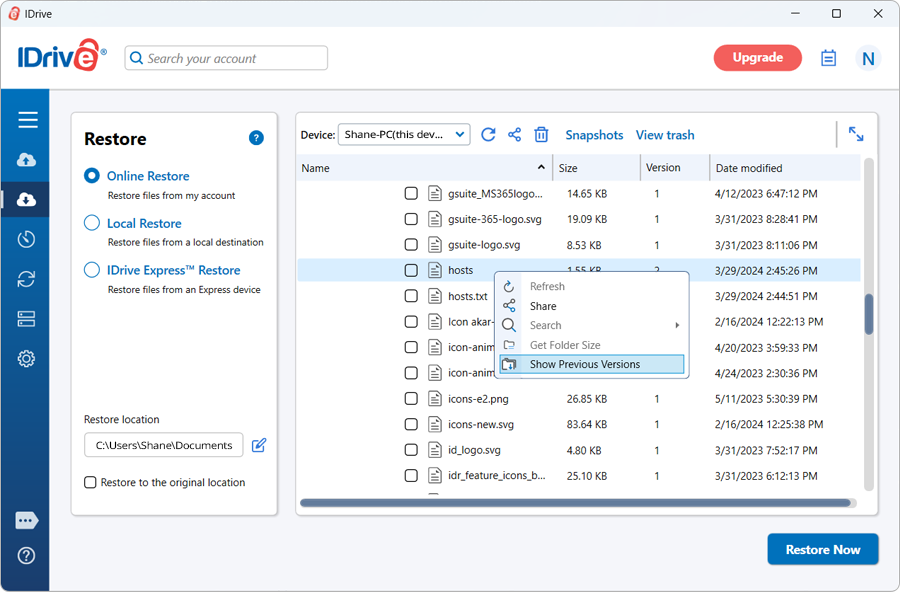
IDrive is built around households rather than single machines. One account covers unlimited devices (your MacBook, an iMac, phones, tablets, Windows PCs), drawing from a shared storage pool instead of charging per computer. It keeps up to 30 versions of each file and backs up network drives and servers, which Backblaze won't touch.
The catch is renewal pricing. First-year discounts are steep and the standard rate afterwards is a noticeable jump, so check year two before committing. The interface is busier than its rivals, too.
There's a free 10GB tier if you want to test the workflow first, and the current plans are at idrive.com.
Pricing: Free for 10GB; personal plans from roughly $80 a year for 5TB, heavily discounted in year one.
Best for: Households and freelancers backing up several devices under a single account.
Selecting folders for automatic cloud backup in the IDrive app on Mac
8. Acronis True Image for backup with security features
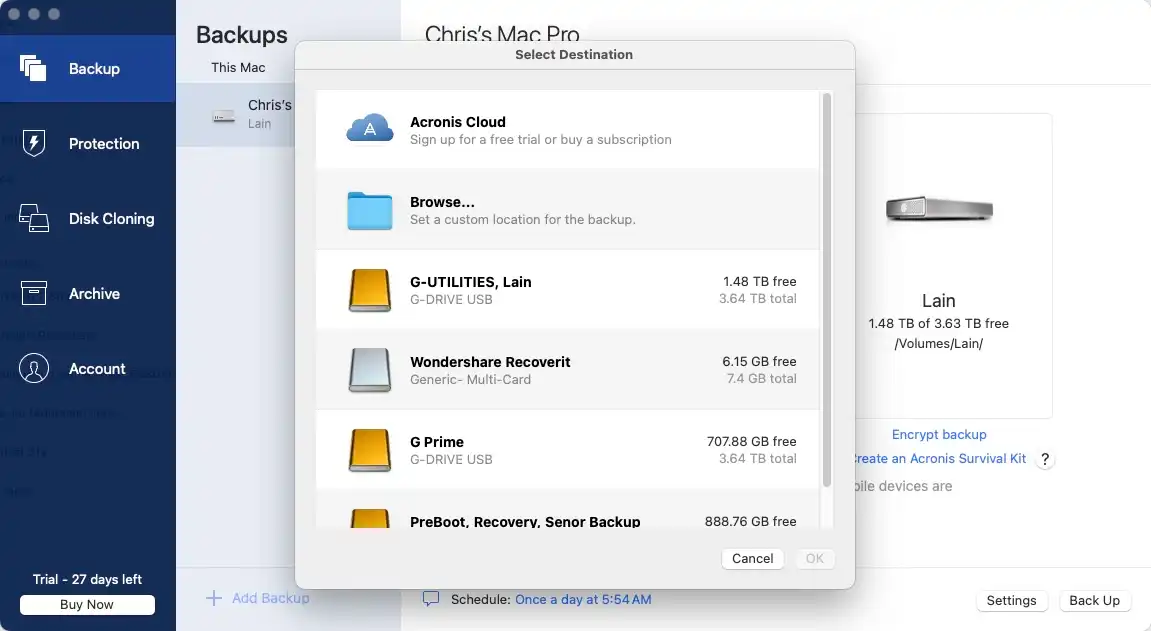
Acronis True Image folds security into the backup itself. Alongside full disk imaging and cloud storage, it adds anti-ransomware monitoring, antivirus scanning, and vulnerability checks, so a compromised file is less likely to replicate quietly into your backup set.
That breadth has a price. It's subscription-only, heavier on system resources than the single-purpose tools here, and the interface tries to do so much that simple tasks take more clicks than they should.
The security angle only goes so far, though—it's still worth knowing how to protect Mac from viruses independently of your backup tool. Current tiers are listed at acronis.com.
Pricing: Subscription from around $50 a year for local backup, with cloud-enabled tiers costing more.
Best for: Users who want disk imaging and ransomware protection managed from one app.
Choosing a backup source and destination in Acronis True Image on Mac
Conclusion
The best backup software for Mac is whichever one you'll actually keep running, so pick for simple recovery over long feature lists. MacKeeper is optimized for macOS and trusted by millions of users, and its Safe Cleanup clears junk before you back up. Try it out today!
We respect your privacy and
use cookies
for the best site experience.
Privacy Preferences Center
We use cookies along with other tools to give you the best possible experience while using the
MacKeeper website. Cookies are small text files that help the website load faster. The cookies we
use don’t contain any type of personal data meaning they never store information such as your
location, email address, or IP address.
Help us improve how you interact with our website by accepting the use of cookies. You can change
your privacy settings whenever you like.
Manage consent
All cookies
These cookies are strictly necessary for enabling basic website functionality (including page
navigation, form submission, language detection, post commenting), downloading and purchasing
software. The website might malfunction without these cookies.