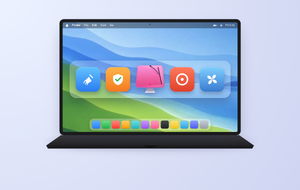
Is your Mac feeling slow, cluttered, or low on space? The best Mac optimizer can clear junk files, free up storage, manage startup items, remove duplicates, and monitor performance. MacKeeper’s Memory Cleaner frees up memory by quitting memory-draining apps, so your MacBook runs more smoothly. Click below to start.
Apple builds macOS to handle memory on its own, but over time any Mac collects clutter it can’t shake off on its own. Think of an optimizer as a tidy-up crew that works through your system, clears out what you don’t need, and shows you where your space went. We’ve leaned on these tools for years, and the best Mac cleaning software really does lighten the load.
In our team’s opinion, here’s what a good optimizer can take off your plate:
Cleaning system junk and cache files
Finding large files and freeing up storage
Deleting duplicate files in your Downloads and Photos
Managing login items that slow down startup
Uninstalling apps along with their leftover files
Checking for malware
Monitoring CPU and RAM usage
Improving browser privacy
A note from our experts:
Whether you’re on an older Macintosh with a hard drive or a newer one with an SSD, freeing up space makes a real difference. A good cleaner can sort files by size, flag copies you’ve already saved to iCloud, and even add a handy shortcut to your menu bar. If memory cleanup and freeing your CPU usage is your main goal, we already suggest trying MacKeeper’s Memory Cleaner to save your time.
Here’s how to use MacKeeper’s Memory Cleaner:
Download, install and launch MacKeeper on your Apple computer.
Click Memory Cleaner on the left.
Select Open > Clean Memory for the immediate CPU freeing help.
Recheck the memory usage now.
Step 1. Choose MacKeeper’s Memory Cleaner > OpenStep 2. Click Memory Cleaner > Clean MemoryStep 3. Check the available memory after the cleaning is over
Best Mac optimization tool
There’s no single tool that does everything for everyone. This roundup of the best Mac optimization software covers full Mac care apps, cleanup utilities, free maintenance tools, storage analyzers, uninstallers, and performance monitors. Each one optimizes a Mac in its own way, so the best optimizer for Mac depends on the issue you’re trying to solve.
If you’re still learning how to clean up Mac storage, you’ll find that a single, trusted app to clean up Mac clutter can save you hours. Each tool below comes with a quick rundown—what it’s for, when it helps most, who it suits, plus its key features, limitations, and pricing. Take a look at our picks below and find the one that fits your Mac.
1. MacKeeper
MacKeeper bundles cleanup, app management, and privacy tools into a single optimizer, so you don’t have to juggle several apps. It’s the win-win choice when you want one trusted app for everyday upkeep, and it suits MacBook users who prefer guided, hands-off maintenance.
Key features—cleanup, storage management, app removal, security checks, system maintenance
Limitations—the bundled approach gives you fewer manual controls than specialist tools, and you may pay for parts you rarely use
Pricing—subscription, with a free scan to start
2. CleanMyMac
CleanMyMac handles smart cleanup, maintenance tasks, and malware checks in a polished, beginner-friendly package. It shines when you want a simple way to clear junk, and it suits new Mac users who’d rather not dig through settings. The question of whether CleanMyMac is worth it mostly depends on how much you value convenience, guided cleanup, and having several Mac care tools in one place.
Key features—cleanup, storage management, app removal, security checks, system maintenance
Limitations—the automated style means less granular control, and ongoing access leans on a paid plan
Pricing—free trial, then a subscription or one-time license
3. OnyX
OnyX is a free option for deeper macOS upkeep, like running maintenance scripts and clearing selected system files. So, if you’re comfortable getting hands-on or want control without paying, it might be a match. Before using advanced options, the OnyX for Mac review can hint you understand which tools are useful for routine maintenance and which require extra care.
Limitations—it skips one-click cleanup and asks for some technical confidence, since each version is tied to a specific macOS release
Pricing—free
4. CCleaner for Mac
CCleaner covers basic junk, browser, and startup cleanup in a familiar, no-fuss way. It’s handy when you just want quick housekeeping, and it suits people who already know CCleaner from Windows. Still, if you’re wondering if CCleaner is good for Mac, it works best for simple cleanup tasks rather than deeper Mac maintenance, diagnostics, or performance monitoring.
Limitations—it sticks to basic housekeeping, with no performance monitoring or advanced storage tools
Pricing—free version, with a paid Pro plan
5. MacBooster
MacBooster gathers several tune-up tools—speed, cleanup, startup, and more—into one app. It fits when you want a traditional, do-everything utility, and it suits users who like their maintenance tools bundled together. Our MacBooster review will give you more detail on how its cleanup, security, and performance features work together before choosing it.
Key features—cleanup, performance monitoring, app removal, security checks, large-file finder
Limitations—the broad bundle means some tools overlap, and the cleanup defaults can be eager to remove files
Pricing—free trial, then a paid license
6. Disk Clean Pro
Disk Clean Pro focuses on storage cleanup and clearing files you no longer need. We recommend it when low space is your main headache, and it suits people who just want a quick storage clear-out without extra features.
Key features—cleanup, storage management, duplicate removal, large-file finder
Limitations—it focuses on storage alone, so it skips app removal, security checks, and performance monitoring
Pricing—one-time purchase via the App Store, with a free version
7. MacCleaner Pro
MacCleaner Pro pairs storage cleanup with detailed disk usage control, so you can see exactly what’s taking up room. It’s helpful when you want more visibility, and it suits users who like a closer look at their storage. For a better idea of its toolkit, read our MacCleaner Pro review , which covers how its cleanup, duplicate search, and app removal features fit into everyday Mac maintenance.
Limitations—the toolkit can feel busy at first, and a few parts are sold separately
Pricing—free trial and a one-time purchase via the App Store
8. Omni Remover 3
Omni Remover 3 centers on complete app removal and cleaning up the files that linger afterward. We consider it a tidy choice when old apps leave leftovers behind, and it suits people who install and uninstall apps often.
Key features—app removal, cleanup, extension, and cache removal
Limitations—it handles app removal and leftovers only, so you’ll still want another tool for wider cleanup
Pricing—free trial, then a one-time purchase
9. Sensei
Sensei leans into performance monitoring and system insight rather than just deleting files, helping you understand why a Mac feels slow—even mid-game or during a heavy workflow. We recommend using it when you want to track what’s straining your Mac, and it suits curious users who like data over one-tap cleanups.
Limitations—it’s built around monitoring, so its cleanup is light and you act on the readings yourself
Pricing—free trial, then a subscription or one-time license
10. Drive Genius
Drive Genius offers advanced disk health and repair for people who need deeper control. In our professional view, you can mostly profit from it when you want detailed drive checks, and it suits experienced users rather than first-timers.
Key features—system maintenance, security checks, duplicate finding, secure data erasing
Limitations—its advanced disk tools have a learning curve and can be more than light cleanup calls for
Pricing—free trial, then a subscription or one-time license
11. DaisyDisk
DaisyDisk turns your storage into a visual map, so you can spot what fills your drive at a glance. We think it’s most helpful when low storage is slowing your MacBook down, and it suits people who want to review large files by hand before deleting.
Key features—storage management, visual disk map, manual cleanup
Limitations—it maps and clears storage by hand only, with no junk-cache automation, app removal, or security checks
Pricing—one-time purchase, with a free scan
Conclusion
The best optimizer for Mac depends on your main issue—cleanup, storage analysis, security, app management, monitoring, or deeper macOS maintenance. Pick a trusted tool that matches your goal.
Is a slow, cramped Mac wearing you down? MacKeeper’s Memory Cleaner frees up memory in a few clicks—try the best Mac optimizer app and feel the difference today.
We respect your privacy and
use cookies
for the best site experience.
Privacy Preferences Center
We use cookies along with other tools to give you the best possible experience while using the
MacKeeper website. Cookies are small text files that help the website load faster. The cookies we
use don’t contain any type of personal data meaning they never store information such as your
location, email address, or IP address.
Help us improve how you interact with our website by accepting the use of cookies. You can change
your privacy settings whenever you like.
Manage consent
All cookies
These cookies are strictly necessary for enabling basic website functionality (including page
navigation, form submission, language detection, post commenting), downloading and purchasing
software. The website might malfunction without these cookies.