Looking for the best reliable software to speed up Mac? MacKeeper's Memory Cleaner frees up RAM by quitting useless processes and stopping memory-draining apps, so your Mac feels quick again. It's a simple, one-click way to give your system room to breathe.
Is your Mac suddenly slow, and you're not sure why? The truth is that different tools solve different slowdowns, so there's no single magic button. Once you know what's dragging your machine down, picking the right app becomes easy.
If your Mac suddenly slow feeling came out of nowhere, it usually traces back to one of a few causes. Here's how the main types of apps to speed up your Mac break down:
Cleanup tools remove junk files, caches, and old logs that pile up over time.
Uninstallers clear out app leftovers that stay behind after you drag an app to Trash.
Startup managers trim the hidden apps that launch the moment you log in.
Resource monitors show you which apps eat your CPU and RAM in real time.
Disk health utilities check whether your drive is wearing out or filling up.
Workflow apps improve how you work rather than the system speed itself.
A note from our experts:
If you’re reading this piece, it means you’re really concerned about your Mac's performance and wish to optimize your computer’s performance in a timely and responsible manner. We suggest using MacKeeper’s Memory Cleaner to get this task done in a timely and safe manner. With its help, you’ll manage all processes efficiently and reduce CPU usage much more easily within seconds.
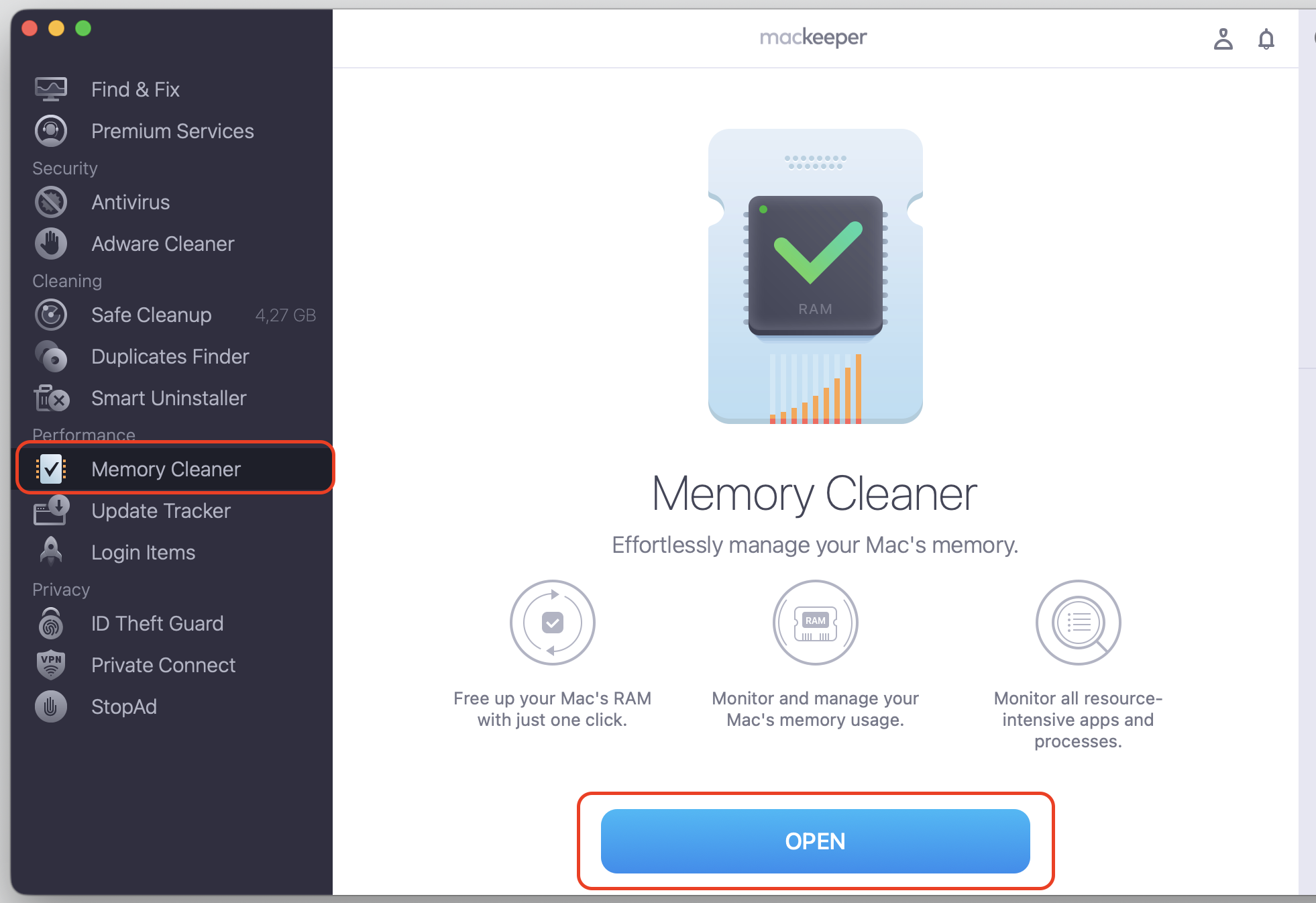
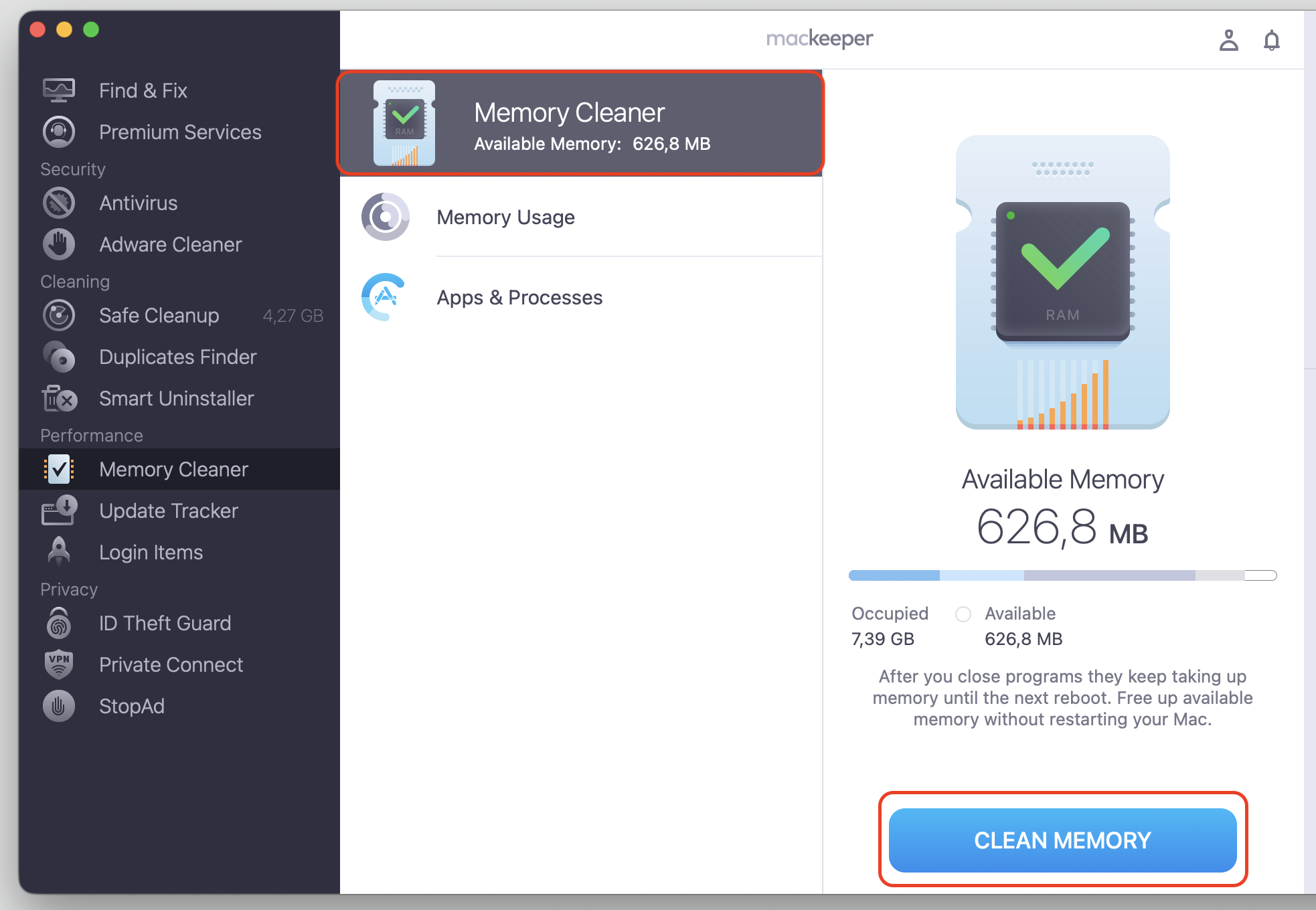
Click Open > Clean Memory to reduce the memory load created by redundant processes.
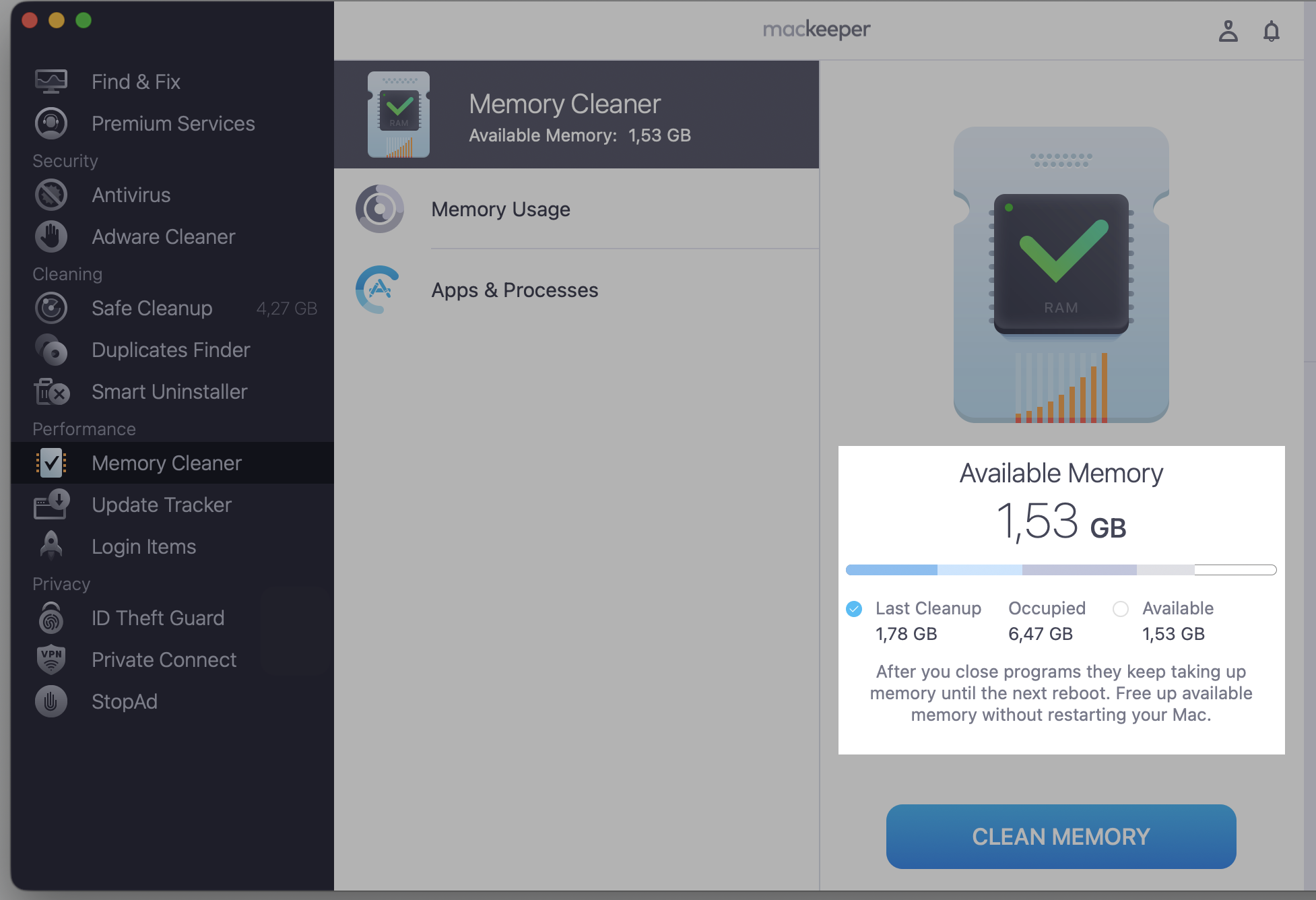
Step 1. Go to MacKeeper > Memory Cleaner and select OpenStep 2. Select the Memory Cleaner section, then click Clean MemoryStep 3. Check the available memory now
Best apps to speed up Mac
Match each tool to your specific slowdown rather than installing everything at once. If you want to check Mac speed first, you'll know exactly which area needs help. Below are ten of the best tools to speed up a sluggish Mac, with their purpose, key features, limits, and pricing.
Here's a quick side-by-side from us to help you compare these tools to speed up Mac:
App
Main purpose
Pricing
Best for
MacKeeper
All-in-one maintenance
Subscription
Everyday care
CleanMyMac
Guided cleanup
Sub / license
Beginners
OnyX
Technical maintenance
Free
Advanced users
AppCleaner
App removal
Free
Clean uninstalls
Cleaner One Pro
Simple cleaning
Free / paid
Quick scans
DaisyDisk
Storage analysis
License
Full disks
Sensei
Performance monitoring
Sub / license
Power users
AVG TuneUp
Cleanup and tuning
Subscription
No-fuss cleanup
CCleaner
Manual cleaning
Free / paid
Hands-on users
DriveDx
Disk health
License
Drive checks
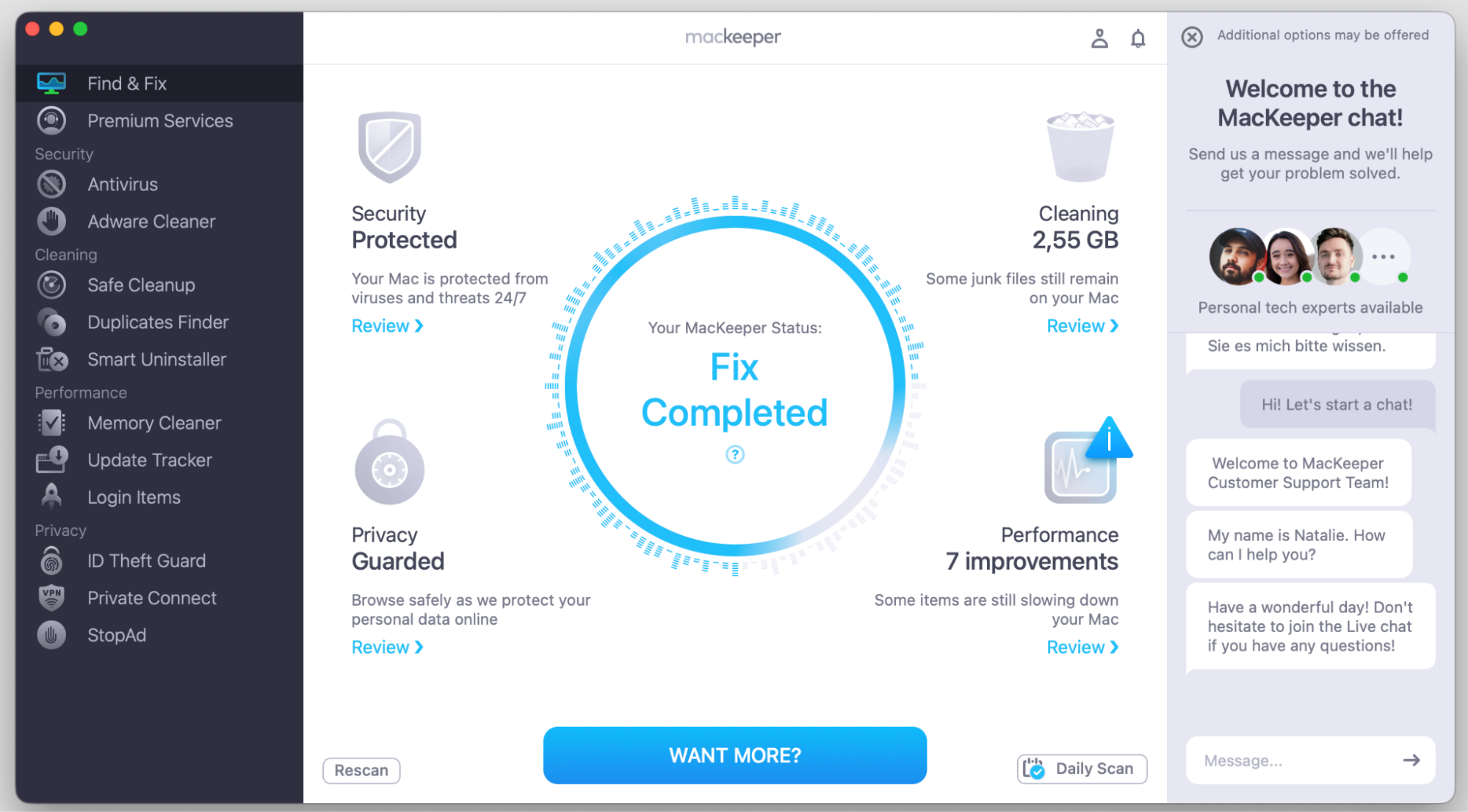
1. MacKeeper
Think of MacKeeper as the friend who tidies the whole house while you put your feet up. It rolls junk removal, duplicate hunting, memory freeing, and app uninstalling into one app, so you're not bouncing between five different tools to keep your Mac happy. Check our app’s summary below:
Key features—Safe Cleanup, Duplicates Finder, Memory Cleaner, and Smart Uninstaller.
Advantages—one app covers nearly every slowdown, and Premium adds a 24/7 Help Center when you're stuck.
Limitations—some people prefer a single-purpose tool over a full suite.
Pricing—subscription-based, with a Premium plan that adds more support.
Best for—anyone who wants reliable, all-in-one Mac care.
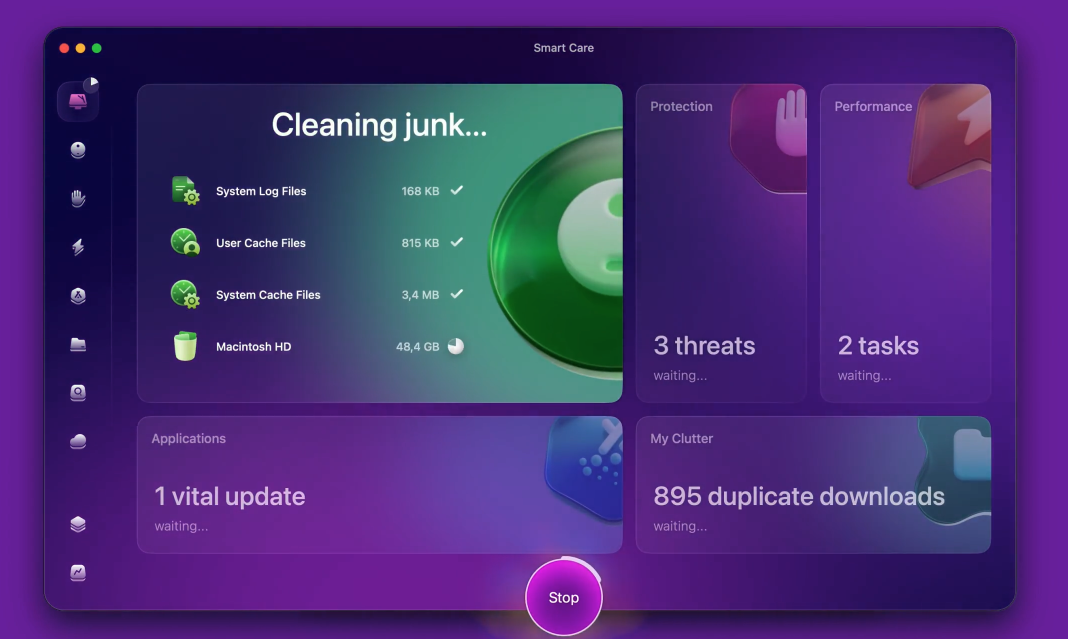
2. CleanMyMac
CleanMyMac feels a bit like a friendly tour guide for your Mac. It walks you through guided scans, junk removal, app management, and storage analysis with a polished, almost playful interface. Read any CleanMyMac review, and the praise usually lands on how approachable it feels. Here are the main details we’d like to mention:
Key features—smart scan, system junk cleanup, and an uninstaller.
Advantages—the guided flow holds your hand, so you rarely wonder what a button does
Limitations—fewer advanced controls for hands-on users.
Pricing—subscription or one-time license options.
Best for—beginners who want guided, simple cleanups.
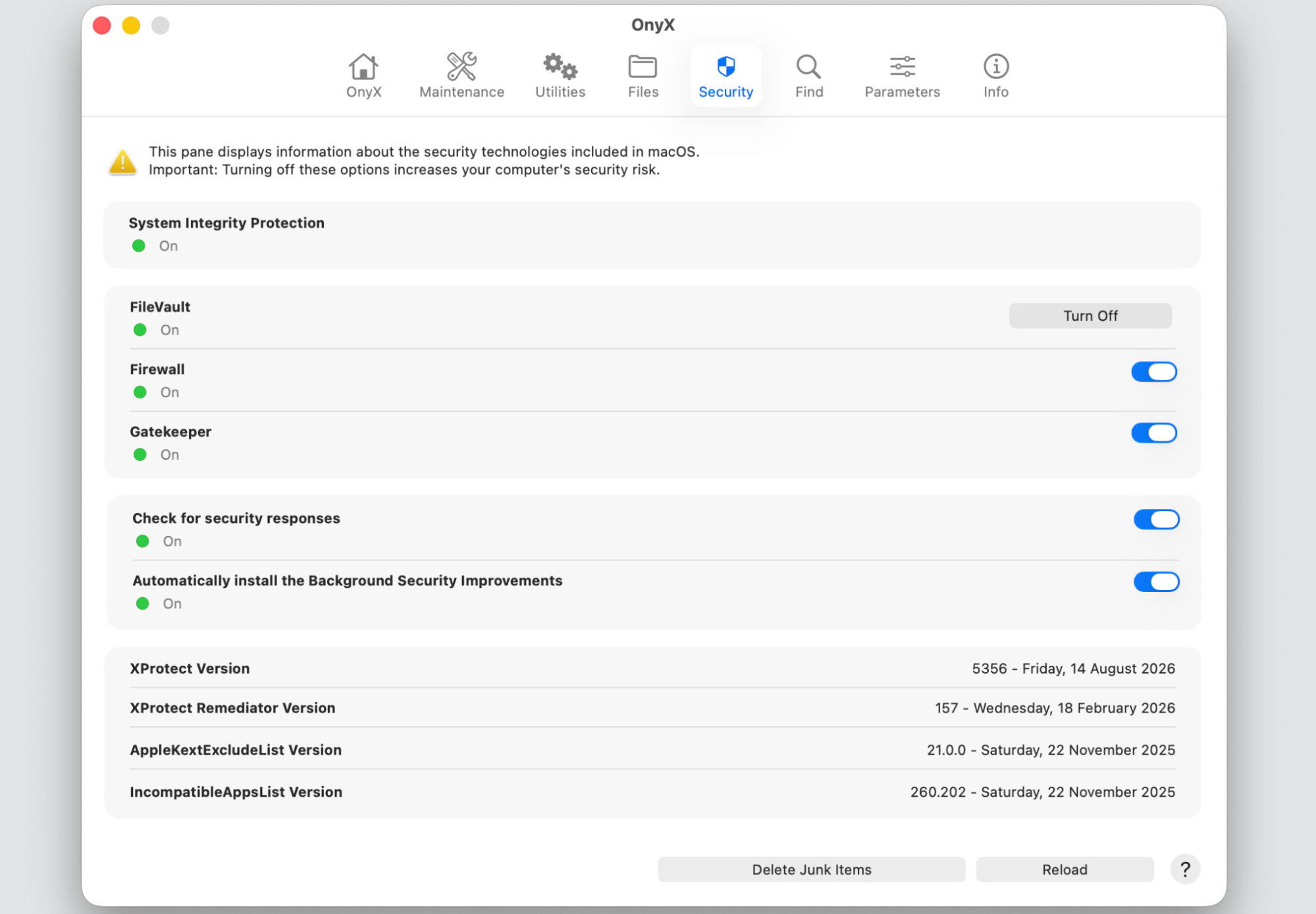
3. OnyX
OnyX is the quiet toolbox in the back of the garage—free, powerful, and a little intimidating until you know your way around. It runs maintenance scripts, clears caches, rebuilds databases, and opens up hidden macOS settings most people never see. See our short overview below:
Key features—maintenance scripts, cache cleaning, and system tweaks.
Advantages— t's completely free and reaches deep settings other apps leave alone.
Limitations—the interface can feel advanced for newcomers.
Pricing—free.
Best for—confident users who like fine-grained control.
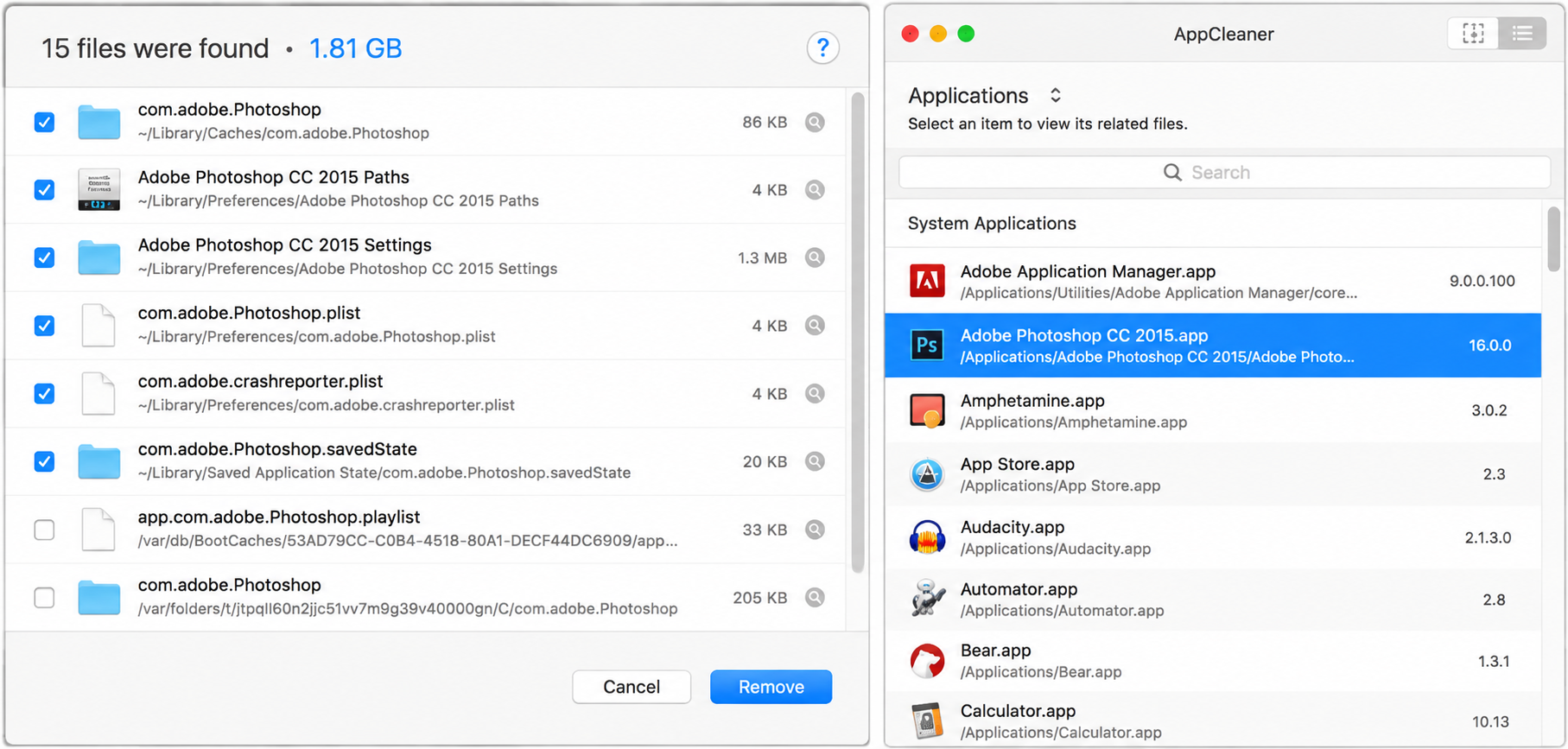
4. AppCleaner
We've all dragged an app to Trash and assumed it was gone—only for stray files to linger for months. AppCleaner is the lightweight little helper that scoops up those leftovers too, so an uninstall actually means uninstalled. We’ll mention the key nuances for you below:
Key features—drag-and-drop uninstalls and leftover file detection.
Advantages—tiny, free, and it removes the hidden files most uninstalls miss.
Limitations—it focuses on uninstalling, not full cleanup.
Pricing—free.
Best for—anyone who wants clean, complete app removal.
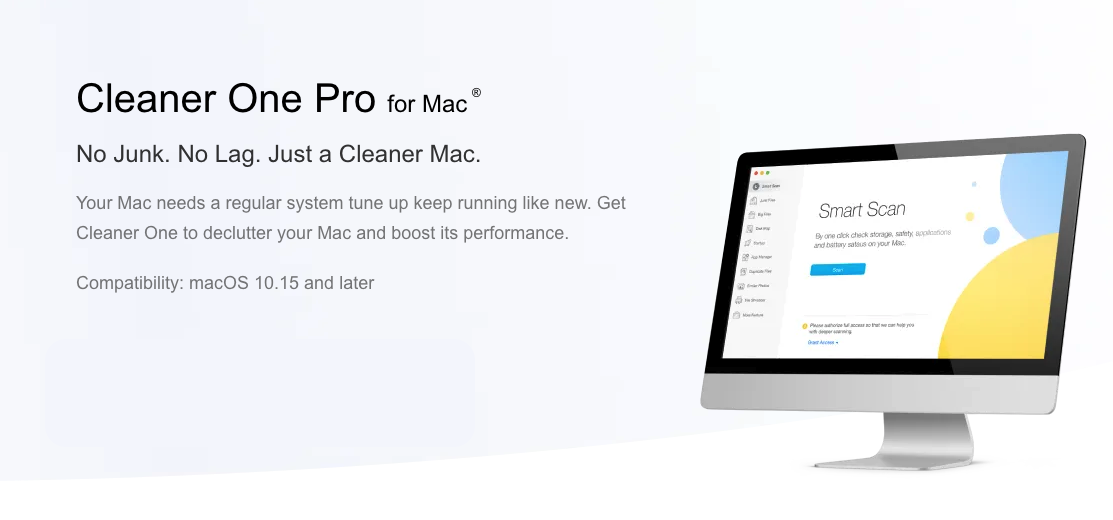
5. Cleaner One Pro
Cleaner One Pro keeps things refreshingly simple. You run a quick scan; it clears the junk, spots duplicates, flags big files hogging space, and you're done—no maze of settings to wade through. We’ll save your time with the quick feedback:
Key features—quick clean, duplicate finder, and large file scanner.
Advantages—fast, easy, and you can start for free before deciding to upgrade.
Limitations—fewer deep maintenance options.
Pricing—free tier plus a paid upgrade.
Best for—users who want a straightforward cleaner.
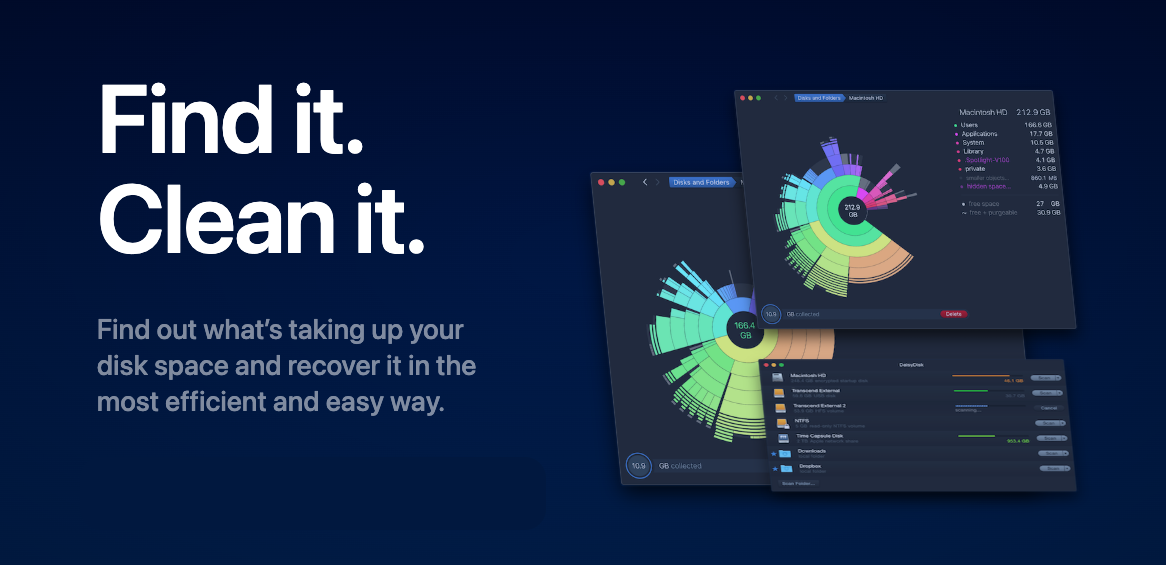
6. DaisyDisk
DaisyDisk turns the mystery of “where did my storage go?” into a colorful, clickable map. When a nearly full disk is the culprit, you can literally see the giant folders and forgotten files eating your space, then clear them out. Here’s the overall app information from our team:
Key features—interactive disk map and fast scanning.
Advantages—the visual map makes hidden space hogs obvious in seconds.
Limitations—it shows space usage but doesn't manage memory or startup items.
Pricing—one-time license.
Best for—people whose main issue is a full disk.
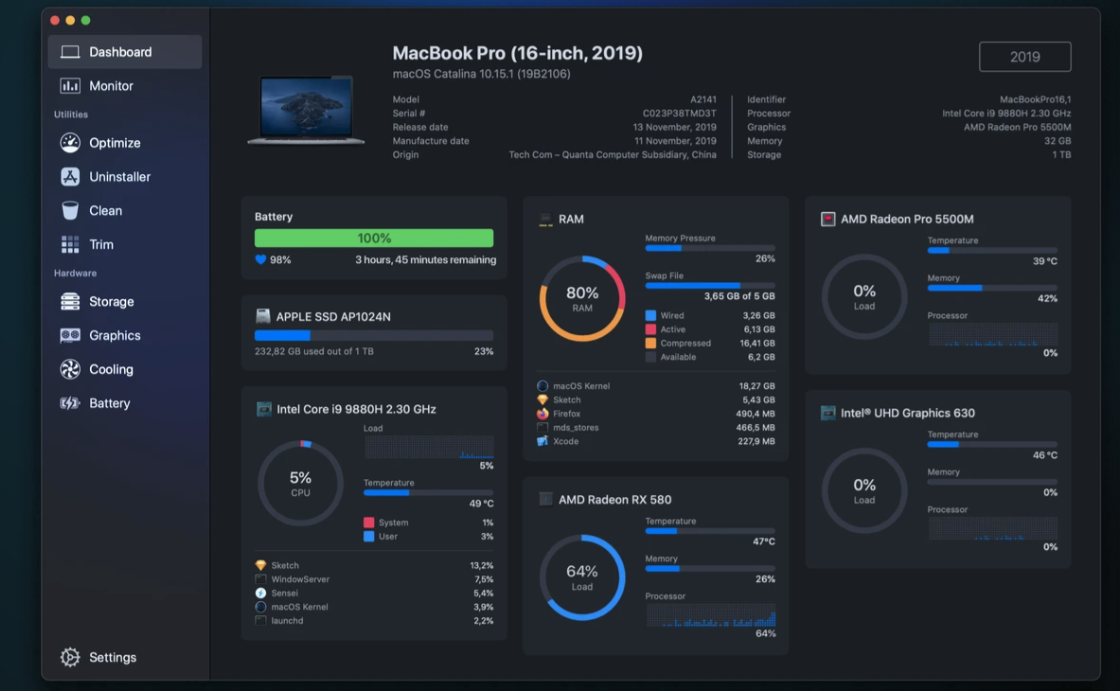
7. Sensei
Sensei is for the curious—the people who want to know exactly why their Mac is sweating. It keeps an eye on CPU, RAM, battery, graphics, disk usage, and even temperature, so background activity stops being a guessing game. Read our summary now:
Key features—real-time monitoring plus optimization tools.
Advantages—you see what's straining your Mac and can act on it, not just guess.
Limitations—monitoring data can feel detailed for casual users.
Pricing—subscription or lifetime license.
Best for—users who want to see what's happening under the hood.
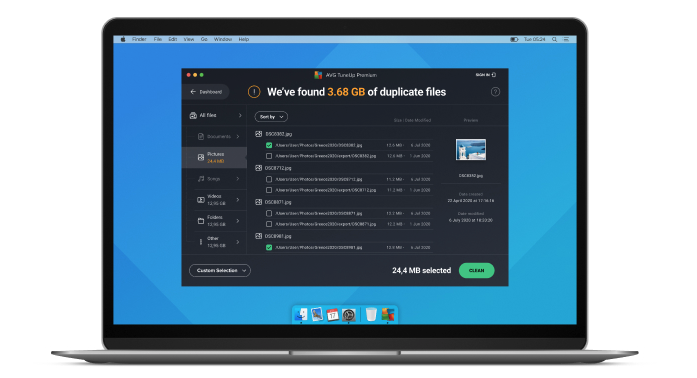
8. AVG TuneUp
If you've switched from Windows, AVG TuneUp will feel like running into an old friend. It clears junk, uninstalls apps, finds duplicates, and helps you sort through photos—all in a layout the AVG Cleaner crowd already knows by heart. Check the essential facts below:
Key features—junk removal, duplicate finder, and photo review.
Advantages—a familiar, no-fuss layout that's easy to pick up right away.
Limitations—fewer Mac-specific tuning options.
Pricing—subscription-based.
Best for—users who want familiar, no-fuss cleanup.
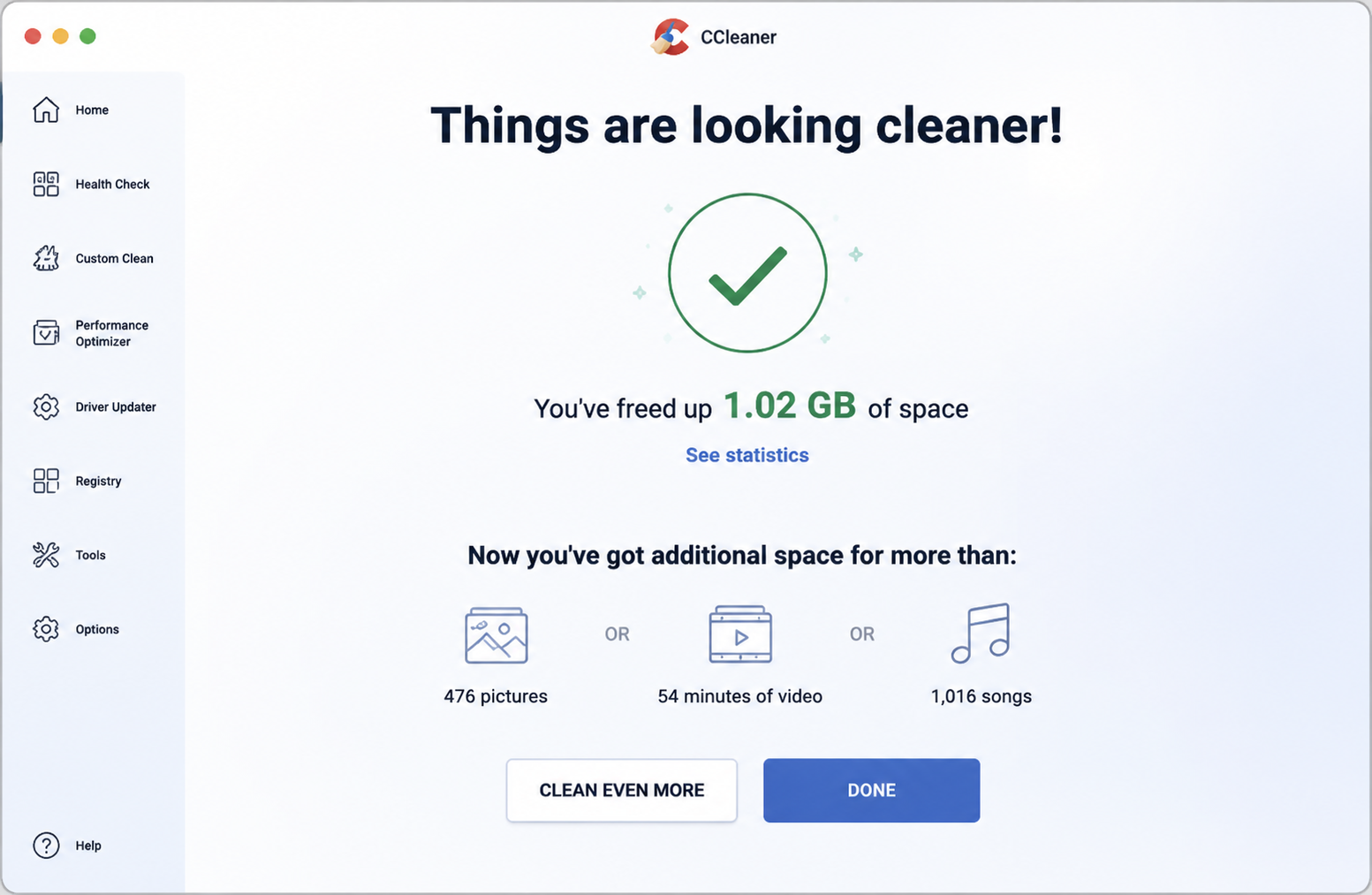
9. CCleaner
CCleaner is for the tinkerers who like to pop the hood themselves. You decide what gets cleaned—caches, browser data, temporary files, duplicates—instead of handing the wheel to an automatic scan. If the Mac version feels a touch light, there are plenty of CCleaner alternatives worth a look. Get acquainted with our short app overview:
Key features—custom cleaning rules and browser data control.
Advantages—you stay in charge of exactly what gets cleared.
Limitations—the Mac version is leaner than the Windows one.
Pricing—free tier plus a paid plan.
Best for—users who like manual control.
10. DriveDx
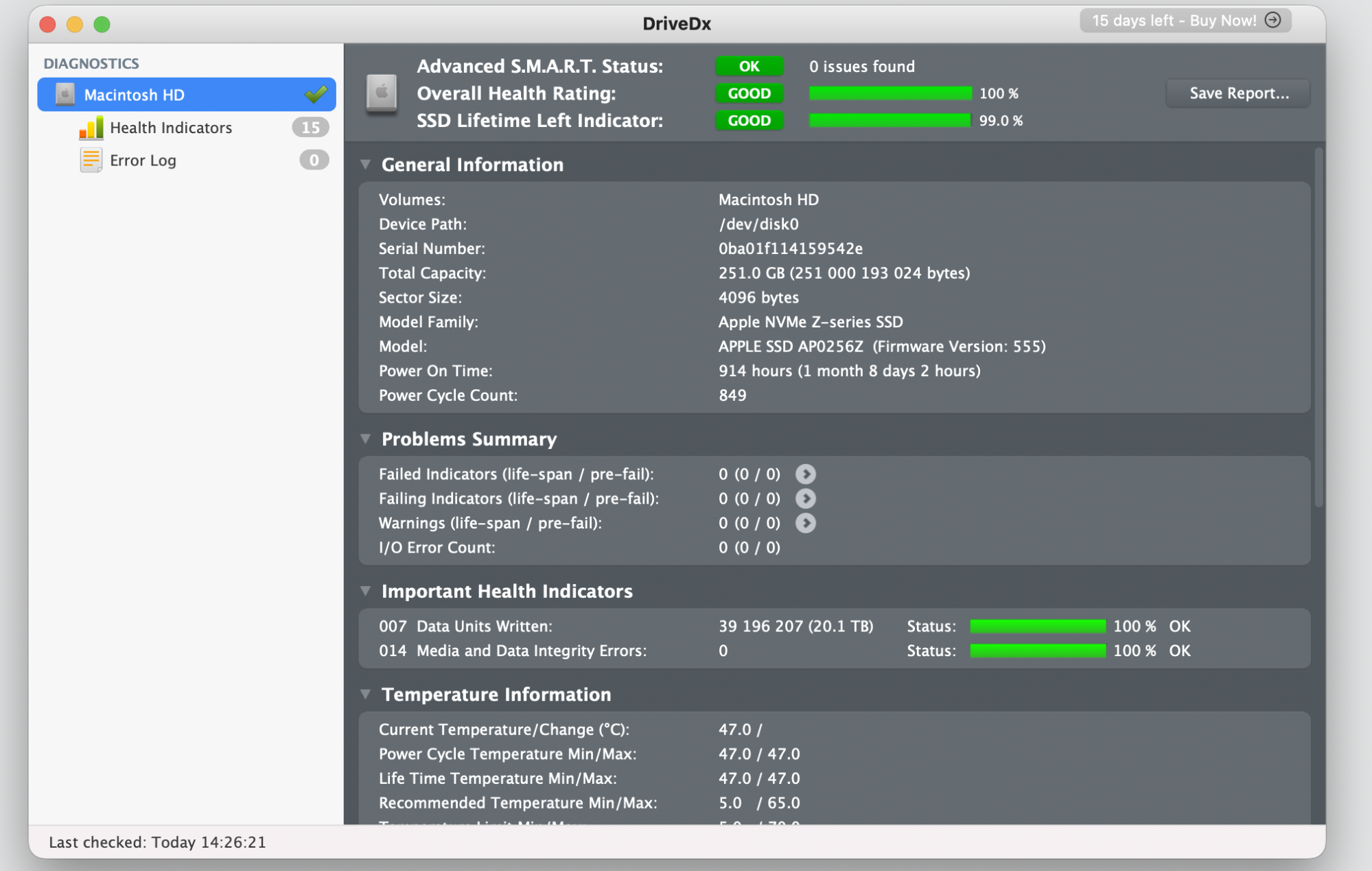
DriveDx is the early-warning system for your drive. If you've got a nagging feeling that an aging SSD or a tired hard drive is behind the slowdown, it reads the detailed health data and gives you a heads-up before a small worry turns into lost files. Check the app’s match to your needs now:
Key features—SSD and HDD health reports with alerts.
Advantages—it warns you about drive trouble early, while you still have time to back up.
Limitations—it diagnoses drives but doesn't clean or optimize.
Pricing—one-time license with a free trial.
Best for—users worried about drive reliability.
How to choose the right software to speed up your Mac?
The smartest choice starts with the cause, not the app. Once you spot the real reason your Mac runs slowly, the right utility almost picks itself. Use our quick guide below to point yourself in the right direction:
Low storage—reach for a cleanup tool or a disk analyzer like DaisyDisk.
Memory pressure—use a memory cleaner that frees up RAM on demand.
Slow startup—manage login items so fewer apps launch at boot.
Duplicate files—run a duplicates finder to clear repeated copies.
App leftovers—pick a smart uninstaller that removes related files too.
Malware or adware—add an antivirus and adware cleaner for safe browsing.
Disk health doubts—try a monitoring utility like DriveDx.
Unclear cause—start with a resource monitor to see what's running.
If you'd rather not juggle several apps, an all-in-one suite handles most of these needs at once. That's where MacKeeper shines—it bundles cleanup, duplicates, memory, and uninstallation into a single, user-friendly app.
Conclusion
The best software to speed up Mac depends on what's slowing it down. Cleanup tools clear clutter, uninstallers remove leftovers, monitors reveal resource hogs, and disk health utilities catch deeper drive issues early. From our experience, knowing the cause is half the fix.
Is your Mac dragging when you need it most? The best reliable software to speed up Mac starts with reclaiming memory—and MacKeeper's Memory Cleaner quits useless processes and frees up RAM in one click. Download MacKeeper today and feel the difference.
We respect your privacy and
use cookies
for the best site experience.
Privacy Preferences Center
We use cookies along with other tools to give you the best possible experience while using the
MacKeeper website. Cookies are small text files that help the website load faster. The cookies we
use don’t contain any type of personal data meaning they never store information such as your
location, email address, or IP address.
Help us improve how you interact with our website by accepting the use of cookies. You can change
your privacy settings whenever you like.
Manage consent
All cookies
These cookies are strictly necessary for enabling basic website functionality (including page
navigation, form submission, language detection, post commenting), downloading and purchasing
software. The website might malfunction without these cookies.