You’re in the middle of something important, you press Command + C, and… nothing happens. When Mac shortcuts aren’t working, even simple tasks feel frustrating. The good news—most shortcut issues are easy to resolve. Below, you’ll find our practical fixes to try. But if you’d rather have someone walk you through it, MacKeeper’s Premium Services team is ready to help.
Hotkeys not working on Mac can catch you off guard, especially if they were fine yesterday. Usually, the cause isn’t hardware damage—it’s something happening at the software level. From our experience, here are the most common reasons why it happens:
A macOS update changed or reset shortcut preferences.
A third-party app overrode a system-wide shortcut.
The keyboard layout switched to a different language or region.
Accessibility settings like Slow Keys or Sticky Keys are enabled.
Modifier keys (Command, Option, Control) were reassigned in preferences.
Often, shortcuts stopped working on Mac after a macOS upgrade because Apple changes default key bindings. If your entire keyboard not working, the issue may go beyond shortcuts alone.
Moreover, not every shortcut glitch means something’s wrong. If a shortcut stops working after waking your Mac from sleep or right after opening a specific app, the issue is likely temporary—restarting the app or the Mac itself usually helps.
If keyboard shortcuts stopped working on Mac across multiple apps and survive a reboot, you’re likely dealing with a settings conflict or a modifier key reassignment. In that case, work through our list of fixes prepared for you.
How to fix keyboard shortcuts not working on Mac?
We’d say solutions for fixing keyboard shortcuts on Mac range from a simple restart to system-level adjustments. If you’re not sure where to start, work through these in order—each step addresses a different layer of the issue. It may also help to revisit Mac keyboard shortcuts, as it’s easy to mix them up or forget specific combinations.
A note from our experts:
Not to be lost in the jungle of possible solutions to your Mac keyboard shortcuts not working problem, we offer you an easier path to resolve it. Contact our support team, known as MacKeeper’s Premium Services, and receive quick guidelines on what to do.
Select Premium Services and navigate to the Chat Now functionality.
Describe your problem in the text box and try our solution.
1. Restart your Mac
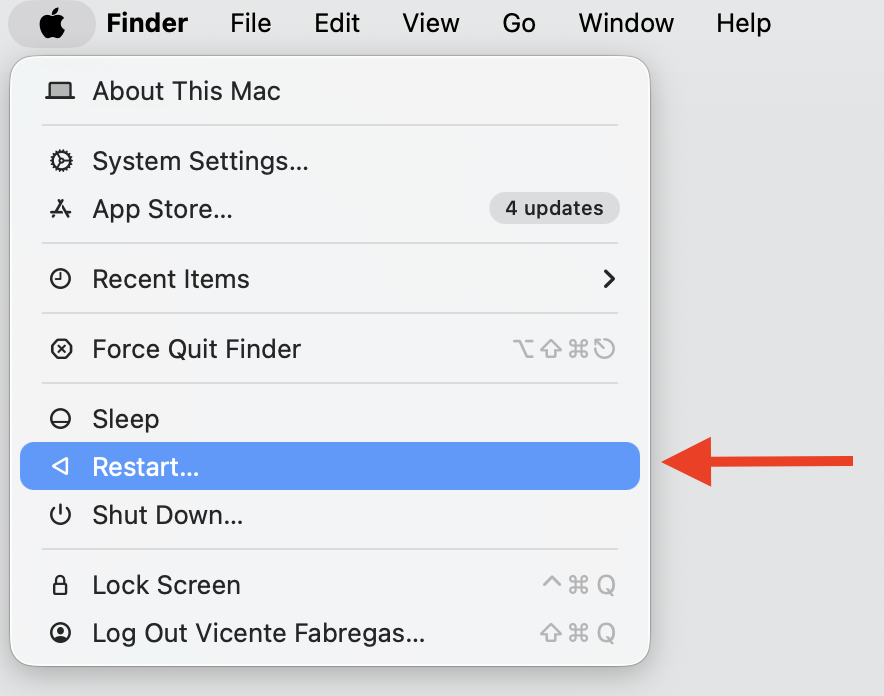
It sounds basic, but restarting your Mac can resolve temporary system issues that interfere with keyboard input. It closes stuck processes, restarts background services, and reinitializes keyboard-related components. If your Mac keyboard shortcuts suddenly stop working, we suggest it as the fastest first step. Do the following:
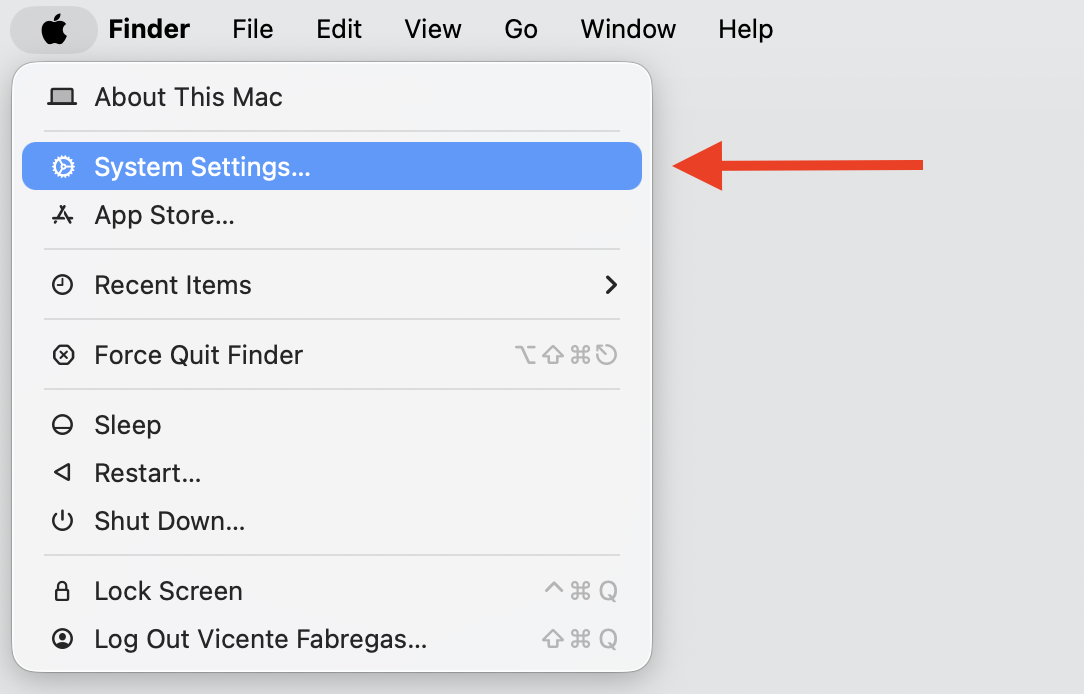
Click the Apple menu in the top-left corner of your screen.
Select Restart.
Wait for your Mac to fully reboot, then test the shortcut again.
Got to Apple menu in the top-left corner and select Restart
2. Test external keyboard or reconnect Bluetooth
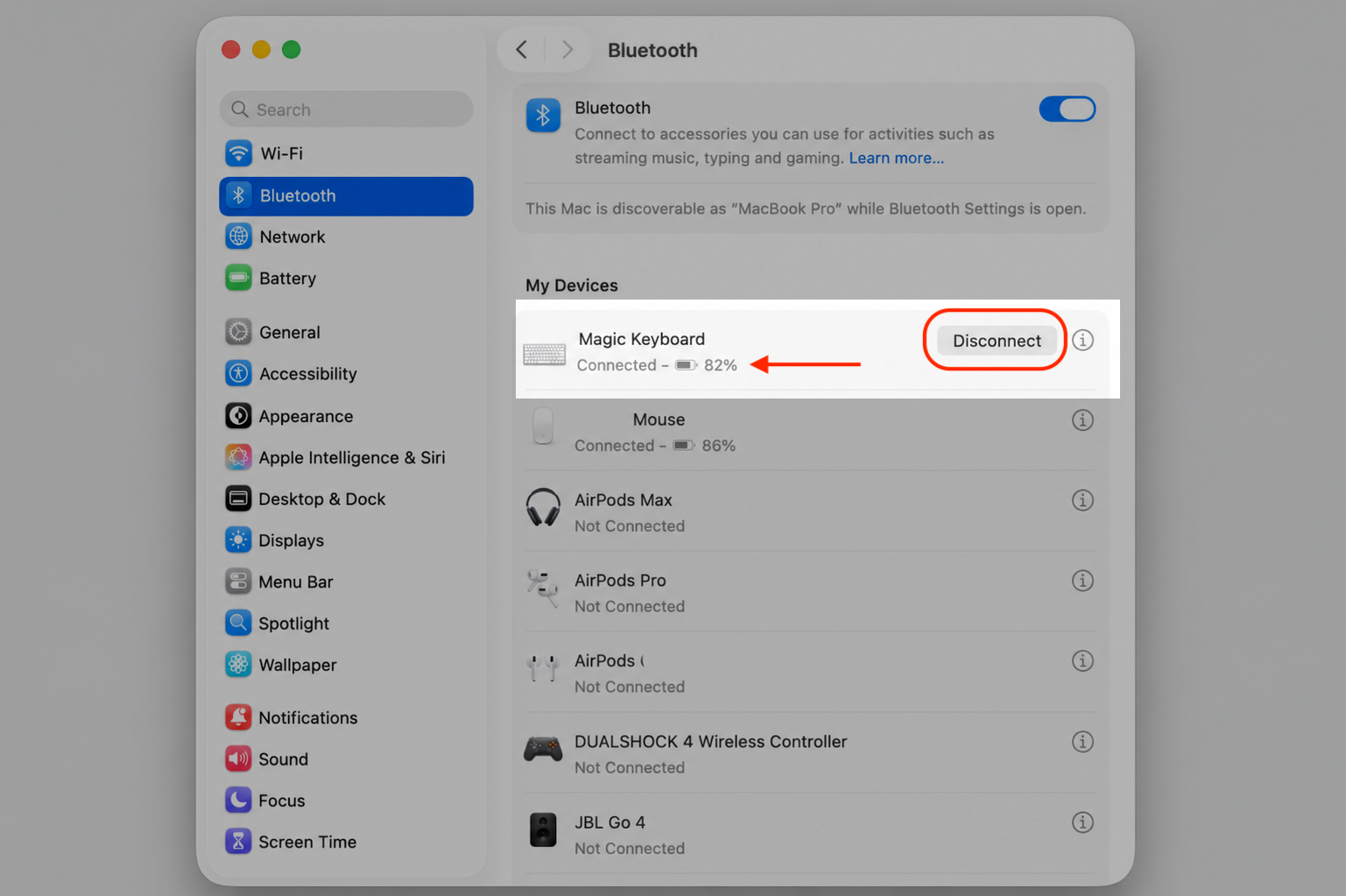
If you’re using a wireless or USB keyboard, the issue might be the connection itself. Battery level, Bluetooth interference, and compatibility can each prevent shortcuts from registering. Follow our hints to solve it:
Make sure your external keyboard is charged or connected via a working USB cable.
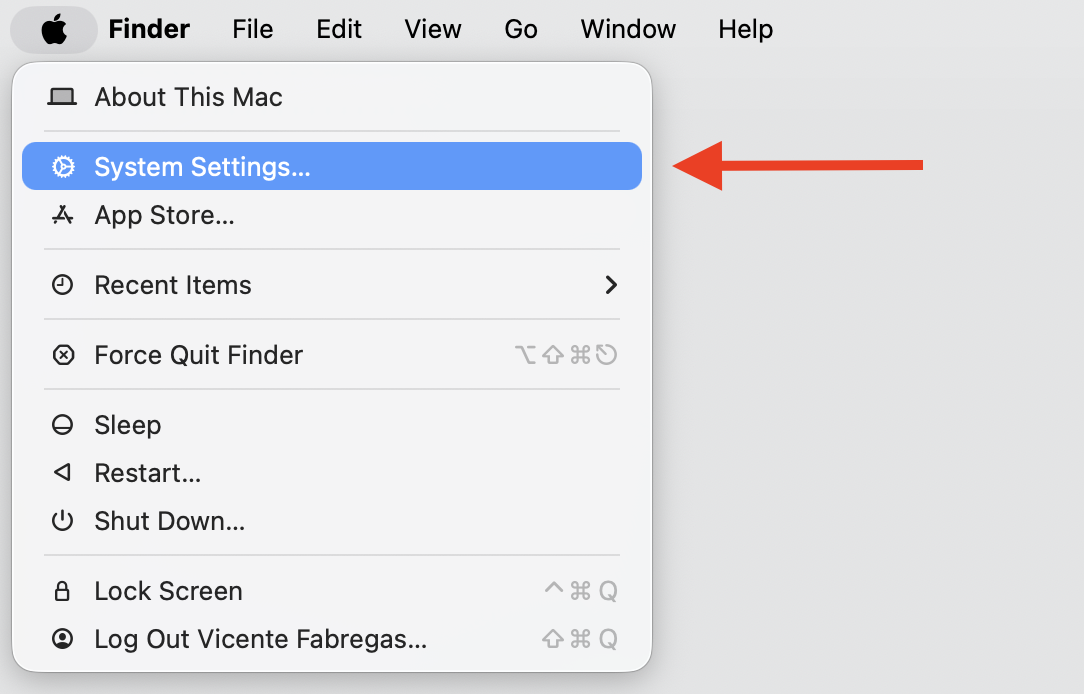
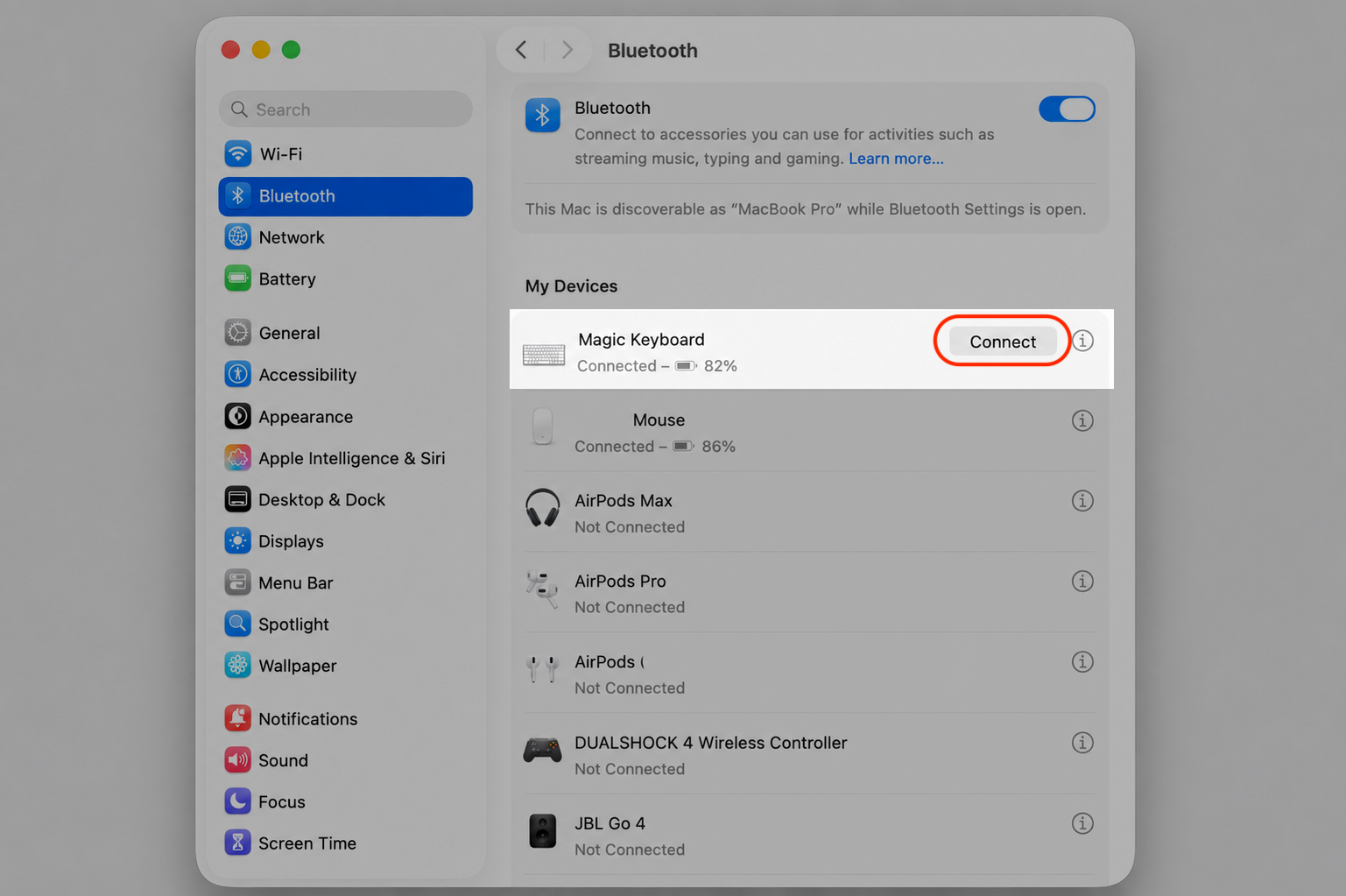
Open System Settings > Bluetooth, find your keyboard, and click Disconnect. Then reconnect it.
Try a different keyboard or switch to the built-in one to see if the shortcuts work there.
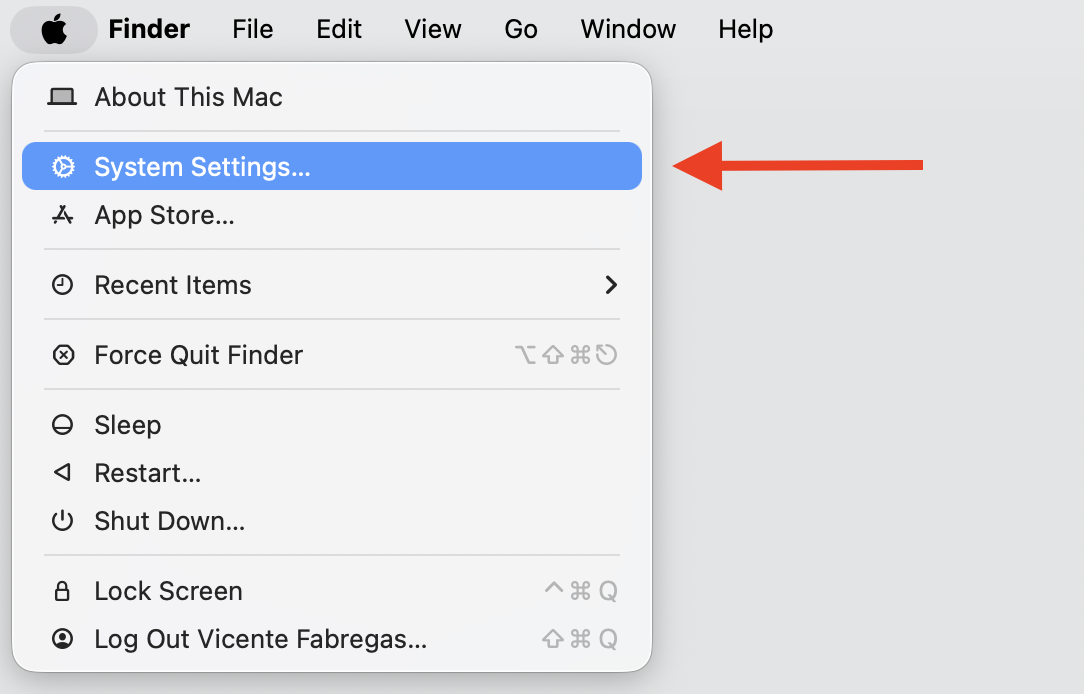
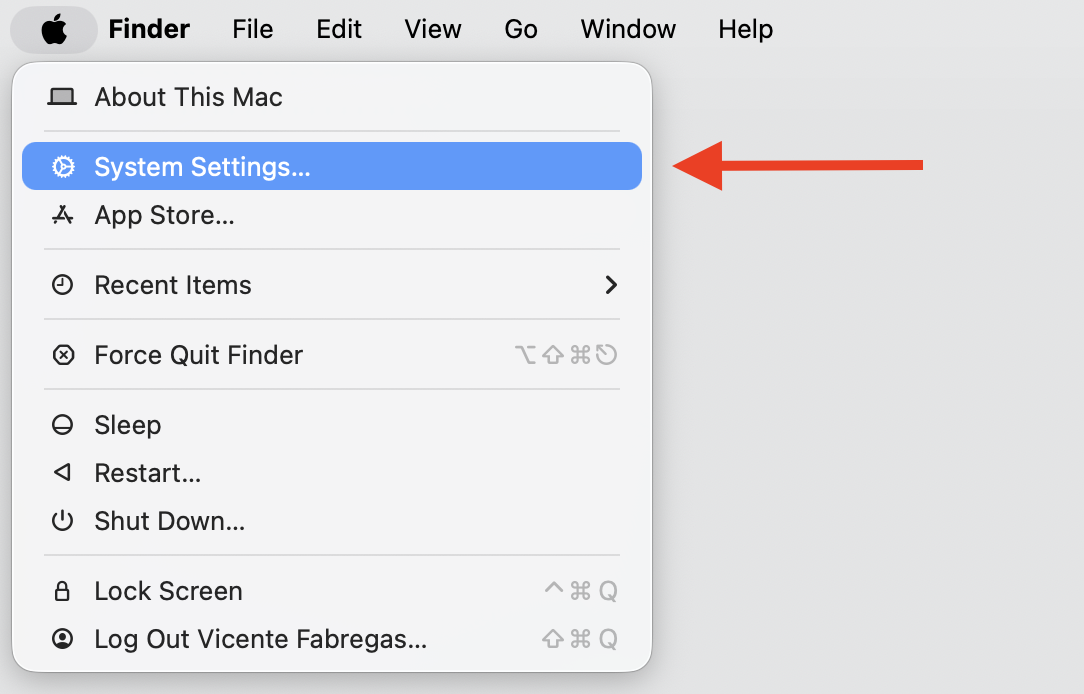
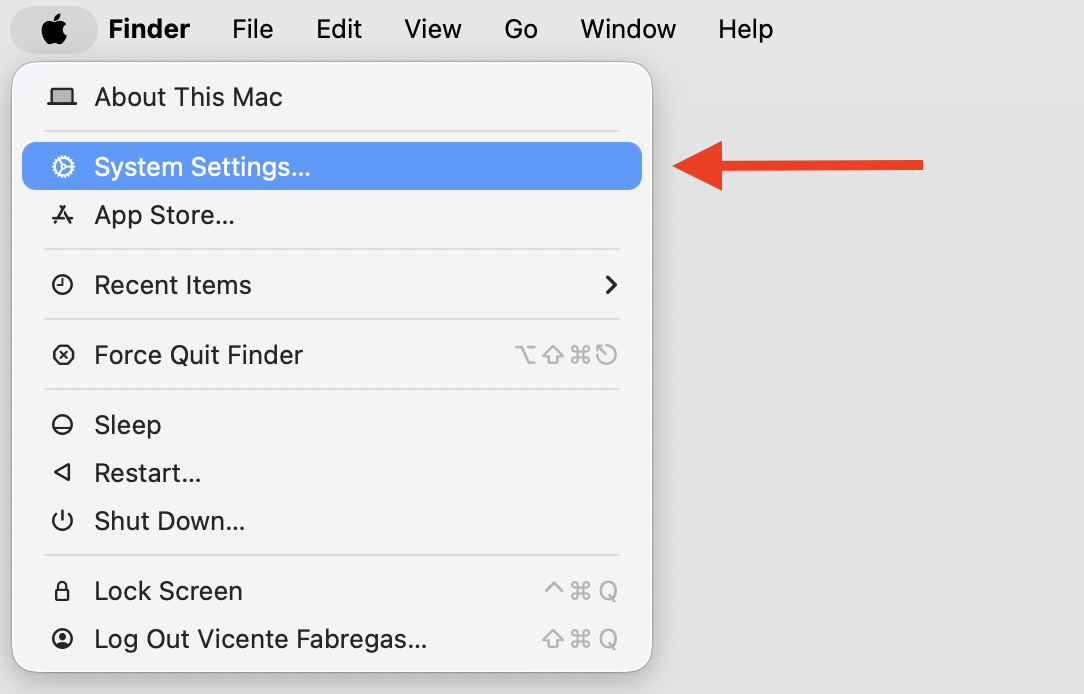
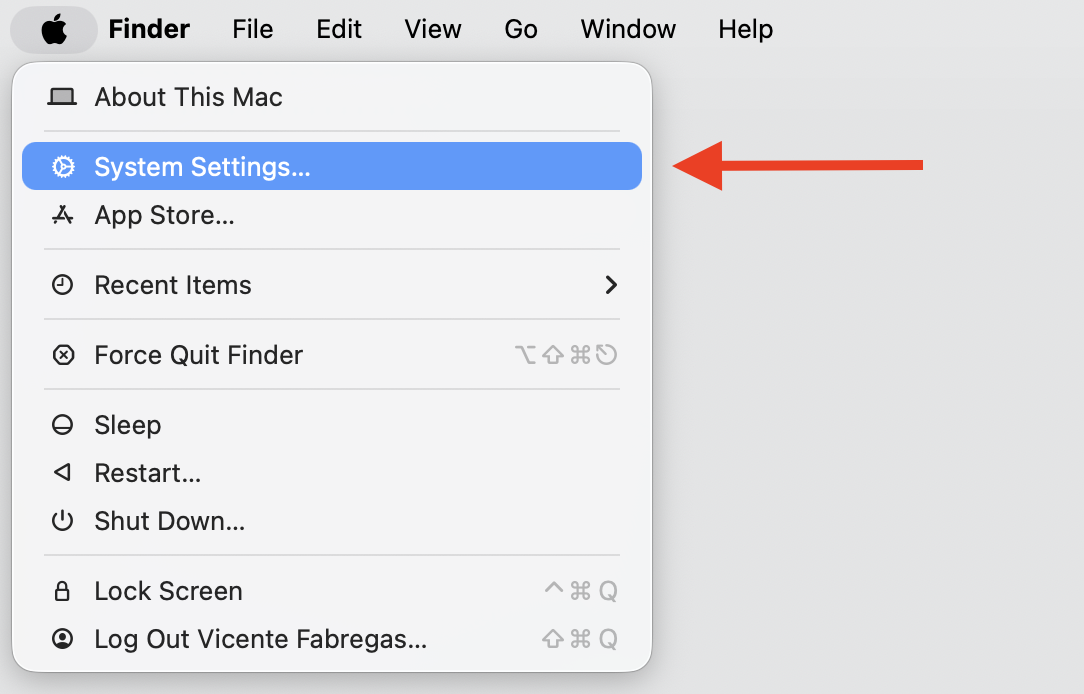
Step 1. Got to Apple logo > System Settings…Step 2. Select Bluetooth > find your keyboard > click Disconnect(Also make sure your external keyboard is charged)Step 3. Once it's done, connect your keyboard
An extra hint from us:
If you need any help connecting an external keyboard to your MacBook or troubleshooting pairing issues, we’ve left this guide here to help you feel safer.
3. Check keyboard shortcut settings
macOS lets you customize or disable individual shortcuts, so one may have been turned off—especially after a system update. Just do this:
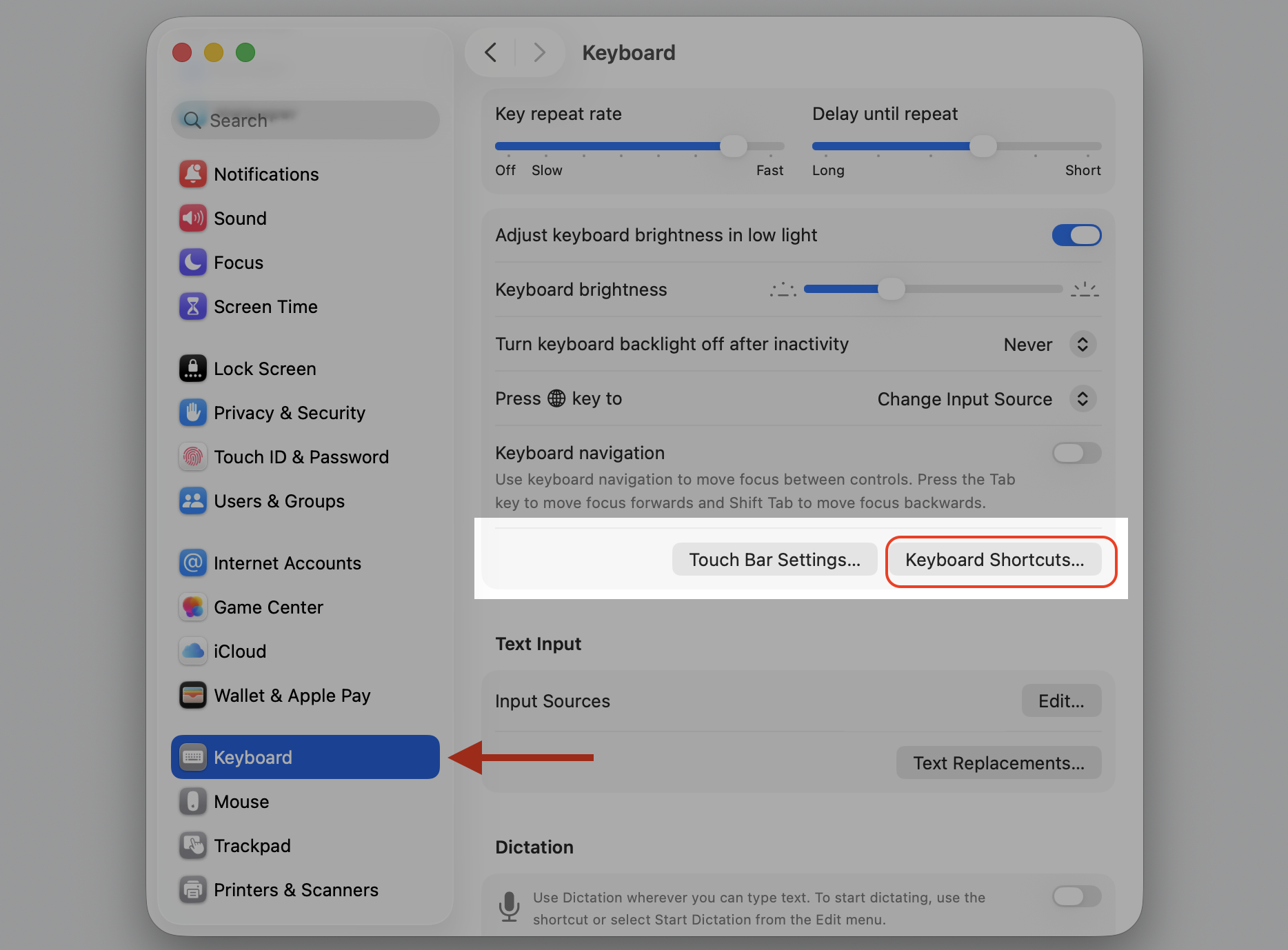
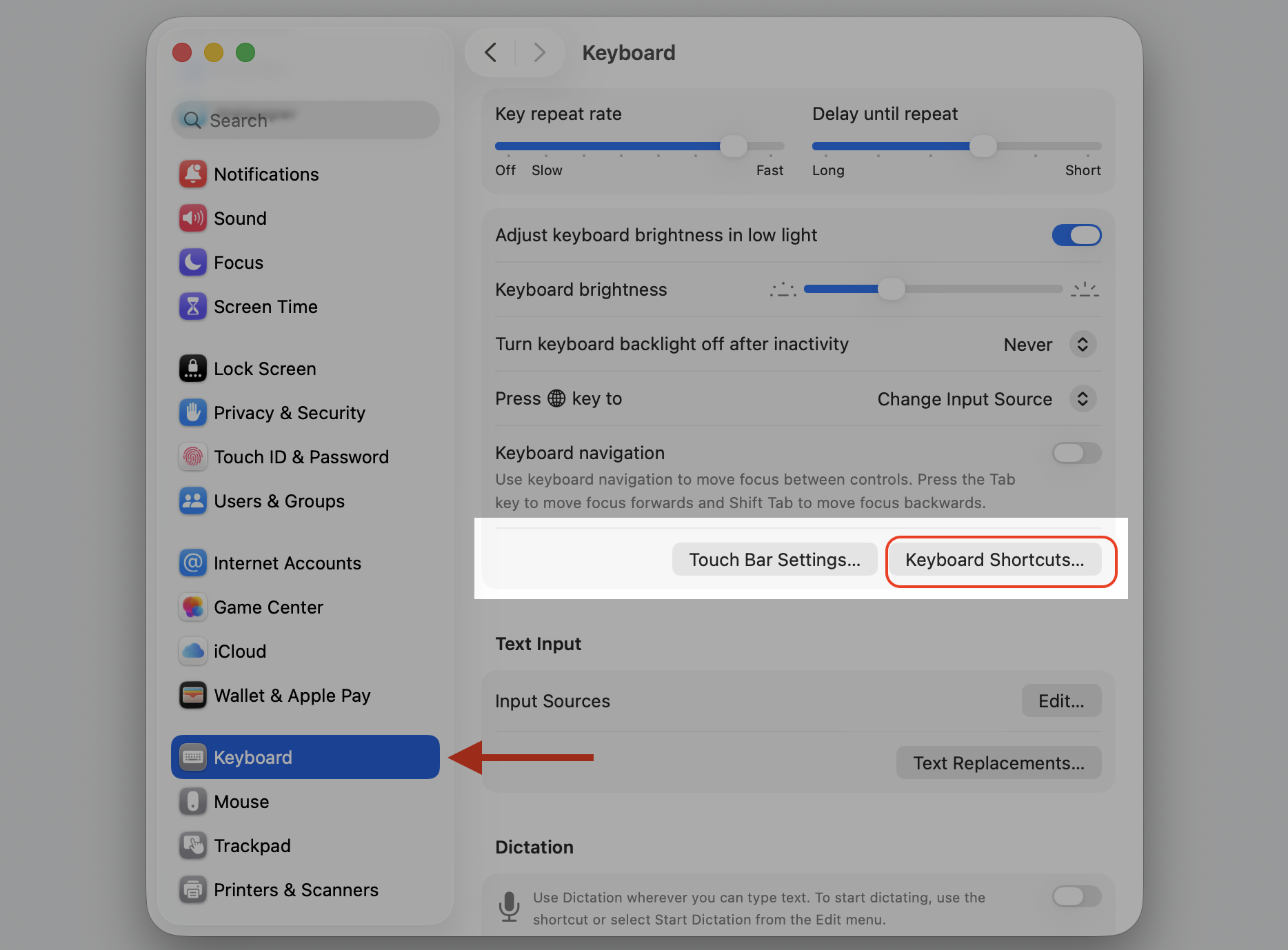
Open System Settings > Keyboard.
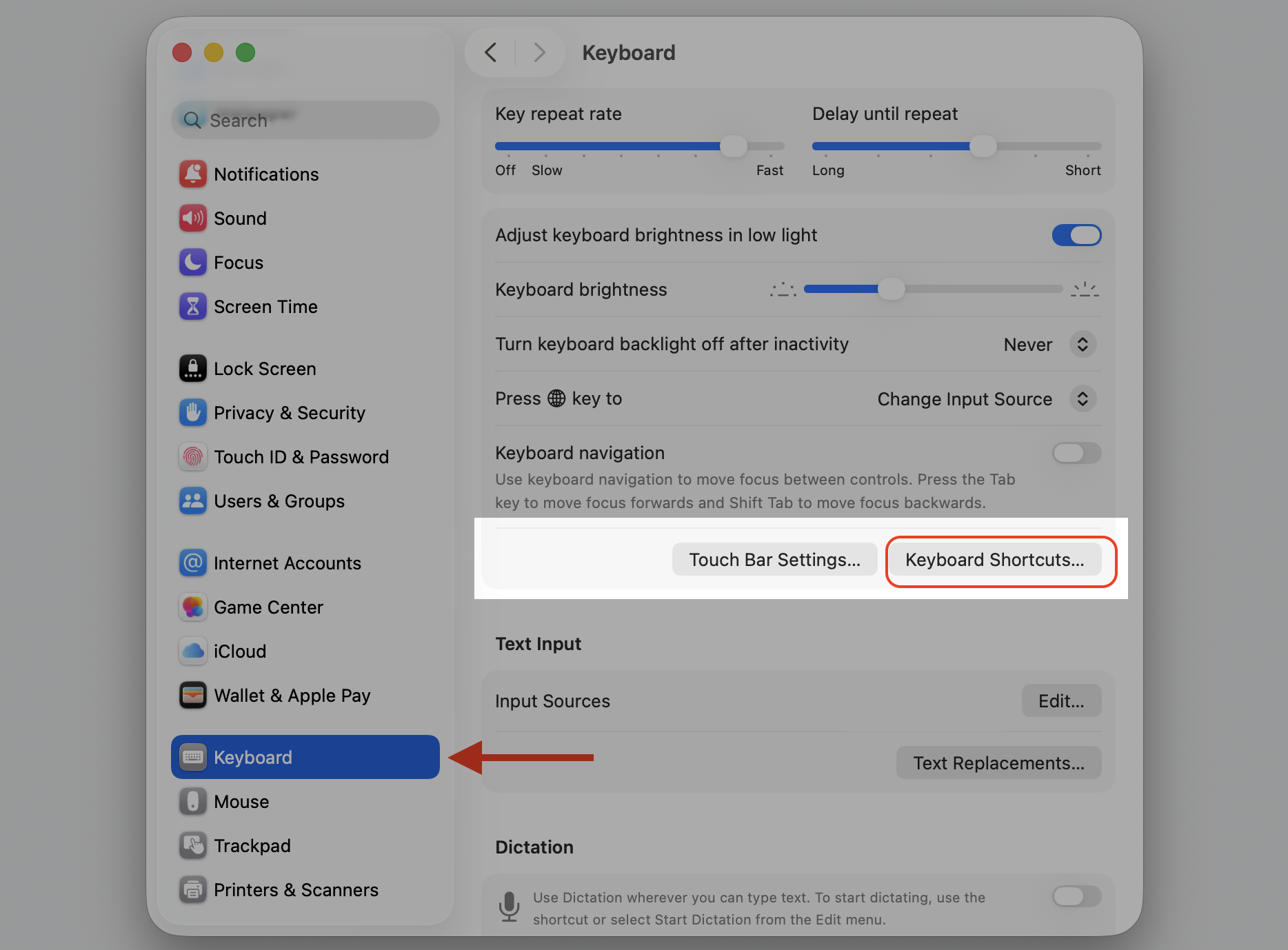
Click Keyboard Shortcuts.
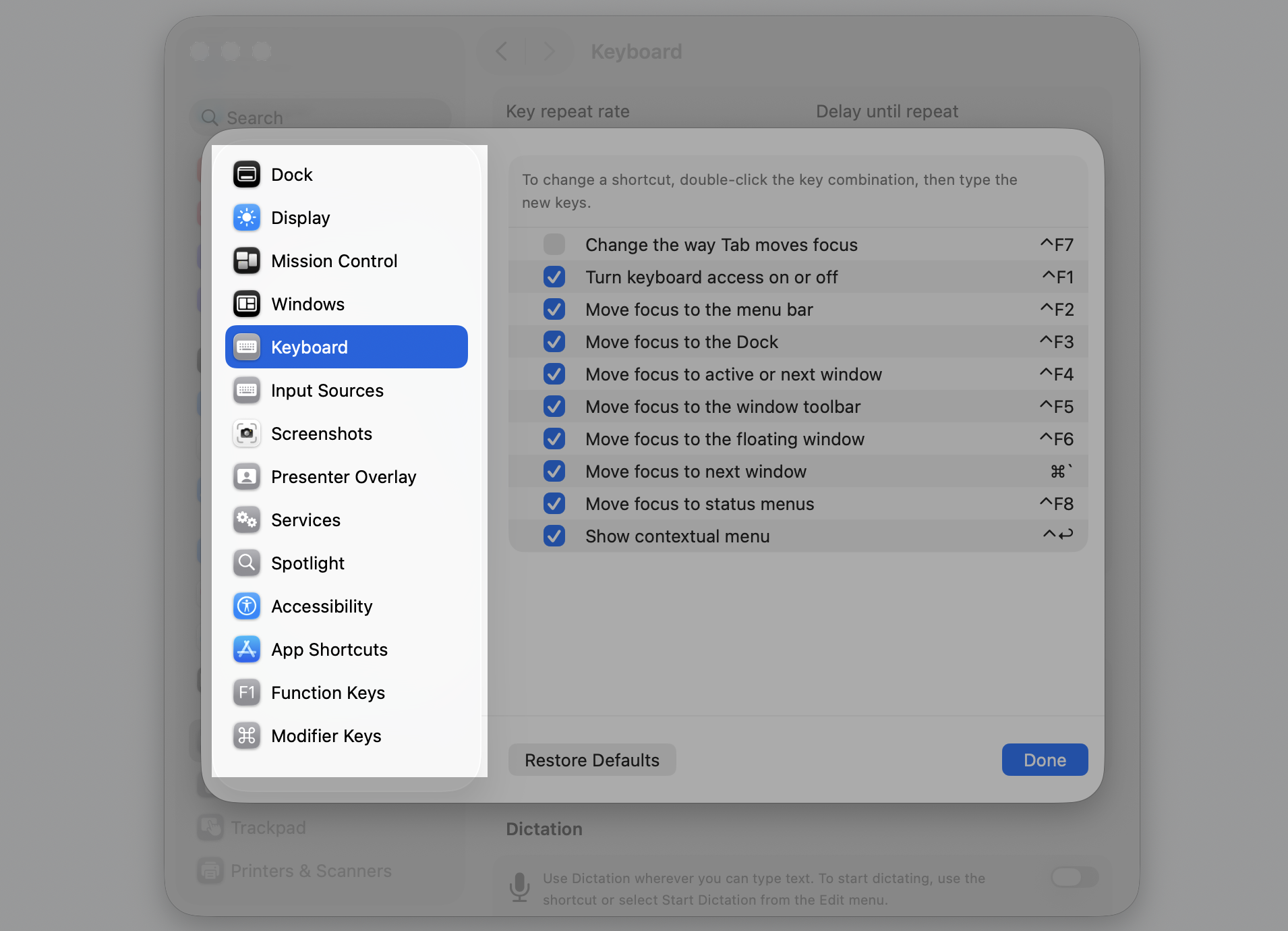
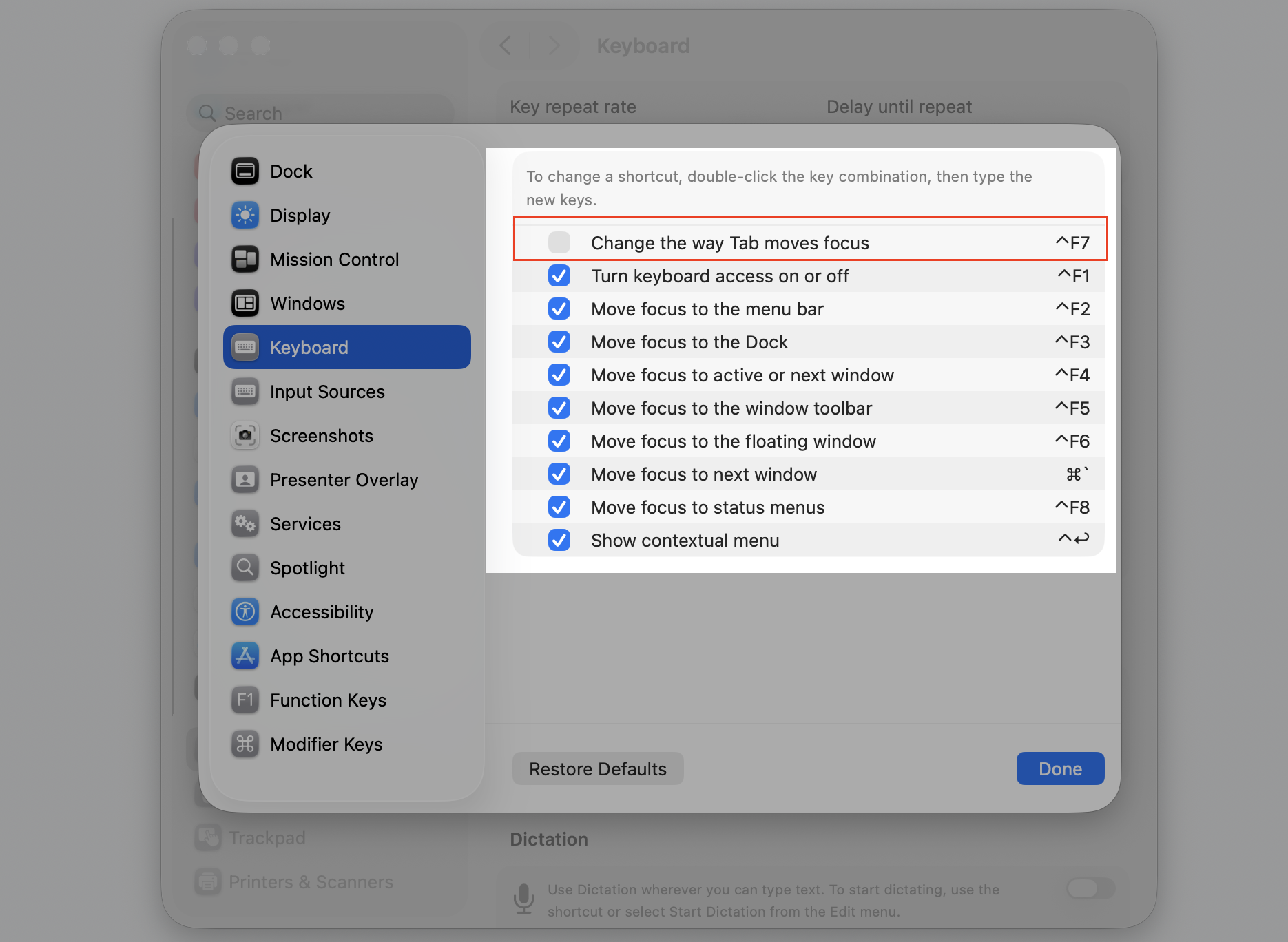
Go through each category—Screenshots, Mission Control, Spotlight, and others—and make sure the shortcuts you need are selected.
If a shortcut is grayed out or unchecked, select the checkbox to re-enable it.
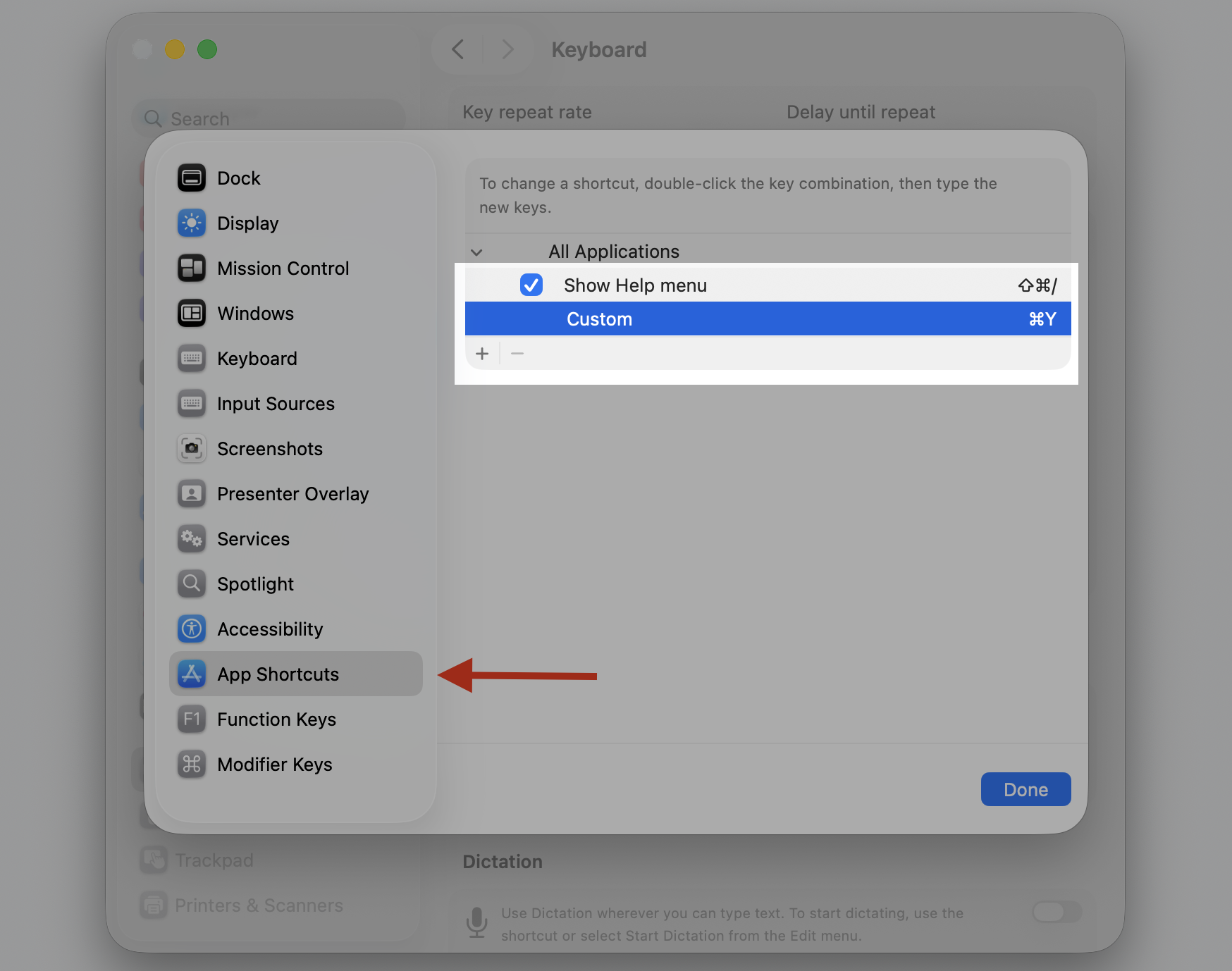
A warning from us: Pay close attention to the App Shortcuts section. If a custom shortcut is added here that matches a system-wide combination, only one of them will work.
Step 1. Got to Apple logo > System Settings…Step 2. Navigate to Keyboard > Keyboard ShortcutsStep 3. Go through each categoryStep 4. If a shortcut is grayed out or unchecked, select the checkbox to re-enable itStep 5. Check for the custom shortcut in the App Shortcuts section
4. Check modifier key configuration
Modifier keys—Command, Option, Control, and Fn—are the backbone of every Mac shortcut. If even one of them is remapped, shortcuts that depend on it will stop responding. We’ll now guide you on how to check the modifier key configuration:
Go to System Settings > Keyboard.
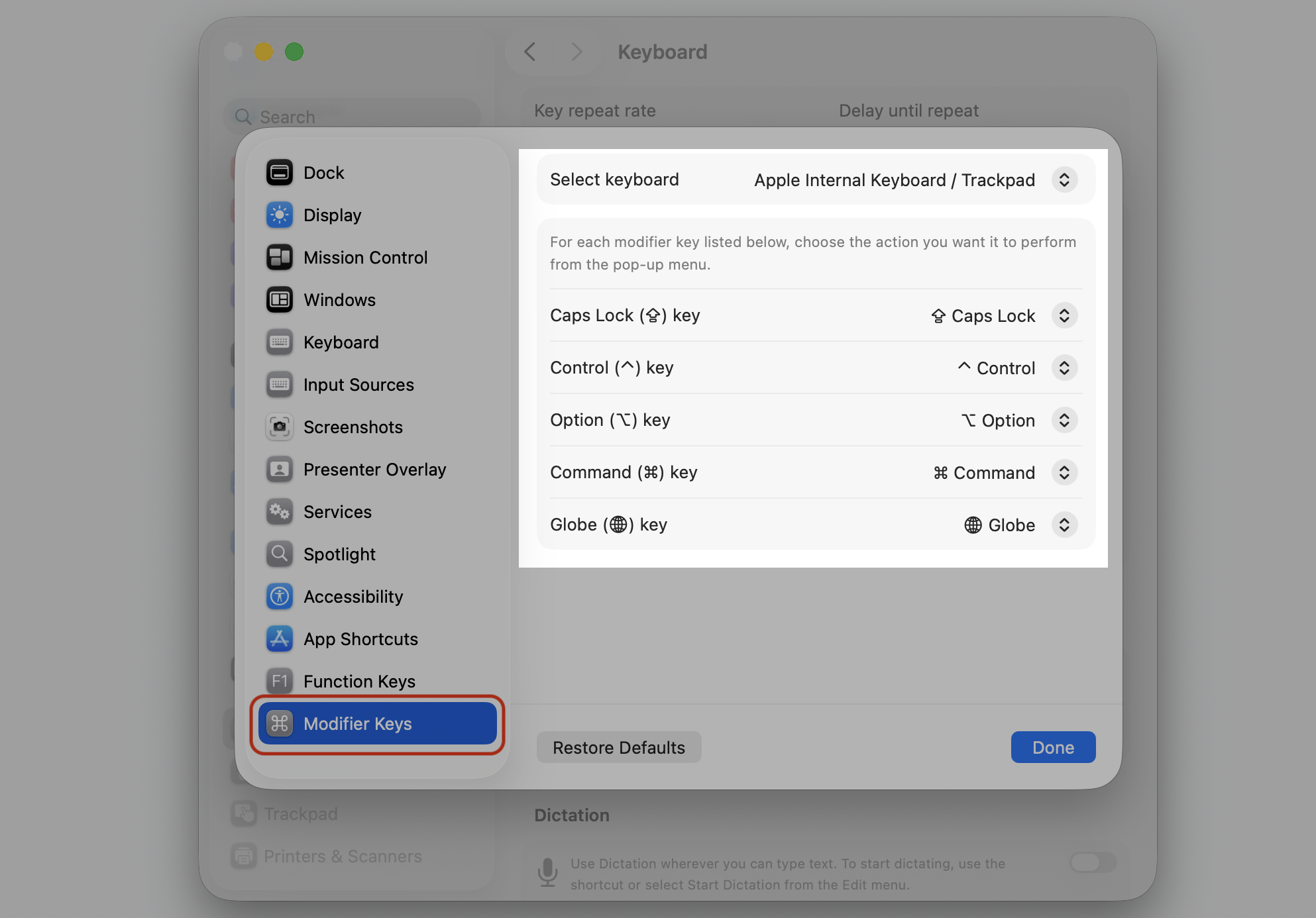
Click Keyboard Shortcuts, then select Modifier Keys at the bottom of the sidebar.
Make sure each key is set to its default function. For example, the Command key should say Command, not No Action or another key.
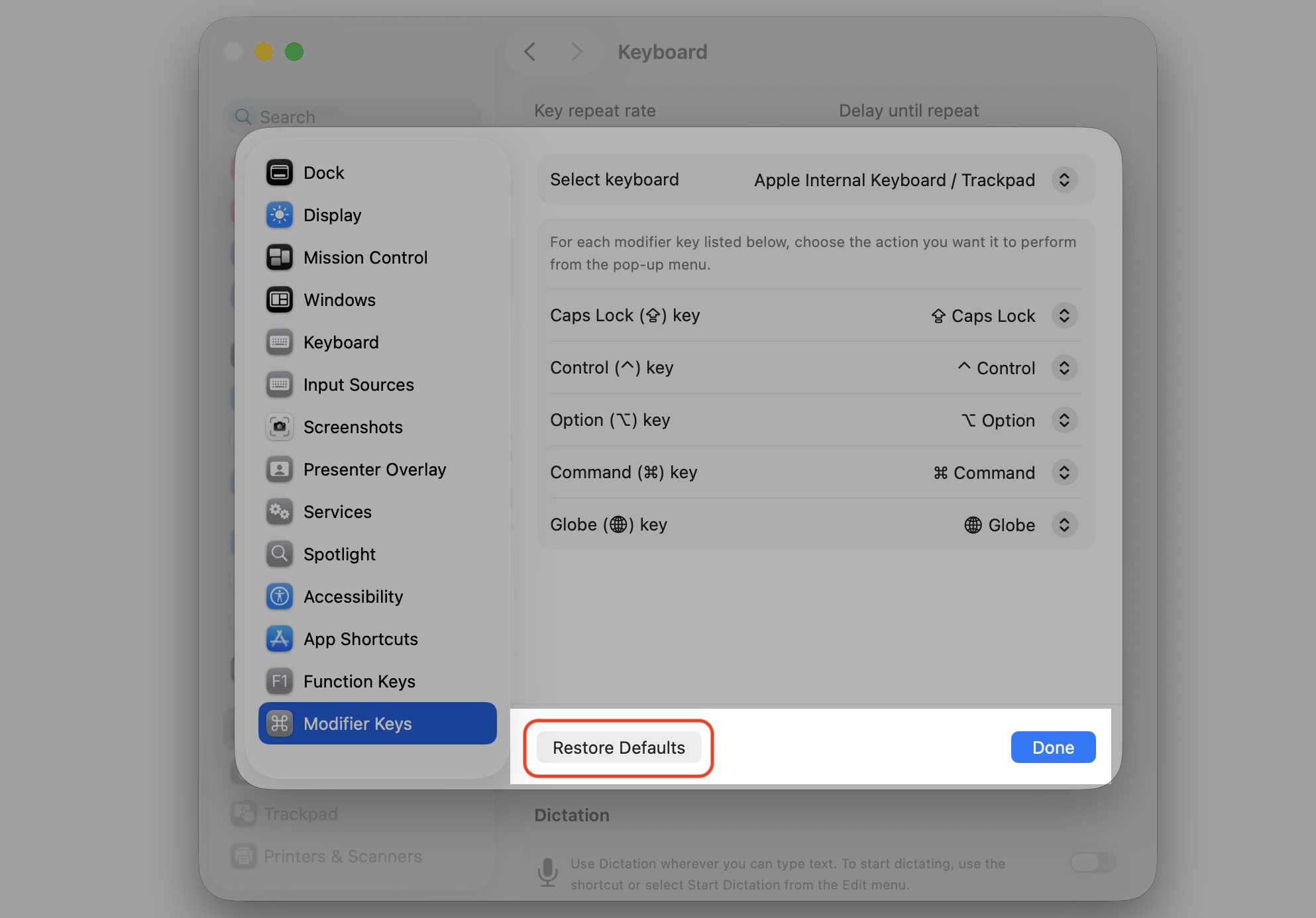
If anything looks off, click Restore Defaults.
Step 1. Got to Apple logo > System Settings…Step 2. Navigate to Keyboard > Keyboard ShortcutsStep 3. Select Modifier Keys and check if each key is set to its default functionStep 4. Also, you can reset to default settings
5. Adjust function key behavior (Fn / Globe key)
On most MacBook models, the top row doubles as both function keys (F1–F12) and media controls. If your F-key shortcuts aren’t responding, your Mac might be treating those keys as media controls instead. Here’s what to do:
Open System Settings > Keyboard.
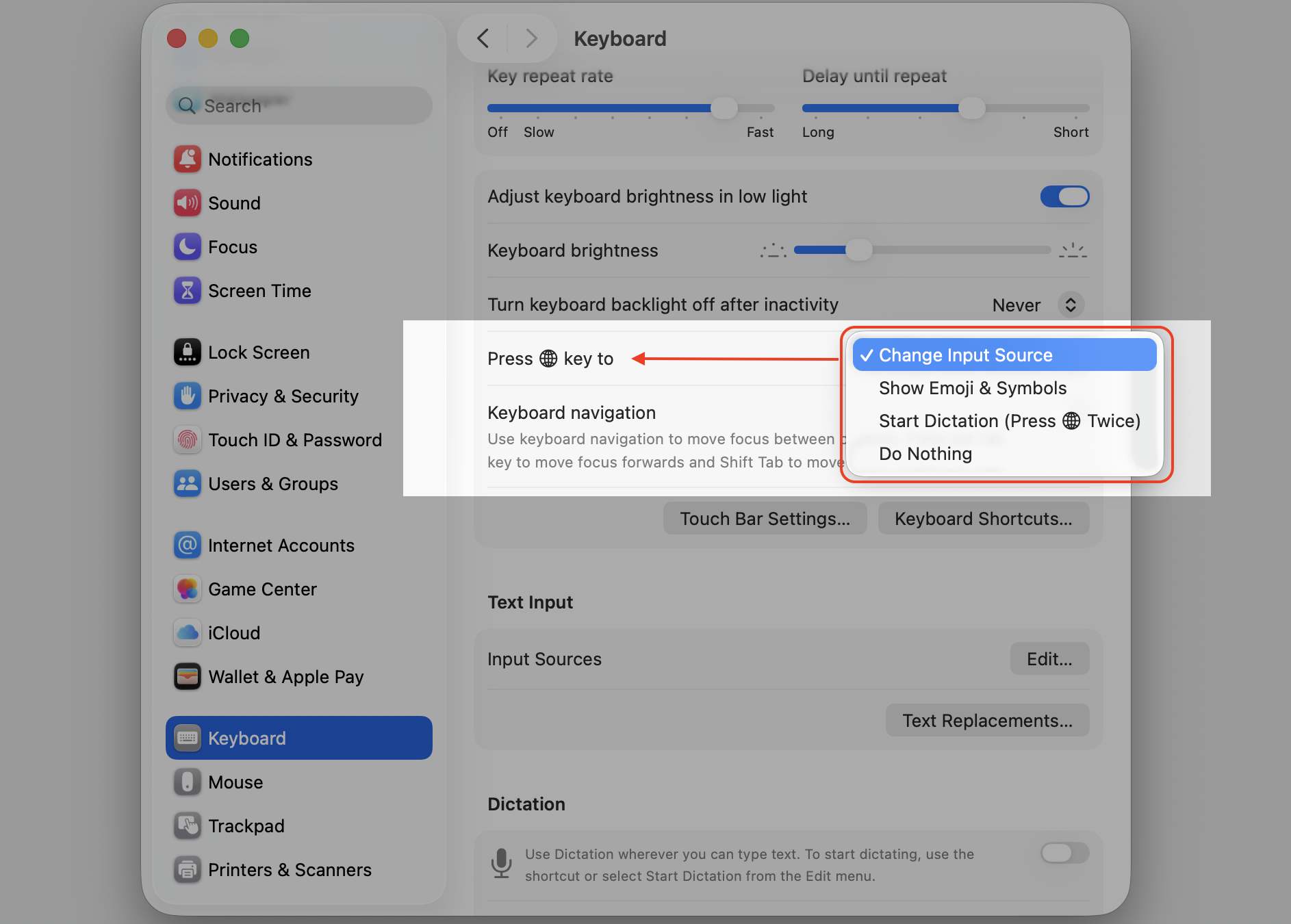
Find the option labeled Press 🌐 fn key to and make sure it’s set to your preference—either Change Input Source or Show Emoji & Symbols.
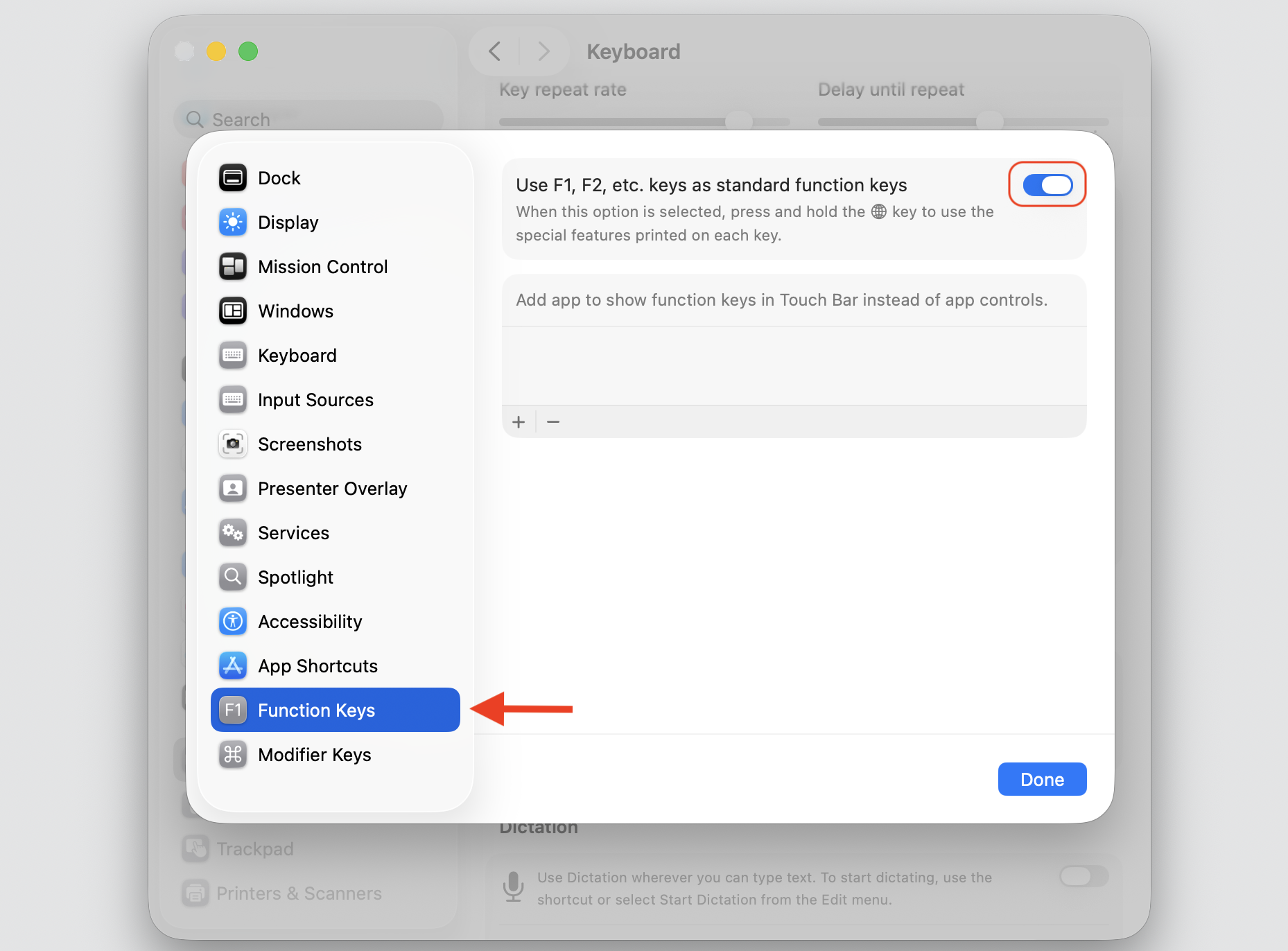
If you need F1–F12 to act as standard function keys, toggle on Use F1, F2, etc. keys as standard function keys inside Keyboard Shortcuts > Function Keys.
Step 1. Go to Apple logo > System SettingsStep 2. Go to Keyboard and set up Press 🌐 fn key to your favoriteStep 3. If you need F1–F12 to act as standard function keys, navigate to Keyboard > Keyboard ShortcutsStep 4. Select Function keys and toggle on Use F1, F2, etc.
6. Disable conflicting accessibility settings
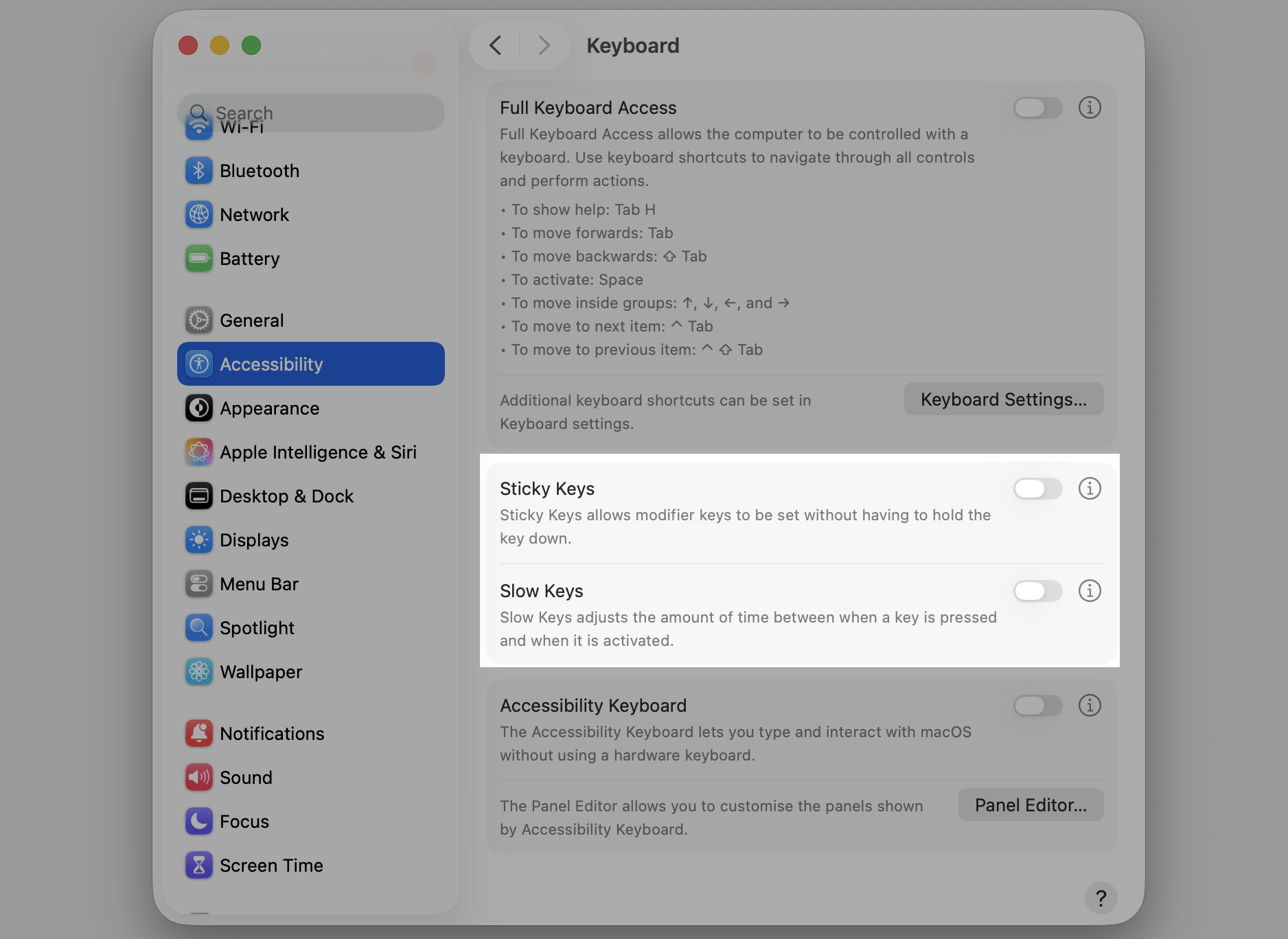
macOS includes accessibility features that can change how your keyboard responds. Slow Keys adds a delay before a keypress registers, and Sticky Keys alters how modifier keys behave. From our tests, both can interfere with shortcut input, so you’d better do the following:
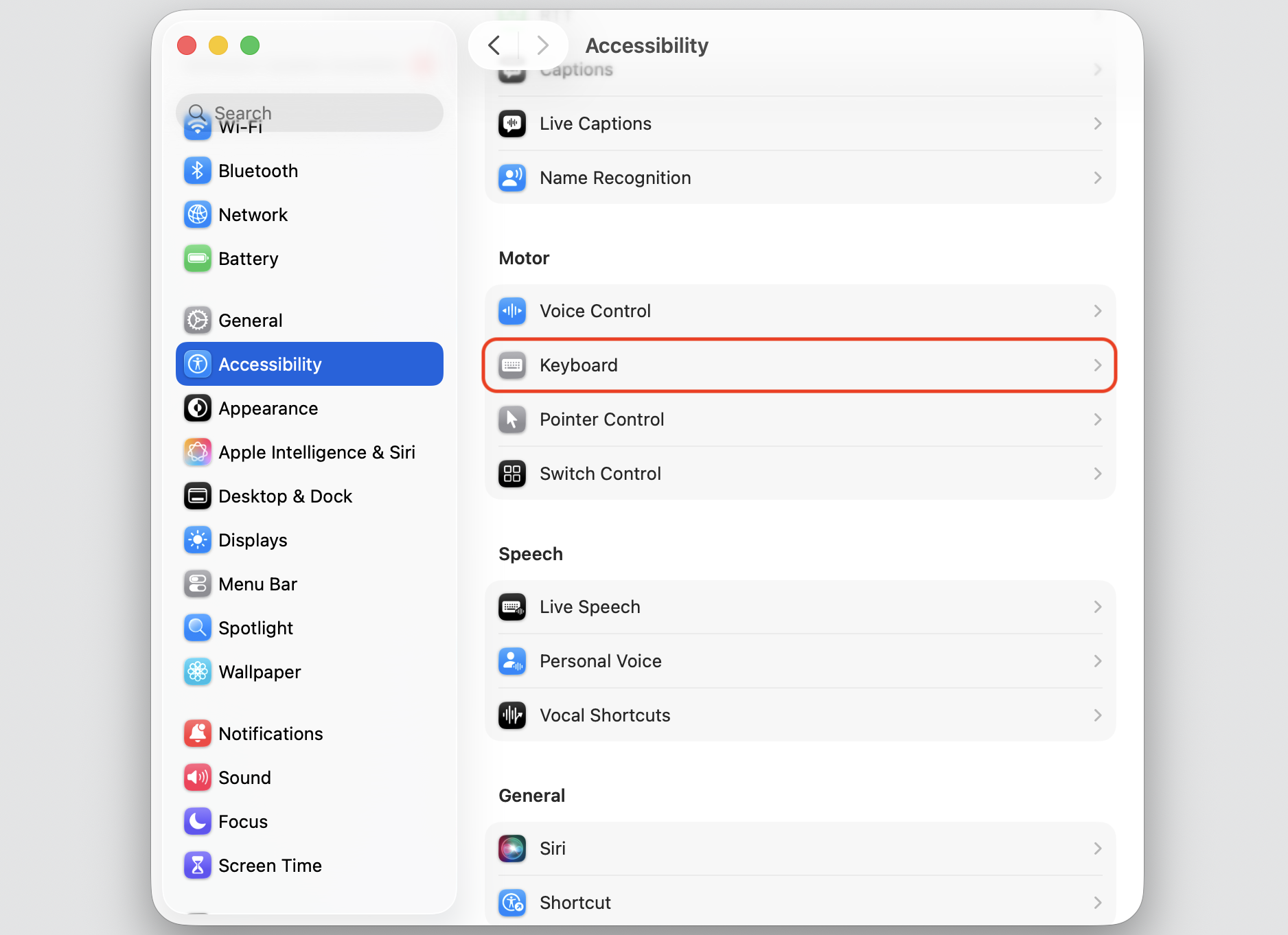
Open System Settings > Accessibility > Keyboard.
Make sure Slow Keys is turned off.
Make sure Sticky Keys is also turned off unless you specifically need it.
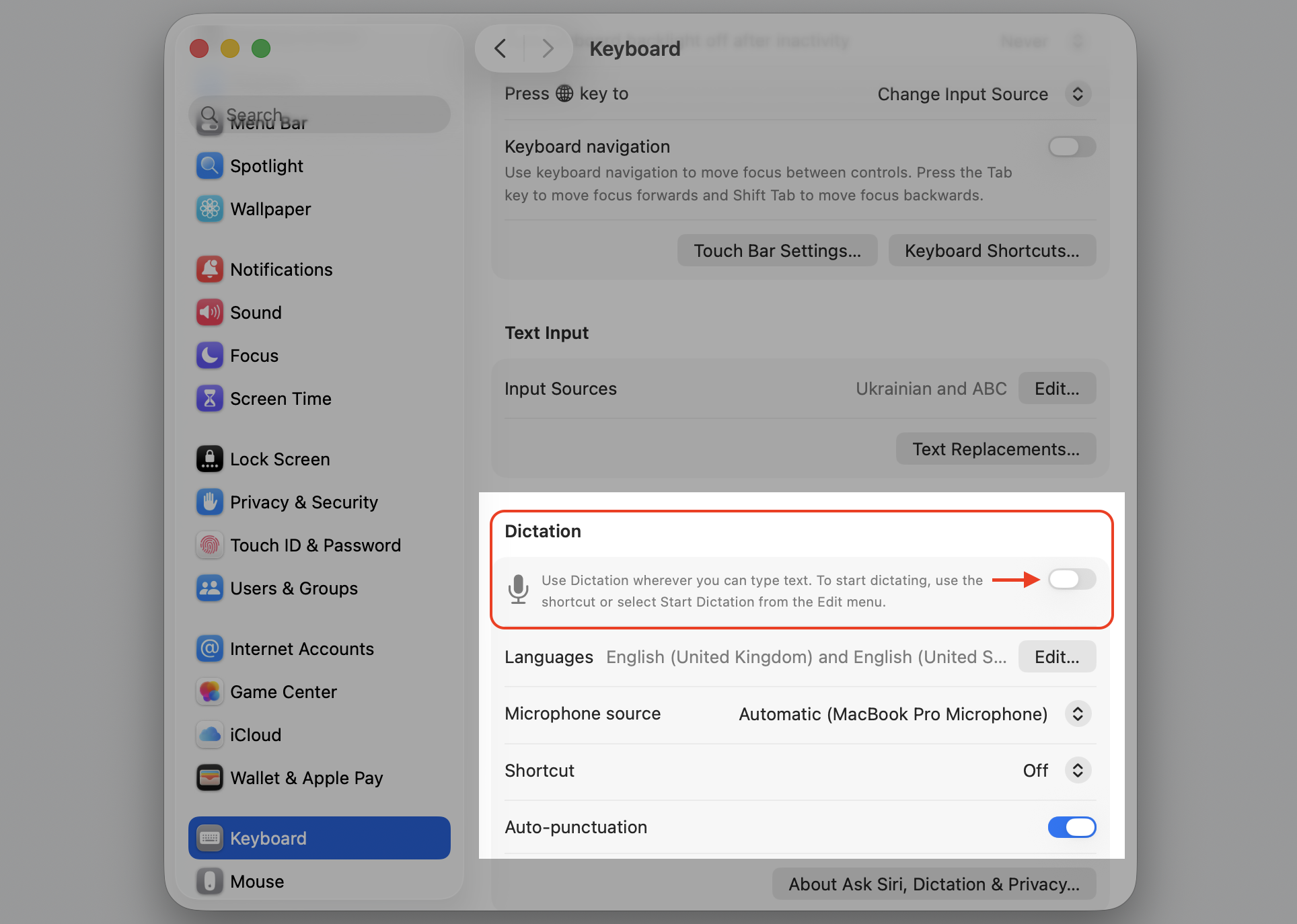
Another lifehack from our team: We recommend checking if Dictation is disabled under System Settings > Keyboard > Dictation, as it may capture certain key combinations before they reach the system.
Step 1. Got to Apple logo > System SettingsStep 2. Go to Accessibility > KeyboardStep 3. Slow Keys and Sticky Keys should be turned offStep 4. Check if Dictation is disabled under System Settings > Keyboard > Dictation
7. Check app-specific shortcut conflicts
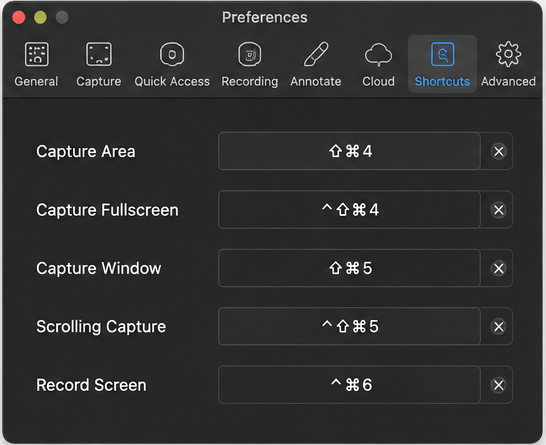
Some apps claim their own keyboard shortcuts that override system-wide ones. For example, a screenshot tool might grab Command + Shift + 4 before macOS gets to use it. To get the possible app conflicts solved, do this:
Open the app where the shortcut isn’t working.
Check its menu bar—look for the action you’re trying to trigger and see if a different shortcut is listed next to it.
Go to the app’s Settings or Preferences and look for a keyboard shortcuts section. Remove or change any conflicting bindings.
Go to App name (next to Apple logo) > Preferences > Shortcuts and Remove or change any conflicting bindings
8. Check for malware on Mac
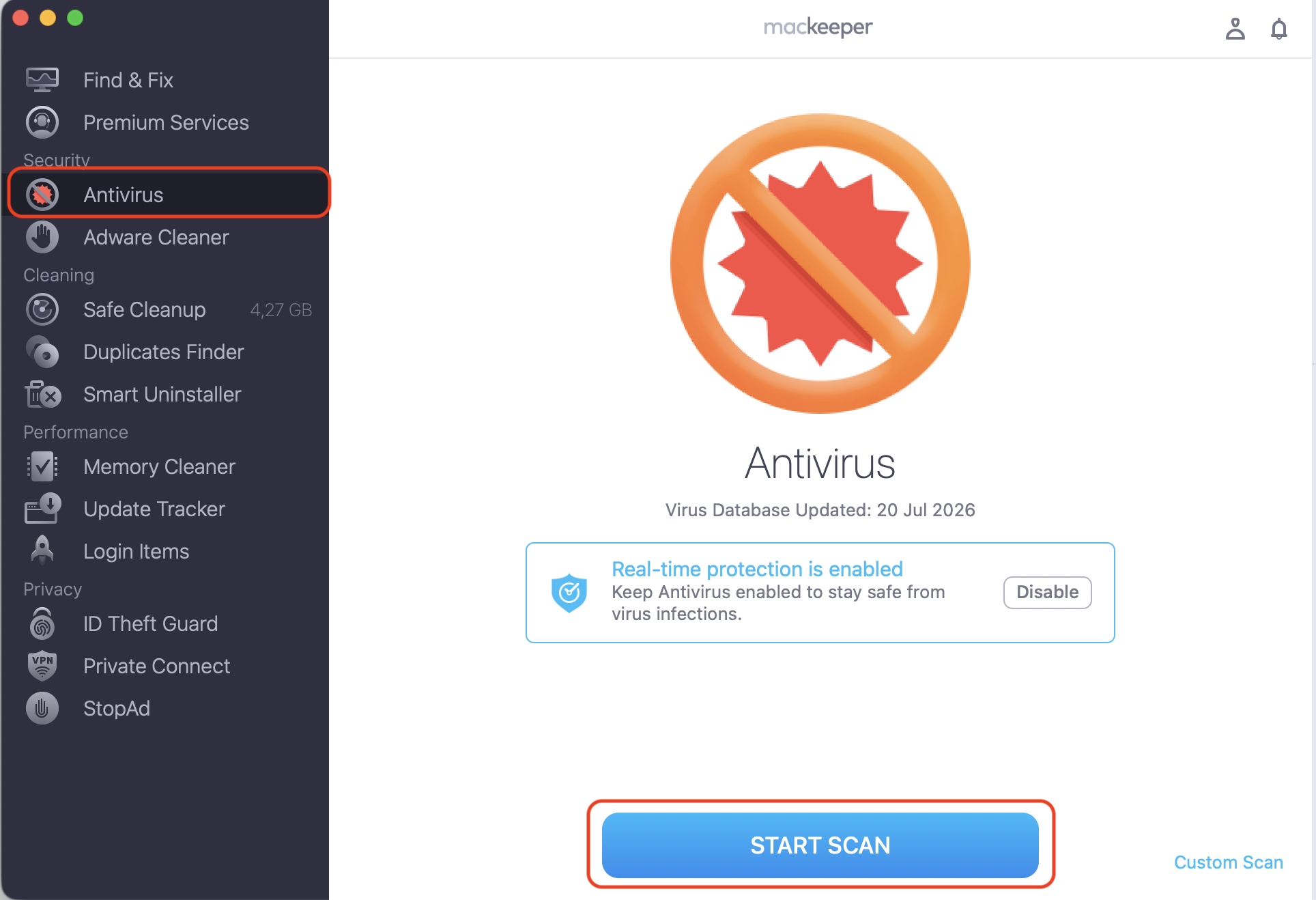
We’d say that it’s not the most obvious culprit, but unwanted software can interfere with keyboard behavior. Malicious apps or hidden processes sometimes override inputs or cause glitches that affect shortcuts. If something feels off, knowing how to check Mac for malware can help confirm whether this is the cause.
Follow the on-screen instructions to remove any threats the scan finds.
Go to MacKeeper > Antivirus > Start Scan
9. Update macOS and apps
Outdated software can carry bugs that affect keyboard input. Apple and app developers regularly patch these in updates. Follow our guidelines below:
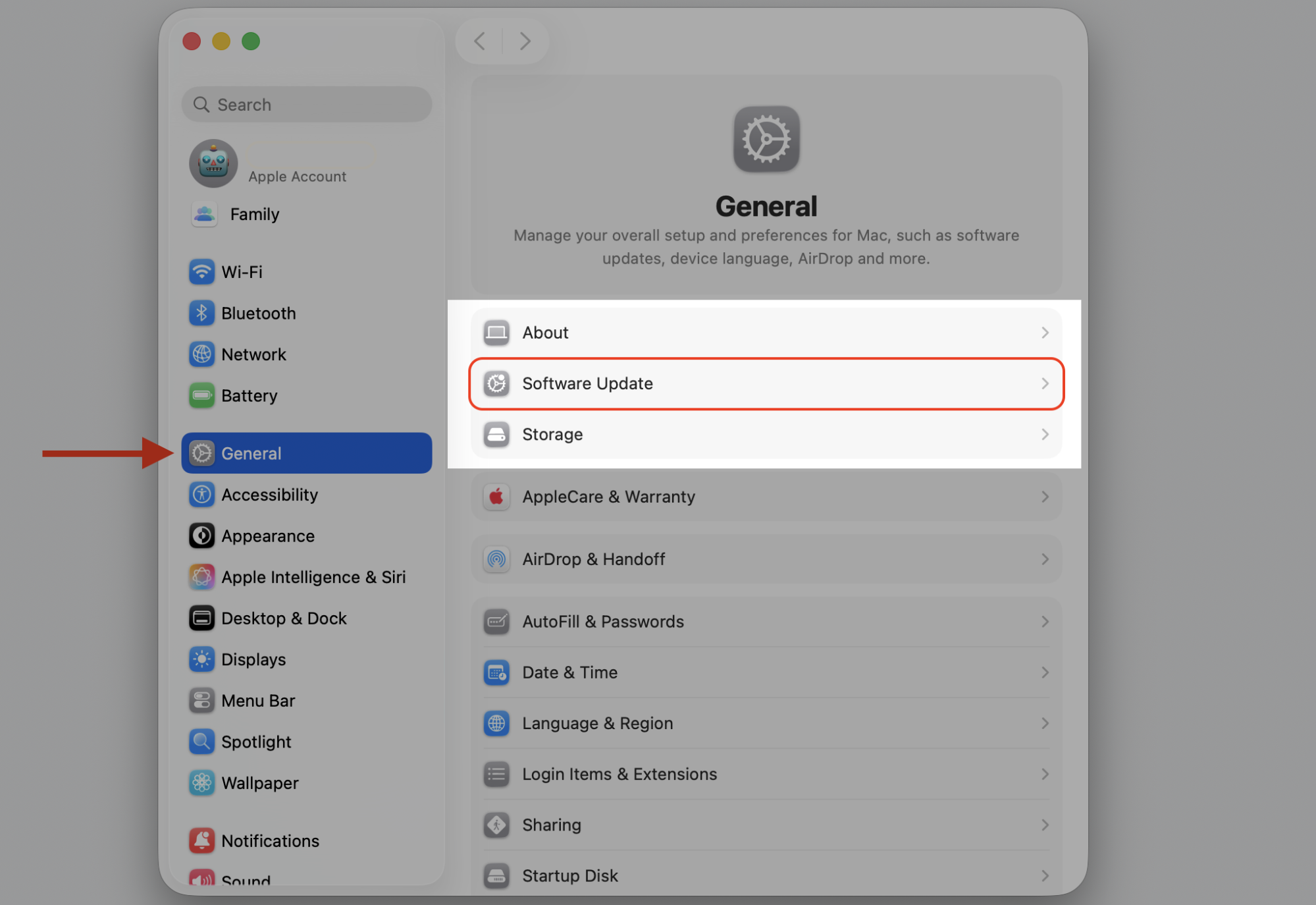
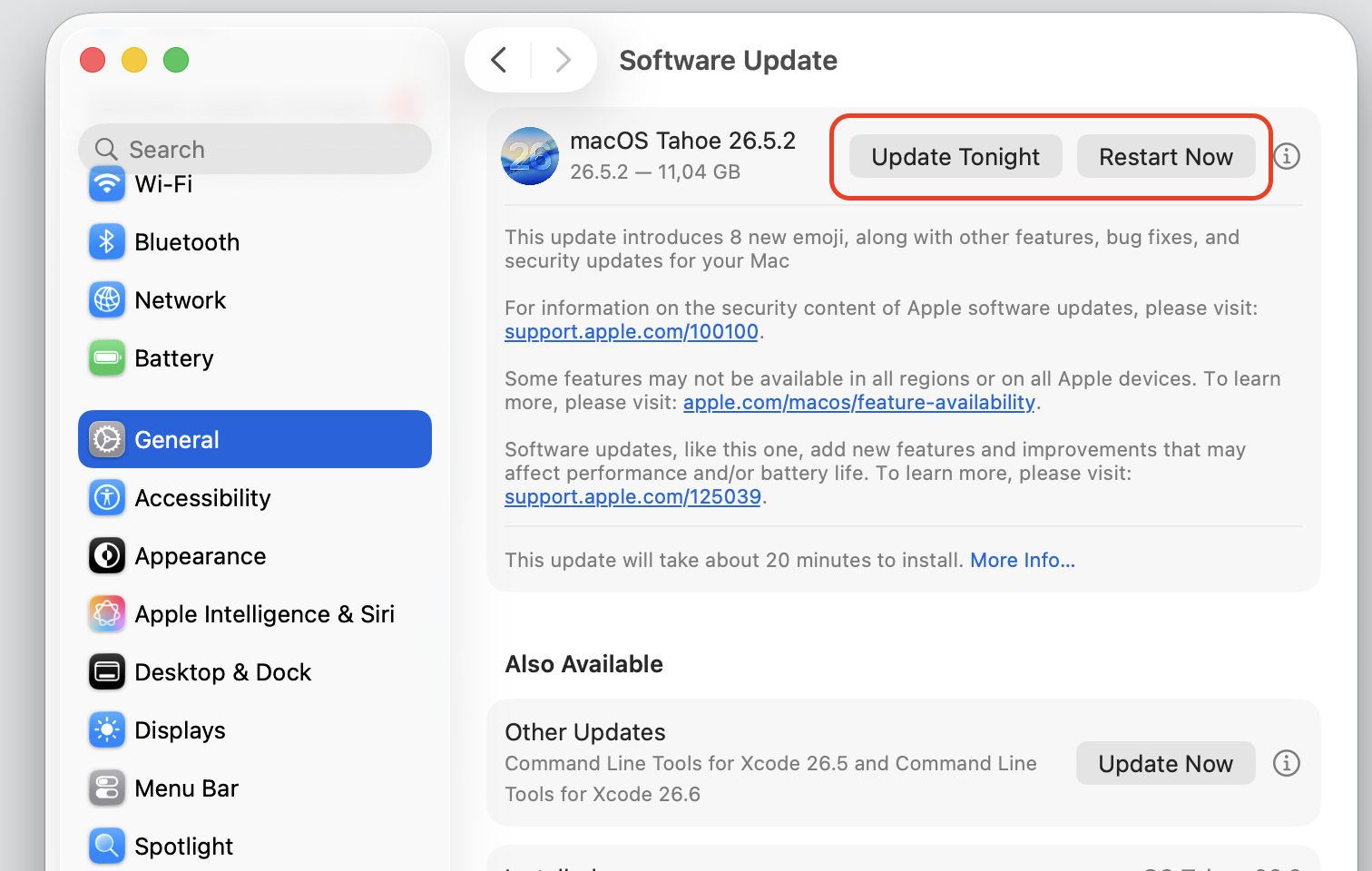
Open System Settings > General > Software Update to check for macOS updates.
Restart your Mac after installing updates.
Step 1. Go to Apple logo > System SettingsStep 2. Go to General > Software UpdateStep 3. Install the update and restart / schedule to update
If you’ve been putting off a major update, now’s a good time to upgrade macOS. It can resolve compatibility issues that trigger shortcut failures.
10. Reduce background conflicts or run maintenance tasks
Too many apps running at once can interfere with keyboard input. Background processes compete for system resources, and some may grab key combinations before macOS can process them. Closing background apps on Mac can help reduce these conflicts and improve responsiveness—try it with our instructions below:
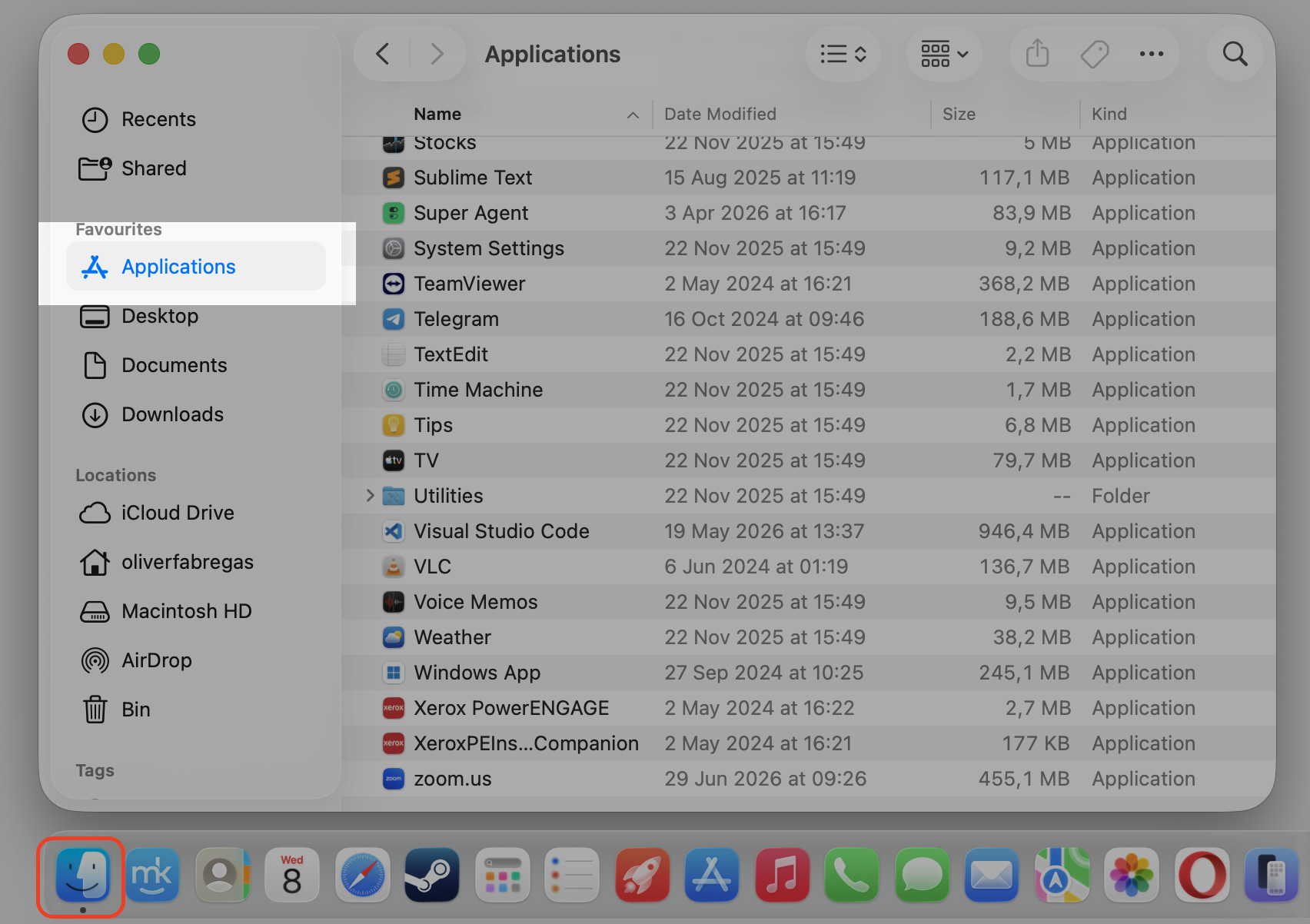
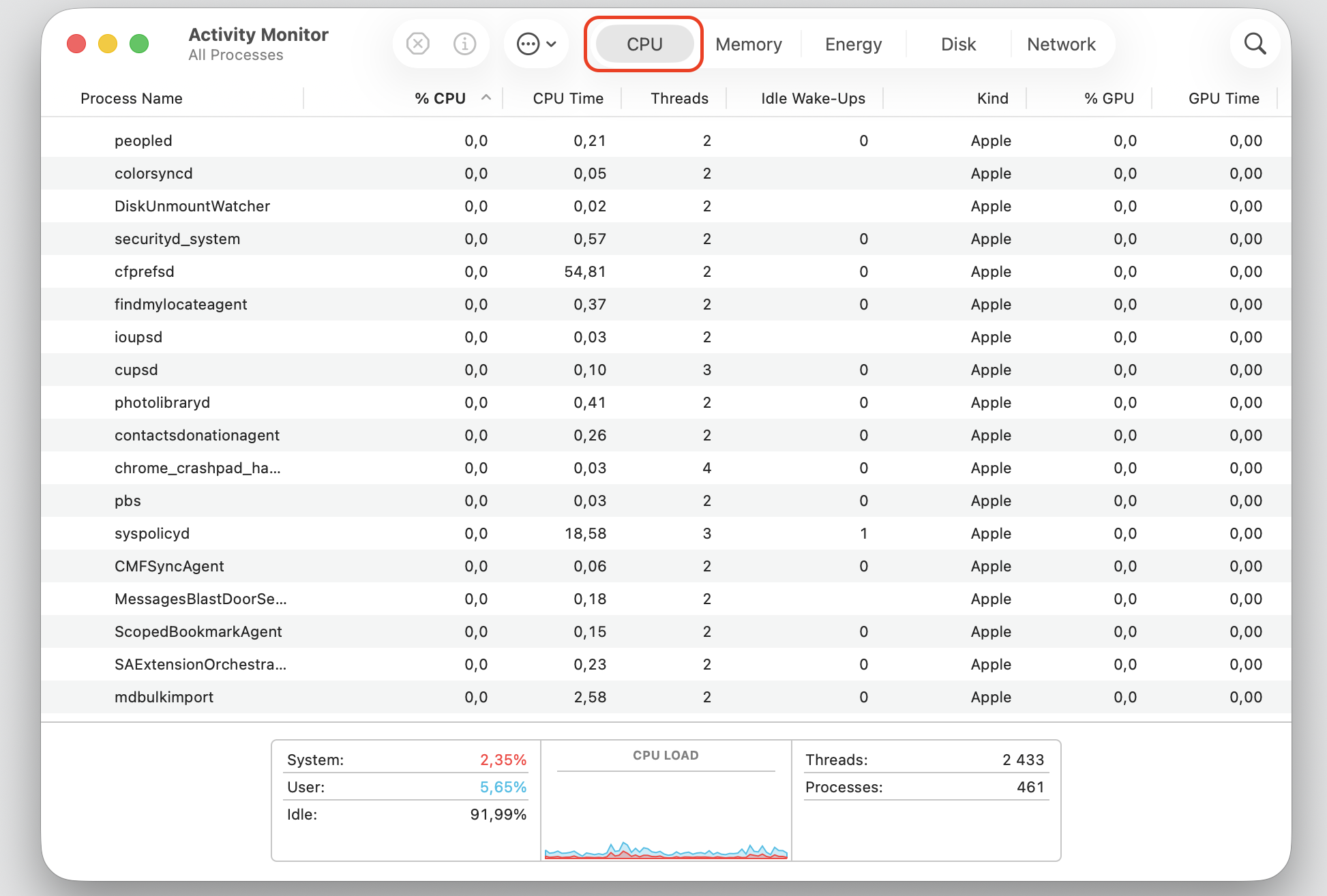
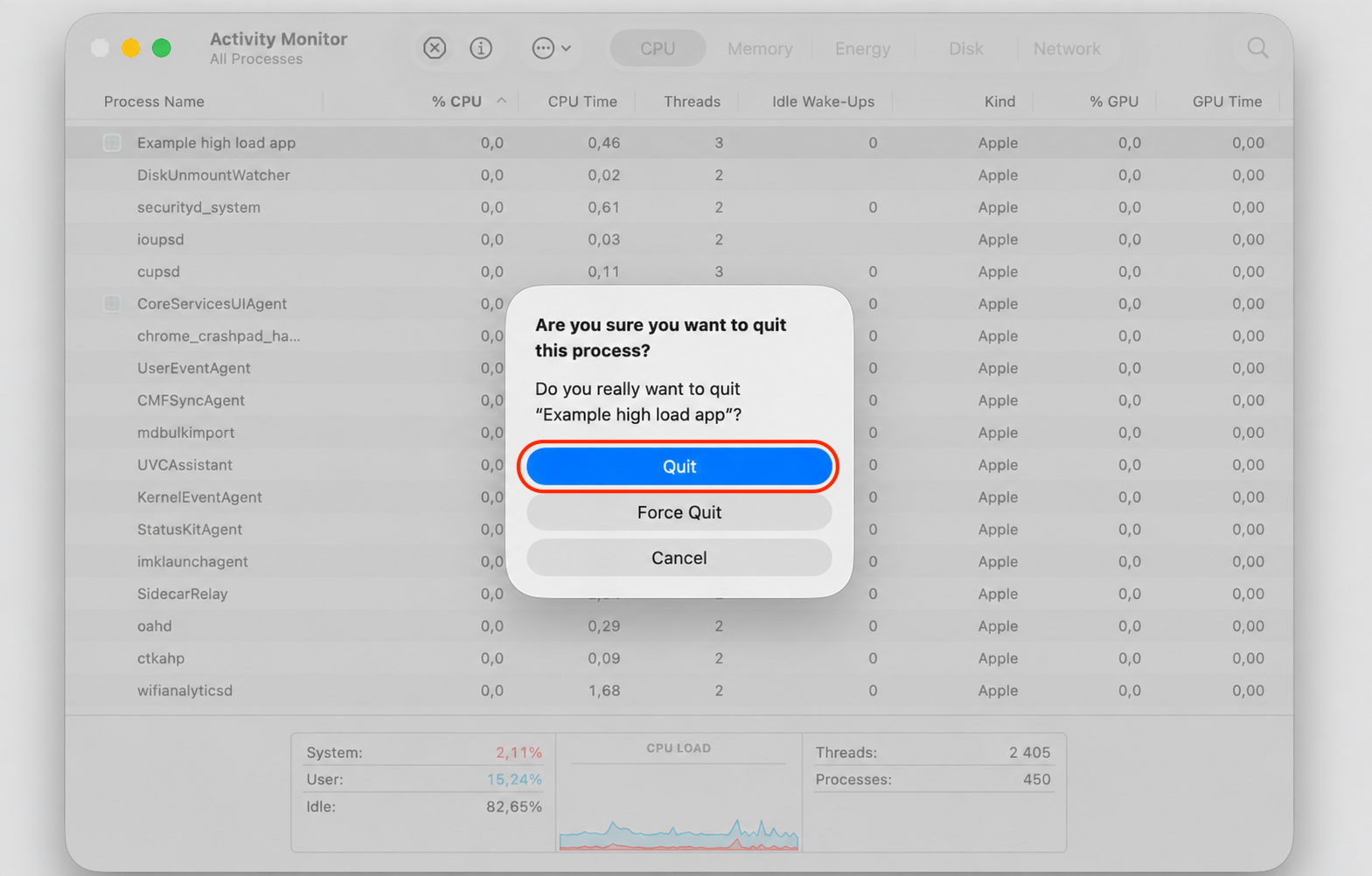
Open Activity Monitor (search for it in Spotlight) and check the CPU and Memory tabs for apps using excessive resources.
Quit any apps you don’t need right now.
Consider using a memory management tool like Activity Monitor to free up system memory and stop resource-draining processes.
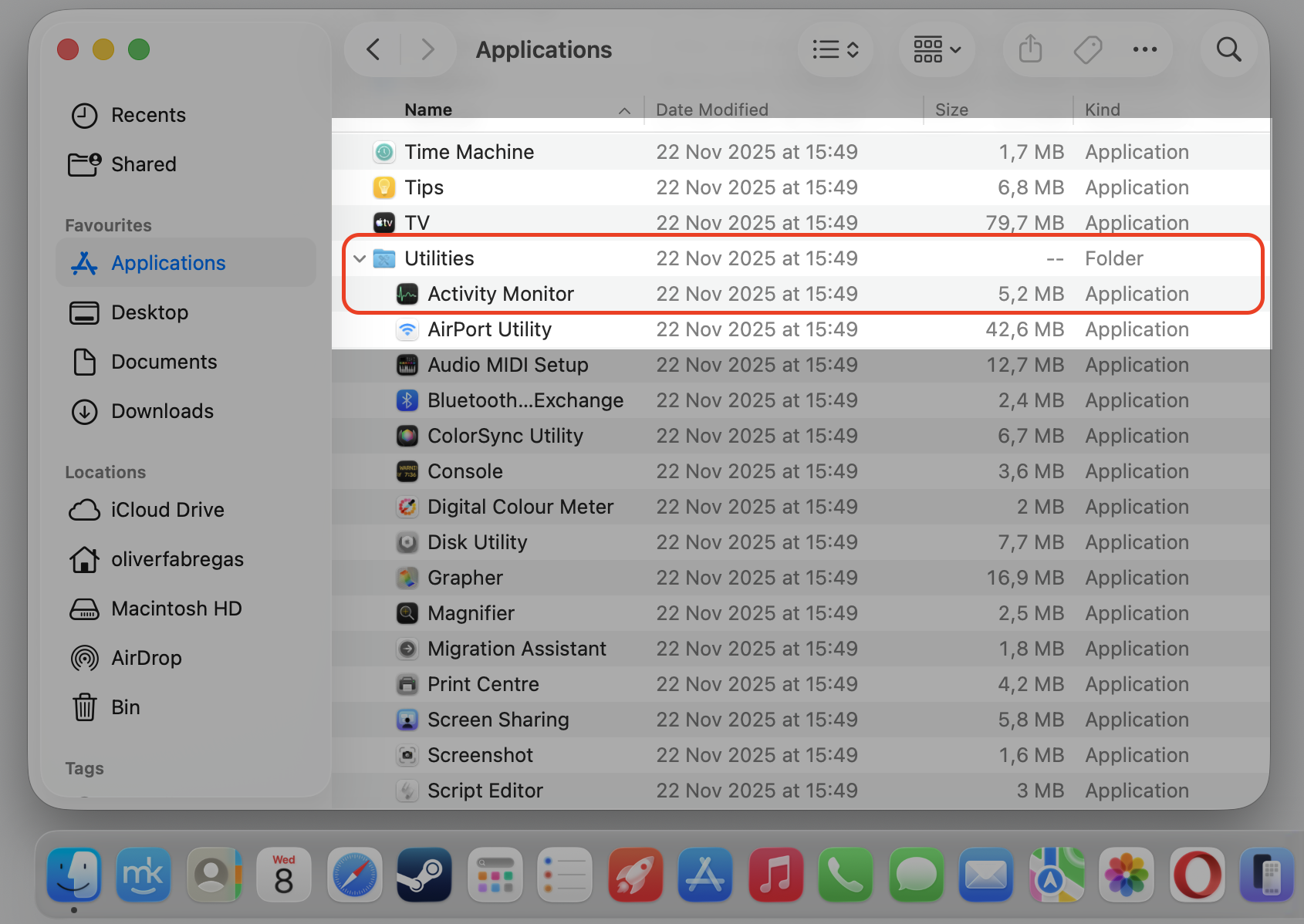
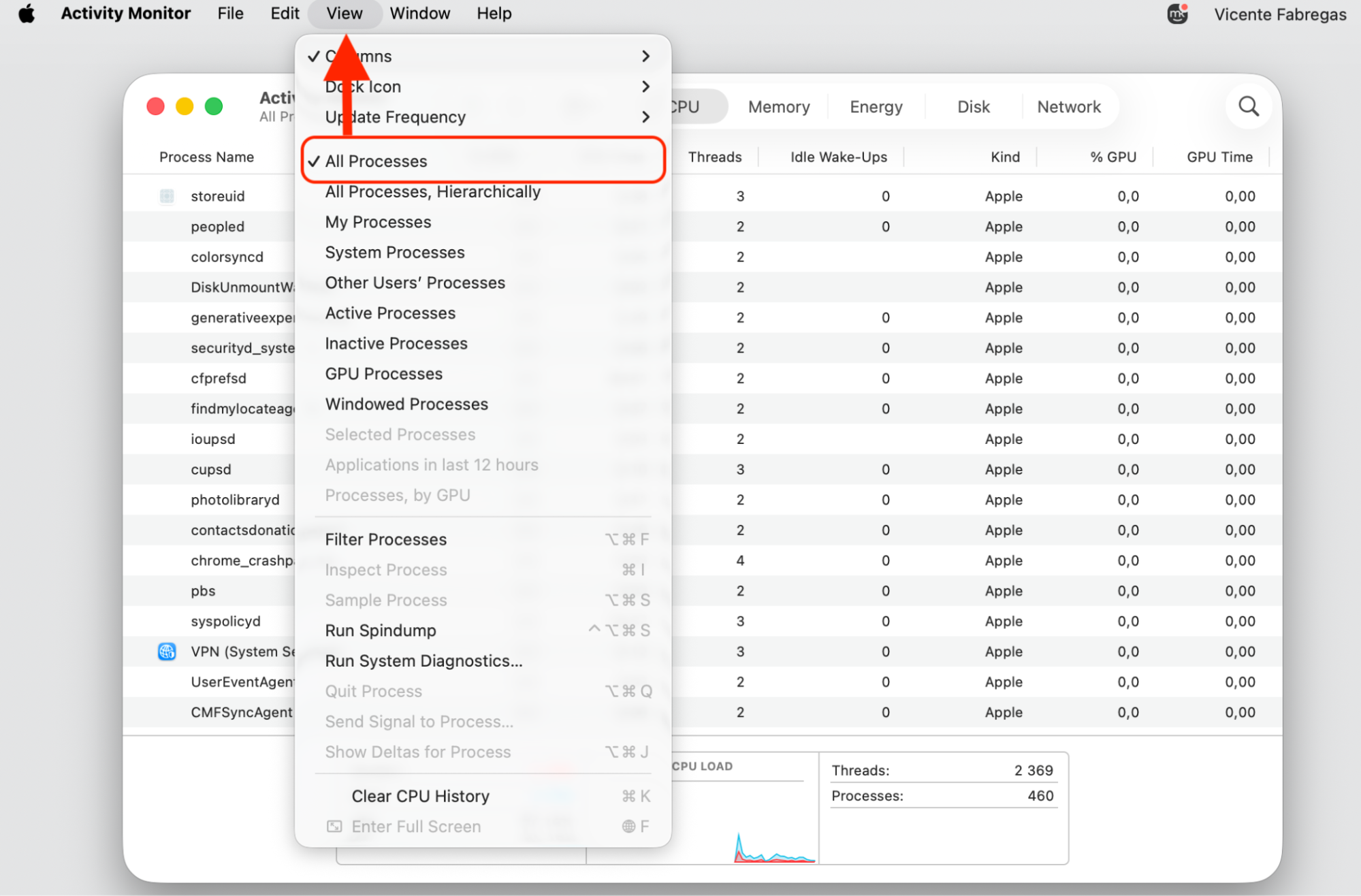
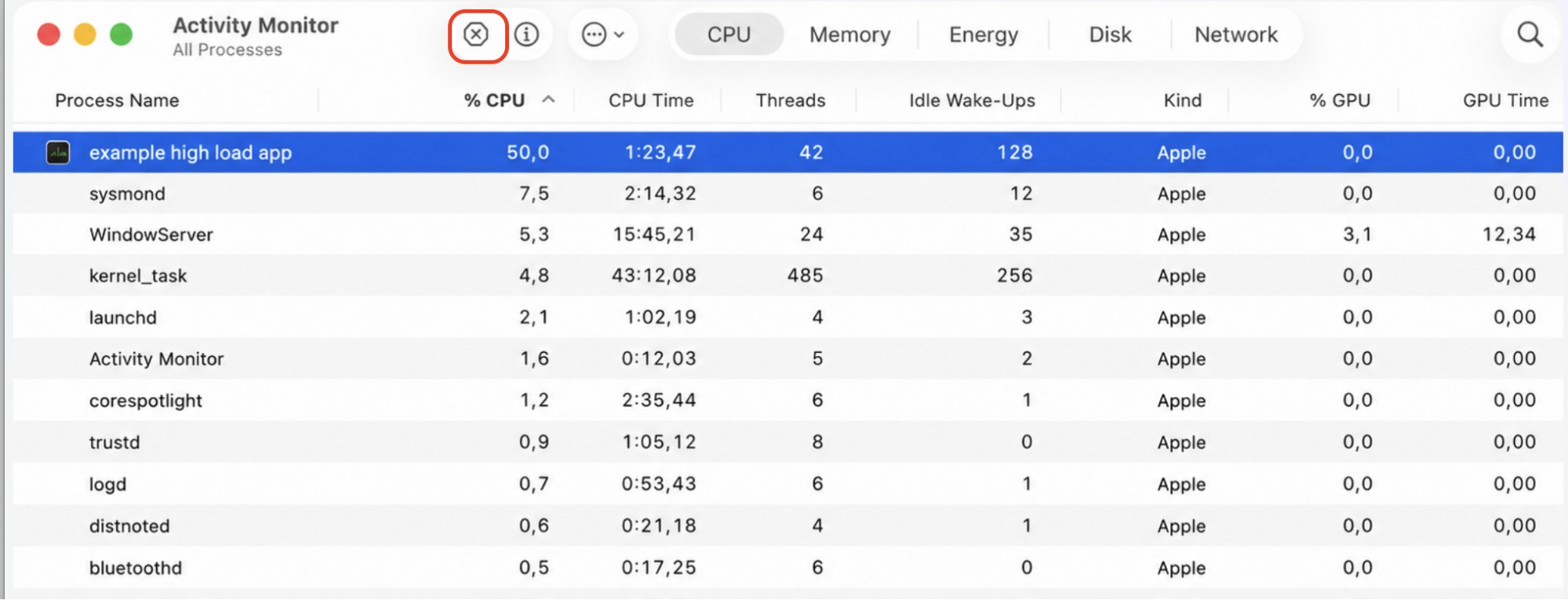
Step 1. Go to Finder > ApplicationsStep 2. Expand the Utility folder and select the Activity Monitor appStep 3. Select CPU TabStep 4. Select View > All ProcessesStep 5. Select any app using an unusually high CPU, then click the Stop (✕) buttonStep 6. Confirm by the Quit option
How to prevent keyboard shortcuts issues on Mac?
Once you’ve fixed the issue, a few simple habits can keep your shortcuts working smoothly going forward:
Keep macOS up to date. Updates patch bugs that affect keyboard input and controls.
Review shortcut settings after updates. Major releases sometimes reset default key bindings.
Avoid installing apps you don’t trust. Unnecessary apps can override inputs and create conflicts.
Check modifier key settings periodically. Make sure Command, Option, Control, and Fn are mapped to defaults.
Clear system clutter regularly. Removing junk files and old caches helps prevent unexpected behavior.
Conclusion
When Mac shortcuts are not working, the cause is usually a settings change or a software conflict—not broken hardware. If you’ve tried the steps above and still need help, MacKeeper’s Premium Services can remotely troubleshoot your MacBook and restore your hotkeys to normal. Reach out anytime!
We respect your privacy and
use cookies
for the best site experience.
Privacy Preferences Center
We use cookies along with other tools to give you the best possible experience while using the
MacKeeper website. Cookies are small text files that help the website load faster. The cookies we
use don’t contain any type of personal data meaning they never store information such as your
location, email address, or IP address.
Help us improve how you interact with our website by accepting the use of cookies. You can change
your privacy settings whenever you like.
Manage consent
All cookies
These cookies are strictly necessary for enabling basic website functionality (including page
navigation, form submission, language detection, post commenting), downloading and purchasing
software. The website might malfunction without these cookies.