If your Command key isn’t working on your Mac, several effective solutions can help you restore your favorite keyboard shortcuts and eliminate unnecessary frustration. When none of these work, the technical team at MacKeeper’s Premium Services is always available to assist.
When the Command key stops working on your Mac, restart your device, update macOS to eliminate any known bugs, and check for any malware. Then, navigate to System Settings > Keyboard > Modifier Keys to verify that your keyboard settings are correct. If you’re using an external keyboard, make sure both the cable and port are functioning properly. For Intel-based Macs, resetting the NVRAM and SMC can also help resolve persistent issues.
Why is my Command key not working on Mac?
Your Mac’s Command key might have stopped working after a change in your keyboard layout. For external keyboards, issues such as Bluetooth connectivity problems, a depleted battery, or a faulty cable or port are also common causes. In rare circumstances, malware or physical damage from debris, liquid spills, or impact may be to blame.
How to fix Command key not working on Mac?
Is your Mac’s Command key not working? Before giving up, try restarting your Mac and updating macOS. If you’re using an Intel-based Mac, manually reset the NVRAM and SMC, which help manage hardware and software functions. Next, we recommend reviewing your device’s modifier keys and adjusting your keyboard settings as needed. For external keyboards, double-check both wireless and physical connections. Lastly, consider the possibility of malware and follow the recommended steps to detect and remove it.
A note from our experts:
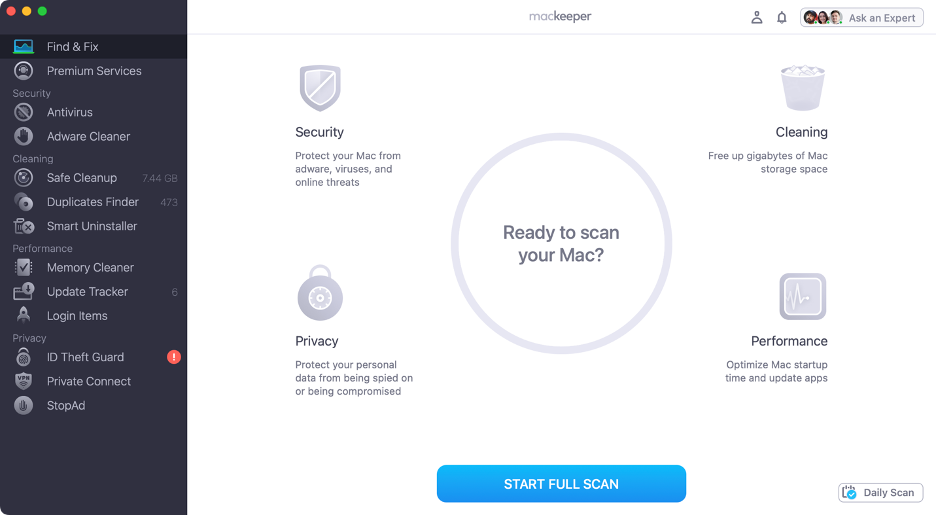
Dealing with a Command key that won’t work on your Mac or MacBook can be frustrating. MacKeeper’s Premium Services offer a reliable solution: 24/7 customer support from experienced technicians. Developed by Clario Tech and notarized by Apple, MacKeeper provides the security and peace of mind you need.
Here are the steps to use MacKeeper’s Premium Services on a Mac:
Type in your message and let our team know what you need.
Step 1. Launch MacKeeperStep 2. Select Premium Services from the sidebarStep 3. Click Chat NowStep 4. Type in your message
1. Restart Mac
Before attempting more complex solutions, our experts recommend restarting your Mac first. A simple restart closes all running processes and can often resolve temporary glitches that may be causing your Command key to malfunction.
To restart your Mac, follow these simple steps:
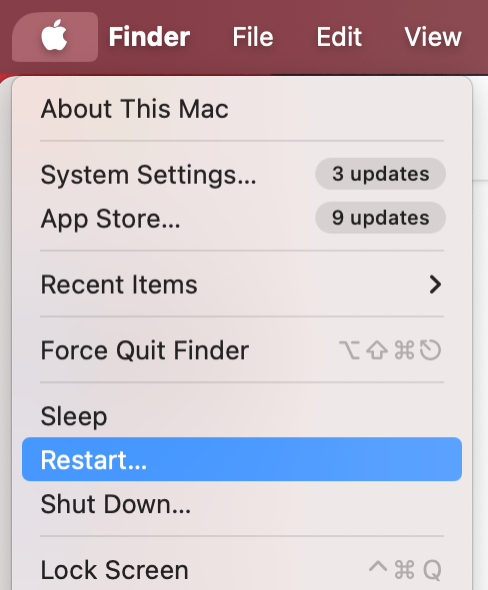
Click the Apple logo in the menu bar.
Select Restart from the dropdown menu.
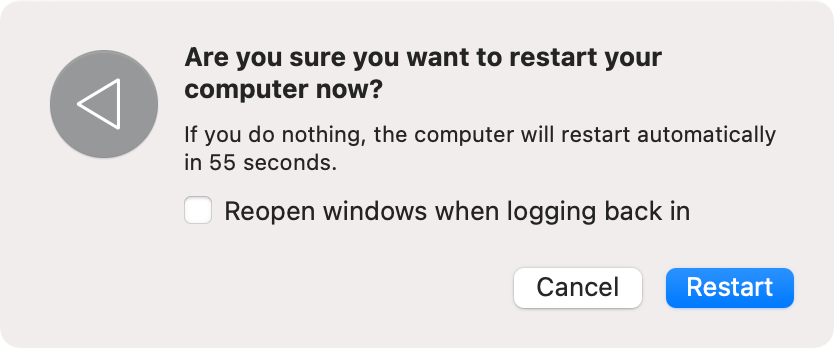
Click Restart again in the new window.
Step 1. Apple logo > RestartStep 2. Click Restart again
For more advanced troubleshooting, learn how to start Mac in Safe Mode. This feature helps resolve persistent issues such as system freezes and software errors.
2. Check Modifier keys
The Command key is a modifier key that changes the function of another key when both are pressed simultaneously. While Apple provides default behaviors for modifier keys, you have the flexibility to customize their settings to suit your preferences.
If you think your keyboard mapping may have changed unexpectedly, use our tips to check and adjust the settings of your modifier keys:
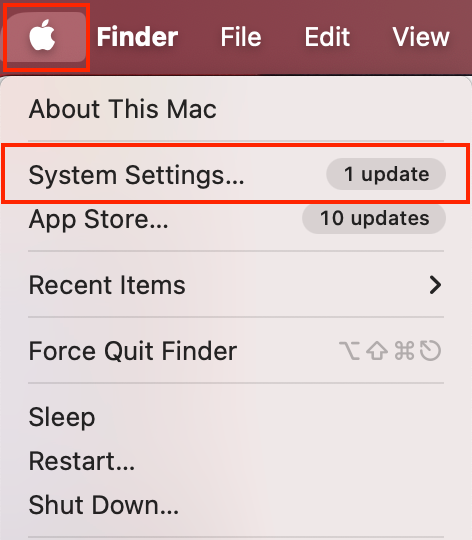
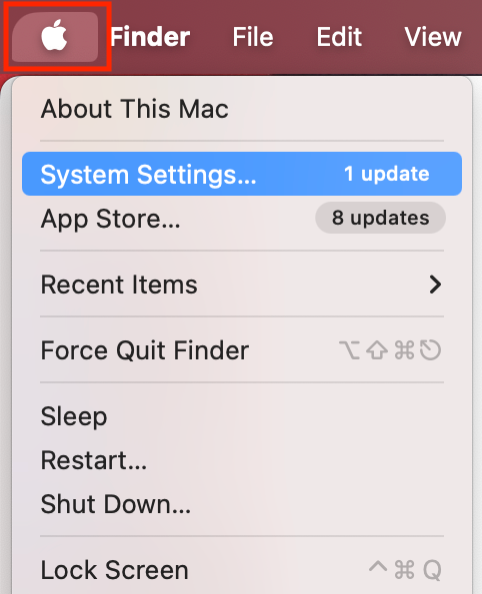
Click the Apple logo in the menu bar.
Select System Settings from the dropdown menu.
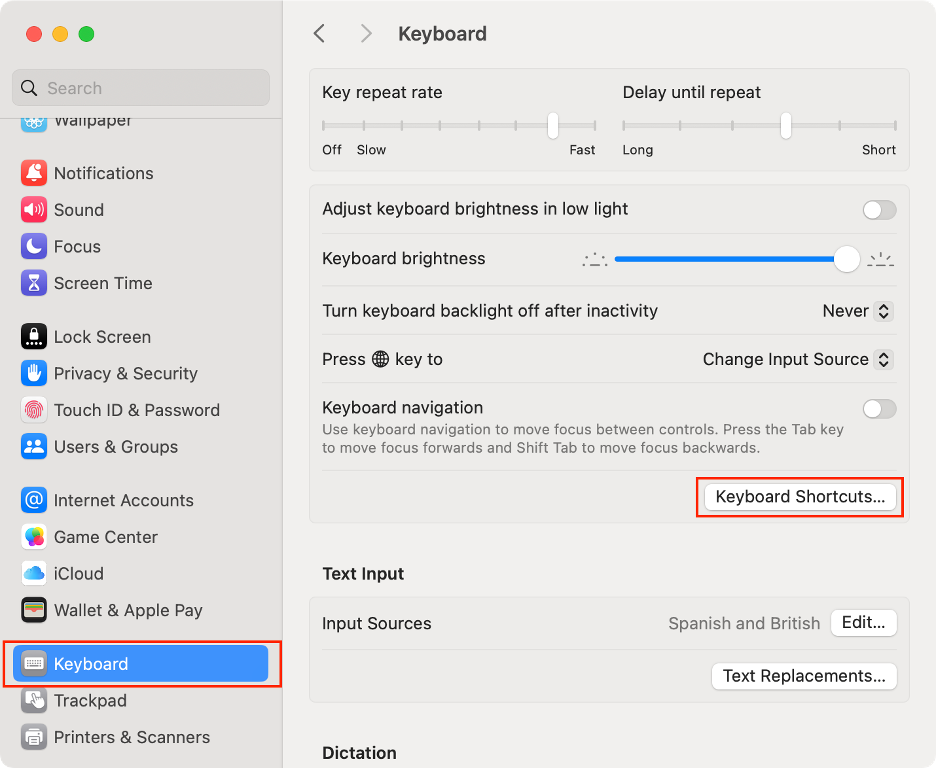
In the left sidebar, scroll down and choose Keyboard.
On your right, click the Keyboard Shortcuts button.
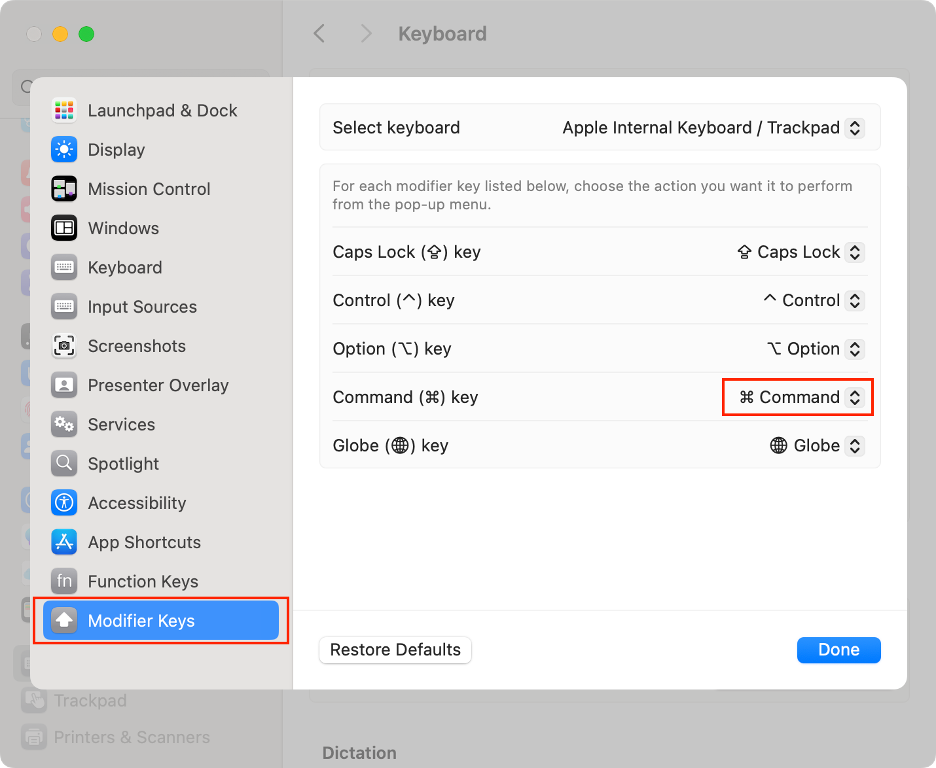
In the new window, go to Modifier Keys.
Next, make sure Command is assigned to the Command key.
Click Done to confirm.
Step 1. Apple logo > System SettingsStep 2. Keyboard > Keyboard ShortcutsStep 3. Modifier Keys > Command key > Command
3. Check keyboard settings
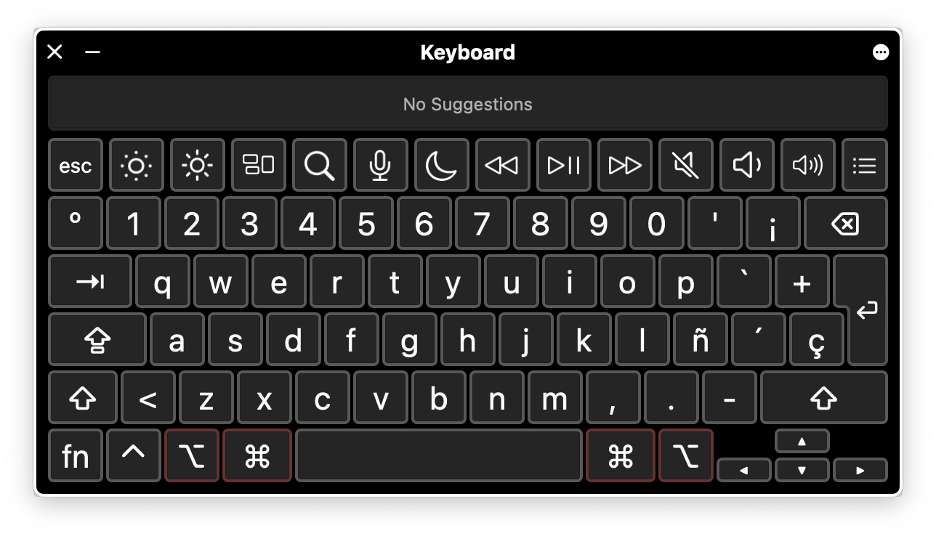
While our previous tip helps you identify conflicts with the Command key, a more practical and user-friendly way to check your keyboard layout is to use the Keyboard Viewer. This tool lets you see what happens when you press the Command key.
Here’s how to use the Keyboard Viewer on your Mac:
Click the Apple logo in the menu bar.
Select System Settings.
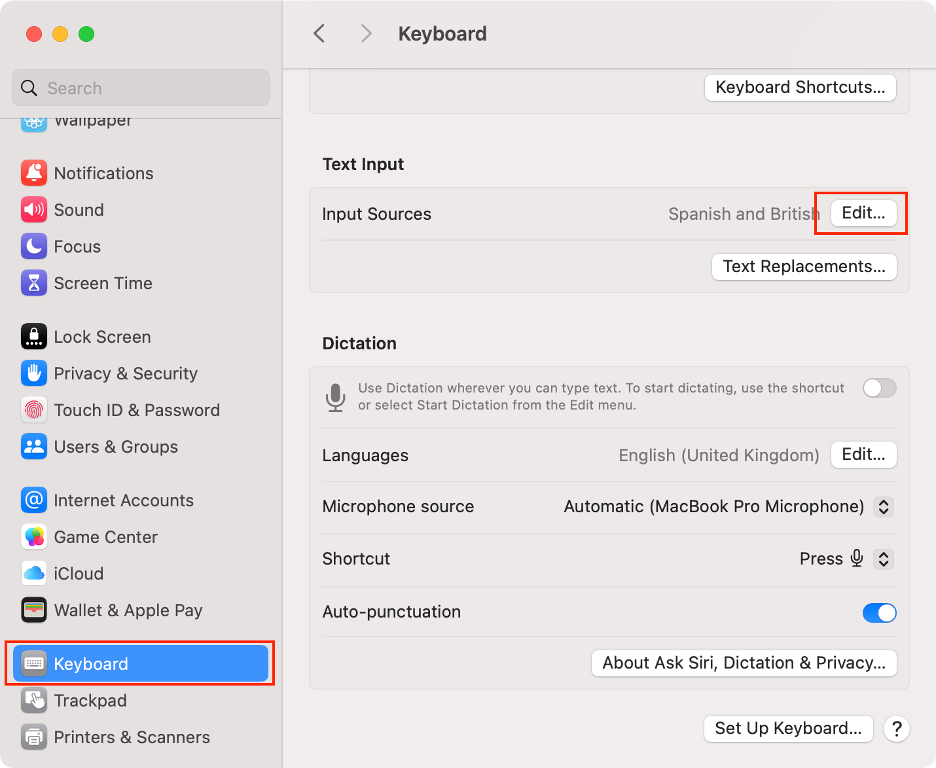
Scroll down and choose Keyboard.
Click Edit next to Input Sources.
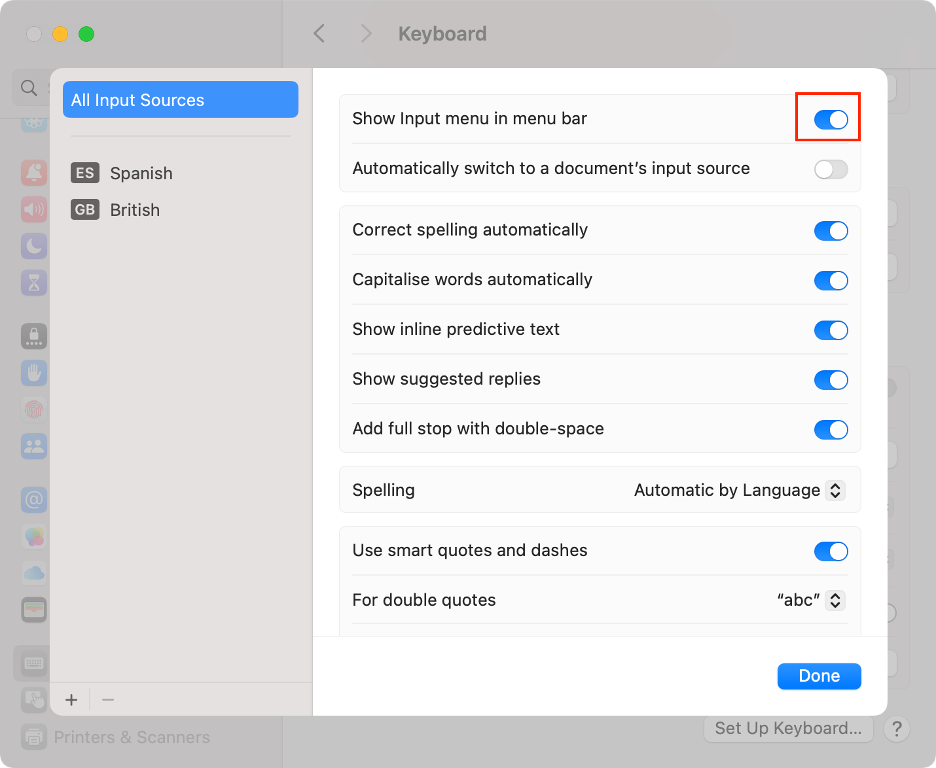
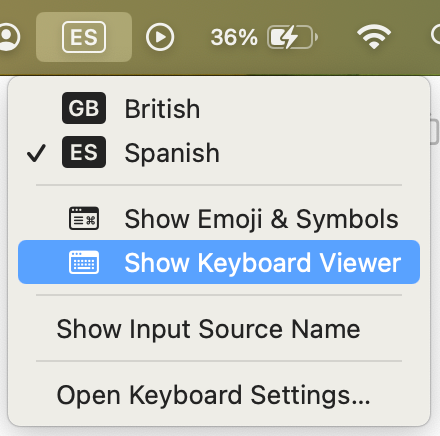
Turn on the toggle next to Show Inputmenu in menu bar, then click Done.
In the menu bar, click the Inputmenu.
Click Show Keyword Viewer.
Press the Command key to see what happens.
Step 1. System Settings > Keyboard > Text Input > EditStep 2. Show Input menu in menu barStep 3. Input menu > Show Keyboard ViewerStep 4. Press Command key
If you’re not satisfied with your current keyboard settings, check out our separate guide on customizing your macOS external keyboard mapping.
4. Update macOS
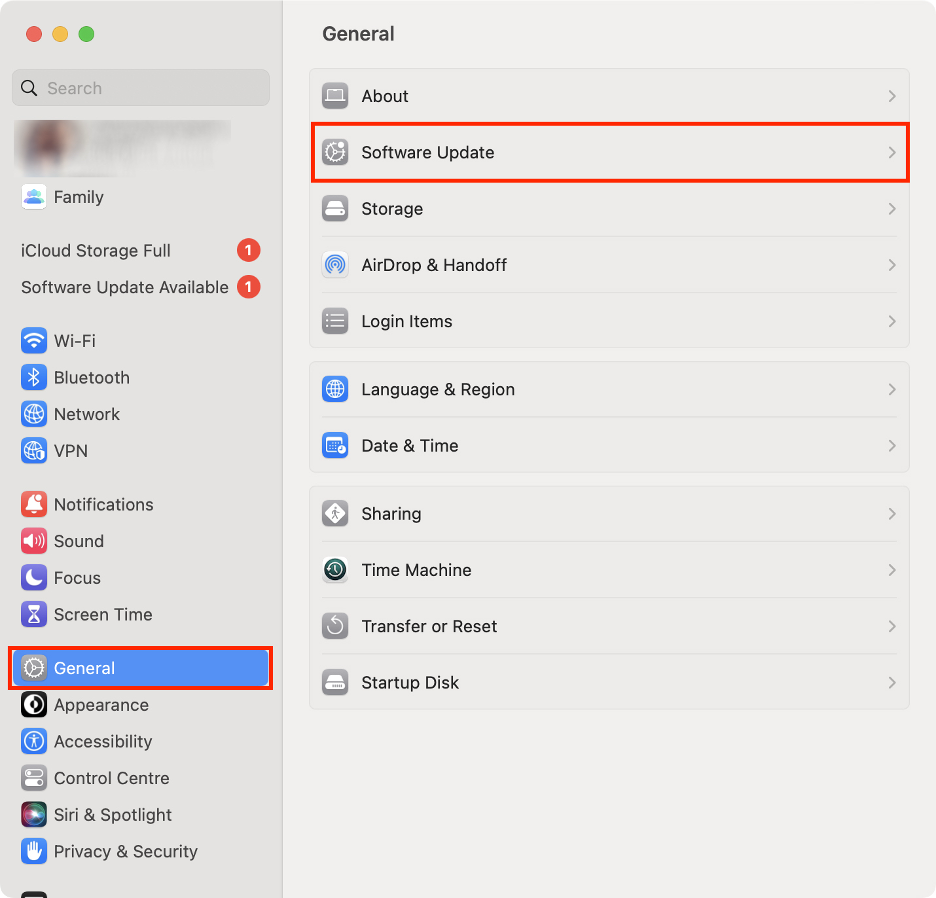
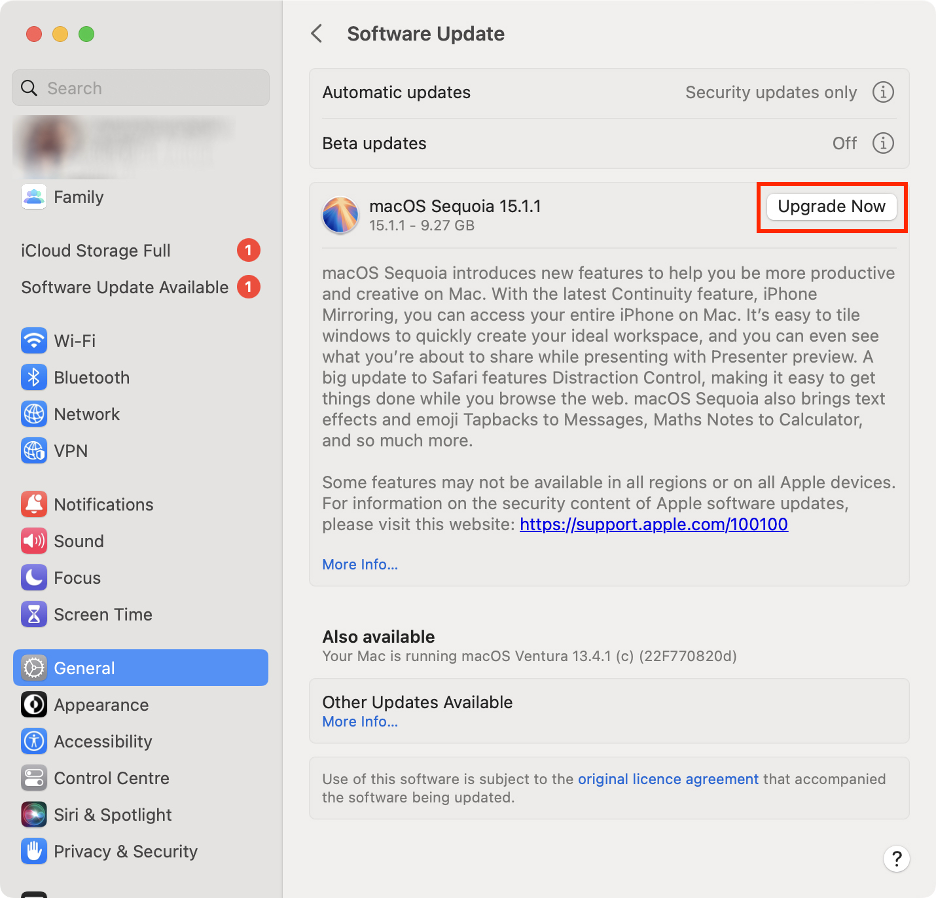
Don’t overlook the importance of checking for available macOS updates on your Mac. Based on our experience, regularly updating ensures you receive Apple’s latest fixes for glitches and errors, keeping your system running smoothly.
Step 1. Apple logo > System SettingsStep 2. General > Software UpdateStep 3. Click Upgrade Now
5. Use external or USB keyboard
Keyboard not working on Mac? If your Command key isn’t responding, the problem could be with your MacBook’s built-in keyboard. To determine whether the issue is hardware-related, try connecting an external keyboard via cable or Bluetooth and see if the Command key functions properly.
If you’re already using an external keyboard, use these tips to rule out a faulty Command key:
For wireless keyboards, disconnect and reconnect Bluetooth to refresh the connection.
For wired keyboards, unplug and replug the cable, try a different port, or blow gently into the port to remove dust and debris.
Clean your keyboard with a lint-free cloth lightly dampened with water or alcohol.
Double-check that your keyboard is compatible with your Mac/MacBook model.
6. Check for malware
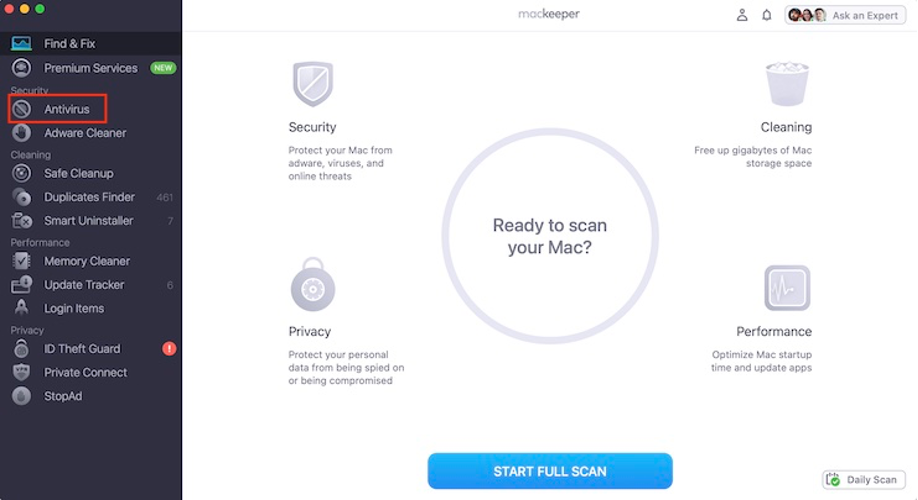
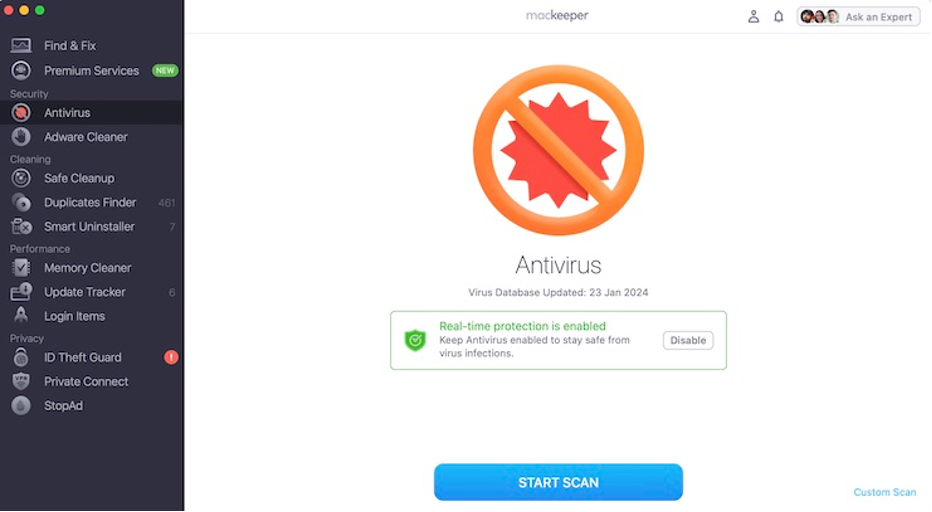
If your Command key suddenly stops working without explanation, unfortunately, malware may be to blame. We strongly suggest you protect your Mac by scanning for threats and removing any infections using trusted cybersecurity software like MacKeeper’s Antivirus.
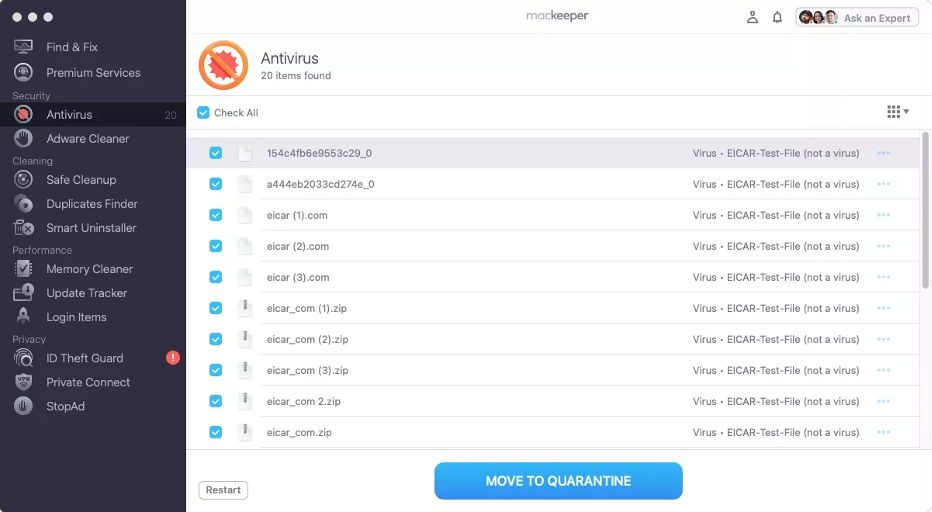
After the scan is done, select the detected malware.
Move it to quarantine.
Step 1. MacKeeper > AntivirusStep 2. Click Start ScanStep 3. Select the malware and delete it
7. Reset PRAM/NVRAM and SMC
Our final recommendation is specifically for users with Intel-based Macs: resetting the PRAM/NVRAM and SMC. If you own a Mac with Apple Silicon, you can skip this step, as these components are automatically refreshed during a standard restart.
We suggest you start by resetting the PRAM/NVRAM, which controls key software and hardware settings. Here’s how to reset PRAM on Mac:
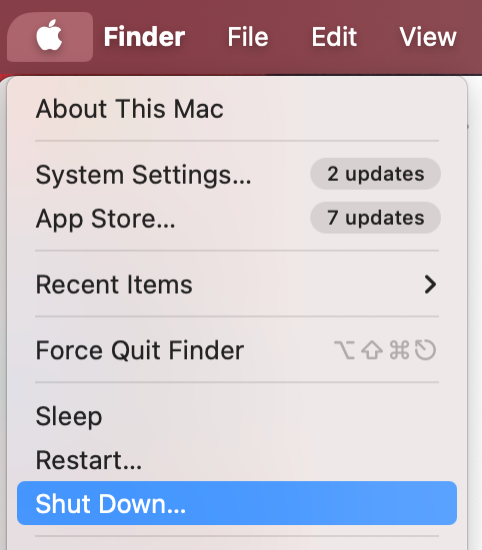
Click the Apple logo in the menu bar.
Select Shut Down.
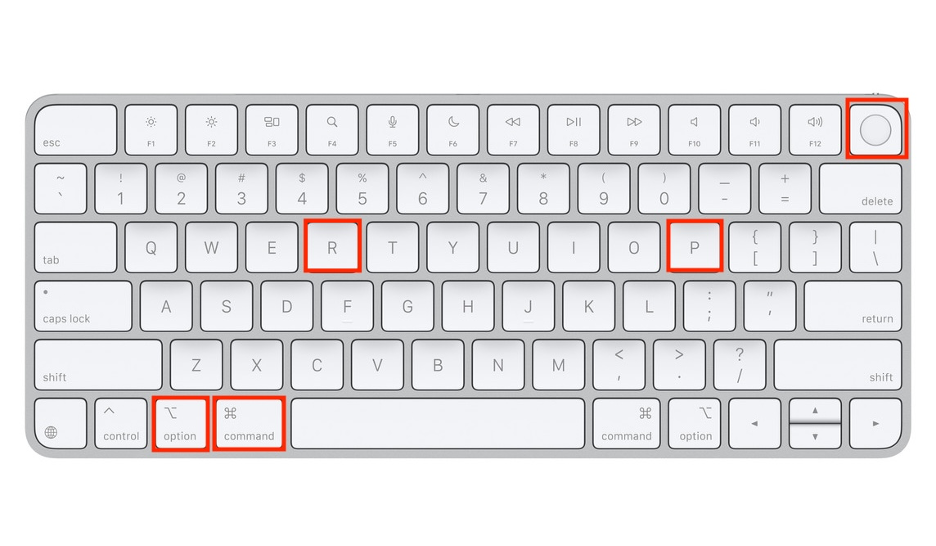
Press the Power button to turn your Mac back on.
Immediately press and hold Command + Option + P + R.
After 20 seconds, release all keys.
Step 1. Apple logo > Shut DownStep 2. Power button + Command + Option + P + R
After that, follow these instructions to reset the SMC, which can often resolve keyboard and connection issues.
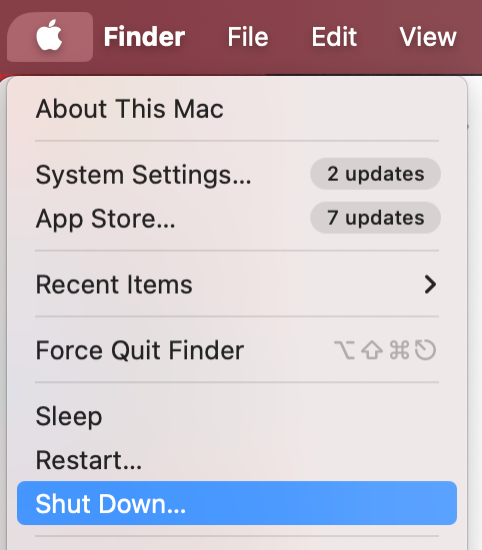
Click the Apple icon in the menu bar.
Select Shut Down.
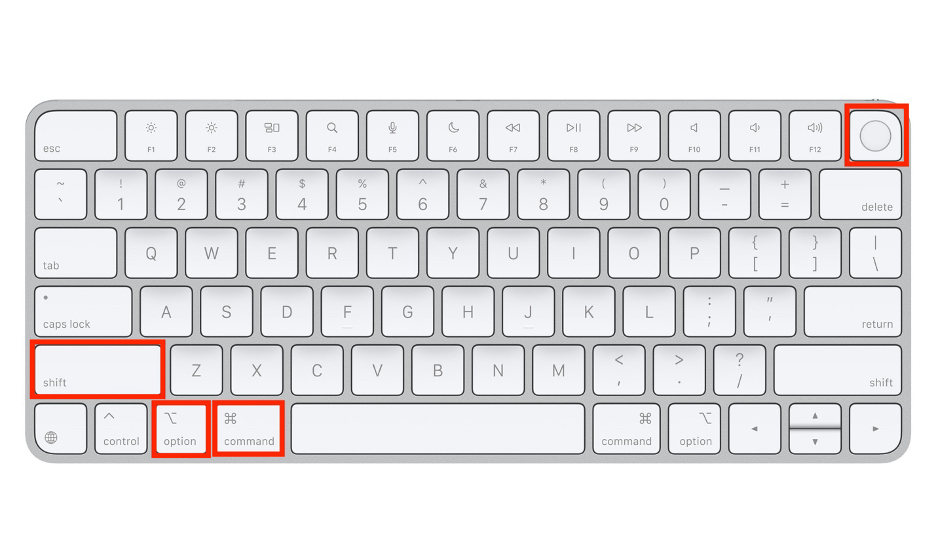
Press and hold the Shift + Option + Control keys.
While holding the three keys, press and hold the Powerbutton.
Release all keys after 10 seconds.
Then, press the Powerbutton again.
Step 1. Apple logo > Shut DownStep 2. Power button + Shift + Option + Command
Command button not working on Mac? Here’s the solution!
There are several effective solutions to try when your Command key isn’t working on your Mac. Our experts suggest starting with a restart, updating macOS to the latest version, checking your modifier key settings, and, if possible, testing an external keyboard. Advanced users with Intel-based Macs can also reset the PRAM/NVRAM and SMC to resolve persistent issues.
If none of these steps resolve the issue, or if you prefer professional assistance, reach out to MacKeeper’s Premium Services. Trusted by millions, MacKeeper provides 24/7 support from over 150 Apple specialists, ready to help you with any technical concerns.
We respect your privacy and
use cookies
for the best site experience.
Privacy Preferences Center
We use cookies along with other tools to give you the best possible experience while using the
MacKeeper website. Cookies are small text files that help the website load faster. The cookies we
use don’t contain any type of personal data meaning they never store information such as your
location, email address, or IP address.
Help us improve how you interact with our website by accepting the use of cookies. You can change
your privacy settings whenever you like.
Manage consent
All cookies
These cookies are strictly necessary for enabling basic website functionality (including page
navigation, form submission, language detection, post commenting), downloading and purchasing
software. The website might malfunction without these cookies.