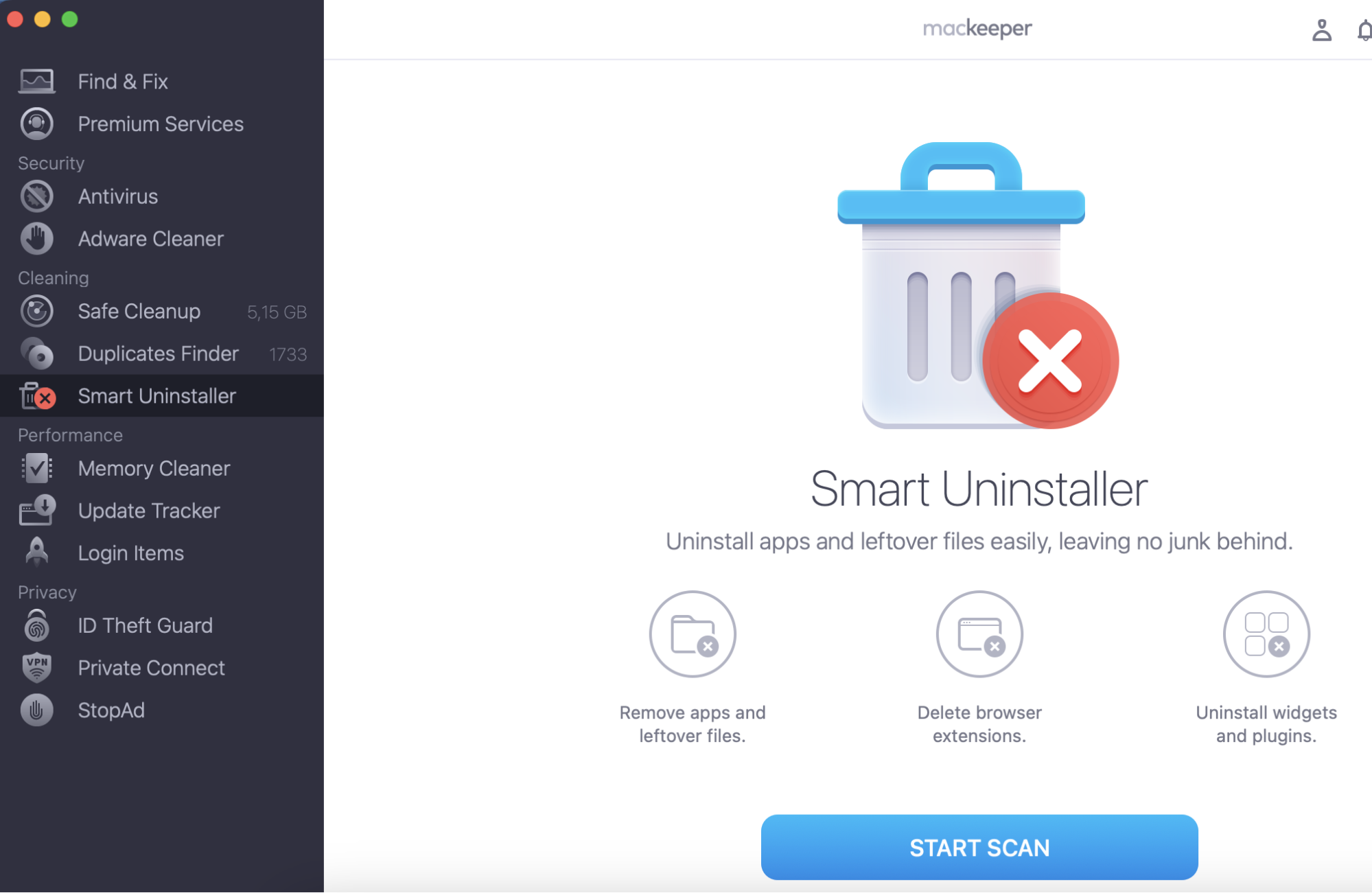
Uninstalling problematic apps can potentially get your keyboard working properly again. But simply deleting them from the macOS Applications folder can leave files behind. Thankfully, you can fully remove apps with MacKeeper’s Smart Uninstaller.
If your Mac keyboard stops working, it’s almost impossible to do anything useful with your Mac. You can’t write any documents or type into your web browser. The problem is even worse if your MacBook keyboard isn’t working and you can’t replace it with a new one. Don’t worry! Our team has gathered common fixes for Mac keyboard problems, which might be exactly what you’re looking for.
Why is my Mac keyboard not typing?
There can be many reasons why a Mac keyboard is frozen or isn’t typing. The most common causes we see are:
Software glitches: Third-party apps and issues within the macOS operating system can cause both external and built-in Mac keyboards to stop working correctly.
Incorrect accessibility settings: Inadvertently enabling certain accessibility settings within Apple’s OS, such as Mouse Keys or Slow Keys, can lead to a MacBook keypad not working or unexpected keyboard behavior.
Dead batteries: If you’re using a wireless keyboard with your Mac, it may need charging or new batteries.
Hardware failures: Unfortunately, when your Mac keyboard is not typing, it can sometimes mean a hardware failure, which means the keyboard or other components need to be replaced. This is usually the case when we see only the left or right side of a Mac keyboard is not working.
A note from our experts:
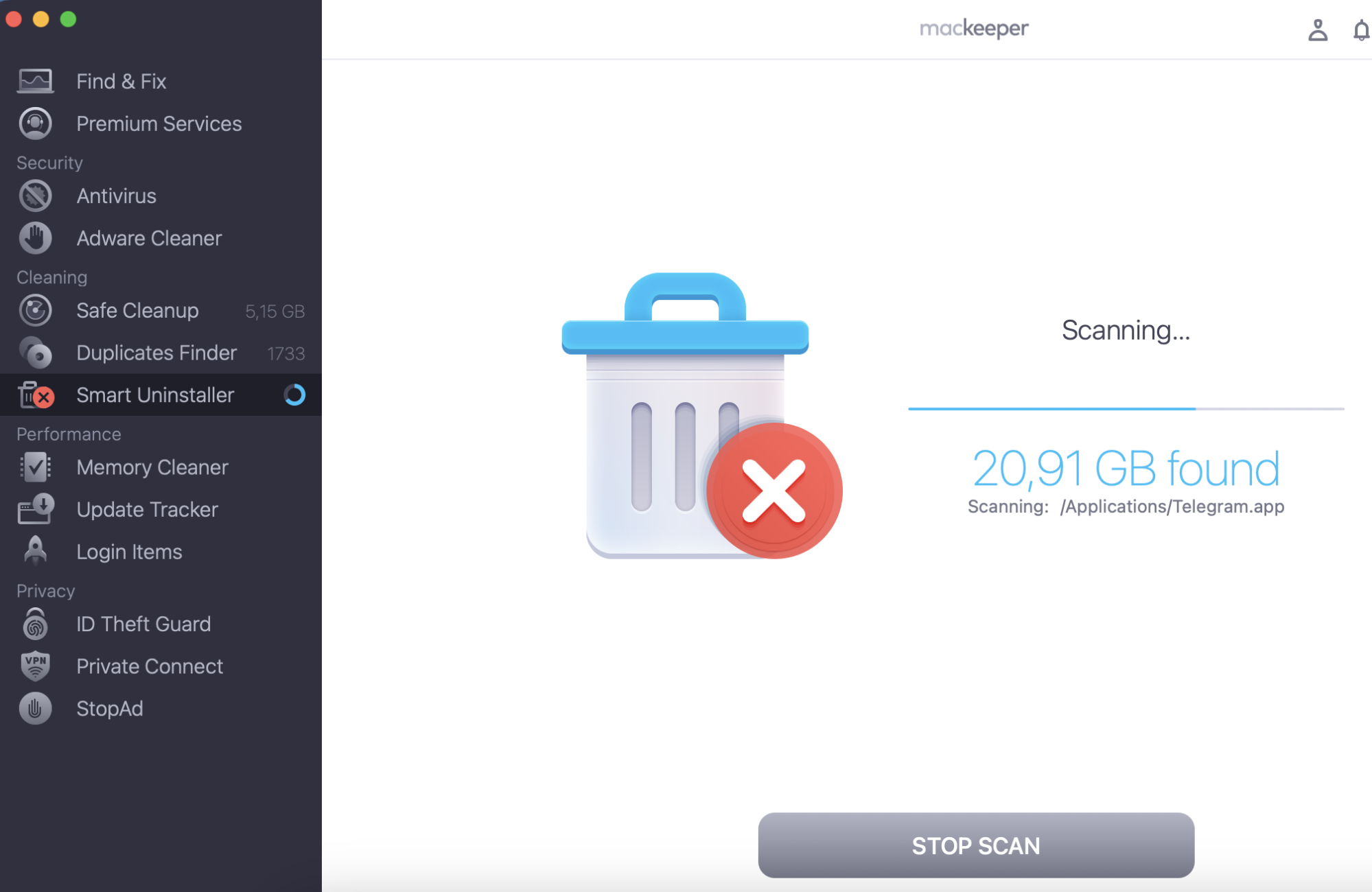
A common cause for keyboard issues on Mac is interference from third-party apps and software glitches. If you’ve recently installed new software, or you have programs that are out of date, we recommend removing them using MacKeeper’s Smart Uninstaller. Developed by Clario Tech, this handy tool safely deletes unwanted software and all associated files, leaving no trace behind.
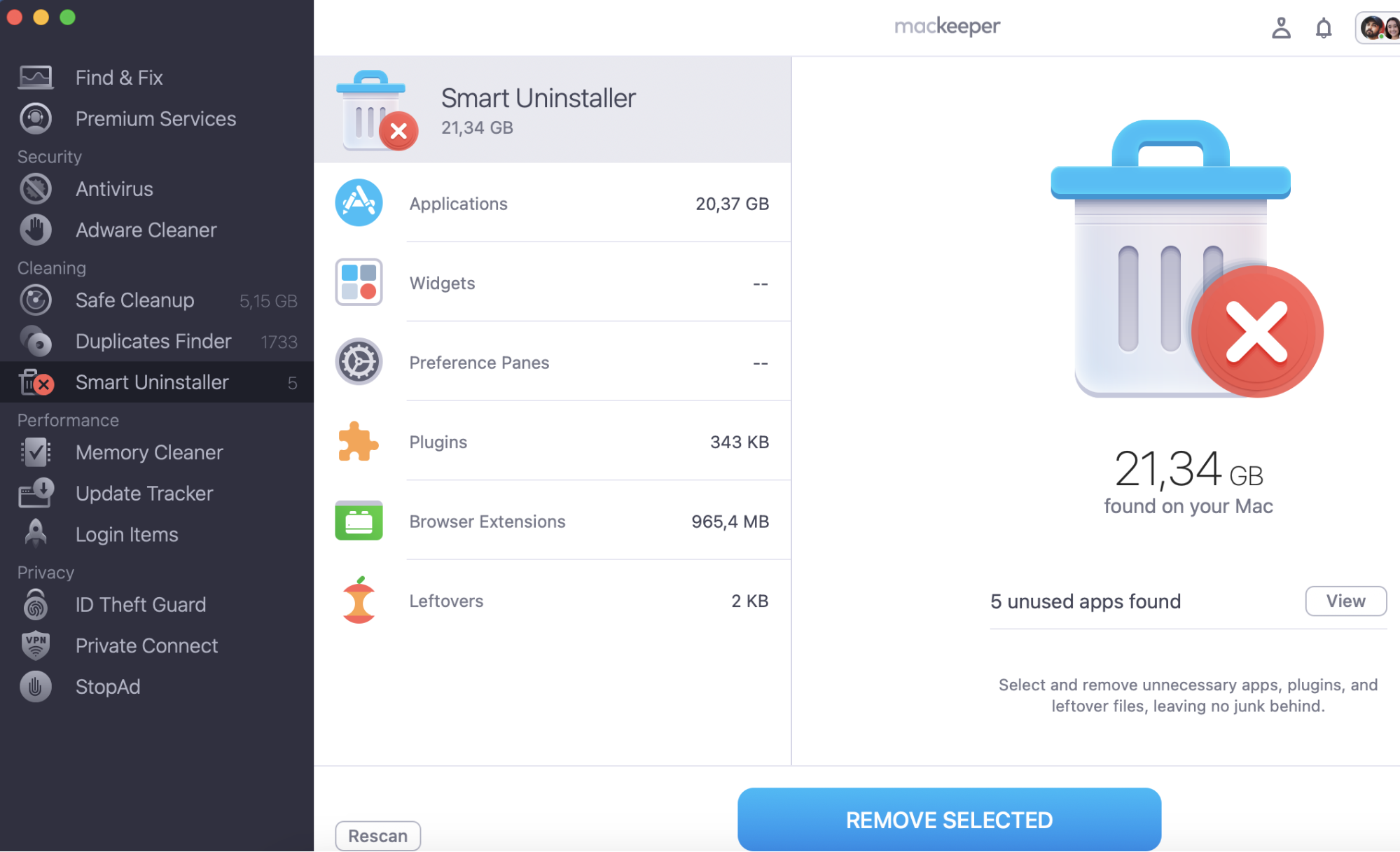
When it’s finished, select the apps you want to remove.
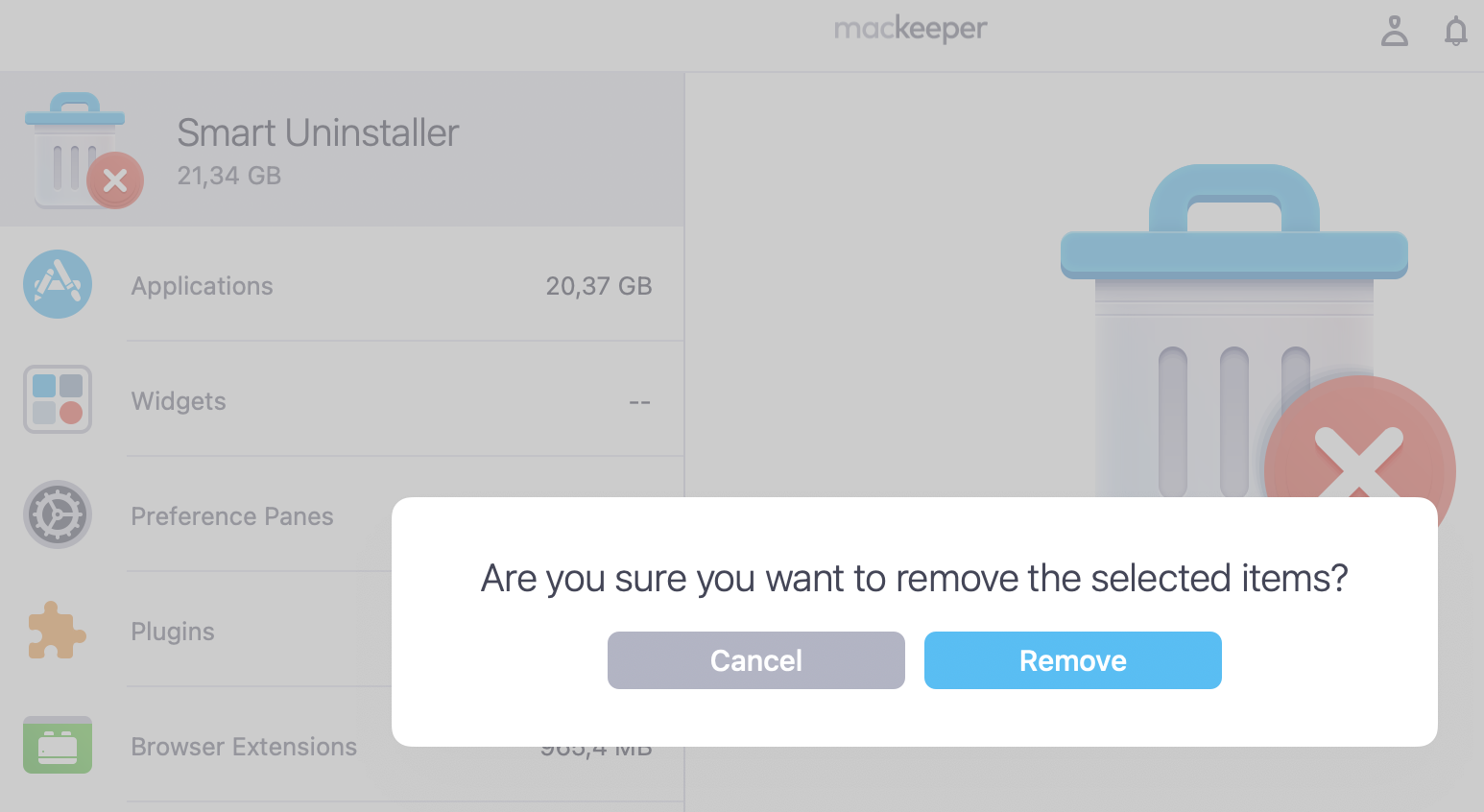
Click Remove selected.
Step 1. MacKeeper > Smart Uninstaller > Start ScanStep 2. MacKeeper’s Smart Uninstaller is scanning your MacStep 3. Choose the files to remove > Remove SelectedStep 4. Click Remove
How to fix Mac keyboard not working?
In our experience, these are the best ways to fix or unfreeze a Mac keyboard when it’s not working are to restart your Mac, check your accessibility settings are correct, charge your keyboard, and update or reset macOS. Let’s take a closer look at all of the potential fixes.
Clean your Mac keyboard
When certain Mac keyboard keys aren’t working, it could be caused by dust and other junk underneath them. This is likely if you have a habit of eating while using your Mac. Try the following:
Cleaning out under the keys could solve the problem.
Holding your MacBook or Mac keyboard vertically, preferably at a 75º angle.
Using a can of compressed air, spray the keyboard or the non-functioning keys. Then move in a left-to-right direction.
Rotating your MacBook or keyboard to its right and then to the left side. Repeat the action.
Update macOS
It’s possible your Mac keyboard isn’t working due to software issues. In that case, updating macOS could help.
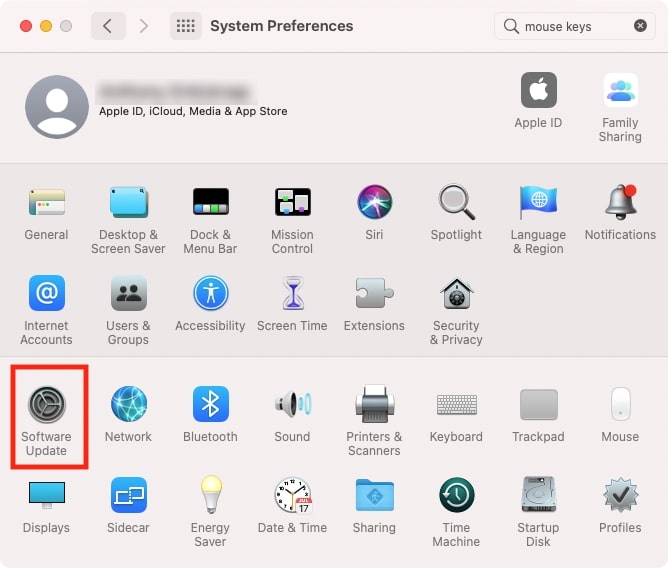
Open System Preferences.
Select Software Update.
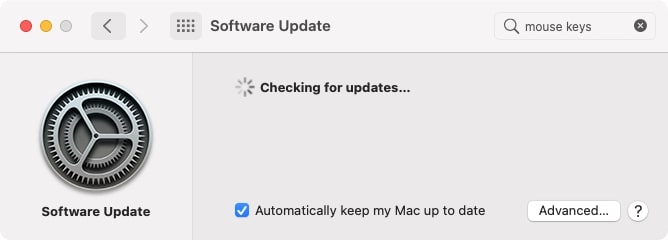
If there are updates available, install them.
Step 1. System Preferences > Software UpdateStep 2. Checking for updates
Also, if you need more help, read this detailed guide on how to update Mac.
Delete preferences
macOS stores settings in files with the .plist extension. Deleting .plist files can help with all sorts of problems, including Mac not responding to mouse or keyboard. Before you do delete any .plist files, though, our experts highly recommend you to back up your Mac with Time Machine, in case you run into any issues later.
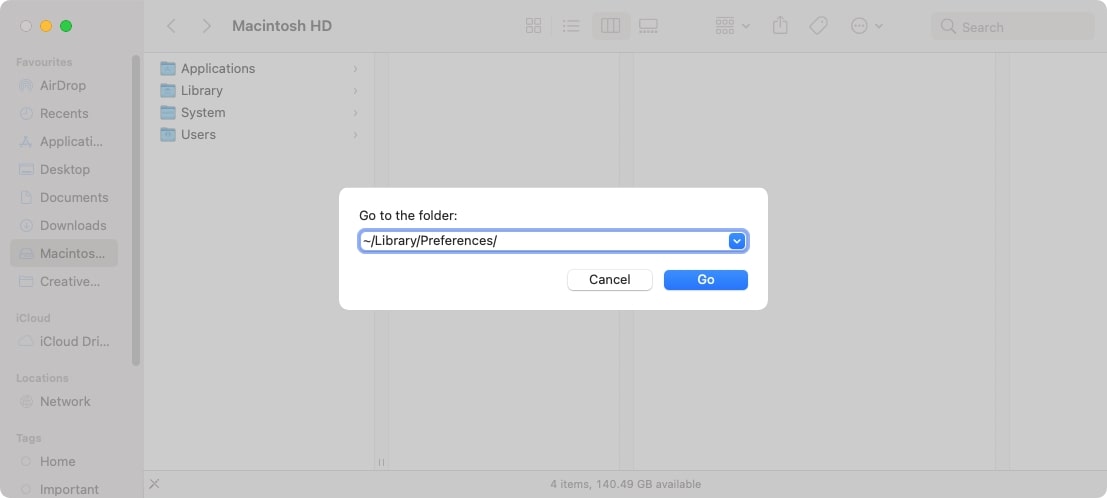
From Finder, press Cmd + Shift + G.
Type in ~/Library/Preferences/ and click Go.
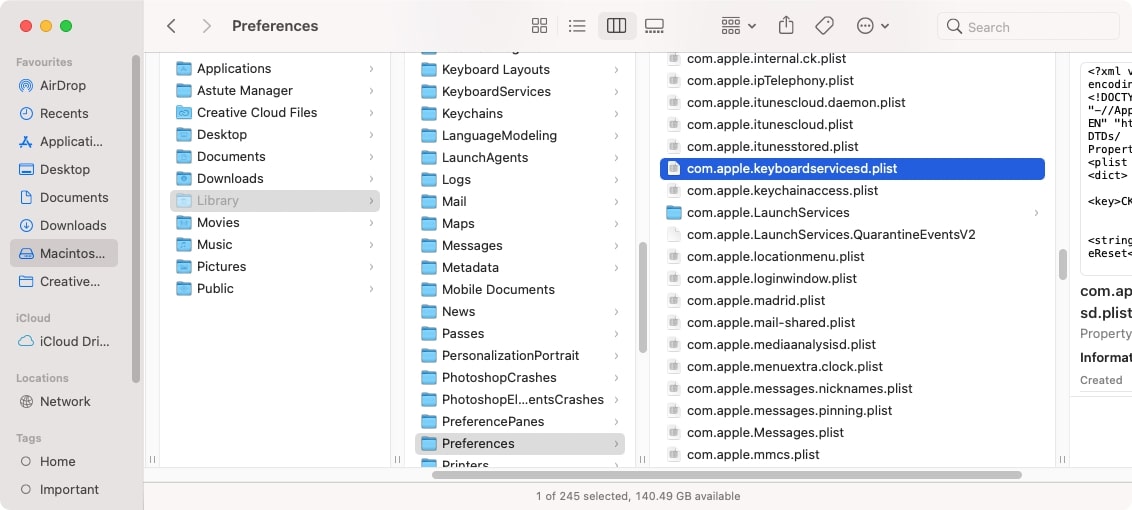
Find and delete com.apple.keyboardtype.plist.
Restart your Mac.
Step 1. Go to FolderStep 2. Find and delete files
There are lots of other .plist files on your Mac. Deleting this can help with many other issues, including keyboard not connecting to Mac or problems with your Mac’s mouse. macOS will rebuild them when necessary.
Delete recently installed apps
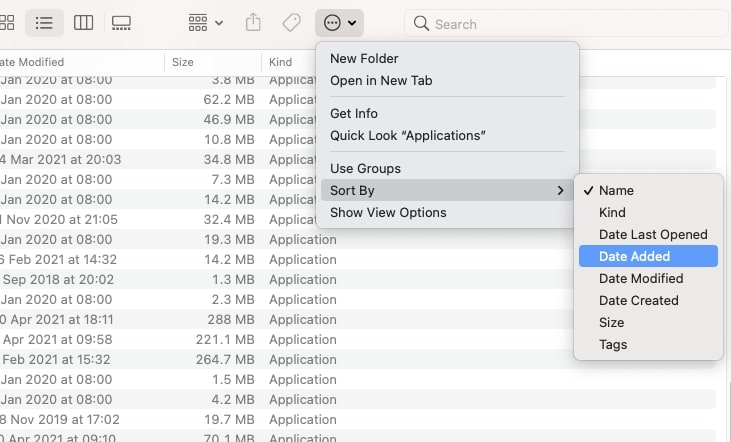
Your Mac keyboard may not be working because a new app is interfering with it. If the problem started recently, think about what apps you’ve added, and try removing them.
How to see recently installed apps on a Mac:
Open Finder, and go to the Applications folder.
Using the sort options at the top of Finder, select Sort By > Date Added.
Reset your SMC
SMC stands for System Management Controller. It controls certain low-functions of certain Macs, some of which relate to the keyboard. So if your Mac keyboard has stopped working, our advice is to reset it. How you do that depends on various criteria, like whether it’s an Intel or M1, M2, M3, or M4 Mac, an iMac or MacBook, and whether it has a T2 Security Chip in it or not.
Howtoreset the SMC for MacBooks with T2 chip:
Turn off your MacBook.
Hold down Ctl + Opt on the left side of your keyboard and Shift on the right side.
Keep them held down for seven seconds, then press and hold the power button too.
After another seven seconds, release all keys.
After a few more seconds, turn your MacBook on again.
How to reset the SMC for MacBooks without the T2 chip:
Turn off your MacBook.
Press and hold Ctrl + Shift + Opt on the left side of your keyboard.
Keeping them held down, press and hold down the power button.
To reset the SMC in an Intel iMac or Mac Mini, just turn it off, unplug it from the mains for 15 seconds, and then turn it back on again. M1 and later Macs, meanwhile, don’t use an SMC at all, so there’s nothing to reset.
Try another keyboard
When your Mac keyboard isn’t working, trying a different one is a good idea. If a different keyboard works, then the problem is likely to be related to software or your Mac itself.
That applies to MacBooks too. It’s not ideal, but you can connect an external keyboard and type like that. However, replacing a MacBook keyboard can be difficult, so you might need professional assistance if the Apple keyboard is not turning on or is broken.
Also, it’s known that certain MacBook Air and MacBook Pro keyboards stop working due to their design. These MacBooks all use what’s known as the ‘butterfly’ keyboard, and yours may be eligible for a free replacement.
Check your USB connection
Sometimes, you can fix a USB Mac keyboard problem just by unplugging it and then plugging it back in again. You should also check to see your USB ports are working okay. Unplug your keyboard, and then plug something else into that port, like your mouse. If it works, then the USB port is probably fine.
Check batteries
If your wireless Apple keyboard isn’t turning on, try replacing the batteries, if possible. But if you’re using something like the newer Apple Magic keyboard, which has a built-in battery, check it’s charged. Also, try using a different charging cable and a different USB port on your Mac. Any of these things could be the reason your Mac keyboard won’t turn on.
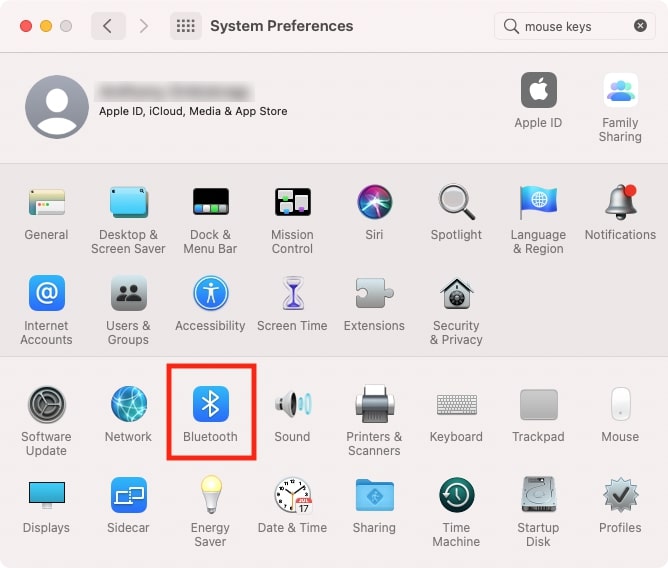
Check Bluetooth
Using a Bluetooth keyboard? The problem could be caused by your Mac’s Bluetooth not working properly. Removing your keyboard from your Mac’s Bluetooth device list and then adding it again could be the solution.
In System Preferences, select Bluetooth.
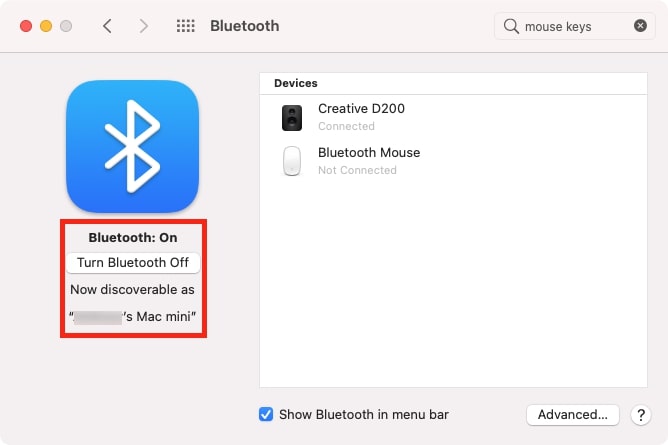
Check if Bluetooth is activated.
If your Bluetooth keyboard is paired with your Mac, it should be listed under Devices.
Select your keyboard, and click the X to remove it.
Pair your keyboard with your Mac again.
Step 1. System Preferences > BluetoothStep 2. Remove devices
Check your wireless dongle
Some wireless keyboards use a USB dongle to connect to your Mac. Even if the batteries are fully charged in your keyboard, if it can’t connect to the dongle, it won’t work.
This is a difficult problem to check, unfortunately. The wireless chips in either the dongle or the keyboard could be broken, and there’s no good way to find out.
If the Mac keyboard is not working when plugged in, you can try plugging the dongle into a different USB port, though, as well as on another computer. If it works elsewhere, the keyboard and dongle are fine.
Key takeaways on MacBook keyboard locked and not working
With any luck, one of the fixes in this article worked for you. But sometimes Mac keyboards stop working because they’re broken beyond repair. They can be permanently damaged by liquids, for example. And they can also just wear out over time, particularly if you hit the keys hard when you type.
Try your keyboard on a different computer, if you can. And try a different keyboard with your Mac. That way you can eliminate each one as the problem and work out what’s actually wrong.
FAQ on Mac keyboard issues
1. How can I reset my MacBook keyboard?
For built-in MacBook keyboards, the best way to reset them is to simply restart the computer. If this doesn’t work, try resetting the Mac’s SMC and VRAM. If you’re using an external keyboard, you can try turning it off and then back on again, or replacing its batteries.
Sometimes, we find that third-party software interferes with keyboards on Mac. Try using MacKeeper’s Smart Uninstaller, developed by Clario Tech, to remove recently installed apps that may be misbehaving, as well as any other programs you no longer use. It safely removes all associated files to ensure a clean uninstall.
2. Why are some keys on my keyboard not working?
If only certain keys on your Mac keyboard aren’t working and you can't type, it could be because they’re damaged or dirty. You might have also enabled an option or application that changes the function of certain keys. For example, hitting Num Lock on the numpad will change what those keys do and result in Mac keyboard not typing letters.
3. How do I make my Apple wireless keyboard discoverable?
To put an Apple Magic Keyboard into pairing mode:
Connect it to your Mac with a Lightning to USB cable.
Make sure the keyboard’s power switch is on.
Select Bluetooth in System Preferences. Your keyboard will appear in there when it’s paired and ready.
4. What should I do if my keyboard backlight isn’t turning on?
Although it’s possible the LEDs in your keyboard could be damaged, it’s likely caused by your settings. As well as following Apple's official guidance on adjusting your keyboard backlighting, try resetting your Mac’s SMC and removing relevant .plist files. You can also try the same solutions if your MacBook keyboard is not working, but makes a sound.
5. How to unlock keyboard if not typing on Mac?
There is no keyboard lock on official Apple Mac keyboards, so if your find your MacBook keyboard not working except the Power button, try restarting your Mac, checking your accessibility settings, or reinstalling macOS if necessary. If this doesn’t work, we recommend taking your Mac to Apple to see if the keyboard or other hardware has failed.
6. What is the lifespan of a Mac keyboard?
There is no defined lifespan for a Mac keyboard, but we would typically expect them to last for many years, if not decades. Some are more reliable than others—butterfly keyboards are notorious for failing quickly—but plenty of Mac laptops built in the ‘90s and earlier still have working keyboards today.
We respect your privacy and
use cookies
for the best site experience.
Privacy Preferences Center
We use cookies along with other tools to give you the best possible experience while using the
MacKeeper website. Cookies are small text files that help the website load faster. The cookies we
use don’t contain any type of personal data meaning they never store information such as your
location, email address, or IP address.
Help us improve how you interact with our website by accepting the use of cookies. You can change
your privacy settings whenever you like.
Manage consent
All cookies
These cookies are strictly necessary for enabling basic website functionality (including page
navigation, form submission, language detection, post commenting), downloading and purchasing
software. The website might malfunction without these cookies.