





How to Uninstall MacKeeper

How to Uninstall MacKeeper

The good thing is, you don't need any third-party software to uninstall MacKeeper. Here, you can learn how to easily remove MacKeeper from your system for good.  

Before you delete MacKeeper

Remember that the instructions to follow depend on your MacKeeper version. Here’s your must-do checklist before you uninstall the app:  

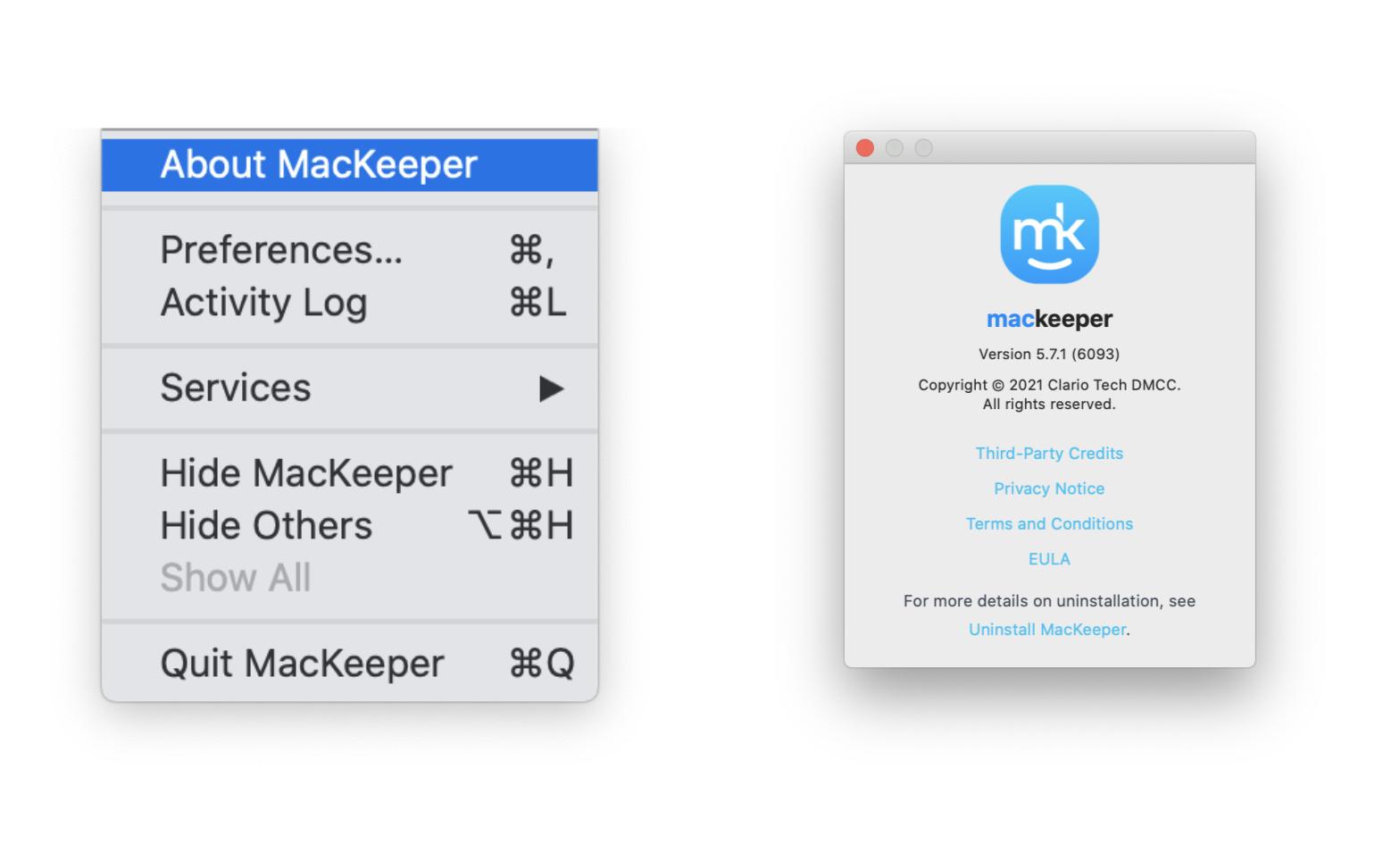
  1. Check your MacKeeper version. To do this, open it and in the top menu go to MacKeeper > About MacKeeper.
  2. Make sure you have admin rights and know your Mac admin password.

 

Menu bar on the MacBook with the MacKeeper menu open, where you go to MacKeeper > About MacKeeper to check your MacKeeper version.
Step 1. Click on the MacKeeper menu > go to MacKeeper > About MacKeeper
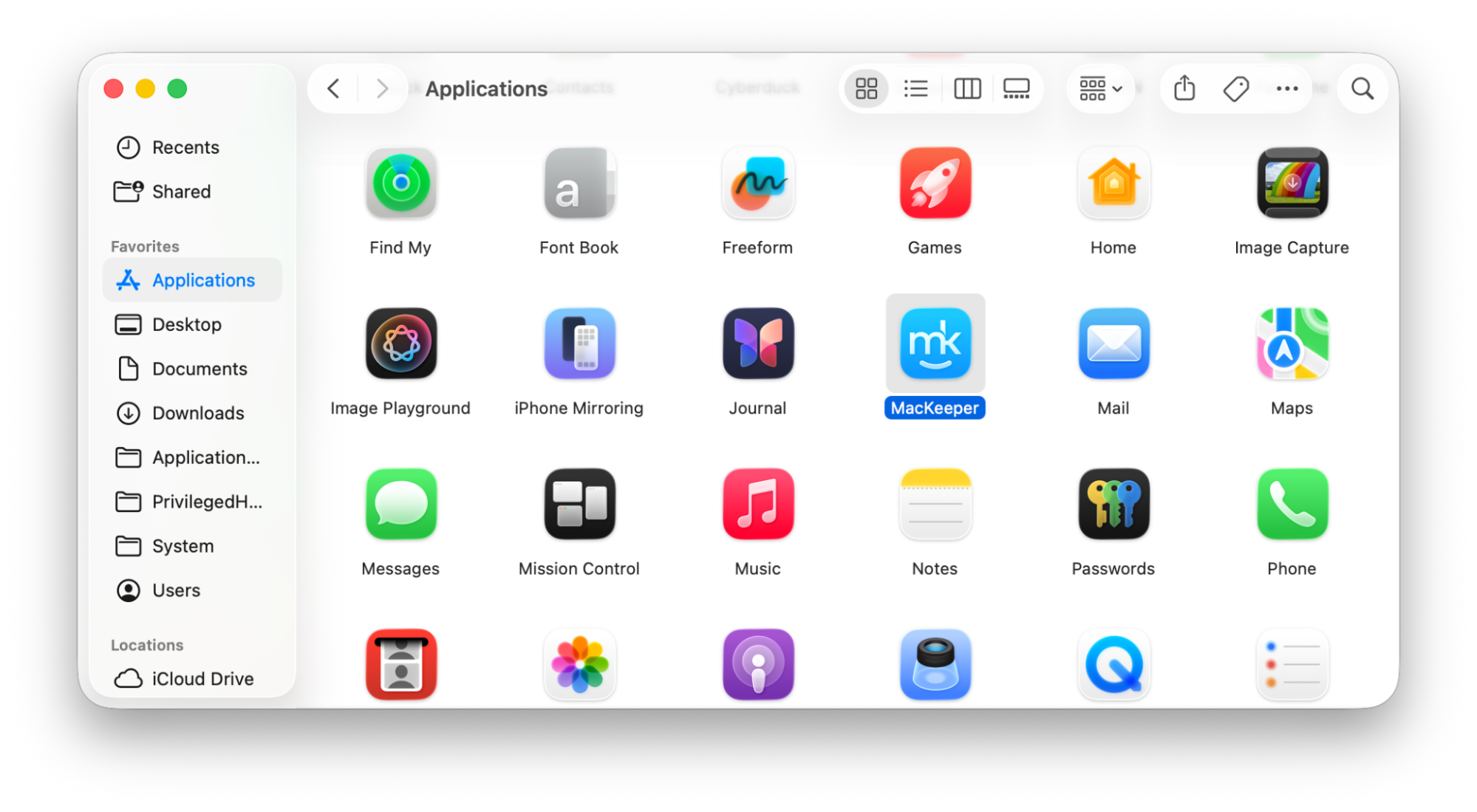
About MacKeeper window on macOS showing version 5.7.1, opened from the MacKeeper menu before you start to uninstall MacKeeper.
Step 2. Check the MacKeeper version

Important note:

If you close the app through the MacKeeper's Dashboard instead of using the top-left menu, the uninstallation process won’t complete properly. You’ll need to relaunch MacKeeper and then quit it from the top-left menu to ensure the uninstallation proceeds as expected.

Once you know your MacKeeper version and Mac password, just head to the right simple guide for you: 

How to remove MacKeeper 7

  1. Quit MacKeeper. Press and hold Command (⌘) and Q or navigate to the top-left menu.
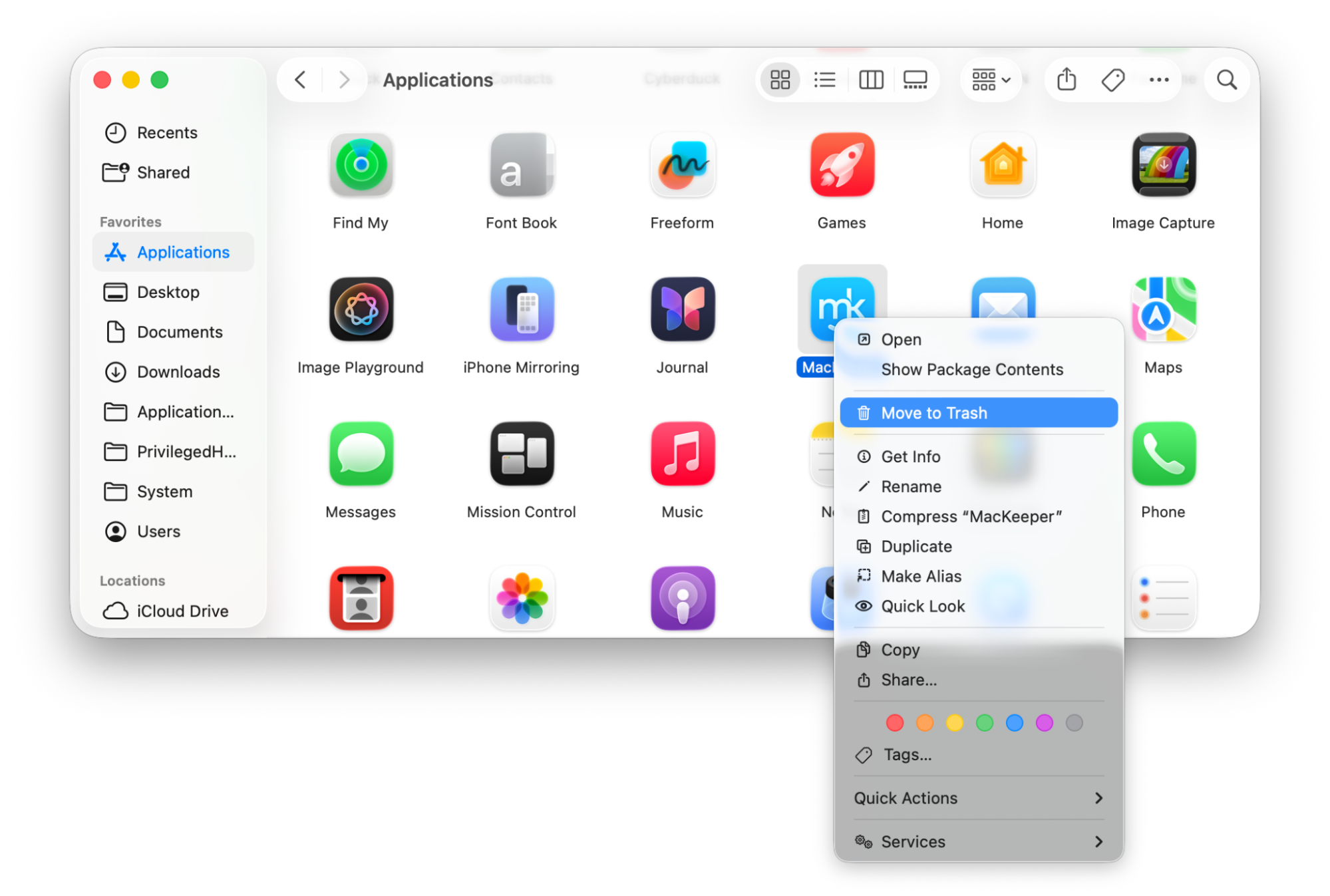
  2. Go to Finder > Applications and find MacKeeper.
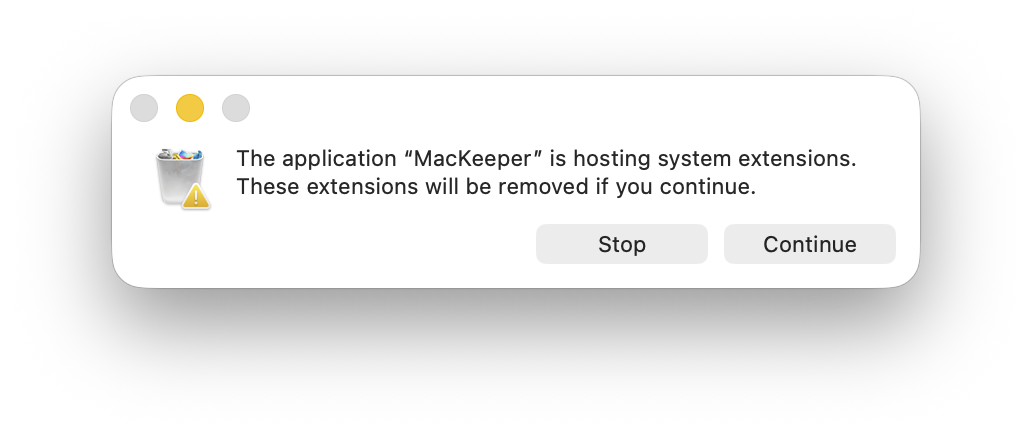
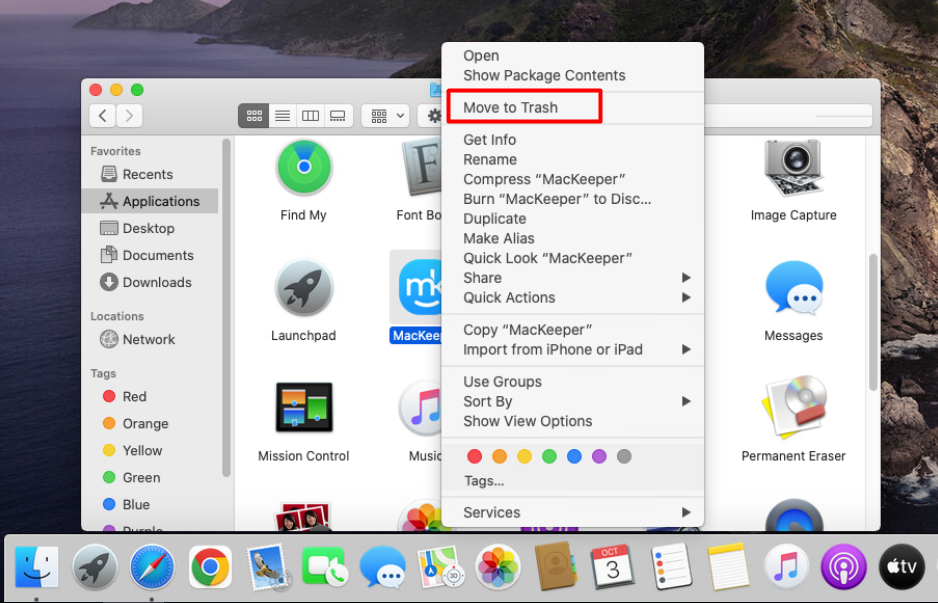
  3. Drag the MacKeeper icon to Trash or double-click it and choose Move to Trash.
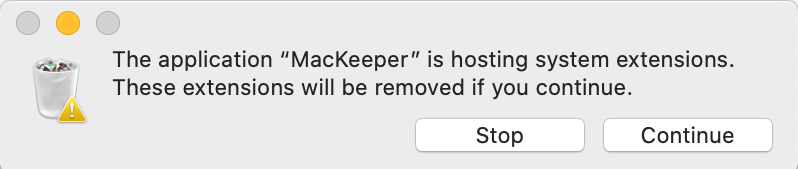
  4. When you see a confirmation pop-up window, click Continue.
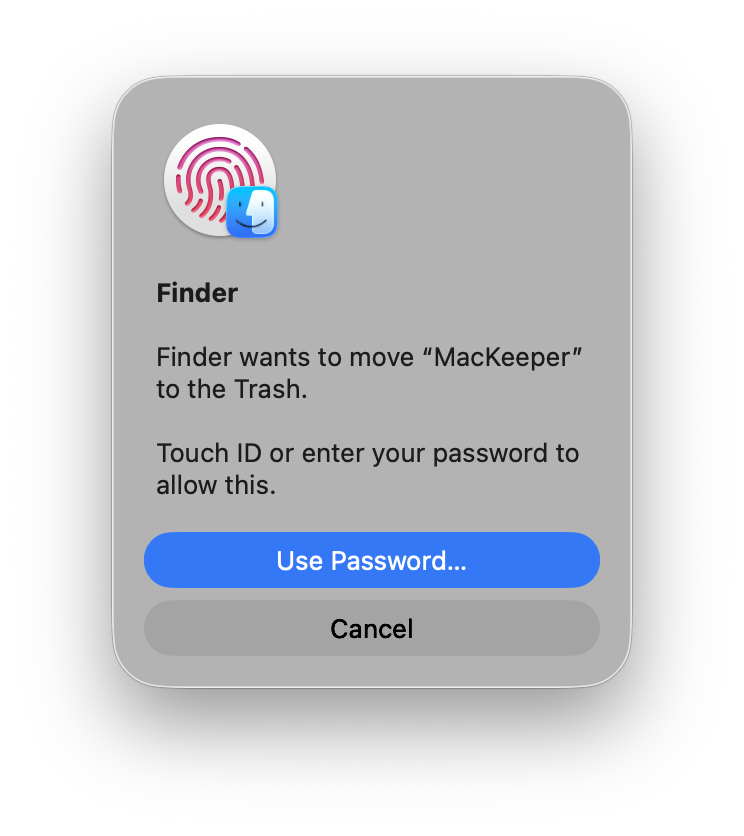
  5. Confirm deletion with Touch ID or the admin's password.
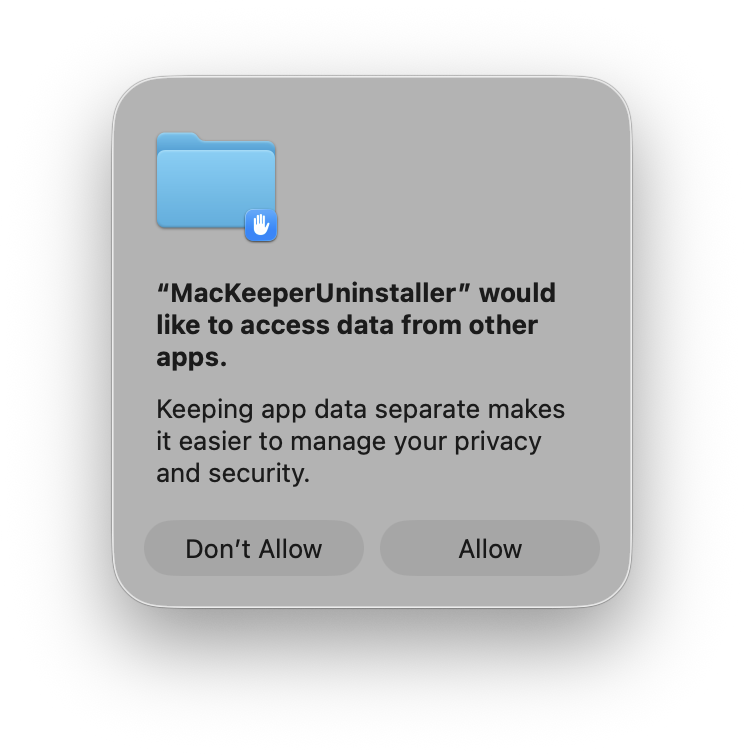
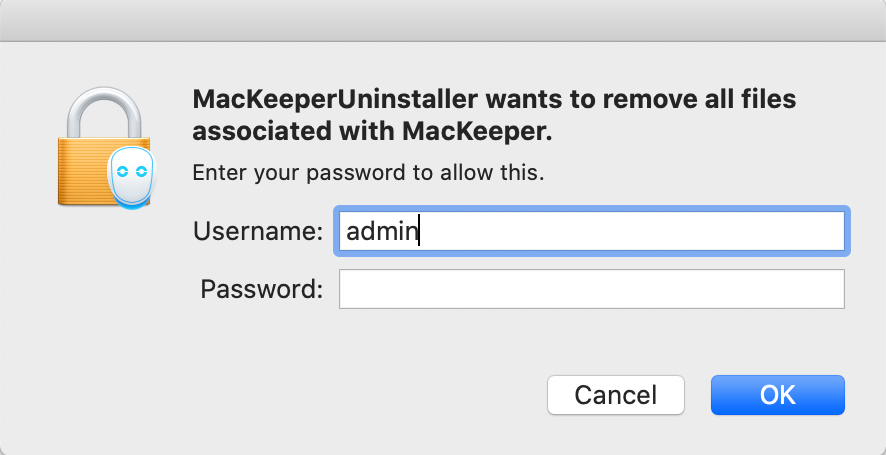
  6. Click Allow when MacKeeperUninstaller requires permission.
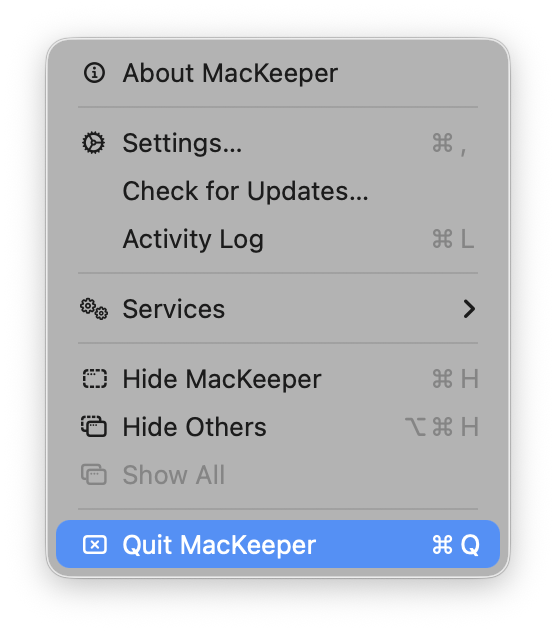
 

MacKeeper menu at the top left of the iMac with Quit MacKeeper highlighted, used to close MacKeeper with Command-Q before uninstalling it.
Step 1. Quit MacKeeper
Finder Applications window on the Apple device with the MacKeeper app selected, which you locate in Applications to uninstall MacKeeper.
Step 2. Go to Finder > Applications and find MacKeeper
Finder right-click menu on the Apple computer showing Move to Trash, used to delete MacKeeper from the Applications folder.
Step 3. Drag the MacKeeper icon to Trash or double-click it and choose Move to Trash.
MacKeeper Uninstaller dialog on the Apple laptop with the Continue button, which you click to start uninstalling MacKeeper safely.
Step 4. Click Continue
Touch ID dialog on macOS used to confirm deleting MacKeeper by resting your finger on the Touch ID sensor of your Apple keyboard.
Step 5.1. Confirm deletion with Touch ID
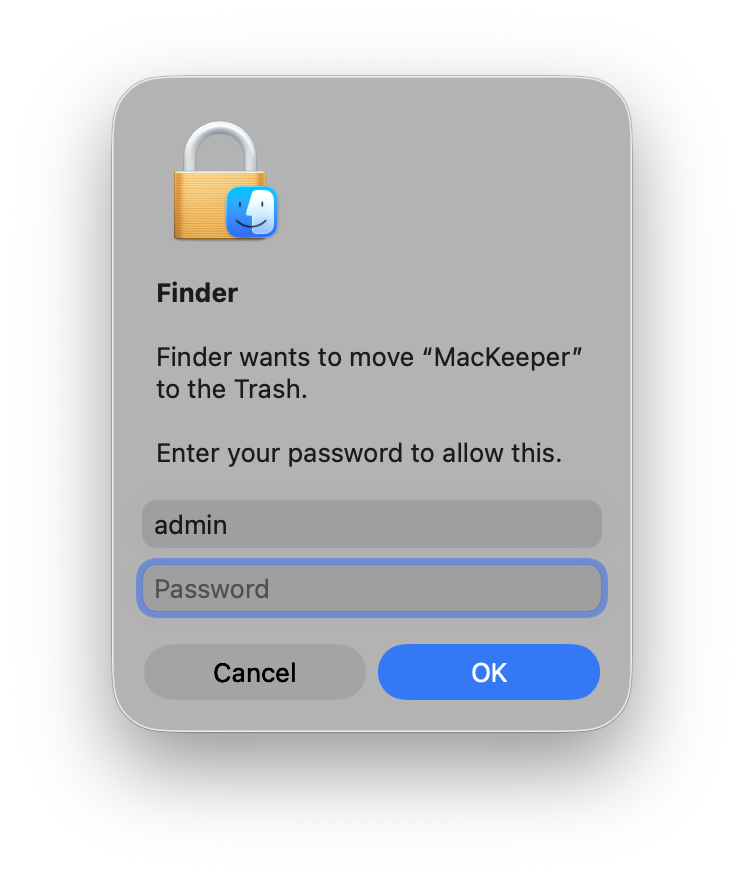
Password dialog on the iMac for entering your admin password to confirm uninstalling MacKeeper through the MacKeeper Uninstaller.
Step 5.2. Confirm deletion with admin's password
Permission window on the MacBook with the Allow button that appears when the MacKeeperUninstaller requests full disk access.
Step 6. Click Allow when MacKeeperUninstaller requires permission

Important note:

This window appears only on newer macOS versions if you have installed the MacKeeper StopAd Extension in Safari. MacKeeperUninstaller doesn't have full disk access, so the system requires permission to delete all MacKeeper-related files.

How to remove MacKeeper 6

  1. Press and hold Command (⌘) and Q to quit MacKeeper.
  2. Go to Finder > Applications.
  3. Drag the MacKeeper icon to Trash or double-click it and choose Move to Trash.
  4. When you see a confirmation pop-up window, click Continue.
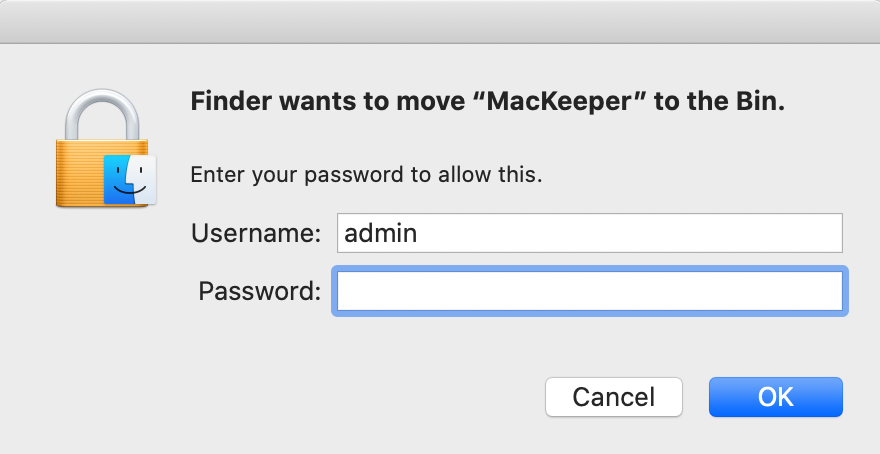
  5. Enter your admin password, then click OK.
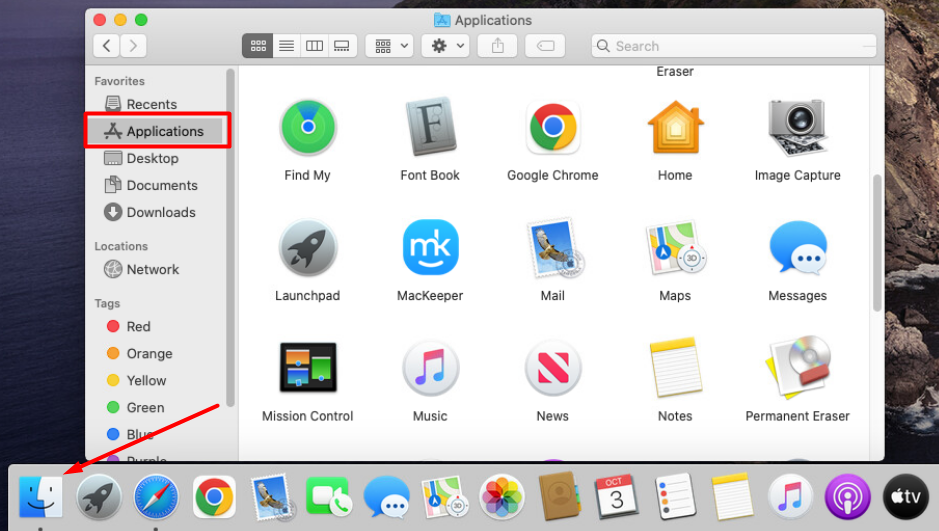
 

Finder Go menu with Applications on the Apple device, used to open the Applications folder where you uninstall MacKeeper.
Step 1. Open Finder > Applications
Finder right-click menu on the Apple computer with Move to Trash, used to delete the MacKeeper icon from the Applications folder.
Step 2. Right-click MacKeeper > choose Move to Trash
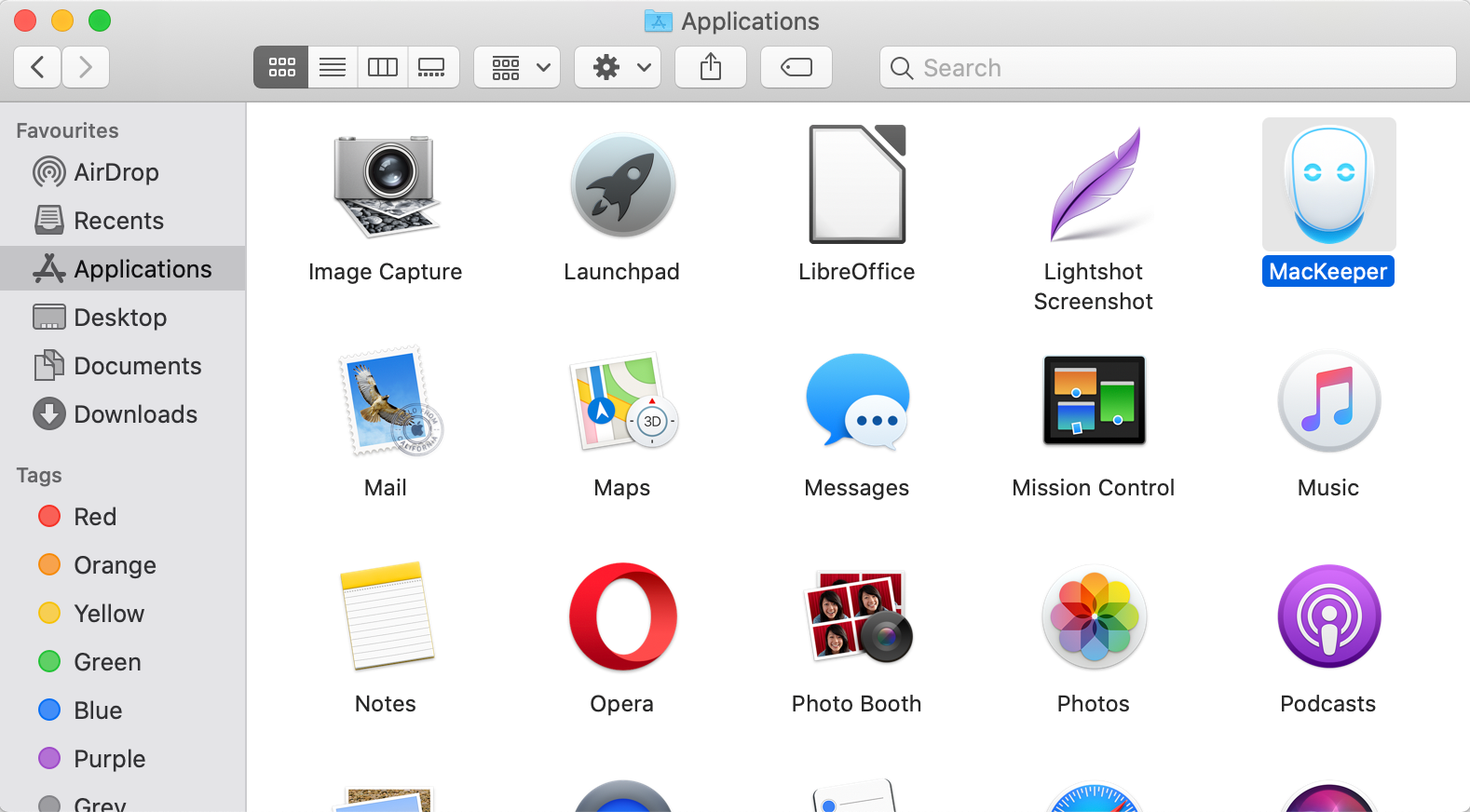
Applications folder in Finder on macOS with the MacKeeper icon selected, which you drag to the Trash to uninstall MacKeeper.
Step 3. Click Continue
Dialog on the iMac for entering your username and admin password, then clicking OK to confirm uninstalling MacKeeper completely.
Step 3. Enter your password > click OK

How to remove MacKeeper 5

  1. Press Command (⌘) and Q to quit MacKeeper.
  2. Go to Finder > Applications.
  3. Drag the MacKeeper icon to Trash.
  4. If you see a system extension window, click Continue.
  5. Enter your Mac admin password, then click OK.
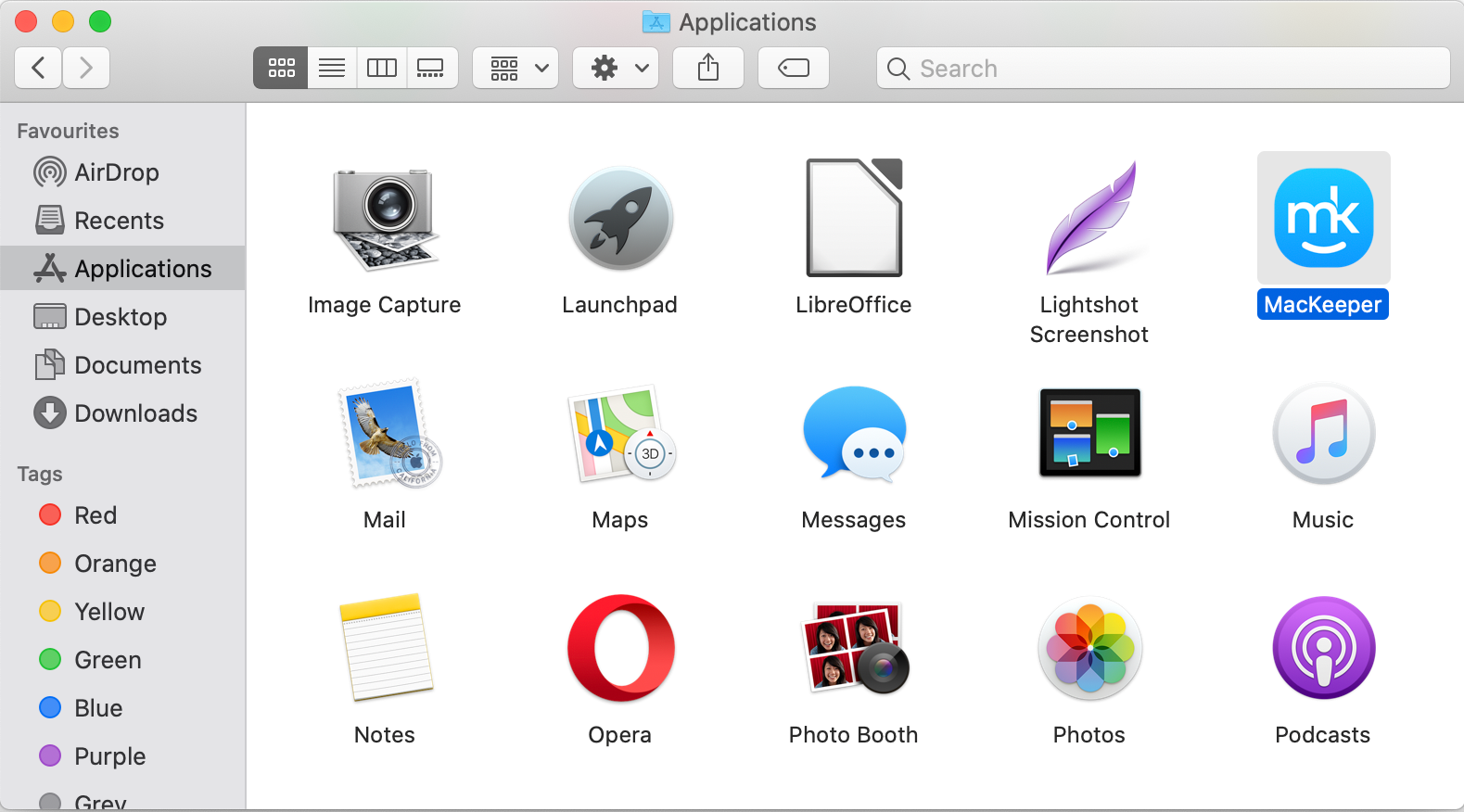
 

Applications folder in Finder on the MacBook showing the MacKeeper app, which you drag to the Trash to uninstall MacKeeper.
Step 1. Open Finder > Applications
Finder window on macOS with the MacKeeper icon selected in the Applications folder, which you drag to the Trash to delete it.
Step 2. Click Continue
System dialog on the iMac for entering your Mac admin password, then clicking OK to confirm you want to uninstall MacKeeper.
Step 3. Enter your password > click OK

To completely uninstall MacKeeper, you’ll need to delete any leftover files as well:  

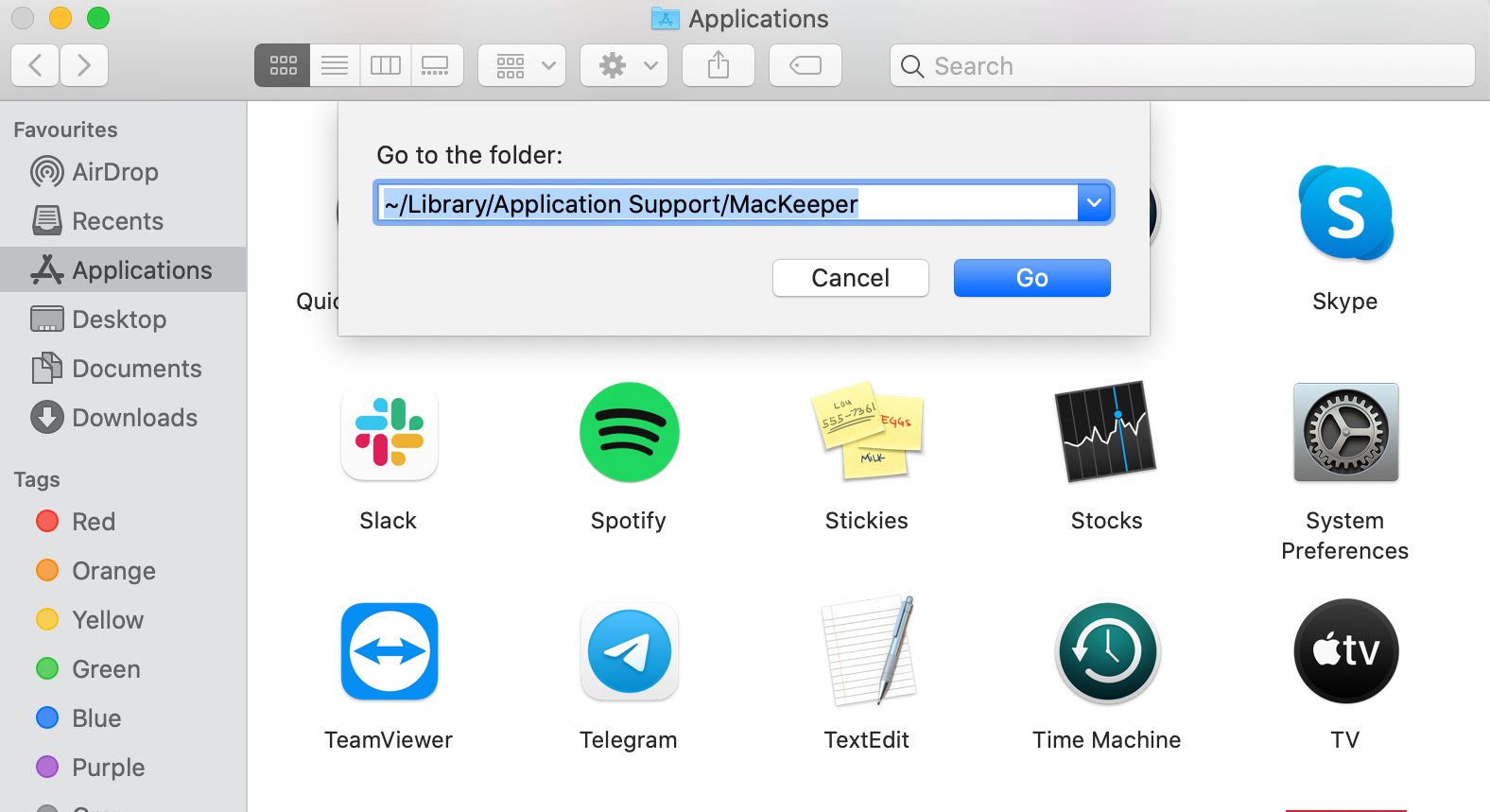
  1. Open Finder > Go > Go to Folder.
  2. Copy and paste these paths one by one:
    • ~/Library/Application Support/MacKeeper
    • ~/Library/Application Support/com.mackeeper.MacKeeper
    • ~/Library/Application Support/com.mackeeper.MacKeeperAgent
    • ~/Library/LaunchAgents/com.mackeeper.MacKeeperAgent.plist
    • ~/Library/Caches/com.mackeeper.MacKeeper
    • ~/Library/Caches/com.mackeeper.MacKeeperAgent
  3. Drag all files in those folders to the Trash.
  4. Empty Trash, then restart your Mac.

How to get rid of MacKeeper 4

  1. Press Command (⌘) and Q to quit MacKeeper.
  2. Go to Finder > Applications.
  3. Drag the MacKeeper icon to Trash.
  4. Enter your Mac admin password, then click OK.
  5. Complete the optional uninstall survey in your browser.
  6. Empty Trash and restart your Mac.


Applications folder in Finder on the Apple device with the MacKeeper app, which you drag to the Trash to uninstall MacKeeper.
Step 1. Open Finder > Applications
Login dialog on the Apple computer for entering your username and admin password to confirm deleting MacKeeper from your Mac.
Step 2. Enter your password > click OK
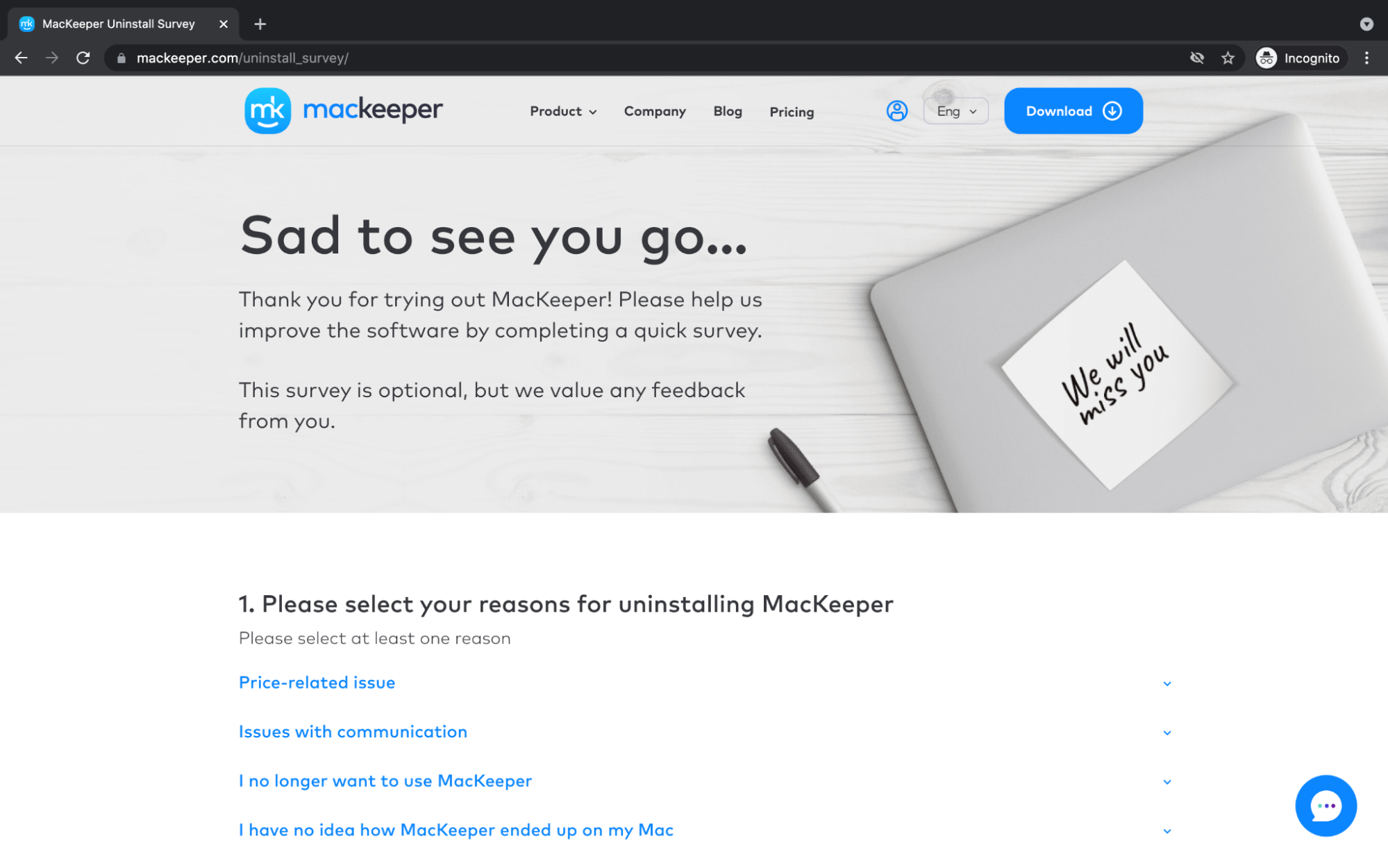
MacKeeper uninstall survey in the browser on the Apple laptop, which you can optionally fill in after deleting MacKeeper.
Step 3. Fill in the survey

How to uninstall MacKeeper 3

Note: Before removing any MacKeeper 3.X version, please keep in mind that:

  • You need to decrypt any files you’ve hidden with the Data Encryptor feature. Otherwise, you won’t be able to access them without MacKeeper.
  • Any backups made with the Backup feature remain on your Mac and are accessible even after the MacKeeper uninstallation

To delete MacKeeper 3 from your Mac:  

  1. Quit the MacKeeper app.
  2. Go to Finder > Applications and drag the MacKeeper icon to Trash.
  3. Enter your Mac admin password in the notification box to confirm.
  4. Complete the optional uninstall survey that automatically opens in your browser.
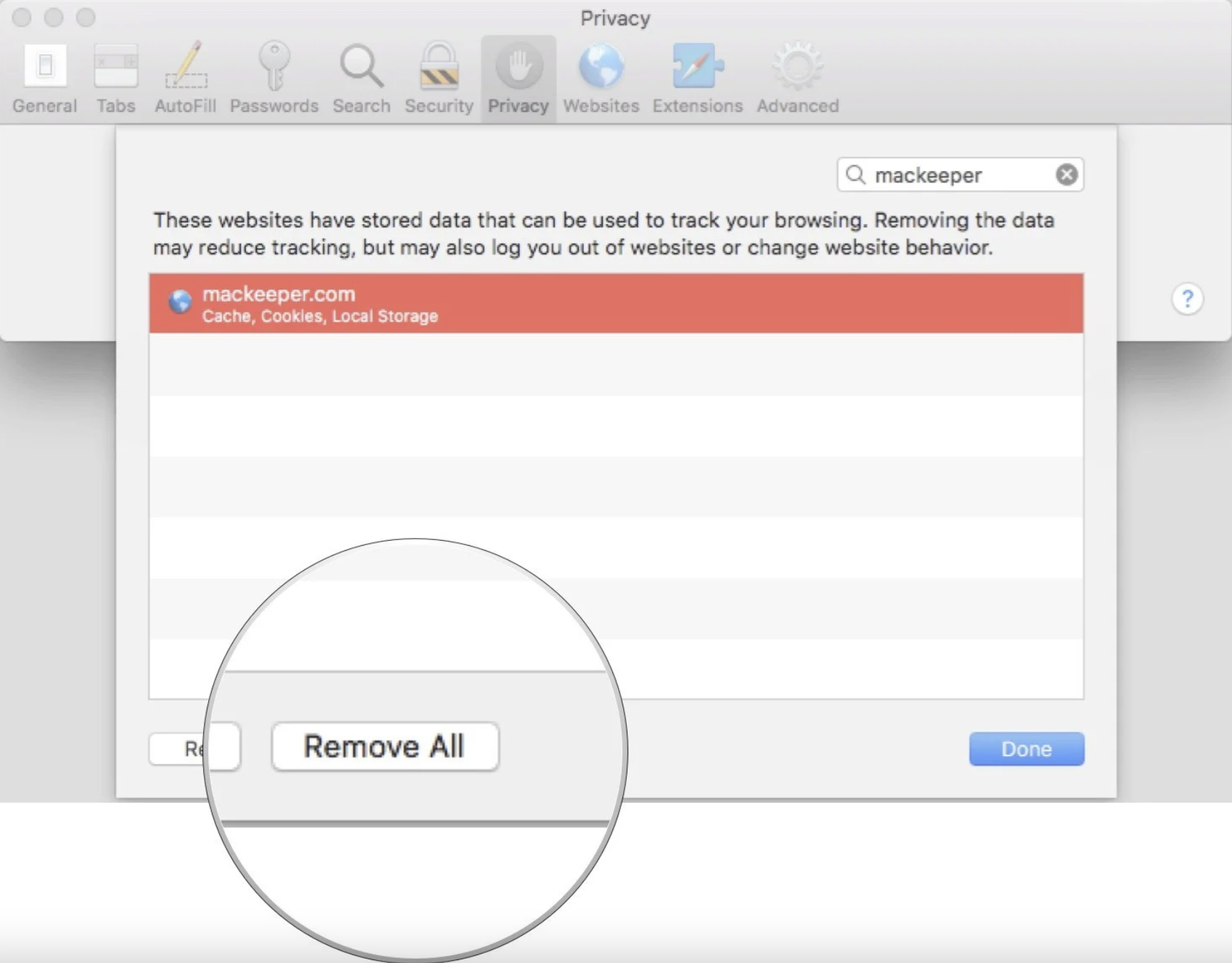
  5. Open Safari and go to Preferences > Privacy, then type MacKeeper in the search box and click Remove All.
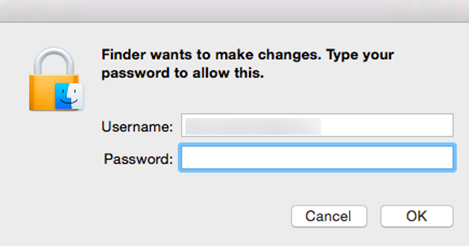
 

System dialog on the MacBook for entering your Mac admin password, then clicking OK to confirm you want to uninstall MacKeeper.
Step 1. Enter your password > click OK
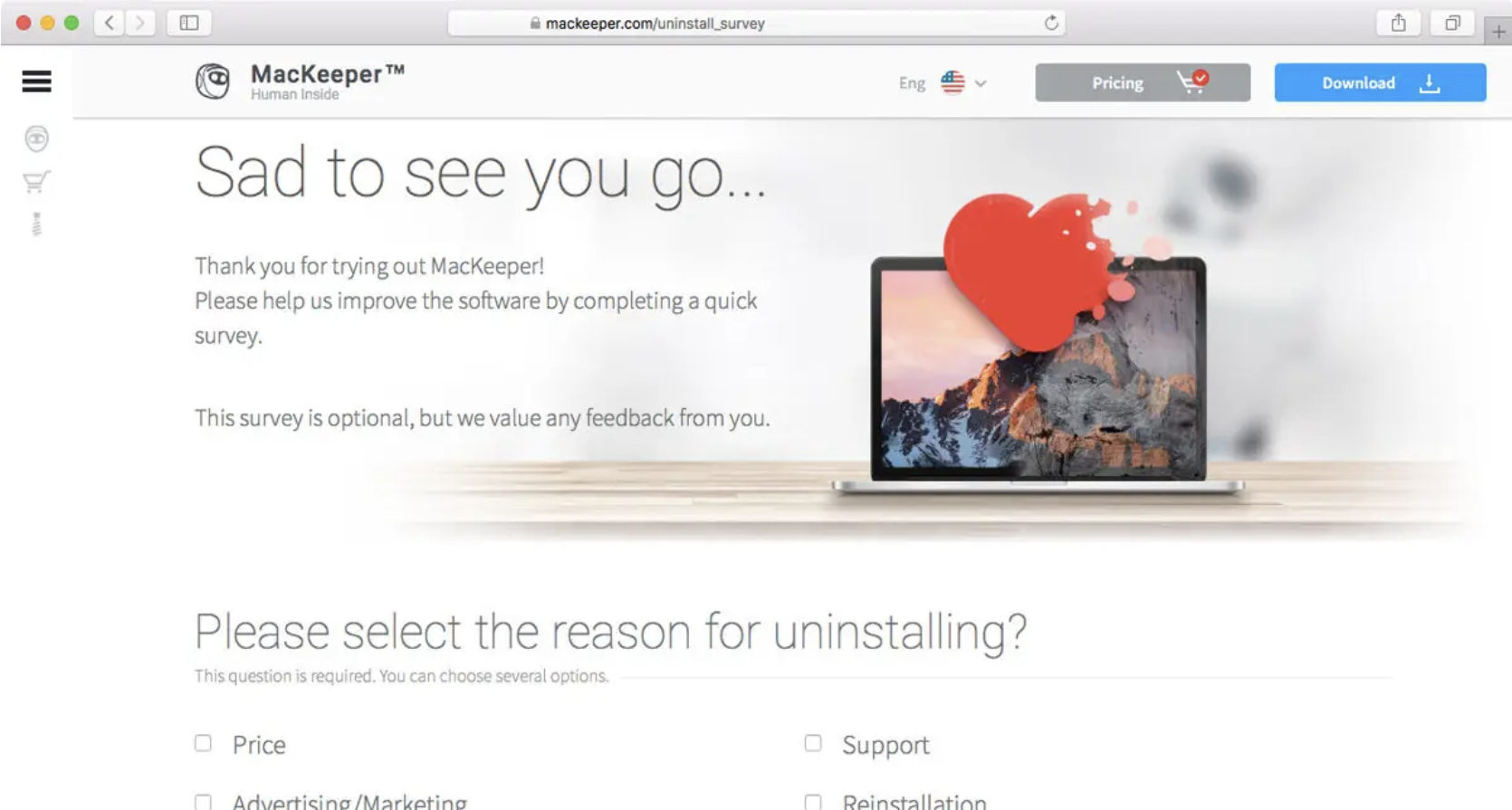
MacKeeper uninstall survey that opens automatically in the browser on macOS after you delete MacKeeper, which is optional to fill in.
Step 2. Fill in the survey
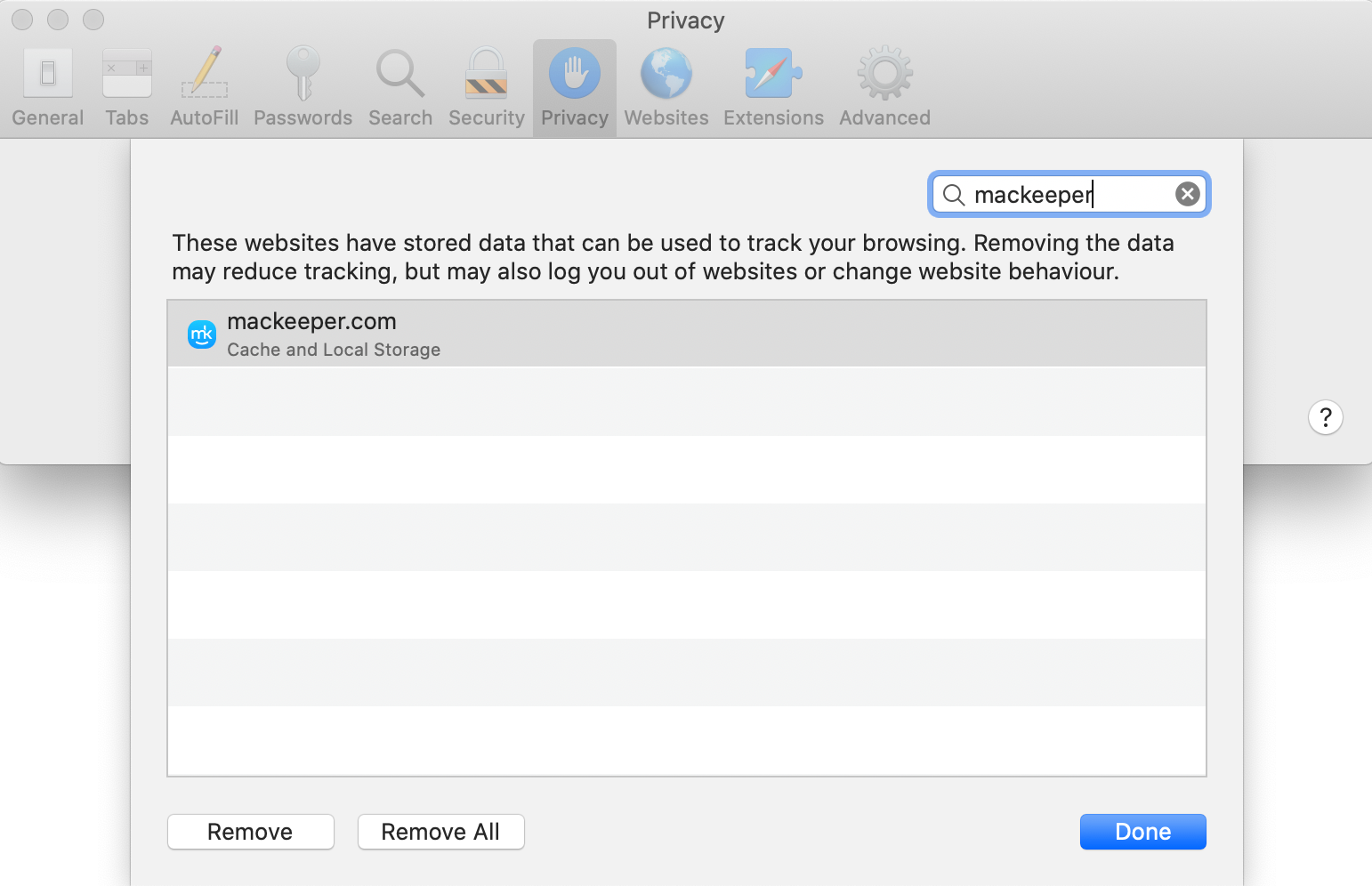
Safari Privacy window on the iMac showing mackeeper.com with the Remove All button, used to clear stored MacKeeper website data.
Step 3. Go to Preferences > Privacy > find MacKeeper > click Remove All

To completely uninstall MacKeeper 3, you’ll need to delete any leftover files as well:  

  1. Open Finder > Go > Go to Folder.
  2. Copy and paste these paths one by one:
    • ~/Library/Application Support/MacKeeper
    • ~/Library/Application Support/com.mackeeper.MacKeeper
    • ~/Library/Application Support/com.mackeeper.MacKeeperAgent
    • ~/Library/LaunchAgents/com.mackeeper.MacKeeperAgent.plist
    • ~/Library/Caches/com.mackeeper.MacKeeper
    • ~/Library/Caches/com.mackeeper.MacKeeperAgent
  3. Drag all files in those folders to the Trash.
  4. Empty Trash and restart your Mac.


Dock on the Apple device with the Trash icon, which you empty after uninstalling MacKeeper before you restart your Mac to finish.

How to remove MacKeeper ad preferences

MacKeeper is deleted after you follow the above steps. You shouldn’t see any ads, but to make sure you don’t, we also recommend clearing your Safari Preferences:  

  1. Open Safari.
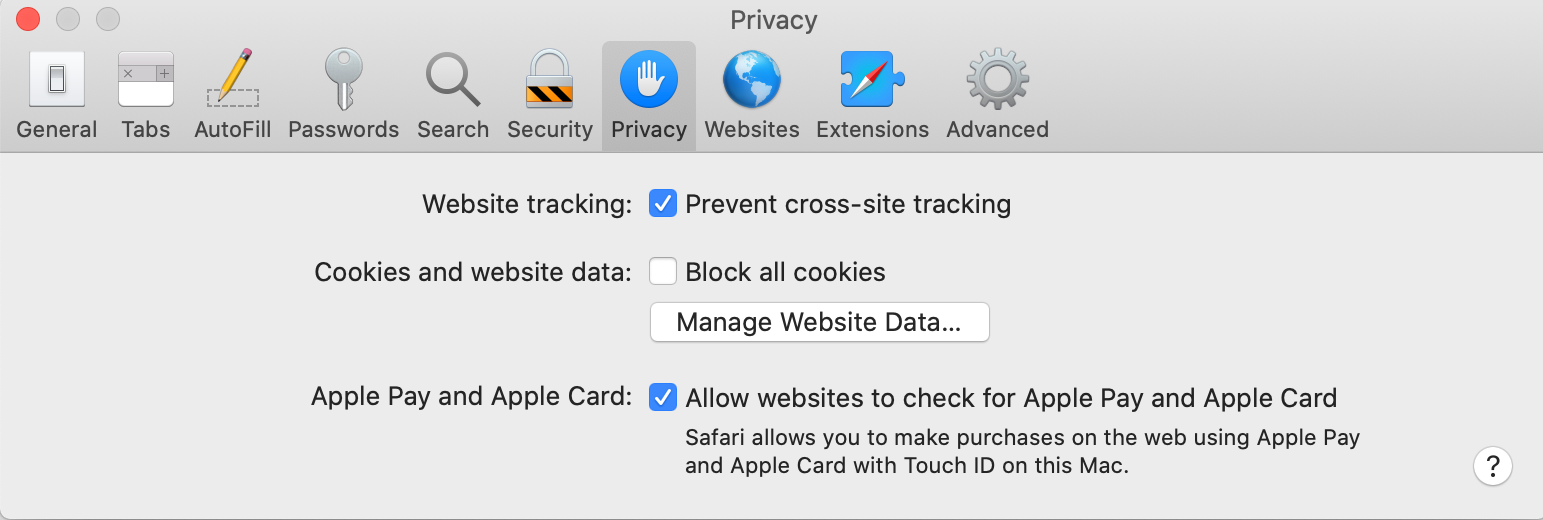
  2. Go to Preferences > Privacy.
  3. Type MacKeeper in the search box.
  4. Click Remove All and hit Remove Now to confirm.
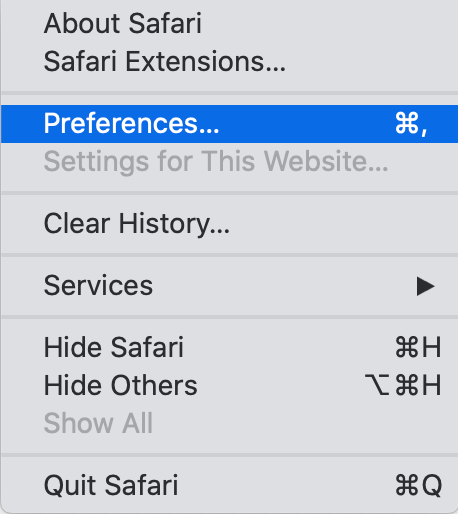
 

Safari menu on the Apple computer with Preferences, which you open to reach the Privacy tab and remove MacKeeper advertising data.
Step 1. Open Safari Preferences > Privacy
Safari Privacy tab on the Apple laptop with MacKeeper typed in the search field to remove MacKeeper advertising data from the browser.
Step 2. Go to Privacy > click Manage Website Data...
Safari Privacy tab on macOS showing mackeeper.com in the list, which you clear from the browser by clicking the Remove All button.
Step 3. Search for MacKeeper > select mackeeper.com > click Remove
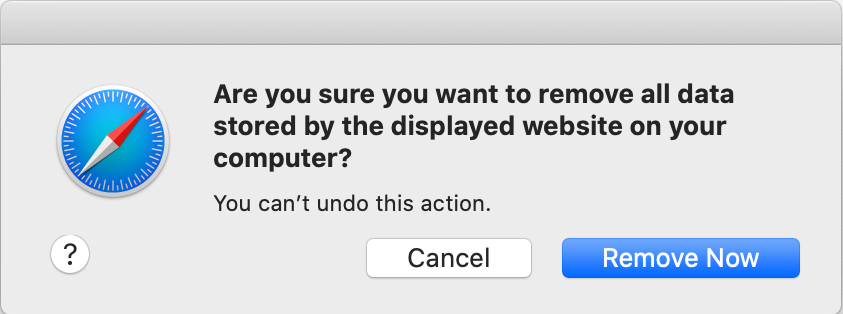
Confirmation dialog in the Safari Privacy tab on the MacBook with the Remove Now button, used to delete all MacKeeper website data.
Step 4. Click Remove Now
arrow

Run Application

step_1

Click Continue

step_2

Click Install

step_1

Your macOS version is lower than OS 10.11. We’d like to offer you MacKeeper 4 to solve the cleaning, privacy, and security issues of your macOS.