Is your Mac suddenly freezing or lagging? It could be because the MTLCompilerService process is consuming a large amount of CPU resources. We suggest you close this process automatically by using MacKeeper’s Memory Cleaner software to save time and remove the guesswork from rectifying the MTLCompilerService process’ high CPU usage on macOS.
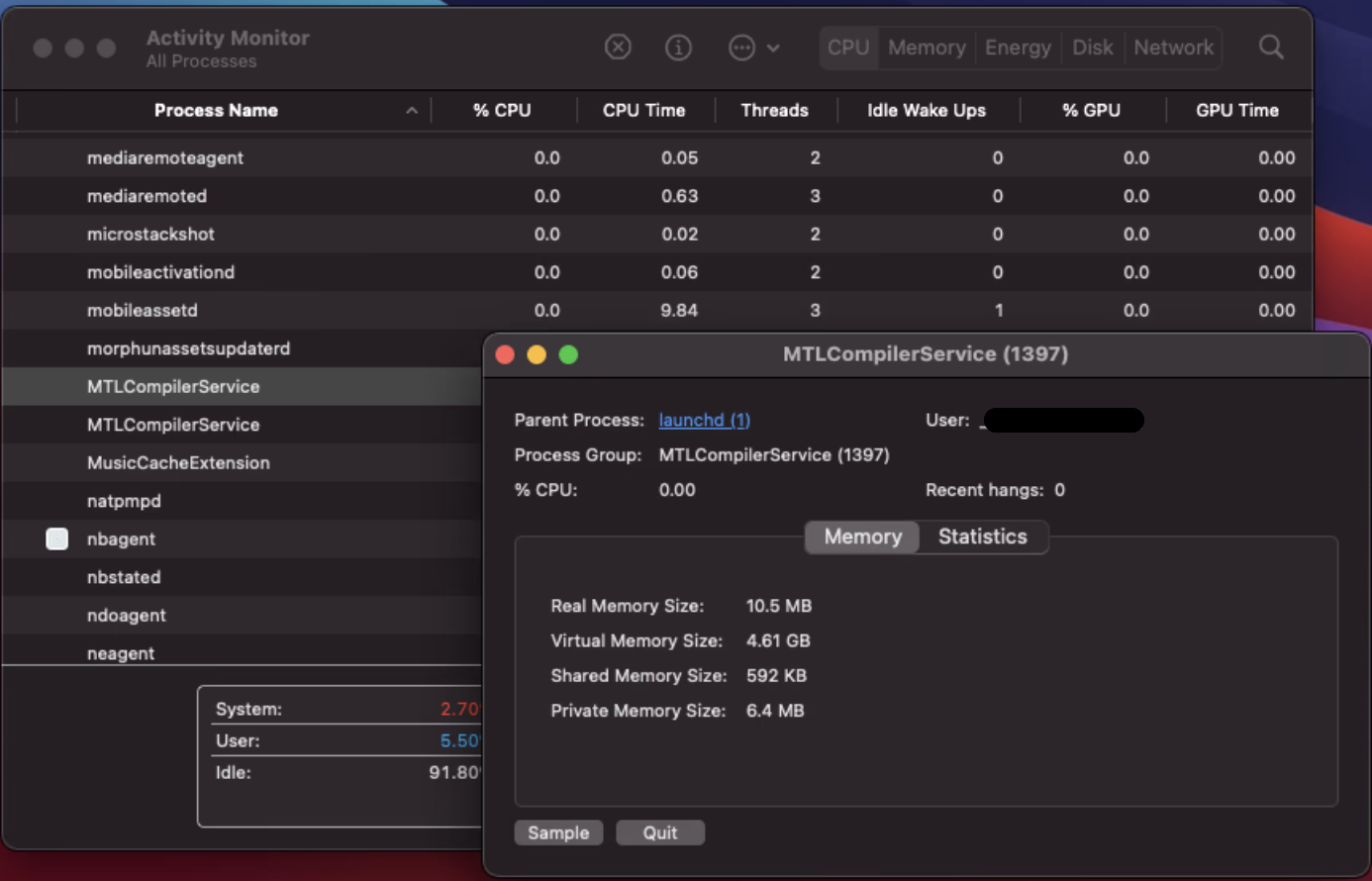
Are you familiar with Apple’s Metal framework—its technology built to enhance graphics processing? MTLCompilerService is a system process associated with it. You can find the MTLCompilerService process in Mac’s Activity Monitor, where you can check its CPU usage. If its CPU usage is high, that’s probably why your MacBook fan keeps running or your device overheats or performs poorly.
Why does MTLCompilerService use a lot of CPU?
Normally, the MTLCompilerService process runs so silently in the background that you don’t even notice it’s active. On occasion, its CPU or memory shoots up to the point where your device will act up, leading you to check CPU usage on Mac.
Here’s why MTLCompilerService uses a lot of CPU:
Video editing or 3D modeling software processes large projects.
Outdated or broken system files damage the Metal graphics framework.
Glitches or incompatible apps freeze the system or create endless loops.
Heavy graphics apps build complicated shaders when they open or update.
macOS optimizes the system background tasks after a major software update.
Even so, you can reduce the MTLCompilerService process’s high CPU usage.
How to fix the MTLCompilerService high CPU?
To fix MTLCompilerService’s high CPU or memory usage on a Mac, force quit the process or restart the app that triggers the spike in CPU resources. Clear the shader cache. Check software updates. Boot into safe mode. Reset NVRAM and SMC. Disable transparency. Check browser tabs. You can also check CPU temperature on a Mac.
A note from our experts:
Below is a comprehensive list of guides you can try to reduce the CPU consumption of the MLTCompilerService process. Since it’s an exhaustive list, it could take time to find a solution that works. If you prefer to save time, why not try MacKeeper’s Memory Cleaner? It stops redundant processes from crippling your Mac’s resources, which, in turn, improves its overall performance. MacKeeper is notarized by Apple, so you can rest assured it’s been scanned for malicious code and approved for safety.
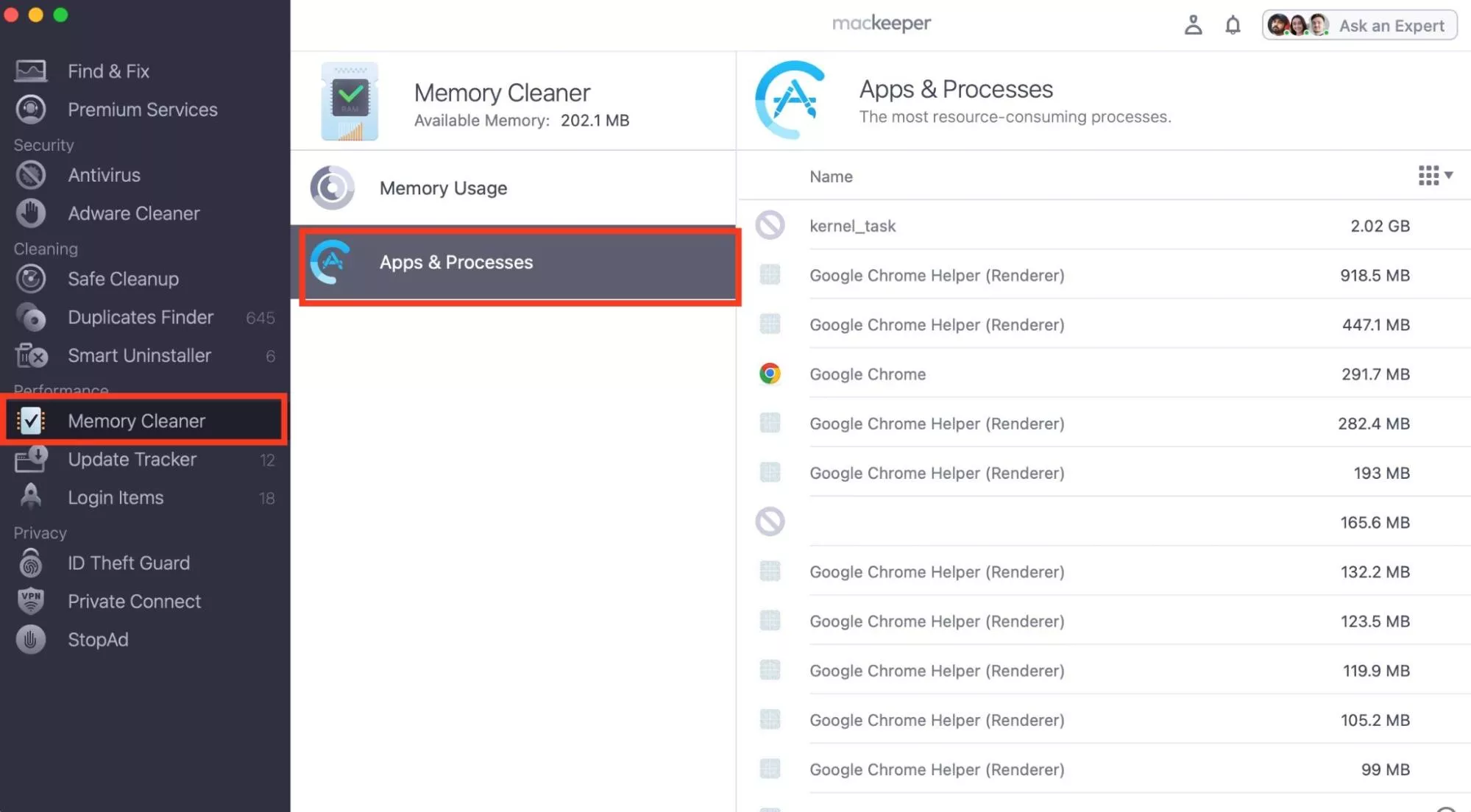
Follow these steps to use MacKeeper’s Memory Cleaner:
Launch the app and select Memory Cleaner > Apps & Processes.
After MacKeeper finds active processes, look for MLTCompilerService, hover over it, and press the X icon that appears next to it.
1. Force quit process
When a high-consumption process like MLTCompilerService wreaks havoc on our Mac, our first step is to force quit it in Mac’s Activity Monitor, which often does the trick.
Here’s how to kill the MLTCompilerService process in Activity Monitor:
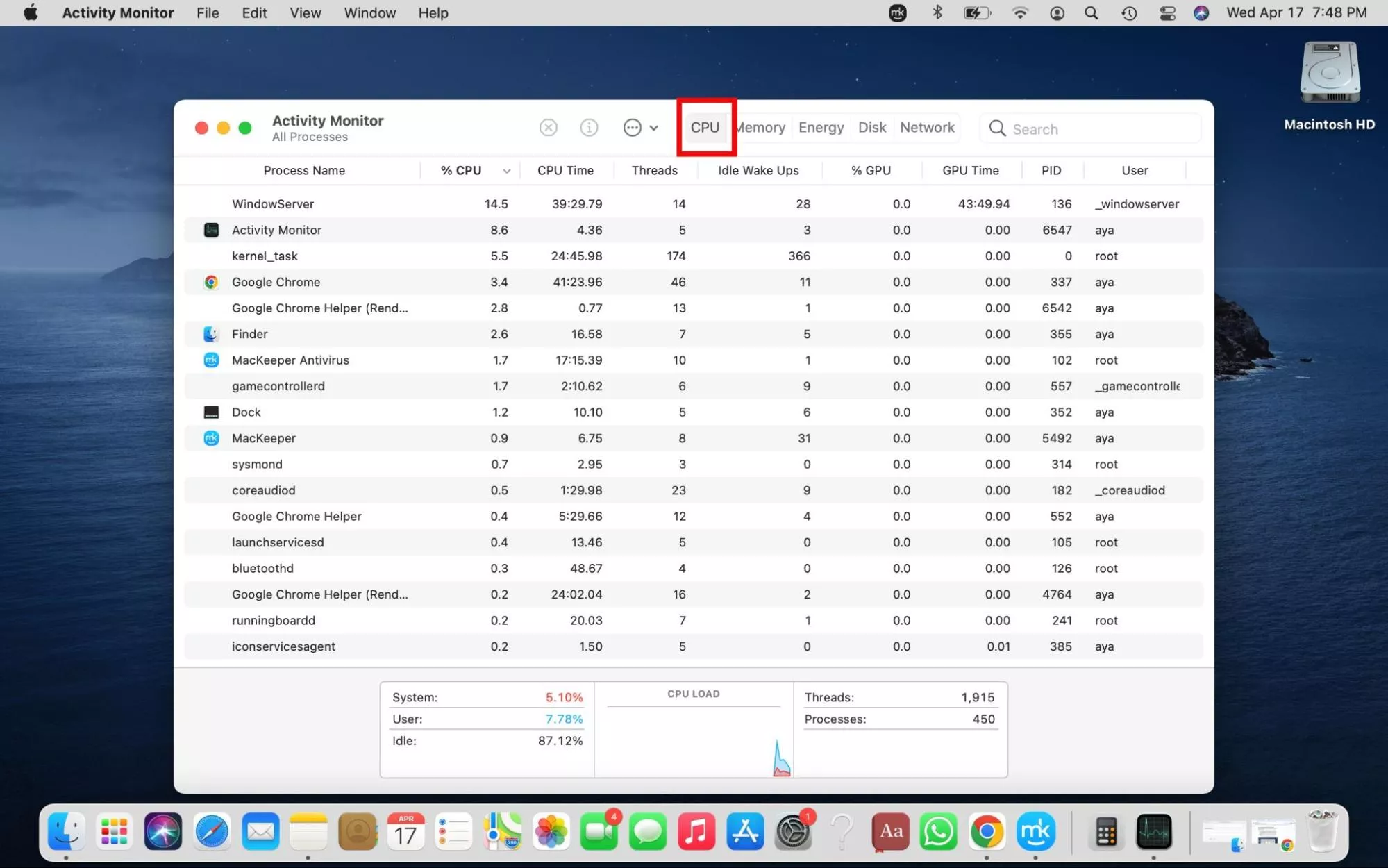
Launch Activity Monitor and click the CPU tab at the top of the window.
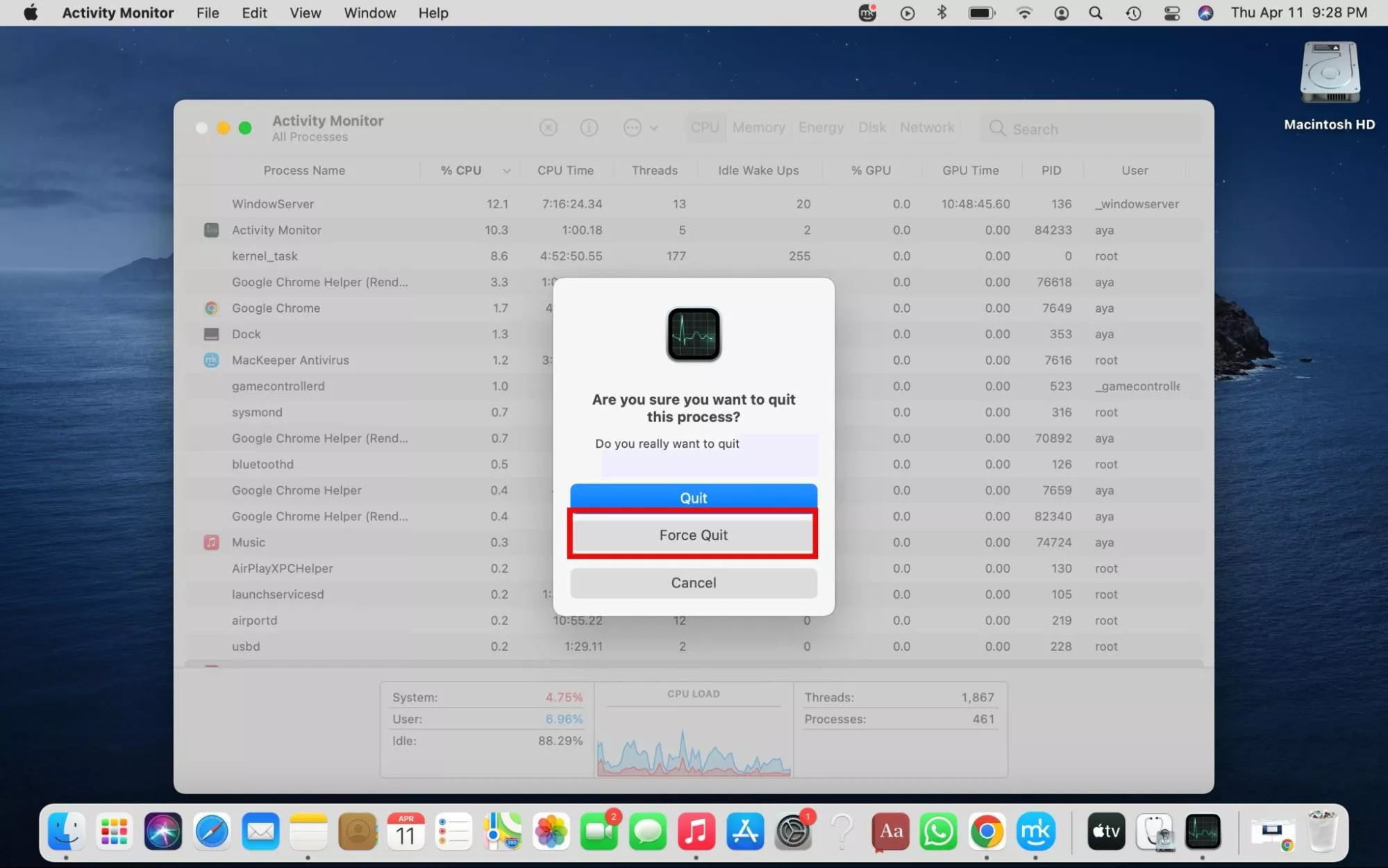
Find MLTCompilerService on the list (since CPU consumption is high, it should be toward the top) and click on it, followed by the X icon > Quit or Force Quit.
Step 1. Open Activity Monitor and click the CPU tabStep 2. Quit or Force Quit MLTCompilerService
2. Restart the triggering app
While it helps us to see what applications are running on Mac, it’s even more helpful to check which apps are triggering MLTCompilerService to consume a lot of CPU resources in Activity Monitor. From there, we can restart the app to fix it.
To check which apps trigger MLTCompilerService’s high CPU consumption, follow these steps:
With the CPU tab still open in Activity Monitor, click the arrow next to MTLCompilerService to expand it and look for the name of the app that triggers high MTLCompilerService usage.
Quit the app and relaunch it.
3. Clear shader cache
To clear the Metal shader caches and reset MTLCompilerService usage, we delete the specific cache directories hidden within the user library and system temporary folders. Clearing application cache on Mac solves the problem because MTLCompilerService relies entirely on those cached files to do its job. When they become corrupted, they get stuck in a high-CPU processing loop.
Follow the steps below to clear shader cache on a Mac:
Quit all open applications.
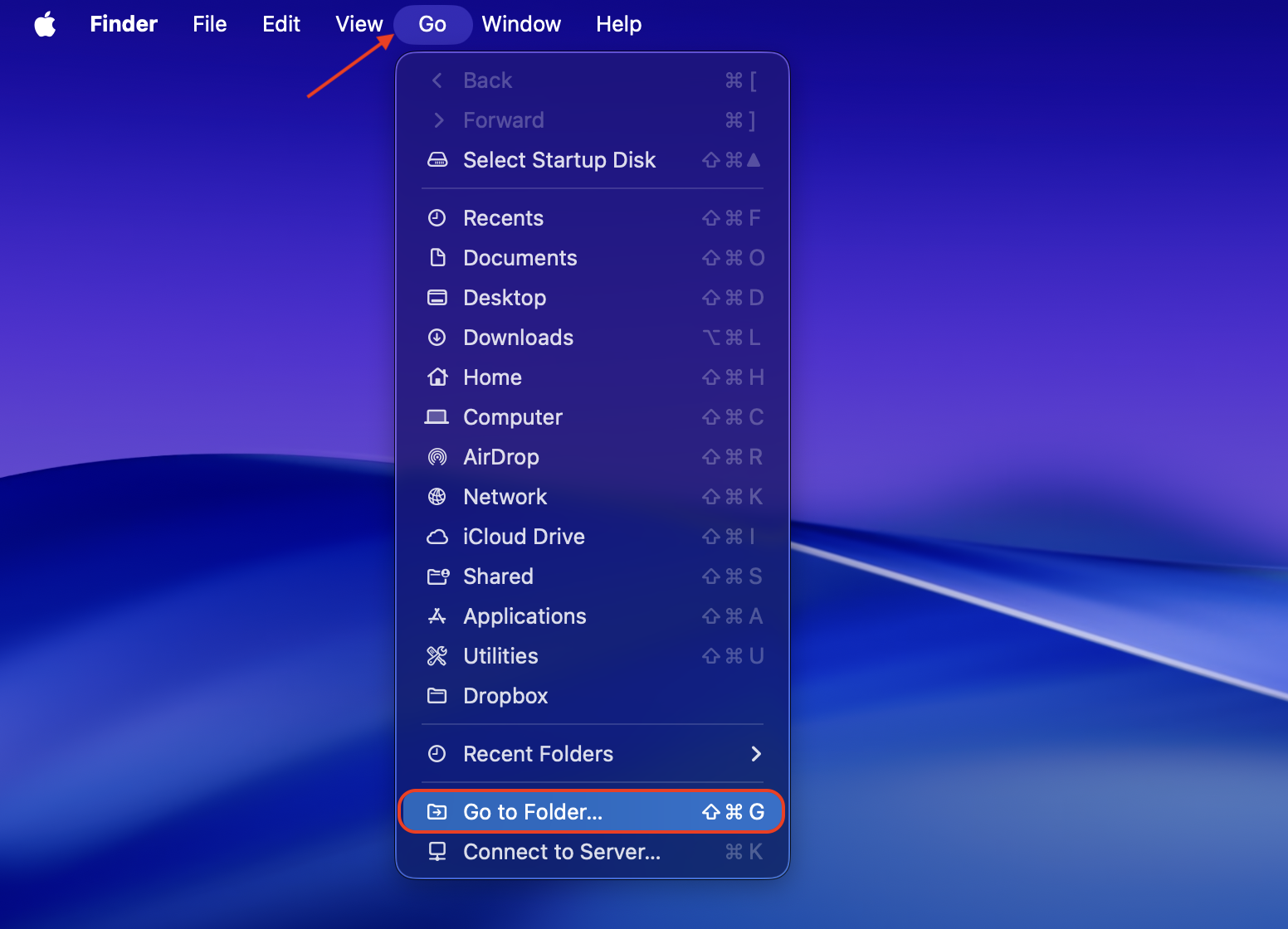
In Finder, press the Command + Shift + G keys.
Copy and paste the ~/Library/Caches/com.apple.Metal path.
Clear the contents of that folder, ensuring you don’t delete the folder itself.
Open Go to Folder again and paste the ~/Library/Caches/com.apple.MetalShaderCache path.
Remove the contents of the folder and restart your Mac.
Step 1. In Finder, press the Command + Shift + G keysStep 2. Copy and paste the ~/Library/Caches/com.apple.Metal pathStep 3. Clear the contents of that folder, ensuring you don’t delete the folder itselfStep 4. Open Go to FolderStep 5. Open Go to Folder again and paste the ~/Library/Caches/com.apple.MetalShaderCache pathStep 6. Remove the contents of the folder
4. Check software updates
Updating macOS and graphics-heavy apps can help fix bugs and performance issues causing high MTLCompilerService usage, so we always check for updates in this case. Learn what to do when the software update on Mac is not working.
Follow this simple approach to update software on macOS:
Open System Settings > General > Software Update.
Where applicable, click Update Now to start the installation process.
5. Boot into safe mode
If you’re yet to find out which apps are behind MTLCompilerService’s high usage, rebooting in safe mode can yield some answers. For this reason, we sometimes start Mac in safe mode to see which third-party apps are the culprits.
Follow the steps below to boot your Intel Mac in safe mode:
Shut down your Mac.
Switch it on, hold down the Shift key, and let go when you see the login screen.
Follow the steps below to boot your Apple Silicon Mac in safe mode:
Turn off your laptop.
Hold down the power button and let go when you see Startup options.
Choose your startup disk, hold down the Shift key, and click Continue in safe mode.
Release the Shift key when you see the Login screen.
6. Reset NVRAM and SMC
Resetting PRAM and SMC is known for helping fix graphics-related problems on Macs. So, we do it to reset MTLCompilerService’s high usage, though it’s never our first option.
Use the guide below to reset PRAM and SMC:
Shut down your Mac and quickly hold down the power button.
Switch it back on, hold down the Command + Option + P + R keys, and release 20 seconds later.
Step 1. Switch off your Mac and immediately hold down the power buttonStep 2. Hold down the Command + Option + P + R keys
7. Disable transparency
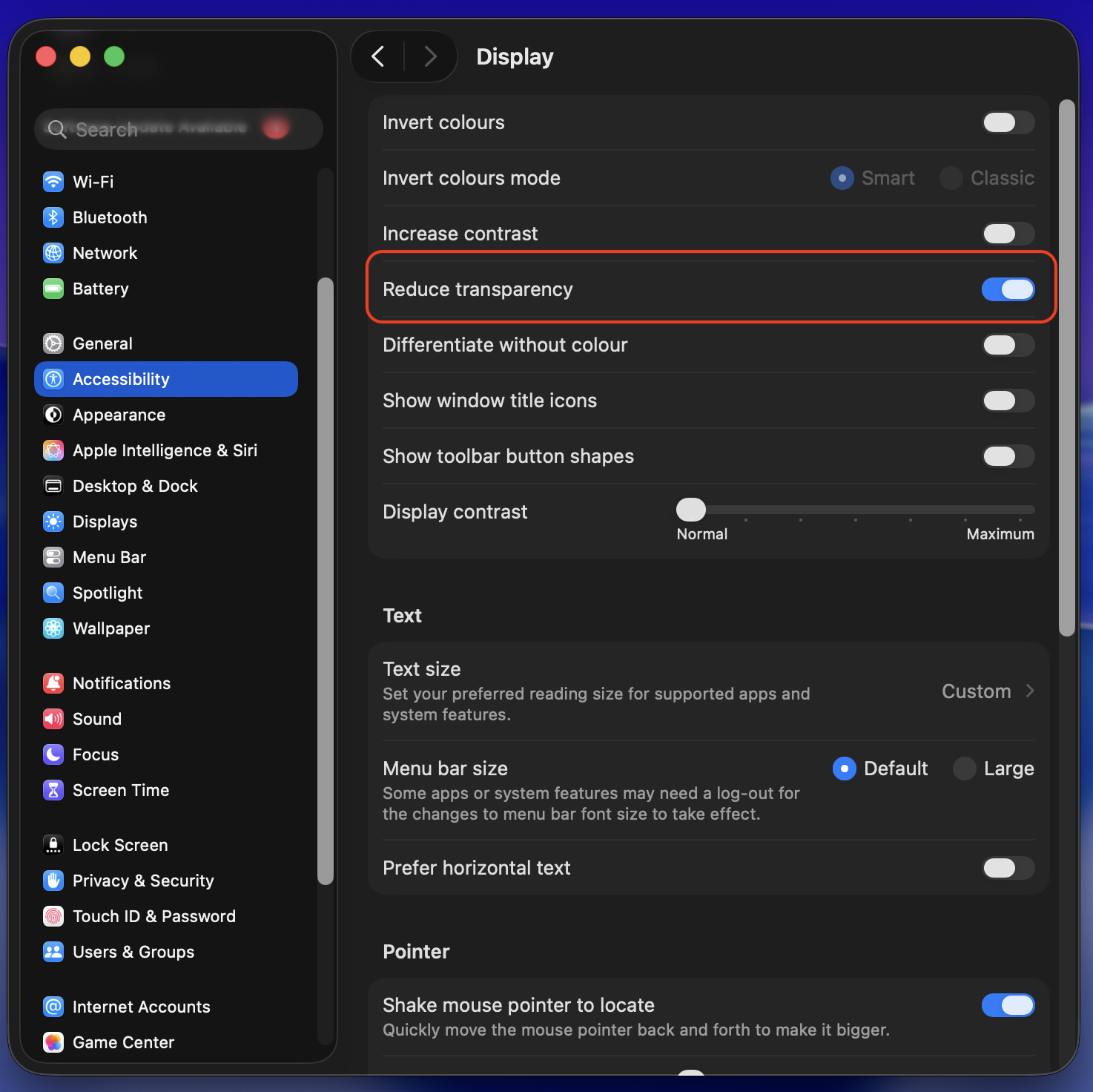
Disabling transparency stops your Mac from constantly calculating complex blurred effects behind windows and menus. Stripping away these transparency effects cuts down the amount of graphics code that MTLCompilerService has to process, which immediately lowers your CPU usage.
How to disable transparency on macOS:
Open System Settings via the Apple menu.
Click on Accessibility in the left sidebar and Display from the options list.
Since each open tab acts like a separate, mini-application running on your Mac, checking browser tabs helps reduce high CPU and memory usage. Modern browsers isolate tabs to prevent crashes affecting the entire browser. This means that 10 open tabs equal 10 independent programs competing for system resources.
Lower MTLCompilerService’s high CPU usage on your Mac
While MTLCompilerService’s high CPU usage can slow you down, you can easily reset its consumption using the tips in our guide. From updating your Mac software to limiting the number of tabs you have open simultaneously, you can significantly reduce CPU consumption and improve your Mac’s performance.
Don’t forget to use MacKeeper's Memory Cleaner feature to speed up your device by closing processes, freeing up space, and clearing RAM.
We respect your privacy and
use cookies
for the best site experience.
Privacy Preferences Center
We use cookies along with other tools to give you the best possible experience while using the
MacKeeper website. Cookies are small text files that help the website load faster. The cookies we
use don’t contain any type of personal data meaning they never store information such as your
location, email address, or IP address.
Help us improve how you interact with our website by accepting the use of cookies. You can change
your privacy settings whenever you like.
Manage consent
All cookies
These cookies are strictly necessary for enabling basic website functionality (including page
navigation, form submission, language detection, post commenting), downloading and purchasing
software. The website might malfunction without these cookies.