Wondering how to uninstall Office 365 on a Mac? Nothing is easier with MacKeeper’s Smart Uninstaller. It can quickly and safely delete any app and get rid of its leftovers.
For many of us, Microsoft Office products are vital for work, study, and everyday life. Although you may use Office 365 often, you might have no clue how to remove it from your Mac. It may be that Word keeps crashing every time you use it. In some cases, removing the software and reinstalling the latest version can fix bugs and other problems.
Whatever reason you have to remove Office 365, you can find the proper uninstallation processes here. We’ve researched the best and most efficient methods to completely uninstall Microsoft Office 365 on your Mac—so keep reading for all our insights.
What’s the difference between Office 365 and other versions?
Microsoft Office 365 is a subscription-based service, offering a variety of different monthly and yearly plans. Other versions of Office, in contrast, are available as a one-off purchase.
One of the main benefits of the subscription model is you always get the latest Office features as part of your plan. You don’t need to monitor your apps; Microsoft will let you know when new features are available. Your purchasing details and credentials are also linked to your account, so you can use Microsoft Office on up to five machines at the same time.
The one-time deals can only be set up on a fixed Mac or PC. These versions include security updates, but you won’t get any new features. Microsoft does refresh features when it releases new versions of its one-time purchases, but you’ll need to pay for the new app to get them. However, you aren’t fixed to a time limit, and you'll have full lifetime access after buying the license.
Currently, you need to be running one of the last three versions of macOS (macOS Sonoma, Ventura, or Monterey) to receive updates for Office 365, Office 202, and Office 2019. You can still use the apps on older operating systems, but you won’t be able to get the updates.
Our team has researched the key differences between Microsoft 365 and one-time Office purchases. They’re summarized in the table below, so grab the insights from our comparative analysis.
One-time purchase
Microsoft 365
Price
One-off price
Monthly fee
Updates
Security only
New features, updates, and security
Number of machines
One Mac or PC
Unlimited devices (Mac, PC, mobile, tablet), with up to 5 signed in at the same time
Mobile apps
Basic editing
Advanced features
Online storage
Not included
Cloud storage included
Technical support
For installation only
Help with technical, subscription, and billing issues at no extra cost
A note from our experts:
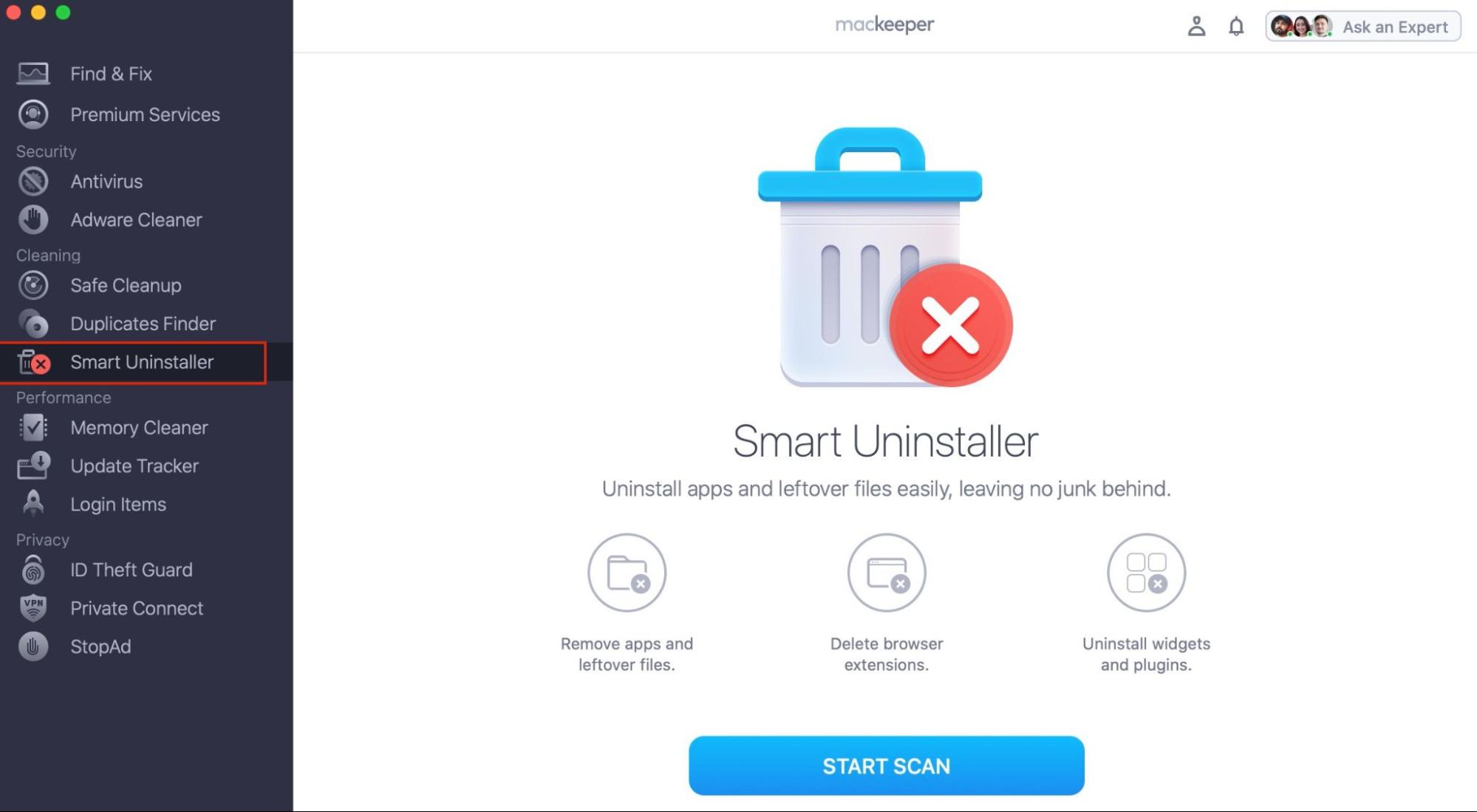
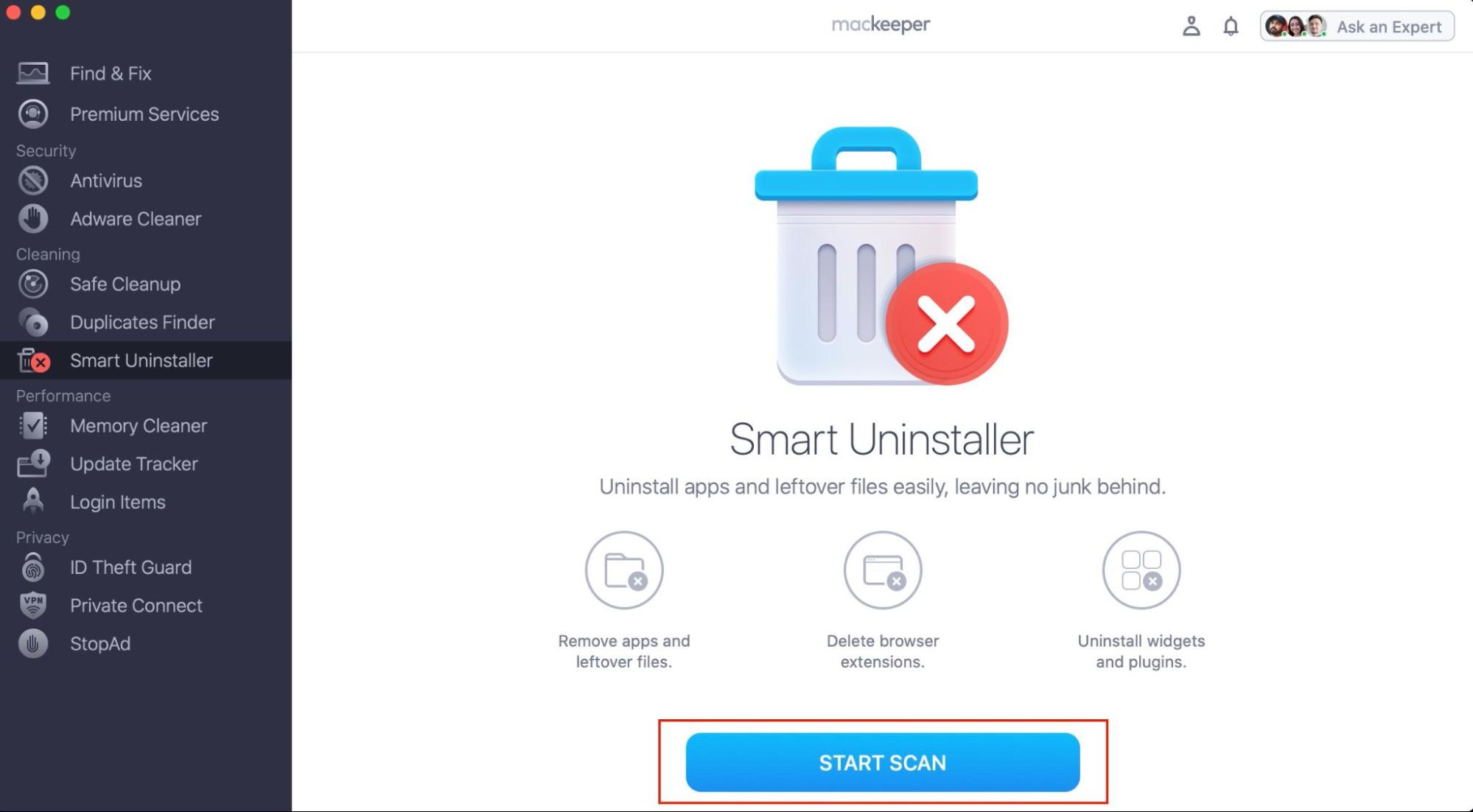
You might want to remove Office 365 manually, following our guidelines. But there is a chance that some files will remain on your Mac. The better decision is to use a dedicated third-party app. MacKeeper’s Smart Uninstaller automatically removes apps with all their files in a few clicks.
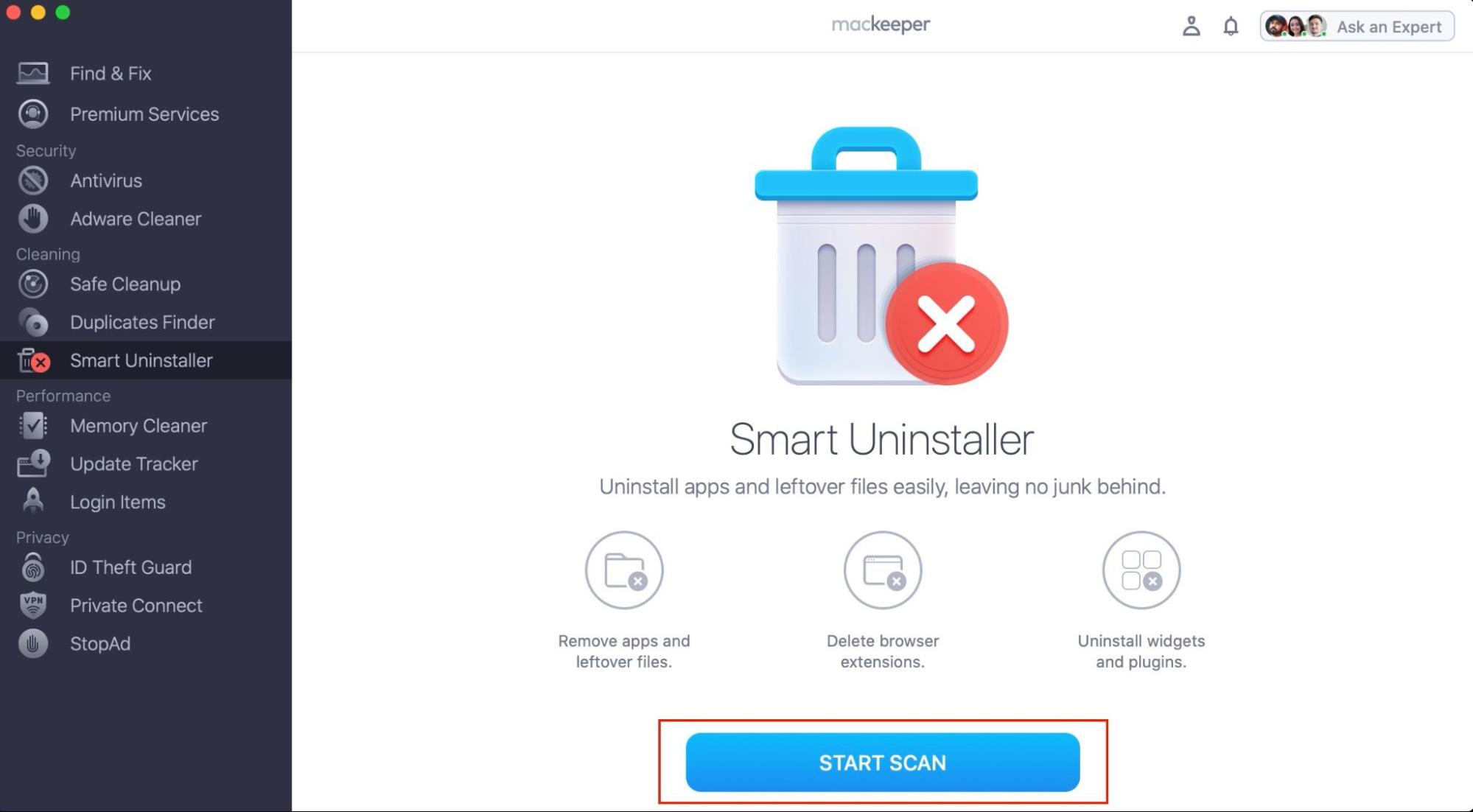
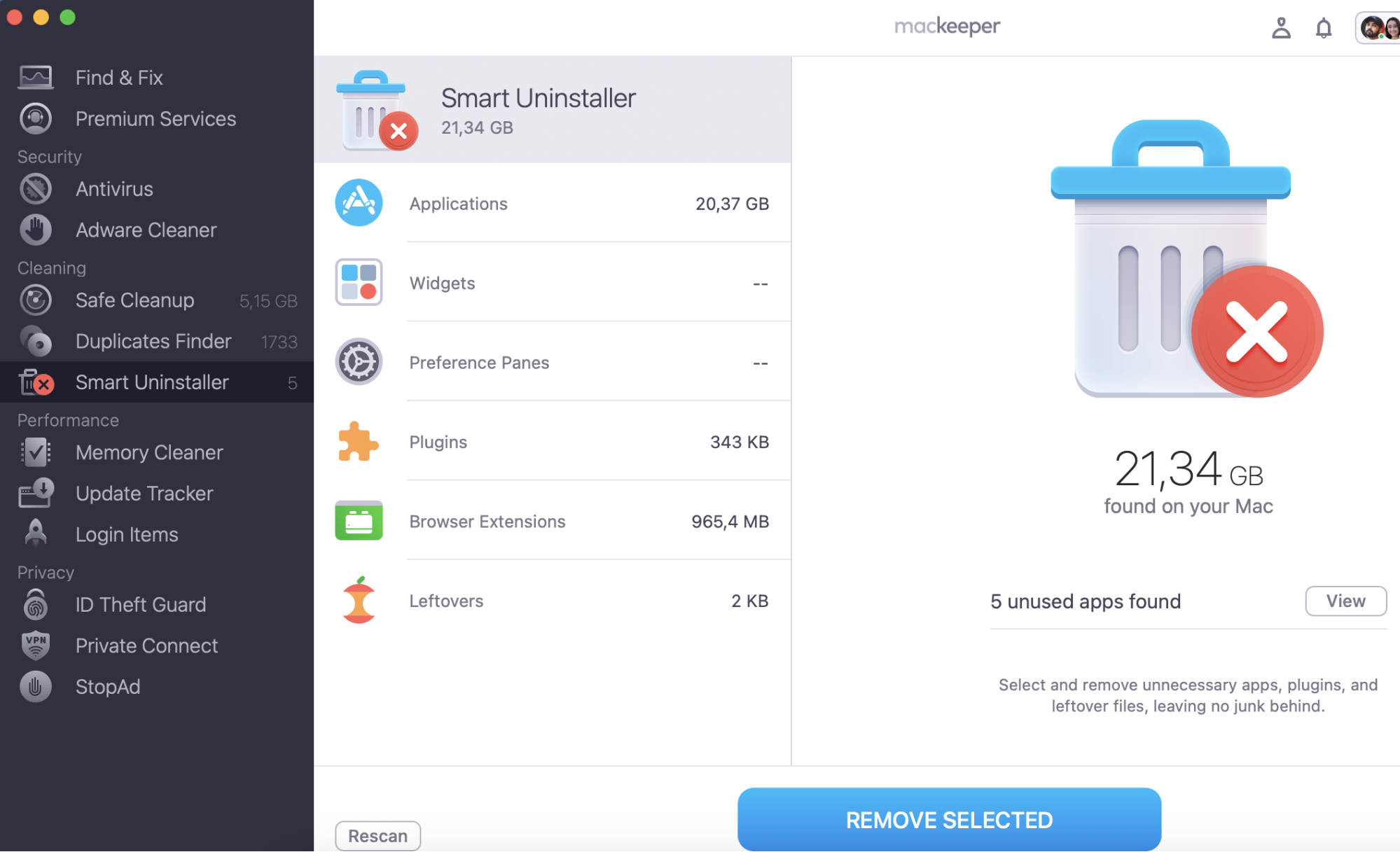
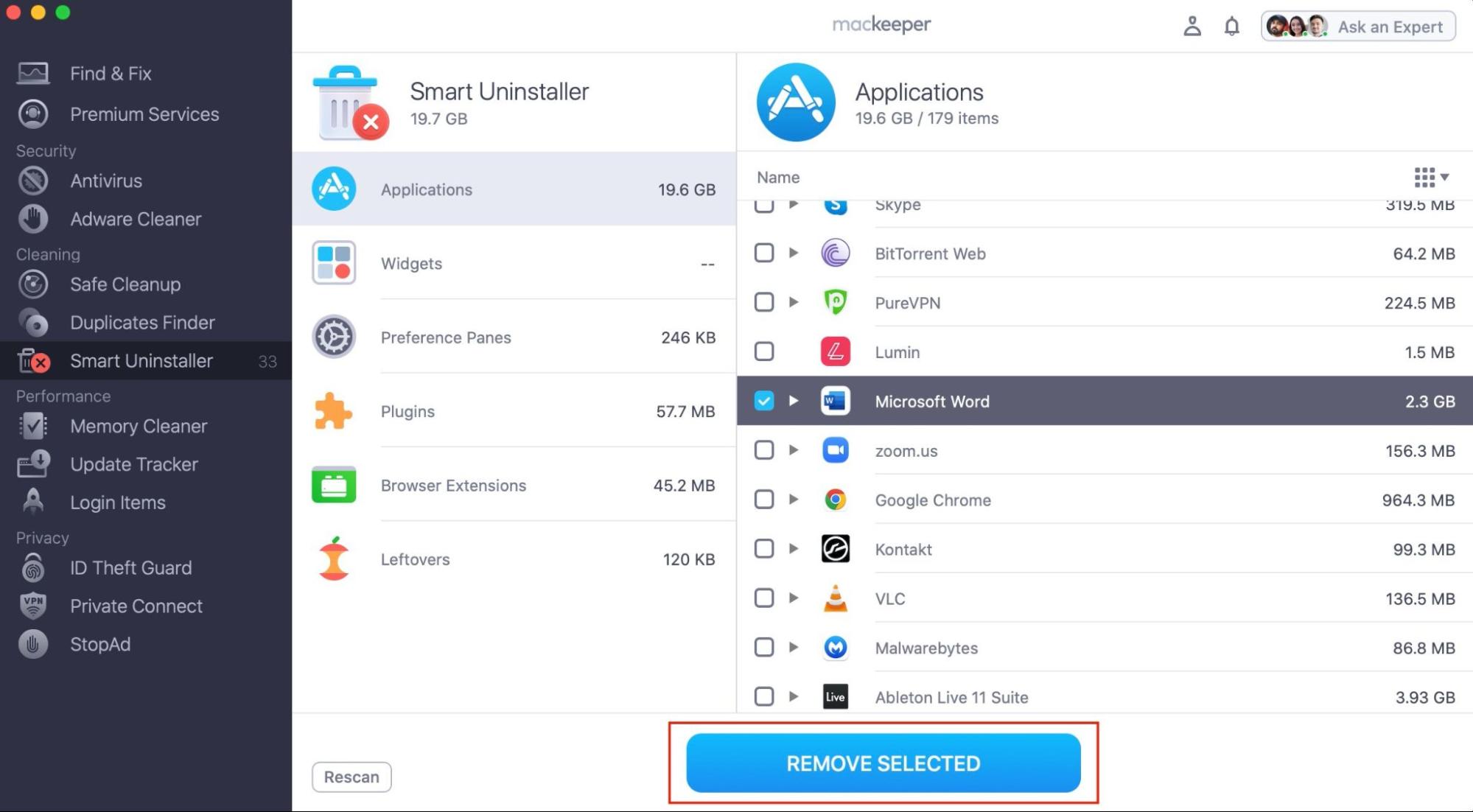
Click Smart Uninstaller > Remove Selected to start removing any unwanted apps and files, plus many more.
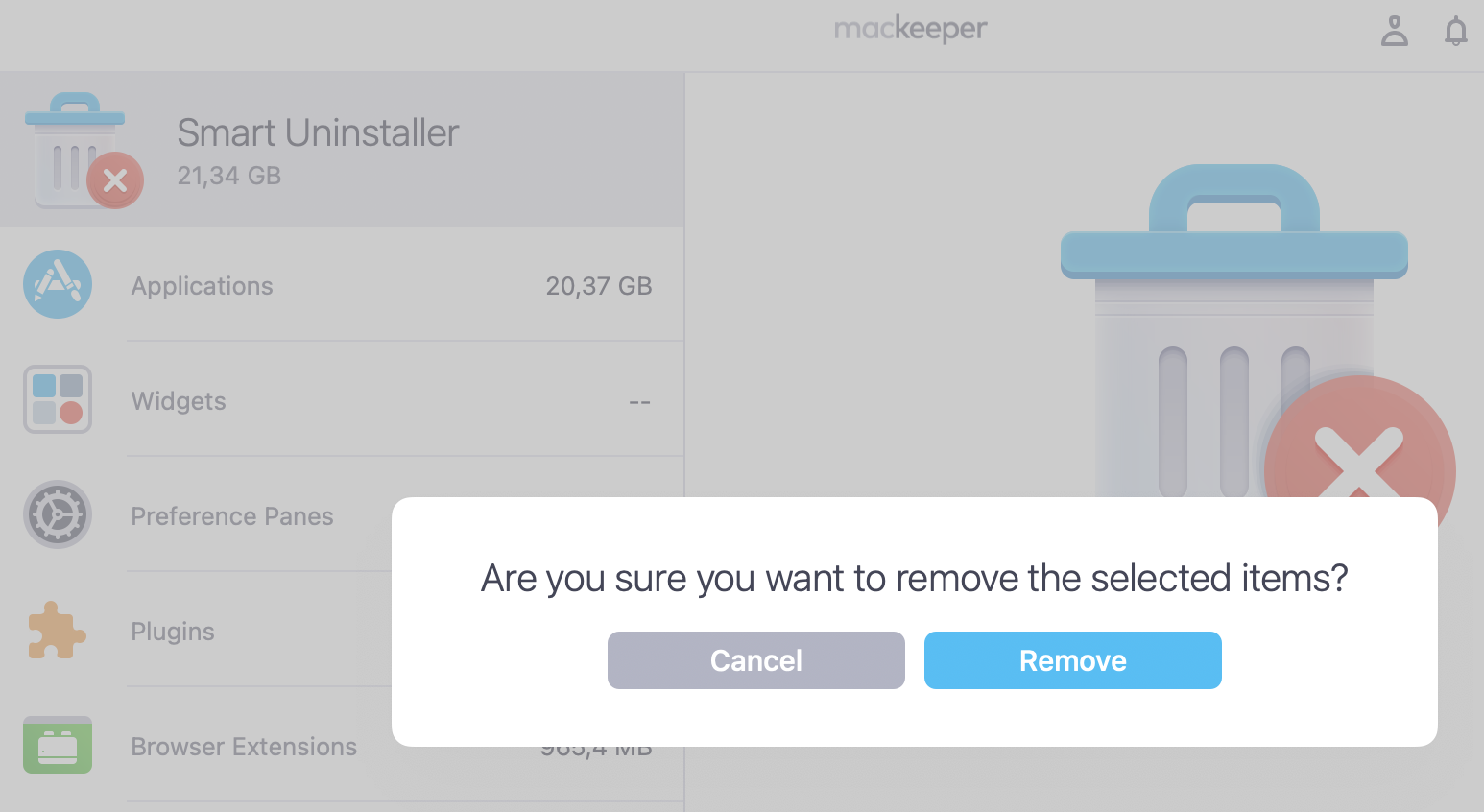
Confirm your readiness to get rid of the redundancy by clicking Remove.
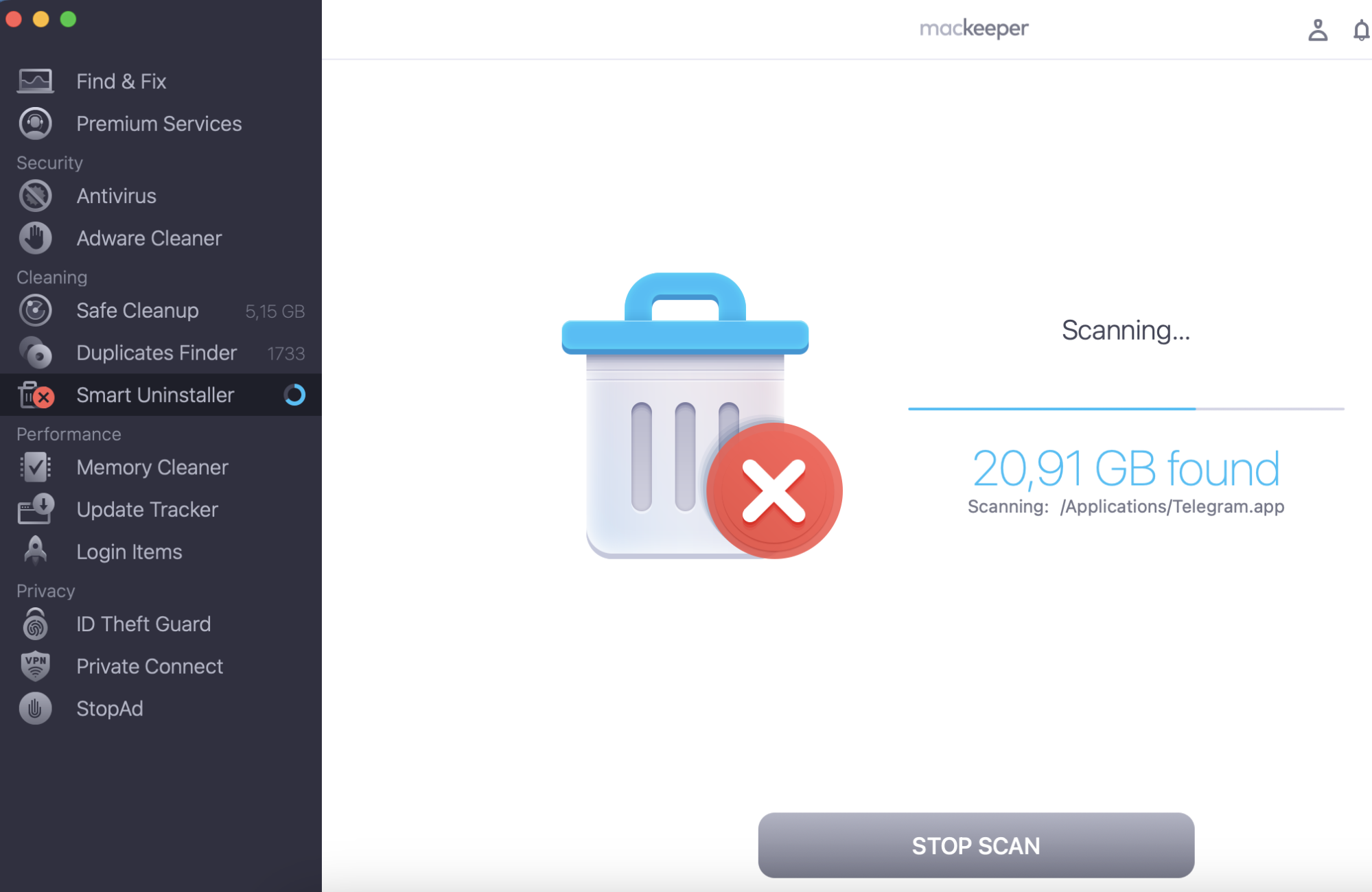
Step 1. MacKeeper > Smart Uninstaller > Start ScanStep 2. MacKeeper’s Smart Uninstaller is scanning your MacStep 3. Choose the apps to delete > click Remove SelectedStep 4. Select Remove
How to manually remove Office 365 (Microsoft 365) from Mac
Mac’s version of Microsoft Office includes Word, PowerPoint, Excel, OneDrive, Outlook, and OneNote. Like every app, they’re divided into components and split into a binary file and numerous service files. If you want to manually delete Microsoft Office from your Mac, you’ll need to clean out all of them, following these steps:
Exclude Office 365 from applications
Wipe out Office 365 files
Delete Office 365 from the Dock
1. Exclude Microsoft Office from Applications
The first step in uninstalling Microsoft Office 365 on Mac is to remove all of its apps from Applications. Here’s how:
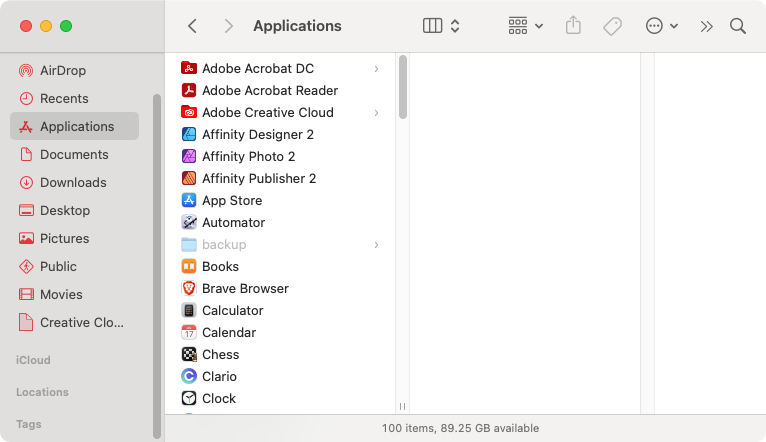
Open Finder > Applications.
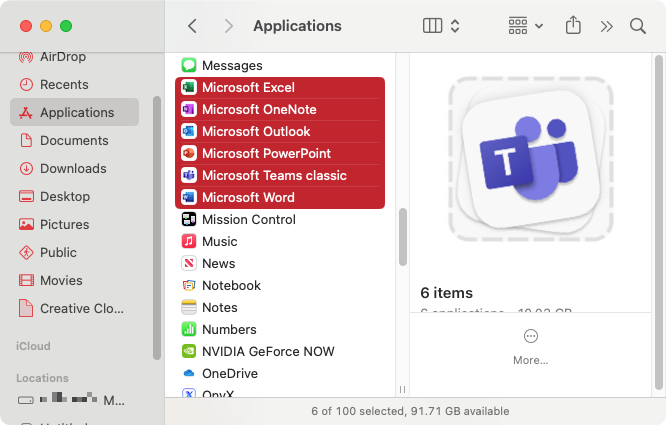
Press Cmd and click to select all Office 365 apps.
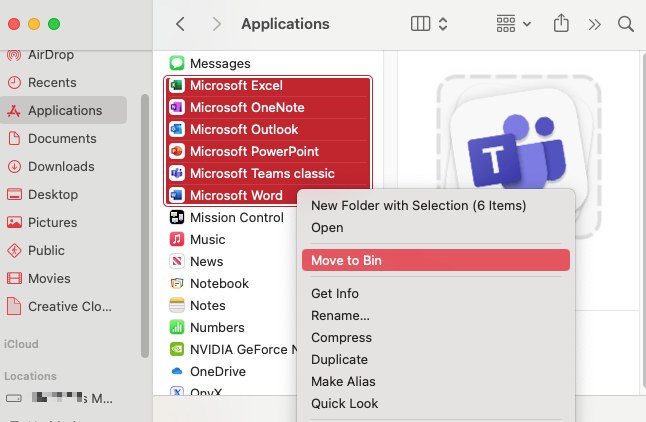
Right-click the chosen applications, then click Move to Trash.
Step 1. Go to your Applications folderStep 2. Select your Office 365 appsStep 3. Send the files to Trash
2. Wipe out Microsoft Office files
In Applications, you’ll find a list of all executable files. But annoyingly, service files can be located in less easily accessed folders on your system drive. To fully remove Office 365 from your Mac, you’ll need to locate and delete this hidden data, too.
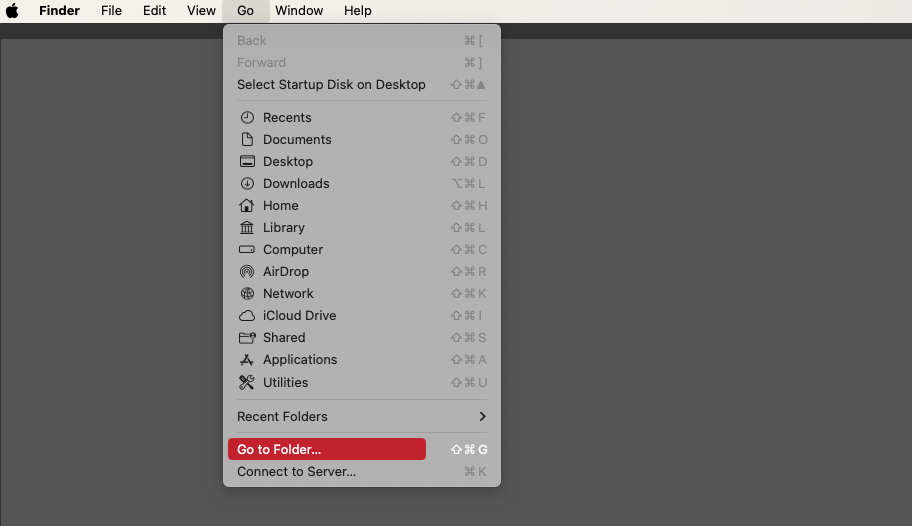
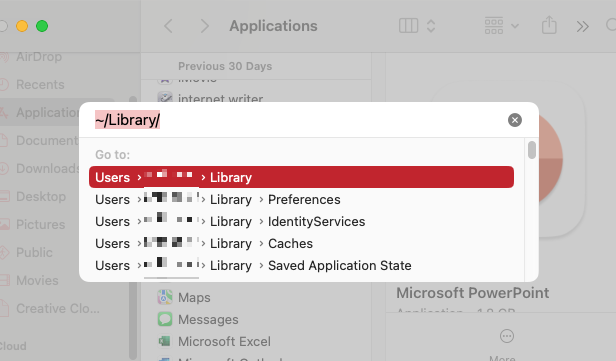
Click your desktop or a Finder window, then select Go > Go To Folder in the menu bar.
Type ~/Library, and press Return.
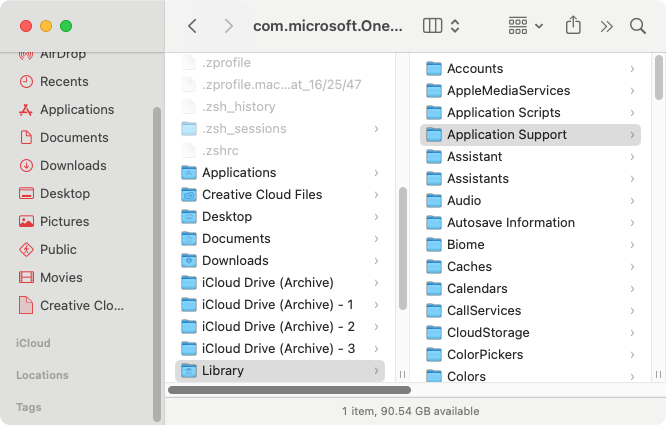
Look through your Library folder, then delete folders and files that are connected to Office 365. Below, our experts have listed some of the most common things to look out for, but because Office 365 is constantly being updated, the files on your Mac may be different:
Step 1. Quit any running Office 365 appsStep 2. Select Go to FolderStep 3. Go to your Library folderStep 4. Delete anything associated with Office 365
Important:
If you’re having issues running Office 365, it could be that you have temporary files that are causing your Mac to clutter and run poorly. Our team also recommends that you password protect your files for extra security.
Step 3. Delete Microsoft Office from The Dock
If, after you remove Microsoft Office 365 from your Mac, you’re left with an icon in your Dock, you’ll need to remove that too.
Here’s how to delete Microsoft Office from the Dock:
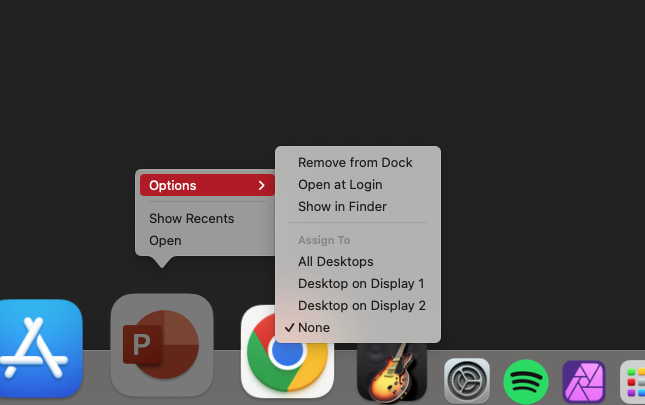
Locate any Office 365 apps that are located in your dock. Right-click and choose Options.
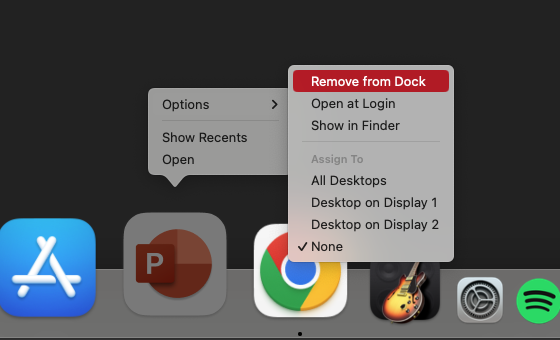
Select Remove from Dock.
Step 1. Right-click the Dock iconStep 2. Remove the icon from the Dock
Note from our team:
If you run into any issues when trying to delete files or shortcuts, make sure to kill processes running in the background, which may be related to Microsoft Office. You can do this using the built-in Activity Monitor tool.
How to quickly and completely delete Office 365 on Mac
As you’ve seen, it’s fast and easy to delete the Office apps from your Applications folder—but if you want to completely uninstall Microsoft Office 365 from your Mac, you have to go further. Support files and cached data will often get left behind. Yes, you can remove this content manually, but it’s time-consuming, and you have to know what you’re looking for.
That’s where an automatic app remover like MacKeeper’s Smart Uninstaller can come to the rescue. This handy tool does the work for you, so you can clear unneeded and junk files, properly and safely, within moments. No need to touch the OS X Terminal or dig through loads of obscurely named folders. Check the instructions in the next section of our guide.
Remove Office 365 with MacKeeper
Use MacKeeper to uninstall Office 365 for Mac, and it will remove not only the main apps but hidden service files too. In no time at all, your iMac, MacBook Air, or other Apple system will be as clean as a whistle.
Here’s how to remove Office 365 with MacKeeper’s Smart Uninstaller:
Now, your Office 365 apps should be removed from your machine. Your Document folder won’t be affected, so you won’t lose any of your work.
Choosing the right removal method
Although it’s a pain to find out you can’t delete an app you want to, we’ve covered the recommended steps to take if you encounter this problem with Office 365. Manually removing Office 365 can take a long time to do correctly, and it’s hard to know which file or folder belongs with which app, so it’s not the best method.
To quickly and easily remove Microsoft Office 365 on your Mac, MacKeeper is a solution you can rely on. Not only does its Smart Uninstaller simplify the experience of deleting apps, it’ll delete leftover files as well—perfect for fully removing programs like Office 365.
We respect your privacy and
use cookies
for the best site experience.
Privacy Preferences Center
We use cookies along with other tools to give you the best possible experience while using the
MacKeeper website. Cookies are small text files that help the website load faster. The cookies we
use don’t contain any type of personal data meaning they never store information such as your
location, email address, or IP address.
Help us improve how you interact with our website by accepting the use of cookies. You can change
your privacy settings whenever you like.
Manage consent
All cookies
These cookies are strictly necessary for enabling basic website functionality (including page
navigation, form submission, language detection, post commenting), downloading and purchasing
software. The website might malfunction without these cookies.